Category Archives: Technology

Posts are related to technology.

HDD or SSD Lifespan: Which Storage Drive Lasts Longer?

HDD or SSD Lifespan: Which Storage Drive Lasts Longer?

When comparing HDD or SSD lifespan, durability is one of the most important factors to consider. Hardware failure can cause major problems, whether you manage servers or store family photos.

Users often compare HDD or SSD lifespan because both technologies handle data differently. Hard disk drives use spinning platters and moving heads. Solid-state drives use NAND flash memory with no moving mechanical parts.

These different designs create different failure risks. HDDs can suffer from mechanical wear, vibration, and head or motor failures. SSDs avoid those mechanical problems but depend on flash memory, controllers, and other electronic components.

According to published drive reliability data from cloud backup provider Backblaze, modern solid-state media exhibits lower early failure rates than mechanical drives during active everyday use.

So, which drive lasts longer? The answer depends on how you use and store it. Daily workloads, write volume, heat, power conditions, and storage practices all affect storage drive lifespan.

This guide compares HDD vs. SSD lifespan, explains endurance limits, and examines long-term storage risks. It also covers 20-year-old HDDs, unpowered SSDs, older hardware, and whether HDDs remain worthwhile in 2026.

Which has a longer lifespan, HDD or SSD?

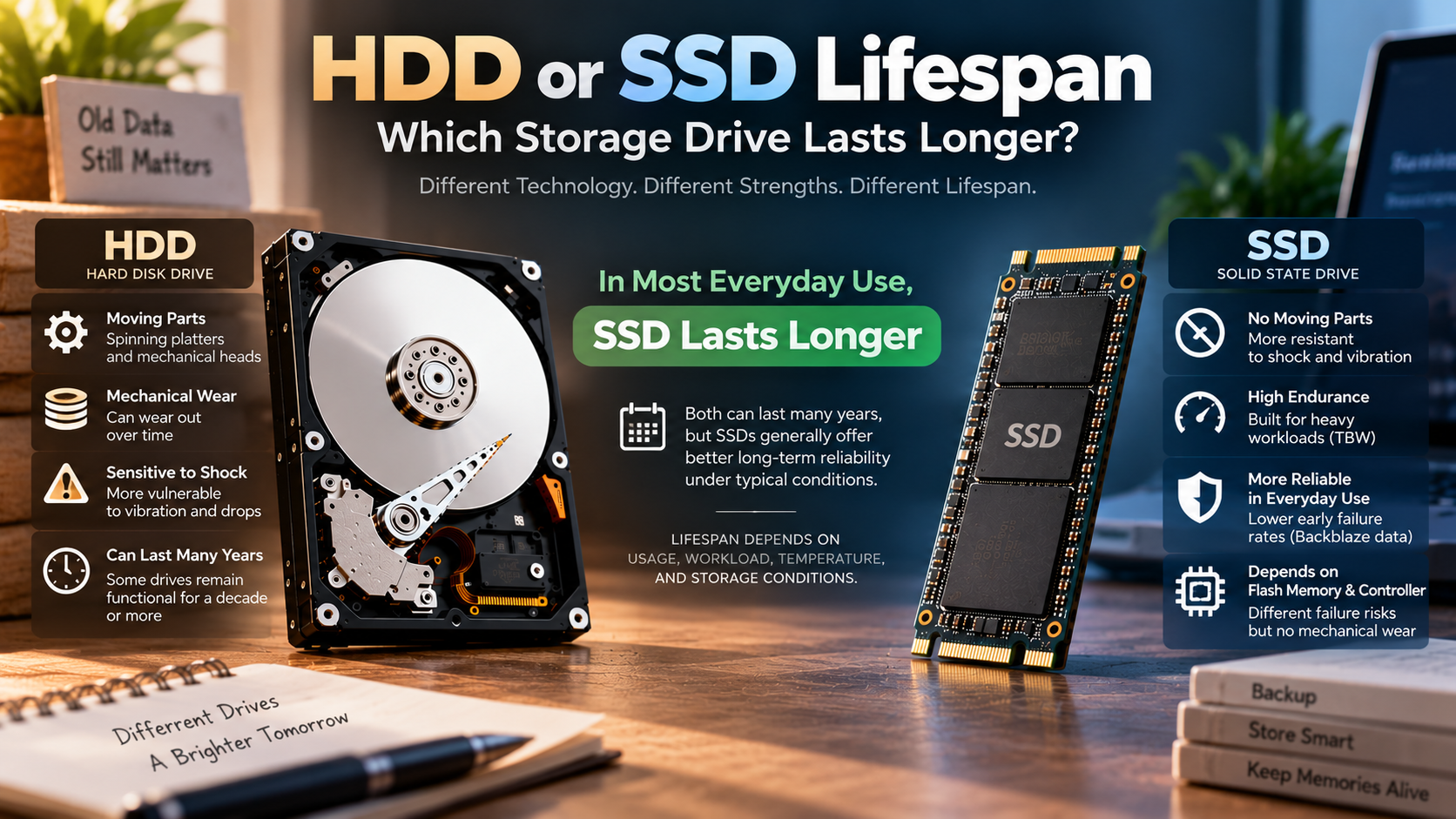
When comparing HDD or SSD lifespan, an SSD can offer excellent longevity under typical everyday workloads. However, it is too broad to say every SSD will outlast every HDD. Drive quality, workload, operating temperature, and usage patterns all affect reliability.

HDDs contain moving parts. Spinning platters, spindle motors, bearings, and actuator assemblies can eventually develop faults. Physical shocks can also damage an operating HDD. SSDs have no moving parts, which gives them an advantage against vibration and accidental movement.

Modern SSDs also have substantial write endurance. Manufacturers commonly specify endurance using Terabytes Written (TBW). A typical consumer workload may remain well below the rated endurance of a quality SSD. For buyers comparing SSD options, Is There Any Point In Buying An Expensive SSD In 2026? can help explain when paying more actually makes sense.

Modern drive reliability data shows that SSD and HDD failure patterns can vary significantly by age, workload, and model. Some SSDs maintain low failure rates for years, while individual drives can still fail unexpectedly.

Still, there is no universal five- or ten-year expiration date. A well-maintained drive can last much longer, regardless of whether it uses flash or magnetic storage.
The Decisive Factor of Total Bytes Written

Total Bytes Written (TBW) is one of the most useful SSD endurance measurements. It estimates how much data can be written before the drive reaches its rated endurance limit.

Flash memory cells can only tolerate a finite number of program and erase cycles. SSD controllers reduce this wear through technologies such as wear leveling, over-provisioning, and error correction.

For most consumer systems, TBW is rarely the limiting factor. Typical workloads often remain far below the endurance ratings of quality SSDs. Keeping enough unused capacity can also support SSD performance and longevity, as explained in What Is the Minimum Free Space you should leave on an SSD?

Your actual workload matters more than a simple calendar age. Gaming, video editing, virtual machines, databases, and other write-heavy tasks can consume endurance faster than office work. For demanding workloads, NVMe SSDs: Benefits, Speed, Uses, and Buying Guide explains where faster SSD technology can make a difference.

You should therefore check the SSD’s TBW rating before buying it for intensive use. A higher rating provides more endurance headroom.

SMART information can also help you monitor an SSD’s health. Many modern drives report remaining life or percentage used. However, these indicators vary between manufacturers, so they should not be treated as guarantees.

For most everyday users, SSD endurance is sufficient for many years. However, proper backups remain essential because even a healthy drive can fail unexpectedly.

Can HDD last 20 years?

When considering HDD or SSD lifespan, it is important to remember that an HDD can remain functional for 20 years. However, there is no reliable lifespan guarantee. Some drives continue working well beyond a decade, while others fail much earlier.

A hard drive’s environment makes a major difference. An HDD operating continuously for 20 years experiences far more mechanical activity than one stored and powered down for most of that period.

Long-term storage also introduces different risks. Magnetic data can remain stable for many years under suitable conditions. However, the drive itself may not remain mechanically healthy enough to read that data later.

Aging motors, bearings, controller electronics, seals, and other components can eventually cause problems. Lubricants and mechanical assemblies can also change over long periods.

Long service is possible, but failure rates generally increase as drives age. Different models can also have very different reliability profiles.

However, 20 years should never be treated as a safe storage target. Important data needs multiple copies rather than reliance on one aging drive.

The Real Risk of Lubricant Evaporation

Long-term HDD storage involves more than magnetic data retention. The drive’s mechanical and electronic components also age while sitting unused.

The spindle motor, bearings, actuator assembly, and other internal parts can deteriorate over many years. Lubricants may change properties, while electronic components can also age.

This creates an important distinction between data retention and drive usability. Magnetic information might remain readable in principle, yet the drive may fail when powered on.

A drive that has spent 20 years disconnected is therefore not automatically safer than one that has been used regularly. Both scenarios create different risks.

For critical archives, do not assume an old HDD will start successfully after decades. Maintain multiple copies and periodically verify that archived files remain readable.

If you plan to use an old drive, test it before depending on it. Copy important files to newer storage rather than treating the old HDD as the only archive.

The safest approach combines redundancy, periodic testing, and migration. Replace aging storage before failure becomes an emergency.

Can SSD last 100 years?

When evaluating HDD or SSD lifespan, a standard consumer SSD should not be considered reliable 100-year archival storage. SSDs are designed primarily for active use, not century-long unpowered preservation.

NAND flash stores information by changing the electrical state of memory cells. Those states can gradually become less reliable when the drive remains unpowered for extended periods.

Temperature also matters. Higher temperatures generally accelerate charge loss and can shorten data-retention margins. The exact retention period depends on the NAND type, drive condition, temperature, age, and other factors.

There is no universal rule saying an SSD will retain data for exactly two, five, or ten years without power. Retention depends on the drive and storage conditions.

For this reason, an SSD should not become your only cold-storage archive. Keep multiple copies and migrate the data to fresh media periodically.

For century-scale preservation, use a managed archival strategy instead of relying on one SSD. Keep multiple copies and migrate the data to newer storage as needed.

Why Temperature Accelerates Flash Charge Leakage

Temperature is an important factor in SSD data retention. Higher temperatures can accelerate the physical processes that cause stored charge to become less distinct.

This matters most when an SSD remains disconnected from power for long periods. A hot environment, such as an attic or vehicle, can create worse conditions than a cool, controlled room.

However, it is misleading to claim that every consumer SSD will lose its data within one year in warm conditions. Retention varies by NAND type, drive age, temperature, and manufacturer specifications.

The better rule is simple: do not use an unpowered SSD as your only long-term archive.

For important files, keep at least one additional copy on another storage medium. Cloud storage can provide another layer of protection when configured correctly.

If an SSD contains important archived data, periodically connect it and verify the files. Consider migrating the data to newer storage as the hardware ages.

Temperature control, redundancy, verification, and planned migration provide much stronger protection than relying on a specific retention-year estimate.

Is it safe to use a 10 year old HDD?

A 10-year-old HDD can still work, but it should not be trusted as your only copy of important data. Age alone does not prove that a drive will fail immediately. It does increase the importance of monitoring and redundancy.

Hard drives can operate for more than a decade, particularly when workloads and operating conditions have been favorable. However, reliability varies considerably between models and individual drives.

If a decade-old HDD still works, use it cautiously. Avoid making it the primary location for irreplaceable photos, documents, business records, or other critical files.

Instead, maintain a verified backup on newer storage. You can continue using the old drive for less important data if its health remains stable.

Before relying on an older HDD, check its SMART health information. Look for increasing error counts, bad sectors, or other signs of deterioration.

How SMART Diagnostics Reveal Hidden Drive Decay

SMART, or Self-Monitoring, Analysis, and Reporting Technology, can reveal warning signs before an HDD fails completely.

Useful indicators include reallocated sectors, pending sectors, uncorrectable errors, and other drive-specific health attributes. However, SMART is not a guarantee of future reliability.

If SMART values deteriorate, treat that as a reason to replace the drive. Do not wait for the HDD to become completely inaccessible.

Regular backups remain essential because some failures happen suddenly. A healthy SMART report today cannot guarantee that the drive will work tomorrow.

If an HDD contains valuable information, replace it when its reliability becomes questionable. The cost of a new drive is usually far lower than professional data recovery.

Is HDD still worth it in 2026?

When comparing HDD or SSD lifespan and value, HDDs are still worth buying in 2026. They are especially useful when capacity matters more than speed.

HDDs remain practical for backups, media libraries, surveillance storage, NAS systems, and other large datasets. Their lower cost per terabyte makes them attractive for cloud storage vs. external hard drives when storing large amounts of data.

SSDs are usually the better choice for operating systems, applications, games, and active projects. Their low latency and high random-access performance make computers feel much faster. If you are choosing between different SSD interfaces, Is a SATA SSD Still Worth It? Performance & Buying Guide can help you compare your options.

HDDs still provide an important advantage for bulk storage: cost per terabyte. Large-capacity mechanical drives can store substantial amounts of data without the higher cost associated with equivalent SSD capacity.

This makes HDDs particularly useful as secondary storage. A desktop might use an SSD for the operating system and applications, then use an HDD for large media files.

The same approach works well for local backup systems. You can use fast SSD storage for daily work while keeping larger HDDs for backup copies.

High-capacity HDDs remain widely used for large-scale storage. Their balance of capacity and cost keeps them relevant for data-heavy applications.

A practical setup can therefore combine both technologies. Use an SSD for speed and an HDD for affordable bulk storage.

Calculating Cost per Terabyte Advantages

Cost per terabyte is one of the strongest reasons to choose an HDD. The larger the storage requirement becomes, the more important the price difference can be.

For example, someone storing several terabytes of video, photos, games, or backups may not need SSD-level performance for every file.

An HDD can provide substantial capacity at a lower storage cost. That makes it practical for cold backups, media libraries, surveillance footage, and NAS storage.

However, price should not be the only consideration. HDDs are slower and more vulnerable to physical shock while operating. SSDs provide much faster access and better resistance to movement.

A practical setup can therefore combine both technologies. Use an SSD for active files and applications. Use one or more HDDs for large secondary datasets and backup copies. If you are concerned about hardware problems before they become serious, Warning Signs for Your Laptop: 15 Red Flags covers several useful warning signs to watch for.

The best choice depends on your workload rather than a simple HDD-versus-SSD rule. If you need speed, choose SSD. If you need inexpensive capacity, HDD remains highly competitive.

Most importantly, never confuse low cost with safe backup. A cheap drive is only useful when your data also exists somewhere else.

Frequently Asked Questions

How long does an SSD retain data without power?

An unpowered SSD typically retains data for two to five years at room temperature. If stored in hot conditions, electron leakage accelerates, potentially corrupting stored data within several months. To ensure absolute data integrity on cold flash storage, reconnect the SSD to a computer annually to let drive firmware refresh the NAND flash cells.

What are the warning signs of a failing HDD?

Common signs of mechanical drive failure include unusual clicking or grinding noises, frequent file corruption, and severe system freezing during file access. You might also encounter sudden blue-screen crashes or missing directories. If your operating system regularly forces disk-checking scans on startup, back up your critical data immediately before the motor or head fails.

Do SSDs fail without warning?

Yes, SSDs often fail abruptly without the physical noises that characterize mechanical breakdown. While mechanical drives produce telltale clicks, an SSD failure typically stems from logic controller burnout, power surges, or firmware corruption. When these electronic components break down, the drive abruptly becomes undetectable by your system BIOS, locking you out of your data instantly.

Does defragmenting extend the life of an SSD?

No, defragmenting actively harms an SSD and reduces its usable lifespan. Solid-state memory reads data from any physical sector with identical speed, making file fragmentation irrelevant to performance. Running defragmentation tools forces thousands of unnecessary, intensive write cycles across flash cells, accelerating the exhaustion of the drive’s total write endurance without offering any performance benefit.

Conclusion

Understanding HDD or SSD lifespan helps you choose storage based on your actual needs. Neither technology has a guaranteed expiration date. Both can fail unexpectedly, even when they appear healthy.

For operating systems, applications, gaming, and active projects, SSDs are usually the better choice. They provide excellent performance and avoid mechanical failure points.

HDDs remain valuable for large-capacity storage. Their lower cost per terabyte makes them especially useful for media libraries, NAS systems, surveillance storage, and local backups.

However, neither an HDD nor an SSD should be treated as a permanent archive by itself. Long-term data protection depends on redundancy, monitoring, verification, and planned migration.

The best strategy is to combine storage technologies when appropriate. Use SSDs for speed and everyday workloads. Use HDDs where inexpensive capacity matters.

Finally, follow the 3-2-1 backup strategy. Keep three copies of important data, store them on at least two types of media, and keep one copy offsite.

Storage devices are replaceable. Your data may not be.
How to spot fake SSDs?

How to Spot Fake SSDs and Protect Your Data

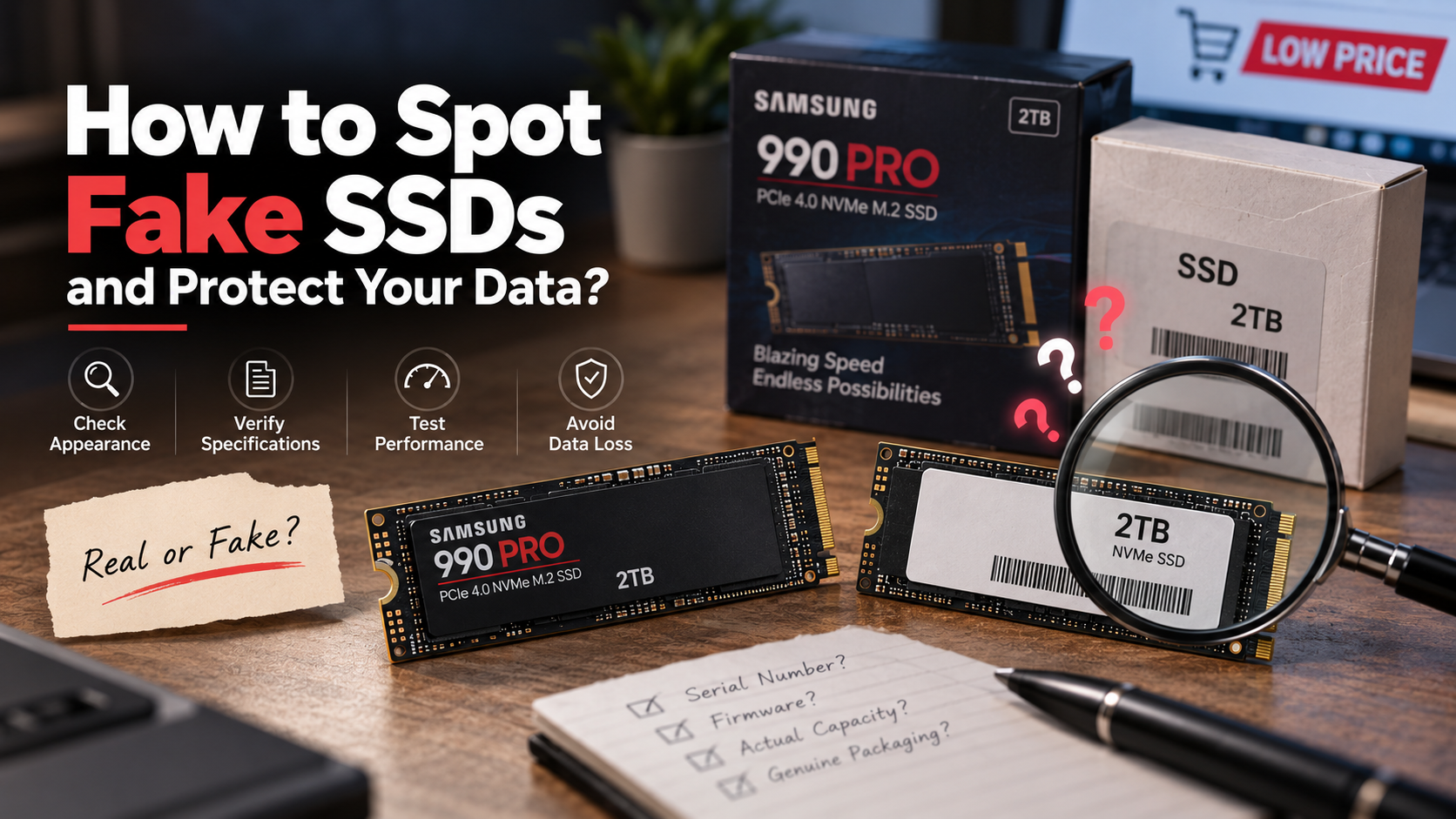
Buying computer storage once seemed simple. Today, counterfeit SSDs can look almost identical to genuine products. Knowing how to spot fake SSDs is essential because fraudulent drives can put your files, system stability, and money at risk. Some counterfeit drives use modified firmware to report capacities such as 2TB or 4TB, despite containing much less physical flash storage.

The danger appears when you store data beyond the drive’s actual capacity. The controller may continue reporting successful writes while old data gets overwritten or corrupted. You may not notice the problem until you try to open those files later.

The Federal Trade Commission constantly warns shoppers about counterfeit electronics, noting that fake tech can fail without warning. Once you fill these rogue drives past their true, minuscule limit, they silently overwrite older data and corrupt everything you save.

This guide explains how to tell if an SSD is real, how to verify its hardware, and how to check its serial number. It also covers Samsung-specific checks, including how to verify a Samsung SSD with Samsung Magician. If you want to know how to spot fake SSDs before using one, these checks provide a practical starting point.

How can I tell if an SSD is real?

You can tell if an SSD is real by comparing its physical appearance, reported specifications, and actual performance. Start by inspecting the packaging. Look for blurry graphics, spelling mistakes, inconsistent fonts, missing labels, or poor-quality printing. Genuine products usually have precise packaging and clearly identified model information.

Next, connect the SSD and confirm its model, capacity, interface, and firmware details. Compare those details with the manufacturer’s official specifications. A mismatch is a strong warning sign.

Performance testing can provide another useful clue. For example, a drive advertised as a high-speed NVMe SSD should not consistently perform like an older SATA or USB 2.0 device. Learn more about NVMe SSDs: Benefits, Speed, Uses, and Buying Guide before comparing expected performance. However, benchmark results can vary because of the computer, interface, thermal conditions, and test software.

For stronger verification, test the drive’s actual storage capacity. This is especially important when a suspicious SSD reports an unusually large capacity for an unusually low price. Learning how to spot fake SSDs starts with checking whether the drive performs and identifies itself as expected.

Testing Actual Storage Capacity

Testing the SSD’s actual capacity is one of the most useful ways to detect counterfeit storage. A fake drive may report 2TB or 4TB to the operating system while containing far less physical flash memory. The controller then presents the false capacity to Windows or another operating system.

Use a trusted capacity-testing utility, such as H2testw, to write test data across the available storage. The software checks whether the data can be written and read back correctly. If errors appear after a specific point, the drive may have less usable capacity than advertised.

Capacity testing can take considerable time on large drives. It is best performed before storing important files. Do not rely only on the capacity displayed in File Explorer or Disk Utility.

A suspicious result does not always prove counterfeiting. Faulty hardware, connection problems, or unsupported configurations can also cause errors. Repeat the test with a reliable connection when possible.

For important purchases, combine capacity testing with serial-number verification, hardware identification, and manufacturer software. Using several checks provides much stronger evidence than relying on one test alone. These steps are especially useful when learning how to spot fake SSDs before trusting a new drive.

How to verify a SSD?

You can verify an SSD by checking its model information, health data, firmware, and manufacturer support. Start with a reputable drive-information utility such as CrystalDiskInfo. It can display information such as the reported model, firmware, interface, temperature, and S.M.A.R.T. status.

Compare the detected model and specifications with the manufacturer’s official product page. Look for inconsistencies in the capacity, interface, firmware, or advertised performance. A drive claiming to be a premium NVMe model should also identify itself consistently across different diagnostic tools. For more context on premium storage, read Is There Any Point In Buying An Expensive SSD In 2026?

Manufacturer software provides another valuable check. Some brands offer dedicated utilities that recognize supported drives and provide firmware, health, or performance information. Samsung, for example, uses Samsung Magician for supported Samsung storage products.

However, software recognition alone should not be your only test. Counterfeit drives can sometimes imitate model information. Combine software checks with physical inspection and a full capacity test before trusting the drive with important data.

If you are researching how to spot fake SSDs, remember that no single software check provides complete protection. A combination of identification, capacity, performance, and manufacturer verification is more reliable.

Checking Controller and NAND Hardware

Checking the controller and NAND hardware can reveal inconsistencies that software may miss. Start by researching the exact SSD model and its known internal components. Reputable hardware reviews and teardown reports can help you identify the controller and NAND configuration normally used by that model.

Do not assume that every production revision uses identical components. Manufacturers can change components without changing the retail name. Instead, compare your drive with information specific to its model number, capacity, and revision.

Advanced users may inspect the circuit board directly. This can reveal an unexpected controller, unusual NAND packages, missing components, or poor-quality construction. However, opening an SSD can damage it and may affect its warranty. It should not be the first verification method.

Some counterfeit drives use generic controllers while claiming to be premium branded products. Others may use flash memory with specifications that do not match the advertised model.

For most buyers, manufacturer software, serial verification, capacity testing, and performance checks are safer and easier. Physical inspection should be an additional step when a drive remains suspicious after those tests. This layered approach is one of the most effective ways to understand how to spot fake SSDs.

How to check SSD serial no?

To check an SSD serial number, compare the number printed on the drive with the number reported by your computer. The exact steps depend on your operating system and hardware configuration.

In Windows, PowerShell can display physical-disk information. You can also view drive details through BIOS or UEFI on systems that expose storage information there. Third-party utilities may show the serial number as well.

The important point is consistency. The physical label, operating system, diagnostic software, and manufacturer records should identify the same product. A mismatch deserves further investigation.

Be careful when interpreting missing or unusual serial information. Some enclosures, adapters, RAID controllers, and USB bridges may report different identifiers. A missing serial number does not automatically prove that an SSD is counterfeit.

When learning how to spot fake SSDs, serial verification is useful because counterfeiters may copy legitimate model numbers. A matching serial number still should not replace a full capacity and hardware check.

Querying the Manufacturer Database

After recording the serial number, use the manufacturer’s official support or warranty system when available. Enter the serial number exactly as printed on the drive or packaging. Check whether the manufacturer recognizes the model and provides appropriate warranty information.

For Samsung SSDs, Samsung Magician can be used to check authenticity. When a supported genuine product passes the check, Magician displays a “Genuine” label beside the serial number in the drive details.

A manufacturer portal rejecting a serial number is a serious warning sign. However, it can also result from regional warranty systems, registration issues, or incorrect data entry. Contact the manufacturer if the result is unclear.

Never rely on a seller’s screenshot as proof of authenticity. Verify the serial number yourself using the manufacturer’s official tools. If the physical label, software information, and manufacturer records disagree, avoid using the SSD for important data and request a return or refund.

Serial verification is a key part of how to spot fake SSDs, but it works best when combined with capacity testing and physical inspection.

How can I tell if my Samsung SSD is genuine?

The simplest way to verify a supported Samsung SSD is through Samsung Magician. Samsung Magician includes an SSD authenticity feature. It can also provide drive health, S.M.A.R.T. information, performance benchmarks, and firmware management.

Download Magician from Samsung’s official website rather than from an unknown third-party source. Connect the SSD directly when possible, then open the drive details section. A genuine supported SSD can display a “Genuine” label next to its serial number.

Make sure your specific model is supported. Magician supports various internal and portable Samsung storage products, including models such as the 980 PRO and 990 PRO.

An unsupported drive should not automatically be called counterfeit. Compatibility can depend on the product, connection method, and software version. Available Magician features can also vary by connected SSD.

Use Magician alongside serial-number checks, capacity testing, and physical inspection for stronger verification. These steps can help anyone learning how to spot fake SSDs avoid relying on appearance alone.

Evaluating Benchmark Performance Profiles

Performance testing can help identify an SSD that does not match its advertised specifications. Start by checking the manufacturer’s published sequential read and write speeds. Then run a benchmark using a reputable testing application under suitable conditions.

For example, a high-end NVMe SSD should deliver performance appropriate for its interface and model. Actual results can vary based on the computer, PCIe generation, thermals, workload, and configuration.

Therefore, one low benchmark result does not automatically prove that an SSD is fake. A PCIe 4.0 drive installed in a slower slot may perform below its advertised maximum. If you are considering SATA storage instead, Is a SATA SSD Still Worth It? Performance & Buying Guide explains its expected performance and use cases.

Look for persistent and substantial discrepancies instead. A supposed high-end NVMe SSD that consistently performs far below its expected interface capabilities deserves additional investigation.

Samsung Magician also includes a Performance Benchmark feature for supported drives.

Use benchmark results as supporting evidence rather than final proof. Authenticity checks, capacity testing, and manufacturer verification provide stronger confirmation. Together, these checks make it easier to determine how to spot fake SSDs with greater confidence.

How to spot a fake Samsung SSD?

You can spot a potentially fake Samsung SSD by examining its packaging, label, model information, and software identification. Counterfeiters often copy popular products because recognizable models are easier to sell. Samsung models such as the 970 EVO Plus, 980 PRO, and 990 PRO are therefore worth checking carefully.

Inspect the printed label for blurry text, uneven alignment, unusual fonts, incorrect model numbers, or poor-quality graphics. Compare the exact model number with Samsung’s official product information. Small visual differences can be useful clues, but they should not be treated as definitive proof.

Also examine the circuit board if you are experienced with SSD hardware. Compare its layout and components with reliable teardown information for the same model and revision. Avoid opening the drive if you may need to return it.

Most importantly, use Samsung Magician’s authenticity check. Samsung provides this feature to verify supported Samsung SSD products.

Do not rely on color, label design, or a single visual feature alone. Genuine products can vary by production revision and region. Combining physical checks with Samsung’s software verification and capacity testing gives you a much more reliable answer when deciding how to spot fake SSDs.

Observing Thermal Behavior Under Load

Temperature can provide useful supporting information, but it should not be used as a standalone authenticity test. Genuine SSDs can become warm during sustained transfers, especially high-performance NVMe models. Their temperatures also depend on the heatsink, airflow, workload, motherboard, and ambient conditions.

High-performance SSDs can include thermal control features that help manage operating temperatures during demanding workloads. These features may reduce performance temporarily when the drive becomes too hot.

You can monitor temperature with Samsung Magician or another reputable hardware-monitoring utility. Watch how the temperature changes during sustained reads and writes rather than focusing on one number.

A suspicious temperature reading can indicate a sensor or reporting problem. However, it does not prove that an SSD is counterfeit. Some drives may report limited temperature information through certain adapters or enclosures.

Likewise, a drive that runs unusually cool is not automatically fake. Performance, cooling, workload, and power settings all affect temperature.

Treat thermal behavior as one part of a broader verification process. Capacity testing, authenticity checks, serial verification, and hardware identification provide stronger evidence when deciding whether an SSD is genuine.

Frequently Asked Questions

What happens to files saved on a fake SSD?

A counterfeit SSD may report more storage than its physical flash memory actually provides. When you save data beyond the genuine capacity, the controller may overwrite earlier data or return misleading write results. The operating system can still show the files as successfully saved.

This makes counterfeit storage particularly dangerous. You may not discover the problem until you open the files later. Photos, documents, videos, backups, or system files can become corrupted or unreadable.

The exact failure behavior depends on the counterfeit controller and flash configuration. Some drives may fail quickly, while others may appear normal until they approach their actual capacity.

If you suspect a fake SSD, stop using it for important data immediately. Do not treat the reported capacity as trustworthy. Test the drive using a suitable capacity-testing utility and verify the hardware through the manufacturer’s tools.

If the drive contains valuable files already, avoid repeated writes. Create a recovery plan before attempting repairs or further testing. For critical information, professional data-recovery assistance may be safer than experimenting with the questionable drive.

Can running a format fix a counterfeit SSD?

No. Formatting a counterfeit SSD cannot increase its physical flash capacity or replace unreliable hardware. Tools such as Disk Management and diskpart change the drive’s logical structure. They do not add missing memory cells or repair fraudulent firmware.

You may be able to create a smaller partition that stays within the drive’s genuine capacity. However, this does not necessarily make the hardware trustworthy. The controller, NAND flash, firmware, and overall construction may still be defective or counterfeit.

A format can sometimes resolve ordinary file-system problems. It should therefore not be confused with an authenticity or hardware-capacity test.

If a capacity test shows that an SSD cannot reliably store its advertised amount, do not use it as primary storage. Save your important files somewhere trustworthy and request a refund or replacement.

When purchasing a replacement, verify the new drive before transferring valuable data. Check the serial number, manufacturer software, actual capacity, and performance. If you are also upgrading your operating system, see How to Safely Upgrade to Windows 11 Without Losing Data before transferring your files. These steps can prevent the same problem from happening again.

Why do fake SSDs show the advertised capacity in Windows?

Fake SSDs can show their advertised capacity because the operating system generally relies on information reported by the storage controller. Counterfeiters can modify firmware so the controller presents a much larger capacity than the physical flash memory actually contains.

Windows then uses that reported information when displaying the drive in File Explorer and storage-management tools. The operating system does not physically count every available memory cell before accepting the controller’s capacity claim.

This is why the capacity shown in Windows is not proof that an SSD is genuine. A drive can appear to contain 2TB or 4TB while having far less usable flash storage.

The problem often becomes visible during a full write-and-read capacity test. Once testing reaches the drive’s real storage limit, errors or corrupted data may appear.

For that reason, test suspicious drives before using them for backups or important files. If you are comparing local storage with online alternatives, Cloud Storage vs External Hard Drives (2026 Guide) can help you evaluate other storage options. Combine a capacity test with manufacturer authentication, serial-number verification, and hardware checks. This layered approach is much more reliable than trusting the storage figure shown by the operating system alone.

Will buying from marketplace sellers increase my risk?

Buying an SSD from a third-party marketplace can increase your exposure to counterfeit or misrepresented hardware. This does not mean every marketplace seller is unreliable. Many legitimate retailers and authorized sellers operate through large marketplaces.

The risk becomes higher when the listing has an unusually low price, vague product information, poor seller history, or inconsistent model details. Be particularly cautious when a premium SSD is offered far below its normal market price.

Before buying, check whether the seller is authorized by the manufacturer. Review the exact model number and compare it with the manufacturer’s official product page. Avoid listings that use stock images while providing few details about the actual product.

After delivery, inspect the packaging before installing the drive. Record the serial number and verify it with the manufacturer where possible. Then test the drive’s reported model, performance, and actual capacity. If you are upgrading a desktop as part of the purchase, Building a Computer with beginner-Friendly Guide can also help with planning compatible storage hardware.

Keep the original packaging and purchase documentation until verification is complete. If the drive fails authenticity or capacity checks, stop using it and use the marketplace’s return process promptly.

Conclusion

Knowing how to spot fake SSDs can protect both your data and your money. Counterfeit drives can imitate genuine products through convincing packaging, labels, and manipulated firmware. Physical inspection alone is therefore not enough.

Start with the basics. Check the model number, serial number, packaging, and advertised specifications. Then use reliable diagnostic software to examine the drive’s reported hardware information.

For supported Samsung products, Samsung Magician provides an official authenticity check. Genuine drives can display a “Genuine” label beside the serial number in Magician’s drive details.

You should also perform an actual capacity test before trusting a suspicious drive with important files. Benchmark performance can provide additional evidence, especially when the results differ substantially from the manufacturer’s specifications.

Finally, consider where you bought the SSD. An unusually cheap deal deserves extra scrutiny. Whenever possible, buy from authorized sellers or established retailers with clear return policies.

Never trust reported capacity alone. Verify the hardware before storing valuable data, and return any drive that cannot be reliably authenticated. Knowing how to spot fake SSDs before use can prevent expensive data loss and unnecessary hardware problems.

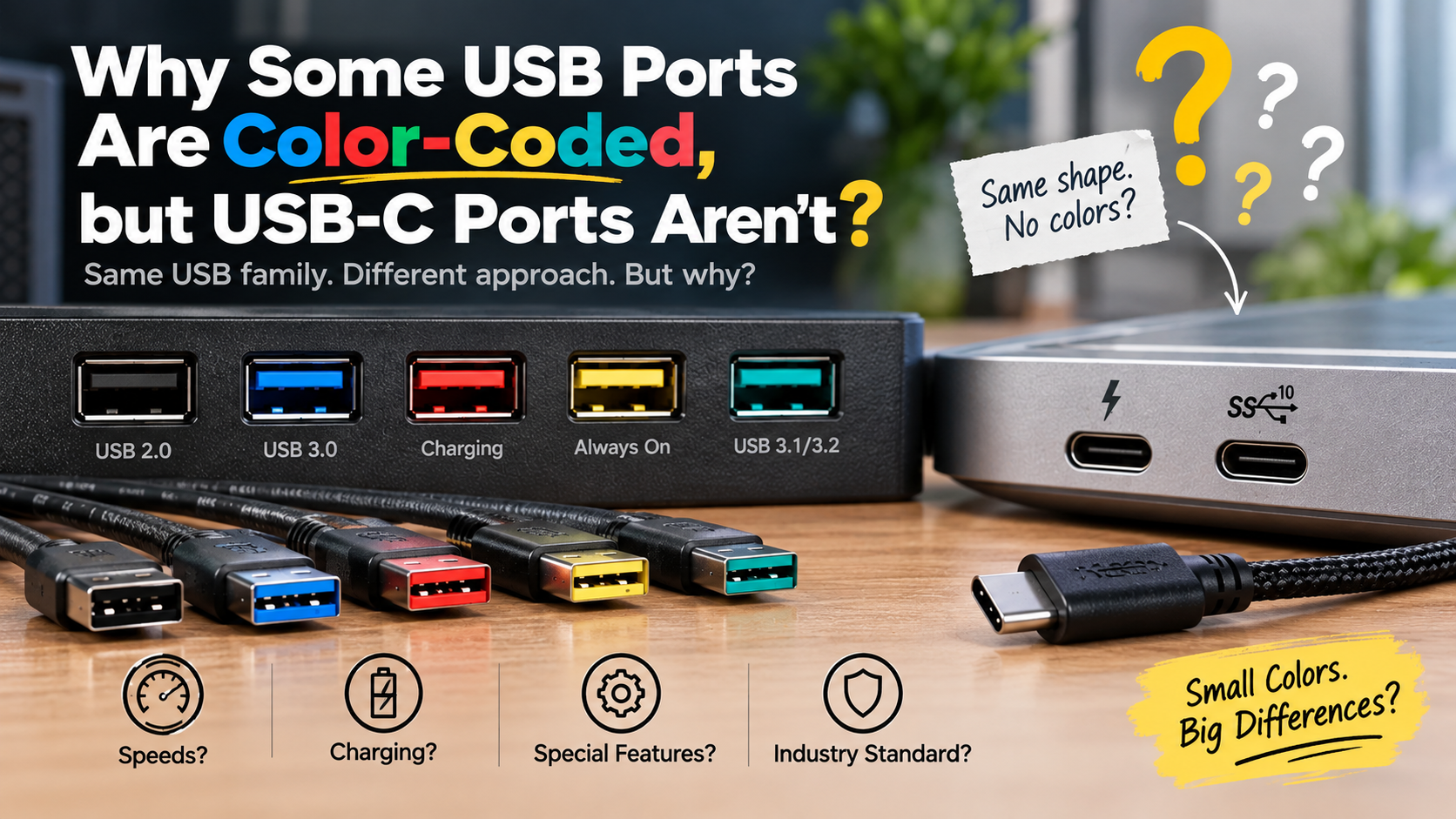
Why Some USB Ports Are Color-Coded & USB-C Isn’t

Why Some USB Ports Are Color-Coded, but USB-C Ports Aren’t

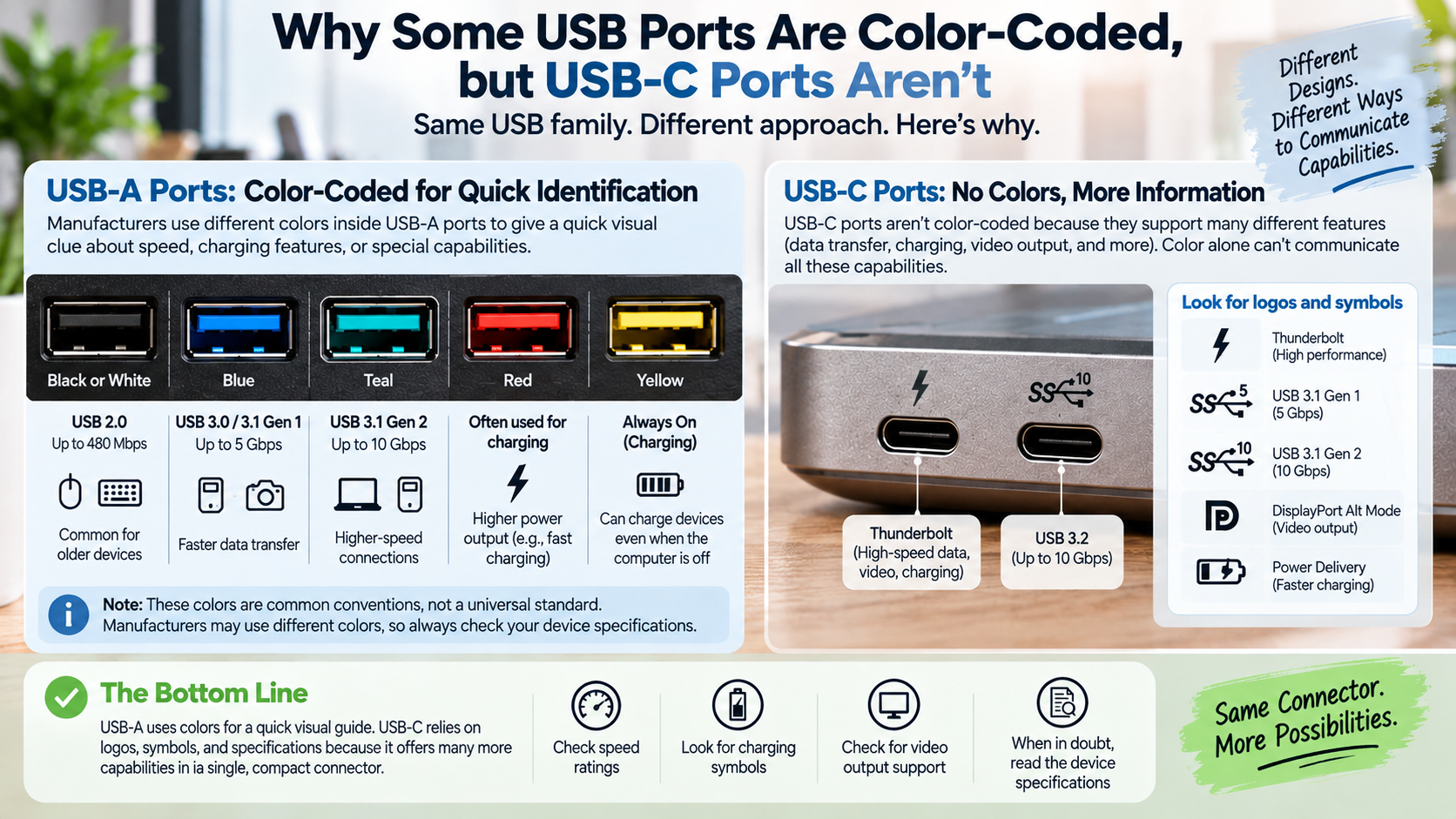
If you have ever wondered why some USB ports are color-coded, the answer is surprisingly practical. Manufacturers use different colors to give users quick clues about USB speed, charging features, and port capabilities. You may see black, blue, red, yellow, or teal ports on computers and docking stations.

These colors can help you identify a suitable connection without checking system settings. However, USB port colors are not universal guarantees of performance. Manufacturers can use different colors for different features.

USB-C takes a different approach. Its reversible connector supports data, charging, video, and other protocols. As a result, manufacturers often use logos, symbols, and speed ratings instead of colored plastic. When engineers developed legacy rectangular connectors, the USB Implementers Forum (USB-IF) introduced specific color guidelines to differentiate generational upgrades like USB 3.0 from older hardware.

This guide explains why some USB ports are color-coded, what common USB colors mean, and why USB-C ports usually look the same. You will also learn how to identify charging ports, troubleshoot USB-C problems, and choose the right port for your devices.

Why Are My USB Ports Different Colors?

Your USB ports may have different colors because manufacturers use visual conventions to distinguish common capabilities. White and black inserts have traditionally appeared on older USB connections. Blue became widely associated with USB 3.x and higher data rates. Other colors, such as red, yellow, and teal, may indicate additional features or faster connections.

These colors provide a quick visual clue. You can often identify a potentially faster port without checking detailed system settings. However, USB port color is not a universal standard. Manufacturers can assign colors differently across computers, motherboards, and accessories.

Treat color as a general guide rather than a guarantee. Device specifications provide more reliable information when speed matters.

If you are connecting an external SSD or another demanding accessory, check its supported data rate. This simple step can prevent you from choosing a slower connection.

The Purpose of Visual Color Standards

Color conventions became useful as USB evolved through multiple generations. Older USB-A ports often looked nearly identical from the outside. A colored insert gave users a quick visual clue about the port’s intended capabilities.

Blue is commonly associated with USB 3.x and 5 Gbps-class connections. Some manufacturers use teal for faster 10 Gbps connections. Red and yellow may indicate charging features or higher-power connections.

This explains part of why some USB ports are color-coded. Colors make it easier to distinguish ports without reading technical specifications every time.

However, no universal color chart guarantees performance on every computer. A manufacturer can use a different color scheme or custom accent.

When speed matters, check the device manual or specification sheet. This matters most for external SSDs, docking stations, monitors, and high-bandwidth accessories.

Is USB-C Color Coded?

USB-C does not have a universal port-color system. The connector supports many different capabilities, including USB data, USB Power Delivery, and display output through USB-C. Two USB-C ports can therefore look identical while offering very different performance.

The USB-C connector also provides little room for the large colored inserts commonly found inside USB-A ports. More importantly, color could not communicate every capability that modern USB-C connections support.

Instead, manufacturers commonly use printed icons, logos, and technical specifications. These markings may indicate charging capabilities, data rates, or display support. Some ports may also include a Thunderbolt or similar symbol.

This makes USB-C more flexible but also more confusing. Never assume that every USB-C port supports the same speed, charging power, or video output. If your desktop lacks suitable USB-C connectivity, adding a compatible port can expand its capabilities.

Understanding why some USB ports are color-coded also shows how connector design has changed. Older ports benefited from simple visual cues. Modern USB-C connections require more detailed markings.

Relying on Logos Instead of Colors

Modern USB-C hardware increasingly relies on symbols and performance markings rather than colored plastic. Depending on the device, you may see icons for charging, display output, or high-speed data.

These markings provide more useful information than a simple color. A cable marked with its supported power and data capabilities gives you a clearer idea of what it can handle.

The same principle applies to computer ports. Look for symbols beside the connector and check the manufacturer’s specifications when the capability matters.

This approach becomes particularly important when connecting an external monitor, high-speed SSD, docking station, or high-power charger.

USB-C also makes cable selection more important. A cable can fit perfectly while supporting fewer features than the port itself.

Therefore, do not rely on appearance alone. Check the port, cable, and device specifications before expecting maximum performance.

Why Is My USB-C Not Recognized?

A USB-C device may fail to work because of a cable limitation, incompatible protocol, insufficient power, or a physical connection problem. The USB-C shape does not guarantee identical capabilities across every cable and port.

For example, a USB-C cable may support charging but only USB 2.0 data speeds. Another cable may support much faster data rates. A USB-C port may also lack the alternate-mode support required for a particular display connection.

Physical debris can cause problems, too. Dust or lint inside the connector can prevent reliable contact between the plug and port. Software issues can also affect USB devices.

Outdated drivers, firmware problems, or power-management settings may interfere with device recognition. A hub or docking station can also introduce compatibility problems.

If your USB-C device is not recognized, start with simple checks. Test another compatible cable and another USB-C port. Then confirm that the computer supports the feature you are trying to use.

Quick Troubleshooting Fixes for Unresponsive Connections

Start by connecting the device to another compatible USB-C port. If the device works there, the original port may have a hardware or capability limitation.

Next, test a known-good USB-C cable. Choose a cable that supports the data speed and power level your device requires. A charging-focused cable may not provide enough bandwidth for fast storage or video.

Inspect the USB-C port for dust, lint, or other visible debris. If you find debris, shut down the device and clean the port carefully. Avoid pushing sharp objects into the connector.

Restart the computer and check for available operating system, chipset, or USB controller updates. If you use a hub or docking station, connect the device directly to the computer for testing.

For an external monitor, confirm that the computer, cable, and display all support the required video mode. For high-power accessories, check the port’s supported power output.

These checks can solve many common USB-C problems before you consider replacing the cable, hub, or hardware.

Why Are Some USB-C Ports Orange?

Some USB-C ports appear orange because manufacturers use custom colors to highlight specific features. Orange does not represent a universal USB-C standard. A manufacturer might use orange to identify charging support, always-on power, or another specialized function.

USB-C capabilities vary widely between devices. One orange port might focus on charging, while another might provide a different combination of power and data features.

The color alone cannot tell you the port’s exact wattage, data speed, or video capabilities. This point matters when considering why some USB ports are color-coded. Manufacturers often create their own visual conventions.

Other unusual USB port colors can work the same way. A company might choose a specific color for branding, product design, or a specialized feature.

If you want to understand an orange USB-C port, check the device’s manual or specifications. Look for details about USB Power Delivery, data rates, display output, and charging behavior.

Do not assume that an orange port automatically offers faster performance. Use the color as a clue, then confirm the actual specifications before connecting demanding hardware.

Proprietary Vendor Tweaks vs. Industry Standards

Manufacturers often customize port colors to make certain features easier to identify. A bright orange accent can draw attention to a charging port or another specialized connection.

However, that color does not make the port automatically faster. It also does not create a universal USB standard. Another manufacturer may use the same color for an entirely different purpose.

This explains why you should treat color as a quick identification tool, not a technical specification. Use the color to spot a potentially useful port. Then check the manufacturer’s documentation for exact details.

USB-C makes this distinction even more important. The same connector can support different data rates, power levels, and display features across different devices.

When you buy a USB-C cable or accessory, compare its specifications with the port’s capabilities. This helps you avoid compatibility issues and unexpected performance limits.

A little research can prevent common mistakes. Instead of choosing a port based only on appearance, confirm its actual speed, power output, and supported features.

Which USB Port Color Is Best?

No single USB port color always offers the best performance. The best USB port depends on your device and what you need it to do. Speed, power output, and supported features matter more than color.

Blue USB-A ports commonly indicate USB 3.x connections with 5 Gbps-class speeds. Some manufacturers use teal for 10 Gbps connections. Red and yellow ports may indicate charging or always-on power features.

However, manufacturers do not follow one universal color system. A red port on one computer may provide different capabilities from a red port on another. The same applies to blue and teal ports.

For everyday devices, USB 2.0 often provides enough performance. Keyboards, mice, printers, and basic webcams usually need very little bandwidth.

For external SSDs and other high-speed devices, choose the fastest compatible connection. Check the specifications for the port, cable, and device before you connect them. For charging accessories, also make sure the charger matches your device’s power requirements.

Knowing why some USB ports are color-coded can help you identify potential differences quickly. However, technical specifications should always guide your final choice.

Matching Hardware to the Right Socket

Choose a USB port based on your accessory’s requirements. A keyboard or mouse usually works well with a standard USB 2.0 connection.

For an external SSD, choose the fastest compatible port available. A high-speed drive can benefit from 5 Gbps, 10 Gbps, or faster connections when the drive and cable support those speeds.

External capture devices, docking stations, and other demanding accessories may also require higher bandwidth. Check the computer, accessory, and cable specifications before connecting them.

For charging, focus on power output rather than color. An always-on port can help charge a phone while the computer sleeps, but not every colored port provides this feature. Understanding voltage and current ratings can also help you compare charging speeds.

The right combination depends on all three components. The computer port, cable, and connected device must support the performance you want.

Use color as a quick visual clue. Then verify the specifications when speed, charging, or video output matters.

Frequently Asked Questions

Can I Plug a USB 2.0 Cable Into a Blue USB 3.0 Port?

Yes. USB is designed to support backward compatibility between compatible generations. A USB 2.0 device or cable can generally work with a USB 3.x port.

The connection will operate at the lowest common capability supported by the connected hardware. A USB 2.0 device will therefore not gain USB 3.x speeds simply because it is connected to a blue port.

For example, a USB 2.0 device remains limited to USB 2.0 performance when connected to a faster port. Connecting an older peripheral to a newer compatible port should not damage the hardware under normal conditions.

The important limitation is speed. If you want faster transfers, the device, port, and cable must all support the higher USB capability.

This is why understanding why some USB ports are color-coded can be useful. A blue port may suggest higher performance, but the connected hardware still determines the final speed.

What Do Yellow USB Ports Mean on Laptops?

Yellow USB ports commonly indicate an always-on or sleep-and-charge feature. This allows the port to continue supplying power to compatible devices while the laptop is sleeping or powered down.

The feature is useful when you want to charge a phone, earbuds, or another small device without keeping the laptop fully active.

However, yellow is not a universal USB designation. Manufacturers can use different colors and symbols for charging features. Some computers may also provide always-on charging through ports that are not yellow.

The safest approach is to check the laptop’s manual. Look for terms such as “Always On USB,” “Power-Off Charging,” or “Sleep-and-Charge.”

Charging behavior can also depend on the computer’s settings and power state. A port may provide power during sleep but stop charging under certain conditions.

If charging is important, verify the feature before relying on the port.

Are All USB-C Cables Capable of High-Speed Data Transfer?

No. USB-C describes the connector shape, not a single performance level. USB-C cables can support different combinations of charging and data capabilities.

Some cables are designed primarily for charging. Others support USB 2.0 data, while newer cables can support much higher data rates. Certain cables can also support USB4 or other high-bandwidth technologies when compatible hardware is connected.

This means a USB-C cable can physically fit into a fast USB-C port without delivering maximum performance. The cable may become the limiting factor.

Before buying a cable, check the required data rate, charging power, and display support. Do not choose solely by connector shape or appearance.

The same principle explains why USB-C can be more confusing than older color-coded USB-A ports. The connector looks the same even when its capabilities differ.

Do White USB Ports Still Exist on Modern Hardware?

White USB ports are uncommon on newer computers, but they can still appear. Historically, white was associated with early USB connections, while black became common for USB 2.0 ports.

Older USB generations had much lower maximum data rates than modern USB standards. USB 1.1 supported up to 12 Mbps, while USB 2.0 increased the theoretical signaling rate to 480 Mbps.

Today, port colors are less reliable for identifying exact USB generations. Manufacturers may use custom colors for aesthetic reasons or to highlight particular features.

A white port on a modern computer therefore does not automatically mean it uses an older USB specification. The manufacturer’s documentation is the better source of information.

If you are identifying an older computer, color can still provide a useful clue. For current hardware, look for USB logos, speed markings, or technical specifications instead.

This approach is especially useful when choosing ports for external storage, docking stations, and other high-performance accessories.

Conclusion

Understanding why some USB ports are color-coded can make it easier to choose the right connection. Older USB-A ports often use colors such as black, blue, red, yellow, or teal to provide quick visual clues. However, these colors are manufacturer conventions rather than universal guarantees.

The main reason USB ports became color-coded was simple. As USB evolved, manufacturers needed an easy way to distinguish different port capabilities and features.

USB-C takes a more flexible approach. Its reversible connector can support different data rates, charging capabilities, and display functions. Because of that flexibility, color alone cannot communicate everything a USB-C port can do.

Instead, look for USB logos, charging symbols, data-rate markings, and manufacturer specifications. These provide a more reliable way to understand what a particular connection supports.

When choosing a port, focus on your device’s actual requirements. Match the port, cable, and accessory capabilities. This helps you avoid unnecessary bottlenecks and get the performance your hardware can deliver.

5 Clever Ways to Hide Ethernet Cables Around the House

5 Clever Ways to Hide Ethernet Cables Around the House

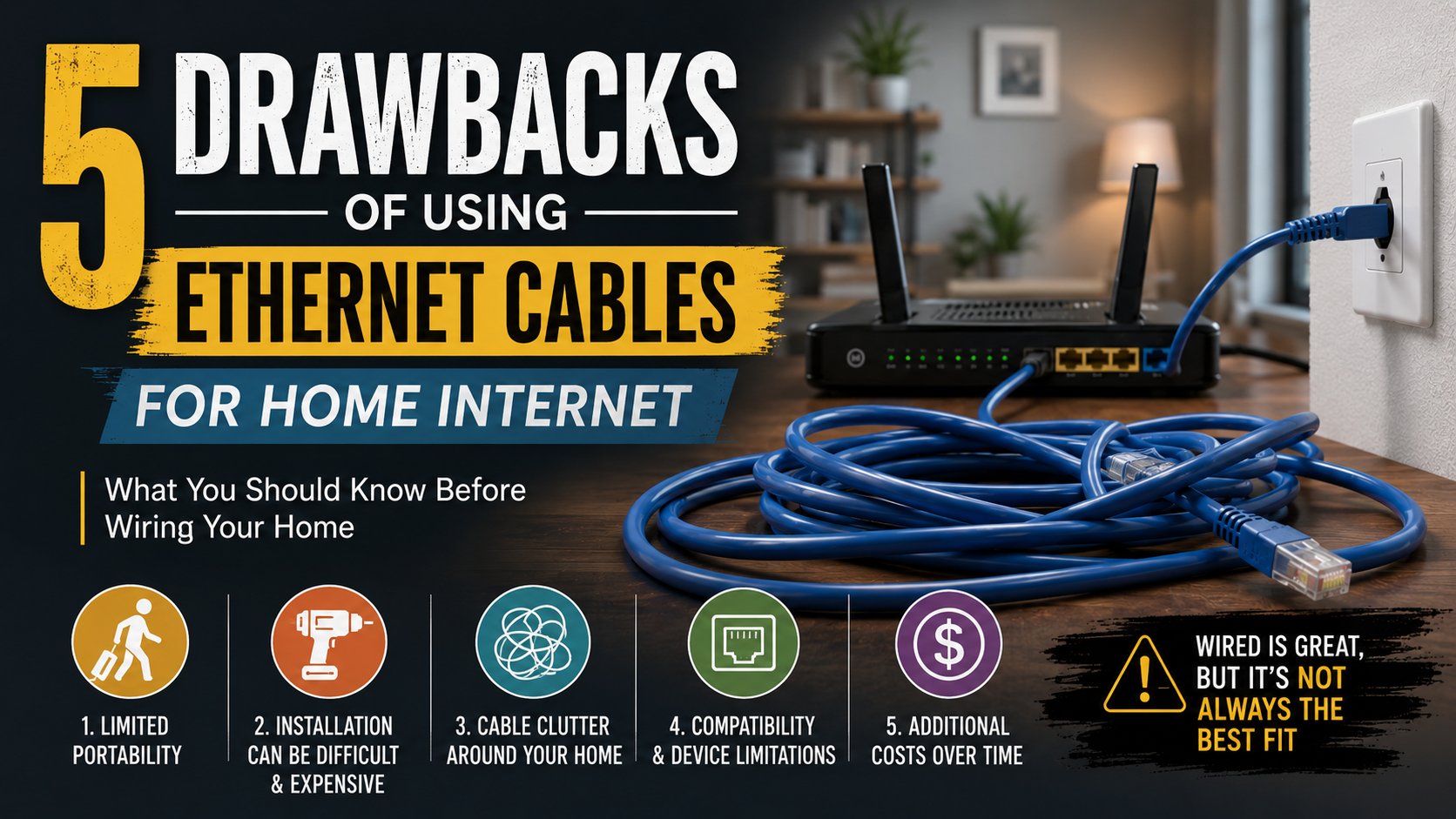
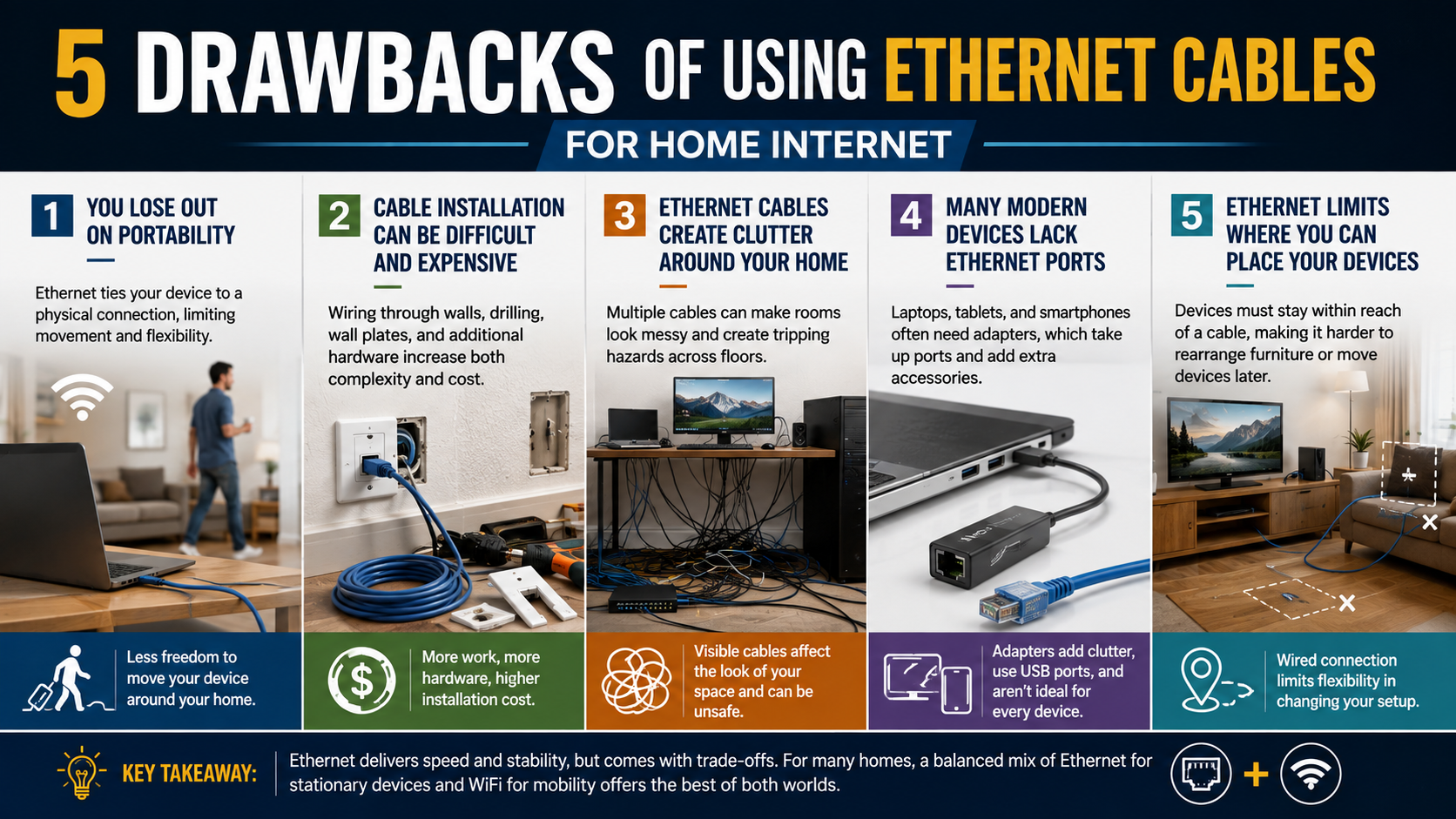
Setting up a wired network delivers reliable internet, fast speeds, and ultra-low latency. These benefits make Ethernet ideal for competitive gaming, streaming, and home offices. However, long cables across hardwood floors can quickly spoil a room’s appearance. Learning how to hide Ethernet cables keeps your space tidy without sacrificing network performance. It is also worth understanding the drawbacks of using Ethernet cables for home internet before choosing a wired setup.

Proper cable management also protects network wires from foot traffic, sharp bends, pinching, and other physical stress. Exposed cables can become trip hazards for family members and pets. Damaged cables may also affect long-term network reliability.

The standard networking guidelines established by the Telecommunications Industry Association emphasize protecting transmission wires from foot traffic and mechanical stress to prevent signal degradation.

Fortunately, you do not need to remove drywall or give up gigabit speeds. Simple concealment methods can keep cables protected and nearly invisible. You can use furniture, raceways, cable clips, rugs, and wall-mounted solutions. The best choice depends on your room layout, cable length, and whether the installation is temporary or permanent.

1. Use Paintable Cable Raceways

Paintable cable raceways offer one of the cleanest ways to hide Ethernet cables without cutting into your walls. These narrow channels attach directly to the wall, baseboard, or corner. They create a dedicated path that keeps your network cable organized and protected.

Start by measuring the route from your router or network switch to the destination device. Choose a raceway large enough to hold the Ethernet cable without squeezing it. Mount the channel along the wall using its adhesive backing or suitable screws.

Next, place the Ethernet cable inside the groove and snap the cover into position. Many raceways can be painted after installation. Match the paint to your wall color for a more seamless appearance.

This method works especially well in home offices, bedrooms, and entertainment areas. It also keeps cables away from pets, vacuum cleaners, and foot traffic. Removable covers make future cable changes easier, too.

For a professional finish, use corner pieces and connectors designed for the same raceway system.

2. Route Along Baseboards and Door Trim

Baseboards and door trim provide natural pathways for concealing Ethernet cables. They let you hide Ethernet cables along walls without opening drywall or making permanent changes. This makes the method particularly useful for apartments and rented homes.

Choose thin Ethernet cables when possible. Flat cables can sit closer to surfaces and are easier to disguise than bulky round cables. Use adhesive cable clips or small wire clips designed for baseboards.

Run the cable along the bottom edge of the wall. You can also guide it around door frames using small clips. In some rooms, a narrow gap between the carpet and baseboard may provide another discreet route.

Avoid forcing the cable into a tight space. Excessive pressure can damage the cable or create sharp bends. Keep the cable secured at regular intervals so it does not hang or move.

This approach requires little equipment and usually involves no drilling. It also makes the cable easy to access if you need to replace or troubleshoot it later.

3. Run Flat Cables Under Rugs or Carpets

Flat Ethernet cables can provide an effective way to hide Ethernet cables under rugs. Their slim profile makes them less noticeable than traditional round network cables. This option works best when you need to cross a room without installing a permanent cable channel.

Choose a high-quality flat Ethernet cable that is suitable for your network speed. Measure the route before installation so you avoid unnecessary excess cable. Whenever possible, position the cable along the edge of the rug rather than directly across a walking area.

If the cable must cross a lightly used path, consider adding a suitable flat cord protector. This can reduce the chance of tripping and protect the cable from repeated pressure.

Avoid placing cables beneath heavy furniture legs. Constant compression can damage the cable over time. You should also avoid sharp folds when positioning the cable beneath a rug.

For fitted carpets, routing along the perimeter can provide a cleaner alternative. Always check the cable manufacturer’s guidance before installing it beneath flooring materials.

4. Hide Behind and Under Furniture

Furniture can naturally conceal Ethernet cables without requiring wall modifications. Desks, sofas, bookshelves, cabinets, and entertainment centers can all provide useful hiding places.

For a desk setup, secure cables along the rear edge or underside of the desktop. Adhesive clips, reusable hook-and-loop straps, and suitable cable ties can keep the wiring organized. Route the cable down the back of a desk leg instead of letting it hang visibly.

Entertainment centers also provide excellent concealment. Run network cables behind the unit and secure excess slack against the rear panel. Large bookshelves can similarly hide longer cable runs between rooms or devices.

Do not place cables where furniture will crush them. Leave enough room for smooth bends around corners and edges. Avoid trapping connectors between heavy furniture and walls.

This method works particularly well when you want a quick, drill-free way to hide Ethernet cables. It also keeps the wiring accessible. You can easily reach the cable whenever you need to upgrade or troubleshoot your network.

5. Fish Cables Through the Wall

Running Ethernet cables inside the wall provides the most professional-looking solution. The cable disappears into the wall cavity, leaving only the connection points visible. This approach works well for permanent home offices, gaming rooms, and wall-mounted televisions.

Start by planning the complete cable route. Check for studs, electrical wiring, plumbing, and other obstacles before cutting any openings. Use appropriate low-voltage mounting brackets and wall plates for the installation.

Feed the Ethernet cable through the wall cavity between the two connection points. Install a suitable keystone jack or wall plate at each end. This creates a clean connection without leaving a loose cable hanging from the wall.

For in-wall installations, make sure the Ethernet cable is rated and approved for that application. Do not route low-voltage network cables through spaces that create safety or code concerns.

This method takes more planning than surface-mounted solutions. However, it delivers a clean, permanent appearance and protects the cable from everyday damage. If you are unsure about cutting into walls or identifying hidden utilities, consider hiring a qualified professional.

What Are Some Creative Ways to Hide Cables?

Creative cable management can turn messy wiring into a neat part of your room design. You can route low-profile cables along picture frames, door trim, or ceiling beams. Adhesive clips can hold cables in place while blending with existing woodwork. These options work well when you want to hide Ethernet cables without drilling into walls. If you are considering a wireless alternative, it also helps to understand why routers have external antennas and how they differ from mesh systems.

You can also run suitable flat Ethernet cables beneath low-pile rugs. Always position them carefully and avoid high-traffic areas. A dense rubber rug pad can provide additional protection.

For desks and entertainment centers, decorative boxes can hide excess cable loops. You can also match cable jackets to your wall color for a less noticeable finish. Tall artwork and furniture can conceal longer vertical runs.

Another option is hollow crown molding with an internal channel. It creates a polished appearance while providing a protected route for network cables.

What Are Some Effective Ways to Hide Network Cables?

The most effective network cable concealment methods balance appearance, protection, and accessibility. Flat Ethernet cables can sit neatly along baseboards, doorways, and other low-profile areas. Their shape makes them easier to conceal than traditional round patch cables.

Paintable surface raceways provide another reliable option. These channels protect cables from impacts while keeping them close to the wall. You can paint them to match the surrounding surface.

For larger installations, consider routing cables through suitable interior spaces. Closets, floor registers, and other accessible pathways can help conceal longer network runs. However, avoid using spaces that could expose cables to excessive heat, moisture, or mechanical damage.

Cable clips can also secure wiring beneath desks, behind furniture, or along baseboards. Use clips that hold the cable securely without crushing its outer jacket.

For permanent installations, choose cable types and pathways appropriate for the location. Planning the route first helps protect your network connection while keeping the finished installation neat. If your connection feels fast during browsing but downloads remain slow, you may also need to find out why your internet is fast but downloads are slow.

What Are Some Creative Ways to Hide Wires?

Miscellaneous wires can often disappear with a little creative cable management. TV cords, charger cables, and lamp wires do not always need permanent wall modifications. Instead, you can integrate them into furniture and room features.

Fabric cord covers work well when you want wiring to become part of the decor. Natural materials, such as jute, can complement rustic or bohemian interiors. For a cleaner appearance, choose covers that match your furniture or wall color.

Cable clips can also keep wires hidden behind desk legs, nightstands, and consoles. Positioning the clips on the rear side prevents cables from becoming visible from normal eye level.

For a more decorative approach, adhesive cord tracks can follow simple geometric patterns. This can make necessary wiring look intentional rather than messy.

Magnetic cable channels are another useful option for desks with metal frames. They collect hanging wires beneath the work surface and keep them away from the floor. These methods help hide Ethernet cables and other wires without major installation work.

What Are Some Effective Ways to Hide Cables?

The best cable concealment methods create clean lines while keeping wiring accessible. For mounted televisions, low-voltage pass-through plates can route suitable cables behind the wall. This can eliminate visible wiring between the television and entertainment equipment.

Home offices can benefit from J-channel organizers mounted beneath desks. These channels hold cables, power bricks, and excess slack against the underside of the work surface. They prevent wires from hanging toward the floor.

Floor cable covers are useful when a cable must cross an open walkway. Heavy-duty rubber covers can protect cables from foot traffic while reducing trip risks. Choose a cover designed for the type and number of cables being routed.

Good cable management should also support future changes. Avoid permanently sealing every connection behind walls if you may need access later. Keep important network connections reachable when possible.

Separating data cables from household electrical wiring is also important. Proper routing can reduce interference concerns and protect cables from physical damage. A planned installation provides both a cleaner appearance and easier maintenance.

What Can I Use to Hide My Cable?

Several inexpensive cable management products can help you hide Ethernet cables around the house. The right choice depends on whether you need a temporary setup or a permanent installation.

Paintable latching raceways are useful for cables running along walls. Split-tubing sleeves can bundle several wires together. Self-closing braided wraps provide another option when you want a flexible, organized bundle.

Cable management boxes can hide power strips and bulky adapters. Choose ventilated designs and avoid enclosing equipment that needs significant airflow.

Adhesive silicone holders work well for lightweight cables. Reusable hook-and-loop straps are better for larger bundles or setups that may change. Non-marring clips can also secure cables along furniture without creating permanent holes.

For permanent routes, baseboard cable channels provide a neat solution. Many have removable covers, making it easier to add or replace cables later.

When choosing cable-management hardware, consider cable thickness, surface type, and accessibility. Avoid products that compress the cable excessively. A good system should protect the wiring while making future maintenance simple.

Telecom Antenna Evolution: From 1G to 5G and Beyond

Telecom Antenna Evolution: How Mobile Networks Transformed Our World

The rapid pace of telecom antenna evolution has transformed how people communicate, connect, and share information worldwide. Wireless networks moved from basic analog signals to high-speed digital broadband. Antenna engineering had to evolve alongside this growth.

Each mobile generation introduced higher data demands, greater network density, and more complex frequency requirements. These changes pushed engineers to develop antennas with better coverage, capacity, efficiency, and signal control.

Understanding this progression shows how physical infrastructure supports our increasingly connected society. Early mobile networks depended on relatively simple antennas and broad coverage patterns. Modern systems use advanced arrays, beamforming, and multiple-input multiple-output technology.

The story also explains why antennas remain central to future wireless networks. Emerging 6G research will demand even greater performance from antenna systems and supporting infrastructure. The International Telecommunication Union (ITU) provides global information on telecommunications standards and network development.

What are three types of antenna types?

Antennas transmit and receive radio frequency energy for wireless communication. Different applications require different antenna designs. Engineers consider coverage, frequency, gain, directionality, and available installation space when selecting an antenna.

Three broad antenna categories help explain this technology:

  • Wire antennas: These include dipoles and monopoles. They are relatively simple and can provide broad or omnidirectional coverage.
  • Aperture antennas: Horn antennas are common examples. They guide electromagnetic energy and work effectively at higher frequencies.
  • Array antennas: These combine multiple elements into one system. Modern cellular networks use arrays for beamforming and advanced signal management.

The telecom antenna evolution from simple wire designs to intelligent arrays reflects changing network requirements. Earlier systems mainly focused on providing reliable voice coverage. Modern networks must support high data rates, many simultaneous connections, and efficient spectrum use.

Antenna selection therefore plays an important role in network performance, capacity, and coverage.

Directional Array Configurations

Modern cellular networks increasingly depend on directional antenna arrays to improve capacity and spectrum efficiency. These systems combine multiple antenna elements within a single structure. Network equipment can control the elements together to shape and direct radio signals.

This process is known as beamforming. Instead of transmitting energy equally in every direction, the network can concentrate energy toward a specific device or area. This approach can improve signal quality and reduce unnecessary interference.

Advanced arrays also support massive MIMO, where many antenna elements transmit and receive multiple data streams simultaneously. This capability became particularly important during the evolution from 4G to 5G.

The telecom antenna evolution toward directional arrays has therefore changed how base stations manage wireless capacity. These systems help networks serve more users within limited spectrum.

They can also improve coverage in challenging environments. However, sophisticated arrays require more complex hardware, calibration, processing, and network planning than traditional antennas.

How did communication evolve from 1G to 5G?

Communication evolved through several major technological shifts, with each mobile generation introducing new capabilities. 1G networks primarily supported analog voice calls. Their antennas focused on basic coverage rather than high-capacity data transmission.

With 2G, digital communication improved voice quality and introduced services such as SMS. The arrival of 3G brought mobile internet, enabling users to access websites and other data services from phones.

4G expanded mobile broadband dramatically. Smartphones could support video streaming, cloud services, social media, and other data-intensive applications. Networks also began using advanced MIMO systems to increase capacity.

5G continued this progression with higher data rates, lower latency, and support for large numbers of connected devices. These requirements accelerated telecom antenna evolution, particularly through massive MIMO and beamforming.

The transition was not simply about faster phones. Each generation required changes across radio equipment, spectrum, network architecture, and antenna design. Engineers increasingly moved from broad coverage approaches toward intelligent systems that manage signals more precisely.

The Shift Toward Digital Data

The move from analog to digital communication was a major turning point in mobile network development. Analog systems represented voice signals directly as continuously varying radio signals. Digital networks instead converted information into data that could be processed and transmitted more efficiently.

This change created several important advantages. Digital systems could improve voice quality, support encryption, use spectrum more efficiently, and introduce new communication services.

2G networks demonstrated these benefits on a large scale. Digital cellular standards supported services such as SMS while improving network capacity. Later generations expanded digital communication into packet-based mobile data.

This transition also influenced telecom antenna evolution. As networks carried increasingly complex digital traffic, antenna systems needed greater capacity and better interference management.

Modern antennas work alongside sophisticated signal-processing systems. Multiple antennas can transmit and receive separate data streams simultaneously. Beamforming can further direct those signals toward users.

The shift to digital communication therefore affected more than mobile phones. It changed the design of the entire wireless network, including radio equipment, antennas, spectrum management, and core infrastructure.

How has telecommunication evolved over time?

Telecommunications evolved from basic wired systems into highly integrated networks connecting billions of devices. Early telegraph systems transmitted coded messages through physical cables. Telephone networks later enabled real-time voice communication over copper infrastructure.

For much of the twentieth century, fixed-line systems dominated telecommunications. The development of cellular technology changed that model by allowing communication through radio waves. Users could communicate without remaining connected to a physical telephone line.

Digital technology then increased network capacity and enabled services beyond traditional voice calls. Mobile networks began carrying internet traffic, multimedia content, and data from connected devices.

Today, telecom antenna evolution supports increasingly dense wireless environments. Cellular base stations use advanced antennas to provide coverage and manage large volumes of traffic. Satellite systems can also extend connectivity beyond conventional terrestrial networks.

Modern telecommunications therefore combines several technologies. These include fiber-optic backhaul, cellular networks, wireless access points, and satellite communication. Together, they create flexible networks capable of supporting smartphones, industrial equipment, vehicles, sensors, and other connected devices, while AI technologies increasingly help manage connected systems.

From Copper Wires to Wireless Airwaves

The gradual expansion of wireless communication reduced dependence on physical connections for many forms of communication. Copper cables remained important for fixed networks, but radio technology allowed users to connect while moving.

Early wireless systems used relatively simple radio transmitters and receivers. Cellular networks introduced a more organized approach by dividing geographic areas into cells. Each cell could reuse frequencies while serving local users.

This architecture created the foundation for modern mobile communication. As demand increased, engineers developed smaller cells, improved spectrum management, and more capable antennas.

The telecom antenna evolution associated with this transition was significant. Antennas moved beyond basic broadcasting functions and became important tools for controlling coverage, capacity, and interference.

Wireless infrastructure also helped extend communication into areas where extensive wired networks were difficult or expensive to build. However, wireless systems did not eliminate physical infrastructure. Modern networks still rely heavily on fiber-optic connections, power systems, towers, and data centers.

The result is a hybrid telecommunications environment where wireless access and wired infrastructure work together.

When was 1G, 2G, 3G, 4G, and 5G?

Mobile generations emerged at different times and introduced major changes in network capabilities. 1G services began appearing commercially in the late 1970s and early 1980s. NTT launched one of the first commercial cellular services in Tokyo in 1979.

2G followed in the early 1990s. GSM became one of the most influential standards and helped establish digital voice and SMS as major mobile services.

3G networks emerged commercially around 2001, with Japan among the first markets to launch. These networks expanded mobile data and supported services such as video calling.

4G LTE deployments began around 2009. They significantly increased mobile broadband performance and supported modern smartphone applications.

5G deployments began commercially around 2019 in several markets. The technology introduced higher capacity, lower latency, and improved support for connected devices.

These milestones also accelerated telecom antenna evolution. Each generation required antennas and radio systems capable of handling changing frequencies, bandwidths, coverage needs, and traffic levels.

The Decade-Long Generational Cycle

Mobile technology has often followed a broad cycle of roughly one decade between major generations. However, these timelines are not exact. New standards usually develop over several years before commercial networks become widely available.

Organizations such as the 3GPP play a central role in defining technical specifications for cellular technologies. Their work gives equipment manufacturers a framework for developing compatible network components.

A new generation affects much more than software. Base stations, radio units, antennas, chipsets, and network infrastructure may all require substantial changes.

This pattern has driven telecom antenna evolution for decades. Engineers must anticipate future requirements while maintaining compatibility with existing networks. Operators also need to balance performance improvements against installation costs and infrastructure limitations.

The transition from one generation to another is therefore gradual. Older technologies may continue operating while newer systems expand. Many networks use multiple generations simultaneously to provide coverage and support different devices.

This layered approach helps operators manage upgrades without replacing entire networks at once. It also explains why antenna sites often contain equipment supporting several generations.

Who is the father of 5G technology?

There is no single inventor who can accurately be called the father of 5G. Modern cellular technology resulted from contributions from researchers, universities, standards organizations, semiconductor companies, network manufacturers, and mobile operators.

One important contributor is Dr. Theodore Rappaport, whose research helped establish the feasibility of millimeter-wave frequencies for mobile communication. His work included extensive studies of radio propagation at high frequencies.

These studies challenged earlier assumptions about the practicality of millimeter-wave communication. They also helped researchers understand how signals behave around buildings, streets, and other urban obstacles.

Rappaport’s research became relevant to the development of technologies that use directional transmission and advanced antenna arrays. However, 5G itself was not created by one researcher or organization.

The telecom antenna evolution behind 5G reflects decades of research in radio propagation, MIMO, beamforming, semiconductor design, and network architecture. Standards organizations also played a critical role in turning research concepts into interoperable technologies.

It is therefore more accurate to describe 5G as a global engineering achievement. Many researchers contributed important pieces to the technology that eventually became modern 5G networks.

Pioneering Millimeter-Wave Research

Millimeter-wave research became an important part of the development of advanced 5G systems. These frequencies can provide large amounts of available spectrum, but they also present significant propagation challenges.

High-frequency signals generally experience greater path loss and can be affected by physical obstacles. Engineers therefore developed techniques that use highly directional antenna arrays to focus radio energy.

Research led by Theodore Rappaport and other wireless researchers helped demonstrate that millimeter-wave communication could support mobile applications under realistic conditions.

These findings influenced later work on beamforming, channel modeling, and antenna-array design. Modern 5G systems can use many antenna elements to steer signals toward individual users.

This represents an important stage in telecom antenna evolution. Instead of treating an antenna as a passive component that simply radiates energy, modern systems use antenna arrays as active parts of the communication process.

The approach also supports spatial multiplexing, allowing networks to serve multiple users through different signal paths. However, millimeter-wave networks can require denser infrastructure because their coverage is generally more limited.

These characteristics make high-frequency antenna design a key consideration for 5G deployment strategies.

Is there a 6G or 7G?

6G is being actively researched, but it has not yet become a globally standardized commercial mobile generation. Research programs are exploring technologies that could support future applications around the 2030 timeframe.

Potential 6G capabilities include higher data rates, extremely low latency, integrated sensing, artificial intelligence, and stronger support for immersive applications such as spatial audio. Researchers are also investigating higher-frequency spectrum, including sub-terahertz and terahertz bands.

These frequencies could provide wider bandwidth, but they also create major engineering challenges. Signal propagation, energy efficiency, hardware limitations, and coverage must all be addressed.

The next stage of telecom antenna evolution will therefore require more than simply increasing antenna count. Researchers are exploring advanced materials, intelligent surfaces, distributed antennas, and AI agents for increasingly autonomous network systems.

By contrast, 7G remains speculative. There is currently no established global technical standard comparable to 3G, 4G, or 5G.

Future generations will depend on research outcomes, industry requirements, spectrum policy, and international standardization. Claims about exact 6G or 7G capabilities should therefore be treated carefully until formal standards emerge.

The Promise of Terahertz Frequencies

Terahertz frequencies are among the areas being investigated for future wireless communication. These frequencies offer potentially enormous bandwidth, which could support extremely high data rates under suitable conditions.

However, using terahertz signals for practical mobile communication presents difficult challenges. High-frequency signals can experience substantial propagation loss and may be strongly affected by obstacles and atmospheric conditions.

These limitations make antenna technology especially important. Future systems may require highly directional antennas, advanced beamforming, compact arrays, and new semiconductor or antenna materials.

Researchers are also investigating reconfigurable intelligent surfaces. These surfaces could potentially manipulate radio propagation and help redirect signals around difficult environments, supporting the broader development of AI-enabled wireless systems.

The continuing telecom antenna evolution toward higher frequencies will likely involve closer integration between antennas, radio circuits, signal processing, and multimodal AI systems.

Terahertz communication is still primarily a research topic rather than a mature commercial cellular technology. Its eventual role in 6G will depend on technical progress and practical deployment costs.

Rather than assuming terahertz will replace existing frequencies, researchers are exploring how it could complement lower-frequency bands within future heterogeneous networks.

Frequently Asked Questions

What role do active antenna units play in modern cellular networks?

Active antenna units combine radio transceivers directly with antenna elements to deliver advanced beamforming capabilities. This integration reduces signal loss between components, improving overall energy efficiency and transmission range. They allow operators to adjust coverage patterns dynamically based on real-time user traffic demands across urban environments.

How do millimeter-wave antennas differ from sub-6 GHz antennas?

Millimeter-wave antennas operate at much higher frequencies, allowing them to transmit massive amounts of data over short distances. However, these high-frequency waves struggle to penetrate solid objects like walls and foliage easily. Sub-6 GHz antennas provide broader geographic coverage and better building penetration, serving as the reliable baseline for wide-area cellular connectivity.

Why is beamforming essential for modern telecom infrastructure?

Beamforming technology focuses wireless signals into concentrated beams aimed directly at specific user devices instead of broadcasting blindly. This targeted approach minimizes radio interference between neighboring cell towers and significantly increases data transmission speeds. It maximizes the efficiency of limited radio spectrum allocations in densely populated metropolitan areas.

What are intelligent reflecting surfaces in wireless design?

Intelligent reflecting surfaces are programmable metasurfaces designed to manipulate radio wave propagation in smart environments. By dynamically altering the reflection angle of incoming signals, these surfaces bypass physical obstacles without requiring active power amplification. They represent a promising hardware frontier in the ongoing progression of advanced wireless network architectures.

Conclusion

The remarkable journey of telecom antenna evolution underscores humanity’s relentless drive toward seamless, instantaneous global communication. From analog voice transmission in the 1G era to the lightning-fast, AI-driven horizons of 6G, hardware engineering continually adapts to meet rising demands. Understanding these generational shifts highlights the complex engineering triumphs hidden inside every modern smartphone and cellular base station. As researchers look beyond current boundaries, advanced antenna designs will remain the invisible foundation powering our interconnected future. Readers are encouraged to explore how upcoming network upgrades will impact their local digital infrastructure and daily connectivity.

iPhone 18 Pro vs iPhone 18 Pro Max: Which Should You Buy?

iPhone 18 Pro vs iPhone 18 Pro Max: Which Should You Buy?

The iPhone 18 Pro vs iPhone 18 Pro Max comparison comes down to more than screen size. Both models deliver Apple’s latest Pro hardware, advanced cameras, strong performance, and improved battery life.

Apple officially announced both models on September 9, 2026. Pre-orders begin September 12, with retail availability starting September 18. In India, pre-orders begin at 5:30 PM IST on September 12.

The iPhone 18 Pro focuses on a more compact design. The Pro Max targets users who want the largest display and longest battery life. Both phones use an aluminium unibody design and offer 256GB, 512GB, 1TB, and 2TB storage options.

The standard Pro starts at ₹1,64,900 in India, while the Pro Max starts at ₹1,79,900. That makes the larger model ₹15,000 more expensive at entry level. You can check the latest configurations and buy the iPhone 18 Pro directly from Apple.

This guide compares the two flagships across price, display, battery, performance, cameras, and everyday usability. It also explains which model makes more sense for different types of buyers.

Is the iPhone 18 Pro Max Worth It?

The iPhone 18 Pro Max is worth considering if battery life and screen size are your highest priorities. Apple says it delivers the biggest battery-life increase ever seen on an iPhone. The larger chassis also houses a bigger battery than the standard Pro.

Its 6.9-inch Super Retina XDR display gives you more room for movies, games, documents, editing, and photography. By comparison, the iPhone 18 Pro uses a 6.3-inch display. Both panels deliver 460 pixels per inch, so sharpness remains comparable.

The Pro Max is also physically larger and heavier. It measures 163.4mm tall and weighs 249 grams. The Pro measures 150mm and weighs 211 grams. That 38-gram difference can matter during long periods of handheld use.

Choose the Pro Max if you frequently travel, stream content, edit media, or use your phone for extended periods. The standard Pro makes more sense if portability matters more than maximum screen space.

Enhanced Productivity and Viewing Immersion

The larger display makes the iPhone 18 Pro Max particularly useful for demanding mobile workflows. Its 6.9-inch OLED panel provides more physical space for reading documents, reviewing photographs, editing video, and navigating complex applications.

That extra room can also improve entertainment. Movies and games feel more immersive, while longer documents require less scrolling. Frequent travelers may appreciate the larger viewing area during flights or long commutes.

Creators can benefit from the bigger viewfinder when composing photographs or reviewing footage. Apple also introduced a 48MP Fusion Main camera with variable aperture across the Pro lineup. This gives photographers more control over depth of field and lighting.

However, a bigger display comes with a physical trade-off. The Pro Max is 78mm wide and weighs 249 grams. The standard Pro is 71.9mm wide and weighs 211 grams.

For productivity and entertainment, the Pro Max has the advantage. For comfortable everyday handling, the smaller Pro remains easier to manage.

Is the iPhone 18 Pro Max Released?

Yes. The iPhone 18 Pro Max has officially been announced. Apple unveiled the iPhone 18 Pro and iPhone 18 Pro Max on September 9, 2026. The launch ends the speculation surrounding the devices and confirms their major hardware features.

Pre-orders begin September 12. Retail availability starts September 18 in more than 65 countries and regions, including India, the United States, the United Kingdom, Canada, Japan, and Australia.

In India, pre-orders begin at 5:30 PM IST on September 12. Availability begins September 18.

This means buyers no longer need to rely on leaked specifications or concept renders. Official information is now available for the display, dimensions, storage, cameras, processor, colors, and pricing.

The two Pro models come in black, silver, glacier, and burgundy. Both also use Apple’s aluminium unibody design with Ceramic Shield protection.

If you were waiting for the official launch before upgrading, the iPhone 18 Pro series is now a confirmed retail product.

Reliable Timeline for Upgrade Planning

Apple’s confirmed launch schedule makes upgrade planning much easier. The company announced the iPhone 18 Pro and Pro Max on September 9, 2026. Pre-orders start September 12, followed by general availability on September 18.

Indian buyers can place pre-orders from 5:30 PM IST on September 12. The phones become available from September 18.

This schedule gives existing iPhone owners time to prepare for an upgrade. You can compare trade-in offers, choose storage, and decide between the two sizes before pre-orders open. If you’re also watching Apple’s pricing changes, our guide to Will the iPhone 18 Cost More? Apple Price Increase provides additional context.

Apple offers both models with 256GB, 512GB, 1TB, and 2TB storage options. That range makes it easier to match the phone with your photography, video, gaming, and work requirements.

For buyers planning to keep their phone for several years, storage deserves careful consideration. Large video libraries and professional media files can consume space quickly.

The key dates are simple:

  • September 9: Official announcement
  • September 12: Pre-orders begin
  • September 18: Retail availability begins
  • September 25: Availability expands to additional markets

Is There a Big Difference Between iPhone Pro and Pro Max?

The iPhone 18 Pro vs iPhone 18 Pro Max comparison reveals a smaller performance gap than the physical difference suggests. Both models use Apple’s A20 Pro chip and share the same core Pro platform. Apple also gives both phones the new 48MP Fusion Main camera with variable aperture.

The biggest differences involve size, weight, display dimensions, and battery capacity. The iPhone 18 Pro has a 6.3-inch display, while the Pro Max increases that to 6.9 inches. Both displays deliver 460 pixels per inch. Battery capacity can also affect how you manage charging over time, making the 80-20 rule for rechargeable batteries useful to understand.

The Pro Max also weighs 249 grams. The standard Pro weighs 211 grams. That makes the smaller phone noticeably easier to carry and use for extended periods.

Apple specifically highlights the Pro Max’s larger battery and major battery-life improvement. Therefore, the decision is less about raw performance and more about your priorities.

If you want maximum screen space and endurance, choose Pro Max. If you want flagship performance in a more manageable body, choose Pro.

Ergonomics Versus Display Real Estate

Ergonomics is one of the most important differences in the iPhone 18 Pro vs iPhone 18 Pro Max decision. The standard Pro measures 71.9mm wide and weighs 211 grams. The Pro Max measures 78mm wide and weighs 249 grams.

That difference affects how each phone feels during everyday use. The smaller Pro is easier to carry in pockets and simpler to operate with one hand. It can also feel more comfortable during long calls or extended browsing sessions.

The Pro Max takes a different approach. Its 6.9-inch display provides substantially more screen area for games, movies, documents, photographs, and video editing.

Neither choice is objectively better. It depends on what you value most.

Choose the iPhone 18 Pro if you prioritize:

  • One-handed operation
  • Lower weight
  • Easier pocket storage
  • Comfortable everyday handling

Choose the iPhone 18 Pro Max if you prioritize:

  • Maximum display size
  • Longer battery life
  • Immersive video and gaming
  • More space for creative workflows

Will the iPhone 18 Pro Max Be More Expensive?

Yes. The iPhone 18 Pro Max costs more than the iPhone 18 Pro. In India, the 256GB iPhone 18 Pro starts at ₹1,64,900. The 256GB iPhone 18 Pro Max starts at ₹1,79,900.

That creates a ₹15,000 starting-price difference between the two models. The Pro Max’s higher price reflects its larger display and bigger physical design. It also delivers Apple’s longest battery life within the lineup.

Both models offer the same storage tiers. Buyers can choose 256GB, 512GB, 1TB, or 2TB. As storage increases, the final price rises accordingly.

The important question is whether the larger model provides enough additional value for your usage. If you regularly watch video, edit media, travel, or spend long periods away from chargers, the premium may be easier to justify. You should also factor protection into your ownership costs and review an AppleCare guide covering coverage, cost, and plans in India before buying.

For casual users, the standard Pro delivers the same A20 Pro platform and core Pro experience. In that case, saving ₹15,000 may make more sense than paying for a larger body.

Assessing Total Value Against Long-Term Ownership

Price should not be the only factor when comparing the iPhone 18 Pro and iPhone 18 Pro Max. Your expected ownership period also matters. Someone keeping the phone for several years may value battery endurance more than someone who upgrades frequently.

The Pro Max costs ₹15,000 more at the 256GB level in India. That premium effectively buys a larger display and the benefits associated with its larger chassis. It also provides Apple’s longest battery life in the lineup.

Battery life can influence long-term satisfaction. Apple specifically positions the Pro Max as the iPhone with its biggest battery-life improvement.

However, paying more does not automatically make it better value. A buyer who prefers a lighter phone may find the standard Pro more useful every day.

Before buying, consider:

  • How long you plan to keep the phone
  • How much storage you need
  • How often you use demanding apps
  • Whether you frequently travel without charging access
  • How important one-handed use is

The best value comes from choosing the features you will actually use.

Should I Buy the iPhone 18 Pro?

You should buy the iPhone 18 Pro if you want flagship performance without the larger Pro Max body. It provides the same A20 Pro platform as the Pro Max, while using a more compact 6.3-inch display.

The smaller design makes the Pro easier to carry and handle. It measures 150mm tall, 71.9mm wide, and weighs 211 grams. Those dimensions make a meaningful difference for people who dislike oversized smartphones.

The camera experience is also highly capable. Both Pro models feature Apple’s new 48MP Fusion Main camera with variable aperture. That means choosing the smaller phone does not mean giving up the headline camera technology.

The standard Pro is especially appealing if your phone use includes messaging, photography, social media, navigation, work apps, and occasional gaming.

Choose it when portability matters more than maximum screen size. You still get Apple’s latest Pro hardware without paying the additional ₹15,000 starting premium for the Pro Max in India.

Optimal Portability for Fast-Paced Lifestyles

The iPhone 18 Pro is the more practical choice for users who value mobility. Its smaller dimensions make it easier to carry throughout the day. Its 211-gram weight is also considerably lower than the 249-gram Pro Max.

That advantage becomes noticeable during commuting, travel, photography, and extended handheld use. A smaller body can also make quick tasks feel more natural when you only have one hand available.

The 6.3-inch display still provides plenty of space for everyday activities. You can browse websites, edit photographs, watch videos, manage email, and use productivity apps without moving to the larger Pro Max.

The Pro also avoids the misconception that smaller means less powerful. Both models use the A20 Pro chip and share Apple’s latest Pro platform.

For buyers who want a premium smartphone without excessive bulk, the standard Pro offers a strong balance.

It is particularly suitable for:

  • Commuters
  • Frequent travelers
  • One-handed users
  • Buyers who prefer lighter phones
  • People who want flagship performance without the Pro Max premium

Frequently Asked Questions

What are the main display differences between these models?

The primary difference centers on viewable physical dimensions and total pixel resolution. The Pro model offers a compact screen designed for comfortable single-handed navigation and easy pocket storage. The Pro Max features an expansive panel that enhances video streaming, document review, and split-screen tasks, while maintaining the same dynamic refresh rates and outdoor peak brightness levels.

Does the larger model provide better battery life?

Yes, the larger chassis accommodates a physically bigger battery cell, delivering noticeably longer operational runtime on a single charge. Users who run demanding applications, stream high-definition video over cellular networks, or navigate via GPS for extended periods will notice several hours of additional screen-on endurance compared to the standard model.

Do both phones feature identical processing hardware?

Yes, both models typically share Apple’s latest generation application processor, matching neural engines, and identical graphics core configurations. Everyday operating speeds, software application loading times, background computational workflows, and advanced machine learning features perform identically across both devices, ensuring you experience zero performance compromises when selecting the smaller form factor.

Can both models record professional video formats?

Yes, both devices support advanced video recording capabilities, including high-resolution ProRes encoding, flat log color profiles, and spatial video capture. Audio recording quality, dynamic stabilization, and access to external storage workflows remain consistent across both models, allowing mobile filmmakers to produce studio-grade creative projects regardless of the physical size they choose.

iPhone 18 Pro vs iPhone 18 Pro Max: Which Should You Buy?

The iPhone 18 Pro vs iPhone 18 Pro Max decision ultimately comes down to size, battery life, price, and personal comfort. Both models bring Apple’s latest Pro technology, including the A20 Pro chip and the new 48MP Fusion Main camera with variable aperture.

The standard iPhone 18 Pro is the better choice for buyers who prioritize portability. Its 6.3-inch display and 211-gram body make it easier to carry and handle. It also starts at ₹1,64,900 in India.

The iPhone 18 Pro Max is better suited to heavy users. Its 6.9-inch display, 249-gram body, and larger battery favor gaming, video, editing, travel, and long workdays. It starts at ₹1,79,900 in India.

Choose the iPhone 18 Pro if comfort and portability matter most. Choose the Pro Max if screen size and battery endurance justify the additional cost.

For most buyers, the standard Pro offers the better balance. Power users who want maximum screen space and battery life should consider paying the premium for the Pro Max.

4 iPhone Duo Features Samsung Foldable Phones Still Don’t Offer

4 iPhone Duo Features Samsung Foldable Phones Still Don’t Offer

The iPhone Duo features attracting attention go beyond its foldable display and multitasking capabilities. Smartphone buyers looking for premium multitasking increasingly compare foldable phones. Samsung has built a strong position with its Galaxy Z Fold series. Apple has now entered the category with the iPhone Duo, its first foldable iPhone.

The comparison is about more than screen size. Buyers also care about software, cameras, security, durability, ecosystem integration, and everyday convenience. The iPhone Duo brings several Apple-specific experiences to a foldable design.

This guide explores four iPhone Duo features that give Apple a distinct advantage. It also compares the device with Samsung’s latest Galaxy Z Fold8. The goal is simple: explain where Apple’s foldable stands out and where Samsung remains competitive.

1. Hardware-Level 3D Face ID

One of the most recognizable iPhone security features is Face ID. It uses the TrueDepth camera system to create a detailed facial map for authentication. The system combines multiple sensors and infrared technology rather than relying on a standard 2D image.

This makes Face ID useful for more than unlocking the phone. It can authenticate supported payments, password autofill, app logins, and other protected actions. Face ID also works in low-light conditions because it does not depend on visible-light photography alone.

Samsung Galaxy Z Fold devices primarily use an under-display fingerprint sensor for biometric authentication. They can also offer facial recognition, but the security model differs from Apple’s hardware-based 3D facial authentication.

For users who frequently unlock their phones while wearing gloves or when their hands are occupied, Face ID can be convenient. The system also works automatically in many situations without requiring users to position a finger on a sensor.

This combination of dedicated hardware and software integration makes 3D facial authentication a notable iPhone advantage. It is one of the iPhone Duo features that could appeal to users who prioritize convenient biometric security.

2. Native Emergency SOS via Satellite

Another important iPhone Duo feature is Emergency SOS via satellite. When cellular and Wi-Fi connections are unavailable, supported iPhones can connect to satellites for emergency communication in supported regions.

The feature can help users contact emergency services when they are outside normal network coverage. Supported satellite services can also assist with roadside emergencies and location sharing through Find My, depending on the user’s location and service availability.

This capability is particularly useful for travelers, hikers, and people who spend time in remote areas. It can provide a communication option when conventional networks are unavailable.

Satellite features depend on regional availability and compatible services. Users should therefore check whether the feature works in their country before relying on it during travel.

Samsung also offers satellite-based communication on selected Galaxy devices and in selected markets. Availability varies by model, carrier, and region.

The broader advantage for iPhone users is the integration of satellite services directly into Apple’s operating system and emergency features. For buyers comparing iPhone Duo features with Samsung foldables, this built-in connectivity can be an important consideration.

3. True Apple Ecosystem Continuity

Apple’s ecosystem remains one of the strongest reasons to choose an iPhone. For users who already own a Mac, iPad, or Apple Watch, the iPhone Duo can become part of a connected workflow. This integration is especially useful when comparing AppleCare vs. Carrier Insurance: Which Is Better?, since protection options can also matter when multiple Apple devices are part of your daily setup.

Several features make switching between Apple devices simple:

  • Universal Clipboard: Copy text, photos, or other supported content on an iPhone and paste it on a nearby compatible Mac or iPad.
  • Continuity Camera: Use an iPhone as a camera for supported Mac applications.
  • iPhone Mirroring: View and interact with an iPhone from a compatible Mac.
  • AirDrop: Transfer photos, documents, and other files between compatible Apple devices.
  • AirPlay: Stream supported content from an iPhone to compatible Apple devices and displays.

These features reduce the need for cables and third-party utilities. They can also save time for people who regularly move between mobile and desktop devices. Users who rely heavily on multiple Apple products may also benefit from understanding AppleCare coverage, costs, and plans in India before choosing how to protect their devices.

Samsung provides strong cross-device integration through Galaxy phones, tablets, Windows PCs, Quick Share, and DeX. However, Apple’s advantage comes from controlling both the hardware and operating systems across its ecosystem.

For buyers considering iPhone Duo features, this level of continuity can make the device especially useful within an existing Apple setup. The experience becomes more valuable as users add compatible Apple hardware.

4. Third-Party App Optimization and Native Social Media Camera APIs

App consistency is another area where iPhones have traditionally held an advantage. Developers generally target a smaller range of iPhone models and hardware configurations. This makes it easier to test apps across supported devices.

Popular social platforms can also use Apple’s camera and media frameworks directly. Apps such as Instagram, TikTok, and Snapchat can access system-level technologies for capturing and processing photos and videos.

This can produce more consistent results when users record content directly inside social apps. It can also reduce differences between the camera experience in the native Camera app and third-party applications.

Android has improved significantly in this area. Modern flagship devices can deliver excellent social-media camera quality, especially when manufacturers work closely with app developers.

However, Apple’s controlled hardware and software environment remains an important advantage. Developers can optimize features for a relatively predictable set of cameras, displays, processors, and operating-system versions.

For creators who frequently shoot and publish content directly from social apps, this consistency can make the iPhone Duo especially appealing. Among the iPhone Duo features, optimized third-party camera experiences could be particularly valuable for social-media creators and mobile content professionals.

Did Apple Announce the Foldable Phone?

Yes. Apple officially announced the iPhone Duo on September 9, 2026. It is the company’s first foldable iPhone and combines a 7.6-inch inner OLED display with a 5.4-inch outer display. Apple says the inner screen is its largest iPhone display yet. The device uses a Grade 5 titanium design and supports a precision hinge.

Apple has also redesigned iOS 27 for the foldable form factor. The software supports different orientations and multitasking layouts. Users can run compatible apps side by side and position the phone at different angles.

The iPhone Duo is not yet available at the time of this article’s publication. Pre-orders begin October 16, 2026. Availability starts October 23, 2026.

That launch gives Apple a direct competitor to Samsung’s established Galaxy Z Fold lineup.

What Does iPhone Offer That Samsung Doesn’t?

The biggest difference is Apple’s combination of iOS 27 and its wider device ecosystem. iPhone Duo users can access familiar Apple services and continuity features across compatible Apple devices. AirDrop, Universal Clipboard, Continuity Camera, Handoff, and iCloud can make workflows easier for people already using Macs and iPads. These ecosystem benefits are also worth considering when comparing an iPhone or Android for students, especially for users who already rely on Apple devices for schoolwork.

The iPhone Duo also brings several security and connectivity features that distinguish Apple’s platform. Hardware-based Face ID provides secure facial authentication, while Emergency SOS via satellite can help users communicate when cellular and Wi-Fi connections are unavailable.

App optimization is another important advantage. Developers target a relatively focused range of iPhone hardware, allowing popular apps to integrate closely with iOS camera and image-processing technologies.

Samsung has powerful ecosystem features of its own. Galaxy phones also offer advanced multitasking, Quick Share, DeX, fingerprint authentication, and satellite-related emergency features on supported models and markets.

Therefore, the strongest iPhone advantage is not that Samsung lacks useful tools. It is Apple’s tightly integrated hardware, software, services, security, and accessory ecosystem.

Is the iPhone Duo a Phone?

Yes. The iPhone Duo is a fully functional smartphone that adds a larger folding display. When closed, it has a 5.4-inch outer OLED display for everyday tasks. Users can make calls, send messages, browse apps, take photos, and use normal iPhone features without opening it.

When opened, the device provides a 7.6-inch inner display. Apple designed this larger canvas for entertainment, gaming, browsing, and multitasking. The inner screen is also 50% larger than the display on the iPhone 18 Pro Max.

The design supports several positions. Users can place it on a surface for hands-free viewing or use different orientations for supported tasks. Apple also integrates a FaceTime camera beneath the inner display.

This makes the iPhone Duo a hybrid device. It works as a conventional phone when closed and a compact tablet-style workspace when opened.

Which Phone Is Best, Samsung Fold or iPhone?

There is no single winner for every buyer. The iPhone Duo and Samsung Galaxy Z Fold8 target similar customers but emphasize different experiences.

Samsung remains particularly strong for desktop-style productivity. Galaxy Z Fold8 supports Multi Window and Samsung DeX. DeX can turn the phone into a desktop-style workstation when connected to a compatible display, keyboard, and mouse.

Apple focuses on a more unified iPhone experience. The iPhone Duo combines iOS 27 with Apple’s services, cameras, security tools, and ecosystem. Its foldable design also introduces features such as Duo Preview, Duo FaceTime, and Smart Take.

The choice therefore depends on priorities. Samsung may suit users who want extensive window management and desktop connectivity. Apple may appeal more to buyers already invested in Macs, iPads, Apple Watch, and other Apple services. AI features on iOS can also add useful tools for users who want smarter everyday assistance.

Both devices offer premium hardware. Neither should be considered automatically superior for every type of foldable-phone user.

Do Samsung Phones Last Longer Than iPhone?

It is difficult to make a blanket claim that Samsung phones or iPhones always last longer. Modern premium foldables from both companies have improved significantly. However, foldable phones still involve more mechanical and display complexity than conventional smartphones.

Apple designed iPhone Duo with durability in mind. It uses a Grade 5 titanium frame, Ceramic Shield materials, a scratch-resistant inner display coating, and an IP68 rating for water and dust resistance. Apple also says the hinge is designed for long-lasting reliability.

Samsung’s Galaxy Z Fold8 also has a strong durability package. It uses an Armor Aluminum frame, Gorilla Glass materials, titanium layers beneath the display, an Armor FlexHinge, and an IP48 rating.

These specifications show meaningful progress from earlier foldables. Still, real-world longevity depends on usage, care, repairs, software support, and battery health.

Rather than claiming one brand universally lasts longer, buyers should compare the specific model, warranty, repair options, and expected ownership period.

I Never Wanted a Foldable Phone—The iPhone Duo Changed Me

I Never Wanted a Foldable Phone—Until the iPhone Duo Changed My Mind

I never thought a foldable iPhone would be the device that changed my opinion about folding phones. Yet after years of ignoring the category, I’m seriously considering pre-ordering the iPhone Duo.

The biggest issue was never the technology itself. I simply didn’t use the larger display often enough to make the higher price worthwhile. The Galaxy Z Fold 8 made that screen more appealing because its wider design works particularly well for watching content.

My other concern was Apple’s ecosystem. Moving to an Android foldable would mean giving up some of the seamless connection between my iPhone, MacBook, Apple Watch, and AirPods.

Device thickness has also become far less concerning. Recent foldables have become impressively slim. The iPhone Duo finally tackles the two things that kept me from making the switch: practical screen expansion and Apple’s ecosystem.

Everything You Need to Know About the iPhone Duo

The iPhone Duo takes a different approach to the typical folding phone. Its passport-style body opens sideways, creating a large inner display without requiring users to carry a separate tablet. For buyers comparing smartphone platforms, this also raises the familiar question of iPhone or Android for students and how much the choice of ecosystem matters.

Apple has fitted the phone with a 5.4-inch cover screen and a 7.6-inch folding display. Their proportions are designed to keep the transition between screens relatively consistent.

The outer display works like a conventional smartphone screen when the device is closed. Opening the phone provides a much larger workspace for reading, entertainment, browsing, and multitasking.

The chassis uses titanium and features a polished exterior. Apple has also developed a 3D-printed cover for the hinge. When unfolded, the Duo measures 5.2mm thick and reaches 11.3mm when closed.

The battery is divided between the two halves of the device. Apple claims up to 31 hours of video playback with the internal display and up to 44 hours with the cover screen. As with any new iPhone, buyers may also want to consider AppleCare coverage, cost, and plans in India when calculating the overall cost of ownership.

Apple has changed its biometric approach as well. Instead of Face ID, the Duo uses Touch ID integrated into the side button. Apple Watch-based unlocking is another supported option.

The camera system includes a 48MP Fusion Main sensor and a 48MP Fusion Ultrawide. Two front cameras are also included, with one positioned beneath the inner display.

Apple retained the Camera Control button but dropped both the Action button and traditional mute switch. Those omissions are notable given the phone’s premium positioning.

Despite those compromises, I’m still planning to pre-order the Duo.

Apple May Have Finally Solved Foldable Phone Design

Foldable displays have improved dramatically, but the crease remains one of the category’s most obvious drawbacks. Even when it is barely visible, the indentation can often be detected by touch.

I notice it most when scrolling. My finger naturally passes over the center of the display, making the fold difficult to ignore once I’ve felt it.

The iPhone Duo could represent a meaningful improvement. Apple has used a nano-texture treatment across the inner screen to reduce reflections and glare. That should also make the central fold less noticeable under different lighting conditions.

The screen itself relies on multiple supporting layers. High-strength glass surrounds the folding panel, while specialized adhesives allow those layers to shift as the device opens and closes.

A titanium support plate sits beneath the display structure. Meanwhile, the hinge is designed to provide support across the center and keep the screen properly aligned when fully unfolded.

Initial impressions indicate that the crease is relatively difficult to see once the phone is open. It may become noticeable during the folding motion, but the effect appears less obvious when the panel is completely flat.

That does not mean the crease has disappeared. Certain angles and lighting conditions can still expose it, which is normal for current folding displays.

What matters more to me is the tactile experience. If the center of the screen feels smoother while scrolling, Apple may have eliminated one of the most distracting parts of using a foldable.

I’ll need much more time with the device before reaching a firm conclusion. For now, however, the Duo’s display design gives me considerably more confidence.

The Passport-Style Shape Is More Useful

The Duo’s passport-style construction may be the biggest reason I’m interested in Apple’s approach. Traditional book-style foldables offer more screen space, but their narrow outer displays and squarer interiors do not always make that extra space useful.

The Galaxy Z Fold 8 helped change my perspective. Its wider proportions make the internal screen much better for watching videos and handling landscape content.

Samsung combines a 5.5-inch external display with a 7.6-inch inner panel. The broader layout provides more horizontal room when the device is unfolded.

That matters for movies and television shows. Nearly square folding displays can leave substantial unused areas around widescreen content. A wider panel can make the same video feel larger and more immersive.

The iPhone Duo appears to follow that same principle. Its internal display should work well for entertainment, reading, web browsing, and other activities that benefit from additional width.

Reading could be particularly comfortable. More horizontal space allows pages and articles to use a wider layout instead of forcing everything into a narrow column.

The closed dimensions are another advantage. The Duo is shorter and wider than a standard smartphone, giving it a more compact shape in your pocket.

That is exactly what I want from foldable technology. The phone should become smaller when

Is the iPhone Duo Worth It?

The iPhone Duo makes the most sense for users who value multitasking and extra screen space. Its 7.6-inch inner display creates a larger canvas than a standard iPhone. You can also use two apps side by side with Split View.

The premium comes with a significant price. In India, the iPhone Duo starts at ₹299,900 for 256GB. Higher-capacity versions cost more. That places it firmly in the premium enthusiast category.

The value depends on how often you use the larger display. Professionals may benefit from reading documents while communicating in another app. Frequent travelers may also appreciate having a tablet-like screen without carrying another device.

However, a conventional iPhone remains better value for simpler needs. The Duo is most compelling when its folding design solves a real daily problem.

Why Would Anyone Want a Foldable Phone?

People choose a foldable phone because standard smartphone screens have physical limits. A traditional handset stays compact, but its display remains relatively small. A tablet offers more space, yet carrying one everywhere is inconvenient.

The iPhone Duo approaches that problem differently. Its 5.4-inch outer display keeps the device compact when closed. Opening it reveals a 7.6-inch display for reading, entertainment, and multitasking.

That flexibility creates several practical advantages:

  • More screen space for documents and websites.
  • Side-by-side apps for multitasking.
  • Hands-free viewing at different angles.
  • Larger entertainment area for videos and games.
  • Portable design when the phone is closed.

The Duo also supports different positions, including standing and seated viewing. Its flexible design allows hands-free FaceTime and convenient viewing angles.

For many buyers, that versatility is the main reason to consider a foldable iPhone.

Will the iPhone Duo Have a Crease?

The iPhone Duo uses a folding OLED display, so buyers should not assume the center will behave exactly like conventional flat glass. Apple has focused heavily on the hinge and display design, but long-term real-world experience will ultimately determine how the screen ages.

Apple says the Duo uses a precision hinge that supports the center of the display when opened. Its inner screen also has a nano-texture finish designed to reduce glare and reflections. That finish can help make visual imperfections less distracting.

However, Apple does not claim that the display is completely crease-free. A physical folding mechanism still introduces a bend point. The visible effect can vary with lighting, viewing angle, and usage.

For potential buyers, the sensible expectation is simple: the crease may be subtle, but it should not be assumed invisible in every situation. Real-world durability testing will provide a better picture after the device reaches consumers.

When Is the Foldable iPhone Releasing?

The foldable iPhone is no longer just a rumor. Apple officially introduced the iPhone Duo on September 9, 2026. The company has confirmed both preorder and availability dates.

In India, preorders begin at 5:30 PM IST on October 16, 2026. The iPhone Duo becomes available from October 23. It will be sold through Apple and selected partner stores.

The starting price in India is ₹299,900 for 256GB. Storage options include 256GB, 512GB, 1TB, and 2TB.

The launch represents a major change in Apple’s smartphone strategy. Apple waited until foldable hardware could fit its broader design and software approach.

That timing also gives consumers a clearer choice. Buyers who want a conventional flagship can choose an iPhone 18 Pro. Those seeking a larger, flexible screen can now consider the Duo.

Is a Foldable iPhone Worth It?

A foldable iPhone can be worth the price if you regularly need more screen space. The Duo combines a pocketable outer display with a 7.6-inch inner display. That combination gives users flexibility without carrying a separate tablet.

The device also offers features designed around the folding format. These include side-by-side apps, hands-free FaceTime, flexible viewing positions, and Apple Pencil support.

However, the starting price makes this a luxury purchase. At ₹299,900 in India, the Duo costs substantially more than conventional flagship phones.

The best candidates are therefore people who will use its unique hardware frequently. That includes professionals, frequent travelers, content consumers, and creative users.

If your phone mainly handles calls, messaging, social media, and occasional photos, a standard iPhone may offer better value. If you’re already weighing the cost of Apple’s next flagship generation, whether the iPhone 18 will cost more could also influence which model makes the most sense.

5 of the Best Web Browser Apps for Android

5 of the Best Web Browser Apps for Android

Finding the best web browser apps for Android can improve speed, privacy, and everyday browsing. Most Android phones include a default browser, but it may not suit every user. Alternative browsers can offer stronger tracker blocking, better customization, or improved cross-device syncing. If your phone feels slow beyond browsing, understanding why your phone slows down over time can also help improve overall performance.

Your browser handles sensitive data every day. This includes cookies, saved passwords, autofill information, website permissions, and browsing sessions. It also processes scripts, images, videos, and other demanding web content.

Tracking methods continue to evolve, making browser privacy features increasingly important. Tools such as tracker blockers can reduce unwanted tracking and limit some forms of browser fingerprinting.

A good mobile browser should feel responsive and protect your privacy without creating unnecessary complexity. Some users prioritize extensions, while others want seamless account syncing or stronger anonymity.

This guide explores the top Android browsers, their strengths, and their limitations. It also explains which browsers suit everyday browsing, customization, privacy, and anonymity.

1. Brave Browser

Best for: Fast ad blocking and privacy

Brave Browser is a strong option for Android users who want fast browsing with built-in privacy protection. Its integrated Shields feature automatically blocks many advertisements, trackers, cookies, and intrusive scripts. This can make websites cleaner and may reduce the amount of unnecessary content your phone needs to load. If you want broader protection beyond browser-based tracking, malware protection tips for home and business users can help you follow safer security practices

Key features include:

  • Built-in ad and tracker blocking without requiring separate extensions.
  • Privacy-focused browsing that limits many common tracking technologies.
  • Background video playback for supported websites and media.
  • HTTPS upgrades that help establish more secure connections when available.
  • Clean interface designed for quick and straightforward mobile browsing.

Brave is particularly useful for users who want stronger privacy controls without spending time configuring multiple add-ons.

2. Mozilla Firefox

Best for: Extension support and customization

Mozilla Firefox is one of the best choices for Android users who want extensions and greater browser customization. Unlike many mobile browsers, Firefox supports a selection of compatible extensions. This allows users to add tools for content blocking, privacy, productivity, and other browsing tasks. For users who want to understand how stored browser information works, learning the difference between clearing cache and clearing data can also be useful.

Key features include:

  • Extension support for compatible Android add-ons.
  • uBlock Origin support for advanced content and tracker blocking.
  • Enhanced Tracking Protection to reduce unwanted online tracking.
  • Independent GeckoView engine, providing an alternative to Chromium-based browsers.
  • Flexible browsing experience for users who want more control.

Firefox is a particularly good option for privacy-conscious users and anyone who relies on browser extensions. Its independent engine also provides greater diversity within the Android browser ecosystem.

3. Microsoft Edge

Best for: Syncing with a Windows PC

Microsoft Edge is a convenient choice for Android users who regularly work across Windows computers and mobile devices. When you sign in with your Microsoft account, Edge can synchronize supported information between devices. This makes it easier to continue browsing without manually transferring important data.

Key features include:

  • Microsoft account synchronization for supported tabs, passwords, and browsing information.
  • Copilot AI for assistance with supported browsing tasks.
  • Read Aloud for listening to compatible web content.
  • Tracking prevention to help limit unwanted online tracking.
  • Chromium-based compatibility for modern websites and web applications.

Edge is especially useful for people already using Microsoft services. Its combination of productivity features, synchronization, and privacy controls makes it a practical everyday Android browser.

4. Vivaldi Browser

Best for: Advanced tab management and interface control

Vivaldi Browser is designed for users who want extensive control over their mobile browsing experience. Instead of keeping the interface extremely simple, Vivaldi provides several customization and organization tools. These features make it particularly useful for people who regularly manage multiple websites and tabs.

Key features include:

  • Two-level tab stacks for organizing multiple tabs more efficiently.
  • Built-in notes for saving information while browsing.
  • Custom Speed Dials for quickly accessing favorite websites.
  • Built-in ad and tracker blocking for a cleaner browsing experience.
  • Interface customization that gives users more control over browser appearance and navigation.

Vivaldi is a good fit for power users who want more than basic browsing. Its combination of tab management, built-in tools, and customization makes it one of the more flexible Android browser options.

5. DuckDuckGo Privacy Browser

Best for: Simple, everyday mobile privacy

DuckDuckGo Privacy Browser focuses on providing simple privacy tools without complicated settings. It is designed for Android users who want greater control over their browsing data while keeping the interface easy to understand. One of its most recognizable features is the Fire Button.

Key features include:

  • Fire Button for quickly clearing open tabs and browsing data.
  • Privacy-focused browsing tools that help limit unwanted tracking.
  • App Tracking Protection on supported Android devices to help block certain tracking attempts from other apps.
  • Simple interface that is easy for beginners to navigate.
  • Quick privacy controls for managing browsing data with minimal effort.

DuckDuckGo is a good choice for users who value simplicity. It may not offer the extensive customization of Vivaldi or the extension ecosystem of Firefox, but its straightforward privacy features make it a practical option for everyday Android browsing.

What are the top 5 web browsers?

The top five web browsers can vary depending on whether you measure market share, privacy, speed, features, or platform integration. For Android users, five particularly important options are Google Chrome, Mozilla Firefox, Brave, Microsoft Edge, and Samsung Internet.

Google Chrome remains one of the most widely used browsers. It offers strong website compatibility, account synchronization, password management, and integration with Google’s services.

Firefox provides an important alternative because it uses the independent Gecko engine. It also supports compatible Android extensions and emphasizes user privacy.

Brave focuses on privacy with built-in blocking features. Microsoft Edge combines Chromium compatibility with productivity tools and Microsoft account integration.

Samsung Internet is designed with Samsung devices in mind. It also works on many other Android phones and offers a polished mobile browsing experience.

Rather than treating one browser as universally superior, compare them based on your needs:

  • Chrome: Best for Google integration.
  • Firefox: Best for extensions and an independent engine.
  • Brave: Best for built-in privacy controls.
  • Edge: Best for Microsoft ecosystem integration.
  • Samsung Internet: Best for a polished Samsung-focused experience.

What are the best web browser apps for Android?

The best web browser apps for Android depend on the features you value most. For example, Google Chrome remains a strong choice for users who want seamless Google account synchronization and broad website compatibility. Meanwhile, Mozilla Firefox appeals to users who value an independent browser engine, open-source development, and extension support.

Similarly, Brave is a popular option for privacy-focused browsing. Its built-in Shields can block many unwanted ads and trackers without requiring separate extensions. In addition, Vivaldi targets power users with extensive interface and tab customization.

On the other hand, DuckDuckGo takes a simpler approach. Its browser focuses heavily on privacy features and tracker protection while keeping the interface easy to understand.

Ultimately, your ideal choice depends on your browsing habits. Before switching, consider these priorities:

  • Privacy: Look for tracker blocking and strong privacy controls.
  • Performance: Consider page loading and resource usage.
  • Extensions: Check whether your preferred add-ons work on Android.
  • Sync: Choose a browser that supports your devices and accounts.
  • Customization: Power users may prefer more interface controls.

If privacy is your main concern, it may also help to understand what a VPN is and why you might need one before choosing additional privacy tools.

However, no single browser wins every category. Instead, the best choice balances privacy, speed, compatibility, and convenience based on your specific needs.

What are 10 popular web browsers?

Popular web browsers serve different audiences, platforms, and privacy preferences. For instance, Google Chrome remains a major choice worldwide, while Safari dominates browsing across Apple devices. Meanwhile, Mozilla Firefox continues to attract users who value open web standards and an independent browser engine. ChromeOS features and comparisons may also be useful for readers choosing a browser for Chromebook-based browsing.

In addition, Microsoft Edge has become a significant option for users who work within Microsoft’s ecosystem. Opera offers built-in tools and interface features designed for convenience. Similarly, Opera GX targets users who want gaming-focused controls and resource management.

At the same time, Brave attracts privacy-conscious users with built-in ad and tracker blocking. Samsung Internet remains an important Android browser, particularly among Samsung users. Likewise, Vivaldi appeals to people who want extensive customization.

Beyond these options, DuckDuckGo focuses on simpler private browsing and tracker protection. Tor Browser, on the other hand, serves users with stronger anonymity requirements and routes traffic through the Tor network.

The popular browsers include:

  • Google Chrome
  • Safari
  • Mozilla Firefox
  • Microsoft Edge
  • Opera
  • Opera GX
  • Brave
  • Samsung Internet
  • Vivaldi
  • DuckDuckGo and Tor Browser

Nevertheless, popularity does not automatically make a browser better. Therefore, consider privacy, compatibility, features, support, and update frequency before choosing one.

What is the No. 1 safe browser?

There is no browser that is completely safe or anonymous. However, Tor Browser is one of the strongest choices for users who prioritize anonymity and resistance to tracking.

First, Tor Browser routes traffic through the Tor network. A typical Tor circuit uses three relays, with layered encryption applied as traffic moves through the network. As a result, this design helps hide your real IP address from websites and makes network monitoring more difficult.

Furthermore, Tor Browser includes privacy protections designed to reduce tracking and browser fingerprinting. It limits persistent browsing data and aims to make users appear more similar to one another.

However, Tor can be slower than conventional browsers. In some cases, websites may also restrict access or display additional security checks.

For everyday browsing, Chrome, Firefox, Brave, Edge, or Samsung Internet may be more convenient. By contrast, for sensitive research or situations requiring stronger anonymity, Tor Browser can provide significant advantages. However, users should also understand the disadvantages of using a VPN before relying on a VPN as an additional privacy solution.

Even so, your own actions still matter. For example, signing into personal accounts can identify you even when you use privacy-focused technology.

What is the most unsafe browser?

The most unsafe browser is usually not a specific mainstream product. Instead, the greatest risk comes from abandoned, outdated, modified, or untrusted browser software.

For example, old browsers may contain known security vulnerabilities that developers no longer patch. As a result, they can expose users to malicious websites, drive-by downloads, phishing attacks, and other threats.

Additionally, users should be cautious with obscure browser apps from unofficial sources. An application promising free VPN access or unlimited privacy does not automatically provide either benefit. Therefore, its privacy policy, developer reputation, permissions, and update history deserve careful attention.

Internet Explorer is often cited as an unsafe legacy browser. However, it is not a relevant Android browser choice. Similarly, old versions of Android’s browser should not be treated as modern software.

Instead, choose a browser that receives regular security updates from a reputable developer. At the same time, keep Android itself updated whenever possible.

Avoid browsers that:

  • Have not received updates for a long period.
  • Come from unknown or unofficial sources.
  • Request excessive permissions.
  • Make unrealistic privacy promises.
  • Lack clear developer or privacy information.

Ultimately, security depends on more than the browser alone. Updated software, safe websites, strong passwords, and careful downloads all help reduce risk.

Conclusion

Choosing the right mobile browser can affect your privacy, security, performance, and everyday browsing experience. Therefore, the best web browser apps for Android are not identical because users have different priorities.

For example, Chrome remains a strong option for Google integration and broad compatibility. Meanwhile, Firefox is appealing for extension support and an independent browser engine. Brave offers built-in privacy features, while Edge provides useful Microsoft ecosystem integration.

Similarly, Samsung Internet can be a polished choice for Android users, especially those using Samsung devices. For users who need stronger anonymity, Tor Browser provides specialized protections that conventional browsers do not offer.

Ultimately, your final choice should reflect how you browse. Before switching, consider speed, extensions, synchronization, customization, privacy, and security updates.

Most importantly, keep your browser current and download software from trusted sources. In addition, review permissions, avoid suspicious websites, and use strong passwords.

As a result, choosing from the best web browser apps for Android can make mobile browsing faster, cleaner, and more private without sacrificing the features you need every day.

IP67 vs. IP68 Water Resistance Ratings: Key Differences

IP67 vs. IP68 Water Resistance Ratings: Everything You Need to Know

When shopping for a smartphone, fitness tracker, or outdoor gadget, you may notice an IP rating on the packaging. Understanding IP67 vs. IP68 water resistance ratings helps you choose the right level of protection for your device.

These ratings come from IEC 60529, the international standard for classifying the degrees of protection provided by electrical enclosures.

Many people assume an IP-rated device is completely waterproof. That is not the case. IP67 vs. IP68 water resistance ratings describe specific laboratory test conditions, not unlimited protection in every environment.

This guide explains what IP67 and IP68 mean, how they differ, and whether either rating is suitable for swimming. We will also cover water pressure, salt water, steam, warranties, and the higher IP69K rating.

By understanding these limits, you can better protect your smartphone, smartwatch, or other electronic device from accidental water exposure.

Is IP67 100% Waterproof?

No. IP67 does not mean a device is 100% waterproof. It means the enclosure meets a specific level of protection against dust and temporary water immersion.

Under IEC 60529 testing, an IP67 enclosure must withstand immersion in water up to 1 meter deep for 30 minutes under defined test conditions. This does not mean the device can remain underwater indefinitely.

Real-world conditions can also differ from laboratory tests. Physical damage, worn seals, temperature changes, and normal aging may reduce water resistance over time.

IP67 protection is useful for everyday accidents. It can help protect against rain, splashes, spills, and an accidental drop into shallow water. However, it should not be treated as permission for regular underwater use.

When comparing IP67 vs. IP68 water resistance ratings, IP67 represents the lower immersion level. Its key characteristics include:

  • IP6: Dust-tight protection.
  • IP7: Protection against temporary immersion.
  • 1 meter: Maximum test depth for the IP67 immersion test.
  • 30 minutes: Maximum duration for that test.

For this reason, manufacturers generally recommend avoiding unnecessary water exposure, even with an IP67-rated product.

Why Water Pressure Can Affect IP67 Protection

IP67 testing does not represent every type of water exposure. The standard focuses on controlled immersion rather than every high-pressure or high-speed water situation.

A strong shower stream, water jet, or wave can create forces that differ from the conditions used during IP67 testing. This matters because water can enter through openings, seals, speaker meshes, or ports when exposed to pressure outside the tested conditions.

However, it is inaccurate to assume that any strong water stream will automatically defeat an IP67 device. The actual risk depends on the device design and the manufacturer’s specifications.

The safest approach is to treat the rating as a defined protection limit, not a guarantee against every form of water exposure. This is an important point when comparing IP67 vs. IP68 water resistance ratings.

Avoid deliberately exposing an IP67 device to:

  • High-pressure water jets
  • Powerful waves
  • Extended underwater use
  • Hot water or steam
  • Salt water or chemically treated water

These environments can introduce risks that the basic IP67 rating does not address. If your device will regularly face demanding conditions, check its specific manufacturer guidance before use.

Is IP68 100% Waterproof?

No. IP68 is not the same as being completely waterproof. It provides a higher level of protection against immersion than IP67, but it still applies to specific test conditions.

IP68 means the enclosure can withstand continuous immersion beyond 1 meter under conditions specified by the manufacturer. Unlike IP67, the IEC standard does not define one universal maximum depth and duration for every IP68 product.

A manufacturer may certify one device for 1.5 meters, while another may specify a greater depth. The exact limits should always be checked in the product documentation.

IP68 devices can provide excellent protection against accidental drops, rain, and temporary immersion. However, the rating does not guarantee protection during swimming, diving, or exposure to every type of liquid.

Water resistance can also change after physical damage or prolonged use. Seals may weaken with age, while repairs or drops can affect enclosure integrity. This is worth considering alongside other common smartphone mistakes that reduce battery life, especially when evaluating the overall condition of an older device.

Therefore, IP68 means stronger tested water protection, not unlimited waterproofing. This is the main reason IP67 vs. IP68 water resistance ratings should be compared using the manufacturer’s stated depth and duration.

Salt Water and Chemical Exposure Dangers

IP ratings do not automatically mean a device is safe in every type of liquid. Salt water, chlorine, soap, and other chemicals can create additional risks for electronic devices.

Salt water is especially concerning because salt can remain on surfaces and electrical contacts after the water evaporates. Over time, residue may contribute to corrosion. Chlorinated pool water and other chemicals may also affect materials, seals, or adhesives.

This does not mean every IP68 device will immediately fail after brief exposure. Some manufacturers provide specific guidance for pool or salt-water contact. Always follow the instructions supplied with your particular device.

If an IP-rated device does come into contact with salt water or chemicals, follow the manufacturer’s cleaning instructions. Do not assume that an IP68 rating makes the device suitable for regular marine use.

For greater protection during water activities, consider a dedicated waterproof case designed for that environment. A case can provide an additional barrier beyond the device’s built-in IP protection.

When researching IP67 vs. IP68 water resistance ratings, remember that neither rating automatically covers salt water, chlorine, soap, or other liquids. The device’s specific care instructions remain important.

Is There a Higher Waterproof Rating Than IP68?

Yes. IP69K provides a different and more demanding type of water protection than IP68. However, it is important to understand that IP69K is not simply a “higher IP68” rating.

IP68 focuses on protection against continuous immersion under manufacturer-specified conditions. IP69K is designed to test resistance against high-pressure, high-temperature water jets.

This makes IP69K particularly useful for industrial equipment exposed to frequent washdowns. Applications can include food-processing machinery, agricultural equipment, vehicles, and other rugged systems.

IP69K testing uses powerful water jets at high temperatures. The exact test requirements are defined by the applicable standard and test setup. They are far more demanding than ordinary consumer-device water exposure.

Some modern rugged devices advertise both IP68 and IP69K protection. In that case, the two ratings cover different environmental challenges.

The important distinction is simple:

  • IP67: Temporary immersion up to 1 meter.
  • IP68: Continuous immersion beyond 1 meter under specified conditions.
  • IP69K: Protection against high-pressure, high-temperature water jets.

When comparing IP67 vs. IP68 water resistance ratings, it is also useful to understand that IP69K addresses a different type of water exposure. A higher number does not mean every type of water protection is automatically covered.

Industrial Uses for IP69K Hardware

IP69K protection is especially valuable where equipment faces repeated cleaning, pressure washing, or harsh environmental conditions. Industrial systems may need to operate reliably after exposure to powerful water jets and elevated temperatures.

Common applications include:

  • Agricultural machinery
  • Food-processing equipment
  • Industrial control systems
  • Commercial vehicles
  • Construction equipment
  • Pharmaceutical manufacturing equipment

These environments can expose electronics to conditions far beyond normal consumer use. Regular washdowns may involve high-pressure water and elevated temperatures.

IP69K testing is designed around these demanding conditions. The test uses multiple high-pressure water jets directed at the enclosure from defined positions. Water is delivered at a high temperature and pressure according to the applicable test requirements.

However, IP69K should not be interpreted as protection against every environmental hazard. It primarily addresses the specific ingress test involved.

For consumers, IP69K is rarely necessary for everyday smartphones. IP68 is generally more relevant when evaluating mainstream phones and wearables. Rugged industrial equipment, however, may benefit greatly from the additional high-pressure washdown protection that IP69K provides.

Understanding this distinction also prevents confusion when researching IP67 vs. IP68 water resistance ratings. These consumer-focused ratings address immersion, while IP69K focuses on powerful water jets.

What Level of Waterproofing Is IP68?

IP68 represents a high level of protection against dust and continuous water immersion. The “6” means the enclosure is dust-tight, while the “8” indicates protection against continuous immersion under manufacturer-specified conditions.

The important point is that IP68 does not establish one universal depth for every product. Manufacturers determine and publish the specific immersion conditions their devices meet.

For example, one smartphone may be rated for a particular depth and duration, while another IP68 device may have different limits. You should therefore check the official specifications instead of assuming every IP68 device offers identical protection.

IP68 can be useful when accidental immersion is a concern. It may help protect against situations such as dropping a device into a sink or puddle.

However, IP68 does not automatically make a device suitable for swimming or diving. Water movement, chemicals, temperature, and physical wear can all affect performance.

Think of IP68 as tested resistance under defined conditions, rather than a universal waterproof guarantee. This distinction is essential when comparing IP67 vs. IP68 water resistance ratings for smartphones, smartwatches, cameras, and other electronics.

Manufacturer Discretion in IP68 Specifications

The IEC 60529 framework allows manufacturers to specify the exact conditions for an IP68 rating beyond the minimum requirements. This means two devices with the same IP68 certification can have different immersion limits.

One product might specify a relatively shallow depth. Another might advertise protection at a greater depth for a stated period. These specifications are product-specific and should never be assumed from the IP68 label alone.

Before buying a device, check:

  • The manufacturer’s stated maximum depth
  • The specified immersion duration
  • Whether the rating applies to fresh water
  • Any warnings about pools or salt water
  • Whether water resistance changes after repair or damage

This information is usually available in the product specifications or user manual.

It is also worth remembering that an IP test reflects the condition of the device during testing. A phone that has been dropped, opened for repair, or exposed to heavy wear may not provide the same level of protection later.

For the most accurate answer, always use the manufacturer’s official IP68 specifications for your exact model. This is especially important when comparing products based on IP67 vs. IP68 water resistance ratings, because the IP68 depth and duration can vary between devices.

Which Is Better: IP67 or IP68?

When comparing IP67 vs. IP68 water resistance ratings, IP68 generally offers greater protection against immersion. Both ratings provide the same highest level of dust protection because the first digit is 6.

The main difference is water immersion. IP67 covers temporary immersion up to 1 meter under the standard test conditions. IP68 covers continuous immersion beyond 1 meter under manufacturer-defined conditions.

This makes IP68 the better choice if accidental deeper immersion is a realistic possibility. It can provide additional protection when a phone falls into a deeper sink, bathtub, or other body of water.

However, IP68 does not automatically make a device better for every water-related activity. Neither rating should be treated as a guarantee for swimming, diving, or prolonged exposure to chemicals.

The right choice depends on how you use the device:

  • IP67: Suitable for many everyday splash and shallow-immersion risks.
  • IP68: Better when deeper or longer immersion protection is important.
  • IP69K: Better suited to high-pressure, high-temperature washdown environments.

Always compare the manufacturer’s detailed specifications before making a purchase. The best option depends on your environment, usage habits, and the manufacturer’s stated limits.

Choosing Between Ratings for Daily Use

For many everyday users, IP67 may provide enough protection. If your main concerns are rain, accidental spills, or a brief drop into shallow water, the rating can offer useful peace of mind.

IP68 becomes more attractive when your routine creates a higher chance of accidental immersion. Frequent travelers, outdoor users, runners, and people who spend time around water may prefer the additional protection.

However, the number alone should not determine your purchase. Check the exact depth and duration specified by the manufacturer. Also consider whether the device has been repaired or physically damaged. You should also consider how to speed up your Android phone if performance is another concern when choosing whether to replace an older device.

If you regularly participate in water-based activities, built-in IP protection may not be enough. A purpose-designed waterproof case can provide an additional layer of protection.

A simple way to compare the two ratings is:

  • Choose IP67 for everyday splash and shallow-immersion protection.
  • Choose IP68 when deeper immersion protection matters.
  • Choose additional waterproof protection for regular swimming or underwater use.

Ultimately, IP67 vs. IP68 water resistance ratings should be evaluated according to your real-world needs. The best rating is the one that matches your actual environment and usage habits.

Frequently Asked Questions

Does an IP Rating Mean I Can Swim With My Phone?

No. An IP rating does not automatically mean you can swim with your phone. IP67 and IP68 ratings describe performance under defined laboratory conditions. They do not guarantee protection during swimming, diving, or other water sports.

Swimming creates movement and changing water pressure. Devices may also encounter chlorine, salt, soap, and other substances. These factors can differ significantly from the controlled conditions used for certification.

Manufacturers may also provide specific warnings against swimming or submerging their products. Always check the instructions for your exact model.

If you plan to use a device underwater, look for equipment specifically designed and certified for that purpose. A suitable waterproof housing can also provide extra protection.

For ordinary smartphones, the safest approach is to treat IP67 vs. IP68 water resistance ratings as information about tested protection. Neither rating should be viewed as an invitation to swim with the device.

Remember that water resistance may decline after drops, repairs, or prolonged use. Even a device that performed well when new may become more vulnerable later.

Does Smartphone Warranty Cover Water Damage on IP68 Devices?

Usually, a standard smartphone warranty does not automatically cover liquid damage, even when the phone has an IP68 rating. The exact terms depend on the manufacturer, region, warranty plan, and device.

An IP rating describes the conditions under which a product passed its ingress-protection testing. It does not necessarily create a warranty promise covering every type of liquid exposure.

Many smartphones also contain Liquid Contact Indicators (LCIs). These indicators can help service technicians determine whether the device has been exposed to liquid.

Warranty policies can vary significantly. Some manufacturers may offer separate protection plans that address accidental or liquid damage. Others may specifically exclude liquid-related failures from their standard warranty.

Before relying on an IP68 rating, check the warranty documentation for your specific device. Also review the manufacturer’s water-resistance warnings. If you are comparing devices before buying, factors such as iPhone or Android for students may also influence which model best suits your needs.

The key distinction is simple: water resistance is a product feature, while warranty coverage is a contractual policy. Understanding this difference is just as important as comparing IP67 vs. IP68 water resistance ratings before buying a device.

How Does Steam Affect IP67 and IP68 Water Resistance?

Steam and high temperatures can create risks that ordinary water exposure does not. An IP67 or IP68 rating does not automatically mean a device is safe in a sauna, steam room, or hot shower.

High temperatures can affect adhesives, seals, and other materials used in an enclosure. Condensation can also form when warm moisture reaches cooler internal surfaces.

This is why many manufacturers specifically advise users to avoid exposing water-resistant devices to steam, hot water, and extreme temperatures. The warning is important even when the device carries an IP67 or IP68 rating.

Steam should therefore be treated differently from ordinary accidental splashes. The certification does not cover every possible combination of temperature, pressure, and moisture.

If your device is exposed to steam or hot moisture, follow the manufacturer’s care instructions. Avoid charging the device until you are certain the charging port is dry.

Most importantly, do not assume that an IP68 smartphone is suitable for use in a hot shower or sauna. Water resistance and heat resistance are separate considerations, regardless of the advertised IP rating.

Can Water Resistance Degrade Over Time on Older Devices?

Yes. Water resistance can decrease as a device ages. IP testing reflects the condition of the enclosure under controlled test conditions. It does not guarantee that the same protection will remain unchanged for the entire product lifespan.

Daily wear can affect seals and other components. Drops, cracks, repairs, chassis flexing, and repeated temperature changes may also compromise enclosure integrity. If your phone has suffered physical damage, you should also understand the risks of using a cracked screen protector before relying on its water resistance.

Manufacturers often warn that water resistance is not permanent. The exact rate of degradation varies by product and usage, so there is no universal period when protection suddenly disappears.

An older device may still resist water effectively. However, you should be more cautious if it has experienced physical damage or has been opened for repair.

To reduce risk:

  • Keep the device away from unnecessary water exposure.
  • Inspect it for cracks or physical damage.
  • Follow the manufacturer’s cleaning instructions.
  • Avoid relying on water resistance after major repairs.
  • Use additional protection for high-risk water activities.

An IP rating is best viewed as a protective feature, not permanent insurance against liquid damage. This remains an important consideration when evaluating IP67 vs. IP68 water resistance ratings on older devices.

Conclusion

Understanding IP67 vs. IP68 water resistance ratings can help you make smarter decisions when buying and using electronic devices. Both ratings provide strong dust protection, but their immersion capabilities differ.

IP67 protects against temporary immersion up to 1 meter under defined test conditions. IP68 provides continuous immersion protection beyond 1 meter, but the exact depth and duration depend on the manufacturer’s specifications.

Neither rating means a device is completely waterproof. Real-world factors such as physical damage, aging, temperature, water movement, salt, and chemicals can affect water resistance.

For everyday spills, rain, and accidental shallow immersion, IP67 may provide sufficient protection. IP68 offers a higher level of immersion protection and can be preferable when deeper accidental submersion is possible.

If you regularly swim or use electronics around salt water, chlorine, or high-pressure water, consider additional protection. A purpose-built waterproof case may offer a safer solution.

Ultimately, IP67 vs. IP68 water resistance ratings should be treated as tested protection levels, not guarantees of unlimited waterproofing. Always check your device’s official specifications and warranty terms before exposing it to water.

5 Hidden Features of Your Android Phone Power Button

5 Hidden Features of Your Android Phone Power Button

Depending on your phone model, Android version, and manufacturer, several hidden features can make your Android phone more useful. You may be able to launch the camera, activate Emergency SOS, open an assistant, take screenshots, or access other shortcuts in seconds.

There are also hidden features available through diagnostic menus on some Samsung Galaxy phones. These tools can help you test the display, touchscreen, sensors, speakers, buttons, and other hardware. For additional guidance, troubleshooting, and device settings, visit the Android Help Center.

In this guide, we’ll look at five useful hidden features involving your Android phone’s power or side button. We’ll also explain what happens when you press the button five times and what several Samsung diagnostic codes are designed to do.

Keep in mind that Android hidden features vary between manufacturers and software versions. A shortcut available on a Samsung Galaxy phone may not work on a Google Pixel, OnePlus, Motorola, Xiaomi, or another Android device.

1. Five Rapid Presses Can Activate Emergency SOS

One of the most important hidden features on supported Android phones is Emergency SOS.

Pressing the power button five times quickly can activate Emergency SOS on compatible devices. The feature is designed for situations where you need emergency assistance but cannot comfortably navigate through your phone.

Depending on your phone, location, and settings, Emergency SOS may:

  • Contact emergency services.
  • Notify selected emergency contacts.
  • Share your location.
  • Start an emergency recording.
  • Display a countdown before taking action.

The exact behavior depends on the device and region. Some phones may require confirmation, while others can begin emergency actions automatically after the five presses.

On supported Android devices, you can usually review Emergency SOS by going to Settings > Safety & emergency > Emergency SOS.

Before relying on this feature, check your settings and understand exactly what your phone will do. You should not intentionally test the shortcut by calling emergency services.

This is one of the most useful hidden features because it can provide quick access to emergency assistance when normal phone navigation is difficult.

2. A Long Press Can Launch Your Digital Assistant

Another useful hidden feature is the ability to launch a digital assistant by pressing and holding the power or side button.

On some Google Pixel phones, the power button can be configured to launch an assistant such as Google Assistant or Gemini, depending on the device and software version.

On compatible Pixel phones, check:

Settings > System > Gestures > Press and hold the power button

The available options can vary between Pixel models and Android versions.

Samsung Galaxy phones use the term Side button for many of these controls. On supported Galaxy devices, you can check:

Settings > Advanced features > Side button

The press-and-hold action may allow you to access a digital assistant or another available function.

These controls can change after software updates, so don’t worry if your phone’s settings look different from another Android device.

If a long press doesn’t launch an assistant, search your Settings app for Power button, Side button, or Gestures.

This is another example of Android hidden features that can save time when you frequently use voice commands.

3. Press Power + Volume Down for an Instant Screenshot

One of the most widely supported Android hidden features is the physical button combination for taking screenshots.

Press the Power and Volume Down buttons at the same time and release them quickly.

Your phone should capture the current screen. Depending on the device, a preview may appear with options to edit, crop, share, or delete the screenshot.

This shortcut works on many Android phones, including devices from Google, Samsung, OnePlus, Motorola, Xiaomi, and other manufacturers.

If it doesn’t work, make sure you press both buttons at approximately the same time. Holding the buttons for too long can produce a different result, such as opening the power menu or changing the volume.

Some manufacturers also provide alternative screenshot hidden features. For example, Samsung Galaxy phones may offer gesture-based screenshot options through their settings.

You can search Settings for Screenshot, Motions and gestures, or Gestures to see which options your phone supports.

4. Double-Press the Side Button to Open an App

Other manufacturers may provide their own versions of these hidden features, including hidden features on OnePlus phones that can add extra shortcuts and controls.

On supported Samsung Galaxy phones, you can customize the Side button so that a double press performs a particular action. Depending on your model and software version, available choices may include launching the camera, opening an app, or using another shortcut.

To check the available options on a compatible Samsung phone, open:

Settings > Advanced features > Side button > Double press

You may be able to select an app or choose from the functions provided by your phone.

Google Pixel phones also support a double-press power-button shortcut, although the available actions can be more limited. On many Pixel devices, the shortcut is primarily designed to open the camera.

Other manufacturers may provide their own versions of these hidden features.

If you want to find out whether your phone supports customizable button shortcuts, search Settings for:

  • Side button
  • Power button
  • Gestures
  • Shortcuts

A double press can be especially useful for apps you use frequently, such as the camera, calculator, messaging app, or payment application.

5. Double-Press the Button to Open the Camera

Quickly opening the camera is one of the most practical hidden features on many Android phones.

On supported devices, double-pressing the power or side button can launch the camera even when the phone is locked.

This is useful when you need to capture a photo quickly and don’t want to unlock your phone and search for the Camera app.

Samsung Galaxy phones can provide this option through:

Settings > Advanced features > Side button > Double press

If the option is available, select Camera or the relevant camera shortcut.

On Google Pixel phones, camera shortcuts can be found under the phone’s gesture settings, although the exact location and wording can change with Android updates.

Once the shortcut is enabled, quickly press the button twice. The camera should open, allowing you to take a photo, record video, or switch to the front-facing camera.

It’s important to understand that the shortcut normally opens the camera rather than automatically taking a photograph.

This makes the camera shortcut one of the most useful hidden features for anyone who takes photos frequently.

What Are Some Hidden Features on an Android Phone?

Android phones contain many hidden features that aren’t immediately obvious.

Some are connected to physical buttons, while others are found inside settings, accessibility options, gesture controls, or diagnostic menus.

For example, supported phones may let you:

  • Double-press the power button to open the camera.
  • Press the power button five times to activate Emergency SOS.
  • Hold the power or side button to launch an assistant.
  • Press Power + Volume Down to take a screenshot.
  • Customize certain side-button actions.

Samsung Galaxy phones can also include diagnostic tools that are not visible in the standard Settings menus.

Because manufacturers customize Android, these hidden features aren’t identical on every phone. The same button combination may perform one action on a Samsung phone and a different action on a Google Pixel or another Android device.

What Happens If You Press the Power Button 5 Times on Android?

On supported Android phones, pressing the power button five times quickly can activate Emergency SOS.

Emergency SOS gives you rapid access to emergency functions when you cannot easily operate your phone.

Depending on your device and configuration, it may contact emergency services, notify emergency contacts, share your location, or perform other emergency actions.

Some devices display a countdown or confirmation screen before they complete an emergency action.

Your Android version, phone manufacturer, country, and personal settings can determine which functions you can use.

To review the feature on supported devices, check:

Settings > Safety & emergency > Emergency SOS

Because accidental activation can happen, review the feature before you need it.

These important hidden features work differently from ordinary shortcuts because they can initiate real emergency actions.

What Does #0# Do on Android?

The *#0*# code is one of the better-known Samsung diagnostic codes.

On supported Samsung Galaxy phones, entering the code in the phone dialer can open a hardware testing menu. However, it does not work as a universal Android code, and other manufacturers’ phones may simply ignore it.

Depending on the device, the diagnostic menu may provide tests for components such as:

  • Display
  • Touchscreen
  • Vibration
  • Speakers
  • Cameras
  • Sensors
  • Physical buttons

The menu can help you troubleshoot basic hardware problems.

For example, if you suspect that part of your touchscreen isn’t responding, a diagnostic test may help you determine whether the problem comes from software or hardware.

However, Samsung can change the available tests between Galaxy models and software versions.

These diagnostic options rank among the lesser-known hidden features of Samsung phones, but you should use them carefully. Avoid changing settings or selecting options you don’t understand.

If a hardware test suggests a serious problem, consider using Samsung’s official support options or an authorized service center.

What Does *#9900# Do to Your Phone?

The *#9900# code can open a SysDump or System Dump menu on some Samsung Galaxy devices.

This menu primarily serves diagnostic and troubleshooting purposes rather than everyday Android use.

The menu can contain options related to system logs and diagnostic information. One commonly referenced option, Delete dumpstate/logcat, removes certain diagnostic log files that the operating system creates.

Deleting these logs may recover some storage space, but the amount varies from device to device. Don’t treat this option as a guaranteed way to free gigabytes of storage.

The SysDump menu can also contain advanced options that Samsung designed for troubleshooting and engineering purposes.

For that reason, don’t randomly change settings simply because you can access them.

If you only need to clear diagnostic logs and understand the specific option you’re selecting, use that option instead of experimenting with unrelated controls.

The code may not work on every Samsung phone. Software versions, regional configurations, and security changes can affect access to these hidden features.

What Is *#2663# Used For?

The *#2663# code can open a touchscreen firmware information or update screen on some Samsung Galaxy devices.

The term TSP generally refers to the Touch Screen Panel.

Depending on the device, this menu may display information about touchscreen firmware and, on some models, provide a firmware-related update option.

This tool can help when you investigate certain touchscreen problems, but it doesn’t provide a universal solution for touch issues.

A touchscreen problem can have many causes, including:

  • Physical screen damage
  • Software bugs
  • Moisture
  • A faulty screen protector
  • Hardware failure
  • Other system problems

Before you use an advanced firmware option, check for available system updates and restart your phone. You can also remove a problematic screen protector or accessory to determine whether it causes the issue.

Most importantly, don’t select firmware-related options unless you understand what they do.

Samsung may also restrict or remove these diagnostic hidden features on newer devices, so a code that doesn’t work doesn’t necessarily indicate a problem with your phone.

Why Do Android Hidden Features Vary Between Phones?

One reason Android hidden features can seem confusing is that Android doesn’t work identically across every manufacturer.

Google, Samsung, OnePlus, Motorola, Xiaomi, and other companies modify Android to create their own interfaces and features.

As a result:

  • A button shortcut may exist on one phone but not another.
  • Settings menus can have different names.
  • Diagnostic codes may work only on specific manufacturers.
  • Emergency features can vary by country.
  • Software updates can change button behavior.
  • Newer phones may remove older engineering menus.

Therefore, don’t assume that a shortcut you see online will work on your particular device.

If a code or shortcut doesn’t work, check your phone’s model-specific documentation or search your Settings app for the relevant feature.

Final Thoughts

Your Android phone’s power or side button can do much more than simply turn the screen on and off.

These hidden features give you quick access to Emergency SOS, digital assistants, screenshots, customizable shortcuts, and the camera.

On supported Samsung Galaxy phones, additional diagnostic hidden features can appear through codes such as *#0*#, *#9900#, and *#2663#. These codes can provide hardware tests, diagnostic information, or touchscreen-related information.

However, not every feature works on every Android phone. Your manufacturer, model, Android version, software update, and region can all affect availability.

The safest approach involves checking your phone’s settings before changing advanced options. Use diagnostic menus only when you understand what they do, and avoid experimenting with unfamiliar engineering controls.

Once you know which hidden features your particular Android phone supports, the power button can become a surprisingly useful shortcut for everyday tasks and troubleshooting.

Apple Watch Ultra 4 Vs. Series 12 : Which New Smartwatch Is Right For You?

Apple Watch Ultra 4 Vs. Series 12 : Which New Smartwatch Is Right For You?

Choosing between the Apple Watch Series 12 and Apple Watch Ultra 4 is harder than ever. Both models introduce Apple’s new Health Sensing System, S11 chip, readiness features, and smarter health tracking. Yet they target very different users.

The Series 12 focuses on everyday comfort, health tracking, communication, and style. It comes in 42mm and 46mm sizes, with aluminium, titanium, and ceramic options. The Ultra 4 takes a more rugged approach with a 49mm titanium case, advanced navigation, satellite communication, and much longer battery life.

This Apple Watch Series 12 vs. Ultra 4 comparison explains the practical differences. We will cover battery life, health sensors, durability, fitness features, diving, connectivity, and value. You will also learn which model makes the most sense for your lifestyle and budget in 2026.

What Is the Same or Different Between Apple Watch Series 12 and Ultra 4?

The Apple Watch Series 12 and Apple Watch Ultra 4 share several important features. Both use Apple’s S11 chip and include the new Health Sensing System. They also support readiness tracking, sleep monitoring, heart-rate measurements, workouts, notifications, calls, and other core Apple Watch features.

The biggest differences appear in design, battery life, durability, navigation, and outdoor capabilities. Series 12 comes in 42mm and 46mm sizes, while the Ultra 4 uses a larger 49mm titanium case. The Series 12 is also lighter and slimmer, making it more comfortable for everyday wear and sleep tracking.

Battery life is another major difference. Series 12 provides up to 24 hours of normal use, while Ultra 4 reaches up to 50 hours. Ultra 4 also supports longer workout sessions, dual-frequency GPS, satellite communication, and recreational diving to 40 meters.

In simple terms, both watches deliver a similar core smartwatch experience. The Series 12 focuses on everyday comfort and value, while the Ultra 4 adds hardware and features for demanding outdoor activities.

Which One Should You Buy?

Choosing between the Apple Watch Series 12 and Ultra 4 depends on your lifestyle, budget, and how much you value specialized features. For most iPhone users, the Series 12 is the more practical option. It provides advanced health tracking, sleep monitoring, workouts, notifications, and everyday communication in a slimmer and lighter design.

The Series 12 is especially suitable if you spend most of your time at work, at home, commuting, or exercising at the gym. Its smaller case options also make it easier to wear overnight. The lower starting price makes it a stronger choice for buyers who do not need advanced outdoor hardware.

The Ultra 4 is worth the extra cost for athletes, hikers, divers, endurance runners, and frequent outdoor travelers. Its larger battery, titanium construction, sapphire display, dual-frequency GPS, satellite communication, and diving capabilities provide meaningful advantages in demanding environments. Because it is a premium device, buyers may also want to review an AppleCare coverage and plans guide before purchasing.

As a simple rule, buy the Series 12 for everyday use and value. Choose the Ultra 4 if battery endurance, rugged durability, navigation, diving, or off-grid safety features are priorities.

What is new with the Apple Watch Ultra 4?

The Apple Watch Ultra 4 brings major upgrades for endurance athletes and outdoor users. Its new Health Sensing System provides higher-frequency heart-rate and HRV measurements. Apple says the system delivers its most accurate heart-rate sensing in a wearable. The new readiness score also helps users understand when to train or recover.

The Ultra 4 uses Apple’s S11 chip and supports new Siri AI and Audio Intelligence features. Some Audio Intelligence capabilities are scheduled for beta later in 2026. The watch also adds built-in satellite communication for emergency services and location features when cellular and Wi-Fi are unavailable.

Battery life is another major upgrade. Apple rates the Ultra 4 for up to 50 hours of normal use and up to 84 hours in Low Power Mode. Max Extended Workout tracking can reach 45 hours. A 15-minute charge can provide up to 18 hours of normal use.

For outdoor users, the Ultra 4 also offers dual-frequency GPS, a customizable Action button, Backtrack, offline maps, and recreational diving support to 40 meters.

Which is better, the Apple Watch Series or the Ultra?

The better Apple Watch depends on how you plan to use it. The Series 12 is the stronger everyday choice for most people. It offers the same S11 chip and new Health Sensing System while remaining thinner and lighter than the Ultra 4. It comes in 42mm and 46mm sizes, making it easier to match different wrists and clothing styles.

The Ultra 4 is built for users who need more endurance and rugged hardware. Its 49mm titanium case, sapphire crystal display, Action button, and 3,000-nit display suit demanding outdoor activities. It also adds satellite communication, precision dual-frequency GPS, advanced navigation features, and diving features.

Choose the Series 12 if comfort, health tracking, sleep monitoring, and everyday communication matter most. Choose the Ultra 4 if you regularly hike, run long distances, dive, or travel away from reliable networks.

Battery life creates another clear divide. Series 12 lasts up to 24 hours, while Ultra 4 reaches up to 50 hours.

Which smartwatch is better than the Apple Watch Ultra?

The Apple Watch Ultra 4 is one of the most capable smartwatches for iPhone users, but it is not automatically the best sports watch. Dedicated endurance brands can still offer advantages for specific athletes. Garmin, for example, focuses heavily on long-distance training, navigation, mapping, and extended battery performance across its outdoor lineup.

For ultrarunners, mountaineers, and expedition users, a dedicated Garmin or COROS watch may be preferable. These platforms often prioritize long battery life and specialized training tools over smartphone-style features. They can also appeal to athletes who want a device that works across different phone platforms.

The Ultra 4 remains stronger as an all-purpose smartwatch. It combines health monitoring, apps, calls, messages, navigation, cellular connectivity, and Apple ecosystem integration. It also works well as a connected audio device, making Spotify vs. Apple Music another useful consideration for buyers who plan to stream music from their watch.

The decision therefore depends on priorities. Choose a dedicated sports watch when training analytics and extreme battery life come first. Choose the Ultra 4 when you want serious fitness tools without giving up everyday smartwatch features.

For iPhone owners, that combination makes the Ultra 4 difficult to beat as an all-round premium wearable.

Is it worth waiting for the Apple Watch Ultra 4?

There is little reason to wait for the Apple Watch Ultra 4 if you specifically want its new capabilities. Apple introduced the Ultra 4 in September 2026, with pre-orders opening September 9 and retail availability beginning September 18. It starts at ₹109,900 in India.

The upgrade is especially meaningful for owners of older Apple Watch models. The Ultra 4 adds the new Health Sensing System, more frequent HRV measurements, readiness insights, satellite communication, and substantially longer battery life.

Owners of the Ultra 3 have a different decision. The Ultra 3 already offers a 49mm titanium case, satellite communication, dual-frequency GPS, and up to 42 hours of battery life. The Ultra 4 improves endurance and health sensing, but the upgrade is less essential for users satisfied with their current watch.

The same applies to recent Series models. If your current watch still handles your workouts, sleep tracking, and daily needs, waiting for a sale may provide better value. If you are considering an older model instead, compare whether old Apple Watches are worth buying in 2026 before making your decision.

Upgrade now if battery life, advanced health sensing, or satellite safety features solve a real problem. Otherwise, your current Apple Watch may still be sufficient.

Which Apple Watch is best to buy in 2026?

For most iPhone users, the Apple Watch Series 12 is the best overall buy in 2026. It combines the new Health Sensing System, S11 chip, readiness tracking, high-frequency heart-rate measurements, and modern safety features. It also offers a slimmer design and multiple materials and sizes.

Series 12 starts at ₹56,900 in India. Apple offers 42mm and 46mm cases in aluminium, titanium, and ceramic. Battery life reaches up to 24 hours, with up to 38 hours in Low Power Mode.

The Apple Watch Ultra 4 is the better choice for athletes and adventurers. It starts at ₹109,900 and provides a 49mm titanium case, 3,000-nit display, dual-frequency GPS, satellite communication, and up to 50 hours of normal use.

The Ultra 4 also supports recreational scuba diving to 40 meters. Series 12 is designed for swimming and shallow-water activities rather than scuba diving.

For basic fitness tracking and everyday use, the Apple Watch SE 3 remains the value option.

Dark Mode vs Light Mode on Phone: Which Should You Use?

Dark Mode vs Light Mode on Phone: Which Should You Use?

We check our phones hundreds of times each day. That makes dark mode vs light mode on phone settings more important than simple personal preference.

Your display choice can affect readability, visual comfort, and battery life. However, neither mode is automatically better for everyone. Your surroundings, screen brightness, device type, and personal vision needs all matter.

Digital eye strain is usually associated with prolonged screen use, glare, poor lighting, and uncorrected vision problems. Screen color alone does not determine whether your eyes become tired.

According to the American Academy of Ophthalmology, digital eye strain relates closely to ambient lighting contrast and uncorrected refractive errors rather than screen brightness alone.

Many users prefer dark mode because it feels less intense in dim rooms. Others prefer light mode because text looks sharper during the day. Both choices can be useful in different situations.

This guide explains dark mode vs light mode on phone displays in practical terms. You will learn how each setting affects readability, battery use, nighttime viewing, and everyday comfort.

Is dark mode good or bad for eyes?

Dark mode is neither universally good nor bad for your eyes. Its effect depends on your surroundings, brightness level, viewing habits, and individual vision.

In a dark room, a darker interface can reduce the amount of bright content on your screen. This may make nighttime viewing feel more comfortable. However, dark mode does not prevent digital eye strain on its own.

Some people find light text on dark backgrounds difficult to read. Small fonts can appear less sharp, especially during long reading sessions. People with certain vision conditions may also notice more halos or blur. For additional information about screen-related concerns, see Do Blue Light Screen Protectors Work? 

The main goal should be visual comfort and clear readability. Keep your brightness at a comfortable level and avoid using a very bright screen in a dark room.

If your eyes feel tired, try increasing text size or changing the display theme. Regular breaks can also help reduce discomfort.

Persistent eye pain, headaches, or blurred vision should not be blamed on display mode alone. If these symptoms continue, consider having your vision checked.

The Problem of Pupil Dilation in Dark Mode

Pupil size changes naturally based on the amount of light around you. In darker environments, your pupils generally become larger. This allows your eyes to collect more available light.

However, pupil dilation does not mean dark mode is harmful. In fact, dark mode can feel more comfortable when the surrounding room is also dark.

The bigger concern is often text clarity and visual contrast. Bright letters on a dark background can sometimes appear blurred or surrounded by a glow. This effect is commonly described as halation or blooming.

People with astigmatism may notice this effect more strongly. Letters can appear less defined, which may make reading feel more demanding.

If dark mode feels uncomfortable, try increasing the font size. You can also adjust brightness or switch to light mode. If you spend long periods using your phone, The Screen-Free Tech Trend offers another perspective on reducing screen exposure.

There is no universal rule that dark mode damages your eyes. The best setting is the one that provides comfortable, readable text in your current environment.

Does Gen Z use dark mode?

Gen Z commonly uses dark mode across smartphones, computers, social platforms, and other digital services. Its popularity comes from more than eye comfort.

Dark interfaces often look modern, minimal, and visually polished. They can also make colorful images, videos, icons, and artwork stand out more clearly.

Many younger users spend significant time on their phones during evening hours. A darker interface may feel less intense when the surrounding environment is dim.

Battery efficiency is another reason dark mode remains popular. On OLED and AMOLED displays, black pixels can turn off completely. This can reduce power consumption when large parts of the screen are black.

However, battery savings vary by device and usage. Brightness, screen content, refresh rate, and display technology all influence actual power consumption.

When considering dark mode vs light mode on phone preferences, personal comfort matters more than generational trends. Gen Z may favor dark interfaces, but your ideal setting depends on your own habits and environment.

Aesthetic Culture and Digital Media Consumption

Dark mode has become an important part of modern digital design. Many apps now offer dark themes because users expect greater control over their interface appearance.

For younger audiences, dark interfaces often represent minimalism, personalization, and modern digital culture. Dark backgrounds can make colorful photos, videos, artwork, and icons appear more prominent.

Dark themes can also reduce the visual intensity of large white areas. This may make social media browsing or video watching feel more comfortable in dim surroundings.

However, appearance should not be the only consideration. Readability remains important for articles, documents, emails, and other text-heavy content.

Some users therefore switch between modes depending on the activity. Dark mode may work well for entertainment and messaging, while light mode may feel better for reading.

Ultimately, interface preferences are personal. A design that looks sleek to one person may feel difficult to read to another.

What is the disadvantage of dark mode?

The biggest disadvantage of dark mode is that some people find it harder to read. This can become noticeable during long reading sessions or when text is very small.

Bright text against a dark background can sometimes appear to glow or blur. This effect may be more noticeable for people with astigmatism or other vision-related issues.

Dark mode can also feel less comfortable in very bright environments. Strong sunlight creates reflections on phone screens, making content harder to see. However, outdoor visibility also depends on brightness, screen quality, and viewing angle.

If your screen becomes difficult to read outside, increase brightness temporarily. Moving into shade can also reduce reflections and improve visibility. A matte surface can also affect reflections, although you should consider the potential trade-offs explained in Will a Matte Screen Protector Ruin Your Phone’s Display?

The key disadvantage is therefore reduced readability for some users and situations. Dark mode is not inherently harmful, but it may not be the best choice for every task.

When comparing dark mode vs light mode on phone displays, consider what you are doing and where you are doing it. Your preferred mode can change throughout the day.

Halation and Outdoor Screen Usability Issues

Halation occurs when bright text appears to spread or glow against a dark background. As a result, individual letters may look less defined.

This effect can become more noticeable when text is small or when the contrast is very strong. People with astigmatism may sometimes notice visual distortion more clearly.

Outdoor use creates another challenge. Sunlight can reflect from your phone’s glass and reduce screen visibility. This problem can affect both light and dark interfaces.

Increasing brightness can improve readability, but it can also increase battery consumption. Finding shade or changing the viewing angle can often help without using maximum brightness.

If dark mode makes text difficult to read, switch to light mode. Increasing the font size can also improve readability.

For comfortable phone use, focus on clear text, suitable brightness, and reduced glare. These factors are often more important than choosing one theme permanently.

Should I use dark mode or light mode on my iPhone?

You do not need to use only one display mode on your iPhone. Switching between light and dark mode can help you adapt to changing lighting conditions.

Light mode is often easier to read during daylight. It can work particularly well for emails, articles, documents, navigation, and other text-heavy tasks.

Dark mode can feel more comfortable in dim rooms. On iPhones with OLED displays, it can also reduce power consumption when much of the interface uses true black.

Apple allows you to automate the appearance of your iPhone. You can schedule dark mode and light mode around sunset and sunrise or choose custom times.

You can also use True Tone to adjust the display’s color balance based on surrounding light. Night Shift provides warmer colors during evening hours.

These features may improve viewing comfort, but they are not guaranteed treatments for eye strain or sleep problems.

When deciding on dark mode vs light mode on phone settings, focus on readability and comfort. Adjust brightness and text size as needed instead of relying on theme selection alone.

Automating Display Appearance in iOS Settings

You can automatically switch between dark mode and light mode through your iPhone’s display settings.

Open Settings, select Display & Brightness, and find the Appearance section. Turn on Automatic to let iOS change the appearance according to your schedule.

You can use the default sunset-to-sunrise schedule or create custom times. This can be useful if you prefer light mode during the day and dark mode at night.

You can also enable True Tone from the Display & Brightness settings. This feature adjusts the display’s color balance according to your surrounding light.

For evening use, consider enabling Night Shift. It changes the display toward warmer colors, which some people find more comfortable at night.

These settings are designed for convenience and comfort. They should not be treated as medical treatments.

A practical setup is simple:

  • Use light mode during bright daytime activities.
  • Switch to dark mode when your surroundings become dim.
  • Adjust brightness to match your environment.
  • Increase text size when small letters cause discomfort.
  • Take regular breaks during long screen sessions.

Which is better, dark mode or light mode on phone?

Neither dark mode nor light mode is universally better. The ideal choice depends on your lighting conditions, activity, display technology, and personal comfort.

Light mode can be especially useful for reading, writing, email, navigation, and other text-heavy activities. Dark text on a light background often provides familiar and clear letter definition.

Dark mode may work better in dim rooms. It can reduce the visual intensity of bright interfaces and may save battery on OLED and AMOLED displays.

Your phone’s screen technology also matters. OLED displays can turn individual pixels off to create true black. LCD screens use a backlight, so dark mode usually offers little battery benefit.

When deciding dark mode vs light mode on phone settings, think about your current environment. A setting that works well at noon may not feel comfortable at midnight.

The most useful approach is to switch modes when your surroundings or activities change. There is no need to stay with one setting permanently.

Adapting Phone Themes to Your Immediate Environment

Your surroundings should influence your phone’s display settings. A theme that feels comfortable in a dark bedroom may not work equally well outside.

During bright daytime conditions, light mode can make text and menus easier to distinguish. It can be useful when reading articles, checking documents, or navigating unfamiliar places.

In a dim room, dark mode may feel less visually intense. It reduces the amount of bright interface content displayed across the screen.

Brightness is also important. A very bright screen can feel uncomfortable in a dark room, regardless of whether you use light or dark mode.

When considering dark mode vs light mode on phone displays, use these practical guidelines:

  • Choose light mode when you need clear text in bright surroundings.
  • Try dark mode when using your phone in dim environments.
  • Lower brightness when the screen feels harsh.
  • Increase text size if small letters cause strain.
  • Reduce reflections whenever possible.
  • Take regular breaks during extended screen use.

These adjustments can make a bigger difference than the theme alone. Your goal should be comfortable and readable viewing.

Frequently Asked Questions

Does dark mode really save phone battery?

Yes, dark mode can save battery on OLED and AMOLED displays. These screens can turn individual pixels off when displaying true black.

The actual savings depend on several factors. Screen brightness, content, refresh rate, and the amount of black displayed all affect power consumption.

LCD displays work differently. Their backlight remains active even when the screen displays dark colors. Therefore, dark mode generally provides little battery savings on traditional LCD phones.

If battery life is your priority, reducing overall brightness can also make a noticeable difference.

Can dark mode cause astigmatism?

No. Dark mode cannot cause astigmatism. Astigmatism is related to the shape of the eye’s cornea or lens.

However, people with astigmatism may find bright text on dark backgrounds harder to read. Halos, blur, and glare can make letters appear less defined.

If dark mode causes discomfort, switch to light mode or increase the text size.

Why do my eyes hurt when using light mode?

Light mode can cause discomfort when your screen is much brighter than the surrounding environment.

For example, using a bright white display in a dark room can create significant glare. Your eyes may feel tired, dry, or uncomfortable after prolonged exposure.

Try lowering screen brightness and reducing reflections. Increasing text size can also reduce the effort required to read small content.

Does dark mode help you fall asleep faster?

Dark mode alone does not guarantee faster sleep. Overall screen brightness and nighttime device use are also important factors.

Lowering brightness can reduce the intensity of light reaching your eyes. Features such as Night Shift or Night Light can also create a warmer display.

However, display settings should not be considered a guaranteed solution for sleep problems. Limiting screen use before bed may be more helpful for some people. For practical ideas beyond changing display settings, explore Screen free activities for families to try.

Conclusion

Choosing between dark mode vs light mode on phone displays does not have to be an all-or-nothing decision. Both settings can be useful when matched to the right environment.

Light mode often provides excellent readability during daytime activities. It can be especially useful for reading, writing, navigation, and other text-heavy tasks.

Dark mode can feel more comfortable in dim surroundings. It can also reduce power consumption on phones with OLED or AMOLED screens when large areas display true black.

The best approach is to adapt your display throughout the day. Use automatic appearance settings if you prefer your phone to switch modes without manual changes.

Also consider brightness, text size, reflections, and viewing distance. These factors can strongly influence visual comfort.

Ultimately, dark mode vs light mode on phone is a personal choice. The right setting is the one that keeps your screen comfortable, clear, and easy to use.

If one mode causes discomfort, switch to the other and adjust your display settings. Your phone should adapt to your environment, rather than forcing you to adapt to one permanent theme.

First-Party vs. Third-Party Cookies: What you Needs to Know

First-Party vs Third-Party Cookies: What Every Web User Needs to Know

Every time you browse the web, small data files help websites remember your activity. Understanding first-party vs third-party cookies can help you make better privacy decisions.

Cookies can keep you signed in, remember your preferences, and preserve items in your shopping cart. They can also support advertising and cross-site tracking when third-party services use them.

According to guidelines published by the Federal Trade Commission, understanding commercial data collection helps consumers safeguard their digital privacy and prevent cross-site profiling.

The key difference is simple. First-party cookies come from the website you visit, while third-party cookies come from other services embedded on that website.

This guide explains how both cookie types work. You will also learn how to check your browser settings and what changes when you block third-party cookies.

By the end, you should understand which cookies are useful, which raise privacy concerns, and how to manage them without unnecessarily disrupting your browsing experience.

What is the difference between 1st and 3rd party cookies?

The main difference between first-party vs third-party cookies is the website associated with the cookie. A first-party cookie comes from the site you are visiting. Your browser can use it to remember settings, maintain a login session, or keep products in your shopping cart.

A third-party cookie comes from another site or service embedded within the page. For example, a website might include advertising, social media, or payment content from another domain. That external service may use cookies when your browser permits them.

First-party cookies usually support the website’s direct functions. Third-party cookies have traditionally supported advertising, analytics, personalization, and cross-site tracking.

However, not every third-party cookie is automatically harmful. Some provide useful features, such as payment services or authentication.

The important privacy issue is cross-site tracking. When the same third party appears across many websites, it can potentially connect activity from those sites. Modern browsers increasingly restrict this behavior through cookie blocking, tracking protection, and storage isolation.

Domain Ownership and Primary Purpose

The domain associated with a cookie helps determine whether it is first-party or third-party. A first-party cookie is associated with the website you are currently visiting. For example, a shopping website may use one to remember your cart or language preference.

A third-party cookie is associated with another domain that appears within the website. Advertising networks, embedded services, and other external providers may use these cookies.

The purpose also tends to differ. First-party cookies often support functions such as:

  • Login and session management
  • Shopping carts and checkout preferences
  • Language and accessibility settings
  • Website personalization
  • Security-related functions

Third-party cookies have historically played a larger role in advertising and cross-site measurement. A company with content or tracking code across multiple websites could use identifiers to recognize a browser across those sites.

That distinction is becoming less important for some modern tracking systems. Browsers now use additional protections, such as cookie partitioning and tracking prevention. As a result, third-party access does not always mean unrestricted cross-site tracking.

Should I have third-party cookies on or off?

For most privacy-conscious users, blocking third-party cookies is a reasonable default. It reduces one traditional method of cross-site tracking without requiring you to disable all cookies. For more context on cookie choices, see Should You Accept Or Reject Cookies From A Website?

When considering first-party vs third-party cookies, remember that blocking third-party cookies does not mean every tracking technique disappears. Websites can use other technologies, including browser storage, pixels, and server-side measurement.

There can also be compatibility issues. Some websites rely on cross-site access for services such as authentication or payments. If a trusted website stops working, consider creating a site-specific exception rather than enabling third-party cookies everywhere.

For everyday browsing, blocking third-party cookies offers a useful balance. You retain most normal website functions while limiting an important cross-site tracking mechanism.

The best setting depends on your browser and the websites you use. Privacy-focused users can generally block third-party cookies and make exceptions only when necessary.

Balancing User Privacy with Routine Convenience

Privacy settings always involve some balance between protection and convenience. Blocking third-party cookies can reduce certain forms of cross-site tracking, but it may occasionally affect websites that depend on external services.

For example, a website might embed a payment provider, authentication system, video player, or other interactive service. That service may need limited cross-site access to complete a specific task.

The good news is that you usually do not need to weaken your entire browser configuration. Modern browsers provide ways to create exceptions for trusted websites.

A practical privacy-first approach is:

  • Keep third-party cookies blocked when possible.
  • Allow exceptions only for trusted websites.
  • Test important services after changing settings.
  • Remove exceptions that you no longer need.
  • Keep your browser updated.

This approach gives you stronger privacy without treating every cookie as dangerous. It also recognizes an important distinction: privacy protection should reduce unnecessary tracking without preventing legitimate website functions.

How do I check if my browser is blocking 3rd party cookies?

You can check your browser’s cookie and privacy settings in a few steps. The exact menus vary by browser and operating system. If you also want to understand stored browser data, Clear Cache and Clear Data Difference: What to Know explains how these two options differ.

In current Chrome versions, open Settings, choose Privacy and security, and select Third-party cookies. Chrome lets you choose whether to allow or block these cookies and add individual site exceptions.

Firefox uses Enhanced Tracking Protection and Total Cookie Protection to limit cross-site tracking. Its current protections are designed to isolate or block cookies used by trackers.

Safari also includes privacy controls designed to limit cross-site tracking.

When checking your settings, look for options mentioning:

  • Third-party cookies
  • Cross-site tracking
  • Tracking protection
  • Cookies and site data
  • Site permissions

You can also inspect individual websites through your browser’s address-bar controls. These panels can show stored site data and available permissions.

Browser interfaces change over time, so the exact wording may differ. If you cannot find a setting, search your browser’s help documentation for its current cookie controls.

Reading Your Real-Time Browser Site Data

Your browser can often show which sites have stored data on the page you are viewing. This provides a practical way to understand what happens during a browsing session. You can also learn how long web cookies last to better understand how long this stored information may remain.

In Chrome, for example, you can open the site information controls beside the address bar and review cookies and site data. Chrome also provides controls for managing third-party cookie access and creating site-specific exceptions.

The information you see can include cookies, local storage, and data associated with embedded services. Some domains may belong to advertising, analytics, payment, authentication, or other providers.

Do not assume that every unfamiliar domain represents malicious activity. Websites often rely on legitimate external services. Instead, look for repeated trackers or services that appear across many unrelated websites.

You can use these browser controls to:

  • Review stored site data.
  • Remove individual cookies.
  • Check permissions.
  • Identify external services.
  • Adjust third-party cookie access.

This inspection process gives you more useful information than simply deleting everything. It helps you understand which services interact with a website and why a particular privacy setting may affect functionality.

Is it safe to allow 3rd party cookies?

Allowing third-party cookies is not the same as installing malware. Cookies are ordinary browser data, and their presence does not automatically mean your device is infected or compromised. However, it is still useful to understand the 5 disadvantages of using a VPN when comparing different approaches to online privacy and security.

The larger concern is privacy. Third-party cookies can support cross-site tracking when the same service appears across different websites. That activity can help companies understand browsing patterns and build advertising or measurement profiles.

When comparing first-party vs third-party cookies, it is also important to separate privacy risks from direct security threats. Simply allowing a third-party cookie does not automatically cause malware, session hijacking, or a security breach.

There are security considerations around cookies in general. Session cookies can become sensitive if an attacker obtains them, particularly when they provide access to an authenticated account.

Modern cookie protections also reduce some risks. Website developers can use security attributes such as Secure and HttpOnly, while browsers enforce restrictions on cross-site cookie behavior.

For privacy-focused browsing, blocking unnecessary third-party cookies remains sensible. It limits one established tracking mechanism without claiming that every third-party cookie is malicious or inherently unsafe.

The Problem with Behavioral Profiling and Cross-Site Leaks

Cross-site tracking becomes more concerning when the same company or advertising network appears across many websites. Each individual visit may reveal limited information, but repeated activity can create a broader behavioral picture.

For example, an advertising service could appear on several shopping websites. If its tracking mechanisms can recognize the same browser across those sites, it may connect separate browsing events. This can help advertisers understand interests and deliver more personalized advertising.

This does not mean every third-party service creates a detailed personal dossier. Modern browsers increasingly restrict cross-site tracking, and websites can use privacy-preserving alternatives.

Still, reducing unnecessary third-party access can limit exposure to this type of tracking.

The main privacy concerns include:

  • Cross-site behavioral profiling
  • Persistent advertising identifiers
  • Unwanted personalization
  • Greater exposure to data collection
  • Loss of control over how browsing activity is connected

Understanding first-party vs third-party cookies helps you recognize why these tracking differences matter. Blocking third-party cookies can therefore provide a useful layer of privacy protection.

What happens if I block 3rd party cookies?

When you block third-party cookies, your browser prevents many external services from storing or accessing cookies across websites. Your first-party cookies can continue working, so common functions usually remain available. If you want broader privacy protection while browsing, understanding what a VPN is and why you need it can help you explore another layer of online security.

You can generally stay signed in, retain website preferences, and keep shopping carts. Blocking third-party cookies may cause some sites to work differently, while browsers allow users to create exceptions for specific websites.

You may notice changes in advertising and embedded services. Some personalized ads may become less targeted, while certain widgets or authentication systems may require additional permissions.

Blocking cookies also does not guarantee complete privacy. Websites can use other tracking methods, including first-party analytics, pixels, fingerprinting, and server-side identifiers.

If a website breaks after you enable blocking, avoid immediately restoring unrestricted access. Instead, check whether the browser offers a temporary or site-specific exception.

The likely results include:

  • Less cookie-based cross-site tracking
  • Fewer persistent third-party identifiers
  • More privacy during everyday browsing
  • Occasional compatibility issues
  • Greater need for targeted site exceptions

Managing Minor Single Sign-On and Widget Breakage

Some websites depend on external services to provide specific functions. Blocking third-party cookies can occasionally interfere with these services, especially when they need cross-site access.

Common examples include single sign-on systems, embedded payment services, social login tools, and interactive widgets. Some services may need cross-site cookies for functions such as payment processing or authentication.

If a trusted website stops working, first identify whether cookies are responsible. Try the browser’s site permissions or cookie controls before changing your global privacy settings.

A targeted exception is usually the better solution. Many browsers allow users to add individual websites to a third-party cookie exception list.

You can also remove the exception later if you no longer need it.

This approach follows a simple principle: block broadly, allow selectively.

Instead of weakening your privacy settings for every website, give only the required service temporary or limited access. This keeps your normal browsing environment more private while preserving important features when you genuinely need them.

Frequently Asked Questions

Do first-party cookies pose any privacy risks?

First-party cookies can still create privacy risks, even though they are generally less associated with cross-site tracking. A website can use them to remember your activity, preferences, or login state.

A first-party cookie may also contain a session identifier. If an attacker obtains a sensitive session cookie, that could create an account security risk. Proper website security and cookie protections therefore remain important.

When comparing first-party vs third-party cookies, remember that first-party cookies can still collect information about your activity on the website that sets them.

You do not need to delete every first-party cookie automatically. Instead, manage them based on your privacy needs.

Will blocking third-party cookies break every website I visit?

No. Blocking third-party cookies will not break every website. Most ordinary website functions can continue using first-party cookies or other storage methods.

However, some services may depend on cross-site access. Authentication, payment tools, embedded content, and certain widgets can occasionally require exceptions.

If something breaks, allow access only for the affected trusted website when possible.

Why are tech companies phasing out third-party cookies?

The web industry has been moving away from unrestricted third-party tracking. Privacy concerns, regulatory pressure, and changes in browser technology have all contributed to this shift.

The broader direction is clear: browsers increasingly aim to reduce unrestricted cross-site tracking while supporting legitimate advertising and measurement.

This makes understanding first-party vs third-party cookies increasingly important for everyday internet users. Browser privacy controls are also becoming more important as tracking technologies evolve.

How often should I clear cookies from my web browser?

There is no universal requirement to clear cookies every month. Regular deletion is optional and depends on your privacy preferences and browsing habits.

Clearing cookies can remove stored sessions and preferences, which means you may need to sign in again. It can also remove useful website settings.

If privacy is your priority, managing third-party cookies and tracking protection is often more useful than repeatedly deleting all cookies.

Consider clearing cookies when you want to remove stored site data, troubleshoot a website, sign out from multiple services, or reduce persistent local data.

For routine browsing, you can keep useful first-party data while limiting unnecessary third-party access. This provides a better balance between privacy, convenience, and website functionality.

Conclusion

Understanding first-party vs third-party cookies is an important step toward better online privacy. First-party cookies generally help websites remember useful information. They can maintain sessions, preserve preferences, and support shopping features.

Third-party cookies have traditionally played a larger role in advertising and cross-site tracking. Modern browsers increasingly restrict this behavior through tracking protection, cookie blocking, and storage isolation.

For most privacy-conscious users, blocking third-party cookies is a sensible starting point. You can still create exceptions when a trusted website needs cross-site access for authentication, payments, or another feature.

Remember that cookies are only one part of online tracking. Blocking them does not eliminate every tracking method.

For stronger privacy, review your browser’s tracking protection, site permissions, and cookie settings. Check Chrome, Firefox, Safari, or your preferred browser regularly.

The goal is not to eliminate every cookie. It is to keep useful website functionality while reducing unnecessary tracking.

How to Clean Laptop Keyboards Safely and Easily

The Best Ways to Clean Laptop Keyboards Without Causing Damage

Learning how to clean laptop keyboards safely helps remove dust, crumbs, skin oils, and everyday grime. Regular cleaning also keeps keys comfortable, responsive, and more hygienic during daily use.

Dust, food crumbs, and skin oils can quickly build up between laptop keys. Daily typing pushes debris into small gaps around the keycaps. Over time, this buildup can cause sticky keys, poor responsiveness, and hygiene concerns.

Proper laptop keyboard cleaning also helps protect sensitive internal components. You can remove most surface dirt without taking the laptop apart. The key is to use gentle tools and keep moisture away from openings. For additional guidance, check Apple’s official cleaning recommendations before you clean laptop keyboards.

Before you start, shut down the laptop and disconnect its power cable. Avoid aggressive scrubbing, excessive moisture, and unsuitable household cleaning products.

In this guide, you will learn how to clean laptop keyboards safely and effectively. We will cover dust removal, disinfection, moisture control, and keycap care. You will also learn which common cleaning methods can damage your laptop.

What is the best way to clean a laptop keyboard?

The safest way to clean laptop keyboards starts with completely shutting down the computer. Disconnect the charger and any other connected accessories before beginning. This simple step reduces electrical risks during cleaning.

Hold the laptop at a slight angle or turn it upside down carefully. Gently tap the base to release loose crumbs and dust. Do not shake the device forcefully, as this could stress internal components.

Next, use compressed air to loosen debris around the keys. Keep the can upright and use short bursts. Move across the keyboard rather than concentrating air on one area.

After removing loose debris, wipe the key surfaces with a lint-free microfiber cloth. For sanitizing, use a cloth or wipe lightly dampened with 70% isopropyl alcohol. Never spray liquid directly onto the keyboard.

This routine removes common dirt while limiting moisture exposure. It also avoids unnecessary pressure on delicate scissor mechanisms and membrane components. Regular laptop keyboard cleaning can help prevent grime from becoming harder to remove. For more information about keyboard design, see Mechanical vs Membrane Keyboard for Gamers: Which Wins?

Proper Compressed Air Technique

Compressed air can remove dust and crumbs that a cloth cannot reach. However, it should be used carefully when you clean laptop keyboards. Improper use can force debris deeper into the device or introduce liquid propellant.

Keep the compressed-air canister upright during use. This helps prevent liquid propellant from reaching the keyboard. Use several short bursts instead of one long blast.

Hold the nozzle several inches above the keyboard surface. A distance of around four inches can provide useful airflow without excessive pressure. Follow the manufacturer’s instructions for the specific product you use.

Move the airflow across the rows rather than directly into one key for an extended period. This approach helps loosen trapped particles without putting unnecessary stress on the key mechanisms.

Avoid turning the laptop upside down while aggressively spraying compressed air. Use a stable position that lets debris fall away naturally.

For best results, combine compressed air with a soft detailing brush. This provides a gentle way to lift remaining particles without removing keycaps. These techniques make cleaning laptop keyboards safer and more controlled. You can also learn more about Boost Your Wireless Keyboard’s Lifespan With One Easy Habit for additional keyboard care tips.

Can I use alcohol wipes on my laptop keyboard?

Yes, 70% isopropyl alcohol can be suitable for cleaning many laptop keyboard surfaces. However, the cleaning method matters as much as the product itself. Excess moisture can enter the spaces around the keys and damage internal components.

Choose a pre-moistened electronics-safe wipe or lightly dampen a microfiber cloth. The cloth should feel damp, not wet or dripping. If necessary, squeeze out excess liquid before touching the keyboard.

Gently wipe the tops of the keys and other exterior surfaces. Avoid pressing liquid toward the edges of individual keycaps. Never pour alcohol onto the keyboard or spray it directly onto the laptop.

Isopropyl alcohol evaporates quickly and helps remove fingerprints and skin oils. It can also provide surface disinfection when used correctly.

Avoid cleaning products that contain bleach, abrasive ingredients, or harsh chemicals. Some manufacturers provide specific cleaning instructions, so check your laptop’s support documentation when available.

Use a clean, dry microfiber cloth afterward if moisture remains. This extra step helps keep liquid away from the openings around the keys.

When you clean laptop keyboards with alcohol, controlled application is essential. A small amount on a suitable cloth is safer than applying liquid directly.

Managing Moisture During Wiping

Moisture control is one of the most important parts of cleaning laptop keyboards. Even a suitable cleaning solution can cause problems if too much enters the device. The goal is to clean the surface without allowing liquid to travel beneath the keys.

Before wiping, inspect the cloth or cleaning wipe carefully. It should be lightly damp, not saturated. Excess liquid can collect around key edges and potentially reach internal components.

Work across small sections instead of covering the entire keyboard with one wet pass. Use gentle pressure and avoid pushing the cloth into gaps between keys. This keeps most of the cleaning solution on the exterior surface.

After wiping, use a dry microfiber cloth to remove remaining moisture. Allow the keyboard to air-dry completely before turning the laptop back on.

Never use a hair dryer or heat gun to speed up drying. High temperatures can damage plastics, adhesives, displays, or internal components.

If liquid accidentally spills into the keyboard, stop using the laptop. Follow the manufacturer’s spill-response instructions. Do not assume that visible dryness means the interior is safe.

Good moisture control helps clean laptop keyboards without creating unnecessary liquid exposure.

Can I wash my keyboard with water?

You should not wash a laptop keyboard with water. Laptop keyboards are integrated into the computer and sit above sensitive electronic components. Water can travel through gaps around the keys and reach internal circuitry.

Unlike some removable desktop keyboards, most laptop keyboards are not designed to be rinsed. Even when a laptop has some spill resistance, that does not mean it can safely be washed under running water.

Tap water also contains minerals that can remain behind after evaporation. These deposits may contribute to corrosion or unwanted electrical connections. Moisture trapped inside the keyboard can create problems even after the surface appears dry.

Never hold a laptop under a tap or wipe its keyboard with a wet sponge. Avoid pouring water onto the keys for any reason.

Instead, use a dry microfiber cloth, soft brush, or controlled compressed air for routine cleaning. When sanitization is needed, use a compatible 70% isopropyl alcohol wipe or lightly dampened cloth.

If water or another liquid has already entered the laptop, stop using it. Disconnect power and follow the manufacturer’s spill instructions. Professional inspection may be necessary after a significant spill.

Safe laptop keyboard cleaning relies on controlled moisture rather than rinsing or soaking.

Understanding Liquid Ingress Hazards

Liquid exposure can damage laptop keyboards in several ways. Moisture may reach electrical contacts, connectors, or other components beneath the keyboard. If the laptop remains powered, liquid can increase the risk of short circuits and electrical damage.

Even after shutting down the device, moisture can remain trapped inside. This is why simply wiping the outside may not solve a significant spill.

Water can also leave mineral deposits after it evaporates. Those deposits may contribute to corrosion over time. Other liquids can leave sugars, salts, oils, or chemical residues that create additional problems.

Keyboard membranes and scissor mechanisms can also be affected by liquid. Moisture or sticky residue may interfere with normal key movement and responsiveness.

If a substantial amount of liquid reaches the keyboard, do not keep testing the keys. Continued use can make the damage worse.

Disconnect the charger and any removable power source when it is safe to do so. Then follow the manufacturer’s recommended spill procedure.

For serious spills, professional repair is often safer than attempting to open the laptop yourself. Internal liquid damage can be difficult to identify from the outside.

Understanding these risks is essential when learning how to clean laptop keyboards safely.

Can I remove laptop keyboard keys to clean?

You should generally avoid removing laptop keyboard keycaps unless the manufacturer specifically provides instructions for doing so. Laptop keys often use small scissor mechanisms, retaining clips, or membrane components. These parts are much more delicate than many mechanical desktop keyboard switches. Understanding 5 Disadvantages Of Using A Mechanical Keyboard can also help explain how laptop and desktop keyboard designs differ.

Prying a key upward with a tool can break the retaining clips. It can also damage the scissor mechanism underneath the keycap. Once these components break, replacing an individual key may not always be possible.

Instead of removing keycaps, use compressed air and a soft detailing brush. These methods can remove many particles without disturbing the key mechanisms.

For surface grime, wipe the key faces with a lightly dampened microfiber cloth. Use controlled movements around the edges rather than pushing liquid into the gaps.

Some laptop manufacturers do provide procedures for removing specific keys. If your model has official instructions, follow them carefully instead of relying on generic removal techniques.

If a key remains stuck after cleaning, do not force it upward. A damaged mechanism can turn a simple cleaning problem into an expensive keyboard repair.

When you clean laptop keyboards, non-invasive methods are usually the safest choice. Keep keycaps in place unless official instructions say otherwise.

Cleaning Around Delicate Retaining Clips

Dust often collects around the edges of laptop keys. Fortunately, you can clean these areas without removing the keycaps. A soft detailing brush is useful for lifting particles from narrow spaces.

Choose a brush with very soft bristles. Cosmetic brushes or electronics-cleaning brushes can work well when they do not shed fibers. Move the brush gently around the perimeter of each key.

For stubborn oily residue, lightly dampen a microfiber cloth or suitable cleaning swab with 70% isopropyl alcohol. Do not saturate the material. Excess liquid can migrate beneath the keycap.

Avoid pushing a swab deep between the keys. Laptop scissor clips and membrane components can be fragile. Excessive pressure may bend or dislodge these parts.

A useful approach is to loosen dry debris first. Follow with gentle surface cleaning once most particles have been removed. For additional advice on comfortable keyboard positioning, see Should Your Physical Keyboard Be Flat Or Tilted?

Take extra care around keys that already feel loose or uneven. Their retaining mechanisms may already be damaged.

This method provides a safer alternative to keycap removal. It keeps delicate components intact while allowing you to clean visible grime and dust from difficult areas.

These careful techniques make cleaning laptop keyboards easier without disturbing fragile retaining clips.

Can I clean my laptop keyboard with hand sanitizer?

You should avoid using hand sanitizer as a routine laptop keyboard cleaner. Many hand sanitizers contain ingredients designed to protect or moisturize skin. These can include glycerin, aloe vera, oils, fragrances, and other additives.

Those ingredients are not intended for electronic surfaces. They may leave a sticky or oily film after the alcohol evaporates. That residue can attract additional dust and make key surfaces feel unpleasant.

Some hand sanitizers are also gel-based and contain substantial amounts of water. Applying a thick gel around laptop keys increases the chance of moisture entering small openings.

For routine keyboard disinfection, use a suitable 70% isopropyl alcohol wipe or a microfiber cloth lightly dampened with isopropyl alcohol. Always follow your laptop manufacturer’s cleaning guidance first.

Do not pour sanitizer onto the keyboard or attempt to spread it across the keys. If sanitizer has already been applied, remove visible residue carefully with an appropriate lightly dampened cloth.

The main goal is to use a product that evaporates cleanly without leaving unnecessary ingredients behind. Proper moisture control is equally important when you clean laptop keyboards.

The Problem With Sanitizer Additives

Hand sanitizer is formulated for skin, not laptop keyboards. Ingredients that feel useful on your hands can behave differently on electronic surfaces. Glycerin, aloe, moisturizers, oils, and fragrances may leave residue behind after application.

This residue can create a tacky film on plastic keycaps. Dust and other particles may then stick to the surface more easily. Over time, the keyboard can feel grimy even after repeated cleaning.

Gel-based sanitizers also introduce more moisture than a properly controlled electronics cleaning wipe. Liquid can collect around key edges and potentially move beneath the keyboard.

If sanitizer leaves a residue, avoid aggressive scrubbing. Excessive pressure can damage the key surfaces or mechanisms.

Instead, use a clean microfiber cloth that is appropriate for electronics. A lightly dampened cloth with 70% isopropyl alcohol can help remove oily residue from compatible surfaces.

Always check the manufacturer’s cleaning recommendations before using alcohol. Some finishes or coatings may have specific care requirements.

The safest approach is simple: use electronics-compatible cleaning materials and keep moisture tightly controlled. This approach helps you clean laptop keyboards without unnecessary residue or damage.

Frequently Asked Questions

How often should I clean my laptop keyboard?

Light cleaning can be done once a week if you use your laptop regularly. Wipe the surface with a dry microfiber cloth to remove dust and fingerprints. A soft brush can help loosen debris around the key edges.

Can I vacuum crumbs out of my laptop keyboard?

It is generally better to use compressed air or a soft brush for routine laptop keyboard cleaning. Some household vacuums can create static electricity, and their suction may be unnecessarily strong for delicate components.

If you prefer a vacuum, choose one specifically designed for electronics and follow its instructions. Avoid forcing a large nozzle between keys.

Why do my laptop keys feel sticky after cleaning?

Sticky keys may result from spilled liquid, food residue, or cleaning-product buildup. Hand sanitizer and other products containing moisturizers can also leave a sticky film. Clean the affected surface carefully without forcing the key.

What type of cloth works best for laptop surfaces?

A lint-free microfiber cloth is the best general choice. It traps dust and absorbs oils without leaving much residue. Avoid abrasive towels, tissues, and rough household cloths that may scratch surfaces or leave fibers behind.

Conclusion

Keeping a laptop keyboard clean does not require harsh chemicals or risky disassembly. A simple routine can remove dust, crumbs, fingerprints, and surface grime while protecting delicate components.

Start by shutting down the laptop and disconnecting its power cable. Gently remove loose debris, then use controlled bursts of compressed air when appropriate. Finish by wiping compatible surfaces with a lightly dampened microfiber cloth or 70% isopropyl alcohol wipe.

The most important rule is to keep liquid away from the keyboard openings. Never wash a laptop keyboard with water or pour cleaning products directly onto the keys. Avoid hand sanitizer because its added ingredients may leave residue.

You should also resist the temptation to pry off keycaps. Laptop scissor mechanisms and retaining clips can break easily. Use soft brushes and non-invasive cleaning methods instead.

With regular maintenance, you can keep your keyboard cleaner, more comfortable, and more responsive. A careful cleaning routine also reduces the risk of accidental damage and unnecessary repair costs.

5 Apps to Enhance Your Vocabulary Fast (2026 Guide)

5 Apps to Enhance Your Vocabulary Fast (2026 Guide)

A rich vocabulary helps you express complex ideas with precision. It can also improve your confidence in professional and academic settings. Finding the right tools makes this process easier and more consistent. The 5 apps to enhance your vocabulary in this guide offer different approaches to learning and remembering new words.

Modern vocabulary apps make learning more engaging than traditional word lists. Many use adaptive practice, contextual examples, repetition, audio, and interactive exercises. These features can help learners understand words instead of simply memorizing definitions.

However, an app works best when you use it consistently. Reading, writing, listening, and speaking should support your digital practice. Together, these habits help move words from passive recognition into active vocabulary.

This guide answers common questions about vocabulary improvement. You will learn which app may suit your goals, how many words to study daily, and how apps compare with broader language-learning platforms. You will also find practical ways to build a stronger vocabulary without relying on cramming.

Vocabulary

The Vocabulary app is designed for learners who want to build a stronger English vocabulary through focused practice. It can help you discover new words, understand their meanings, and review them regularly. Its dedicated vocabulary approach makes it useful for students, professionals, and anyone looking to improve everyday communication.

A vocabulary-focused app can be especially helpful when general language platforms do not provide enough depth. Instead of learning words only as part of broader lessons, you can concentrate on expanding your word knowledge.

Use the app as part of a consistent combine app-based learning with reading and listening. Seeing routine. Spend a few minutes learning new words, then review them later. Try using unfamiliar words in your own sentences to strengthen recall.

For better results, combine app-based learning with reading and listening. Seeing a word in different contexts helps you understand its meaning and usage more naturally.

Duolingo

Duolingo is a popular language-learning app that uses short lessons and interactive exercises to make daily practice easier. It covers vocabulary alongside skills such as reading, listening, speaking, and translation.

Its biggest advantage is its habit-focused learning experience. Short lessons can fit into busy schedules, while progress features encourage learners to practice regularly. This makes Duolingo particularly useful for beginners and intermediate learners who need a simple way to maintain consistency.

Although Duolingo is not exclusively a vocabulary app, it can help learners build vocabulary through repeated exposure. Words are introduced within lessons instead of being presented only as isolated definitions.

For stronger vocabulary growth, combine Duolingo with reading and dedicated vocabulary review. This gives you broader language practice while creating more opportunities to encounter and use new words.

Anki

Anki is a powerful flashcard app built around spaced repetition. It helps learners review information at intervals designed to improve long-term retention. This makes it particularly useful for vocabulary learners who want greater control over what they study.

You can create your own vocabulary cards or use existing decks. Cards can include definitions, example sentences, pronunciation, images, and other useful information. This flexibility allows you to create study materials around your personal goals.

Anki works especially well when you regularly add useful words from books, articles, courses, or conversations. Instead of trying to memorize a large list at once, you review smaller groups over time.

The app may feel more demanding than highly gamified alternatives. However, its customization makes it valuable for serious learners.

For the best results, avoid creating overly complicated cards. Include the word, a clear meaning, and a natural example sentence. Then review consistently.

Elevate

Elevate is a brain-training app that includes exercises designed to develop skills such as vocabulary, reading, writing, and communication. Its short, interactive activities make learning feel more like a daily mental workout.

For vocabulary learners, Elevate can provide useful practice with word meanings, language comprehension, and verbal skills. Its structured exercises are helpful for people who prefer variety rather than traditional flashcards.

One advantage is its focus on short sessions. You can practice for a few minutes without committing to a lengthy study block. This makes it easier to build a consistent routine.

However, Elevate should complement rather than replace direct vocabulary study. To expand your word knowledge effectively, combine its exercises with reading and contextual learning.

After encountering a new word, try using it in your own sentence. You can also keep a personal vocabulary list for words that you want to remember.

This combination turns short practice sessions into a broader vocabulary-building strategy.

WordUp

WordUp is a vocabulary-learning app focused on helping users learn useful English words through context. It uses examples and different forms of media to help learners understand how words appear in real communication.

The app can be useful for learners who want to move beyond simple dictionary definitions. Understanding a word involves more than knowing its meaning. You also need to recognize how it sounds, where it appears, and how native speakers use it.

WordUp can support this process by presenting vocabulary in contextual examples. This approach can make unfamiliar words easier to understand and remember.

For better results, do not simply complete lessons and move on. Review difficult words and use them in your own writing or conversations. Try creating short sentences that relate to your everyday life.

WordUp can work especially well alongside reading, listening, and speaking practice. Combining contextual exposure with regular recall gives you more opportunities to move words from passive recognition into your active vocabulary.

What is the best app to increase vocabulary?

If your goal is to find the best app to increase vocabulary, Vocabulary is a strong option for focused English word practice. It is designed around vocabulary development rather than treating vocabulary as a small part of a broader language course.

A dedicated vocabulary app can help you discover new words, review familiar ones, and improve your understanding through repeated exposure. This focused approach is useful for students, professionals, advanced learners, and anyone preparing for vocabulary-heavy exams.

However, there is no single app that works best for every learner. Your ideal choice depends on your current level, study goals, preferred learning style, and available time.

The apps to enhance your vocabulary in this guide offer different approaches. Vocabulary focuses directly on word learning. Duolingo supports broader language development. Anki is ideal for spaced repetition and personalized flashcards. Elevate provides varied mental exercises, while WordUp emphasizes contextual vocabulary learning.

Choose the app that fits your learning habits. The best vocabulary app is ultimately the one you can use consistently and effectively.

How can I enhance my vocabulary?

To enhance your vocabulary effectively, combine daily app practice with reading, listening, writing, and active usage. Start with a manageable routine of 10 to 20 minutes. Short sessions are easier to maintain and can become a consistent part of your day.

Digital practice introduces new words and gives you opportunities to recall them. Reading then shows how those words work in authentic contexts. Try novels, quality journalism, essays, nonfiction books, or subjects that genuinely interest you. You can also explore educational apps for students to discover additional tools for structured learning.

When you encounter an unfamiliar word, first examine its surrounding sentence. Guess its meaning before checking a dictionary. Then note the definition, pronunciation, and an example that makes sense to you.

Active use is equally important. Write a sentence using each new word. Try using it in an email, journal entry, discussion, or conversation.

A simple routine can include:

  • 10 minutes of vocabulary app practice.
  • 10 minutes of focused reading.
  • 5 minutes reviewing new words.
  • One deliberate attempt to use a new word.

For a more organized routine, iPhone and Android apps to simplify your routine can help you manage daily learning habits.

The apps to enhance your vocabulary can support this routine, but consistent practice and real-world usage remain essential.

Can I memorize 100 words in a day?

You can review 100 words in one day, but reviewing them does not guarantee lasting mastery. Large vocabulary lists can create a heavy cognitive load. Without later review and active use, many newly encountered words become difficult to recall.

A better strategy is to learn fewer words and revisit them regularly. Your daily target should match your current level, available time, and ability to use the words correctly. Building a manageable routine is easier when you use productivity apps for Windows 11 to organize study time and reminders.

For many learners, five to ten useful words per day provides a manageable starting point. Study each word through its definition, pronunciation, common combinations, synonyms, and example sentences.

Then revisit those words over several days. Use them while writing or speaking. This gives your brain repeated opportunities to retrieve the information.

Cramming may feel productive because you can recognize many words immediately. However, recognition is not the same as active mastery.

If your goal is long-term vocabulary growth, consistency matters more than an impressive daily number. A smaller collection of well-understood words can improve communication more than a large list you quickly forget.

The apps to enhance your vocabulary can make this process easier through structured practice and review. Choose a realistic daily target and focus on retaining useful words.

Which is the No. 1 English learning app?

Duolingo is one of the most widely used language-learning platforms and remains a popular choice for building a daily study habit. Its short lessons, interactive exercises, and progress features make regular practice approachable. Learners who use Android devices can also explore free apps for Android users for additional language-learning options.

For English learners, Duolingo supports vocabulary development alongside listening, reading, speaking, and translation activities. Its main strength is not specialized vocabulary depth. Instead, it encourages learners to return regularly and practice multiple language skills.

That distinction matters when choosing an app. Someone starting English may benefit from Duolingo’s broader course structure. An advanced learner seeking precise vocabulary and nuanced word usage may need a dedicated vocabulary platform.

Among the apps to enhance your vocabulary, Duolingo is best suited to learners who want broader language practice and an engaging daily routine. It can complement dedicated vocabulary tools by providing additional exposure to words in different lessons.

Ultimately, the best English learning app depends on your goal. Choose Duolingo for habit-building and broader language practice. Choose a specialized vocabulary app when expanding your word knowledge is the main priority.

What app is better than Duolingo?

There is no single app that is universally better than Duolingo. The right alternative depends on what you want to improve. Duolingo is useful for broad language practice, while dedicated vocabulary apps can provide more focused word learning.

If your main goal is vocabulary growth, Vocabulary can provide a more direct learning experience. Anki is another strong option when you want complete control over flashcards and spaced repetition.

WordUp is useful for learners who prefer contextual examples and practical English usage. Elevate offers varied exercises for people who enjoy short, interactive mental workouts.

These differences make the apps to enhance your vocabulary useful for different types of learners. You do not necessarily need to replace Duolingo. You can combine it with another app based on your specific learning needs.

For example, use Duolingo for broader English practice and Anki for targeted vocabulary review. Alternatively, use WordUp for contextual learning and Vocabulary for focused word development.

The best approach is to choose tools that complement each other. Your learning goals, consistency, and ability to use new words matter more than choosing a single perfect app.

Conclusion

Building a stronger vocabulary can improve communication, writing clarity, reading comprehension, and confidence. The right app can make that process more organized and engaging. However, no single tool can replace consistent exposure and active language use.

The apps to enhance your vocabulary covered in this guide each offer a different learning experience. Vocabulary is ideal for focused word practice and regular vocabulary development. Duolingo supports broader English learning and daily habit formation. Anki stands out for customizable flashcards and spaced repetition.

Elevate is a good choice for learners who enjoy short, varied exercises. WordUp focuses on contextual learning and useful English vocabulary, helping learners understand how words work in real communication.

Your learning strategy matters as much as your choice of app. Avoid trying to memorize huge word lists in one session. Instead, learn a manageable number of useful words and review them regularly.

Combine app practice with reading, writing, listening, and speaking. Pay attention to context, pronunciation, tone, and common word combinations. Most importantly, use new words as soon as possible.

Choose the apps to enhance your vocabulary that match your goals and learning style. Set a realistic daily target and stay consistent. Over time, regular exposure, active recall, and real-world usage can turn new words into confident, usable language.

Sleep Mode vs Shutdown: Which Is Better for Your PC?

Sleep Mode vs Shutdown: Which Is Better for Your PC?

Deciding how to power down your computer can be confusing. The choice between sleep mode vs shutdown depends on how often you use your PC, how long you will be away, and whether you need to preserve your current session.

Sleep mode pauses most system activity while keeping your current session in memory. It uses little power and lets you return to work quickly. Shutdown closes running processes and turns the computer off completely.

Both options have useful roles. Sleep works well for short breaks and regular daily use. Shutdown is better for longer periods away from the computer and can help resolve software issues.

For more information about Windows power states and how they work, see Microsoft’s official guide on shutting down, sleeping, and hibernating your PC. This resource explains the differences between these options and when to use each one.

This guide explains the differences between sleep, shutdown, and hibernate. You will also learn about hardware longevity, energy consumption, updates, battery health, and data protection.

Is it better to shut down or sleep?

Neither option is always better. The right choice depends on how long you plan to leave your computer unused. Sleep mode is usually more convenient when you expect to return within a few hours.

Sleep keeps your active session available in memory. Your apps and open documents can usually be restored quickly. This makes sleep useful during lunch breaks, meetings, or short periods away from your desk.

A full shutdown makes more sense when you will not use the computer for an extended period. It ends running processes and removes the active session from memory. It also eliminates most standby power consumption.

Shutdown can also help when your computer becomes sluggish or develops software problems. However, you do not need to shut down after every use to maintain modern hardware.

When comparing sleep mode vs shutdown, use these simple guidelines:

  • Use sleep for short breaks.
  • Use shutdown for long periods of inactivity.
  • Restart when software behaves unusually.
  • Use hibernate when you need session recovery with minimal power use.

Impact on Hardware Longevity

Modern computers are designed to handle regular sleep, restart, and shutdown cycles. SSDs, processors, and other components generally tolerate normal power-state changes without meaningful damage. What Is the Minimum Free Space you should leave on an SSD? also covers an important aspect of maintaining SSD performance. You do not need to avoid shutdown because you are worried about wearing out modern hardware.

Sleep mode also does not normally harm components. It places most hardware into a low-power state while maintaining enough power to preserve your session. This can reduce unnecessary full startup cycles during the workday.

Older systems may experience more stress from repeated power cycling, especially if they use aging power supplies or hard disk drives. However, normal shutdowns are still part of expected computer use.

Thermal changes also occur during normal operation. Repeated temperature changes are not usually a significant concern for modern consumer hardware.

When considering sleep mode vs shutdown, focus on usage rather than hardware wear:

  • Use sleep mode for convenient short breaks.
  • Use shutdown when the computer will remain unused for longer periods.
  • Keep the system properly ventilated.
  • Replace failing hardware instead of relying on sleep to extend its life.

Should I put my PC to sleep or shut it down?

Choose sleep or shutdown based on when you expect to use your computer again. If you will return within a few hours, sleep mode is usually the most convenient option.

Sleep keeps your current session available in system memory. Your desktop, browser tabs, and open applications can often return within seconds. This saves time compared with starting everything again after a shutdown.

Shutdown is more appropriate when you have finished working for the day or will be away for several days. It ends active processes and places the system into a fully powered-off state. This also reduces standby electricity use.

Shutdown can be especially useful before traveling with a desktop or leaving a computer unattended for an extended period. It also gives the operating system a clean start the next time you turn it on.

For everyday use, there is no need to shut down after every short break. In the sleep mode vs shutdown debate, sleep is better for convenience, while shutdown suits longer periods of inactivity.

Managing System Memory and Updates

Sleep mode preserves your active session, so your computer does not receive the same clean reset as a shutdown or restart. This can matter when software has been running for a long time.

Modern operating systems manage memory automatically. Still, applications can occasionally develop memory leaks, or background processes can become unstable. A restart can clear these temporary problems and restore normal performance.

Updates are another reason to restart your computer regularly. Why Does Windows Constantly Need To Update? Windows and macOS can install some updates while the computer is running or sleeping. However, certain updates still require a restart before they become fully active.

You should not assume that every shutdown installs all pending updates. The exact process depends on your operating system and update settings.

If your computer feels unusually slow, try these steps:

  • Save your work.
  • Close unnecessary applications.
  • Restart the computer.
  • Allow pending updates to finish.
  • Check performance after the restart.

Regular restarts are more useful for system maintenance than repeatedly forcing a complete shutdown. This is an important distinction when deciding between sleep mode vs shutdown for everyday computer use.

Is it bad to leave your computer in sleep mode all the time?

Leaving a modern computer in sleep mode is not normally dangerous. However, keeping it asleep for very long periods can create practical problems. Background software, pending updates, or occasional system glitches may remain unresolved until the computer restarts.

Sleep mode also depends on a small amount of power. Desktop computers can usually maintain sleep for long periods without concern. Laptops, however, continue using battery power while sleeping, although the amount varies by device and settings.

Power interruptions are another consideration. Sleep stores the active session in volatile memory on many systems. If the computer loses power before your work is saved, unsaved data may be lost.

For that reason, sleep should not replace regular backups or saving important files. If you will be away for many hours, hibernate or shutdown may be a better choice.

A sensible routine is to:

  • Use sleep during the day.
  • Restart periodically.
  • Shut down before long periods of inactivity.
  • Save important work before leaving the computer.

Understanding these differences makes the sleep mode vs shutdown decision easier for everyday use.

Energy Consumption and Battery Health

Sleep mode uses far less electricity than an actively running computer. However, it does not normally use zero power. The system must maintain enough power to preserve the session and support selected wake features.

On desktop PCs, sleep generally has a small effect on electricity use. Actual consumption varies by hardware, operating system, connected devices, and power settings. Therefore, fixed figures such as one to five watts should not be treated as universal.

Laptops have a different consideration because sleep slowly uses battery power. Why Does My Laptop Battery Drain So Fast? explores other common causes of battery drain. The exact drain depends on the laptop and its sleep mode. Modern systems may also use connected standby or similar low-power technologies.

If a laptop remains asleep for several days, its battery can become significantly depleted. Repeated deep discharge is not ideal for long-term battery health.

For better energy management:

  • Use sleep mode for short breaks.
  • Use hibernate for longer periods away.
  • Shut down when the computer will remain unused.
  • Keep battery-saving features enabled when appropriate.

These habits help balance convenience, energy efficiency, and battery health when choosing sleep mode vs shutdown.

Which is safer, sleep or Hibernate?

Hibernate can provide better protection against power loss than traditional sleep. Sleep generally keeps the active session in RAM, which requires continuous power. If power is interrupted, unsaved session data may be lost.

Hibernate works differently. It saves the current session to storage before powering the computer down. Because the session is stored on non-volatile storage, it can survive a complete loss of electrical power.

However, hibernate does not guarantee that every unsaved change is protected. Applications may behave differently, and important files should still be saved before leaving the computer.

Hibernate is particularly useful for laptops that will remain unused for many hours. It uses substantially less power than sleep and avoids relying on battery power to preserve the session.

Choose between the options based on your situation:

  • Sleep: Best for short breaks and fast resumes.
  • Hibernate: Better for long periods without power.
  • Shutdown: Best when you want a completely fresh system state.

For important work, saving files remains the safest approach. This also helps clarify the difference between sleep mode vs shutdown when data protection matters.

Should I put my computer in sleep mode or hibernate?

Choose sleep when you plan to return to your computer soon. It provides a fast resume while keeping your current session available. This makes it useful for lunch breaks, meetings, and short periods away from your desk.

Hibernate is more useful when you will not use the computer for several hours. It saves the current session to storage and then powers the system down. This greatly reduces battery drain compared with keeping a laptop asleep.

Hibernate can also be a smart choice when traveling. A laptop inside a bag should not remain active for long periods because accidental wake-ups can generate heat and consume battery power.

The main difference is convenience versus energy use:

  • Sleep offers faster access to your existing session.
  • Hibernate uses much less power during long periods away.
  • Shutdown closes the session and starts the system fresh later.

For most users, sleep is ideal during the workday. Hibernate works better overnight or during travel when battery conservation matters. In the broader sleep mode vs shutdown comparison, hibernate provides a useful middle ground.

Preserving Laptop Battery While Traveling

Using the correct power mode matters when carrying a laptop. Sleep mode can continue consuming battery power because the computer must preserve the active session. The amount varies by laptop and its configured sleep technology.

An accidental wake-up can also increase battery drain. A laptop inside a backpack has limited ventilation, so extended activity may create unnecessary heat. This is one reason hibernate or shutdown is preferable before long travel.

Hibernate saves the current session to storage and then uses very little power. Shutdown goes one step further by closing the session completely. Either option is safer for long periods without access to a charger.

Before placing your laptop inside a bag, consider these steps:

  • Save important documents.
  • Close unnecessary applications.
  • Choose hibernate or shutdown.
  • Disconnect accessories that may trigger wake events.
  • Make sure the laptop has cooled before packing it.

For short trips, sleep can still be convenient. For longer journeys, hibernate or shutdown provides better battery protection and reduces the chance of heat buildup. This makes hibernate particularly useful when sleep mode vs shutdown is not the only decision involved.

Frequently Asked Questions

Does sleep mode consume a lot of electricity?

No, sleep mode uses very little electricity compared to active operation. A standard desktop computer draws merely one to five watts while sleeping, while laptops consume even less. Over an entire year, running sleep mode continuously adds only a few dollars to your energy bill, making it an efficient choice for daily breaks.

How often should I restart my PC?

You should restart or shut down your PC completely at least once a week. Regular restarts flush out temporary cache files, stop runaway background processes, and clear accumulated system memory. Weekly reboots also allow your operating system to install necessary security updates, ensuring your software remains stable and responsive over long periods.

Can a computer overheat while in sleep mode?

A computer cannot overheat in sleep mode under normal circumstances because the processor, graphics card, and storage drives enter an idle low-power state. However, if a laptop wakes accidentally inside an unventilated backpack due to a connected Bluetooth device, heat can accumulate quickly. Using hibernate mode prevents this risk entirely.

Why does my PC wake up from sleep mode on its own?

Computers often wake unexpectedly due to sensitive mouse sensors, scheduled operating system maintenance, or network activity. Peripheral devices like keyboards or external USB hubs can transmit wake signals if bumped. You can disable these wake triggers inside your system device manager to keep your computer asleep until you press the power key.

Conclusion

Choosing between sleep mode vs shutdown is mainly about balancing convenience, energy use, and system maintenance. Sleep mode is ideal when you expect to return soon. It keeps your session available and lets you resume work quickly.

Shutdown is better when you will leave the computer unused for an extended period. It closes the current session and reduces standby power consumption. A restart can also resolve temporary software problems and complete updates that require rebooting.

Hibernate provides a useful middle ground. It preserves your session on storage while using very little power. This makes it particularly useful for laptops during travel or long periods away from a charger.

For most users, a simple routine works well:

  • Use sleep mode during short breaks.
  • Use hibernate for longer periods when you want to preserve your session.
  • Use shutdown when the computer will remain unused for an extended time.
  • Restart when updates or software problems require it.
  • Save important work regardless of the power state.

This approach keeps your PC convenient, reliable, and energy-efficient without unnecessary shutdowns.

iCloud Photos vs Google Photos: Which Cloud Is Best?

iCloud Photos vs Google Photos: Which Cloud Is Best?

Choosing the right cloud service for your memories often comes down to iCloud Photos vs Google Photos. Most smartphone owners capture thousands of photos and videos each year. A dependable cloud service helps keep those memories available across devices.

Both platforms offer automatic syncing, online storage, and convenient access. However, they handle photo management, backups, sharing, and device compatibility differently.

Apple designed iCloud Photos primarily for people using iPhone, iPad, and Mac devices. Google Photos takes a more cross-platform approach. It works across Android, iOS, Windows, and the web.

This comparison examines the most important differences between iCloud Photos and Google Photos. We cover storage, search tools, security, deletion, photo quality, and device compatibility.

We also explain whether using both services makes sense. By understanding how each platform works, you can choose the setup that best protects your photos and fits your daily workflow.

Which Is Better, Google Photos or iCloud?

The better option depends largely on your devices, storage needs, and preferred way of managing photos. In the iCloud Photos vs Google Photos comparison, iCloud is usually the more natural choice for people who use Apple devices exclusively.

iCloud Photos integrates directly with the Photos app on iPhone, iPad, and Mac. Your library stays synchronized across those devices, including edits and organizational changes.

Google Photos offers stronger flexibility for people who use different operating systems. Its search tools can identify objects, people, places, and other visual details. This makes large libraries easier to explore. For Android users in particular, understanding the difference between an APK and an app can help clarify how Android applications are installed and accessed.

Google Photos also provides convenient web access and works well across Android, iOS, Windows, and other platforms.

Choose iCloud Photos if seamless Apple integration is your priority. Choose Google Photos if cross-platform access and advanced search are more important.

For many users, the decision ultimately depends on whether convenience or flexibility matters more.

Search and Smart Album Capabilities

Google Photos has a strong advantage when it comes to photo search and automatic organization. Its search system can help users find pictures based on people, locations, objects, activities, and other visual information.

For example, you can search for pictures involving pets, beaches, cars, documents, or specific places. This reduces the need to manually create folders or add tags.

iCloud Photos also includes powerful search and organization features. Apple uses on-device intelligence to recognize subjects, scenes, people, and other details. However, the overall experience differs from Google’s approach.

Google Photos can be especially useful when you have a large and disorganized library. Its search tools make finding older memories faster.

This difference matters more as your library grows. A collection containing several thousand photos can become difficult to manage manually.

If smart search and automated organization are major priorities, Google Photos generally has the stronger overall experience.

Will I Lose My iCloud Photos If I Delete Google Photos?

Deleting the Google Photos app itself does not delete your iCloud Photos library. However, the situation becomes more complicated when you delete individual photos from the Google Photos app.

Both services can interact with the photos stored on your physical device. If Google Photos removes a local photo from your iPhone, iCloud Photos can synchronize that deletion to your other Apple devices.

This means the important distinction is between deleting the Google Photos app and deleting photos through the Google Photos app.

If you want to remove photos from Google Photos while keeping them on your Apple devices, take extra care before deleting anything.

A safer approach is to manage your Google Photos library from the web when appropriate. You should also check exactly what deletion option the app presents before confirming it.

When using two photo services, test the process with an unimportant image first. This can help you understand how local files and cloud libraries interact before making large changes.

Safe Deletion Practices for Dual Users

Managing Google Photos and iCloud Photos together requires careful deletion habits. The biggest risk comes from confusing a cloud copy with the local photo stored on your device.

Before deleting anything, check whether Google Photos is asking to remove the item from Google Photos only or from the device. The wording can vary depending on the action and device.

If your goal is to remove backed-up photos from Google Photos while retaining them on your iPhone, consider using the Google Photos website. This can give you greater control over which cloud library you are managing.

You can also review Google Photos backup and device-access settings before making major changes.

Avoid deleting hundreds of photos at once until you understand the process. Start with one unimportant image and confirm where it remains afterward.

These precautions are especially important when iCloud Photos is your primary Apple photo library. A few minutes of testing can prevent accidental deletion across multiple connected devices.

What Are the Disadvantages of iCloud Storage?

The biggest disadvantage of iCloud storage is its limited 5GB free storage allowance. That space is shared across services such as photos, device backups, and documents. It can fill quickly for users with large photo libraries. If you’re managing a Mac with limited local space as well, learning how to clear system storage space on your Mac can also help you manage storage more effectively.

Another limitation is Apple’s ecosystem focus. iCloud Photos works best with iPhone, iPad, and Mac devices. Android users do not get a native iCloud Photos app with the same background experience.

Windows users can access iCloud services, but the experience is generally less integrated than it is on Apple hardware.

iCloud Photos also works primarily as a synchronization service. When you delete or modify a photo, that change can synchronize across your connected Apple devices.

This behavior is convenient but requires careful management. Users should not treat synchronization as a replacement for a separate, independent backup.

Sharing can also be less convenient when your friends or family primarily use Android devices.

For Apple users, these limitations may be minor. For mixed-device households, they can become more noticeable.

Synchronization Versus True Cloud Backup

One of the most important concepts in iCloud Photos vs Google Photos is the difference between synchronization and independent backup.

iCloud Photos is designed to keep your photo library synchronized across Apple devices. Changes made on one connected device can appear on your other devices. This includes edits, organization changes, and deletions.

That convenience does not mean iCloud Photos should be considered your only backup strategy. If you accidentally delete something and the deletion synchronizes, every connected device can reflect the same change.

An independent backup works differently. It maintains another copy that is not automatically changed by every action in your primary library. For important photos, you may also want to compare cloud storage vs external hard drives when deciding how to maintain an additional copy of your files.

This distinction matters when protecting important family photos, professional work, or irreplaceable memories.

If your photos are especially valuable, consider maintaining an additional backup outside your primary synchronized library.

Using iCloud Photos for synchronization and another service for an independent copy can provide stronger protection against accidental deletion, device problems, or account-related issues.

Which Is More Secure, iCloud or Google Photos?

Both iCloud Photos and Google Photos use strong security measures to protect stored data and user accounts. However, their privacy approaches differ.

Apple offers Advanced Data Protection for iCloud. When enabled, it provides end-to-end encryption for several iCloud data categories, including Photos. With this protection, encryption keys remain under the user’s control through trusted devices.

Google also encrypts data during transfer and while it is stored on its servers. Its security system includes features such as two-step verification and account protection.

The main difference is not simply whether one service is secure. Both companies invest heavily in account and data security. The more useful question is which privacy model matches your preferences.

Apple places a stronger emphasis on end-to-end encryption and limiting access to protected data. Google focuses heavily on cloud-based services, search, organization, and automated features.

For users who prioritize maximum control over encrypted iCloud data, Apple’s Advanced Data Protection is an important advantage.

Understanding Advanced Data Protection

Advanced Data Protection is Apple’s optional security feature for iCloud. When enabled, it provides end-to-end encryption for additional categories of iCloud data.

For protected data, the encryption keys are controlled through your trusted devices rather than being available to Apple in a way that allows routine access to the underlying content.

This creates an important privacy advantage for users who want stronger protection against unauthorized access to cloud-stored information.

However, Advanced Data Protection also places greater responsibility on the user. If you lose access to your trusted devices and recovery methods, recovering protected data can become more difficult.

Google Photos also provides strong security and account protection. Its cloud infrastructure supports automated search, organization, and other features.

The difference is therefore about security architecture and privacy priorities, not whether one platform has security and the other does not.

If privacy and end-to-end encryption are your highest priorities, reviewing Apple’s Advanced Data Protection options is worthwhile. If convenience and intelligent cloud features matter more, Google Photos remains a strong choice.

Should I Use Both iCloud and Google Photos?

Using both services can make sense, but it is not automatically a better solution. In an iCloud Photos vs Google Photos setup, running two photo platforms adds another storage system to manage. It can also create confusion if you are not careful about deletion and synchronization.

The main advantage is redundancy. You can use iCloud Photos as your primary library across Apple devices while maintaining a separate copy through Google Photos.

This setup can protect your memories if something goes wrong with one account or service. It also lets you use different strengths from each platform.

iCloud provides deep integration with Apple’s Photos app and connected hardware. Google Photos provides strong cross-platform access, search, and sharing features.

The biggest drawback is storage management. You may eventually need to pay for storage on both platforms.

You also need to understand which service is responsible for your primary library and which one serves as an additional copy.

For users with valuable photo collections, the dual-service approach can be useful. Just remember that two cloud services are not automatically two independent backups unless their copies are managed separately.

Managing Background Synchronization and Battery

Running iCloud Photos and Google Photos together can increase background activity on your phone. Both services may need to process and upload photos, especially after you capture large batches of images or videos.

Google Photos needs appropriate permissions and background access to upload your library automatically. If those permissions are restricted, uploads may pause until the app becomes active.

Large photo libraries can also consume battery and mobile data during initial synchronization. This is especially noticeable when uploading high-resolution images and videos. If your phone or computer is already experiencing unusually fast battery drain, it may also be useful to understand why your laptop battery drains so fast and which background processes can contribute to the problem.

For a smoother setup, perform the first large upload while connected to Wi-Fi and power. Check your device settings to ensure background activity works as expected.

It is also useful to monitor storage usage in both accounts. Two services can create additional monthly costs if both free storage limits are exceeded.

You do not need to keep both services constantly active for every task. Decide which platform is your primary photo library and which one provides additional storage or access.

That approach makes dual-cloud management easier and reduces unnecessary background activity.

Frequently Asked Questions

Can I transfer my pictures from Google Photos directly to iCloud?

Yes, you can transfer your library using Apple’s official self-service migration tool found within Google Takeout. After requesting the data transfer online, Google moves your photos and videos directly to your iCloud account in the background. The migration process requires several hours or days, depending on your total storage size, without consuming local device bandwidth.

Does Google Photos compress my uploaded images automatically?

Google Photos offers two storage options: “Original Quality” and “Storage Saver.” The Storage Saver tier compresses images above 16 megapixels down to 16 megapixels and reduces video resolution to standard high definition (1080p). If you select Original Quality, Google preserves full file resolution without compression, counting the exact file size against your cloud storage quota.

How much free storage do both platforms offer new accounts?

Apple provides 5GB of free storage with every standard Apple ID, which covers device backups, documents, and photos combined. In contrast, Google provides 15GB of free storage per account. However, Google shares this 15GB allowance across Google Drive files, Gmail messages, and Google Photos, meaning active email accounts consume this space quickly.

Can Android users access Apple iCloud Photos easily?

Android users cannot install a native iCloud Photos application. To view or download images, they must sign in through a mobile web browser at iCloud.com. This web interface offers basic viewing, downloading, and uploading functions, but it lacks background synchronization, automated uploads, and the smooth responsiveness found on native Android apps.

Conclusion

Choosing between iCloud Photos vs Google Photos depends on your devices, storage requirements, organization preferences, and privacy priorities.

iCloud Photos is the more integrated option for people who primarily use iPhone, iPad, and Mac. It keeps your Apple photo library synchronized across connected devices and works naturally with Apple’s Photos app.

Google Photos is more flexible for mixed-device households. Its cross-platform access and powerful search tools make large libraries easier to explore.

Neither service is perfect for every user. iCloud has a smaller free storage allowance and a stronger dependence on the Apple ecosystem. Google offers greater platform flexibility but uses a different privacy and cloud-processing model.

Using both services can also be worthwhile when you need redundancy. However, you should understand how synchronization and deletion work before treating them as backup solutions.

Review your current devices, storage usage, and backup needs before choosing. A clear photo-management strategy can help protect your most important memories while keeping everyday access simple.

Should You Consider A Steam Deck Instead Of Gaming Laptop ?

Should You Pick a Steam Deck Instead of Gaming Laptop for On-the-Go Play?

Choosing a dedicated machine for on-the-go gaming once meant buying an expensive laptop. Those systems often came with large power bricks and limited portability. Today, choosing a Steam Deck instead of gaming laptop hardware has become a practical option for many players. Valve changed portable gaming by placing desktop-style architecture inside an ergonomic handheld. The device also connects directly to your existing library on Valve’s official Steam platform.

This shift changes what portable gaming really requires. A gaming laptop provides strong graphics performance, productivity software, and a physical keyboard. A handheld focuses on convenience, portability, and fast access to games. It also supports suspend-and-resume functionality for shorter gaming sessions.

The right choice depends on how you spend your free time. Do you need a workstation that can also play games? Or do you mainly want comfortable gaming away from a desk?

This guide compares both options, including performance, PC functionality, availability, ownership requirements, and hardware limitations.

Should I buy a gaming laptop or a Steam Deck?

Choosing a Steam Deck instead of gaming laptop hardware depends on whether portability or computing power matters more. A handheld works well if you want quick gaming sessions on couches, trains, hotel beds, or during travel. Its compact design fits comfortably in your hands and requires little setup. You can wake the system, continue playing, and put it away when finished. If you are leaning toward a laptop, this gaming laptop buying guide can help you compare the available options.

A gaming laptop makes more sense when you need broader computing capabilities. It offers a larger display, physical keyboard, and stronger graphics hardware. These features matter for demanding games, competitive shooters, creative applications, and school or work projects.

Consider these differences before buying:

  • Steam Deck: Better for portable, relaxed, and convenient gaming.
  • Gaming laptop: Better for demanding games and productivity.
  • Steam Deck: Uses an integrated handheld design.
  • Gaming laptop: Provides more raw performance and desktop versatility.

Neither device is automatically better. Your preferred games, travel habits, and computing needs should determine the choice.

Performance and Everyday Versatility Differences

Gaming laptops and handhelds approach performance from very different directions. A laptop can include dedicated graphics hardware designed for higher frame rates, higher resolutions, and advanced graphical features such as ray tracing. It also provides a full desktop operating environment for productivity, creative applications, browsing, and other demanding workloads. However, ray tracing can also affect gaming performance, especially on demanding titles.

The Steam Deck takes a different approach. Its hardware targets efficient portable gaming at resolutions such as 720p or 800p. That lower target helps the handheld deliver usable performance while keeping power consumption more manageable than a typical high-performance laptop.

The difference becomes especially noticeable with demanding modern games. A gaming laptop generally provides more headroom for graphical settings and performance. A handheld may require lower settings or additional upscaling to maintain smoother gameplay.

However, raw performance is only part of the decision. The Steam Deck offers a more immediate gaming experience. Its compact controls and handheld form factor make short sessions easier.

For travel-focused players, that convenience can matter more than maximum graphical performance.

Is the Steam Deck just a portable PC?

Yes. The Steam Deck is fundamentally an open, compact computer rather than a traditional closed gaming console. It uses standard x86-based computing architecture with a custom AMD processor and unified memory. The system boots into SteamOS, a Linux-based operating system designed around gaming and controller navigation.

Its PC nature becomes clearer when you switch to Desktop Mode. From there, you can use a web browser, manage files, install applications, and access productivity tools. The system also provides administrative access, giving users more control than a conventional closed console.

The hardware can even support alternative operating systems. Users can wipe the internal storage and install Windows instead of SteamOS. This flexibility makes the device useful beyond its primary gaming purpose.

For buyers considering a Steam Deck instead of gaming laptop, this distinction matters. You are not buying a console with a fixed software environment. You are buying a compact PC that happens to be designed primarily for handheld gaming.

Desktop Mode and Peripheral Expansion

Desktop Mode expands the Steam Deck beyond handheld gaming. When connected to a powered USB-C dock, the device can function as a basic desktop workstation. You can connect an external monitor, keyboard, mouse, storage device, and wired network connection. If your desktop lacks suitable connections, you may also want to consider whether you should add USB-C ports to your desktop PC.

This setup makes several everyday tasks more practical. A larger monitor provides more workspace for browsing and document editing. A physical keyboard also makes longer writing sessions easier than using the handheld controls.

The Linux desktop environment supports common activities such as web research, office document work, media playback, and retro emulation. It can therefore handle many lightweight tasks without requiring another computer.

However, it should not be treated as a direct replacement for every workstation. High-end creative workloads may require considerably more processing power or specialized software. A gaming laptop remains more flexible for users who regularly perform demanding professional tasks.

For basic computing, though, the handheld offers useful versatility. Docking effectively gives the Steam Deck a second role as a compact desktop computer when you need it.

Can I still buy a Steam Deck?

Yes, the article’s source information states that the Steam Deck can be purchased new through the official Steam storefront. Earlier supply shortages and reservation periods are no longer presented as a major purchasing barrier in the supplied material.

The storefront includes different hardware configurations, including LCD and OLED display variants. Storage capacities also vary, giving buyers options based on their budgets and game libraries.

The source also notes the availability of factory-certified refurbished units. These can provide a lower-cost route into the Steam Deck ecosystem. Refurbished hardware is presented as having undergone hardware inspections and being covered by factory warranty protection.

Before purchasing, buyers should still consider the specific model and storage capacity they need. Larger game libraries can quickly consume internal storage, while the display type can affect the overall experience.

Price is another important consideration when comparing a Steam Deck instead of gaming laptop purchase. A handheld may provide a more focused gaming experience, while a laptop can serve additional computing roles.

The best value therefore depends on whether gaming or broader PC functionality is your priority.

Availability Across Global Retail Channels

Steam Deck availability depends on the region where you live. The supplied article states that Valve handles direct shipments across North America, the European Union, the United Kingdom, and selected Asian markets. Authorized distribution partners may also serve some regions.

Buyers outside standard delivery territories may find hardware through established electronics importers. However, importing a handheld creates additional considerations that are easy to overlook.

Before ordering from a third-party seller, check the warranty terms carefully. Regional support can differ from the protection available through official purchasing channels. You should also confirm that the included charging equipment is suitable for your region.

Other costs can affect the final purchase price. Shipping, taxes, import duties, and retailer markups can make an imported device less attractive than an officially distributed model.

If you are comparing a Steam Deck instead of gaming laptop, availability should therefore be part of the calculation. A cheaper listed price does not always mean a cheaper final purchase.

Check the complete delivered cost and warranty coverage before committing to an imported unit.

Can I get a Steam Deck if I don’t have a PC?

Yes. You do not need to own a desktop computer or gaming laptop before buying a Steam Deck. The handheld can operate as a self-contained gaming system from the moment you set it up.

The supplied article explains that you can complete initial setup, configure your account, download games, and install system updates directly on the device. You do not need another computer for these basic functions.

Getting started requires a Steam account and an active Wi-Fi connection. You can browse the digital storefront from the handheld, purchase compatible games, and download them directly to internal storage.

This makes the Steam Deck an accessible entry point for people who have mainly used consoles. You can access PC gaming without first building a desktop setup.

That said, owning another computer can still be useful for advanced tasks. Desktop management, file transfers, troubleshooting, or specialized applications may be easier on a traditional PC.

For someone considering a Steam Deck instead of gaming laptop, the key point is simple: the handheld does not depend on another PC for normal gaming use.

Building Your Digital Game Library

Building a Steam library does not require purchasing a large collection of games immediately. The supplied article highlights free-to-play titles as one starting point for new players. Seasonal sales can also reduce the cost of many indie, classic, and established PC releases.

The Steam ecosystem provides more than a digital storefront. New users can also benefit from features connected to their game libraries and accounts. These include cloud save support, community guides, and shared controller layouts.

Community controller configurations can be especially useful on a handheld. They allow players to use layouts created by other members of the Steam community instead of configuring every control from scratch.

Seasonal discounts can also help players build a backlog gradually. Rather than buying several games at full price, you can wait for discounts on titles that interest you.

For someone choosing a Steam Deck instead of gaming laptop, the broader library can add considerable value. The device provides direct access to PC games without requiring a separate desktop gaming setup.

However, always check individual game compatibility before purchasing unfamiliar titles.

What are the downsides of a Steam Deck?

The biggest disadvantages involve performance, battery life, software compatibility, and physical size. The Steam Deck is designed around efficient portable gaming rather than maximum graphical performance. As a result, demanding modern games may require lower graphics settings or upscaling to maintain stable frame rates.

Battery life also depends heavily on the game being played. Intensive titles can consume power quickly, while lightweight games place less demand on the hardware. This makes access to a charger important during long travel sessions.

Software compatibility creates another limitation. Some multiplayer games rely on anti-cheat systems that do not work with SteamOS or its compatibility layers. As a result, certain popular online games may be unavailable.

The physical design can also affect comfort. The handheld is wider and heavier than many traditional controllers. Long sessions may therefore feel tiring for some players. Its cooling fan can also become audible when demanding games place the hardware under sustained load.

These limitations matter when choosing a Steam Deck instead of gaming laptop.

Anti-Cheat Barriers and Display Compromises

Online multiplayer compatibility is one of the more important limitations to consider. The supplied article identifies games such as Fortnite and Call of Duty as examples of titles that cannot run under SteamOS because of strict anti-cheat requirements.

This means game compatibility should be checked before buying the device for competitive multiplayer. A large PC library does not automatically mean every title will work correctly on SteamOS.

Display output presents another compromise. The handheld’s built-in display is designed around its portable resolution. When that output is enlarged on a large 4K television, the lower native resolution can appear softer than content produced by hardware designed for higher-resolution gaming.

This difference becomes more noticeable on large screens viewed from closer distances. A gaming laptop with stronger graphics hardware may provide a better experience for high-resolution external displays.

Therefore, buyers should consider where they intend to play. The Steam Deck works best when its portable design is central to the experience.

If your priority is competitive multiplayer or high-resolution television gaming, a traditional gaming computer may better match those requirements.

Frequently Asked Questions

Can you use a handheld gaming device for school or office work?

Yes, you can use the system for basic academic and workplace tasks. By entering Desktop Mode and attaching a USB-C hub, you can connect an external display, mouse, and keyboard. The integrated Linux environment supports modern web browsers, Google Workspace, LibreOffice, and communication tools like Discord or Slack without difficulty.

How long does the battery last during typical gameplay?

Battery runtime varies considerably based on the game, brightness, performance requirements, and system settings. The supplied article gives a general range of two to eight hours for typical use. If you are comparing portable gaming devices, understanding why batteries can drain quickly can also help you manage power more effectively.

Can you run games from other PC storefronts besides Steam?

Yes, you can install titles from other stores like Epic Games, GOG, and EA App. Tools like the Heroic Games Launcher or adding non-Steam shortcuts allow you to run these external libraries easily. While setup takes a few manual steps, the operating system never blocks third-party game storefronts.

Does a portable gaming handheld support modern external controllers?

Yes, the machine includes native Bluetooth and USB connectivity for standard modern controllers. You can pair official Xbox, PlayStation DualSense, and Nintendo Switch controllers in seconds. Up to four gamepads can connect at the same time for local multiplayer sessions when docking the device to a desk monitor or television.

Conclusion

Deciding whether to choose a Steam Deck instead of gaming laptop comes down to balancing portability, productivity, and performance. A gaming laptop remains the stronger option if you need one device for demanding creative work, intensive school assignments, high-resolution gaming, or high-frame-rate competitive esports.

A laptop provides a larger display, built-in keyboard, and greater raw computing power. Those features make it better suited to users who need a versatile workstation alongside their games.

The Steam Deck takes a different approach. Its biggest advantage is convenience. It makes PC gaming easier to fit into everyday routines, whether you are playing on the sofa, in bed, or while traveling.

It also avoids the desk setup, large laptop chassis, and bulky power accessories associated with some gaming systems.

Before buying, consider your favorite game genres, travel habits, and existing computer setup.

If gaming and portability are your priorities, the Steam Deck offers a focused alternative. If you need maximum performance and versatility, a gaming laptop remains the safer choice.

Why You Should Think Twice Before Buying a Smart Ring

Why You Should Think Twice Before Buying a Smart Ring

Smart wearables have officially shrunk to finger size. The market promises effortless health and fitness tracking in a discreet titanium-style band. Many shoppers choose a smart ring to monitor sleep, recovery, activity, and other wellness trends.

However, moving advanced sensors to the finger creates new engineering and lifestyle challenges. Smart rings can lack displays, require careful sizing, and may place important software features behind subscriptions.

Before spending hundreds of dollars, look beyond the sleek design. A smart ring can be useful, but it is not ideal for everyone. Your needs, fitness routine, phone, budget, and expectations all matter.

In this guide, we examine the main reasons to consider a smart ring. We also cover what to look for, its advantages and disadvantages, possible side effects, and what healthcare professionals generally recommend. The FDA’s guidance on wearable health technology also highlights the distinction between consumer wellness tracking and authorized medical devices.

Why Should I Buy a Smart Ring for Health and Sleep Tracking?

You should consider a smart ring if you want lightweight, screen-free wellness tracking. Unlike many fitness watches, a ring can monitor sleep without a bright display or constant notifications. Its small design also makes it less distracting during work, travel, and social occasions.

Many smart rings track metrics such as resting heart rate, sleep patterns, skin temperature trends, and daily activity. Some models also estimate recovery or readiness scores using several measurements. These features can help you understand changes in your personal baseline over time.

The finger can also provide a useful location for optical sensors. However, sensor performance varies between people and devices. Fit, movement, skin contact, temperature, and device design can affect readings.

Superior Comfort During Overnight Rest

Comfort is one of the biggest reasons people choose a smart ring. A lightweight ring may feel less intrusive than a smartwatch during sleep. This can make overnight tracking easier for people who dislike wearing a watch.

Consistent use also matters when tracking long-term trends. A device you comfortably wear each night can provide more useful data than one you regularly remove.

Still, comfort depends heavily on sizing and personal preference. Some users may find a ring uncomfortable during swelling or physical activity.

What Should You Look for When Buying a Smart Ring?

When buying a smart ring, start with sizing rather than appearance. A ring that fits poorly can become uncomfortable and may affect sensor contact. Most manufacturers recommend using their sizing kit before ordering the final ring. If you are comparing screen-free wearables, the Garmin Cirqa Smart Band is another option worth considering.

Wear the sample size for an extended period. Your fingers can change size throughout the day because of heat, hydration, exercise, and other factors. A comfortable fit should remain secure without feeling tight.

You should also examine the total ownership cost. Some brands require subscriptions for advanced insights, while others provide more features without recurring payments. Compare the included features before choosing a model.

Other factors deserve attention too:

  • Battery life: Check how often the ring needs charging.
  • Water resistance: Confirm whether it suits your normal activities.
  • Phone compatibility: Make sure the app supports your smartphone.
  • Durability: Consider scratching, impacts, and daily wear.
  • Sensor design: Look for comfortable, consistent skin contact.

Sensor Placement and Material Durability

Material quality can affect both comfort and durability. Some smart rings use titanium or other lightweight materials. However, do not assume every model uses medical-grade materials.

Pay attention to the interior sensor design. Recessed sensors can reduce pressure against the skin. Smooth interior surfaces may also make the ring more comfortable during extended wear.

Durability matters if you exercise regularly or work with your hands. Rings can collect scratches from gym equipment, tools, desks, and other hard surfaces. Their small size does not make them immune to everyday damage.

Before buying, check the manufacturer’s durability and warranty information. Also consider whether replacement sizing is possible. A ring that becomes uncomfortable after weight changes may need to be resized or replaced.

What Are the Advantages and Disadvantages of Using a Smart Ring?

A smart ring offers several advantages over traditional fitness wearables. Its small size makes it discreet, while its lack of a screen reduces distractions. Many models can also provide multi-day battery life. However, if you prefer a device with a display and broader smartwatch features, old Apple Watches may offer a different approach.

Sleep tracking is another major benefit. A ring can collect overnight measurements without the bulk of a smartwatch. Depending on the model, you may receive insights about sleep, resting heart rate, temperature trends, activity, and recovery.

However, smart rings also have important limitations. They are not designed to replace every feature found on a smartwatch or fitness tracker.

The main advantages include:

  • Discreet, screen-free design
  • Comfortable overnight wear for many users
  • Multi-day battery life on some models
  • Passive tracking of selected wellness metrics
  • Easy integration with some health and fitness apps

The main disadvantages include:

  • No interactive display on most models
  • Limited real-time workout information
  • No built-in GPS on many models
  • Careful sizing requirements
  • Possible subscription costs
  • Safety concerns during certain physical activities

The Problem of Hidden Long-Term Costs

The initial price is only part of the cost. Some premium smart rings cost several hundred dollars. Certain brands also charge recurring fees for advanced analytics, reports, or wellness insights.

That subscription can significantly increase the total cost over several years. A cheaper device may therefore become more expensive over time.

Before purchasing, calculate the full ownership cost. Include the ring, subscription, replacement needs, and any accessories.

Also check what happens if you cancel the subscription. Some services continue providing basic measurements, while others restrict access to deeper insights. Do not assume that every smart ring follows the same model.

A simple comparison can help:

  • Upfront price: What does the ring cost?
  • Subscription: Is a monthly or annual fee required?
  • Included features: Which metrics are available without payment?
  • Long-term cost: What will you spend after two or three years?
  • Data access: Can you still view your historical information?

Are There Any Side Effects of Wearing a Smart Ring?

Yes, a smart ring can cause physical discomfort for some users. The most common problems are usually related to fit, moisture, friction, or skin sensitivity. A tight ring can trap sweat, soap, and moisture against the skin.

This may contribute to irritation, redness, itching, or peeling. People with sensitive skin may be more likely to experience contact irritation from certain materials or prolonged moisture exposure.

Finger swelling can create another problem. Fingers may become larger during hot weather, exercise, or long periods of travel. A ring that normally fits well can then become uncomfortable or overly tight.

There is also a significant ring avulsion risk during certain activities. A ring can catch on equipment or objects and cause severe finger injuries. For this reason, many people should remove rings during heavy lifting, machinery work, climbing, or similar activities.

If you notice pain, numbness, discoloration, swelling, or persistent irritation, remove the ring. Seek medical attention if symptoms are severe or do not improve.

Preventing Persistent Friction, Irritation, and Swelling

Good hygiene can reduce some common smart ring problems. Clean both the ring and your finger regularly according to the manufacturer’s instructions. Dry the skin thoroughly before putting the ring back on.

You do not necessarily need to remove a water-resistant ring every time you wash your hands. However, trapped moisture can still irritate the skin. Pay attention to how your finger reacts after washing, exercising, or sweating.

Fit is equally important. Do not force a ring onto a swollen finger. If your finger becomes noticeably swollen, remove the ring until the swelling subsides.

Avoid wearing the ring during activities where it could catch on equipment or objects. This is particularly important during heavy weightlifting and manual work.

If irritation continues, stop wearing the ring and consider whether the material, size, or design is causing the problem. Persistent skin symptoms may require advice from a healthcare professional.

What Do Doctors Say About Smart Rings and Health Tracking?

Healthcare professionals generally view consumer smart rings as wellness tools, not replacements for medical testing. These devices can help users notice personal trends in sleep, resting heart rate, activity, and other measurements.

That information can sometimes support healthier habits. For example, a user may notice that poor sleep follows late-night alcohol consumption or an inconsistent schedule. However, a trend from a consumer device does not automatically identify its cause.

Accuracy is another important limitation. Smart ring measurements can be affected by movement, fit, skin contact, temperature, and other factors. Different devices can also use different sensors and algorithms.

For these reasons, you should not treat a wellness score as a diagnosis. Do not change medication or make major health decisions based solely on data from a smart ring.

Some people may also become overly focused on sleep-tracking results. Orthosomnia describes excessive concern about achieving perfect sleep according to tracking data. In these cases, constant monitoring may increase anxiety rather than improve sleep.

Understanding Lifestyle Trends Versus Clinical Diagnostics

The most useful way to view a smart ring is as a tool for observing trends. It may show that your resting heart rate, sleep duration, or temperature pattern has changed. That information can provide useful context for a conversation with a healthcare professional.

However, consumer wellness data should not replace validated clinical measurements. A smart ring is not automatically capable of diagnosing heart conditions, sleep disorders, or other medical problems.

If a device reports an unusual result, consider the broader context. Check whether the reading persists and whether you have symptoms. Do not panic over a single unusual score.

For concerning symptoms or repeated abnormal measurements, speak with a qualified healthcare professional. They can determine whether clinical testing is appropriate.

Ultimately, a smart ring makes the most sense when you want convenient wellness tracking and understand its limitations. Its small size is appealing, but comfort, safety, accuracy, software costs, and your personal needs should guide the purchase.

Frequently Asked Questions

Can you lift weights while wearing a smart ring?

You should avoid lifting heavy free weights or barbells while wearing a smart ring. Metal knurling on gym equipment instantly scratches the ring exterior. More importantly, heavy gripping creates severe pinch forces that can break interior sensors, crush the band into your finger, or cause dangerous ring avulsion injuries during sudden weight slips.

How accurate are smart rings compared to smartwatches?

Smart rings match or occasionally exceed smartwatches for resting metrics, such as baseline heart rate and skin temperature variation. The digital arteries in fingers provide strong signals during sleep. However, smartwatches remain vastly superior for high-movement cardio workouts, GPS sports tracking, interval training, and rapid heart rate spike detection.

Do smart rings emit dangerous levels of EMF radiation?

No, smart rings do not emit dangerous levels of electromagnetic field radiation. They rely on low-energy Bluetooth protocols that transmit minimal signals, primarily syncing data intermittently rather than maintaining a constant high-power transmission. The non-ionizing radiation output rests well below strict safety thresholds established by international health and safety agencies.

How long does a smart ring battery typically last?

A smart ring battery usually lasts between four to seven days on a single charge, depending on your tracking settings. However, because miniature lithium-ion cells degrade rapidly through continuous charging cycles, you can expect total battery capacity to decline noticeably within two to three years of daily use.

Conclusion

Smart rings offer an intriguing glimpse into the future of ambient health tracking. Their discreet profile, elegant styling, and screen-free design deliver exceptional convenience for monitoring nightly sleep phases and baseline body temperature shifts. If you dislike glowing screens on your wrist while resting, a ring offers an alluring alternative.

Nevertheless, you must weigh these aesthetic perks against practical compromises. Permanent ring sizing, recurring app paywalls, workout safety hazards, and the absence of live exercise stats make smart rings far less versatile than modern GPS fitness watches. Furthermore, optical health data must always be treated as casual wellness trends rather than definitive medical evaluations.

Take time to assess your personal routine before buying a smart ring. If you need a comprehensive, rugged fitness tool for strenuous athletics, stick with a traditional smartwatch. If minimal sleep recovery tracking is your sole goal, a ring might suit you—provided you measure carefully and accept the subscription costs.

The Pros and Cons of Using Portable USB Monitors for Laptop

The Pros and Cons of Using Portable USB Monitors for Your Laptop

Working on a single compact screen can make multitasking feel cramped and inefficient. Portable USB monitors for your laptop give you more screen space without requiring a permanent desk setup. They are useful for remote workers, travelers, students, developers, and other professionals.

A second display lets you keep documents, browser tabs, communication apps, or reference material visible. This reduces the need to switch between windows constantly. It can also make your workflow easier to manage in hotels, cafes, and shared workspaces. You can learn more about USB Type-C capabilities from the USB Implementers Forum (USB-IF).

However, adding another screen is not always the right choice. You need to consider battery usage, portability, durability, brightness, connectivity, and available space. A portable monitor also adds another device to your travel bag.

This guide explains when a portable monitor is useful. It also covers the key benefits, drawbacks, connectivity considerations, and expected lifespan. These points can help you decide whether a portable second screen fits your needs.

Should I Use a Portable Monitor?

A portable monitor can be useful when your work involves regular multitasking away from a traditional desk. Developers can keep code on one screen while using another for documentation or testing. Researchers can view sources while writing notes. Spreadsheet users can keep data visible while working in another application.

The benefits are smaller for people who mainly browse the web or check email. In those cases, another screen may add weight without providing enough value. Your workflow should therefore guide the buying decision.

Before choosing portable USB monitors for your laptop, consider how often you need additional screen space. Ask yourself:

  • Do you regularly work with several applications?
  • Do you often work away from a permanent desk?
  • Does your laptop support the monitor’s connection type?
  • Are you comfortable carrying another device?
  • Will you frequently work without access to a power outlet?

If your answers point toward frequent multitasking, a portable laptop monitor can provide useful flexibility. It gives you more workspace without requiring a full desktop monitor.

Matching Your Daily Workflow Demands

Your daily workflow should determine whether a second screen is worth carrying. Programmers can use one display for source code and another for terminals or documentation. Writers can keep research material open beside their drafts. Business users can monitor spreadsheets while handling email or video meetings.

Creative professionals can also benefit from additional screen space. A video editor might use the portable display for timelines or reference footage. Designers can move tool panels to the second screen while keeping the main canvas on the laptop.

Screen size also matters. A compact display may provide less workspace than you expect. If you are comparing displays for different environments, understanding how to choose the perfect gaming monitor can also help you evaluate factors such as screen size and resolution.

Consider these factors before selecting a model:

  • Screen size: Larger screens provide more workspace but add weight.
  • Resolution: Higher resolution makes text and images sharper.
  • Brightness: Higher brightness helps in well-lit environments.
  • Connectivity: USB-C is convenient, but compatibility varies.
  • Stand design: A stable stand makes long sessions more comfortable.

What Are the Benefits of Using a Portable Laptop Monitor?

The biggest benefit of portable USB monitors for your laptop is the extra screen space. A second display lets you view more information without repeatedly minimizing windows. This can make research, coding, writing, project management, and communication easier.

Portability is another major advantage. Most models are thin enough to fit inside a laptop bag. Many use USB-C connections, which can reduce cable clutter. On compatible devices, one USB-C cable may carry both video and power.

A portable display can also help organize your workflow. You can keep communication tools on one screen while focusing on your main task on the other. This arrangement can reduce unnecessary window switching.

Key benefits include:

  • More workspace for multitasking.
  • Easy portability compared with desktop monitors.
  • Simple connectivity with compatible USB-C devices.
  • Flexible positioning in temporary workspaces.
  • Better task separation between applications.

However, the experience depends on your specific laptop and monitor. Always check compatibility and power requirements before buying.

Streamlined Single-Cable Connectivity

USB-C has made portable monitors easier to connect, but one cable does not work in every setup. A compatible USB-C port may carry video, power, and data through one connection. This can reduce cable clutter and make your mobile workstation easier to set up.

However, not every USB-C port supports video output. Some ports only support charging or data transfer. If your computer lacks the required ports, understanding whether you should add USB-C ports to your desktop PC can also help when planning a flexible display setup.

Power requirements also vary between displays. Some models can draw enough power directly from the laptop. Others may need an additional USB connection or external power source.

A typical setup involves these steps:

  1. Connect the monitor to a compatible USB-C port.
  2. Wait for the laptop to detect the display.
  3. Select an extended or mirrored display mode.
  4. Adjust brightness and resolution as needed.

This approach works well for temporary workspaces. You can set up and pack away the display quickly. However, single-cable operation depends on compatibility, not simply on having a USB-C port.

What Are the Disadvantages of Using a Portable Laptop Monitor?

Portable USB monitors for your laptop add valuable screen space, but they also introduce several trade-offs. Power consumption is one of the main concerns. When a monitor draws power from your laptop, it can reduce battery life. The actual impact varies by monitor and laptop.

Portability creates another challenge. Thin displays are easier to carry, but they may be more vulnerable to pressure and impact. A protective sleeve is useful when the monitor travels inside a crowded backpack.

Display quality can also vary between models. Some affordable monitors offer lower brightness or weaker color accuracy than premium laptop screens. If you often work in bright environments, knowing how to fix sun glare on your monitor can also help you get a clearer view without immediately replacing the display.

Other disadvantages include:

  • Additional weight and bag space.
  • Higher battery consumption.
  • Possible connection limitations.
  • Lower brightness on some models.
  • Unstable stands on cheaper designs.
  • Extra cables or adapters in certain setups.

These drawbacks do not mean a portable monitor is a bad investment. They show why the right model depends on your working environment and priorities.

Managing Rapid Battery Depletion

Power consumption is an important factor when using a portable monitor. A display powered directly by your laptop draws additional energy during use. If your laptop already loses power quickly, understanding why your laptop battery drains so fast can help you manage a portable monitor setup more effectively.

Brightness can have a noticeable effect on power consumption. Higher brightness generally requires more energy. Resolution, refresh rate, panel technology, and screen size can also affect overall power use.

You can reduce battery drain with a few simple adjustments:

  • Lower the monitor brightness when practical.
  • Use external power when an outlet is available.
  • Choose an energy-efficient display.
  • Disconnect the monitor when it is not needed.
  • Use a compatible power bank for longer sessions.

A power bank can extend working time, but it also adds weight. This creates a practical trade-off between extra screen space and portability.

If you regularly work away from outlets, check the monitor’s power specifications before buying. Do not assume every USB-C monitor has the same battery impact. Your laptop’s USB-C power capabilities also influence the overall setup.

What Are the Advantages and Disadvantages of Portable Computers?

Portable computers provide a complete computing environment in a compact form. A laptop combines processing hardware, a display, keyboard, battery, wireless connectivity, and other components. This makes it possible to work from many locations without carrying a desktop computer.

However, this convenience comes with several compromises. Compact laptops have limited internal space, which can restrict cooling and upgrade options. Sustained workloads may cause thermal throttling on some systems.

Ergonomics can also become an issue. A laptop keeps the keyboard and display connected. This can force users into uncomfortable positions during long working sessions.

Portable computers work best when mobility is important. For extended use, adding an external monitor, keyboard, mouse, or laptop stand can create a more comfortable setup.

Their main advantages include:

  • Easy transportation.
  • Built-in battery power.
  • Integrated keyboard and display.
  • Wireless connectivity.
  • Flexible working locations.

Their main drawbacks include thermal limitations, limited upgradeability, and potential ergonomic problems. Understanding these trade-offs helps you build a portable workstation that fits your workload.

Balancing Thermal Limits and Physical Ergonomics

Laptop design requires a balance between performance, size, cooling, and portability. Smaller enclosures leave less room for cooling components. During demanding workloads, some laptops may reduce performance to manage temperatures.

Ergonomics create another challenge. The keyboard and screen remain connected, so raising the display also raises the keyboard. This can make typing uncomfortable when the screen is positioned at eye level.

A portable monitor can improve part of this setup. You can position the second display at a comfortable height while using the laptop screen for additional information. However, proper positioning remains important.

For longer work sessions, consider:

  • Raising the laptop screen with a suitable stand.
  • Using an external keyboard and mouse.
  • Positioning displays near eye level.
  • Keeping the primary screen directly in front of you.
  • Taking regular breaks during extended screen use.

A second display improves workspace flexibility, but it does not automatically create an ergonomic workstation. Screen position, viewing distance, and posture still matter.

What Is the Average Lifespan of a Portable Monitor?

There is no fixed lifespan for a portable monitor. A well-built model can remain functional for several years. Heavy travel, frequent handling, and poor storage can shorten its useful life.

Portable displays use electronic components similar to other LCD or LED monitors. Physical damage is often a bigger concern than normal electronic wear. Drops, pressure, cable strain, and damaged ports can affect long-term reliability.

Technology can also make an older monitor feel outdated before it stops working. Newer laptops may support higher resolutions, faster refresh rates, or newer connection standards. Therefore, functional lifespan and useful lifespan are not always the same.

When choosing portable USB monitors for your laptop, durability should be part of the decision. A monitor that travels regularly needs adequate protection and reliable connectors.

To extend its service life:

  • Store it in a padded protective sleeve.
  • Avoid placing heavy objects on the panel.
  • Handle USB-C connectors carefully.
  • Keep cables from bending sharply.
  • Protect the display from excessive heat and moisture.
  • Avoid overpacking your laptop bag.

With proper care, a portable monitor can remain useful for years.

Protecting Delicate Mobile Hardware

Travel is one of the biggest risks to a portable monitor. A display inside an overfilled backpack can experience pressure or bending. Drops and impacts can also damage the panel, frame, or USB ports.

A protective sleeve provides basic protection. Frequent travelers may prefer a rigid or reinforced case. You should also avoid placing books, chargers, or other heavy items directly against the screen.

The USB-C connection needs careful handling too. Repeatedly forcing or sharply bending the cable can place stress on the port. Disconnect cables by holding the connector rather than pulling the cable.

Follow these maintenance habits:

  • Use a protective case during transportation.
  • Keep heavy objects away from the screen.
  • Store cables without tight bends.
  • Avoid applying pressure to the display.
  • Clean the screen with suitable materials.
  • Keep the monitor dry and away from extreme temperatures.

These steps cannot guarantee a specific lifespan. They can reduce avoidable damage and help your portable display remain reliable for longer.

Should You Enable or Disable Fast Startup on Your PC?

Should You Enable or Disable Fast Startup on Your PC?

Windows includes a hybrid power feature called Fast Startup. It helps your PC boot faster after a shutdown. Many users wonder whether they should enable or disable fast startup for better stability and performance.

According to Microsoft Learn’s documentation on Windows power states, Fast Startup saves the Windows kernel session and loaded drivers to the hibernation file. Windows then uses that saved state during the next boot instead of loading everything from scratch.

This process can reduce startup time. However, the benefit is less noticeable on modern PCs with fast SSDs. Fast Startup can also cause problems with certain drivers, system updates, and dual-boot configurations.

This guide explains what Fast Startup does and when you should use it. We will also examine its impact on Windows 11, battery life, SSDs, and system performance.

By the end, you will understand whether you should enable or disable Fast Startup. You will also know which option best suits your PC and daily workflow.

Is It Better to Enable or Disable Fast Startup?

For many modern PCs with SSDs, disabling Fast Startup can be a sensible choice. SSDs already provide very fast boot times, so the extra benefit may be small. If you are also evaluating whether premium storage is worthwhile, comparing the value of an expensive SSD can help put the performance difference into perspective.

However, disabling Fast Startup is not automatically better for every computer. Older PCs with mechanical hard drives can benefit more from faster hybrid startup. The difference can be noticeable on systems with slower storage.

Consider disabling Fast Startup if you regularly experience startup or shutdown problems. It can also help when you use Linux alongside Windows or troubleshoot hardware drivers. If you frequently switch between operating systems, understanding how mobile emulators work on desktop computers may also be useful when managing different software environments.

Disabling Fast Startup may be useful when:

  • You use a dual-boot Windows and Linux setup.
  • Hardware or driver problems appear after shutdown.
  • Windows updates behave unexpectedly.
  • You prefer a complete shutdown every time.

If your PC starts quickly and Fast Startup causes no problems, leaving it enabled is also reasonable. The best choice depends on your hardware and workflow.

Is Fast Startup Bad for Performance?

Fast Startup does not normally reduce everyday PC performance. Its main purpose is to speed up the boot process after shutdown. It does not make your processor, memory, or SSD operate more slowly during normal Windows use.

The confusion comes from the way Fast Startup works. A shutdown with Fast Startup enabled is not identical to a traditional full shutdown. Windows saves the kernel session and drivers to the hibernation file.

This can preserve a problematic driver or system state across shutdowns. If your PC develops glitches after repeated shutdowns, a full restart can often clear them. Windows Restart performs a full boot rather than using the Fast Startup process.

For example, disabling Fast Startup may help if you notice:

  • Driver problems after shutting down.
  • Hardware that fails to initialize correctly.
  • Unusual startup behavior.
  • Problems accessing drives from another operating system.

You should not disable Fast Startup simply because you expect better gaming performance. It does not normally improve FPS or general application speed. For graphics-related performance issues, it is more useful to understand how ray tracing can reduce FPS and when that feature should be disabled.

For persistent performance problems, Restarting Windows is often more useful than changing Fast Startup. A restart reloads Windows and its drivers from a clean state. If storage performance is also a concern, knowing the minimum free space to leave on an SSD can help maintain reliable day-to-day performance.

Should I Turn On or Off Fast Startup in Windows 11?

For Windows 11, there is no universal need to disable Fast Startup. The right setting depends on your hardware and whether you encounter problems. Modern SSDs make startup fast, but Fast Startup can still reduce boot time.

Disabling it can be useful if you frequently troubleshoot drivers or hardware. It is also worth considering if you use a dual-boot configuration. Windows may leave the system volume in a state that complicates access from another operating system, especially when you rely on USB-C ports on a desktop PC for external storage and peripherals.

Fast Startup can also affect how some updates and shutdown operations behave. However, it is inaccurate to say that Windows 11 updates generally require Fast Startup to be disabled. Windows Restart already performs the full boot needed for many update operations.

Consider these factors when choosing your setting:

  • Modern SSD: The startup difference may be relatively small.
  • Older hard drive: Fast Startup may provide a more noticeable benefit.
  • Dual boot: Disabling it can avoid filesystem-access complications.
  • Driver issues: A full shutdown may help with troubleshooting.
  • No problems: Keeping Fast Startup enabled is perfectly reasonable.

If reliability matters more than a small startup-time improvement, disabling it is a practical option.

Does Fast Startup Drain the Battery?

Fast Startup can contribute to battery use after shutdown, but the effect depends on the laptop and its power-management settings. It is not accurate to assume that every laptop will lose a noticeable percentage of battery because Fast Startup is enabled.

Fast Startup uses part of Windows’ hibernation mechanism. During shutdown, Windows saves the kernel session and related system information to storage. This process requires some energy while the computer completes the shutdown.

The more important issue is that modern laptops can use different low-power states. Hardware firmware, USB settings, network features, and connected accessories can also affect battery drain while the laptop is off.

If your laptop loses significant battery inside a bag, Fast Startup is only one possible cause. If the problem continues, understanding why your laptop battery drains so fast can help you investigate other possible causes.

Disabling Fast Startup can still be useful if you want to test whether it affects your system. It also gives Windows a more traditional full-shutdown process.

If battery drain continues after disabling Fast Startup, investigate:

  • USB power settings
  • Connected peripherals
  • Wake-on-LAN or network wake features
  • Modern standby behavior
  • BIOS or firmware power settings

For most users, Fast Startup is unlikely to be the only explanation for substantial shutdown battery loss.

Which Laptop Brand Is Considered the Most Reliable in 2026?

Which Laptop Brand Is Considered the Most Reliable in 2026?

Buying a laptop is a major investment, so choosing the most reliable laptop brand matters for long-term use. Most buyers want a machine that stays reliable for years without frequent repairs, battery problems, or performance issues. Hardware failures, heat, battery wear, and poor support can quickly increase ownership costs.

Finding the most reliable laptop brand requires more than comparing processor speeds. Build quality, failure rates, software support, repair options, and customer service all matter. Consumer Reports’ 2026 reliability research draws on surveys covering 75,923 portable computers purchased between 2019 and 2025. Its data estimates how likely laptops are to develop problems during the first three years.

In this guide, we compare several leading laptop brands and their strengths. We also examine the best options for home use and buyers in India. Finally, we look at repairability and habits that can help extend a laptop’s useful life.

Which laptop brand is most reliable?

Apple is one of the strongest choices for laptop reliability in 2026. Consumer Reports’ latest reliability research places Apple among the leading brands based on owner survey data. The research measures predicted problem rates rather than simply judging specifications or design.

Apple’s current MacBooks also benefit from its close integration of hardware and macOS. Apple designs its own processors and controls the operating system experience. This can help deliver consistent performance, battery efficiency, and long-term software support.

The MacBook Air is particularly appealing for everyday users. Current models use Apple silicon and a fanless design. Apple says the M4 MacBook Air combines quiet operation with all-day battery life.

However, reliability does not mean every MacBook will last indefinitely. Battery capacity declines with use, and understanding why laptop batteries lose power can help owners manage this issue. Repairs can also be expensive. Buyers should consider repairability, upgrade limits, price, and their preferred operating system before choosing Apple.

Apple’s Unified Hardware and Software Ecosystem

Apple’s main reliability advantage comes from its control over both hardware and software. The company designs its Apple silicon processors and macOS platform to work closely together. This reduces the number of hardware and software combinations that manufacturers must support.

That integration can provide a consistent experience across several years. It can also improve power efficiency and reduce unnecessary background processes. However, software integration alone does not guarantee hardware reliability.

MacBooks also receive regular macOS updates, which can help older systems remain useful. Yet users should check compatibility before assuming every older model will receive future features.

Apple’s retail stores and support channels provide another advantage for many customers. Users can arrange diagnostics, repairs, and technical assistance through Apple’s support network.

There are also limitations. Modern MacBooks generally offer limited user-upgrade options. Memory and storage choices should therefore be considered carefully before purchase.

For buyers prioritizing reliability, the main advantages include:

  • Strong hardware and software integration
  • Efficient Apple silicon processors
  • Long-term macOS support
  • Quiet operation on fanless MacBook Air models
  • Consistent build quality across product generations

Who is the No. 1 laptop brand?

Lenovo is one of the world’s largest PC manufacturers, but “No. 1” depends on the measurement and market. Shipment rankings can change by quarter and region. For example, IDC reported that HP led India’s PC market in Q1 2026, while Lenovo ranked third.

Lenovo remains an important global laptop brand because it serves consumers, students, businesses, and professional users. Its portfolio includes budget-friendly IdeaPad models and business-focused ThinkPad systems.

The ThinkPad range is especially well known for durability and business use. Many models emphasize sturdy construction, practical keyboards, serviceability, and long-term fleet management.

However, buyers should not assume every Lenovo laptop offers the same reliability. Entry-level consumer models and premium business machines can have very different designs and components.

For buyers focused on dependable Windows laptops, Lenovo is worth considering alongside HP, Dell, ASUS, and other established manufacturers. The specific model often matters more than the logo on the lid.

Lenovo ThinkPad Durability and Fleet Longevity

ThinkPad laptops are designed for demanding business environments. Many current models undergo testing against conditions covered by MIL-STD-810H methods. These can include temperature, humidity, vibration, and other environmental stresses.

Such testing can provide useful information about physical durability. It does not mean every ThinkPad is indestructible or that military testing predicts normal ownership failure rates.

ThinkPads also have a long history in corporate fleets. Businesses value features that make deployment, maintenance, and support easier. This can contribute to their reputation for dependable long-term use.

Model selection still matters. A thin premium ThinkPad may have different service options from a larger workstation. Buyers should check the exact model’s warranty, ports, memory configuration, and repair options.

For users seeking a durable Windows laptop, ThinkPad models remain strong candidates. They are particularly suitable for professionals who value keyboards, business features, and long-term usability.

What is the best laptop for home use in 2026?

For general home use, the MacBook Air is a strong all-round option. It suits web browsing, office work, streaming, video calls, study, and light creative tasks. Current MacBook Air models use Apple silicon and a fanless design.

Its quiet operation and strong battery life make it convenient for everyday use. Consumer Reports’ testing of the 2025 MacBook Air also found strong performance for common productivity tasks.

Windows users have several strong alternatives. The ASUS Zenbook range is worth considering for buyers who want OLED displays, compact designs, and modern processors. Lenovo Yoga, HP Pavilion, and Dell Inspiron models can also suit different budgets.

The best home laptop ultimately depends on workload. A student may prioritize battery life and portability. A family may prefer a larger display and easier Windows compatibility.

Buyers should compare:

  • Battery life
  • Display quality
  • Keyboard and trackpad comfort
  • Warranty coverage
  • Available ports
  • Storage and memory
  • Local repair options

A reliable laptop should match the user’s needs, not simply carry the most prestigious brand name.

Silent Fanless Cooling Prevents Mechanical Breakdowns

A fanless laptop removes the mechanical fan from its cooling system. That can reduce fan noise and eliminate one moving component. The MacBook Air uses this approach in its current design. However, users should still know how to cool your laptop without a cooling pad when temperatures rise.

However, it is too strong to claim that fanless cooling prevents laptop breakdowns. Dust can affect many laptop components, but fan failure is only one possible hardware problem.

Fanless systems also have limits. Passive cooling can restrict sustained performance when a processor operates under heavy workloads. Users who edit video, run simulations, or perform other demanding tasks may benefit from an actively cooled laptop.

For everyday home tasks, however, fanless designs can be appealing. They operate quietly and require no fan maintenance.

Good maintenance still matters. Keep ventilation areas clear, avoid blocking the chassis, and use the laptop on a hard surface during demanding tasks.

The goal is not simply to eliminate fans. It is to keep temperatures, power use, and workload within the laptop’s intended operating range.

Which laptop brand is the most reliable in India?

There is no reliable evidence that Dell is universally the most trusted laptop brand in India. Reliability and service quality can vary by model, location, warranty plan, and customer needs.

Dell does have an established support infrastructure in India. Its official support pages provide service-center access, technical support, warranty services, and repair options. Some Dell Care plans also offer onsite repair after remote diagnosis, with availability depending on the product and location.

That makes Dell worth considering for Indian buyers who prioritize after-sales support. However, HP, Lenovo, ASUS, Acer, and Apple also have significant Indian markets and support networks.

India’s environment can create additional challenges for laptops. Dust, heat, humidity, travel, and unstable power conditions can affect long-term use. A good charger, surge protection, and knowing whether a third-party charger is safe can reduce avoidable problems.

For Indian buyers, the best choice should therefore balance hardware reliability, warranty coverage, service availability, and price. Checking support availability for your specific city is more useful than relying on a general brand ranking.

Dell’s Expansive On-Site Servicing Infrastructure in India

Dell offers several support options for customers in India. These include technical support, authorized service centers, warranty services, and certain onsite repair plans. The exact service depends on the laptop, warranty, location, and purchased support package.

Dell’s Care Plus and Care Premium plans can provide onsite repair after remote diagnosis. Dell states that eligible repairs are generally dispatched within one or two business days after diagnosis. Availability and service conditions vary by location and product.

This can be valuable for professionals who cannot afford long repair delays. It can also make business laptops more practical for organizations managing multiple devices.

However, buyers should check the exact warranty before purchasing. Standard coverage may not include the same onsite services as premium plans.

Dell also provides a service-center locator for India. This allows customers to check available authorized locations rather than assuming coverage is identical nationwide.

For Indian buyers, Dell’s support options can therefore be a meaningful reliability factor. Still, service availability should be evaluated alongside hardware quality, not treated as proof that Dell laptops fail less often.

Which laptop brand lasts longer?

No laptop brand can guarantee a specific functional lifespan. Consumer Reports’ 2026 reliability research measures predicted problems during the first three years. It does not establish that a particular brand will reliably operate for seven or eight years.

A laptop’s practical lifespan depends on several factors. Hardware quality, battery wear, repair costs, software support, workload, and physical treatment all matter. Battery care can also affect longevity, making the 80-20 rule for rechargeable batteries useful for some laptop owners.

Apple laptops can remain useful for many years, especially when their performance continues to meet the user’s needs. Windows business laptops from Lenovo, Dell, and HP can also provide long service when properly maintained.

Repairability is another important factor. A laptop with replaceable batteries, storage, or other components can sometimes remain useful longer. Framework stands out because its laptops are specifically designed around modular repairs and upgrades.

Still, repairability does not stop technological obsolescence. New software may eventually require newer processors or features. A replaceable component cannot solve every limitation.

The most realistic approach is to choose a durable model, maintain it properly, and consider repair costs before buying.

Modular Framework Hardware Extends Practical System Lifespan

Framework takes a different approach to laptop longevity. Its products are designed to make repairs and upgrades easier than many conventional thin laptops.

Depending on the model, users can replace components such as batteries, storage, memory, ports, and mainboards. This is especially useful because removable batteries have become less common in modern laptops. The company also sells replacement parts and upgrade components for supported systems.

This design can extend a laptop’s practical lifespan because users do not necessarily need to replace the entire machine after one component becomes outdated or damaged.

However, modularity does not make a laptop future-proof. New processor generations, operating-system requirements, and changing connectivity standards can still make older hardware less useful.

Framework therefore works best for buyers who value repairability and long-term ownership. It can also appeal to users who are comfortable performing basic upgrades themselves.

For maximum longevity, combine repairable hardware with good maintenance. Keep the system clean, protect the battery from unnecessary heat, and avoid physical damage.

In 2026, the most reliable choice is not simply the brand with the strongest reputation. The specific laptop model, warranty, repairability, and support available in your region can matter just as much.

Frequently Asked Questions

How many years should a reliable laptop typically last?

A well-engineered portable computer should comfortably provide four to six years of reliable daily service. Premium business-grade models and devices with aluminum enclosures often exceed seven years when properly maintained. To maximize this timeline, clean out dust vents annually, avoid liquid exposure, and maintain battery charge levels between twenty and eighty percent whenever possible.

Does adding more RAM make a laptop more reliable?

Extra RAM does not directly alter physical component durability, but it significantly prevents system instability and operating crashes. Having sufficient memory ensures your operating system never freezes while managing intense multitasking or modern software updates. We recommend purchasing at least sixteen gigabytes of unified or modular memory to keep your machine responsive long-term.

Are gaming laptops reliable for everyday productivity tasks?

Gaming laptops offer powerful processors and advanced graphics cards, but choosing the right model is important. Their complex dual-fan cooling systems also require regular maintenance. Buyers can learn how to choose the best gaming laptop in 2026 before making a purchase. High operating temperatures can also degrade their internal lithium batteries faster than ultraportable models.

Is an extended warranty worth purchasing for a new laptop?

Extended warranties provide immense value for thin, high-end laptops where the primary processor, storage, and system memory are soldered directly onto the motherboard. If a major circuit component fails outside standard one-year coverage, repairing the device can cost as much as buying a new system. Extended plans provide financial safety and convenient support.

Conclusion

Selecting the most reliable laptop brand comes down to identifying which build philosophies match your everyday routine. Apple continues to dominate structural build quality and thermal efficiency with its fanless silicon designs. Meanwhile, legacy PC manufacturers like Lenovo and Dell offer unbeatable durability through enterprise-tested frames, military-grade drops tests, and deep global service networks. If sustainability and self-repair appeal to you, modern modular brands like Framework now provide a genuine path toward a computer that never becomes obsolete.

Before making your final purchase, inspect how readily you can access local technical repairs, display panels, and replacement batteries. Focus your budget on high-grade aluminum enclosures, efficient processors, and sufficient onboard memory rather than superficial design features. By investing in proven manufacturing quality and practicing simple preventative maintenance, you ensure your next computer stays dependable, secure, and fast throughout its entire operational lifetime. Choose the right brand today to protect your investment for years to come.

4 Android Auto Gemini Voice Commands for Better Drives

Android Auto Gemini Voice Commands: Smart In-Car Upgrades

Modern infotainment displays often distract drivers rather than simplify the journey. Upgrading your dashboard with the right Android Auto Gemini voice commands transforms your routine commute into a seamless, voice-driven experience. Instead of tapping through cluttered icons or battling rigid speech patterns, conversational artificial intelligence handles your digital tasks completely hands-free.

According to Google’s Official Android Auto Support, speech interaction now processes multi-turn requests and conversational inquiries effortlessly. Gemini interprets natural conversational phrasing rather than demanding strict script syntax. This leap forward lets you locate complex rest stops, manage your schedule, and check critical messages safely while your eyes stay fixed on the road.

Whether you want to learn what Gemini actually handles, understand the fate of Google Assistant, unlock hidden developer menus, or alter voice tones, setting up your vehicle properly makes all the difference. This guide breaks down the core features, hidden menus, and voice settings you need to optimize your in-car setup.

Find Restaurants and Gas Stations With Voice Commands

One of the most useful Android Auto Gemini voice commands is asking for places along your route. You can search for gas stations, restaurants, and other stops without manually browsing Google Maps.

Instead of giving a basic command, you can describe exactly what you need. For example, say, “Find gas stations along my route.” Gemini can show available options on the Android Auto display, along with useful details such as ratings and the potential impact of a detour.

You can also make your request more specific. Try asking for a gas station with E85 fuel, food, and other services. Gemini can process multiple requirements in a single request.

Restaurant searches work in a similar way. You could ask for a dog-friendly restaurant with outdoor seating or a place offering specific food options. If the first results are not suitable, use a follow-up command to add another preference. Gemini can maintain the conversation context, making voice-based searches easier while driving.

Treat Gemini as Your Personal DJ

Finding the right music can make a long drive more enjoyable. With Gemini, you can use conversational requests instead of searching through playlists or remembering exact song titles.

You can describe the type of music you want based on genre, mood, era, or activity. For example, ask for energetic music for a long highway drive or relaxing songs for a rainy evening commute. This kind of natural-language interaction reflects how large language models interpret detailed prompts rather than relying only on fixed commands.

Your requests can also include multiple preferences. You might ask for instrumental tracks, female vocals, a specific genre, or music that fits a particular mood. Gemini can use those details to find suitable music through compatible services.

You can also ask about a song when you cannot remember its name. Describe the commercial, movie, artist, lyrics, or other details you remember. Gemini can use that information to help identify the track.

This makes Android Auto Gemini voice commands useful beyond basic playback. You can ask questions about artists, albums, and songs while keeping your attention on the road. However, music features depend on the apps and services connected to your Android Auto setup.

Generate Shopping and To-Do Lists on the Move

Gemini can also help organize errands when you’re already on the road. Instead of stopping to type a shopping list, you can create one through a voice request when it is safe to interact with the system.

For example, you could ask Gemini to create a list for a birthday party. You can mention groceries, decorations, gifts, or other items you need. If supported by your connected apps, Gemini can help organize that information for later use.

You can also combine planning with navigation. Ask Gemini to help identify stores along your route that may have the items you need. This can reduce the amount of manual searching required during your trip.

If your plans change, conversational follow-ups can make the process easier. You can add another item, change your destination, or ask for another nearby option without starting the conversation again.

Keep in mind that app integration varies by account, device, region, and supported service. Do not assume every Gemini or Google Keep feature works directly through Android Auto. When available, these capabilities can reduce screen interaction and make everyday errands easier to manage.

Keep Track of Emails and Group Chats With AI Summaries

Long email threads and busy group chats can be difficult to keep up with during a commute. Gemini can help summarize supported messages, allowing you to understand important information without reading every individual message. If you prefer not to use Gemini features in Gmail, you can also learn how to turn off Gemini in Gmail from your Google Account.

For example, you could ask for a summary of recent messages related to a trip. If an important update appears, you can then decide whether you need to change your plans or destination.

The same approach can help with group conversations. Instead of listening to every message individually, you can ask for a summary of the discussion and focus on the information that matters.

You might ask whether a restaurant has been selected in a family group chat. You can then use the information to plan your route if the relevant location is available.

Gemini can also help with messages and communication through compatible apps. You can dictate replies and use voice commands for common messaging tasks without repeatedly reaching for your phone.

However, email, messaging, calendar, and productivity features are not universally available in Android Auto. Supported apps and Gemini capabilities can change by device, account, language, and region. Always rely on the features actually available in your setup.

What Can I Do With Gemini on Android Auto?

Gemini can handle many common driving tasks through natural voice commands. You can ask for directions, find places, make calls, send messages, and control compatible media apps. You do not always need to remember an exact command format. If you want to explore how Gemini fits into the wider AI landscape, see our guide to Best AI Tools in 2026.

For example, you could say, “Find a coffee shop along my route.” You can then ask a follow-up question about another option without repeating the entire request. Gemini can also help with more detailed navigation requests, such as finding a charger near another destination.

Useful Android Auto Gemini voice commands include:

  • “Navigate to the nearest EV charger.”
  • “Find a quiet coffee shop near me.”
  • “Call Mom.”
  • “Send a message to Alex.”
  • “Play my driving playlist.”
  • “Stop navigation.”

Gemini can also summarize messages and help create replies. However, supported apps and features can vary, so not every third-party app supports every Gemini function.

Is Google Discontinuing Google Assistant?

Google is transitioning many users from Google Assistant to Gemini, but the change is not identical across every device and car. Gemini is replacing Google Assistant on many mobile devices, with the transition continuing during 2026. If you’re comparing Google’s AI with its biggest competitor, our ChatGPT vs Gemini comparison provides a broader look at how the two platforms differ.

For Android Auto, Gemini can understand the same types of voice commands users already know. The difference is that Gemini also supports more natural conversation. You can ask detailed questions and continue with follow-up requests.

This means you do not necessarily need to relearn every voice command. Familiar requests such as calling contacts, sending messages, getting directions, and playing media still work through the voice interface.

The transition also depends on your setup. Gemini must be configured as your digital assistant on a compatible Android phone for Android Auto. Gemini and Android Auto availability can also vary by language and region.

How to Access Android Auto’s Secret Menu?

Android Auto includes developer settings that are mainly intended for testing and troubleshooting. They are not required for normal Gemini voice commands. Changing these settings can also create unexpected behavior, so avoid modifying options without knowing what they do.

On supported Android Auto versions, you can enable developer mode through the Android Auto settings. Open Android Auto settings, find the About section, and tap Version and permission info ten times. After the confirmation prompt appears, tap OK. Developer options then become available from the overflow menu.

The general process is:

  1. Open Android Auto settings.
  2. Find the About section.
  3. Tap Version to show version information.
  4. Tap Version and permission info ten times.
  5. Confirm the developer-mode prompt.
  6. Open the overflow menu to access developer options.

These settings are primarily intended for app testing and development. Therefore, they should not be treated as a collection of performance upgrades.

Can You Change the Voice of Gemini on Android Auto?

Yes, Gemini’s voice can be changed, but the setting is controlled through the Gemini mobile app rather than an Android Auto-specific voice menu. Gemini’s voice setting applies across supported Gemini features that respond verbally. Voice availability can vary by language.

To change the voice, open the Gemini mobile app on your Android phone. Tap the menu, select your profile picture or initial, and open Settings. Then select Gemini’s Voice. Choose a voice to preview it and tap Confirm.

Your Android Auto setup must also meet Gemini’s requirements. For phone-based Android Auto, a compatible Android phone is required. Gemini must also be set as the phone’s digital assistant.

Voice availability is not universal. The number of available voices varies by language. Some languages may also lack the voice-selection feature.

Can I Make Gemini’s Voice Sound Different?

You can change Gemini’s voice profile, but you should not assume that Android Auto provides a separate voice-control system. Voice selection is handled through the Gemini mobile app. The available choices depend on your language.

For a different Gemini voice, open the Gemini app and go to Settings > Gemini’s Voice. Preview the available options and confirm your preferred choice. The setting applies across supported Gemini features that respond verbally.

You can also improve voice clarity through your car’s audio controls. If speech sounds unclear, adjust the vehicle’s voice, media, or equalizer settings where available. Some vehicles control navigation, media, and voice volumes separately.

For difficult voice recognition, reduce background noise and wait for the Android Auto listening tone before speaking. Minimizing surrounding noise can also help Android Auto recognize your voice commands more accurately.

Solar vs Wind Costs: Which Clean Energy Is Cheaper?

Solar vs Wind Energy Costs: Which Renewable Energy Is More Affordable?

Choosing between renewable power options often comes down to upfront investment, energy output, and long-term operating costs. When comparing solar vs wind energy costs, both technologies offer alternatives to fossil fuels, but their economics vary by location and project size.

According to the International Renewable Energy Agency (IRENA), renewable energy costs have fallen sharply over the past decade. In 2024, new utility-scale onshore wind had a lower global weighted-average levelized cost of electricity (LCOE) than solar PV. However, that does not mean wind is cheaper for every customer or project.

For homeowners, rooftop solar is usually easier to install and integrate into existing properties. Wind projects need suitable wind resources, towers, foundations, and more specialized equipment.

Businesses and utility developers face different economics. They must consider land, financing, grid access, capacity factors, maintenance, and project scale. This guide compares the practical costs of solar and wind energy. It also examines residential economics, wind turbine pricing in India, and the main disadvantages of wind power.

Which is cheaper, solar energy or wind energy?

The answer depends on the project scale, location, resource quality, and installation requirements. At the residential level, solar is generally more practical and often more affordable than small wind systems. Rooftop panels can use existing roof space without requiring a tall tower or large foundation. Homeowners can also learn how to calculate their home’s solar energy needs before estimating the right system size.

Small wind turbines face different challenges. They need adequate wind speeds, suitable tower locations, structural support, and regular mechanical maintenance. These requirements can increase the total cost of ownership.

At utility scale, the comparison changes. IRENA reported a global weighted-average 2024 LCOE of about $0.034 per kWh for new onshore wind and $0.043 per kWh for new solar PV.

Therefore, there is no universal winner. Solar vs wind costs depend strongly on application. Solar often suits homes and distributed generation, while well-sited onshore wind can produce very competitive electricity at utility scale.

The Impact of Residential Scale Economics

Residential economics strongly favor technologies that are simple to install and maintain. Solar panels benefit from straightforward mounting systems and have no major moving mechanical components. A typical rooftop array can also use space that would otherwise remain unused.

Small wind systems face more site-specific requirements. A turbine needs enough clearance above nearby buildings, trees, and other obstacles. The property must also have a strong and consistent wind resource.

Tower construction can add significantly to installation costs. Foundations, wiring, inverters, transportation, and specialized installation work can further increase the project budget.

Maintenance is another consideration. Solar systems generally require limited routine maintenance, although panels and electrical equipment still need periodic inspection. Wind turbines contain moving components that experience mechanical stress.

For these reasons, homeowners should compare total installed cost, expected electricity production, maintenance, and payback period rather than equipment prices alone. A cheaper turbine does not automatically produce cheaper electricity if the site has weak wind resources.

What is the cheapest form of energy?

There is no single cheapest energy source for every country, project, or operating condition. The answer depends on how costs are measured. Levelized cost of electricity (LCOE) is commonly used to compare the lifetime cost of generating electricity from different technologies.

For 2024 projects, IRENA reported that new utility-scale onshore wind had the lowest global weighted-average LCOE among the renewable technologies it assessed, at about $0.034 per kWh. Solar PV followed at approximately $0.043 per kWh.

This comparison applies to newly commissioned utility-scale projects. It should not be interpreted as proof that wind is cheaper for every household or business.

Solar remains highly competitive because manufacturing costs have fallen dramatically. IRENA also reported particularly low solar LCOE values in markets such as India and China.

Ultimately, the cheapest option depends on resource availability, financing, land, grid connection, capacity factor, and local regulations. These factors can change the economics substantially from one project to another.

Is wind energy better than solar energy?

Wind energy is not universally better than solar energy. Each technology has strengths that become more valuable under different conditions. Wind turbines can generate electricity during both daytime and nighttime when sufficient wind is available. Solar panels, by contrast, produce electricity only when sunlight reaches the modules. For a broader comparison of renewable technologies, wave vs tidal power offers another example of how resource conditions affect energy generation.

Wind can therefore achieve higher capacity factors at excellent sites. IRENA reported a global weighted-average capacity factor of around 17.4% for new utility-scale solar PV in 2024, while wind performance varies considerably by project and location.

Solar has different advantages. Rooftop systems can use existing buildings and avoid dedicated generation sites. They also have fewer moving parts and relatively simple maintenance requirements.

Wind projects can produce large amounts of electricity from a relatively compact turbine footprint, but they require carefully selected locations. Poor wind resources can reduce output and weaken project economics.

The better option therefore depends on site conditions, electricity demand, available land, installation scale, and grid requirements. Comparing technologies without considering these factors can produce misleading conclusions.

How much does wind energy cost?

Wind energy costs vary significantly according to project size, turbine technology, location, financing, and whether the project is onshore or offshore. Utility-scale onshore wind is generally far less expensive than offshore wind because offshore projects require specialized foundations, subsea cables, marine construction, and more complex maintenance. These challenges are also relevant to why we don’t put more turbines underwater, where installation and maintenance can be significantly more complex.

IRENA reported a global weighted-average total installed cost of approximately $1,041 per kW for onshore wind projects commissioned in 2024. Offshore wind was substantially higher, at about $2,852 per kW.

Residential wind systems have different economics. Small turbines can have higher costs per unit of installed capacity because towers, foundations, inverters, transportation, and installation are spread across a much smaller project.

The actual electricity cost also depends on how much electricity the turbine produces. A high-priced turbine at a strong wind site may outperform a cheaper turbine at a poor site.

Therefore, buyers should compare installed cost, expected annual generation, maintenance, financing, and equipment lifespan rather than focusing only on the turbine’s purchase price.

How much does a 3kW wind turbine cost in India?

The cost of a 3kW wind turbine system in India can vary substantially depending on the turbine model, tower height, foundation, inverter, battery requirements, installation location, and supplier. A single nationwide price should therefore be treated cautiously.

Small wind systems can become expensive because the turbine is only one part of the installation. Buyers may also need a tower, foundation, electrical equipment, transportation, installation labor, wiring, and grid-connection components.

A 3kW rooftop solar system can often be simpler to install because solar panels can use an existing roof structure. However, the final price depends on the panel technology, inverter, mounting system, installation quality, and applicable subsidy or incentive. Before choosing a system, homeowners can calculate their home’s solar energy needs to better understand the capacity required.

IRENA’s 2024 data shows that India had a highly competitive utility-scale solar LCOE of about $0.038 per kWh.

For Indian homeowners, the right comparison is therefore not simply 3kW wind versus 3kW solar. The systems should be compared by expected annual generation, installed cost, maintenance, available space, and payback period.

What are 5 disadvantages of wind power?

Wind power offers low-carbon electricity and can provide highly competitive generation at suitable sites. However, it also has several disadvantages that should be considered before installation. These disadvantages become especially important for small residential projects.

1. High site and installation requirements: Wind turbines need suitable wind resources and structural support. Towers and foundations can increase project costs.

2. Location limitations: Turbines perform poorly in areas with weak or turbulent wind. Buildings, trees, and terrain can reduce energy production.

3. Mechanical maintenance: Turbines contain moving components that require inspection and servicing throughout their operating life.

4. Noise and visual effects: Turbine blades and mechanical systems can create audible noise. Large turbines also change the visual character of a landscape.

5. Wildlife and local planning concerns: Wind projects can affect birds and bats in some locations. Developers may need environmental assessments and local approvals.

These disadvantages do not make wind power unsuitable. They show why site quality and project design matter when comparing solar vs wind costs. A carefully selected wind project can still deliver competitive electricity, while an unsuitable site can produce poor financial results. Renewable energy projects can also be considered alongside broader efforts to lessen pollutants in the air and reduce reliance on fossil fuels.

Frequently Asked Questions

Can you combine solar panels and wind turbines on one property?

Yes, hybrid wind and solar setups are an effective way to balance seasonal generation dips. Solar panels capture peak daylight hours, while wind turbines pick up production during nocturnal breezes and winter storm fronts. However, combining both systems requires sophisticated dual-input charge controllers and balanced battery storage banks. This dual architecture increases total balance-of-system hardware expenses upfront.

How long do solar panels last compared to wind turbines?

Photovoltaic solar panels last 25 to 30 years with minimal performance loss, usually degrading at roughly 0.5% annual capacity. In contrast, wind turbines generally have an operational life expectancy of 20 to 25 years. Turbines experience mechanical stress, blade fatigue, and lubrication breakdown, requiring more component overhauls over their operating lifespan than static solar modules.

Which system has a faster financial payback period?

Rooftop solar installations provide a much faster payback period than small-scale wind turbines. Most home solar setups recover their upfront capital costs within 5 to 8 years through direct utility bill credits. Micro wind turbines struggle with intermittent wind resources near homes, often pushing their financial break-even point past 12 to 15 years.

Does weather affect solar and wind systems differently?

Weather alters production patterns across both systems in contrasting ways. Solar panels drop energy production under dense cloud coverage and stop generating entirely overnight, although they still produce power from diffused daylight. Wind systems require specific minimum wind speeds to trigger turbine rotation, shutting down automatically during calm periods or dangerously strong gales.

Conclusion

Evaluating renewable investments highlights notable performance and financial differences across clean power options. When assessing overall solar vs wind energy costs, solar technology remains the most practical and budget-friendly choice for homeowners, business rooftops, and distributed community arrays. Its quiet operation, minimal maintenance demands, and simple roof integration keep balance-of-system fees exceptionally low.

Wind energy retains an important role within industrial-scale energy production. Large onshore farms deliver impressive capacity factors, generating massive quantities of clean electricity day and night across open plains and coastal shelves. However, high mechanical upkeep, land footprint demands, and complex permitting hinder wind technology from matching solar’s widespread consumer adoption.

Review your local property layout, regional utility rates, and zoning allowances before committing to clean energy hardware. If you have open roof exposure and seek rapid financial payback, installing a rooftop solar array provides the most dependable starting point. Evaluate your local solar irradiation and wind profiles today to choose the ideal power system for your budget.

The First Thing You Need to Do If Your Android Is Water Damaged

The First Thing You Need to Do If Your Android Is Water Damaged

Accidents happen in seconds. Your phone can fall into a sink, bathtub, pool, or puddle. A sudden downpour can also leave your device soaked. If your Android is water damaged, acting quickly can reduce the chance of permanent hardware failure.

Liquid can enter through charging ports, speakers, microphones, buttons, and other openings. When electricity flows through wet circuits, it can create short circuits. Moisture can also leave behind residues that contribute to corrosion.

Many modern smartphones offer some level of water resistance. However, an IP rating does not make a phone completely waterproof. Physical damage, aging, repairs, and repeated exposure can also affect that protection. The International Electrotechnical Commission defines standards for IP ratings.

The first few minutes matter. Do not charge a wet phone or repeatedly press its buttons. Avoid hair dryers and other direct heat sources. Instead, shut the device down, disconnect it from power, and dry the exterior.

This guide explains what to do when your Android gets wet. You will learn how repair works, how to protect your data, and which popular drying methods you should avoid.

Can a Phone With Water Damage Be Repaired?

Yes, a water-damaged phone can sometimes be repaired. However, repair success depends on the liquid, exposure time, and affected components. A phone that briefly contacts clean water may have a different outcome from one submerged in saltwater or a sugary drink.

A professional technician can inspect the motherboard, battery, display, charging assembly, connectors, and other components. They may clean affected areas to remove moisture and contaminants. Early inspection can also help identify corrosion before it spreads.

The type of liquid matters considerably. Saltwater and sugary liquids can leave conductive or corrosive residues behind. Those residues can continue affecting internal components even after the visible liquid has evaporated.

Repair becomes harder when corrosion damages motherboard traces or important chips. Older devices may also have repair costs that approach their replacement value.

Seek professional help if:

  • The phone will not turn on.
  • The display flickers or shows unusual lines.
  • The device becomes unusually hot.
  • Charging stops working.
  • Important files exist only on the phone.

If your Android is water damaged, avoid repeated attempts to power it on. A technician can assess the damage before another electrical failure occurs.

The True Cost of Micro-Soldering Repairs

Water exposure can damage tiny motherboard components. These include capacitors, resistors, connectors, and power-management circuits. Replacing an external part will not always fix damage located on the main board.

Micro-soldering repair allows a skilled technician to work directly on individual components. The process requires magnification, specialized tools, and extensive technical knowledge. A technician may inspect damaged traces, identify failed components, and attempt to restore the affected circuit.

Repair costs vary by phone model and damage level. Labor, replacement components, and the technician’s experience can also affect the final price. Minor board damage may require a relatively simple repair. Extensive corrosion can require much more work.

Data can influence the repair decision too. You may care more about recovering irreplaceable photos and documents than restoring the handset itself.

Before approving expensive work, compare the estimate with the phone’s age and replacement cost. If the device contains valuable data, tell the technician that data preservation is the priority.

Do not keep testing the phone at home. Every power attempt can create additional problems if moisture remains inside.

How to Restore an Android Phone From a Water-Damaged Phone?

When a water-damaged phone stops working, protect your data before attempting risky repairs. First, check whether the device already synchronized important information with your Google account or another cloud service.

Google services can synchronize contacts, calendars, photos, files, and device backups. The exact information available depends on your settings, Android version, applications, and backup configuration.

A damaged Android may not provide file access through a normal USB connection. The phone may need to power on and unlock before it allows access to local storage. Modern Android security features can also protect encrypted data from direct storage extraction.

Start by signing into your Google account from another trusted device. Check your synchronized photos, contacts, files, and available backups. You may recover much of your information without repairing the original handset.

If important files exist only on the damaged phone, stop experimenting with it. A reputable data recovery specialist can inspect the device and determine whether recovery remains possible.

Recovery is not guaranteed. Modern smartphones often encrypt stored data, which can make chip-level recovery difficult. Tell any repair professional that preserving the original data matters before they begin work.

When your Android is water damaged, patience can protect more than the hardware. Avoid actions that could make a later recovery attempt harder.

Activating Google Cloud Sync on a New Device

A replacement Android phone can restore information from an existing Google backup. During setup, sign in with the same Google account that you used on the damaged device.

Android may then offer an available backup for restoration. The information you recover depends on what the original phone synchronized before the accident. Backup options can vary between Android versions, manufacturers, and applications.

Supported information may include:

  • Contacts
  • Applications
  • Device settings
  • Call history
  • SMS messages
  • Other supported backup data

Photos and videos may remain available through Google Photos if you previously enabled synchronization. Files stored through cloud services can also remain accessible after you sign in.

Do not expect every local file to return automatically. A cloud backup can only restore information that the phone previously synchronized or backed up.

If the damaged handset still works, back up important information as soon as possible. However, do not keep operating it simply because the screen appears normal. Internal moisture can continue causing corrosion.

For future protection, check your backup settings regularly. Keep important photos, documents, contacts, and other files synchronized with a trusted cloud service.

A reliable backup can turn a serious phone accident into a much smaller data-loss problem.

How Do I Get My Phone to Work After Water Damage?

If your Android is water damaged, switch it off immediately if it remains powered on. Do not keep checking the screen or opening applications. Disconnect every charging cable and accessory.

Next, dry the exterior with a clean, absorbent, lint-free cloth. If the phone has a removable SIM tray or microSD card, take those components out. Keep them separate while the device dries.

Never connect a wet phone to a charger or computer. Electrical current can create short circuits when moisture remains around internal connections. Avoid wireless charging as well until the phone has dried properly or a technician has inspected it.

Place the phone somewhere dry with good ventilation. Gentle airflow from a fan can help moisture on exposed surfaces evaporate. Keep the device at normal room temperature.

Do not push tissues, cotton swabs, or other objects into charging ports. They can leave fibers behind or push moisture farther inside.

There is no universal drying period that guarantees safety. A dry exterior does not prove that the internal components are dry. Significant exposure or submersion deserves professional inspection.

If your Android is water damaged after substantial liquid exposure, resist the urge to test it repeatedly. The safest goal is to prevent additional damage while the device dries.

Why You Must Avoid External Heat Sources

Direct heat cannot safely replace proper drying. Hair dryers, ovens, heaters, and prolonged sunlight can raise the phone’s temperature too far. Excessive heat can damage displays, adhesives, plastics, and other delicate components.

The battery also creates an important safety concern. Smartphones use lithium-ion batteries that can react badly to excessive heat. Heating the device unnecessarily can increase battery stress and create additional risks.

Hot air may also move moisture toward other internal areas. It does not guarantee that trapped liquid will leave the phone.

Instead, use room-temperature drying with gentle airflow. Keep the phone switched off and place it somewhere dry and ventilated. Never put it directly against a heater or hot surface.

Strong compressed air is also unnecessary. High-pressure airflow can potentially force liquid deeper into openings.

Watch for serious battery warning signs. These include unusual heat, swelling, smoke, or an unusual smell. If you notice them, stop handling the device unnecessarily and seek professional assistance.

Remember that external dryness does not confirm internal dryness. Moisture can remain around connectors, shields, and motherboard components.

If your Android is water damaged after significant exposure, professional inspection provides a safer way to identify hidden moisture and corrosion.

I Dropped My Phone in Water for 5 Seconds. What Should I Do?

Five seconds may sound harmless, but even brief submersion can allow liquid to enter a smartphone. Water can reach internal areas through speaker openings, microphones, charging ports, buttons, and other gaps.

Remove the phone immediately and turn it off. If the phone has already shut down, leave it off. Disconnect charging cables, headphones, and other accessories.

Dry the exterior with a clean, absorbent cloth. Keep openings facing downward while you gently dry the outside. Avoid vigorous shaking because moving the device can spread liquid internally.

Remove the SIM tray and microSD card if your phone allows it. Do not insert paper, cotton swabs, or other objects into the ports.

Check your manufacturer’s guidance for the specific model. Some Android phones carry IP ratings that provide protection against certain forms of water exposure. However, those ratings apply under controlled testing conditions. They do not guarantee protection in every real-world situation.

Do not charge the phone just because the display still works. A phone can appear normal while moisture remains inside.

Contaminated liquids deserve extra attention. Saltwater, sugary drinks, and other liquids can leave residues that continue affecting components after evaporation.

If your Android is water damaged after a brief drop, focus on preventing additional damage rather than testing every feature.

Inspecting the Liquid Contact Indicator

Some smartphones contain a Liquid Contact Indicator (LCI). This small component can change color after exposure to liquid. Manufacturers place LCIs in different locations depending on the device.

Some models position the indicator near the SIM tray. If yours has an accessible indicator, you can inspect it after removing the tray. Use a flashlight if necessary, but never insert tools into the opening.

A changed indicator can provide evidence of liquid exposure. However, it cannot measure the amount of liquid that entered the phone. It also cannot identify every component that may have suffered damage.

Treat the LCI as an indicator rather than a complete diagnostic tool. Your phone can experience moisture-related problems even when an indicator does not provide useful information.

The indicator’s appearance also varies between manufacturers. Check the manufacturer’s documentation for your exact model if you want to identify it correctly.

Never dismantle the phone simply to locate an LCI. Opening a device can create additional damage and may affect its existing seals.

Most importantly, do not use the indicator to decide whether charging is safe. If the phone became wet, keep it disconnected from power until it has dried sufficiently.

If your Android is water damaged and contains valuable data, professional inspection offers more information than a visual indicator alone.

Can Rice Really Save a Wet Phone?

No. Rice cannot reliably repair a water-damaged phone. Dry rice may absorb some moisture from surrounding air, but it does not reliably remove liquid trapped inside a smartphone.

Putting a wet phone into rice can introduce dust, starch particles, and small grains into openings. Those particles can create additional cleaning problems around charging ports, speakers, and microphones.

Rice can also create a false sense of security. A phone may look dry externally while moisture remains around internal components. Turning the device on too soon can then cause additional electrical damage.

Avoid using flour, salt, cereal, or other household grains as drying solutions. These materials do not provide a dependable method for removing internal liquid.

Instead, switch the phone off and disconnect it from power. Dry the exterior with a clean cloth and place the device in a dry, ventilated environment. Gentle airflow can assist natural evaporation from accessible openings.

For significant exposure, especially submersion, professional inspection remains the safer option. A technician can inspect the device for moisture, residue, and corrosion.

If important data exists only on the phone, avoid experimenting with household remedies. Protecting the data may matter more than getting the phone to turn on immediately.

When your Android is water damaged, the priority should be limiting further electrical and corrosion-related damage.

Better Alternatives to Raw Food Grains

Silica gel is a desiccant that absorbs moisture from surrounding air. However, it should not receive too much credit for fixing a wet smartphone. Silica packets cannot guarantee the removal of liquid trapped deep inside the device.

If you already have unused silica-gel packets, you can keep them near the powered-off phone in a dry environment. They may help reduce surrounding humidity. Do not assume that this process makes a submerged phone safe to power on.

Focus on these immediate actions instead:

  • Turn the phone off.
  • Disconnect all chargers and accessories.
  • Dry the exterior with a clean cloth.
  • Remove accessible SIM and memory cards.
  • Keep the device somewhere dry and ventilated.
  • Avoid heat, rice, and repeated power attempts.
  • Seek professional inspection after significant exposure.

Professional cleaning and diagnostics can provide more useful information after serious water exposure. This becomes especially important when the phone contains valuable files.

Saltwater and sugary drinks require particular caution. They can leave residues behind after the visible moisture disappears. Those residues may contribute to corrosion over time.

Do not confuse a dry exterior with a dry motherboard. Internal moisture can remain hidden around connectors and other components.

If your Android is water damaged, focus on prevention first. A cautious approach gives you a better chance of protecting both the hardware and your data.

Frequently Asked Questions

Can I charge my phone if it shows a moisture detected warning?

No. Disconnect the charger and let the port dry naturally. Avoid heat, tissues, and other objects inside the port. If the warning continues, check your manufacturer’s support guidance.

Does Tap Water Damage Phones Faster Than Salt Water?

Saltwater can cause additional corrosion because it contains dissolved salts. Tap water can also damage electronics. After significant exposure, keep the phone powered off and seek professional help.

Will Standard Manufacturer Warranties Cover Liquid Intrusion?

Many standard warranties exclude liquid damage. Coverage varies by manufacturer, region, and protection plan. You can also compare AppleCare vs. Carrier Insurance when evaluating separate device protection options. Check your warranty terms before paying for repairs.

How Long Should an Android Dry Before Turning It Back On?

There is no guaranteed drying time. Keep the phone powered off in a dry, ventilated area. Avoid rice and direct heat. Significant water exposure may require professional inspection.

Conclusion

If your Android is water damaged, turn it off immediately and disconnect it from power. Dry the exterior and avoid charging, direct heat, rice, or repeated restart attempts.

Check your cloud backups if the phone stops working. For serious exposure or valuable data, professional inspection can help prevent further damage.

Water resistance offers protection, but it has limits. Acting carefully and quickly gives your phone and data the best chance of recovery.

6 Things Your GPU Can Do Besides Play Games

6 Things Your GPU Can Do Besides Play Games

Most PC builders invest hundreds of dollars in a graphics card for gaming performance. However, gaming is only one of the many workloads a modern GPU can handle. Understanding what your GPU can do besides play games can help you get more value from your hardware.

GPUs are designed for parallel processing. They can perform many similar calculations at the same time. This makes them useful for workloads involving images, video, simulations, artificial intelligence, and large datasets.

Whether you use a dedicated graphics card or integrated graphics, your GPU can accelerate several everyday tasks. Content creators, developers, researchers, and digital artists often use graphics hardware for productivity rather than gaming.

This guide explains the most useful non-gaming GPU applications. It also covers GPU utilization, thermal behavior, integrated graphics, and how GTA 5 divides workloads between your CPU and GPU.

1. Video Encoding, Transcoding, and Effects

One of the most practical answers to what your GPU can do besides play games is video processing. Modern GPUs can accelerate many video tasks beyond simply displaying footage. Supported applications can use dedicated hardware encoders and GPU processing to make encoding and transcoding faster.

This is useful when converting large video files between formats or preparing content for different devices and platforms. GPU acceleration can reduce processing time and leave more CPU resources available for other background tasks.

Video editing software can also use the GPU for effects, color processing, transitions, scaling, and other supported operations. These capabilities show what your GPU can do besides play games when you work with demanding media projects.

For creators working with 4K or higher-resolution footage, getting more out of your GPU without overclocking can make editing and exporting more responsive. However, not every video task becomes faster with a powerful graphics card.

The software must support the GPU’s acceleration features. Dedicated hardware encoders can also differ between GPU generations, so results depend on the specific graphics card, codec, and application.

2. 3D Rendering and Animation

Another important example of what your GPU can do besides play games is 3D rendering and animation. A compatible GPU can accelerate complex scenes for artists, designers, architects, animators, and content creators.

Rendering involves calculating lighting, shadows, textures, reflections, and other visual elements. GPUs are well suited to these workloads because they can perform many calculations in parallel.

A powerful graphics card can reduce rendering times when the selected rendering engine supports GPU acceleration. This becomes particularly useful when producing high-resolution images, animations, visual effects, or complex 3D scenes.

GPU rendering can also improve viewport interaction. Artists can move through detailed environments and preview changes with less waiting. This can make creative workflows more efficient during long production sessions.

However, GPU rendering is not automatically faster for every project. Performance depends on the software, rendering engine, scene complexity, available VRAM, and GPU architecture.

If a project exceeds available graphics memory, performance can drop sharply. Some applications may also need to rely on slower system memory.

Applications such as Blender and other professional 3D tools can use compatible graphics hardware to process complex scenes. Blender GPU Rendering Documentation

3. AI Image Generation

AI image generation is another powerful example of what your GPU can do besides play games. Local image-generation tools use graphics hardware to perform the large number of calculations needed to create images from text prompts or other inputs, much like AI-generated video tools rely on substantial computational resources for processing visual content.

Modern GPUs can be especially useful for AI workloads. Some graphics cards include specialized hardware designed to accelerate machine-learning calculations. More VRAM can also help when running larger models or generating higher-resolution images.

Local AI image generation can provide an alternative to relying entirely on cloud services. Your files and prompts can remain on your computer, depending on the software you use.

Performance varies significantly between graphics cards. VRAM capacity, memory bandwidth, GPU architecture, software support, and model size all affect generation speed.

A high-end GPU is not required for every AI image-generation workflow. Smaller models and optimized applications can run on more modest hardware, although generation may take longer.

This makes AI image generation a useful non-gaming workload for users who want to get more value from their existing graphics hardware.

4. Local AI Models and Machine Learning

Running local AI models and machine-learning workloads is another major answer to the question of what your GPU can do besides play games. Instead of sending every task to a cloud server, compatible software can use your graphics card for local AI inference.

This can include text-generation models, image-processing tools, speech applications, and other machine-learning workloads. GPUs are well suited to these tasks because many AI operations involve large numbers of parallel calculations, whether you use open-source AI models and tools locally or other machine-learning frameworks.

Dedicated AI hardware can provide additional acceleration on supported graphics cards. VRAM is also important because larger models can require substantial memory during operation.

Local AI does not automatically mean faster AI. Performance depends on the model, framework, quantization, GPU architecture, and available memory. Some workloads may still run better through cloud infrastructure.

For users who frequently experiment with AI tools, a capable GPU can turn a normal desktop into a useful local AI workstation.

The biggest limitation is usually memory. If a model cannot fit comfortably into available VRAM, performance may decline. Additional system memory may also be required.

5. Upscaling and Enhancing Old Video

Your GPU can also help with upscaling and enhancing old video, which is another practical example of what your graphics hardware can handle. Supported image-processing and AI enhancement tools can increase resolution, reduce visible noise, sharpen details, and improve older footage.

This is particularly useful for recordings captured at lower resolutions. AI-powered enhancement software can analyze individual frames and estimate additional visual detail.

GPU acceleration helps process these calculations more efficiently. Without hardware acceleration, processing a large collection of video can take considerably longer.

However, upscaling cannot recreate information that was never captured. The final result depends heavily on the original footage and the enhancement algorithm.

Some tools can also introduce artifacts when sharpening or AI reconstruction is pushed too far. Higher resolution therefore does not always mean better visual quality.

A capable GPU makes experimentation easier because you can process footage faster. You can also compare different enhancement settings without waiting as long for every result.

This is especially useful for creators working with archives, old recordings, or lower-quality source material.

6. GPU-Accelerated Productivity and Everyday Computing

The sixth example of what your GPU can do besides play games involves everyday computing and productivity. Modern operating systems and applications can use hardware acceleration for desktop composition, browser rendering, video playback, visual effects, and other supported tasks.

Web browsers can use the GPU for certain graphical operations and video decoding. Video-conferencing applications may also use hardware acceleration for supported video processing and visual effects.

These workloads usually do not require an expensive dedicated graphics card. Integrated and discrete graphics are suited to different workloads, with integrated graphics often being sufficient for browsing, office applications, streaming, and general desktop use.

The benefits become more noticeable when multiple graphical workloads run together. For example, you might use a high-resolution display while running several browser windows, playing video, and using a creative application, making choosing the right gaming monitor an important consideration when getting the most from your GPU.

However, GPU acceleration does not make every productivity application faster. Traditional CPU-based tasks, such as basic text editing and many spreadsheet operations, still depend primarily on processor performance.

The GPU is therefore best viewed as a specialized accelerator, not a replacement for the CPU. Understanding these everyday uses can help you better appreciate the full capabilities of your graphics hardware.

What can I use my GPU for other than gaming?

Modern graphics cards can handle many demanding workloads beyond gaming. Their parallel-processing architecture makes them particularly useful for tasks that can be divided into many smaller calculations. This includes video editing, 3D rendering, artificial intelligence, scientific computing, and visual effects.

Video editing applications can use GPU acceleration for effects, color processing, encoding, and timeline playback. Programs such as Blender can also use supported GPUs to accelerate 3D rendering. AI applications may use specialized GPU hardware for model inference and other machine-learning workloads.

Other uses depend on your software and hardware. Some distributed-computing projects use GPUs for scientific calculations. Cryptocurrency mining can also use graphics processors, although profitability depends heavily on electricity costs and market conditions.

The key benefit is flexibility. Instead of leaving your graphics hardware idle outside gaming sessions, you can use supported applications to accelerate creative and computational tasks.

Is 98% GPU usage bad?

No. 98% GPU usage is not automatically bad. During demanding games, rendering jobs, AI workloads, or other intensive tasks, high utilization is often completely normal. It usually means the application is keeping the graphics processor busy.

However, GPU utilization should not be viewed in isolation. High usage can indicate that the GPU is the performance limit, but it does not prove that your system has no CPU bottleneck. Performance depends on the workload, frame rate target, application settings, and other system components.

Modern graphics cards continuously monitor factors such as temperature, voltage, and power consumption. They also use protective mechanisms when operating conditions become excessive. You should therefore focus on the complete performance picture rather than one utilization percentage.

If a demanding application keeps the GPU near full utilization while temperatures and clock speeds remain normal, there is usually no reason for concern. In fact, high utilization can mean the GPU is being used efficiently.

Is GPU only for gaming?

A GPU is not only for gaming. Graphics processors were designed to accelerate parallel workloads, and modern operating systems use them for many everyday graphical tasks. Web browsers, video players, creative applications, and desktop environments can use hardware acceleration when supported.

For example, a browser may use the GPU to render certain graphical elements and decode supported video formats. Operating systems can also use graphics hardware for desktop composition, animations, and multi-monitor output.

Professional workloads can require much more GPU power. Engineers may use GPUs for simulations, while designers use them for visualization and 3D modeling. Scientific and medical applications can also use GPU acceleration for specialized calculations and image processing.

Still, not every task benefits from a powerful graphics card. Web browsing, writing documents, and basic office work generally do not require a high-end dedicated GPU. The benefit depends on the software and workload.

The important distinction is that gaming is only one application of GPU computing. The same hardware can accelerate many other workloads when compatible software supports it.

Can I play GTA 5 without a GPU?

You can play Grand Theft Auto V without a dedicated GPU if your computer has integrated graphics that meet the game’s requirements. Integrated graphics are built into many modern processors and use system memory rather than having their own dedicated VRAM.

The experience depends heavily on the specific integrated GPU. Older or weaker integrated graphics may struggle, while newer solutions can provide playable performance with reduced settings. You should therefore avoid assuming that every Intel or AMD integrated GPU will deliver the same results.

Lowering the resolution can significantly reduce the graphics workload. Settings such as shadows, reflections, population density, and advanced graphics options can also affect performance.

For weaker systems, 720p and low settings may provide a more practical target than higher resolutions. However, the exact frame rate will depend on your processor, memory configuration, drivers, and game version.

If you want smoother gameplay, dual-channel memory can also help many integrated graphics systems. This is because integrated GPUs share system memory bandwidth with the CPU.

Is GTA 5 CPU or GPU heavy?

GTA 5 can stress both the CPU and GPU, and the limiting component depends on your settings and hardware. At lower resolutions and settings, the CPU can become more important. At higher resolutions and graphical settings, the GPU generally has to process significantly more visual data.

The CPU handles many simulation tasks. These include artificial intelligence, traffic, pedestrians, physics, game logic, and other world calculations. Areas with heavy activity can therefore place greater demands on the processor.

The GPU handles visual workloads such as resolution, textures, lighting, shadows, anti-aliasing, and other rendering effects. Ray tracing is another GPU-intensive graphics technology that can significantly affect rendering performance, while increasing resolution from 1080p to 1440p or 4K can also substantially increase the GPU workload.

This means there is no single answer for every PC. A system with a weak CPU can experience stuttering even with a powerful graphics card. A weaker GPU can become the limitation when graphical settings are increased.

Understanding this balance helps you tune GTA 5 more effectively. Instead of lowering every setting, identify which component is limiting performance first.

Frequently Asked Questions

Does hardware acceleration shorten the lifespan of my graphics card?

Hardware acceleration will not shorten your graphics card’s functional lifespan when temperatures remain within safe operating parameters. Manufacturers engineer silicon chips to handle consistent thermal cycles across several years of daily operation. Maintaining clean cooling fans and replacing dried thermal paste prevents excessive heat buildup, ensuring your card remains fully functional throughout its intended operational lifecycle.

Why does my GPU make a buzzing noise under full load?

A faint buzzing noise during heavy utilization is usually coil whine, an entirely harmless physical phenomenon. When internal electrical components handle heavy currents, tiny inductors vibrate rapidly against electromagnetic fields. Coil whine does not indicate impending hardware failure, though capping maximum frame rates often reduces the noise immediately.

What is the difference between integrated and dedicated graphics?

Integrated graphics reside directly on the processor die and share system RAM for rendering tasks. Dedicated graphics cards feature discrete circuit boards equipped with dedicated cooling, higher power limits, and ultra-fast video memory. Consequently, dedicated cards deliver substantially higher performance for 3D modeling, high-resolution rendering, and intensive compute workloads.

How do I check what is currently using my GPU?

Open Windows Task Manager using the shortcut Ctrl + Shift + Esc and click the Processes tab. Click the GPU column header to sort running software by active hardware utilization. The Performance tab also provides detailed graphs tracking active 3D engines, video decoding chips, and dedicated video memory usage.

Conclusion

Understanding what your GPU can do besides play games can help you get more value from your PC hardware. Modern graphics processors can accelerate many workloads, including video editing, 3D rendering, AI applications, visual effects, and supported computational tasks.

The biggest benefit comes from matching the GPU to software that can actually use it. A powerful graphics card does not automatically speed up every application. Software support, VRAM, memory bandwidth, CPU performance, and thermal behavior all influence real-world results.

GPU utilization also needs context. A reading near 98% is often normal during demanding workloads, provided temperatures and other operating conditions remain appropriate. High utilization alone does not prove that a system is free from CPU limitations.

GTA 5 provides another useful example. Its performance can depend on both the CPU and GPU, with the limiting component changing according to resolution and settings.

Instead of viewing your graphics card as gaming-only hardware, treat it as a specialized parallel-processing device. The right applications can turn unused GPU capacity into faster creative and computational workflows.

5 Drawbacks of Using Ethernet Cables for Home Internet

5 Drawbacks of Using Ethernet Cables for Home Internet

Most tech enthusiasts praise hardwired connections for speed, stability, and low latency. However, understanding the drawbacks of using Ethernet cables matters before installing permanent wiring around your home. Ethernet provides a direct connection between a device and your network. Yet, that reliability comes with physical and practical limitations.

Unlike WiFi, Ethernet requires a cable to reach every connected device. This can create clutter, restrict device placement, and make installation difficult in larger homes. Modern laptops, tablets, and smartphones also prioritize wireless connectivity. Many no longer include a built-in RJ45 Ethernet port.

These limitations do not make Ethernet a poor choice. They simply mean wired and wireless networks solve different problems. Ethernet works particularly well for stationary devices that need consistent performance. WiFi remains more convenient for portable devices.

Understanding physical network limitations helps you build a balanced home setup. Standard standards maintained by the Institute of Electrical and Electronics Engineers (IEEE) define these physical media constraints.

In this guide, we examine the main Ethernet disadvantages, installation challenges, costs, and compatibility issues. We will also compare Ethernet with WiFi to help you choose the right connection for your home.

1. You Lose Out on Portability

One of the biggest drawbacks of using Ethernet cables is reduced portability. Ethernet ties your device to a physical network connection. A desktop computer can stay connected easily, but portable devices become less convenient when they require an Ethernet cable.

Laptops are designed to move between rooms, desks, and workspaces. An Ethernet cable limits that flexibility because the device must remain within reach of a router, switch, or wall outlet, unlike the mobility offered by a Chromebook vs Laptop: Which Is Better for You? setup.

This limitation becomes even more noticeable with modern thin laptops. Many models no longer include a built-in RJ45 Ethernet port. Users may need a USB-to-Ethernet adapter, which adds another accessory to carry.

WiFi avoids this restriction. You can move around your home while maintaining a network connection without dragging a cable behind you.

Ethernet therefore makes the most sense for devices that rarely move. Desktop PCs, televisions, consoles, and home servers are good examples of devices that benefit from Ethernet.

For laptops and other portable hardware, WiFi provides a more convenient experience. This is one of the clearest disadvantages of using Ethernet for everyday home networking, particularly when considering Wi-Fi 6 vs Wi-Fi 7: Is It Time to Upgrade Your Home Network?

2. Cable Installation Can Be Difficult and Expensive

Another important drawback of using Ethernet cables is the installation process. Installing Ethernet throughout a home requires more work than simply connecting a device to WiFi. The difficulty increases when the router and connected devices are located in different rooms.

A temporary Ethernet cable can run along a wall or floor, but this may look untidy. Long Ethernet cables can also cross walking areas and create potential tripping hazards.

A cleaner solution involves routing Ethernet cables through walls, ceilings, baseboards, or dedicated cable channels. This can require drilling, measuring cable lengths, installing wall outlets, and using additional networking hardware.

Professional Ethernet installation can increase the cost further. You may need wall plates, keystone jacks, patch panels, switches, connectors, and installation labor.

Apartment residents may face additional restrictions. Drilling through walls or permanently modifying rooms may not always be practical.

Wireless networking avoids most of these installation challenges. A properly positioned router or access point can connect many devices without running individual Ethernet cables, and understanding 5 Cool Things You Didn’t Know Your Wi-Fi Router Can Do can help you get more from that wireless setup.

Therefore, installation cost and complexity are major drawbacks of using Ethernet cables when several rooms need wired connections. The performance benefits can justify the effort, but permanent Ethernet cabling is not necessary for every household.

3. Ethernet Cables Create Clutter Around Your Home

Physical cable clutter is another noticeable drawback of using Ethernet cables. A single Ethernet connection is usually easy to hide. However, multiple wired devices can create a much larger cable-management problem.

Consider a home office with a desktop computer, printer, network storage device, and other equipment. Each wired device may require its own Ethernet connection to a switch or wall outlet.

Entertainment areas can face the same problem. Televisions, gaming consoles, streaming devices, and other hardware may require several Ethernet cables.

Loose Ethernet cables can make a room look messy. Cables running across floors can also become obstacles for people and pets.

Cable clips, raceways, sleeves, and wall-mounted network outlets can improve the appearance. However, these solutions require additional planning and installation.

Wireless devices avoid most of this visible cabling. A single WiFi connection can serve multiple devices without requiring a separate Ethernet cable for each one.

This makes cable clutter one of the most obvious Ethernet disadvantages in homes where appearance and flexible furniture placement matter. For homeowners considering the drawbacks of using Ethernet cables, cable management is an important factor to consider before installation.

4. Many Modern Devices Lack Ethernet Ports

Device compatibility is another drawback of using Ethernet cables in modern homes. Many desktop computers and gaming systems still include RJ45 ports, but several portable devices now prioritize wireless connectivity.

Thin laptops and tablets are common examples. Manufacturers often remove Ethernet ports to reduce device thickness and save internal space.

When a device lacks an Ethernet port, you need an adapter. USB-to-Ethernet adapters can restore wired connectivity, but they add another piece of hardware to the setup.

Adapters can also occupy a USB port that you may need for other accessories. Some users may need a USB hub when several peripherals are connected.

Smartphones and many tablets are even less practical to connect through traditional Ethernet. Wired networking may require additional adapters and accessories.

This does not make Ethernet obsolete. It simply means device compatibility is an important consideration before planning a wired Ethernet network.

Before buying Ethernet cables or installing wall outlets, check which devices actually support Ethernet. For many households, a combination of Ethernet and WiFi provides better compatibility than relying entirely on wired connections.

This is an important point when comparing the drawbacks of using Ethernet cables with the convenience of modern WiFi networks.

5. Ethernet Limits Where You Can Place Your Devices

Limited placement is another practical drawback of using Ethernet cables. Every wired device needs a physical path back to the network. This limitation becomes more obvious when furniture layouts change.

You may initially install a desktop computer beside a wall outlet. Later, you might move the desk to another part of the room. The existing Ethernet connection may no longer reach comfortably.

Longer Ethernet cables can solve the problem, but they can also introduce more visible wiring. Routing an Ethernet cable around furniture may create additional clutter.

This limitation can also affect televisions and gaming setups. A device may perform better through Ethernet, but the ideal location may not be close to the router or network outlet.

WiFi provides much greater flexibility. You can rearrange furniture and move devices without planning a new Ethernet cable route, although knowing What Happens If You Never Restart Your Router? can help keep that wireless setup running reliably.

For this reason, Ethernet works best when device locations are relatively permanent. If your home layout changes frequently, wireless networking can be more practical.

The key tradeoff is performance versus flexibility. Ethernet gives stationary devices a dependable connection, while WiFi makes changing your setup much easier.

When evaluating the drawbacks of using Ethernet cables, consider where each device sits today and where it may move later. This can prevent unnecessary wiring and installation costs.

What are the drawbacks of Ethernet?

The primary drawbacks of Ethernet include physical cabling, limited mobility, installation effort, and device compatibility. Unlike WiFi, Ethernet requires a physical connection between your device and network equipment. This becomes inconvenient when devices are located far from the router or network switch.

Long cables can also create visual clutter. Running them across floors, hallways, or doorways can create tripping hazards. Hiding cables inside walls looks cleaner, but it requires planning and additional installation work.

Ethernet also limits where you can use a device. A desktop computer can remain connected easily, but moving it to another room may require another cable. Portable devices create an even bigger problem because many modern laptops and tablets lack Ethernet ports.

There are also hardware limitations. The cable, connectors, network ports, and switches must support the desired speed. Older equipment can prevent a modern connection from reaching its full potential.

Overall, Ethernet delivers excellent reliability, but convenience and flexibility are its biggest weaknesses.

Does Ethernet make your WiFi bill go up?

No. Using Ethernet does not normally increase your monthly WiFi or internet bill. Your internet provider generally charges according to your selected service plan, such as its speed tier or applicable data allowance. The connection method inside your home does not normally create an additional charge.

Your router can provide internet access through both Ethernet and WiFi. Connecting a computer with a cable simply changes how that device communicates with the router. It does not create a separate internet subscription.

There is one indirect consideration. Ethernet can make high-speed activities more convenient. You may download large games, transfer files, or stream high-resolution video more frequently. If your broadband plan includes a monthly data cap, increased usage could eventually result in overage charges.

That issue comes from data consumption, not from Ethernet itself. The same usage would count against your allowance whether the device used WiFi or a wired connection.

Therefore, Ethernet should not increase your ISP bill by itself. If your household has a strict data allowance, monitor total usage rather than worrying about the type of connection.

Do Ethernet cables affect WiFi?

Ethernet cables do not normally weaken or interfere with your WiFi signal. In many homes, connecting stationary devices through Ethernet can actually improve the wireless experience for other devices.

WiFi uses shared radio spectrum. Multiple wireless devices compete for available airtime, especially on busy networks. A gaming console, desktop computer, or smart TV can generate substantial traffic while connected wirelessly, which makes Is 5G Strong Enough For Streaming? relevant when considering other connectivity options for bandwidth-heavy activities.

Moving those devices to Ethernet removes their wireless traffic from the WiFi connection. This can reduce congestion and leave more wireless airtime available for phones, tablets, laptops, and smart-home devices.

Ethernet also avoids problems associated with wireless interference and signal strength. A wired device does not need to maintain a radio connection with the router or access point.

However, Ethernet does not magically increase the internet speed supplied by your ISP. Your broadband connection remains the main limit for internet activities.

The main benefit is better local connection stability and reduced WiFi airtime usage. For crowded households, wiring high-bandwidth stationary devices can therefore make the entire network feel more responsive.

What are the pros and cons of using an Ethernet cable?

The pros and cons of using an Ethernet cable depend heavily on how you use your home network. Ethernet’s biggest advantage is consistency. A wired connection generally provides predictable latency and avoids wireless signal fluctuations caused by distance, obstacles, and radio interference.

Ethernet can also deliver high local-network speeds when the cable, network ports, and switch support them. This makes it useful for gaming, large file transfers, desktop computers, network-attached storage, and other demanding workloads.

The disadvantages are mostly physical. Cables must reach the device, which can restrict placement and create clutter. Permanent installations can also require drilling, cable management, and additional hardware.

Ethernet is less convenient for portable devices. Carrying a laptop around the house becomes awkward when it must remain connected to a network cable.

The practical choice is therefore not simply wired versus wireless. Ethernet prioritizes reliability and performance, while WiFi prioritizes mobility and convenience. Most homes benefit from using both technologies.

Is using Ethernet better than WiFi?

Ethernet is not universally better than WiFi. It is usually better for stationary devices that need consistent performance and low latency. WiFi is often better for portable devices that need freedom of movement.

Gaming PCs and consoles can benefit from Ethernet because a wired connection avoids wireless signal fluctuations. Desktop workstations can also benefit when they regularly transfer large files or connect to network storage.

However, smartphones, tablets, smartwatches, and many modern laptops are designed around wireless connectivity. Connecting these devices by cable can be inconvenient or impractical.

WiFi has also improved significantly with newer standards and better router technology. A well-designed WiFi network can provide fast speeds throughout a home without requiring extensive cabling.

The best approach for most households is a hybrid network. Connect demanding stationary devices through Ethernet where practical. Use WiFi for mobile devices and locations where running cables would be inconvenient.

This strategy provides reliable wired performance without sacrificing the flexibility of wireless networking. The right choice depends on the device, network layout, required performance, and how frequently the device moves.

Frequently Asked Questions

Can an Ethernet cable cause internet drops?

Yes, a damaged Ethernet cable can cause random disconnections and packet loss. Damaged internal copper twisted pairs, broken connector retention clips, or severe bends can disrupt signal transmission. These are possible drawbacks of using Ethernet cables, especially when cables are poorly installed or physically damaged.

If your wired connection drops intermittently, replace the physical patch cable first. You should also verify that the RJ45 connector sits firmly in the network port. If the problem continues, test another router or switch port to rule out hardware issues.

Does the length of an Ethernet cable reduce speed?

Standard twisted-pair Ethernet connections are designed to support cable runs of up to 100 meters (328 feet) under appropriate conditions. Staying within the supported distance helps maintain the cable’s rated performance.

Exceeding the recommended distance can cause signal problems, connection errors, or reduced performance. A network switch can be used to create another Ethernet segment when longer distances are required.

Cable length is therefore another factor to consider when evaluating the drawbacks of using Ethernet cables. For most homes, however, standard cable lengths are more than sufficient.

Are all Ethernet cables the same speed?

No. Ethernet cables have different category ratings that affect their supported bandwidth and network speeds. Older Cat5 cables were commonly used for Fast Ethernet, while Cat5e supports Gigabit Ethernet. Cat6 and Cat6a can support 10Gbps Ethernet under the appropriate conditions, with Cat6 having distance limitations for 10Gbps operation.

Your cable is only one part of the connection. The router, switch, network adapter, and connected devices must also support the desired speed.

Using an older cable with newer networking hardware can therefore limit your local network performance. Check the cable category before upgrading your equipment.

Do Ethernet cables present any safety hazards?

Yes, loose Ethernet cables running across floors, doorways, or stairs can create clear tripping hazards. Cables pinched inside closed doors can also damage their protective jackets and eventually affect network performance.

Proper cable management can reduce these risks. Secure long runs along baseboards with suitable cable clips, raceways, or cable-management channels. For permanent installations, use cabling rated for the intended in-wall environment and follow applicable local building requirements.

These physical concerns are among the drawbacks of using Ethernet cables that homeowners should consider before installing a wired network throughout the house. Proper installation keeps the cables organized, protected, and safer to use.

Conclusion

Understanding the drawbacks of using Ethernet cables helps you make a better decision before wiring your home. Ethernet provides reliable performance, consistent latency, and freedom from wireless signal fluctuations. However, those advantages come with physical limitations.

Cable installation can create clutter and restrict where devices can sit. Permanent wiring may also require additional hardware, tools, and professional labor. Portable devices create another limitation because many modern laptops and mobile devices do not include Ethernet ports.

Ethernet does not normally increase your internet bill. It also does not damage your WiFi signal. In fact, moving stationary, high-bandwidth devices to Ethernet can reduce WiFi airtime usage and improve network capacity for other devices.

For most households, the best solution is not choosing Ethernet or WiFi exclusively. Use Ethernet for stationary devices that benefit from stable, low-latency connections. Keep smartphones, tablets, laptops, and other mobile devices on WiFi.

A hybrid network gives you the reliability of wired connections while preserving the flexibility of wireless networking.

5 Ways Ray Tracing Can Reduce FPS and When to Turn It Off

5 Ways Ray Tracing Can Reduce FPS and When to Turn It Off

Ray tracing can make games look more realistic by simulating how light behaves in a 3D environment. It can improve reflections, shadows, global illumination, and other lighting effects. However, these visual improvements require additional GPU processing. As a result, ray tracing can reduce FPS compared with traditional rasterized rendering. For a deeper explanation of the technology, see What Is Ray Tracing & What Does It Do? Complete Guide.

The performance impact depends on the game, ray tracing quality, resolution, GPU, and other graphics settings. Some effects are relatively affordable, while full ray-traced lighting can be extremely demanding. The difference can become especially noticeable at higher resolutions. Your choice of graphics hardware also matters, particularly when comparing Integrated and Discrete Graphics: Best for Content Creation?.

When your GPU has more work to complete for each frame, render times increase. Higher render times mean fewer frames can be produced each second. This can also affect frame-time consistency and make gameplay feel less responsive.

According to architectural whitepapers from NVIDIA, processing millions of light rays per frame creates an immense workload for dedicated RT cores and standard shader pipelines alike.

Understanding this performance trade-off helps you choose better graphics settings. This guide explains why ray tracing affects FPS, whether 40 FPS is playable, and when disabling ray tracing makes sense. It also covers frame caps, upscaling, GPU temperatures, and practical ways to balance visual quality with smooth gameplay.

1. Ray-Traced Reflections Increase GPU Workload

Ray-traced reflections can be one of the most demanding effects in a modern game. Traditional rendering methods often use screen-space reflections, reflection probes, or precomputed data. These techniques provide convincing results without tracing large numbers of light rays.

Ray tracing takes a different approach. The GPU traces rays to determine what objects and surfaces should appear in reflections. This becomes especially demanding when a scene contains water, glass, polished floors, vehicles, or other highly reflective materials.

The workload also increases when developers use higher-quality reflection settings. More rays and greater reflection distances require additional calculations. At higher resolutions, the GPU must also process more pixels that can contain ray-traced information.

If ray-traced reflections cause a noticeable FPS drop, you can lower their quality before disabling ray tracing completely. This can preserve some of the visual improvement while reducing the performance cost.

For competitive games, however, reflections rarely justify sacrificing responsiveness. Turning off ray-traced reflections can be an easy way to recover performance when every frame matters.

2. Ray-Traced Shadows Can Lower Frame Rates

Ray-traced shadows provide more realistic shadow edges and lighting behavior than many traditional shadow techniques. Instead of relying only on conventional shadow maps, the game can trace rays to determine whether light reaches different areas of the scene.

This additional calculation increases GPU workload. The impact becomes more noticeable when several light sources affect the scene simultaneously. Dynamic environments with moving characters, vehicles, foliage, and changing lighting can create even more work.

Shadow quality also affects performance. Higher-quality ray-traced shadows can require more calculations and greater ray-tracing resources. The difference may be small in some games but substantial in demanding scenes.

If your FPS drops after enabling ray-traced shadows, try reducing the quality level first. You may be able to keep the effect enabled without taking the full performance hit.

However, shadows are usually less important than frame-rate stability in competitive games. If you need higher FPS and lower latency, disabling ray-traced shadows can provide a practical performance improvement without affecting core gameplay mechanics.

3. Ray-Traced Global Illumination Is Extremely Demanding

Ray-traced global illumination can create some of the most realistic lighting effects in modern games. It attempts to simulate how light behaves after interacting with surfaces. This can produce more natural indirect lighting, reflections, and changes in brightness.

The problem is that these calculations are expensive. A single light source can interact with multiple objects and surfaces throughout a scene. The GPU must process additional ray-tracing operations while continuing to handle standard rendering tasks.

Large open-world environments can make the workload even heavier. Buildings, vegetation, interiors, reflective materials, and multiple light sources can all contribute to the overall rendering cost.

This is one reason ray-traced global illumination can reduce FPS significantly in demanding games. The effect can also become more expensive at higher resolutions.

If your game offers multiple ray-tracing options, global illumination deserves special attention. Lowering this setting may recover more performance than changing less demanding effects.

For players who prioritize smooth gameplay over lighting accuracy, turning off ray-traced global illumination can be one of the most effective ways to increase FPS.

4. Higher Ray-Tracing Quality Requires More GPU Resources

Ray tracing is not a single performance setting. Many games provide multiple quality levels, such as Low, Medium, High, and Ultra. Higher presets generally increase the complexity or number of ray-traced calculations performed during rendering.

Higher settings can increase ray count, reflection distance, lighting quality, shadow accuracy, or other rendering parameters. Each additional calculation adds work for the GPU.

Resolution also matters. Rendering at 1440p or 4K requires the GPU to process far more pixels than 1080p. Combining high resolution with demanding ray-tracing settings can therefore create a significant performance burden.

This does not mean you must choose between maximum ray tracing and completely disabling it. A medium ray-tracing preset can sometimes provide most of the visual benefit while costing much less performance than an Ultra setting.

If your FPS is too low, reduce ray-tracing quality before changing other settings that have a smaller visual impact. This approach can help maintain image quality while giving your GPU more room to maintain consistent frame rates.

5. Ray Tracing Can Push Your GPU to Its Limits

Ray tracing can increase overall GPU utilization because the graphics card must perform additional rendering work. When the GPU is already close to its performance limit, enabling demanding ray-tracing effects can push frame rates below a comfortable level.

The result depends heavily on your graphics card. Modern GPUs include dedicated hardware for accelerating ray-tracing operations, but this does not make ray tracing free. Other parts of the rendering pipeline still need to process shaders, textures, geometry, memory operations, and lighting data.

You may notice the biggest performance difference in demanding scenes. Large environments, heavy effects, dense geometry, and multiple light sources can increase the workload further.

If your GPU consistently struggles with ray tracing, turning it off can provide a more stable gaming experience. You can also combine lower ray-tracing settings with DLSS, FSR, or XeSS to recover performance.

The goal should not be to maximize every graphics setting. Instead, aim for a stable frame rate that matches your monitor and the type of game you play. For competitive gaming, higher FPS often matters more than advanced lighting effects.

Does turning on ray tracing reduce FPS?

Yes, turning on ray tracing can reduce FPS, sometimes substantially. The exact performance loss depends on the game, GPU, resolution, ray tracing effect, and quality preset. Traditional rasterization uses approximations to determine how objects appear on screen. Ray tracing instead performs additional calculations to simulate how light interacts with objects and surfaces.

Those calculations increase the workload placed on the GPU. Effects such as ray-traced reflections, shadows, ambient lighting, and global illumination can each add rendering overhead. Using several ray-traced effects together can create a much larger performance hit.

The impact also varies between graphics cards. Modern GPUs include dedicated hardware designed to accelerate ray-tracing operations. However, dedicated acceleration does not make ray tracing free. The GPU still has to process the resulting lighting information alongside normal rendering tasks. If you’re comparing different graphics hardware, Which Nvidia GPU Is Equivalent To The PlayStation 5? provides a useful point of reference.

At higher resolutions, the performance cost can become more noticeable. Upscaling technologies such as DLSS, FSR, and XeSS can help recover some lost FPS. Therefore, the best approach is to test ray tracing at your target resolution and adjust individual effects rather than assuming every ray-tracing setting has the same cost.

How do I decrease my FPS?

If your goal is actually to decrease FPS, rather than fix a ray-tracing performance problem, the simplest solution is to use a frame-rate limit. Most modern games include an FPS cap inside their graphics or display settings. You can select a lower target that matches your preferred performance level.

You can also use V-Sync to synchronize frame delivery with your monitor’s refresh rate. However, V-Sync does not simply provide an arbitrary FPS limit. Its behavior depends on the game’s rendering performance and your display’s refresh rate.

GPU driver software can provide additional frame-rate controls. NVIDIA Control Panel and similar graphics utilities can apply limits outside individual games. Tools such as RivaTuner Statistics Server can also provide detailed frame-rate and frame-time controls.

Lowering FPS intentionally can reduce GPU power consumption and heat when maximum performance is unnecessary. It can also make frame delivery more consistent when the GPU is capable of producing significantly more frames than your display requires.

If you actually meant “How do I increase my FPS?”, the better approach is to reduce demanding settings, lower resolution, enable upscaling, or disable ray tracing.

Is 40 FPS bad for gaming?

40 FPS is not automatically bad for gaming. Whether it feels acceptable depends on the game, display, input requirements, and player’s expectations. A stable 40 FPS can work reasonably well in slower single-player games, strategy titles, simulation games, and other experiences where rapid reactions are less important.

The situation changes in competitive games. First-person shooters, racing games, fighting games, and other fast-paced titles generally benefit from higher frame rates. Higher FPS can reduce frame-to-frame latency and make motion appear more responsive. If you’re choosing a system for gaming performance, Gaming Laptop: How to Choose the Best One in 2026 can help you evaluate the hardware that matters.

Frame consistency also matters. A stable 40 FPS experience can feel smoother than one that repeatedly jumps between 30 and 50 FPS. Variable refresh rate technology can further improve the experience by allowing the display to better match the GPU’s frame delivery.

However, 40 FPS should not be treated as a universal target. Some players find it perfectly comfortable, while others notice the reduced responsiveness immediately. Your monitor’s refresh rate and synchronization technology also influence how 40 FPS appears.

If ray tracing pushes a fast-paced game below your preferred frame rate, reducing or disabling ray tracing can be a practical solution. You can also lower individual ray-tracing settings or enable upscaling before disabling the feature completely.

Can I turn off ray tracing?

Yes, you can usually turn off ray tracing through a game’s graphics or video settings. The exact location varies between games. Some titles provide a single ray-tracing switch, while others separate effects such as ray-traced reflections, shadows, ambient occlusion, and global illumination.

Open the game’s graphics settings and look for options containing terms such as Ray Tracing, RT, Ray-Traced Reflections, or Ray-Traced Lighting. Set the relevant option to Off and apply the changes. Some games may require a restart before certain rendering changes take effect.

Disabling ray tracing reduces the additional workload associated with those effects. The game will generally rely more heavily on traditional rasterized techniques and other non-ray-traced methods. This can increase FPS and improve frame-time consistency, particularly on GPUs that struggle with the selected ray-tracing settings.

The improvement will not be identical in every game. If ray tracing was already using a relatively small amount of GPU resources, the FPS gain may be limited.

Before disabling everything, consider reducing individual ray-tracing effects. Lowering reflection quality or global illumination can sometimes preserve much of the visual improvement while reducing the performance cost. You can also explore How To Get More Out Of Your GPU Without Overclocking for other ways to improve graphics performance without overclocking.

Is ray tracing good on or off?

There is no universally correct ray-tracing setting. The better choice depends on your hardware, game, resolution, refresh rate, and priorities. Ray tracing can add more realistic reflections, shadows, and lighting. However, those improvements come with additional GPU workload.

For a slower single-player game, the visual improvement may be worth the performance cost. If your GPU can maintain a comfortable frame rate, keeping ray tracing enabled can improve the overall visual presentation. This is especially relevant in games designed around ray-traced lighting.

Competitive players usually have different priorities. Lower latency, higher FPS, and consistent frame pacing often matter more than realistic reflections or shadows. In these situations, disabling ray tracing can be the more practical choice.

You also do not have to choose between maximum ray tracing and completely disabling it. Many games allow individual effects to be adjusted. You could keep lower-cost ray-traced shadows while disabling expensive reflections, for example.

Upscaling technologies can provide another compromise. DLSS, FSR, and XeSS can render the game internally at a lower resolution and reconstruct the final image. This can recover performance while allowing some demanding effects to remain enabled.

The best setting is therefore the one that delivers acceptable image quality without pushing your FPS below your preferred target.

FREQUENTLY ASKED QUESTIONS

What hardware component handles real-time ray calculations?

Modern GPUs use dedicated hardware to accelerate real-time ray-tracing operations. NVIDIA graphics cards use RT Cores, while AMD GPUs use Ray Accelerators within their compute units. These components accelerate operations such as bounding-box and ray-triangle intersection testing. However, ray tracing still involves other GPU resources, including shaders and memory systems.

Does upscaling technology compensate for the performance loss?

Upscaling can significantly reduce the performance impact of demanding graphics settings, including ray tracing. Technologies such as NVIDIA DLSS, AMD FSR, and Intel XeSS render frames at a lower internal resolution and reconstruct them for the target output. The performance improvement varies by game, resolution, and implementation. Upscaling does not remove the cost of ray tracing, but it can make the overall workload easier for the GPU to handle.

Does enabling real-time reflections increase GPU operating temperatures?

It can. Ray-traced reflections add GPU workload, which may increase power consumption and heat output. The temperature increase depends on the GPU, game, cooling system, frame rate, and other graphics settings. If the GPU already operates near its power or thermal limits, enabling demanding ray-traced effects may cause higher temperatures and fan speeds. Good case airflow and an appropriate fan curve can help maintain stable operating conditions.

Why do ray-traced shadows cause sudden stuttering?

Ray-traced shadows can contribute to stuttering, but VRAM exhaustion is not the only possible cause. Stutters can also result from shader compilation, asset streaming, CPU limitations, background applications, or inconsistent frame times. If VRAM becomes heavily constrained, the GPU may need to manage memory more aggressively, which can worsen performance. Lowering ray-tracing quality, reducing texture settings, or disabling the most demanding effects can help identify the source of the problem.

Conclusion

Ray tracing can make modern games look significantly more realistic, but the additional rendering workload can reduce FPS. The size of the performance penalty depends on the specific game, GPU, resolution, ray-tracing effects, and graphics settings. Some implementations have a modest impact, while demanding ray-traced global illumination or reflections can reduce performance considerably.

You do not need to disable ray tracing automatically. If your GPU maintains a stable frame rate that matches your expectations, the visual improvements may be worth keeping. If performance falls below your preferred target, reduce the most demanding ray-tracing effects first.

Upscaling technologies can provide another way to balance image quality and performance. A suitable frame-rate limit can also improve consistency and reduce unnecessary GPU workload.

For competitive games, prioritizing higher FPS and lower latency often makes more sense. For slower single-player experiences, lower frame rates may be acceptable if they remain stable.

The best configuration comes from testing your own hardware. Compare ray tracing on and off, monitor frame times, and adjust individual settings. Aim for the combination that gives you the visual quality and responsiveness you actually want.