
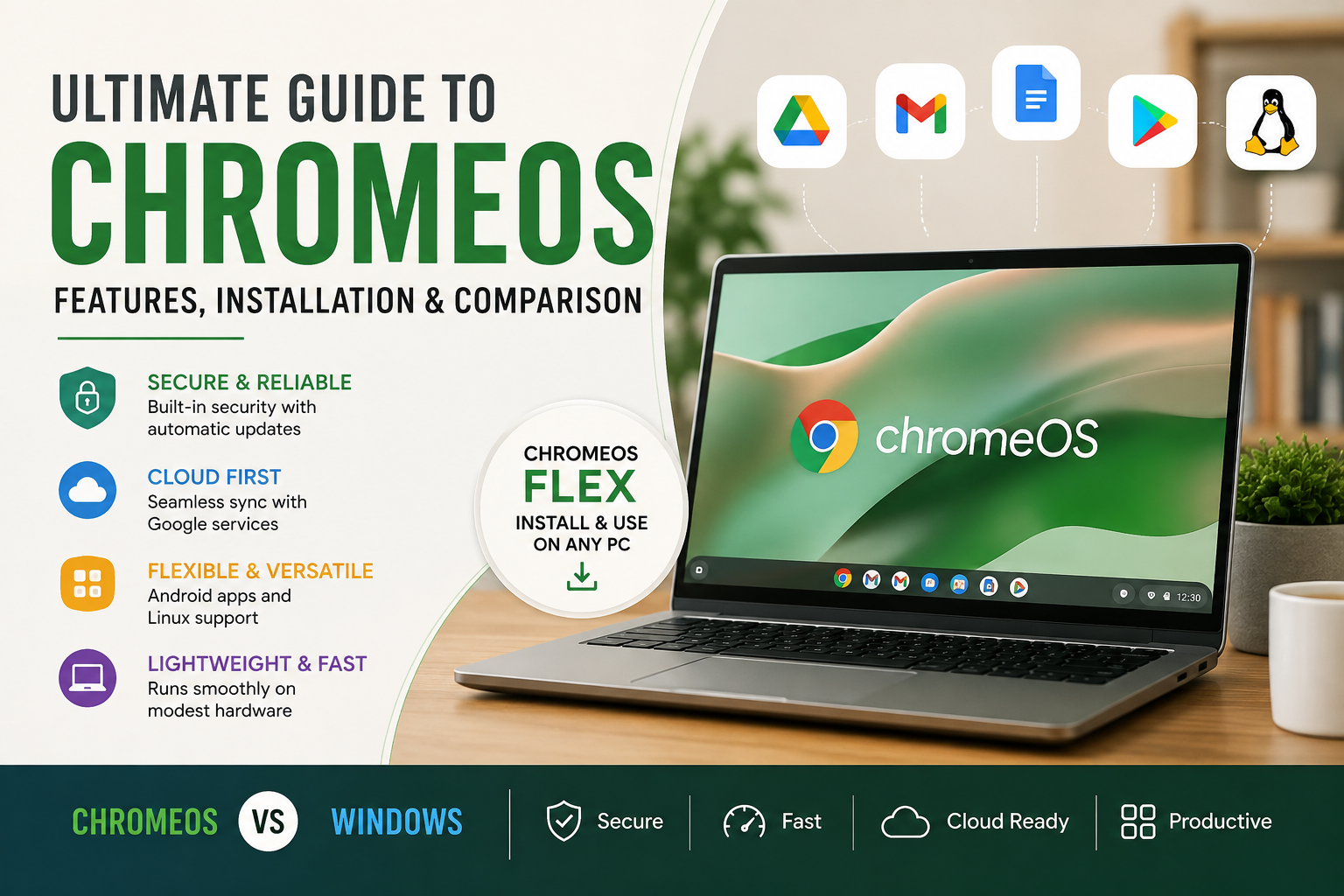
Ultimate Guide to ChromeOS: Features, Installation, and Comparison
ChromeOS is a lightweight, secure operating system developed by Google for Chromebooks and other compatible devices. It focuses on web apps, cloud services, and simple device management. Over time, the platform has grown beyond a browser-focused system. Supported Chromebooks can also run Android apps and Linux development environments.
The operating system is popular with students, casual users, and businesses. It offers automatic updates, built-in security features, and a simple interface. It can also perform well on modest hardware.
This guide explains what the platform is used for and how it compares with Windows. You will also learn about ChromeOS Flex, Windows compatibility, and installation options. These details can help you choose the right operating system for your needs.
Whether you need a laptop for school, office work, browsing, or entertainment, a Chromebook can be a practical choice. However, its limitations matter if you depend on demanding Windows software or advanced PC gaming.
What is ChromeOS used for?
ChromeOS is mainly used for web browsing, cloud computing, education, communication, and everyday productivity. The platform works closely with Google services, including Google Drive, Docs, Gmail, and other web applications. This makes it useful for people who spend most of their time online.
Chromebooks can also handle local files and selected Android apps. Some models support Linux development environments for programming and technical work. These options give the platform more flexibility than earlier versions.
Common uses include:
- Browsing websites and social media
- Creating and editing documents
- Attending online classes and meetings
- Streaming music and video
- Managing cloud-based files
- Using supported Android applications
- Running compatible Linux development tools
The system also emphasizes security and automatic maintenance. Google delivers updates in the background, reducing the work users need to handle themselves. For Windows users, keeping the operating system updated is equally important, as skipping Windows updates can create security and performance risks. Its streamlined design can help older or lower-powered hardware remain responsive.
However, software compatibility varies by Chromebook model. The applications you need should therefore influence your buying decision. Users who depend on specialized desktop software may need Windows instead.
Everyday Productivity and Education
ChromeOS works well for students, teachers, and professionals who rely on online tools. Schools can manage large numbers of Chromebooks centrally. Administrators can also control settings and applications without maintaining each device manually. Students comparing Chromebook options with Windows laptops may also benefit from comparing Mac and Windows for students before choosing a device.
For everyday productivity, users can write documents, create presentations, check email, and join video meetings. Google Workspace and other browser-based platforms cover many common office tasks. Users can complete much of this work without installing traditional desktop programs, while those using Windows can also explore productivity apps for Windows 11 for additional tools.
Chromebooks can also handle several tasks offline. Supported Google apps can store work locally and synchronize changes after the device reconnects. This makes the platform useful when students or professionals temporarily lose internet access.
Simplicity remains one of its biggest strengths. The lightweight design requires less routine maintenance than many traditional desktop systems. Students can focus on assignments instead of system administration.
However, schools and businesses should check their application requirements first. Specialized software may still require Windows or another desktop platform. The best results come when most daily tasks use web apps, supported Android apps, or compatible Linux tools.
Is ChromeOS better than Windows?
Whether ChromeOS is better than Windows depends on how you use your computer. Google’s platform focuses on simplicity, security, web applications, and cloud-based workflows. Windows offers broader desktop software compatibility and stronger support for demanding applications.
A Chromebook can work well for browsing, education, office work, streaming, and general productivity. It also performs well on many affordable devices. Automatic updates and a straightforward interface can make the system easier to manage.
Windows usually suits people who need specialized desktop applications. It also offers a larger library of traditional PC games and professional software. Hardware compatibility provides another important advantage.
Here is a quick comparison:
| Feature | ChromeOS | Windows |
|---|---|---|
| Web browsing | Excellent | Excellent |
| Cloud productivity | Excellent | Excellent |
| Android apps | Supported on some Chromebooks | Limited through Windows options |
| Linux tools | Supported on compatible devices | Available through Windows features |
| Traditional desktop software | More limited | Extensive |
| High-end PC gaming | More limited | Stronger |
| System management | Simple | More configurable |
The right choice depends on your software, hardware, and performance requirements. Checking your essential applications before buying can prevent compatibility issues later.
Software Compatibility and Performance
Software compatibility creates one of the biggest differences between ChromeOS and Windows. Google’s platform prioritizes browser applications, supported Android apps, and Linux development tools. Windows supports a much wider range of traditional desktop programs.
This difference matters when choosing a computer. People who mainly use documents, email, web apps, and streaming services may find a Chromebook more than sufficient. Its lightweight design can also deliver responsive performance on affordable hardware.
Windows has an advantage for demanding workflows. Professional applications, specialized business programs, advanced creative tools, and many PC games primarily target Windows. Some programs offer web or Android alternatives, but those versions may provide fewer features. If choosing Windows specifically for newer desktop software, understanding the safety of Windows 10 in 2026 can also help when deciding which Windows version to use.
Hardware also affects performance. A powerful Windows laptop can handle workloads that many entry-level Chromebooks cannot. Conversely, a Chromebook can feel fast and efficient on modest hardware because the system targets lighter workflows.
Before choosing either platform, list your essential applications. Then check whether each one supports web, Android, Linux, or Windows environments. This simple step can prevent compatibility problems and help you choose the right device.
Can I install ChromeOS on your laptop?
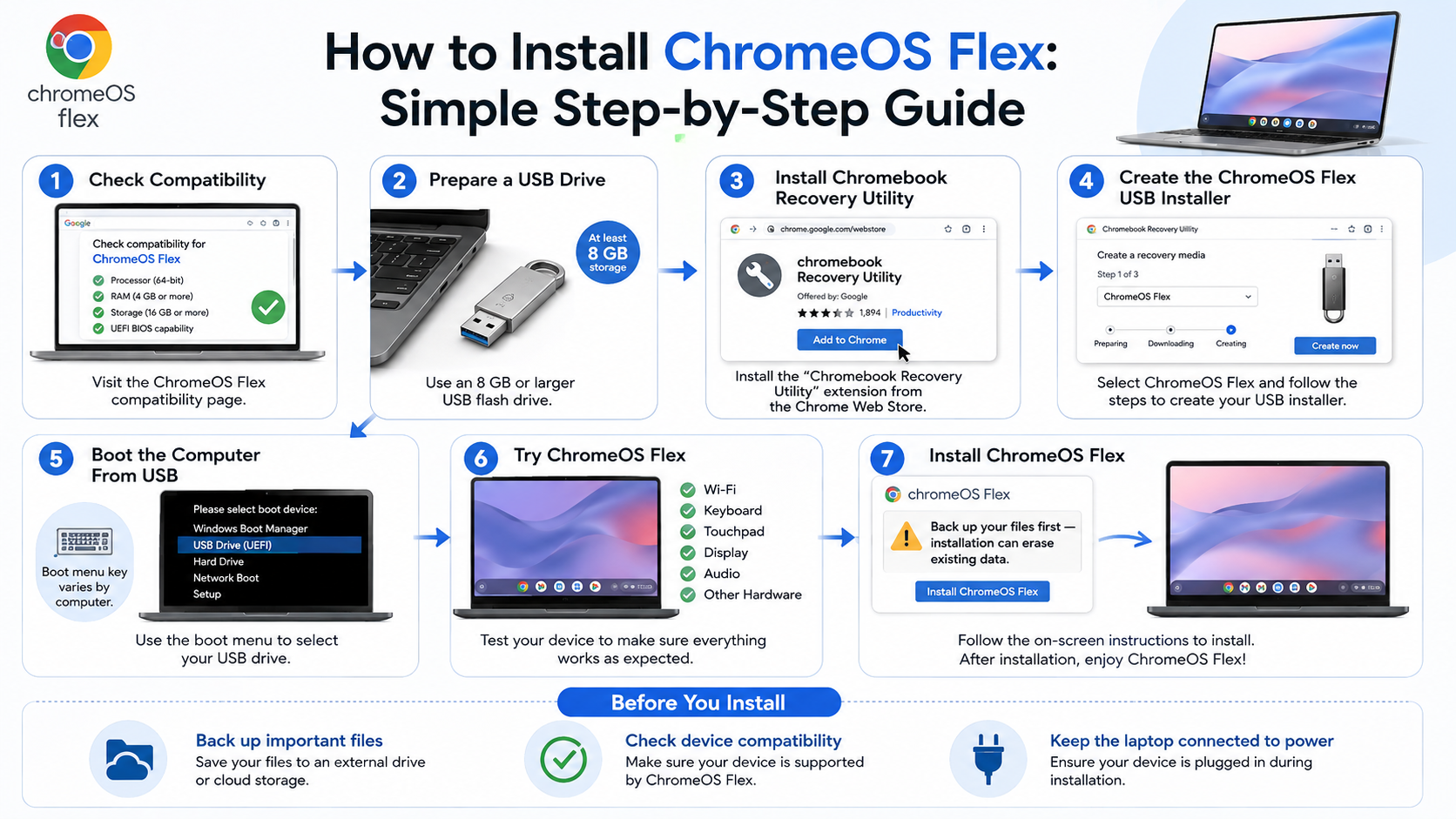

If you own a standard Windows or Mac laptop, you generally cannot install the same official ChromeOS version that ships with certified Chromebooks. Google designs and distributes that version for specific hardware. For compatible third-party computers, Google instead provides ChromeOS Flex.
ChromeOS Flex supports selected Windows, Mac, and Linux computers. It can extend the useful life of older hardware by replacing the existing operating system. Google maintains a certified models list to improve compatibility and reliability.
Before installing Flex, check your laptop model against Google’s certified hardware list. Hardware support varies between devices. Audio, networking, cameras, and other components may behave differently on unsupported hardware.
You can also test the system from a USB drive before installing it permanently. This approach lets you check whether your laptop’s essential hardware works correctly.
Flex provides a similar experience, but it does not match every Chromebook feature. Most importantly, it does not include the standard Google Play Store or Android app support found on supported Chromebooks.
For users who need Android apps, buying a compatible Chromebook remains the better option.
Using ChromeOS Flex for Older PCs
ChromeOS Flex offers a practical way to give an older computer a simpler second life. Google designed it for compatible Windows, Mac, and Linux hardware. The system focuses on web-based computing and cloud productivity.
You can create a bootable USB installer and start the computer from that drive. This lets you test compatibility before replacing the existing operating system. Testing first can reveal problems with unsupported hardware.
For better reliability, check Google’s certified models list before installation. Google tests certified devices for important functions such as display, networking, installation, and audio. Uncertified computers may still work, but Google provides less assurance for those models.
Keep in mind that ChromeOS Flex does not support the Google Play Store or standard Android apps. This creates a major difference from compatible Chromebooks. Linux support can also vary by device.
Flex works best for browsing, online productivity, communication, media consumption, and other cloud-focused tasks. It can make older hardware feel useful again without requiring a new computer.
If you need Android applications or deeper Chromebook hardware integration, consider buying a supported Chromebook instead. Always back up important files before replacing your current operating system.
Can you run Windows on ChromeOS?
A standard Chromebook does not provide a simple, officially supported way to install a full Windows desktop environment as its primary operating system. The two platforms use different system designs, and Windows applications cannot normally run as native ChromeOS programs.
However, you can access Windows environments without replacing the existing system. Businesses can use remote desktop and cloud-based Windows services to deliver Windows applications. A compatible Chromebook then acts as the client device.
Some advanced setups also use virtualization or compatibility tools. Support depends heavily on the Chromebook model, processor, system configuration, and software involved. These methods require more technical knowledge and may not suit casual users.
For most people, the practical choices include:
- Use web versions of required applications.
- Use compatible Android apps on supported Chromebooks.
- Run supported Linux applications.
- Access a remote Windows PC.
- Use a cloud-hosted Windows environment.
- Choose a Windows laptop when native Windows software is essential.
The platform can therefore provide indirect access to Windows software. However, it cannot replace a full Windows PC for every workflow. Users who depend on native desktop applications should consider Windows hardware first.
Cloud Streaming and Virtualization
Cloud-based Windows services can help Chromebook users access applications that require Windows. Instead of installing Windows locally, the remote service runs the Windows environment on its servers. The Chromebook displays the session and sends user input over the internet.
This approach can help businesses manage centralized software requirements. It can also reduce the need for powerful local hardware. However, performance depends heavily on connection speed, network stability, and the quality of the remote service.
Remote Windows access makes sense when you occasionally need a Windows application. It becomes less convenient when you require constant offline access or very low latency. Creative, engineering, and other demanding workloads may also behave differently through a remote connection.
Virtual machines offer another option in certain supported environments. However, they require suitable hardware and configuration. ChromeOS Flex also has different virtualization capabilities from ChromeOS on supported Chromebooks.
For everyday users, choosing the platform that natively supports essential applications remains the simplest approach. If Windows software forms a central part of your workflow, a Windows PC will usually provide a smoother experience.
Can I remove ChromeOS and install Windows?
Replacing ChromeOS with Windows on a Chromebook works only on certain hardware and does not receive official support for typical users. Chromebooks use specialized firmware and hardware configurations designed around Google’s operating system. Compatibility therefore varies considerably between models.
Some older Intel-based Chromebooks can run alternative operating systems after advanced firmware modifications. However, this process requires technical knowledge and careful research. It can also create hardware compatibility problems.
Before attempting such a project, investigate your exact Chromebook model. A method that works on one model may fail on another. Missing drivers can affect important components, including audio, touchpads, keyboards, cameras, and wireless connectivity.
Changing firmware also creates additional risks. An incorrect procedure can make a device unusable or difficult to recover. You should also consider warranty and support implications before making changes.
For most users, replacing the operating system does not offer the best experience. If you need Windows permanently, buying a laptop designed for Windows is usually safer and more reliable.
If your goal involves reviving an older Windows or Mac computer, ChromeOS Flex provides a simpler alternative.
Hardware Limitations and Driver Issues
Hardware compatibility creates the biggest challenge when installing Windows on a Chromebook. Windows expects drivers and firmware that support its hardware environment. Chromebook components may not have complete Windows driver support.
Problems can affect basic functions. Windows may boot successfully but still lack working audio, touchpad gestures, webcam support, wireless connectivity, or other features. Finding suitable drivers can become difficult, especially with older models.
Firmware creates another important consideration. Some Chromebooks require firmware changes before alternative operating systems can boot correctly. These changes can involve significant technical risks. Users should follow instructions designed specifically for their exact model.
Performance can also vary. A Chromebook may have enough power for everyday ChromeOS tasks but struggle with demanding Windows workloads. Limited storage and memory can create additional restrictions.
For these reasons, replacing the operating system should remain an advanced hardware project. Users who want reliable Windows support should generally purchase a Windows-compatible laptop.
Users who want a lightweight system for older Windows or Mac hardware can consider ChromeOS Flex instead. It offers a simpler installation path and avoids many firmware and driver problems associated with replacing ChromeOS on a Chromebook.
FAQ SECTION
What is the difference between ChromeOS and ChromeOS Flex?
ChromeOS is pre-installed on certified Chromebook hardware with full support for Android applications and deep system integration. ChromeOS Flex is a lightweight alternative designed by Google to revive older PCs and Macs, omitting Android app support while keeping the core web browser and cloud management features intact.
Do Chromebooks work without an internet connection?
Yes, Chromebooks function offline for many tasks, allowing you to edit documents in Google Docs, view downloaded media, and check offline emails. Once your device reconnects to Wi-Fi, all local changes automatically sync back to your cloud storage account without requiring manual intervention.
Can I play PC games on ChromeOS?
Traditional high-end Windows PC games do not run natively on standard ChromeOS hardware due to architecture and driver differences. However, you can easily play cloud-based video games through services like Xbox Cloud Gaming and NVIDIA GeForce NOW, or run compatible Android games from the Play Store.
How often do ChromeOS devices receive updates?
Google automatically provides background system updates to supported ChromeOS devices every four weeks, ensuring continuous security and new feature rollouts. Each hardware model has an official Auto Update Expiration date, after which it ceases receiving automatic software updates from Google.
Conclusion
ChromeOS is a fast, secure, and straightforward operating system for users who rely on web applications and cloud services. It has grown beyond basic browsing and now supports features such as Android apps and Linux tools on compatible Chromebooks.
The platform is particularly useful for students, casual users, remote workers, and organizations that value simple management. Automatic updates and a streamlined interface also reduce routine maintenance.
ChromeOS is not the best choice for everyone. Windows remains stronger for many traditional desktop applications, advanced gaming, and specialized professional software. Your essential applications should therefore guide the decision.
If you already own an older Windows or Mac computer, ChromeOS Flex offers another option. It can provide a ChromeOS-like experience without requiring a Chromebook. However, ChromeOS Flex does not include standard Android app support.
Replacing ChromeOS with Windows on a Chromebook is a different matter. It can be technically possible on selected hardware, but it involves significant compatibility and firmware risks.
Ultimately, the right choice depends on your workflow. If most of your tasks happen online, ChromeOS can provide an efficient and reliable computing experience.