
Should You Enable or Disable Fast Startup on Your PC?
Windows includes a hybrid power feature called Fast Startup. It helps your PC boot faster after a shutdown. Many users wonder whether they should enable or disable fast startup for better stability and performance.
According to Microsoft Learn’s documentation on Windows power states, Fast Startup saves the Windows kernel session and loaded drivers to the hibernation file. Windows then uses that saved state during the next boot instead of loading everything from scratch.
This process can reduce startup time. However, the benefit is less noticeable on modern PCs with fast SSDs. Fast Startup can also cause problems with certain drivers, system updates, and dual-boot configurations.
This guide explains what Fast Startup does and when you should use it. We will also examine its impact on Windows 11, battery life, SSDs, and system performance.
By the end, you will understand whether you should enable or disable Fast Startup. You will also know which option best suits your PC and daily workflow.
Is It Better to Enable or Disable Fast Startup?
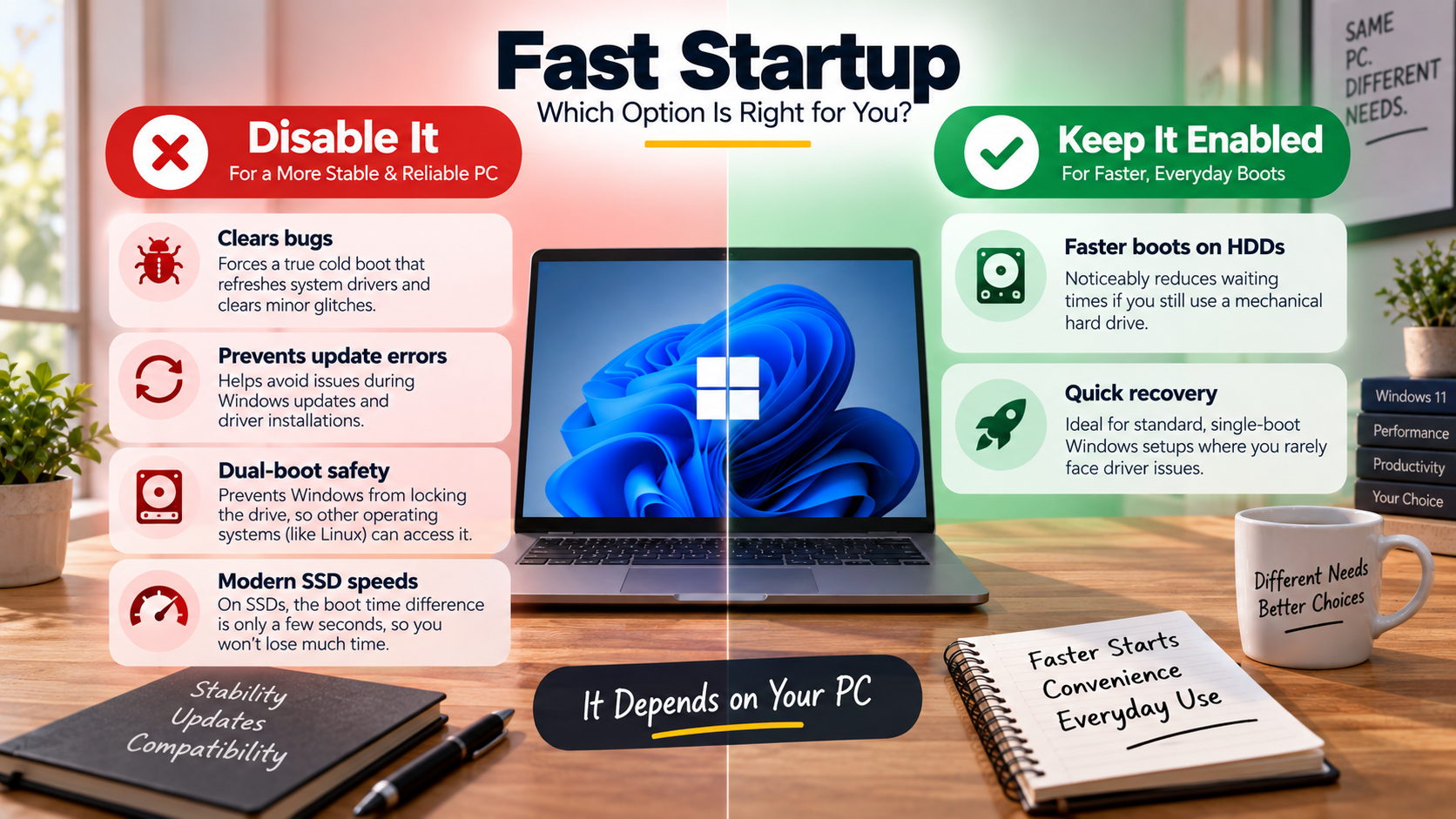
For many modern PCs with SSDs, disabling Fast Startup can be a sensible choice. SSDs already provide very fast boot times, so the extra benefit may be small. If you are also evaluating whether premium storage is worthwhile, comparing the value of an expensive SSD can help put the performance difference into perspective.
However, disabling Fast Startup is not automatically better for every computer. Older PCs with mechanical hard drives can benefit more from faster hybrid startup. The difference can be noticeable on systems with slower storage.
Consider disabling Fast Startup if you regularly experience startup or shutdown problems. It can also help when you use Linux alongside Windows or troubleshoot hardware drivers. If you frequently switch between operating systems, understanding how mobile emulators work on desktop computers may also be useful when managing different software environments.
Disabling Fast Startup may be useful when:
- You use a dual-boot Windows and Linux setup.
- Hardware or driver problems appear after shutdown.
- Windows updates behave unexpectedly.
- You prefer a complete shutdown every time.
If your PC starts quickly and Fast Startup causes no problems, leaving it enabled is also reasonable. The best choice depends on your hardware and workflow.

Is Fast Startup Bad for Performance?
Fast Startup does not normally reduce everyday PC performance. Its main purpose is to speed up the boot process after shutdown. It does not make your processor, memory, or SSD operate more slowly during normal Windows use.
The confusion comes from the way Fast Startup works. A shutdown with Fast Startup enabled is not identical to a traditional full shutdown. Windows saves the kernel session and drivers to the hibernation file.
This can preserve a problematic driver or system state across shutdowns. If your PC develops glitches after repeated shutdowns, a full restart can often clear them. Windows Restart performs a full boot rather than using the Fast Startup process.
For example, disabling Fast Startup may help if you notice:
- Driver problems after shutting down.
- Hardware that fails to initialize correctly.
- Unusual startup behavior.
- Problems accessing drives from another operating system.
You should not disable Fast Startup simply because you expect better gaming performance. It does not normally improve FPS or general application speed. For graphics-related performance issues, it is more useful to understand how ray tracing can reduce FPS and when that feature should be disabled.
For persistent performance problems, Restarting Windows is often more useful than changing Fast Startup. A restart reloads Windows and its drivers from a clean state. If storage performance is also a concern, knowing the minimum free space to leave on an SSD can help maintain reliable day-to-day performance.
Should I Turn On or Off Fast Startup in Windows 11?
For Windows 11, there is no universal need to disable Fast Startup. The right setting depends on your hardware and whether you encounter problems. Modern SSDs make startup fast, but Fast Startup can still reduce boot time.
Disabling it can be useful if you frequently troubleshoot drivers or hardware. It is also worth considering if you use a dual-boot configuration. Windows may leave the system volume in a state that complicates access from another operating system, especially when you rely on USB-C ports on a desktop PC for external storage and peripherals.
Fast Startup can also affect how some updates and shutdown operations behave. However, it is inaccurate to say that Windows 11 updates generally require Fast Startup to be disabled. Windows Restart already performs the full boot needed for many update operations.
Consider these factors when choosing your setting:
- Modern SSD: The startup difference may be relatively small.
- Older hard drive: Fast Startup may provide a more noticeable benefit.
- Dual boot: Disabling it can avoid filesystem-access complications.
- Driver issues: A full shutdown may help with troubleshooting.
- No problems: Keeping Fast Startup enabled is perfectly reasonable.
If reliability matters more than a small startup-time improvement, disabling it is a practical option.
Does Fast Startup Drain the Battery?
Fast Startup can contribute to battery use after shutdown, but the effect depends on the laptop and its power-management settings. It is not accurate to assume that every laptop will lose a noticeable percentage of battery because Fast Startup is enabled.
Fast Startup uses part of Windows’ hibernation mechanism. During shutdown, Windows saves the kernel session and related system information to storage. This process requires some energy while the computer completes the shutdown.
The more important issue is that modern laptops can use different low-power states. Hardware firmware, USB settings, network features, and connected accessories can also affect battery drain while the laptop is off.
If your laptop loses significant battery inside a bag, Fast Startup is only one possible cause. If the problem continues, understanding why your laptop battery drains so fast can help you investigate other possible causes.
Disabling Fast Startup can still be useful if you want to test whether it affects your system. It also gives Windows a more traditional full-shutdown process.
If battery drain continues after disabling Fast Startup, investigate:
- USB power settings
- Connected peripherals
- Wake-on-LAN or network wake features
- Modern standby behavior
- BIOS or firmware power settings
For most users, Fast Startup is unlikely to be the only explanation for substantial shutdown battery loss.