
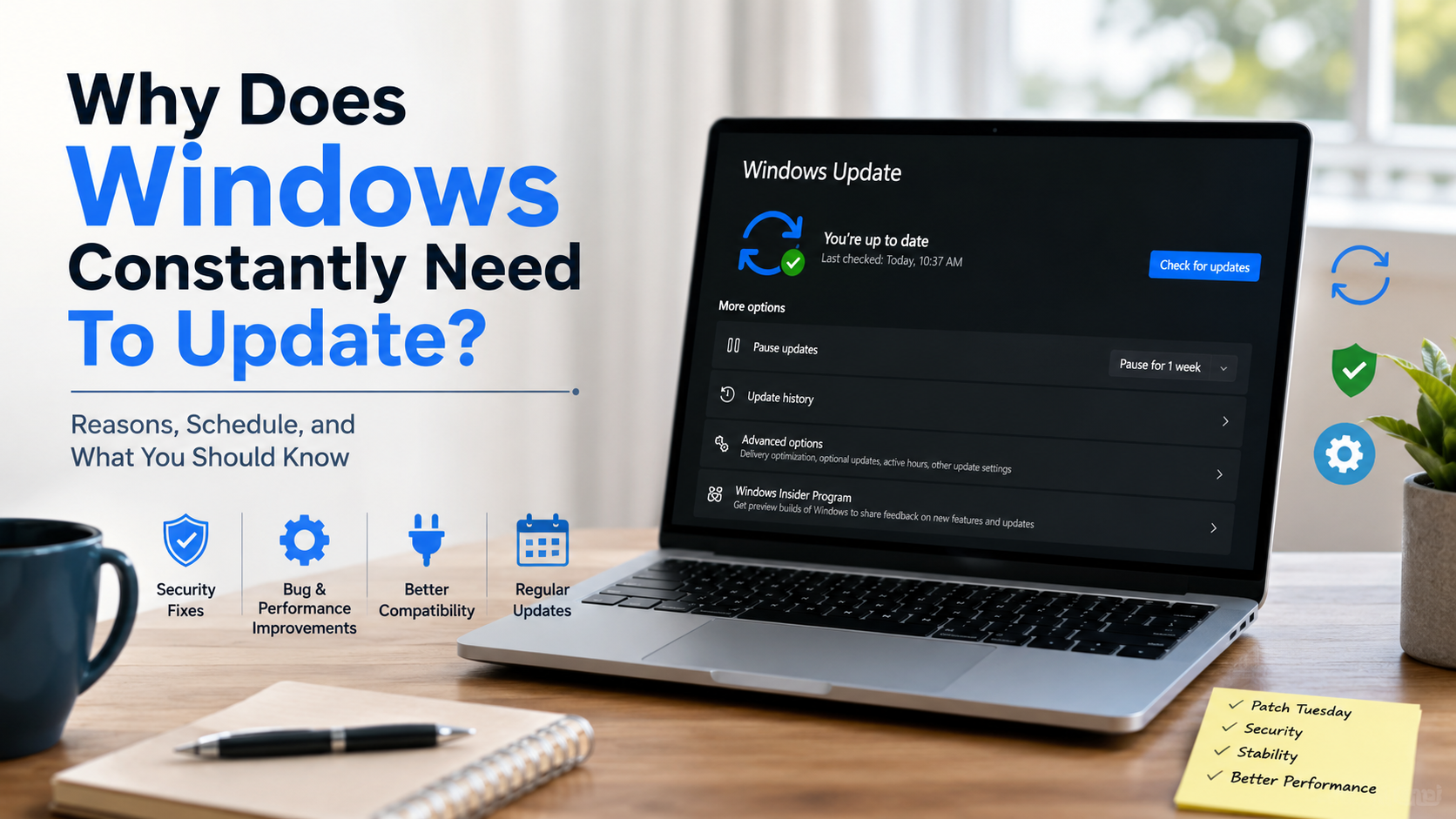
Why Does Windows Constantly Need To Update?
Few things disrupt your workday like a sudden Windows restart prompt. You may wonder, why does Windows constantly need to update when your PC was working normally moments earlier. The simple answer is that Windows needs regular maintenance to remain secure, stable, and compatible with modern software.
Microsoft releases regular updates that include security fixes, bug fixes, performance improvements, and other system changes. Some updates also introduce new features or improve existing Windows components. Emergency updates can arrive outside the normal schedule when Microsoft needs to address a serious security problem.
Modern cyber threats change constantly. New vulnerabilities can put personal files, passwords, and financial information at risk. Regular Windows updates help close these security gaps before attackers can exploit them.
Updates also improve compatibility with newer apps, browsers, drivers, and hardware. They can fix crashes, improve reliability, and resolve problems between different Windows components.
In this guide, you will learn why Windows keeps updating and how to manage those alerts. You will also learn whether an older PC is still practical and what happens when you delay Windows updates.
Why does Windows keep asking to update?
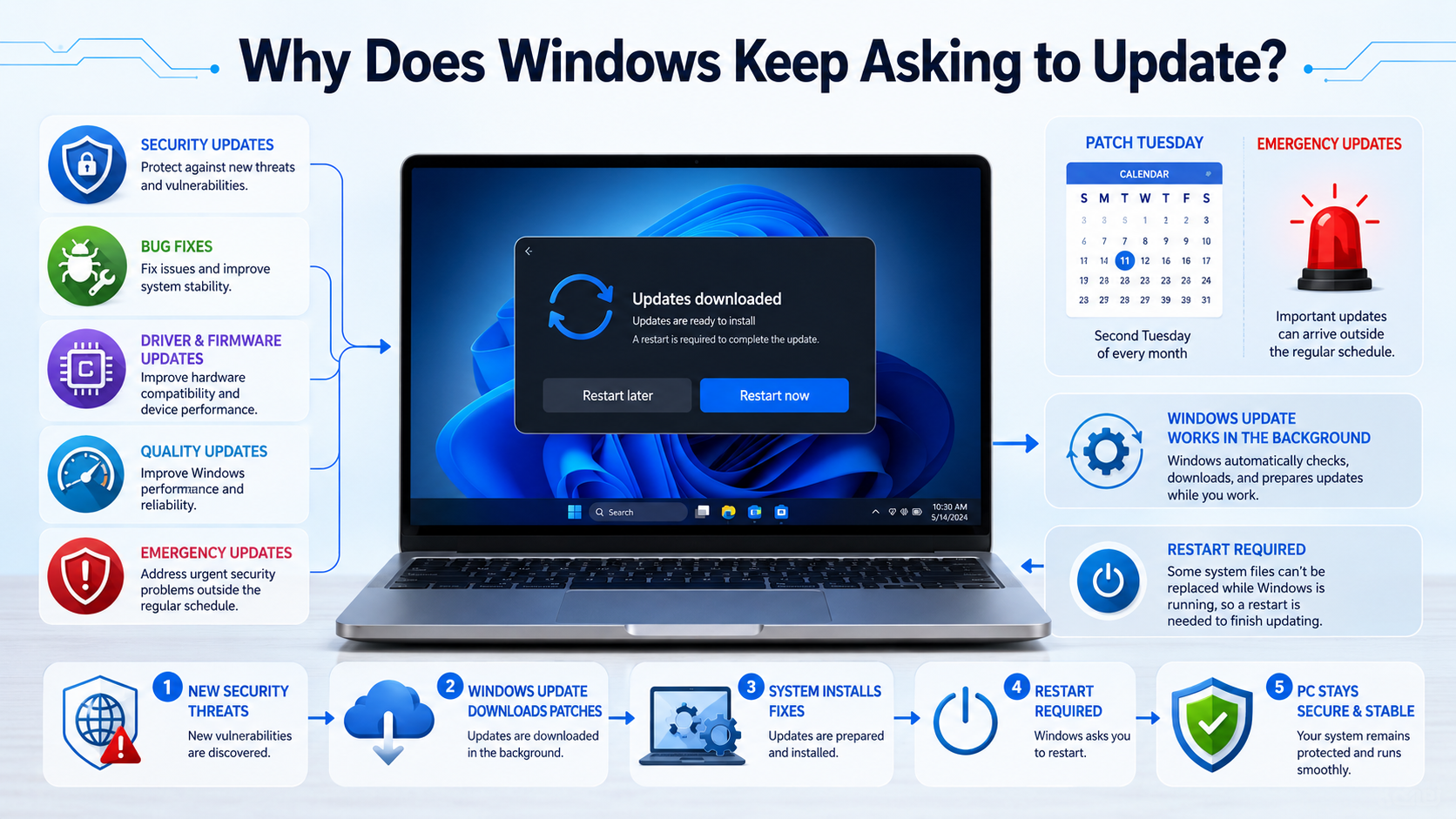
Windows keeps asking to update because the operating system needs regular security and maintenance fixes. Microsoft releases monthly cumulative updates that combine security patches with other improvements. These updates help protect your computer against newly discovered vulnerabilities and software problems. For a deeper look at the risks of ignoring these patches, see What Happens To Your Computer If You Skip Windows Updates.
Windows can also download updates in the background. After an update downloads, some system files cannot be replaced while Windows is running. That is why Windows may ask you to restart your computer.
Not every update is a major Windows upgrade. Many are smaller quality updates that fix bugs, improve reliability, or address security problems. Driver, .NET, and firmware updates can also appear through Windows Update.
You may receive more notifications when Microsoft releases an emergency or out-of-band update. These updates address urgent problems instead of waiting for the regular monthly schedule.
Windows also tries to restart outside your active hours. You can adjust those hours if restart notifications keep interrupting your work.
Overall, frequent updates are normal. They do not necessarily mean something is wrong with your computer.

Patch Tuesday and Background Service Scans
Microsoft follows a predictable monthly Windows update schedule. The main security release arrives on the second Tuesday of each month. This release is commonly known as Patch Tuesday.
Patch Tuesday updates can include security fixes, bug fixes, and other improvements. They help Microsoft address known vulnerabilities and maintain the stability of supported Windows versions.
Windows can also receive updates outside this schedule. These are often called out-of-band updates. Microsoft uses them when a serious security vulnerability or widespread technical problem needs attention sooner.
This explains why your PC may sometimes request an update shortly after another update. Different releases can address different problems.
Windows Update also checks for available updates automatically. Depending on your device and settings, these may include drivers, .NET updates, firmware, and other system components.
If Windows keeps showing update notifications, open Settings > Windows Update. You can see which updates are pending and whether your computer needs a restart.
The important point is that Windows updates are not all identical. Some are routine monthly fixes, while others respond to urgent security or reliability issues.
Understanding this difference can make frequent update notifications less confusing.
Is a 7 year old computer too old?
A 7-year-old computer is not automatically too old. Its usefulness depends on the processor, memory, storage, battery or power supply, and the tasks you perform.
For basic activities, an older PC may still work well. Web browsing, email, word processing, streaming, and light office work usually require less hardware than gaming or professional video editing.
Storage can also make a major difference. Replacing an old mechanical hard drive with a compatible SSD can make an aging computer feel much faster. Adding more memory may also help if the system frequently runs out of RAM.
However, older hardware can create compatibility problems. Windows 11 has specific hardware requirements, including TPM 2.0, Secure Boot capability, compatible processors, at least 4 GB of RAM, and at least 64 GB of storage.
Therefore, a seven-year-old PC may continue working but still fail Windows 11 compatibility checks. Age alone does not determine whether an upgrade is possible.
Before replacing your machine, check its specifications and use the PC Health Check tool. This gives you a clearer answer than the computer’s age alone.
If your current PC remains fast enough for your daily tasks, there may be no immediate reason to replace it. However, long-term software support should always be considered.
Hardware Limitations and Hardware Security Bottlenecks
Older computers can face both performance and security limitations. However, TPM 2.0 and Secure Boot are not processor architecture standards. They are separate hardware and firmware requirements associated with Windows 11.
TPM 2.0 provides hardware-based security functions. Windows 11 requires a compatible TPM, while Secure Boot depends on UEFI firmware. Together, these technologies help create a stronger security foundation.
Older PCs may lack one or more required components. Some computers may support these technologies but have them disabled in the firmware settings. Therefore, check compatibility before assuming that an older computer is permanently unsupported.
Performance is another concern. Older processors may struggle with demanding applications, multitasking, or newer browsers. Aging storage drives can also become slower or less reliable.
Hardware wear matters too. Batteries lose capacity, cooling systems collect dust, and mechanical drives can eventually fail. These issues can make an older computer feel slow even when Windows itself is working correctly.
If your PC remains fast enough and meets current Windows requirements, there may be no immediate reason to replace it. If it cannot run a supported Windows version, however, security support becomes the more important concern. This is especially important for users asking Is Windows 10 Safe in 2026? Security Risks Explained.
How do I stop Windows from wanting to update?
You cannot permanently turn off Windows updates through the normal Windows settings. Windows is designed to keep supported devices protected with important security and reliability updates.
However, you can pause updates and control when Windows restarts. This gives you more control when an update appears at an inconvenient time.
The simplest option is to set your active hours. Windows uses these hours to avoid restarting your computer when you normally work. You can also schedule a restart for a more convenient time.
If you have an important presentation, deadline, meeting, or trip, you can temporarily pause updates. Current Windows settings allow updates to be paused for a limited period. Once the pause ends, Windows will resume checking for updates.
A metered connection can also affect how Windows downloads certain updates. However, this should not be treated as a permanent update strategy.
Advanced administrative settings may provide additional controls on some Windows editions. These options are generally better suited to managed computers and experienced users.
The safest approach is not to fight Windows Update completely. Instead, control its timing. Schedule restarts outside your working hours and use short pauses when necessary.
This keeps your computer protected while reducing unnecessary interruptions during important tasks.
Using Active Hours and Update Pauses
Active hours are useful when Windows restarts at inconvenient times. They tell Windows when you normally use your computer, helping it avoid automatic restarts during those hours.
In Windows 11, open Settings > Windows Update > Advanced options and look for the active-hours settings. You can allow Windows to determine your active hours automatically or configure them yourself.
For temporary interruptions, use the Pause updates option in Windows Update. This lets you delay updates when you need uninterrupted access to your computer.
Remember that pausing updates does not permanently disable them. Once the pause expires, Windows checks for updates again and may download and install them.
For important work, scheduling a restart is often better than repeatedly postponing an update. Windows can finish the installation when you choose a suitable time.
A practical setup is simple:
- Set active hours around your normal work schedule.
- Pause updates briefly when you need uninterrupted work.
- Schedule required restarts for evenings or other convenient times.
- Install important security updates instead of delaying them indefinitely.
This approach gives you control without leaving the computer unnecessarily exposed.
You should also avoid using random third-party programs that claim to permanently disable Windows Update. Such tools can interfere with security features and future system updates.
Is it okay to skip Windows updates?
Skipping a Windows update for a short period is usually less risky than permanently abandoning updates. You may choose to delay an update briefly if you need uninterrupted work or want time to check for reported compatibility problems.
However, delaying security updates indefinitely creates a growing security risk. Updates often address vulnerabilities that attackers may eventually target. Once a weakness becomes publicly known, unpatched systems can become attractive targets.
Windows updates can also fix bugs, improve reliability, and address compatibility problems. Skipping them may leave known issues unresolved.
The key difference is between a short delay and a permanent decision. A brief pause can be reasonable when you have a practical reason. Months or years without security updates is a very different situation.
You should also consider whether your Windows version is still supported. An unsupported version may no longer receive normal security fixes, regardless of your update settings.
If you need to delay an update, use Windows’ built-in pause and restart controls. Avoid unofficial tools that permanently disable Windows Update unless you fully understand the risks.
For most users, the best strategy is simple: delay when necessary, but do not ignore important security updates permanently.
The Immediate Dangers of Delayed Security Patches
Delayed security patches can leave known vulnerabilities open on your computer. Attackers often target weaknesses in widely used software because successful attacks can affect large numbers of devices.
The risk becomes greater when a vulnerability is publicly documented. Security researchers, software vendors, and attackers may already understand how the weakness works. An unpatched computer can then remain exposed until the required fix is installed.
That does not mean every delayed update will immediately result in malware. Risk depends on the vulnerability, your online activity, security software, and other protections.
Still, unnecessary delays increase your exposure. Potential consequences can include:
- Malware infections
- Ransomware attacks
- Account or password theft
- Unauthorized access to personal files
- System instability
- Exploitation of known security weaknesses
For this reason, temporary delays should remain temporary. Install important security updates as soon as practical.
Keeping Windows updated is only one part of computer security. You should also use strong passwords, enable multifactor authentication where available, maintain reliable backups, and follow Malware Protection Tips for Home and Business Users 2026 to reduce your overall security risk.
If an update requires a restart at a bad time, schedule it for later rather than ignoring it completely.
A few minutes spent updating your computer can help prevent much larger problems later.
What happens if I never update to Windows 11?
If you never upgrade to Windows 11, your PC may continue working for some time. Your existing applications can still open, and everyday tasks may continue normally.
The bigger issue is support, not an immediate shutdown. Windows 10 reached its official end of support on October 14, 2025. Standard Windows 10 installations no longer receive normal security and software updates through regular support.
That means a Windows 10 PC does not suddenly stop working. Instead, it becomes increasingly difficult to keep the system fully supported and protected.
If your computer is eligible, upgrading to Windows 11 is the preferred long-term option. If it is not eligible, you may have access to an Extended Security Updates program for a limited period, depending on your situation.
You should therefore check your specific circumstances instead of assuming that an old PC must immediately be discarded.
However, older hardware can create compatibility problems. Windows 11 has specific hardware requirements, including TPM 2.0, Secure Boot capability, compatible processors, at least 4 GB of RAM, and at least 64 GB of storage. If you are considering an upgrade, How to Safely Upgrade to Windows 11 Without Losing Data can help you understand the process.
The important thing is to avoid using an unsupported operating system indefinitely. Your computer may continue to function, but its security position can become weaker over time.
Software Obsolescence and Zero-Day Exposure
Using an unsupported Windows version can eventually create compatibility and security problems. Software developers may stop testing newer applications against older operating systems.
Browsers, productivity programs, utilities, and hardware drivers can gradually drop support. This means you may eventually find that newer applications refuse to install or stop receiving important updates.
This does not always happen immediately. An older application may continue working for years. However, the longer a platform remains unsupported, the harder it becomes to maintain a fully current software environment.
Security is the more serious concern. An unsupported Windows installation may no longer receive fixes for newly discovered vulnerabilities. That can increase exposure to malware and other attacks.
Windows 10 is a good example. Standard support ended on October 14, 2025. Users who need more time may have access to extended security coverage, depending on their device and eligibility.
If you are keeping an older PC, check:
- Whether your Windows version is still supported
- Whether your browser receives security updates
- Whether essential applications remain compatible
- Whether your hardware meets current Windows requirements
- Whether you have reliable backups
These checks can help you decide whether keeping the computer is still practical.
FREQUENTLY ASKED QUESTIONS
Why do Windows updates take so long to install?
Updates take time because your operating system modifies core system files, replaces critical libraries, and reorganizes internal data structures. The overall installation speed depends directly on your internet connection, storage drive type, and processor speed. Traditional spinning hard drives process these complex file changes significantly slower than modern solid-state drives.
Can a Windows update delete my personal files?
Standard updates do not delete personal files, documents, or photos because they only overwrite core system binaries. However, rare installation errors or sudden power interruptions can corrupt file registries. It is always wise to keep an automated local or cloud backup running before applying major operating system upgrades.
How do I know if my PC can run the latest Windows version?
You can verify your computer’s hardware compatibility by downloading Microsoft’s official PC Health Check application. This diagnostic utility quickly scans your processor model, system memory, storage capacity, and security modules like TPM 2.0, letting you know instantly whether your hardware supports the latest operating system platform.
Why does my computer run slower after a new update?
Computers often run slower immediately following an update because the system performs intensive background tasks, such as rebuilding search indexes and optimizing system cache. These temporary processes consume significant CPU and disk resources, but normal system speed typically restores itself after a few hours or a fresh restart.
Conclusion
Understanding why does Windows constantly need to update makes those notifications easier to understand. Windows updates are not simply interruptions. They provide security fixes, reliability improvements, compatibility updates, and other changes that help maintain supported systems.
You do not need to install every update at the exact moment it appears. Windows provides tools that let you manage the timing. Set your active hours, pause updates when necessary, and schedule restarts around your work.
However, avoiding updates permanently is a different matter. Long-term delays can leave known security vulnerabilities unresolved. The risk becomes especially important when your Windows version reaches the end of its support period.
If you use Windows 10 today, remember that standard Windows 10 support ended on October 14, 2025. Check whether your PC can upgrade to Windows 11 or whether you qualify for an extended security update option.
Regular maintenance is one of the best ways to keep your computer secure and reliable. Check Windows Update, review pending patches, and choose a convenient restart time instead of ignoring updates indefinitely.
If your computer is several years old, also review its hardware compatibility and performance. A simple SSD or memory upgrade may extend its useful life, but unsupported hardware can eventually become a security concern.
The goal is not to avoid Windows updates completely. Instead, manage them wisely, install important security fixes, and keep your operating system supported.