
Android Auto Gemini Voice Commands: Smart In-Car Upgrades
Modern infotainment displays often distract drivers rather than simplify the journey. Upgrading your dashboard with the right Android Auto Gemini voice commands transforms your routine commute into a seamless, voice-driven experience. Instead of tapping through cluttered icons or battling rigid speech patterns, conversational artificial intelligence handles your digital tasks completely hands-free.
According to Google’s Official Android Auto Support, speech interaction now processes multi-turn requests and conversational inquiries effortlessly. Gemini interprets natural conversational phrasing rather than demanding strict script syntax. This leap forward lets you locate complex rest stops, manage your schedule, and check critical messages safely while your eyes stay fixed on the road.
Whether you want to learn what Gemini actually handles, understand the fate of Google Assistant, unlock hidden developer menus, or alter voice tones, setting up your vehicle properly makes all the difference. This guide breaks down the core features, hidden menus, and voice settings you need to optimize your in-car setup.

Find Restaurants and Gas Stations With Voice Commands
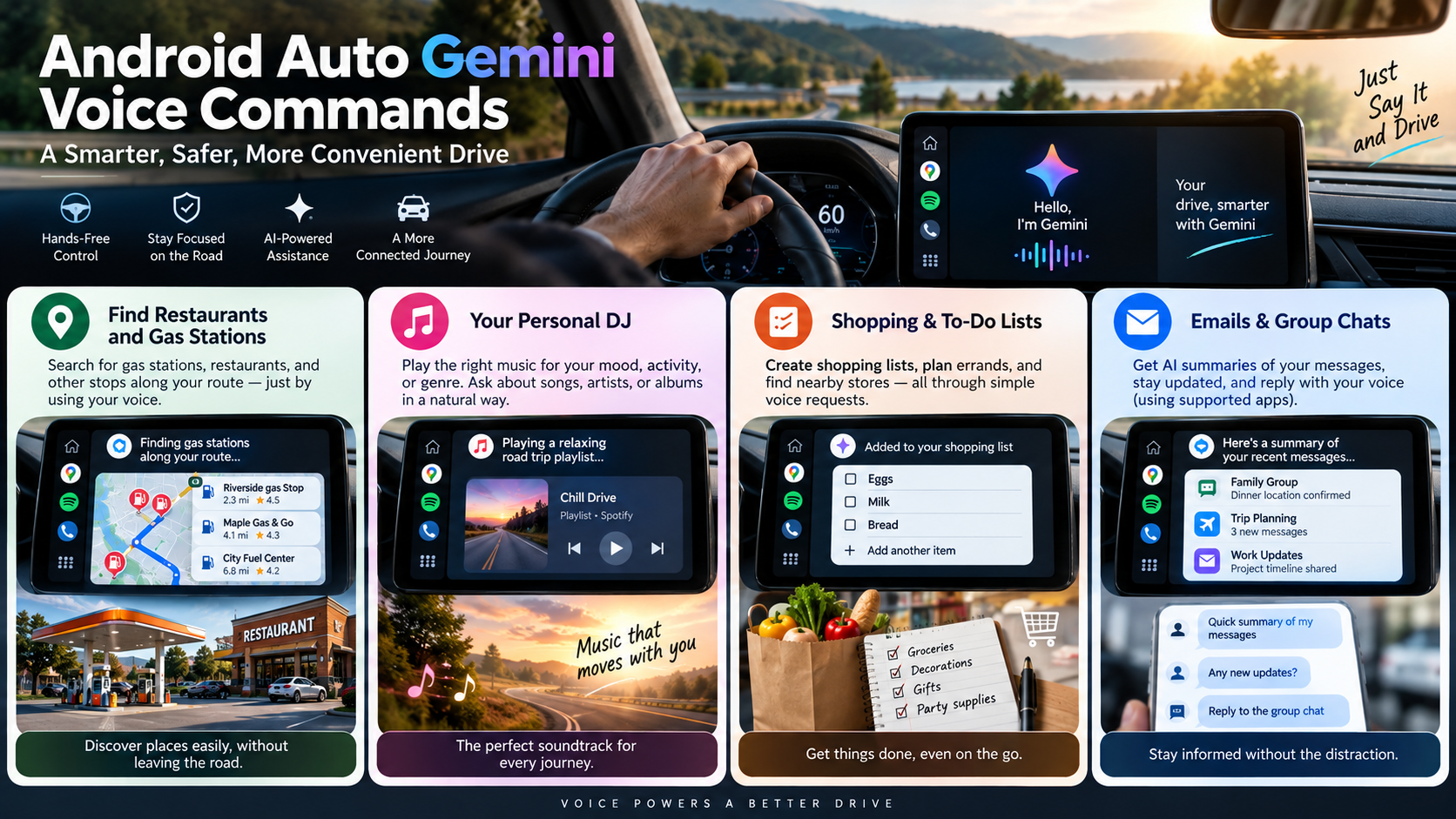
One of the most useful Android Auto Gemini voice commands is asking for places along your route. You can search for gas stations, restaurants, and other stops without manually browsing Google Maps.
Instead of giving a basic command, you can describe exactly what you need. For example, say, “Find gas stations along my route.” Gemini can show available options on the Android Auto display, along with useful details such as ratings and the potential impact of a detour.
You can also make your request more specific. Try asking for a gas station with E85 fuel, food, and other services. Gemini can process multiple requirements in a single request.
Restaurant searches work in a similar way. You could ask for a dog-friendly restaurant with outdoor seating or a place offering specific food options. If the first results are not suitable, use a follow-up command to add another preference. Gemini can maintain the conversation context, making voice-based searches easier while driving.
Treat Gemini as Your Personal DJ
Finding the right music can make a long drive more enjoyable. With Gemini, you can use conversational requests instead of searching through playlists or remembering exact song titles.
You can describe the type of music you want based on genre, mood, era, or activity. For example, ask for energetic music for a long highway drive or relaxing songs for a rainy evening commute. This kind of natural-language interaction reflects how large language models interpret detailed prompts rather than relying only on fixed commands.
Your requests can also include multiple preferences. You might ask for instrumental tracks, female vocals, a specific genre, or music that fits a particular mood. Gemini can use those details to find suitable music through compatible services.
You can also ask about a song when you cannot remember its name. Describe the commercial, movie, artist, lyrics, or other details you remember. Gemini can use that information to help identify the track.
This makes Android Auto Gemini voice commands useful beyond basic playback. You can ask questions about artists, albums, and songs while keeping your attention on the road. However, music features depend on the apps and services connected to your Android Auto setup.
Generate Shopping and To-Do Lists on the Move
Gemini can also help organize errands when you’re already on the road. Instead of stopping to type a shopping list, you can create one through a voice request when it is safe to interact with the system.
For example, you could ask Gemini to create a list for a birthday party. You can mention groceries, decorations, gifts, or other items you need. If supported by your connected apps, Gemini can help organize that information for later use.
You can also combine planning with navigation. Ask Gemini to help identify stores along your route that may have the items you need. This can reduce the amount of manual searching required during your trip.
If your plans change, conversational follow-ups can make the process easier. You can add another item, change your destination, or ask for another nearby option without starting the conversation again.
Keep in mind that app integration varies by account, device, region, and supported service. Do not assume every Gemini or Google Keep feature works directly through Android Auto. When available, these capabilities can reduce screen interaction and make everyday errands easier to manage.
Keep Track of Emails and Group Chats With AI Summaries
Long email threads and busy group chats can be difficult to keep up with during a commute. Gemini can help summarize supported messages, allowing you to understand important information without reading every individual message. If you prefer not to use Gemini features in Gmail, you can also learn how to turn off Gemini in Gmail from your Google Account.
For example, you could ask for a summary of recent messages related to a trip. If an important update appears, you can then decide whether you need to change your plans or destination.
The same approach can help with group conversations. Instead of listening to every message individually, you can ask for a summary of the discussion and focus on the information that matters.
You might ask whether a restaurant has been selected in a family group chat. You can then use the information to plan your route if the relevant location is available.
Gemini can also help with messages and communication through compatible apps. You can dictate replies and use voice commands for common messaging tasks without repeatedly reaching for your phone.
However, email, messaging, calendar, and productivity features are not universally available in Android Auto. Supported apps and Gemini capabilities can change by device, account, language, and region. Always rely on the features actually available in your setup.
What Can I Do With Gemini on Android Auto?
Gemini can handle many common driving tasks through natural voice commands. You can ask for directions, find places, make calls, send messages, and control compatible media apps. You do not always need to remember an exact command format. If you want to explore how Gemini fits into the wider AI landscape, see our guide to Best AI Tools in 2026.
For example, you could say, “Find a coffee shop along my route.” You can then ask a follow-up question about another option without repeating the entire request. Gemini can also help with more detailed navigation requests, such as finding a charger near another destination.
Useful Android Auto Gemini voice commands include:
- “Navigate to the nearest EV charger.”
- “Find a quiet coffee shop near me.”
- “Call Mom.”
- “Send a message to Alex.”
- “Play my driving playlist.”
- “Stop navigation.”
Gemini can also summarize messages and help create replies. However, supported apps and features can vary, so not every third-party app supports every Gemini function.
Is Google Discontinuing Google Assistant?
Google is transitioning many users from Google Assistant to Gemini, but the change is not identical across every device and car. Gemini is replacing Google Assistant on many mobile devices, with the transition continuing during 2026. If you’re comparing Google’s AI with its biggest competitor, our ChatGPT vs Gemini comparison provides a broader look at how the two platforms differ.
For Android Auto, Gemini can understand the same types of voice commands users already know. The difference is that Gemini also supports more natural conversation. You can ask detailed questions and continue with follow-up requests.
This means you do not necessarily need to relearn every voice command. Familiar requests such as calling contacts, sending messages, getting directions, and playing media still work through the voice interface.
The transition also depends on your setup. Gemini must be configured as your digital assistant on a compatible Android phone for Android Auto. Gemini and Android Auto availability can also vary by language and region.
How to Access Android Auto’s Secret Menu?
Android Auto includes developer settings that are mainly intended for testing and troubleshooting. They are not required for normal Gemini voice commands. Changing these settings can also create unexpected behavior, so avoid modifying options without knowing what they do.
On supported Android Auto versions, you can enable developer mode through the Android Auto settings. Open Android Auto settings, find the About section, and tap Version and permission info ten times. After the confirmation prompt appears, tap OK. Developer options then become available from the overflow menu.
The general process is:
- Open Android Auto settings.
- Find the About section.
- Tap Version to show version information.
- Tap Version and permission info ten times.
- Confirm the developer-mode prompt.
- Open the overflow menu to access developer options.
These settings are primarily intended for app testing and development. Therefore, they should not be treated as a collection of performance upgrades.
Can You Change the Voice of Gemini on Android Auto?
Yes, Gemini’s voice can be changed, but the setting is controlled through the Gemini mobile app rather than an Android Auto-specific voice menu. Gemini’s voice setting applies across supported Gemini features that respond verbally. Voice availability can vary by language.
To change the voice, open the Gemini mobile app on your Android phone. Tap the menu, select your profile picture or initial, and open Settings. Then select Gemini’s Voice. Choose a voice to preview it and tap Confirm.
Your Android Auto setup must also meet Gemini’s requirements. For phone-based Android Auto, a compatible Android phone is required. Gemini must also be set as the phone’s digital assistant.
Voice availability is not universal. The number of available voices varies by language. Some languages may also lack the voice-selection feature.
Can I Make Gemini’s Voice Sound Different?
You can change Gemini’s voice profile, but you should not assume that Android Auto provides a separate voice-control system. Voice selection is handled through the Gemini mobile app. The available choices depend on your language.
For a different Gemini voice, open the Gemini app and go to Settings > Gemini’s Voice. Preview the available options and confirm your preferred choice. The setting applies across supported Gemini features that respond verbally.
You can also improve voice clarity through your car’s audio controls. If speech sounds unclear, adjust the vehicle’s voice, media, or equalizer settings where available. Some vehicles control navigation, media, and voice volumes separately.
For difficult voice recognition, reduce background noise and wait for the Android Auto listening tone before speaking. Minimizing surrounding noise can also help Android Auto recognize your voice commands more accurately.