
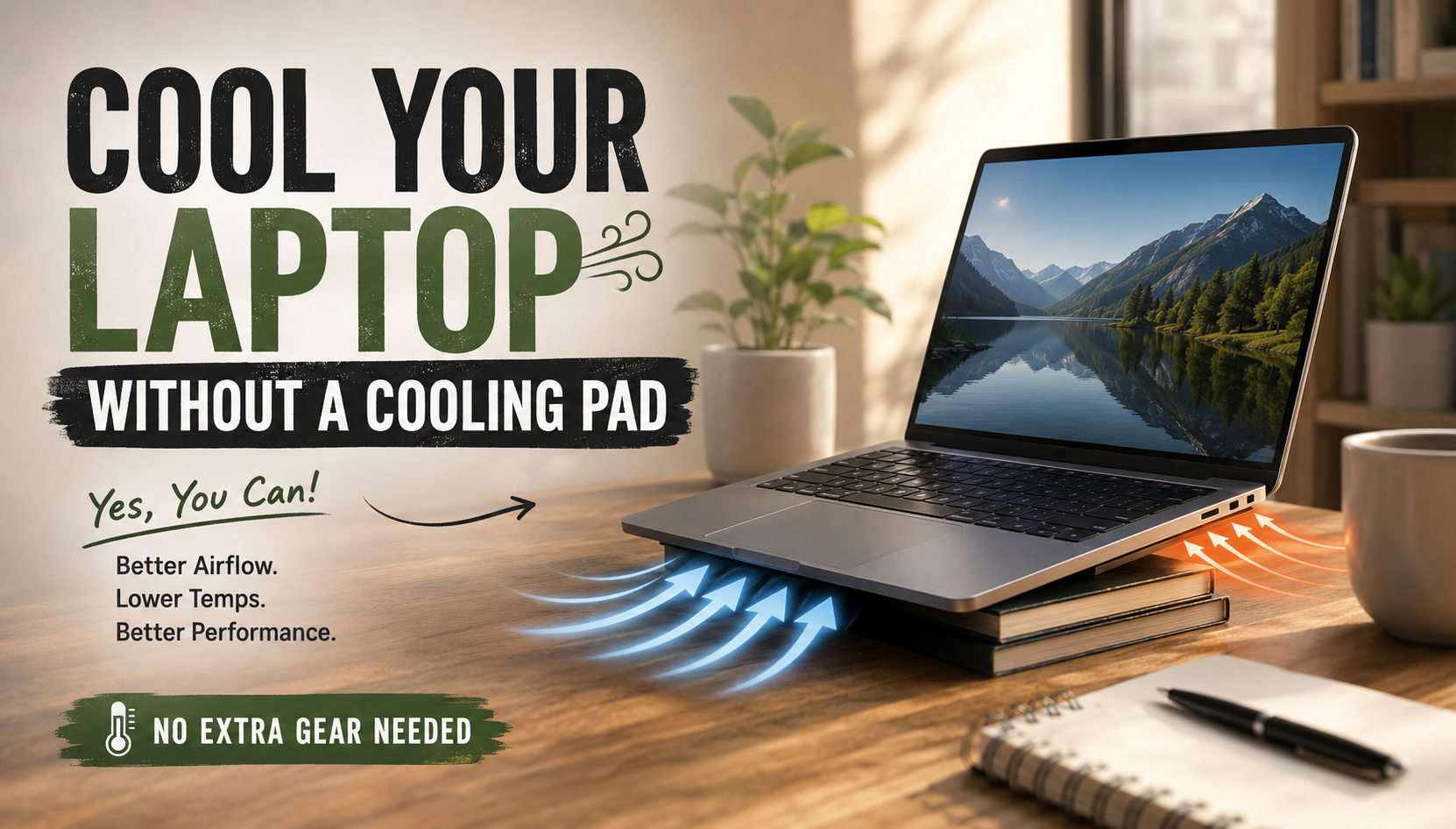
How to Cool Your Laptop Without a Cooling Pad
Modern laptops deliver impressive performance, but heavy workloads can create significant heat. Poor thermal management may cause thermal throttling, reduced performance, or unexpected shutdowns. Fortunately, you can cool your laptop without a cooling pad by improving airflow, changing usage habits, and managing system load.
You do not always need expensive accessories to control laptop temperatures. Simple steps can make a noticeable difference. These include using a hard surface, elevating the laptop, cleaning blocked vents, and reducing unnecessary background activity.
According to Intel’s processor documentation, managing operating heat is important for reliable processor operation. If you want to cool your laptop without a cooling pad, start with airflow and surface placement.
This guide answers common questions about laptop cooling, safe CPU temperatures, cooling pads, and extreme heat. It also explains practical ways to improve airflow and protect your hardware during demanding tasks.

How Can I Physically Cool Down My Laptop Without a Cooling Pad?
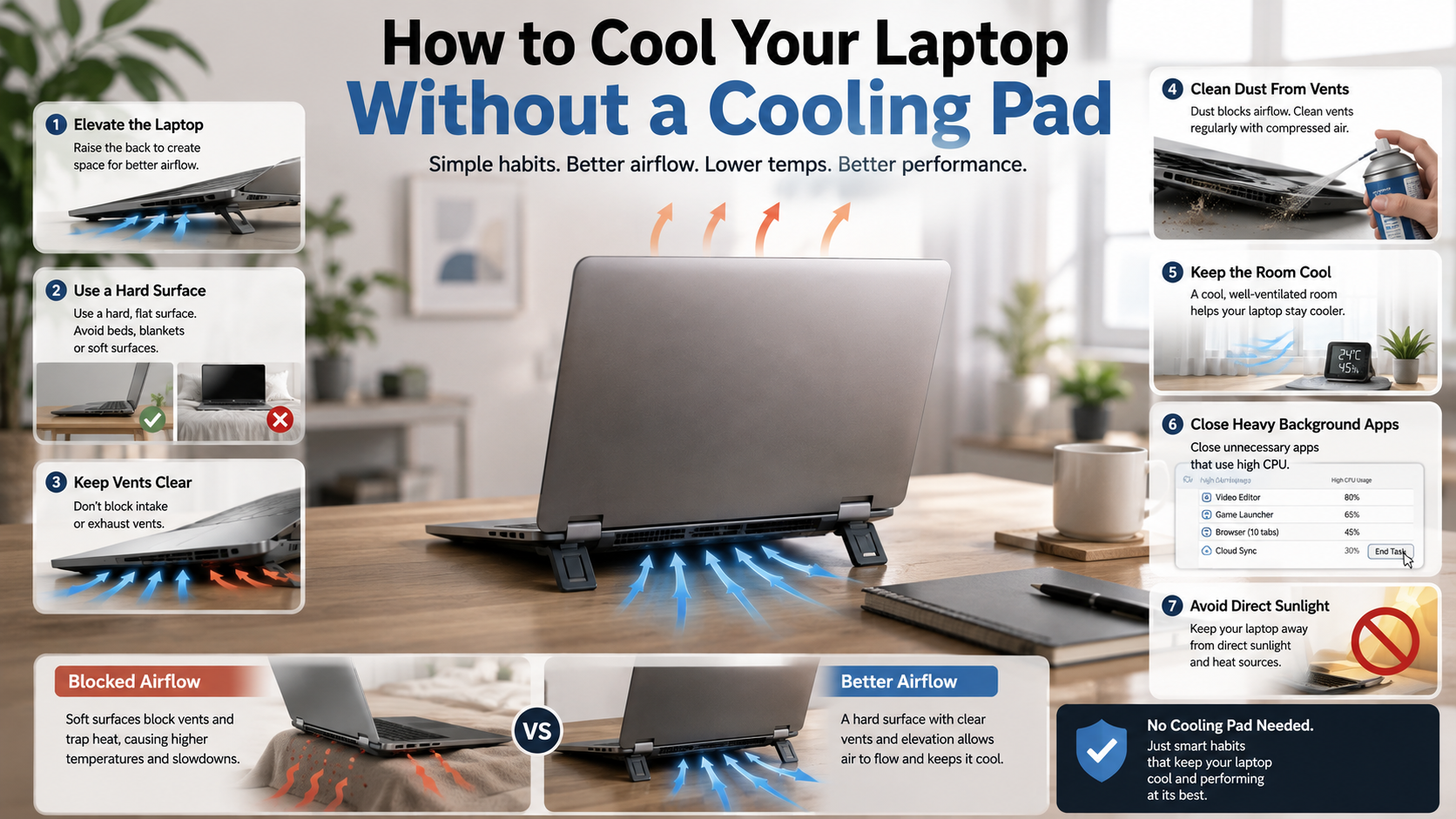
The easiest way to cool your laptop without a cooling pad is to improve airflow around its vents. Laptop cooling systems need clear intake and exhaust paths to move heat away. Using your device on a bed, blanket, sofa, or carpet can block those openings.
Place your laptop on a hard, flat surface instead. A desk or sturdy table gives the cooling system enough room to breathe. You can also raise the rear slightly to create more space beneath the chassis.
A small lift can improve airflow without requiring powered accessories. Use a stable laptop stand designed to support your device safely. For a more organized and ergonomic workspace, you can also explore a minimalist study desk setup. Avoid unstable household objects that could make the laptop slip or fall.
Other simple cooling steps include:
- Keep the laptop away from direct sunlight.
- Work in a cool, well-ventilated room.
- Keep vents clear of walls and other objects.
- Close demanding applications when they are not needed.
- Avoid using the laptop on soft surfaces.
These changes can reduce heat buildup and help maintain stable performance during everyday use.
Clean Internal Dust Buildup Regularly
Dust can accumulate around fans, vents, and heatsinks over time. This buildup restricts airflow and reduces the cooling system’s ability to remove heat. Pet hair and other debris can make the problem worse.
If your laptop allows safe access, clean its vents and fans periodically. Use compressed air carefully and follow the manufacturer’s maintenance instructions. Do not force debris deeper into the laptop.
When using compressed air, prevent the fan from spinning freely. Excessive fan movement can potentially damage the fan mechanism. If you are uncomfortable opening the laptop, consider professional cleaning instead.
Regular maintenance is especially important in dusty environments. Cleaning every six to twelve months is a useful general guideline. You may need to clean more often if your surroundings contain significant dust or pet hair.
Is 70°C Hot for a Laptop? Understanding Safe Temperatures
A laptop reaching 70°C is not automatically a sign of overheating. Modern processors can operate safely at temperatures above this level. The acceptable range depends on the CPU, GPU, workload, laptop design, and manufacturer specifications.
During demanding activities, temperatures around 70°C can be completely normal. Gaming, video editing, rendering, and compiling software can generate substantial heat. Some systems may reach 80°C or higher during sustained workloads.
Idle temperatures are different. A laptop that consistently sits around 70°C during light browsing may need investigation. High idle temperatures can indicate restricted airflow, heavy background processes, high ambient temperatures, or another cooling issue.
Rather than focusing on one number, watch for patterns such as:
- Unusually high temperatures during light workloads.
- Frequent thermal throttling.
- Sudden temperature increases without heavier workloads.
- Fans running loudly for extended periods.
- Performance drops during sustained tasks.
Always check the CPU and GPU temperature limits provided by the manufacturer. These specifications are more useful than a universal temperature threshold.
Monitor Your Thermal Metrics Accurately
Temperature monitoring can help identify laptop overheating before it affects performance. Reliable hardware-monitoring software can show CPU and GPU temperatures in real time.
Watch temperatures while performing different tasks. Compare idle readings with temperatures during gaming, rendering, or other demanding workloads. This gives you a clearer picture of your laptop’s normal thermal behavior, especially when using systems with integrated and discrete graphics that can produce different thermal loads.
Sudden spikes are not always a problem. Short bursts of high temperature can occur when the processor temporarily boosts performance. Consistently high readings deserve more attention.
If temperatures remain unusually high at idle, check background processes first. Then inspect the vents and airflow around the laptop. Persistent overheating may require professional servicing.
Do I Really Need a Laptop Cooling Pad for Better Cooling?
You do not necessarily need a laptop cooling pad to keep your computer at a safe temperature. Many laptops can manage normal workloads effectively with their built-in fans and heatsinks.
A cooling pad can sometimes reduce temperatures, but its effectiveness varies by laptop design. Results depend on vent placement and the amount of airflow the pad provides. Some laptops may see only a modest improvement.
Passive elevation can also help. Raising the rear of the laptop creates additional space beneath the chassis. This can improve airflow without adding another fan, cable, or powered accessory.
If your goal is to cool your laptop without a cooling pad, address basic cooling problems first. Check the following before buying additional hardware:
- Use a hard, flat surface.
- Keep intake and exhaust vents unobstructed.
- Clean accumulated dust.
- Reduce unnecessary background workloads.
- Keep the room reasonably cool.
- Elevate the laptop when appropriate.
A cooling pad can still help some gamers and users with sustained heavy workloads. However, it should complement good airflow rather than replace basic maintenance.
Optimize Airflow Through Elevation
Elevating the rear of your laptop is one of the simplest ways to improve airflow. A small increase in clearance can give bottom-mounted intake vents more room to draw in air.
A stable stand is ideal because it keeps the laptop secure. It can also improve keyboard positioning and make long typing sessions more comfortable. Choose a stand that does not block the laptop’s vents.
Avoid placing the laptop on unstable household objects. A fall can cause far more damage than a few degrees of additional heat. Stability and ventilation should always come first.
For a simple DIY laptop cooling approach, combine elevation with good desk placement. Keep the laptop away from walls, direct sunlight, and other heat sources. This passive approach requires no USB power and adds little bulk.
Will 100°C Damage a Laptop CPU? Understanding Extreme Heat
A CPU reaching 100°C is much more concerning than one operating at 70°C. However, a brief spike to a high temperature does not necessarily mean the processor has suffered permanent damage.
Modern processors include built-in thermal protection. As temperatures approach their specified limits, the system can reduce clock speeds and voltage. This process, called thermal throttling, lowers performance and helps control heat.
If temperatures continue rising, the laptop may shut down automatically. This protects the processor and other components from excessive thermal stress. Exact temperature limits vary between processors, so manufacturer specifications matter. If your laptop also shows other symptoms of hardware trouble, review these warning signs for your laptop.
Running close to the thermal limit repeatedly is still undesirable. It can cause sustained performance problems and may indicate an underlying cooling issue. Do not treat thermal protection as a reason to ignore persistent overheating.
If your laptop frequently reaches extreme temperatures, investigate the cause. Check airflow, dust buildup, background workloads, fan behavior, and ambient temperature.
Address Extreme Heat Immediately
Repeated temperatures near 100°C deserve attention. Start by checking whether the laptop sits on a surface that blocks its vents. Then inspect the vents for visible dust and make sure the fans operate normally.
Older laptops can also develop problems with degraded thermal interface material. Thermal paste transfers heat between the processor and heatsink. When it deteriorates, cooling performance can decline.
Replacing thermal paste can help some older laptops, but it is not a universal fix. The procedure requires opening the device and handling delicate components. Follow the manufacturer’s service guidance or use a qualified technician.
Do not assume that every high temperature requires new thermal paste. First rule out blocked airflow, excessive workloads, and dust. Those issues are often easier and safer to address.
If the laptop repeatedly throttles or shuts down, professional diagnosis may be appropriate.
How Hot Do Laptops Get During Normal and Heavy Use?
Laptop temperatures vary widely depending on hardware, workload, cooling design, and room temperature. A system performing light tasks may remain relatively cool. Demanding workloads can produce substantially more heat.
Gaming, video rendering, 3D work, and other intensive tasks can push internal components into higher temperature ranges. Some laptops may reach the 85–95°C range during sustained workloads. Whether that is acceptable depends on the processor and manufacturer’s limits. For users who regularly game on a laptop, choosing hardware with appropriate cooling is also important, as explained in this guide to gaming laptops.
The outside of the laptop can also become noticeably warm. Chassis temperatures may feel uncomfortable even when internal components remain within their designed operating range. Metal surfaces can transfer internal heat to the exterior.
Ambient conditions also matter. A laptop used in a hot room or direct sunlight has less opportunity to dissipate heat. Good ventilation around the device becomes even more important in these conditions.
Instead of relying on one universal temperature target, monitor your system under typical workloads. Compare those readings with the manufacturer’s specifications. Understanding the processor inside your system can also provide useful context, particularly with Intel Core Ultra processors.
Understand the Role of Thermal Throttling
Thermal throttling is a protective feature that reduces processor performance when temperatures become too high. The CPU may lower its clock speed to generate less heat.
You may notice symptoms such as lag, stuttering, slower application performance, or reduced gaming frame rates. These symptoms can become more obvious during long, demanding sessions.
Thermal throttling does not always mean the hardware is failing. It can occur when a laptop reaches its designed thermal limits during heavy workloads. However, frequent throttling can signal that cooling performance needs attention.
Improving airflow is a good first step. Clean the vents, elevate the laptop, reduce unnecessary workloads, and keep the surrounding area cool.
If throttling continues despite these changes, investigate fan operation and internal cooling. Persistent problems may require professional maintenance.
Frequently Asked Questions
Can I Use My Laptop on a Bed or Carpet?
Using a laptop directly on a bed, blanket, sofa, or carpet can block its bottom vents. Restricted airflow makes it harder for the cooling system to remove heat.
Use a hard, flat surface whenever possible. If you need to use the laptop in bed, place it on a rigid tray or suitable laptop board.
Does Closing Background Apps Lower Temperature?
Yes. Closing unnecessary, resource-heavy applications can reduce CPU and GPU activity. Lower workloads generally produce less heat.
Use Task Manager or your operating system’s equivalent tool to identify demanding background processes. Avoid closing essential system processes unless you know what they do.
How Often Should I Clean My Laptop Fans?
Inspect your vents and fans every six to twelve months as a general guideline. Dusty homes and homes with pets may require more frequent cleaning.
Always follow the manufacturer’s maintenance instructions. If accessing the internal fan requires significant disassembly, professional cleaning may be safer.
Does Changing Thermal Paste Help With Cooling?
Replacing degraded thermal paste can improve heat transfer between a processor and its heatsink. It can be particularly helpful on older laptops with aging thermal material.
However, results vary by device and condition. Do not replace thermal paste solely because your laptop feels warm. Check airflow, dust, workload, and manufacturer temperature limits first.
Can I Cool My Laptop Without a Cooling Pad?
Yes, you can cool your laptop without a cooling pad by improving airflow and reducing unnecessary workloads. Start by placing the laptop on a hard, flat surface.
You can also elevate the rear slightly, clean blocked vents, close demanding background applications, and keep the room cool. These steps can improve the laptop’s built-in cooling system without additional hardware.
Conclusion
You can cool your laptop without a cooling pad by improving airflow and reducing unnecessary heat. Start with simple changes before buying additional cooling accessories.
Use your laptop on a hard surface and keep its vents unobstructed. Elevating the rear can also improve airflow around bottom-mounted intake vents. Regular cleaning helps prevent dust from restricting the cooling system.
Monitor CPU and GPU temperatures during both light and demanding workloads. Remember that temperature limits vary by processor and laptop model.
If your laptop repeatedly approaches its thermal limits, investigate the cause instead of ignoring the warning signs. Persistent throttling, unusually high idle temperatures, or automatic shutdowns may require professional service.
With proper airflow, regular maintenance, and sensible workload management, you can cool your laptop without a cooling pad while maintaining stable performance.