
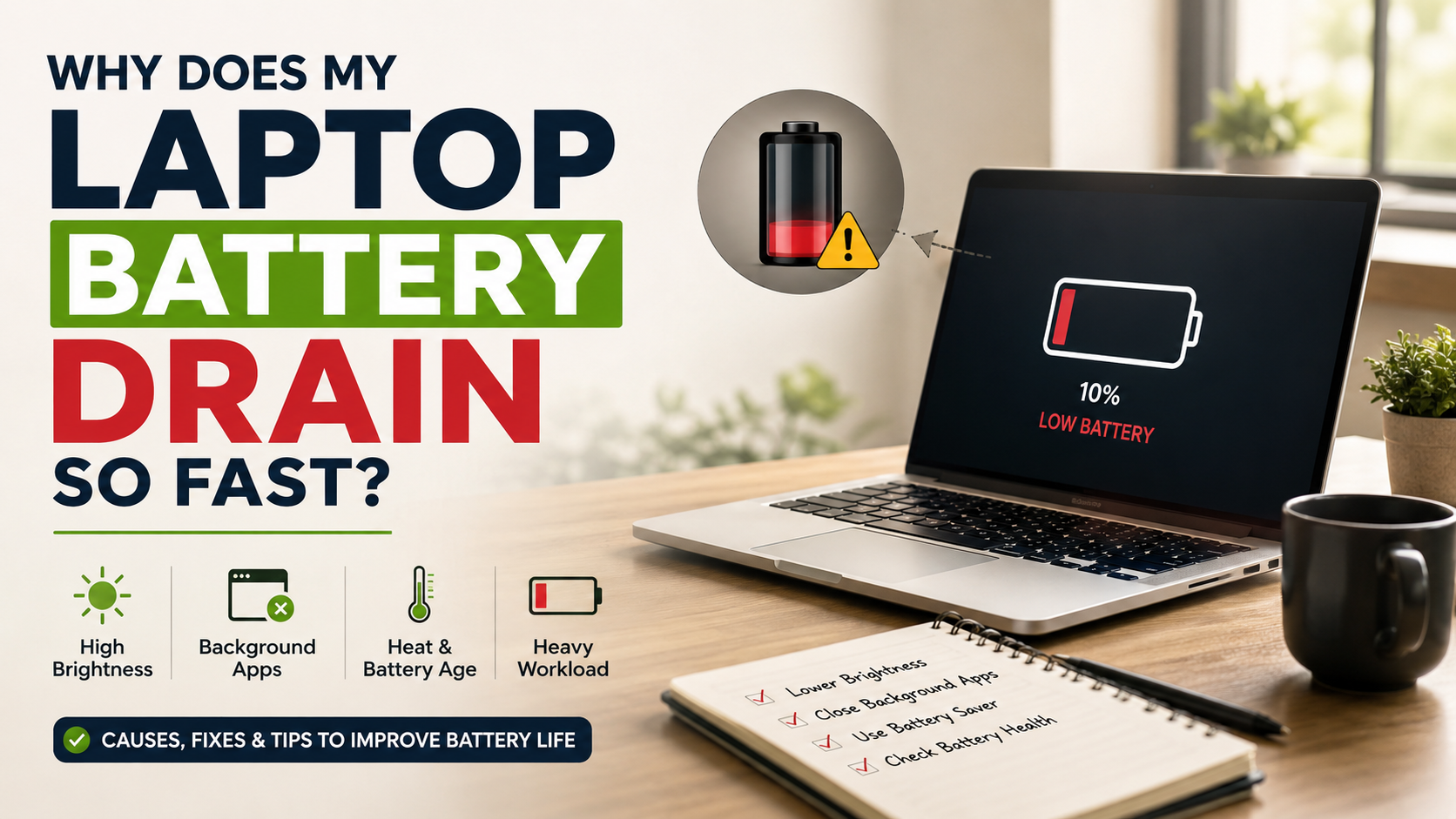
Why Does My Laptop Battery Drain So Fast?
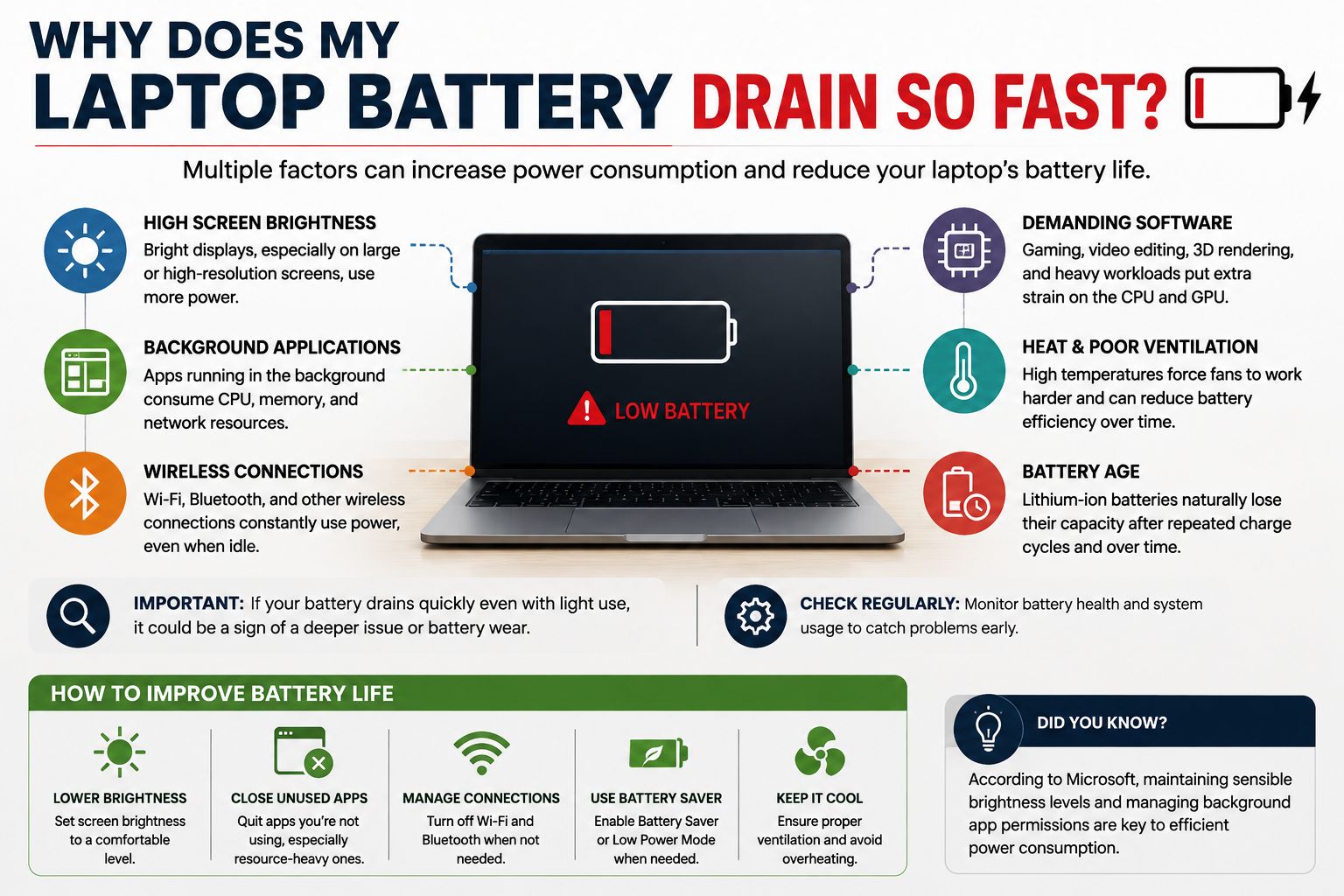
Few things disrupt a productive workday faster than a laptop that suddenly runs out of power. If you are searching for laptop battery drain so fast, several factors could be responsible. High screen brightness, background applications, wireless connections, demanding software, and battery age can all increase power consumption. Understanding the cause can help you improve battery life without immediately replacing the battery.
High screen brightness can increase power use, especially on larger or high-resolution displays. Background applications, Bluetooth connections, keyboard lighting, and demanding software can also reduce battery life. Gaming, video editing, and other intensive workloads place additional demands on the processor and graphics hardware.
Battery age also matters. Lithium-ion batteries gradually lose their ability to hold a full charge after repeated use. Heat can accelerate this chemical aging and reduce long-term battery health.
According to official performance guidelines from Microsoft Support, maintaining sensible brightness levels and actively managing background application permissions form the foundation of efficient power consumption.
Understanding these factors helps separate normal power consumption from genuine battery problems. This guide explains the common causes of rapid battery drain, practical ways to improve runtime, and signs that your battery may need replacement.

How do I stop my laptop battery from draining so fast?
If you are dealing with laptop battery drain so fast, start by identifying which settings, applications, or hardware components consume the most power. Lower your display brightness to a comfortable level first. High brightness can increase power consumption, especially on larger or high-refresh-rate displays.
Next, check your system’s battery or power settings. Windows and macOS provide tools that can show battery usage and help identify applications using excessive power. Close programs that you are not using, particularly those performing continuous synchronization or demanding background tasks.
You can also reduce power use by disconnecting unnecessary peripherals. Turn off Bluetooth when you do not need it and reduce keyboard backlighting when possible. Battery saver or low-power modes can further reduce background activity.
For the best results, focus on the activities that actually consume the most energy on your laptop. This approach is more effective than changing every power setting without identifying the real source of the drain.
Optimize App Startup Permissions
Startup applications can quietly consume resources whenever your laptop is running. Messaging programs, cloud-storage clients, update services, and game launchers may continue working in the background even when you are not actively using them.
Open Task Manager in Windows or the relevant startup and login settings in macOS. Review which applications launch automatically and disable programs that you do not need immediately after startup.
Pay particular attention to applications with frequent synchronization, notifications, or background processing. These activities can keep the processor active and increase network usage.
However, do not disable essential system services simply because they appear unfamiliar. Removing critical startup components can cause stability or security problems.
Instead, focus on optional applications that you recognize and rarely use. Reducing unnecessary startup activity can lower background workload and may improve battery efficiency.
If you notice laptop battery drain so fast after installing a particular application, check whether that application runs continuously in the background.
Is 2 hours of battery life good for a laptop?
Two hours of battery life is usually short for a modern laptop performing light everyday tasks. However, there is no universal runtime that applies to every laptop. Battery life depends on the processor, display, battery capacity, operating system settings, and workload.
A lightweight productivity laptop may provide many hours of browsing or document work under controlled conditions. A gaming laptop can last much less because its processor and dedicated GPU consume substantially more power.
High refresh rates, bright displays, demanding applications, and poor thermal conditions can reduce runtime further. Your usage pattern also matters. Streaming video, gaming, video editing, and running virtual machines require more power than reading documents or writing notes.
Therefore, a two-hour runtime does not automatically prove that your battery is defective. Compare the result with the manufacturer’s expected runtime and your laptop’s previous performance.
If runtime has dropped sharply, check battery health before assuming the hardware has failed. This is especially important when investigating laptop battery drain so fast during normal daily use.
Consider Your Hardware Specifications
Laptop hardware strongly affects how long a battery can last. A thin productivity laptop with an efficient processor usually consumes less power than a gaming laptop with a dedicated graphics processor.
Discrete GPUs are particularly important during demanding workloads. Gaming, 3D rendering, and GPU-accelerated applications can increase power consumption significantly. Some laptops can switch between integrated and dedicated graphics to improve efficiency during lighter tasks.
The display also affects battery life. High-resolution OLED panels, high refresh rates, and high brightness settings can require more power than simpler displays.
Processor performance settings matter as well. Performance modes may increase clock speeds and fan activity, which can shorten unplugged runtime.
When evaluating a two-hour battery result, consider the complete hardware configuration. Do not judge battery health from runtime alone.
A gaming laptop delivering two hours during demanding gameplay should not be compared directly with an ultrabook performing basic web browsing. The workload and hardware class are fundamentally different, much like the differences between a Chromebook and a traditional laptop.
Why does my laptop battery only last 1 hour?
A laptop that lasts only one hour may have a heavily degraded battery, unusually demanding software, or a combination of both. Start by checking whether the short runtime occurs during light tasks or heavy workloads.
If the laptop is several years old, battery aging becomes a stronger possibility. Lithium-ion batteries gradually lose capacity as they experience charging and discharging cycles. A battery that once stored substantial energy may eventually hold much less.
Software can also create unusually high power consumption. A background application may keep the processor busy, while a demanding program can activate the dedicated GPU. High brightness, maximum refresh rates, wireless activity, and external devices can add further load.
Thermal problems may contribute indirectly. Dust buildup can restrict airflow and increase fan activity, although heat alone does not explain every rapid-drain problem.
If the laptop still lasts only about an hour during light use, check its reported battery capacity. This can help determine whether laptop battery drain so fast is caused by battery wear or excessive system power consumption.
Generate a System Battery Report
A battery report can provide useful evidence before you replace the battery. On supported Windows systems, the built-in battery report shows information such as the original design capacity and current full-charge capacity.
Compare these figures to understand how much capacity the battery has lost. A substantial reduction points toward battery degradation rather than a simple software setting.
You should also review recent battery usage when available. This can reveal whether specific applications are consuming unusually large amounts of energy.
macOS provides battery health information through its system settings. The exact information available depends on the Mac model and operating system version.
A diagnostic report cannot repair a physically degraded battery. It can, however, prevent unnecessary replacement when software or workload is responsible for the problem.
If the reported capacity is severely reduced and runtime remains poor during light use, professional battery replacement may be appropriate.
A battery report is especially useful when laptop battery drain so fast continues despite reducing brightness and background activity.
What kills a laptop battery the fastest?
Excessive heat is one of the most important factors that can accelerate lithium-ion battery aging. High temperatures increase chemical stress inside battery cells and can reduce long-term capacity. Learning how to cool your laptop effectively can help manage these thermal issues.
Using a laptop on beds, blankets, or other soft surfaces can restrict airflow. This may raise operating temperatures, particularly when the processor or GPU is already under heavy load.
Heavy workloads also increase power consumption. Gaming, rendering, and other demanding tasks can produce substantial heat while the laptop operates on battery power.
Deep discharges are another factor worth managing. Modern lithium-ion batteries do not need to reach zero percent before charging. Repeated deep discharges can contribute to additional battery wear over time.
Keeping the laptop permanently connected to power does not automatically mean the battery is being overcharged. Modern charging systems manage charging electronically. However, maintaining a high charge level while the battery remains hot can contribute to faster aging.
For long-term health, prioritize reasonable temperatures and avoid unnecessary deep discharges. Use the manufacturer’s battery-management features when available.
Avoid Full Discharge Cycles
Modern lithium-ion batteries generally do not need to be completely discharged before charging. Repeatedly running the battery to zero can increase battery wear over time.
Instead of waiting until the laptop shuts down, connect the charger when the battery reaches a reasonable low level. The exact percentage does not need to be treated as a strict rule.
A 20–80% charging range for rechargeable batteries is often recommended as a practical strategy for reducing time spent at extreme charge levels. However, you do not need to follow this range perfectly during every charging session.
Modern laptops also include charging controls designed to manage battery behavior. Some manufacturers provide battery-protection features that limit maximum charging when the computer remains connected to power for long periods.
The most important factors are avoiding excessive heat and unnecessary deep discharge cycles. Occasional charging to 100% is normal when you need maximum unplugged runtime.
If laptop battery drain so fast is becoming a regular problem, examine your overall charging habits rather than focusing on one specific percentage.
What is the average lifespan of a laptop battery?
Laptop batteries do not have one universal lifespan. Battery longevity depends on cell quality, charging patterns, operating temperature, workload, and the laptop’s battery-management system.
Many lithium-ion laptop batteries remain useful for several years, but their capacity gradually declines during normal use. Manufacturers often specify a cycle rating for a particular battery model rather than guaranteeing a fixed number of years.
A battery cycle generally represents cumulative discharge equal to 100% of the battery’s capacity. It does not necessarily mean one charge from 100% to 0%. For example, two separate 50% discharges can collectively represent approximately one full cycle. Understanding battery health versus cycle count can make this distinction easier to evaluate.
As batteries age, their full-charge capacity decreases. The laptop may still operate normally, but it will provide less runtime between charges.
There is no universal point where every battery suddenly becomes unusable. Some batteries remain practical after significant capacity loss, while others become inconvenient much earlier.
Instead of relying only on age, monitor actual runtime and battery-health information. A major decline compared with the original performance is a stronger replacement signal, especially when you know the warning signs that indicate a laptop may have a serious problem.
Monitor Battery Charge Cycles
Monitoring charge cycles can help you understand how heavily a battery has been used. Many laptops and operating systems report cycle information through system diagnostics or battery-health settings.
A cycle represents cumulative battery usage rather than simply plugging the charger in once. This distinction matters because frequent partial discharges do not each count as a complete cycle.
Battery cycle ratings vary by manufacturer and battery design. Therefore, there is no universal number at which every laptop battery suddenly needs replacement.
Instead, use cycle count alongside other indicators. Look at the battery’s full-charge capacity, reported health condition, and actual runtime during normal tasks.
A high cycle count combined with substantially reduced capacity provides stronger evidence of battery aging. A high cycle count alone does not necessarily mean the battery needs immediate replacement.
If the laptop reports unusually low capacity, frequent shutdowns, swelling, or other physical battery problems, stop using the device and seek qualified service.
For routine maintenance, checking battery information periodically can help identify gradual degradation before it becomes a major productivity problem.
Frequently Asked Questions
Does keeping my laptop plugged in constantly ruin the battery?
Modern laptops feature smart charging circuits that stop charging once capacity reaches one hundred percent, preventing direct overcharging. However, keeping the battery permanently full while the system operates at elevated temperatures can accelerate chemical aging. If your laptop supports battery-limiting software, cap the maximum charge level at eighty percent to extend long-term cell health.
Why does my laptop battery drain quickly when turned off?
A laptop draining power while turned off is usually resting in Sleep or Modern Standby mode rather than shutting down completely. In these states, the machine continues refreshing RAM and checking for background system updates. To prevent this parasitic drain, turn off Fast Startup in system settings or use complete manual shutdowns.
Can cold weather make my laptop battery deplete faster?
Yes, extreme cold temporarily slows down the chemical reactions inside lithium-ion batteries, causing internal resistance to rise sharply. Your operating system may misinterpret this drop in voltage as a depleted battery, resulting in sudden shutdowns. Once the device warms back up to normal room temperature, standard runtime capacity generally restores itself.
How much does it cost to replace an internal laptop battery?
A standard manufacturer battery replacement generally costs between $50 and $150 for parts, depending on your device brand and model. If you use professional repair services, labor fees can add another $40 to $100. Ultra-thin laptops with glued-in batteries usually incur higher service costs than modular business laptops with accessible screws.
Conclusion
Understanding laptop battery drain so fast requires looking at both software and hardware. High brightness, demanding applications, background processes, wireless connections, and inefficient power settings can all reduce daily runtime.
Battery aging is another major factor. Lithium-ion cells gradually lose capacity through normal use, and excessive heat can accelerate this process. A laptop that once lasted many hours may eventually provide much less runtime.
Start with the simplest checks. Review battery usage, reduce unnecessary background activity, adjust display settings, and use your laptop’s available battery-saving features.
Keep airflow unobstructed and avoid exposing the device to excessive heat. If runtime remains extremely short, check the battery’s reported capacity and health.
If you still cannot determine the cause of laptop battery drain so fast, compare battery health with actual power consumption. This helps separate a worn battery from software or workload problems.
The goal is not to follow one perfect charging rule. Instead, combine sensible power settings, reasonable temperature control, and periodic battery-health checks. These steps can help you get more useful runtime while extending the practical life of your laptop battery.