
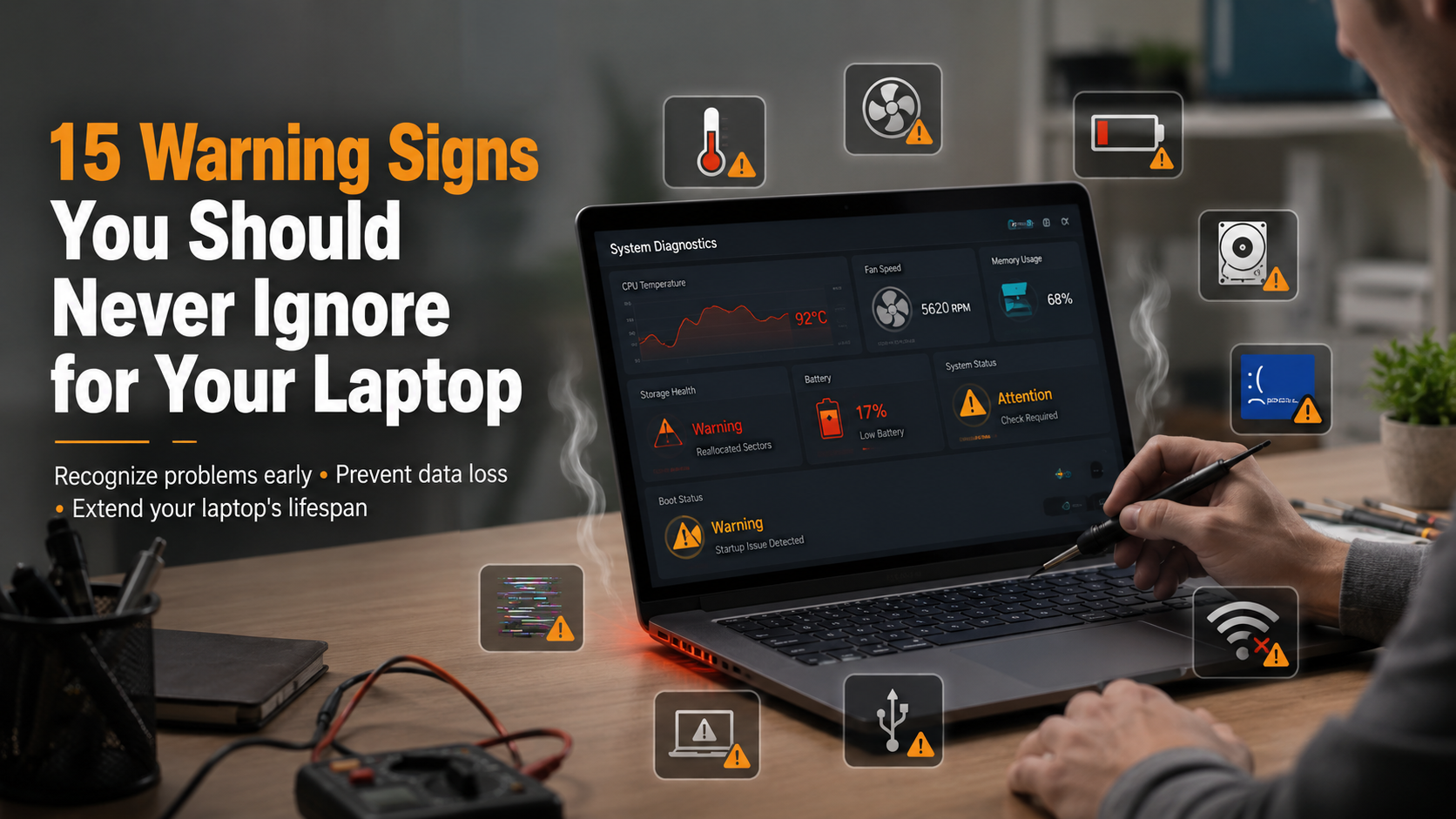
15 Warning Signs You Should Never Ignore for Your Laptop
Spotting early warning signs for your laptop can save you from sudden data loss and expensive repairs. When a computer starts acting up, users often brush off minor glitches as temporary quirks. However, ignoring these subtle red flags usually leads to catastrophic hardware failure down the road. According to recent hardware reliability reports by Intel Support, proactive maintenance drastically extends device longevity and prevents unexpected system crashes. Whether you rely on your machine for professional software development, remote work, or daily browsing, recognizing hardware and software distress signals is crucial. This article explores fifteen critical symptoms your computer exhibits when it needs immediate attention, ranging from abnormal fan noises to sudden battery drainage. By understanding these indicators, you can troubleshoot issues early, back up precious files, and take corrective action before a minor glitch turns into a total system meltdown.
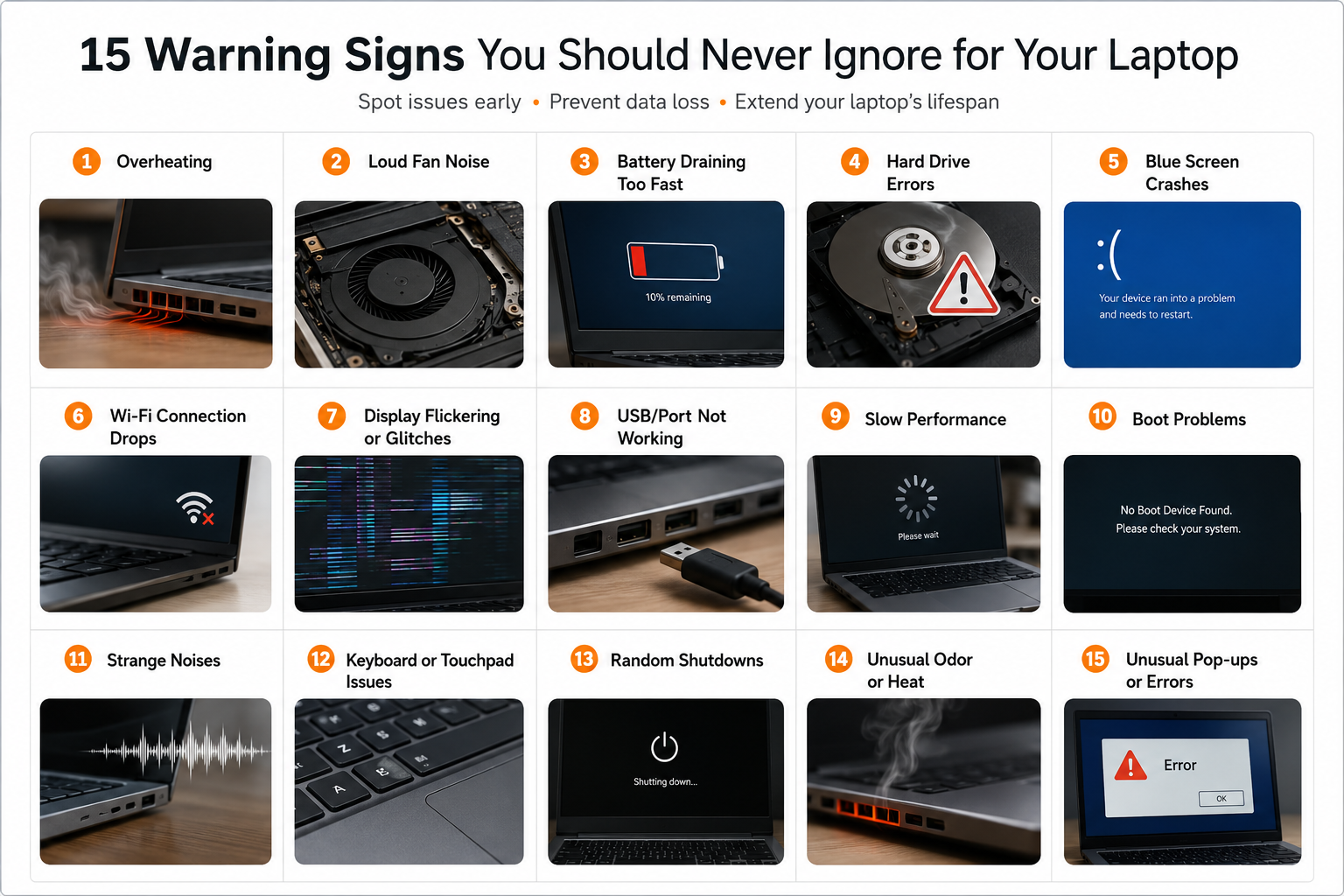

1. Strange Noises Coming from the Hard Drive
One of the most important warning signs for your laptop is unusual noise coming from the storage drive. If your laptop uses a traditional Hard Disk Drive (HDD), clicking, grinding, buzzing, or repeated ticking sounds may indicate a serious mechanical problem. HDDs contain moving parts, including spinning platters and read/write heads, which can wear out over time.
These sounds often appear when the drive motor begins failing, internal components become misaligned, or the laptop experiences physical damage from drops or impacts. Dust and excessive heat can also contribute to storage problems.
When you notice strange hard drive noises, avoid delaying action. A failing drive can suddenly stop working and cause permanent data loss. Create a backup of important files immediately using an external drive or cloud storage.
Modern Solid State Drives (SSDs) do not produce mechanical sounds, but freezing, slow loading times, or file errors can still indicate storage failure. Early diagnosis can help you replace the drive before losing valuable data.
2. Frequent Blue Screens of Death (BSOD) or System Crashes
Frequent crashes are another major laptop warning sign that should never be ignored. On Windows devices, these failures often appear as the Blue Screen of Death (BSOD). Mac users may experience similar problems through system freezes or kernel panic errors.
These crashes occur when the operating system encounters a critical problem and cannot continue safely. The cause may be software-related, such as corrupted system files, faulty updates, or incompatible drivers. However, repeated crashes can also point toward hardware issues.
Common causes include:
- Damaged operating system files
- Faulty RAM modules
- Overheating components
- Failing motherboard parts
- Driver conflicts
Occasional crashes may happen, but frequent system failures require attention. Ignoring them can increase the risk of file corruption and data loss.
Run built-in diagnostic tools to identify the cause. Updating drivers, repairing system files, or replacing damaged hardware can restore stability and prevent bigger laptop problems in the future.
3. Excessive Overheating and Loud Fan Activity
Excessive heat is one of the most common warning signs for your laptop. While laptops naturally produce heat during use, extreme temperatures indicate that the cooling system may not be working properly.
If your laptop becomes unusually hot while performing simple tasks, such as browsing the internet or writing documents, there may be a problem with airflow or internal components. Loud fans running constantly are another sign that your device is struggling to control its temperature.
Several factors can cause overheating:
- Dust blocking cooling vents
- Dirty internal fans
- Old thermal paste on the CPU or GPU
- Using the laptop on soft surfaces that restrict airflow
High temperatures can reduce hardware lifespan and force your processor to slow down through thermal throttling. This results in poor performance and frequent freezing.
To prevent overheating, clean your vents regularly, keep airflow areas clear, and monitor system temperatures. Proper cooling maintenance helps protect your laptop from permanent heat-related damage.
4. Rapid Battery Drain and Unexpected Shutdowns
Battery problems are another clear indicator that your laptop may need attention. Over time, lithium-ion batteries naturally lose their ability to store power. However, sudden battery decline or unexpected shutdowns can signal serious battery degradation.
A healthy laptop battery should provide consistent usage time. If your battery percentage drops quickly, shuts down at a high charge level, or only works when connected to a charger, the battery may be reaching the end of its life.
Common battery failure signs include:
- Extremely short battery life
- Battery warning notifications
- Unexpected power loss
- A swollen battery pushing against the laptop body
A swollen battery requires immediate attention because it can damage internal components and create safety risks.
Replacing an old battery can restore portability and improve reliability. Avoid ignoring battery issues, especially when physical swelling appears. Regular charging habits, proper ventilation, and avoiding extreme temperatures can help extend battery health.
5. Sluggish Performance and Endless Freezing
Slow performance is one of the earliest warning signs for your laptop. When simple tasks become frustratingly slow, your device may be experiencing hardware limitations, software problems, or storage issues.
Common symptoms include delayed application launches, frozen screens, slow web browsing, and an unresponsive cursor. These problems often occur when system resources are overloaded or when important components begin failing.
Several factors can reduce laptop performance:
- Too many startup programs using memory
- Malware or unwanted background processes
- Low storage space on the main drive
- Aging hardware components
An older laptop with a traditional HDD may become much faster after upgrading to an SSD. Adding more RAM can also improve multitasking performance.
Before replacing your laptop, check for unnecessary software, remove unused programs, and perform regular maintenance. A slow computer does not always mean complete failure. Early troubleshooting can restore speed and extend the useful life of your device.
6. Random Reboots and Unexpected Power Cuts
Unexpected restarts are serious warning signs for your laptop because they often indicate problems with power delivery, overheating, or internal hardware stability. A laptop should not restart randomly during normal activities like browsing, working, or watching videos.
These sudden shutdowns usually happen when the system detects a dangerous condition and activates a safety response. For example, excessive heat, unstable voltage, or faulty components can force the laptop to turn off to prevent further damage.
Common causes of random reboots include:
- Overheating caused by blocked vents or failing fans
- A damaged power adapter or charging cable
- Battery problems
- Faulty RAM or motherboard components
- Loose internal connections
Ignoring frequent restarts can lead to corrupted files and interrupted work. It may also place additional stress on important hardware components.
To troubleshoot the issue, check your laptop temperature, test the charger, and inspect the charging port. Keeping your system cool and maintaining reliable power connections can prevent unexpected failures.
7. Peripheral Ports and USB Failure
Problems with USB ports and other connections are common laptop hardware warning signs that should not be overlooked. Your laptop should easily recognize external devices such as keyboards, mice, storage drives, and monitors.
When USB ports, HDMI connections, or USB-C ports stop working randomly, the problem may come from software issues or physical damage. Driver problems, dirt buildup, and repeated stress on ports can all affect connectivity.
Common causes of port failure include:
- Outdated or corrupted device drivers
- Dust and debris inside connection ports
- Damaged cables or accessories
- Physical wear from frequent plugging and unplugging
Start by testing different cables and devices to identify whether the problem is with the accessory or the laptop itself. Updating drivers can also resolve many connection issues.
However, damaged ports caused by electrical surges or physical force may require professional repair. A failing port can sometimes indicate deeper motherboard problems, especially when multiple connections stop working at the same time.
8. Display Artifacts, Flickering, and Dead Pixels
Screen problems are important warning signs for your laptop because they may indicate issues with the display panel, graphics hardware, or internal connections. Your laptop screen should display clear images without unusual colors, flickering, or distortion.
Common display problems include horizontal lines, flashing screens, random colors, black spots, and groups of dead pixels. These issues may develop slowly or appear suddenly after physical damage.
Possible causes include:
- A failing graphics processing unit (GPU)
- Damaged display cables
- Outdated graphics drivers
- Physical damage to the screen panel
- Loose internal connections near the hinge
A simple way to identify the cause is by connecting your laptop to an external monitor. If the external display works correctly, the problem may be related to the laptop screen or cable.
Keeping graphics drivers updated and handling your laptop carefully can reduce display problems. If screen issues continue, professional inspection may prevent further hardware damage.
9. Keyboard Malfunctions and Unresponsive Trackpads
Keyboard and trackpad problems are frustrating warning signs for your laptop because they directly affect how you interact with your device. When keys stop responding, repeat characters, or the trackpad becomes unreliable, there may be an underlying hardware or software issue.
Input problems often develop because of daily wear, accidental spills, or internal component damage. Even small amounts of liquid can damage keyboard circuits and create long-term problems.
Common causes include:
- Liquid spills under the keyboard
- Damaged ribbon cables
- Driver problems
- Dirt buildup between keys
- Battery swelling affecting the trackpad
Before replacing hardware, try updating input drivers and cleaning the affected areas carefully. External keyboards and mice can help confirm whether the built-in components are failing.
A swollen battery requires immediate attention because it can push against the trackpad and damage surrounding parts. Addressing keyboard and trackpad problems early helps maintain productivity and prevents more expensive repairs.
10. Wi-Fi Disconnections and Bluetooth Dropouts
Frequent connection problems are another important warning sign for your laptop. Modern laptops depend heavily on wireless features for internet access, file transfers, and connected devices. When Wi-Fi repeatedly disconnects or Bluetooth devices fail to connect, the issue may require investigation.
First, check whether the problem affects only your laptop. If other devices work normally on the same network, your laptop may have a wireless hardware or software issue.
Common causes include:
- Outdated network drivers
- Damaged wireless cards
- Loose internal antenna connections
- Incorrect network settings
- Interference from nearby devices
Updating your wireless adapter drivers can often solve connection problems. Resetting network settings may also restore stable performance.
However, repeated failures on an older laptop may indicate a failing Wi-Fi card. Fortunately, wireless components are often replaceable without replacing the entire computer.
Reliable wireless connectivity is essential for modern work and communication. Fixing connection problems early prevents interruptions and improves your overall laptop experience.
11. Strange Burning Odors or Unusual Smells
A burning smell is one of the most serious warning signs for your laptop and should never be ignored. Unlike normal heat from regular use, a chemical or electrical odor often indicates that internal components are overheating or damaged.
This smell may come from failing electrical circuits, overheating power components, damaged charging parts, or a battery problem. Continuing to use a laptop with a burning odor can increase the risk of permanent hardware failure.
If you notice an unusual smell, follow these steps:
- Shut down the laptop immediately.
- Disconnect the charger and external devices.
- Allow the device to cool before inspection.
- Seek professional repair if the smell continues.
Do not ignore burning odors by assuming they will disappear. Electrical damage can spread quickly and affect expensive components such as the motherboard or battery.
Early action can protect your files, prevent further damage, and reduce repair costs. A strange smell is your laptop’s way of warning you that immediate attention is required.
12. Persistent Operating System Error Messages
Frequent system errors are important warning signs for your laptop because they often indicate software corruption, malware activity, or damaged system files. Occasional errors may happen, but repeated warnings usually point to a deeper problem.
You may notice messages about missing files, failed services, application crashes, or system repair requirements. These issues can make your laptop unstable and increase the chance of data loss.
Common causes include:
- Corrupted operating system files
- Failed software updates
- Malware infections
- Damaged storage drives
- Incorrect system settings
Start by running built-in repair tools such as system file verification utilities. Updating your operating system and scanning for malware can also improve stability.
If errors continue despite troubleshooting, a clean operating system installation may be necessary. Before making major changes, always back up important files.
Keeping your software updated and maintaining enough storage space helps prevent many system-related problems. Addressing error messages early keeps your laptop secure and reliable.
13. Unusual Fan Noises and Grinding Sounds
Strange fan noises are another common warning sign for your laptop. While fans naturally become louder during heavy tasks, unusual sounds such as grinding, rattling, or clicking usually indicate a cooling system problem.
Laptop fans work continuously to remove heat from internal components. Over time, dust buildup, worn bearings, or damaged fan blades can prevent them from operating smoothly.
Possible causes of unusual fan sounds include:
- Dust blocking fan movement
- Aging fan bearings
- Loose internal components
- Damaged cooling assemblies
A failing fan cannot properly remove heat, which may cause overheating, slow performance, and sudden shutdowns. Ignoring unusual sounds can eventually lead to complete fan failure.
Regular cleaning helps maintain proper airflow. Use compressed air carefully to remove dust from vents, but avoid damaging internal parts.
If the noise continues after cleaning, the fan may need replacement. A properly working cooling system protects your processor, graphics hardware, and other important laptop components from heat damage.
14. Unrecognized Hardware Changes and Boot Failures
Boot problems are serious warning signs for your laptop because they may indicate storage failure or communication problems between hardware components. If your laptop displays messages like “no bootable device found,” the system may not be detecting the storage drive correctly.
The storage drive contains your operating system and personal files. When it starts failing, your laptop may become unable to start normally or may freeze during startup.
Common reasons for boot failures include:
- A failing SSD or HDD
- Loose storage connections
- Incorrect BIOS settings
- Damaged system files
- Failed storage hardware
First, check whether the storage drive appears in the BIOS settings. If the drive is missing, it may require reseating or replacement.
Regular backups are essential because storage failure can happen without much warning. Cloud storage or external backups protect important documents, photos, and work files.
Replacing an old drive with a modern SSD can improve performance while restoring system reliability. Acting quickly can prevent permanent data loss.
15. The Laptop Won’t Turn On At All
A completely unresponsive laptop is the most severe warning sign for your laptop. When pressing the power button produces no lights, fan activity, or screen response, the problem may involve power delivery, battery failure, or motherboard damage.
Before assuming the laptop is permanently damaged, perform a few basic checks. Sometimes simple power issues can prevent startup.
Try these troubleshooting steps:
- Check that the charger and power outlet work properly.
- Remove external devices and try starting again.
- Perform a power reset by holding the power button.
- Inspect the charging port for visible damage.
If the laptop remains completely dead, the issue may involve internal components such as the motherboard, power circuit, or damaged connectors.
Professional diagnosis may be required to identify failed parts and determine whether repair is possible. Regular maintenance, careful handling, and reliable backups reduce the impact of sudden laptop failure.
Recognizing early warning signs helps prevent reaching this final stage and protects your valuable data.
Frequently Asked Questions About Warning Signs for Your Laptop
What to avoid when using a laptop?
Protecting your mobile workstation requires avoiding several common habits that degrade hardware over time. Placing your device on soft surfaces like beds or couches blocks vital airflow vents, trapping heat inside the chassis. Extreme heat destroys lithium-ion batteries and damages sensitive internal silicon components rapidly. Furthermore, eating or drinking near your keyboard invites accidental liquid spills that cause immediate short circuits. You should also avoid using uncertified cheap chargers that supply unstable voltage to your motherboard. Lifting your computer by the display screen creates immense pressure on the hinges and panel, frequently cracking the LCD glass. Keeping magnets near mechanical hard drives or dropping the device causes physical sector damage. Cultivating clean operational habits safeguards your investment and prevents frustrating data loss events.
Is laptop on lap bad for sperm?
Placing high-performance portable computers directly on your lap exposes the body to significant heat and electromagnetic radiation. Modern microprocessors generate high temperatures during intensive tasks like gaming, video editing, or running multiple browser tabs. Extended heat exposure elevates the local scrotal temperature, which temporarily impairs healthy sperm production and motility. Medical research indicates that maintaining an optimal testicular temperature is crucial for male reproductive health. While occasional use poses minimal long-term risk, chronic daily placement on the lap can negatively impact fertility metrics. Using a dedicated lap desk creates a physical heat barrier that protects your body from direct thermal exposure. Switching to a desk setup completely eliminates this ergonomic and reproductive risk factor.
How to check if your laptop is ok or not?
Checking your system health involves using built-in diagnostic tools and monitoring hardware performance metrics over time. You can check if your laptop is okay by running the built-in Windows Memory Diagnostic, checking disk error-checking utilities, and monitoring internal temperatures with trusted third-party software. Reviewing your battery health report and checking driver updates also provides deep insight into your machine’s operational stability and overall longevity.
What are the signs of a good laptop?
Identifying a quality portable computer requires looking past marketing hype and evaluating core performance metrics. A reliable machine features a sturdy aluminum or reinforced chassis that resists flexing under pressure. It includes a crisp, color-accurate display with high resolution and comfortable viewing angles for extended work sessions. Responsive tactile keyboards with adjustable backlighting and smooth precision glass trackpads signify excellent build quality. Under the hood, a good system boasts a modern multi-core processor paired with at least sixteen gigabytes of RAM. Fast solid-state storage ensures rapid boot times and snappy application loading without frustrating lag spikes. Efficient thermal management keeps fan noise minimal during normal web browsing and word processing tasks.
What laptop to stay away from?
Navigating the consumer market requires recognizing red flags that indicate sub-par engineering and poor value. You should stay away from older machines equipped with traditional mechanical hard drives instead of modern solid-state drives. Avoid heavily discounted models featuring soldered, non-upgradeable four gigabytes of RAM that struggle with multitasking. Units built entirely from cheap, brittle plastic often suffer from weak hinge designs that snap easily. Laptops with inadequate cooling solutions that suffer from severe thermal throttling under light loads must be avoided. Be cautious of obscure brands lacking accessible customer support, driver updates, and replacement part availability. Researching independent user reviews helps you bypass unreliable models prone to premature motherboard and power failure.
Conclusion: Protect Your Laptop by Recognizing Early Warning Signs
Recognizing the warning signs for your laptop helps you prevent unexpected failures, protect important files, and avoid unnecessary repair expenses. Small problems such as unusual noises, overheating, slow performance, battery issues, and frequent crashes should never be ignored.
Your laptop often provides early signals before serious damage occurs. Paying attention to these symptoms allows you to take action before a minor issue becomes a major hardware failure.
To keep your device reliable:
- Maintain regular backups of important files.
- Keep your operating system and drivers updated.
- Clean cooling vents and fans regularly.
- Monitor battery health and system performance.
- Address unusual behavior as soon as possible.
A proactive approach can extend your laptop’s lifespan and improve everyday performance. Whether you use your device for work, study, development, or entertainment, understanding these warning signs helps you maintain a safer and more dependable computer experience.
If you are planning to upgrade your device or choose a machine for demanding tasks, check out our guide on how to choose the right gaming laptop to understand the important features, specifications, and performance factors to consider before buying.