

Unlock Hidden Features on OnePlus Phones Like a Pro
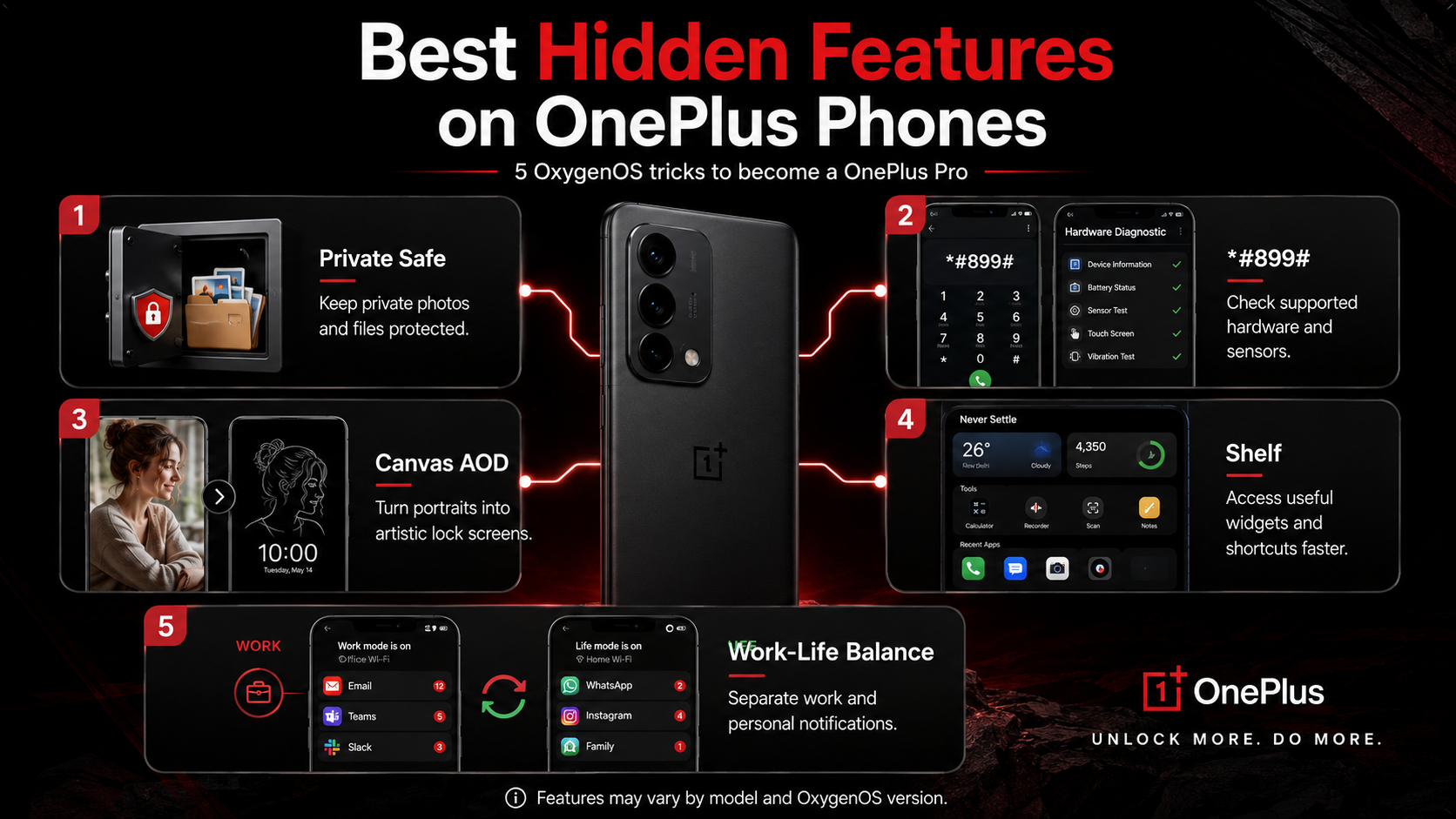
OxygenOS includes many hidden features on OnePlus phones that can change how you use your device. Many users only explore basic settings and miss these useful tools. Features such as Shelf, Work-Life Balance, Canvas, Private Safe, and diagnostic options can improve everyday use.
OnePlus has built several customization and productivity features into OxygenOS. However, available options can vary by model, region, and software version. Always check your phone’s current settings before following a specific menu path.
This guide explores some of the most useful OnePlus hidden features. You will learn about diagnostic codes, private photos, customization tools, and more. We also explain the OnePlus secret code and the *#899# code.
Whether you own a flagship or Nord device, these tips can help you get more from OxygenOS. Explore the options that match your needs and avoid changing advanced settings without understanding them. For device-specific instructions and the latest software information, you can also check the official OnePlus Support page.
What Are Some Unique Features of the OnePlus Phone?
OnePlus phones include several useful features that are easy to overlook. The Alert Slider remains one of the brand’s most recognizable shortcuts on supported models. It lets you switch between ring, vibrate, and silent modes quickly.
OxygenOS also includes software tools for faster access and deeper customization. Depending on your model, you may find Shelf, OnePlus Scout, Quick Launch, customizable display settings, and eye-comfort options. These features make OnePlus phones feel more flexible during everyday use, especially when combined with useful Android home screen customization.
Some useful OnePlus features include:
- Shelf: Access selected widgets, shortcuts, and information quickly.
- OnePlus Scout: Search apps, settings, media, and other phone content.
- Quick Launch: Open selected apps or functions from supported fingerprint shortcuts.
- Work-Life Balance: Separate work notifications from personal distractions.
- Canvas AOD: Turn compatible portraits into artistic lock-screen effects.
These hidden features on OnePlus phones can improve productivity without requiring extra apps. However, feature names and menu locations can change with OxygenOS updates.
Check your current Settings app before following older tutorials. A feature available on one OnePlus model may use a different menu on another.

Shelf and Work-Life Balance
Shelf acts as a customizable dashboard for useful widgets, shortcuts, and information. Depending on your OxygenOS version, you can access it through a swipe gesture or another configured shortcut. Available cards may include weather, notes, steps, tools, and other information.
Work-Life Balance is another useful OxygenOS feature. It helps separate professional notifications from personal distractions. On supported versions, you can configure Work and Life modes around apps, schedules, locations, or Wi-Fi networks.
For example, you could allow work notifications during office hours. Your phone could then switch to Life mode afterward. This reduces interruptions without requiring constant manual changes.
These hidden features on OnePlus phones are especially useful if you use one device for work and personal activities. They can help organize your digital routine without installing third-party applications.
Check Settings and Quick Settings to see which options your phone supports. OxygenOS interfaces change over time, so older instructions may not match your current menus.
If Shelf or Work-Life Balance is missing, your model or software version may not support it. This does not indicate a problem with your phone.
What Is the OnePlus Secret Code?
OnePlus phones can support dialer codes that open diagnostic or system information screens. These codes are different from normal Settings shortcuts. Some are designed for hardware testing, troubleshooting, or technical checks.
The most widely discussed OnePlus diagnostic sequence is *#899#. On supported devices, entering it in the Phone app can open Engineer Mode or a related factory-testing interface. The available options depend on your phone and OxygenOS version.
These hidden features on OnePlus phones are not universal. A code that works on one model may produce no response on another. Regional software and carrier configurations can also affect diagnostic functions.
Before using any diagnostic menu, follow these precautions:
- Use codes from reliable sources.
- Avoid changing settings you do not understand.
- Do not alter calibration or network values unnecessarily.
- Use diagnostic menus mainly for testing.
- Exit without saving unknown configuration changes.
Diagnostic tools can help identify hardware problems. However, they should not be treated as ordinary customization features.
If you find an unfamiliar option, research its purpose first. When a hardware problem is serious, contacting OnePlus support or a qualified technician is safer.
Engineering Mode and Hardware Diagnostics
Engineering Mode can provide access to hardware testing tools on supported OnePlus devices. Technicians and experienced users can use these tools to check components and identify potential problems.
Depending on your phone and OxygenOS version, the diagnostic interface may include tests for the touchscreen, sensors, speakers, cameras, vibration, and other hardware. The exact menu can differ considerably between models.
The *#899# code is commonly associated with this diagnostic environment on supported OnePlus phones. It can be useful when checking a second-hand device. You may be able to test important components before deciding whether the phone works correctly.
However, diagnostic menus require caution. Some options are intended for technicians rather than ordinary users. Changing calibration values without understanding them can create additional problems.
Use the menu mainly for testing and viewing information. If a test produces an unexpected result, record the result instead of changing random settings.
These hidden features on OnePlus phones can be valuable during troubleshooting. Still, the code may not work on every device.
If nothing happens after entering the code, your model or software build may not support that shortcut. Do not install questionable third-party apps simply to force access to an engineering menu.
How to Make a OnePlus Phone Cool?
Making a OnePlus phone look more personal does not require a third-party launcher. OxygenOS provides several customization options that can change the appearance and behavior of your device.
Start with the display and personalization settings. Depending on your model, you can adjust wallpapers, icons, colors, fonts, lock-screen styles, and refresh-rate options. A higher supported refresh rate can make compatible animations and scrolling appear smoother.
You can also explore Always-On Display options. Some OnePlus models support Canvas AOD, which creates an artistic outline from a compatible portrait. This gives the lock screen a distinctive appearance without installing another application.
Other customization ideas include:
- Choose a wallpaper that matches your preferred theme.
- Set the highest supported screen refresh rate.
- Customize Always-On Display elements.
- Experiment with supported icon and font options.
- Adjust notification and lock-screen behavior.
These hidden features on OnePlus phones can make your device feel more unique. They can also improve usability when configured carefully.
Remember that OxygenOS features vary between models, regions, and versions. Explore the available settings gradually. Keep the changes that improve your experience and avoid unnecessary modifications.
Always-On Display and Canvas Feature
Canvas AOD is one of the most distinctive personalization features associated with OxygenOS. On supported OnePlus phones, it can transform a selected portrait into a stylized line-art effect.
The feature creates an outline based on the chosen portrait. This produces a minimalist look while keeping the subject recognizable. It can make the Always-On Display feel more personal without using complicated customization tools.
The exact Canvas options depend on your phone and OxygenOS version. If your device supports the feature, look under Always-On Display or personalization settings.
Canvas is one of the more creative hidden features on OnePlus phones because it combines photography with lock-screen customization. Try different portraits to find images that create clean and recognizable outlines.
You can also explore other AOD settings while customizing Canvas. Depending on your device, you may be able to change clock styles, colors, display behavior, and notification information.
If Canvas does not appear, your phone may not support it. OxygenOS does not provide identical features across every OnePlus model.
Rather than installing another customization app, explore the built-in options first. You may already have enough tools to create the look you want.
How to See Hidden Pics in OnePlus?
OnePlus provides built-in privacy tools for hiding personal photos and videos. Depending on your OxygenOS version, these files may appear under Private album or Private Safe.
On supported versions, you can mark photos as private from the Photos app. Private media is then separated from the normal Photos view. This can prevent sensitive images from appearing alongside your regular gallery content.
The exact method for viewing private photos depends on your OxygenOS version. On supported devices, open Photos and touch and hold the appropriate bottom tab area. The phone may then request your privacy password.
After authentication, you can access your private content. You may also find Private Safe through a path such as:
Settings → Security & privacy → Private Safe → Images and videos
The wording can differ between OxygenOS releases. This is why checking your current settings is important.
These hidden features on OnePlus phones provide a convenient way to keep private media separate. They can be useful for personal photographs, documents, and other sensitive files.
Always remember your privacy password before moving important content. Without the correct authentication method, accessing protected files may be difficult.
Private Safe and File Manager Access
Private Safe extends OnePlus privacy controls beyond ordinary gallery hiding. Depending on your OxygenOS version, it can protect images, videos, audio, documents, and other files.
The location of Private Safe can change between software releases. On supported recent versions, you may find it under Settings → Security & privacy → Private Safe. Older versions may use different menu names.
To protect a photo or video, select it in Photos and choose the option that marks it as private. After moving it, the file should no longer appear in your ordinary photo feed. You can authenticate later to view or restore it.
Private Safe can also help organize sensitive documents. For example, you could keep personal records separate from ordinary downloads and use Android apps for managing everyday life to organize other routine tasks.
These hidden features on OnePlus phones are useful when privacy matters. However, you should still protect your phone with a strong screen lock and privacy password.
It is also important to distinguish Private Safe from Android’s Private Space. Private Safe focuses on protecting files. Private Space isolates supported apps and their data.
The feature available on your phone depends on its OxygenOS implementation. Always check the current settings before following instructions from an older version.
What Is the *#899 Code Used for OnePlus?
The *#899# code is commonly associated with the Engineer Mode or factory diagnostic interface on supported OnePlus devices. When available, it can provide testing tools for different hardware components.
Technicians and experienced users may use this menu during troubleshooting. Depending on the device, it can help check sensors, touch input, cameras, speakers, vibration, and other components.
However, *#899# should not be described as a universal OnePlus health-check code. The available menu depends on the phone model and software build. Some devices may offer different tests or block the code completely.
If you want to test it, open the Phone app and enter:
*#899#
If a diagnostic screen appears, use it for testing rather than changing advanced settings. Do not assume that every option is safe to modify.
This code can be useful when checking a used OnePlus phone. It may help identify hardware issues before you purchase the device. It can also provide useful information when troubleshooting and speeding up an Android phone.
These hidden features on OnePlus phones should always be used carefully. If a test reveals a serious fault, professional repair support is a better option than changing advanced settings yourself.
Comprehensive Sensor Testing Suite
The diagnostic interface associated with *#899# can expose several hardware tests on supported OnePlus devices. Available tests vary by model, so your screen may not match another user’s device.
Depending on the phone, you may find tests for sensors, touch input, cameras, speakers, vibration, and other components. These tools can help identify unusual hardware behavior, which can be useful when assessing how long Android tablets last and what kinds of hardware issues may develop over time.
For example, you might test a sensor after noticing inconsistent readings. You could also test the touchscreen, speaker, or vibration motor when inspecting a second-hand device.
However, treat calibration options with extra care. Running a test is generally safer than changing an advanced calibration value. If you do not understand a setting, leave it unchanged.
These hidden features on OnePlus phones can provide useful information before contacting technical support. Record failed tests and unusual results first. This information can help a technician understand the problem.
Most importantly, remember that diagnostic interfaces are software-dependent. A feature available on one OnePlus phone may not appear on another.
If *#899# does not work, do not assume your device is faulty. Your model or OxygenOS version may simply not support the code.
Frequently Asked Questions
Can I Use OnePlus Secret Codes on Carrier-Locked Models?
Secret codes are not guaranteed to work across all OnePlus devices. Carrier restrictions, regional software, and OxygenOS versions can affect available diagnostic functions. A code that works on one model may produce no response on another, just as Android phone RAM needs can vary depending on the device and how you use it.
Does the Alert Slider Work on Every OnePlus Model?
No. The Alert Slider is available on many OnePlus devices, but it is not universal across the product range. Check your specific model before relying on this hardware shortcut.
Is Private Safe Completely Secure From Data Recovery?
Private Safe is designed to protect private files through OnePlus privacy controls. However, avoid describing it as absolutely impossible to recover. Security depends on your device, software, credentials, and system implementation.
How Do I Turn On the High Refresh Rate?
Open Settings → Display & brightness and look for the screen refresh-rate option. Choose the highest supported setting if you prefer smoother scrolling. Menu names can vary by OxygenOS version.
Why Can I Not Find a Feature Mentioned in This Guide?
OxygenOS features vary by model, region, and software version. Some features may also be renamed or moved after an update. If an option is missing, check your device’s current user manual or OnePlus support documentation.
Can I Hide Photos Without a Third-Party App?
Yes. Supported OnePlus phones provide private-photo and Private Safe tools. These options can keep selected media away from the normal Photos view.
The exact steps can vary between OxygenOS releases. Check your current privacy and Photos settings if the menu described above is missing.
Conclusion
Learning the hidden features on OnePlus phones can help you get more from OxygenOS without installing extra apps. Tools such as Shelf, Work-Life Balance, Canvas AOD, Private Safe, and supported diagnostic menus offer useful options for everyday users.
The *#899# diagnostic code can be helpful when checking supported hardware. However, it should be used carefully. Diagnostic menus can expose advanced settings that are not intended for casual experimentation.
For privacy, Private Safe provides a convenient way to separate sensitive photos, videos, and documents from regular files. For customization, OxygenOS offers several ways to change your display and overall phone experience. If you’re also comparing OnePlus devices for a larger-screen experience, see OnePlus Pad Lite vs iPad Air.
Keep in mind that OxygenOS changes frequently. A feature’s name, location, or availability can differ between devices. Always verify instructions against your phone’s current software before changing advanced settings.
The best hidden features on OnePlus phones are the ones that solve real problems. Try a few features at a time and keep the options that improve your workflow.
With careful exploration, your OnePlus phone can become more personal, efficient, and useful. You can also discover new tools after major OxygenOS updates. Check your settings regularly to see what your device can do.