
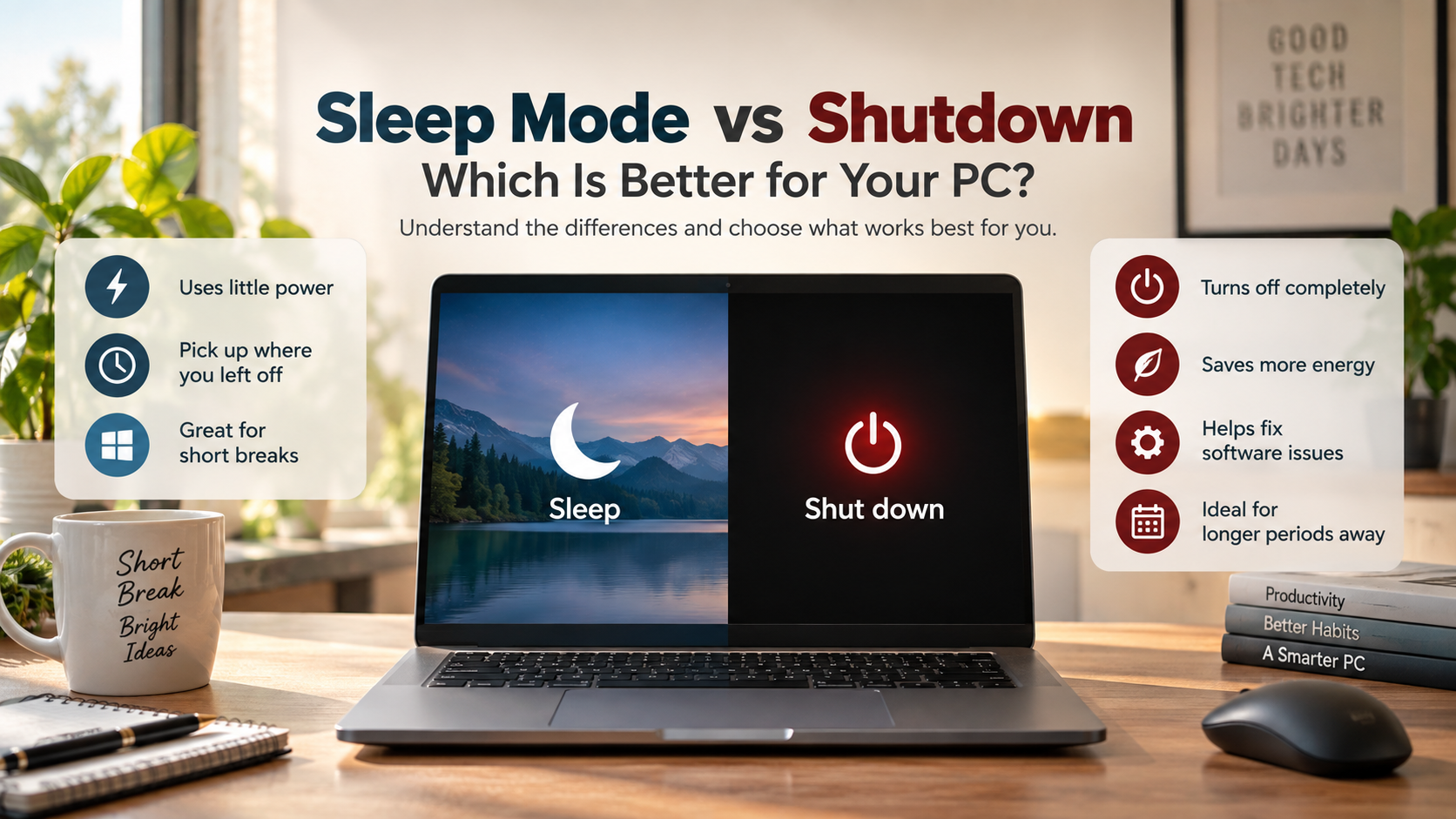
Sleep Mode vs Shutdown: Which Is Better for Your PC?
Deciding how to power down your computer can be confusing. The choice between sleep mode vs shutdown depends on how often you use your PC, how long you will be away, and whether you need to preserve your current session.
Sleep mode pauses most system activity while keeping your current session in memory. It uses little power and lets you return to work quickly. Shutdown closes running processes and turns the computer off completely.
Both options have useful roles. Sleep works well for short breaks and regular daily use. Shutdown is better for longer periods away from the computer and can help resolve software issues.
For more information about Windows power states and how they work, see Microsoft’s official guide on shutting down, sleeping, and hibernating your PC. This resource explains the differences between these options and when to use each one.
This guide explains the differences between sleep, shutdown, and hibernate. You will also learn about hardware longevity, energy consumption, updates, battery health, and data protection.

Is it better to shut down or sleep?
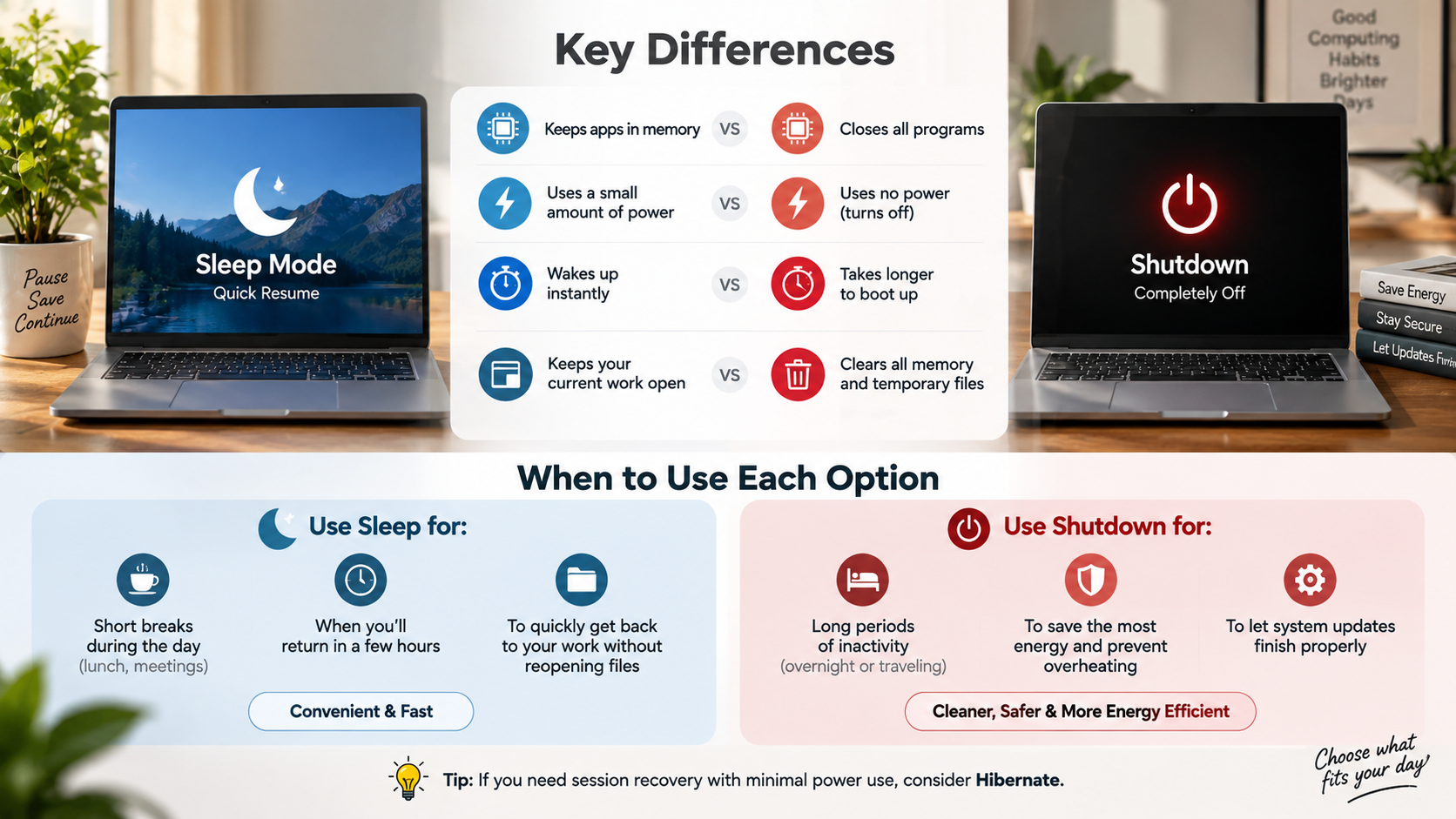
Neither option is always better. The right choice depends on how long you plan to leave your computer unused. Sleep mode is usually more convenient when you expect to return within a few hours.
Sleep keeps your active session available in memory. Your apps and open documents can usually be restored quickly. This makes sleep useful during lunch breaks, meetings, or short periods away from your desk.
A full shutdown makes more sense when you will not use the computer for an extended period. It ends running processes and removes the active session from memory. It also eliminates most standby power consumption.
Shutdown can also help when your computer becomes sluggish or develops software problems. However, you do not need to shut down after every use to maintain modern hardware.
When comparing sleep mode vs shutdown, use these simple guidelines:
- Use sleep for short breaks.
- Use shutdown for long periods of inactivity.
- Restart when software behaves unusually.
- Use hibernate when you need session recovery with minimal power use.
Impact on Hardware Longevity
Modern computers are designed to handle regular sleep, restart, and shutdown cycles. SSDs, processors, and other components generally tolerate normal power-state changes without meaningful damage. What Is the Minimum Free Space you should leave on an SSD? also covers an important aspect of maintaining SSD performance. You do not need to avoid shutdown because you are worried about wearing out modern hardware.
Sleep mode also does not normally harm components. It places most hardware into a low-power state while maintaining enough power to preserve your session. This can reduce unnecessary full startup cycles during the workday.
Older systems may experience more stress from repeated power cycling, especially if they use aging power supplies or hard disk drives. However, normal shutdowns are still part of expected computer use.
Thermal changes also occur during normal operation. Repeated temperature changes are not usually a significant concern for modern consumer hardware.
When considering sleep mode vs shutdown, focus on usage rather than hardware wear:
- Use sleep mode for convenient short breaks.
- Use shutdown when the computer will remain unused for longer periods.
- Keep the system properly ventilated.
- Replace failing hardware instead of relying on sleep to extend its life.
Should I put my PC to sleep or shut it down?
Choose sleep or shutdown based on when you expect to use your computer again. If you will return within a few hours, sleep mode is usually the most convenient option.
Sleep keeps your current session available in system memory. Your desktop, browser tabs, and open applications can often return within seconds. This saves time compared with starting everything again after a shutdown.
Shutdown is more appropriate when you have finished working for the day or will be away for several days. It ends active processes and places the system into a fully powered-off state. This also reduces standby electricity use.
Shutdown can be especially useful before traveling with a desktop or leaving a computer unattended for an extended period. It also gives the operating system a clean start the next time you turn it on.
For everyday use, there is no need to shut down after every short break. In the sleep mode vs shutdown debate, sleep is better for convenience, while shutdown suits longer periods of inactivity.
Managing System Memory and Updates
Sleep mode preserves your active session, so your computer does not receive the same clean reset as a shutdown or restart. This can matter when software has been running for a long time.
Modern operating systems manage memory automatically. Still, applications can occasionally develop memory leaks, or background processes can become unstable. A restart can clear these temporary problems and restore normal performance.
Updates are another reason to restart your computer regularly. Why Does Windows Constantly Need To Update? Windows and macOS can install some updates while the computer is running or sleeping. However, certain updates still require a restart before they become fully active.
You should not assume that every shutdown installs all pending updates. The exact process depends on your operating system and update settings.
If your computer feels unusually slow, try these steps:
- Save your work.
- Close unnecessary applications.
- Restart the computer.
- Allow pending updates to finish.
- Check performance after the restart.
Regular restarts are more useful for system maintenance than repeatedly forcing a complete shutdown. This is an important distinction when deciding between sleep mode vs shutdown for everyday computer use.
Is it bad to leave your computer in sleep mode all the time?
Leaving a modern computer in sleep mode is not normally dangerous. However, keeping it asleep for very long periods can create practical problems. Background software, pending updates, or occasional system glitches may remain unresolved until the computer restarts.
Sleep mode also depends on a small amount of power. Desktop computers can usually maintain sleep for long periods without concern. Laptops, however, continue using battery power while sleeping, although the amount varies by device and settings.
Power interruptions are another consideration. Sleep stores the active session in volatile memory on many systems. If the computer loses power before your work is saved, unsaved data may be lost.
For that reason, sleep should not replace regular backups or saving important files. If you will be away for many hours, hibernate or shutdown may be a better choice.
A sensible routine is to:
- Use sleep during the day.
- Restart periodically.
- Shut down before long periods of inactivity.
- Save important work before leaving the computer.
Understanding these differences makes the sleep mode vs shutdown decision easier for everyday use.
Energy Consumption and Battery Health
Sleep mode uses far less electricity than an actively running computer. However, it does not normally use zero power. The system must maintain enough power to preserve the session and support selected wake features.
On desktop PCs, sleep generally has a small effect on electricity use. Actual consumption varies by hardware, operating system, connected devices, and power settings. Therefore, fixed figures such as one to five watts should not be treated as universal.
Laptops have a different consideration because sleep slowly uses battery power. Why Does My Laptop Battery Drain So Fast? explores other common causes of battery drain. The exact drain depends on the laptop and its sleep mode. Modern systems may also use connected standby or similar low-power technologies.
If a laptop remains asleep for several days, its battery can become significantly depleted. Repeated deep discharge is not ideal for long-term battery health.
For better energy management:
- Use sleep mode for short breaks.
- Use hibernate for longer periods away.
- Shut down when the computer will remain unused.
- Keep battery-saving features enabled when appropriate.
These habits help balance convenience, energy efficiency, and battery health when choosing sleep mode vs shutdown.
Which is safer, sleep or Hibernate?
Hibernate can provide better protection against power loss than traditional sleep. Sleep generally keeps the active session in RAM, which requires continuous power. If power is interrupted, unsaved session data may be lost.
Hibernate works differently. It saves the current session to storage before powering the computer down. Because the session is stored on non-volatile storage, it can survive a complete loss of electrical power.
However, hibernate does not guarantee that every unsaved change is protected. Applications may behave differently, and important files should still be saved before leaving the computer.
Hibernate is particularly useful for laptops that will remain unused for many hours. It uses substantially less power than sleep and avoids relying on battery power to preserve the session.
Choose between the options based on your situation:
- Sleep: Best for short breaks and fast resumes.
- Hibernate: Better for long periods without power.
- Shutdown: Best when you want a completely fresh system state.
For important work, saving files remains the safest approach. This also helps clarify the difference between sleep mode vs shutdown when data protection matters.
Should I put my computer in sleep mode or hibernate?
Choose sleep when you plan to return to your computer soon. It provides a fast resume while keeping your current session available. This makes it useful for lunch breaks, meetings, and short periods away from your desk.
Hibernate is more useful when you will not use the computer for several hours. It saves the current session to storage and then powers the system down. This greatly reduces battery drain compared with keeping a laptop asleep.
Hibernate can also be a smart choice when traveling. A laptop inside a bag should not remain active for long periods because accidental wake-ups can generate heat and consume battery power.
The main difference is convenience versus energy use:
- Sleep offers faster access to your existing session.
- Hibernate uses much less power during long periods away.
- Shutdown closes the session and starts the system fresh later.
For most users, sleep is ideal during the workday. Hibernate works better overnight or during travel when battery conservation matters. In the broader sleep mode vs shutdown comparison, hibernate provides a useful middle ground.
Preserving Laptop Battery While Traveling
Using the correct power mode matters when carrying a laptop. Sleep mode can continue consuming battery power because the computer must preserve the active session. The amount varies by laptop and its configured sleep technology.
An accidental wake-up can also increase battery drain. A laptop inside a backpack has limited ventilation, so extended activity may create unnecessary heat. This is one reason hibernate or shutdown is preferable before long travel.
Hibernate saves the current session to storage and then uses very little power. Shutdown goes one step further by closing the session completely. Either option is safer for long periods without access to a charger.
Before placing your laptop inside a bag, consider these steps:
- Save important documents.
- Close unnecessary applications.
- Choose hibernate or shutdown.
- Disconnect accessories that may trigger wake events.
- Make sure the laptop has cooled before packing it.
For short trips, sleep can still be convenient. For longer journeys, hibernate or shutdown provides better battery protection and reduces the chance of heat buildup. This makes hibernate particularly useful when sleep mode vs shutdown is not the only decision involved.
Frequently Asked Questions
Does sleep mode consume a lot of electricity?
No, sleep mode uses very little electricity compared to active operation. A standard desktop computer draws merely one to five watts while sleeping, while laptops consume even less. Over an entire year, running sleep mode continuously adds only a few dollars to your energy bill, making it an efficient choice for daily breaks.
How often should I restart my PC?
You should restart or shut down your PC completely at least once a week. Regular restarts flush out temporary cache files, stop runaway background processes, and clear accumulated system memory. Weekly reboots also allow your operating system to install necessary security updates, ensuring your software remains stable and responsive over long periods.
Can a computer overheat while in sleep mode?
A computer cannot overheat in sleep mode under normal circumstances because the processor, graphics card, and storage drives enter an idle low-power state. However, if a laptop wakes accidentally inside an unventilated backpack due to a connected Bluetooth device, heat can accumulate quickly. Using hibernate mode prevents this risk entirely.
Why does my PC wake up from sleep mode on its own?
Computers often wake unexpectedly due to sensitive mouse sensors, scheduled operating system maintenance, or network activity. Peripheral devices like keyboards or external USB hubs can transmit wake signals if bumped. You can disable these wake triggers inside your system device manager to keep your computer asleep until you press the power key.
Conclusion
Choosing between sleep mode vs shutdown is mainly about balancing convenience, energy use, and system maintenance. Sleep mode is ideal when you expect to return soon. It keeps your session available and lets you resume work quickly.
Shutdown is better when you will leave the computer unused for an extended period. It closes the current session and reduces standby power consumption. A restart can also resolve temporary software problems and complete updates that require rebooting.
Hibernate provides a useful middle ground. It preserves your session on storage while using very little power. This makes it particularly useful for laptops during travel or long periods away from a charger.
For most users, a simple routine works well:
- Use sleep mode during short breaks.
- Use hibernate for longer periods when you want to preserve your session.
- Use shutdown when the computer will remain unused for an extended time.
- Restart when updates or software problems require it.
- Save important work regardless of the power state.
This approach keeps your PC convenient, reliable, and energy-efficient without unnecessary shutdowns.