Category Archives: Technology

Posts are related to technology.

Big Data Characteristics: The Ultimate Guide to the 5 Vs

Understanding Big Data Characteristics: The 5 Vs Explained

Every second, organizations generate enormous amounts of digital information. Understanding Big Data characteristics helps businesses manage this growing data landscape and turn raw information into valuable insights.

Traditional databases were designed for smaller, structured datasets. Modern enterprises now handle massive data streams from websites, mobile applications, IoT devices, social platforms, and business systems. These changing requirements have created the need for advanced technologies that can store, process, and analyze information at scale.

Platforms such as Apache Hadoop help organizations process large datasets across distributed computing environments. Hadoop is an open-source framework designed to support distributed storage and large-scale data processing. You can learn more about its architecture and capabilities through the official Apache Hadoop Documentation.

Data management is no longer limited to IT departments. It directly influences business strategy, customer experience, operational efficiency, and revenue growth. Companies that understand their data characteristics can build stronger analytics systems and make faster decisions.

The most common framework for understanding modern data challenges is the 5 Vs of Big Data: Volume, Velocity, Variety, Veracity, and Value. These five characteristics explain how data grows, moves, changes, and creates business impact.

This guide explores each Big Data characteristic in detail and explains how these concepts shape modern enterprise architecture.


What Are the Core Big Data Characteristics?

The definition of enterprise data has changed significantly over the last few decades. Earlier database systems mainly focused on structured information stored in traditional relational tables. However, the rapid growth of digital platforms introduced new challenges in storing and processing information.

To explain these challenges, analysts developed the Big Data 3 Vs model, which included Volume, Velocity, and Variety. These three characteristics described the increasing size, speed, and diversity of modern datasets.

As organizations began focusing more on data reliability and business outcomes, two additional dimensions were introduced: Veracity and Value. Together, these five factors became known as the 5 Vs of Big Data.

Each characteristic represents a different challenge that businesses must solve:

  • Volume focuses on the enormous amount of data generated.
  • Velocity explains how quickly data is created and processed.
  • Variety describes different data formats and sources.
  • Veracity measures data accuracy and reliability.
  • Value represents the useful outcomes gained from data analysis.

Understanding these Big Data characteristics allows organizations to design better storage systems, analytics platforms, and decision-making processes.

Modern businesses use this framework to evaluate their data strategies. It helps teams identify technical limitations, improve data quality, and create solutions that support long-term growth.

1. Volume: The Scale of Modern Datasets

Volume represents the massive quantity of data generated, collected, and stored by organizations. It is one of the most important Big Data characteristics because the amount of information produced today has moved far beyond traditional storage capabilities.

Previously, companies measured their data environments mainly in gigabytes and terabytes. However, large enterprises now manage petabytes and even exabytes of information. This growth happens because data is continuously generated from online transactions, customer interactions, smart devices, sensors, and digital platforms.

Therefore, managing large-scale datasets requires more than traditional database systems. Instead, organizations use distributed storage solutions that divide information across multiple servers. As a result, businesses can improve scalability and expand their infrastructure whenever data requirements increase.

Moreover, high-volume data creates challenges related to performance and storage costs. Companies must develop efficient methods for storing, organizing, and retrieving information quickly. Without proper planning, growing datasets can reduce system performance and increase operational expenses.

Real-World Example:
For example, e-commerce companies collect millions of customer interactions every day. They analyze clicks, searches, purchases, and browsing behavior to improve recommendations and create personalized shopping experiences.

Key Challenge:
As data volumes continue to grow, organizations must scale horizontally by adding more computing resources instead of depending on a single powerful server.


2. Velocity: The Speed of Data Processing

Velocity describes how quickly data is generated, transferred, and analyzed. Among the major Big Data characteristics, velocity has become increasingly important because modern businesses often require immediate insights.

In the past, organizations could rely on batch processing methods. However, many industries now require real-time data analysis. Therefore, companies need systems that can capture and process information instantly. This capability allows them to respond quickly to customer behavior, market changes, and operational challenges.

Furthermore, high-velocity data often comes from continuous sources such as financial transactions, sensors, social media activity, and application logs. Because these data streams arrive constantly, businesses require advanced processing systems that support low-latency data ingestion.

Similarly, organizations use event-driven architectures and real-time analytics platforms to manage fast-moving information. As a result, companies can identify patterns and take action without waiting for traditional processing cycles.

Real-World Example:
For instance, credit card companies analyze transactions instantly to detect suspicious activity. Their fraud detection systems evaluate purchase behavior while customers complete payments.

Key Challenge:
Ultimately, businesses must process continuous data streams efficiently while preventing delays, failures, or performance problems.


3. Variety: The Diversity of Data Formats

Variety refers to the different types, structures, and sources of data collected by organizations. It is one of the most important Big Data characteristics because modern information is no longer limited to simple database tables.

Traditionally, businesses mainly worked with structured data stored in rows and columns. However, today’s organizations manage a combination of structured, semi-structured, and unstructured data. This includes customer records, social media content, videos, emails, sensor readings, documents, and application logs.

Because data comes from many different sources, companies need flexible storage systems and advanced management strategies. Therefore, many organizations use data lakes, cloud storage platforms, and NoSQL databases to preserve information in its original format before analysis.

Unlike traditional databases, these modern systems do not always require a fixed structure before storing data. As a result, businesses can collect information from multiple sources and organize it later based on analytical requirements.

Data Structure Common Examples Primary Storage Models
Structured SQL tables, financial records, customer databases Relational databases
Semi-Structured JSON files, XML documents, server logs NoSQL databases
Unstructured Videos, images, audio files, PDF documents Data lakes, cloud storage

Additionally, managing data variety creates challenges in integration and analysis. Teams must combine information from different sources while maintaining consistency, accuracy, and accessibility.

Real-World Example:
For example, healthcare organizations combine structured patient records with unstructured information such as medical images, reports, and physician notes.

Key Challenge:
Therefore, engineering teams must transform different data formats into usable information without losing important details.


4. Veracity: Ensuring Data Quality and Trust

Veracity measures the accuracy, reliability, and consistency of data. Among the five Big Data characteristics, veracity is essential because inaccurate information can lead to poor business decisions.

Large datasets often contain errors, duplicate records, incomplete information, or inconsistent values. These problems may occur during data collection, storage, or processing. Consequently, organizations that analyze unreliable data may produce misleading insights.

To solve these issues, companies implement strong data governance practices. These practices include validation processes, data cleaning methods, quality checks, and continuous monitoring systems.

In addition, modern analytics platforms often include automated tools that identify unusual patterns and remove inaccurate records. As a result, businesses can improve confidence in dashboards, reports, and machine learning models.

Data accuracy is especially important in industries where decisions affect safety, finances, or customer experiences. Therefore, reliable information helps organizations build better predictions and develop more effective strategies.

Real-World Example:
For example, autonomous vehicles use sensor data to make driving decisions. These systems must remove incorrect readings caused by weather conditions or environmental noise.

Key Challenge:
However, businesses must improve data quality while maintaining fast processing speeds for real-time applications.


5. Value: Turning Raw Data into Actionable Intelligence

Value represents the business benefits organizations gain from analyzing data. It is the final and most strategic Big Data characteristic because information becomes useful only when it supports better decisions.

Although many companies collect enormous amounts of data, storage alone does not create competitive advantages. Instead, businesses must identify meaningful patterns and convert raw information into practical insights.

For this reason, data value can appear in many forms, including improved customer experiences, reduced operating costs, better forecasting, and increased revenue. Furthermore, advanced analytics, artificial intelligence, and machine learning help organizations discover hidden opportunities within large datasets.

However, successful companies do not focus only on collecting more information. Instead, they prioritize relevant data that supports clear business objectives. As a result, analytics investments can produce measurable improvements.

Expert Insight:
Data collection creates value only when organizations transform information into actions that improve business performance.

Real-World Example:
For instance, streaming platforms analyze customer viewing habits to understand preferences and decide which new content projects to develop.

Key Challenge:
Ultimately, organizations must connect technical data strategies with business goals. Otherwise, they risk collecting information without achieving meaningful results.


Frequently Asked Questions About Big Data Characteristics

What are the main characteristics of enterprise data?

The main characteristics of enterprise data are Volume, Velocity, Variety, Veracity, and Value. These five dimensions are commonly known as the 5 Vs of Big Data.

Volume explains the enormous amount of information generated by modern systems. Businesses now manage data measured in terabytes, petabytes, and beyond. Velocity describes how quickly data is created and processed, especially in real-time environments.

Variety focuses on the different formats businesses handle, including text, images, videos, and application logs. Veracity ensures that information remains accurate, consistent, and trustworthy.

Finally, Value measures how effectively organizations use data to improve decisions and achieve business goals. Together, these Big Data characteristics help companies design better storage systems, analytics platforms, and strategies for managing modern digital information.

Why is data velocity so important for modern businesses?

Data velocity is important because many business decisions depend on immediate information. In fast-moving industries, delayed insights can reduce opportunities and increase risks.

For example, financial institutions use real-time analytics to detect suspicious transactions before fraud occurs. Transportation companies analyze live location data to improve routes and manage demand.

Modern customers also expect quick responses from digital services. Businesses use high-speed data processing to personalize experiences, optimize operations, and respond to changing conditions.

Traditional batch processing methods may not meet these requirements. Real-time data systems allow organizations to analyze information as it arrives and take action immediately.

By managing velocity effectively, companies can improve efficiency and maintain a competitive advantage in data-driven markets.

How does data variety impact cloud storage architecture?

Data variety has a major impact on how organizations design their cloud storage architecture. Traditional relational databases work well with structured information, such as financial records and customer tables. However, they are less effective when handling modern data types like videos, social media content, images, and IoT sensor streams.

To manage these different formats, businesses often use flexible storage solutions such as data lakes, cloud object storage, and NoSQL databases. These technologies allow organizations to store structured, semi-structured, and unstructured information without requiring a fixed schema at the beginning.

This flexibility helps companies collect data from multiple sources and analyze it later based on business needs. For example, a company can store application logs, customer interactions, and machine-generated data in the same environment before processing it.

Data variety also affects data integration strategies. Engineering teams must create systems that can connect different sources while maintaining consistency and accessibility.

By managing variety effectively, organizations can build scalable cloud environments that support advanced analytics, artificial intelligence, and machine learning applications.

What is the difference between structured and unstructured data?

Structured and unstructured data differ mainly in how information is organized and stored.

Structured data follows a predefined format. It is usually arranged in rows and columns inside relational databases. Examples include customer information, sales records, account details, and inventory databases. Because it follows a fixed structure, structured data is easy to search and analyze using traditional database tools.

Unstructured data does not follow a specific format or predefined model. It includes images, videos, audio recordings, emails, documents, and social media content. This type of information requires more advanced processing methods because computers must first understand and organize the content.

Organizations increasingly manage both structured and unstructured data together. Modern analytics systems use technologies such as natural language processing, computer vision, and machine learning to extract insights from unstructured sources.

Understanding the difference between these data types helps businesses choose the right storage systems and analytical tools for their needs.

How do companies maintain data veracity?

Companies maintain data veracity by creating strong processes that improve data accuracy, consistency, and reliability. Since large datasets often contain errors, organizations must verify information before using it for analysis.

A common approach is implementing data governance frameworks. These frameworks define rules for collecting, storing, accessing, and managing information across the organization.

Businesses also use automated validation systems to identify duplicate records, missing values, and unusual patterns. Data cleaning tools help correct errors before information enters analytics platforms.

Many organizations also use data lineage tracking to understand where information comes from and how it changes over time. This improves transparency and helps teams identify potential quality issues.

Regular audits and monitoring processes ensure that business reports, dashboards, and machine learning models rely on accurate information.

Maintaining high data veracity allows companies to make confident decisions and reduces the risks caused by unreliable data.


Conclusion: Using Big Data Characteristics for Business Growth

Understanding Big Data characteristics is essential for organizations operating in today’s digital economy. The five key dimensions—Volume, Velocity, Variety, Veracity, and Value—help businesses understand the challenges and opportunities created by modern data environments.

Volume explains the growing size of datasets. Velocity highlights the need for faster processing. Variety focuses on managing different data formats. Veracity ensures information remains accurate. Value helps organizations transform data into meaningful business results.

When companies manage these five characteristics effectively, they can build stronger data strategies and create more reliable analytics systems. This allows them to improve customer experiences, reduce operational costs, and discover new growth opportunities.

Successful organizations do not treat data as a simple storage requirement. They view information as a strategic asset that can support innovation and competitive advantage.

By investing in scalable infrastructure, flexible technologies, and strong data governance, businesses can turn complex datasets into valuable insights. A well-designed data strategy ensures that every piece of information contributes to smarter decisions and long-term success.

As organizations continue adopting advanced analytics and artificial intelligence solutions, technologies such as Retrieval-Augmented Generation (RAG) are becoming increasingly important for connecting large data sources with intelligent systems. Understanding how RAG works can help businesses improve knowledge retrieval, enhance AI accuracy, and create more effective data-driven applications. Learn more about Retrieval-Augmented Generation (RAG) and how it improves AI-powered information systems in this detailed guide.

Real-Time Data Streaming: Architecture, Benefits & Tools

Real-Time Data Streaming: The Complete Modern Guide

Modern businesses cannot rely only on delayed reports and historical data. Decisions now depend on information that is available instantly. Real-time data streaming allows organizations to capture, process, and analyze events as they happen.

From financial transactions and IoT devices to customer interactions and application logs, streaming technology helps businesses respond faster. Instead of waiting hours or days for batch processing, companies can act on fresh data within seconds.

Traditional systems were designed around scheduled data processing. They collected information first and analyzed it later. Real-time streaming changes this approach by creating continuous data pipelines that process events immediately.

Technologies such as Apache Kafka have helped engineering teams build reliable event-driven architectures. These platforms can handle massive data volumes while maintaining speed, durability, and scalability.

Understanding real-time data streaming requires more than knowing how data moves. It involves understanding how modern systems collect, process, store, and analyze continuous streams of information.

In this guide, we will explore how streaming systems work, compare stream processing with batch processing, explain core architecture components, and review popular tools used for real-time analytics.


What Is Real-Time Data Streaming and How Does It Work?

Real-time data streaming is the process of continuously collecting, processing, and analyzing data as events occur. Instead of storing large amounts of information before processing it, streaming systems handle records immediately.

This approach allows applications to respond to changes within milliseconds or seconds. It is commonly used in systems that require instant decisions, such as fraud detection, recommendation engines, monitoring platforms, and automated alerts.

A streaming architecture usually contains three main components:

The process follows an event-driven publish-subscribe model:

  • Producers: Applications, websites, mobile devices, and sensors generate events when something changes.
  • Stream Brokers: Messaging platforms store and organize events into ordered streams called topics.
  • Consumers: Analytics tools, databases, machine learning systems, and monitoring applications subscribe to these streams.

Unlike traditional systems, streaming platforms continuously process incoming information. This allows businesses to react quickly to new conditions.

For example, an online payment system can detect suspicious behavior while a transaction is still happening. A manufacturing system can identify equipment issues before a machine fails.

The main goal of real-time streaming is not only faster data movement. It is creating systems that can understand and respond to events immediately.


Real-Time Data Streaming vs. Batch Processing

Real-time data streaming and batch processing represent two different approaches to handling information. The main difference is how quickly data is processed after it is created.

Batch processing collects data over a specific period. The system then processes the entire group at scheduled intervals. This method works well for large historical reports, backups, and offline analysis.

Real-time streaming processes data continuously. It handles events as they arrive instead of waiting for a collection period to finish.

Feature Stream Processing Batch Processing
Data Scope Continuous, unlimited data flow Fixed groups of collected data
Latency Milliseconds to seconds Hours to days
Execution Always running Scheduled intervals
Best For Fraud detection, live analytics, alerts Reports, backups, historical analysis

Batch systems remain useful for many business operations. They are efficient when immediate results are not required.

However, they create delays because information must wait before processing begins. These delays can prevent businesses from responding quickly.

Stream processing removes this waiting period. It enables real-time decision-making by turning incoming events into immediate insights.

For modern applications, many organizations use both approaches together. Streaming handles fast-changing information, while batch systems support deeper historical analysis.


Core Components of a Real-Time Streaming Architecture

A reliable real-time streaming architecture requires multiple layers working together. Each layer has a specific role in collecting, storing, processing, and delivering data.

A typical streaming pipeline looks like this:

[ Ingestion Layer ] 
        ↓
[ Storage Broker Layer ]
        ↓
[ Processing Engine ]
        ↓
[ Analytics Sink ]

The architecture must support high speed, fault tolerance, and scalability. As data volumes increase, each component must continue operating without interruption.

The major layers include:

1. The Ingestion Layer

The ingestion layer is the entry point of a streaming system. It collects raw events from different sources, including applications, sensors, websites, and databases.

This layer prepares incoming information for processing. It may handle tasks such as data validation, formatting, and protocol conversion.

A strong ingestion system allows organizations to collect millions of events without slowing down the overall pipeline.

2. The Streaming Storage Layer

The storage layer manages incoming event streams. Unlike traditional databases, streaming brokers store data as append-only logs.

These logs maintain event order and allow multiple applications to access the same information. Systems can also divide streams across servers through partitioning.

This design improves performance, reliability, and scalability.

3. The Stream Processing Engine

The processing engine contains the business logic of the streaming system. It analyzes incoming events and transforms raw data into useful information.

Processing engines can filter events, calculate metrics, combine multiple streams, and run analytics in memory.

This layer enables applications to make immediate decisions based on current data.


Key Benefits of Adopting Real-Time Data Streaming

Real-time data streaming provides organizations with faster insights, improved automation, and more responsive digital experiences. As businesses generate increasing amounts of data, traditional processing methods often create delays. Streaming systems solve this challenge by continuously analyzing information as it arrives.

A well-designed real-time data streaming platform helps companies make better decisions using current information instead of outdated reports. It also allows applications to react automatically when important events occur.

The biggest advantages of adopting event streaming include:

  • Immediate Business Insights: Teams can monitor live metrics and make decisions using fresh data. Executives can track performance changes instantly instead of waiting for scheduled reports.
  • Proactive Anomaly Detection: Streaming systems can identify unusual activity in real time. Financial institutions can detect suspicious transactions, while IT teams can identify system failures before they become major problems.
  • Improved Customer Experiences: Companies can personalize services based on real-time user behavior. Streaming data supports recommendations, targeted notifications, and dynamic content delivery.
  • Decoupled System Architecture: Event-driven systems separate data producers from consumers. This allows developers to create new applications without changing existing services.
  • Better Operational Efficiency: Automated responses reduce manual monitoring and improve workflows. Businesses can react faster to changing conditions.

Real-time streaming is especially valuable in industries where timing directly affects outcomes. A few seconds can determine whether a company prevents fraud, avoids downtime, or delivers a better customer experience.

By adopting streaming technologies, organizations create flexible systems that can handle modern data demands. These architectures support scalability while improving speed, reliability, and business agility.


Popular Real-Time Data Streaming Tools and Technologies

Choosing the right real-time data streaming tools depends on several important factors. For example, organizations must evaluate data volume, processing requirements, latency expectations, and their existing technology environment.

Furthermore, different streaming platforms provide different capabilities. While some solutions focus on high-speed event delivery, others specialize in advanced stream processing, complex analytics, or cloud-based management.

Therefore, businesses should select a platform based on their specific workload, scalability needs, and future growth plans.

The most widely used streaming technologies include:

Apache Kafka

Apache Kafka is one of the most popular event streaming platforms available today. It is designed for high-throughput data pipelines and large-scale distributed systems.

In addition, Kafka works as a distributed commit log that stores events reliably. As a result, multiple applications can read and process the same stream independently without affecting other consumers.

Its key features include:

  • High message throughput
  • Fault-tolerant architecture
  • Scalable event storage
  • Real-time data integration

Because of its reliability and scalability, many companies use Kafka as the foundation for event-driven architectures. For instance, it supports applications such as monitoring systems, analytics platforms, data integration solutions, and machine learning pipelines.

Apache Flink

Apache Flink is a powerful framework designed for complex stream processing workloads. Unlike simple data transfer systems, Flink focuses on low-latency computation and accurate event-time processing.

Moreover, it provides advanced capabilities for applications that require continuous calculations and real-time decision-making.

Flink supports:

  • Stateful stream processing
  • Real-time analytics
  • Event-time calculations
  • Fault recovery mechanisms

As a result, Flink is commonly used when businesses need advanced processing logic, accurate analytics, and reliable results from continuous data streams.

AWS Kinesis

Amazon Web Services provides AWS Kinesis, a managed service for collecting, processing, and analyzing real-time data streams.

With Kinesis, teams can build streaming applications without managing complex infrastructure. Additionally, the service supports various use cases, including application logs, video streams, IoT data, and real-time analytics workloads.

Cloud-based streaming services are becoming increasingly popular because they simplify deployment and reduce operational challenges. Moreover, they provide flexible scaling options, allowing organizations to handle changing data volumes more efficiently.

Ultimately, selecting the right streaming technology depends on business goals, technical requirements, and the level of control an organization needs over its data infrastructure.


Common Real-Time Data Streaming Use Cases Across Industries

Real-time data streaming powers many applications that people use every day. From financial security systems to personalized online experiences, continuous data processing has become an essential technology.

Organizations across different industries use streaming platforms to improve speed, automation, and decision-making.

Financial Services

Banks and payment companies use streaming systems to monitor transactions instantly. Fraud detection models analyze payment activity and identify suspicious patterns within seconds.

Streaming also supports algorithmic trading systems that require rapid access to market information.

E-Commerce

Online retailers use real-time data streaming to improve customer experiences. Streaming platforms help manage inventory updates, personalized recommendations, and dynamic pricing.

For example, an e-commerce website can adjust product suggestions based on a customer’s current browsing behavior.

Internet of Things (IoT) and Manufacturing

Manufacturing companies use streaming technology to monitor connected machines and sensors. These systems collect equipment data continuously and detect early warning signs.

Predictive maintenance helps organizations repair machines before unexpected failures occur.

Healthcare

Healthcare providers use real-time streaming to monitor patient information continuously. Connected devices can track vital signs and send alerts when unusual conditions appear.

This enables faster responses and improves patient monitoring processes.

Telecommunications

Telecom companies process network data streams to monitor service quality. They can detect outages, analyze traffic patterns, and optimize network performance.

Across all these industries, the common goal remains the same: transform continuous data into immediate action.


Frequently Asked Questions About Real-Time Data Streaming

What is the difference between real-time data streaming and message queuing?

Real-time data streaming and message queuing both move data between systems, but they work differently. Traditional message queues usually deliver a message to one consumer and remove it after processing.

In contrast, real-time data streaming platforms store events in persistent, ordered logs. Multiple applications can access the same stream at different times without affecting other consumers.

This makes streaming systems more suitable for modern event-driven architectures. A single event can support several applications, such as analytics tools, monitoring systems, and machine learning models.

Message queues are still useful for task distribution and simple communication workflows. However, streaming platforms provide better support for continuous data processing and large-scale analytics.

Is real-time data streaming expensive to implement?

The cost of implementing real-time data streaming depends on system requirements, data volume, and infrastructure choices.

Initial development can require investment in:

  • Streaming platforms
  • Cloud resources or servers
  • Data engineering expertise
  • Monitoring and maintenance tools

However, managed cloud services have made streaming technology easier to adopt. Companies can use scalable solutions without maintaining complex infrastructure themselves.

Over time, streaming can reduce operational costs by improving automation and preventing costly issues. For example, real-time monitoring can detect failures before they cause major downtime.

For organizations handling large amounts of constantly changing data, the benefits often outweigh the initial setup costs.

What is event time versus processing time in streaming?

Event time and processing time represent two different timestamps in a streaming system.

Event time refers to when an action actually happened at the source. For example, it may represent the exact moment a customer completed a purchase.

Processing time refers to when the streaming application receives and handles that event.

These timestamps may differ because of network delays, system performance issues, or temporary connection problems.

Modern stream processing frameworks use event-time processing to produce more accurate results. This is especially important for analytics, reporting, and applications where timing affects business decisions.

Can real-time streaming replace traditional databases?

No. Real-time streaming and databases serve different purposes.

Streaming systems are designed for continuous data movement and event processing. They help applications react quickly to new information.

Traditional databases are better suited for storing structured data, performing complex queries, and supporting application transactions.

Most modern architectures use both technologies together. A streaming platform processes incoming events, while databases store important information for long-term access.

For example, an online store may use streaming to analyze customer activity instantly and a database to maintain customer profiles and order history.

Together, these systems create a complete data management strategy.

How do you handle failures in a real-time stream?

Reliable streaming systems use several techniques to prevent data loss during failures.

Common approaches include:

  • Replication: Data is copied across multiple servers to improve availability.
  • Checkpoints: Processing states are saved regularly so systems can recover quickly.
  • Write-ahead logs: Events are stored before processing to maintain consistency.

Modern streaming frameworks can automatically recover from hardware failures or application errors. When a component stops working, another system can continue processing from the latest saved state.

These reliability features make real-time streaming suitable for critical applications where downtime or lost data can create serious problems.


Conclusion: The Future of Real-Time Data Streaming

Real-time data streaming has become a core requirement for modern digital businesses. Organizations can no longer depend only on delayed reports when decisions must happen instantly.

By processing events as they occur, streaming systems provide faster insights, better automation, and improved customer experiences. Businesses can detect problems earlier, personalize services, and respond quickly to changing conditions.

Building a successful streaming strategy requires careful planning. Companies must choose the right tools, design scalable architectures, and create reliable data pipelines.

Technologies such as Kafka, Flink, and cloud streaming services continue to improve how organizations manage growing data volumes. As connected devices, applications, and digital interactions continue expanding, the demand for instant information will only increase.

The future of data architecture is moving toward event-driven systems. Organizations that adopt real-time data streaming can build more flexible, responsive, and competitive technology environments.

By investing in continuous data processing today, businesses prepare themselves for a faster and more data-driven future.

Strong security practices, continuous monitoring, and awareness of cyber threats are essential for maintaining reliable data systems. Understanding how attackers attempt to access confidential information can help businesses strengthen their defenses and reduce security risks. Learn more about common data theft methods and how hackers steal sensitive information in our detailed guide: How Hackers Steal Data.

Public Wi-Fi Risks: How to Stay Safe on Open Networks

Public Wi-Fi Risks: How to Protect Your Personal Data on Open Networks

Free internet at coffee shops, airports, hotels, and shopping centers is convenient. However, understanding public Wi-Fi risks is essential before accessing sensitive accounts or sharing personal information. Many public networks lack strong security, making them attractive targets for cybercriminals. Attackers can intercept your internet traffic, steal login credentials, or distribute malware without your knowledge. Security organizations regularly warn users about the dangers of unsecured wireless connections. The Federal Trade Commission’s public Wi-Fi security advice recommends taking precautions when using public Wi-Fi networks, such as checking for secure connections and protecting personal information online.

Public networks prioritize convenience over protection. Most allow anyone to connect with little or no authentication. As a result, hackers can monitor network activity or create fake hotspots that appear legitimate. They often target passwords, financial details, emails, and other sensitive information.

The good news is that you do not need to avoid public Wi-Fi completely. Understanding how these attacks work helps you make safer decisions. With a few smart security habits, you can significantly reduce your risk while staying connected. This guide explains the most common public Wi-Fi risks, how attackers exploit open networks, and the best ways to keep your personal data secure wherever you go.


Primary Public Wi-Fi Risks You Should Know

Every time you connect to an unsecured hotspot, your device becomes more exposed to cyber threats. While many public networks appear harmless, they often lack the security controls found on trusted home or business networks. This creates opportunities for attackers to intercept communications, steal sensitive information, or compromise connected devices. Understanding these threats is the first step toward protecting yourself.

The most common public Wi-Fi risks include Man-in-the-Middle (MitM) attacks, fake wireless hotspots, unencrypted data transmission, and malware distribution. Each method targets users differently, but they all share one goal: gaining unauthorized access to valuable information. Learning to recognize these risks allows you to spot suspicious activity and avoid dangerous situations before they affect your privacy or finances.

Public Wi-Fi Risks: Man-in-the-Middle (MitM) Attacks

A Man-in-the-Middle (MitM) attack happens when a cybercriminal secretly intercepts communication between your device and a website or online service. Instead of your data traveling directly to its destination, it first passes through the attacker’s system. Because the process happens silently, most users never realize their information has been intercepted.

[ Your Device ] ----> ( Intercepted by Hacker ) ----> [ Target Website ]

Once attackers position themselves between both ends of the connection, they can monitor or modify the transmitted data. They may capture usernames, passwords, banking information, emails, or other confidential details. In some cases, they can even alter the content you receive from websites without your knowledge. Using encrypted connections and a trusted Virtual Private Network (VPN) greatly reduces the risk of a successful MitM attack on public Wi-Fi.

Public Wi-Fi Risks from Evil Twin Networks

An Evil Twin network is a fake wireless hotspot designed to imitate a legitimate public Wi-Fi network. Cybercriminals often create these rogue access points near busy locations such as cafés, hotels, airports, or libraries. They typically use convincing names like “CoffeeShop_Free_WiFi” or “Airport_Guest” to trick people into connecting without suspicion.

Once your device joins the fake network, the attacker controls the connection. They can monitor your browsing activity, redirect you to counterfeit login pages, or collect sensitive information that you enter online. Some fake hotspots even imitate legitimate login portals to steal usernames and passwords.

Before connecting, always confirm the correct network name with staff. Avoid joining similarly named networks or those that do not require the expected password. Taking a few extra seconds to verify the connection can prevent serious security problems.

Public Wi-Fi Risks from Unencrypted Network Traffic

Many public wireless networks still operate without strong encryption. When a connection lacks modern security standards such as WPA2 or WPA3, information may travel across the network in a form that attackers can intercept. This significantly increases the risk of data exposure.

Two common threats include:

  • Packet sniffing: Attackers use freely available software to capture data packets moving across the network. If the traffic is not encrypted, they may view usernames, emails, or other personal information.
  • Session hijacking: Cybercriminals can steal browser session cookies and impersonate your active login session. This allows them to access accounts without knowing your password.

Even websites that use HTTPS cannot eliminate every network-level threat. Using a trusted VPN adds another layer of encryption, making intercepted traffic far more difficult to read.

Public Wi-Fi Risks: Malware Injection Explained

Public Wi-Fi can also become a gateway for malware. Cybercriminals may exploit security weaknesses in outdated operating systems or vulnerable applications connected to the same network. Once they identify a weakness, they can attempt to install malicious software without your knowledge.

Attackers often disguise malware as software updates, browser alerts, or security warnings. Clicking these fake prompts may install ransomware, spyware, keyloggers, or other harmful programs. These threats can steal personal information, monitor your activity, or lock important files until a ransom is paid.

Keep your operating system and applications updated before using public Wi-Fi. Disable automatic downloads from unknown sources, and never install software prompted by a public network. These simple precautions greatly reduce the chance of malware infection while using open wireless connections.


How to Reduce Public Wi-Fi Risks

Using public internet does not have to put your personal information at risk. A few simple security practices can greatly reduce your exposure to common public Wi-Fi risks. Before connecting to any open network, make sure your device is updated with the latest security patches. Enable a trusted Virtual Private Network (VPN), disable automatic Wi-Fi connections, and turn off unnecessary sharing features. These small changes make it much harder for attackers to intercept your data or gain unauthorized access to your device. You should also avoid downloading files or installing software while connected to public hotspots unless the source is completely trustworthy. By combining these precautions with safe browsing habits, you can enjoy the convenience of public Wi-Fi without sacrificing your privacy or digital security.

Use a Virtual Private Network (VPN)

A Virtual Private Network (VPN) is one of the most effective tools for protecting your privacy on public Wi-Fi. It creates an encrypted tunnel between your device and the internet, making your online activity unreadable to anyone monitoring the local network. Even if attackers intercept your traffic, they cannot easily access the information inside the encrypted connection.

A VPN also helps protect sensitive activities such as online banking, shopping, and accessing work accounts. Choose a reputable VPN provider with a strong privacy policy and modern encryption standards. Avoid free VPN services that collect user data or display intrusive advertising. For the best protection, enable your VPN before connecting to any public hotspot rather than after you have already joined the network.

Disable Automatic Connections

Many smartphones, tablets, and laptops automatically reconnect to previously used Wi-Fi networks. Although this feature is convenient, it can expose your device to fake hotspots that imitate trusted networks. Cybercriminals often rely on automatic connections because users may never notice they joined a malicious access point.

Disable auto-connect for public networks and manually choose trusted connections instead. After using public Wi-Fi, remove the network from your saved list so your device will not reconnect automatically in the future.

  • iPhone and iPad: Open Settings > Wi-Fi, tap the information icon, and turn off Auto-Join.
  • Android: Open Network & Internet settings and disable automatic connections to open networks.
  • Windows and macOS: Select Forget This Network after disconnecting from a public hotspot.

Taking these simple steps helps prevent accidental connections to fraudulent wireless networks.

Turn Off File Sharing and AirDrop

Many devices automatically share files, printers, or nearby services when connected to a network. On public Wi-Fi, these features can expose your device to strangers. Disabling them adds another layer of protection against unauthorized access.

Before joining a public hotspot:

  • Turn off File and Printer Sharing.
  • Disable Network Discovery on Windows devices.
  • Set AirDrop to Contacts Only or Receiving Off on Apple devices.
  • Turn off nearby sharing features when they are not needed.

These settings reduce your device’s visibility on shared networks and make it more difficult for attackers to discover or access your system. Once you return to a trusted home or office network, you can enable these features again if necessary.


Safe Browsing Habits to Prevent Data Interception

Security software provides valuable protection, but your online habits are equally important. Many successful cyberattacks happen because users unknowingly share sensitive information or ignore warning signs while browsing. Practicing safe browsing habits helps reduce the impact of public Wi-Fi risks even when using unsecured networks. Always verify website security before entering passwords or payment details. Enable Multi-Factor Authentication (MFA) on important accounts to prevent unauthorized access if your password is compromised. Avoid logging into banking websites or handling confidential work documents unless you are using a trusted VPN or your mobile data connection. Staying alert, verifying connections, and limiting sensitive activities on public networks create a strong first line of defense against identity theft, account compromise, and financial fraud.

Verify HTTPS Encryption

Before entering any personal information online, check that the website uses HTTPS instead of HTTP. The extra “S” stands for Secure and indicates that communication between your browser and the website is encrypted. Most modern browsers also display a padlock icon in the address bar to confirm a secure connection.

Although HTTPS protects data while it travels to the website, it does not eliminate every security risk on public Wi-Fi. Attackers may still attempt phishing attacks, malware infections, or fake login pages. Always verify the website address carefully and avoid ignoring browser security warnings. If a website reports certificate errors or suspicious redirects, leave the site immediately and reconnect through a trusted network before continuing.

Turn On Multi-Factor Authentication (MFA)

Multi-Factor Authentication (MFA) adds an extra layer of security beyond your password. Even if someone steals your login credentials, they still need a second verification method before accessing your account. This additional step greatly reduces the risk of unauthorized access.

Most major email providers, banks, and social media platforms support MFA through authentication apps, hardware security keys, or temporary verification codes. Authentication apps generally provide stronger protection than SMS verification because they are less vulnerable to interception.

Enable MFA on your most important accounts, including email, banking, cloud storage, and work applications. Since email accounts often control password recovery for other services, protecting them should be your highest priority.

Stick to Cellular Data for Sensitive Tasks

Whenever possible, avoid performing sensitive activities over public Wi-Fi. If you need to access online banking, submit payment information, review confidential work files, or manage important business accounts, switch to your mobile data connection instead.

Another secure option is creating a personal hotspot from your smartphone. Because the connection uses your cellular network rather than a shared public hotspot, it offers significantly better protection against local attackers.

If mobile data is unavailable, connect through a trusted VPN before accessing sensitive services. Delaying financial transactions until you reach a secure network is often the safest decision. A few extra minutes of caution can prevent identity theft, financial loss, and unnecessary stress.


Frequently Asked Questions

Is using public Wi-Fi safe if I only browse news sites?

Browsing news websites on public Wi-Fi is generally less risky than accessing online banking or shopping accounts. However, it is not completely safe. Attackers on the same network may still monitor your activity, redirect you to malicious websites, or exploit security vulnerabilities on your device. Some compromised networks can also inject unwanted advertisements or phishing pages into your browsing session.

For better protection, keep your operating system and browser updated, use a trusted VPN, and avoid downloading files from unfamiliar websites. If a website requests personal information unexpectedly, leave the page immediately. Even casual browsing carries some level of risk on unsecured networks. Taking a few simple precautions helps reduce your exposure to public Wi-Fi risks while allowing you to browse more safely.

Can hackers steal my passwords through a public network?

Yes. Hackers can steal passwords on unsecured public networks using several techniques. If you log into a website that uses HTTP instead of HTTPS, your login credentials may travel without proper encryption. Attackers can intercept this information using packet-sniffing tools or by launching Man-in-the-Middle (MitM) attacks.

Cybercriminals also create fake Wi-Fi hotspots that imitate legitimate networks. These rogue networks may display convincing login pages designed to capture usernames and passwords. In some cases, attackers hijack active browser sessions by stealing session cookies instead of passwords.

To reduce these risks, always verify the network name before connecting, use a trusted VPN, enable Multi-Factor Authentication (MFA), and avoid entering sensitive credentials unless you trust both the network and the website.

Does turning on HTTPS fully protect me from network risks?

No. HTTPS is an important security feature, but it does not eliminate every threat associated with public Wi-Fi. HTTPS encrypts data exchanged between your browser and the website, protecting information such as passwords, payment details, and messages from being easily intercepted.

However, HTTPS cannot prevent every attack. It does not stop malware infections, fake Wi-Fi hotspots, phishing websites, or operating system vulnerabilities. Attackers may still attempt to trick users into connecting to fraudulent networks or downloading malicious software.

For the best protection, combine HTTPS with other security measures. Use a reputable VPN, keep your software updated, enable MFA, and verify website addresses carefully before entering personal information. Layering these defenses provides much stronger protection than relying on HTTPS alone.

How do I know if a public Wi-Fi network is legitimate?

The safest way to verify a public Wi-Fi network is to ask an employee for the exact network name and password before connecting. Do not rely only on the names displayed on your device. Attackers often create Evil Twin networks that closely resemble legitimate hotspots.

Be cautious of generic names such as “Free Wi-Fi” or “Public Internet.” If you notice multiple networks with similar names, avoid connecting until you confirm the correct one with staff. Unexpected login pages requesting excessive personal information should also raise suspicion.

Turning off automatic Wi-Fi connections prevents your device from joining fake hotspots without your knowledge. Spending a few moments verifying the network can help protect your personal information from theft and reduce the likelihood of falling victim to a cyberattack.

Are password-protected public networks completely safe?

No. A password-protected public Wi-Fi network is not automatically secure. Many cafés, hotels, airports, and restaurants share the same password with every customer. While the password limits access to authorized visitors, it does not guarantee complete privacy between connected users.

Someone using the same network may still attempt to monitor traffic, exploit vulnerable devices, or launch attacks against other users. Shared passwords do not provide the same level of protection as a private home or business network.

Treat password-protected public Wi-Fi with the same caution as an open hotspot. Use a trusted VPN, disable file sharing, keep your firewall enabled, and avoid handling sensitive financial or business information unless you are connected through a secure and trusted network.


Conclusion: Staying Secure on Public Networks

Understanding public Wi-Fi risks helps you make smarter decisions whenever you connect to free wireless internet. Open networks remain convenient, but they also create opportunities for cybercriminals to intercept data, steal login credentials, distribute malware, and launch Man-in-the-Middle (MitM) attacks. Fortunately, protecting yourself does not require advanced technical knowledge. Small, consistent security habits can significantly reduce your risk.

Before joining a public hotspot, enable a trusted Virtual Private Network (VPN), disable automatic Wi-Fi connections, and turn off unnecessary sharing features. Always verify HTTPS encryption, enable Multi-Factor Authentication (MFA), and use cellular data or a personal hotspot for sensitive activities whenever possible. By following these best practices, you can enjoy the convenience of public Wi-Fi while keeping your personal information, financial data, and online accounts much safer wherever you travel.

Cyber threats often begin with simple mistakes, such as clicking unsafe links or sharing information on fake websites. To strengthen your overall online security, learn how to recognize suspicious messages and avoid common email-based scams with this guide on how to identify a phishing attack email.

How Hackers Steal Data: Essential Digital Defense Guide

How Hackers Steal Data Online: Understanding Modern Cyber Threats

Every day, billions of digital activities happen across the internet. Each action creates a trail of personal information, including login details, financial records, browsing habits, and private messages. Understanding how hackers steal data is the first step toward protecting your online identity and reducing security risks.

Cybersecurity organizations such as the Cybersecurity and Infrastructure Security Agency regularly warn users about increasingly advanced cyber threats. Modern attackers no longer rely only on technical skills. They combine software exploits with psychological tricks to access sensitive information.

Data breaches are not limited to large companies or financial institutions. Everyday internet users are also targeted through fake emails, unsafe applications, weak passwords, and unsecured networks. A single mistake can expose personal information to criminals.

Once attackers obtain stolen data, they may sell it on illegal marketplaces, commit identity fraud, access financial accounts, or impersonate victims online. The impact can continue long after the original breach occurs.

This guide explains the most common methods cybercriminals use to steal information. You will learn how phishing attacks, malware, password attacks, and network interception work. You will also discover practical steps to improve your digital security and protect your personal data.


How Hackers Steal Data Through Social Engineering Attacks

Technology is only one part of modern cybercrime. Many successful attacks happen because criminals manipulate human behavior. Instead of breaking through advanced security systems, attackers often convince users to provide access themselves.

Social engineering is the practice of influencing people through deception. Hackers use trust, urgency, fear, and curiosity to make victims take unsafe actions. These techniques are effective because they target natural human reactions rather than technical weaknesses.

Cybercriminals may pretend to be customer support agents, coworkers, delivery companies, or trusted online services. Their goal is usually the same: collect passwords, payment details, security codes, or access to private systems.

Common social engineering methods include:

  • Phishing: Fake messages designed to steal login information.
  • Pretexting: Creating a false identity or story to gain trust.
  • Baiting: Offering something attractive to convince users to install harmful files.
  • Scare tactics: Using fake warnings to pressure victims into quick decisions.

Attackers often combine these methods with technical tools. For example, a fake email may contain malware or direct users to a cloned website. This combination makes cyberattacks harder to recognize.

Learning how manipulation works is an important part of cybersecurity. When users understand common tricks, they are more likely to identify suspicious requests before sharing sensitive information.


Phishing Attacks and Fake Websites: The Most Common Data Theft Method

Phishing is a major example of how hackers steal data because it targets users instead of directly attacking security systems.. Instead of attacking a system directly, criminals create fake messages that appear to come from trusted organizations.

These messages often imitate banks, online shopping platforms, email providers, or subscription services. They may claim that an account has been locked or requires immediate verification. The goal is to create pressure and encourage users to act without thinking.

A typical phishing attack follows this pattern:

Phishing Email → User Clicks Link → Fake Login Page → Credentials Captured

After clicking the malicious link, victims are redirected to a website that looks almost identical to the real service. The page may copy logos, colors, and layouts to appear legitimate.

When users enter their username and password, attackers collect the information instantly. They can then access accounts, steal additional data, or attempt the same credentials on other platforms.

Signs of a phishing attempt often include:

  • Unexpected messages asking for urgent action.
  • Suspicious links or unfamiliar website addresses.
  • Requests for passwords or security codes.
  • Poor grammar or unusual formatting.
  • Offers that seem too good to be true.

Avoiding phishing requires careful attention. Always verify the sender, check website addresses, and avoid clicking unknown links. Using multi-factor authentication (MFA) also reduces the damage caused by stolen passwords.


Baiting and Pretexting: How Hackers Build Fake Trust

Social engineering attacks often go beyond simple phishing emails. Hackers frequently create detailed stories to gain a victim’s confidence. Two common techniques are pretexting and baiting.

Pretexting involves creating a believable false situation. An attacker may pretend to be an IT technician, bank employee, or company representative. They then ask for sensitive information while appearing helpful or professional.

For example, a fake support worker might claim they need remote access to fix an account problem. If the victim trusts the attacker, they may unknowingly provide access to private systems.

Baiting uses curiosity or rewards to influence decisions. Attackers may offer free software, exclusive downloads, or infected storage devices. The victim believes they are receiving something valuable but actually installs harmful programs.

Common baiting examples include:

  • Fake software updates.
  • Free tools containing malware.
  • Unknown USB drives left in public areas.
  • Pirated applications with hidden threats.

These attacks succeed because they exploit emotions. Fear, curiosity, and helpfulness can override security awareness. Staying cautious with unexpected offers and requests is essential for preventing social engineering attacks.


How Hackers Steal Data Using Malware and Spyware

Malware shows another important side of how hackers steal data, as malicious programs can secretly collect information from infected devices.

Unlike social engineering attacks, malware often works silently after installation. Victims may not notice anything unusual while malicious programs collect files, record activity, or send private information to attackers.

Cybercriminals spread malware through many channels. Common delivery methods include fake applications, infected email attachments, unsafe downloads, malicious advertisements, and compromised websites. Once installed, malware can perform different actions depending on its design.

Some common malware types include:

Malware Type How It Steals Data
Keyloggers Records keyboard activity to capture passwords, messages, and payment details.
Spyware Monitors browsing habits, screenshots, and personal information.
Trojans Disguises itself as legitimate software to gain system access.
Ransomware Encrypts files and demands payment for restoration.

Many malware infections begin with a small mistake. A user may open a suspicious attachment, install an unofficial application, or click a dangerous advertisement.

Keeping software updated, downloading files from trusted sources, and using reliable security tools can greatly reduce malware risks. Early prevention is often easier than recovering stolen data after an infection occurs.


Keyloggers and Spyware: Hidden Tools for Data Collection

Among the most dangerous malware categories are keyloggers and spyware. These programs are specifically designed to monitor users and collect sensitive information without their knowledge.

A keylogger records every keyboard input made on an infected device. This can include passwords, banking information, private conversations, and security codes. The captured information is then sent to an external server controlled by attackers.

Spyware works differently but can be equally harmful. Instead of focusing only on keyboard activity, it monitors a wide range of user behavior. It may track browsing history, capture screenshots, access stored browser passwords, or collect personal files.

Attackers often use spyware to maintain long-term access to a victim’s device. They may quietly monitor activity for weeks or months before using the stolen information.

Warning signs of spyware infections can include:

  • Unusual device slowdowns.
  • Unexpected battery drain.
  • Unknown applications running in the background.
  • Increased data usage.
  • Strange account activity.

To reduce the risk of spyware and keyloggers:

  • Install applications only from trusted sources.
  • Review app permissions regularly.
  • Keep operating systems updated.
  • Avoid clicking unknown email attachments.
  • Use security software that detects suspicious activity.

Strong security habits make it much harder for hidden monitoring tools to collect personal information.


Exploiting Zero-Day Vulnerabilities: How Hackers Attack Unknown Weaknesses

Software is created by humans, and even carefully developed programs can contain security weaknesses. These flaws may exist in operating systems, applications, websites, and connected devices.

A zero-day vulnerability is a security weakness that developers do not know about or have not fixed yet. The name refers to the fact that software vendors have had zero days to create a patch before attackers discover and exploit the issue.

Hackers constantly search for these weaknesses because they can provide direct access to systems. A successful zero-day attack may allow criminals to install malware, steal information, or control affected devices.

Unlike phishing attacks, zero-day exploits may require little or no action from users. Attackers can sometimes compromise systems simply by sending specially designed data or targeting vulnerable services.

Common targets include:

  • Web browsers.
  • Operating systems.
  • Business applications.
  • Network devices.
  • Internet-connected equipment.

Software companies regularly release security updates to fix discovered vulnerabilities. Installing updates quickly is one of the most effective ways to protect against known threats.

Users should also reduce unnecessary risks by:

  • Removing unused applications.
  • Enabling automatic updates.
  • Using security settings recommended by software providers.
  • Avoiding unsupported operating systems.

Although zero-day attacks are difficult to predict, strong security practices can limit their impact.


How Hackers Steal Data Through Network Interception Attacks

Your devices constantly exchange information with online services. Every time you visit a website, send a message, or access an account, data travels between your device and remote servers.

When those connections are poorly protected, attackers may intercept the information during transmission. This type of attack is commonly known as a Man-in-the-Middle (MitM) attack.

In a MitM attack, criminals position themselves between a user and the intended destination. Instead of communicating directly with a trusted service, the victim’s information passes through the attacker’s system.

The attacker may then:

  • Read unencrypted information.
  • Capture login credentials.
  • Modify website content.
  • Redirect users to malicious pages.

These attacks are especially common on unsecured networks. Public Wi-Fi connections in airports, hotels, and cafes can create opportunities for attackers if proper security measures are missing.

Using encrypted connections, checking for HTTPS websites, and avoiding sensitive activities on unknown networks can help reduce exposure.


Unsecured Public Wi-Fi Risks: Protecting Data on Shared Networks

Public Wi-Fi provides convenience, but it can also create security challenges. Attackers may create fake wireless networks designed to look like legitimate hotspots.

For example, a criminal may create a network named “Free Airport Wi-Fi” or “Cafe Guest Network.” When users connect, their internet traffic may pass through the attacker’s device.

This technique allows criminals to monitor online activity and collect valuable information. They may target login credentials, payment details, or private messages.

Even legitimate public networks can be risky. Poorly secured connections may allow attackers to use packet-sniffing tools. These tools capture data traveling across a network.

To stay safer on public Wi-Fi:

  • Avoid accessing banking accounts on unknown networks.
  • Confirm the official network name before connecting.
  • Use websites with HTTPS encryption.
  • Enable a trusted Virtual Private Network (VPN) when appropriate.
  • Turn off automatic Wi-Fi connections.

Public networks are useful, but users should treat them carefully. A few simple precautions can prevent attackers from accessing private information.


Packet Sniffing and Unencrypted Websites: How Data Gets Exposed

Internet traffic moves between your device and online services through networks. When that communication is properly encrypted, attackers have a much harder time reading the information being transferred. However, weak security settings can expose sensitive data.

Packet sniffing is a technique attackers use to capture and analyze network traffic. Criminals may use specialized tools to collect information traveling across unsecured connections. If the data is not encrypted, they may be able to view usernames, passwords, messages, and other private details.

One major risk occurs when users visit websites that do not use HTTPS encryption. Older HTTP connections send information without strong protection, meaning attackers monitoring the network may read the transmitted data.

Modern browsers usually warn users when websites are unsafe. However, users should still develop secure browsing habits.

Important online safety practices include:

  • Check that websites use HTTPS before entering sensitive information.
  • Avoid logging into important accounts on unknown networks.
  • Do not ignore browser security warnings.
  • Use encrypted applications and trusted services.

Encryption acts like a protective barrier around your information. It does not prevent every cyberattack, but it makes stolen data much harder for attackers to understand and misuse.


How Hackers Steal Data Through Password Attacks

Many hackers do not manually guess passwords. Instead, they use automated tools that can test thousands or even millions of login combinations quickly.

Weak passwords and reused passwords create major security risks. If attackers obtain leaked credentials from one website, they often test those same details on other platforms.

This process allows criminals to compromise multiple accounts from a single data breach. A password used for a small website could eventually expose email accounts, financial services, or social media profiles.

Common automated password attacks include:

  • Credential stuffing: Testing stolen username and password combinations across different websites.
  • Brute force attacks: Trying many possible password combinations until one works.
  • Password spraying: Testing common passwords against many accounts.

Attackers use automation because many users still create predictable passwords. Simple combinations, repeated passwords, and outdated credentials remain common targets.

Strong password practices significantly reduce these risks. Users should create unique passwords for every account and avoid using personal information, such as birthdays or names.

A password manager can help generate and store complex passwords securely. Combined with multi-factor authentication, it creates a much stronger defense against automated attacks.


How Credential Stuffing Works: Turning Data Breaches Into New Attacks

Credential stuffing is one of the most common ways hackers exploit stolen information. This attack method depends on a simple habit: password reuse.

When a company experiences a data breach, stolen usernames and passwords may appear online. Criminals collect these leaked databases and use automated software to test the credentials on other websites.

For example, if someone uses the same password for a shopping account and an email account, a breach from the shopping website could expose the email account as well.

The process usually follows these steps:

  1. Hackers obtain leaked login credentials.
  2. Automated tools test the information on popular websites.
  3. Successful logins provide access to personal accounts.
  4. Stolen accounts are used for fraud or further attacks.

Credential stuffing is dangerous because attackers do not need to break encryption. They simply take advantage of existing passwords.

To protect yourself:

  • Use different passwords for every account.
  • Enable multi-factor authentication.
  • Monitor account activity regularly.
  • Change passwords after security breaches.
  • Avoid saving passwords in unsecured locations.

A single reused password can create a chain reaction across multiple accounts. Unique credentials prevent one breach from becoming a much larger problem.


Password Spraying Attacks: How Hackers Target Weak Login Habits

Password spraying is another automated technique used to break into accounts. Unlike brute force attacks, which try many passwords against one account, password spraying uses a small number of common passwords across many accounts.

Attackers use this method because it helps avoid account lockouts. Instead of repeatedly attacking one user, they test weak passwords against thousands of accounts.

Common examples include passwords based on:

  • Common words.
  • Seasonal phrases.
  • Company names.
  • Simple number patterns.
  • Frequently used combinations.

If even a few users have weak passwords, attackers can gain unauthorized access.

Organizations are especially vulnerable because employees may use predictable passwords across workplace systems. Once attackers access one account, they may attempt to move through connected systems.

Protection methods include:

  • Creating long, unique passwords.
  • Blocking commonly used passwords.
  • Using multi-factor authentication.
  • Monitoring unusual login attempts.
  • Applying account security policies.

Password security remains one of the simplest and most effective ways to reduce cyber risks. Strong authentication makes automated attacks far less successful.


How to Prevent How Hackers Steal Data and Protect Your Information

Protecting your personal information does not require advanced technical skills. Most successful defenses come from consistent security habits and smart online decisions.

Cybercriminals often depend on mistakes, outdated software, weak passwords, or careless clicks. By improving everyday digital practices, you can significantly reduce your chances of becoming a victim.

Follow these essential security steps:

  1. Enable Multi-Factor Authentication (MFA)
    Add an extra verification layer beyond your password. Even if attackers steal your login details, they still need the second authentication step.
  2. Use a Password Manager
    Create strong, unique passwords for every account. Password managers help store credentials securely and prevent password reuse.
  3. Keep Software Updated
    Install updates for operating systems, browsers, and applications. Updates often fix security weaknesses before attackers can exploit them.
  4. Use Encrypted Connections
    Protect your internet activity with secure networks and trusted VPN services when using public Wi-Fi.

Strong cybersecurity comes from small actions repeated consistently. These habits create multiple barriers that make unauthorized access much more difficult.


Essential Digital Hygiene Habits for Everyday Security

Good digital hygiene means maintaining safe online habits that protect your accounts and personal information. Just like physical hygiene prevents illness, cybersecurity habits reduce exposure to digital threats.

Start by reviewing your current security practices. Many users discover they have old passwords, unused accounts, or unnecessary permissions that increase risk.

Important digital hygiene habits include:

  • Use strong, unique passwords: Avoid repeating the same password across multiple platforms.
  • Enable MFA whenever possible: Protect important accounts with additional verification.
  • Download carefully: Install apps and files only from trusted sources.
  • Review permissions: Check which applications can access your data.
  • Update devices regularly: Install security patches as soon as they become available.
  • Back up important files: Keep copies of valuable information in secure locations.

Security is not a one-time task. Threats continue changing, and attackers constantly develop new methods.

By staying informed and practicing safe online behavior, you can reduce the chances of data theft and maintain better control over your digital identity.


Frequently Asked Questions About How Hackers Steal Data

How do hackers get your personal information so easily?

Hackers often steal personal information by combining technical methods with social engineering. First, they search for simple weaknesses, because many attacks succeed through human mistakes rather than advanced techniques. For example, phishing emails, fake websites, and suspicious messages can trick users into revealing private details. Additionally, criminals use stolen usernames and passwords from previous breaches, especially when people reuse the same passwords across multiple accounts. Furthermore, malware, unsafe downloads, and outdated software can create security gaps. However, users can reduce these risks by following basic safety practices. Strong passwords, multi-factor authentication, regular updates, and careful browsing habits provide better protection. Therefore, staying alert online is one of the most effective ways to prevent unauthorized access to personal data.

Can hackers steal data from your phone without you knowing?

Yes, hackers can sometimes access smartphone data without creating obvious signs. Initially, attackers may use malicious applications, spyware, or fake updates to collect information quietly in the background. Moreover, phones store valuable details, including photos, messages, passwords, location data, and financial information. As a result, mobile devices are attractive targets for cybercriminals. However, certain warning signs may appear, such as unusual battery drain, increased data usage, unknown applications, or slower performance. Additionally, unsafe public Wi-Fi networks can expose users to further risks. To improve protection, users should install apps only from trusted sources, review permissions carefully, and keep operating systems updated. Therefore, combining careful habits with device security features can significantly reduce the chances of mobile data theft.

What is the most common method hackers use to steal passwords?

Phishing remains one of the most common methods hackers use to steal passwords. Instead of breaking into secure systems directly, attackers usually manipulate users into sharing their login information. Typically, they send fake emails, messages, or websites that appear to come from trusted organizations. Furthermore, these messages often create urgency by claiming that an account needs immediate verification. When users enter their details on fake pages, attackers can capture the information. However, people can avoid many phishing attempts by checking website addresses, avoiding unexpected links, and refusing to share authentication codes. Additionally, using multi-factor authentication provides another security layer. Therefore, even if a password becomes compromised, extra verification steps can prevent criminals from accessing important accounts.

How do I know if my data has been stolen in a breach?

Identifying stolen data early can help prevent additional problems. First, users should watch for unusual account activity, including unfamiliar login alerts, unexpected password reset emails, or suspicious financial transactions. Additionally, messages sent from your accounts without permission may indicate unauthorized access. Many companies also notify customers when they discover security breaches; however, users should monitor their accounts independently as well. Furthermore, breach-checking services can help determine whether email addresses or passwords have appeared in known leaks. If information has been exposed, change affected passwords immediately and avoid reusing them elsewhere. Moreover, enable multi-factor authentication and review account settings carefully. Therefore, quick detection and fast action can limit the damage caused by stolen personal information.

Is public Wi-Fi safe for online banking?

Public Wi-Fi can be convenient; however, it may create security risks when handling sensitive information. First, attackers can sometimes create fake networks that look similar to legitimate café, airport, or hotel connections. Additionally, unsecured networks may allow criminals to monitor online activity or attempt to intercept private information. Therefore, users should be careful before accessing banking accounts or entering sensitive details on public networks. Whenever possible, use mobile data for financial transactions or connect through trusted networks. Furthermore, checking for HTTPS encryption and using reliable security tools can provide additional protection. Although public Wi-Fi is useful, it should not automatically be considered private or safe. Consequently, cautious online behavior is essential when using shared internet connections.

What should I do immediately after my data gets stolen?

If you believe your data has been stolen, immediate action can reduce potential harm. First, change compromised passwords and create unique replacements for every account. Additionally, enable multi-factor authentication to add another layer of protection. Next, contact banks, payment providers, or other important services if financial information may be affected. Furthermore, review account activity carefully to identify unusual logins, purchases, or settings changes. You should also scan your devices using updated security software because malware may be involved. Moreover, remain cautious after a breach because criminals may use stolen information for additional phishing attempts. Therefore, quick responses, careful monitoring, and improved security habits can greatly reduce the impact of data theft and help protect your digital identity.


Conclusion: Protecting Yourself From Modern Data Theft Threats

Understanding how hackers steal data is increasingly important in today’s digital environment. Cybercriminals use various techniques, including phishing, malware, password attacks, and unsafe network exploitation. However, many successful attacks can be prevented through simple security habits. For example, creating unique passwords, enabling multi-factor authentication, and updating software regularly can provide strong protection. Additionally, avoiding suspicious links, downloading applications carefully, and monitoring accounts can reduce risks. Furthermore, cybersecurity requires continuous attention because threats continue to change over time. Therefore, users should stay informed and practice responsible online behavior. Although no system can guarantee complete protection, consistent security practices make unauthorized access much more difficult. Small protective steps today can help safeguard personal information and maintain a safer digital future.

If your device is already infected, taking quick action is essential. Learn how to identify and remove harmful software safely with our guide on removing malware from Windows 11 without losing data to protect your system and recover from malware threats effectively.

Mac or Windows for Students: The Ultimate Choice

Mac or Windows for Students: Which Laptop is Best?

Choosing a new laptop for school can feel overwhelming. The computer you buy today will likely support your studies for the next four years or more. If you are debating mac or windows for students, you are not alone. It is one of the most common questions high school and college students ask before the academic year begins.

Both platforms have improved dramatically over the years. Modern MacBooks and Windows laptops offer excellent performance, long battery life, and reliable security. Because of these improvements, the decision is no longer about choosing the “better” computer. Instead, it is about selecting the device that best matches your budget, academic major, and daily workflow.

Your field of study plays a major role in this decision. A computer science student has different software requirements than someone studying graphic design, engineering, business, or communications. While some programs run smoothly on both operating systems, others are designed specifically for one platform. Understanding these requirements before buying a laptop can save you time, money, and frustration later.

The overall user experience also matters. According to Microsoft’s official design guidance, interface design influences how people interact with digital tools every day. A familiar, efficient operating system can improve productivity, reduce distractions, and make everyday tasks easier to complete.

This guide compares macOS and Windows across the factors that matter most to students. You will learn how they compare in performance, battery life, software compatibility, portability, durability, and long-term value. By the end, you will have a clear understanding of which platform is the better fit for your education, lifestyle, and future career.

Evaluating the Ecosystems: Mac or Windows for Students

When choosing between mac or windows for students, it is important to look beyond the laptop itself. You are not only buying hardware. You are choosing an entire ecosystem that affects how your devices, apps, and files work together.

Apple’s ecosystem is a major advantage for students who already use an iPhone or iPad. A MacBook connects smoothly with other Apple devices through features like AirDrop, iCloud syncing, and universal clipboard. For example, you can copy text on your phone and paste it directly onto your Mac. You can also quickly share presentation files, notes, and research materials with classmates.

MacBooks are powered by Apple silicon chips, including the M-series processors. These chips deliver strong performance while using less power. As a result, students get fast multitasking, quiet operation, and excellent battery efficiency. This makes MacBooks especially appealing for students who spend long hours studying, attending online classes, or working on creative projects.

Windows provides a different advantage: flexibility. Unlike Apple, which controls both hardware and software, Microsoft’s operating system runs on laptops from many manufacturers. Brands such as Dell, HP, Lenovo, and ASUS offer Windows devices at different price points.

This variety allows students to choose laptops based on their exact needs. You can find lightweight models for note-taking, powerful systems for engineering software, or gaming laptops with dedicated graphics cards. Windows also works naturally with Microsoft 365, making it a popular choice for students studying business, finance, accounting, and data analytics.

Ultimately, the best ecosystem depends on your existing devices, academic requirements, and personal preferences. Students who value simplicity and integration may prefer macOS, while those who want more hardware choices and customization often choose Windows.

Budget and Pricing Realities for Students

For many students, price is the most important factor when choosing between mac or windows for students. A laptop is a major investment, and your budget can strongly influence which platform makes the most sense. Fortunately, both Windows and Mac options are available, but they target very different price ranges.

Windows laptops dominate the affordable market. Students can find reliable entry-level models for everyday tasks such as writing assignments, browsing the internet, attending online lectures, and creating presentations. Many budget Windows laptops provide enough performance for basic academic needs without creating financial pressure.

Typical Windows laptop price ranges include:

Laptop Category Typical Starting Price Range
Budget Windows Laptops $300–$600
Mid-Range Windows Laptops $600–$1,000
Premium Windows Laptops and MacBooks $1,000+

Apple laptops usually require a higher upfront investment. The MacBook Air is often the most affordable Mac option for students and may become more accessible through education pricing. Although the initial cost is higher, MacBooks often maintain strong resale value after several years.

A higher purchase price does not always mean a higher long-term cost. Many students keep MacBooks throughout their entire degree because of their durable design, efficient performance, and long software support. This can reduce the need for frequent replacements.

Windows laptops offer more choices for students with limited budgets. However, extremely cheap models may use lower-quality materials and weaker hardware. These devices can experience faster battery decline, slower performance, or physical wear over time.

When comparing prices, consider the total value rather than only the purchase cost. A slightly more expensive laptop that lasts through your entire degree may be a better investment than a cheaper model that needs replacement after a short period.

Software Compatibility and Academic Majors

Your college major should strongly influence whether you choose Mac or Windows for students. Different academic fields rely on different software, and some programs perform better on a specific operating system. Before purchasing a laptop, check your department’s technology requirements to avoid compatibility issues later.

Engineering and Architecture Students

Engineering and architecture students often benefit from choosing Windows laptops. Many industry-standard applications, including AutoCAD, SolidWorks, and Revit, are primarily designed for Windows. These programs often require powerful processors, dedicated graphics, and strong hardware support.

While some engineering tools have Mac versions or workarounds, Windows usually provides broader compatibility and fewer limitations. For students working with 3D modeling, simulations, or technical drawings, a Windows laptop is often the safer choice.

Creative Arts and Media Students

Creative students frequently prefer MacBooks because Apple has built a strong reputation in design, video production, and music industries. Applications such as Final Cut Pro are exclusive to macOS, while MacBook displays are known for excellent color accuracy and sharp image quality.

Students studying graphic design, photography, filmmaking, or audio production may find macOS better suited to their creative workflow.

Business and Finance Students

Business and finance students can use either platform, but Windows often has an advantage. Microsoft Excel on Windows includes advanced features, specialized tools, and keyboard shortcuts commonly used in finance courses and professional workplaces.

Computer Science Students

Computer science is one of the more balanced fields. Many developers prefer Macs because macOS is built on a Unix-based system, which works well with programming tools and development environments. However, Windows laptops with Linux support can also provide an excellent coding experience.

Overall, your major should be one of the biggest factors in your laptop decision. The right operating system can make assignments easier, improve productivity, and prepare you for the tools used in your future career.

Battery Life and Portability on Campus

Battery life is one of the most important features for students choosing between Mac or Windows laptops. A typical college day can include multiple lectures, study sessions, group projects, and online classes. Carrying a charger everywhere can become inconvenient, especially when power outlets are limited around campus.

Apple has created a strong advantage in this area with its Apple silicon processors. Modern MacBook Air models can deliver impressive battery performance, often lasting through a full day of classes and study sessions on a single charge. Their efficient chips provide strong performance while using less energy, allowing students to work longer without searching for an outlet.

MacBooks are also known for their lightweight designs. Their slim aluminum bodies make them easy to carry between classrooms, libraries, and dorm rooms. They maintain fast performance even when running on battery power, which is useful for students who work in different locations throughout the day.

Windows laptops offer a wider range of battery performance. Some traditional Intel and AMD-powered models provide solid battery life, while others may require more frequent charging depending on their hardware. Factors such as processor type, screen brightness, graphics card, and laptop size can significantly affect battery duration.

Newer Windows laptops with efficient processors, including ARM-based models, have improved battery performance and now compete more closely with MacBooks. However, students should compare real-world battery tests instead of relying only on manufacturer estimates.

When portability matters, consider more than battery life alone. Weight, charging speed, keyboard comfort, and build quality all affect the everyday experience of carrying a laptop around campus. A device that is easy to transport and lasts all day can make studying much more convenient.

Longevity, Reliability, and Support

A student laptop should be reliable enough to handle years of assignments, research, presentations, and daily use. When comparing Mac or Windows for students, long-term durability is an important factor because replacing a laptop during a degree program can be expensive and disruptive.

MacBooks have a strong reputation for premium build quality and long-term performance. Apple uses durable aluminum designs that can handle regular travel between classrooms, libraries, and homes. Because Apple controls both the hardware and software, macOS updates are optimized for its devices and often support older models for many years.

Another advantage of choosing a MacBook is customer support. Students can visit Apple service locations for troubleshooting, repairs, and technical assistance. This direct support system can be helpful when a laptop becomes an essential part of academic life.

Windows laptops can also provide excellent reliability, especially when choosing models from established manufacturers. Premium and mid-range laptops from brands such as Dell, Lenovo, HP, and ASUS often deliver strong performance throughout a four-year degree.

However, the Windows market includes a wide range of quality levels. Very inexpensive laptops may use weaker materials and lower-end components. These models can experience issues such as battery decline, slower performance, or damaged hinges after extended use.

One major advantage of Windows laptops is repair flexibility. Many models allow users to upgrade storage or memory, which can extend the laptop’s useful life. Repairs are also often more affordable because replacement parts are widely available.

Overall, both platforms can last through college when you choose the right model. MacBooks generally offer consistent quality and long software support, while Windows provides more repair options and hardware flexibility.

Frequently Asked Questions About Mac or Windows for Students

Is a Mac or Windows laptop better for a college student?

The best choice depends on your major, budget, and personal preferences. Both platforms can handle common student tasks such as writing assignments, browsing the web, attending online classes, and creating presentations.

A MacBook is an excellent option for students who want premium build quality, long battery life, and smooth integration with Apple devices. It is especially popular among students studying creative fields, communication, and computer science.

A Windows laptop is often the better choice for students who need specialized software, lower prices, or more hardware options. Engineering, architecture, business, and finance students often benefit from Windows compatibility with industry-standard programs.

Before buying, check your department’s recommended laptop requirements. The right choice should support your academic needs throughout your entire degree.

Do universities prefer Mac or Windows?

Most universities support both operating systems. Online learning platforms, campus networks, and common productivity tools usually work well on both macOS and Windows.

However, individual departments may have specific recommendations. Engineering programs often prefer Windows because of software requirements, while creative departments may recommend Macs for design and media production.

Always review your school or department’s technology guidelines before purchasing a laptop.

Can you run Windows software on a modern Mac?

Yes, but the process has changed with newer Apple silicon MacBooks. Older Intel-based Macs supported Apple’s Boot Camp feature, which allowed users to install Windows directly.

Modern Macs use virtualization software such as Parallels Desktop to run Windows applications. This works well for many productivity programs, coding tools, and basic software needs.

However, demanding applications such as advanced 3D engineering programs and high-end gaming may not perform as well compared with a dedicated Windows computer.

Which system lasts longer throughout a four-year degree?

Both Mac and Windows laptops can last through college if you choose a quality model. MacBooks often have an advantage because of their premium materials, efficient hardware, and long software support.

A reliable mid-range or premium Windows laptop can also provide excellent performance for four years or longer. However, very cheap Windows models may struggle with durability and performance over time.

The laptop’s build quality and specifications usually matter more than the operating system alone.

Is Mac or Windows better for student gaming?

Windows is the clear winner for student gaming. Most PC games are developed primarily for Windows, and the platform supports a much larger selection of graphics cards, gaming accessories, and hardware configurations.

Windows gaming laptops are also available with powerful dedicated GPUs that can handle modern games at high settings.

Macs can run some games, especially optimized titles, but the available library is smaller. Their hardware is also less focused on gaming upgrades and customization.

If gaming is an important part of your laptop decision, Windows offers far more options and flexibility.

CONCLUSION

Answering whether to choose mac or windows for students ultimately comes down to identifying your personal priorities, academic major, and financial boundaries. There is no wrong answer here, as both platforms are incredibly mature and capable of handling standard school assignments with ease.

If you already own an iPhone, value legendary battery life, want premium hardware, and possess a flexible budget, a MacBook is an outstanding investment that will effortlessly last your entire college career. It takes the stress out of computing by delivering a reliable, smooth experience day in and day out.

For students choosing between different technology options, your smartphone ecosystem can also influence your overall device experience. Before making your final decision, explore our guide on iPhone vs Android for Students: Which Smartphone Is Better? to understand how your mobile device choice can complement your laptop setup.

NVMe SSDs: Benefits, Speed, Uses, and Buying Guide

NVMe SSDs: Understanding the Benefits and Use Cases

When upgrading computer hardware or building a high-performance system, storage performance plays a critical role. NVMe SSDs have transformed modern storage by replacing the limitations of older hard drives and traditional SATA-based solid-state drives.

For years, SSD technology was restricted by older connection standards designed for mechanical hard drives. These interfaces created performance bottlenecks, preventing storage devices from reaching their full potential. NVMe technology solves this problem by allowing solid-state drives to communicate directly with the system through faster PCIe lanes.

The result is significantly higher speeds, lower latency, and improved responsiveness across different workloads. From gaming computers and creative workstations to enterprise servers and AI systems, NVMe SSDs provide the performance needed for modern computing.

The NVM Express Organization continues to develop open standards that improve how non-volatile memory communicates with computer systems. Learn more about the official NVMe specifications and industry standards from the NVM Express Organization.

This guide explains the technology behind NVMe SSDs, their main benefits, and the situations where they provide the greatest performance improvements.


What Is NVMe Technology?

To understand why NVMe SSDs are faster, it is important to understand how data moves between storage and the processor. Traditional SATA SSDs use an older communication protocol that was originally designed for slower mechanical hard drives.

Although SATA SSDs are much faster than hard disk drives, they still face limitations because of their interface. Data requests must travel through a restricted pathway, which can create delays during demanding tasks.

Non-Volatile Memory Express (NVMe) removes these limitations by allowing storage devices to connect directly to the motherboard through PCIe (Peripheral Component Interconnect Express) technology.

This direct connection reduces communication delays and allows the drive to handle much larger amounts of data. Instead of using a narrow pathway, NVMe creates a faster connection between storage, the processor, and other system components.

A simple comparison is replacing a crowded single-lane road with a multi-lane highway. More data can move at the same time, improving overall system performance.


How NVMe Improves Data Processing

One of the biggest advantages of NVMe SSDs is their ability to process multiple data requests simultaneously. Older storage technologies rely on limited command queues, which can slow down performance during heavy workloads.

NVMe was designed for modern computing environments. It supports thousands of command queues, allowing systems to handle many operations at once.

This parallel processing capability benefits users who run demanding applications, multitask frequently, or work with large files.

For example, NVMe storage helps improve:

  • Faster operating system startup times
  • Quicker application loading
  • Smoother multitasking
  • Improved performance in professional software
  • Faster file transfers

By reducing storage delays, NVMe SSDs allow the CPU and other hardware components to work more efficiently. This prevents powerful systems from waiting for data and creates a more responsive computing experience.


Key Advantages of NVMe SSDs

Upgrading to an NVMe drive can create noticeable improvements in everyday computer performance. While traditional SATA SSDs already provide faster speeds than hard drives, NVMe technology takes storage performance much further.

The main benefits come from higher transfer speeds, reduced latency, and improved efficiency. These advantages make NVMe SSDs suitable for both everyday users and professionals with demanding workloads.

Whether you are starting your computer, opening large applications, editing videos, or transferring files, faster storage reduces waiting times and improves workflow efficiency.

The most important advantages include:

  • Higher read and write speeds
  • Lower response times
  • Better performance under heavy workloads
  • Improved multitasking capability
  • Greater efficiency for modern applications

NVMe SSDs are now widely used in gaming PCs, laptops, workstations, and enterprise servers because they provide a strong balance between speed, reliability, and future compatibility.


Incredible Read and Write Speeds

Speed is one of the biggest reasons users choose NVMe SSDs over traditional SATA drives. A standard SATA SSD usually reaches around 550 MB/s because of interface limitations.

Modern PCIe-based NVMe drives can deliver much higher performance. Many PCIe Gen 4 NVMe SSDs exceed 5,000 MB/s, while newer PCIe Gen 5 models can reach speeds above 14,000 MB/s.

These improvements are especially noticeable when working with large files. Tasks such as transferring videos, loading games, opening applications, and processing professional projects become significantly faster.

However, real-world performance depends on several factors, including:

  • Drive model and controller
  • PCIe generation
  • Motherboard compatibility
  • Cooling performance
  • Workload type

Even entry-level NVMe SSDs provide a major upgrade over older storage solutions. For most users, the improvement in system responsiveness is immediately noticeable.

Massive Reductions in Latency

Speed is not the only advantage of NVMe SSDs. Lower latency is another major improvement that changes how quickly your system responds to commands.

Latency refers to the time required for a storage device to receive a request and return the requested data. Traditional storage interfaces create additional communication delays because data must pass through older protocols before reaching the processor.

NVMe SSDs reduce these delays by communicating directly through PCIe connections. This allows data requests to complete much faster, often within microseconds.

The impact is noticeable in everyday tasks. Applications launch faster, files open more quickly, and operating systems respond almost instantly.

Lower latency also improves performance during demanding workloads, such as:

  • Running multiple applications at the same time
  • Editing high-resolution videos
  • Managing large databases
  • Processing complex software projects

While maximum speed numbers are important, faster response times often create the biggest improvement in daily computer use. NVMe SSDs deliver both high bandwidth and quick data access, making them a powerful upgrade for modern systems.


Primary Use Cases for NVMe Storage

NVMe SSDs are no longer limited to high-end computers or enterprise environments. Their combination of speed, efficiency, and reliability makes them useful across many industries and everyday applications.

As software becomes more advanced, applications require faster access to larger amounts of data. Traditional storage solutions can struggle to keep up with these increasing demands.

Modern users rely on NVMe storage for faster workflows, smoother performance, and improved productivity.

Common use cases include:

  • Gaming systems that require fast loading and seamless asset streaming
  • Creative workstations for video editing, animation, and design
  • Software development environments handling large projects
  • Enterprise servers managing heavy workloads
  • Artificial intelligence systems processing large datasets

Whether you are a casual user or a professional, NVMe SSDs provide faster access to your files and applications. Their flexibility makes them one of the most important storage technologies in modern computing.


Next-Generation Gaming and Faster Loading Times

Modern video games continue to become larger and more detailed. High-resolution textures, expansive maps, and complex game environments require storage devices that can deliver data quickly.

Older hard drives often struggle with these demands. Slow data access can lead to long loading screens, delayed textures, and occasional performance issues during gameplay.

NVMe SSDs improve gaming performance by providing faster data transfer speeds and lower latency. Games load faster, and large environments can stream assets more efficiently.

Technologies such as Microsoft DirectStorage allow compatible games to send data more efficiently from storage to the graphics processing unit (GPU). This reduces delays and creates smoother gameplay experiences.

Although an NVMe SSD does not directly increase maximum FPS, it can improve overall game responsiveness by reducing loading times and minimizing asset-streaming problems.

For gamers building modern systems, NVMe storage has become an important component alongside a powerful CPU and GPU.


Professional Content Creation and Workstations

Creative professionals often work with extremely large files that require fast storage performance. Video editors, 3D artists, photographers, and software developers regularly handle demanding workloads.

Editing high-resolution footage, especially 4K and 8K video, requires consistent data speeds. Slower storage can cause delays when previewing footage, moving between timelines, or exporting finished projects.

NVMe SSDs provide the bandwidth needed for these intensive tasks. They allow professionals to access large files quickly and maintain smoother workflows.

Benefits for creative users include:

  • Faster video editing and timeline playback
  • Quicker project loading
  • Reduced export and rendering times
  • Improved performance when handling multiple files

For developers, NVMe drives can also speed up tasks such as compiling code, running virtual machines, and managing large software projects.

By removing storage limitations, NVMe SSDs help creative professionals spend less time waiting and more time working.


Enterprise Data Centers and AI Workloads

Large organizations depend on fast storage to manage massive amounts of information. Data centers process thousands of requests from users, applications, and connected systems every second.

Enterprise-grade NVMe SSDs are designed to handle these demanding environments. They provide high performance, consistent reliability, and strong endurance for continuous workloads.

Fast storage is especially important for artificial intelligence (AI) training and machine learning applications. These systems require enormous datasets to be transferred quickly to powerful processors.

Without sufficient storage performance, expensive CPUs and GPUs may remain idle while waiting for data.

NVMe storage helps improve efficiency by:

  • Reducing database response times
  • Supporting heavy user traffic
  • Accelerating data analysis
  • Improving AI model training workflows

As businesses continue adopting cloud computing and AI technologies, high-performance storage has become essential for maintaining competitive and efficient systems.


Choosing the Right NVMe SSD for Your System

Not every NVMe SSD delivers the same performance. Choosing the right drive requires checking compatibility, specifications, and your specific workload requirements.

Before purchasing an upgrade, consider your motherboard, processor, and intended use. A high-end drive will not provide maximum performance if your system cannot support its capabilities.

Important factors include:

Check the Form Factor

Most consumer NVMe SSDs use the M.2 form factor, which is a small circuit board that connects directly to the motherboard.

However, not every M.2 slot supports NVMe technology. Some only support SATA-based M.2 drives.

Always confirm that your motherboard or laptop supports PCIe NVMe storage before buying a drive.

Verify PCIe Generation Compatibility

NVMe SSDs are available in different PCIe generations, including Gen 3, Gen 4, and Gen 5.

A PCIe Gen 5 SSD can work in a Gen 4 motherboard slot, but it will operate at Gen 4 speeds. Checking your hardware specifications helps avoid paying for performance your system cannot use.

Consider Heat Management

High-speed NVMe drives generate heat during heavy workloads. When temperatures become too high, the drive may reduce performance through thermal throttling.

Look for drives with built-in heatsinks or use motherboard thermal covers when available. Proper cooling helps maintain consistent performance during gaming, editing, and large file transfers.


Frequently Asked Questions About NVMe SSDs

What Makes NVMe SSDs Different From Standard SATA SSDs?

The main difference between NVMe SSDs and SATA SSDs is the communication technology they use. SATA SSDs rely on an older interface originally created for mechanical hard drives. This limits their maximum speed to around 550 MB/s.

NVMe SSDs use the PCIe interface, which provides a much faster connection between storage and the motherboard. This allows modern drives to reach speeds from approximately 3,500 MB/s to more than 14,000 MB/s, depending on the PCIe generation and drive model.

Another important difference is how data is processed. NVMe supports advanced parallel command handling, allowing multiple operations to run at the same time.

This results in:

  • Lower latency
  • Faster file transfers
  • Quicker application loading
  • Better performance during demanding workloads

For users upgrading from a SATA SSD or traditional hard drive, the improvement in responsiveness can be significant.

Can I Install an NVMe Drive in Any Computer or Laptop?

No, not every computer supports NVMe SSDs. Your system must have compatible hardware before installing an NVMe drive.

Most modern NVMe SSDs use an M.2 slot, but an M.2 slot alone does not always guarantee compatibility. Some M.2 slots support only SATA-based storage, while others support PCIe NVMe drives.

Before purchasing an NVMe SSD, check:

  • Your motherboard or laptop specifications
  • Available M.2 slots
  • Supported PCIe versions
  • BIOS support for NVMe boot drives

If you plan to install your operating system on the NVMe SSD, your system firmware must support booting from NVMe storage.

Older computers may require BIOS updates or may not support NVMe drives at all. Checking manufacturer documentation helps prevent compatibility issues and ensures you choose the correct storage solution.

Do NVMe SSDs Increase Frame Rates in PC Games?

NVMe SSDs do not directly increase your maximum frames per second (FPS). Frame rates depend mainly on your graphics card, processor, memory, and game settings.

However, NVMe storage can improve the overall gaming experience. Faster storage reduces loading times and helps modern games access large amounts of data more efficiently.

Benefits for gamers include:

  • Faster game startup times
  • Reduced loading screens
  • Smoother open-world environments
  • Fewer texture streaming delays

Modern games increasingly rely on fast storage because they contain detailed environments, high-resolution textures, and large amounts of game data.

Technologies such as Microsoft DirectStorage help compatible games use faster storage more effectively. This allows systems to load game assets more quickly and create smoother transitions during gameplay.

For gaming PCs, an NVMe SSD improves convenience and responsiveness, even though it does not replace the need for a powerful GPU or CPU.

What Is the Difference Between PCIe Gen 4 and Gen 5 NVMe SSDs?

The main difference between PCIe Gen 4 and PCIe Gen 5 NVMe SSDs is bandwidth capacity. Each newer PCIe generation increases the amount of data that can move between components.

PCIe Gen 4 NVMe SSDs can typically reach speeds around 7,000–7,500 MB/s under ideal conditions. PCIe Gen 5 drives push performance further, with some models exceeding 14,000 MB/s.

However, these speeds depend on hardware compatibility. To achieve maximum Gen 5 performance, you need:

  • A compatible processor
  • A motherboard with PCIe Gen 5 support
  • Proper cooling
  • A compatible NVMe SSD

For most everyday users, a high-quality PCIe Gen 4 NVMe SSD already provides excellent performance. PCIe Gen 5 drives are more beneficial for professionals, enthusiasts, and workloads involving extremely large data transfers.

Choosing the correct generation depends on your budget, hardware, and performance requirements.

Do NVMe SSDs Require a Special Heatsink?

A heatsink is not always required, but it is recommended for high-performance NVMe SSDs. Faster drives generate more heat because their controllers process large amounts of data at high speeds.

When an NVMe SSD becomes too warm, it may reduce performance temporarily through thermal throttling. This protects the drive but can slow down demanding tasks.

Many premium NVMe SSDs include built-in heatsinks. Some motherboards also provide M.2 thermal covers that help manage temperatures.

A heatsink is especially useful for:

  • Gaming systems
  • Video editing workstations
  • Large file transfers
  • Professional workloads

For basic activities such as browsing, office work, and everyday computing, cooling requirements are usually lower.

However, maintaining good airflow and proper thermal management helps ensure stable performance and extends the lifespan of your storage device.


Conclusion: Why NVMe SSDs Matter for Modern Computing

Understanding the benefits of NVMe SSDs shows why storage performance has become a critical part of modern computing. Older SATA interfaces created limitations that prevented solid-state drives from reaching their full potential.

NVMe technology removes these restrictions by using PCIe connectivity, higher bandwidth, and advanced parallel processing. The result is faster data access, lower latency, and improved system responsiveness.

Whether you are upgrading a personal computer or managing professional infrastructure, NVMe storage provides meaningful performance improvements.

Different users benefit in different ways:

  • Gamers experience faster loading and smoother asset streaming.
  • Content creators handle large files more efficiently.
  • Developers enjoy faster project workflows.
  • Businesses improve database and AI processing performance.

As applications continue becoming more demanding, fast storage will remain essential. Choosing the right NVMe SSD can significantly improve your system today while preparing your hardware for future workloads.

While NVMe SSDs provide exceptional speed and performance for local storage, choosing the right storage solution also depends on your needs. If you are comparing different ways to store, access, and protect your data, understanding the differences between cloud storage and traditional storage options can help you make a better decision. Learn more in our guide on Cloud Storage vs External Hard Drives.

Is a SATA SSD Still Worth It? Performance & Buying Guide

Is a SATA SSD Still Worth It? Performance, Benefits, and Buying Guide

If you want to speed up an older laptop or build an affordable desktop, a SATA SSD remains one of the smartest storage upgrades available. While NVMe drives dominate performance discussions, SATA solid-state drives still offer excellent speed, reliability, and compatibility.

Replacing an old mechanical hard drive with a SATA SSD can completely transform a computer’s performance. Boot times drop from minutes to seconds, applications open faster, and the overall system feels much more responsive.

The SATA interface may be older, but it continues to play an important role in modern storage. You can learn more about the development, specifications, and technical standards behind this interface through the Serial ATA International Organization on its official website: SATA-IO official standards information.

In this guide, we will explore how SATA SSDs work, how they compare with NVMe drives, their best use cases, and whether they are still worth buying today.

Understanding the Technology Behind a SATA SSD

A SATA SSD uses the Serial Advanced Technology Attachment (SATA) interface to connect storage hardware to a computer’s motherboard. This connection standard has been used for many years in desktops, laptops, and other computing devices.

When solid-state storage became popular, manufacturers designed SATA SSDs to work with existing computer hardware. This made upgrading much easier because users could replace older hard drives without replacing their entire system.

Most SATA SSDs use the familiar 2.5-inch form factor, which is the same size commonly used by laptop hard drives. This compatibility makes them an ideal upgrade option for older computers.

However, the technology inside is completely different. Traditional hard drives rely on spinning magnetic platters and mechanical parts. SATA SSDs use NAND flash memory, which stores data electronically without moving components.

This design provides several advantages:

  • Faster boot times
  • Lower power consumption
  • Silent operation
  • Better resistance to physical shocks
  • Improved overall system responsiveness

For many users, upgrading from a hard drive to a SATA SSD creates the biggest performance improvement they will ever notice from a single hardware change.

The Speed Limit: Understanding SATA III Performance

The current version of the interface is SATA III, which has a theoretical maximum bandwidth of 600 MB/s. Most high-quality SATA SSDs operate close to this limit.

In real-world conditions, many drives achieve sequential read and write speeds between 500 MB/s and 560 MB/s. These speeds are much faster than traditional hard drives, which usually struggle to exceed 150 MB/s.

Although SATA SSDs cannot compete with modern NVMe drives in benchmark tests, their performance remains more than enough for everyday computing.

Tasks such as:

  • Starting Windows
  • Opening applications
  • Browsing the web
  • Watching videos
  • Working with documents

feel significantly faster compared with a mechanical hard drive.

The main limitation of SATA SSD technology is not its speed for normal tasks. Instead, the restriction appears during large file transfers, professional workloads, and data-heavy applications.

For most home users, students, and office workers, the SATA III speed limit is rarely a problem.

SATA SSD vs. NVMe SSD: What Is the Difference?

When choosing a new storage drive, many buyers compare SATA SSDs with NVMe SSDs. Both use flash memory, but they connect to computers differently.

SATA SSDs communicate through the older SATA interface, while NVMe drives use the faster PCIe connection. This difference allows NVMe drives to achieve much higher speeds.

Feature SATA SSD NVMe SSD
Maximum Sequential Speed Around 560 MB/s Up to 7,500+ MB/s
Interface SATA III PCIe Gen 3, Gen 4, or Gen 5
Common Form Factor 2.5-inch and some M.2 models Mostly M.2
Main Advantage Compatibility and affordability Maximum performance

The speed difference looks massive on paper. However, everyday usage does not always show the same gap.

Most operating system tasks involve thousands of small file operations rather than large continuous transfers. Because SSDs already provide extremely low access times, both SATA and NVMe drives feel fast during normal use.

For browsing, office work, streaming, and general productivity, the difference is often difficult to notice.

When Does NVMe Actually Make a Difference?

Although SATA SSDs handle everyday tasks very well, NVMe drives become valuable for demanding workloads.

Users who regularly perform intensive tasks can benefit from NVMe’s higher bandwidth. Examples include:

  • 4K and 8K video editing
  • Large database operations
  • Professional content creation
  • Frequent movement of huge files
  • Advanced workstation applications

These activities involve transferring large amounts of data quickly. In such situations, the PCIe connection of an NVMe drive can save significant time.

For gaming and regular home computing, however, the difference is usually smaller. A SATA SSD still provides a major improvement over a hard drive.

The right choice depends on your needs. If you want maximum speed and your computer supports NVMe, it is a strong option. If you need affordable, reliable storage with broad compatibility, a SATA SSD remains an excellent choice.

Best Use Cases for a SATA SSD

Despite the popularity of NVMe drives, a SATA SSD remains a practical choice for many users. Its combination of affordability, compatibility, and reliable performance makes it suitable for different computing needs.

For older computers, SATA SSDs are often the easiest and most cost-effective upgrade. They can extend the useful life of existing hardware without requiring a complete system replacement.

They are also useful as secondary storage. Many users install their operating system on a faster NVMe drive while using a SATA SSD for additional files, games, or media libraries.

The main advantages of SATA SSD storage include:

  • Wide compatibility with older desktops and laptops
  • Lower cost compared with high-end NVMe drives
  • Faster performance than traditional hard drives
  • Lower power usage and silent operation

Whether you are upgrading an aging computer or building a budget-friendly system, SATA SSD technology still provides excellent value.

Reviving Older Laptops and Desktop Computers

One of the biggest advantages of a SATA SSD is its compatibility with older hardware. Many computers built before NVMe became common do not include an M.2 slot for modern PCIe storage.

A traditional 2.5-inch SATA SSD can usually replace an existing laptop hard drive with minimal effort. Desktop users can also install these drives using standard SATA data and power cables.

This upgrade can dramatically improve older systems. A computer that feels slow and outdated can become responsive enough for everyday tasks.

Common uses after upgrading include:

  • Web browsing
  • Online learning
  • Office applications
  • Video streaming
  • Basic photo editing

For many older computers, the processor and memory may still be usable. Replacing a slow mechanical drive with a SATA SSD can remove the biggest performance bottleneck.

This makes SATA SSDs a popular choice for users who want better performance without purchasing a new computer.

Secondary Storage for Gaming Libraries

Modern games continue to grow larger, with many titles requiring more than 100 GB of storage space. While an NVMe SSD is ideal for maximum performance, a SATA SSD remains a cost-effective option for expanding game storage.

Installing games on a SATA SSD provides much faster loading times compared with a traditional hard drive. Players spend less time waiting through loading screens and more time enjoying their games.

A common setup for gamers is:

  • NVMe SSD for the operating system and frequently played games
  • SATA SSD for a larger game library
  • Hard drive for backups and archived files

Most current games run smoothly from a SATA SSD. Although some newer technologies, such as DirectStorage, are designed to take advantage of faster NVMe speeds, the difference is still limited for many titles.

For gamers who need more capacity without spending heavily, a SATA SSD offers a strong balance between speed and price.

Building a Home NAS or Media Server

A SATA SSD can also be useful in home storage systems, including Network Attached Storage (NAS) devices and personal media servers.

Solid-state drives offer several benefits compared with mechanical hard drives. They consume less power, produce no operating noise, and generate less heat during operation.

For home networks, the SATA SSD speed limit is rarely a concern. Many household networks use 1 Gbps Ethernet connections, which provide around 125 MB/s of practical transfer speed.

Since network speeds are usually slower than SATA III bandwidth, the drive itself is not the limiting factor.

SATA SSDs work well for:

  • Media streaming servers
  • Home file storage
  • Backup systems
  • Small personal cloud setups

Their reliability and silent operation make them especially attractive for always-on home environments.

Key Factors to Consider Before Buying a SATA SSD

Not every SATA SSD delivers the same level of performance and reliability. Before purchasing a drive, consider important factors such as endurance, internal components, and manufacturer reputation.

A cheaper drive may look attractive initially, but lower-quality components can affect long-term performance.

Here are the most important features to check:

DRAM Cache

A DRAM cache helps an SSD manage data more efficiently. Budget drives often use DRAM-less designs to reduce costs.

DRAM-less SATA SSDs can still work well for basic storage. However, they may slow down during large file transfers or heavy workloads.

For a primary operating system drive, choosing a model with dedicated DRAM is often a better long-term investment.

Terabytes Written (TBW)

Terabytes Written (TBW) measures how much data an SSD can write before reaching its rated endurance limit.

A higher TBW rating usually indicates stronger flash memory and better durability.

For everyday users, most quality SATA SSDs can last many years. Normal activities such as browsing, gaming, and office work rarely produce enough writes to quickly wear out the drive.

Brand Reputation

Choosing a trusted manufacturer can improve reliability and support quality.

Established brands typically provide:

  • Better firmware updates
  • More consistent performance
  • Longer warranty coverage
  • Improved quality control

Popular SSD manufacturers include Samsung Electronics, Crucial, Western Digital, and SanDisk.

Buying from a reputable brand reduces the chances of performance issues and unexpected failures.

Frequently Asked Questions About SATA SSDs

Can I Install a SATA SSD in Any Computer?

A SATA SSD works with most desktop computers and older laptops that include standard SATA connections. Desktop systems usually require a SATA data cable and a power connector from the power supply.

Many older laptops include a 2.5-inch storage bay where a SATA SSD can be installed directly. This makes upgrading relatively simple compared with newer storage technologies.

However, some modern ultra-thin laptops do not allow storage upgrades. Their drives may be permanently attached to the motherboard.

Before purchasing a SATA SSD, check your computer’s specifications or user manual. Confirm that your device supports a compatible storage connection and physical drive size.

For older systems, a SATA SSD is often one of the easiest hardware upgrades available.

Is a SATA SSD Good for Gaming?

Yes, a SATA SSD is still a good choice for gaming. It provides much faster loading speeds compared with traditional hard drives.

Games installed on a SATA SSD launch faster, load environments more quickly, and provide a smoother overall experience.

While NVMe SSDs offer higher speeds, the difference in gaming is often smaller than benchmark numbers suggest. Many games do not fully use the additional bandwidth provided by NVMe storage.

A SATA SSD is especially useful for gamers who need affordable storage space. It offers a strong balance between:

  • Faster loading times
  • Large storage capacity
  • Affordable pricing
  • Reliable performance

For most gaming setups, upgrading from a hard drive to any SSD creates the biggest improvement.

How Long Does a SATA SSD Last?

A quality SATA SSD can typically last between 5 and 10 years under normal consumer use. The actual lifespan depends on usage patterns, drive quality, and total data written.

Manufacturers measure SSD endurance using Terabytes Written (TBW). For example, many 1 TB SSD models offer endurance ratings around 600 TBW.

This means the average user would need to write a very large amount of data every day for many years to reach the rated limit.

Normal activities such as browsing, gaming, streaming, and office work usually create far fewer writes. Choosing a reliable brand and maintaining regular backups can help protect your data over the long term.

Does a SATA SSD Need Special Software or Drivers?

No, SATA SSDs are generally plug-and-play devices. Modern operating systems, including Windows 10, Windows 11, and macOS, already include the necessary drivers.

After installation, users usually only need to initialize and format the drive through the operating system’s storage management tools.

Many SSD manufacturers also provide optional software. These programs can help users:

  • Monitor drive health
  • Check storage information
  • Update firmware
  • Improve maintenance settings

While manufacturer software is useful, it is not required for basic operation.

What Happens When a SATA SSD Fails?

Unlike mechanical hard drives, SATA SSDs do not contain moving parts. They usually do not produce warning sounds such as clicking or grinding before failure.

When flash memory cells reach their endurance limit, the drive may enter a read-only state. This safety feature can help users recover important files before replacing the device.

However, SSD failures can sometimes happen unexpectedly. No storage device is completely immune to failure.

To protect important data, always maintain regular backups. A backup strategy is more important than relying on any single storage device.

Final Thoughts: Is a SATA SSD Still Worth Buying?

A SATA SSD remains a valuable storage option despite the growth of faster NVMe technology. It may not deliver the highest benchmark speeds, but it continues to provide excellent everyday performance.

For users upgrading older computers, SATA SSDs offer outstanding value. They are affordable, widely compatible, and significantly faster than traditional hard drives.

They are also useful for secondary storage, gaming libraries, home servers, and budget-focused PC builds.

The biggest advantages of a SATA SSD are:

  • Easy installation
  • Strong reliability
  • Low cost
  • Broad compatibility
  • Fast everyday performance

If your computer does not support NVMe, a SATA SSD is often the best upgrade available. Even on newer systems, it can still serve as affordable additional storage.

While NVMe drives lead in maximum speed, SATA SSD technology continues to deliver what many users actually need: a faster, quieter, and more responsive computing experience.

Choosing the right storage is only one part of building or upgrading a high-performance computer. Your processor also plays an important role in overall system performance. To understand how popular CPUs compare, explore our detailed guide on AMD Ryzen 7 vs Intel Core i7 performance differences.

Gaming Laptop: How to Choose the Best One in 2026

How to Choose the Best Gaming Laptop for Your Budget and Needs

Buying a modern gaming laptop is no longer about choosing the biggest graphics card available. Today’s portable gaming machines offer desktop-level performance in a compact design. They can handle AAA games, ray tracing, competitive esports titles, and demanding creative workloads with ease.

However, choosing the right model requires more than checking a processor or GPU name. Laptop manufacturers often customize hardware performance through power limits, cooling systems, and chassis designs. These factors can create major differences between two laptops using the same components.

A powerful graphics card with poor cooling may perform worse than a slightly weaker GPU with better thermal management. This makes real-world performance more important than marketing numbers alone. Understanding modern GPU capabilities, such as those explained through NVIDIA GeForce laptop GPU technology, can help you make a more informed buying decision.

This guide explains the key factors you should consider before buying a gaming laptop. We will cover GPU power limits, processors, cooling technology, displays, memory, storage, and upgrade options.

By the end, you will understand how to compare gaming laptops like a hardware expert and choose a machine that matches your gaming style, budget, and long-term needs.


Understanding GPU Power: Why TGP and Wattage Matter

The Truth About Graphics Card TGP in Gaming Laptops

When comparing gaming laptops, many buyers assume that identical GPU models deliver identical performance. This is one of the biggest mistakes shoppers make.

Laptop graphics cards depend heavily on Total Graphics Power (TGP). TGP determines how much power the GPU can use during demanding workloads. Manufacturers adjust this limit based on the laptop’s size, cooling system, and design goals.

For example, a thin gaming laptop may limit a graphics card to 60W or 80W. A larger desktop-replacement model may allow the same GPU to run at 120W or 140W. The higher-power version can deliver significantly better frame rates because it maintains higher clock speeds for longer periods.

In demanding games, the difference can be substantial. A well-cooled, high-TGP laptop may outperform a thinner model using the same graphics hardware by a large margin.

When choosing a gaming laptop, never judge performance only by the GPU name. Always check the power limit and cooling design.

Low-TGP Thin Laptop (60W–80W) High-TGP Performance Laptop (120W–140W)
Prioritizes portability and battery life Prioritizes maximum gaming performance
More likely to experience thermal throttling Uses stronger cooling solutions
Lighter and easier to carry Heavier but delivers better sustained performance

The Role of VRAM in Modern Gaming Performance

Video RAM (VRAM) has become increasingly important as modern games use larger textures and more detailed environments. High-resolution assets, advanced lighting effects, and open-world designs require more graphics memory.

Older gaming laptops with only 8GB of VRAM may struggle when running newer games at maximum settings. This is especially noticeable when playing at higher resolutions or enabling advanced features like ray tracing.

For better long-term performance, consider a gaming laptop with at least 12GB or 16GB of VRAM if your budget allows. More VRAM helps your system handle future game releases and demanding creative applications.

A balanced GPU is not just about raw speed. It also needs enough memory to store modern game assets efficiently.


Choosing the Right Processor and Managing Heat

Intel vs AMD vs Emerging Processor Options in 2026

The processor plays an important role in gaming performance. It manages game physics, artificial intelligence calculations, background tasks, and communication between different hardware components.

AMD processors are known for strong efficiency and excellent multi-core performance. They often provide great battery life while handling demanding workloads effectively.

Intel processors continue to offer strong gaming performance, especially in situations where high clock speeds benefit competitive games. Many high-end gaming laptops use Intel chips because of their strong single-core performance.

Newer ARM-based processors are also entering the laptop market. However, traditional x86 processors from Intel and AMD remain the preferred choice for gaming because they offer broader compatibility with existing PC games and software.

When choosing a processor, avoid focusing only on core count or clock speed. Real gaming performance depends on how the CPU works with the GPU, cooling system, and power limits.

Why Cooling Matters for Gaming Laptop Performance

High-performance hardware generates significant heat. A gaming laptop must remove this heat efficiently to maintain stable performance.

If temperatures become too high, the system reduces clock speeds automatically. This process is called thermal throttling. It protects the hardware but can reduce frame rates and create inconsistent gameplay.

A good gaming laptop should include an advanced thermal design. Important cooling features include:

  • Dual or quad exhaust vents for improved airflow
  • Liquid metal thermal interfaces for better heat transfer
  • Vapor chamber cooling systems for efficient heat distribution

Cooling performance often separates premium gaming laptops from cheaper alternatives. A powerful GPU cannot reach its full potential if the laptop cannot keep temperatures under control.

When comparing models, look beyond specifications. Check reviews that test real gaming temperatures and sustained performance.


Gaming Laptop Displays and Keyboards: The Features You Use Every Day

Choosing Between Refresh Rate and Resolution

The display is one of the most important parts of any gaming laptop because it directly affects your gaming experience. A powerful GPU can deliver impressive performance, but a poor-quality screen can limit how much you enjoy it.

Choosing the right display requires balancing resolution, refresh rate, response time, and battery efficiency. A 4K display offers exceptional sharpness and detail, but it requires much more graphics power. It also consumes more battery, especially during gaming sessions.

For most players, a 1440p (QHD) display provides the best balance. It delivers clearer visuals than 1080p while remaining easier for modern GPUs to handle. Pairing this resolution with a 165Hz or 240Hz refresh rate creates smooth gameplay with excellent image quality.

Competitive gamers may prefer higher refresh rates because they reduce motion blur and improve responsiveness. However, single-player gamers may benefit more from better colors, contrast, and HDR support.

The ideal display depends on the type of games you play and how you plan to use your laptop.

Understanding Gaming Laptop Panel Technologies

Gaming laptops use different display technologies, and each option offers unique advantages. Choosing the right panel depends on whether you prioritize speed, image quality, or visual immersion.

Panel Type Strengths Weaknesses Best For
IPS Accurate colors and wide viewing angles Average contrast levels Everyday gaming and content creation
OLED Perfect blacks, excellent contrast, instant response times Higher cost and possible burn-in concerns Cinematic AAA games and media
Mini-LED Extremely bright with strong HDR performance Slight blooming around bright objects Premium gaming and HDR content

OLED displays are becoming increasingly popular in high-end gaming laptops. They provide deep blacks, vibrant colors, and extremely fast response times. These features make story-driven games look more realistic and immersive.

However, competitive players who spend many hours with static interfaces may prefer IPS or Mini-LED panels. These technologies can offer excellent performance while reducing long-term image retention concerns.

Keyboard Quality and User Experience

A gaming laptop is not only about internal hardware. The keyboard and overall design also affect daily use.

A good keyboard should provide comfortable key travel, responsive feedback, and reliable durability. Many gaming laptops include features such as:

  • RGB backlighting
  • Anti-ghosting technology
  • Dedicated shortcut keys
  • Customizable lighting controls

A strong keyboard improves both gaming and productivity. It makes long gaming sessions, schoolwork, and creative tasks more comfortable.


Memory, Storage, and Upgrade Options

Why 32GB RAM Is Becoming the New Gaming Standard

Memory plays a major role in gaming performance, multitasking, and system responsiveness. While 16GB of RAM was once enough for most players, modern games and background applications are becoming increasingly demanding.

Today’s gaming laptops often run multiple applications at the same time. Players may have browsers, voice chat programs, game launchers, streaming software, and other tools running alongside their games.

For this reason, 32GB of DDR5 RAM is becoming a strong choice for future-ready gaming systems. It helps prevent slowdowns and provides enough memory for demanding games and creative workloads.

When buying a gaming laptop, always check whether the RAM is upgradeable. Some models use soldered memory, which cannot be replaced later. Others include removable RAM slots, allowing affordable upgrades in the future.

Upgradeable memory gives your laptop a longer usable lifespan and protects your investment.

Choosing the Right SSD for Faster Gaming Performance

Storage speed has become increasingly important for modern games. Large open-world titles constantly load textures, environments, and game assets in real time.

Traditional hard drives are no longer suitable for gaming laptops. They are much slower than modern solid-state drives and can create longer loading times.

A good gaming laptop should include a PCIe Gen 4 or Gen 5 NVMe SSD. These drives provide fast data transfer speeds and help games load quickly.

Storage capacity is also important. Many modern games require 100GB or more of space, so a small drive can fill quickly.

Before purchasing, check whether the laptop includes:

  • A second M.2 SSD slot
  • Easy storage upgrades
  • Replaceable drives
  • Sufficient factory storage capacity

An additional M.2 slot is especially valuable because it allows you to expand your storage without replacing the original drive.

A gaming laptop with upgrade-friendly storage can remain useful for many years.


Frequently Asked Questions About Gaming Laptops

Can a Gaming Laptop Replace a Desktop PC?

Yes, a high-end gaming laptop can replace a desktop computer for most users. Modern portable systems offer powerful processors, advanced graphics cards, and fast storage that can handle demanding games and professional workloads.

Many premium models can run AAA games, video editing software, 3D rendering applications, and productivity tools without major limitations.

However, gaming laptops still have some disadvantages compared to desktops. Desktop computers usually provide better cooling, easier upgrades, and higher performance for the same price.

A desktop allows users to replace individual components like the graphics card, processor, and cooling system. Gaming laptops usually have limited upgrade options because major components are integrated into the motherboard.

The biggest advantage of a laptop is portability. If you need powerful performance while traveling, studying, or working in different locations, a gaming laptop offers a convenient all-in-one solution.

How Long Does a Gaming Laptop Battery Usually Last?

Battery life depends heavily on the hardware, usage, and power settings. During gaming, most high-performance laptops last around 1 to 2 hours because powerful GPUs and processors consume large amounts of energy.

Gaming laptops are designed primarily for plugged-in performance. Their high-performance components require significant power, especially during demanding games.

For lighter tasks, battery life improves significantly. Activities such as web browsing, document editing, and video playback may provide around 5 to 8 hours on many modern systems.

To extend battery life, many laptops use hybrid graphics technology. These systems switch between the dedicated GPU and integrated graphics depending on workload.

For example, the laptop may use integrated graphics during basic tasks and activate the dedicated GPU during gaming.

Using battery-saving modes, lowering screen brightness, and enabling efficient graphics settings can also improve runtime.

What Is a MUX Switch and Why Does It Improve Gaming Performance?

A MUX switch is an important feature found in many modern gaming laptops. It allows the dedicated graphics card to connect directly to the laptop display instead of routing information through the integrated graphics processor.

In traditional laptop designs, frames created by the dedicated GPU often pass through integrated graphics before reaching the screen. This extra step can create a small performance limitation.

A MUX switch removes this bottleneck by creating a direct connection between the dedicated GPU and display. As a result, games can achieve higher frame rates and improved responsiveness.

Depending on the game and resolution, enabling a MUX switch can improve performance by around 5% to 15%. The actual difference depends on the hardware configuration and the type of game being played.

Many premium gaming laptops also support Advanced Optimus technology. This feature automatically switches between integrated and dedicated graphics to balance performance and battery life.

If gaming performance is your priority, choosing a laptop with a MUX switch or Advanced Optimus support is a smart decision.

Is an OLED Screen Worth the Extra Cost on a Gaming Laptop?

An OLED gaming laptop display can be worth the additional cost if you value image quality and immersive visuals. OLED technology uses individually controlled pixels, allowing each pixel to turn completely off when displaying black.

This creates true blacks, outstanding contrast, and more realistic images compared with traditional LCD panels. Games with dark environments, cinematic scenes, and detailed visuals often look significantly better on OLED screens.

OLED panels also provide extremely fast response times. This helps reduce motion blur and creates a smoother experience during fast-paced gameplay.

However, OLED is not the perfect choice for every gamer. Competitive players who spend many hours with static elements, such as game menus or interfaces, may prefer IPS or Mini-LED displays.

These alternatives can provide excellent brightness, high refresh rates, and strong image quality while avoiding potential long-term burn-in concerns.

Before choosing an OLED gaming laptop, consider your gaming habits, budget, and the type of content you view most often.

How Often Should You Clean a Gaming Laptop’s Cooling System?

Regular cleaning is essential for maintaining the performance of a gaming laptop. Because gaming systems use powerful fans to move large amounts of air, they naturally collect dust over time.

Dust buildup can block ventilation areas and reduce cooling efficiency. When airflow becomes restricted, internal temperatures increase, which can cause thermal throttling and lower gaming performance.

For most users, cleaning the cooling system every six months is a good maintenance schedule. Users in dusty environments or homes with pets may need to clean their systems more frequently.

Basic maintenance usually involves:

  • Turning off the laptop completely
  • Disconnecting the power source
  • Removing the bottom panel if possible
  • Cleaning dust using compressed air

Avoid forcing fans to spin at extremely high speeds while cleaning, as this can potentially damage internal components.

Keeping vents and fans clean helps your gaming laptop maintain stable temperatures, quieter operation, and longer hardware life.


Conclusion: Choosing the Best Gaming Laptop for Your Needs

Choosing the right gaming laptop depends on finding the perfect balance between performance, cooling, portability, and budget. Do not focus only on the GPU or processor name. Consider factors like TGP limits, thermal design, display quality, RAM capacity, and storage options before making a decision.

A powerful graphics card paired with efficient cooling will deliver more stable performance than a thinner laptop with limited power. Features like 32GB RAM, fast NVMe storage, and a high-refresh-rate display can also improve your experience and extend your laptop’s useful life.

By comparing real-world performance instead of marketing claims, you can choose a reliable gaming laptop that meets your gaming, creative, and everyday computing needs.

For a deeper comparison of modern laptop processors and performance differences, check out our guide on AMD Ryzen 7 vs Intel Core i7

Digital Detox Benefits: How Disconnecting Restores Mental Health

Digital Detox Benefits: How Disconnecting from Technology Improves Mental Health

In today’s hyper-connected world, our attention is constantly fragmented by endless notifications, social media feeds, and work emails. Consequently, the average person checks their phone dozens of times every single day. Most people, however, do not realize the heavy psychological toll this habit takes on their overall wellbeing. For instance, research published by the American Psychological Association highlights how constant screen exposure and continuous connectivity contribute significantly to chronic stress, anxiety, and digital burnout. Therefore, understanding the primary digital detox benefits can help you reclaim control over your time, focus, and emotional equilibrium in a world that demands continuous availability.

Taking a deliberate break from electronic devices is no longer an optional luxury. Instead, it has become an essential practice for maintaining long-term wellness. When you unplug, you create the necessary physical and mental space required for genuine relaxation. Furthermore, a structured pause from screens allows your nervous system to settle. As a result, this breaks the continuous cycle of sensory overload that modern technology induces.

This guide explores how stepping away from screens directly improves your mood, sharpens your focus, and restores peace to your daily life. Specifically, we will cover the psychological science behind technology breaks, actionable ways to unplug, and practical strategies to build a healthier relationship with your digital devices.

The Mental Health Toll of Constant Screen Time

Our brains were simply not designed to process a continuous stream of digital information. Every ping, buzz, and alert triggers a small release of dopamine. Consequently, this keeps us locked in a state of hyper-alertness. Over time, however, this constant stimulation drains our mental reserves. It leads directly to heightened anxiety, shortened attention spans, and persistent brain fog. Therefore, when we never truly disconnect, our minds remain on high alert. This leaves very little room for rest, reflection, or emotional balance.

Phantom Vibration Syndrome and Digital Anxiety Symptoms

Many smartphone users frequently experience phantom vibration syndrome. This is the false sensation that a phone is vibrating in your pocket when it is not. In fact, this phenomenon highlights how hyper-vigilant our brains become when tied to mobile devices. Expecting new alerts at any second keeps the body in a continuous fight-or-flight state. Consequently, this state spikes stress hormones unnecessarily throughout the day. Sustained chemical stress ultimately wears down emotional resilience. As a result, it leaves you feeling chronically exhausted, jumpy, and on edge during quiet moments.

Social Media Fatigue and Virtual Comparison Effects

Social media platforms present curated highlights of other people’s lives. Therefore, this frequently leads users down a path of unhealthy comparison. Constant exposure to these idealized images fuels feelings of inadequacy, isolation, and self-doubt. When you scroll through highlight reels, you subconsciously measure your internal struggles against everyone else’s polished moments. Stepping back, however, allows you to reconnect with your real-world achievements. Furthermore, it grounds your expectations in reality and helps you appreciate daily life without comparing it to artificial online benchmarks.

Top Digital Detox Benefits for Psychological Wellbeing

Disconnecting from digital devices yields immediate improvements in emotional stability and focus. By removing constant digital noise, you give your mind the space it needs to reset, process backlogged emotions, and heal from cognitive strain.

Lower Stress Levels and Decreased Cortisol via Screen Breaks

One of the most noticeable digital detox benefits is a sharp drop in felt stress and physical tension. Without constant incoming alerts demanding your urgent attention, your nervous system naturally settles into a rest state. Thus, you shift away from reactive modes of thinking. In addition, your brain gets the time it needs to unwind deeply. Consequently, your body produces less cortisol. As a result, your heart rate normalizes, muscle tension melts away, and your overall mood stabilizes into a state of sustained calm.

Sharper Cognitive Focus and Uninterrupted Attention Span

Multitasking across multiple web tabs and smartphone apps severely degrades your ability to concentrate. However, when you disconnect from digital temptations, your brain recovers its natural capacity for deep focus.

  • Improved memory retention: You process and retain complex information far more thoroughly without frequent digital interruptions breaking your train of thought.

  • Enhanced creative thinking: Mind-wandering is essential for innovative problem-solving. Therefore, it occurs naturally when screens are put completely away.

  • Higher overall productivity: Completing tasks single-mindedly takes less time and produces much higher quality work compared to constant task-switching.

Higher Quality Sleep and Restorative Rest from Unplugging

Screen exposure immediately before bedtime severely disrupts your natural circadian rhythm. For example, blue light emitted by smartphones, tablets, and laptops suppresses natural melatonin production. Consequently, this makes it difficult to drift off into deep sleep.

Screen exposure (blue light) leads to melatonin suppression, which disrupts the circadian rhythm, resulting in poor sleep quality.

However, by establishing a strict digital curfew an hour before bed, you allow your body to naturally produce melatonin. As a result, you fall asleep faster, enjoy deeper restorative sleep phases, and wake up feeling genuinely recharged and energized for the day ahead.

Key Offline Advantages of Reduced Screen Time

Beyond immediate stress relief, spending time away from screens offers lasting physical and mental advantages. Moreover, stepping away from digital screens opens up substantial time for meaningful offline activities that nourish your physical health, mental health, and personal spirit.

Stronger Real-World Relationships and Presence Without Devices

Social networks claim to connect us globally. Nevertheless, they often weaken our face-to-face interactions with the people right in front of us. Experiencing the practical digital detox benefits in social settings means engaging fully with family, friends, and colleagues without screen distractions. For instance, active listening, genuine eye contact, and undivided presence build deeper emotional bonds and mutual trust that digital messaging simply cannot replicate. Therefore, investing time in real-world human connection provides a powerful buffer against loneliness and depression.

Greater Mindfulness and Present-Moment Awareness Offline

When you are glued to a screen, you inevitably miss out on the rich, sensory details of your immediate physical environment. Disconnecting, however, forces you to anchor your attention firmly in the present moment. As a result, you stop living in a virtual space. Whether you are enjoying a home-cooked meal, taking a walk through a local park, or chatting with a neighbor, practicing mindfulness enhances your capacity to experience genuine joy, gratitude, and emotional richness in everyday life situations.

How to Unplug and Experience Digital Detox Benefits

You do not need to abandon modern technology entirely or live off the grid to unplug successfully. Instead, a practical strategy focuses on creating realistic, intentional boundaries that fit smoothly into your existing lifestyle.

1. Set Clear Tech-Free Boundaries in Your Home

Designate specific physical areas in your home where screens are completely off-limits. For example, the bedroom and the dining table are ideal starting points for establishing these healthy boundaries. Keeping mobile phones out of the bedroom prevents late-night scrolling habits. Similarly, keeping screens away from the dining area encourages meaningful family conversations and conscious, mindful eating habits during meals.

2. Schedule Regular Screen Breaks Throughout the Day

Start small by setting aside dedicated, recurring times each day to step away from all electronic devices without exception.

  • The First Hour: Avoid checking your phone for the first 60 minutes after waking up to start your day with intention.

  • Mealtime Unplugging: Turn off screens completely during breakfast, lunch, and dinner to focus on your food and companions.

  • Evening Shutdown: Turn off all work and social media devices at least two hours before going to sleep to prepare your mind for rest.

3. Replace Screen Time with Fulfilling Offline Activities

Simply removing your phone without a replacement plan can leave an uncomfortable emotional vacuum. That vacuum, consequently, tempts you to pick the device right back up. Therefore, fill that freed-up time with engaging offline activities that bring you genuine joy and satisfaction. Creative pursuits like reading physical books, keeping a daily journal, participating in outdoor exercise, cooking new meals, or practicing a hands-on hobby make the transition away from screens feel rewarding rather than restrictive.

FAQ SECTION

What are the main digital detox benefits for mental health?

The primary digital detox benefits for mental health include lower stress levels, improved focus, deeper sleep quality, and reduced daily anxiety. By stepping away from continuous screen distractions, you give your brain necessary time to rest, recover, and process information without constant sensory overload. Furthermore, this intentional pause lowers circulating cortisol levels. As a result, it helps eliminate the toxic habit of social comparison. It also allows you to build stronger real-world relationships. Taking regular breaks from digital devices restores emotional balance, lengthens your attention span, and boosts your overall sense of subjective wellbeing. When you are no longer constantly reacting to notifications, you regain control over your attention and emotional energy, leading to a calmer and more grounded state of mind throughout your day.

How long should a digital detox last to see real results?

Even a short micro-detox lasting 24 hours can deliver noticeable mental clarity, reduced eye strain, and immediate stress relief. However, a dedicated period of 3 to 7 days provides far more profound psychological benefits. This timeframe allows your brain’s dopamine pathways to reset to their natural baseline. Experiencing sustained digital detox benefits long-term depends less on completing a single long break. Instead, it relies more on establishing consistent, daily boundaries with technology. For instance, taking a few hours off every evening, enforcing tech-free weekends, or dedicating one full day each week to screen-free living yields sustainable health improvements without disrupting your professional responsibilities. Therefore, the key is finding a manageable cadence that allows you to experience deep rest without feeling overwhelmed by an accumulated backlog of messages when you return.

Can disconnecting from technology help reduce daily anxiety?

Yes, disconnecting directly reduces daily anxiety by breaking the continuous cycle of hyper-vigilance and sensory overstimulation. Modern mobile devices constantly demand our attention through push notifications, breaking news alerts, and social updates. Consequently, this steady stream of data keeps our nervous system in a state of perpetual low-grade stress. By turning off non-essential notifications and stepping away from screens, you significantly reduce incoming sensory stimuli. In addition, you soothe an overworked nervous system and regain a feeling of personal control over your daily environment. Furthermore, avoiding doomscrolling prevents your brain from being inundated with alarming news stories and social comparisons that fuel chronic worry. Over time, taking predictable breaks from technology teaches your brain that it does not need to remain on high alert, allowing your resting anxiety levels to drop substantially.

How does screen time affect our natural sleep patterns?

Screen time affects sleep primarily through the emission of blue light. Specifically, blue light directly suppresses the pineal gland’s production of melatonin. Melatonin is the essential hormone responsible for regulating your circadian rhythm and signaling to your body that it is time to rest. Using electronic devices late in the evening tricks your brain into believing it is still daylight. Consequently, this delays sleep onset and disrupts your internal body clock. Additionally, consuming stimulating content, checking work emails, or engaging with controversial social media posts right before bed keeps your central nervous system aroused. This mental stimulation prevents you from entering deep, restorative slow-wave sleep cycles. By eliminating screens during the hours leading up to bedtime, however, you allow natural melatonin production to surge, enabling you to fall asleep faster and enjoy far more refreshing, uninterrupted rest.

What is the easiest way to start a screen-free habit?

The easiest way to start a screen-free habit is by introducing small, highly manageable boundaries rather than attempting to quit all technology cold turkey. Begin by designating strict tech-free zones in your home. For example, keep mobile devices entirely out of the bedroom or away from the dinner table. Alternatively, adopt a daily 60-minute disconnect routine by leaving your phone in another room during your very first hour awake in the morning. Replacing that screen time with enjoyable offline activities makes the adjustment feel natural and deeply satisfying. You can read a physical book, stretch, walk outside, or journal instead. Consequently, celebrating these small victories builds momentum, which allows you to gradually expand your screen-free windows over time without feeling deprived or disconnected from important responsibilities.

CONCLUSION

In an era defined by persistent notifications, demands for immediate responses, and endless digital streams, taking time to intentionally unplug is vital for long-term health. The wide-ranging digital detox benefits extend far beyond simple productivity gains. In fact, they directly transform your emotional resilience, sleep quality, and daily cognitive focus. By stepping away from screens on a consistent basis, you allow your brain to heal from severe sensory overload. Furthermore, you lower chronic stress markers and break free from the exhausting cycle of social comparison.

Reclaiming your peace of mind does not require you to abandon modern technology completely. Similarly, you do not need to cut off communication with the outside world. Instead, it is about developing a balanced, conscious relationship with your devices as you learn more about mental health and what we know about ourselves. You should control technology rather than letting it control you. Simple daily adjustments yield remarkable, lasting improvements in your overall quality of life. For instance, keep screens out of the bedroom, set phone-free meal times, and schedule regular screen breaks. Maximizing your digital detox benefits starts small today. Turn off non-essential application notifications and choose just one hour to disconnect completely. Your mind, body, and personal relationships will thank you for making space to be truly present.

iPhone or Android for Students: Which Is Best?

iPhone or Android for Students: The Ultimate Campus Comparison Guide

Choosing between an iPhone or Android for students is one of the most important tech decisions you will make before starting college. A smartphone is no longer just for calls, messages, or social media. It has become a portable study hub, a planner, a research tool, and an essential device for collaborating on assignments and group projects.

Both operating systems offer powerful features, but they suit different learning styles, budgets, and productivity needs. Some students value seamless integration across devices, while others prefer flexibility, customization, and affordability. The best choice depends on how you study, the devices you already own, and your long-term budget.

This guide compares iPhone and Android across the factors that matter most on campus. You’ll learn about pricing, productivity, note-taking, software support, file sharing, and overall value. By the end, you’ll have a clear understanding of which platform best supports your academic goals and daily workflow.


The Budget Battle: Upfront Costs vs. Long-Term Value

For many students, price is the deciding factor when buying a smartphone. However, the lowest purchase price does not always represent the best overall value. When comparing an iPhone or Android for students, it is important to consider both the initial cost and the phone’s long-term worth. Software support, resale value, and durability all influence how much your investment is worth over several years.

Android phones offer unmatched flexibility across nearly every price range. In contrast, Apple focuses on premium devices that usually cost more upfront but retain their value for much longer. Before making a decision, think beyond today’s budget. Consider how long you plan to keep the device, whether you might trade it in later, and how well it will support your studies throughout college.

Android’s Unbeatable Price Flexibility

Android offers the widest range of smartphones for every budget. Since Google licenses Android to multiple manufacturers, students can choose from hundreds of devices with different prices and features.

Brands like Samsung, Google Pixel, and OnePlus offer excellent options across entry-level, mid-range, and flagship categories. Many mid-range Android phones deliver fast performance, impressive cameras, and long battery life without the premium price tag.

This flexibility makes Android an excellent choice for students who want strong performance while keeping costs under control. You can often find a phone that handles note-taking, video lectures, productivity apps, and entertainment without exceeding your budget.

The True Cost of an iPhone

Apple devices generally require a larger upfront investment. Even entry-level iPhones cost more than many Android alternatives, and premium models carry even higher prices.

However, purchase price tells only part of the story. iPhones consistently maintain higher resale value than most Android phones. A device purchased during your first year of college can often be sold or traded in for a significant amount after graduation.

Apple also provides long software support, helping devices stay secure and perform well for years. When you combine software updates, reliability, and resale value, the overall ownership cost may be lower than the initial price suggests. For students planning to keep one phone throughout college, an iPhone can be a worthwhile long-term investment.


Productivity and Classroom Integration: iPhone or Android for Students?

A smartphone plays a central role in modern campus life. Students rely on it for attending online lectures, scanning documents, managing assignments, communicating with classmates, and tracking deadlines. This makes productivity a key factor when choosing an iPhone or Android for students.

Both platforms offer strong study tools, but they follow different philosophies. Apple focuses on a tightly connected ecosystem where devices work seamlessly together. Android prioritizes flexibility, giving users more control over files, multitasking, and customization.

Neither option is universally better. The right choice depends on your laptop, tablet, and daily workflow. Understanding these differences helps you choose a smartphone that improves productivity instead of creating friction in your academic routine.

How iOS Simplifies Student Workflows

If you already use a MacBook or iPad, an iPhone integrates smoothly into your study setup. Apple’s ecosystem is designed to reduce effort and speed up everyday academic tasks.

AirDrop allows instant transfer of lecture notes, PDFs, presentations, and images between Apple devices. No cables or third-party apps are required.

Another powerful feature is Universal Clipboard. You can copy text, links, or images on your iPhone and paste them directly on your Mac or iPad. This improves speed during research, writing, and note-taking.

Built-in apps like Notes, Reminders, Calendar, and Files further streamline organization. For students already in the Apple ecosystem, this tight integration creates a smooth and distraction-free workflow.

How Android Improves Flexibility and Control

Android focuses on giving students greater control over files and multitasking. Instead of limiting file handling, it works more like a portable computer.

You can download files directly from university portals, organize them into custom folders, and attach them to emails without depending heavily on cloud storage. This makes managing assignments and lecture materials more efficient.

Android also offers strong productivity features:

  • Split-screen multitasking for watching lectures while taking notes
  • Expandable storage via microSD cards on many devices
  • Advanced file management for organizing study resources
  • Flexible app workflows tailored to individual study habits

These features make Android especially useful for students who handle large files, technical documents, or multiple apps at the same time.

Customization and Digital Well-Being on Android

One of Android’s biggest strengths is deep customization. Students can design their phone interface based on their study habits and preferences. From home screen layouts to widgets and themes, nearly everything can be adjusted.

You can place calendars, assignment trackers, and to-do lists directly on your home screen for quick access. Shortcuts can also launch study apps, flashcards, or university portals instantly.

To support focus and reduce distractions, Android includes tools like Focus Mode and Digital Wellbeing. These features allow you to:

  • Block distracting apps during study sessions
  • Pause notifications temporarily
  • Track and limit screen time
  • Schedule distraction-free study periods

This level of control helps students stay focused during exams, revision, and intensive study hours.


Hardware Longevity and Software Updates

A smartphone is a long-term investment, especially for students who expect it to last throughout college. Beyond performance and features, software support plays a major role in keeping a device secure, fast, and compatible with new apps.

When comparing an iPhone or Android for students, software longevity becomes one of the most important differences. Apple is known for long-term updates across its devices. Android has improved significantly, but update support still varies by brand and price range.

Understanding these differences helps you choose a phone that remains reliable throughout your academic journey without needing early replacement.

Apple’s Long-Term Software Support

Apple is widely recognized for providing strong and consistent software support. Most iPhones receive major iOS updates for five to six years, along with additional security updates.

For students, this means a phone purchased in the first year of college can easily last until graduation. Regular updates improve performance, add new features, and strengthen security.

Long software support also increases resale value. Instead of replacing your phone frequently, you can continue using the same iPhone confidently throughout your studies.

The Shifting Android Landscape

Android manufacturers have made significant improvements in recent years. Companies like Google and Samsung now offer up to seven years of software and security updates for flagship devices, matching or even exceeding Apple in some cases.

However, update support is not consistent across all Android phones. Premium models usually receive long-term updates, while budget and mid-range devices may only receive two to four years of support.

If you choose a flagship Android phone, it can easily last throughout your college years. However, for lower-priced models, it is important to check the update policy before purchasing.

Longer software support ensures better security, improved app compatibility, and a longer overall device lifespan.


Frequently Asked Questions

Is an iPhone good for studying?

Yes. An iPhone is an excellent choice for studying, especially if you already use a MacBook or iPad. Apple’s ecosystem makes it easy to move between devices without interrupting your workflow.

Features like AirDrop let you transfer lecture notes, PDFs, and presentations instantly. Universal Clipboard allows you to copy text on your iPhone and paste it directly onto your Mac or iPad. You can also use Live Text to capture information from classroom whiteboards or printed documents with your camera.

The App Store includes many high-quality productivity apps for note-taking, task management, and studying. Combined with Apple’s long software support, an iPhone offers a reliable solution that can easily last throughout your college years.

Which phone is better for studying?

There is no single answer because the best phone depends on your study habits and existing devices.

Choose an iPhone if you:

  • Already own a MacBook or iPad.
  • Want effortless file sharing between devices.
  • Prefer a simple, consistent user experience.
  • Value long software support and high resale value.

Choose an Android phone if you:

  • Use a Windows laptop.
  • Need split-screen multitasking.
  • Want advanced file management.
  • Prefer greater customization and hardware choices.

Both platforms support popular study apps, cloud storage, calendars, and note-taking tools. The better option is the one that fits naturally into your daily workflow.

Why is Gen Z obsessed with iPhones?

Several factors explain the popularity of iPhones among Gen Z users. One of the biggest reasons is Apple’s connected ecosystem, which makes communication and file sharing simple across Apple devices.

iMessage remains a major attraction because it offers reliable group chats, read receipts, high-quality media sharing, and seamless messaging between iPhone users. Many students also appreciate FaceTime for study groups and virtual meetings.

Social media apps such as Instagram and TikTok have traditionally delivered a more consistent experience on iOS. Better camera optimization and smoother video uploads have made iPhones especially attractive to students who regularly create and share content online.

Do Android phones last as long as iPhones for students?

The answer depends on the Android device you buy.

Premium Android phones from Google and Samsung now receive up to seven years of software and security updates. That level of support is comparable to, or even longer than, Apple’s update policy for many iPhones.

Budget Android phones, however, often receive fewer years of updates. Some entry-level models may only receive two or three years of software support.

If you invest in a flagship Android phone, it can easily last throughout your college career. If you choose a lower-priced model, check the manufacturer’s update policy before purchasing.

Can I easily share files between an Android phone and a laptop?

Yes. Android works particularly well with Windows laptops through Link to Windows, which lets you access photos, messages, notifications, and files directly from your computer.

Android also allows you to transfer files using USB, Bluetooth, cloud storage, or nearby sharing features. This flexibility makes managing coursework straightforward.

If you use a MacBook, sharing files with Android usually requires services like Google Drive or third-party apps. In comparison, iPhones work seamlessly with macOS through AirDrop, making file transfers faster within the Apple ecosystem.


Conclusion: Making Your Final Choice

Choosing between an iPhone or Android for students ultimately depends on your budget, existing devices, and study habits. Both platforms are excellent, but they excel in different areas.

An iPhone is the better choice if you already use a MacBook or iPad. Its seamless ecosystem, long software support, strong resale value, and reliable performance make it a smart long-term investment for many students.

An Android phone is ideal if you want greater flexibility, lower upfront costs, advanced multitasking, and desktop-like file management. It also pairs naturally with Windows laptops and offers a wider selection of devices across every price range.

Before making your decision, consider how you’ll use your phone every day. Think about your budget, preferred workflow, and the devices you already own. The best smartphone is the one that removes friction from your academic life, keeps you productive, and supports your learning throughout your college journey.

If you’re also exploring ways to support your finances during study, you can check out this guide on part-time jobs for students for practical earning opportunities while studying.

AMOLED vs OLED vs LCD: Ultimate Comparison Guide

AMOLED vs OLED vs LCD Comparison Guide

The AMOLED vs OLED vs LCD comparison is essential for anyone buying a smartphone, TV, or laptop today. Modern displays define how you experience content, from color accuracy to battery efficiency and eye comfort. Understanding these differences helps you avoid marketing confusion and choose the right screen for your needs.

For technical reference on display behavior in mobile systems, you can explore the official Android graphics documentation at Google Android Developers platform, which explains how software optimizes rendering for different screen types.

Display technology affects daily use more than most people realize. It influences how sharp text looks, how deep blacks appear in movies, and how long your battery lasts during heavy use. In this guide, we break down LCD, OLED, and AMOLED in simple terms. You will also learn which technology suits gaming, streaming, outdoor use, and budget devices so you can make a confident buying decision.


Core Technology Behind Modern Displays

Understanding the AMOLED vs OLED vs LCD comparison starts with how each screen produces light. LCD uses a backlight system, while OLED and AMOLED generate light at the pixel level. This fundamental difference shapes everything from contrast to power efficiency.

LCD panels rely on a constant LED backlight shining through liquid crystals. OLED removes this backlight completely, allowing each pixel to emit its own light. AMOLED enhances OLED by adding an active matrix layer for precise pixel control and faster refresh response.

These structural differences determine performance in real-world usage. LCD focuses on brightness and durability. OLED prioritizes contrast and cinematic visuals. AMOLED improves responsiveness and energy efficiency for mobile devices. Once you understand this foundation, it becomes easier to see why each display behaves differently in everyday tasks like gaming, reading, or watching videos.


LCD Technology Explained

In the AMOLED vs OLED vs LCD comparison, LCD remains the most traditional and widely used display type. It works by using a constant LED backlight that passes through liquid crystal layers and color filters to create images.

Because the backlight is always active, LCD screens struggle to produce true blacks. Instead, dark areas often appear slightly gray. However, this design also brings advantages. LCD panels can achieve very high brightness levels, making them ideal for outdoor visibility and budget-friendly devices.

Key benefits of LCD include:

  • Strong brightness in sunlight
  • Lower manufacturing cost
  • Long-lasting panel stability
  • No risk of burn-in

Despite newer technologies, LCD is still common in monitors, TVs, and entry-level smartphones. It offers reliable performance, especially for users who prioritize affordability and durability over deep contrast or cinematic visuals.


OLED Technology Explained

OLED plays a central role in the AMOLED vs OLED vs LCD comparison because it introduces self-emissive pixels. Each pixel generates its own light, which eliminates the need for a backlight entirely.

This structure allows OLED displays to turn off individual pixels completely. As a result, they produce true blacks and extremely high contrast ratios. Dark scenes in movies appear more realistic and immersive compared to LCD panels.

OLED advantages include:

  • Perfect black levels
  • Infinite contrast ratio
  • Vibrant color reproduction
  • Thin and flexible design possibilities

However, OLED panels can be more expensive and may face burn-in risks over long-term static usage. Despite this, they are widely used in premium TVs and high-end smartphones because of their unmatched visual quality and cinematic experience.


AMOLED Technology Explained

AMOLED is an advanced version in the AMOLED vs OLED vs LCD comparison. It builds on OLED technology by adding an Active Matrix layer that controls each pixel individually using thin-film transistors.

This improvement allows faster refresh rates and smoother animations, which is why AMOLED is widely used in smartphones and wearables. It also improves power efficiency by adjusting pixel activity dynamically based on screen content.

Key advantages of AMOLED:

  • Faster response time for gaming
  • Better power efficiency in dark mode
  • High refresh rate support
  • Superior contrast and color depth

AMOLED screens are especially popular in Android devices. They deliver vibrant visuals while balancing performance and battery life, making them ideal for modern mobile experiences.


Performance Comparison: AMOLED vs OLED vs LCD

When comparing AMOLED vs OLED vs LCD comparison in performance, each technology excels in different areas. OLED and AMOLED dominate in contrast and color quality, while LCD leads in brightness and consistency.

OLED and AMOLED offer perfect blacks because pixels turn off completely. This creates superior viewing experiences in dark environments. LCD, however, performs better in bright sunlight due to its powerful backlight system.

Performance breakdown:

  • Contrast: OLED/AMOLED win
  • Brightness: LCD wins
  • Color accuracy: OLED/AMOLED superior
  • Motion smoothness: AMOLED often best

Gamers and media consumers prefer OLED or AMOLED for immersive visuals. Outdoor users and office setups may still prefer LCD for readability and stability.


Battery Efficiency and Power Usage

Battery performance is a major factor in the AMOLED vs OLED vs LCD comparison. Each technology consumes power differently based on how it produces light.

LCD panels use a constant backlight, so power consumption remains steady regardless of screen content. Whether you view dark or bright images, energy usage stays similar.

AMOLED and OLED behave differently. Since pixels turn off in dark areas, they consume less power when displaying dark themes or black backgrounds. This makes dark mode especially effective on AMOLED smartphones.

Key insights:

  • LCD = consistent power usage
  • OLED/AMOLED = variable power usage
  • Dark mode improves AMOLED battery life

For mobile users, AMOLED often provides better battery efficiency in real-world usage, especially when browsing or using apps with dark interfaces.


Pricing and Manufacturing Differences

Pricing in the AMOLED vs OLED vs LCD comparison depends on manufacturing complexity and scale. LCD is the cheapest to produce due to its mature and widely optimized production process.

OLED panels are more expensive because producing large, defect-free organic layers is technically challenging. AMOLED panels, however, benefit from mass production in smartphones, which helps reduce costs for smaller displays.

Key points:

  • LCD: lowest cost, high availability
  • OLED: premium large-screen technology
  • AMOLED: optimized for mobile production

Interestingly, AMOLED is not always cheaper than OLED. Instead, pricing depends on device size and production yield. Large OLED TVs remain expensive, while smartphone AMOLED panels are more cost-efficient due to scale.


Choosing the Best Display for Your Needs

The AMOLED vs OLED vs LCD comparison does not have a single winner. Each technology suits different user needs and budgets.

Choose AMOLED or OLED if you want:

  • Deep blacks and high contrast
  • Better media consumption experience
  • Efficient battery usage in dark mode
  • Premium smartphone visuals

Choose LCD if you prefer:

  • Budget-friendly devices
  • High brightness for outdoor use
  • Long-term screen stability
  • Reduced burn-in concerns

Your decision should depend on how you use your device daily. Media lovers benefit from OLED or AMOLED, while practical users may find LCD more reliable and cost-effective.


FAQs

Is AMOLED or OLED better for eyes?

AMOLED and OLED displays are often considered more comfortable for the eyes compared to LCD, but the difference is not absolute. The main reason is that both OLED and AMOLED use self-emissive pixels, which means each pixel produces its own light. This allows true blacks, better contrast, and reduced overall screen glow. In low-light conditions, this can reduce perceived eye strain because the screen does not rely on a strong backlight like LCD panels do.

However, eye comfort depends heavily on usage habits and brightness levels. At higher brightness, even OLED-based screens can cause fatigue if used for long periods. Another important factor is PWM (Pulse Width Modulation) flickering, which many AMOLED panels use to control brightness. Some users are sensitive to this flickering and may experience headaches or eye discomfort, especially at low brightness settings.

Overall, neither technology is universally “better” for eyes. Comfort depends on brightness settings, screen quality, and user sensitivity. Using adaptive brightness and enabling dark mode on AMOLED or OLED screens often improves comfort significantly.


Which is better: AMOLED, OLED, or LCD?

There is no single “best” display technology in every situation, but understanding their strengths helps you choose wisely. In most modern smartphones, AMOLED is often considered the most balanced option. It combines OLED’s self-emissive pixel technology with an active matrix system, which improves refresh rate control, touch responsiveness, and power efficiency. This makes AMOLED ideal for mobile devices where battery life and smooth performance matter most.

OLED displays, especially in televisions, are widely regarded as the premium choice for picture quality. They offer excellent color accuracy, infinite contrast ratios, and deep blacks. This makes OLED TVs highly preferred for movie watching and cinematic experiences in controlled lighting environments. However, they can be more expensive, especially for larger screen sizes.

LCD technology remains popular because of its affordability, durability, and consistent brightness. LCD screens perform well in bright outdoor conditions since their backlight can produce strong, uniform illumination. They are also less prone to burn-in, making them reliable for long-term static usage like office monitors or public displays.

In summary, AMOLED is best for smartphones, OLED excels in premium TVs, and LCD remains the most practical and budget-friendly option. The right choice depends on your use case rather than a universal ranking.


Is the Pixel 7 OLED or AMOLED?

The Google Pixel 7 uses an AMOLED display, specifically an OLED panel with an active matrix structure. This means it belongs to the OLED family but includes additional control technology that improves performance, responsiveness, and power efficiency. Google uses this display type to enhance the overall user experience in Android devices, especially when it comes to smooth animations and vibrant color output.
AMOLED technology in the Pixel 7 allows each pixel to emit its own light. This results in deep blacks and high contrast, especially when using dark mode. Since inactive pixels are completely turned off, the display also consumes less power when showing darker interfaces, which helps improve battery life in everyday use.

In practical terms, the Pixel 7’s AMOLED screen delivers a premium viewing experience. It combines sharp text rendering, vivid colors, and efficient power usage. This is why most modern flagship Android phones now prefer AMOLED technology over traditional LCD panels for better performance and visual quality.


What is display burn-in?

Display burn-in is a phenomenon where a faint, permanent image remains visible on a screen even after the content has changed. It is most commonly associated with OLED and AMOLED displays because these screens use organic compounds that degrade over time. When static elements like navigation bars, logos, or status icons remain on the screen for long periods, those pixels age unevenly compared to surrounding areas.

This uneven wear leads to a ghost-like imprint that can become permanent in severe cases. However, modern OLED and AMOLED displays include multiple protection mechanisms to reduce this risk. These include pixel shifting, automatic brightness adjustments, and screen dimming when static content is detected. Software-level protections in Android and other operating systems also help distribute pixel usage more evenly.

In real-world usage, burn-in is uncommon for most users who vary their content and avoid leaving static images at high brightness for extended periods. Watching videos, gaming, and regular app usage typically prevent this issue from occurring under normal conditions.


Why do outdoor displays use LCD?

Outdoor displays still widely use LCD technology because it handles brightness and environmental conditions more reliably over long periods. LCD panels rely on a strong LED backlight that can produce very high and stable brightness levels. This makes them easier to read under direct sunlight, where visibility is a major challenge for most screen technologies.

AMOLED and OLED displays, while excellent for contrast and color quality, face limitations in outdoor environments. When forced to operate at maximum brightness for extended periods, their organic pixels consume more power and generate more heat. Over time, this can accelerate pixel degradation and reduce display lifespan. This makes them less suitable for continuous outdoor signage or public information systems.

Because of these advantages—high brightness, durability, and lower cost—LCD remains the preferred choice for outdoor and industrial display applications, even as OLED and AMOLED dominate premium consumer devices.


Conclusion

The AMOLED vs OLED vs LCD comparison shows that no single display technology is perfect for everyone. Each option offers unique strengths that suit different use cases and budgets.

LCD remains the most practical choice for affordability and brightness. OLED delivers unmatched cinematic quality with perfect blacks. AMOLED refines OLED technology for mobile devices, offering better efficiency and smoother performance.

When choosing your next device, consider how you use your screen daily. If you value media quality and dark-mode efficiency, AMOLED or OLED is ideal. If you prioritize cost and outdoor visibility, LCD is still highly reliable. Understanding these differences helps you make smarter, long-term decisions in today’s display-driven world.

For more helpful tech comparisons and practical buying guides, you can also read this detailed breakdown of cloud storage vs external hard drives here: cloud storage vs external hard drives guide

Smartphone Mistakes That Reduce Battery Life: Stop Doing This

Common Smartphone Mistakes That Reduce Battery Life

The most common smartphone mistakes that reduce battery life come from everyday habits that seem harmless but slowly damage battery health. These include poor charging routines, overheating, and inefficient usage patterns.

Lithium-ion batteries are sensitive to heat and voltage extremes. When repeatedly stressed, they lose capacity faster, meaning your phone needs more frequent charging over time. According to official battery guidance from Apple, maintaining moderate charge levels and avoiding prolonged exposure to high heat are key to preserving long-term performance: Apple Battery Performance and Maximization Guide.

Typical mistakes include charging overnight at 100%, letting the battery drop to 0%, using cheap accessories, and keeping unnecessary apps or features active in the background. High screen brightness also adds extra load.

To maintain good battery health, it is important to avoid extremes. Keep charge levels moderate, reduce heat exposure, and manage background activity. Even small adjustments like unplugging at the right time or lowering brightness can noticeably improve long-term performance.

By identifying and correcting these habits early, you can significantly extend your smartphone’s usable battery life and overall efficiency.


Charging Your Phone to 100% Every Single Night

Charging your phone to 100% every night is one of the most common smartphone mistakes that reduce battery life. While modern devices stop charging when full, keeping the battery at maximum capacity for long hours creates stress. This condition increases voltage pressure inside lithium-ion cells.

Over time, this pressure reduces the battery’s ability to hold a full charge. The chemical components degrade faster when consistently kept at 100%.

Instead, aim to keep your battery between 20% and 80%. This range reduces stress and improves long-term performance. Many smartphones now include optimized charging settings that help manage this automatically.

If possible, charge your phone in short sessions during the day. Avoid leaving it plugged in overnight unless optimization features are active. Small adjustments like this can significantly improve battery lifespan and reduce long-term degradation.


Letting the Power Drop to Zero Percent

Allowing your phone battery to reach 0% regularly is another harmful habit. This is a major example of smartphone mistakes that reduce battery life. Deep discharging puts heavy strain on lithium-ion chemistry and can weaken internal structure over time.

When a battery fully drains, it may enter a deep discharge state. This makes it harder to recharge and reduces overall efficiency. Repeated full drains increase internal resistance, causing more heat during future charging cycles.

To avoid this, try charging your phone when it reaches around 20%. This keeps the battery in a healthier operating range.

Modern smartphones are designed to prevent total damage, but repeated deep discharge still reduces long-term capacity. Maintaining a stable charge level helps preserve battery health and ensures consistent performance throughout the day.


Exposing Your Device to Extreme Temperatures

Heat and extreme cold are major factors behind smartphone mistakes that reduce battery life. High temperatures are especially damaging because they accelerate internal chemical reactions inside the battery. This leads to faster capacity loss and long-term degradation.

Leaving your phone in a hot car or under direct sunlight can permanently reduce battery efficiency. Even during normal use, heavy gaming or video recording can increase internal temperature.

Cold conditions also affect performance, although usually temporarily. The phone may drain faster or respond slowly until it warms up again.

To protect your device, avoid exposing it to extreme environments. Remove thick cases while charging if the phone gets warm. Also, avoid intensive tasks while charging to prevent overheating.

Maintaining a stable temperature is one of the simplest ways to extend battery lifespan and ensure consistent smartphone performance over time.


Using Cheap, Non-Certified Charging Cables

Using low-quality charging accessories is a serious mistake that contributes to smartphone mistakes that reduce battery life. Cheap or uncertified cables often fail to regulate power properly. This can lead to unstable voltage delivery, which stresses the battery.

Certified chargers are designed to communicate with your device and control power flow safely. This ensures stable charging and reduces the risk of overheating or electrical damage.

Unreliable accessories may also lack safety protections, increasing long-term battery wear. In some cases, they can even pose safety risks.

To protect your phone, always use original or certified charging equipment. Avoid unverified products from unknown sellers. Investing in quality accessories helps maintain battery health and ensures safer, more efficient charging over time.


Keeping Unnecessary Features and Apps Running

Running unnecessary features constantly is another overlooked cause of smartphone mistakes that reduce battery life. Background apps, high screen brightness, and constant location tracking increase processor load and energy consumption.

When the processor works harder, it generates more heat. This heat slowly impacts battery health and reduces overall efficiency. Over time, it contributes to faster battery degradation.

To improve battery life, disable features you do not need. Turn off background refresh for unused apps and reduce screen brightness when possible. Limiting constant GPS usage also helps.

These small adjustments reduce internal stress on both the processor and battery. As a result, your phone stays cooler and lasts longer on a single charge. Managing software activity is just as important as proper charging habits.


FAQ SECTION

How often should I charge my smartphone to maintain its health?

To maintain good battery health, it is better to charge your phone in small, frequent sessions rather than waiting for it to drain completely. This helps avoid smartphone mistakes that reduce battery life, such as deep discharging or full overcharging.

Try to keep your battery level between 20% and 80% whenever possible. This range reduces stress on lithium-ion cells and supports long-term performance. Short charging sessions during the day are more effective than long overnight charging.

Modern smartphones are built to handle frequent charging cycles efficiently. You do not need to wait for very low battery levels before plugging in. Keeping your phone partially charged helps maintain stable voltage levels and reduces heat buildup. Over time, this habit significantly improves battery lifespan and overall device reliability.

Does fast charging harm the lifespan of my device?

Fast charging does not necessarily harm your device if used correctly. It is one of the more misunderstood smartphone mistakes that reduce battery life when not managed properly.

Modern phones use smart charging systems that control power flow in stages. The battery charges quickly up to a certain point and then slows down to prevent overheating. This helps protect internal components.

However, excessive heat during fast charging can still affect battery health. High temperatures accelerate chemical wear inside lithium-ion cells. If your phone becomes too warm, it is best to remove the case or reduce usage while charging.

Using certified fast chargers is also important. Poor-quality accessories can cause unstable power delivery. When used properly, fast charging is safe and convenient without significantly reducing battery lifespan.

Should I close all background apps to save energy?

Closing all background apps is not necessary and can sometimes waste more energy. This habit is often considered one of the minor smartphone mistakes that reduce battery life.

Modern operating systems are designed to manage background apps efficiently. Most apps are frozen when not in use, consuming very little power.

When you force close apps repeatedly, your phone must reload them from scratch later. This uses more processing power and creates additional heat, which indirectly affects battery health.

Instead of closing everything, focus on managing only the apps that misbehave or use location services constantly. This approach saves more energy and keeps your device running smoothly. Smart management is better than aggressive closing habits.

Can using my phone while it is plugged in damage it?

Using your phone while charging can affect battery health if done excessively, especially during heavy tasks. This is another example of smartphone mistakes that reduce battery life.

When you use demanding apps like games or video streaming while charging, the device generates more heat. At the same time, it is also charging the battery. This dual load increases internal temperature.

High heat is one of the main factors that speeds up battery degradation. Over time, it reduces overall capacity and efficiency.

Light usage such as messaging is generally safe. However, it is best to avoid heavy gaming or video editing while charging. Keeping the device cool during charging helps maintain long-term battery health.

Does turning on Dark Mode actually improve my daily usage time?

Dark Mode can improve battery life, but only on OLED or AMOLED displays. This makes it relevant when avoiding smartphone mistakes that reduce battery life through inefficient screen usage.

On these screens, black pixels are turned off completely, which reduces power consumption. This can slightly extend daily battery usage.

However, on LCD screens, Dark Mode has little to no effect. LCDs use a constant backlight, so color changes do not significantly reduce power use.

While the savings may not be huge, Dark Mode also reduces eye strain for many users. It is a helpful feature when combined with other battery-saving habits like lowering brightness and limiting background activity.


CONCLUSION

Avoiding smartphone mistakes that reduce battery life is essential for long-term device performance. Most battery issues are not caused by age alone but by daily habits.

Simple changes can make a big difference. Avoid extreme charging levels, reduce heat exposure, and use certified accessories. Also, manage background apps and unnecessary features wisely.

These adjustments do not require technical knowledge. They only require consistency and awareness. Over time, your phone will maintain better battery health, longer usage time, and improved reliability.

By following these practices, you can delay battery degradation and reduce the need for early replacements. You can also explore more detailed steps in this guide on how to improve iPhone battery life.

Android Phone RAM Needs: How Much Do You Need in 2026?

How Much RAM Does Your Android Phone Really Need in 2026?

When choosing a smartphone in 2026, understanding your Android phone RAM needs is more important than ever. Modern Android devices are no longer just for calling or browsing. Instead, they now handle AI tools, gaming, and heavy multitasking as standard features.

Moreover, manufacturers often advertise higher RAM numbers to attract buyers. However, more RAM does not always mean better real-world performance. In fact, Android’s memory management system is highly optimized and efficiently allocates resources in the background. You can learn more about how Android manages system memory in the official documentation here: Android Memory Management Guide

Still, app complexity has increased significantly. As a result, social media apps, AI assistants, and high-resolution games now consume more memory than before. Therefore, choosing the right RAM capacity becomes a balance between performance and cost.

In this guide, we break down real usage scenarios. Additionally, you will learn what each RAM tier offers and which one best matches your daily smartphone habits in 2026.

The Shift in Android Phone RAM Needs

The Android phone RAM needs have changed dramatically over the past few years. Smartphones are now closer to portable computers than simple communication tools. Consequently, operating systems run more background services, AI features, and security processes than ever before.

Furthermore, apps stay active longer in memory. This improves speed; however, it also increases RAM demand. As a result, older memory standards no longer match modern usage patterns.

RAM Capacity Ideal User Profile (2026 Standard)
6GB or Less Basic use: calls, texts, light browsing
8GB Everyday users, social media, casual gaming
12GB Power users, multitasking, heavy gaming
16GB+ AI tasks, future-proofing, advanced editing

Overall, this shift means users must think beyond simple app usage. In addition, RAM now directly affects multitasking smoothness, app reload frequency, and system responsiveness.


Why Background Tasks Matter

Background tasks play a major role in modern Android phone RAM needs. Every app you open leaves behind active data in memory. Consequently, this allows faster switching between apps without full reloads.

However, when RAM fills up, Android starts closing older processes. As a result, apps may restart when reopened. This can interrupt workflow and reduce smoothness during multitasking.

Key impacts of background activity include:

  • Firstly, faster app switching when enough RAM is available
  • Secondly, frequent reloads on low-RAM devices
  • Additionally, increased battery usage due to repeated loading
  • Finally, reduced performance during heavy multitasking

Therefore, efficient RAM management becomes essential. Devices with higher RAM maintain more apps in memory, which significantly improves overall user experience.


The Impact of Modern Operating Systems

Modern Android versions have significantly increased Android phone RAM needs. For instance, systems like Android 14 and Android 15 run more background services than earlier versions. These include security layers, privacy controls, and AI-based optimizations.

Moreover, these services constantly use a portion of system memory. While they improve performance and security, they also reduce available RAM for apps.

Key system impacts include:

  • Always-on security and encryption services
  • AI-based predictive app loading
  • Background synchronization for cloud apps
  • Enhanced notification and location services

As a result, even idle devices use more RAM than before. Therefore, baseline RAM requirements in 2026 are naturally higher.


Demystifying Mobile Memory Tiers

Understanding memory tiers is essential when evaluating Android phone RAM needs. Each RAM level is designed for a different type of user. Therefore, choosing the right one ensures smooth performance without overspending.

Lower tiers focus on basic usability, whereas higher tiers support multitasking and AI-driven features. Consequently, the difference becomes more noticeable with heavier apps and long-term usage.

In 2026, RAM tiers generally align like this:

  • Entry-level: Basic communication and light browsing
  • Mid-range: Balanced daily use and casual gaming
  • High-end: Heavy multitasking and advanced apps
  • Premium: AI processing and long-term performance stability

Ultimately, selecting the right tier depends on how long you plan to keep your phone and how intensively you use apps.


6GB or Less: The Bare Minimum

Devices with 6GB or less RAM represent the entry point of Android phone RAM needs. These phones are suitable only for very light users. For example, they handle calling, messaging, and basic browsing without major issues.

However, multitasking is limited. Therefore, apps often reload when switching between them, which can feel slow during regular use.

Common limitations include:

  • Frequent app reloads
  • Limited background app retention
  • Slower performance with modern apps
  • Reduced gaming capability

In conclusion, these devices are best for minimal smartphone usage and are not ideal for modern heavy app environments.


8GB: The Modern Baseline

8GB RAM is now considered the standard for most Android phone RAM needs. In general, it provides a balanced experience for everyday users. Most apps run smoothly, and multitasking feels responsive.

Additionally, you can comfortably switch between social media, web browsing, and music apps. Light gaming also performs well without noticeable lag.

Benefits include:

  • Smooth everyday performance
  • Efficient multitasking for common apps
  • Stable gaming for casual titles
  • Fewer app reloads compared to lower RAM devices

Therefore, for most users, 8GB is the sweet spot between performance and cost.


12GB: The Performance Sweet Spot

12GB RAM is ideal for users with higher Android phone RAM needs. In particular, it supports heavy multitasking, advanced gaming, and productivity apps with ease. Apps also stay active in the background longer, which reduces reloads.

Moreover, this tier is especially useful for professionals and gamers. It ensures smooth performance even under load.

Key advantages include:

  • Strong multitasking performance
  • Smooth high-end gaming experience
  • Better handling of large apps
  • Reduced system slowdowns

Overall, 12GB offers the best balance of speed, stability, and future-proofing for most power users.


On-Device AI and Your Smartphone Memory

AI features have significantly increased Android phone RAM needs. Today, smartphones run AI models directly on the device. These include voice assistants, image enhancement tools, and predictive typing systems.

As a result, these processes require continuous memory allocation. Unlike normal apps, they cannot always be fully closed.

Impacts include:

  • Higher baseline RAM usage
  • Faster AI-powered features
  • Reduced free memory for apps
  • Improved offline processing capabilities

Therefore, AI integration improves functionality but also increases hardware demands.


Reserved Spaces for Intelligence

On-device AI systems reserve part of the RAM permanently. Consequently, this ensures instant response for intelligent features. However, usable RAM for apps becomes slightly lower than total installed memory.

This reserved space supports:

  • Real-time photo processing
  • Voice recognition systems
  • Predictive system behavior
  • Smart notifications

Thus, while it improves user experience, it also increases overall Android phone RAM needs.


Future-Proofing Your Investment

Future-proofing is a key factor in modern Android phone RAM needs. As apps and operating systems continue to grow in complexity, RAM demands also rise each year.

Therefore, choosing higher RAM ensures longer device usability.

Benefits of future-proofing include:

  • Longer device lifespan
  • Better support for future apps
  • Improved performance over time
  • Reduced need for early upgrades

If you plan to keep your phone for 3–4 years, higher RAM is strongly recommended.


Smart Memory Allocation Tips

Optimizing memory usage helps improve overall Android phone RAM needs experience. Even with sufficient RAM, poor usage habits can still slow down performance.

Helpful tips include:

  • Avoid unnecessary memory cleaner apps
  • Keep only essential apps running
  • Regularly update system software
  • Monitor background-heavy apps

Therefore, good memory management ensures smoother performance and better battery efficiency.


FAQ SECTION

Is 8GB RAM enough for an Android phone in 2026?

Yes, 8GB RAM is generally enough for most Android users in 2026, especially for everyday smartphone usage. To begin with, modern Android optimization has improved significantly, which means the system manages memory more efficiently than older versions. As a result, common tasks like browsing the web, using social media apps, watching videos, and streaming music run smoothly without major performance issues.

In addition, 8GB RAM handles light multitasking quite well. For example, you can switch between apps like WhatsApp, Instagram, YouTube, and Google Maps without noticeable lag in most cases. However, when you push the device harder with heavier multitasking, the limitations start to show. Apps that were running in the background may reload more frequently when you return to them.

Furthermore, gaming performance is generally acceptable on 8GB devices for casual and mid-range titles. Nevertheless, high-end games or long gaming sessions may cause some background apps to close. Therefore, while 8GB is still a solid baseline in 2026, it is best suited for users who do not heavily rely on constant multitasking or advanced AI-based applications. Overall, it offers a balanced experience for average daily use without unnecessary cost.

Does more RAM improve Android phone camera quality?

More RAM does not directly improve the physical camera quality of an Android phone, since camera quality mainly depends on the sensor, lens, and image processing chip. However, it does play an important supporting role in overall camera performance. In particular, modern smartphone photography relies heavily on computational processing rather than just hardware capture.

For instance, features like HDR, night mode, portrait blur, and AI-based enhancements require temporary memory to process multiple image frames at the same time. As a result, higher RAM allows these processes to run more smoothly and quickly. This means you may notice faster photo processing, reduced shutter delay, and quicker saving times when taking multiple pictures in succession.

In addition, more RAM helps the camera app stay stable while other apps are running in the background. This becomes especially useful when you switch between the camera and other applications frequently, such as editing apps or social media platforms.

However, it is important to understand that RAM alone cannot improve sharpness, sensor quality, or optical performance. Instead, it simply ensures that advanced software-based image processing runs efficiently. Therefore, while RAM enhances the experience, it does not replace dedicated camera hardware improvements.

What happens when an Android phone runs out of RAM?

When an Android phone runs out of RAM, the system automatically activates its built-in memory management process. To begin with, Android is designed to handle this situation by prioritizing active applications over background ones. As a result, it starts closing older or unused apps to free up memory for the app you are currently using.

Consequently, you may notice that apps take longer to reopen because they need to reload from storage instead of staying in memory. This can slightly slow down multitasking, especially if you frequently switch between multiple heavy applications like games, browsers, or editing tools.

In addition, when RAM pressure is high, the system may also reduce background processes such as notifications syncing or app updates. This helps maintain stability but can temporarily affect responsiveness. Furthermore, repeated loading of apps can slightly increase battery usage because the device must repeatedly fetch data from storage.

Overall, running out of RAM does not crash the phone, but it does impact smoothness and efficiency. Therefore, devices with higher RAM provide a more stable experience, especially for users who multitask heavily or run demanding applications.

Should I pay extra for a 16GB RAM smartphone?

Whether you should pay extra for a 16GB RAM smartphone depends entirely on your usage pattern and long-term expectations. To start with, 16GB RAM is considered a premium specification designed for heavy users rather than everyday consumers. It is especially useful for people who run resource-intensive applications such as high-end mobile games, 4K video editing tools, or on-device AI models.

In addition, 16GB RAM provides better long-term performance stability. For example, it allows more apps to stay active in the background without reloading, even during intensive multitasking sessions. This can be beneficial for professionals who switch between productivity tools, communication apps, and creative software throughout the day.

However, for average users, the difference between 12GB and 16GB is often minimal in real-world usage. Most daily tasks such as social media, browsing, streaming, and light gaming do not fully utilize more than 12GB RAM. Therefore, spending extra money on 16GB may not provide noticeable improvements for casual users.

Ultimately, 16GB RAM is best seen as a future-proof or enthusiast-level choice. If you plan to keep your phone for several years or use heavy applications regularly, it can be a worthwhile investment. Otherwise, 12GB usually offers a more balanced price-to-performance ratio.

Does virtual RAM expansion actually help performance?

Virtual RAM expansion does provide some benefits, but its impact on performance is often misunderstood. To begin with, virtual RAM uses a portion of the phone’s internal storage to act as temporary memory. This allows the system to keep more apps open in the background when physical RAM is fully utilized.

As a result, users may notice fewer app reloads when switching between applications. This can improve multitasking convenience, especially on lower-RAM devices. However, it is important to understand that internal storage is significantly slower than actual RAM.

Therefore, while virtual RAM helps maintain app availability, it does not deliver the same speed or responsiveness as physical memory. In some cases, apps stored in virtual memory may take longer to resume compared to those stored in real RAM. Additionally, it does not improve gaming performance or heavy processing tasks in a meaningful way.

Overall, virtual RAM should be viewed as a supportive feature rather than a true performance upgrade. It is useful for light multitasking improvements, but it cannot replace the benefits of having more physical RAM.


CONCLUSION

Understanding Android phone RAM needs helps you choose the right smartphone in 2026. Ultimately, each RAM tier serves a different user type.

For example, 8GB suits casual users very well. Meanwhile, 12GB is ideal for power users who need smooth multitasking. On the other hand, 16GB is best reserved for advanced AI and long-term usage.

To understand how memory technology continues to evolve and impacts performance in modern devices, you can read this related guide:DDR5 vs DDR4 in 2026

How to Remove Malware from Windows 11 Safely

How to Remove Malware from Windows 11 Without Losing Your Data

Finding out your computer has a virus is stressful, especially when you worry about losing your photos, documents, and personal files. Fortunately, you can safely remove malware from Windows 11 without wiping your hard drive or formatting your PC. Microsoft has built robust security features into its modern operating system, making it easier than ever to isolate and destroy malicious software while keeping your personal data completely intact. By using the official Microsoft Support resources and built-in diagnostic utilities, you can clean your system efficiently without paying for expensive premium software.

This comprehensive guide will walk you through the exact process required to remove malware from Windows 11 by identifying, isolating, and eliminating digital threats. We will cover everything from utilizing native security tools to executing advanced offline scans to remove malware from Windows 11 safely and effectively. Whether you are dealing with aggressive adware, hidden spyware, or a standard trojan, these steps will help you remove malware from Windows 11, regain total control of your computer, and safeguard your important digital assets.


Understanding Malware Before You Remove Malware from Windows 11

Before beginning the cleanup process, it is important to understand how modern malware behaves on Windows 11. Most malicious programs are designed to compromise system files, registry settings, startup processes, and browser extensions instead of directly attacking your personal documents. Their primary objective is to gain persistence, steal sensitive information, monitor activity, or install additional harmful software without your knowledge. Windows 11 includes advanced security features and separates user data from critical operating system components, making it possible to remove many infections without affecting personal files such as photos, videos, or documents.

Acting quickly is essential. If malware remains active for too long, it can download secondary payloads, encrypt files, disable security tools, or spread across connected devices and networks. Prompt detection and removal significantly reduce the risk of data loss, identity theft, and further system damage, helping keep your computer secure and your personal information protected.


The 7 Steps to Remove Malware from Windows 11 Effectively

To ensure your computer is entirely clean, cybersecurity professionals follow a strict, structured protocol. Adhering to these sequential steps ensures the infection is fully eradicated and prevents the malware from replicating or re-infecting your system during the cleanup process.

Step 1: Disconnect from the Internet

Malware often communicates with remote servers to exfiltrate data or download additional malicious tools. Unplug your Ethernet cable and disconnect from Wi-Fi immediately. Cutting the network connection stops the attacker from controlling your PC remotely.

Step 2: Enter Safe Mode

Safe Mode loads Windows with the absolute minimum number of drivers and services. Because most malware is designed to launch automatically with Windows, boot your PC into Safe Mode to prevent the virus from running actively in the background.

Step 3: Delete Temporary Files

Many viruses hide their initial deployment payloads inside your system’s temporary folders. Use the Windows Disk Cleanup utility to purge these files. Clearing the clutter speeds up your virus scans and can potentially delete the core malware executable before you even run a scan.

Step 4: Run a Microsoft Defender Offline Scan

Standard antivirus scans can struggle to delete malware that is actively running in memory. Windows 11 includes a specialized “Offline Scan” feature. This tool reboots your computer and runs an engine before the main operating system loads, allowing it to kill stubborn rootkits.

Step 5: Deploy a Secondary Malware Scanner

No single antivirus software catches every single threat. After using the built-in Windows tools, install a trusted secondary scanner like Malwarebytes to catch any lingering PUPs (Potentially Unwanted Programs), browser hijackers, or deeply hidden registry tracking scripts.

Step 6: Clean and Reset Your Web Browsers

Malware frequently modifies browser shortcuts, installs malicious extensions, and alters your default search engine. Check your browser settings, remove any extensions you do not recognize, and reset the browser to its factory default state to ensure total eradication.

Step 7: Update Your System and Software

Once your system is completely clean, reconnect to the internet and immediately run Windows Update. Security patches fix the underlying vulnerabilities that allowed the malware to breach your defenses in the first place.


How to Clean Your Computer Using Built-in Tools

Windows 11 features some of the best native security tools on the market. You do not need third-party programs to start the remediation process.

Booting into Safe Mode to Remove Malware from Windows 11

Safe Mode is one of the most effective built-in troubleshooting features in Windows 11 because it starts your computer with only the essential drivers and services. As a result, unnecessary startup programs and many forms of malware cannot run, making it easier to identify and remove threats. To access Safe Mode, press Windows + I to open Settings, then go to System > Recovery. Next, click Restart now beside Advanced startup. After your PC restarts to the recovery screen, choose Troubleshoot > Advanced options > Startup Settings > Restart. Finally, press 4 to enable Safe Mode or 5 if you need networking support. Once Windows loads, you can troubleshoot system issues, uninstall suspicious software, or run security scans more effectively. In addition, Safe Mode often improves system stability, allowing you to complete maintenance tasks that may fail during a normal startup.

Running Microsoft Defender Offline Scan to Remove Malware from Windows 11

After entering Safe Mode, or even if Windows is running normally without major issues, you should perform a Microsoft Defender Offline scan for a deeper malware check. First, open the Start menu, then search for Windows Security and launch the application. Next, go to Virus & threat protection, and click on Scan options. From the available choices, select Microsoft Defender Offline scan, and then click Scan now to proceed. Windows will notify you that your computer must restart before the scan begins, so allow the system to reboot.

Subsequently, your PC will restart into a secure scanning environment where Microsoft Defender runs before Windows fully loads. In this mode, hidden or active threats are easier to detect, and the scan is more powerful than a standard quick scan. Usually, the process takes around 15 to 20 minutes, after which the system restarts automatically. If any malicious files are found, they are immediately identified and then quarantined or removed. Consequently, this helps prevent further damage, protects your personal files, and significantly improves overall system security and stability.


Frequently Asked Questions About How to Remove Malware from Windows 11

How do I remove malware from Windows 11?

Removing malware from Windows 11 requires a careful and organized approach. First, disconnect your computer from the internet to stop malware from communicating with external servers or downloading additional threats. Next, restart your PC and boot into Safe Mode, which loads only essential system services and makes it easier to detect and remove malicious software. Then open the Windows Security app, go to Virus & threat protection, select Scan options, and run a Microsoft Defender Offline Scan to check your system before Windows fully loads and remove deeply embedded threats.

After the scan completes, run a second scan using a trusted anti-malware tool such as Malwarebytes to ensure no remaining issues are left behind. Then clear your browser cache and remove any suspicious or unfamiliar browser extensions. Finally, install the latest Windows 11 updates, since regular updates close security gaps and help reduce the risk of future malware infections.

How can I remove malware from my computer?

You can remove malware from your computer by using trusted security tools and following a few simple steps. Start by typing Windows Security into the taskbar search box and opening the app. Go to Virus & Threat Protection and run a Full Scan to check your entire system for threats. If the malware cannot be removed, use Microsoft Defender Offline Scan. It runs before Windows fully loads, making it more effective against persistent infections.

After the scan finishes, use a trusted anti-malware program such as Malwarebytes to perform a second scan. This helps confirm that no hidden threats remain. Next, review your browser extensions and remove any that seem unfamiliar or unnecessary. Clear your browser cache to remove stored data that may be associated with malicious activity. Finally, update Windows and all installed software. Regular updates fix security vulnerabilities and reduce the risk of future malware infections.

What kills malware?

Malware is removed by specialized security software that detects and blocks harmful code. These tools include antivirus programs, anti-malware scanners, and built-in protection like Windows Defender. They work by identifying known malware signatures and suspicious behavior. Once detected, they quarantine or delete the infected files to stop further damage.

Operating system updates also play a key role in killing malware. Updates patch security vulnerabilities that malware often uses to enter a system. Without these fixes, infections can return or spread more easily. In more severe cases, standard tools may not be enough. Advanced solutions like bootable USB scanners or offline scanning tools are used. These operate outside the main operating system, allowing them to remove deeply embedded threats safely and effectively. Together, these methods ensure that malware is fully eliminated and cannot reactivate.

Will running a virus scan delete my personal photos and documents?

Running a virus scan usually does not delete your personal photos or documents. Security tools focus on malicious files, infected programs, and harmful system changes. They remove threats like spyware, viruses, and corrupted executables. They do not affect personal files such as photos, videos, or Word documents in a normal scan.

In rare cases, a scan may remove a file. This happens when malware has infected or damaged it. It can also occur during a ransomware attack. Even then, the goal is to protect your system, not your personal data. Tools like Microsoft Defender place threats in quarantine instead of deleting files immediately. You can review detected items before removal. This gives you control over what stays and what gets removed. Overall, antivirus scans protect your data while cleaning your computer effectively.

Conclusion

Successfully removing malware from Windows 11 does not require a complete system wipe or advanced technical expertise. You can use Microsoft’s built-in security tools to isolate malicious software and eliminate it without putting your personal files at risk. Follow a clear sequence of steps: disconnect from the internet, start Windows in Safe Mode, and run an offline diagnostic scan to detect and remove hidden threats.

Going forward, keeping your operating system updated and practicing safe browsing habits will give you the strongest protection. Treat cybersecurity as an ongoing habit to keep your computer stable, efficient, and protected against evolving digital threats.

For more helpful guides on improving Windows performance and system optimization, you can explore this resource: Microsoft CPU Speed Boost Guide

How to Identify a Phishing Attack Email in 2026

How to Identify a Phishing Attack Email Before Clicking Any Links in 2026

The digital landscape has shifted dramatically, making inbox security more challenging than ever. Today, cybercriminals use sophisticated artificial intelligence to craft highly personalized scams that easily bypass traditional spam filters. To safeguard your personal data and corporate assets, learning how to identify a phishing attack email before interacting with any malicious elements is an absolute necessity. Organizations like the Cybersecurity and Infrastructure Security Agency (CISA) continuously warn that social engineering remains the primary entry point for major network breaches globally.

Understanding these evolving digital threats allows you to protect your identity and finances effectively. Phishing is no longer just about poorly written messages containing obvious spelling mistakes. This comprehensive guide explores modern deceptive tactics and provides actionable strategies to identify a phishing attack email instantly.

The New Face of Cybercrime in 2026

In 2026, cybercrime has taken a more sophisticated and adaptive form, making digital environments increasingly difficult to trust. Moreover, phishing attacks have shifted from broad, mass-blast emails to highly targeted operations that rely on personal data. Furthermore, attackers now use advanced large language models to analyze social media profiles and extract detailed behavioral insights. In addition, they generate highly convincing contextual messages tailored specifically to individual victims. Meanwhile, criminals deploy hyper-realistic deepfake audio and video to impersonate executives or family members. Consequently, these tactics significantly increase trust and reduce the victim’s suspicion during attacks. However, automated polymorphic code constantly alters malicious links, allowing them to bypass traditional security filters.

In addition, deepfake audio and video are now used to impersonate trusted individuals. Therefore, it becomes even more difficult to identify a phishing attack email without careful verification. As a result, user awareness is now more important than ever.

7 Critical Signs to Identify a Phishing Attack Email

Evaluating the technical and contextual elements of your incoming messages helps you spot hidden dangers. Look closely for these seven telling indicators of an email scam.

1. Mismatched or Spoofed Sender Domains

Always carefully inspect the full sender email address instead of trusting only the display name. Moreover, attackers frequently create spoofed or look-alike domains that closely resemble legitimate companies by changing letters, adding extra characters, or using misleading subdomains. For instance, “support@bank-secure.com” may look real but actually be fake. Therefore, these small differences are easy to miss during a quick glance. In addition, some phishing emails even pass basic filters. Consequently, verifying the domain directly helps prevent deception and ensures you only trust authentic communication sources.

2. Urgent or Threatening Language

Phishing emails often rely on urgency and fear to manipulate users into acting quickly without thinking. Moreover, they may include threats such as account suspension, legal action, or financial penalties to create panic. In addition, this psychological pressure is designed to bypass logical decision-making. For example, messages like “Act within 24 hours or your account will be locked” are common tactics. Therefore, users may respond impulsively. However, legitimate organizations rarely use such aggressive language. Consequently, verifying the message calmly through official channels is always safer.

3. Hyper-Personalized Yet Suspicious Requests

Modern phishing attempts often include personal details gathered from social media, professional profiles, or public data. Moreover, this makes the message appear more authentic and trustworthy at first glance. In addition, scammers may reference your name, job role, or recent activity to gain credibility. However, despite this personalization, the request usually involves sensitive actions like sharing passwords or banking information. Therefore, this combination should raise suspicion. Consequently, even if the message feels relevant, it should always be independently verified before responding.

4. Obfuscated and Shortened Hyperlinks

Phishing emails frequently hide malicious links using URL shorteners or misleading text that does not match the actual destination. Moreover, attackers design these links to look safe while redirecting users to harmful websites. In addition, hovering over a link often reveals the real URL, which may look completely different from the displayed text. For example, a link may appear to be a bank login page but actually lead elsewhere. Therefore, checking URLs before clicking is essential. Consequently, this simple step helps prevent unauthorized access or malware infections.

5. Unusual or Automated Attachments

Unexpected attachments in emails can be highly dangerous, especially when they come from unknown or suspicious sources. Moreover, attackers often disguise malware as invoices, resumes, or official documents to trick users into opening them. In addition, some files may ask users to enable macros or install external software, which can execute harmful scripts. Therefore, even common file types like PDFs or Word documents should be treated carefully. Consequently, it is important to verify the sender and context before downloading or opening any attachment.

6. Inconsistencies in Branding and Formatting

Legitimate organizations maintain consistent branding across all official communications, including logos, fonts, and layouts. Moreover, phishing emails often contain subtle inconsistencies such as misaligned text, outdated logos, or uneven formatting. In addition, attackers may copy real templates but fail to perfectly replicate design details. Therefore, these small errors can signal that the email is not authentic. Consequently, comparing suspicious messages with previous official emails is helpful. Ultimately, noticing branding inconsistencies can significantly reduce the risk of falling victim to scams.

7. Requests for Multi-Factor Authentication (MFA) Codes

Phishing attacks increasingly target multi-factor authentication (MFA) systems by tricking users into revealing their codes. Moreover, attackers may use fake login pages or impersonate support staff to request real-time verification codes. In addition, once they obtain these codes, they can bypass even strong security protections and gain full account access. Therefore, this tactic is extremely dangerous. Consequently, users must remember that legitimate companies never ask for MFA codes via email or messaging. Always treat such requests as fraudulent and report them immediately.

How to Verify a Suspicious Email Safely

If an email looks suspicious, it is important to verify it carefully without interacting with any links or attachments inside the message. Moreover, you should never click buttons, download files, or reply directly, since these actions can expose you to risk. Instead, always treat the message as untrusted until confirmed. In addition, take a cautious and structured approach before taking any action.

Navigate independently: Open a new browser window and manually type the official website address of the organization. Moreover, avoid using links provided in the email, since they may redirect to fake pages. Therefore, direct navigation ensures you reach the legitimate site safely.

Use alternative communication channels: Contact the organization using verified phone numbers or official apps. In addition, you can use internal company communication tools if available. Consequently, this helps confirm whether the request is genuine or part of a phishing attempt.

Inspect email headers: Check authentication protocols such as DKIM, SPF, and DMARC in your email settings. Moreover, these security checks help identify whether the email truly originated from the claimed domain. Therefore, reviewing headers provides an extra technical layer of verification.

FAQ: Understanding Modern Email Security

What are the new phishing techniques in 2026?

In 2026, phishing techniques have become significantly more advanced due to the integration of artificial intelligence and deeper social engineering strategies. Moreover, one of the most prevalent methods is generative AI–driven personalization, where attackers analyze large datasets from social media, professional platforms, and breached databases to craft highly convincing messages. Consequently, these emails closely mimic real communication styles, making detection more difficult. In addition, conversational hijacking has emerged as a major threat, where attackers compromise a single vendor or employee account and insert themselves into ongoing email threads. Therefore, they appear legitimate within an already trusted conversation. Furthermore, cybercriminals increasingly use localized deepfake audio to reinforce fraudulent written requests, creating multi-layered deception. As a result, victims are more likely to trust and comply with instructions. Overall, these evolving techniques make modern phishing more contextual, persistent, and harder to detect than traditional spam-based attacks.

How to check if an email is a phishing email?

To check if an email is a phishing attempt, you need to examine both technical signals and behavioral cues carefully. Moreover, start by inspecting the sender’s actual email address, not just the display name, since attackers often use spoofed or look-alike domains to appear legitimate. In addition, verify email authentication details such as SPF, DKIM, and DMARC, because failed checks can indicate spoofing. Therefore, these technical indicators provide an important first layer of defense.

What to know about cybercrime in 2026?

Cybercrime in 2026 is increasingly driven by automation and artificial intelligence, making attacks faster, more scalable, and harder to detect. Moreover, criminals now use advanced AI tools to create highly convincing phishing messages that closely imitate natural human tone and writing style. In addition, these attacks are no longer random; instead, they are carefully personalized to exploit human emotions such as trust, urgency, curiosity, and fear. Consequently, victims often respond without careful verification.

Furthermore, deepfake technology and real-time voice synthesis are widely used to impersonate coworkers, executives, or even family members. Therefore, attackers can combine text, audio, and video deception to make scams more believable. In contrast, traditional spam filters and basic security tools are no longer enough. As a result, cybersecurity now relies heavily on user awareness, strict verification practices, and layered defenses. Overall, cautious behavior and independent verification are essential for staying safe online

Conclusion

Mastering the ability to identify a phishing attack email serves as your strongest defense against modern digital fraud. As artificial intelligence continues to refine the tactics used by cybercriminals, relying solely on automated spam filters is no longer sufficient. By maintaining a skeptical mindset, scrutinizing sender details, and verifying unusual requests through independent communication channels, you can effectively neutralize these sophisticated digital threats. Stay vigilant, pause before you click, and always prioritize proactive verification to keep your data secure.

For more practical guidance on avoiding modern online scams, you can read here:
Avoid Remote Job Scams Guide

Signs Your Computer Is Infected With Ransomware Early

Early Warning: Signs Your Computer Is Infected With Ransomware

Imagine opening your laptop and seeing a terrifying message that demands payment to access your data. Ransomware attacks can devastate your system, but they rarely appear without warning. Cybercriminals often spend days or even weeks inside a system, quietly exploring files and preparing the attack before they activate the payload that locks your screen. You can protect your data, money, and peace of mind by recognizing the early signs your computer is infected with ransomware and responding quickly before encryption begins.. According to cybersecurity guidelines from the Cybersecurity and Infrastructure Security Agency (CISA), early detection and rapid isolation are the absolute best defenses against catastrophic data loss.

When you understand the signs your computer is infected with ransomware, you can detect suspicious behavior before attackers fully lock your files. This guide explains those warning signs, how ransomware operates, and what actions you should take immediately.

What Is Ransomware Doing Before It Attacks?

Before launching an attack, ransomware operates silently in the background. It prepares your system for encryption and possible data theft.

During this stage, it typically:

  • Gains access through phishing emails, fake downloads, or software vulnerabilities
  • Installs itself without alerting the user
  • Connects to attacker-controlled servers to receive instructions
  • Scans files, folders, and connected drives for valuable data
  • Maps network connections and cloud storage

Your system may still look normal, but background activity increases. These hidden actions eventually lead to signs your computer is infected with ransomware such as slow performance and file issues.

Early Signs Your Computer Has Ransomware Infection

Ransomware often starts quietly, and users usually mistake early symptoms for normal system issues.

Key warning signs include:

  • Sudden system slowdown without any clear reason
  • High CPU or disk usage while the system sits idle
  • Antivirus or security tools turning off unexpectedly
  • Unknown processes running in the background
  • Files behaving strangely or becoming inaccessible

When several of these signs your computer is infected with ransomware appear together, assume malicious activity may already be active.

Slow Performance as One of the Signs Your Computer Is Infected With Ransomware

One of the most common early indicators involves sudden performance drops.

You may notice:

  • Programs and files opening slowly
  • High CPU usage without heavy applications running
  • Loud fan noise during simple tasks
  • System lag while browsing folders

Ransomware uses system resources to scan and prepare files for encryption, which directly slows down your computer.

Unusual Disk Activity and Signs Your Computer Is Infected With Ransomware

Constant disk activity often signals hidden malicious processes.

Watch for:

  • Continuous hard drive usage even when idle
  • Storage light blinking non-stop
  • Slow file access or saving
  • Background activity without explanation

Ransomware actively reads and modifies files during preparation, which increases disk usage noticeably.

File Changes as Critical Signs Your Computer Is Infected With Ransomware

File modification often signals that ransomware has already started its work.

You may see:

  • File extensions changing to .locked or .encrypted
  • Documents becoming unreadable
  • Images or videos failing to open
  • Random file renaming

These changes usually indicate that encryption has already started or completed.

Security Failures as Hidden Signs Your Computer Is Infected With Ransomware

Ransomware often disables security software to avoid detection.

Common signs include:

  • Antivirus turning off without user input
  • Firewall settings changing unexpectedly
  • Security tools failing to open
  • No alerts despite suspicious activity

Attackers intentionally weaken protection systems to complete encryption without interruption.

Unknown Processes as Technical Signs Your Computer Is Infected With Ransomware

Suspicious processes often reveal ransomware activity.

Check for:

  • Unknown programs in Task Manager
  • High resource usage from unfamiliar processes
  • Applications restarting on their own
  • Strange startup entries

These processes usually handle encryption or communicate with attacker servers.

Immediate Actions You Should Take

Act immediately if you notice ransomware signs:

  • Disconnect from the internet
  • Unplug external storage devices
  • Stop using the affected system
  • Avoid paying any ransom
  • Contact cybersecurity professionals if possible

Quick action reduces damage and may prevent full encryption.

How to Prevent Ransomware Infection

You can significantly reduce risk by following strong security practices:

  • Keep your system and software updated
  • Use strong passwords and enable multi-factor authentication
  • Avoid suspicious emails and attachments
  • Install trusted antivirus with real-time protection
  • Maintain regular offline backups

Prevention always works better than recovery.

FAQ SECTION

How do you know if ransomware is on your computer?

You can detect ransomware by watching for unusual system behavior and checking key performance indicators. First, check system speed. If your computer slows down suddenly without heavy usage, ransomware may run in the background. High CPU or disk usage during idle time often shows active file scanning.

Next, inspect your files. Look for changed extensions or unreadable files, as ransomware may already modify or encrypt data. Also, check your antivirus. If it turns off or changes settings without permission, treat it as a warning.

Open Task Manager and review running processes. Unknown or high-resource processes often indicate malicious activity. If multiple issues appear together, assume ransomware is active and act immediately.

What are the signs of a ransomware attack?

A ransomware attack shows clear system and file changes. Your computer may slow down suddenly, and applications may take longer to open. The cooling fan may run loudly even during simple tasks.

Files may stop opening, disappear, or change names. Security software may fail or turn off without your action. You may also see errors when accessing folders or programs.

As the attack progresses, ransom notes may appear on your desktop or inside folders. These files often demand payment for file recovery. When these signs appear together, ransomware likely controls your system.

What happens when your computer is infected with ransomware?

Ransomware first enters your system and runs quietly. It scans files, folders, and connected drives to find valuable data. Then it starts encrypting files using strong algorithms.

During encryption, your system slows down because the malware uses high CPU power. You may notice lag or freezing.

After encryption, the attacker shows a ransom note. It demands payment for a decryption key and often adds threats of data loss or leaks. In some cases, ransomware spreads to other devices on the same network or cloud storage, increasing damage.

Where do 90% of all cyber incidents begin?

Most cyber incidents start with phishing emails. Attackers send fake messages that look real and trusted. They use these emails to trick users into clicking links or opening attachments.

Once you click, malware runs automatically in the background. It downloads ransomware or other malicious code onto your system.

This method works because it targets user trust, not system flaws. After infection, the malware gains access, scans files, and prepares for encryption. Email remains the most common entry point for cyberattacks.

Can antivirus software stop ransomware before files are locked?

Yes, modern antivirus tools can stop ransomware early. They use behavior tracking instead of only signature detection. They monitor actions like rapid file changes, mass encryption, and unusual system access.

If antivirus detects this behavior, it blocks the process immediately. It may also quarantine the file and stop further damage.

However, no antivirus tool offers 100% protection. Some advanced ransomware can bypass detection. That is why you should combine antivirus protection with updates, safe browsing, and backups for stronger security.

What should I do immediately if I suspect a ransomware infection?

Act fast if you suspect ransomware. First, disconnect your computer from the internet. Turn off Wi-Fi and unplug Ethernet cables to stop communication with attackers.

Next, remove USB drives and external storage devices. This prevents spread to backups or other systems.

Do not open files or run unknown programs. Do not pay the ransom, as recovery is not guaranteed.

If possible, contact a cybersecurity expert or IT support. Keep the system isolated and untouched to preserve evidence and improve recovery chances.

CONCLUSION

The signs your computer is infected with ransomware often appear before full encryption begins, giving you a critical window to respond. You should never ignore early warnings such as sudden system slowdown, unusual file behavior, disabled security tools, or unknown background processes. These symptoms usually indicate that ransomware has already entered your system and started executing malicious tasks.

You must act quickly once you notice these signs. Disconnect your device from the internet, stop all unnecessary activity, and secure any external storage devices. Early response helps you limit damage and may prevent complete file encryption.

Strong cybersecurity habits reduce the risk of infection. You should keep your system updated, avoid suspicious emails, use strong passwords, enable multi-factor authentication, and maintain offline backups. These actions help you stop ransomware before it causes serious harm.

For more practical guidance on avoiding modern online scams, you can read here:
Avoid Remote Job Scams Guide

How Do I Know My CPU Is Bottlenecking?

How Do I Know My CPU Is Bottlenecking? A Practical Guide to Performance

Have you noticed your PC stuttering during intense gaming sessions, or stalling when you open multiple apps? You might wonder, how do I know my CPU is bottlenecking my system’s potential? A bottleneck occurs when one component limits the performance of your entire computer. Most frequently, this happens between your processor and graphics card. If you want to check your hardware performance metrics or monitor your system baseline, you can reference the Microsoft Support documentation for built-in Windows diagnostic utilities.

Understanding how do I know my CPU is bottlenecking helps you avoid unnecessary upgrades and fix real performance issues instead. Many users upgrade their GPU but still face low FPS because the CPU is the actual limiting factor.

This guide explains signs, tools, and fixes so you can clearly understand how do I know my CPU is bottlenecking and what to do about it.


What Is a CPU Bottleneck and How Do I Know My CPU Is Bottlenecking?

A CPU bottleneck happens when your processor cannot keep up with the rest of your system, especially the GPU. This means your graphics card may be capable of high performance, but the CPU cannot feed it data fast enough. As a result, overall performance drops even if other hardware is powerful.

This issue creates an imbalance in your PC where one component limits the entire system. It often shows up in gaming, rendering, and multitasking scenarios where processing demand is high. Instead of smooth performance, you may notice delays or reduced frame rates.

CPU bottlenecks are common in older processors or mismatched hardware builds. Understanding this concept helps you decide whether to upgrade your CPU or optimize settings instead of just buying a better GPU for performance improvement.


Main Signs How Do I Know My CPU Is Bottlenecking in Real Usage

One of the clearest signs of a CPU bottleneck is uneven hardware usage during heavy tasks. The CPU runs at very high usage while the GPU remains underutilized. This means your processor is the limiting factor in performance output.

You may also notice inconsistent frame rates while gaming. Even if average FPS looks fine, sudden drops and stuttering occur when the CPU cannot handle real-time processing demands like AI, physics, or background tasks.

Another sign of how do I know my CPU is bottlenecking is slow multitasking. If switching apps or running background software causes lag, your CPU is struggling to keep up.


High CPU Usage with Low GPU Usage: How Do I Know My CPU Is Bottlenecking?

This is one of the strongest indicators of a CPU bottleneck. When your CPU is constantly at 90–100% usage while the GPU stays low, it means the processor cannot supply enough instructions to the graphics card.

In this situation, your GPU is basically waiting for data instead of working at full capacity. This leads to wasted performance potential, especially in gaming where high-end GPUs should deliver higher frame rates.

This situation often occurs in CPU-heavy games or poorly optimized software, confirming how do I know my CPU is bottlenecking without needing advanced tools.


Sudden Frame Drops and Stuttering: How Do I Know My CPU Is Bottlenecking?

Frame drops and micro-stuttering are common symptoms of CPU bottlenecks. Unlike GPU issues, these drops are irregular and happen even when average FPS seems stable.

This occurs because the CPU gets overloaded with sudden tasks like physics calculations, background processes, or AI behavior in games. When it cannot keep up, frame timing becomes uneven.

You may notice smooth gameplay in simple scenes but lag in crowded or complex environments. These inconsistencies clearly indicate that your processor is struggling to maintain stable performance under load.


Poor Performance in Heavy Tasks: How Do I Know My CPU Is Bottlenecking?

CPU bottlenecks are very noticeable in tasks that rely heavily on processing power. Activities like video editing, file compression, and rendering are often the first to slow down when the CPU is weak.

In these cases, your system may become unresponsive or take much longer to complete tasks. Even basic multitasking, like switching between applications, can feel delayed or sluggish.

Games with large multiplayer lobbies or simulation-heavy mechanics also expose CPU limitations. If these tasks consistently slow your system, your processor is likely the main bottleneck in your setup.


How Do I Know My CPU Is Bottlenecking Using System Tools?

You can test CPU bottlenecks using built-in system monitoring tools. Task Manager allows you to check CPU and GPU usage in real time while running demanding applications or games.

If the CPU stays near maximum usage while the GPU remains low, it indicates a bottleneck. This imbalance shows that the processor is unable to keep up with system demands.

For more detailed analysis, advanced tools can track per-core usage, temperatures, and clock speeds. Testing under real workloads is important because idle readings do not reflect actual performance behavior.


Using Task Manager for Quick Diagnosis

Task Manager is the simplest way to check for CPU bottlenecks. You can open it using Ctrl + Shift + Esc and monitor system performance while running heavy software or games.

Look at CPU usage patterns and check whether it consistently stays near 100%. Also observe individual cores, as some games depend heavily on single-core performance.

If one core is maxed out while others are not fully used, it can still cause performance issues. Task Manager helps quickly identify background processes and CPU overload without installing extra software.


Using MSI Afterburner for Advanced Monitoring

MSI Afterburner provides detailed real-time monitoring while gaming. It shows CPU and GPU usage, temperatures, clock speeds, and frame rates directly on your screen.

This makes it easy to detect performance imbalance during gameplay. If CPU usage is high while GPU usage remains low, it confirms a bottleneck situation.

It also helps detect overheating and throttling issues. With additional tools like RivaTuner, you can analyze frame timing and identify stuttering more accurately than basic system tools.


How to Fix a CPU Bottleneck Effectively

Fixing a CPU bottleneck starts with optimization. Closing background apps like browsers, recording tools, and chat software can immediately free up CPU resources and improve performance.

Lowering CPU-heavy game settings such as crowd density, physics, and draw distance also reduces load. Increasing resolution can shift work toward the GPU, balancing system usage better.

If the issue remains severe, upgrading the CPU is the most effective long-term solution. A stronger processor with better single-core and multi-core performance ensures smoother and more stable system behavior.


FAQ Section

Is CPU 70% bad?

A CPU running at 70% usage is not automatically a problem. In most cases, it simply means your processor still has enough headroom to handle additional tasks. This level of utilization is common during gaming, multitasking, or moderate workloads where the system is under load but not fully saturated.

However, CPU usage alone does not always tell the full story. Even at 70% total usage, individual cores may be maxed out at 100%, especially in older or poorly optimized software. This can still cause stuttering, frame drops, or slow responsiveness in certain applications.

Overall, 70% CPU usage is considered healthy under load. It only becomes a concern when it consistently hits higher levels or when performance issues appear alongside it, indicating that the processor may be reaching its limit.


Is 50°C idle a good CPU temperature?

An idle CPU temperature of 50°C is slightly higher than ideal but still generally safe. Most modern processors are designed to handle a wide temperature range, so this level is not immediately harmful to your system.

Typically, a good idle temperature range is between 30°C and 45°C. However, factors like room temperature, airflow inside the case, dust buildup, and fan curve settings can all affect idle readings. Poor cooling setups can easily push idle temperatures higher.

If your CPU stays below 85°C under full load, then 50°C at idle is not a serious concern. It may indicate that your cooling system could be improved, but it will not damage the processor in normal usage conditions.


Will 100°C damage a CPU?

Modern CPUs are built with strong thermal protection systems, so reaching 100°C does not immediately damage the chip. When temperatures get too high, the processor automatically reduces performance to cool itself down, a process known as thermal throttling.

Short spikes to 100°C can happen during heavy workloads and are usually not instantly dangerous. However, this level of heat is not sustainable and indicates that your cooling system is under significant stress or insufficient for the workload.

Running a CPU at or near 100°C for long periods can lead to long-term degradation. Over time, it may reduce performance stability and shorten the lifespan of the processor, making proper cooling essential.


What CPU runs the hottest?

High-performance CPUs with many cores tend to run the hottest because they consume more power and generate more heat. This is especially true for flagship processors designed for gaming, rendering, and professional workloads.

Modern high-end CPUs from both Intel and AMD can exceed 200–250 watts under heavy load. When pushed to their limits, these processors naturally produce significant heat, especially during tasks like rendering, encoding, or stress testing.

Because of this, they often require advanced cooling solutions such as high-end air coolers or liquid cooling systems. Without proper cooling, these CPUs may throttle performance to protect themselves from overheating.


Can slow RAM cause a CPU bottleneck?

Yes, slow RAM or single-channel memory can definitely cause a CPU bottleneck. The processor relies on memory to quickly access and process data, so slower RAM reduces overall system efficiency and responsiveness.

When RAM speed or configuration is weak, the CPU often has to wait for data. This creates delays that can result in stuttering, lower frame rates, and reduced multitasking performance, especially in gaming and heavy workloads.

Upgrading to faster RAM or switching to a dual-channel setup can significantly improve performance. In many cases, this is one of the simplest and most cost-effective ways to reduce CPU bottlenecks and improve system smoothness.

Conclusion

If you want to know my CPU is bottlenecking, the answer lies in your real-time performance metrics. Keep a close eye on your utilization percentages during demanding tasks. A processor running at maximum capacity alongside an underutilized graphics card is a definitive sign of a bottleneck. By adjusting your software settings, closing resource-heavy background apps, or upgrading your hardware configuration, you can restore system balance and enjoy a smooth, stutter-free computing experience.

For more helpful guides on improving Windows performance and system optimization, you can explore this resource: Microsoft CPU Speed Boost Guide

AMD Ryzen 7 vs Intel Core i7: Which Is Better?

AMD Ryzen 7 vs Intel Core i7: Which Is The Better Flagship CPU?

Choosing the right processor is the most critical decision when building or buying a high-performance PC. For years, the fiercest battle in the hardware world has been AMD Ryzen 7 vs Intel Core i7, a matchup that defines the sweet spot for premium gaming and heavy productivity. Both CPU lineups offer incredible speed, but they approach performance differently. To find the absolute best option for your needs, you can look at the official specifications on the AMD website and the Intel product pages to see how their architectures have diverged.

This guide breaks down the core differences between these powerhouse chips. We will analyze gaming performance, multi-threaded productivity, power efficiency, and overall platform longevity. Whether you want to maximize frame rates or render complex 3D projects, this breakdown will help you choose the ideal processor.

Architecture Differences: Zen vs Hybrid Design

At the core of the AMD Ryzen 7 vs Intel Core i7 comparison is their completely different CPU architecture strategies. AMD relies on its Zen-based chiplet design, while Intel uses a hybrid architecture combining performance and efficiency cores. These design choices directly influence speed, power consumption, and multitasking ability.

AMD’s approach emphasizes consistency, where every core is equally powerful and capable of handling heavy workloads. Intel, on the other hand, divides responsibilities between specialized cores to maximize performance per task. This difference affects everything from gaming frame rates to video rendering speed. Understanding these architectural differences is key to knowing why each processor performs better in specific scenarios.

AMD Ryzen 7: Zen Architecture and Chiplet Efficiency

AMD Ryzen 7 processors are built on the Zen architecture, which uses a chiplet-based design. Instead of relying on a single large die, AMD splits components into smaller chiplets connected through high-speed interconnects. This improves manufacturing efficiency and reduces cost while maintaining strong performance.

A major advantage of Ryzen 7 CPUs is that every core is a full-performance core with simultaneous multithreading support. This ensures consistent performance across gaming, productivity, and multitasking workloads. Additionally, AMD often includes large L3 cache sizes, especially in 3D V-Cache models, which significantly improves gaming performance by reducing data access latency. This architecture is also known for better power efficiency, making Ryzen 7 CPUs cooler and quieter under load compared to many Intel counterparts.

Intel Core i7: Hybrid Core Technology Explained

Intel Core i7 processors use a hybrid architecture that combines Performance-cores (P-cores) and Efficient-cores (E-cores). The P-cores handle demanding tasks like gaming and rendering, while E-cores manage background processes and multitasking. This division allows Intel CPUs to achieve very high core counts and strong multi-threaded performance.

Intel also uses an advanced thread scheduler that dynamically assigns tasks to the most suitable cores. This results in excellent responsiveness in productivity applications and strong peak gaming performance due to high clock speeds. However, this design often leads to higher power consumption and heat output, especially under sustained heavy workloads. Despite this, Intel Core i7 processors remain highly competitive due to their raw speed and strong optimization in creative software.


Gaming Performance: Which CPU Wins FPS Battles?

When it comes to gaming, the AMD Ryzen 7 vs Intel Core i7 comparison becomes extremely close, but the winner often depends on the game type and resolution. Modern gaming performance is influenced by cache size, clock speed, and architecture efficiency.

AMD Ryzen 7 processors with 3D V-Cache technology often lead in gaming benchmarks. The massive cache reduces memory latency and improves frame pacing, which is especially beneficial in open-world, strategy, and simulation games. This results in smoother gameplay and higher minimum frame rates.

Intel Core i7 CPUs, however, rely on higher boost clock speeds and strong single-core performance. This makes them particularly effective in esports titles and older game engines that rely heavily on raw frequency. At higher resolutions like 1440p and 4K, the difference between the two becomes smaller since the GPU becomes the limiting factor. Overall, AMD often wins in pure gaming efficiency, while Intel remains a strong contender for high-FPS competitive gaming.


Productivity Performance: Editing, Rendering, and Multitasking

In productivity workloads, the AMD Ryzen 7 vs Intel Core i7 competition shifts toward multi-threading capability and software optimization. Tasks like video editing, 3D rendering, programming, and heavy multitasking benefit greatly from core count and architecture efficiency.

Intel Core i7 processors generally perform very well in rendering and encoding tasks due to their hybrid core setup. The combination of P-cores and E-cores allows them to handle large workloads efficiently, reducing render times in many professional applications. Intel also benefits from technologies like Quick Sync, which accelerates video encoding in supported software.

AMD Ryzen 7 CPUs, however, offer consistent performance across all cores, making them excellent for sustained workloads. They excel in tasks that require stability over long durations, such as scientific simulations and large-scale data processing. While Intel may edge ahead in some rendering scenarios, AMD provides a more balanced and efficient workflow experience.


Power Efficiency and Thermal Performance

Power efficiency plays a major role in the AMD Ryzen 7 vs Intel Core i7 comparison, especially for users concerned about heat, noise, and electricity consumption. AMD has a clear advantage in performance-per-watt efficiency.

Ryzen 7 processors are built using advanced manufacturing processes that allow them to deliver high performance while consuming less power. This results in lower temperatures and quieter cooling requirements, even under heavy workloads. Users can often pair Ryzen CPUs with mid-range air coolers without thermal issues.

Intel Core i7 processors, while extremely powerful, tend to consume significantly more power under load. Their high boost clocks and hybrid architecture demand more energy, which leads to increased heat output. As a result, Intel systems often require stronger cooling solutions such as high-end air coolers or liquid cooling systems to maintain peak performance.
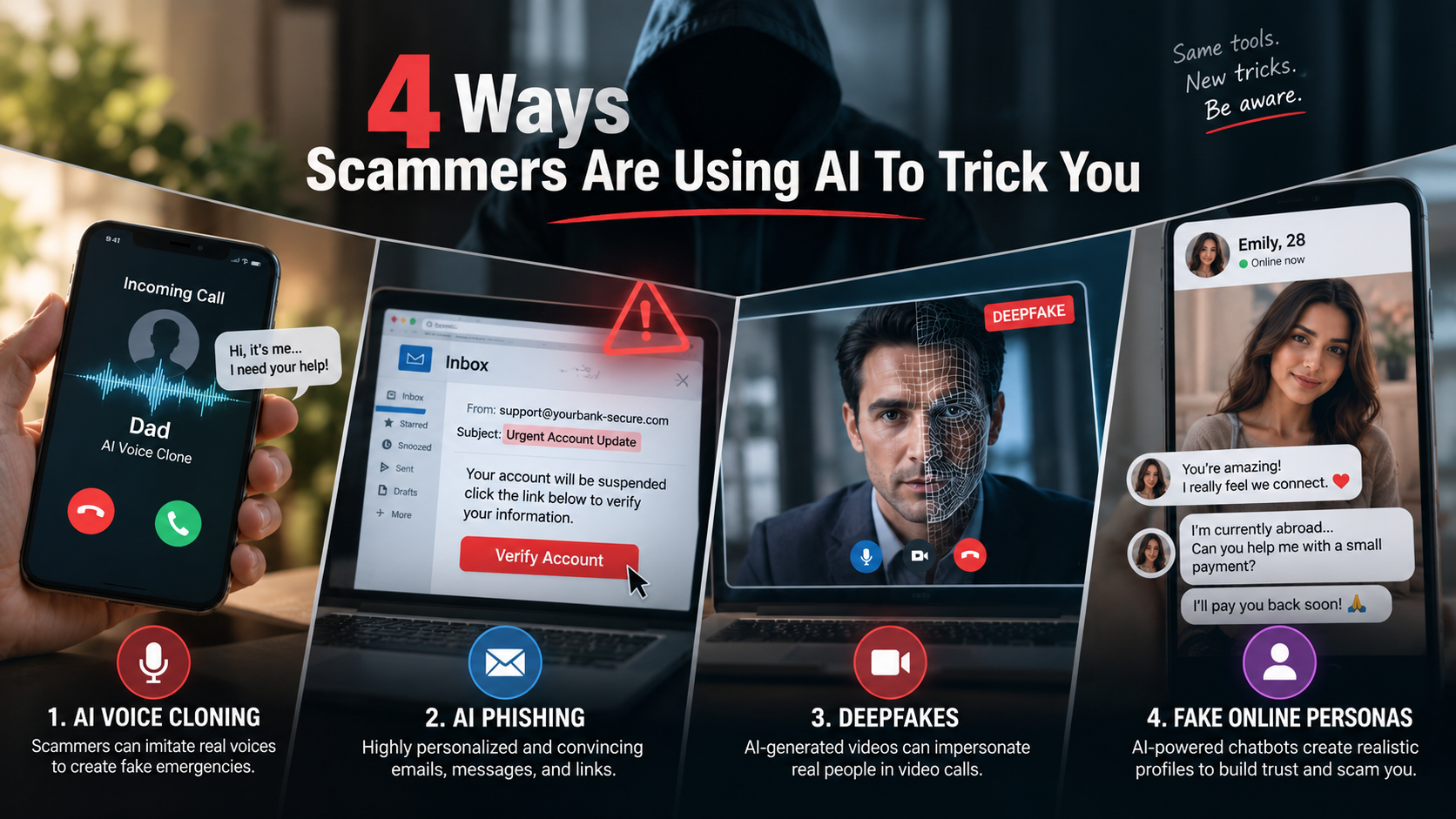

Platform Longevity and Upgrade Path

Another important factor in the AMD Ryzen 7 vs Intel Core i7 debate is upgrade flexibility. This determines how long your motherboard and system can remain relevant before needing a full rebuild.

AMD has built a reputation for long-term socket support. Ryzen platforms often support multiple CPU generations, allowing users to upgrade their processor without replacing the motherboard. This makes AMD a cost-effective choice for long-term PC builds.

Intel, in contrast, changes motherboard sockets more frequently. While this allows them to introduce new technologies faster, it often means that upgrading to a newer CPU requires a new motherboard. For users who upgrade frequently, this can increase long-term costs significantly.

FAQ Section

Which processor is better for pure gaming, the Ryzen 7 or the Core i7?

For pure gaming performance, the answer in the AMD Ryzen 7 vs Intel Core i7 comparison often depends on the exact models being compared, but AMD Ryzen 7 chips with 3D V-Cache technology generally hold a consistent advantage. The large L3 cache reduces memory latency and allows the CPU to access frequently used game data much faster. This improvement translates into higher average frame rates, better 1% lows, and smoother overall gameplay, especially in modern AAA titles, open-world environments, and simulation-heavy games.

Intel Core i7 processors still deliver excellent gaming performance thanks to their high boost clock speeds and strong single-core efficiency. They perform particularly well in esports titles and older game engines that rely heavily on frequency rather than cache size. However, these gains often come with higher power consumption and increased heat output. Overall, for maximum gaming FPS and efficiency, Ryzen 7 with 3D V-Cache is usually the stronger choice.
Does the Intel Core i7 beat the Ryzen 7 in video editing?

In the AMD Ryzen 7 vs Intel Core i7 comparison for video editing, Intel Core i7 processors often have a slight advantage, but it is not absolute across all workflows. Intel’s hybrid architecture, which combines high-performance cores with efficiency cores, allows it to handle heavy rendering, exporting, and multitasking more effectively in many professional applications. This structure helps distribute workloads efficiently during tasks like 4K video editing, color grading, and complex timeline rendering.

Another key advantage is Intel Quick Sync technology, which accelerates video encoding and decoding directly through dedicated hardware. This results in smoother playback, faster exports, and improved responsiveness in software like Adobe Premiere Pro and DaVinci Resolve. However, AMD Ryzen 7 processors still perform strongly, especially in sustained workloads due to their consistent full-performance cores and efficient power usage. In real-world use, Intel often leads in speed, while AMD provides better thermal efficiency and stability.

Are AMD Ryzen 7 processors more power-efficient than Intel Core i7?

In the AMD Ryzen 7 vs Intel Core i7 comparison, AMD Ryzen 7 processors are generally more power-efficient, especially when running sustained heavy workloads. AMD achieves this advantage through its Zen architecture and chiplet-based design, which focuses on delivering strong performance per watt rather than simply pushing higher power limits. As a result, Ryzen 7 CPUs often complete demanding tasks like rendering, encoding, and simulation work while consuming less electricity compared to many Intel Core i7 processors in the same performance range.

This improved efficiency also translates into lower heat output, which helps maintain more stable performance over long sessions. Users can often pair Ryzen 7 chips with mid-range air coolers while still achieving excellent thermal control. In contrast, Intel Core i7 processors typically draw more power under load due to their high boost frequencies and hybrid core design, which can lead to increased temperatures and a greater need for robust cooling solutions.

Can I upgrade my CPU in the future on both platforms?

In the AMD Ryzen 7 vs Intel Core i7 comparison, both platforms allow CPU upgrades, but they differ significantly in long-term flexibility. AMD is generally known for better platform longevity, meaning its motherboard sockets tend to be supported across multiple CPU generations. This allows users to upgrade from one Ryzen 7 processor to a newer Ryzen generation without necessarily replacing the motherboard, as long as the chipset and BIOS support it. This approach makes AMD a more cost-effective option for users who plan gradual upgrades over time.

Intel, on the other hand, typically changes its socket design more frequently, often within one to two generations. This means that upgrading to a newer Core i7 or higher-tier CPU may require a new motherboard, and sometimes even new supporting components like RAM depending on the platform shift. While Intel focuses on introducing new technologies faster, AMD generally provides a longer and more stable upgrade path for budget-conscious upgraders.

Do these processors require different types of RAM?

In the AMD Ryzen 7 vs Intel Core i7 comparison, both platforms now commonly support modern DDR5 RAM, but compatibility depends more on the specific generation and motherboard than the CPU alone. AMD’s newer Ryzen 7 platforms are fully focused on DDR5 memory, meaning users building or upgrading to a modern AMD system will typically need to purchase DDR5 RAM. This shift is aimed at maximizing bandwidth and overall system performance, especially in gaming and productivity workloads.

Intel Core i7 systems offer slightly more flexibility because some motherboard chipsets still support DDR4 alongside DDR5. This allows users to reuse existing DDR4 memory, which can significantly reduce the cost of a new build. However, newer Intel platforms are also moving toward DDR5-only support over time. In practical terms, both CPUs work best with DDR5 for maximum performance, but Intel may offer a more budget-friendly upgrade path depending on the motherboard you choose.

Conclusion

The debate between the AMD Ryzen 7 vs Intel Core i7 ultimately comes down to your daily computing habits. Neither processor will disappoint you, but they excel in entirely different environments.

Choose the AMD Ryzen 7 if your primary focus is high-frame-rate gaming, long-term upgrade options, and excellent power efficiency. The chiplet architecture runs cool, keeps your power bills low, and provides an easy upgrade path for future component releases. It is the definitive choice for pure gamers and efficiency enthusiasts.

Opt for the Intel Core i7 if you are a heavy multitasker, content creator, or video editor who needs maximum multi-threaded horsepower. The hybrid core design handles intensive rendering pipelines with ease, and the raw clock speeds deliver snappy performance across professional applications. Just ensure you pair it with a robust cooling solution to manage the thermal output effectively.

For a deeper understanding of how memory choice impacts CPU performance and overall system speed, read this our  guide on DDR4 vs DDR5 in 2026.

What Is Retrieval-Augmented Generation? A Complete Guide

What Is Retrieval-Augmented Generation? The Ultimate Guide to RAG

Artificial intelligence has changed the way we work, learn, and communicate. Today, Large Language Models (LLMs) can create content, write code, summarize information, and answer complex questions within seconds. However, traditional LLMs have a major limitation: they can sometimes generate incorrect or made-up information, a problem known as AI hallucination. To overcome this challenge, researchers and engineers developed a powerful approach called Retrieval-Augmented Generation (RAG).

So, what is Retrieval-Augmented Generation? RAG is a framework that improves LLM performance by allowing AI systems to retrieve information from external knowledge sources before generating an answer. Instead of depending only on its training data, an AI model can search trusted documents, databases, or other sources and use that information to create more accurate and reliable responses. According to NVIDIA, RAG connects generative AI models with external data sources, helping them deliver more relevant and context-aware responses. You can explore NVIDIA’s explanation of how generative AI models use external knowledge sources to improve accuracy for a deeper understanding of this approach. NVIDIA explanation of RAG and external knowledge sources

This guide explores how RAG works, its main stages, key benefits, and how it compares with traditional LLMs. Understanding RAG is essential for developers and businesses that want to build smarter, safer, and more trustworthy AI applications.

What Is Retrieval-Augmented Generation? The Core Mechanics

So, how does this framework solve these problems? Think of RAG as turning that closed-book exam into an open-book test. Instead of guessing the answer, the model receives a search engine that scours a specific database for relevant facts before formulating a response.

The system works by pairing a generator (the LLM) with a retriever (an external search tool). When a user inputs a prompt, the retriever finds matching documents within a custom data repository. The system then bundles those source documents together with the user’s original query and hands the entire package to the LLM. As a result, the model reads the provided text and extracts the exact information needed to answer the user perfectly.

Furthermore, this method eliminates the need to constantly retrain or fine-tune massive neural networks. You simply update the text documents in your database, and the AI immediately gains access to the fresh data.

The Four Vital Stages of a RAG Architecture

Building an enterprise-ready RAG system requires a structured pipeline. The process involves transforming raw data into actionable knowledge that an AI can read instantly. Developers break this pipeline down into four distinct phases.

1.The Ingestion Stage

Before an AI can retrieve information, you must prepare your data. First, developers gather documents like PDFs, spreadsheets, and knowledge base articles. The system breaks these large files into smaller, readable pieces called chunks. Next, an embedding model converts these chunks into mathematical strings called vectors, which capture the semantic meaning of the text. Finally, these vectors are stored in a dedicated vector database.

2. The Retrieval Stage

This stage begins the moment a user asks a question. The system converts the user’s query into a vector using the same embedding model. It then performs a mathematical search across the vector database to find the text chunks that most closely match the intent of the query. Instead of just matching exact words, it finds matching concepts.

3. The Augmentation Stage

Once the system identifies the most relevant text chunks, it prepares them for the language model. The system creates a comprehensive prompt that combines the retrieved facts, the user’s initial question, and specific instructions on how to behave. For example, it might instruct the AI to only use the provided text and to say “I don’t know” if the answer isn’t present.

4. The Generation Stage

In the final phase, the augmented prompt is delivered to the LLM. The model reads the context chunks, synthesizes the information, and writes a natural, human-like response. Because the text contains the raw facts, the model does not have to guess, resulting in a highly accurate output.
The Core Differences Between LLM and RAG

Understanding the distinction between a standalone LLM and a RAG setup is critical for planning any AI strategy. While they work together, they serve completely different functions in an application.

Feature Standalone LLM RAG-Enabled System
Data Source Static internal training data Internal data plus dynamic external databases
Information Recency Limited by the strict training cutoff date Real-time updates based on database changes
Risk of Hallucination High, especially on niche or new topics Extremely low, as answers require source backing
Data Privacy Cannot inherently access private company files Securely connects to private internal repositories
Setup Cost Extremely high if retraining the model Affordable, requiring only database infrastructure

Key Benefits of Using RAG for Enterprises

Using a retrieval framework gives enterprises several practical benefits when they deploy AI systems at scale. It helps organizations improve accuracy, maintain compliance, and manage business information more effectively.

  • Verifiable Source Citations: Because the model pulls answers from specific text chunks, it can tell users exactly which document, page, or paragraph it used to find the answer. This makes auditing AI outputs remarkably easy.

  • Enhanced Data Security: RAG systems can restrict information access based on user permissions. The retriever will only pull documents that the specific user has clearance to view, protecting sensitive corporate data.

  • Cost Efficiency: Training a custom language model from scratch costs millions of dollars in computing power. In contrast, setting up a vector database for retrieval costs a fraction of that amount and achieves superior accuracy for specific business tasks.

Frequently Asked Questions

Is ChatGPT a RAG model?

No, ChatGPT itself is not purely a RAG (Retrieval-Augmented Generation) model. It is a Large Language Model (LLM) developed by OpenAI. The core model learns from large amounts of data and can generate answers without searching external sources. It uses learned patterns and knowledge to understand questions and create responses.

However, the ChatGPT application can use RAG-like methods when it needs extra information. For example, when ChatGPT searches the web, reads uploaded files, or connects to external databases, it retrieves useful information and gives that context to the language model. This process improves accuracy and provides more updated answers. ChatGPT is an AI assistant powered by an LLM that can use retrieval systems, but it is not a RAG model by itself.

What is RAG in LLM with example?

RAG stands for Retrieval-Augmented Generation. It is an architecture that improves an LLM by connecting it with external information sources. Instead of depending only on training data, a RAG system finds relevant information from documents, databases, or websites. It then gives this information to the LLM to create a better response.

For example, an HR assistant AI may answer questions about employee healthcare plans. If an employee asks, “Does my insurance cover acupuncture?”, a normal LLM may not know the latest company policy. A RAG system searches the company’s benefits documents and finds the section about acupuncture coverage. The LLM then uses that information to create a specific and reliable answer.

What are the 4 stages of RAG?

The four main stages of RAG are data ingestion, retrieval, augmentation, and generation. In the data ingestion stage, the system collects documents, PDFs, or web pages. It breaks the text into smaller sections, converts them into vectors, and stores them in a vector database.

During retrieval, the system searches the database to find information related to the user’s question. In the augmentation stage, the system combines the retrieved information with the user’s prompt. Finally, during generation, the LLM uses this improved prompt to create an accurate and relevant response.
What is the difference between LLM and RAG?

An LLM is the core AI model, while RAG is a framework that improves how an LLM uses information. An LLM learns from large datasets and creates responses using its training knowledge. However, it may not know recent events or private information.

RAG connects an LLM with external sources such as documents, databases, or websites. When a user asks a question, the RAG system first finds useful information and gives it to the LLM. The model then uses this context to generate a more accurate answer. In simple terms, an LLM works like a brain, while RAG gives that brain access to a searchable knowledge library.

Can RAG completely eliminate AI hallucinations?

RAG can greatly reduce AI hallucinations, but it cannot remove them completely. A RAG system improves accuracy by finding relevant information and giving it to the LLM before it answers. However, mistakes can still happen if the system retrieves poor-quality data or if the model misunderstands the information.

Developers can reduce hallucinations by improving data quality, using better search methods, applying clear instructions, and limiting answers to trusted sources. RAG does not guarantee perfect results, but it makes AI responses more reliable. This makes it useful for areas such as healthcare, finance, and legal applications.

Conclusion

Answering the question of what Is Retrieval-Augmented Generation reveals that the future of artificial intelligence relies on grounding models in verifiable reality. Standalone language models possess incredible linguistic capabilities, but their tendency to hallucinate and their reliance on static data limits their utility in professional settings. By pairing these models with intelligent retrieval systems, organizations unlock the full potential of automation without sacrificing accuracy.

Implementing a retrieval pipeline transforms how systems interact with data. It converts isolated, frozen neural networks into dynamic tools capable of accessing real-time corporate knowledge bases, secure customer records, and public search engines. Consequently, users receive highly accurate, context-aware answers complete with verifiable citations.

As AI continues to evolve, retrieval-based approaches will play a major role in enterprise applications. RAG provides a practical, secure, and cost-effective way to build AI systems that people can confidently use. To understand how this connects with broader AI advancements, explore this guide on what is generative AI.

Cloud Storage vs External Hard Drives (2026 Guide)

Cloud Storage vs External Hard Drives: Which Is Best for Your Data in 2026?

Cloud storage vs external hard drives is one of the biggest decisions people face when choosing a reliable way to store and protect their digital files in 2026. From family photos and personal documents to business records, creative projects, and high-resolution videos, selecting the right storage solution can significantly improve your data security, accessibility, and long-term backup strategy. Whether you’re a student, freelancer, gamer, photographer, or business owner, understanding the differences between these two storage options will help you make the right choice.

When comparing cloud storage vs external hard drives, you’re essentially deciding between two completely different approaches to storing and backing up your data. Cloud storage offers the convenience of accessing files from virtually anywhere with an internet connection, automatic synchronization across devices, and effortless collaboration. External hard drives, on the other hand, provide complete ownership of your data, lightning-fast transfer speeds, and a one-time purchase without recurring subscription fees.

Neither option is universally better than the other. Instead, the right choice depends on your storage needs, budget, workflow, privacy concerns, and how often you access your files. For someone constantly working across multiple devices, cloud storage may be the ideal solution. Meanwhile, professionals dealing with massive video files or users who prioritize privacy may prefer external SSDs or HDDs.

Throughout this comprehensive guide, you’ll discover the key differences between cloud storage and external hard drives, including their performance, security, pricing, advantages, disadvantages, and ideal use cases. By the end of this article, you’ll have a clear understanding of which storage method—or combination of both—is the best fit for your needs.


Cloud Storage vs External Hard Drives: What Is the Difference?

Choosing between cloud storage and an external hard drive starts with understanding how each technology works. While both solutions allow you to save and protect files, they operate in entirely different ways and are designed to solve different storage challenges.

Cloud storage keeps your files on remote servers owned and maintained by a service provider. Your data is uploaded over the internet and can be accessed from multiple devices after signing into your account. External hard drives, however, store files locally on physical hardware that connects directly to your computer using USB, USB-C, or Thunderbolt.

The biggest distinction comes down to ownership versus convenience. Cloud storage emphasizes flexibility, synchronization, and accessibility, whereas external drives focus on speed, privacy, and long-term local storage.

Some users rely exclusively on one option, but many professionals combine both to create a reliable backup strategy. Understanding the strengths and limitations of each approach will help you determine which one aligns with your workflow.

How Does Cloud Storage Work?

Cloud storage allows you to upload files to secure remote servers through the internet. Instead of saving data directly on your computer or an external device, your files are stored in professionally managed data centers operated by cloud service providers. For example, services like Google Cloud Storage documentation explain how cloud-based storage systems allow users to store, manage, and access data remotely.

Every time you upload a document, photo, or video, the file is synchronized with your online account. As a result, you can log in from your smartphone, laptop, desktop, or tablet and access the same files from almost anywhere in the world.

Benefits of Cloud Storage

  • Access files from any internet-connected device
  • Automatic synchronization across multiple devices
  • Easy file sharing with friends or colleagues
  • Automatic backup of important files
  • Scalable storage plans as your needs grow

Cloud storage is particularly valuable for remote teams, businesses, students, and individuals who frequently switch between devices. Since the files are stored remotely, hardware failures on your computer typically won’t affect the copies stored in the cloud.

However, cloud storage also has limitations. Uploading or downloading large files depends entirely on your internet speed. Slow connections can significantly increase transfer times, especially for video editors, photographers, and professionals handling hundreds of gigabytes of data.

Another important consideration is privacy. Although most providers use strong encryption, your files are ultimately stored on servers owned by another company. Users handling confidential or sensitive information should carefully review the provider’s security policies before uploading valuable data.

How Do External Hard Drives Work?

External hard drives are physical storage devices that connect directly to your computer using USB, USB-C, or Thunderbolt interfaces. Unlike cloud storage, your files remain completely under your control because they’re stored locally on hardware that you personally own.

External storage devices are available in two primary types:

  • Hard Disk Drives (HDDs) that use spinning magnetic disks
  • Solid State Drives (SSDs) that use flash memory without moving parts

Traditional HDDs generally provide higher storage capacities at lower prices, making them ideal for long-term archiving. SSDs, on the other hand, deliver significantly faster read and write speeds while being more resistant to accidental drops because they contain no mechanical components.

Advantages of External Storage

  • Complete ownership of your data
  • No recurring subscription costs
  • Extremely fast file transfers
  • Works without internet access
  • Greater privacy and offline protection

External drives are especially popular among photographers, filmmakers, software developers, gamers, and professionals working with very large files. Since data travels directly between your computer and the drive, transfer speeds can reach over 1,000 MB/s with modern SSDs.

The downside is that physical devices can be damaged, lost, or stolen. Without an additional backup, a failed drive may result in permanent data loss.

Cloud Storage vs External Hard Drives Comparison

Although both options perform the same basic function—storing your files—they differ dramatically in everyday use.

Feature Cloud Storage External Hard Drive
Storage Location Remote Servers Local Physical Device
Internet Required Yes No
Accessibility Anywhere Wherever the Drive Is
Monthly Cost Usually Yes No
One-Time Purchase No Yes
Transfer Speed Internet Dependent Extremely Fast
Collaboration Excellent Limited
Privacy Provider Managed User Controlled

The comparison above demonstrates why neither option is universally better. Cloud storage excels in convenience, collaboration, and accessibility, while external drives provide unmatched speed, privacy, and ownership.

Many professionals now combine both technologies instead of choosing one over the other. They use external SSDs for daily work and cloud storage for secure off-site backups, creating a balanced solution that offers both performance and protection.


Cloud Storage vs External Hard Drives: Security and Privacy Comparison

When comparing storage solutions, speed is often one of the biggest deciding factors. Whether you’re editing 4K videos, transferring thousands of RAW images, installing games, or backing up an entire computer, the time required to move your data can dramatically affect your productivity.

Although cloud storage has improved significantly over the past decade, it still depends on your internet connection. External drives, especially modern SSDs, deliver consistently higher performance because data is transferred directly through physical hardware instead of traveling across the internet.

Let’s examine how these technologies compare in real-world performance.

Local Transfer Speeds: Why External Drives Are Faster

External SSDs have transformed portable storage by providing exceptional read and write speeds. Premium USB-C and Thunderbolt SSDs routinely deliver transfer speeds exceeding 1,000 MB/s, while some high-end models surpass 2,000 MB/s.

This speed allows users to:

  • Transfer hundreds of gigabytes within minutes
  • Edit videos directly from the drive
  • Back up entire operating systems quickly
  • Move large software libraries efficiently
  • Reduce waiting times during file transfers

Traditional HDDs are slower, usually ranging between 100 MB/s and 200 MB/s, but they remain an affordable option for storing large collections of photos, videos, and backups.

Because everything happens locally, performance remains consistent regardless of internet availability. This makes external drives the preferred choice for professionals who regularly work with large files or require dependable high-speed storage.

Cloud Storage Performance: What Affects Upload and Download Speeds?

Cloud storage performance depends on several factors outside your control. Even if a cloud provider offers excellent infrastructure, your experience is limited by your internet connection.

Several factors influence cloud performance:

  • Upload speed provided by your ISP
  • Download bandwidth
  • Network congestion
  • Distance to the provider’s data center
  • Current server load
  • Wi-Fi stability

For example, uploading a 500 GB video project to the cloud could take several hours—or even days—depending on your internet connection. Downloading those files later will require similar amounts of time.

Cloud storage performs exceptionally well for smaller documents, spreadsheets, PDFs, and photos. However, professionals working with terabytes of media often find internet-based storage significantly slower than local alternatives.

As internet speeds continue to improve globally, cloud performance will become increasingly competitive. Even so, for handling massive files and frequent transfers, external SSDs remain the clear winner in terms of raw speed and efficiency.


Access Your Files Anytime, Anywhere with Cloud Storage

One of the greatest advantages of cloud storage is its ability to make your files available almost anywhere. As long as you have an internet connection, you can sign in to your account and access documents, photos, videos, or backups from virtually any device.

This flexibility makes cloud storage especially valuable for:

  • Remote employees
  • Students studying in different locations
  • Business professionals
  • Digital nomads
  • Freelancers
  • Teams collaborating across countries

For example, you can upload a presentation from your office computer and continue editing it on your tablet while traveling. Any changes you make are automatically synchronized across all connected devices.

Benefits of Cloud Accessibility

  • Access files from smartphones, tablets, desktops, and laptops
  • Automatic synchronization
  • Instant file sharing
  • Real-time document collaboration
  • No need to carry physical storage devices

Another major benefit is automatic backup. If your laptop is stolen or damaged, your files remain safely stored in the cloud and can be restored to a new device within minutes.

However, this convenience depends entirely on having a reliable internet connection. Without internet access, your ability to retrieve files may become limited unless you’ve previously enabled offline access.

External Hard Drives: Reliable Offline Access

External hard drives offer a completely different type of convenience. Instead of depending on internet connectivity, they provide immediate access to your files whenever the drive is connected to your computer.

This is particularly beneficial for professionals working in locations where internet access is unreliable or unavailable.

Examples include:

  • Photographers shooting on location
  • Videographers editing large projects
  • Construction sites
  • Travelers in remote areas
  • Researchers working in the field

Since all files remain stored locally, there are no upload delays or synchronization processes. You simply connect the drive and begin working immediately.

Advantages of Offline Storage

  • No internet required
  • Instant file access
  • Consistent performance
  • Perfect for large media libraries
  • No cloud synchronization delays

Many video editors prefer working directly from high-speed external SSDs because editing large 4K or 8K video projects directly from cloud storage is usually impractical due to bandwidth limitations.

The primary disadvantage is portability. If you forget your drive at home or the office, you cannot access your files until you physically retrieve it.


Cloud Storage vs External Hard Drives: Security Comparison

Protecting valuable information should always be a top priority. Whether you’re storing personal photos, financial documents, business records, or confidential client information, understanding the security differences between cloud storage and external hard drives is essential.

Both options offer strong security features, but they approach data protection in fundamentally different ways.

External drives provide complete ownership and physical control over your files, while cloud storage relies on sophisticated encryption, secure data centers, and provider-managed infrastructure.

Understanding the strengths and weaknesses of each option will help you make a safer long-term decision.

Security Benefits of External Hard Drives

External hard drives offer one major advantage that cloud storage cannot fully replicate: complete physical ownership.

Since your files remain on hardware you own, no third party has direct access to your information unless the drive is lost, stolen, or compromised.

Key Security Advantages

  • No third-party servers
  • No internet exposure
  • Reduced hacking risks
  • Complete data ownership
  • Offline protection

Many businesses that handle highly confidential information choose local storage because it minimizes online exposure.

However, physical storage also comes with unique risks.

Your drive could be:

  • Dropped
  • Damaged by water
  • Destroyed in a fire
  • Lost while traveling
  • Stolen during a burglary

Without another backup, recovering data from a damaged drive can be expensive—or even impossible.

Cloud Storage Security Features

Modern cloud providers invest billions of dollars in cybersecurity, making cloud storage much safer than many people assume.

Most reputable providers protect your files using:

  • AES-256 encryption
  • TLS encryption during transfers
  • Multi-factor authentication
  • Automatic security updates
  • Geographically redundant backups

Because your files are stored across multiple servers, even hardware failures inside a data center rarely result in permanent data loss.

Additional Security Features

  • Automatic ransomware detection
  • Version history
  • File recovery
  • Account activity monitoring
  • Device management

These features provide protection that individual users would often find difficult or expensive to implement on their own.

The main concern is trust. Since another company stores your data, you rely on that provider to maintain strong privacy policies and security practices.


Which Option Offers Better Privacy?

Privacy is another important consideration when comparing storage solutions.

With external hard drives, your files remain completely under your control. Unless someone physically accesses your drive, your data remains private.

Cloud storage is different because files are stored on servers operated by third-party companies.

While reputable providers encrypt user data, some may still collect metadata for operational purposes, including:

  • File sizes
  • Device information
  • Login history
  • Usage statistics

For users storing highly confidential information, privacy-focused cloud providers that offer end-to-end or zero-knowledge encryption provide an additional layer of protection.

Best Practices for Better Privacy

  • Use strong passwords
  • Enable two-factor authentication
  • Encrypt sensitive files
  • Keep backup copies
  • Regularly review account activity

Combining these practices with either cloud storage or external drives significantly improves overall data security.


External Hard Drives Advantages and Disadvantages

Despite the rapid growth of cloud storage, external hard drives continue to be one of the most popular storage solutions because they provide speed, affordability, and complete ownership.

Understanding both their strengths and weaknesses will help you determine whether they’re suitable for your needs.

Advantages of External Hard Drives

External drives remain popular because they offer several practical benefits that cloud storage simply cannot match.

Key Advantages

  • One-time purchase with no monthly fees
  • High-speed file transfers
  • Offline accessibility
  • Complete ownership of your data
  • Works without internet
  • Large storage capacities
  • Ideal for backups
  • Long-term archive solution

Professional photographers, gamers, video editors, and businesses often prefer external SSDs because transferring terabytes of data locally is dramatically faster than uploading files to the cloud.

Additionally, owning your hardware means you’re never locked into subscription plans or dependent on a provider’s pricing changes.

Disadvantages of External Hard Drives

Although external drives are incredibly useful, they also have limitations that users should understand before relying on them as their only storage solution.

Common Drawbacks

  • Physical damage from drops
  • Risk of theft
  • Can be misplaced
  • No automatic synchronization
  • Limited collaboration
  • Hardware eventually wears out

Traditional HDDs contain moving mechanical parts that can fail unexpectedly after years of use. While SSDs are much more durable, they also have finite write cycles and can eventually degrade.

Perhaps the biggest disadvantage is relying on a single copy of your files. If your external drive fails and no backup exists, your data could be permanently lost.

For this reason, experts strongly recommend maintaining at least one additional backup, preferably stored in a different physical location.


Cloud Storage Advantages and Disadvantages

Cloud storage has revolutionized how people store, share, and protect digital information. Its convenience and accessibility have made it the preferred choice for millions of individuals and businesses worldwide.

However, like any technology, it has both strengths and weaknesses.

Understanding these advantages and disadvantages will help you decide whether cloud storage should become your primary storage solution or simply one part of a broader backup strategy

Advantages of Cloud Storage

Cloud storage offers unmatched convenience for modern users who regularly work across multiple devices or collaborate with others.

Major Benefits

  • Access files anywhere
  • Automatic backups
  • Easy file sharing
  • Real-time collaboration
  • Scalable storage plans
  • Disaster protection
  • Automatic synchronization
  • Reduced hardware maintenance

Since providers manage the infrastructure, users don’t need to worry about replacing failed hard drives or maintaining physical storage devices.

Cloud storage also protects against local disasters such as floods, fires, or theft because your data remains safely stored in professionally managed data centers.

For businesses and remote workers, these benefits often outweigh the ongoing subscription costs.

Disadvantages of Cloud Storage

Although cloud storage offers exceptional convenience, it also has several limitations that should be carefully considered before making it your only storage solution.

Biggest Drawbacks

  1. Monthly or yearly subscription costs continue indefinitely.
  2. Access depends entirely on internet availability.
  3. Large uploads can take many hours or even days.
  4. Privacy concerns may arise when storing sensitive information on third-party servers.
  5. Occasional service outages can temporarily restrict access to your files.

In addition, some cloud providers charge data retrieval or bandwidth fees for large-scale downloads, particularly in enterprise environments.

For users storing massive media libraries, these recurring expenses can eventually exceed the cost of purchasing multiple external hard drives.

This is why many IT professionals recommend using cloud storage for critical files while keeping larger archives on external drives for long-term cost savings.


Frequently Asked Questions (FAQs)

What Are the 5 Disadvantages of Cloud Storage?

Although cloud storage is convenient and flexible, it has several disadvantages that users should understand before relying on it completely. The first drawback is ongoing subscription costs. Unlike an external hard drive that requires only a one-time purchase, cloud storage usually involves monthly or annual fees that continue for as long as you use the service.

Another disadvantage is its dependence on an internet connection. If your internet is slow, unstable, or unavailable, accessing or uploading files can become frustrating. This is especially challenging for professionals who regularly work with large files such as videos or RAW photos.

Privacy is another concern because your files are stored on third-party servers. While most providers use strong encryption, you’re still trusting another company with your personal or business data. In addition, cloud services may occasionally experience outages, temporarily preventing access to important files.

Finally, uploading or downloading large amounts of data can take considerable time due to bandwidth limitations. For this reason, many experts recommend combining cloud storage with an external hard drive, giving you both remote accessibility and fast local backups.

How Much Does 100 TB of Cloud Storage Cost?

The price of 100 TB of cloud storage depends on the provider and the type of storage plan you choose. Consumer storage plans generally don’t offer this much capacity, so businesses and professionals usually use enterprise cloud storage or object storage services.

On average, cloud storage costs between $5 and $20 per terabyte per month. Using an average price of $15 per TB, storing 100 TB would cost approximately $1,500 per month, or nearly $18,000 per year. Some providers also charge additional fees for downloading large amounts of data, often called data egress fees, which can significantly increase long-term costs.

By comparison, purchasing several high-capacity external hard drives to build a local 100 TB storage system typically costs around $2,000–$3,000 as a one-time investment. Although cloud storage provides excellent scalability and remote access, external storage is usually much more economical for large archives. Many businesses reduce costs by storing active projects in the cloud while archiving completed files on external drives.

Which Is Better, iCloud or External Storage?

Choosing between iCloud and external storage depends on your workflow and the devices you use every day. If you’re heavily invested in the Apple ecosystem, iCloud offers seamless integration with your iPhone, iPad, Mac, and other Apple devices. It automatically syncs photos, documents, contacts, notes, and backups, making it incredibly convenient.

However, external storage provides advantages that iCloud cannot match. External SSDs and HDDs offer significantly faster transfer speeds, much larger storage capacities, complete ownership of your data, and no recurring subscription fees. They also work without an internet connection, making them ideal for storing large video files, photo libraries, and long-term backups.

Another benefit of external storage is its compatibility with multiple operating systems, including Windows and macOS. If your priority is automatic syncing and easy access across Apple devices, iCloud is an excellent choice. If you value speed, privacy, lower long-term costs, and offline access, an external hard drive is often the better option. Many users benefit from combining both solutions for maximum flexibility and data protection.

Will I Lose Everything If I Stop Paying iCloud Storage?

No, you won’t immediately lose all your files if you cancel your iCloud storage subscription. If the amount of data stored in your account exceeds the free storage limit, Apple generally allows a grace period during which your existing files remain available while you decide whether to upgrade your plan or reduce your storage usage.

During this time, however, several features may stop functioning properly. For example, your device may no longer create new iCloud backups, additional photos and videos may stop syncing, and you may be unable to upload new files until enough storage space becomes available.

If your account remains over the storage limit for an extended period, Apple may eventually remove data that exceeds your available storage according to its policies. To avoid any risk of losing valuable information, it’s wise to maintain a separate backup on an external hard drive or another trusted storage solution. Following the 3-2-1 backup strategy ensures your files remain protected even if your cloud subscription changes or your account reaches its storage limit.


Conclusion

Choosing between cloud storage vs external hard drives depends on your priorities, including accessibility, speed, privacy, and budget. Cloud storage offers convenience, automatic backups, and easy file access anywhere, while external hard drives provide faster performance, offline access, and complete data ownership. For the best protection, many users combine both solutions to create a reliable and flexible backup strategy.

Understanding the technology behind online storage can also help you make better decisions about your data. Learn more about how cloud computing works .

Why Is Gen Z Using Wired Headphones? The Retro Trend

The Wired Renaissance: Why Is Gen Z Using Wired Headphones in 2026?

Wireless earbuds transformed the way people listened to music over the past decade. Their compact design, cable-free convenience, and advanced features quickly made them one of the most popular tech accessories worldwide. However, a surprising trend has emerged in recent years. Across college campuses, coffee shops, public transport, and city streets, wired headphones are making a remarkable comeback. As a result, many people are asking the same question: Why is Gen Z using wired headphones when wireless technology is more advanced than ever?

Interestingly, this shift is about much more than nostalgia. Instead, it reflects changing consumer priorities. Gen Z is choosing products that are affordable, dependable, stylish, and easy to use. While wireless earbuds certainly offer convenience, they also introduce common frustrations such as battery anxiety, Bluetooth pairing issues, software updates, and higher replacement costs. In contrast, wired headphones provide a simple plug-and-play experience that many young consumers now appreciate.

Moreover, social media platforms such as TikTok and Instagram have played an important role in bringing vintage technology back into mainstream fashion. Early-2000s aesthetics, often referred to as the Y2K revival, have influenced clothing, accessories, cameras, flip phones, and even wired earphones. Consequently, these classic headphones are no longer viewed as outdated technology. Instead, they have become a symbol of individuality and authenticity.

Furthermore, many students and young professionals are becoming more conscious of their spending habits. Rather than paying hundreds of dollars for wireless earbuds that may only last a few years, they are choosing durable wired alternatives that often cost significantly less. This practical mindset has helped fuel the growing popularity of corded headphones throughout 2026.

In this comprehensive guide, you’ll discover why Gen Z is using wired headphones, how this trend became mainstream, and whether wired audio devices truly offer advantages over their wireless counterparts.

The Aesthetic Appeal of Vintage Tech

One of the biggest reasons Gen Z is using wired headphones is their unique visual appeal. Unlike previous generations that eagerly embraced every new gadget, many younger consumers enjoy mixing modern technology with retro fashion. Consequently, wired headphones have become much more than listening devices—they are now stylish accessories that complement everyday outfits.

The growing popularity of the Y2K aesthetic has significantly influenced this trend. Fashion inspired by the late 1990s and early 2000s has returned across social media, bringing back cargo pants, oversized hoodies, vintage sneakers, digital cameras, flip phones, and classic wired earphones. As a result, wearing visible headphone cables now feels intentional rather than outdated.

Additionally, many Gen Z consumers appreciate products that feel authentic instead of overly polished. Wireless earbuds often look nearly identical regardless of the brand, creating a uniform appearance. By comparison, wired headphones stand out because the visible cable immediately catches attention. For many young people, this small design detail helps express their personality and individual style.

The popularity of white wired headphones has also sparked conversations online, with many users discussing why this classic accessory has returned. Community discussions on Reddit highlight how people view wired headphones as affordable, reliable, and easier to use compared with some wireless alternatives

Ultimately, the appeal goes beyond appearance alone. For Gen Z, wired headphones represent authenticity in an increasingly digital world, making them an accessory that combines fashion with functionality.

Better Sound Quality and Zero Battery Anxiety

Although style has contributed to the popularity of wired headphones, performance remains one of the strongest reasons behind their comeback. Many users believe that wired headphones deliver a more reliable listening experience, especially during everyday activities such as studying, commuting, gaming, or editing videos.

First of all, wired headphones never need charging. This alone solves one of the biggest frustrations associated with wireless earbuds. Almost everyone has experienced earbuds running out of battery in the middle of a workout, an online class, or a favorite playlist. With wired headphones, however, that problem simply does not exist. As long as the connected device has power, the headphones continue working without interruption.

In addition, wired connections eliminate Bluetooth pairing issues. Wireless earbuds occasionally disconnect, experience interference in crowded places, or require repeated pairing after software updates. By contrast, wired headphones provide an instant and stable connection every time they are plugged in.

Sound quality is another important consideration. Generally speaking, wired headphones can deliver higher-quality audio because they transmit signals directly through a cable instead of relying on wireless compression. While premium wireless earbuds have improved dramatically in recent years, many wired models still provide excellent clarity and consistency, particularly within the same price range.

Another significant advantage is zero audio latency. Audio remains perfectly synchronized with video, making wired headphones especially useful for mobile gaming, video editing, music production, and watching films. Consequently, users enjoy smoother performance without noticeable delays between audio and visuals.

Finally, troubleshooting is refreshingly simple. If the connection becomes loose, users usually only need to unplug and reconnect the cable. There are no firmware updates, charging cases, or Bluetooth settings to manage. Therefore, many Gen Z consumers appreciate the straightforward reliability that wired headphones continue to offer in 2026.

Setting Boundaries in an Overconnected World

Another important reason why Gen Z is using wired headphones is the desire to create healthy boundaries in an increasingly connected world. Today, smartphones, social media notifications, messaging apps, and constant online communication make it difficult for many people to enjoy uninterrupted personal time. As a result, young adults are looking for simple ways to reduce distractions and regain control over their daily routines.

One surprising solution is the use of wired headphones. Unlike wireless earbuds, which can be difficult for others to notice, the visible cable clearly signals that someone is listening to music, studying, or focusing on a task. Consequently, people are less likely to interrupt conversations, ask unnecessary questions, or expect immediate interaction. This makes wired headphones an effective visual cue that communicates, “I’m busy right now.”

“The wire is the ultimate ‘do not disturb’ sign. It tells the world you are intentionally tuned out and deeply immersed in your own space.”

This visual signal helps young people reclaim privacy in public spaces. It allows them to navigate crowded environments without unwanted social interactions.

The Financial Logic of Plug-and-Play Gear

Cost is another major reason why Gen Z is using wired headphones. As living expenses continue to rise, many students and young professionals are becoming more careful about how they spend their money. Therefore, affordable technology that offers long-term value is becoming increasingly attractive.

Wireless earbuds often come with premium price tags. Depending on the brand and features, high-end models can cost hundreds of dollars. Additionally, these devices rely on small rechargeable batteries that naturally lose capacity over time. After several years of regular use, battery performance often declines, making replacement necessary even if the speakers still function properly.

In addition, many Gen Z consumers are embracing more sustainable shopping habits. Rather than upgrading to the newest gadget every year, they prefer products that last longer and generate less electronic waste. Wired headphones align perfectly with this mindset because they offer reliable performance without requiring frequent replacement.

Overall, plug-and-play technology provides excellent value for money. It combines affordability, durability, and dependable performance, making wired headphones an appealing choice for budget-conscious consumers in 2026.

Why Is Gen Z Using Wired Headphones in 2026?

The growing popularity of wired headphones is not simply a passing internet trend. Instead, it represents a broader shift in how Gen Z views technology. Rather than chasing every new feature or gadget, many young consumers now prioritize reliability, affordability, and simplicity. Consequently, wired headphones have become a practical choice that aligns with these changing values.

One of the biggest reasons behind this movement is the growing interest in digital minimalism. Many people feel overwhelmed by devices that constantly require charging, updating, syncing, and managing through multiple apps. Therefore, products that work instantly without additional setup are becoming increasingly attractive. Wired headphones perfectly fit this lifestyle because users simply plug them in and start listening.

Moreover, fashion trends continue to influence consumer behavior. The return of Y2K-inspired clothing and vintage technology has transformed wired headphones into a stylish accessory rather than an outdated product. Young people enjoy combining retro items with modern fashion to create unique personal styles that stand out both online and offline.

Looking ahead, wired headphones are likely to remain relevant throughout 2026 and beyond. While wireless technology will continue to evolve, many users now recognize that convenience is only one part of the overall experience. Reliability, affordability, excellent sound quality, and timeless style remain equally important.

For these reasons, the answer to “Why is Gen Z using wired headphones?” is clear. They offer a balanced combination of fashion, functionality, value, and simplicity that continues to appeal to a generation seeking practical technology for everyday life.

Frequently Asked Questions About Wired Headphones and Gen Z

Why Is Everyone Suddenly Using Wired Headphones Again?

The sudden return of wired headphones has surprised many people because wireless audio technology has become so advanced. However, this comeback is not happening randomly. Instead, it is the result of several cultural and practical changes happening at the same time.

First, Gen Z is using wired headphones because they offer a combination of style, reliability, and affordability. Many young consumers have become interested in vintage technology, especially items connected to the early 2000s. As a result, wired earphones have become part of the broader Y2K fashion revival, where older designs are being transformed into modern fashion statements.

In addition, wired headphones solve several common problems associated with wireless devices. Users do not need to worry about charging batteries, losing small earbuds, or dealing with Bluetooth connection issues. Therefore, many people see wired headphones as a simpler and more dependable alternative.

Why Does Gen Z Wear Headphones All the Time?

Many people notice that Gen Z often wears headphones while walking, studying, traveling, or relaxing, but the reason goes beyond simply listening to music. Headphones have become a tool for managing modern life and creating a personal environment in public spaces.

Today, people experience constant noise and digital interruptions. Busy streets, crowded transportation, social media notifications, and endless conversations can quickly become overwhelming. As a result, many young people use headphones to create a sense of control and comfort.

Music, podcasts, and audio content allow users to create their own personal atmosphere. For example, someone traveling on a crowded train can use headphones to reduce distractions and focus on something enjoyable. Similarly, students often use headphones to concentrate while studying in shared environments.

Why Are Wired Earphones Trending Again?

The trend of wired earphones becoming popular again is closely connected to the revival of nostalgic technology and the desire for simpler products. Although wireless earbuds dominate the market, many people are rediscovering the advantages of traditional audio devices.

One major reason is the influence of retro culture. Fashion trends often repeat themselves, and technology is no exception. The return of early-2000s styles has made older products attractive again. Therefore, items that were once considered outdated are now viewed as unique and fashionable.

In addition, wired earphones fit perfectly into the current movement toward authenticity. Many Gen Z consumers prefer items that feel personal rather than mass-produced. Wireless earbuds often have similar designs, while wired headphones come in different colors, shapes, and styles.

Are Wired Headphones Still Popular in 2026?

Yes, wired headphones are still popular in 2026, and their popularity has continued to grow beyond a temporary internet trend. While wireless technology remains dominant, wired audio devices have found a strong place among consumers who value reliability and simplicity.

At first, many people believed the return of wired headphones would only be a short-lived fashion moment. However, the trend has continued because it solves real problems. For example, users enjoy avoiding battery issues, connection failures, and expensive replacements.

Additionally, wired headphones appeal to people who want technology that works immediately. Modern devices often require apps, accounts, updates, and charging. Wired headphones avoid these extra steps, making them attractive for everyday use.

Do Wired Headphones Sound Better Than Wireless Ones?

The answer depends on the specific headphones being compared, but wired headphones often provide advantages in sound quality and consistency. This is one of the main reasons many audio enthusiasts continue to prefer them.

A wired connection sends audio signals directly through a physical cable. As a result, there is no need for wireless transmission, Bluetooth compression, or battery-powered processing. This can allow wired headphones to deliver detailed and consistent audio performance.

However, wireless technology has improved significantly. Modern wireless headphones can produce impressive sound quality, especially premium models. Therefore, the difference between wired and wireless audio is not always obvious for casual listeners.

Conclusion: Why Is Gen Z Using Wired Headphones?

The comeback of wired headphones shows that Gen Z values more than just the latest technology. Their popularity comes from a mix of style, affordability, reliability, and simplicity. While wireless earbuds offer convenience, wired headphones provide a dependable listening experience without charging issues or connection problems. Moreover, the Y2K fashion revival has transformed old-school earphones into a modern accessory. Ultimately, why Gen Z is using wired headphones comes down to choosing practical technology that fits their lifestyle. Sometimes, classic designs remain popular because they simply work better.

If you’re also exploring practical tech choices, check out our guide on best budget smartphones under 30000 for affordable devices that balance performance, features, and value.

Panthalassa’s Floating, Wave-Powered Data Centre Tech

Panthalassa’s Floating, Wave-Powered Data Centre Technology: The Future of Clean AI Infrastructure?

Panthalassa’s floating, wave-powered data centre technology is designed to address the growing demand for AI computing power. The artificial intelligence boom has created massive pressure on traditional data centres, and many energy systems struggle to support this rapid expansion. Panthalassa, an Oregon-based startup, proposes a new solution by moving advanced computing infrastructure into the open ocean.

The company designs floating data centres that capture energy from ocean waves and convert it into electricity for AI workloads. This approach removes the need for traditional land-based power connections and reduces pressure on existing electrical grids.

Panthalassa’s technology focuses on two major challenges: sustainable energy production and efficient cooling. The offshore systems generate their own power and use the surrounding seawater to manage heat from advanced computer hardware.

This article explores how these floating systems work, why the company attracted major investment, and how ocean-based computing could influence the future of clean AI infrastructure.


How Panthalassa’s Floating, Wave-Powered Data Centre Technology Works

Panthalassa follows a simple principle: place computing systems close to renewable energy sources. Instead of producing electricity offshore and sending it back to land, the company places servers directly inside floating ocean structures.

These offshore nodes use wave movement to generate electricity. Panthalassa’s floating systems combine renewable energy generation with autonomous AI infrastructure. Ocean swells move the structure up and down, forcing water through an internal system. The moving water powers turbines that create energy for onboard AI processors.

The design removes several problems linked to traditional data centres. Land facilities often compete for electricity, space, and cooling resources. Panthalassa’s ocean-based approach avoids these limits by operating independently at sea.

The company also connects these platforms through satellite networks instead of underwater cables. This allows remote operation while reducing the need for expensive marine infrastructure. Together, wave power, ocean cooling, and autonomous operation create a new model for future AI computing.

The Anatomy of Panthalassa’s Floating Compute Node

Panthalassa builds its offshore systems around large floating structures called nodes. These nodes use hollow steel cylinders that extend deep into the ocean. The main body reaches 50 to 80 meters below the surface, while the upper section spreads 15 to 30 meters across the water.

The design resembles a large vertical buoy. However, the structure does much more than float. It captures wave energy and transforms ocean movement into usable electricity.

The system works through three main stages. First, waves move the node and push seawater into an internal pressure chamber. Next, the pressurized water flows through a hydro turbine that generates power. Finally, the system sends electricity directly to onboard AI hardware.

The closed-loop design reduces mechanical complexity. Instead of using many external moving parts, the structure recirculates internal water. This reduces maintenance needs and improves long-term reliability in challenging ocean environments.

The mechanical architecture functions similarly to a self-filling hydroelectric dam, relying entirely on heavy-duty, earth-abundant materials like steel:

  • Kinetic Capture: As ocean waves cause the node to bob up and down, water is forced into an internal, pressurized reservoir.

  • Power Generation: This pressurized water drives an internal hydro turbine, which generates electricity continuously.

  • Closed-Loop System: The design eliminates high-maintenance mechanical failure points like external hinges, flaps, or gearboxes. It relies on a closed system that recirculates internal fluid to turn the generator.

  • Data Transmission: Because there are no physical wires linking the node to the mainland, all data routing and AI queries are processed via low-Earth-orbit satellite networks, specifically SpaceX’s Starlink.


Panthalassa’s Floating Data Centre Cooling Advantage

AI hardware produces enormous amounts of heat during operation. Traditional data centres spend large amounts of energy on cooling systems to protect processors. Panthalassa’s ocean-based approach uses the natural temperature of deep seawater to solve this challenge.

The company places computing equipment inside sealed underwater containers. The surrounding ocean absorbs heat from the hardware and works as a natural cooling system.

This method removes the need for energy-heavy cooling equipment. It also reduces dependence on freshwater resources, which many land-based facilities require for temperature control.

Deep-sea cooling creates an efficient environment for high-performance computing. As AI models become larger and demand more processing power, cooling efficiency becomes increasingly important.

By combining wave-generated electricity with passive seawater cooling, Panthalassa creates a system that could reduce the environmental impact of future AI infrastructure.


Panthalassa’s Floating Ocean Fleet Logistics

Operating computing infrastructure in the open ocean creates unique engineering challenges. Panthalassa designs its nodes to survive harsh marine conditions while working without constant human support.

Ships tow each node horizontally to its operating location. Once the structure reaches deep water, internal ballast systems rotate it into a vertical position. The node then begins its independent operation.

The platform uses autonomous systems to maintain its position. Sensors monitor ocean conditions and adjust the structure when currents or waves push it away from its target area.

The company designs the hull shape to improve stability and movement control. The nodes can operate in regions with strong and consistent ocean swells, especially areas in the Southern Hemisphere.

Autonomous operation reduces the need for frequent maintenance trips. This allows offshore data centres to function in remote locations while producing clean energy and supporting AI workloads.


Panthalassa’s Floating Node Navigation System

Floating data centres must remain stable despite changing weather and ocean conditions. Panthalassa solves this challenge through automated navigation and control systems.

Each node uses onboard technology to track its location and adjust its position. The system prevents the structure from drifting into shipping routes or restricted areas.

The vertical design improves stability because much of the structure remains below the surface. The deep underwater section acts like a heavy anchor, reducing movement caused by waves and currents.

The node’s hydrodynamic shape also helps it respond naturally to ocean forces. Instead of fighting every movement, the design uses the surrounding water to maintain balance.

This approach allows the platforms to operate independently for long periods. By combining renewable energy generation, satellite communication, and autonomous controls, Panthalassa aims to create a new generation of offshore computing facilities.


Frequently Asked Questions

Is Panthalassa a publicly traded company?

No, Panthalassa is not a publicly traded company at this time. The company operates as a privately held startup, which means everyday investors cannot purchase its shares through public stock exchanges such as NASDAQ or the New York Stock Exchange.

As a private company, Panthalassa receives funding from venture capital firms and private technology investors rather than public market shareholders. This allows the company to develop its offshore computing technology while raising capital through private investment rounds.

The company reportedly raised significant funding through a private Series A round, increasing investor confidence in its wave-powered data centre concept. This investment helped strengthen its position as a growing player in the clean AI infrastructure sector.

If Panthalassa chooses to become publicly traded in the future, it would need to complete an Initial Public Offering (IPO). An IPO would allow the public to buy shares and give the company access to broader financial markets.

Until that happens, ownership remains limited to founders, employees, and private investors.

Who is the CEO of Panthalassa?

The co-founder and CEO of Panthalassa is Garth Sheldon-Coulson. He leads the company’s mission to develop offshore computing systems powered by renewable ocean energy. His work combines experience from technology, energy, and investment fields.

Before founding Panthalassa, Sheldon-Coulson built a background across artificial intelligence, clean energy, and financial strategy. He previously worked as a senior investment associate at Bridgewater Associates, where he gained experience analyzing global economic trends and large-scale investments.

His academic background covers several disciplines. He earned a Doctor of Law (J.D.) from Harvard Law School, a Master of Science degree from the Massachusetts Institute of Technology (MIT), and a Bachelor of Arts degree from Swarthmore College.

Under his leadership, Panthalassa focused on developing and testing its wave-energy technology before entering the data centre industry. The company spent years refining its offshore systems, aiming to create a new approach for sustainable AI infrastructure.

Sheldon-Coulson’s vision centers on combining renewable energy, autonomous ocean platforms, and advanced computing to address the growing demand for cleaner AI operations.

What are the main benefits of moving data centers to the ocean?

Moving data centres offshore can solve several major challenges facing modern computing infrastructure. As artificial intelligence systems become more powerful, traditional land-based facilities require increasing amounts of electricity and cooling capacity. Many existing power grids struggle to support these large energy demands, which can delay the construction and expansion of new data centres.

Ocean-based facilities provide an alternative by generating energy closer to where computing takes place. Instead of depending on crowded terrestrial power networks, floating systems can use renewable ocean energy sources such as wave power. This allows the infrastructure to operate more independently from local electricity supplies.

Another major advantage comes from natural ocean cooling. AI processors create significant heat, and land-based facilities often rely on expensive mechanical cooling systems. Offshore data centres can use surrounding seawater as a natural heat sink, reducing energy consumption and freshwater usage.

By combining renewable energy production with efficient cooling, ocean data centres could lower operating costs and reduce the environmental impact of large-scale AI computing.

How do these floating nodes communicate with the mainland?

Panthalassa’s floating data centres operate far from traditional communication networks, so they avoid using physical connections such as undersea fibre-optic cables. Instead, the platforms rely on satellite-based communication systems to exchange data with users and operators on land.

Each ocean node connects through low-Earth-orbit (LEO) satellite networks, which provide high-speed communication over remote areas. When a user sends an AI request from the mainland, the data travels from the ground station to a satellite network. The satellite then transfers the information to the floating compute node in the ocean.

Once the request reaches the node, onboard AI processors complete the required calculations. The system processes the workload locally rather than sending large amounts of data back to land for every operation. After completing the task, the node sends the results back through the satellite network.

This wireless approach removes the need for expensive underwater cables and allows the platforms to operate in international waters. By combining renewable energy, autonomous operation, and satellite communication, Panthalassa creates a flexible model for future offshore computing.

What happens to the ocean nodes during severe storms?

Panthalassa designs its ocean nodes to handle extreme marine environments, including powerful storms and large ocean swells. The structures use a deep vertical design that keeps most of their mass below the surface, where water movement remains more stable. Instead of allowing waves to push against a large surface area, the node presents a smaller profile to incoming storms.

The hollow steel cylinder extends 50 to 80 meters underwater, creating a strong foundation that helps maintain balance. This deep structure works like a heavy pendulum. When waves move the upper section, the underwater mass naturally resists sudden changes and helps the node return to its original position.

The top section contains the critical computing equipment and remains sealed against water exposure. Its design allows large waves to move around and over the structure without causing major instability. Engineers also protect internal electronics from moisture, pressure changes, and harsh ocean conditions.

During severe weather, the autonomous control systems continue monitoring the node’s position and performance. The combination of deep-water stability, durable materials, and automated systems allows these offshore data centres to keep operating even in challenging storm conditions.

Conclusion

Panthalassa’s floating, wave-powered data centre technology offers an innovative path forward for an industry facing severe power constraints. By decoupling high-density AI computing from vulnerable terrestrial grids and placing it directly into high-energy ocean swells, the company provides a creative solution to the tech sector’s carbon footprint. The engineering design leverages passive seawater cooling and simplified internal hydro turbines to build a clean computing platform. While deploying unmoored fleets across international waters presents distinct regulatory and maintenance challenges, the influx of capital from major Silicon Valley investors indicates strong institutional confidence in the viability of offshore compute infrastructure.

As artificial intelligence infrastructure continues to evolve, technologies that improve computing efficiency and sustainability will become increasingly important. Understanding advanced AI concepts such as Generative Adversarial Networks (GANs) also highlights the broader innovations shaping the future of artificial intelligence.

How to Improve iPhone Battery Life in 2026: The Ultimate Guide

How to Improve iPhone Battery Life: The Ultimate Guide

Few things are more frustrating than watching your iPhone battery drop from 100% to 10% before the day is over. If you are searching for how to improve iPhone battery life, you are not alone. Millions of iPhone users experience battery drain caused by daily usage habits, background activity, screen settings, and charging routines.

Modern iPhones are designed to handle powerful tasks like gaming, video streaming, photography, and multitasking. However, these advanced features can consume a lot of energy if they are not managed properly. According to Apple, lithium-ion batteries naturally age over time, which gradually reduces their maximum capacity. You can learn more about Apple’s official recommendations for battery care and maintaining performance through Apple Batteries – Maximising Performance.

This complete guide explains the best ways to optimize your iPhone settings, reduce unnecessary power consumption, and maintain better battery health. From managing apps and display settings to improving charging habits, these practical tips will help your iPhone last longer throughout the day.


1. Optimize Your iOS Settings for Maximum Efficiency

The fastest way to improve your iPhone battery performance is by reviewing your iOS settings. Many features continue working in the background even when you are not actively using your device. These hidden activities may include app updates, location tracking, notifications, and automatic syncing.

By controlling these settings, you can reduce unnecessary battery usage without affecting your normal phone experience. Small changes can create a noticeable difference in your daily screen time.

How Background App Refresh Affects iPhone Battery Life

Background App Refresh allows apps to download new information even when they are closed. While this feature helps apps stay updated, it can consume processing power and battery.

To change this setting:

  • Open Settings.
  • Tap General.
  • Select Background App Refresh.
  • Choose Off or allow it only for important apps.

You do not need every application refreshing in the background. Social media, shopping, and entertainment apps often use extra power because they constantly search for new content.

Limiting background activity is one of the easiest steps when learning how to improve iPhone battery life.

Improve iPhone Battery Performance by Managing Location Services

Many apps request access to your location, but not every app needs constant GPS tracking. Location services use energy because your iPhone communicates with GPS satellites, Wi-Fi networks, and mobile towers.

To manage location settings:

  • Go to Settings > Privacy & Security > Location Services.
  • Review app permissions.
  • Change unnecessary “Always” access to While Using the App.

This prevents apps from tracking your location when they are not needed and helps save battery power.


2. How to Improve iPhone Battery Life with Display and Screen Settings

Your iPhone display is one of the biggest battery consumers. Bright screens, animations, and long screen-on time can quickly reduce battery percentage.

Optimizing display settings is an important part of improving battery performance.

Turn On Dark Mode

Dark Mode changes the appearance of your iPhone interface and reduces power consumption on OLED displays. OLED screens can turn off individual pixels when displaying black colors, which may save energy.

To enable Dark Mode:

  • Open Settings.
  • Tap Display & Brightness.
  • Select Dark.

Using Dark Mode, especially at night, can reduce eye strain and may help your battery last longer.

Improve iPhone Battery Usage with Auto-Brightness

Keeping your screen brightness at maximum levels forces your phone to use more energy. Auto-Brightness automatically adjusts the display based on surrounding light conditions.

To enable it:

  • Go to Settings.
  • Open Accessibility.
  • Tap Display & Text Size.
  • Turn on Auto-Brightness.

This allows your iPhone to maintain a comfortable brightness level while avoiding unnecessary battery drain.


3. Master Healthy Charging Habits

Charging habits play a major role in your iPhone battery lifespan. Lithium-ion batteries perform best when they are protected from extreme charging patterns and temperatures.

Many users believe that charging overnight always damages the battery, but modern iPhones include smart charging features designed to reduce stress.

Optimized Battery Charging for Longer iPhone Battery Life

Optimized Battery Charging learns your charging routine and delays charging beyond 80% until you need the phone.

To activate it:

  • Open Settings.
  • Tap Battery.
  • Select Battery Health & Charging.
  • Enable Optimized Battery Charging.

This feature helps reduce the time your iPhone stays fully charged, which can slow battery aging.

Protect iPhone Battery Health by Avoiding Extreme Temperatures

Heat is one of the biggest enemies of battery health. High temperatures can permanently affect battery capacity.

Avoid:

  • Charging in direct sunlight.
  • Leaving your phone inside a hot car.
  • Using heavy apps while charging in hot conditions.

Always charge your iPhone on a cool surface with proper airflow.


4. Use Low Power Mode to Extend Battery Life

Low Power Mode is one of the most effective tools for saving energy quickly. It reduces background processes and temporarily limits certain features to increase battery duration.

When enabled, Low Power Mode can:

  • Reduce background app activity.
  • Pause automatic downloads.
  • Lower visual effects.
  • Limit some syncing processes.

To turn it on:

  • Open Settings > Battery.
  • Enable Low Power Mode.

You can also add it to Control Center for faster access.

Many people only use Low Power Mode when their battery is almost empty, but using it during travel, long workdays, or busy schedules can help your battery last significantly longer.


5. Reduce Unnecessary Notifications

Every notification can wake your screen, activate your processor, and use energy. If you receive many alerts every day, your iPhone may lose battery faster than expected.

To manage notifications:

  • Open Settings.
  • Tap Notifications.
  • Choose apps you do not need alerts from.
  • Disable unnecessary notifications.

Apps like games, shopping platforms, and social networks often send frequent alerts that provide little value.

Reducing notifications helps your iPhone stay inactive longer, lowering power consumption.


6. Keep Your iPhone Software Updated for Better Battery Efficiency

Keeping your iPhone software updated can improve battery efficiency. Apple regularly releases updates that fix bugs, improve performance, and optimize energy usage.

Outdated apps may use more battery because they are not optimized for newer iOS versions.

To update iOS:

  • Open Settings.
  • Select General.
  • Tap Software Update.

For apps:

  • Open the App Store.
  • Enable automatic app updates.

Regular updates keep your device running efficiently and prevent unnecessary battery drain caused by software problems.


7. How to Improve iPhone Battery Life by Managing Wireless Connections

Wireless connections constantly communicate with networks and devices. When they are searching for signals, they consume additional power.

Follow these tips:

  • Use Wi-Fi whenever available.
  • Turn off Bluetooth when not needed.
  • Disable personal hotspot after use.
  • Use Airplane Mode in areas with no signal.

A weak cellular signal can drain your battery because your iPhone increases power to maintain a connection.

Managing wireless settings is another effective method for how to improve iPhone battery life.


8. How to Improve iPhone Battery Life by Removing Battery-Draining Apps

Some apps consume large amounts of power because they run background processes, use location tracking, or constantly sync data.

To check battery usage:

  • Go to Settings.
  • Tap Battery.
  • Review app activity.

If an app uses excessive battery:

  • Update it.
  • Limit permissions.
  • Remove it if unnecessary.

Deleting unused apps also frees storage space and allows your iPhone to operate more smoothly.


9. How to Improve iPhone Battery Health and Check Battery Condition

Every iPhone battery loses capacity over time. This is a normal process because lithium-ion batteries chemically age.

You can check your battery condition:

Settings > Battery > Battery Health & Charging

Look for:

  • Maximum Capacity.
  • Peak Performance Capability.
  • Charging optimization settings.

Signs of an aging battery include:

  • Faster battery drain.
  • Unexpected shutdowns.
  • Reduced performance.

If your battery health becomes poor, replacing the battery can restore your iPhone’s ability to hold a charge.


FAQ Section

What is the 80 20 rule for iPhone battery?

The 80/20 rule for iPhone battery is a popular charging habit that focuses on keeping your battery level between 20% and 80% whenever possible. This approach is recommended because lithium-ion batteries experience more stress when they remain at extremely low or extremely high charge levels. Therefore, avoiding frequent drops to 0% and limiting long periods at 100% can help maintain better battery health over time.

In simple terms, try to charge your iPhone when it reaches around 20% and unplug it near 80% instead of always charging it completely. As a result, the battery goes through less chemical strain, which may slow down natural aging. However, this does not mean you should never charge your phone to 100%. Occasionally reaching a full charge is completely fine, especially when you need extra power.

Additionally, features like Optimized Battery Charging can help manage charging automatically. Overall, following the 80/20 habit, along with avoiding heat and using proper charging practices, can help your iPhone battery stay healthier for a longer time.

Why is my iPhone draining its battery so fast?

If your iPhone battery is draining quickly, the problem is usually caused by several small factors working together. Background app activity, high screen brightness, location tracking, and poor network connections can all increase power consumption. For example, social media apps, streaming services, and navigation apps often continue running tasks in the background, which makes your iPhone use more energy even when you are not actively using it.

Additionally, a bright display is one of the biggest battery consumers. Therefore, lowering brightness and enabling Auto-Brightness can immediately reduce unnecessary battery usage. Another common reason is weak cellular signal. When your iPhone struggles to connect to a network, it increases power output to maintain the connection, which can drain the battery faster.

Moreover, outdated apps or iOS versions may contain bugs that affect battery performance. To identify the cause, go to Settings > Battery and review which apps are using the most power. By updating software, limiting unnecessary background activity, reducing location access, and managing screen settings, you can significantly improve battery life and prevent unexpected battery drain.

How do I keep my battery 100% healthy?

Keeping your iPhone battery at 100% health forever is not possible because lithium-ion batteries naturally lose capacity as they age. However, you can slow down battery degradation and maintain excellent battery health for a much longer time by following smart charging and usage habits.

First, avoid extreme heat, because high temperatures are one of the biggest causes of battery aging. For example, leaving your iPhone in a hot car, charging it under direct sunlight, or using it heavily while it is overheating can reduce battery performance over time. Therefore, always charge your device in a cool and well-ventilated area.

Additionally, use Apple-certified chargers and reliable charging accessories to provide safe and stable power. Turn on Optimized Battery Charging by going to Settings > Battery > Battery Health & Charging. This feature reduces the amount of time your iPhone stays fully charged, which helps protect the battery.

Moreover, avoid regularly draining your phone completely to 0%. Instead, try charging it before the battery becomes extremely low. Finally, reduce heavy activities such as high-performance gaming or long video recording sessions while charging, because extra heat can accelerate battery wear

Is it bad to charge my iPhone overnight?

Charging your iPhone overnight is generally safe with modern devices because iPhones are designed with intelligent battery management systems. Unlike older phones that could experience overcharging problems, newer iPhones automatically control the charging process to protect the battery. Once the battery reaches 100%, the device reduces or stops charging and manages power efficiently to prevent unnecessary stress.

However, keeping your iPhone plugged in for long periods can still contribute to battery aging over time, especially if the device becomes warm. Therefore, enabling Optimized Battery Charging is a smart choice. This feature learns your charging routine and delays charging beyond 80% until you usually need your phone, reducing the amount of time it stays at full capacity.

Additionally, avoid charging your iPhone in places where heat can build up. For example, placing it under a pillow, blanket, or thick material can trap heat and increase internal temperatures. As a result, the battery may experience faster chemical aging.

For better battery health, charge your iPhone overnight on a hard, cool surface with proper airflow. Overall, overnight charging is not harmful when done correctly and with the right settings enabled.

Is 70% iPhone battery health good?

A 70% iPhone battery health level is considered low and usually means the battery has experienced significant aging. The Battery Health percentage shows how much charge your battery can hold compared to when it was new. Therefore, a battery with 70% maximum capacity can only store about 70% of the power it originally could, which leads to noticeably shorter usage time.

Generally, when an iPhone battery drops below 80% maximum capacity, it is considered significantly degraded. At 70%, you may experience faster battery drain, more frequent charging, and reduced performance during daily activities. For example, tasks like gaming, video streaming, camera use, and navigation may consume power much faster than before.

Additionally, an older battery may struggle to provide enough power during demanding situations. As a result, your iPhone may slow down performance temporarily or experience unexpected shutdowns to protect the device.

To check your battery condition, go to Settings > Battery > Battery Health & Charging and review the Maximum Capacity section. If your battery health is around 70%, replacing the battery with a reliable service provider can restore better performance and improve daily battery life. A new battery can make your iPhone feel faster, more reliable, and capable of lasting longer between charges.

Conclusion

Learning how to improve iPhone battery life does not require technical expertise or tedious compromises. By making small, intentional adjustments to your daily settings and charging routines, you gain better control over your device’s performance and battery longevity. Simple steps like disabling unnecessary background data, managing location tracking, reducing screen brightness, and staying within the ideal 20% to 80% charging range can deliver noticeable benefits over time.

Furthermore, protecting your iPhone from extreme heat, keeping iOS updated, and using built-in battery optimization features can help maintain healthier battery performance. These small habits work together to reduce unnecessary power consumption and extend the overall lifespan of your device.

For even better iPhone performance, you can also explore additional optimization tips and learn how to speed up your iPhone in 2026. By combining battery-saving techniques with general performance improvements, you can keep your iPhone running smoothly, efficiently, and reliably for years.

iPhones That Are No Longer Supported in 2026: Full List

iPhones That Are No Longer Supported in 2026: Is Your Device Outdated?

iPhones That Are No Longer Supported in 2026 are older Apple devices that have reached the end of major iOS update support. Apple’s iPhone lineup is known for offering long software support, but every model eventually stops receiving new iOS versions. You can check the latest iOS compatibility details and supported devices directly through Apple’s official iOS information page: Apple iOS official page. In 2026, several older iPhones no longer receive the latest features, security improvements, and app compatibility updates.In 2026, several older iPhones no longer receive the latest features, security improvements, and app compatibility updates.

When Apple stops providing major iOS updates, the device does not suddenly stop working. You can still make calls, send messages, browse the internet, and use many existing apps. However, over time, unsupported iPhones become less secure because they no longer receive the latest system protections and performance improvements.

For users who rely on their phones for online banking, digital payments, business communication, social media, and personal data storage, staying on an outdated iOS version can become a serious concern. This guide explains which iPhones are no longer supported, what risks older devices face, and whether it is time to upgrade.


Complete List of iPhones That Are No Longer Supported in 2026

Apple has one of the longest software support cycles in the smartphone industry, with many iPhone models receiving iOS updates for several years after their original release. However, as technology advances, older devices eventually reach their software limits. Newer versions of iOS require more powerful processors, stronger security systems, improved graphics capabilities, and hardware designed to handle modern features.

In 2026, several older iPhone models are no longer supported with the latest iOS updates. These devices can still work for basic tasks such as calling, texting, taking photos, and using some existing applications, but they cannot install the newest iOS versions released by Apple.

The main iPhone models that are no longer supported include:

  • iPhone 6s
  • iPhone 6s Plus
  • iPhone SE (1st Generation, 2016)
  • iPhone 7
  • iPhone 7 Plus

These models reached the end of major iOS update support because their internal hardware could not meet the requirements of newer operating systems.

The iPhone 8, iPhone 8 Plus, and iPhone X also moved into an older software category after newer iOS versions introduced features that require more advanced hardware capabilities.

Why Apple Stops Supporting Older iPhones

One of the biggest reasons older iPhones lose support is the processor inside the device. The A9 chip used in the iPhone 6s series and the A10 Fusion chip found in the iPhone 7 lineup were designed many years ago.

While these processors were powerful at launch, modern iOS versions demand more advanced performance for features such as artificial intelligence processing, improved privacy controls, advanced camera systems, and stronger security protection.

Hardware Limitations of Older Models

Another factor is memory capacity. Newer apps and operating systems require more RAM and faster storage technology to operate smoothly. Older iPhones may struggle to provide the performance users expect from modern smartphones.

Even after losing official software support, these iPhones are not completely useless. They can still work as secondary devices, music players, cameras, or basic communication phones.

Should You Upgrade an Unsupported iPhone?

For anyone relying on their iPhone for banking, business, online payments, or sensitive personal information, moving to a newer supported model is the safer long-term choice.

A newer iPhone with a recent-generation chip will provide better security, improved performance, and a longer software lifespan.


Why iPhones That Are No Longer Supported in 2026 Lose Updates

The end of iOS support is not only about adding new features. Modern operating systems require significantly more processing power, memory management, and security technology.

Every year, Apple introduces improvements such as:

  • Advanced privacy controls
  • Improved security protection
  • Artificial intelligence features
  • Better battery management
  • Faster application performance

Older iPhones often lack the hardware needed to run these systems efficiently.

For example, newer iPhones include more powerful chips with improved neural processing capabilities. These processors help handle tasks like image processing, voice recognition, security encryption, and smart features.

When a device becomes unsupported, Apple focuses development resources on newer hardware that can deliver a stable and secure experience.


Risks of Using iPhones That Are No Longer Supported in 2026

Using an older iPhone after it loses official software support does not mean the device will suddenly stop working. Many unsupported iPhones can still make calls, send messages, take photos, and run existing applications. However, continuing to use an unsupported iPhone in 2026 comes with several important risks that users should consider before keeping the device as their primary smartphone.

Security Problems

The biggest disadvantage of using an unsupported iPhone is the loss of regular security updates. Apple frequently releases iOS updates to fix security vulnerabilities, improve system protection, and defend users against newly discovered threats. Once an iPhone stops receiving major iOS updates, it may no longer receive these important security improvements.

This can affect:

  • Password security
  • Online banking safety
  • Personal files
  • Private conversations
  • Stored payment information

While Apple sometimes releases emergency security patches for older systems, these are not guaranteed forever.

App Compatibility Issues

Another major issue with unsupported iPhones is that apps gradually stop working properly. Developers usually update their applications to support newer versions of iOS, and older systems eventually fall behind.

Users may notice problems with:

  • Banking applications
  • Social media apps
  • Streaming platforms
  • Productivity tools

A phone that works today may have fewer usable apps in the future.


iPhones That Are No Longer Supported in 2026: Supported vs Vintage vs Obsolete

Many iPhone users assume that an older device becomes useless once it stops receiving new updates, but Apple divides its device lifecycle into different categories. Understanding the difference between supported, vintage, and obsolete iPhones helps users make better decisions about upgrades, repairs, and long-term security. The list of iPhones no longer supported in 2026 shows which older Apple devices have reached the end of major iOS update support and may no longer receive the latest features, security improvements, and app compatibility updates.

Supported iPhones

A supported iPhone receives the latest iOS versions directly from Apple. These models get important improvements, including new features, security updates, performance enhancements, and better app compatibility.

Apple considers supported iPhones the safest option because they can run the newest software and work smoothly with modern applications. Users with supported devices can continue enjoying updated features, improved protection, and better overall performance.

A supported iPhone receives:

  • Latest iOS updates
  • Security improvements
  • New features
  • App compatibility updates

These devices provide the best long-term experience.

Vintage iPhones

A vintage iPhone refers to a device that Apple has stopped selling for a certain period of time but may still qualify for repairs if replacement parts are available. Being classified as vintage does not always mean the phone has lost software support. It mainly relates to Apple’s hardware service and repair availability.

However, being vintage does not mean the phone receives new iOS versions.

Obsolete iPhones

An obsolete iPhone is much older and has reached the final stage of Apple’s lifecycle classification. Apple no longer provides regular hardware service for these devices, and authorized repair providers may not be able to obtain official replacement parts. While the phone may still turn on and perform basic tasks, it becomes increasingly difficult to maintain.

Knowing these categories helps users understand whether they need a simple repair, a battery replacement, or a complete upgrade. A device’s true lifespan depends not only on its physical condition but also on its ability to receive software updates and security protection.


FAQ SECTION

Which iPhone will be outdated in 2026?

By late 2026, the iPhone 11 series may enter the later stages of its software support cycle. Although the iPhone 11 lineup still handles many everyday tasks, Apple may eventually stop including these models in major iOS updates as newer devices introduce more advanced hardware capabilities.

The iPhone 11 uses the A13 Bionic chip, which still delivers solid performance for activities such as calling, messaging, photography, streaming, and many apps. However, future iOS versions may require newer processors and improved hardware features to support advanced functions, artificial intelligence tools, and enhanced security systems.

When Apple ends major software support for the iPhone 11, the device will likely continue working for basic tasks. Users can still make calls, browse the web, and use apps that support the older software version. However, they may lose access to some new features and eventually experience compatibility problems with newer applications.

People who want longer software support should consider upgrading to newer models, as recent iPhones typically receive updates for many years after release.

Can I still use my iPhone 7 in 2026?

Yes, you can still use an iPhone 7 in 2026, but it may not provide the experience that most users expect from a modern smartphone. The device can still handle basic activities such as calling, texting, listening to music, taking photos, and using some older applications. However, the phone has reached the later stages of its usable life because Apple stopped providing major iOS updates for this model several years ago.

The iPhone 7 runs on older software, which means many newer apps may no longer support it. Banking apps, advanced communication tools, and some social media platforms may require newer versions of iOS and stronger hardware. Users may also notice slower performance, shorter battery life, and compatibility issues with newer services.

Security also remains an important concern. Without regular software updates, the phone may not receive the latest protections against new digital threats. For simple offline tasks, the iPhone 7 can still work, but it is not the best choice for managing sensitive information or daily online activities in 2026.

What is the oldest iPhone still supported 2026?

In 2026, the oldest iPhone models that still receive software support include the iPhone 12 series and the iPhone SE (2nd Generation, released in 2020). These devices continue to run modern versions of iOS because Apple designed them with capable processors and hardware that can handle current system requirements.

The iPhone 12 lineup uses the A14 Bionic chip, while the second-generation iPhone SE uses the A13 Bionic chip. Both processors still provide enough power for everyday activities such as messaging, web browsing, photography, streaming, and many popular applications. Apple also continues to focus on security improvements, which helps older iPhone models remain useful and safer to use.

However, these phones are approaching the later stages of their support lifespan. Future iOS updates may eventually stop including these models as Apple introduces newer hardware requirements and advanced features. Even after official software support ends, the phones may continue working for basic tasks, but users may miss new features and security improvements.

For long-term use, newer models like the iPhone 15 or iPhone 16 series provide a longer expected support period.

What phone do most billionaires use?

Most billionaires, technology leaders, and high-profile executives use premium smartphones from major brands rather than choosing rare luxury phones. Many of them prefer models such as the iPhone Pro Max series or the Samsung Galaxy Ultra lineup because these devices combine strong security, powerful performance, and reliable features.

People at the highest levels of business often value privacy and protection, so they choose phones from companies that focus heavily on security updates, encryption, and protection against modern digital threats. Apple and Samsung regularly improve their security systems, which makes their flagship devices attractive choices for professionals who handle sensitive information.

However, billionaires do not all use the same phone. Some choose an iPhone because of its simple user experience and strong connection with other Apple devices, while others prefer Samsung phones because of their customization options and advanced hardware features. In many cases, the phone choice depends on personal preference, business needs, and the technology ecosystem they already use.

Overall, most wealthy individuals usually rely on the same high-end smartphones available to everyday consumers.

Can I still use my iPhone 13 in 2027?

Yes, you can still use your iPhone 13 in 2027. It should continue to work well for everyday tasks. Apple usually supports its flagship iPhone models for several years after release.

The iPhone 13 launched in 2021 with the A15 Bionic chip. It still has enough power for apps, browsing, streaming, gaming, and communication.

The iPhone 13 should continue receiving security updates and software improvements for some time. However, Apple may eventually stop supporting older models. Future iOS versions may require newer hardware for advanced features.

Even after support ends, the phone should still handle basic tasks. You can continue making calls, sending messages, and using many apps.

The device also has strong battery life, a capable camera, and a durable design. With proper care, the iPhone 13 can remain a reliable phone throughout 2027 and possibly longer.


CONCLUSION

Understanding which iPhones no longer receive support in 2026 helps users protect their security and make better upgrade decisions. While keeping an older phone can save money, software support determines how long a smartphone remains safe and compatible with modern apps.

Unsupported iPhones can continue working, but they gradually lose access to security improvements, new features, and app updates. Users who store sensitive information or rely on their phones daily should plan a move to newer hardware.

Before upgrading, you can also improve your current device’s performance and extend its usable life by following optimization tips. Check out this guide on how to speed up your iPhone and improve performance in 2026

Deepfake Technology Explained: How It Works & Detection

Deepfake Technology Explained: Understanding Synthetic Media

The digital landscape is rapidly changing with the rise of synthetic media, and deepfake technology is one of the most significant developments in artificial intelligence. A complete deepfake technology explained guide helps users understand how AI-generated videos, images, and audio are created and why they matter. As artificial intelligence continues to evolve, organizations such as IBM Artificial Intelligence Overview are exploring how AI can be developed and used responsibly across different industries.

Deepfakes use advanced artificial intelligence (AI) and deep learning algorithms to manipulate or generate digital content that appears realistic but may not represent a real event. This technology can change a person’s face, replicate their voice, or create completely artificial scenes.

While deepfakes have creative applications in entertainment, education, and accessibility, they also create serious concerns related to misinformation, cybersecurity, privacy, and digital trust.

As AI tools become more powerful and accessible, learning how deepfakes work and how to identify them has become an essential digital skill.


What Is a Deepfake?

A deepfake is a form of synthetic media created using artificial intelligence to replace or modify a person’s appearance, voice, or actions in digital content.

The term “deepfake” comes from two words:

  • Deep – referring to deep learning, a type of machine learning based on neural networks.
  • Fake – meaning digitally altered or artificially created content.

Unlike traditional video editing methods that require manual changes, deepfake technology automatically studies large amounts of data and learns human features such as facial expressions, speech patterns, and body movements.

This allows AI systems to create realistic-looking videos and audio recordings that can be difficult to distinguish from genuine content.


How Deepfake Technology Works

Deepfake creation depends on powerful artificial intelligence models trained using large datasets of images, videos, or audio recordings.

The system learns:

  • Facial structure
  • Eye movement
  • Expressions
  • Voice characteristics
  • Speaking style
  • Body gestures

After training, the AI can generate or modify media by applying learned characteristics to another person or scene.

The two major technologies behind deepfakes are:

1. Autoencoders

Autoencoders are neural networks that learn how to compress and reconstruct information.

A typical deepfake system uses:

Encoder

The encoder analyzes an image and reduces it into important features such as:

  • Face shape
  • Expression
  • Position
  • Movement patterns

Decoder

The decoder reconstructs the face using the learned information.

For face swapping, the system trains on two individuals and transfers the facial features of one person onto another person’s video.

2. Generative Adversarial Networks (GANs)

Generative Adversarial Networks (GANs) are another important technology used for creating realistic synthetic media.

A GAN contains two competing networks:

Generator

The generator creates artificial images or videos and tries to make them appear real.

Discriminator

The discriminator checks whether the content is genuine or fake.

The two systems continuously compete:

  • The discriminator improves at detecting fake content.
  • The generator improves at creating realistic content.

Over time, this process produces highly convincing synthetic media.


Why Has Deepfake Technology Become Popular?

Deepfake tools were originally limited to research laboratories because they required:

  • Expensive hardware
  • Advanced programming skills
  • Large computing resources

However, recent advances in AI, cloud computing, and open-source software have made these tools widely available.

Today, many users can create AI-generated content using consumer-level computers and online platforms.

This accessibility has created both exciting opportunities and new digital risks.


Applications of Deepfake Technology

Deepfake technology is considered a dual-use technology, meaning it can be used for both positive and harmful purposes.

Positive Uses of Deepfakes

1. Film and Entertainment

The entertainment industry uses synthetic media for:

  • Digital character creation
  • Actor de-aging
  • Voice restoration
  • Visual effects
  • Film production improvements

This can reduce production costs and make creative storytelling easier.

2. Education and Training

Educational institutions can use AI-generated simulations to create:

  • Interactive historical lessons
  • Virtual instructors
  • Realistic training environments

For example, students can experience historical events through digitally recreated scenarios.

3. Accessibility Technology

AI-generated voices can support people who have lost their ability to speak due to illness or injury.

Voice cloning technology may help create personalized communication tools.


Risks and Challenges of Deepfake Technology

Although deepfakes offer innovation, they also introduce serious problems.

1. Fake News and Misinformation

Deepfake videos can be used to create false statements from public figures or manipulate public opinion.

This can impact:

  • Elections
  • Social trust
  • Public safety
  • Journalism

2. Cybersecurity Threats

Criminals can use AI-generated voices or videos for:

  • Identity theft
  • Social engineering attacks
  • Financial fraud

For example, a fake voice message may imitate a company executive and request unauthorized payments.

3. Privacy Violations

One of the most harmful uses of deepfakes is creating non-consensual manipulated content.

This can damage reputations and violate personal privacy.


How to Detect a Deepfake?

As deepfake technology continues to advance, identifying manipulated content has become more difficult. However, many AI-generated videos and audio files still contain subtle signs that can help reveal whether they are authentic or altered. By carefully examining visual and audio details, users can improve their ability to recognize synthetic media.

Visual Signs of a Deepfake

Unnatural Facial Movements

One of the most common indicators of a deepfake is unusual facial behavior. For example, pay attention to:

  • Strange or unnatural facial expressions
  • Irregular eye movements
  • Abnormal blinking patterns
  • Stiff or unrealistic facial reactions

Additionally, older deepfake models often struggle to recreate natural eye movement and emotional expressions, making these areas easier to notice.

Lighting and Shadow Inconsistencies

Another important sign is incorrect lighting. A genuine video usually has consistent lighting across the entire scene. Check whether:

  • Shadows match the surrounding environment
  • Skin tones remain consistent
  • Face lighting matches the background

If the face appears brighter, darker, or differently colored than the rest of the image, it may indicate AI manipulation.

Face and Body Distortions

Deepfake software may create blending errors around important areas. Therefore, inspect:

  • Face edges
  • Jawline
  • Hair boundaries
  • Neck and body transitions

Blurry areas, unnatural textures, or sudden changes in appearance may suggest that the content has been edited.

Audio Warning Signs

Deepfakes are not limited to video; AI-generated voices can also be difficult to identify. When listening to audio, look for:

  • Robotic or unnatural voices
  • Strange pauses between words
  • Unusual pronunciation
  • Poor lip synchronization
  • Sudden changes in background noise

Moreover, AI-generated speech may sound realistic but often lacks the natural rhythm, emotion, and variation found in human conversations.

Additional Verification Methods

Finally, combine visual and audio checks with technology-based verification methods. Reverse image searches, metadata analysis, and AI detection tools can help confirm whether a file is original or manipulated. Although no single method is perfect, using multiple checks provides a stronger way to identify deepfake content.


FAQ SECTION

What is the technology behind deepfakes?

Deepfake technology is powered mainly by advanced artificial intelligence techniques, especially deep learning algorithms such as Autoencoders and Generative Adversarial Networks (GANs). These systems first analyze thousands of images, videos, or audio samples of a target individual. During this process, the AI learns important details, including facial features, expressions, voice patterns, and natural movements. Furthermore, Autoencoders help compress and rebuild digital information, while GANs improve realism by allowing one network to create content and another to detect errors. As a result, the generated media becomes increasingly convincing over time. After the training phase is complete, the model can replace faces, imitate voices, or create entirely new footage. Additionally, modern deepfake tools can produce realistic synthetic content faster than traditional editing methods. However, these capabilities also create challenges because they can be misused for misinformation, fraud, and privacy violations.

Is DeepFake illegal in India?

Deepfake technology itself is not completely illegal in India; however, creating or sharing harmful deepfake content can lead to legal consequences. Currently, India does not have a single law specifically designed only for deepfakes. Instead, authorities rely on existing laws to address misuse of synthetic media.

The Information Technology Act, 2000 includes provisions that may apply to deepfake-related crimes, such as digital fraud, identity misuse, privacy violations, and publishing inappropriate content. For example, Sections 66D, 66E, and 67 deal with offenses involving cheating through digital methods, capturing or sharing private images without consent, and transmitting obscene material.

Additionally, the Bharatiya Nyaya Sanhita (BNS) contains provisions related to crimes such as forgery, defamation, and criminal intimidation, which may apply when deepfakes are used to harm someone.

Can ChatGPT detect deepfakes?

No, ChatGPT cannot directly detect deepfakes. ChatGPT is primarily a text-based artificial intelligence model designed to understand questions, analyze information, and generate written responses. However, it does not work like specialized digital forensic software that examines video frames, audio signals, or hidden file data to confirm whether media has been manipulated.

In addition, detecting deepfakes requires advanced technologies such as computer vision models, audio analysis systems, and AI-powered forensic tools. These solutions examine details like facial movements, lighting inconsistencies, voice patterns, metadata, and unusual pixel changes.

For example, a deepfake detection system may identify unnatural blinking, poor lip synchronization, or artificial voice patterns that are difficult for humans to notice. Therefore, while ChatGPT can help explain deepfake concepts, discuss possible warning signs, or guide users on verification methods, dedicated detection tools are needed to accurately analyze synthetic images, videos, and audio files.

What is the concept of deep fake?

The concept of deepfake involves using artificial intelligence and deep learning techniques to create or modify digital content, including videos, images, and audio recordings, so they appear authentic even though they may be artificially generated. The term “deepfake” is a combination of “deep learning” and “fake,” referring to the AI methods used to produce realistic synthetic media.

Essentially, deepfake technology allows computers to study a person’s facial features, voice patterns, expressions, and movements before recreating or replacing them in digital files. As a result, it can be used to swap faces, imitate voices, or change actions without traditional manual editing.

Unlike older editing methods that required extensive human effort, deepfake systems automate the process using neural networks. Furthermore, these tools can generate highly realistic content within a short time. However, while deepfakes have useful applications in entertainment, education, and accessibility, they can also create risks such as misinformation, fraud, and privacy violations when misused.

How can I detect a deepfake?

Detecting a deepfake requires careful observation because AI-generated content is becoming increasingly realistic. However, many synthetic videos and audio files still contain small inconsistencies that can reveal manipulation.

First, examine the visual details of the content. Look for signs such as unnatural blinking, unusual facial movements, inconsistent skin textures, or strange changes in facial expressions. Additionally, check whether the lighting and shadows on the person’s face match the surrounding environment. Blurry edges around the face, jawline, or hair may also indicate that a face has been digitally altered.

Moreover, audio can provide important clues. Listen for robotic voices, unnatural pauses, unusual pronunciation, or poor synchronization between speech and lip movements.

Finally, verification tools can help confirm whether media is authentic. Reverse image search, metadata analysis, and AI-based detection software can trace original sources and identify possible manipulation.


CONCLUSION

Deepfake technology represents a major turning point in our digital ecosystem. As generative artificial intelligence models improve, separating authentic human expression from synthetic fabrications will become increasingly difficult. Understanding the neural networks, autoencoders, and training frameworks that power these files helps users approach online media with healthy skepticism. To better understand the AI models behind synthetic content creation, readers can also explore this detailed guide on Generative Adversarial Networks (GANs) Explained.

Securing our digital spaces requires a multi-layered strategy. This includes stronger legal frameworks, automated detection software, improved cybersecurity practices, and public media literacy programs. By staying informed and using practical verification habits, we can enjoy the creative benefits of synthetic media while protecting ourselves from its risks.