
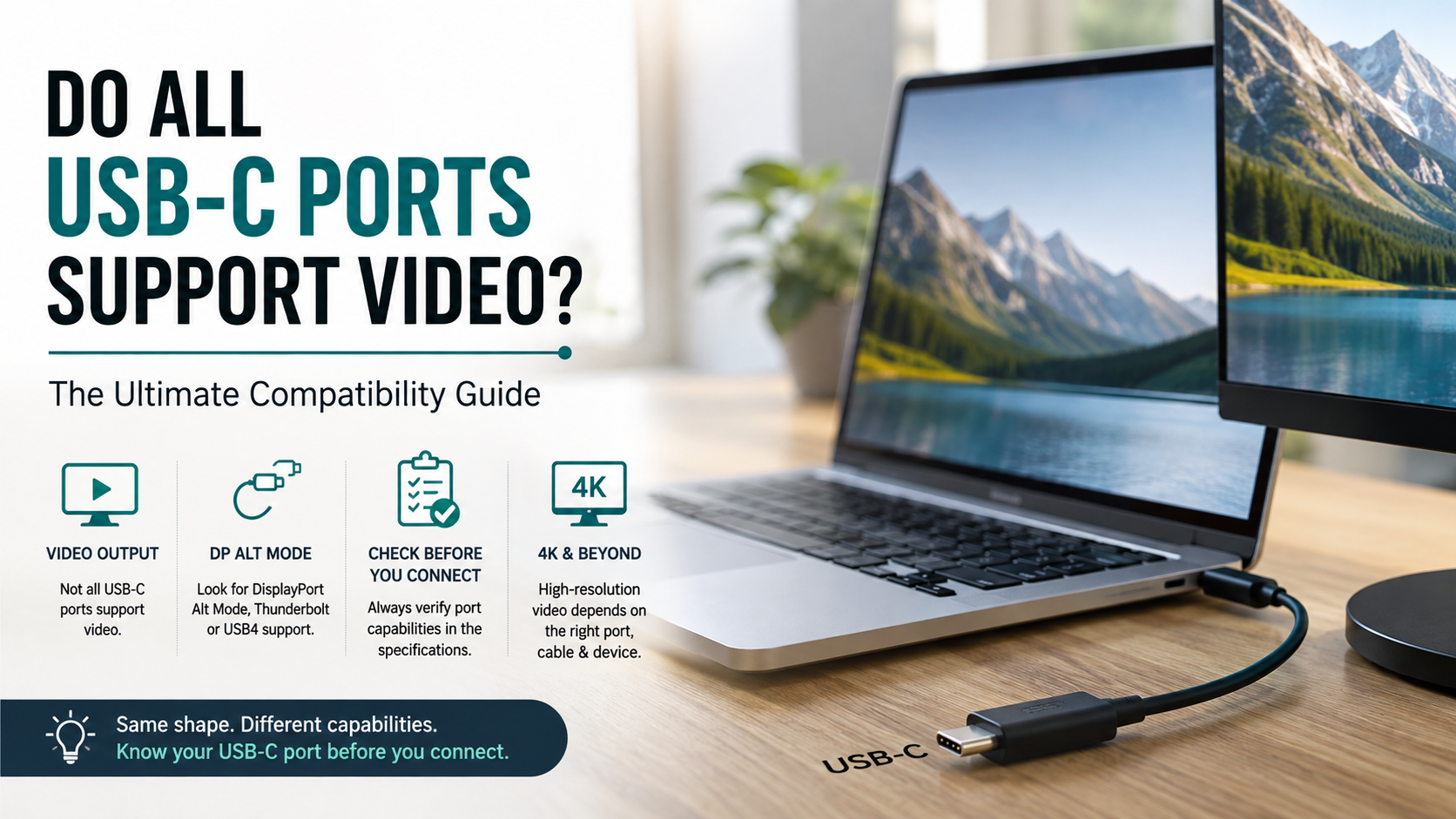
Do All USB-C Ports Support Video? The Ultimate Compatibility Guide
Plugging a monitor into a modern laptop should feel simple. Yet many users see a blank screen after connecting a USB-C display. If you are asking, do all USB-C ports support video, the answer is no.
USB-C describes the connector shape, not every feature supported by the port. Manufacturers can equip USB-C ports with different combinations of data, charging, and display capabilities. Some ports support only USB data and power. Others also support DisplayPort Alternate Mode (DP Alt Mode), Thunderbolt, or USB4 display features.
This difference explains why one USB-C port may connect to a monitor while another identical-looking port cannot. You cannot determine video support from the connector shape alone.
The official USB Implementers Forum (USB-IF) sets standard specifications, but device makers decide which features to include. Some ports only transfer data, others handle high-speed power delivery, and select ports carry rich audio-visual signals to external monitors.
In this guide, you will learn how to identify video-ready USB-C ports, understand DP Alt Mode, choose compatible cables, and determine whether USB-C can deliver 4K video.

How do I know if my USB-C port supports video?
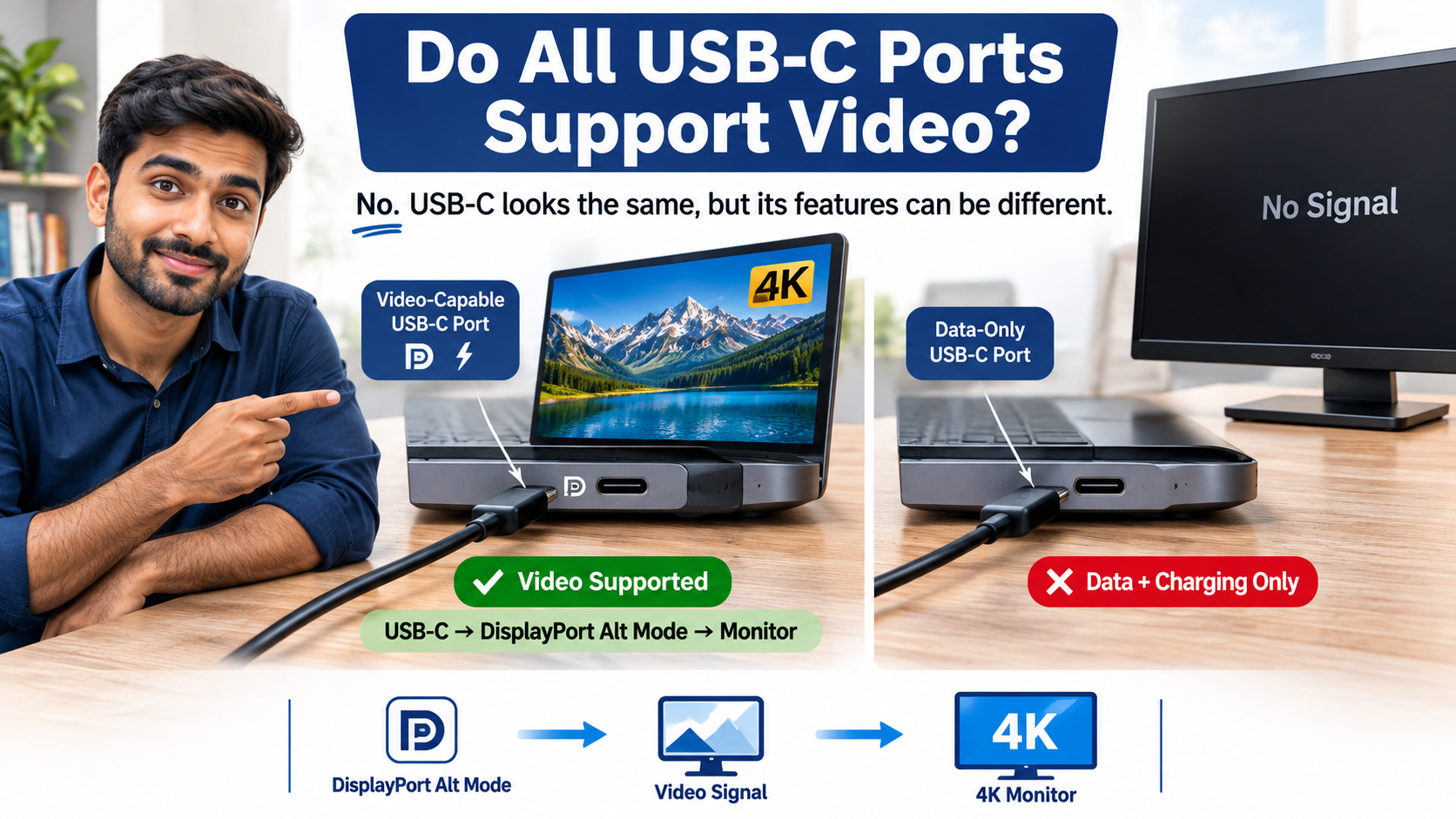
If you are wondering, do all USB-C ports support video, start by checking the markings around your port. Look for a DisplayPort logo, monitor symbol, or Thunderbolt lightning-bolt icon. These symbols can indicate that the port supports video output.
If you see no useful symbol, check the manufacturer’s specifications or user manual. Search for terms such as DisplayPort over USB-C, DisplayPort Alt Mode, Thunderbolt 3, Thunderbolt 4, or USB4 with display support.
You can also check your computer’s technical specifications. Operating system menus may show graphics and Thunderbolt hardware. However, they may not confirm the capabilities of each individual USB-C port.
When specifications are unclear, the manufacturer’s documentation is the safest source. This matters when you need 4K resolution, high refresh rates, HDR, or multiple external displays.
Check Hardware Logos and Device Specifications
Start by examining every USB-C port on your laptop, tablet, or desktop. A DisplayPort logo usually indicates video output through USB-C. A Thunderbolt lightning-bolt symbol generally indicates Thunderbolt support and display capabilities.
However, manufacturers do not use identical markings. Some devices have no symbol even when the port supports video. Others place port information only in the technical specifications.
For a reliable answer, search for your exact device model. Look for these terms:
- DisplayPort Alt Mode: Enables native DisplayPort video through USB-C.
- Thunderbolt 3 or 4: Supports high-bandwidth data and display connections.
- USB4: May support display output, depending on the implementation.
- USB-C data only: Does not provide native video output.
Do not assume every USB-C port on one device has identical capabilities. Manufacturers can assign different functions to individual ports.
Can all USB-C carry video?
If you are asking, do all USB-C ports support video, the answer is no. USB-C describes the connector and interface, not a guaranteed set of features. A USB-C port may support data, charging, video, or several functions together.
For native video transmission, the source device needs a compatible display technology. The most common option is DisplayPort Alternate Mode (DP Alt Mode). It allows DisplayPort signals to travel through a compatible USB-C connection.
Some systems provide display output through Thunderbolt or USB4. Other USB-C ports support only data transfer and charging. This difference is common across laptops, phones, tablets, and desktop computers. If you’re troubleshooting a computer that may have broader compatibility issues, How to Safely Upgrade to Windows 11 Without Losing Data may also be useful.
Two USB-C ports can therefore look identical but behave very differently. One may connect directly to a monitor, while another may show no signal.
Before buying a USB-C monitor, dock, or adapter, verify that the specific port supports video output. This simple check can prevent compatibility problems and unnecessary purchases.
The Role of Dedicated Hardware Protocols
USB-C video output depends on more than the connector itself. The device needs compatible hardware that can route display signals through the USB-C interface.
With DisplayPort Alt Mode, compatible DisplayPort signals from the graphics system can travel through selected USB-C lanes. Both the port and device must support the required configuration.
USB-C ports without display support can still provide fast data transfer, charging, and peripheral connectivity. They simply lack the required display pathway.
This distinction matters on laptops, desktop motherboards, tablets, and docking stations. A motherboard USB-C port may support video only when the processor or graphics hardware provides the required display output. For broader laptop hardware considerations, see Warning Signs for Your Laptop: 15 Red Flags.
When checking whether your USB-C port supports video, confirm three components:
- The source device supports USB-C video output.
- The dock or adapter supports the required display standard.
- The cable supports the required bandwidth and features.
Checking all three helps prevent black screens and unreliable display connections.
Do all USB-C sockets support video?
No. Do all USB-C ports support video? No, because USB-C sockets can serve different purposes. The connector can support data transfer, charging, peripherals, and display output.
A device may include several USB-C sockets with different capabilities. One port might support DisplayPort Alt Mode, while another handles only USB data and power. This arrangement is common on laptops, monitors, docking stations, and desktop computers.
Monitor and docking-station ports need particular attention. A USB-C port designed for downstream accessories may connect keyboards, storage devices, or webcams. It may not accept video from a laptop.
Check the device documentation to determine whether a port is an upstream connection, display input, display output, or standard USB data port. Port labels can also provide useful clues.
The important point is simple: never judge a USB-C socket by its appearance. Confirm its supported protocols and bandwidth before assuming it can transmit video.
Identifying Downstream and Dedicated Peripheral Sockets
USB-C ports on monitors and docking stations can be confusing. They may look identical even though they perform different functions.
A monitor may have one USB-C input that accepts video and charging from a laptop. Nearby USB-C ports may connect only USB peripherals. Those accessory ports cannot necessarily receive or forward a laptop’s display signal.
Docking stations work in a similar way. They often include a dedicated upstream connection and several downstream USB ports. The downstream ports may support data transfer without supporting video.
Check the labels and specifications before connecting your display cable. Look for descriptions such as USB-C display input, DisplayPort Alt Mode, or Thunderbolt.
Also check power requirements for USB-C monitor connections. A display may support video but provide limited charging power.
Understanding these port roles prevents a common mistake. Not every USB-C socket performs the same job, even on one device.
Can a USB-C port be used for video output?
Yes. A USB-C port can provide video output when the device supports a compatible display protocol. So, if you ask do all USB-C ports support video, remember that video support depends on the port’s underlying hardware.
The most common method is DisplayPort Alternate Mode. Thunderbolt-enabled USB-C ports can also carry display signals. Depending on the device, one USB-C connection can carry video, data, and power simultaneously.
You can use a compatible USB-C-to-DisplayPort cable, USB-C monitor, or USB-C-to-HDMI adapter. The correct option depends on the video standard supported by your computer and display. If you’re also comparing display technologies, OLED vs QLED 2026: Which Display Technology Wins? can help you evaluate your monitor or TV options.
For reliable results, check the entire connection. Verify the source port, adapter or dock, display input, and cable.
Windows systems may also support multiple displays through Multi-Stream Transport (MST). However, the number of displays and supported resolutions depend on available bandwidth and graphics hardware.
USB-C can be an excellent single-cable display solution. However, you must confirm compatibility before connecting your equipment.
Essential Cables and Multi-Stream Transport Hubs
A video-capable USB-C port still needs the right cable or adapter. Not every USB-C cable provides the same data rate, display support, or power capabilities.
For direct DisplayPort connections, choose a cable rated for the required DisplayPort version and bandwidth. For HDMI displays, choose an adapter that clearly lists the resolution and refresh rate you need.
When selecting a cable or adapter, check:
- Supported resolution, such as 4K.
- Maximum refresh rate, such as 60Hz or 120Hz.
- DisplayPort version or supported USB standard.
- HDR support when required.
- Power Delivery requirements.
MST hubs can allow compatible Windows systems to drive multiple displays from one USB-C connection. Available bandwidth and graphics hardware determine the practical limit.
Do not assume a USB-C charging cable supports high-resolution video. If you are asking do all USB-C ports support video, remember that both the port and cable must support the required display technology.
Always match your cable and adapter to your intended monitor setup.
Can USB-C transmit 4K video?
Yes. USB-C can transmit 4K video when the source port, display standard, adapter, and cable support the required bandwidth. This means the answer to do all USB-C ports support video is still no, even though compatible USB-C ports can handle high-resolution displays.
DisplayPort 1.2 over USB-C can generally support one 4K display at 60Hz under suitable conditions. DisplayPort 1.4 provides more bandwidth and can support higher refresh rates. Demanding modes, such as 4K at 120Hz, may require Display Stream Compression (DSC).
Thunderbolt 3 and Thunderbolt 4 can support multiple high-resolution displays. The
Frequently Asked Questions
What is DisplayPort Alternate Mode (DP Alt Mode)?
DisplayPort Alternate Mode is a functional extension of the USB-C standard that allows physical USB data lanes to transmit native DisplayPort audio and video signals. When active, it connects your computer’s internal graphics card directly to an external monitor without requiring proprietary drivers, delivering lag-free display performance over standard reversible cables.
Can I use a regular USB-C phone charging cable to connect a monitor?
No, standard white or black charging cables supplied with smartphones usually only support basic USB 2.0 data transfer speeds (480 Mbps) alongside power delivery. They lack the internal high-speed physical wiring needed to transmit high-bandwidth video signals, so your external monitor will display a “No Signal” error. For more information about USB-C connectivity and device capabilities, see 5 Ways To Use Your TV’s USB Port To Level Up Your Device.
Will a USB-C to HDMI adapter work on any computer?
A passive USB-C to HDMI adapter only functions on computers whose ports feature DisplayPort Alt Mode or Thunderbolt support. If your computer’s port handles data only, the adapter cannot extract a video feed. For data-only ports, you must use an active, driver-powered DisplayLink adapter instead.
What is the difference between Thunderbolt and standard USB-C for video?
While both share the identical physical plug, Thunderbolt guarantees high minimum bandwidth (up to 40Gbps on Thunderbolt 3 and 4) and native multi-display support. Standard USB-C ports may offer lower bandwidth, might limit display refresh rates, or might lack multi-monitor daisy-chaining capabilities entirely.
Conclusion
The answer to do all USB-C ports support video is a clear no. USB-C defines a connector and a set of capabilities, but manufacturers can implement different features on individual ports.
Some USB-C ports support only data and charging. Others provide DisplayPort Alt Mode, Thunderbolt, or USB4 display functionality. This explains why two identical-looking USB-C ports can behave completely differently when connected to a monitor.
Before purchasing a cable, adapter, dock, or display, verify the complete connection. Check your computer’s port specifications first. Then confirm the cable and adapter support your required resolution and refresh rate. If you’re choosing accessories for an Apple tablet, Best iPad Accessories Cheaper Than Apple offers additional guidance.
For 4K displays, pay particular attention to bandwidth and refresh-rate specifications. A compatible USB-C connection can provide excellent video quality and support convenient single-cable setups.
Once you understand the difference between the connector and the underlying protocols, USB-C video compatibility becomes much easier to evaluate. Always check the specifications rather than relying on the port’s appearance alone.