
Why Some USB Ports Are Color-Coded, but USB-C Ports Aren’t
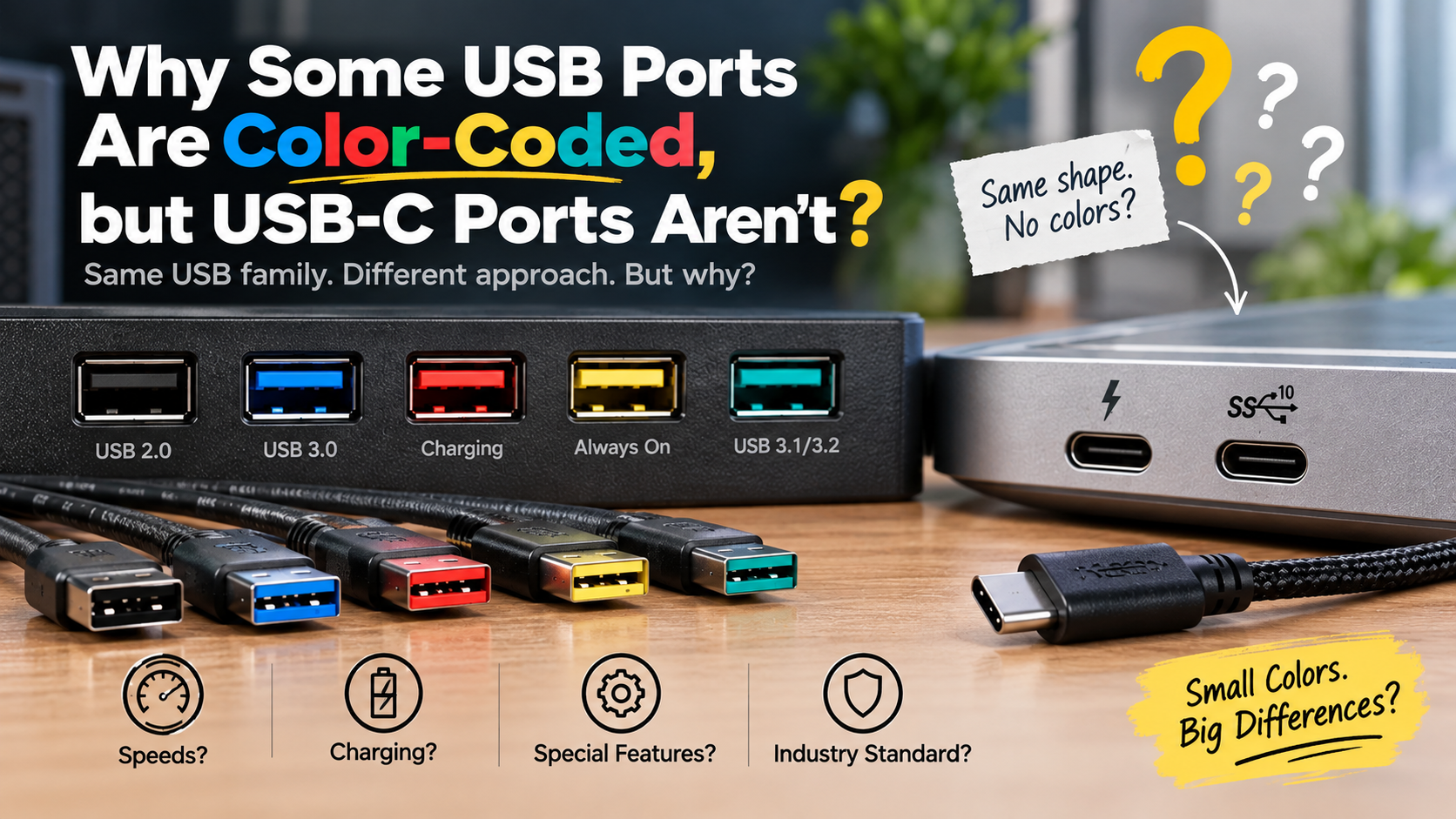
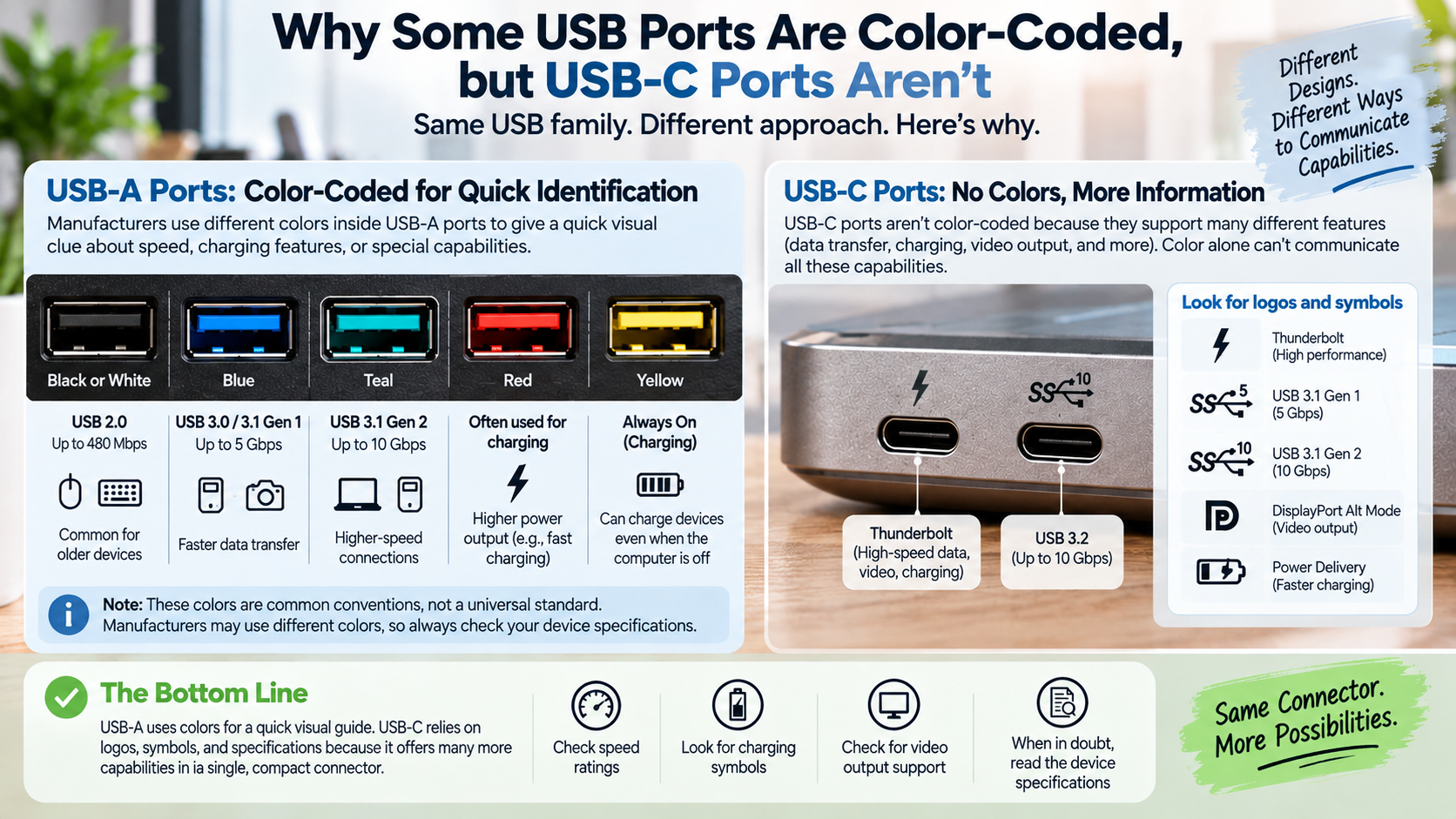
If you have ever wondered why some USB ports are color-coded, the answer is surprisingly practical. Manufacturers use different colors to give users quick clues about USB speed, charging features, and port capabilities. You may see black, blue, red, yellow, or teal ports on computers and docking stations.
These colors can help you identify a suitable connection without checking system settings. However, USB port colors are not universal guarantees of performance. Manufacturers can use different colors for different features.
USB-C takes a different approach. Its reversible connector supports data, charging, video, and other protocols. As a result, manufacturers often use logos, symbols, and speed ratings instead of colored plastic. When engineers developed legacy rectangular connectors, the USB Implementers Forum (USB-IF) introduced specific color guidelines to differentiate generational upgrades like USB 3.0 from older hardware.
This guide explains why some USB ports are color-coded, what common USB colors mean, and why USB-C ports usually look the same. You will also learn how to identify charging ports, troubleshoot USB-C problems, and choose the right port for your devices.

Why Are My USB Ports Different Colors?
Your USB ports may have different colors because manufacturers use visual conventions to distinguish common capabilities. White and black inserts have traditionally appeared on older USB connections. Blue became widely associated with USB 3.x and higher data rates. Other colors, such as red, yellow, and teal, may indicate additional features or faster connections.
These colors provide a quick visual clue. You can often identify a potentially faster port without checking detailed system settings. However, USB port color is not a universal standard. Manufacturers can assign colors differently across computers, motherboards, and accessories.
Treat color as a general guide rather than a guarantee. Device specifications provide more reliable information when speed matters.
If you are connecting an external SSD or another demanding accessory, check its supported data rate. This simple step can prevent you from choosing a slower connection.
The Purpose of Visual Color Standards
Color conventions became useful as USB evolved through multiple generations. Older USB-A ports often looked nearly identical from the outside. A colored insert gave users a quick visual clue about the port’s intended capabilities.
Blue is commonly associated with USB 3.x and 5 Gbps-class connections. Some manufacturers use teal for faster 10 Gbps connections. Red and yellow may indicate charging features or higher-power connections.
This explains part of why some USB ports are color-coded. Colors make it easier to distinguish ports without reading technical specifications every time.
However, no universal color chart guarantees performance on every computer. A manufacturer can use a different color scheme or custom accent.
When speed matters, check the device manual or specification sheet. This matters most for external SSDs, docking stations, monitors, and high-bandwidth accessories.
Is USB-C Color Coded?
USB-C does not have a universal port-color system. The connector supports many different capabilities, including USB data, USB Power Delivery, and display output through USB-C. Two USB-C ports can therefore look identical while offering very different performance.
The USB-C connector also provides little room for the large colored inserts commonly found inside USB-A ports. More importantly, color could not communicate every capability that modern USB-C connections support.
Instead, manufacturers commonly use printed icons, logos, and technical specifications. These markings may indicate charging capabilities, data rates, or display support. Some ports may also include a Thunderbolt or similar symbol.
This makes USB-C more flexible but also more confusing. Never assume that every USB-C port supports the same speed, charging power, or video output. If your desktop lacks suitable USB-C connectivity, adding a compatible port can expand its capabilities.
Understanding why some USB ports are color-coded also shows how connector design has changed. Older ports benefited from simple visual cues. Modern USB-C connections require more detailed markings.
Relying on Logos Instead of Colors
Modern USB-C hardware increasingly relies on symbols and performance markings rather than colored plastic. Depending on the device, you may see icons for charging, display output, or high-speed data.
These markings provide more useful information than a simple color. A cable marked with its supported power and data capabilities gives you a clearer idea of what it can handle.
The same principle applies to computer ports. Look for symbols beside the connector and check the manufacturer’s specifications when the capability matters.
This approach becomes particularly important when connecting an external monitor, high-speed SSD, docking station, or high-power charger.
USB-C also makes cable selection more important. A cable can fit perfectly while supporting fewer features than the port itself.
Therefore, do not rely on appearance alone. Check the port, cable, and device specifications before expecting maximum performance.
Why Is My USB-C Not Recognized?
A USB-C device may fail to work because of a cable limitation, incompatible protocol, insufficient power, or a physical connection problem. The USB-C shape does not guarantee identical capabilities across every cable and port.
For example, a USB-C cable may support charging but only USB 2.0 data speeds. Another cable may support much faster data rates. A USB-C port may also lack the alternate-mode support required for a particular display connection.
Physical debris can cause problems, too. Dust or lint inside the connector can prevent reliable contact between the plug and port. Software issues can also affect USB devices.
Outdated drivers, firmware problems, or power-management settings may interfere with device recognition. A hub or docking station can also introduce compatibility problems.
If your USB-C device is not recognized, start with simple checks. Test another compatible cable and another USB-C port. Then confirm that the computer supports the feature you are trying to use.
Quick Troubleshooting Fixes for Unresponsive Connections
Start by connecting the device to another compatible USB-C port. If the device works there, the original port may have a hardware or capability limitation.
Next, test a known-good USB-C cable. Choose a cable that supports the data speed and power level your device requires. A charging-focused cable may not provide enough bandwidth for fast storage or video.
Inspect the USB-C port for dust, lint, or other visible debris. If you find debris, shut down the device and clean the port carefully. Avoid pushing sharp objects into the connector.
Restart the computer and check for available operating system, chipset, or USB controller updates. If you use a hub or docking station, connect the device directly to the computer for testing.
For an external monitor, confirm that the computer, cable, and display all support the required video mode. For high-power accessories, check the port’s supported power output.
These checks can solve many common USB-C problems before you consider replacing the cable, hub, or hardware.
Why Are Some USB-C Ports Orange?
Some USB-C ports appear orange because manufacturers use custom colors to highlight specific features. Orange does not represent a universal USB-C standard. A manufacturer might use orange to identify charging support, always-on power, or another specialized function.
USB-C capabilities vary widely between devices. One orange port might focus on charging, while another might provide a different combination of power and data features.
The color alone cannot tell you the port’s exact wattage, data speed, or video capabilities. This point matters when considering why some USB ports are color-coded. Manufacturers often create their own visual conventions.
Other unusual USB port colors can work the same way. A company might choose a specific color for branding, product design, or a specialized feature.
If you want to understand an orange USB-C port, check the device’s manual or specifications. Look for details about USB Power Delivery, data rates, display output, and charging behavior.
Do not assume that an orange port automatically offers faster performance. Use the color as a clue, then confirm the actual specifications before connecting demanding hardware.
Proprietary Vendor Tweaks vs. Industry Standards
Manufacturers often customize port colors to make certain features easier to identify. A bright orange accent can draw attention to a charging port or another specialized connection.
However, that color does not make the port automatically faster. It also does not create a universal USB standard. Another manufacturer may use the same color for an entirely different purpose.
This explains why you should treat color as a quick identification tool, not a technical specification. Use the color to spot a potentially useful port. Then check the manufacturer’s documentation for exact details.
USB-C makes this distinction even more important. The same connector can support different data rates, power levels, and display features across different devices.
When you buy a USB-C cable or accessory, compare its specifications with the port’s capabilities. This helps you avoid compatibility issues and unexpected performance limits.
A little research can prevent common mistakes. Instead of choosing a port based only on appearance, confirm its actual speed, power output, and supported features.
Which USB Port Color Is Best?
No single USB port color always offers the best performance. The best USB port depends on your device and what you need it to do. Speed, power output, and supported features matter more than color.
Blue USB-A ports commonly indicate USB 3.x connections with 5 Gbps-class speeds. Some manufacturers use teal for 10 Gbps connections. Red and yellow ports may indicate charging or always-on power features.
However, manufacturers do not follow one universal color system. A red port on one computer may provide different capabilities from a red port on another. The same applies to blue and teal ports.
For everyday devices, USB 2.0 often provides enough performance. Keyboards, mice, printers, and basic webcams usually need very little bandwidth.
For external SSDs and other high-speed devices, choose the fastest compatible connection. Check the specifications for the port, cable, and device before you connect them. For charging accessories, also make sure the charger matches your device’s power requirements.
Knowing why some USB ports are color-coded can help you identify potential differences quickly. However, technical specifications should always guide your final choice.
Matching Hardware to the Right Socket
Choose a USB port based on your accessory’s requirements. A keyboard or mouse usually works well with a standard USB 2.0 connection.
For an external SSD, choose the fastest compatible port available. A high-speed drive can benefit from 5 Gbps, 10 Gbps, or faster connections when the drive and cable support those speeds.
External capture devices, docking stations, and other demanding accessories may also require higher bandwidth. Check the computer, accessory, and cable specifications before connecting them.
For charging, focus on power output rather than color. An always-on port can help charge a phone while the computer sleeps, but not every colored port provides this feature. Understanding voltage and current ratings can also help you compare charging speeds.
The right combination depends on all three components. The computer port, cable, and connected device must support the performance you want.
Use color as a quick visual clue. Then verify the specifications when speed, charging, or video output matters.
Frequently Asked Questions
Can I Plug a USB 2.0 Cable Into a Blue USB 3.0 Port?
Yes. USB is designed to support backward compatibility between compatible generations. A USB 2.0 device or cable can generally work with a USB 3.x port.
The connection will operate at the lowest common capability supported by the connected hardware. A USB 2.0 device will therefore not gain USB 3.x speeds simply because it is connected to a blue port.
For example, a USB 2.0 device remains limited to USB 2.0 performance when connected to a faster port. Connecting an older peripheral to a newer compatible port should not damage the hardware under normal conditions.
The important limitation is speed. If you want faster transfers, the device, port, and cable must all support the higher USB capability.
This is why understanding why some USB ports are color-coded can be useful. A blue port may suggest higher performance, but the connected hardware still determines the final speed.
What Do Yellow USB Ports Mean on Laptops?
Yellow USB ports commonly indicate an always-on or sleep-and-charge feature. This allows the port to continue supplying power to compatible devices while the laptop is sleeping or powered down.
The feature is useful when you want to charge a phone, earbuds, or another small device without keeping the laptop fully active.
However, yellow is not a universal USB designation. Manufacturers can use different colors and symbols for charging features. Some computers may also provide always-on charging through ports that are not yellow.
The safest approach is to check the laptop’s manual. Look for terms such as “Always On USB,” “Power-Off Charging,” or “Sleep-and-Charge.”
Charging behavior can also depend on the computer’s settings and power state. A port may provide power during sleep but stop charging under certain conditions.
If charging is important, verify the feature before relying on the port.
Are All USB-C Cables Capable of High-Speed Data Transfer?
No. USB-C describes the connector shape, not a single performance level. USB-C cables can support different combinations of charging and data capabilities.
Some cables are designed primarily for charging. Others support USB 2.0 data, while newer cables can support much higher data rates. Certain cables can also support USB4 or other high-bandwidth technologies when compatible hardware is connected.
This means a USB-C cable can physically fit into a fast USB-C port without delivering maximum performance. The cable may become the limiting factor.
Before buying a cable, check the required data rate, charging power, and display support. Do not choose solely by connector shape or appearance.
The same principle explains why USB-C can be more confusing than older color-coded USB-A ports. The connector looks the same even when its capabilities differ.
Do White USB Ports Still Exist on Modern Hardware?
White USB ports are uncommon on newer computers, but they can still appear. Historically, white was associated with early USB connections, while black became common for USB 2.0 ports.
Older USB generations had much lower maximum data rates than modern USB standards. USB 1.1 supported up to 12 Mbps, while USB 2.0 increased the theoretical signaling rate to 480 Mbps.
Today, port colors are less reliable for identifying exact USB generations. Manufacturers may use custom colors for aesthetic reasons or to highlight particular features.
A white port on a modern computer therefore does not automatically mean it uses an older USB specification. The manufacturer’s documentation is the better source of information.
If you are identifying an older computer, color can still provide a useful clue. For current hardware, look for USB logos, speed markings, or technical specifications instead.
This approach is especially useful when choosing ports for external storage, docking stations, and other high-performance accessories.
Conclusion
Understanding why some USB ports are color-coded can make it easier to choose the right connection. Older USB-A ports often use colors such as black, blue, red, yellow, or teal to provide quick visual clues. However, these colors are manufacturer conventions rather than universal guarantees.
The main reason USB ports became color-coded was simple. As USB evolved, manufacturers needed an easy way to distinguish different port capabilities and features.
USB-C takes a more flexible approach. Its reversible connector can support different data rates, charging capabilities, and display functions. Because of that flexibility, color alone cannot communicate everything a USB-C port can do.
Instead, look for USB logos, charging symbols, data-rate markings, and manufacturer specifications. These provide a more reliable way to understand what a particular connection supports.
When choosing a port, focus on your device’s actual requirements. Match the port, cable, and accessory capabilities. This helps you avoid unnecessary bottlenecks and get the performance your hardware can deliver.