How to Choose the Right Keyboard Size: Complete Form Factor Guide
Choosing the right keyboard size depends on how you work, play, and use your desk space. Keyboard sizes are usually described by form factor percentages, rather than exact measurements. These percentages compare a keyboard with a traditional 104-key full-size layout.
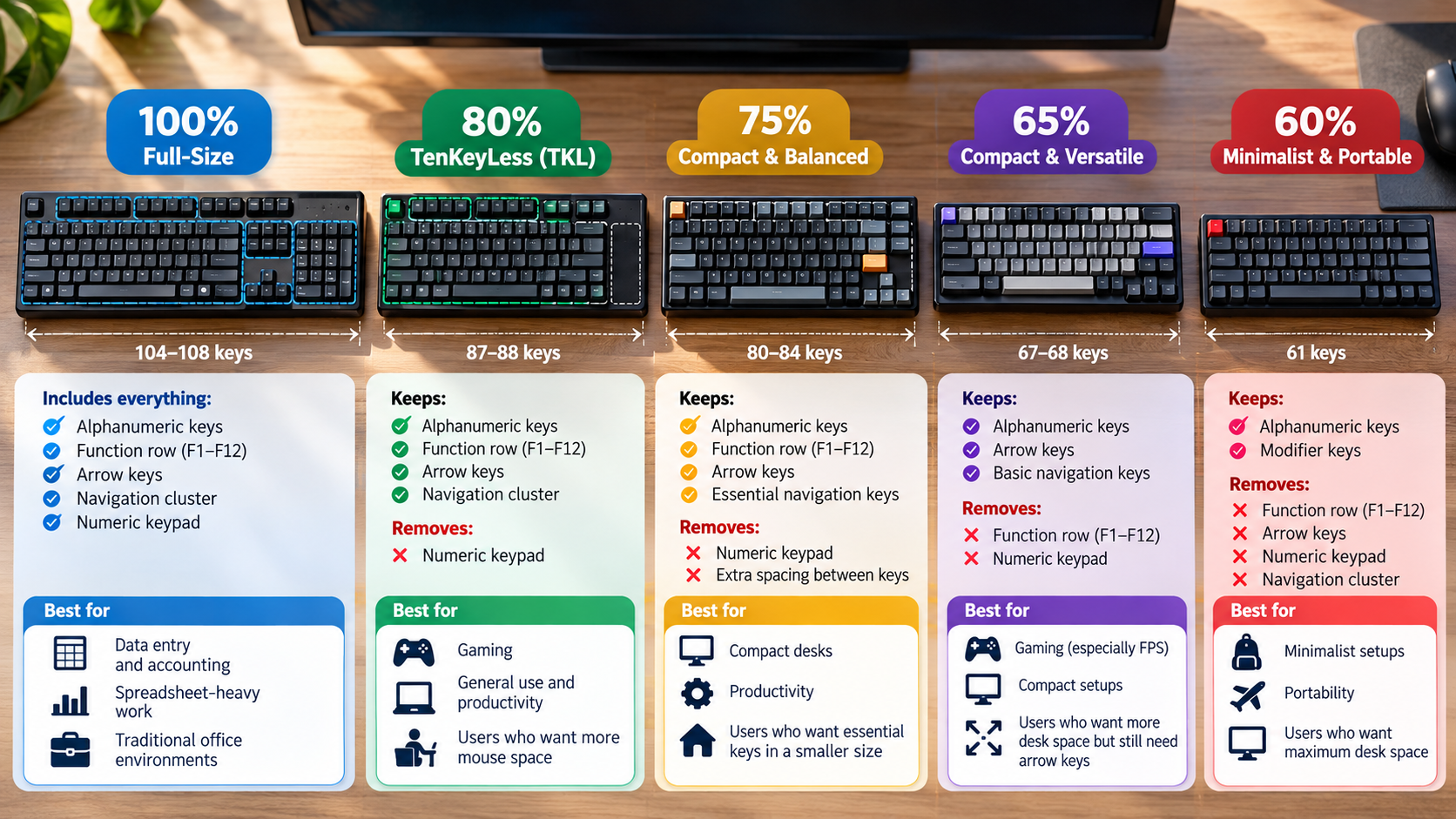
A full-size keyboard gives you every standard key, including the numeric keypad. Smaller layouts remove certain keys to save desk space. Common options include full-size, TKL, 75%, 65%, and 60% keyboards.
Your ideal keyboard should balance key access, desk space, mouse movement, and typing comfort. Ergonomic factors are also worth considering, especially if you type for long periods. The ACM SIGCHI covers research and practice related to human-computer interaction and human factors.
Understanding what each keyboard size keeps and removes makes the decision easier. The right choice depends less on popularity and more on the keys you actually use.
What Size Keyboard Is Most Popular?
Tenkeyless (TKL) and 75% keyboards are popular choices among keyboard enthusiasts, remote workers, and gamers. Full-size keyboards remain common in traditional office environments. If you are choosing a mechanical keyboard for office work, factors such as noise, comfort, and layout also matter. A mechanical keyboard for your office can be a useful option when you want a more customizable typing experience.
A TKL keyboard removes the numeric keypad but keeps the function row, arrow keys, and navigation cluster. A 75% keyboard goes further by reducing the spacing between key groups. It keeps many important keys while using less horizontal desk space.
This makes smaller layouts useful for people who want better mouse clearance. They can also work well on compact desks.
However, popularity should not determine your choice. Your workflow matters more. Consider these common layouts:
A 65% keyboard is not too small for general typing, programming, or gaming. It can be less convenient for spreadsheet work and software that relies heavily on function keys. For gaming, the choice also depends on whether you prefer mechanical or membrane switches. Understanding the differences between mechanical and membrane keyboards for gaming can help you choose beyond size alone.
A typical 65% layout keeps the main typing block, arrow keys, and several navigation keys. It removes the dedicated function row and numeric keypad.
That makes the keyboard considerably shorter than a TKL model. It also gives your mouse more usable desk space.
A 65% keyboard can work particularly well for FPS gaming. Lower mouse sensitivity often requires large mouse movements. A smaller keyboard reduces the chance of hitting its edge with your mouse.
It can also improve desk ergonomics. Your mouse can sit closer to your body instead of being pushed farther outward.
However, the compact design creates a trade-off. Many secondary functions require the Fn key.
For example, you may need Fn + 1 to access F1. This can become inconvenient if you frequently use function-key shortcuts.
A 65% keyboard is therefore best when compactness matters more than immediate access to every key.
When Does a 65% Keyboard Work Best?
A 65% keyboard works best when you mainly type, code, browse, or game without regularly using a numeric keypad. Its smaller footprint creates more room for your mouse and other desk accessories.
For competitive FPS gaming, this can be especially useful. A smaller keyboard leaves more space for wide mouse movements. That matters when players use low sensitivity for precise aiming. Some gamers also prefer wired connections for consistent performance, making it useful to understandwhy gamers prefer wired keyboards over wireless models.
The layout can also support a more neutral desk position. Your mouse can remain closer to your keyboard and body. This may reduce excessive outward shoulder movement during long sessions.
A 65% keyboard is also convenient for compact workstations. It can fit comfortably beside a laptop or monitor without consuming much desk space.
It is less suitable for workflows that depend on dedicated function keys. Developers, system administrators, and power users may frequently use F1 through F12.
Spreadsheet-heavy users may also miss the numeric keypad. Entering long sequences of numbers can become slower without dedicated number keys.
Before buying, identify the keys you use most often. If you rarely use the F-row or numpad, the compact design may not feel restrictive.
How Do I Know My Keyboard Size?
You can usually identify your keyboard size by checking three areas: the numeric keypad, function row, and arrow keys. These visual clues can quickly reveal the keyboard form factor.
Start on the right side. If you see a separate calculator-style number block, your keyboard is probably full-size or a compact 96% layout.
Next, check the top of the keyboard. A dedicated F1–F12 row with visible spacing usually indicates a TKL keyboard. On a 75% keyboard, the function row is generally integrated into a more compact grid.
Then check the bottom-right corner. Dedicated arrow keys usually indicate a 65% layout or larger. If the arrow keys are removed, you may have a 60% keyboard.
Use this quick guide:
Numpad + F-row: Usually full-size.
No numpad + F-row: Usually TKL.
No numpad + compact F-row: Usually 75%.
Arrow keys + no F-row: Usually 65%.
No dedicated arrows or F-row: Usually 60%.
Much smaller layout: Could be a specialized 40% board.
Some layouts vary by manufacturer, so key count is not always exact.
Do I Really Need a Full-Size Keyboard?
You need a full-size keyboard mainly when your daily workflow depends on fast numeric entry or dedicated keys. Accountants, bookkeepers, analysts, and data-entry workers often benefit from a physical numeric keypad.
A dedicated numpad lets you enter numbers quickly with one hand. It also provides convenient access to mathematical operators and decimal keys.
For many other users, the extra width may not provide much value. Writers, developers, general office workers, and gamers can often work comfortably with smaller layouts.
A full-size keyboard typically measures around 17 to 18 inches wide. Its numeric keypad extends considerably beyond the main typing area.
This can push your mouse farther to the right when the keyboard is centered. Some users may find that position less comfortable during long sessions.
However, this does not mean every full-size keyboard is ergonomically poor. Desk position, keyboard height, chair setup, and mouse placement also matter. Keyboard angle can also affect how your hands and wrists feel during long typing sessions, so understanding whether a physical keyboard should be flat or tilted can help you refine your setup.
If you occasionally need a numpad, consider a TKL or 75% keyboard with a separate numeric keypad. You can move the keypad aside when you do not need it.
This gives you dedicated number keys without keeping them permanently attached to your main keyboard.
What Is a Good Full-Size Keyboard?
If your workflow requires a full-size layout, look for a keyboard with reliable switches, comfortable key spacing, and suitable connectivity. Build quality also matters if you type for several hours each day.
The Keychron Q6 and Keychron V6 are examples of full-size mechanical keyboards. The Q6 uses an aluminum chassis, while the V6 uses a more accessible construction. Both support features such as hot-swappable switches and programmable layouts.
These features can appeal to users who want more customization. Compatibility with software such as QMK or VIA can also provide flexible key remapping.
For users who prefer a laptop-style typing experience, the Logitech MX Keys S takes a different approach. It uses low-profile scissor switches rather than traditional mechanical switches.
The MX Keys S supports Bluetooth and Logi Bolt connectivity. It can also connect with multiple devices.
When choosing a full-size keyboard, focus on your actual workflow. Consider switch type, key feel, connectivity, noise, build quality, and software support.
The best full-size keyboard is not necessarily the most expensive one. It should provide the keys and typing experience you actually need.
Keyboard Size Buying Decision Summary
Choosing a keyboard size becomes easier when you match the layout to your daily tasks. Full-size is the practical choice for frequent number entry, accounting, and spreadsheet-heavy work. TKL suits users who want dedicated function, arrow, and navigation keys without the numeric keypad.
A 75% keyboard is a strong middle ground. It saves desk space while retaining the F-row and dedicated arrows. Choose a 65% keyboard if you want more mouse room but still need physical arrow keys. A 60% keyboard makes the most sense when portability and maximum desk space matter more than instant access to secondary keys.
Use this quick decision guide:
Need a numpad? Choose full-size.
Want a familiar layout without the numpad? Choose TKL.
Want compactness without losing the F-row? Choose 75%.
Want dedicated arrows in a smaller layout? Choose 65%.
Want maximum compactness? Choose 60%.
The right keyboard size is the one that keeps your essential keys within easy reach while removing the keys you rarely use.
How Long Do Solar Panels Last With Proper Maintenance?
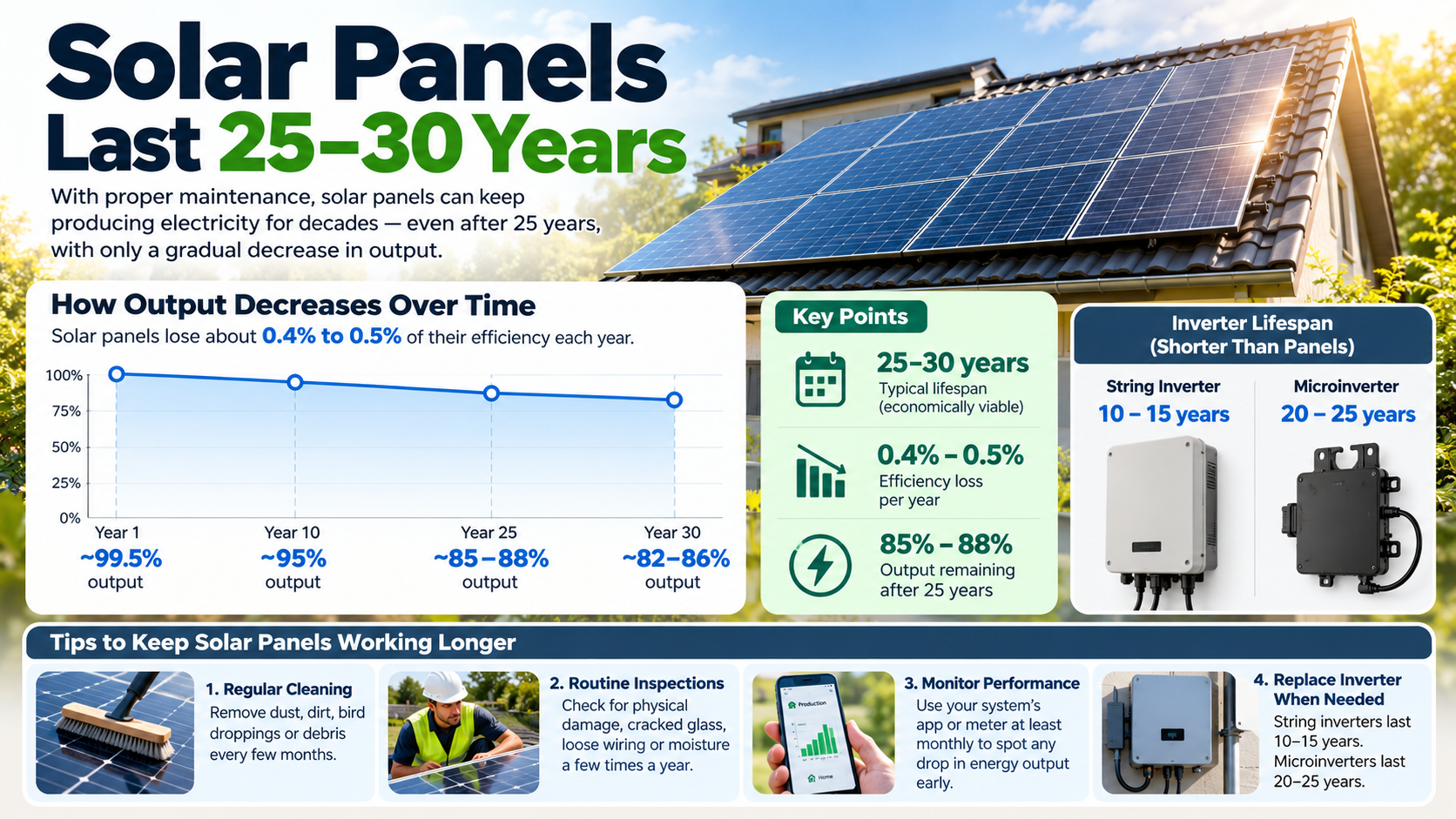
With proper care and routine inspections, modern residential solar panels typically last 25 to 35 years. Many panels can continue producing usable electricity beyond that period.
Solar photovoltaic (PV) modules have no moving parts. This makes them relatively durable compared with many mechanical systems. They do not suddenly stop working when they reach a specific age. Instead, their electricity output gradually declines over time.
This gradual decline is called solar panel degradation. UV exposure, temperature changes, moisture, weather, and other environmental stresses can affect long-term performance.
Most manufacturers provide performance warranties lasting around 25 years. These warranties define a minimum level of expected power output rather than an expiration date. Proper maintenance can help protect the panels, wiring, mounting system, and other equipment.
For homeowners, the practical question is not simply how long panels work. It is whether they still produce enough electricity to justify continued operation.
Do Solar Panels Stop Working After 25 Years?
Solar panels do not automatically stop producing electricity after 25 years. The 25-year milestone usually refers to a manufacturer’s performance warranty rather than the panel’s physical expiration date.
Solar modules gradually lose some generating capacity as they age. NREL research has found considerable variation between systems and technologies. A commonly used benchmark is around 0.5% degradation per year, although actual performance varies by technology, climate, installation quality, and other factors.
Performance warranties commonly guarantee that a panel will retain a specified percentage of its original output after 25 years. The exact guarantee depends on the manufacturer and model.
A panel can therefore remain operational after its warranty ends. However, its output may be lower than when it was new.
Homeowners may eventually replace panels for several reasons. Newer modules can offer higher efficiency, better warranties, or greater output from the same roof area. Replacement can therefore become an economic decision rather than a technical necessity.
How Much Do Solar Panels Degrade Over Time?
Solar panel performance normally declines gradually rather than suddenly. The rate depends on the module technology, manufacturing quality, installation environment, climate, and other conditions.
NREL’s research shows that reported degradation rates vary substantially. Its reviews have identified a median rate around 0.5% per year, while the historical average was higher at about 0.8% per year. Most reported rates were below 1% annually.
Using a simple 0.5% annual degradation assumption gives an approximate illustration:
System Age
Approximate Output Remaining
Year 1
About 99.5%*
Year 10
About 95%
Year 25
About 88%
Year 30
About 86%
*Actual first-year performance can differ because some modules experience initial light-induced degradation.
These figures are estimates, not guarantees. A particular panel may degrade faster or slower.
The important point is that degradation is usually gradual. A 25-year-old system can still generate substantial electricity if the modules and supporting equipment remain in good condition.
How Often Need Maintenance?
Solar panels generally require less routine maintenance than many mechanical home systems. They have no moving parts, so homeowners usually do not need frequent servicing.
A professional inspection can help identify problems before they reduce system performance. The exact maintenance schedule depends on the installation, climate, roof conditions, and manufacturer’s instructions. For homeowners planning a new system, a residential solar panel installation guide can also help explain the equipment and installation process.
A professional inspection can examine:
Wiring and connections for damage, loose connections, or signs of overheating.
Racking and fasteners for movement, corrosion, or other installation problems.
Inverter performance and diagnostic warnings.
Panel surfaces for cracks, heavy dirt, shading, or other visible issues.
Roof conditions around mounting points and penetrations.
Cleaning is not always necessary. Rain can remove ordinary dust and light debris from tilted panels. More frequent cleaning may help where panels accumulate dust, pollen, bird droppings, or other deposits.
If cleaning is required, follow the manufacturer’s instructions. For homeowners considering household cleaning solutions, guidance on whether you can use vinegar to clean solar panels can help you choose a suitable approach without damaging the panel surface.
When Should You Clean?
Solar panels do not automatically need frequent cleaning. Whether cleaning improves production depends heavily on the local environment and how much material accumulates on the panel surface.
Cleaning may be more useful when panels are exposed to:
Dusty or arid conditions with long dry periods.
Agricultural areas where airborne particles accumulate.
Heavy tree cover that creates pollen, leaves, sap, or bird-dropping buildup.
Roof designs where debris remains on the panel surface.
Areas with limited rainfall or frequent dry weather.
Before cleaning, check the manufacturer’s instructions. Avoid abrasive materials that can damage the panel surface.
A soft brush or non-abrasive cleaning method is generally preferable to aggressive equipment. Tesla recommends rinsing its panels with water or using soapy water with a non-abrasive sponge.
You should also avoid climbing onto a roof unless you are trained and equipped to do so safely. Roof work creates fall risks that can exceed the value of cleaning the panels yourself.
In many homes, occasional inspection and cleaning when visibly necessary are more practical than following a rigid cleaning schedule.
What Is the 20% Rule for Solar Panels?
The 20% rule can be confusing because people use similar terminology for different solar topics.
When discussing panel lifespan, it can refer to a performance warranty that guarantees a panel will retain at least 80% of its original rated output after a specified period, often 25 years. The exact warranty threshold varies by manufacturer and product.
For example, if a 400-watt panel has an 80% end-of-warranty guarantee, its guaranteed output would be 320 watts under the warranty’s specified testing conditions.
This does not mean the panel suddenly loses 20% of its power at year 25. Degradation normally happens gradually.
The 120% rule is a different electrical-design concept. It relates to how solar equipment can be connected to certain electrical service panels under applicable electrical-code requirements. It should not be confused with the panel lifespan or degradation benchmark.
Because electrical requirements depend on the installation and applicable code edition, homeowners should have system sizing and interconnection decisions reviewed by a qualified solar or electrical professional.
How Long Do Tesla Solar Panels Last?
Tesla solar panels are covered by a 25-year performance warranty, but the warranty period should not be interpreted as the panel’s guaranteed physical lifespan. Tesla states that its solar panels and qualifying third-party panels are guaranteed by their manufacturers to retain at least 80% of nameplate power capacity for at least 25 years.
Tesla’s current solar-panel documentation also provides model-specific performance information. Its published panel datasheet lists a 25-year product and performance warranty, with at least 87.2% of nominal power through 25 years for that particular panel specification.
Tesla also sells a separate Solar Roof product. Its current U.S. warranty provides 25 years of product and weatherization coverage, with a separate module performance schedule.
Therefore, Tesla Solar Panels and Tesla Solar Roof should not be treated as identical products.
As with other PV systems, actual service life depends on climate, installation quality, maintenance, environmental exposure, and component condition.
What Is the Biggest Drawback of Solar Panels?
The biggest practical drawbacks of solar panels depend on the homeowner’s circumstances. Upfront cost, variable electricity production, and component replacement are among the most important considerations.
Solar systems require an initial investment for equipment, installation, permitting, and related work. The financial return also depends on electricity prices, incentives, financing costs, solar resource, and local utility rules. Homeowners comparing renewable-energy options can also examine solar vs wind costs before deciding which system fits their needs.
Solar generation is also variable. Panels produce electricity from sunlight, so output changes throughout the day and across seasons. Clouds, storms, snow, shading, and other conditions can reduce production. This is especially important for homeowners asking whether they can run a house on solar power completely.
Another consideration is the lifespan of supporting equipment. Solar panels can operate for decades, while some other components may require service or replacement sooner.
For example, an inverter can have a shorter service life than the panels. Battery storage also has its own warranty, degradation pattern, and replacement considerations.
Finally, a standard grid-connected solar system generally does not keep a home powered during a utility outage. Solar systems are designed to shut down during outages unless the installation includes appropriate backup equipment and controls.
Conclusion
Solar panels can last 25 to 35 years or longer when they are properly installed, monitored, and maintained. Reaching the 25-year mark does not mean your panels suddenly stop working. Instead, their electricity output gradually decreases as the modules age.
Regular inspections, appropriate cleaning, and prompt repairs can help protect your system and maintain reliable performance. It is also important to monitor supporting components, such as inverters, wiring, and mounting equipment, because they may need attention before the panels themselves reach the end of their useful life.
If you are wondering how long do solar panels last, the better question is how much useful electricity they can continue producing over time. Even older panels can remain productive beyond their warranty period. However, replacing an aging system may eventually make financial sense when newer technology offers significantly better efficiency or output.
With realistic expectations and proper care, solar panels can remain a valuable source of renewable electricity for decades.
THE BIGGEST DRAWBACKS OF SWITCHING TO WINDOWS FROM MAC
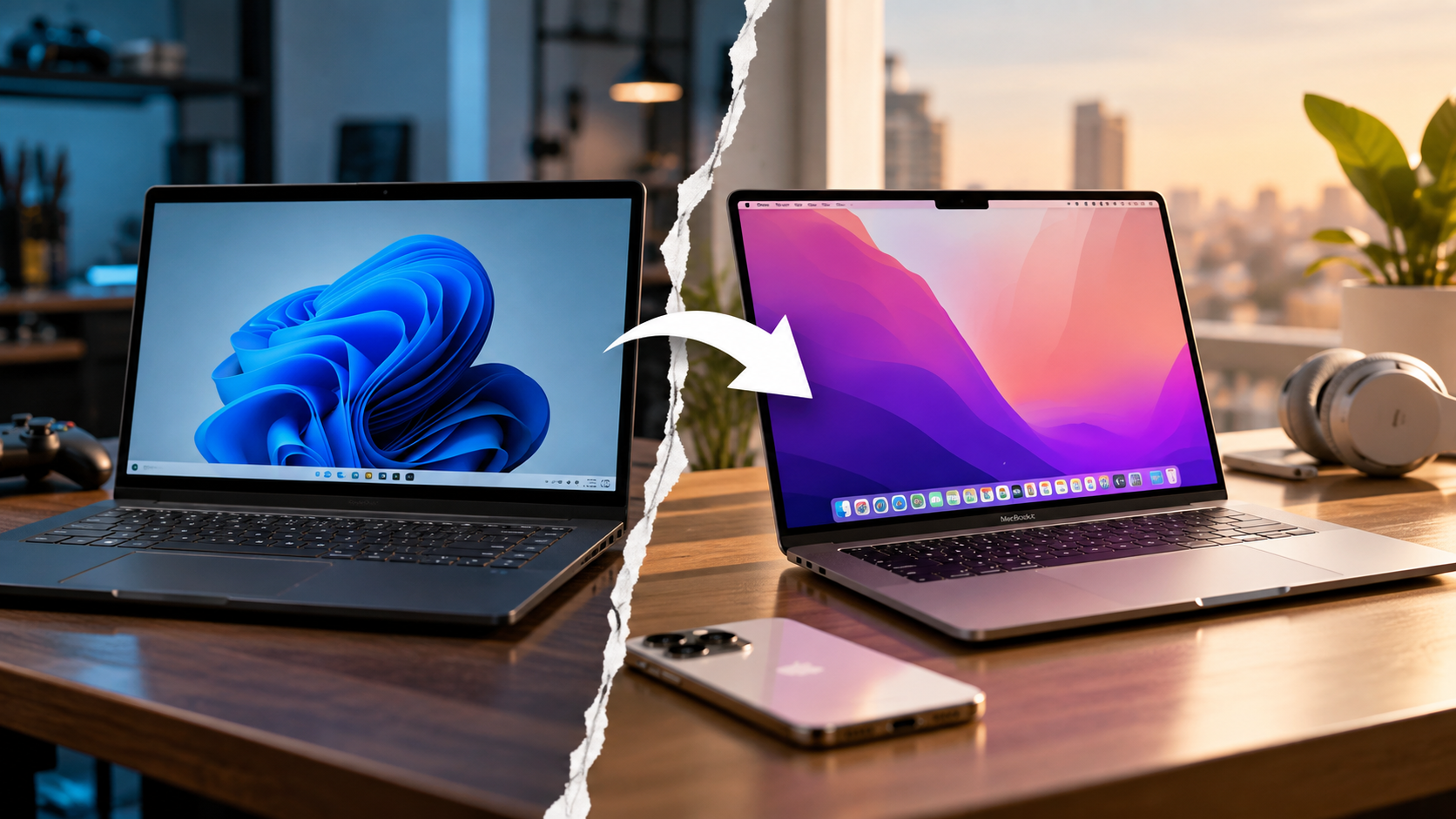
Switching to Windows from Mac can feel very different, even when the new PC offers better performance, gaming support, or hardware flexibility. Modern Windows laptops and desktops provide impressive capabilities, but the transition can introduce unexpected friction. Small differences in shortcuts, file sharing, window management, trackpads, system settings, and device integration can affect your daily workflow. Understanding these drawbacks before making the move can help you decide whether Windows fits your needs.
When you leave Apple’s ecosystem, you also leave behind a tightly integrated approach to hardware and software. Windows takes a more modular approach, with different manufacturers offering varied designs, components, and features. That flexibility creates more choice, but it can also create more variation.
That flexibility creates more choice, but it can also create more variation. Trackpads, drivers, sleep behavior, audio systems, and displays can differ between Windows computers.
Before replacing a MacBook or Mac Studio, consider how those differences affect your routine. The biggest drawbacks are usually not obvious specifications. They appear during everyday tasks, device switching, file transfers, window management, and software use.
This guide explains the main friction points to expect when switching to Windows from Mac. It also explains where Windows can make more sense.
Is it worth switching from Mac to Windows?
Switching from Mac to Windows can make sense when your workflow depends on software, gaming, or hardware options that macOS does not support well. It can also make sense if you want a wider range of laptop designs and desktop configurations. For students comparing the two platforms, factors such as software availability, portability, battery life, and price can make the decision more specific. A dedicated comparison of Mac or Windows for students can help clarify those trade-offs.
However, the switch may disappoint users who mainly want cheaper hardware without losing Apple’s software experience. Windows offers excellent devices, but the experience varies more between manufacturers.
When the Switch Makes Sense
Windows can be a practical choice in several situations. PC gaming remains one of its strongest advantages. Windows supports a much larger selection of PC games, graphics hardware, peripherals, and gaming-focused services. Compatibility also tends to be better for games that rely on Windows-specific technologies.
Specialized professional software can also influence the decision. Engineering, architecture, CAD, simulation, and enterprise applications often have stronger Windows support. Some applications may not have native macOS versions or may work differently through virtualization.
Hardware flexibility is another major advantage. Windows desktops can support replaceable graphics cards, additional storage, expansion cards, and different monitor combinations. Many Windows laptops also provide a broader range of ports, screen sizes, and form factors. Port selection can vary considerably between models, especially as manufacturers remove legacy connections from thinner laptops. This is worth considering if you rely on HDMI for external displays, since why some laptops don’t have HDMI ports can affect your choice of device.
When You Will Likely Regret It
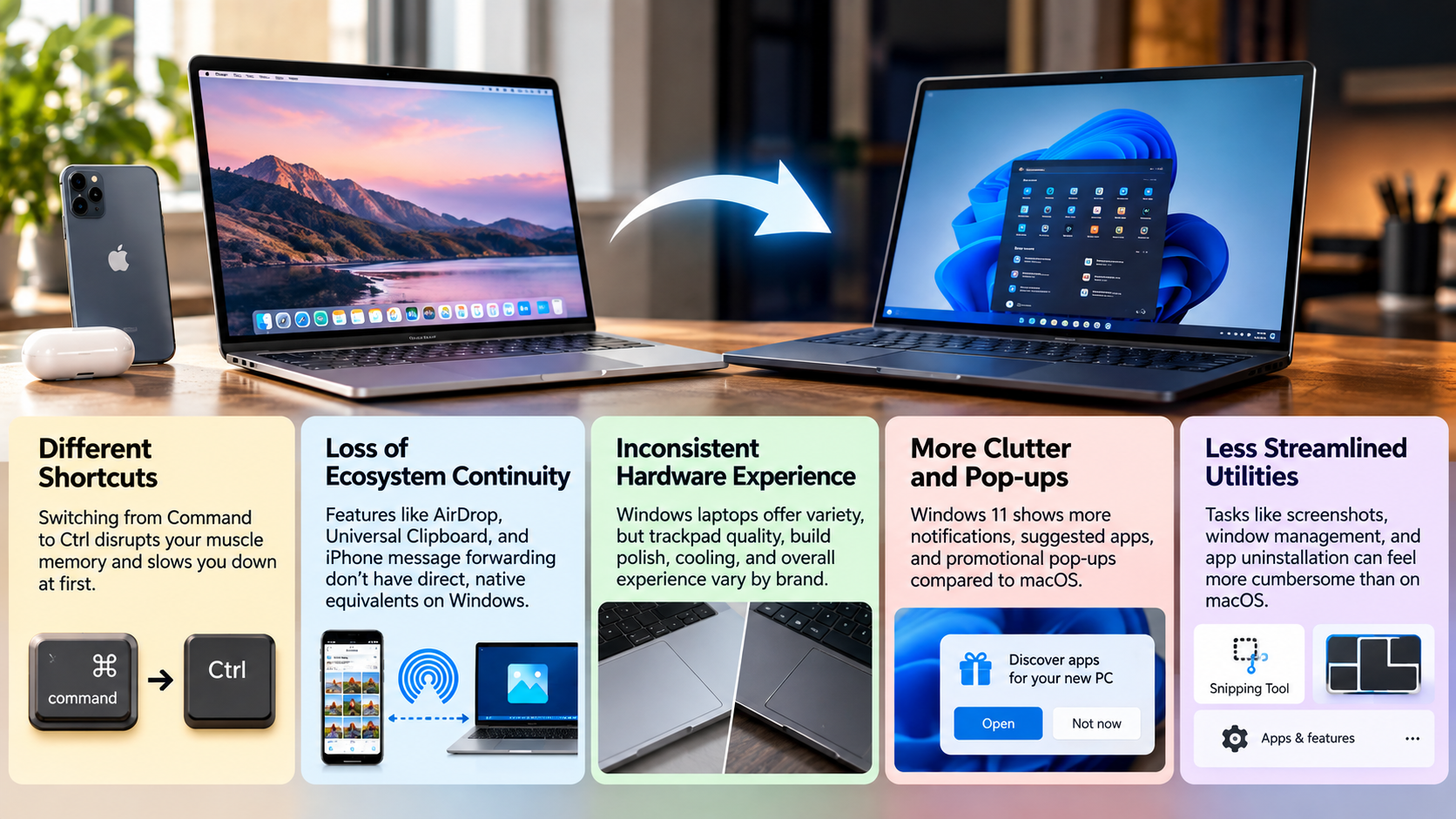
The switch can feel frustrating if your daily routine depends heavily on Apple’s ecosystem. Services such as AirDrop, iCloud Keychain, Universal Clipboard, and device continuity are deeply integrated across Apple products.
Windows can replace many of these functions, but the experience may require additional applications or configuration. That matters if you frequently move files between an iPhone and computer or copy information across devices.
Hardware consistency can also be different. A MacBook gives you a relatively predictable combination of display quality, trackpad behavior, speakers, standby performance, and operating system integration. Windows laptops vary considerably in these areas.
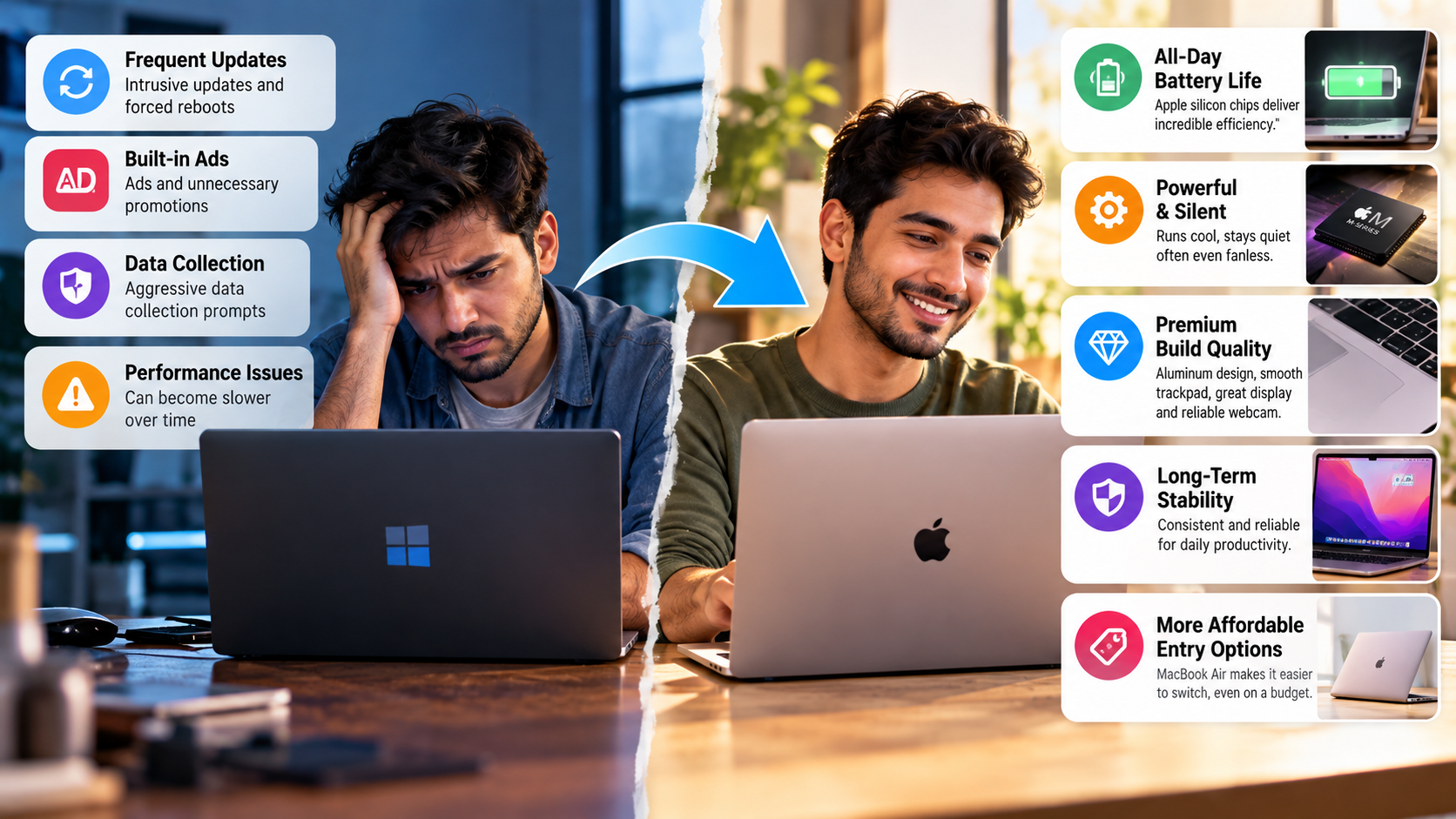
Windows may show recommendations or service prompts
What are the disadvantages of Mac over Windows?
Understanding why people leave macOS helps put the Windows transition into context. Apple hardware has several limitations that can push users toward Windows. The most important ones involve upgradeability, gaming, and hardware flexibility.
These limitations are especially relevant when comparing a Mac with a desktop PC. A Windows desktop can often be upgraded years after purchase. Users can replace individual components instead of replacing the entire computer.
Mac laptops take a different approach. Apple prioritizes compact designs, tightly integrated components, and unified memory. That can deliver strong performance and efficiency, but it reduces user control over internal hardware.
The trade-off is therefore straightforward. macOS offers a controlled and consistent hardware experience, while Windows offers considerably more choice.
Before switching to Windows from Mac, it is useful to understand whether Apple’s limitations actually affect you. If they do not, Windows’ additional flexibility may not justify the learning curve.
1. Prohibitive Upgrade Costs and Zero Modularity
One major limitation of modern Macs is limited internal upgradeability. Apple integrates memory and storage into its hardware designs, particularly across Apple Silicon Mac models. Users therefore need to choose their memory and storage configuration when purchasing the computer.
This can increase the initial purchase price when you need more capacity. After purchase, you generally cannot replace the internal memory or add a larger internal SSD yourself.
Windows offers much more variety. Many desktop PCs allow users to replace RAM, storage, graphics cards, and other components. Some Windows laptops also provide upgradeable memory or storage, although this depends heavily on the manufacturer and model. If your storage needs grow over time, it is worth checking how to add more storage to a laptop before buying a new device.
This difference matters most to users who expect their needs to change. A student may initially need modest storage but require more capacity later. A professional may eventually need additional memory for larger workloads.
With a Windows desktop, upgrading one component can extend the system’s useful life. With a Mac, buyers need to plan their configuration more carefully before purchase.
2. Extremely Limited Native Gaming
Gaming remains one of the clearest reasons users consider switching to Windows from Mac. Apple Silicon Macs deliver excellent efficiency and graphics performance for supported workloads. However, the macOS game library remains smaller than the Windows PC ecosystem.
Many major PC games are designed primarily for Windows. Compatibility can also depend on anti-cheat systems, graphics APIs, launchers, and developer support. Even when a game can technically run through compatibility tools, the experience may not match a native Windows installation.
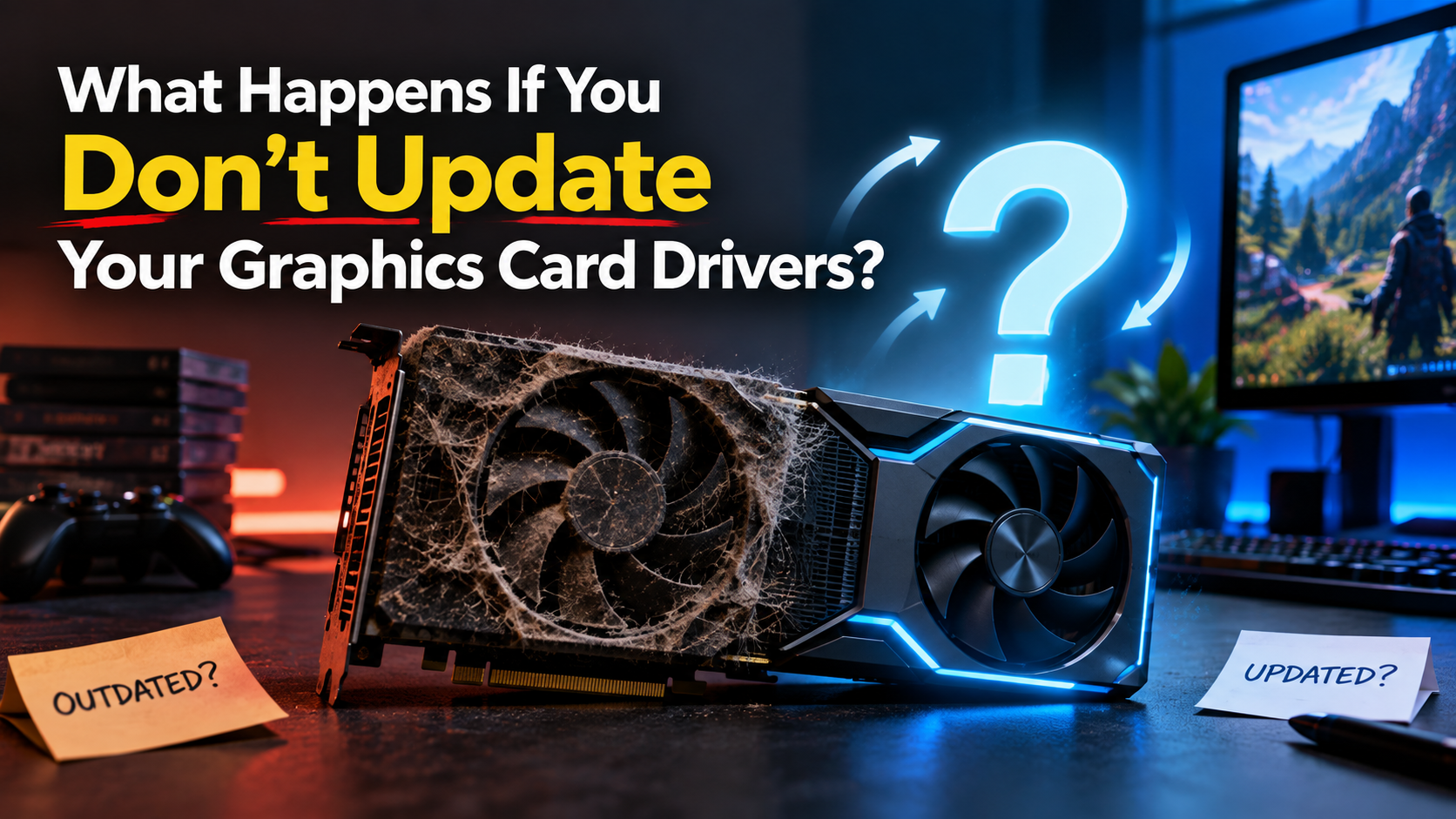
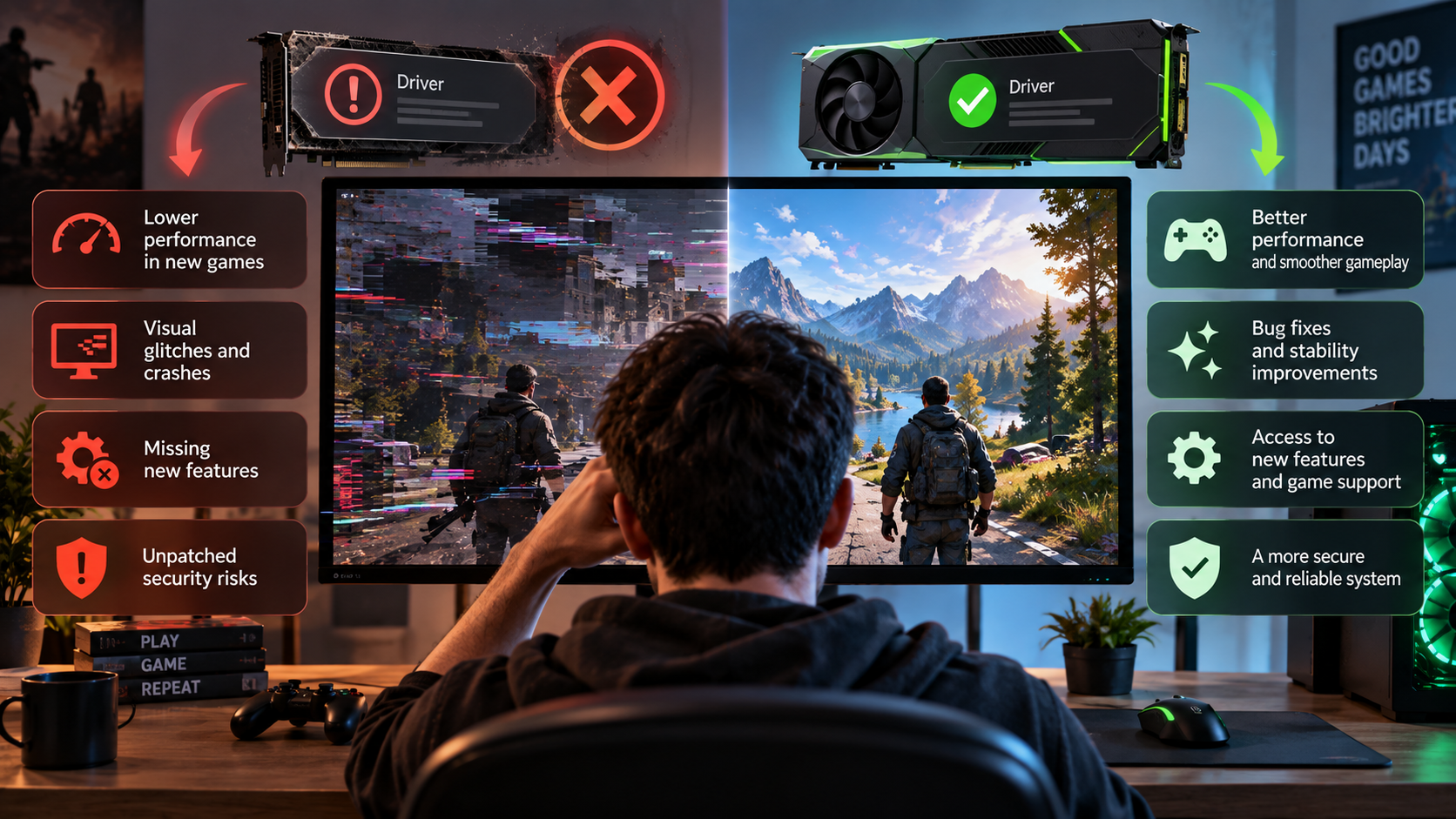
Windows also provides broader hardware support for dedicated gaming components. Users can choose from a large range of NVIDIA and AMD graphics cards, gaming monitors, controllers, and other peripherals. Keeping those graphics components properly maintained also matters for gaming performance, so understanding what happens if you don’t update your graphics card drivers can help prevent avoidable problems.
Another advantage is upgradeability. A desktop gamer can replace the graphics card or add storage without replacing the entire system.
Mac gaming has improved, but it still does not offer the same combination of game availability, hardware choice, and upgrade flexibility. For serious PC gaming, this remains an important difference.
3. Display Scaling and Window Management Constraints
Display management is another area where the two platforms feel different. macOS generally works best when display resolution and scaling are well matched to Apple’s preferred configurations. Some external displays can produce less satisfying text clarity or interface scaling.
This does not mean every 4K monitor performs poorly with a Mac. The experience depends on display size, pixel density, scaling settings, and viewing distance. However, users who frequently connect several external monitors may notice differences in scaling behavior.
Window management is another consideration. Windows includes built-in Snap layouts that make it easy to arrange applications across a screen. macOS has improved its window management, but many users still prefer third-party utilities for more advanced layouts.
Tools such as Rectangle can provide additional controls without replacing the operating system. Mac users moving to Windows may therefore find some window-management tasks easier immediately.
The trade-off is that Windows provides more built-in flexibility, while macOS emphasizes a simpler and more controlled desktop experience.
Is it difficult to switch from Mac to Windows?
Switching from Mac to Windows is not technically difficult. The bigger challenge is changing habits that have developed through years of macOS use.
Keyboard shortcuts are usually the first source of friction. Mac users rely heavily on the Command key, while Windows uses Control for many common shortcuts. These changes are simple to understand but can take time to become automatic.
The second challenge is ecosystem separation. If you regularly use an iPhone, iPad, or Apple Watch with your Mac, some features will no longer work in the same way.
The third issue is interface consistency. Windows supports applications built with different frameworks and technologies. As a result, some menus and settings can look noticeably different.
Common Mac Feature
Windows Equivalent
Typical Friction
Command shortcuts
Control shortcuts
High at first
Spotlight
Windows Search / PowerToys Run
Low to moderate
AirDrop
Quick Share / LocalSend
Moderate
Time Machine
File History / backup software
Moderate
Quick Look
Third-party Quick Look tools
Low after setup
The transition becomes easier once these differences become familiar.
1. Muscle Memory and Shortcut Shifts
Keyboard shortcuts can make switching to Windows from Mac feel harder than expected during the first few weeks. The concepts are similar, but the physical layout and shortcut combinations differ.
Mac users commonly use Command for actions such as copying, pasting, saving, and closing applications. Windows generally uses Control for many of these commands.
Some shortcuts also have different meanings. On macOS, Command-Q quits an application. On Windows, Alt-F4 closes the active window or application. This requires a different hand position and becomes noticeable during repetitive work.
Application switching also behaves differently. Command-Tab focuses on applications, while Alt-Tab primarily switches between open windows. Users who work with many documents may therefore need time to adjust.
The good news is that this friction usually decreases through repetition. You do not need to relearn computing from scratch. You mainly need to rebuild keyboard habits.
Windows also provides tools such as PowerToys that can recreate or improve some familiar workflows. You can also expand your setup withproductivity apps for Windows 11 that make common tasks easier. After several weeks of regular use, most common shortcuts become automatic again.
2. Rebuilding the Apple Continuity Ecosystem
The biggest adjustment may come from losing Apple’s Continuity features. These features connect Macs, iPhones, iPads, and Apple Watches with minimal setup.
AirDrop is a common example. Moving large files between an iPhone and Windows PC may require Microsoft’s Quick Share, LocalSend, cloud storage, or another transfer method.
Universal Clipboard can also be missed. Copying text on an iPhone and immediately pasting it on a Mac is extremely convenient. On Windows, achieving a similar workflow may require different apps or cloud-based services.
Apple Watch integration is another difference. A Mac can use Apple Watch-based unlocking in supported situations. Windows instead relies on features such as Windows Hello, including compatible fingerprint readers and infrared cameras.
None of these limitations makes Windows unusable. They simply add extra steps to workflows that previously felt automatic.
This matters most for people who own several Apple devices. If your phone and computer are from different ecosystems, you may need to choose replacement services carefully.
3. Audio, Subsystems, and UI Inconsistency
Windows 11 has a modern Settings application, but some advanced controls still connect to older system interfaces. This can make the operating system feel less consistent than macOS.
Mac users may notice this when managing networking, sound devices, storage, or hardware drivers. Windows has evolved over many years, so modern interfaces coexist with older components.
Audio workflows can also require adjustment. macOS uses Core Audio, which provides system-level audio support across applications and devices. Windows uses a different audio architecture and may depend more heavily on device drivers and professional audio software.
For recording and digital audio workstations, ASIO drivers are common. They can provide low-latency performance for compatible hardware and applications. The exact experience depends on the interface, driver, software, and configuration.
This does not mean Windows has poor audio support. In fact, Windows supports a huge range of professional hardware. The difference is that setup can vary more between manufacturers.
For users who value a consistent system interface, these small differences can become noticeable over time.
Which will be better in 2026, Mac or Windows?
There is no universal winner between Mac and Windows. The more useful comparison is how each platform handles the workloads you actually perform.
Apple continues to emphasize tightly integrated hardware, efficient processors, and close control over the operating system. Windows emphasizes hardware variety, software compatibility, gaming, and device choice.
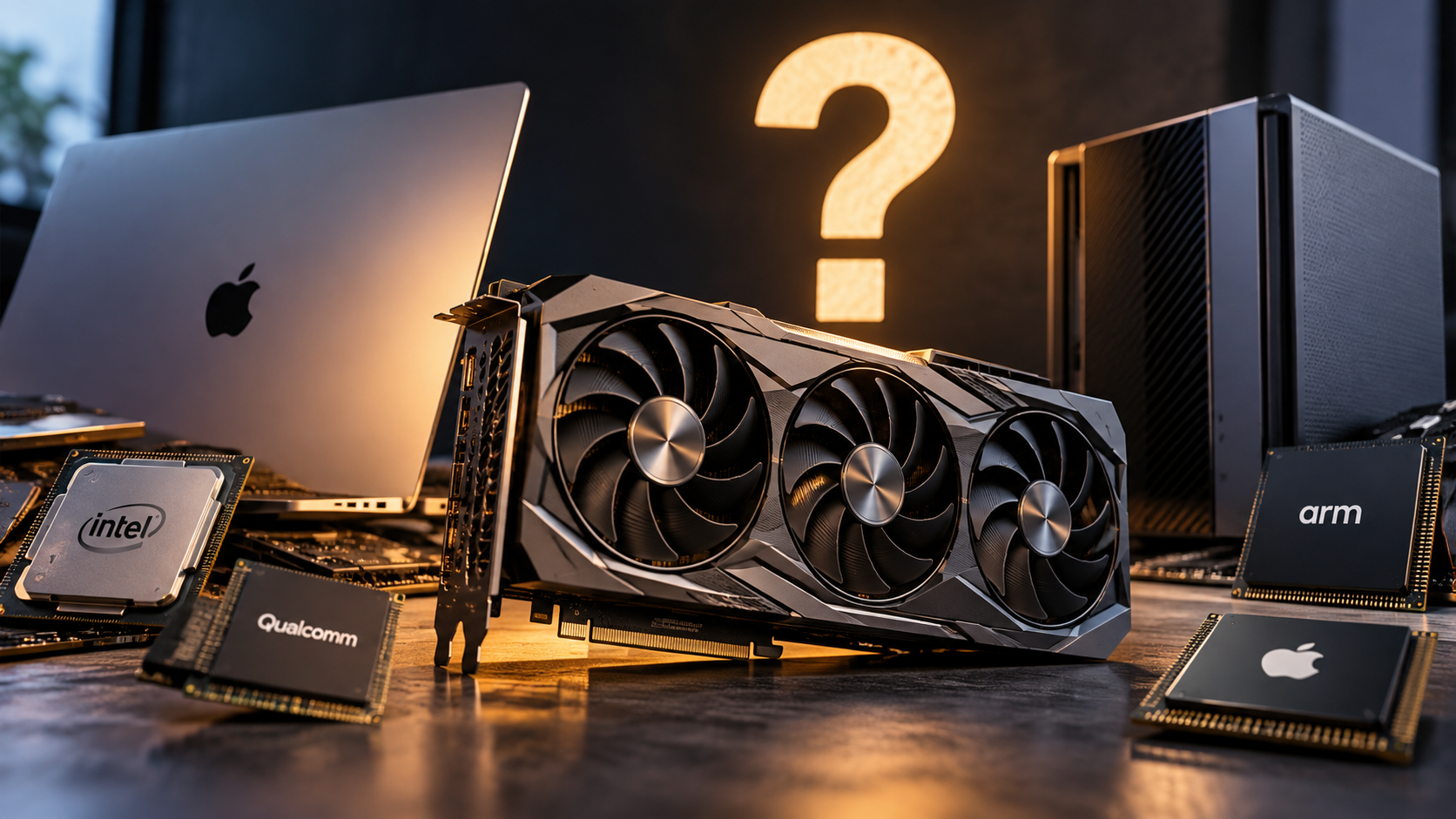
Windows on ARM has also become more relevant. Modern Snapdragon-based Windows laptops can provide strong battery life and quiet operation. Microsoft has improved compatibility through its Windows on ARM software ecosystem and emulation technology.
Apple Silicon remains highly competitive for efficiency and integrated performance. Apple’s unified memory architecture can also benefit workloads that use large amounts of shared CPU and GPU memory.
AI features are another area of development. Windows Copilot+ PCs provide operating-system-level AI features on compatible hardware. Apple Intelligence takes a more integrated approach across supported Apple devices and applications.
The practical choice therefore depends on your priorities. Consider software compatibility, gaming, battery life, upgradeability, external displays, device integration, and privacy before deciding.
The Rise of Windows on ARM vs. Apple Silicon
Windows on ARM has changed the traditional comparison between Windows laptops and Macs. Earlier ARM-based Windows computers often faced significant application compatibility limitations. Newer systems have reduced some of those problems through better emulation and native application support.
Qualcomm Snapdragon processors have helped Windows laptops compete more directly with Apple Silicon in battery life and quiet operation. However, compatibility still depends on the specific application. Specialized software, older utilities, and certain drivers may behave differently on ARM hardware.
Apple Silicon also has important advantages. Apple’s processors combine CPU, GPU, and memory into a tightly integrated architecture. This can deliver strong performance per watt and efficient operation across supported workloads.
Memory capacity is another consideration. Some high-end Macs can use large amounts of unified memory that is shared between the CPU and GPU. Windows workstations can provide much larger dedicated GPU memory through professional graphics cards, but those systems can be considerably more expensive.
The important point is that neither architecture is ideal for every workload. Application compatibility and workload requirements should guide the decision.
Conclusion
Switching to Windows from Mac is not simply a matter of choosing a different operating system. It means adjusting to a different approach to hardware, software, shortcuts, device integration, and everyday workflows.
Windows offers clear advantages for users who need PC gaming, hardware flexibility, specialized software, upgradeable components, or broader device choices. However, the transition can also mean losing some of the seamless integration Mac users experience across Apple devices. Differences in trackpads, window management, system settings, file sharing, and keyboard shortcuts may also take time to adjust to.
The best choice depends on how you use your computer. Before making the switch, review the applications, accessories, devices, and workflows you rely on most. Check whether each one works natively on Windows or requires an alternative.
Ultimately, the goal should not be to choose the platform with the longest feature list. Choose the one that creates fewer compromises for your everyday work, entertainment, and productivity needs.
What Do the Green and Orange Lights on iPhone Mean?
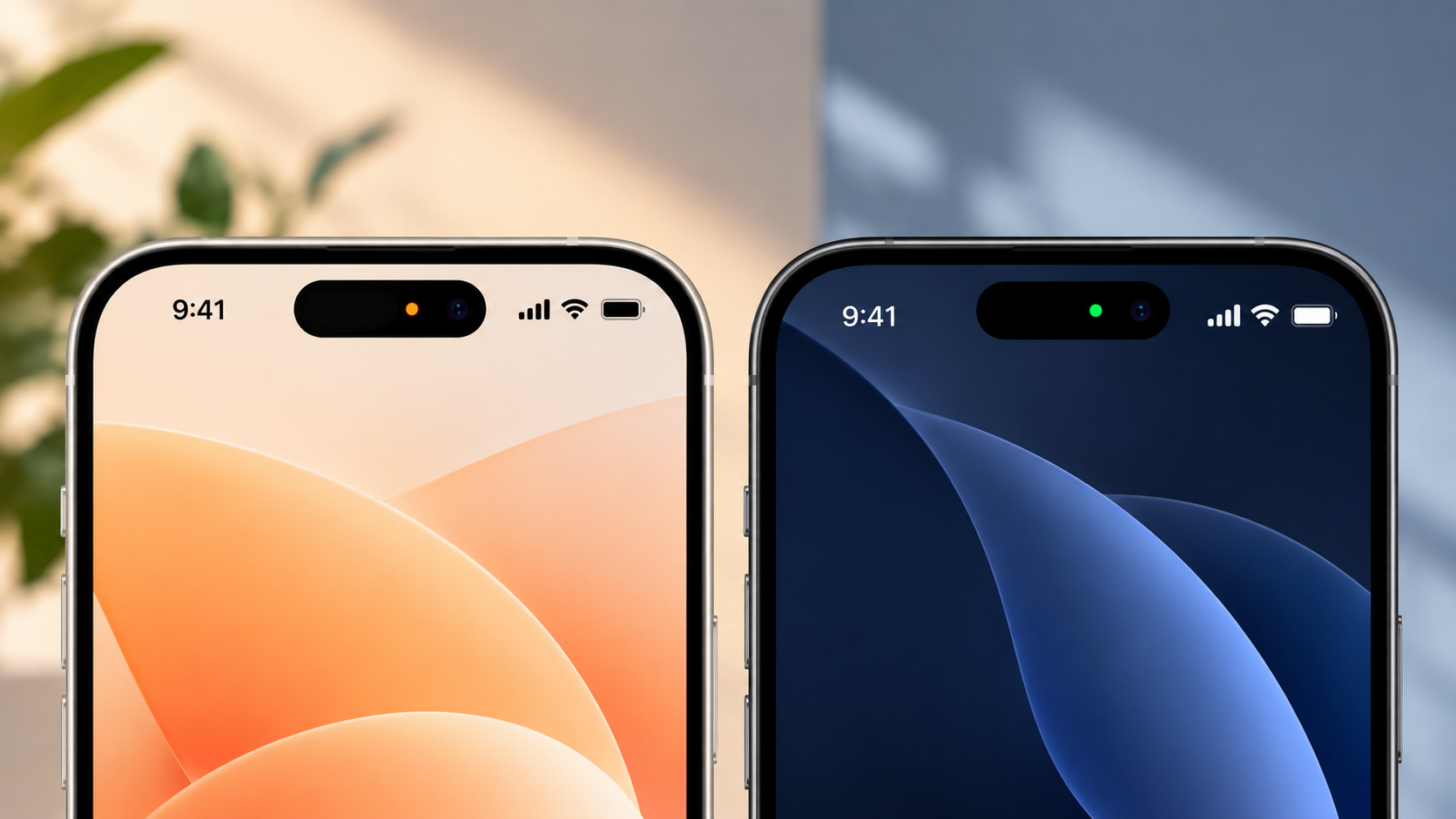
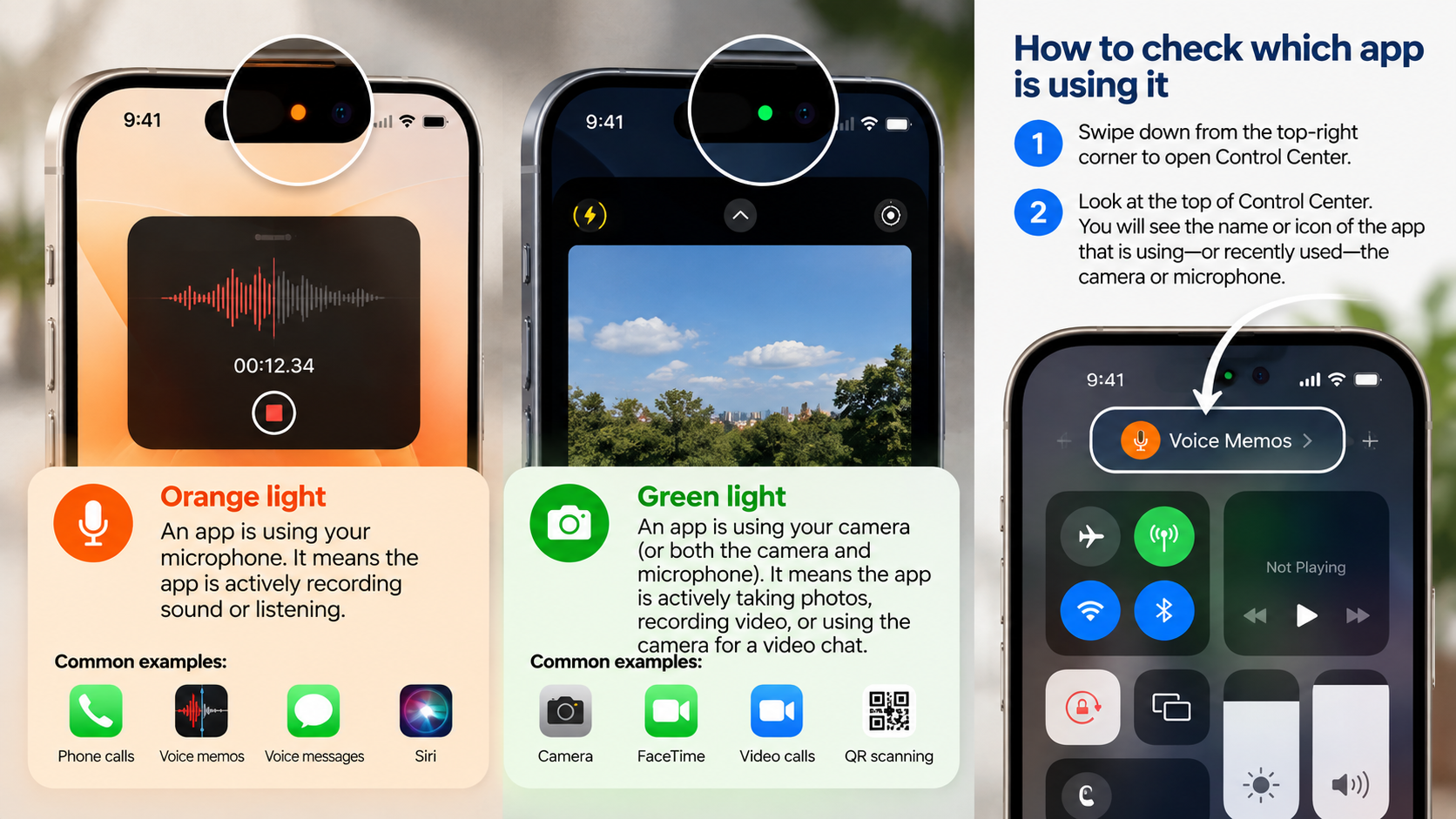
The green and orange lights on iPhone are privacy indicators that tell you when an app is using your camera or microphone. You may notice one of these small lights near the top of your iPhone screen while using certain apps or features.
Apple introduced these indicators with iOS 14 to make sensor access more visible. The orange light indicates microphone use, while the green light indicates camera use or camera and microphone use together, as explained in Apple’s guide to iPhone privacy indicators.
These lights are useful because they give you immediate information about sensitive sensor activity. You do not have to guess whether an app is accessing your microphone or camera.
If a light appears unexpectedly, you can use Control Center and your privacy settings to identify the app involved. Understanding these indicators can help you manage your iPhone privacy and recognize unusual activity.
What Do the Green and Orange Lights on iPhone Mean?
The green and orange lights on iPhone are built-in privacy indicators. They appear near the top of the screen when an app accesses the microphone or camera.
The orange light means that an app is using your microphone. You might see it during a phone call, voice recording, voice message, or Siri interaction.
The green light means that an app is using your camera. It can appear when you use the Camera app, FaceTime, a video meeting, or a camera feature inside another app.
When an app uses both the camera and microphone, iOS displays the green indicator. This makes it easy to recognize that camera access is active.
For accessibility, iPhone also includes Differentiate Without Color. You can find this option under Settings > Accessibility > Display & Text Size. When enabled, the microphone indicator appears as an orange square instead of a circle.
Indicator
Shape
Sensor Accessed
Common Examples
Orange
Circle or square
Microphone
Calls, Siri, voice memos, voice messages
Green
Circle
Camera or camera + microphone
FaceTime, Camera, video calls, QR scanning
Does the Orange Light on iPhone Mean Someone Is Listening?
No. The orange light does not automatically mean someone is secretly listening to you. It means an app is accessing your microphone.
In most cases, there is a simple explanation. You may have started a phone call, recorded a voice message, used Siri, or opened another feature that needs audio input.
Some apps can also request microphone access for specific functions. Communication apps need it for calls, while other apps may use it for voice commands or recording features.
If the orange light appears when you are not using an obvious audio feature, check Control Center. iOS can provide information about the app that recently accessed your microphone.
Common reasons include:
You are on a phone or internet call.
You are recording a voice memo.
You are sending a voice message.
Siri or another voice feature is active.
A communication app is using the microphone.
An app is performing an audio-related function.
Therefore, an orange indicator alone is not evidence of hacking or spying. If an unfamiliar app repeatedly accesses your microphone, review its permissions and investigate further.
How to Identify the App Using Your Microphone
You can check Control Center when you want to find the app responsible for microphone activity. This is especially useful when the orange indicator appears unexpectedly.
On an iPhone with Face ID, swipe down from the top-right corner. On older models with a Home button, swipe up from the bottom of the screen.
Look near the top of Control Center for privacy information. iOS can show which app is currently using, or recently used, the microphone.
If the listed app is familiar, think about what you were doing immediately beforehand. For example, a messaging app may have accessed the microphone because you recorded a voice message.
If you do not recognize the app, review its permissions. Go to Settings > Privacy & Security > Microphone and examine the apps with microphone access.
You can turn off access for any app that does not need the microphone. Keep in mind that disabling permission may stop certain app features from working.
Does the Green Light on iPhone Mean Someone Is Watching You?
No. The green light does not automatically mean someone is watching you through your iPhone camera. It indicates that an app is currently accessing the camera.
You may see the green indicator when using the Camera app, FaceTime, video conferencing services, or camera features inside social media apps. If you are also comparing iPhone camera capabilities, you can explore this iPhone 18 Pro camera review for a closer look at Apple’s camera hardware and photography features.
Other apps can also require camera access. Banking apps may use the camera for document or check scanning. Payment apps and utilities may use it to scan QR codes.
Apps normally need your permission before accessing the camera. You can later review or revoke that permission through iPhone’s privacy settings.
If the green indicator appears unexpectedly, open Control Center and check the privacy information. This can help identify the app that recently accessed the camera.
Do not immediately assume that an unexpected green light means someone is remotely watching you. Instead, check which app triggered it and review its permissions.
Go to Settings > Privacy & Security > Camera to see which apps have camera access. You can disable access for apps that do not require this permission.
Does the Green Light Mean Someone Is Listening?
The green light can appear when an app uses both your camera and microphone. This commonly happens during video calls, video recordings, and other features that capture video with sound.
For example, a video conferencing app may need the camera to display your image and the microphone to transmit your voice. In this situation, iOS displays the green indicator.
The green indicator takes priority when both sensors are active. Therefore, you may not see a separate orange indicator at the same time.
This does not mean that every green indicator automatically confirms microphone use. The green indicator specifically tells you that the camera is being accessed.
If you want to check the details, open Control Center after noticing the indicator. The information displayed there can help identify the app involved.
You can also review camera and microphone permissions under Settings > Privacy & Security. If an app does not need either permission, you can turn it off.
Understanding this distinction prevents unnecessary concern while still giving you a practical way to investigate unexpected sensor activity.
How Can I Tell If Someone Is Listening to My iPhone?
If you are worried about unexpected microphone activity, iPhone provides several tools to help you investigate. These tools can show which apps have access to your microphone and help you review their activity.
Start with Control Center when you notice the orange indicator. It can provide information about recent microphone access and help identify the app involved.
Next, check your permissions. Open Settings > Privacy & Security > Microphone and review every app listed there.
You can also use App Privacy Report to examine app activity. When enabled, it provides information about access to certain sensors and data.
Do not assume that one unexpected indicator proves that someone is spying on you. Many normal iPhone features and third-party apps can legitimately access the microphone.
Instead, look for a pattern of unexplained activity. Useful things to check include:
Unexpected microphone or camera access.
Unfamiliar apps with sensitive permissions.
Unusual battery consumption.
Unexpected mobile data usage.
Unknown configuration profiles.
Other unexplained changes in device behavior.
These checks can help you determine whether the activity has a normal explanation or deserves further investigation.
1. Check Control Center Sensor Activity
Control Center is one of the quickest ways to investigate the green and orange lights on iPhone. When you notice an indicator, open Control Center and check the privacy information near the top.
The information can identify an app that is currently using, or recently used, the microphone or camera. This is particularly useful when the indicator disappears before you can identify its cause.
For example, you may finish recording a voice message and then notice the orange light disappear. Opening Control Center can help you determine which app recently accessed the microphone.
If the listed app is familiar and matches something you just did, the activity is probably expected.
If you do not recognize the app, investigate further. Go to Settings > Privacy & Security and review its microphone or camera permissions.
Control Center should be your first check because it is quick and does not require additional software.
It can provide useful context before you make assumptions about why an indicator appeared.
2. Audit App Permissions in Privacy & Security
Your iPhone lets you control which apps can access sensitive hardware. Reviewing these permissions is one of the simplest ways to improve your privacy. Keeping your iPhone running smoothly can also make everyday app management easier, so you may want to review thesefast fixes for speeding up your iPhone.
Open Settings > Privacy & Security > Microphone. You will see apps that have requested permission to use your microphone.
Review each app and consider whether it genuinely needs microphone access. You can switch off access for apps that do not require it.
Next, return to Privacy & Security and select Camera. Review the apps that have camera permission.
Pay particular attention to apps you rarely use. A game, shopping app, or utility may not need microphone or camera access for its main purpose.
However, an unusual permission does not automatically mean that an app is malicious. Some apps include features that may require access you did not expect.
If you disable a permission, the related feature may stop working. You can always return to the same settings and enable access again.
Regular permission reviews can reduce unnecessary access and give you better control over your iPhone’s sensitive sensors.
3. Review the App Privacy Report
App Privacy Report can help you understand how apps interact with your iPhone. It provides information about certain app activity, including access to sensors such as the microphone and camera.
To find it, open Settings > Privacy & Security > App Privacy Report. If the feature is not active, follow the instructions to turn it on.
Once enough activity has been recorded, review the Data & Sensor Access section. Look for microphone and camera activity that you do not recognize.
The report is useful because it can reveal patterns over time. Instead of investigating only one unexpected indicator, you can review recorded activity from different apps.
For example, you may notice repeated microphone access from an app you rarely use. That information gives you a reason to review the app’s permissions and settings.
However, the report does not automatically prove that an app has misused your information.
Use it together with Control Center and your privacy settings. These tools provide a clearer picture of how apps interact with your iPhone’s sensitive sensors.
4. Watch for Other Unusual Device Activity
An unexpected green or orange indicator does not automatically mean that spyware is installed. If you are concerned about unauthorized activity, look for several unusual signs instead of relying on one symptom.
Unexpected battery drain can sometimes indicate increased background activity. However, poor signal strength, battery age, location services, and demanding apps can also reduce battery life. If your iPhone battery is draining faster than expected, theseways to improve iPhone battery life can help you identify common causes and possible solutions.
You can also check Settings > Cellular for unusual mobile data usage. Unexpected data consumption can have many causes, so check which apps used the most data.
Another area worth reviewing is Settings > General > VPN & Device Management. Look for configuration profiles or management entries that you do not recognize.
Do not remove an unfamiliar profile without understanding its purpose. Some profiles are legitimate and may come from an employer, school, or organization.
The key is to look for a pattern of unexplained behavior. A single indicator usually has a straightforward explanation.
If several unusual signs appear together, review your installed apps, permissions, device-management settings, and account security more carefully.
Conclusion
The green and orange lights on iPhone are designed to give you more visibility into camera and microphone access. The orange indicator means an app is using your microphone, while the green indicator means an app is accessing your camera or both the camera and microphone.
Seeing either light does not automatically mean your iPhone has been hacked or someone is spying on you. In most cases, the indicator appears because you are using a feature that needs camera or microphone access.
If an indicator appears unexpectedly, check Control Center to identify the app. You can also review camera and microphone permissions under Settings > Privacy & Security and use App Privacy Report to investigate app activity.
These simple checks can help you understand what your apps are doing and keep unnecessary sensor access under control. Instead of ignoring the indicators, use them as a practical privacy tool to stay informed about your iPhone.
Google Maps Vs. Waze: Which Navigation App Should You Choose?
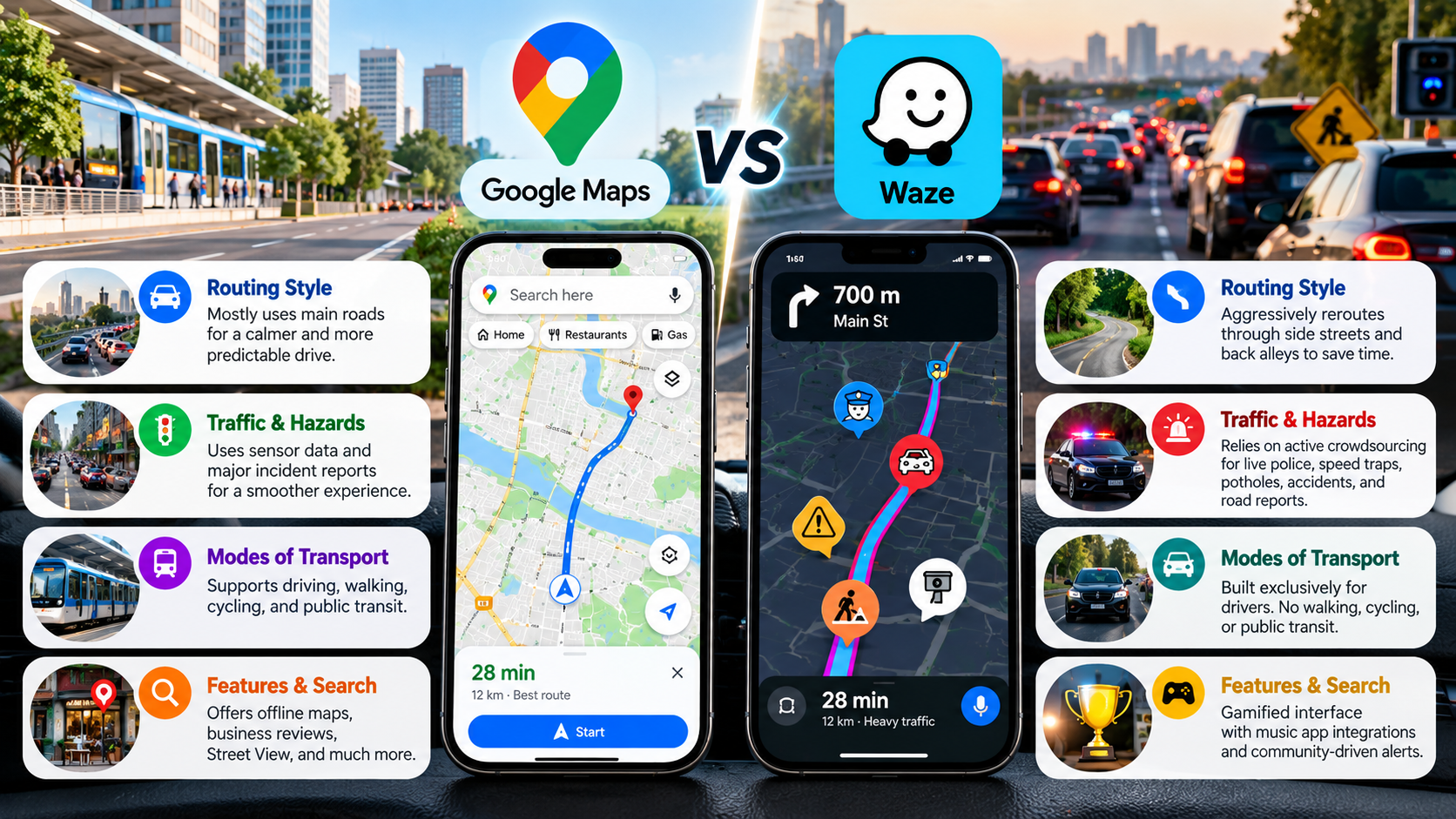
Choosing between Google Maps vs Waze depends largely on how you drive. Both apps provide navigation, traffic information, and route planning. However, they are built around different priorities.
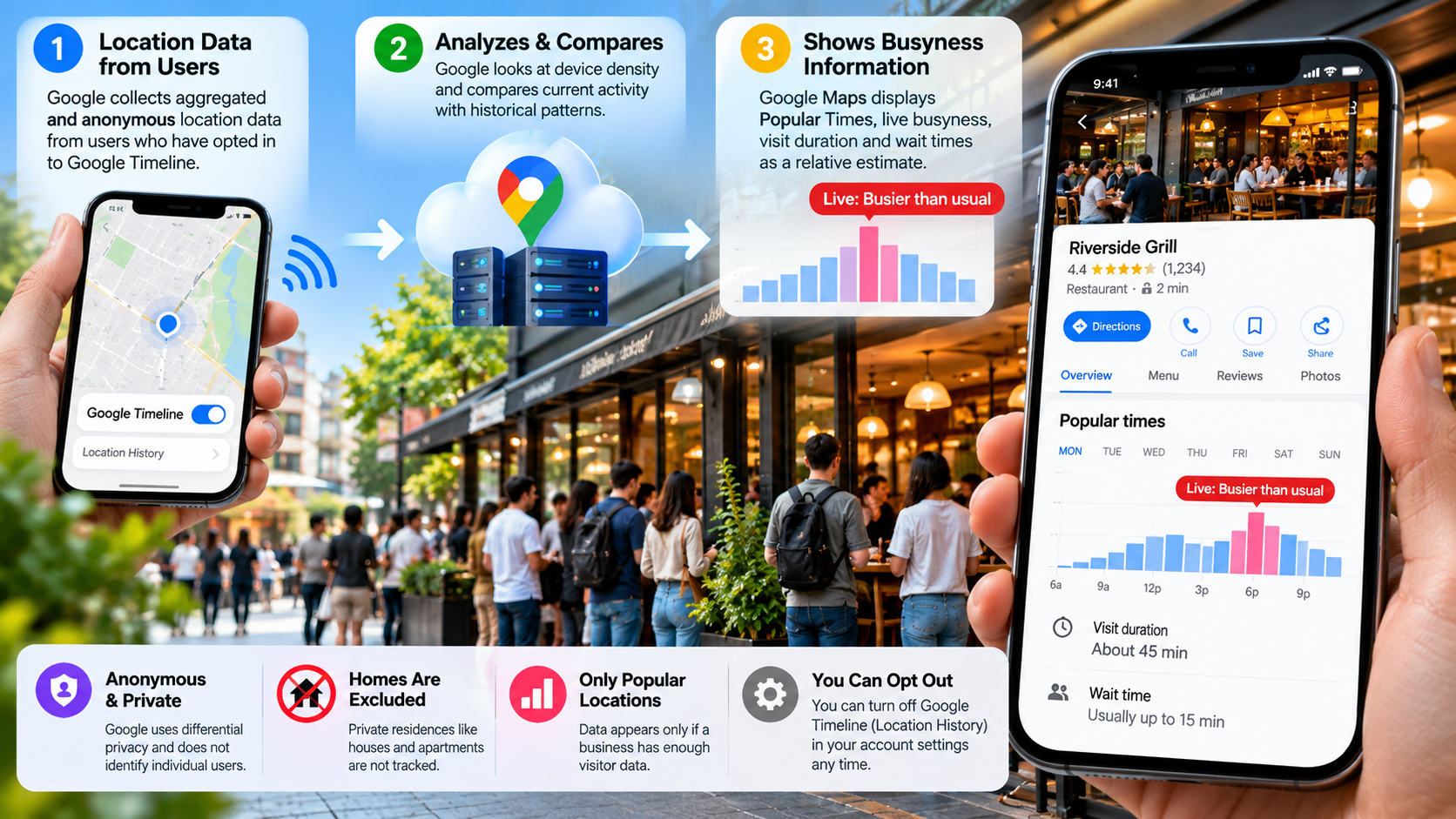
Google Maps is a broad travel and navigation platform. It combines driving directions with local business information, public transit, walking routes, cycling directions, and trip planning. It is also useful when you need information about a place before you arrive, including how Google Maps knows a business is busy.
Waze focuses much more heavily on driving. Its community-driven system uses reports from drivers to provide information about traffic, crashes, road closures, police presence, and other incidents. Google explains how the two navigation services share some incident information in its official Google Maps and Waze update.
That difference matters when choosing a navigation app. Google Maps vs. Waze is less about finding one universal winner. It is more about matching the app to your driving needs, travel habits, and preferred interface.
Is Waze Actually Better Than Google Maps?
Waze is not automatically better than Google Maps. Its advantages become more noticeable when real-time traffic and driver reports are your main priorities. Google Maps offers a broader collection of navigation and travel features.
For a daily commute through heavy traffic, Waze can be useful because its community reporting system provides frequent updates about conditions on the road. Drivers can report crashes, congestion, construction, police presence, lane closures, and other incidents.
Google Maps also supports incident reporting. Current Google documentation lists reports for crashes, traffic jams, mobile speed cameras, police, construction, lane closures, objects on the road, flooding, and other conditions.
The bigger difference is the overall experience. Waze is built primarily around driving and live road conditions. Google Maps combines navigation with local search and several transportation modes.
Route Optimization and Routing Style
Waze is designed around real-time driving conditions and frequent route adjustments. Its community contributes information about crashes, congestion, road closures, and other incidents. That information can influence the routes shown to drivers, while tools such as Android Auto Gemini voice commands can also make hands-free driving interactions more convenient.
This approach can be useful during busy commutes. When traffic changes suddenly, Waze may suggest an alternative route. However, drivers should not assume that every shortcut will be faster or more convenient.
Google Maps also uses live traffic information and alternative routes. Its broader navigation system considers road conditions and travel information while providing several route options. Google has also added features such as toll estimates for certain journeys.
Neither app should be described as simply “aggressive” or “conservative” in every situation. Routing can vary by location, traffic conditions, road data, and destination.
For drivers, the practical difference is simple. Waze emphasizes live community-driven road information, while Google Maps combines routing with a much broader travel ecosystem.
Road Hazards and Community Alerts
One of Waze’s defining features is its community reporting system. Drivers can contribute information about conditions they encounter on the road. That can include crashes, traffic, construction, road hazards, and police presence.
Waze says its community plays an important role in keeping road information current. Its volunteer community includes map editors and other contributors who help maintain the service.
Google Maps also has community-driven incident reports. Users can report crashes, congestion, mobile speed cameras, police, construction, lane closures, objects on roads, flooded roads, and low visibility. Other drivers can also confirm whether reported incidents are still present.
Google has also stated that some incident information shown in Maps comes from both Maps and Waze communities. Users can see the source of certain reports.
This means the gap between the two apps is smaller than it once was. Waze still places more emphasis on live driver reports, while Google Maps presents those reports within a broader navigation experience.
Travel Modes and Everyday Usability
Google Maps has a major advantage when your trip involves more than driving. The app supports multiple transportation options and is designed for everyday travel beyond the car.
Depending on location, Google Maps can provide directions for driving, walking, cycling, and public transportation. It also combines navigation with local search, making it useful when you need to find restaurants, shops, stations, or other places.
Waze is much more focused on road navigation. Its core experience is built around drivers and real-time road conditions. For iPhone users comparing alternatives, Apple Maps or Google Maps offers another useful navigation comparison.
Google Maps is also useful before a journey begins. You can research destinations, compare places, check business information, and plan routes. Google’s Maps product has increasingly emphasized exploring neighborhoods and discovering places, not just turn-by-turn navigation.
For people who mainly drive, Waze can provide a focused experience. For people who use several transportation modes, Google Maps offers considerably broader functionality.
Feature / Capability
Google Maps
Waze
Primary focus
Navigation, travel, and local discovery
Driving navigation and live road conditions
Traffic information
Live traffic and incident reports
Strong focus on community-reported incidents
Incident reporting
Crashes, congestion, police, construction, and more
Extensive community-based road reporting
Supported travel modes
Driving, walking, cycling, and public transit
Primarily road-based navigation
Offline maps
Downloadable maps are available
Does not offer Google Maps-style offline map downloads
Local discovery
Extensive business and place information
More limited
Interface
Information-rich and map-focused
Driving-focused with frequent alerts
Why Did People Stop Using Waze?
There is no single reason that explains why someone might move away from Waze. User preferences differ, and Waze continues to have a large global user base. In December 2022, Waze said it had about 150 million monthly active users worldwide.
One possible reason is the app’s strong focus on live driving information. Frequent alerts and route changes can be useful during congestion. However, some drivers may prefer a simpler navigation experience with fewer interruptions.
Another factor is that competing navigation apps have adopted more incident-reporting features. Google Maps now allows users to report several road incidents, including crashes, congestion, police, speed cameras, construction, and lane closures.
The distinction between the apps has therefore become less dramatic. Google Maps has adopted more community-based traffic information, while Waze remains focused on its driving-first experience.
Battery and data consumption can also vary based on device, network conditions, screen brightness, trip length, and how frequently the app recalculates routes. It is therefore too broad to claim that Waze will always drain more battery than competing navigation apps.
For some drivers, the decision comes down to interface preference. Waze emphasizes alerts and live driving information, while Google Maps provides a broader travel experience.
Which Navigation App Is Best?
There is no universal answer to the Google Maps vs. Waze question. The better choice depends on what you need from a navigation app.
Waze may suit you if:
You commute through heavy traffic regularly.
You value frequent community-reported road updates.
You mainly need driving navigation.
You want an interface centered on live road conditions.
Google Maps may suit you if:
You travel by car, bicycle, foot, or public transportation.
You frequently search for businesses and destinations.
You take road trips and need broader trip-planning tools.
You want downloadable offline maps.
You prefer navigation combined with local discovery.
Google Maps can also be useful when your journey involves several stops or activities beyond simply reaching a destination. Its local search capabilities make it easier to research places before and during a trip.
Waze can make more sense when the driving experience itself is the priority. Its community-based reporting system remains central to the product.
For iPhone users, Apple Maps is another option worth considering. It provides navigation and Apple ecosystem integration, although its feature availability can vary by country and region.
Instead of asking which app is objectively better, consider what you value most: traffic alerts, route flexibility, offline access, travel modes, or local information.
Is Waze Owned by Google?
Yes. Google owns Waze. Google announced that it had completed its acquisition of Waze in June 2013. At the time, Google said Waze’s product development team would remain in Israel and operate separately.
The two products remained separate consumer apps for years. Waze continued to maintain its own identity and community, while Google Maps developed its own navigation and mapping features. This distinction is also useful when comparing Google Maps and Google Earth, which are separate Google products with different purposes.
That organizational structure changed in December 2022. Waze announced that it was joining Google’s Geo organization, which also oversees products such as Google Maps, Google Earth, and Street View. Waze also confirmed that its consumer app would remain a standalone product.
This distinction is important. Google owns both services, but Google Maps and Waze are still separate apps with different user experiences.
The relationship between the products has also become closer. Google has said that some incident information shown in Maps comes from both Maps and Waze communities. Waze has also described collaboration between its teams and Google’s Geo organization.
So, if you were wondering whether Waze was simply renamed Google Maps, the answer is no. Waze remains a separate navigation product under Google’s ownership.
Is Waze on the Boycott List?
This question needs careful wording because different boycott campaigns use different criteria and target lists.
The BDS movement’s current published materials identify Google/Alphabet as a pressure or divestment target. Its materials cite Google’s involvement in Project Nimbus, a cloud contract involving the Israeli government and military.
Because Google owns Waze, someone following a campaign against Google services may also choose not to use Waze. However, that is different from saying that Waze itself appears as a separately named priority target on the BDS materials reviewed here.
Waze was founded in Israel and was acquired by Google in 2013. Its corporate history can therefore be relevant to people researching the issue. Google confirmed the acquisition in its 2013 announcement.
The connection to Project Nimbus comes through Google’s ownership, not through evidence that Waze is itself a contractor under that project. The BDS movement specifically identifies Google and Amazon in its materials concerning Nimbus.
For readers researching ethical or political consumer choices, it is useful to separate three facts:
Waze is owned by Google.
Google is identified by BDS as a campaign target.
That does not automatically mean Waze is separately listed as a BDS priority target.
Consumers who want alternatives can consider services such as OpenStreetMap-based navigation apps or platform-native navigation tools. The right alternative depends on the features and privacy model the user wants.
Google Maps vs. Waze: Which One Should You Choose?
The choice between Google Maps vs. Waze ultimately depends on how you travel. Waze is built around driving, live traffic conditions, and community-reported road incidents. It can be particularly useful for commuters who regularly deal with changing traffic.
Google Maps offers a broader experience. Along with driving directions, it provides public transit, walking and cycling routes, offline maps, and detailed information about businesses and destinations.
If your priority is real-time driving information, Waze may fit your routine better. If you want one app for navigation, travel planning, and local discovery, Google Maps offers a more complete range of features.
Rather than choosing based on which app is universally better, consider your typical journeys. The right navigation app is the one that provides the features, route information, and driving experience you actually need.
Can You Get Rewarded for Contributing to Google Maps? Here’s What You Get
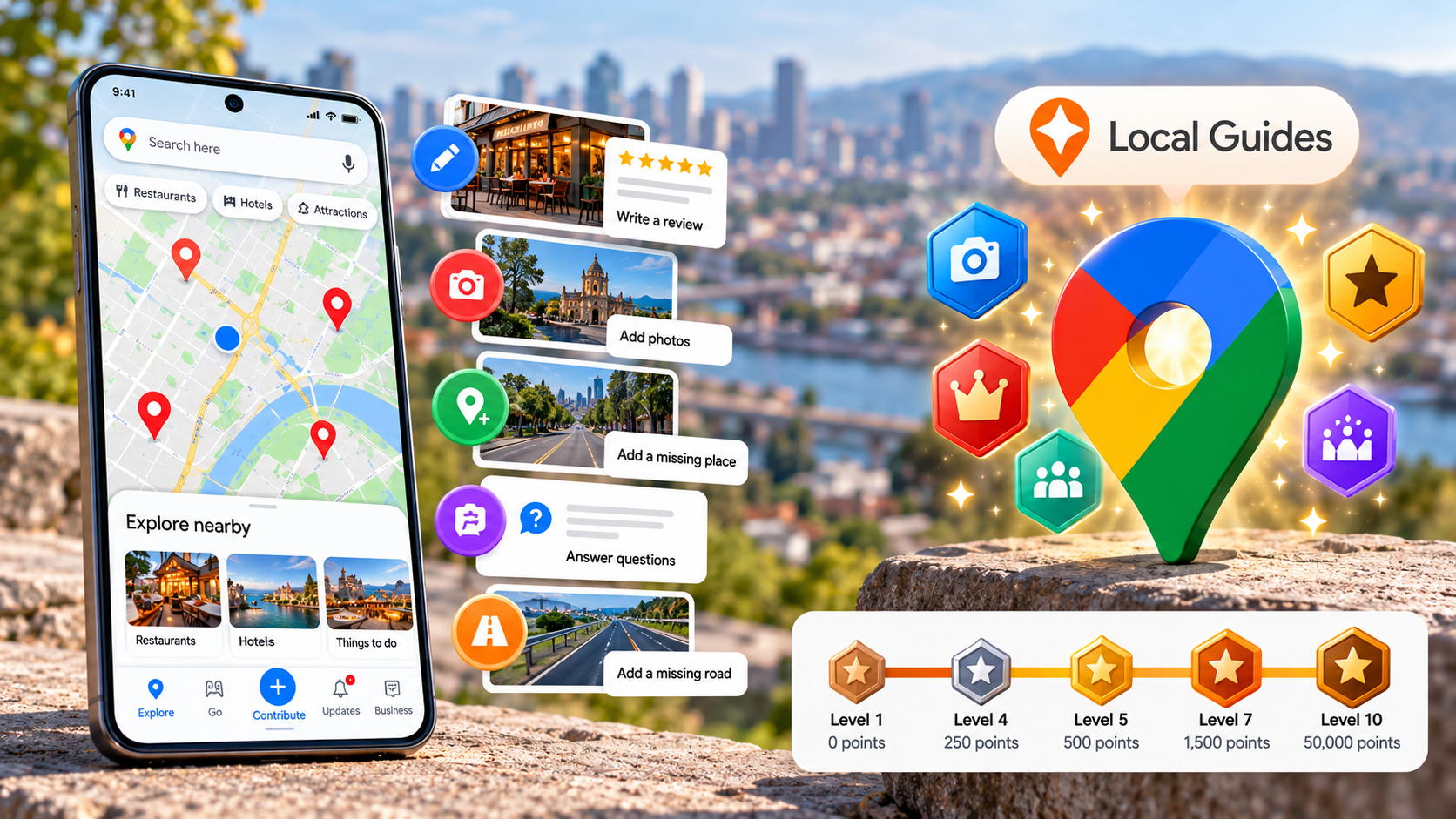
If you want to know whether you can be rewarded for contributing to Google Maps, you should first understand how Google’s Local Guides program works. Google gives contributors points when they share useful reviews, photos, ratings, edits, answers, and other information on Maps. Those points help contributors reach higher Local Guides levels.
However, Google does not treat Local Guides like a regular paid job. You do not receive a salary or guaranteed cash payment for writing reviews or uploading photos. Instead, Google offers recognition, badges, early access to selected features, and invitations to special events.
Google’s Local Guides program lets users contribute reviews, photos, ratings, answers, and other information to Google Maps. If you want to understand how the program works, including its contribution system and eligibility requirements, you can learn more about the Google Local Guides program directly from Google.
Also, Local Guides is different from Google Opinion Rewards. Opinion Rewards can provide rewards for completing surveys, while Local Guides focuses on improving information on Google Maps.
So, how does the system work? What contributions earn the most points? And can you actually make money from Google Maps? Let’s break down the details.
Can you earn by contributing to Google Maps?
Yes, Google rewards eligible Maps contributions with points. However, those points do not work like money. Instead, they help you progress through the Google Local Guides program and reach higher contributor levels.
You can earn points in several ways. For example, you can write reviews, rate places, upload photos, add videos, answer questions, edit place information, add missing places, and check facts. These contributions can also help Google Maps provide useful information about local businesses, including how busy a location may be at different times. You can learn more about how Google Maps knows a business is busy.
Google currently uses the following points system:
Google Maps contribution
Points
Review
10
Review with more than 200 characters
10 bonus
Rating
1
Photo
5
Photo tag
3
Video
7
Caption in a photo update
10
Answer
1
Q&A response
3
Edit
5
Add a place
15
Add a road
15
Fact check
1
Report incorrect information
1
Therefore, your contribution type determines how quickly you collect points. Google also says your points can take up to 24 hours to appear.
Importantly, Google can remove points when a contribution violates its policies. So, simply posting large amounts of content will not guarantee higher rewards.
What Rewards Do Google Maps Contributors Receive?
The main Google Maps contributor rewards involve recognition and access rather than direct payment. As you collect points, you move through the 10 Local Guides levels. Google currently starts at Level 1 and ends at Level 10.
Your first Local Guides badge arrives when you reach Level 4 with 250 points. The badge appears with your eligible contributions and helps identify you as an established Local Guide.
Furthermore, Google says active contributors can receive benefits such as early access to Google features and invitations to special events. However, Google does not promise the same benefits to every contributor.
The main benefits include:
Local Guides badges for reaching qualifying levels.
Early access to selected Google features.
Invitations to special events.
Other rewards or benefits that Google may offer to eligible contributors.
However, you should be careful with older articles that promise specific gifts, discounts, merchandise, or subscriptions. Google does not guarantee a permanent reward catalog.
In other words, you can be rewarded for contributing to Google Maps, but you should not expect a fixed payment for every review, photo, or edit.
How Many Points Can You Earn on Google Maps?
Google gives different numbers of points for different types of contributions. Consequently, the type of content you create affects how quickly you can increase your Local Guides level.
For instance, a normal review earns 10 points. If your review contains more than 200 characters, Google adds another 10 bonus points.
Similarly, each photo earns 5 points, while each video earns 7 points. Adding a missing place or road earns 15 points.
Your total points determine your Local Guides level:
Level
Points required
Level 1
0
Level 2
15
Level 3
75
Level 4
250
Level 5
500
Level 6
1,500
Level 7
5,000
Level 8
15,000
Level 9
50,000
Level 10
100,000
Google says your points and level can take up to 24 hours to update. Also, points do not normally expire, although Google can reduce them when it removes content for policy violations.
Therefore, think of points as a progress system rather than a payment system. More points can help you reach higher levels, but they do not convert into cash.
Can I get paid for using Google Maps?
No, ordinary Google Maps usage does not pay you. Searching for restaurants, checking directions, finding businesses, or using navigation does not automatically earn Local Guides points. If you regularly use mapping services, it is also useful to understand the difference between Google Maps and Google Earth, since the two products serve different purposes.
Instead, Google awards points for eligible contributions that you submit to Maps. These contributions include reviews, ratings, photos, videos, answers, edits, missing places, roads, and fact checks.
However, you can earn money from professional services related to Google Maps. For example, businesses may hire people to improve their local online presence or manage their Google Business Profile. If you also use mapping apps for personal navigation, you may want to compare Apple Maps and Google Maps to understand how their navigation features differ.
Possible professional services include:
Local SEO consulting
Google Business Profile management
Local search optimization
Business photography
360-degree content services
Digital marketing
Software development using mapping technology
These activities differ from the Local Guides program. In those cases, a client pays you for a professional service.
Therefore, you should not confuse earning money around Google Maps with receiving money from Google for Local Guides contributions.
If your goal involves direct income, building a professional service can follow a different path from collecting Local Guides points.
Can We Earn Money by Giving Reviews on Google Maps?
No, you cannot use ordinary Google Maps reviews as a legitimate way to earn guaranteed money. Google does not pay users simply because they write reviews, rate businesses, or upload photos. Instead, the Local Guides program gives eligible contributors points and other forms of recognition.
More importantly, Google prohibits paid and incentivized reviews. Its policy says a review becomes prohibited when a payment, discount, free product, free service, or another benefit influences the contribution. Google also prohibits reviews that manipulate a business’s rating.
For example, a restaurant cannot legitimately offer you money in exchange for a five-star review. Likewise, you should not accept a discount in return for changing a negative review to a positive one.
Google can remove reviews that violate these rules. It can also take action against accounts that repeatedly post fake or misleading content. Businesses can face restrictions as well, including temporary limits on new reviews or the removal of existing reviews.
Therefore, if someone promises “get paid for every Google Maps review,” treat the offer with caution. An official Local Guides contribution does not work like a paid review job.
Instead, write reviews based on your genuine experiences. You can still earn Local Guides points while helping other people make better decisions.
Does Google Rewards Really Pay?
Yes, Google Opinion Rewards can provide real rewards, but it works separately from Google Maps and the Local Guides program. Google Opinion Rewards sends eligible users short surveys from market researchers. In return, Google provides a reward for qualifying completed surveys.
However, Google Opinion Rewards does not pay users for writing Google Maps reviews. If you want to be rewarded for contributing to Google Maps, you need to use the Local Guides program instead. Local Guides contributors earn points for eligible reviews, photos, edits, ratings, and other Maps contributions.
The reward from Opinion Rewards depends on the platform, location, survey, and other factors. Some users receive Google Play credits, while supported users can receive payments through PayPal.
Google also says survey frequency can vary. You cannot simply open the app and request unlimited surveys. Instead, Google sends notifications when eligible surveys become available.
That difference explains why people often confuse Opinion Rewards with Google Maps rewards. Some surveys can ask about places you recently visited, including stores, restaurants, or other businesses. However, Google rewards the eligible survey response, not a public Maps review.
Program
What you do
Reward
Local Guides
Write reviews, upload photos, edit Maps information, and answer questions
Points, levels, badges, and possible benefits
Google Opinion Rewards
Complete eligible surveys
Google Play credits or supported payments
Google Maps
Search, browse, and navigate
No direct payment
So, Google Opinion Rewards really can provide rewards, but it should not be confused with getting paid for Google Maps reviews. If you want to be rewarded for contributing to Google Maps, focus on genuine Local Guides contributions rather than paid reviews.
Conclusion
You can be rewarded for contributing to Google Maps, but Local Guides should not be treated as a regular income source. Google mainly rewards contributors through points, levels, badges, and occasional program benefits.
If you enjoy sharing useful reviews, photos, ratings, and local information, the Local Guides program can give your contributions added recognition. However, avoid offers that promise money for positive or incentivized reviews.
Also, remember that Google Opinion Rewards works differently. It can provide rewards for eligible surveys, but those rewards do not come from writing Google Maps reviews.
Ultimately, the safest approach is simple: contribute genuine information, follow Google’s policies, and view Local Guides rewards as recognition rather than guaranteed income.
The 60-60 rule for headphones is a simple listening guideline designed to help reduce the risk of noise-induced hearing damage. It recommends keeping your volume below 60% and taking regular breaks from continuous listening.
However, listening to loud audio for long periods can increase the risk of noise-induced hearing loss (NIHL). The World Health Organization’s safe listening guidance recommends keeping personal-audio volume below 60% of maximum and taking regular breaks.
The 60-60 rule for headphones provides a simple way to reduce that risk. It encourages listeners to keep volume below 60% of maximum and take regular breaks.
The rule is useful, but it should not be treated as an exact medical limit. The actual sound reaching your ears depends on your device, headphones, recording, and surroundings.
For better protection, combine the 60-60 approach with measured sound levels, shorter exposure at higher volumes, and regular listening breaks.
What Is the 60-60 Rule for Using Headphones?
The 60-60 rule for headphones is a simple safe-listening guideline. It recommends keeping your personal-audio volume below 60% of maximum and taking regular breaks from continuous listening.
The World Health Organization recommends keeping personal-audio volume below 60% of maximum. It also advises staying below about 80 dB average when sound exposure can be measured.
The second “60” is commonly interpreted as limiting continuous listening sessions to about 60 minutes. After that, taking a quiet break can reduce continuous exposure. WHO recommends taking frequent breaks, although it does not prescribe a universal 10- or 15-minute break after every 60 minutes.
Monitor sound exposure when your device provides that feature.
The key idea is simple: lower volume and shorter exposure reduce hearing risk.
Why Does the 60-60 Benchmark Help Protect Hearing?
Hearing risk depends mainly on sound level, listening duration, and repeated exposure. Louder sounds require less exposure time before they become potentially harmful.
Inside the cochlea, sensory hair cells help convert sound vibrations into signals that the brain can interpret. Repeated exposure to excessive sound can damage these cells and other structures involved in hearing. Permanent noise-induced hearing loss can result from repeated or prolonged exposure to loud sounds.
This is why volume and duration should be considered together. A moderately loud sound may be tolerated for much longer than a very loud sound.
The 60-60 approach provides an easy habit for people who do not regularly measure sound levels. However, 60% volume does not equal a fixed decibel level. Different headphones and devices can produce very different sound levels at the same volume setting.
WHO’s current guidance gives a more measurable benchmark. Adults can generally listen to 80 dB for up to 40 hours per week under its safe-listening framework. At higher levels, the available listening time falls quickly.
So, the 60-60 rule works best as a practical starting point, not as a guarantee of safe exposure.
Is 70 dB Safe for Your Ears?
A sound level around 70 dB is generally well below the WHO adult leisure-listening limit of 80 dB. WHO’s safe-listening framework allows up to 40 hours of exposure at 80 dB per week.
The risk still depends on how often and how long you encounter the sound. A single sound level does not tell the complete story.
For perspective, WHO lists normal conversation at roughly 60 dB. Its examples place heavy traffic inside a vehicle around 85 dB and a hair dryer around 100 dB. These figures are approximate because real-world sound levels vary.
Sound level
Example
WHO weekly reference
30–40 dB
Quiet room or library
Generally unlimited
60 dB
Normal conversation
Generally unlimited
70 dB
Moderate background sound
Well below 80 dB
80 dB
Loud everyday sound
Up to 40 hours
90 dB
Shouted conversation
About 4 hours
100 dB
Hair dryer
About 20 minutes
110 dB
Very loud sound
About 2.5 minutes
The important point is that higher volume dramatically reduces safe listening time. WHO’s guidance shows that 90 dB allows far less weekly exposure than 80 dB.
What Is the 7-Day Limit for Headphones?
The so-called 7-day headphone limit refers to a weekly sound allowance. WHO and ITU’s safe-listening standard uses a cumulative exposure model rather than treating every listening session separately.
For adults, the WHO/ITU framework uses 80 dB for up to 40 hours per week. The exposure time decreases as sound levels rise. For example, WHO lists 83 dB for 20 hours, 86 dB for 10 hours, and 92 dB for 2.5 hours per week.
This approach is based on the relationship between sound intensity and exposure duration. With a 3 dB exchange rate, every 3 dB increase roughly halves the permitted exposure time.
NIOSH also uses a 3 dB exchange rate for occupational noise exposure. Its occupational recommendation is 85 dBA for an eight-hour workday, falling to four hours at 88 dBA and two hours at 91 dBA. However, NIOSH specifically notes that this workplace limit is not intended as a general environmental recommendation.
Modern devices can help users monitor sound exposure. Some devices can warn users or reduce volume automatically when exposure becomes excessive. These features are useful because they focus on total sound dose, not simply the device’s volume percentage.
How Many Hours a Day Is It Safe to Wear Headphones?
There is no universal number of hours that is safe for everyone. Hearing risk depends on sound level, exposure time, frequency, and individual circumstances.
For acoustic safety, WHO’s adult reference is more useful than a fixed daily headphone limit. It allows up to 40 hours per week at 80 dB. At 90 dB, that allowance falls to about four hours per week. At 100 dB, it falls to about 20 minutes per week.
Headphone comfort also matters. Wearing earbuds or headphones for long periods can cause discomfort even when the sound level itself is not excessive.
Potential problems include:
Earwax buildup: In-ear devices can interfere with normal earwax movement.
Moisture: Earbuds can create a warm, enclosed environment inside the ear canal.
Pressure: Tight headphones can cause soreness around the ears or head.
Temporary symptoms: Loud listening can cause muffled hearing or ringing.
A practical routine is to keep volume low, take regular breaks, and clean and maintain your headphones according to the manufacturer’s instructions. WHO also recommends taking frequent breaks from loud sounds.
If you experience persistent tinnitus, muffled hearing, or difficulty following conversations, consider getting your hearing checked by a qualified professional.
Why Are Gen Z Wearing Wired Headphones?
Wired headphones have become more visible among younger listeners, including some Gen Z users. The trend has both cultural and practical explanations, as explored in this guide to why Gen Z is using wired headphones.
One factor is nostalgia. Wired earbuds are associated with the aesthetics of the 2000s and early smartphone era. They can also work as a fashion accessory and create a recognizable retro appearance.
There are practical reasons, too. Wired headphones do not require a separate charging case or Bluetooth pairing. They can also be inexpensive to replace, which matters for people who frequently lose small earbuds.
Other advantages can include:
No battery requirement: Traditional wired models work without charging.
Simple connection: Plugging them in can be easier than pairing a wireless device.
Low latency: A wired connection can reduce noticeable audio delay.
Easy replacement: Basic wired earbuds are often inexpensive.
Consistent availability: They remain useful when wireless batteries are depleted.
However, wired headphones are not automatically safer for hearing. Volume and exposure time still determine much of the hearing risk, regardless of whether the connection is wired or wireless. WHO recommends keeping personal-audio volume below 60% and monitoring sound exposure when possible.
The resurgence of wired audio is therefore better understood as a mix of style, simplicity, cost, and convenience rather than a hearing-health solution.
Conclusion
The 60-60 rule for headphones offers a simple way to build safer listening habits. Keeping the volume below 60% and taking regular breaks can help reduce prolonged exposure to loud sound.
However, volume percentage alone does not tell you the exact sound level reaching your ears. Different headphones and devices can produce different decibel levels at the same setting.
For better hearing protection, keep your listening volume comfortable, avoid long periods of loud audio, and use your device’s hearing-safety features when available. If you notice persistent ringing, muffled hearing, or difficulty understanding conversations, consider having your hearing checked.
Wired or wireless, headphones can be part of your daily routine without becoming a hearing risk. If you are comparing the two formats, this guide towired vs wireless audio can help you understand their differences. The key is to control volume, limit exposure, and give your ears regular breaks.
Google Pixel 10 vs OnePlus 15 Battery Life: Which Phone Lasts Longer?
The Google Pixel 10 vs OnePlus 15 battery life comparison highlights two different approaches to smartphone endurance. The OnePlus 15 focuses on a much larger battery, fast charging, and high-performance hardware. The Google Pixel 10 combines a smaller battery with Google’s Tensor G5 processor and software optimization.
Battery capacity is important, but it does not tell the whole story. Display settings, processor efficiency, network strength, background apps, and usage habits can all affect daily battery life.
Google rates the Pixel 10 for 24+ hours of battery life and lists a 4,970mAh typical battery with 30W USB-C PPS charging. You can check Google’s official Pixel 10 specifications for the complete battery and charging details.
The OnePlus 15 has a significant hardware advantage in battery capacity and charging speed. The Pixel 10 takes a different approach by focusing on software integration, AI features, camera processing, and long-term updates.
If battery endurance and fast charging are your main priorities, the OnePlus 15 has the stronger battery-focused specifications. However, the Pixel 10 can still provide dependable everyday battery life for users who prefer Google’s software experience.
Which One Is Better, OnePlus 15 or Pixel 10?
The answer depends on what you expect from your phone. The OnePlus 15 and Pixel 10 are both flagship-class smartphones, but they emphasize different areas. OnePlus focuses heavily on battery capacity, charging, performance, and gaming. Google focuses more on software integration, photography, AI features, and long-term support.
For the Google Pixel 10 vs OnePlus 15 battery life comparison, the hardware difference is particularly important. The OnePlus 15 uses a substantially larger battery than the Pixel 10. It also offers much faster wired charging in supported markets. If you want to understand how charging habits can affect battery health, see our guide to overnight charging and smartphone batteries. That combination can be useful for heavy users who frequently need to recharge during the day.
The Pixel 10 uses a smaller battery, but Google’s software optimization helps it deliver all-day use under normal conditions. Its lower charging speed means it is less focused on rapid battery recovery.
Feature
OnePlus 15
Google Pixel 10
Battery technology
Silicon NanoStack
Lithium-ion
Battery capacity
7,300mAh
4,970mAh typical
Wired charging
Up to 120W in supported markets
30W USB-C PPS
Wireless charging
Up to 50W in supported markets
Up to 15W
Processor
Snapdragon 8 Elite Gen 5
Google Tensor G5
Display
Adaptive high-refresh-rate display
60–120Hz OLED
Software
OxygenOS
Pixel software experience
Performance and Daily Endurance: OnePlus 15
The OnePlus 15 is designed for users who demand strong performance throughout the day. Its large battery gives it considerably more capacity than the Pixel 10. That extra capacity can be useful during gaming, video streaming, navigation, photography, and extended mobile data use. OnePlus users can also explore useful accessories for OnePlus phones to make everyday use more convenient.
The phone also combines its large battery with flagship-level processing hardware. This makes it suitable for demanding applications and games. Its high-refresh-rate display can make scrolling and gaming feel smoother, although higher refresh rates can increase power consumption.
Charging is another major part of the OnePlus approach. The phone supports very fast wired charging in supported markets. This means users can recover a significant amount of battery in a relatively short period.
The Google Pixel 10 vs OnePlus 15 battery life difference becomes especially noticeable for heavy users. A larger battery provides more capacity before the phone needs a charger. Fast charging also reduces the amount of time spent connected to a power outlet.
For users who frequently game, stream, travel, or use demanding applications, the OnePlus 15’s battery hardware is an important advantage.
Daily Software and Camera Experience: Google Pixel 10
The Pixel 10 takes a more software-focused approach to the smartphone experience. Its battery is smaller than the OnePlus 15’s, but Google combines it with the Tensor G5 processor and Android software designed specifically for Pixel devices.
Google claims the Pixel 10 can provide more than 24 hours of battery life under its testing conditions. Extreme Battery Saver can extend the claimed runtime significantly when enabled. Actual results depend heavily on how the phone is used.
The Pixel 10 also focuses strongly on photography and artificial intelligence. Google’s image-processing system is designed to improve photos without requiring users to manually adjust many camera settings.
The phone also benefits from Google’s software ecosystem. Pixel-exclusive features, AI tools, and long-term software support are important parts of its overall appeal.
For the Google Pixel 10 vs OnePlus 15 battery life comparison, the Pixel 10 does not compete through battery capacity. Instead, it combines a smaller battery with software optimization and a broader software experience.
Users who mostly browse the web, use messaging apps, take photos, stream content, and perform everyday tasks may find the Pixel 10’s battery sufficient for a full day.
Is the OnePlus 15 Battery Draining Fast?
A large battery does not guarantee that every user will experience excellent battery life. If your OnePlus 15 battery is draining quickly, the cause may be related to settings, applications, network conditions, or demanding workloads. Features such as bypass charging can also be useful when managing battery heat and charging during demanding tasks.
The display is one of the first things to check. High brightness and frequent use of high refresh rates can increase power consumption. Gaming can increase consumption even further because the processor, graphics hardware, display, and cooling system remain active for extended periods.
Mobile network conditions can also affect battery life. A phone operating in an area with weak cellular coverage may use additional power while maintaining a stable connection.
Background applications are another common cause. Social media, navigation, cloud services, and other applications may continue working after you stop actively using them.
Software updates can temporarily change battery behavior as well. Background optimization and application processing may increase activity for a short period.
Before assuming there is a hardware problem, check the phone’s battery-usage information. It can help identify whether a particular application or system feature is consuming an unusual amount of power.
Primary Causes of Battery Drain on OnePlus Devices
Several factors can cause faster-than-expected battery drain on the OnePlus 15. Understanding these causes makes it easier to identify the problem instead of changing random settings.
Display brightness is one of the most obvious factors. Keeping the display near maximum brightness for long periods can significantly increase power consumption. A high refresh rate can also use additional energy during demanding activities.
5G connectivity can affect battery life when coverage is weak. The modem may work harder when the phone repeatedly searches for or maintains a connection.
Gaming and demanding applications are another major factor. Graphics-intensive games place sustained demands on the processor and display. Video recording and editing can also increase power usage.
Background applications may continue syncing, tracking locations, or processing data when you are not actively using them.
After a major software update, temporary background activity may also increase consumption. However, not every battery problem is caused by an update.
The easiest way to identify the actual cause is to check the battery statistics. Look for applications that consume unusually high amounts of power compared with your normal usage.
How to Diagnose and Reduce High Battery Drain
Start by opening the phone’s Battery Usage section. Check which applications and system functions have consumed the most power. An application using an unusually large percentage may need attention. You can also explore hidden features on OnePlus phones that may help you get more from the device.
Next, review the display settings. Use adaptive brightness instead of keeping brightness manually near maximum. Adaptive refresh behavior can also help reduce unnecessary power consumption during lighter tasks.
You should also review background activity. Applications that do not need constant synchronization may not need unrestricted background access. However, avoid restricting essential messaging or communication applications if you rely on immediate notifications.
Network conditions can also influence battery life. If you frequently use your phone in an area with weak cellular coverage, higher power consumption may be unavoidable.
Gaming is another area where expectations matter. Long gaming sessions can consume battery quickly, even on phones with very large batteries.
Avoid regularly draining the phone to extremely low levels simply to calibrate the battery. Modern battery-management systems generally do not require routine full discharge cycles.
If battery drain remains unusually high after checking these factors, restart the phone and check for software updates. Persistent problems may require manufacturer support.
Which Phone Is Better, the Google Pixel or the OnePlus?
The broader Pixel-versus-OnePlus comparison involves more than battery life. Both brands offer different approaches to Android, and those differences can affect which phone fits your needs.
OnePlus places considerable emphasis on hardware performance. Its flagship phones typically focus on fast processors, high-refresh-rate displays, large batteries, rapid charging, and gaming features.
Google takes a more integrated approach. Pixel phones combine Google’s Android software with custom Tensor processors, computational photography, AI tools, and Pixel-exclusive features.
The Google Pixel 10 vs OnePlus 15 battery life comparison therefore represents only one part of the decision. The OnePlus 15 has a substantial battery-capacity advantage, while the Pixel 10 offers a software-focused experience.
Camera performance is another important difference. Google has built much of the Pixel identity around computational photography. OnePlus instead combines high-end camera hardware with its own processing and software features.
Software support is also important. Google has committed to long-term updates for the Pixel 10.
Your choice should therefore depend on your daily priorities. Battery capacity, charging speed, gaming, cameras, software features, and update support can all matter differently depending on how you use your phone.
Google Pixel Ecosystem: Software Integration and Imaging
Google’s Pixel strategy focuses on integrating hardware, Android, artificial intelligence, and photography. The Pixel 10 uses Google’s Tensor G5 processor and provides several features designed around Google’s software ecosystem.
Photography is one of the major Pixel strengths. Google’s computational photography processes images automatically to improve exposure, detail, color, and other aspects of everyday photos.
The Pixel 10 also includes AI-powered features designed to make everyday tasks easier. These features are integrated directly into the Pixel software experience rather than being treated as separate applications.
Another important consideration is software support. Google provides long-term software and security updates for Pixel devices, which can help users keep their phones for several years.
The Pixel approach is therefore different from simply maximizing hardware specifications. Google emphasizes how the processor, operating system, camera system, and AI tools work together.
For users who value a clean Android experience and Google’s software ecosystem, these features can be more important than having the largest possible battery.
However, the Pixel 10’s smaller battery and slower charging mean that it is not designed around maximum charging speed. Users who frequently need rapid top-ups may prefer the OnePlus approach.
The Google Pixel 10 vs OnePlus 15 battery life difference is therefore only one part of the larger ecosystem comparison.
OnePlus Ecosystem: Raw Speed and Power Engineering
OnePlus has traditionally focused on speed, responsiveness, charging, and performance. The OnePlus 15 continues that approach with a large battery, high-end processing hardware, and fast charging.
Its 7,300mAh battery provides substantially more capacity than the Pixel 10. OnePlus also supports high-speed wired charging in supported markets. This combination is particularly useful for people who spend long periods away from a charger.
The phone also focuses on gaming performance. Its high-refresh-rate display can provide smoother motion during supported gaming scenarios. However, using higher refresh rates and demanding graphics settings can increase power consumption.
Thermal management is another important part of the design. Sustained workloads generate heat, so cooling hardware helps the phone maintain performance during demanding activities.
OxygenOS also provides customization and multitasking features. Users who like changing interface settings or managing several applications may appreciate this flexibility.
For battery-focused users, the most important difference is simple: OnePlus prioritizes battery capacity and charging speed more heavily than Google does.
This does not mean every user will see the same battery results. Network strength, brightness, applications, refresh rate, and usage patterns still influence endurance.
Still, the hardware specifications make the OnePlus 15 particularly relevant for users who prioritize large battery capacity, fast charging, gaming, and sustained performance.
Which Is Better, OnePlus 15 or Google Pixel 10a?
The OnePlus 15 and Google Pixel 10a belong to different smartphone categories. The OnePlus 15 is a flagship model designed around high-end performance, battery capacity, charging, and gaming. The Pixel 10a targets users who want Google’s software experience at a lower price point.
That makes a direct comparison less straightforward. The OnePlus 15 has considerably more performance-focused hardware and a much larger battery. The Pixel 10a instead focuses on delivering Google’s core software and camera experience in a more affordable package.
Battery capacity is one of the clearest differences. The OnePlus 15 uses a 7,300mAh battery, while the Pixel 10a uses a smaller battery designed around its own hardware and software configuration.
Charging also differs between the two product categories. OnePlus focuses heavily on rapid charging, while Google’s A-series phones are generally positioned around more moderate charging speeds.
The Pixel 10a can still appeal to users who do not need flagship performance. Its camera processing, software features, and Google ecosystem remain important selling points.
Therefore, the comparison should focus on priorities rather than treating the two phones as direct competitors. The OnePlus 15 emphasizes hardware performance and endurance. The Pixel 10a emphasizes value and Google’s software experience.
Where the OnePlus 15 Outperforms the Pixel 10a
The biggest difference between the two phones is their hardware positioning. The OnePlus 15 is a flagship designed for demanding workloads, while the Pixel 10a is positioned as a more affordable Pixel device.
Battery capacity is one of the most obvious differences. The OnePlus 15 has a 7,300mAh battery, giving it substantially more capacity than the Pixel 10a.
Charging is another major difference. OnePlus supports much faster wired charging in supported markets. This can make a significant difference for users who regularly need to recharge their phone quickly.
Processing performance is also an important consideration. The OnePlus 15 uses Qualcomm’s flagship Snapdragon 8 Elite Gen 5 platform. The Pixel 10a uses Google’s Tensor G4 processor.
The OnePlus 15 also has a high-refresh-rate display and hardware designed for demanding workloads. These features make it more suitable for gaming and intensive multitasking.
However, higher performance can also mean higher power consumption during demanding tasks. Battery life still depends on how the phone is used.
For users who prioritize:
Large battery capacity
Fast charging
Gaming performance
High-refresh-rate display
Sustained hardware performance
the OnePlus 15 offers a more hardware-focused configuration.
Where the Google Pixel 10a Remains Compelling
The Pixel 10a focuses on delivering Google’s software experience without requiring users to purchase its most expensive flagship models. That makes it a different proposition from the OnePlus 15.
Camera processing is one of the Pixel A-series’ important features. Google’s computational photography can help the phone produce strong everyday photos without relying entirely on expensive camera hardware.
Software is another major consideration. Pixel devices provide Google’s Android experience and access to Pixel-specific features. Users who already prefer Google’s ecosystem may find this more important than raw specifications.
The Pixel 10a also targets users who do not need the highest processor performance. Browsing, messaging, social media, photography, streaming, and everyday applications do not always require flagship-level hardware.
Its lower position in Google’s product range can also make it more accessible to buyers who want Pixel features without moving to a flagship price.
The OnePlus 15 has advantages in battery capacity, charging, and performance hardware. However, those features may not justify choosing a flagship for someone with lighter usage needs.
The Pixel 10a is therefore better understood as an affordable Pixel experience, rather than a direct competitor to the OnePlus 15.
For buyers comparing these phones, price, camera features, software preferences, performance requirements, and battery expectations should all be considered together.
Google Pixel 10 vs OnePlus 15 Battery Life: Final Comparison
The Google Pixel 10 vs OnePlus 15 battery life comparison shows a clear difference in hardware strategy. OnePlus gives the 15 a much larger battery and significantly faster charging capability. Google uses a smaller battery and focuses more heavily on software integration and Pixel features.
The OnePlus 15’s 7,300mAh battery gives it a substantial capacity advantage over the Pixel 10’s 4,970mAh typical battery. Its high-speed wired charging also makes quick top-ups a major part of the phone’s design.
The Pixel 10 still targets dependable everyday battery life. Google claims more than 24 hours of battery life under its testing conditions, while Extreme Battery Saver can extend usage considerably in supported scenarios.
Real-world results will vary. Gaming, camera use, mobile data, brightness, refresh rate, background applications, and network strength can all change battery performance.
For this reason, battery capacity should not be treated as a guaranteed number of hours.
The practical difference is easier to understand through priorities:
OnePlus 15: Larger battery, faster charging, gaming-focused hardware, and high performance.
Google Pixel 10: Software integration, AI features, computational photography, and long-term updates.
If your main concern is battery capacity and charging speed, the OnePlus 15’s specifications are clearly designed around that requirement. If you care more about Google’s software ecosystem and Pixel features, the Pixel 10 offers a different balance.
Ultimately, the best choice depends on how you use your phone rather than battery capacity alone.
Ditching Windows for Mac: Why People Are Switching From Windows Laptops
Ditching Windows for Mac has become an increasingly common consideration for professionals, developers, students, and remote workers. MacBooks now combine efficient Apple Silicon processors, long battery life, refined hardware, and strong integration with other Apple devices.
For decades, Windows dominated the laptop market through variety, customization, gaming support, and broad software compatibility. Apple’s macOS remained especially popular among creative professionals and users already invested in the Apple ecosystem.
That balance has changed as MacBooks have become more capable and efficient. However, switching platforms is not automatically the right decision. Windows still offers major advantages in gaming, hardware choice, upgradeability, and compatibility with specialized software.
The real question is not whether MacBooks are better than Windows laptops. It is whether a MacBook fits your workflow, software requirements, budget, and expectations.
Is It Better to Get a MacBook or a Windows Laptop?
Neither platform is universally better. The right choice depends on how you use your laptop every day. MacBooks are particularly appealing when battery life, silent operation, build quality, and Apple ecosystem features are important priorities.
A MacBook can be a strong fit if you need:
Long battery life for work, study, and travel.
Consistent performance across everyday workloads.
A high-quality trackpad, display, speakers, and microphone.
Unix-based development tools and terminal workflows.
The key is to compare specific laptops rather than treating either operating system as universally superior.
Is It Worth Ditching Windows for Mac?
Ditching Windows for Mac can be worthwhile, but the decision depends heavily on your software and workflow. Browser-based work, writing, programming, communication, and many creative applications transfer well between platforms.
Compatibility is the biggest issue to investigate before switching. Check every application you depend on, including work software, accounting tools, engineering applications, games, peripherals, and company-specific programs.
Windows users also need time to adjust to macOS conventions. File management works differently because macOS uses Finder instead of File Explorer. Window management also differs from Windows 11, where Snap Layouts make side-by-side multitasking familiar.
macOS provides Mission Control, Spaces, and Stage Manager. Some users also install third-party window-management utilities for additional control.
Keyboard shortcuts require another adjustment. Command replaces Control for many common actions, including copying and pasting. Most users can learn the basics quickly, but the first few days can feel unfamiliar.
Cost also matters. MacBooks generally have higher starting prices, while Windows offers more budget choices. Resale value varies by model, condition, age, and configuration.
Which Will Be Better in 2026, Mac or Windows?
In 2026, the Mac-versus-Windows comparison is less straightforward than it was several years ago. Apple Silicon continues to give MacBooks a strong combination of performance and efficiency, but Windows laptops have improved significantly.
Modern Windows laptops now include efficient ARM and x86 processors designed for longer battery life. Copilot+ PCs also bring dedicated neural processing units to many newer systems, allowing supported AI workloads to run locally.
This has reduced some of the efficiency advantage that helped Apple Silicon stand out when it first arrived.
The two platforms still take different approaches. macOS emphasizes Apple’s tightly integrated hardware and software ecosystem. Windows provides greater hardware variety and supports a wider range of manufacturers and form factors.
Windows also remains important for PC gaming, specialized applications, and legacy software. macOS continues to appeal to developers, creative professionals, and users who prioritize portability and ecosystem integration.
Rather than asking which platform will dominate in 2026, compare the features that matter to your workload. Ditching Windows for Mac makes more sense when macOS solves problems you regularly experience.
Is a MacBook Safer Than a Windows Laptop?
A MacBook is not immune to malware, phishing, or security vulnerabilities. However, macOS includes several security layers designed to make unauthorized software and system changes more difficult.
Apple’s Gatekeeper checks downloaded applications and verifies developer signatures. macOS also uses notarization to help identify potentially malicious software before users open it.
Another important protection is System Integrity Protection (SIP). It restricts even processes with high-level privileges from modifying protected parts of the operating system. This can limit the damage caused by certain attacks.
Modern Macs also include hardware-level security features through Apple Silicon and the Secure Enclave. These technologies support secure boot, encryption, and biometric authentication on compatible devices.
Windows is not fundamentally insecure. Microsoft includes protections such as Microsoft Defender, Secure Boot, hardware-backed security, and other Windows security features.
The practical difference is therefore more nuanced than saying Mac is secure and Windows is unsafe. Both platforms require good security habits. Users should install updates, use strong passwords, avoid suspicious downloads, and remain cautious about phishing messages.
Security should be treated as one factor in the decision, rather than the sole reason for ditching Windows for Mac.
Why Are People Ditching Windows for Mac?
The reasons for ditching Windows for Mac often have less to do with benchmark scores and more to do with everyday usability. A laptop can feel significantly better when small conveniences work consistently throughout the day.
Four factors commonly influence the decision:
Efficient performance: Apple Silicon combines strong performance with relatively low power consumption.
Refined hardware: MacBooks offer an integrated experience across the trackpad, display, speakers, keyboard, and chassis.
Apple ecosystem: Features such as AirDrop and Universal Clipboard connect compatible Apple devices.
Long-term ownership: Strong resale demand can reduce the effective cost of upgrading.
These advantages do not apply equally to every user. Someone who primarily plays demanding PC games may value Windows compatibility more. A professional using Windows-only software may also face unnecessary complications by switching.
The decision therefore comes down to friction. If your current Windows laptop creates problems that macOS can realistically solve, switching may be worthwhile.
If your frustrations are mainly related to a specific laptop’s hardware, however, buying a better Windows laptop could solve the problem without changing operating systems.
1. Consistent Performance on Battery
Apple Silicon changed expectations around laptop efficiency. Current MacBook Air models combine strong performance with a fanless design, which eliminates internal fan noise during normal operation.
Apple’s battery estimates can be useful for comparison, but real-world battery life depends on brightness, applications, network activity, workload, and other settings. Demanding tasks such as video rendering will also consume more power than light web browsing.
This makes MacBooks attractive to students, travelers, writers, developers, and remote workers who frequently work away from a charger.
However, Windows laptops have improved considerably. Newer ARM-based and efficient x86 systems can also deliver strong battery life and responsive performance.
The old assumption that Windows laptops always perform poorly on battery is no longer accurate. Some Windows models now compete closely with Macs in efficiency.
The more useful approach is to compare individual laptop models. Look at processor efficiency, battery capacity, display power consumption, cooling, and independent battery testing.
For users considering ditching Windows for Mac, battery performance should be compared against the Windows laptop they actually own.
2. Refined Hardware Experience
Apple puts considerable emphasis on the physical experience of using a MacBook. The trackpad, keyboard, speakers, display, microphone, and chassis are designed to work together as a complete system.
The Force Touch trackpad uses haptic feedback instead of relying entirely on a conventional mechanical click. This allows consistent feedback across the surface.
MacBook Air models also use a fanless design. That means there is no internal cooling fan producing noise during operation.
Premium Windows laptops can compete strongly in individual hardware categories. Some offer excellent OLED displays, high refresh rates, powerful speakers, comfortable keyboards, and precision trackpads.
The difference is often consistency across Apple’s lineup rather than an absolute hardware advantage.
MacBooks also have a relatively limited selection compared with Windows laptops. Windows buyers can choose from many manufacturers, sizes, designs, processors, graphics options, and price points. Port selection is another difference, especially for users who connect external displays, and understanding why some laptops don’t have HDMI ports can help when comparing different models.
For someone ditching Windows for Mac, hardware quality can be a compelling reason to switch. However, buyers should compare specific models rather than assuming every MacBook automatically beats every Windows laptop.
3. Apple Ecosystem Continuity
The Apple ecosystem can be one of the strongest reasons for ditching Windows for Mac. Its biggest advantage appears when someone already owns multiple Apple devices.
Compatible Macs, iPhones, and iPads can share several features through Apple’s Continuity system. AirDrop makes it easier to transfer files between devices. Universal Clipboard allows compatible content to be copied on one Apple device and pasted on another. If you also use Apple’s cloud storage, understanding iCloud Photos vs Google Photos can help you decide how to manage photos across your devices.
An iPad can also work as an additional display through Sidecar. Universal Control can allow compatible Macs and iPads to share a keyboard and mouse.
These features reduce small points of friction during everyday work. A person writing on a Mac can move a photo from an iPhone without using a cable or separate file-transfer service.
However, the ecosystem advantage is much smaller if you do not use other Apple products.
Windows also works with a broad range of phones, tablets, accessories, and cloud services. Android users may therefore have different priorities.
For existing Apple users, ecosystem integration can be a major part of the switching decision.
4. Resale and Long-Term Ownership
MacBooks often maintain strong resale demand, which can reduce the effective cost of ownership. However, it would be inaccurate to claim that every MacBook automatically retains more value than every Windows laptop.
Resale prices depend on several factors. These include the model, processor, memory, storage, age, physical condition, battery health, and local demand.
MacBooks also have limited user-upgrade options. Buyers should therefore choose memory and storage carefully when purchasing a new machine.
Windows offers more variation. Some laptops have soldered memory, while others allow users to upgrade RAM or storage later. If storage becomes a limitation, knowing how to add more storage to a laptopcan help you evaluate whether an upgrade is practical before replacing the machine. Certain models also emphasize repairability and modular components.
The Framework Laptop, for example, is designed around modularity and user-replaceable components. This represents a different approach to long-term ownership.
The initial purchase price is therefore only one part of the calculation. Buyers should consider how long they expect to keep the laptop, potential repair costs, resale value, and upgrade requirements.
For someone ditching Windows for Mac, comparing total ownership costs is more useful than comparing launch prices alone.
MacBook vs. Windows Laptop: Which Fits Your Needs?
The main reason to consider ditching Windows for Mac is not that Windows has become obsolete. Modern Windows laptops remain capable and offer several advantages that MacBooks cannot easily match.
Apple Silicon provides strong efficiency, while macOS offers a Unix-based environment that appeals to many developers. Apple’s hardware integration can also be useful for people who already own an iPhone or iPad.
Windows offers far more hardware choices. It also provides broader PC gaming compatibility, more unusual form factors, and greater access to upgradeable laptops. If neither platform fits your needs, alternatives such as Chromebook vs iPad devices can also be worth considering for lighter computing tasks.
Before switching, check your essential applications and games. Confirm that your work software supports macOS and that your required peripherals work correctly.
Also consider your current hardware problem. If your main complaint is poor battery life, a noisy fan, or an uncomfortable trackpad, you may be able to solve it with a different Windows laptop.
If your main priorities are battery efficiency, Apple’s ecosystem, Unix-based development, and a consistent hardware experience, a MacBook may fit those needs better.
The right choice depends on your actual workflow. Ditching Windows for Mac makes sense when macOS offers practical advantages for the way you work, study, create, or communicate.
If you are setting up a home network or improving digital security, router password length matters. Your router controls access to your network and connects many of your devices.
If an attacker compromises your router, they may access network settings, connected devices, and poorly protected traffic. They may also change DNS settings or exploit vulnerable devices on the network.
So, how long should your router password actually be?
The answer depends on which password you mean:
Wi-Fi Network Password (WPA2/WPA3): Aim for at least 15 to 20 characters. WPA2 and WPA3 support passphrases between 8 and 63 ASCII characters. Longer, unique passwords provide stronger protection against guessing attacks.
Router Admin Password: Aim for 16 or more characters. Generate it randomly and store it in a password manager when possible. This password protects the router’s administration dashboard, where you manage DNS, firewall, and remote-access settings.
Here is how password length, entropy, and modern cracking methods affect router security.
What is the 8 4 rule for passwords?
The “8 4 rule” represents an older password policy that many organizations once used. It requires a password to contain at least eight characters and characters from four common groups.
Those groups include uppercase letters, lowercase letters, numbers, and special symbols.
The rule aimed to make short passwords harder to guess. However, users often follow predictable patterns when they create passwords under these rules.
For example, someone might capitalize the first letter, replace a letter with a number, and add an exclamation mark at the end. Attackers can account for these common patterns when they test passwords.
Modern password guidance places more emphasis on length and uniqueness. A long password or passphrase can provide stronger protection than a short password with several character types.
For router security, choose a long and unique password whenever your router supports it. Avoid names, addresses, dates, common words, and predictable patterns.
Why the Rule Is Outdated
The traditional 8 4 rule focuses heavily on character types. Modern password guidance places greater emphasis on password length, uniqueness, and resistance to common guesses.
The National Institute of Standards and Technology (NIST) advises against arbitrary password composition rules. These rules can encourage predictable patterns that attackers already understand. A broader password security guide can also help you understand how length, uniqueness, and password habits affect your overall digital security.
For example, users often capitalize the first letter and add a number or symbol at the end. They may also replace familiar letters with predictable numbers or symbols.
Attackers can include these patterns in password dictionaries and cracking rules. As a result, a short password can remain predictable even when it contains several character types.
A longer passphrase can offer better protection while remaining easier to remember. You should therefore prioritize length, randomness, and uniqueness instead of following a rigid character formula.
For your router, use a long password that you do not reuse anywhere else. A password manager can also generate and store a strong random credential.
Is a 20 character password strong?
Yes, a 20-character password can provide extremely strong protection when you choose the characters randomly. Longer passwords create more possible combinations and make exhaustive guessing harder.
However, length alone does not guarantee strength. A predictable sentence, repeated pattern, or previously leaked password can remain easy for attackers to guess.
Password strength often uses entropy to describe the number of possible combinations. A simplified formula is:
E = L × log₂(R)
Here, L represents password length, while R represents the size of the character pool.
For example, a randomly generated 20-character password can provide substantial theoretical entropy. A human-created password usually provides less because people choose familiar words and predictable patterns.
For a home router, combine a long password with secure configuration. Use WPA2 or WPA3, disable unnecessary remote administration, and keep router firmware updated.
A 20-character router password can provide more than enough protection for most home users when it remains genuinely unpredictable and unique.
The Mathematics of a 20-Character Password
Password entropy estimates how many possible combinations an attacker must consider. A simplified formula can help explain how length and character selection affect that number:
E = L × log₂(R)
Here, L represents password length, while R represents the size of the character pool.
A random 20-character password using 26 lowercase letters provides about 94 bits of theoretical entropy. A random password using 62 letters and numbers provides about 119 bits.
These figures assume genuinely random selection. Human-created passwords often provide much less effective entropy because people favor familiar words, names, patterns, and substitutions.
This distinction matters for router security. A password may look complex while following an obvious pattern. Attackers can recognize and test many such patterns automatically.
Focus on length, randomness, and uniqueness instead of trying to include a specific number of symbols. A password manager can generate strong credentials and store them securely.
Practical Context: Wi-Fi vs. Web Services
Wi-Fi passwords and web-service passwords face different attack conditions. An attacker near your network may capture authentication traffic and attempt password guesses offline.
The router cannot necessarily detect or block those offline guesses. This makes password quality especially important for WPA2 and WPA3 networks.
A long, unique, high-entropy Wi-Fi password can make guessing impractical when you also use secure network settings.
Web services often provide additional defenses. These systems can use rate limits, account lockouts,multi-factor authentication, and breached-password screening. These controls can reduce the number of guesses an attacker can make directly against an account. Using multiple authentication factors can add another layer of protection when a password becomes compromised.
For your home network, do not treat router password length as your only security measure. Use a modern Wi-Fi security mode and keep your firmware updated.
You should also disable unnecessary remote administration and review connected devices regularly. A strong password protects authentication, while secure configuration protects the wider network.
What is the longest password ever?
No single password holds the title of “longest password ever” across all computing systems. Each protocol, application, and authentication system can impose its own limit.
Wi-Fi provides a useful example. WPA2 and WPA3 commonly support passphrases up to 63 ASCII characters. A 64-character hexadecimal value can also represent a raw 256-bit key in relevant configurations.
Other systems can accept much longer input. Linux authentication tools and web applications may support hundreds of characters or more, depending on their configuration.
However, extremely long passwords do not automatically provide better security. Some systems may truncate long passwords or impose processing limits.
For home security, you do not need hundreds or thousands of characters. A long, random, unique password already provides a strong foundation.
Instead of chasing the maximum possible length, ask a more practical question: What strong password length does my router support?
Choose a credential that provides strong security without creating unnecessary usability problems.
Technical Upper Limits in Consumer Systems
Consumer systems use different password limits. Wi-Fi provides a clear example because WPA2 and WPA3 commonly support passphrases up to 63 ASCII characters.
A hexadecimal representation can also represent a 256-bit key in relevant configurations.
Linux and Unix systems can support long passwords, but their behavior depends on the authentication system and configuration. Older systems often imposed much shorter limits.
Web services and APIs also set their own limits. Developers may restrict input length for compatibility, resource management, or security reasons.
These limits do not mean you should always choose the maximum length. A strong, randomly generated password between 20 and 30 characters already provides substantial protection for most home users.
Before choosing a long password, check your router’s documentation. If the router rejects the credential, shorten it while preserving randomness and uniqueness.
Do not add predictable symbols simply to reach a specific character count. Strong randomness matters more than unnecessary complexity.
Notable Extreme Passwords in History
Security professionals have experimented with unusually long passphrases for decades. These examples demonstrate that some systems can handle far more text than ordinary users need.
Some Linux and Unix authentication configurations have supported passwords containing thousands of characters. The actual limit depends on the authentication framework, configuration, and hashing system.
Security guidance has also discussed memorable sentences as alternatives to short, complicated passwords. A memorable passphrase can help users create longer credentials without relying on complex character substitutions.
However, extreme length does not automatically create better security. A long quotation from a famous book, song, or speech may remain easy to guess.
Attackers can add common quotations and phrases to their wordlists. A shorter randomly generated password may therefore provide stronger protection than a very long predictable phrase.
For router security, focus on practicality. Choose a credential that offers sufficient length, strong randomness, and uniqueness.
A password manager can generate and store that credential, so you do not need to memorize an extremely long password.
What is the most commonly hacked password?
The password “123456” has repeatedly appeared near the top of public lists of the world’s most common passwords. Other common choices include “password,” “123456789,” “qwerty,” and repeated numbers.
Attackers do not need to guess these passwords randomly. Automated tools can test common passwords, leaked credentials, and familiar patterns very quickly.
If a password appeared in a previous data breach, attackers may already have it in their password lists. Reusing that password on your router creates another security risk.
Some routers have also used predictable administrative credentials. Manufacturers have historically shipped devices with default usernames and passwords that users sometimes leave unchanged.
Change your router’s default administrator password as soon as possible if the device allows it. Choose a unique credential that you do not use for email, banking, social media, or other accounts.
A strong password cannot solve every router security problem. Firmware updates, secure Wi-Fi settings, remote-access controls, and device configuration also matter. You should also understand how malware spreadsso you can recognize the broader risks that follow a compromised device.
The safest approach combines strong router password length with secure configuration and current firmware.
The Top Router-Specific Weak Passwords
Weak router credentials often follow simple patterns. Users may keep factory defaults because they provide a convenient way to access the device.
Common examples include:
Username admin, password admin
Username admin, password password
Username root, password root
Username admin, password 1234
A blank username or password combined with a default value
These examples do not apply to every router. Manufacturers use different credentials and security systems across models.
Check your router’s documentation to identify its default credentials. Then change the administrator password during setup.
Keep your Wi-Fi password separate from your router administrator password. Each credential protects a different part of the system.
A unique administrator password can reduce the risk from reused or exposed credentials. A strong Wi-Fi password helps prevent unauthorized wireless access.
If your router supports password manager-generated credentials, use that option. Store the credential securely so you do not need to choose an easy password for convenience.
Never reuse your router administrator password on another service. If an attacker obtains that password elsewhere, they could try it against your router.
The Real Danger: Automated Botnet Scanning
Attackers and botnets can scan routers automatically for exposed services and weak credentials. These automated systems can examine large numbers of internet-connected devices without manually targeting each one.
The risk increases when a router exposes its administration interface directly to the internet. Attackers can identify open services and test common credentials against them.
A typical attack may follow these steps:
The scanner identifies an accessible router service.
It tests known default or weak credentials.
If authentication succeeds, the attacker may change settings or install malicious software.
The compromised router may then support additional attacks.
Changing default credentials removes one common attack path. However, an exposed or outdated router can still create security risks.
For stronger protection, disable remote administration unless you genuinely need it. Keep router firmware updated and disable unnecessary services. You should also understand malware protection tips that can help reduce the wider risks associated with compromised devices.
Use WPA2 or WPA3 and choose a long, unique Wi-Fi password. Router security works best as a layered system, rather than relying on password length alone.
Conclusion
Your router password length plays an important role in protecting your home network. However, a longer password does not automatically make your router secure.
For most users, a unique password of 15 to 20 or more characters provides a strong foundation. Choose a randomly generated credential whenever possible, and never reuse it on another service.
Avoid relying on outdated rules that focus only on uppercase letters, numbers, and symbols. Instead, prioritize length, randomness, and uniqueness.
Keep your Wi-Fi password separate from your router administrator password. This gives each security layer its own unique credential.
Password security represents only one part of router protection. Keep your firmware updated, use WPA2 or WPA3, disable unnecessary remote administration, and replace default administrator credentials.
The goal is not to create the longest password possible. The goal is to create a credential that attackers cannot easily predict.
When you combine a strong password with secure router settings, you can significantly reduce common attacks against your home network.
Is the Google Pixel 11’s Extreme Charging Mode Bad for Your Battery?
Extreme charging mode on the Google Pixel 11 is designed to recharge your phone faster when you need extra power quickly. However, faster charging can raise concerns about long-term battery health.
The Pixel 11 introduces Extreme Charging Mode, giving users a faster way to recharge when time is limited. Google says the feature works when the battery is at 50% or lower. The phone also manages temperature automatically during charging.
So, does Extreme Charging Mode damage the Pixel 11 battery?
The answer is more nuanced. Faster charging can create additional heat and battery stress. However, modern phones use charging controls to manage these conditions. Occasional use is different from relying on maximum charging speeds during every charging session.
Understanding how extreme charging mode works can help you decide when to use it and which settings can help protect battery health.
What Is Extreme Charging Mode?
Extreme Charging Mode is a Pixel feature designed to prioritize charging speed when you need power quickly. On Pixel 11 and later devices, Google says it becomes available when the battery level is 50% or lower. It can then remain active until the phone reaches a higher charge level or you disconnect the charger.
The feature is different from simply using a more powerful charger. The phone controls the charging process and adjusts its behavior based on conditions such as temperature.
When Extreme Charging Mode is active, Pixel temporarily pauses some background activities. For example, app updates can be paused while calls, texts, and notifications continue to work.
This approach helps the phone focus more of its available power on charging. It does not mean the charger continuously forces maximum power into the battery.
Google also states that the phone automatically manages temperature changes during Extreme Charging Mode. That protection is important because excessive heat can contribute to battery aging.
The feature is therefore best understood as a faster charging mode controlled by the phone, rather than an uncontrolled power surge.
Is Extreme Charging Mode Bad for Your Battery?
Using Extreme Charging Mode is not inherently harmful to your Pixel 11. Google designed the feature specifically for Pixel 11 and later devices and includes automatic temperature management.
However, charging speed is only one part of battery aging. Battery longevity is also affected by heat, charging habits, battery level, usage patterns, and time spent at high charge levels.
Fast charging can generate more heat than slower charging. Heat is an important factor in lithium-ion battery aging. This is why keeping a phone cool during demanding charging sessions is useful.
The Pixel 11 also does not use Extreme Charging continuously from empty to full under every condition. Google states that the feature is available when the battery is 50% or lower. The system can also disable it when the battery reaches a higher charge level or charging is disconnected.
For everyday use, there is little reason to avoid Extreme Charging when you genuinely need a quick top-up. The bigger concern is unnecessary heat and prolonged charging at high battery levels.
For better long-term battery health:
Use Extreme Charging when you need speed.
Avoid charging in direct sunlight or excessive heat.
Limit intensive phone use while charging.
Use compatible USB-C charging equipment.
Consider an 80% charging limit if you rarely need a full battery.
You can also review common phone charging myths to avoid habits that may unnecessarily affect battery health.
The important distinction is between occasional fast charging and consistently exposing the battery to unnecessary heat.
Does the Pixel 11 Support Reverse Charging?
The Pixel 11 supports wireless charging through Google’s Pixelsnap system. Google lists Qi2.2-certified wireless charging at up to 25W for the Pixel 11.
However, the original claim that the Pixel 11 can use Battery Share to reverse-charge earbuds, watches, or another phone should not be presented as a confirmed Pixel 11 feature without device-specific documentation.
This matters because wireless charging and reverse wireless charging are not the same feature. Wireless charging allows the phone to receive power from a compatible charging accessory. Reverse charging allows the phone itself to act as a wireless power source.
If your article is specifically about Pixel 11 features, it is safer to focus on Google’s documented Pixelsnap charging capabilities. Google confirms that the Pixel 11 can charge through a compatible Pixelsnap Charger at up to 25W.
Wireless charging can also produce additional heat compared with wired charging. The charging environment therefore still matters when battery longevity is the priority.
For readers, the practical advice is simple: use compatible wireless accessories when convenient, but keep the phone cool during charging. If the phone becomes unusually warm, reducing charging speed or moving it to a cooler location can help.
This section should not promise reverse charging capabilities unless Google specifically confirms them for the Pixel 11 model.
How to Make a Pixel Charge to 100%
If your Pixel stops charging at 80%, it may be using Google’s Charging optimization feature. Google provides an 80% charging limit to help prioritize long-term battery health. If you usually charge your phone overnight, it is also worth understanding whether overnight charging ruins your smartphone battery.
To allow the phone to charge to 100%, open:
Settings → Battery → Battery health → Charging optimization
From there, you can choose between Adaptive Charging and Limit to 80%. Google recommends the 80% option when you normally finish the day with battery remaining.
1. Turn Off the 80% Charging Limit
If Limit to 80% is enabled, switch to another charging option when you need a full battery.
Google states that turning off the 80% limit allows the phone to reach 100%.
This does not mean you should charge to 100% every time. A lower charging limit can reduce the time the battery spends at a high charge level.
2. Use Adaptive Charging
Adaptive Charging is useful when you regularly charge overnight. Pixel learns your charging habits and can delay the final part of charging until closer to when you normally unplug the phone.
Google says Adaptive Charging needs about 14 days to learn your charging habits.
This reduces the amount of time the phone remains fully charged.
3. Allow Battery Protection to Finish
Pixel can also temporarily limit charging when certain conditions are detected. Google says battery protection can limit charging to around 70%–80% during prolonged charging or high-temperature conditions.
If you need a full charge, Google provides a Charge to full option when battery protection is active.
Does the Google Pixel 11 Have Fast Charging?
Yes. The Pixel 11 supports fast wired charging through USB-C and USB Power Delivery. Google’s specifications state that the Pixel 11 can reach up to 55% in about 30 minutes using a 30W USB-C PPS charger or higher.
This is an important correction to the common assumption that a 45W or 65W charger automatically makes the Pixel 11 charge at those speeds. A higher-rated charger does not mean the phone will draw that full wattage. Understanding 5V 1A vs. 5V 2A charging can also help explain why different power ratings affect charging speed.
Google’s official specifications identify 30W PPS as the charging requirement for the Pixel 11’s advertised wired charging performance.
A wall outlet rather than a slower power source such as some laptops.
Google also recommends compatible USB-C power adapters for Pixel charging.
Charging speed can still vary. Google notes that actual results depend on factors such as usage, battery age, and ambient temperature.
The Pixel 11 also supports Extreme Charging Mode when the battery is at 50% or below. This mode is designed for situations where getting more battery quickly matters.
Should You Use Extreme Charging Mode Every Day?
Extreme Charging Mode is useful, but you do not need to use it for every charging session. Its main purpose is to provide faster charging when you are short on time.
For normal overnight charging, Google’s Adaptive Charging feature is better suited to battery-conscious users. It can delay the final part of charging so the phone spends less time sitting at 100%.
If you usually finish the day with plenty of battery remaining, the 80% charging limit is another option. Google specifically provides this setting to prioritize long-term battery health.
A practical charging routine could look like this:
Need a quick boost: Use Extreme Charging Mode.
Charging overnight: Use Adaptive Charging.
Usually have plenty of battery: Consider the 80% limit.
Phone feels hot: Move it somewhere cooler and reduce intensive use.
Need maximum battery life for a long day: Charge to 100%.
The goal is not to avoid fast charging completely. Instead, avoid creating unnecessary heat and avoid keeping the battery at a high charge level for long periods.
Extreme Charging Mode is therefore a convenience feature, not something Pixel 11 owners need to fear.
Choosing the strongest 3D printer filament is not as simple as finding the highest tensile-strength number. Different materials behave differently when exposed to weight, impact, heat, bending, and repeated stress.
A rigid material may support a heavy static load but crack when dropped. A tougher material may bend under pressure and absorb the impact without breaking. This difference matters when choosing filament for functional 3D-printed parts.
Before comparing materials, it helps to understand the basic printing process. If you’re new to the technology, our guide on how a 3D printer works explains how a digital model becomes a physical object through slicing, G-code, and layer-by-layer printing.
For FDM printing, engineers and makers usually consider several mechanical properties, including tensile strength, impact resistance, flexural strength, and interlayer adhesion. You can also compare these characteristics across common materials using Prusa’s Filament Material Guide.
Tensile strength: How much pulling force a material can withstand before stretching or breaking.
Impact resistance: How well a printed part handles sudden shocks, collisions, or drops.
Flexural strength: How well the material resists bending when a load is applied.
Interlayer adhesion: How strongly individual printed layers bond together along the Z-axis.
Interlayer adhesion is especially important because the connection between layers can become the weakest part of an FDM print.
Therefore, the strongest 3D printer filament for one project may not be the strongest choice for another. The right material depends on how the finished part will be used.
What Is the Strongest Filament for 3D Printing?
The strongest 3D printer filament options generally come from the PAEK family of high-performance polymers. PEEK and PEKK are two well-known examples, while ULTEM, or PEI, is another engineering-grade material used for demanding applications.
These materials can provide excellent mechanical strength, heat resistance, and chemical resistance. However, their impressive specifications come with significant printing requirements.
PEEK, for example, can offer tensile strength around 90–100 MPa. It can also withstand continuous operating temperatures above 250°C in suitable applications. Reinforced versions can provide even greater stiffness and dimensional stability.
The problem is accessibility. Printing these materials typically requires specialized hardware, high nozzle temperatures, heated build plates, and actively heated chambers.
For most desktop users, the strongest 3D printer filament is therefore more likely to be carbon-fiber-reinforced nylon or polycarbonate. These materials provide high mechanical performance without requiring the same industrial equipment as PEEK.
Your printer’s capabilities should always be considered before selecting an engineering filament.
Industrial High-Performance Polymers: PEEK and PEKK
PEEK and PEKK are among the strongest materials used in high-performance additive manufacturing. Their mechanical properties make them suitable for applications that require high strength, chemical resistance, and heat resistance.
PEEK can provide tensile strength of roughly 90–100 MPa. It can also maintain performance at temperatures far beyond common consumer materials such as PLA and PETG.
Carbon-fiber reinforcement can further increase stiffness and dimensional stability. This makes reinforced PEEK attractive for demanding engineering applications.
However, these materials require specialized equipment. Typical printing requirements can include:
Nozzle temperatures between 380°C and 450°C.
Heated build plates reaching approximately 120°C to 150°C.
Actively heated chambers reaching approximately 90°C to 140°C.
Without adequate temperature control, parts can experience severe warping or layer delamination.
For most consumer and prosumer printers, PEEK and PEKK are therefore impractical. They are better suited to industrial systems designed specifically for high-temperature engineering materials.
The strongest 3D printer filament on a technical data sheet is not automatically the most practical material for your printer.
The Strongest Practical Filaments for Desktop 3D Printers
For desktop machines, polycarbonate and carbon-fiber-reinforced nylon are among the strongest practical engineering materials.
Polycarbonate is one of the strongest unreinforced polymers commonly used on capable desktop printers. It can provide tensile strength around 65–75 MPa, high rigidity, and heat-deflection temperatures around 110–130°C.
However, polycarbonate generally requires an all-metal hotend and an enclosure. Controlling temperature is important because the material can warp during printing.
Carbon-fiber nylon combines nylon’s toughness with the stiffness provided by chopped carbon fibers. This reinforcement can improve rigidity and dimensional stability while reducing some of nylon’s tendency to deform.
Material
Tensile Strength (MPa)
Impact Resistance
Heat Deflection Temp.
Desktop Printer Feasibility
PEEK / PEKK
90–100+
Very High
250°C+
Industrial
Polycarbonate (PC)
65–75
High
110–135°C
Prosumer
PA-CF
70–85
Very High
140–175°C
Intermediate
PETG
45–55
Moderate
65–75°C
Easy
Standard PLA
50–65
Low
50–55°C
Entry-Level
This makes PC and PA-CF strong candidates when you need the strongest 3D printer filament that remains realistic for desktop manufacturing.
Is PETG or PLA+ Stronger?
When comparing PETG and PLA+, there is no single answer because strength depends on the type of load. A rigid component may benefit from PLA+, while a part exposed to impact may perform better with PETG.
PLA+ is usually formulated from PLA with additional modifiers. These formulations can improve toughness while maintaining much of PLA’s rigidity. For slow, steady loads, PLA+ can perform well.
PETG has greater ductility and elongation at break. Instead of failing suddenly, it can flex and deform before breaking. This behavior can be useful for parts exposed to vibration, impact, or repeated handling.
Heat resistance is another important difference. PLA+ can soften at relatively low temperatures. PETG generally provides better resistance to heat and outdoor conditions.
Therefore, neither material should automatically be called the strongest 3D printer filament in every situation.
For rigid indoor parts, PLA+ may be more suitable. For parts that experience impact or environmental exposure, PETG may provide better practical durability.
Key Performance Differences
PETG and PLA+ differ most when you look beyond basic tensile strength. Real-world performance depends on impact, layer bonding, heat, moisture, and the environment where the printed part will operate.
1. Impact resistance: PETG generally handles drops, vibration, and sudden shocks better than PLA+. PLA+ is tougher than standard PLA, but it can still behave as a relatively rigid material.
2. Layer adhesion: PETG can form strong bonds between printed layers when the material is printed at suitable temperatures. Good layer adhesion can reduce splitting along the Z-axis.
3. Thermal durability: PLA and PLA+ can soften at approximately 55°C–60°C. A PLA+ part left inside a hot vehicle may deform. PETG generally offers better heat resistance.
4. Environmental durability: PETG typically performs better in applications involving moisture and outdoor exposure.
The practical choice depends on your project. PLA+ can work well for rigid indoor brackets and fixtures. PETG can be better when the part must handle impact, vibration, sunlight, or higher temperatures.
So, if you are searching for the strongest 3D printer filament between these two materials, first define what “strong” means for your application.
Is PETG OK to Drink Out Of?
PETG should not automatically be considered safe for drinking just because PET is widely used for beverage containers. 3D-printed PETG introduces additional factors that do not exist in the same way with commercially manufactured bottles.
The FDM process creates microscopic ridges and gaps between extrusion lines. These areas can be difficult to clean completely and may retain moisture or organic material.
The filament itself can also contain additives. Pigments, processing aids, stabilizers, and other ingredients may vary between manufacturers.
The printer nozzle is another consideration. Many standard nozzles use brass, and some brass alloys contain trace amounts of lead.
If you plan to use a printed PETG object for food or beverages, evaluate the complete printing process rather than the polymer alone.
Use material with appropriate food-contact documentation when available. A suitable stainless-steel nozzle can also reduce concerns associated with brass.
A certified food-contact coating may help seal the printed surface. However, the coating must itself be appropriate for the intended application.
The strongest 3D printer filament is not necessarily the safest material for food contact. Strength and food-contact suitability are separate considerations.
1. The Microscopic Ridges Between Layers
FDM printing creates a part by depositing plastic in individual lines. These lines form visible ridges and microscopic surface imperfections. The effect can become important when the printed object is intended to hold food or liquids.
Even when a print looks smooth, the layer structure can create small areas that are difficult to clean. Moisture and organic residue may remain inside surface imperfections.
This is one reason a 3D-printed PETG container should not automatically be treated like a commercially manufactured beverage bottle.
Surface treatment can reduce these concerns. A properly selected food-contact-safe coating can cover the layer lines and create a smoother surface.
Print quality also matters. Under-extrusion, poor layer bonding, and printing defects can create larger gaps.
For repeated food or beverage contact, evaluate the entire finished object. Consider the filament, additives, nozzle, print settings, surface finish, and cleaning requirements.
A food-contact-compatible coating may provide an additional barrier, but it must be selected for the intended use.
Therefore, choosing the strongest 3D printer filament should never be confused with choosing the most suitable filament for food contact. Mechanical performance and hygiene are separate requirements.
2. Additives, Dyes, and Chemical Residues
The polymer is only one component of commercial 3D printing filament. Manufacturers may add pigments, processing aids, stabilizers, and other ingredients to change the material’s properties.
This matters when evaluating food-contact applications. A polymer that is commonly used in food packaging does not automatically make every filament product suitable for food contact.
Natural or uncolored filament may avoid certain pigment-related concerns. However, it does not automatically make the finished print food-safe.
The specific manufacturer’s documentation is more important. Look for information about food-contact certification, intended use, and recommended processing conditions.
This principle applies beyond PETG. Different filaments can contain different additives, and their suitability depends on the exact product.
If a manufacturer does not provide appropriate food-contact information, avoid assuming that the filament is suitable for repeated contact with food or beverages.
The strongest 3D printer filament may contain additives that are completely appropriate for engineering applications but unsuitable for food contact.
For that reason, select filament according to the intended application rather than relying on the base polymer’s reputation.
3. Nozzle Contamination: Lead and Heavy Metals
The printer nozzle is another factor to consider when producing objects intended for food or beverage contact.
Many FDM printers use brass nozzles because brass is inexpensive, easy to machine, and suitable for many common filaments. However, some brass alloys can contain small amounts of lead.
Using a suitable stainless-steel nozzle can reduce this particular contamination concern. Keeping the nozzle clean is also important.
However, replacing a brass nozzle does not automatically make a printed object food-safe. The filament, additives, printer cleanliness, print quality, and surface treatment still matter.
This is an important distinction when choosing the strongest 3D printer filament for a functional project. Mechanical strength tells you how a material performs under load. It does not tell you whether the finished object is appropriate for food contact.
For general mechanical parts, brass nozzles remain common and practical. The issue becomes more significant when the printed object will directly contact food or beverages.
If food safety is important, evaluate the entire production process. Use materials with appropriate documentation and follow the manufacturer’s recommendations for the specific application.
How to Make a PETG Print Food-Safe
If you intend to use a PETG print around food or liquids, several precautions can reduce potential contamination risks. However, these steps should not be treated as a universal guarantee of food safety.
Start with a filament specifically documented for food-contact applications. Do not assume ordinary PETG is suitable simply because PET is used in commercial beverage containers.
A suitable stainless-steel nozzle can reduce concerns related to potential metal contamination. The printer and nozzle should also be kept clean.
A certified food-contact coating may help seal the microscopic grooves created by FDM printing. This can make the surface easier to clean.
Important precautions include:
Use documented food-contact-compatible filament.
Use an appropriate stainless-steel nozzle.
Keep the printer and nozzle clean.
Maintain consistent extrusion and layer bonding.
Use a suitable certified coating when necessary.
Follow the coating and filament manufacturer’s instructions.
The intended use also matters. A decorative container has different requirements from a cup used every day.
Therefore, the strongest 3D printer filament should be selected based on mechanical requirements, while food-contact applications should be evaluated separately.
Is Nylon or PETG Stronger?
Nylon generally provides better performance than PETG for demanding mechanical applications. It is particularly useful when a part needs impact toughness, fatigue resistance, wear resistance, or flexibility.
PETG remains attractive because it is easier to print. It generally does not require the same level of moisture control as nylon and can often be printed without an enclosure.
Nylon behaves differently under stress. It can absorb energy and deform before breaking. This makes it useful for functional components that experience repeated movement or sudden loads.
Nylon also performs well in applications involving abrasion. Its properties make it useful for gears, bushings, sliding components, and snap-fit parts.
Chemical resistance is another potential advantage. Certain nylon formulations can provide strong resistance to oils, fuels, grease, and solvents.
However, nylon requires more careful preparation. It absorbs moisture quickly and can warp during printing.
Therefore, if you are looking for the strongest 3D printer filament between nylon and PETG, nylon generally has the advantage for demanding mechanical applications. PETG remains easier to print and may be sufficient for less demanding parts.
Why Nylon Outperforms PETG
Nylon’s main advantage is its combination of toughness, flexibility, wear resistance, and mechanical durability. These properties make it useful for functional parts that experience repeated movement.
Toughness and impact absorption: Nylon can stretch considerably before breaking. Under sudden torque or impact, it can absorb energy instead of immediately fracturing.
Wear and abrasion resistance: Nylon has a relatively low coefficient of friction. This makes it useful for gears, bushings, sliding tracks, and snap-fit mechanisms.
Chemical resistance: Depending on the formulation, nylon can resist various oils, fuels, greases, and solvents.
PETG remains useful because it is easier to print and handle. It requires less demanding material storage and printer preparation.
This creates a practical trade-off. Nylon is often the better option for demanding mechanical components, while PETG can be a more convenient choice for general functional parts.
Abrasion Resistance:

PETG   ██████▒▒▒▒▒▒▒▒▒▒▒▒▒▒  Prone to surface wear
Nylon  ████████████████████  Excellent for moving parts
If mechanical durability is the main priority, nylon deserves consideration before PETG.
The Trade-Off: Printing Difficulty
Nylon’s mechanical advantages come with more demanding printing requirements. A printer that handles PLA and PETG easily may require additional preparation for nylon.
1. Moisture absorption: Nylon is highly hygroscopic. It absorbs moisture from surrounding air relatively quickly. Wet nylon can cause bubbling, foaming, stringing, inconsistent extrusion, and poor layer adhesion.
Nylon should be dried before printing and stored in a dry environment. A sealed container or dry box can help maintain low moisture levels.
2. Thermal warping: Nylon can contract as it cools. This can cause corners to lift from the build plate or produce dimensional inaccuracies.
A heated bed and enclosed build environment can help control temperature changes. Exact requirements depend on the specific nylon formulation.
3. Printer requirements: Some nylon and carbon-fiber nylon materials require high nozzle temperatures. Carbon-fiber-filled filaments can also wear standard brass nozzles quickly.
These requirements make nylon more demanding than PETG. Its mechanical advantages come with additional preparation.
So, while nylon can be a strong candidate for the strongest 3D printer filament, your printer must be capable of handling the material correctly.
What’s Illegal to 3D Print?
A 3D printer is a general-purpose manufacturing tool, but the law can still regulate the objects you produce. What you can legally 3D print depends on the object, purpose, location, and applicable regulations.
Many jurisdictions heavily regulate firearms and certain weapon components. Intellectual property laws can also restrict how you reproduce or commercially sell protected designs.
Other regulated categories include counterfeit currency and certain medical devices. 3D printing does not create an exception to existing manufacturing laws.
If a law restricts an object made through conventional manufacturing, that same law may apply when you produce the object with a 3D printer.
Rules also vary between countries, states, provinces, and municipalities. A restriction in one jurisdiction may not apply in another.
Before you manufacture or sell a potentially regulated object, check the laws that apply to your location and intended use.
The strongest 3D printer filament may work well for engineering applications, but the material itself does not determine whether the law permits the finished object.
1. Undetectable and Unlicensed Firearms
Firearms represent one of the most legally sensitive categories in additive manufacturing. In the United States, federal law sets specific requirements for undetectable firearms.
The Undetectable Firearms Act establishes detection requirements for firearms. Other federal and state laws may also regulate firearm manufacturing and specific components.
Some firearm components require licenses or additional legal compliance. Producing a component at home does not automatically exempt you from those requirements.
Firearm laws also differ internationally. The UK, Australia, Canada, and EU member states each have their own rules for firearms and firearm components.
The exact requirements depend on the object and jurisdiction. For that reason, do not treat general 3D-printing information as legal advice.
If you plan to manufacture a firearm or regulated firearm component, verify the laws that apply before proceeding.
The strongest 3D printer filament does not determine whether an object complies with firearm laws. Legal requirements generally depend on what you manufacture, where you manufacture it, and how you use or transfer it.
Commercial manufacturing can also create additional licensing and regulatory requirements.
2. Weapons Prohibited by State or Federal Statutes
Firearms are not the only objects that can face legal restrictions. Depending on your jurisdiction, laws may regulate the manufacture, possession, sale, or transfer of specific weapons.
Examples can include:
Switchblades and gravity knives.
Brass knuckles.
Throwing stars.
Certain concealed weapons.
Other objects that local law classifies as prohibited weapons.
The exact rules vary widely. One jurisdiction may prohibit an item while another may allow or regulate it differently.
The intended use can also affect how authorities classify an object. Some jurisdictions distinguish between ordinary tools, sporting equipment, replicas, and objects designed or intended as weapons.
3D printing does not create a special legal exception. If the law prohibits an object made through conventional manufacturing, the same restriction may apply when you produce it through additive manufacturing.
Check the laws in your specific jurisdiction before producing an object that could fall into a regulated category.
If you plan to sell or distribute such objects, additional requirements may apply.
The strongest 3D printer filament remains a material consideration. Whether the finished object complies with the law remains a separate question.
3. Intellectual Property, Counterfeiting, and Trademarks
3D printing can also create intellectual property issues. Owning a printer does not automatically give you permission to reproduce someone else’s protected design.
For example, making a replacement part for personal use can raise different legal questions from manufacturing and selling unauthorized copies.
Potential issues include:
Trademark counterfeiting: Producing branded products or logos with the intent to deceive buyers or sell unauthorized copies.
Patent infringement: Manufacturing a patented invention or mechanism without appropriate authorization.
Copyright infringement: Reproducing protected digital models, artwork, characters, or designs without permission.
The law may treat personal use, repair, modification, and commercial distribution differently.
Licensing also matters. A creator may allow you to download a 3D model while restricting commercial use. Always check the model’s license before selling a printed object based on someone else’s work.
Commercial manufacturers should review ownership rights and licensing terms before they produce or distribute a design.
Choosing the strongest 3D printer filament does not give you ownership of the design you print. Material selection and intellectual property rights remain separate issues.
For commercial projects, verify the model license and applicable intellectual property rules before production.
4. Controlled Medical Devices and Currency
Some 3D-printed objects fall into highly regulated categories because they can affect health, safety, or financial systems. Medical devices and currency-related objects require particular caution.
Currency and security items: Producing objects that you intend to pass as genuine currency or protected financial instruments can constitute counterfeiting or forgery. Laws vary by jurisdiction, but authorities treat intentional deception seriously.
Medical devices: Manufacturing a medical component for personal experimentation differs from manufacturing and distributing a device for patient use.
Products such as dental prosthetics, orthopedic implants, and respiratory components may fall under specific regulatory requirements.
In the United States, agencies such as the FDA regulate many medical devices. Commercial manufacturers may need to meet requirements for manufacturing, testing, labeling, quality, and approval.
A 3D printer does not remove these obligations. Successfully printing an object does not prove that regulators approve the finished product or consider it medically suitable.
The same principle applies when you select the strongest 3D printer filament. Mechanical strength alone cannot establish whether a finished product is safe, approved, or legal.
For regulated applications, verify the applicable requirements before you manufacture or sell the product.
Who makes GPUs besides Nvidia and AMD? While these two companies dominate the consumer graphics card market, they are not the only companies developing graphics processors. Intel, Apple, Qualcomm, ARM, and other semiconductor companies also design GPUs for PCs, smartphones, servers, and embedded devices.
However, Nvidia and AMD do not represent the entire GPU industry. Once you look beyond retail desktop graphics cards, the market becomes much more diverse. Millions of computers, smartphones, vehicles, servers, and embedded devices use GPUs designed by other technology companies.
The answer to who makes GPUs besides Nvidia and AMD depends on what you consider a GPU. Some companies build discrete graphics cards. Others design integrated GPUs for processors, smartphones, or laptops. Some create GPU intellectual property that other semiconductor companies license.
This distinction matters because companies such as Intel, Apple, Qualcomm, ARM, and Imagination Technologies participate in the GPU market in very different ways.
China also has several domestic GPU developers. India is developing its own semiconductor and accelerator ecosystem, although advanced GPU manufacturing remains dependent on overseas foundries.
Who Else Makes GPUs Other Than Nvidia?
The GPU market extends well beyond Nvidia and AMD. Companies such as Intel, Apple, Qualcomm, ARM, and Imagination Technologies design graphics processors or GPU architectures for different types of devices. Their products may appear inside CPUs, mobile SoCs, laptops, servers, cars, televisions, and embedded systems rather than traditional desktop graphics cards. For a closer look at what modern graphics processors can do beyond gaming, explorethings your GPU can do besides playing games.
This means that asking who makes GPUs besides Nvidia and AMD requires looking at the entire graphics ecosystem. A company can participate by designing a complete GPU, integrating a GPU into an SoC, licensing GPU intellectual property, or developing specialized accelerators for artificial intelligence and other workloads.
Several Chinese semiconductor companies are also developing domestic graphics and compute processors. Their products are mainly aimed at local consumer, enterprise, scientific, and AI markets.
The following companies show how broad the GPU industry has become.
1. Intel: Arc and Xe Architectures
Intel is one of the world’s largest suppliers of PC graphics hardware by unit volume because its processors include integrated GPUs. These graphics processors are built directly into many desktop and laptop CPUs, giving Intel a huge presence even when users do not purchase a separate graphics card. Intel’s Core Ultra processors also combine CPU, GPU, and AI capabilities in a single platform.
Intel also develops discrete GPUs under the Intel Arc brand. Its Xe architecture family supports both integrated and standalone graphics products.
Key areas include:
Intel Arc: Discrete graphics cards designed for consumer PCs and gaming.
Xe architecture: GPU technology used across integrated and discrete products.
Xe2: The newer architecture family associated with Intel’s next-generation graphics products.
Datacenter graphics: Intel has also developed the Data Center GPU Max family for high-performance computing workloads.
Gaudi accelerators: Intel develops Gaudi processors for artificial intelligence workloads.
Intel therefore occupies several parts of the graphics market. It competes in discrete PC graphics while also supplying integrated graphics for its own processor platforms.
2. Apple: Custom GPU Designs
Apple develops custom GPUs as part of its Apple Silicon processors. These graphics processors are integrated into the company’s system-on-chip designs rather than sold as standalone graphics cards.
The approach became especially important after Apple moved away from Intel processors and discrete AMD graphics in its Mac lineup. Apple Silicon combines CPU, GPU, memory, and other processing components within a unified architecture.
Apple’s GPU technology appears across its M-series processors and A-series mobile chips. Higher-end M-series variants can include substantially more GPU resources for demanding workloads.
Apple’s custom graphics designs support features such as:
Hardware-accelerated ray tracing on supported generations.
Mesh shading for modern graphics workloads.
Integrated GPU resources that share unified memory with the CPU.
Dedicated neural-processing hardware for machine-learning workloads.
This makes Apple an important GPU designer even though it does not compete with Nvidia and AMD through traditional retail graphics cards.
3. Qualcomm: Adreno GPUs
Qualcomm develops Adreno GPUs, which are integrated into many Snapdragon system-on-chip platforms. Rather than selling standalone desktop graphics cards, Qualcomm combines its graphics technology with CPUs, AI processors, modems, and other components.
Adreno became particularly important in smartphones and other mobile devices. Qualcomm’s Snapdragon processors have used Adreno graphics across numerous generations of Android devices.
The company’s graphics technology has also expanded beyond smartphones. Snapdragon platforms are used in devices such as virtual-reality hardware and Windows-on-Arm computers.
Qualcomm’s PC strategy is especially relevant because integrated Adreno graphics allow thin and lightweight systems to provide GPU capabilities without requiring a separate graphics card.
The main distinction is therefore product design. Nvidia and AMD are major suppliers of discrete graphics cards, while Qualcomm primarily integrates its GPU technology into complete SoC platforms. This difference between integrated and discrete graphics can also affect performance, power consumption, and how a system handles demanding workloads.
For users asking who makes GPUs besides Nvidia and AMD, Qualcomm is an important example of a company whose GPU business is largely hidden inside other products.
4. ARM: Mali and Immortalis
ARM participates in the GPU industry differently from Nvidia, AMD, or Intel. it generally does not manufacture physical GPUs for consumers. Instead, it licenses GPU intellectual property to semiconductor companies that incorporate those designs into their own chips.
Two important ARM GPU families are Mali and Immortalis. Immortalis is designed for higher-end mobile graphics and supports hardware-accelerated ray tracing on compatible implementations.
ARM’s licensing model allows its GPU technology to appear across many types of products. Companies such as MediaTek and other semiconductor manufacturers can integrate licensed ARM GPU designs into their SoCs.
These GPUs can support workloads involving:
Smartphone and tablet graphics.
Mobile gaming.
Automotive displays and computing.
Smart televisions.
Embedded devices.
This makes ARM an important part of the GPU supply chain without requiring the company to sell traditional graphics cards.
The distinction between GPU designer and GPU manufacturer is important here. ARM supplies the underlying IP, while another semiconductor company typically produces the final physical chip.
5. Imagination Technologies: PowerVR and IMG GPUs
Imagination Technologies is a UK-based semiconductor IP company with a long history in graphics processing. Its GPU technology has appeared in mobile devices, embedded systems, automotive products, and other specialized hardware.
The company is best known for its PowerVR graphics technology. It now develops newer GPU families and modular graphics IP designed for different applications.
Unlike Nvidia or AMD, Imagination generally licenses its technology rather than selling consumer graphics cards under its own brand.
Its GPU IP can be used in areas such as:
Automotive dashboards and infotainment systems.
Embedded and IoT devices.
Mobile and low-power hardware.
Graphics and compute applications.
Specialized semiconductor designs.
This licensing model makes Imagination an example of a company that helps create GPUs without operating like a traditional desktop graphics-card manufacturer.
Its role also shows why GPU market comparisons can be misleading. A company does not need to sell a GeForce- or Radeon-style graphics card to be an important GPU technology provider.
6. Chinese Domestic GPU Manufacturers
China has developed several domestic GPU and general-purpose GPU companies. These firms have gained attention as the country seeks greater independence across advanced semiconductor technologies.
Moore Threads develops discrete graphics and compute products under its MUSA architecture. Its products target consumer graphics, professional workloads, and artificial intelligence applications.
Other companies focus more heavily on enterprise computing:
Biren Technology: Develops high-performance processors and accelerators for AI and computing workloads.
MetaX: Develops domestic GPU and accelerator technology for enterprise and AI applications.
Innosilicon: Has developed graphics-related semiconductor technology and products for domestic markets.
Zhaoxin: Has worked on domestic processor and graphics technologies for PCs and workstations.
These companies operate in a challenging environment. Software compatibility, semiconductor manufacturing access, performance, and developer ecosystems all influence the success of a GPU platform.
Their development is nevertheless significant because it demonstrates that the global GPU market is broader than the Nvidia-AMD duopoly visible in Western consumer graphics cards.
Manufacturer
Core GPU Brand / Architecture
Primary Form Factor
Key Target Market
Intel
Arc, Xe / Xe2, Gaudi
Discrete, integrated, datacenter
PCs, creators, AI clusters
Apple
Apple Silicon custom GPU
Integrated SoC
Macs, laptops, mobile
Qualcomm
Adreno
Integrated SoC
Smartphones, Windows-on-Arm PCs
ARM
Immortalis, Mali
Licensed GPU IP
Mobile, automotive, smart displays
Moore Threads
MUSA architecture
Discrete PCIe cards
Consumer PCs, AI inference
Imagination
PowerVR / IMG series
Licensed GPU IP
Automotive, embedded, mobile
Can India Make Its Own GPU?
India can design its own GPU and accelerator architectures, but designing a processor is different from manufacturing it. Indian engineers and semiconductor organizations already work on processor architecture, chip design, and related technologies.
The more difficult challenge is advanced semiconductor fabrication. Modern high-performance GPUs require sophisticated manufacturing processes, advanced packaging, large production capacity, and a highly developed semiconductor supply chain.
India’s semiconductor ecosystem is expanding through government initiatives, private investment, academic research, and new fabrication and assembly projects. These efforts can support future domestic chip production.
However, building a complete high-end GPU ecosystem requires more than a successful chip design. It also requires software drivers, development tools, manufacturing capacity, packaging, memory technology, testing infrastructure, and a large developer ecosystem.
That distinction explains India’s current position. Domestic teams can work on GPU and accelerator designs, while advanced commercial fabrication remains dependent on established international foundries for many leading-edge applications.
Chip Design vs. Chip Fabrication
Chip design and chip fabrication are two different parts of semiconductor production. A company can design a processor without owning a factory capable of manufacturing it.
GPU design involves creating the architecture and translating that design into hardware description languages such as Verilog or VHDL. Engineers then develop physical layouts and optimize the processor for parallel workloads.
India has a substantial semiconductor engineering workforce. Major technology companies operate research and development centers in cities such as Bengaluru, Hyderabad, and Noida.
Fabrication is a separate challenge. Leading GPUs require highly advanced manufacturing processes and sophisticated lithography equipment. Only a limited number of companies operate foundries capable of producing chips at the most advanced commercial nodes.
Important global foundry companies include:
TSMC
Samsung Foundry
Intel Foundry
This distinction is critical when discussing whether India can make its own GPU. A domestic company can create the architecture and design, but manufacturing the finished silicon requires access to an appropriate semiconductor foundry.
Indigenous Indian GPU Initiatives
India has several semiconductor research and development efforts that contribute to its broader goal of developing domestic computing technology.
One example is the Shakti ecosystem, which originated from the open-source RISC-V processor project associated with IIT Madras. Indian academic and technology teams have used this ecosystem to develop processors, microcontrollers, and related computing technologies.
Another organization is C-DAC, or the Centre for Development of Advanced Computing. Under the Ministry of Electronics and Information Technology, C-DAC has worked on domestic processor architectures and high-performance computing initiatives.
India’s private semiconductor sector is also developing. Emerging fabless companies are working on specialized processors, AI accelerators, and compute-oriented intellectual property.
These projects do not all represent conventional gaming GPUs. Many focus on areas such as:
Artificial intelligence.
High-performance computing.
Edge computing.
Automotive vision.
Embedded systems.
Sensor processing.
Therefore, India’s progress should be viewed as a broader domestic semiconductor and accelerator ecosystem, rather than only a race to build a consumer graphics card.
The Manufacturing Reality
India’s semiconductor manufacturing ambitions are expanding through the India Semiconductor Mission (ISM) and private-sector investments. Projects include semiconductor fabrication and outsourced semiconductor assembly and testing facilities.
One major example is the Tata Electronics semiconductor fabrication project in Dholera, Gujarat, developed with Taiwan’s Powerchip Semiconductor Manufacturing Corporation. Other projects focus on packaging and testing rather than wafer fabrication.
However, building a factory does not automatically create the ability to manufacture the world’s most advanced GPUs. High-end processors require advanced process technology, specialized equipment, sophisticated packaging, and access to high-bandwidth memory.
This creates an important distinction between domestic semiconductor manufacturing and leading-edge GPU manufacturing.
India’s semiconductor facilities can strengthen the country’s electronics ecosystem and reduce dependence on overseas production over time. Yet advanced gaming and datacenter GPUs still depend heavily on international manufacturing infrastructure.
For the foreseeable future, an Indian company could develop its own GPU architecture while using an overseas foundry to manufacture advanced chips.
What GPU Does Elon Musk Use?
The question of what GPU Elon Musk uses has two different answers because his technology operations span personal computing and industrial-scale artificial intelligence infrastructure.
For ordinary computing, publicly discussed hardware has included high-end consumer PCs and gaming systems. These machines can use powerful Nvidia GeForce graphics cards for gaming and other GPU-intensive tasks.
At the infrastructure level, the picture is very different. Musk’s companies operate large-scale computing systems for artificial intelligence, autonomous driving, and other workloads.
xAI’s Colossus supercomputer is built around large numbers of Nvidia accelerators. These systems are designed to train large AI models such as the Grok family.
Tesla also develops specialized computing hardware for autonomous driving. Its vehicle computers use custom processors rather than conventional desktop graphics cards.
Tesla has additionally developed the Dojo D1 processor for its AI training infrastructure. The D1 is designed as a specialized processor for Tesla’s particular workloads.
This means there is no single answer to what GPU Musk uses. Consumer hardware, AI training systems, and Tesla’s automotive computers use different types of processors.
Does Samsung Make GPUs?
Samsung participates in the GPU industry, but not primarily as a company selling Samsung-branded desktop graphics cards. Its role spans mobile GPU technology, semiconductor manufacturing, and memory production.
Samsung’s mobile processors have used different GPU technologies over time. Some Exynos processors have used ARM Mali graphics, while Samsung has also partnered with AMD on its Xclipse GPU architecture.
The company is also one of the world’s major semiconductor foundries. This means Samsung can manufacture chips designed by other companies, including graphics and AI processors.
Samsung also produces high-speed memory used throughout the graphics industry. Technologies such as GDDR and HBM are critical to modern GPUs because processors need very high memory bandwidth for graphics and AI workloads.
Therefore, Samsung’s involvement is broader than simply designing a GPU. It participates at multiple points in the semiconductor supply chain.
This makes Samsung a useful example of why the question “who makes GPUs” needs careful wording. Designing a GPU, manufacturing one, and supplying its memory are separate roles.
1. The AMD Partnership: Xclipse GPUs
Samsung’s mobile GPU strategy changed significantly when the company partnered with AMD. Before that collaboration, Samsung’s Exynos processors commonly used ARM Mali graphics technology.
The partnership introduced AMD’s RDNA graphics architecture into Samsung’s mobile processors.
The first major implementation was the Xclipse 920, introduced with the Exynos 2200. It was based on AMD’s RDNA 2 architecture and brought features such as hardware-accelerated ray tracing to compatible mobile devices.
Samsung later introduced the Xclipse 940 in the Exynos 2400. This implementation used AMD’s RDNA 3 architecture and continued the partnership’s focus on higher-performance mobile graphics.
This approach gives Samsung access to AMD graphics technology while integrating it into Samsung’s own mobile processor platform.
Samsung has also continued research into semiconductor and processor technologies for different applications. These efforts can include low-power computing, automotive systems, and other edge workloads.
The partnership demonstrates another important point about the GPU market. A company can build a mobile GPU platform using licensed technology from another GPU architecture developer rather than designing every part of the graphics architecture independently.
2. Semiconductor Foundry Services: Fabricating Other GPUs
Samsung also participates in the GPU industry as a semiconductor foundry. In this role, it manufactures chips designed by other companies instead of selling those processors under the Samsung brand.
One major example is Nvidia’s GeForce RTX 30-series, based on the Ampere architecture. Nvidia used Samsung’s 8-nanometer process to manufacture these consumer GPUs.
The distinction between design and manufacturing is important. Nvidia designed the GPU architecture and product, while Samsung provided the manufacturing process used to produce the physical chips.
Samsung’s foundry business serves a wide range of semiconductor customers. These can include companies developing mobile processors, automotive chips, AI processors, and other specialized silicon.
This means Samsung can contribute to a GPU even when the final product carries another company’s name.
For consumers, the graphics card manufacturer and chip foundry can therefore be different companies. A GPU may be designed by one company, fabricated by another, packaged with memory from another supplier, and then assembled into a finished graphics card by a board partner.
Samsung’s role illustrates how interconnected modern GPU manufacturing has become.
3. High-Bandwidth Memory for GPUs
Samsung is also a major memory supplier for the graphics and artificial intelligence industries. Modern GPUs require extremely fast memory because graphics rendering and AI workloads can move enormous amounts of data every second.
For consumer graphics cards, Samsung produces memory technologies such as GDDR6 and GDDR7. These memory chips can be installed on graphics boards alongside the GPU.
For AI and datacenter accelerators, Samsung also develops High Bandwidth Memory (HBM) technologies. HBM uses stacked memory dies and a wide interface to provide very high bandwidth.
Memory is especially important for AI accelerators because large models can require enormous amounts of data to move between memory and compute units.
Samsung’s memory business therefore connects it directly to the GPU ecosystem even when Samsung is not designing the main processor.
The modern GPU supply chain can involve several specialized companies:
One company designs the GPU.
A foundry manufactures the processor.
A memory company supplies GDDR or HBM.
A packaging company combines the components.
A board manufacturer creates the finished product.
Samsung participates in several of these areas, making it a significant part of the broader GPU ecosystem.
5 Reasons to Skip Wireless Headphones and Return to Wired Audio
Bluetooth earbuds have become a normal part of commuting, workouts, calls, and daily entertainment. However, convenience does not always mean a better listening experience. Exploring the reasons to skip wireless headphones can reveal several practical drawbacks.
Battery management is one concern. Audio latency, connection problems, repairability, and replacement costs can also matter. Wired headphones avoid many of these issues because they connect directly to the audio source.
Sound quality is another consideration. Bluetooth audio uses digital transmission and codecs, although modern codecs can deliver excellent quality. The difference is not always noticeable during everyday listening.
For some listeners, these trade-offs explain the growing interest in the reasons to skip wireless headphones and return to traditional wired audio. Health is another consideration, particularly when listening at high volumes for extended periods. The World Health Organization’s guidance on safe listening highlights the importance of managing both sound levels and listening duration to reduce the risk of hearing damage.
Health also deserves careful consideration. The main established hearing risk comes from excessive sound exposure, not from whether headphones use Bluetooth or a cable. The World Health Organization recommends managing both listening volume and duration to reduce the risk of hearing loss.
This guide explores five practical reasons to skip wireless headphones. It also examines battery lifespan, connection reliability, charging, pricing, listening safety, and the renewed interest in wired audio.
1. Superior Audio Performance Can Favor Wired Headphones
One of the main reasons to skip wireless headphones is the desire for greater control over audio transmission. Wireless headphones send audio through Bluetooth, which requires encoding, transmission, and decoding. Depending on the codec, device, and settings, some compression may occur.
Wired headphones can avoid the Bluetooth transmission stage. A wired connection can provide a direct and consistent signal path from the source device to the headphones.
This does not mean every wired headphone automatically sounds better. Headphone drivers, tuning, amplification, source quality, and personal preferences have a much larger effect on perceived sound.
However, wired models can offer advantages for lossless audio and critical listening. Compatible wired connections can carry lossless digital audio or an uncompressed analog signal. For a deeper look at how audio data affects what you hear, see how bitrate affects audio quality.
Wireless headphones can also sound excellent. Modern Bluetooth codecs have improved considerably, and many listeners may not notice a meaningful difference during everyday listening.
For listeners who prioritize maximum control over the signal path, wired headphones remain an attractive option. They also avoid dependence on Bluetooth codec compatibility between the source and headphones.
2. Battery Lifespan Can Limit Wireless Headphone Longevity
Battery dependence is another important reason people consider the reasons to skip wireless headphones. Wireless headphones rely on internal rechargeable batteries. Like other lithium-ion batteries, these batteries gradually lose capacity through normal use and charging cycles.
The problem can be particularly noticeable with compact true-wireless earbuds. Their small batteries are usually integrated into sealed housings. This can make professional battery replacement difficult or uneconomical. Proper headphone care and maintenance can still help protect the parts that are easier to service.
That does not mean every wireless headphone becomes unusable after three to five years. Actual lifespan varies considerably. Battery quality, charging habits, usage, temperature, and construction all affect longevity.
Wired headphones have one major advantage here: they do not need an internal battery. A durable wired model can remain functional for many years if its drivers and other components remain in good condition.
Detachable cables provide another benefit. If the cable becomes damaged, users can often replace it without replacing the entire headphone.
For long-term ownership, look for:
Replaceable cables
Replaceable ear pads
Repairable construction
Durable connectors
Available replacement parts
These features can reduce waste and extend the useful life of the product.
3. Connection Reliability and Latency Can Favor Wired Audio
Connection reliability is another factor behind the reasons to skip wireless headphones. Bluetooth headphones add a wireless connection between the audio source and the headphones.
That connection can occasionally experience pairing problems, interference, or unexpected disconnections. If your Bluetooth connection keeps dropping, understanding thecommon reasons Bluetooth keeps disconnecting can help identify the underlying problem. Bluetooth operates in the 2.4 GHz band, which is also used by technologies such as Wi-Fi.
Modern Bluetooth systems use techniques designed to manage interference. Therefore, everyday dropouts are not inevitable. However, wireless performance can still vary between devices and environments.
Latency is a separate issue. Wireless audio requires processing, encoding, transmission, and decoding. These stages can introduce a delay between an action and the resulting sound.
For ordinary music listening, this delay is usually insignificant. It can matter more during competitive gaming, music production, live monitoring, or precise video editing.
Wired headphones can reduce the wireless transmission stage and provide a more predictable connection. They are not completely “zero latency,” because other digital processing can still introduce delays.
For users who prioritize low latency and connection simplicity, wired headphones can therefore be more practical.
4. Charging Hassles Make Wireless Headphones Less Convenient
Charging is one of the simplest reasons to skip wireless headphones. Wireless models need regular charging, which creates an additional maintenance task.
Forgetting to charge them can leave you without audio when you need it. This can become especially inconvenient during long workdays, flights, road trips, or extended meetings.
True-wireless earbuds add another component to manage. Both the earbuds and their charging case depend on battery power.
Wired headphones remove this particular limitation. They can usually be connected and used immediately without checking a battery indicator or carrying a charging case.
There are exceptions. USB-C wired headphones can draw power from the connected device, while some active wired headphones require their own battery. If your phone has a single USB-C port, using wired headphones without losing the charging port may require an adapter or another solution. Traditional passive wired headphones generally need no separate power source.
This makes wired audio particularly convenient for people who want plug-and-play listening.
Wireless headphones remain useful when cables get in the way. They can be convenient during workouts, commuting, and other activities where freedom of movement matters.
The trade-off is straightforward. Wireless headphones provide cable-free convenience but introduce battery management. Wired headphones provide a physical connection but remove charging from the equation.
5. Wireless Headphones Can Cost More for Added Features
Price is another factor behind the reasons to skip wireless headphones, especially for buyers focused mainly on sound quality.
Wireless headphones contain additional hardware that wired models may not require. Depending on the product, this can include Bluetooth radios, batteries, charging circuits, microphones, active noise cancellation hardware, amplifiers, and digital signal processing.
These components can increase manufacturing complexity and contribute to a higher retail price. However, it would be too broad to claim that wireless headphones always cost $50 to $100 more than equivalent wired models.
Prices vary significantly across brands, product categories, features, and sound quality. Some inexpensive wireless headphones cost less than premium wired models. High-end wireless headphones can also be considerably more expensive.
The more useful comparison is what you receive for your budget. A wired headphone at a given price may devote more of its design and manufacturing cost to drivers, materials, and acoustic performance. If you are comparing both connection types before buying, a broader wired vs wireless audio comparison can help you evaluate the trade-offs.
Wireless models may instead include features such as:
Bluetooth connectivity
Active noise cancellation
Transparency modes
Built-in microphones
Touch controls
Battery systems
Companion software
If you do not need these features, a wired model may provide a simpler way to spend your headphone budget.
Why Do People Avoid Wireless Headphones?
People avoid wireless headphones for several practical reasons. Battery dependence is one of the biggest drawbacks. Wireless headphones need regular charging, and their batteries gradually lose capacity.
Connection issues can also become frustrating. Bluetooth headphones may experience pairing problems, interference, or unexpected disconnections.
Audio latency is another consideration. Bluetooth processing can introduce a delay between an action and the resulting sound. Modern low-latency technologies can reduce this delay, but they do not eliminate it in every situation.
Wired headphones avoid most of these concerns because they connect directly to the source.
Common reasons people choose wired models include:
No headphone battery to recharge
No Bluetooth pairing process
No wireless connection to troubleshoot
Easier cable replacement on many models
Longer potential service life
Consistent performance without wireless transmission
For listeners who value simplicity and reliability, these differences can outweigh the convenience of going wireless.
The best choice still depends on how you use your headphones. Wireless models remain useful for mobility, workouts, commuting, and hands-free convenience.
Why Are Gen Z Using Wired Headphones?
Gen Z’s renewed interest in wired headphones combines fashion, nostalgia, simplicity, and practicality. Wired earbuds have become more visible in social media posts and everyday streetwear.
Their appearance often connects with Y2K fashion and other retro-inspired trends. The cable itself can become part of an outfit rather than simply being viewed as outdated technology.
The appeal is not purely visual. Wired headphones remove several small inconveniences associated with wireless models.
There is no charging case to remember. There is also no Bluetooth pairing menu or concern about an earbud running out of power.
Wired headphones can also be inexpensive. Losing one does not necessarily mean replacing an expensive charging case and a complete set of earbuds.
However, it would be inaccurate to assume that all Gen Z users prefer wired audio. Wireless earbuds remain extremely popular among younger consumers.
The renewed interest is better understood as a cultural trend rather than a universal preference. Some users simply like the combination of retro style and straightforward functionality. The broader trend is explored in more detail in why Gen Z is using wired headphones.
For these listeners, the reasons to skip wireless headphones can be as much about lifestyle and simplicity as technical performance.
What Is the 60-60 Rule for Headphones?
The 60-60 rule is commonly described as listening at no more than 60% volume for 60 minutes before taking a break. It is widely promoted as a simple listening-safety rule.
However, it should not be treated as a precise medical threshold. Volume percentages do not correspond to the same sound level across every phone, headphone, recording, or listening environment.
A better approach is to consider actual sound level and listening duration. The World Health Organization recommends keeping personal listening levels within safer exposure limits and taking regular breaks.
The risk of hearing damage increases with louder sound and longer exposure. This applies whether the headphones are wired or wireless.
Useful listening habits include:
Keep the volume at a comfortable level.
Take regular breaks during long sessions.
Use noise cancellation in noisy environments when appropriate.
Avoid increasing volume to overcome background noise.
Pay attention to ringing or muffled hearing after listening.
The key point is simple: wired headphones are not automatically safer for hearing.
Sound exposure matters far more than the transmission method. Therefore, hearing protection should remain a priority regardless of whether you choose wired or wireless audio.
What Are the Drawbacks of Wireless Headphones?
Wireless headphones introduce several technical trade-offs. Battery dependence is the most obvious. Unlike wired headphones, they cannot operate indefinitely without access to power.
Bluetooth audio also requires encoding, transmission, and decoding. Modern codecs can provide high-quality sound, and many listeners may not notice a meaningful difference from wired playback.
However, codec support and implementation vary between devices. This can make the wireless listening experience dependent on both the headphones and the source device.
Latency can be another drawback. Wireless audio may introduce processing delays that matter during gaming, live monitoring, music production, or video editing.
Connection reliability can also vary. Crowded radio environments, device compatibility, software problems, and physical obstacles can sometimes affect wireless performance.
Other drawbacks include:
Battery charging
Potential connection problems
Audio latency
Codec dependence
Greater electronic complexity
Difficult battery replacement on some models
These limitations help explain why some listeners continue searching for reasons to skip wireless headphones and return to wired designs.
Is It Better to Use Wired or Wireless Headphones for Health?
There is no general health rule stating that wired headphones are safer than wireless headphones. The strongest established hearing risk comes from excessive sound exposure, regardless of the connection method.
Bluetooth headphones transmit radiofrequency signals, but consumer Bluetooth devices operate at relatively low power. Claims that wired headphones are medically safer because they eliminate Bluetooth radiation are not supported by established evidence.
Physical ear hygiene is a separate issue. In-ear headphones can trap moisture and earwax, particularly when worn for long periods. Poor cleaning habits may contribute to irritation or infection risk.
The fit of the headphone also matters. Deeply inserted earbuds and tight-fitting models can create different comfort and hygiene issues from over-ear headphones.
For safer listening, focus on factors with stronger evidence:
Moderate listening volume
Reasonable listening duration
Regular breaks
Clean headphone surfaces
Appropriate earbud fit
Reduced exposure to loud environments
Ultimately, wired versus wireless is not the main health question. Listening habits, volume, duration, and hygiene matter more.
For readers comparing the reasons to skip wireless headphones, health should therefore be considered separately from convenience, sound quality, battery life, and connectivity.
iPhone 18 Pro Review: The Best Camera Smartphone Of 2026
Smartphone photography reaches another major milestone this year, and the iPhone 18 Pro camera is central to that change. Apple has introduced a variable-aperture main camera and expanded manual controls. These features give photographers more control over light, depth of field, and exposure.
Buying a flagship phone is a serious investment. An upgrade should offer noticeable benefits rather than small specification changes. That makes camera quality, low-light performance, zoom, and video capabilities important factors.
This review examines the iPhone 18 Pro camera, overall performance, and key differences from the previous generation. We also compare the Pro and Pro Max models to help you understand which version better fits different photography needs.
How good will the iPhone 18 Pro camera be?
The iPhone 18 Pro camera brings a major hardware change, but its biggest improvement is more specific than a simple resolution increase. The 48MP Fusion Main camera now uses a variable aperture with four settings: ƒ/1.48, ƒ/1.8, ƒ/2.8, and ƒ/4.0. This lets the camera adjust light and depth of field more naturally than a fixed-aperture system. Apple also adds Pro controls for aperture, shutter speed, white balance, and histogram viewing. The system includes 48MP Fusion Ultra Wide and 48MP Fusion Telephoto cameras. The telephoto reaches 4x optical zoom and 8x optical-quality zoom. ProRAW remains available for photographers who want more editing flexibility.
In practice, the variable aperture matters most in low light and scenes with subjects at different distances. It is a useful upgrade, although not every photo will look dramatically different from the previous generation. That makes it a strong mobile camera system for both casual users and creators.
Variable Aperture Makes Physical Depth Effortless
The variable aperture is the most distinctive feature of the iPhone 18 Pro camera. The main lens can switch between ƒ/1.48, ƒ/1.8, ƒ/2.8, and ƒ/4.0. A wider aperture allows more light to reach the sensor. That can help in darker scenes and create more natural background separation. A narrower aperture can keep more of a scene in focus.
This differs from software-only Portrait effects because the lens physically changes its aperture. Apple also lets users control the aperture manually through the Camera app’s Pro controls. However, expectations should remain realistic. Smartphone sensors are still much smaller than those in dedicated cameras. Therefore, stopping down the lens will not create the same depth-of-field changes as a full-size camera. The feature is most useful when you want more control over exposure, focus depth, and the look of portraits or close subjects. It adds flexibility rather than transforming every photo.
Which iPhone is best for photography in 2026?
For photography in 2026, the iPhone 18 Pro and iPhone 18 Pro Max share the same rear camera system. Both use a 48MP Fusion Main camera with variable aperture, a 48MP Fusion Ultra Wide camera, and a 48MP Fusion Telephoto camera. The telephoto offers 4x optical zoom and 8x optical-quality zoom. For a closer comparison, see our guide to iPhone 18 Pro vs iPhone 18 Pro Max before choosing between the two models.
The main differences are the physical size, display, and battery capacity. The standard Pro is easier to carry and use with one hand. The Pro Max provides a larger screen and longer battery life. For photographers, both models support ProRAW and the same core Pro camera controls. Your choice therefore depends more on ergonomics, screen size, and endurance than on image quality. If camera hardware is your only priority, the two Pro models offer a very similar foundation.
ProRAW Workflow Gives Creators Total Creative Freedom
ProRAW remains useful for photographers who want more control after capture. Unlike a standard compressed image, a RAW workflow preserves more image data for editing. That gives you greater flexibility when adjusting exposure, highlights, shadows, color, and white balance. If you also use an iPhone for organizing and editing images, new features in the iOS 27 Photos app can further improve the overall photography workflow.
ProRAW is not automatically better for every photo, though. The files are larger and usually require editing before they look their best. Casual users may prefer the convenience of Apple’s processed images. Creators who edit in professional software can benefit more from the additional control. For mobile photographers, the main advantage is flexibility. You can capture an image on the phone and still retain significant editing freedom later, without relying entirely on Apple’s default processing.
Is the iPhone 18 Pro good?
The iPhone 18 Pro is more than a camera upgrade. It combines the A20 Pro chip with a redesigned vapor chamber for sustained performance. Apple says the system is designed to support demanding workloads while maintaining high performance. If you’re also considering the phone’s construction, our guide to aluminum vs titanium phone frames explains how the two materials differ.
For creators, this matters during long photo sessions, video recording, and editing. The aluminum unibody also changes the material story from the previous titanium generation. Daily performance should feel fast, but buyers should separate performance claims from camera results. A faster processor does not automatically make photos better. Its value is more visible when you process media, edit files, run demanding apps, or use on-device AI features. The iPhone 18 Pro is therefore a well-rounded flagship, but its camera system remains the clearest reason for photography-focused buyers to consider it.
Thermal Efficiency Keeps Daily Performance Fast and Steady
The iPhone 18 Pro uses a next-generation vapor chamber alongside the A20 Pro chip. The goal is to spread heat more evenly during sustained workloads. This can help when recording video, processing large photo files, gaming, or running demanding applications for long periods. Better thermal management does not mean the phone will never become warm. Extended camera use in bright outdoor conditions can still raise temperatures.
The practical benefit is more consistent performance rather than a completely cool device. For creators, that distinction matters. A phone that maintains performance steadily can be more useful during longer shooting and editing sessions. Apple also connects the thermal design with the A20 Pro’s sustained performance. However, short everyday tasks such as messaging or casual browsing do not place enough load on the system to show the full benefit. The thermal upgrade is therefore more relevant to heavy users than ordinary smartphone owners.
Should I get the iPhone 17 Pro or 18 Pro?
The decision between the iPhone 17 Pro and iPhone 18 Pro depends heavily on how you use the camera. The 18 Pro introduces a 48MP Fusion Main camera with variable aperture and new Pro controls. It also adds the A20 Pro chip and a redesigned vapor chamber. These changes are meaningful for photographers and creators who want more control or spend long periods recording and editing.
However, the upgrade is less dramatic for someone who already owns the 17 Pro and mainly takes casual photos. The 17 Pro remains capable for everyday photography, social media, video, and general performance. The 18 Pro makes more sense when you specifically want the new aperture system, updated controls, improved low-light capability, or newer hardware. For 17 Pro owners, the decision is mainly about camera control rather than basic speed. That distinction matters when the existing phone already meets your daily needs.
Upgrading Decisions Depend Entirely on Real Camera Requirements
An upgrade should start with your actual camera needs rather than the number attached to the model. The iPhone 18 Pro adds hardware that can matter to serious creators, especially the variable-aperture main camera and expanded Pro controls. Those features give photographers more control over light and depth of field. If you’re comparing the cost of upgrading, our guide on whether the iPhone 18 will cost more can also help with your buying decision.
The iPhone 17 Pro can still produce high-quality images and video for those tasks. Keeping it may therefore make financial sense if the new controls do not fit your workflow. Creators may value the new system because they can use manual controls more often. Even then, the upgrade cost should be compared with the actual benefit to your work. A camera feature matters when it improves the images or workflow you regularly produce. Your shooting habits matter more than the model number.
Which version of iPhone is best?
The standard iPhone 18 Pro offers the same core rear camera system as the Pro Max in a smaller body. Both models have the 48MP Fusion Main camera with variable aperture, 48MP Ultra Wide camera, and 48MP Telephoto camera. The Pro Max does not provide a separate camera system that makes it automatically better for photography. Instead, it gives you a larger display and longer battery life.
The standard Pro is easier to carry and may be more comfortable during handheld shooting or one-handed use. The Pro Max can be useful for creators who edit on the phone or spend long periods reviewing footage. Its larger battery can also be valuable during extended travel or shooting days. Neither model is automatically the better camera choice. The decision is mainly about how you value portability, viewing space, and battery life. If portability matters most, the standard Pro is easier to live with. If screen space and battery life matter more, the Pro Max may fit your workflow better. That makes the smaller Pro a practical choice for many mobile photographers.
Balancing Form Factor Against Professional Hardware Features
Choosing between the Pro and Pro Max comes down to how you balance camera hardware, size, and endurance. Both models provide the same main, Ultra Wide, and Telephoto camera system. You also get the same core Pro camera controls, including aperture, shutter speed, and white balance adjustments.
The standard Pro is more compact, which can make handheld photography easier during long sessions. The Pro Max has a larger display, giving you more space to review photos, edit video, and manage timelines. Its larger battery can also be valuable during extended travel or shooting days. Neither model is automatically the better camera choice. The decision is mainly about how much you value screen size and endurance. If portability matters most, the standard Pro is easier to live with. If screen space and battery life matter more, the Pro Max may fit your workflow better.
Yes, you can run house on solar power completely, but the system must be designed around your home’s actual energy needs. Modern solar panels can generate electricity for many household appliances, while battery storage can provide power when solar generation drops. The U.S. Department of Energy’s Homeowner’s Guide to Solar explains how residential solar systems can supply some or all of a home’s electricity needs.
However, solar independence requires more than installing a few panels. You need to consider your daily electricity consumption, peak loads, available sunlight, roof space, and battery capacity. Appliances such as air conditioners, water heaters, pumps, and refrigerators can significantly increase the required system size.
A properly designed system can reduce or even eliminate your dependence on grid electricity. An off-grid system needs enough solar generation and battery storage for normal days and periods of poor sunlight. A hybrid system can keep the grid available as backup.
This guide explains how to run house on solar power reliably. It covers solar panel requirements, air-conditioning loads, battery storage, and inverter sizing. Understanding these factors can help you avoid an undersized or unnecessarily expensive system.
Can I run my whole house on solar?
Yes, you can run your whole house on solar power, but the system must match your home’s electricity consumption. Solar panels generate most of their electricity during daylight hours. An off-grid home therefore needs batteries to provide power at night and during periods of low solar production.
Start by calculating your home’s average daily electricity consumption in kilowatt-hours (kWh). Then identify the appliances that create the highest demand. Calculating your home’s solar energy needs can help estimate the system size more accurately. Air conditioners, water heaters, pumps, and other high-power appliances can affect both solar array and inverter sizing.
A complete solar setup usually includes:
Solar panels to generate electricity.
An inverter to convert DC electricity into household AC power.
Batteries to store excess solar energy.
A charge controller, depending on the system design.
Protection and distribution equipment for safe operation.
A hybrid system can use the grid as backup when solar generation or battery capacity is insufficient. A fully off-grid system needs additional capacity for cloudy periods.
Battery Storage and Peak Load Management
Battery storage becomes important when you want to run house on solar power beyond daylight hours. The battery should provide enough usable energy for your expected nighttime consumption. It should also have enough reserve for periods when solar generation is lower than normal.
Battery sizing should consider usable capacity rather than only the advertised battery capacity. Depth of discharge, conversion losses, and system efficiency can reduce the energy available for household use.
Peak demand is another important consideration. Several appliances may operate at the same time and push the system beyond its normal load. Air conditioners, pumps, and refrigerators can also create short-term starting demands.
Your inverter therefore needs sufficient continuous output and suitable surge capacity. A load-management system can help prevent overloads by temporarily switching off non-essential appliances.
For an off-grid home, battery capacity should also account for cloudy weather. This can make batteries one of the largest components of the overall solar investment.
How many solar panels are required for a 2bhk house?
There is no universal number of panels for every 2BHK house. The required number depends on daily electricity consumption, panel wattage, local sunlight, roof conditions, and system losses.
For example, a home using around 8–12 kWh of electricity per day could require roughly 2.5–4 kW of solar capacity in a location with good solar resources. Eight 450-watt panels would provide a nominal capacity of 3.6 kW.
However, panels do not produce their maximum rated output throughout the entire day. Heat, clouds, shading, dust, wiring losses, inverter losses, and panel orientation can reduce actual generation.
To estimate your requirements, start with your monthly electricity bills. Convert your average monthly usage into a daily figure. Then compare that figure with the expected solar production in your location.
Your system may need additional capacity if you regularly use:
Air conditioners
Electric water heaters
Water pumps
Induction cookers
Large refrigerators or freezers
Multiple computers and other electronics
Therefore, 6–10 panels may suit some 2BHK homes, but that range should not be treated as a fixed rule.
Accounting for Regional Sunlight and Roof Orientation
Solar generation varies significantly between locations and seasons. Two homes with identical electricity consumption can require different solar capacities because they receive different amounts of usable sunlight.
When planning a system to run house on solar power, consider your area’s peak sun hours, seasonal weather, temperature, shading, and roof characteristics. A roof with strong sunlight throughout the day will generally produce more energy than a heavily shaded roof.
Roof orientation also affects solar production. In many regions, positioning panels toward the equator provides strong exposure. However, the ideal orientation depends on your location and roof design.
Tilt angle matters too. Proper positioning helps panels receive useful sunlight throughout the year. Poor positioning can reduce production even when the panels themselves are efficient.
Before installation, evaluate:
Daily and seasonal electricity consumption
Available roof space
Roof direction and tilt
Nearby trees and buildings
Local solar irradiation
Expected system losses
These factors provide a more reliable estimate than simply counting the number of bedrooms.
How many AC can run in a 3kW solar system?
A 3 kW solar system can potentially run one efficient air conditioner, but the exact result depends on the AC’s electrical consumption and the other appliances operating at the same time.
A 3 kW system has a maximum panel rating of 3 kW under standard test conditions. Actual production varies throughout the day. Heat, clouds, shading, dust, and system losses can reduce the available output.
A modern inverter AC can reduce its power consumption after reaching the desired temperature. However, consumption can rise during extremely hot weather or when the compressor works harder to cool the room.
If you use an AC with a 3 kW solar system, you must also account for other household loads. Refrigerators, fans, lights, televisions, routers, and pumps all consume part of the available electricity.
Running two AC units may exceed the practical capacity of a 3 kW system. The inverter rating is also important because it must handle the home’s total simultaneous demand.
For reliable solar-powered cooling, check the rated input power of the AC, rather than relying only on its tonnage. Higher cooling demand may require a larger solar array, inverter, or battery system.
The Role of Variable Inverter Technology
Inverter air conditioners can make it easier to run house on solar power because their compressors can adjust their speed according to cooling demand. They do not always operate at maximum power.
After the room reaches the selected temperature, an inverter AC can reduce compressor speed. This can lower electricity consumption compared with continuously operating at full power.
However, inverter technology does not remove the need for proper solar system sizing. The AC can still consume significant electricity during very hot weather or when the room needs rapid cooling.
The solar inverter must also support the AC’s electrical characteristics. Modern inverter ACs generally have smoother power demand than older fixed-speed models. However, the home’s total simultaneous load must still remain within the inverter’s continuous output rating.
When planning solar-powered AC operation, consider:
AC rated input power
Minimum and maximum compressor consumption
Outdoor temperature
Room size and insulation
Solar generation during operating hours
Other appliances running simultaneously
Battery capacity for evening cooling
This approach is more reliable than assuming every 1.5-ton AC uses the same amount of electricity. Actual consumption varies between models and operating conditions.
Can I run AC on a solar panel?
Yes, you can run an AC using solar power, but a conventional household AC should not be connected directly to a solar panel. Solar panels produce variable DC electricity, while typical household air conditioners require regulated AC electricity.
A standard solar-powered AC setup therefore uses solar panels, an inverter, and the required electrical protection equipment. Residential solar panel installation also requires proper planning of these components. Battery storage can also be included when cooling is needed after sunset or during periods of low solar generation.
The inverter converts DC electricity from the panels into suitable AC power. It also manages changes in solar generation. If batteries are included, the system needs appropriate battery charging and management equipment.
The exact setup depends on the AC and solar system. Some specialized DC solar air conditioners can use solar DC power through compatible equipment. These systems differ from conventional AC units.
Before installing an AC with solar power, check its electrical specifications. Pay attention to rated input power, operating range, inverter compatibility, and expected daily energy consumption.
For homeowners planning to run house on solar power, these details help determine whether the solar system can support cooling reliably.
Dedicated Solar Air Conditioning Alternatives
Dedicated solar air conditioners are another option for homes that want to use solar energy specifically for cooling. Some models can use DC electricity from solar panels and may combine solar generation with grid electricity when necessary.
These systems can reduce conversion losses in certain configurations. Their control systems can also adjust operation when solar production changes. However, performance depends on the specific equipment and installation.
A dedicated solar AC is not automatically suitable for every home. You should consider your climate, cooling requirements, solar availability, installation cost, expected operating hours, and backup requirements. Comparing solar and wind energy costs can also provide broader context when evaluating renewable-energy options for a home.
A conventional inverter AC connected to a properly sized household solar system can also provide effective solar-powered cooling. This option may be practical when the solar system already supplies electricity to the rest of the home.
When comparing the two approaches, consider:
Solar capacity required
Battery requirements
AC efficiency
Installation complexity
Grid-backup availability
Expected daily cooling hours
Maintenance requirements
The best system depends on the home’s complete energy profile. Solar cooling works most reliably when the panels, inverter, battery, and AC are designed to work together.
How many solar panels for 1.5 ton AC?
The number of solar panels needed for a 1.5-ton AC depends on its actual electrical input rather than its cooling capacity alone. A 1.5-ton inverter AC may have a rated input around 1–2 kW, but its actual consumption changes with temperature, settings, efficiency, and compressor speed.
For example, four 500-watt panels provide a nominal solar capacity of 2 kW. Five panels provide 2.5 kW. However, the panels will not continuously produce their full rated output.
Real-world conditions can reduce solar production. Heat, clouds, shading, dust, orientation, and electrical losses all affect generation. Adding some solar capacity can therefore provide a useful operating margin.
Battery storage may also be necessary if you want the AC to operate after sunset. For daytime cooling, additional solar capacity can reduce the amount of energy that needs to come from the battery.
Before choosing the panel count, check:
AC rated power consumption
Average operating consumption
Local peak sun hours
Solar system losses
Desired cooling hours
Other household loads
Battery requirements
Rather than assuming every 1.5-ton AC requires four, five, or six panels, use the manufacturer’s electrical specifications. This provides a more accurate basis for system sizing.
Sizing Inverter Surge Capacity for Compressor Starts
The inverter must be sized for the home’s complete electrical load, not simply the total wattage of the solar panels. It must provide enough continuous output for appliances operating together.
Older fixed-speed compressors can create significant starting currents. Modern inverter ACs usually manage compressor speed differently and may have lower starting demands. However, the exact electrical requirement varies by model.
For this reason, do not automatically assume that a 3,000-watt inverter will support every 1.5-ton AC. Check the AC manufacturer’s specifications and the inverter’s continuous and surge ratings before installation.
Other appliances also contribute to the total demand. Refrigerators, pumps, fans, lights, computers, and kitchen appliances can all operate at the same time.
A suitable inverter should provide:
Sufficient continuous output
Appropriate surge capacity
Compatibility with the AC
Adequate battery support when required
Proper electrical protection
Correct inverter sizing can reduce overloads and unexpected shutdowns. The final specification should therefore consider the complete household load.
If your goal is to run house on solar power, sizing the solar panels, battery, and inverter together is more reliable than sizing each component separately.
Conclusion
Transitioning your property to run house on solar power is a proven, highly achievable milestone for modern homeowners. By matching your daily kilowatt-hour demand with an appropriately sized photovoltaic array and dedicated battery backup, you can eliminate grid dependence. As we have explored, running heavy cooling equipment like a 1.5-ton air conditioner is entirely practical when you design your array with sufficient wattage margins and modern inverter equipment.
A standard 2BHK home can achieve complete daytime energy freedom with a compact setup of 6 to 10 panels. When you supplement that capacity with lithium storage, you secure reliable power day and night. Evaluate your recent utility statements to calculate your true daily electricity needs. Invest in tier-one panels, choose an inverter that accommodates motor surge currents, and consult a certified solar professional to design a dependable system tailored to your property.
Have you ever checked Google Maps before visiting a restaurant, store, or other local business? You may notice a Popular Times graph or a live indicator showing how busy the place is. But how does Google Maps know a business is busy without someone counting customers?
Google uses aggregated and anonymized location data from users who have opted into location sharing. It combines this information with historical visit patterns to estimate how active a business is at different times.
This data helps Google estimate popular times, live activity, typical visit duration, and wait times. It can also help people decide when to visit a business or avoid a crowded period.
The system is not simply counting every person inside a building. Instead, Google analyzes patterns from qualifying location signals and compares current activity with historical trends.
How does Google know if a business is busier than usual?
Google can estimate whether a business is busier than usual by comparing current activity with its typical patterns. The information comes from aggregated and anonymized data from users who have opted into location sharing.
For example, imagine a restaurant that normally receives its highest number of visits between 7 PM and 8 PM. Google can compare current activity with the restaurant’s usual activity for that period.
The important point is that Google does not publish an exact customer count. It provides a relative indication of activity instead. Google also requires sufficient visit data before displaying these insights.
Understanding how does Google Maps know a business is busy also requires looking at how Google compares current activity with historical patterns. This comparison helps the service identify whether a location is experiencing unusually high activity.
Real-Time Anomaly Detection Algorithms
Google’s system can identify changes between current activity and historical patterns. This helps Maps show whether a location is more or less active than it normally is.
A sudden event can change normal patterns. A local festival, promotion, sporting event, or unexpected disruption may bring more visitors than usual. Google can use current location signals to detect these changes.
However, the exact algorithms and thresholds Google uses for individual businesses are not publicly documented in detail. Therefore, it is more accurate to describe the process as pattern analysis rather than assume a specific device-counting formula.
Google also applies privacy protections to its busyness information. The company uses privacy-preserving techniques and does not display information when there is insufficient data for an accurate, anonymous result.
This means the “busy” indicator is an estimate, not a precise headcount of everyone inside the business.
How does Google Maps know when it’s busy?
Google Maps uses historical visit patterns to determine when a business is usually busy. Popular Times information is based on average popularity over recent months. If you want to understand how Maps compares with Google’s other mapping platform, the difference between Google Maps and Google Earth is worth exploring.
For example, a restaurant may consistently receive more visits on Saturday evenings than weekday afternoons. Google can use those recurring patterns to build its Popular Times graph.
The system can also provide live visit data. This shows how active a location is at the current time compared with its usual activity. The information can change as current activity changes.
So, how does Google Maps know a business is busy at a particular time? It compares current location activity with the business’s established historical patterns. This produces a relative estimate rather than an exact number of customers.
Differential Privacy and Data Aggregation
Privacy is an important part of Google’s approach. Popular Times, wait times, and visit duration rely on aggregated and anonymized information from opted-in users.
Google also uses differential privacy for certain busyness information. This is designed to prevent published data from being used to identify individual users.
Google does not publish the exact number of people inside a business. It also avoids showing busyness information when there is not enough data to provide an accurate, anonymous estimate.
This is why some businesses may have a Popular Times graph while others do not. A location needs enough qualifying visit information before Google displays these insights.
Why doesn’t China allow street view?
Google Street View is not broadly available in mainland China, but the explanation is more complicated than simply saying that China “forbids Google Street View.”
China has strict rules governing surveying, mapping, geographic information, and online map services. Foreign organizations and individuals conducting surveying activities in China must follow applicable laws and regulations. These rules also cover activities involving geographic information and national security.
Chinese regulations also govern internet map services. Providers must meet relevant surveying and mapping requirements and use approved geographic information.
These regulatory requirements help explain why Google’s global Street View model cannot simply operate in mainland China in the same way it does in many other countries.
Restrictions on Foreign Geographic Surveying
China’s restrictions extend beyond ordinary street photography. Foreign organizations and individuals conducting surveying or mapping activities must comply with the country’s regulatory framework. The rules are connected to the control of geographic information and national security.
This matters because Street View requires the collection, processing, and publication of large amounts of geographic imagery.
China also has technical and regulatory requirements for digital mapping. Online map providers must use approved maps and comply with requirements governing geographic information.
As a result, users in mainland China generally rely on domestic mapping services for detailed local mapping and street-level imagery rather than Google’s standard Street View coverage.
It is therefore better to describe the situation as a regulatory and mapping-access issue rather than claim that one specific law simply bans all foreign street imagery.
How does Google detect traffic jams?
Google Maps can detect traffic slowdowns by analyzing aggregated location data from drivers and other sources. When people navigate with Maps, aggregated location data can help Google understand traffic conditions on roads. Drivers can also use Android Auto Gemini voice commands to interact with navigation features while driving.
Suppose vehicles on a highway normally travel at highway speeds. If many location signals show that movement has slowed sharply along the same road segment, Maps can recognize a developing congestion pattern.
The system can then use that information to show traffic conditions on the map. Google also combines live traffic information with historical traffic patterns to improve its predictions.
The same general principle helps explain how does Google Maps know a business is busy. In both cases, Google looks for patterns in aggregated location information rather than relying on a person to manually report every change.
Crowdsourced Incident and Hazard Reporting
Google Maps does not rely only on passive location data. User reports and authoritative information can also contribute to the traffic picture.
Drivers can report incidents such as crashes, road closures, construction, and other disruptions. Real-time user feedback and information from local authorities can help Maps understand changing road conditions.
Google also works with traffic authorities and local partners in some regions to provide information about road closures and other disruptions.
Combining these sources helps Google distinguish ordinary slow traffic from unusual road disruptions. It can then update the map and adjust route recommendations when conditions change.
How accurate is Google Maps for traffic?
Google Maps can provide useful traffic estimates, but accuracy is not guaranteed to be the same everywhere. Traffic conditions can change quickly because of crashes, road closures, weather, construction, or unexpected congestion. These factors are also useful to consider when learning through activities that make geography memorable.
Google improves its estimates by combining current traffic conditions with historical traffic patterns. The system analyzes historical road speeds and combines them with live conditions using machine learning.
This allows Maps to recognize recurring patterns. For example, a road may regularly become congested during the morning commute. Historical information can help the system anticipate that pattern when similar conditions occur.
However, sudden incidents can still make an estimate inaccurate. Rural roads can also provide less information when fewer devices contribute usable location signals.
Predictive Machine Learning Models
Google uses machine learning to predict how traffic may change during a journey. The system combines historical traffic patterns with current road conditions to estimate future congestion.
Google has also used advanced machine learning research to improve traffic prediction. Its models use historical traffic information alongside current conditions to generate predictions.
This means Google Maps is not simply looking at traffic at this exact moment. It can also consider how traffic usually behaves on the same roads.
The prediction can help Maps estimate travel times and select routes. Still, no traffic model can perfectly predict unexpected events. A crash, sudden road closure, severe weather event, or unusual crowd can change conditions within minutes.
For that reason, a Google Maps ETA should be treated as a dynamic estimate, not a guaranteed arrival time.
Does Your Charging Port Feel Loose? This Might Be Why
Plugging in your smartphone should feel firm and secure. If the cable wiggles or disconnects easily, you may have a loose charging port. However, a loose-feeling connection does not always mean the port itself is damaged.
Pocket lint, dust, and other debris can collect inside the port. Over time, this material can become compacted and prevent the cable from seating properly. Samsung’s charging troubleshooting guide confirms that debris inside a charging port can prevent the cable from connecting properly.
Physical damage can also cause charging problems. Drops, repeated cable pulling, moisture, worn connectors, or damaged cables can affect the connection. A faulty cable can sometimes make a healthy port feel loose.
Before assuming the port needs replacement, inspect the port and test another compatible cable. Check whether the cable sits fully inside the connector. Also look for visible damage, corrosion, or debris.
This guide explains the common causes of a loose charging port. It also covers safe cleaning, USB-C troubleshooting, repair costs, and situations that require professional service.
Why does it feel like my charging port is loose?
A charging port can feel loose for several reasons. The most common cause is debris inside the port. Pocket lint and dust can become compressed at the bottom of the connector. This prevents the charging plug from seating completely.
A damaged or worn cable can create similar symptoms. The connector may no longer fit securely, even though the phone’s port is fine. Testing another compatible cable is therefore an important first step, especially when comparing USB-C and Lightning cable reliability.
Physical damage is another possibility. Repeated pulling, accidental drops, or pressure on the cable can damage the port or its internal mounting.
You can check a few things before seeking repair:
Does the cable sit fully inside the port?
Does another cable fit more securely?
Does charging stop when the cable moves?
Can you see dirt, lint, corrosion, or physical damage?
Does the port itself move inside the phone?
If cleaning and cable replacement do not help, the port may need professional inspection.
Recognizing Debris Versus Physical Socket Wear
Debris and physical damage can produce similar charging symptoms. The difference is important because cleaning may solve a blocked port, while hardware damage requires repair.
Start by disconnecting the charger and inspecting the port under good lighting. Look for compacted lint, dust, or other material that could prevent the plug from seating fully.
A cable that stops short of its normal position may indicate an obstruction. If the plug fits normally but still disconnects easily, the cable or port may have a physical problem. Understanding common phone charging myths can also help you avoid unnecessary repairs or incorrect troubleshooting.
You should also test a known-good compatible cable. If one cable feels loose while another fits securely, replacing the cable may solve the problem.
Watch for additional warning signs:
The port moves when the cable moves.
Charging repeatedly starts and stops.
The device charges only at certain angles.
The connector or port shows visible damage.
Several compatible cables have the same problem.
Do not force the cable into place. Excessive pressure can turn a minor connection problem into hardware damage.
How much does it cost to fix a loose phone charging port?
The cost of fixing a loose charging port varies widely. It depends on the phone model, the type of damage, the replacement part, and the repair provider.
A simple cleaning may cost little or nothing at some repair shops. However, prices increase when the charging assembly itself needs replacement. Some phones use a replaceable charging board or flex assembly. Others require more extensive disassembly.
Repair costs can also differ between independent shops and authorized service providers. Parts quality, labor rates, device construction, and warranty coverage all affect the final price.
Before approving a repair, ask the technician what caused the problem. A useful estimate should identify whether the issue involves:
Debris inside the port
A damaged charging cable
A worn or broken port
Damaged internal connections
Liquid or corrosion damage
A larger motherboard problem
Ask whether the quoted price includes parts and labor. Also ask whether the repair affects water resistance or the manufacturer’s warranty.
If the phone is still covered by a warranty or protection plan, check its terms before paying for third-party repair.
Warranty Coverage and Authorized Service Pricing
Warranty coverage depends on the manufacturer, device, purchase date, and cause of damage. A charging problem is not automatically covered simply because the phone is still within its warranty period.
Manufacturers commonly distinguish between manufacturing defects and accidental damage. Drops, liquid exposure, corrosion, and physical damage may receive different treatment.
Before visiting a repair shop, check your device’s warranty or protection-plan status. Use the manufacturer’s official support website when possible.
Authorized service centers may use manufacturer-approved parts and repair procedures. Independent repair shops can offer different pricing and repair options. However, the quality and warranty terms can vary between providers.
Ask these questions before approving any work:
What exactly is causing the loose connection?
Does the port need cleaning or replacement?
Is the replacement part original or third-party?
What does the repair warranty cover?
Will the repair affect water resistance?
Could the repair affect the manufacturer’s warranty?
Do not choose a repair based only on the lowest price. A cheap repair can become expensive if the wrong part causes additional problems.
If the port shows burning, melting, corrosion, or other serious damage, professional inspection is safer than home repair.
Can I fix my loose iPhone charging port?
Sometimes, yes. If debris is preventing the cable from seating correctly, careful cleaning may resolve the problem. However, you should not assume every loose iPhone port can be fixed at home.
First, disconnect the charging cable and turn off the iPhone. Inspect the port under a bright light. Look for visible lint or debris that could prevent the connector from fitting completely.
Avoid metal objects, liquids, and force. Do not scrape aggressively around the connector contacts. If you are unsure about safely removing debris, professional cleaning is a safer option.
After inspection, test the phone with a known-good compatible cable. If the connection remains loose, unstable, or sensitive to movement, the port may have physical damage.
You should seek professional service when:
The port itself moves inside the phone.
Multiple cables disconnect easily.
Charging works only at a particular angle.
The phone shows signs of liquid or corrosion damage.
Cleaning does not solve the problem.
The connector or port appears physically damaged.
Do not force a cable to maintain a connection. Continued movement can worsen an already damaged connector.
Safe Tools for Cleaning an iPhone Port
Cleaning a charging port requires more caution than it might seem. The connector contains small contacts that can be damaged by sharp or conductive objects.
Apple’s current cleaning guidance advises turning off the iPhone, disconnecting cables, avoiding moisture in openings, and avoiding compressed air. For that reason, do not automatically follow generic advice recommending compressed-air cleaning.
Avoid inserting these items into the charging port:
Safety pins
Sewing needles
Paperclips
Metal tweezers
Blades
Other conductive or sharp objects
Do not spray liquid cleaners directly into the port. Moisture can create additional problems, especially if it reaches internal components.
If debris is clearly visible but cannot be removed safely, consider professional cleaning. A repair technician can inspect the connector without relying on force.
After cleaning, test the connection with a compatible cable. If the cable still moves excessively, cleaning probably was not the real solution. The port or cable may require replacement.
How can I fix a loose USB-C port?
A loose USB-C connection does not always mean the phone’s USB-C port is broken. Start by checking the cable, because a worn or damaged connector can create a poor fit.
Turn off the device and inspect the USB-C port under good lighting. Look for visible debris, moisture, corrosion, or physical damage. Do not push objects deep into the port or apply force to its internal components.
Try another known-good USB-C cable that is compatible with the device. If the replacement cable fits securely, the original cable may be the problem.
If several cables feel loose, inspect the device more closely. A damaged port may also cause intermittent charging, slow charging, or charging that stops when the cable moves.
You should stop troubleshooting at home if you notice:
A bent or damaged internal component
Burning or melting
Corrosion
Liquid exposure
A port that moves inside the device
Charging that works only at certain angles
USB-C ports contain small contacts and mechanical components. Aggressive cleaning or bending can cause additional damage. If the problem continues after basic inspection and cable testing, professional repair is the safer option.
Protecting the Sensitive Center Connector Tongue
Many USB-C connectors contain a central tongue that carries electrical contacts. This area can be delicate, so avoid applying pressure while inspecting or cleaning the port.
Do not use a metal pick, needle, paperclip, or similar object. Avoid twisting tools inside the connector. You should also avoid spraying liquids or cleaning chemicals directly into the port.
If the port contains visible debris, follow the cleaning instructions provided by your device manufacturer. Different phones can have different cleaning recommendations. Do not assume that a technique suitable for one model is safe for another. If moisture may be involved, understanding IP67 vs. IP68 water resistance ratings can provide useful context.
You can reduce future charging-port problems by keeping the phone away from excessive dust and moisture. Avoid pulling the cable sideways while it is connected. Disconnect the cable by holding the connector rather than yanking the wire. If you regularly use wired accessories, learn how to use wired headphones without losing your charging port.
A few habits can also help:
Use compatible, good-quality charging cables.
Replace damaged cables promptly.
Avoid using the phone in ways that sharply bend the connector.
Keep the charging area reasonably clean.
Stop using a port that becomes hot or shows visible damage.
If the USB-C connection remains loose after basic checks, have the device professionally inspected.
Conclusion
A loose charging port does not always mean your phone needs an expensive repair. In many cases, dust, pocket lint, or a worn charging cable is the real cause. Start by checking the port carefully and testing another compatible cable.
Avoid using sharp metal objects, liquids, or excessive force when cleaning the connector. These can cause more damage and turn a simple charging problem into a hardware repair.
If the connection remains loose after basic checks, or the port shows physical damage, corrosion, or signs of overheating, professional inspection is the safer choice. Taking care of your charging port and cable can also help prevent future charging problems and extend the useful life of your device.
Tech companies launch tempting devices every month. This makes impulse spending easy to justify. If you often add smartwatches, tablets, phones, or gaming accessories to your cart, a cooling-off period can help. The 30-day rule for buying new gadgets gives you time to separate genuine needs from temporary excitement.
The basic idea is simple. When you want a non-essential gadget, write down its name, price, and reason for buying it. Then wait 30 days before making the final decision. This approach creates distance between the emotional urge and the financial decision. The Consumer Financial Protection Bureau’s guidance on financial well-being also highlights the importance of making deliberate financial choices.
The rule does not mean you can never buy new technology. It encourages more deliberate spending. You can use the waiting period to compare prices, read independent reviews, check your budget, and consider alternatives.
Throughout this guide, you will learn how the 30-day rule works. We will also cover shorter waiting periods, smartphone upgrades, the 48-hour shopping rule, and practical grocery budgeting.
What Is the 30-Day Rule for Saving Money?
The 30-day rule for saving money is a simple strategy for controlling impulse purchases. When you suddenly want a non-essential item, record the product and its price. Then wait 30 days before deciding whether to buy it. This pause creates distance between the emotional urge and the financial decision.
During the waiting period, ask why you want the item. Does it solve a recurring problem? Will you use it regularly? Can your current product perform the same task? Thinking about needs vs. wants when spending money can also help you determine whether the purchase is necessary or simply attractive because it is new.
The rule can also protect money intended for more important goals. Instead of spending immediately, you keep the money available while you evaluate the purchase. If the desire disappears, you avoid an unnecessary expense.
However, the rule is mainly designed for discretionary purchases. It should not delay essential items that you genuinely need for work, health, safety, or daily life.
Prioritizing Needs Over Fleeting Wants
After 30 days, return to the purchase note you created. Review the original reason for wanting the product. Then compare that reason with your current situation. This simple review can show whether the item still matters.
Consider whether you have enough money available after covering essential expenses. You should also check whether buying the product would interfere with savings, debt payments, or other financial goals.
If the purchase remains useful and affordable, you can make the decision with less emotional pressure. You may also find a better deal during the waiting period. New products sometimes receive discounts after their initial launch.
Another useful step is checking how frequently you expect to use the gadget. A device used every day may provide more value than one used occasionally. If you work remotely, you can also compare whether gadgets that increase productivity when working remotely provide enough practical value to justify the purchase. Think about cost per use, durability, warranty coverage, and compatibility with your existing devices.
The goal is not to avoid spending completely. It is to make spending more intentional and reduce purchases you later regret.
How Long Should I Wait Before Buying Something?
How long you should wait before buying something depends on the item’s price, importance, and effect on your budget. There is no universal waiting period that works for every purchase. A small discretionary item may not require the same consideration as an expensive laptop or smartphone.
For inexpensive purchases, a 24-hour waiting period can provide enough distance from an initial impulse. For moderately priced items, consider waiting several days. This gives you time to compare alternatives and decide whether the purchase is worth the money.
For expensive gadgets, the 30-day rule can provide a stronger safeguard. A longer pause gives you time to research specifications, read reviews, compare prices, and examine your budget.
You should also consider whether the product replaces something you already own. For example, if you are considering a tablet as a laptop replacement, review its limitations before deciding. Understanding the disadvantages of using a tablet as a laptop replacement can help you determine whether an upgrade solves a real problem.
The important point is consistency. A personal waiting system can help prevent emotional purchases while still allowing reasonable spending when something genuinely provides value.
Matching Waiting Periods to Price Tags
A personalized waiting system can make the buying process easier. Instead of deciding when you feel tempted, establish your rules before shopping. This removes some of the emotion from the decision.
For example, you could use the following framework:
Under $50: Wait at least 24 hours before purchasing.
$50–$200: Consider waiting three to seven days.
$200–$500: Give yourself one to two weeks for research.
Expensive gadgets: Consider using the full 30-day rule.
These amounts are only examples. Your income, expenses, savings, and financial responsibilities should determine your actual limits.
During each waiting period, compare prices from different sellers. Check whether you already own something that performs the same function. Read independent reviews rather than relying only on promotional material.
You can also create a simple purchase checklist. Ask whether you need the item, whether you can afford it, and how frequently you will use it.
This approach turns a vague impulse into a structured decision. It also makes it easier to identify purchases that are driven mainly by excitement.
How Long Should I Wait Before Buying a New Phone?
There is no fixed replacement period that applies to every smartphone user. Many people can keep a phone for several years if its battery, hardware, software support, and performance remain adequate. Instead of upgrading according to a calendar, consider the condition and support of your current device.
If your phone still performs everyday tasks smoothly, replacing it simply because a newer model launched may provide limited value. However, serious battery degradation, physical damage, poor performance, or the end of security support can justify an upgrade.
The 30-day rule for buying new gadgets is especially useful after a major phone launch. Waiting 30 days gives you time to see independent reviews and real-world feedback. Early marketing often emphasizes new features without showing how useful they are in daily use.
Before upgrading, compare the new phone with your existing device. If you are considering a different form factor, such as a foldable model, review whether a foldable phone is worth it before making the purchase. Identify which features would actually change your daily experience and whether those improvements justify the cost.
Evaluating Software Support and Hardware Lifespans
Software support should be one of the first things you check before replacing a smartphone. Manufacturers provide different update periods, so the expected support lifespan varies by model and brand.
Check whether your current phone still receives security updates and operating system updates. If it remains supported and performs your normal tasks well, an immediate upgrade may not be necessary.
Battery health is another important factor. A battery that drains quickly can make an otherwise capable phone frustrating to use. In some cases, replacing the battery can extend the useful life of the device at a much lower cost than buying a new phone.
Also consider storage, camera performance, charging speed, and application compatibility. If durability matters, understanding IP67 and IP68 water resistance ratings can help you evaluate how well a device may handle exposure to water and dust. Focus on problems you actually experience rather than specifications you may never use.
If your current phone has reached the end of software support or has serious hardware problems, compare replacement options carefully. Waiting 30 days is still useful when the purchase is non-urgent. It gives you time to find a suitable model and avoid paying more than necessary.
What Is the 48-Hour Rule for Shopping?
The 48-hour rule for shopping is a shorter cooling-off strategy for discretionary purchases. Instead of buying an item immediately, you wait two days before completing the purchase. This approach can work well when a full 30-day waiting period feels excessive for a relatively inexpensive item.
Online shopping makes this strategy particularly useful. Retail websites often use discounts, countdown timers, personalized recommendations, and limited-stock messages. These features can create a sense of urgency and encourage quick decisions.
Adding an item to your cart without checking out gives you time to reconsider. After 48 hours, ask whether you still want the product. Check whether it fits your budget and whether you have a practical reason to own it.
The rule does not guarantee that every purchase will be unnecessary. Instead, it creates a small barrier between temptation and payment.
For more expensive electronics, the 30-day rule for buying new gadgets provides a longer research period. The 48-hour rule is better suited to smaller discretionary purchases where a shorter pause may be enough.
Breaking the Cycle of Digital Retail Triggers
Digital shopping platforms are designed to make purchasing convenient. That convenience can become a problem when every browsing session turns into a potential purchase.
A useful first step is removing saved payment details from shopping websites. This adds a small amount of friction to the checkout process. You can also disable promotional notifications that encourage frequent shopping.
When something catches your attention, place it on a 48-hour waiting list instead of purchasing immediately. Record its price and the reason you want it. After two days, review the item without opening promotional pages.
Be careful with phrases such as “limited-time offer” or “only a few left.” Sometimes these messages may reflect genuine inventory conditions, but they can also increase perceived urgency. Compare the product’s price with other sellers before assuming the discount is exceptional.
For expensive gadgets, extend the waiting period to 30 days. During that time, research alternatives and consider whether your current device already solves the problem.
The goal is to make buying a deliberate action rather than an automatic response to digital marketing.
Is $50 a Week Enough for Groceries for One Person?
Whether $50 a week is enough for groceries depends heavily on where you live, local food prices, dietary needs, and what the budget includes. It may be possible in some areas with careful planning, but it is not a universal grocery budget.
A strict weekly budget requires prioritizing affordable, filling foods. Whole grains, beans, lentils, eggs, seasonal vegetables, and other low-cost staples can help stretch your money. Buying ingredients instead of prepared meals can also reduce costs.
Meal planning is important because unplanned shopping often leads to unnecessary purchases. Create a list before visiting a store and organize it around meals you will actually prepare.
You should also distinguish groceries from other food expenses. A $50 grocery budget may not cover restaurant meals, delivery fees, household supplies, or specialty foods.
Tracking your spending for several weeks can give you a more realistic personal target. If your normal grocery costs are higher, cutting the budget too aggressively may create unnecessary stress.
The broader lesson is similar to the 30-day rule for buying new gadgets: intentional planning can reduce avoidable spending.
Leveraging Meal Prep and Bulk Staples
Meal preparation can make a limited grocery budget easier to manage. Start with affordable ingredients that can be used across several meals. Rice, oats, potatoes, lentils, beans, pasta, and seasonal vegetables are examples of versatile staples.
Buy larger quantities only when the price per unit is genuinely lower and you can use the food before it spoils. Bulk buying is not automatically cheaper if it creates waste.
Plan several meals before shopping. For example, one batch of cooked beans can become part of different meals during the week. Leftovers can also reduce the temptation to order expensive takeaway food.
Seasonal produce may offer better value than out-of-season options. Frozen vegetables can also be useful because they can last longer and reduce food waste.
Keep a simple record of what you spend. After a few weeks, you will see which foods consume the most money and where adjustments are possible.
A practical grocery budget should fit your actual location and needs. Use $50 as a planning example rather than a universal rule. This keeps the budget realistic while encouraging disciplined spending.
Conclusion
Buying a new gadget can be exciting, but excitement should not make the financial decision for you. The 30-day rule for buying new gadgets creates a simple pause between wanting a product and paying for it. That pause gives you time to consider your needs, compare alternatives, research the product, and review your budget.
Not every purchase needs a full 30-day wait. Smaller discretionary items may only require 24 or 48 hours, while expensive electronics deserve more careful consideration. For smartphones, check your current device’s performance, battery condition, and software support before deciding to upgrade.
The same principle applies to everyday spending. Planning your groceries, comparing prices, and avoiding unnecessary purchases can help you keep more money available for important financial goals.
The goal is not to stop buying things you enjoy. It is to spend intentionally instead of impulsively. Before your next gadget purchase, step back, wait, research, and ask whether the product will genuinely improve your daily life. If it still makes sense after the waiting period, you can buy it with greater confidence.
How to Enable Parental Controls on an Android Device
Handing a smartphone to your child opens a world of discovery. However, it can also expose them to inappropriate content, excessive screen time, and unwanted purchases. Learning how to enable parental controls on an Android device can help you create safer digital boundaries.
Android provides several tools for managing a child’s device. Depending on the Android version and manufacturer, you can use built-in parental controls, Google Play settings, or Google Family Link. These tools can help manage apps, screen time, purchases, and online content.
The exact menu names can vary between Android versions and phone brands. Therefore, do not worry if your device looks slightly different from the steps below.
This guide explains how to enable parental controls on an Android device, manage your child’s phone remotely, limit screen time, and use app pinning. It also explains the limits of these controls and how to choose settings that suit your child.
How Do I Set Parental Controls on Android?
If you want to enable parental controls on an Android device, start by checking the parental control options in the Settings app. On supported newer Android versions, open Settings and look for Parental controls. Some phones may place these options under Digital Wellbeing & parental controls.
Depending on your device, you may be able to create a parental controls PIN and manage screen time, downtime, app limits, blocked apps, and web content. The available options depend on your Android version and manufacturer.
You can also use Google Play parental controls to restrict certain types of content. These controls can limit apps, games, movies, TV shows, and books based on available age ratings. Parents can also review the best free apps for Android users when choosing age-appropriate apps for their children.
For broader supervision, consider using Google Family Link. It connects a child’s supervised Google Account with a parent’s device.
When setting up controls, create a PIN that your child cannot easily guess. Review the settings regularly as your child’s age and digital needs change.
Choosing Age Ratings for Apps and Games
Age ratings can help parents control access to apps and games that may not be suitable for their child. The available rating system can vary by country, content type, and platform.
Google Play parental controls allow parents to restrict certain types of content based on maturity ratings. Family Link can also help parents approve or block app downloads on compatible supervised accounts.
However, an age rating should not be the only factor you consider. An app can have an appropriate rating while still containing advertisements, chat features, purchases, or other functions you may not want your child using.
When you enable parental controls on an Android device, review the available restrictions carefully. Consider checking these areas:
Apps and games
Movies and TV
Books
In-app purchases
App permissions
Download approvals
You should also review the apps already installed on the device. Parental controls reduce certain risks, but they cannot identify every inappropriate interaction.
For younger children, combine technical restrictions with simple conversations about safe downloads, strangers online, personal information, and responsible device use.
How Do I Control My Child’s Phone From Mine?
You can remotely manage many aspects of a child’s compatible Android device through Google Family Link. First, install Family Link on your own compatible device. Your child will also need a compatible supervised Google Account on their device.
After supervision is configured, parents can manage several settings remotely. Depending on the child’s device and account, these can include screen time limits, app limits, app approvals, blocked apps, and scheduled downtime.
Family Link can also show certain information about your child’s app activity. It can support location sharing when the necessary location settings are enabled on the devices.
The available features are not identical on every phone. Android version, manufacturer, account configuration, and regional availability can affect what you can manage.
Family Link is particularly useful when you want to manage your child’s device without physically accessing it every time. It can also be useful to explore iPhone and Android apps to simplify your routine when managing everyday family tasks across devices. However, parental controls should support family rules rather than replace communication.
Explain the limits to your child in simple terms. Clear expectations can make digital restrictions easier to understand and follow.
Setting Remote Screen Time and Bedtime Limits
Family Link allows parents to create daily screen time limits for compatible supervised devices. You can set different limits for different days, which can help separate school days from weekends.
You can also create scheduled downtime. For example, you could restrict device use during school hours or establish a nighttime schedule.
When the screen time limit is reached, the device can become locked. Some apps may remain available if they have been designated as unlimited. Phone and emergency features can also remain available on supported devices. Parents can also use these limits alongside healthy routines tobeat sleep inertia and wake up without brain fog.
These controls give parents more flexibility than simply taking the phone away each evening. You can adjust the schedule when your child’s routine changes.
A practical setup could include:
Shorter limits on school days
Longer limits on weekends
Downtime during sleeping hours
Restricted access to distracting apps
Continued access to essential apps
When you enable parental controls on an Android device, avoid choosing restrictions simply because they are available. Consider your child’s age, school schedule, responsibilities, and current habits.
Review the limits periodically. A setting that works for a young child may become unnecessarily restrictive as they get older.
Can You Put Parental Controls on a Mobile Phone?
Yes. Modern Android phones provide several ways to add parental controls, although the exact features depend on the Android version, manufacturer, account type, and region.
Built-in Android controls can help manage screen time, app usage, blocked apps, web content, and other restrictions on supported devices. Google Family Link can provide additional supervision for compatible child accounts.
Google Play also provides content and purchase controls. These features can reduce access to unsuitable apps and media. However, no single parental control setting can block every possible source of inappropriate content.
Some mobile carriers may offer additional network-level filtering. Third-party parental control services can also provide extra monitoring and filtering features.
Before using a third-party service, check its privacy policy and requested permissions. Some services may collect sensitive information about the child’s device or activity.
The best approach is to combine several appropriate safeguards. These may include:
Screen time limits
App restrictions
Purchase controls
Web filters
SafeSearch
Location sharing
Parents should also teach children how to spot fake news and misinformation online, especially when they begin using websites and social platforms independently.
When you enable parental controls on an Android device, remember that these tools are not a substitute for parental guidance. Children should also learn why certain content, websites, and online interactions can be risky.
Carrier-Level Content Filters and Cellular Protections
Some mobile carriers offer optional content filtering and account-level safety features. These services can provide another layer of protection when a child uses mobile data.
Carrier features differ significantly. Some may filter categories of websites or services, while others may focus on account controls or spending restrictions. Availability depends on your country, carrier, and specific plan.
Network-level filtering can complement controls configured directly on the child’s Android phone. However, it should not replace device-level restrictions.
Before activating a carrier filter, check exactly what it blocks. Also determine whether it applies to every device on your account or only a specific phone number.
Parents should still configure the child’s Android device separately. Useful settings may include:
Screen time limits
App restrictions
Google Play purchase approval
Web content filtering
SafeSearch
Location sharing
Using several layers can provide broader protection. However, excessive restrictions may block legitimate websites or apps.
Review your settings regularly. If your child’s needs change, adjust the restrictions rather than leaving outdated controls active.
How Do I Lock an Android Phone for Kids?
Android may allow you to temporarily lock a phone to one application using App Pinning. This feature keeps a selected app on the screen until you complete the required unpinning process.
The exact steps vary between Android versions and manufacturers. Open Settings and search for App pinning or Screen pinning. The option may appear under Security or another device settings category.
After enabling the feature, open the app you want your child to use. Open the recent apps screen and select the pin option when it appears. The phone will then remain within that application.
To leave the pinned app, Android requires the appropriate unpinning action. Depending on the device, this may involve your PIN, pattern, password, or another security method.
App Pinning is useful when you temporarily give your phone to a young child. For example, you can pin an educational game or video application.
However, App Pinning does not provide full parental supervision. It only limits navigation during the current session.
For broader protection, combine App Pinning with other controls when you enable parental controls on an Android device.
Preventing Accidental Navigation and In-App Purchases
App Pinning can prevent a child from accidentally opening other apps while using your phone. This can be useful when you want to let a young child play a game without giving access to messages, photos, or other personal information.
However, pinning an app does not automatically make that app safe. Your child may still encounter advertisements, purchases, links, chat features, or unsuitable content inside the application.
Before giving a child access, check the app’s age rating and features. Review its permissions and determine whether it includes advertisements or in-app purchases. It is also useful to compare the best web browser apps for Android when deciding which browsing tools are appropriate for your child.
You should also configure Google Play purchase approval when your child uses a supervised Google Account. Remember that purchase approval applies to purchases made through Google Play’s billing system.
A simple safety checklist includes:
Pin only trusted apps
Review app permissions
Restrict unnecessary purchases
Check age ratings
Keep Android updated
Explain basic online safety rules
These measures work together. App Pinning limits navigation, while parental controls and Family Link provide broader device and account management.
No single setting can eliminate every digital risk. Regular supervision remains important.
Can Android Use Parental Controls?
Yes. Android supports parental controls through built-in device settings and Google’s family supervision tools. However, the exact controls are not identical across every Android phone.
On supported newer versions, Android can provide features such as daily limits, downtime, app limits, blocked apps, and content restrictions. Google Family Link can provide additional supervision for compatible child accounts and devices.
The available features depend on the Android version, manufacturer, account configuration, and regional availability. Older devices may have fewer options or different menus.
Family Link can help parents manage app approvals, screen time, and certain location-sharing features. Location tools require the appropriate settings and permissions to be enabled.
If you want to enable parental controls on an Android device, first check which Android version the phone uses. If you cannot find a particular option, use the Settings search feature or check the manufacturer’s support documentation.
Do not activate every available restriction automatically. Choose controls based on your child’s age and needs.
A balanced setup may include:
Age-appropriate content restrictions
Screen time limits
App controls
Purchase restrictions
Web protection
Regular conversations about online safety
Compatibility Across Manufacturers and Operating System Versions
Parental controls are available across many Android devices, but the experience can differ between manufacturers. Samsung, Google Pixel, Motorola, Xiaomi, and other brands may use different menus and terminology.
The Android version also matters. Newer versions can provide parental control features that older versions do not include. Manufacturer software can further change where specific options appear.
For this reason, instructions written for one Android phone may not work exactly the same way on another. If a setting is missing, use your phone’s Settings search feature first.
You can also check the manufacturer’s official support documentation for your specific model. This can help you find the correct menu without changing unrelated security settings.
Google Family Link can provide a more consistent way to manage compatible supervised accounts. However, its available features still depend on the child’s device and account configuration.
Before you enable parental controls on an Android device, check:
Android version
Device manufacturer
Child’s Google Account type
Family Link compatibility
Available parental control features
Keeping the phone updated is also important. Updates can improve security and sometimes introduce new parental control options.
The safest approach is to configure only the controls your child actually needs. Review them regularly as your child’s age, habits, and responsibilities change.
Conclusion
Learning how to enable parental controls on an Android device gives you practical ways to create a safer and more balanced digital experience for your child. You can manage screen time, restrict unsuitable content, control app downloads, limit purchases, and use Family Link for remote supervision.
Start with the controls that match your child’s age and daily routine. Avoid adding unnecessary restrictions, and review the settings regularly as your child’s needs change.
Remember that parental controls work best alongside open communication. Teach your child how to recognize unsafe content, protect personal information, and make responsible choices online.
With the right combination of Android parental controls, screen time limits, app restrictions, and family rules, you can give your child the benefits of a smartphone while reducing common digital risks.
Does Wrapping Your Phone in Aluminum Foil Really Block Wireless Signals?
You have likely seen the classic movie trope of someone wrapping a phone in aluminum foil. The goal is usually to block signals or avoid detection. The idea sounds simple, but smartphones use several radio frequency bands.
Understanding how metal affects wireless signals matters for privacy, connectivity, and emergency preparedness. The basic physics of electromagnetic shielding is well established by organizations such as the National Institute of Standards and Technology (NIST).
Modern smartphones communicate through several wireless technologies. These include cellular networks, Wi-Fi, Bluetooth, and GPS. Each technology uses different frequencies and signal characteristics.
When you wrap a smartphone in aluminum foil, you create a basic form of a Faraday cage. A conductive enclosure can reduce electromagnetic energy reaching the device. However, the result depends heavily on the enclosure’s design.
Small openings, gaps, or poorly sealed edges can reduce shielding effectiveness. The phone may also continue transmitting if enough signal reaches its antennas.
This guide explains what aluminum foil can and cannot block. It covers cellular signals, Wi-Fi, tracking, 5G, and signal reflection.
Can aluminum foil block phone signals?
Yes, aluminum foil can significantly reduce cellular signals when it forms a continuous conductive enclosure. However, saying that ordinary foil always blocks signals completely is too strong. The result depends on the frequency, enclosure design, gaps, and thickness.
Cellular networks use radio frequencies that interact strongly with conductive materials. Aluminum can reflect and absorb some electromagnetic energy. A properly constructed enclosure can therefore produce substantial signal attenuation.
The main weakness is incomplete coverage. A loose wrap may leave openings around the phone. Signals can then enter through those openings and reach the internal antennas.
A phone may also increase its transmission effort when reception becomes poor. This can increase battery use while the device continues searching for a usable connection.
For stronger shielding, the enclosure needs continuous conductive coverage. The important factors include:
Sealed edges and seams
Minimal openings
Continuous conductive material
Adequate coverage around the entire device
So, wrapping a phone in foil can reduce cellular reception. It should not be treated as a guaranteed signal blocker.
The Problem With Incomplete Seams
Gaps are one of the biggest problems with makeshift shielding. Radio waves can enter through openings in a conductive enclosure. The effectiveness of the shield therefore depends on its weakest point.
A loosely wrapped phone may still receive enough energy to communicate. This is especially possible when the nearby cellular signal is strong. A phone close to a cell tower may have an easier time maintaining connectivity.
The idea that a tiny gap automatically destroys all shielding is also misleading. Shielding does not behave like a simple on-or-off switch. Small openings usually reduce attenuation rather than instantly eliminating it.
The shape and size of an opening also matter. Its relationship to the wavelength affects how much energy can leak through.
For practical shielding, focus on continuous coverage rather than simply adding more foil. Multiple layers may improve durability, but they do not compensate for major openings.
A proper enclosure should therefore minimize:
Open seams
Torn foil
Exposed edges
Large gaps
Direct openings around ports
A phone can still appear connected when the shielding is incomplete. Testing the device is more reliable than assuming the foil works perfectly.
Does aluminum foil stop Wi-Fi signals?
Aluminum foil can greatly reduce Wi-Fi reception when it forms a continuous conductive enclosure around a phone. However, the exact amount of attenuation depends on several factors. These include frequency, foil coverage, gaps, and the strength of the original signal.
Wi-Fi commonly operates in the 2.4 GHz and 5 GHz bands. Newer Wi-Fi systems can also use higher-frequency bands. Aluminum can reflect electromagnetic energy across these frequencies.
A properly enclosed phone may therefore lose its connection to a wireless router. However, a loose sheet of foil does not guarantee complete isolation.
The 2.4 GHz band generally travels farther and penetrates obstacles better than 5 GHz. This does not mean it will always pass through foil. It means the overall signal environment can affect the result.
The phone’s distance from the router also matters. A very strong nearby signal can behave differently from a weak distant signal. Understanding what your Wi-Fi router can do can also help you troubleshoot connection and coverage issues.
For reliable shielding, pay attention to:
Complete conductive coverage
Sealed edges
Signal strength
Frequency band
Potential openings
So, aluminum foil can substantially weaken Wi-Fi signals. Complete disconnection depends on the specific shielding setup and surrounding radio environment.
Frequency Differences Between Wi-Fi Bands
Wi-Fi bands respond differently to obstacles because their frequencies and wavelengths differ. The commonly used 2.4 GHz and 5 GHz bands can therefore behave differently around physical barriers. This also relates to the differences between Wi-Fi 6 and Wi-Fi 7, which use newer wireless technologies.
The 2.4 GHz band generally has better range and obstacle penetration. It can travel farther through many ordinary building materials. However, conductive metal can still cause substantial attenuation.
The 5 GHz band generally has shorter wavelengths and less range. It can also experience greater attenuation from certain obstacles. A metal enclosure can reduce both bands significantly when coverage is continuous.
Still, frequency alone does not determine whether a phone remains connected. Signal strength, antenna placement, enclosure geometry, and openings all matter.
This is why simply adding another layer of foil does not provide a guaranteed result. A poorly sealed enclosure may perform worse than expected.
When evaluating Wi-Fi shielding, consider:
2.4 GHz Wi-Fi
5 GHz Wi-Fi
Router distance
Signal strength
Foil coverage
Gaps around the device
A continuous conductive enclosure can make Wi-Fi communication difficult or impossible. But the exact outcome must be tested under the conditions involved.
Can aluminum foil actually boost a Wi-Fi signal?
Aluminum foil can sometimes redirect Wi-Fi energy when it is positioned as a reflector. This is different from wrapping a phone in foil. A wrapped phone loses access to incoming radio energy rather than gaining signal strength.
A shaped metal reflector can redirect electromagnetic energy toward a particular area. For example, some DIY setups place conductive material behind a router antenna. The reflector can change the direction in which energy spreads.
This approach does not create additional wireless power. It simply changes the distribution of existing energy. The improvement depends heavily on the reflector’s shape, placement, antenna design, and surrounding environment.
A poorly designed reflector may provide little measurable benefit. It can also weaken coverage in other directions.
The key difference is the intended function:
Phone wrapped in foil: Reduces exposure to radio signals.
Foil reflector: Redirects some radio energy.
Unmodified router: Distributes energy according to its antenna pattern.
Therefore, wrapping your smartphone in aluminum foil will not boost reception. A properly positioned reflector can sometimes improve coverage in a specific direction.
Designing a Directional Foil Reflector
A foil reflector works by changing the direction of electromagnetic energy. It does not amplify the router’s actual transmission power. Its effectiveness depends on geometry, placement, and the router’s antenna pattern.
A curved reflector can help direct more energy toward a selected area. However, the exact shape is important. A random piece of folded foil may produce unpredictable results.
Placement also matters. The reflector should be positioned relative to the antenna and the area where stronger coverage is needed. This is easier to understand when you know why routers have external antennas, since antenna placement affects how wireless signals are distributed.
Keep in mind that directional reflection creates trade-offs. Improving coverage in one direction can reduce coverage elsewhere.
For experimentation, compare signal strength before and after adding the reflector. Test the same location and conditions each time.
The basic principle is simple:
Metal reflects electromagnetic energy.
A shaped surface can redirect that energy.
It does not generate additional transmission power.
Results depend on antenna and reflector geometry.
This makes foil more useful as a simple reflector experiment than as a phone signal booster.
Can your phone be tracked if you wrap it in aluminum foil?
A properly shielded phone may lose its ability to communicate through cellular, Wi-Fi, Bluetooth, or GPS radio signals. However, saying that foil makes a phone completely untrackable is too broad. Tracking depends on the technology being used and what happens before and after shielding.
A phone normally uses several systems for location and communication. These can include cellular networks, Wi-Fi, Bluetooth, and satellite positioning.
If radio communication is effectively blocked, the phone cannot send or receive data through those blocked channels. However, the device can still collect information internally.
Applications may store location-related information locally. Sensors can also continue operating while the phone is isolated. Once connectivity returns, stored information may be transmitted.
There are also tracking methods that do not depend directly on the phone’s own cellular connection. For example, a nearby device could observe physical presence without communicating with the wrapped phone.
Therefore, foil should not be treated as a complete privacy solution. It can reduce radio communication, but it does not erase previously collected data. For broader online privacy, understanding what a VPN is and why you might need one can provide useful context.
Understanding Stored Offline Location Data
A shielded phone can continue performing many internal functions. GPS reception may be unavailable inside an effective shield, but sensors can still operate. Applications can also continue storing information locally.
For example, an application may record activity using the phone’s accelerometer or gyroscope. Offline maps may also retain previously downloaded information.
The important distinction is between blocking communication and preventing data collection. Aluminum foil mainly affects electromagnetic communication. It does not automatically disable software or internal sensors.
When the phone reconnects to a network, applications may transmit information that was stored earlier. Whether this happens depends on the application, operating system, permissions, and network connection.
For better privacy, shielding should not be viewed as the only measure. Users can also review:
Location permissions
Background activity
Bluetooth settings
Wi-Fi permissions
Application data collection
Cloud synchronization
These controls address the software side of privacy. Physical shielding addresses the radio side.
The two are different problems. Blocking signals does not automatically delete historical location information.
Can 5G go through aluminum foil?
Aluminum foil can significantly attenuate 5G radio signals, but the statement that all 5G signals simply cannot pass through foil is too absolute. 5G covers a wide range of frequencies, from lower bands to much higher millimeter-wave frequencies.
Lower-frequency 5G signals can travel farther and generally penetrate obstacles better. Higher-frequency signals have shorter wavelengths and are more easily weakened by physical barriers.
Conductive aluminum interacts strongly with electromagnetic waves. A continuous metal enclosure can therefore provide substantial shielding across many radio frequencies.
However, real-world shielding is not determined by frequency alone. Openings, seams, enclosure geometry, material properties, and signal strength all affect performance.
Millimeter-wave 5G is especially sensitive to physical obstructions. Buildings, foliage, and other objects can weaken these signals significantly.
A tightly enclosed phone may therefore lose its 5G connection. But the exact result depends on the network band and the quality of the enclosure.
It is more accurate to say that aluminum foil can strongly attenuate 5G signals rather than claiming every 5G signal is automatically blocked.
Why Millimeter Waves Fail Instantly
Millimeter-wave 5G uses frequencies above roughly 24 GHz. These signals have very short wavelengths compared with lower-frequency cellular signals. They can therefore experience significant attenuation from many physical obstacles.
However, saying that millimeter waves “fail instantly” is misleading. Their behavior depends on the material, thickness, geometry, angle, and presence of openings.
A continuous conductive metal barrier can strongly reflect and attenuate electromagnetic energy. This can make communication difficult for a phone inside the enclosure.
The result becomes less predictable when the foil has gaps or poor contact between overlapping sections. Openings can provide paths for radio energy to reach the phone’s antennas.
The same principles apply across many wireless technologies. Shielding effectiveness depends on the complete enclosure, not simply the fact that the material is aluminum.
For practical purposes, remember these points:
Higher frequencies generally have shorter wavelengths.
Millimeter-wave signals can be strongly affected by obstacles.
Aluminum is electrically conductive.
Continuous metal coverage can provide substantial attenuation.
Gaps can reduce shielding effectiveness.
So, aluminum foil can be an effective barrier against many radio signals. It should not be described as an automatically perfect shield.
Conclusion
Wrapping a phone in aluminum foil can significantly reduce wireless signals, but it is not a perfect privacy solution. The effectiveness depends on the foil coverage, gaps, signal strength, frequency, and overall enclosure design.
If you wrap phone in aluminum foil carefully, you may block or greatly weaken cellular, Wi-Fi, Bluetooth, and other radio signals. However, incomplete seams or openings can allow signals to reach the phone.
It is also important to separate signal blocking from tracking protection. Foil can limit wireless communication, but it does not erase stored data or prevent apps from collecting information internally.
So, can you wrap phone in aluminum foil to block signals? Yes, it can work as a basic form of electromagnetic shielding. However, it should not be considered a guaranteed or complete method for digital privacy.
How to Read Deleted Messages on Android Using a Native Setting
Few things spark curiosity like seeing “This message was deleted” in a chat. If you want to know how to read deleted messages on Android, your phone may already offer a useful built-in feature. A friend may have changed their mind, or someone may have removed a simple typo. Either way, the missing text can leave you wondering what it said.
Fortunately, some Android phones offer Notification History. This feature keeps a record of recent notifications, including some message previews. According to the official Android Help Center, supported devices can show recently dismissed notifications and notifications from the last 24 hours.
Google also notes that Notification History availability varies by device. Some phones may not include the feature or may use different menu names.
In this guide, you will learn how to use Notification History to check deleted messages on Android. You will also learn when backups or third-party apps may help. Finally, we will cover the limits of each method.
Is There a Way to Read Deleted Messages on Android?
Yes, but Android cannot guarantee message recovery. You usually cannot retrieve a deleted message directly from the sender’s messaging app. Instead, Android’s Notification History may keep the notification preview that appeared before the sender deleted the message.
On supported phones, open Settings > Notifications > Notification History. Your phone may use slightly different menu names. Google also notes that some Android devices do not offer Notification History.
If you enabled the feature before the message arrived, you may find the earlier notification in the history. The notification can sometimes show the original text that appeared in the preview.
Several factors can affect the result:
Your phone must support Notification History.
You must enable the feature before the notification arrives.
The messaging app must send a notification.
The notification must show useful preview text.
Android may remove older notification records.
Media and disappearing messages may not appear completely.
Therefore, deleted messages on Android can sometimes remain visible through notification history. However, this method cannot recover every deleted message.
Activating Your Android Notification Log
First, check whether your Android phone supports Notification History. Open Settings and search for “Notification History” if you cannot find the option under Notifications.
On supported devices, open Settings > Notifications > Notification History. Then turn the feature on. Google says the feature can show recently dismissed notifications and notifications from the last 24 hours.
Timing matters here. If you turn on Notification History after someone deletes a message, Android cannot normally recreate that earlier notification. The feature needs to record the notification when it arrives.
Once you enable the feature, Android can keep recent notification information from your apps. If a messaging app displays a message preview, Android may save that preview in the history.
However, Notification History does not break encryption or open an app’s private database. It only gives you access to notification information that Android already recorded.
If your phone does not offer this setting, do not assume another hidden Android option can recover the message.
What Is the Best Secret Message App for Android?
No single private messaging app works best for every Android user. Your choice should depend on the privacy features you need and how you communicate. If you are comparing different Android applications more broadly, you can also explore these best free apps for Android users.
Signal remains a prominent option for private communication. Signal uses end-to-end encryption for conversations and calls. This prevents the service from accessing the contents of those communications. Signal also publishes its client and server source code for public inspection.
Signal supports disappearing messages as well. You can set a timer for individual conversations or new chats. However, disappearing messages cannot stop someone from making a separate copy.
For example, a recipient could photograph the screen before the message disappears. Signal itself warns users about this limitation.
When comparing private messaging apps, consider these features:
End-to-end encryption
Disappearing messages
Open-source software
Device and account security
Privacy controls
Backup options
A private messenger should offer more than automatic message deletion. You should also consider how the app handles encryption, devices, backups, and notifications.
Signal’s Privacy and Encryption Approach
Signal protects message contents with end-to-end encryption. According to Signal, its encryption system allows only the intended participants to access message contents. Signal also makes its client and server source code publicly available.
Signal also supports disappearing messages. When you enable the feature, Signal removes messages after the selected timer expires. For received messages, the timer starts after the recipient reads the message.
However, disappearing messages cannot guarantee permanent deletion. A recipient can photograph the screen before the timer expires. Signal specifically warns users about this possibility.
You should also avoid describing Signal as a completely “zero-knowledge” system without qualification. A more accurate description focuses on its approach to message privacy and its limited access to message contents.
Encryption also represents only one part of messaging privacy. Your device security matters too. Notification previews, backups, linked devices, and recipient behavior can all affect the privacy of a conversation.
If you want a private messaging app, examine its complete security model instead of focusing on one feature.
Is There Any Way to Read Deleted Messages?
Sometimes, but the available method depends on where the message still exists. Notification History can help when Android recorded the notification preview before deletion. A backup can also help when it contains an earlier version of the conversation.
WhatsApp says you may recover a deleted message if a backup contains that message. However, WhatsApp does not keep your complete chat history on its servers for restoration.
This distinction matters. Restoring a backup does not ask WhatsApp to retrieve a deleted message. Instead, you restore an earlier version of your own chat history.
You should also consider the risks before restoring an old backup. An older backup may not contain your newest conversations.
Other possible sources include:
A notification preview that Android already recorded.
A backup that you created before deletion.
Media that you saved separately.
A message that still exists on another authorized device.
If none of these sources contain the original content, you may not have a reliable recovery option.
Therefore, deleted messages on Android do not always disappear without a trace. However, you need an existing copy or notification record to recover anything.
Recovering Texts Through Existing Backups
A backup can sometimes help you recover a deleted message. The key factor is when you created the backup.
Suppose you created a WhatsApp backup before someone deleted a message. That backup may contain the earlier version of the conversation. WhatsApp says users can recover deleted messages when the relevant backup contains them.
However, restoring an older backup can affect your current chat history. Check the backup date before you start the restore process. Also consider which newer conversations may disappear from your current chat state.
The same principle applies to other messaging apps that offer backups. A backup can restore only the information that the app saved at that time.
Keep these points in mind:
Check the backup date first.
Confirm that the conversation existed at that time.
Protect newer conversations before restoring an older backup.
Follow the messaging app’s official restore process.
Do not assume every backup contains deleted messages.
Think of a backup as a previous snapshot of your chat history. It does not function as a special deleted-message recovery system.
Which App Automatically Deletes Messages After They Are Read?
Several messaging platforms support automatic deletion, but each platform follows different rules. Snapchat automatically deletes many Snaps after users view them or the Snap expires. it explains that most Snaps sent to friends follow this automatic deletion behavior.
Snapchat handles Chat messages differently. By default, one-on-one and group Chats generally disappear 24 hours after everyone views them, or 31 days after sending, whichever comes first. Users can change the setting to delete Chats after viewing, after seven days, or never.
Telegram also offers self-destruct timers through Secret Chats. Telegram says the timer starts when the recipient displays the message. The platform then removes the message when the timer expires.
These features support temporary communication. However, they cannot prevent every form of copying. Someone can capture the content before it disappears.
For that reason, do not treat disappearing messages as a guarantee that nobody can preserve the content. Always check the exact retention rules for the platform you use.
Setting Ephemeral Timers in Telegram Secret Chats
Telegram’s Secret Chats include a self-destruct timer for messages. To start one, open the contact’s profile, tap the menu, and select Start Secret Chat. Telegram says Secret Chats remain tied to the devices where users create them rather than syncing through the cloud.
After you start the Secret Chat, choose the timer option and select how long messages should remain available. Telegram starts the countdown when the recipient views the message. When the timer expires, Telegram removes the message from both devices.
Telegram also includes screenshot-related protections, but they cannot guarantee complete protection. Telegram says screenshot detection does not work perfectly on every platform. Someone can also use another device to photograph the screen.
Self-destruct timers therefore reduce how long a message remains available. They do not guarantee that nobody can preserve a copy.
Also remember that the timer applies to messages sent after you configure it. It does not automatically change the behavior of earlier messages in the conversation.
What App Can Reveal Deleted Messages?
Some third-party Android apps attempt to reveal deleted messages by saving notification content. WAMR is one example. Its Google Play listing says the app monitors notifications and creates local copies of incoming message information. If you regularly use third-party Android tools, it also helps to understand how Android apps can simplify your everyday life.
However, WAMR does not normally retrieve deleted messages directly from an encrypted messaging database. Instead, it relies on information that notifications already displayed.
This limitation can affect its results. If you disable notifications, hide their contents, or never receive a notification, the app may have nothing useful to save. Media recovery also depends on whether the device downloaded and stored the media.
Notification access also creates a privacy concern. An app with this permission may see information from many other applications.
Before installing a notification-monitoring tool, check:
The permissions it requests.
The information it stores.
The developer behind the app.
Its privacy policy.
Its Google Play listing.
Whether you actually need the feature.
When your phone provides Notification History, consider using that native option first. It avoids giving another app access to your notifications.
Safe Habits When Using Notification Scrapers
Notification-monitoring apps can help in some situations, but they create a clear privacy trade-off. These apps need notification access to perform their main function. Notifications can contain message previews, emails, authentication codes, and other private information.
WAMR’s Google Play listing explains that the app uses notification access to create copies of incoming message information. Before installing similar software, understand exactly what access you provide.
Follow these safety practices:
Download apps from the Google Play Store.
Avoid unknown APK websites.
Review every permission before granting access.
Read the developer’s privacy information.
Avoid unnecessary notification access.
Remove notification access when you stop using the app.
Never assume a third-party app can recover every deleted message.
These tools cannot recover content that never appeared in a notification. Their results depend on the notification information available to them.
For many Android users, Notification History offers a simpler starting point. When your phone supports it, the native feature can provide notification records without another app.
Treat every notification-monitoring app as a privacy-sensitive tool. It can potentially access far more information than the deleted message you want to recover.
Conclusion
If you want to read deleted messages on Android, start with Notification History. When you enable the feature before a message arrives, Android may save its notification preview. That preview can sometimes reveal text after the sender deletes the original message.
Backups offer another possible solution when they contain an earlier version of the conversation. Third-party notification apps can also save message previews, but they require access to sensitive notifications.
No method guarantees complete recovery. Your results depend on whether Android saved the notification, a backup contains the message, or another copy still exists.
Use Android’s built-in features before installing third-party recovery tools. Check app permissions carefully and understand what information each tool can access. Most importantly, remember that deleted messages on Android may remain visible only when another record already exists.
Are USB-C Cables More Reliable Than Lightning Cables?
For more than a decade, Apple users relied on Lightning for its compact design and simple connection. Meanwhile, the wider technology industry moved toward USB-C as a universal connector. This shift has raised an important question: Are USB-C cables more reliable than Lightning cables?
Cable reliability depends on more than the connector itself. Physical wear, contact design, cable construction, bending, corrosion, and charging conditions all matter. USB-C and Lightning use different connector architectures, which gives each one distinct strengths and limitations.
The USB Implementers Forum (USB-IF) describes USB-C as a reversible connector designed for modern devices, with scalable power and performance capabilities. Its official USB Type-C specification also outlines the connector and cable requirements behind the standard.
USB-C has a major advantage in versatility. Depending on the device and cable, it can support much higher charging power and faster data speeds. Lightning, by comparison, was commonly limited to USB 2.0 data speeds on older Apple devices.
However, connector design alone does not determine cable lifespan. A well-built Lightning cable can outlast a poorly made USB-C cable. Here is how the two standards compare in everyday use.
Is USB-C Really Better Than Lightning?
USB-C is generally more versatile than Lightning, but saying it is always more reliable would be too broad. USB-C cables more reliable than Lightning is a reasonable conclusion for many modern use cases. However, reliability still depends on cable quality, construction, and how the connector is used.
USB-C has a compact, reversible design with contacts positioned inside the connector. Lightning uses exposed contacts on the plug. This difference can affect how the connectors handle dirt, moisture, bending, and repeated insertion.
USB-C also supports modern standards such as USB 3.x and USB4 on compatible devices. Some implementations support very high data rates and power levels. However, not every USB-C cable supports these capabilities.
Lightning has practical advantages too. Its connector is small and remained reliable across many Apple products. A quality Lightning cable can handle extensive everyday use.
For a fair comparison:
USB-C: greater potential for power and data performance.
Lightning: compact design and long-established Apple compatibility.
Both: cable quality and connector care affect durability.
USB-C therefore has greater technical headroom, but the connector alone does not guarantee a longer lifespan.
Enclosed Pin Architecture vs. Exposed Contacts
One major difference between USB-C and Lightning is the position of their electrical contacts. Lightning places its contacts on the outside of the connector tongue. USB-C places its contacts inside the connector housing.
This design gives USB-C a physical advantage because its contacts are less directly exposed to external surfaces. However, that does not make USB-C immune to damage. Dust, moisture, repeated insertion, and mechanical stress can still cause connection problems.
Lightning connectors can also collect debris or experience contact wear. Dirt inside the device port can prevent the connector from making consistent electrical contact. In some cases, carefully cleaning the port can restore normal charging.
Claims that a particular Lightning pin will universally “burn out” are too broad. Connector failures can have several causes, including contamination, moisture, poor-quality accessories, and electrical problems.
The practical differences are easier to understand:
USB-C uses internally positioned contacts.
Lightning uses externally exposed contacts.
Both connectors can experience mechanical wear.
Both can be affected by moisture and debris.
Cable and port quality remain important.
The enclosed USB-C design can provide durability benefits, but it does not guarantee longer cable life.
Is USB-C Better Than an Apple Charger?
USB-C is not a charger by itself. It is a connector and interface standard used by chargers, cables, phones, tablets, computers, and other devices. A more accurate comparison is USB-C charging versus older Lightning-based charging systems. When choosing a compatible charger, it is also worth understanding whether a third-party charger is safe for your device.
Modern USB-C chargers commonly use USB Power Delivery (USB-PD). This standard allows compatible chargers and devices to negotiate suitable voltage and current levels. It makes USB-C suitable for everything from smartphones to laptops.
USB-C also supports much higher power levels than older Lightning charging setups. The exact charging capability depends on the charger, cable, device, and supported USB-PD version.
However, USB-C does not automatically mean faster charging. A basic USB-C cable connected to a low-power charger may charge more slowly than another charging system.
The complete setup matters:
USB-C: supports flexible standards such as USB-PD.
Lightning: remains compatible with Apple’s Lightning ecosystem.
Charging speed: depends on the charger, cable, and device.
Cable quality: affects safe and consistent power delivery.
For users asking whether USB-C cables more reliable than Lightning are worth choosing, charging capability is one important factor. However, higher power does not automatically mean greater physical durability.
Universal Cross-Device Compatibility Can Reduce Cable Clutter
One of USB-C’s biggest practical advantages is its broad compatibility. The same connector can be used across smartphones, tablets, laptops, headphones, cameras, displays, and other accessories. This is particularly useful for people who want to use wired headphones without losing their charging port.
This can reduce the number of cables and chargers people need to carry. It can also simplify travel because one compatible charger may power several different devices.
However, USB-C compatibility has an important limitation. A USB-C connector does not guarantee identical capabilities. Two cables can look almost identical while supporting different charging and data speeds.
Some cables support only USB 2.0 data. Others support USB 3.x or USB4. Power ratings can also differ substantially.
Before buying a USB-C cable, check:
Power rating for your charging requirements.
Data speed for large file transfers.
Video support when connecting displays.
Cable length for demanding connections.
Build quality for everyday durability.
USB-C makes cross-device compatibility easier, but consumers still need to check specifications. The connector shape alone tells you very little about actual performance.
Why Is Apple Getting Rid of the Lightning Cable?
Apple moved away from Lightning and adopted USB-C on newer iPhone models after the European Union introduced common-charging requirements. EU rules require certain electronic devices sold in the region to use USB-C for wired charging.
The move also gives Apple devices access to a broader industry-standard connector. USB-C can support higher data rates and charging capabilities than the Lightning implementations used on many older Apple devices.
However, it would be inaccurate to claim that Lightning itself could never support better performance. The actual limitation depends on the implementation. Many Lightning-equipped Apple devices were limited to USB 2.0 data speeds.
Newer USB-C devices can offer substantially faster transfers when the device and cable support higher-speed standards. This is especially useful for users who move large photos and video files.
The transition also makes accessory compatibility easier across Apple’s newer product lineup.
Apple’s move reflects several factors:
EU common-charging legislation
Wider industry adoption of USB-C
Higher potential data-transfer speeds
Greater charging flexibility
Compatibility with a wider accessory ecosystem
The switch was not simply a statement that Lightning was unusable. It reflected changing regulations, standards, and hardware requirements.
The Physical Limits of Apple’s Older Lightning Implementation
Lightning debuted with the iPhone 5 in 2012. Its small reversible connector replaced Apple’s older 30-pin interface and became standard across many Apple mobile products.
However, many Lightning-equipped devices used USB 2.0 data speeds. That limited transfer performance compared with newer USB-C implementations.
The difference became more noticeable as smartphones began producing larger files. High-resolution photos and video can consume substantial storage. Moving those files quickly requires greater bandwidth.
USB-C provides a broader path to modern high-speed standards. On supported devices, it can deliver substantially faster transfers than older Lightning implementations.
Still, the connector itself does not determine performance. The device hardware, cable specification, and connected equipment all matter.
For example, a USB-C cable can still be limited to USB 2.0 speeds. Another USB-C cable may support USB 3.x or USB4.
Therefore, users should look beyond the connector name. Checking the advertised data rate is more useful when large file transfers matter.
This is also why USB-C cables more reliable than Lightning should not be treated as a universal rule. USB-C provides greater technical flexibility, but the actual cable still matters.
Why Is Everyone Switching to USB-C?
USB-C has become widely adopted because it combines a compact reversible connector with broad technical capabilities. It can carry power, data, and video through the same physical interface.
That flexibility makes USB-C useful across many product categories. Smartphones, tablets, laptops, monitors, cameras, gaming devices, and accessories increasingly use the connector.
Another advantage is ecosystem compatibility. A single USB-C charger can often serve multiple devices. This can reduce the number of charging accessories people need.
However, USB-C is not a single performance standard. The connector can support different USB generations, power levels, and optional features. This creates confusion when shoppers compare cables, especially because USB ports can be color-coded for different capabilities.
A USB-C cable may support:
Basic USB 2.0 data speeds
Faster USB 3.x transfers
USB4 on compatible equipment
USB Power Delivery
DisplayPort video output
Higher power levels on supported cables
The exact features depend on the cable and connected devices.
For people comparing USB-C cables more reliable than Lightning, the wider USB-C ecosystem is an important consideration. Its compatibility with modern charging and data standards makes it useful across more types of hardware.
USB-C’s popularity therefore comes from flexibility, industry adoption, and performance potential rather than from the connector shape alone.
Less Cable Clutter and Simpler Everyday Charging
USB-C can reduce cable clutter because one connector type can serve several devices. Someone carrying a laptop, smartphone, tablet, and headphones may be able to use one charging ecosystem for all of them. This also makes chargers with multiple ports useful when several devices need to be powered at once.
This can simplify travel as well. Instead of packing several proprietary cables, users can often carry fewer USB-C accessories.
Standardization may also reduce unnecessary accessory production and replacement. However, the environmental benefit depends on consumer behavior and how quickly older accessories are replaced.
USB-C also provides consumers with a wider accessory market. Many manufacturers produce compatible cables, chargers, hubs, docks, and adapters.
Still, users should not assume that every USB-C accessory performs the same way. Some inexpensive cables have limited data speeds or power ratings.
Before purchasing a cable, check:
Maximum supported wattage
USB data standard
Video compatibility
Cable length
Build quality
Certification where relevant
USB-C can make everyday charging simpler, but informed purchasing remains important. The connector provides compatibility, while the cable’s specifications determine much of its performance.
Does USB-C Degrade Over Distance?
USB-C performance can decrease as cable length increases, especially at higher data rates. Longer cables introduce additional electrical resistance and signal loss. These effects become more important with USB4, Thunderbolt, and high-resolution display connections. When using USB-C for displays, it is also important to understand that not all USB-C ports support video.
However, it is incorrect to claim that every USB-C cable longer than one meter automatically loses performance. The practical limit depends on the cable’s construction and supported standard.
Some passive cables can maintain high-speed performance beyond one meter. Other applications may require active electronics to maintain signal integrity over longer distances.
Power delivery can also be affected by cable length. Longer conductors can create greater voltage drop, especially when carrying higher current. High-quality cables use suitable conductor sizes to reduce these losses.
For demanding connections, users should check the cable’s specifications instead of relying only on length.
Important factors include:
USB generation
Maximum data rate
Power rating
Cable construction
Passive or active design
Display requirements
For everyday charging, a longer cable may work perfectly well. For high-speed data or video, choosing a properly rated cable becomes more important.
This means USB-C cables more reliable than Lightning can still perform poorly when the cable is unsuitable for the required distance or workload.
Choosing Active, Passive, or Optical Cables for Longer Runs
For short connections, a quality passive USB-C cable is usually sufficient. These cables do not require additional signal-processing electronics and can provide reliable performance within their rated specifications.
Longer high-speed connections are more complicated. Signal attenuation increases with distance, especially with demanding USB4 and display applications. Active cables can use electronic components to maintain signal quality over longer runs. These display connections are also relevant when considering why some laptops don’t have HDMI ports and instead rely on USB-C for external displays.
Optical and active optical cables can extend certain high-speed connections even farther. They are designed for specialized applications where standard passive copper cables may not provide the required performance.
The right choice depends on the connection:
Short charging: a quality passive cable is usually sufficient.
High-speed data: check the cable’s certified data rate.
Long display connections: consider an active or optical cable.
High-power charging: verify the cable’s power rating.
An expensive cable is not automatically better or faster. Look for clear specifications that match your device and use case.
For most phones and laptops, a short, properly rated USB-C cable offers a strong balance of reliability, performance, and convenience. In practical terms, USB-C cables more reliable than Lightning can be a useful choice when you need modern charging, faster data, and broad device compatibility.
Final Verdict: Are USB-C Cables More Reliable Than Lightning?
USB-C is the better choice for most modern devices, but it is not automatically more reliable than every Lightning cable. Its main advantages are broader compatibility, higher potential charging power, faster data standards, and a connector design that keeps electrical contacts inside the housing.
Lightning still offers reliable everyday performance when paired with a well-made cable and compatible Apple device. Its smaller ecosystem and lower data capabilities are the bigger limitations today, rather than basic connector reliability.
When comparing USB-C cables more reliable than Lightning, the most important factor is the specific cable. A poorly built USB-C cable can fail sooner than a high-quality Lightning cable. Cable construction, strain relief, power rating, data standard, and proper handling all affect long-term performance.
For most new devices, USB-C makes more sense because it provides greater flexibility and supports the direction modern hardware is taking. If you already own a reliable Lightning setup, however, there is no need to replace it solely because USB-C exists.
In short: USB-C wins on versatility and performance potential, while actual reliability depends heavily on cable quality and usage.
Dust, oils, fingerprints, and thermal paste can build up inside a computer. This often leads PC owners to ask, “Can I use alcohol to clean my PC?” The short answer is yes. Isopropyl alcohol (IPA) is commonly used to clean many PC components when applied correctly.
Isopropyl alcohol (IPA) is widely used for cleaning electronics because it can remove oils, fingerprints, flux residues, and other contaminants. For more information, see this guide to cleaning electronics with isopropyl alcohol from Chemtronics.
Before cleaning, shut down the PC completely and disconnect it from power. Never apply liquid directly to electronic components. Instead, use a small amount on a lint-free cloth or cotton swab.
In this guide, you will learn how to use alcohol safely on PC components. We cover keyboards, CPUs, motherboards, graphics cards, and thermal paste. You will also learn the differences between 70%, 91%, and 99% isopropyl alcohol.
Is It Safe to Use Alcohol to Clean My PC?
Yes, isopropyl alcohol is generally safe for cleaning PC components when used correctly. It can remove fingerprints, oils, thermal paste, and some residue from electronics. It also evaporates without leaving the same type of residue as many household cleaners.
Always shut down your computer before cleaning it. Disconnect the power cable and switch off the power supply. If possible, remove the battery from a laptop before performing internal cleaning.
Never spray alcohol directly onto a motherboard, graphics card, keyboard, or other component. Put a small amount of IPA onto a lint-free cloth or cotton swab instead.
Use only enough liquid to dampen the cleaning material. Avoid soaking components or allowing alcohol to pool around sockets and connectors. After cleaning, allow the component to dry completely before restoring power.
For internal electronics, 90% or higher IPA is often preferred because it contains less water. However, 70% IPA can also be useful for many surfaces when applied carefully.
Essential Drying Time and Static Precautions
Drying time depends on how much alcohol you used. A lightly dampened surface may dry within minutes, while liquid trapped inside a connector needs much longer.
Do not power the PC back on simply because the visible surface looks dry. Check connectors, slots, and recessed areas for remaining moisture.
When cleaning internal hardware, follow these precautions:
Work in a well-ventilated area.
Keep alcohol away from flames and high heat.
Use a lint-free cloth or suitable swab.
Avoid excessive liquid around sockets and connectors.
Give components enough time to dry completely.
Handle circuit boards by their edges when practical.
Static electricity can also damage sensitive components. Use an anti-static wrist strap or another appropriate ESD-safe method when working inside a PC.
Can I Use 70% Alcohol to Clean My Keyboard?
Yes, 70% isopropyl alcohol can be used to clean many keyboard surfaces. It is particularly useful for removing fingerprints, skin oils, and general grime from keycaps and external surfaces. If you are cleaning a laptop rather than a desktop keyboard, follow these additional laptop keyboard cleaning tips to avoid damaging delicate components.
However, the keyboard should never be soaked with alcohol. Liquid can enter mechanical switches, membrane layers, USB ports, or the keyboard’s internal circuit board. That can cause malfunction or leave moisture trapped inside.
Disconnect the keyboard before cleaning it. For external surfaces, lightly dampen a microfiber cloth with 70% IPA. Then wipe the keycaps and surrounding areas without allowing liquid to pool.
You can remove compatible keycaps for separate cleaning. Allow them to dry fully before reinstalling them.
Alcohol compatibility also depends on the material. Some printed legends, painted surfaces, rubber coatings, and custom finishes may react poorly to repeated alcohol exposure.
Protecting Delicate Keycap Coatings and Legends
Test the cleaning solution on a small, inconspicuous area first. This is especially important for inexpensive keyboards or custom keycaps with printed or coated surfaces.
ABS and PBT keycaps often tolerate IPA, but their finishes can vary. A manufacturer may also recommend a different cleaning method.
Avoid aggressive scrubbing. It can wear away printed legends even when the plastic itself remains unaffected.
For safer keyboard cleaning:
Disconnect the keyboard first.
Remove loose dust before using liquid.
Apply IPA to the cloth rather than the keyboard.
Avoid flooding switches and openings.
Check the manufacturer’s cleaning instructions.
Let everything dry before reconnecting the keyboard.
If your goal is disinfection rather than deep internal cleaning, 70% IPA can be useful. For electronic contacts and internal components, higher-purity IPA is often more convenient.
Can I Use 70% Alcohol to Clean My CPU?
Yes, 70% isopropyl alcohol can be used to clean a CPU’s metal heat spreader. The main drawback is its higher water content. This makes it evaporate more slowly than 90% or 99% IPA.
When removing thermal paste, 90% or higher IPA is usually more convenient. It dissolves oily thermal compound effectively and leaves less water behind.
You do not need to clean the CPU silicon itself during normal thermal paste replacement. Most desktop processors have a metal integrated heat spreader that you can safely wipe.
Apply a small amount of IPA to a lint-free cloth or suitable microfiber material. Gently wipe the old thermal paste from the heat spreader. Do not pour alcohol onto the processor.
If alcohol reaches the CPU socket, remove excess liquid and allow it to dry completely. Be especially careful with delicate socket pins, because physical damage can be far more serious than the cleaning process itself.
Safe Thermal Paste Removal on Processors
Start by removing most of the old thermal paste with a dry, lint-free cloth. Then use a small amount of IPA to remove the remaining residue.
For stubborn paste, repeat the process instead of applying excessive pressure. The goal is a clean metal surface, not aggressive scrubbing.
If 70% IPA is the only option available, you can still use it carefully. Simply use a small amount and allow additional drying time.
Follow these steps:
Shut down and unplug the computer.
Remove the CPU cooler carefully.
Wipe away excess thermal paste.
Dampen a lint-free cloth with IPA.
Gently clean the CPU heat spreader.
Allow the surface to dry completely.
Apply fresh thermal paste before reinstalling the cooler.
Avoid unnecessary contact with the CPU’s underside and socket contacts. Once the heat spreader is clean and dry, you can install the cooler again.
Which Isopropyl Alcohol Is Better for Electronics, 91% or 70%?
For internal PC electronics, 91% or higher is generally more convenient than 70% IPA. The main reason is the lower water content. Higher concentrations usually evaporate faster and leave less moisture behind. Good airflow also matters when maintaining internal components, so choosing aPC case designed for effective air and liquid cooling can help with overall hardware maintenance.
This does not mean 70% IPA will automatically damage electronics. It can be used carefully on suitable surfaces. The important factors are the amount applied, the component being cleaned, and the drying time.
For motherboards, graphics cards, and other circuit boards, use a small amount of IPA. Never pour alcohol onto the board or spray it directly into connectors.
A 91% solution provides a useful balance between cleaning ability and evaporation. 99% IPA leaves even less water behind and is commonly chosen for more delicate electronics maintenance.
Disinfection Versatility Versus Circuit Board Safety
The best concentration depends on what you are cleaning. For example, 70% IPA can be useful for external surfaces where disinfection is also important.
For internal electronics, higher-purity IPA is often preferable because it reduces the amount of water introduced during cleaning.
A simple comparison looks like this:
Alcohol concentration
Typical use
Main consideration
70% IPA
Keyboards and external surfaces
Slower evaporation
91% IPA
General electronics cleaning
Good balance
99% IPA
Circuit boards and thermal paste
Very low water content
Regardless of concentration, technique remains important. Avoid excessive liquid and allow components to dry fully before applying power.
Is 100% Isopropyl Alcohol Safe for Electronics?
99% or anhydrous isopropyl alcohol can be useful when using alcohol to clean my PC, but saying that 100% IPA is completely safe for everything would be too broad. Electronics often tolerate IPA well, but some plastics, adhesives, rubber parts, labels, and protective coatings can react to concentrated alcohol.
For circuit boards and metal surfaces, high-purity IPA is useful because it contains very little water. It can remove oils, flux residue, and thermal paste while evaporating quickly.
However, not every component should be treated with concentrated IPA. Displays, painted surfaces, rubber coatings, and certain plastics may require different cleaning methods. Always check the material before applying alcohol.
Use the smallest amount necessary. Apply the alcohol to a lint-free cloth or suitable swab instead of pouring it directly onto the hardware.
Remember that isopropyl alcohol is highly flammable. Keep it away from flames, sparks, hot tools, and other ignition sources.
Safe Handling of Anhydrous Solvents
High-purity IPA should be stored in a tightly closed container. Isopropyl alcohol can absorb moisture from the surrounding environment, which may gradually reduce its concentration.
Good ventilation is also important because IPA vapors can accumulate in poorly ventilated areas. Never smoke or use an open flame while cleaning your computer.
When using alcohol to clean my PC, follow these basic precautions:
Keep the container tightly sealed.
Work in a well-ventilated area.
Keep IPA away from ignition sources.
Use only small quantities during cleaning.
Wear suitable gloves during prolonged exposure.
Check material compatibility before cleaning plastics or coatings.
Allow components to dry completely before restoring power.
For most PC maintenance, 91% or 99% isopropyl alcohol is a practical choice for internal electronics. Controlled application matters more than simply choosing the highest concentration available.
Conclusion
Using alcohol to clean my PC is generally safe when you choose the right product and use it carefully. Isopropyl alcohol (IPA) is a practical option for removing thermal paste, fingerprints, oils, and other residues from many computer components. However, the concentration and application method both matter.
For internal electronics, 91% or 99% IPA is usually the more practical choice because it contains less water and evaporates quickly. 70% IPA can still work for keyboards and some external surfaces, but it requires more drying time. Always apply a small amount to a lint-free cloth or swab instead of spraying alcohol directly onto your hardware.
Most importantly, shut down and unplug your PC before cleaning. Avoid excessive liquid, protect sensitive connectors and coatings, and make sure every component is completely dry before restoring power. With these precautions, alcohol can be a useful part of regular PC maintenance without unnecessarily risking your hardware.
Walk down any street and you will see white stems in ears everywhere. AirPods have become a familiar part of everyday tech. However, using AirPods on Android raises an important question. Do you get enough value without an iPhone?
The basic answer is yes. AirPods can connect to Android phones through Bluetooth, allowing you to listen to music, watch videos, and make calls. Apple’s official AirPods compatibility guide confirms that AirPods can work as Bluetooth headphones with non-Apple devices.
The bigger limitation is software integration. Android users do not get the same Apple ecosystem features available on compatible Apple devices. Siri support is unavailable, and some settings require an iPhone, iPad, or Mac.
This makes the buying decision less straightforward. AirPods can still sound good on Android. However, you may pay for features that your phone cannot fully access.
Should I Buy AirPods If I Have Android?
You can buy AirPods for an Android phone, but they are not automatically the best value. The earbuds still provide basic Bluetooth audio and calling. The main trade-off is the reduced access to Apple’s software features.
Features such as Siri integration, automatic switching across Apple devices, and some configuration options depend on Apple’s ecosystem. Settings such as certain control behaviors and automatic ear detection are managed through Apple devices. This can make long-term customization less convenient for Android users.
Third-party Android apps may provide battery information or additional controls. However, these apps are not official Apple solutions and may vary in reliability.
Before buying, consider what you actually value. If you already like AirPods’ fit, sound, or design, Android compatibility may be enough. If you want deep customization, an Android-focused pair may offer more control.
The key question is not whether AirPods work. They do. The question is whether you need the features you lose by leaving Apple’s ecosystem.
Better Alternatives for Your Device
Android users have many earbuds designed around Google’s and Samsung’s platforms. These products often include dedicated Android apps and broader customization.
Depending on the model, companion apps can provide equalizers, touch controls, firmware updates, battery information, and listening-mode settings. That creates a more integrated experience than using hardware designed primarily around Apple’s ecosystem.
Samsung users may also benefit from Galaxy Buds because Samsung can integrate them closely with compatible Galaxy phones. Google Pixel users can consider Pixel Buds for similar platform integration.
Sony, Bose, Nothing, and other manufacturers also offer Android-compatible earbuds. Their software support varies by model, so specifications should be checked before buying. If you are also considering wired options, comparing wired vs wireless audio can help clarify which setup better fits your needs.
This does not mean AirPods are automatically inferior. Their basic Bluetooth functionality remains useful on Android. The difference is the overall software experience.
If customization matters more than brand familiarity, compare the companion app, codec support, controls, microphone performance, battery life, and noise cancellation before purchasing.
What Is the 60/60 Rule for Using AirPods?
The 60/60 rule is a commonly repeated listening guideline. It suggests keeping headphone volume around 60% and limiting continuous listening to about 60 minutes. However, it should not be treated as a precise medical safety standard.
Hearing risk depends on both volume and exposure time. Louder sound can increase the risk of hearing damage, especially when exposure continues for long periods. Your phone’s percentage slider also does not directly represent a fixed sound level because different headphones produce different outputs.
A safer approach is to keep volume comfortable and avoid raising it simply to overpower background noise. If people nearby can easily hear your music, the volume may be unnecessarily high.
Taking regular breaks can also reduce listening fatigue. Noise-cancelling earbuds can help in loud environments because you may not need to increase the volume as much.
For persistent ringing, muffled hearing, or discomfort after listening, reduce exposure and consider speaking with a hearing professional.
Protecting Your Ears Long Term
Long-term listening habits matter more than following one simple percentage rule. Your Android phone may offer volume warnings or hearing-related controls, depending on the manufacturer and Android version.
Start by keeping your listening level comfortable. Avoid turning the volume higher when traveling through busy streets, trains, or other noisy environments.
Active noise cancellation can also help in suitable situations. It reduces surrounding noise, which may make moderate listening levels easier to maintain. However, noise cancellation does not make unlimited loud listening safe.
Regular breaks are another practical habit. Give your ears quiet periods instead of listening continuously for several hours.
You should also pay attention to warning signs. Ringing, muffled hearing, or discomfort can indicate that your ears have been exposed to excessive sound.
There is no universal volume percentage that guarantees safety for everyone. Instead, think about sound level, listening duration, and frequency of exposure together. This approach is more useful than treating the 60/60 rule as a strict medical formula.
Do AirPods Lose Quality on Android?
Not necessarily. AirPods on Android can still deliver good audio quality, and connecting them to Android does not automatically make the sound poor.
The experience can vary because Bluetooth audio depends on the codecs supported by both devices. AirPods have traditionally relied heavily on AAC and SBC for Bluetooth audio. Android also supports AAC, along with several other codecs, but manufacturers can configure codec priorities differently.
This means two Android phones may not behave identically with the same AirPods. Your phone, software, Bluetooth implementation, and listening environment can all affect the experience.
Some Apple-specific audio features also depend on Apple’s ecosystem. Spatial Audio and certain personalized settings may not work in the same way on Android. Apple confirms that AirPods function as Bluetooth headsets with non-Apple devices, but Siri is unavailable there.
Therefore, it is inaccurate to say that AirPods always sound worse on Android. The more important limitation is feature compatibility, rather than guaranteed audio degradation. Your streaming source also matters, so understanding how to get the highest-quality audio out of YouTube Music can help you get better results from compatible headphones.
Dealing With the Codec Gap
Bluetooth codecs can affect how audio is transmitted between your phone and earbuds. Android supports several codecs, including AAC, aptX, aptX HD, and LDAC. However, the available options depend on the phone and connected headphones.
AirPods do not simply switch to LDAC or aptX when connected to Android. Instead, they use the codecs supported by the AirPods and the phone.
This does not mean that your music will automatically sound compressed or muddy. AAC can provide good wireless audio quality when implemented well. Differences between phones can sometimes be more noticeable than the difference between codec names alone.
If audio quality is your priority, check your Android phone’s Bluetooth codec options and the earbuds’ supported codecs before buying.
Also consider the source quality. A low-quality streaming file cannot become high-quality simply because you use a more advanced Bluetooth codec. If sound quality is a priority, comparing music streaming service sound quality can also help you choose a suitable source.
For most listeners, fit, tuning, source quality, and listening environment can matter more than codec specifications alone.
Why Are People Ditching AirPods?
There is no single reason why someone might stop using AirPods. Cost, battery aging, device preferences, and competition can all influence the decision.
Wireless earbuds contain small rechargeable batteries. Like other lithium-ion batteries, these cells gradually lose capacity through use. Because the batteries are integrated into compact earbuds, replacement is not as simple as changing batteries in traditional headphones. This reflects a broader shift in consumer electronics, where manufacturers have increasingly moved away from removable batteries.
Competition has also changed the market. Many Android-focused earbuds now offer active noise cancellation, transparency modes, multipoint connectivity, companion apps, and customizable sound at different price points.
Some people also prefer wired earphones. Wired models remove the need to recharge the earbuds and can appeal to users who value simplicity.
However, saying that everyone is abandoning AirPods would be misleading. AirPods remain popular because of their design, convenience, sound, and integration with Apple devices.
For Android users, the more relevant question is whether AirPods provide enough value compared with alternatives designed for their phone. That depends on price, features, comfort, sound, battery life, and ecosystem compatibility.
The Growing Wireless Competition
The wireless earbud market now includes products from Sony, Bose, Samsung, Google, Nothing, Sennheiser, and many other brands. This gives Android users more choices than ever.
Many competing models provide dedicated Android applications. These apps can offer equalizers, firmware updates, control customization, battery information, and different listening modes.
Some models also support multipoint Bluetooth, allowing compatible earbuds to maintain connections with multiple devices. However, relying heavily on wireless connections can introduce other practical drawbacks, so it is worth understanding the disadvantages of using Bluetooth for everything. Availability and performance also vary by product, so specifications should be checked before purchase.
This competition changes how AirPods should be evaluated. Their strongest advantage is not universal Android integration. Instead, their value is closely connected to Apple’s ecosystem and the overall AirPods experience.
Android users should therefore compare products based on actual requirements. ANC performance, microphone quality, comfort, battery life, codec support, software features, and price are useful comparison points.
The best choice can differ between users. Someone who already owns Apple devices may value AirPods differently from someone whose entire setup is Android-based.
Why Do Gen Z Wear AirPods All the Time?
The popularity of AirPods among younger people cannot be explained by audio quality alone. Wireless earbuds have become part of everyday technology, fashion, communication, and personal routines.
For some users, wearing earbuds creates a sense of privacy in public spaces. They can listen to music, podcasts, or videos without using a phone speaker. An earbud can also signal that someone is occupied, although it does not guarantee that they want to avoid conversation.
Convenience is another major factor. Wireless earbuds are small, easy to carry, and quick to use. People can switch between music, calls, study sessions, and commuting without handling cables.
AirPods also became culturally recognizable through Apple’s large user base and distinctive design. That visibility helped turn them into more than simple audio accessories.
Still, it is too broad to say that all Gen Z users wear AirPods constantly. Preferences vary by person, budget, phone platform, and lifestyle.
What is clearer is that wireless earbuds have become everyday lifestyle devices, rather than products used only for dedicated music listening.
The Power of Transparency Mode
Transparency mode has helped turn wireless earbuds into more flexible everyday devices. Instead of completely blocking surrounding sounds, compatible earbuds use their microphones to pass environmental audio through to the listener.
This can make conversations easier without removing the earbuds. It can also help users remain aware of their surroundings in appropriate situations.
However, transparency mode should not be confused with perfect environmental awareness. Earbuds can change how surrounding sounds are perceived, and users should remain cautious around traffic, machinery, and other hazards.
On compatible AirPods models, Apple provides listening modes such as Active Noise Cancellation, Transparency, and Adaptive Audio. Spatial audio is another technology that can change how headphones create an immersive listening experience. The available features depend on the specific AirPods model, while some settings are managed through Apple’s devices and software.
For Android users, the physical listening controls may still provide useful functionality. However, the level of customization can differ from the Apple experience.
That distinction matters when evaluating AirPods for Android. The earbuds remain usable, but the complete feature set is closely tied to Apple’s ecosystem.
Conclusion
Using AirPods on Android is possible, but the experience comes with some important compromises. The earbuds still provide reliable wireless audio and calling, but Android users cannot access the same level of Apple ecosystem integration. Features, customization, and device-to-device convenience can be more limited than they are with an iPhone.
That does not make AirPods a bad choice for every Android user. If you already like their design, comfort, sound, or fit, they can still be practical wireless earbuds. However, Android users should compare them with alternatives that offer dedicated apps, broader customization, and deeper Android integration.
Ultimately, the decision comes down to what you value most. AirPods on Android make sense when you prioritize the earbuds themselves over ecosystem features. If you want maximum functionality from your Android phone, purpose-built Android earbuds may offer a more complete experience for your money.
Is Google Chrome Safer To Use Than Microsoft Edge?
Choosing the right browser matters because your browser handles passwords, downloads, websites, and sensitive accounts every day. Many users ask: is Google Chrome safer to use than Microsoft Edge? The answer depends on the security and privacy features you value most.
Both browsers use Chromium and include strong security technologies. Chrome uses Google Safe Browsing, automatic security updates, password protection, and Safety Check. You can learn more about these protections in Google’s official Chrome security guide. Edge uses Microsoft Defender SmartScreen, tracking prevention, and additional security features designed to protect users from phishing and malicious downloads.
Both browsers also use sandboxing to reduce the potential impact of malicious web content. However, security is only one part of the comparison. Privacy controls, extensions, account protection, operating system updates, and browsing habits also affect your overall safety.
This guide compares Chrome and Edge across security, privacy, performance, synchronization, and platform integration. It also explains what Apple actually says about Chrome and Safari. By the end, you can decide which browser better matches your needs.
Who Is Better, Chrome Or Edge?
There is no universal answer to whether Chrome or Edge is better. Both browsers receive regular security updates and use Chromium’s security architecture. They also provide protection against phishing, malware, malicious downloads, and compromised websites.
Chrome uses Google Safe Browsing to identify potentially dangerous websites and downloads. It also provides Safety Check, which reviews important browser security settings. Enhanced Safe Browsing can provide additional protection against suspicious websites and files.
Edge uses Microsoft Defender SmartScreen to check websites and downloads against known threats. It also provides tracking prevention with different protection levels.
For everyday users, the practical security difference may be smaller than expected. Browser updates and safe account practices matter more than brand preference.
So, is Google Chrome safer to use than Microsoft Edge? Neither browser can be described as universally safer. Both provide strong mainstream security, but they approach some protections differently.
Your operating system and online habits should therefore influence your choice.
Resource Efficiency And System Impact
Browser performance does not automatically determine browser security. However, resource usage can affect your overall experience, especially on laptops with limited memory or battery capacity. If Chrome is using unusually high processor resources, understanding why Google Chrome uses so much CPU can help identify performance problems.
Microsoft Edge includes Sleeping Tabs, which can pause inactive tabs and reduce resource usage. Microsoft designed the feature to help reduce CPU and memory consumption when many tabs remain open.
Edge also provides performance features such as Startup Boost. These tools can improve responsiveness when opening the browser or returning to regular browsing.
Chrome also includes memory-management features that can reduce resource usage from inactive tabs. Therefore, it is inaccurate to claim that Chrome always consumes more memory or that Edge is always faster.
Your actual results depend on several factors. These include the number of open tabs, installed extensions, websites, hardware, and browser settings.
If RAM usage and battery life matter to you, test both browsers on your own device. A clean browser installation with fewer extensions will usually perform better than one filled with unnecessary add-ons.
Performance should therefore be considered separately from security when comparing Chrome and Edge.
Why Do People Use Google Chrome Instead Of Microsoft Edge?
Google Chrome remains popular because it fits naturally into Google’s broader ecosystem. People who already use Gmail, Google Drive, YouTube, Google Password Manager, and Android may find Chrome convenient.
Chrome can synchronize supported information across devices when users sign into their Google account. Depending on the settings enabled, this can include bookmarks, passwords, settings, and open tabs.
Familiarity also plays a major role. Chrome has been widely used for years, and many websites, developers, organizations, and online tutorials support it extensively.
Its extension ecosystem is another reason people choose Chrome. Extensions can add productivity tools, password managers, accessibility features, development utilities, and other functions.
However, popularity does not prove that Chrome provides better security. Market share and browser security are different measurements.
Edge offers many comparable Chromium security technologies. It also adds Microsoft-specific protections such as SmartScreen and integrates closely with Windows.
The better choice depends on your ecosystem. Google users may prefer Chrome, while Windows and Microsoft 365 users may prefer Edge.
The Power Of Cross-Device Synchronization
Cross-device synchronization is one of Chrome’s most convenient features. When synchronization is enabled, Chrome can make supported browser information available across multiple devices.
Depending on your settings, this can include bookmarks, passwords, history, settings, and open tabs. This is useful when you regularly move between a desktop computer, laptop, smartphone, or tablet.
Chrome works across Windows, macOS, Android, and iOS, making it convenient for people who use several platforms. Android users who want to compare alternatives can also explore web browser apps for Android when choosing how they browse on mobile.
Edge provides a similar synchronization system through a Microsoft account. It can synchronize supported favorites, passwords, history, settings, extensions, and other browser information.
The main difference is therefore not that Chrome offers synchronization while Edge does not. The bigger difference is the ecosystem connected to each browser.
Google users may find Chrome more convenient because their existing services already use a Google account. Microsoft 365 and Windows users may prefer Edge for similar reasons.
Synchronization also creates security responsibilities. Only enable syncing on trusted devices. Protect your account with a strong password and multifactor authentication.
Convenience should never replace basic account security.
Which Is The World’s Safest Browser?
There is no single browser that can objectively be called the world’s safest for every person and situation. Security, privacy, anonymity, compatibility, and convenience are separate considerations.
Tor Browser is designed around anonymity and routes traffic through the Tor network. This makes it useful for specific privacy-sensitive situations. However, it can involve performance and compatibility trade-offs.
Chrome and Edge are mainstream browsers with extensive security protections. Chrome provides Safe Browsing, Safety Check, automatic updates, password protections, and additional security settings.
This means the answer to is Google Chrome safer to use than Microsoft Edge depends partly on what you mean by “safer.” Protection against malicious downloads is different from protection against tracking. Anonymous browsing is different from everyday malware protection.
Privacy also deserves separate consideration. A browser can provide strong malware protection while still collecting certain diagnostic or usage information.
Instead of looking for one universal winner, compare the specific security and privacy features that matter to you.
Sandboxing Defenses Versus Data Privacy
Browser security and browser privacy should not be treated as the same thing. Sandboxing helps isolate browser processes from other parts of the operating system.
This isolation can reduce the potential impact of malicious web content if an attack succeeds. Chrome and Edge both benefit from Chromium’s security architecture and related isolation technologies.
However, the browser is only one part of your security setup. Operating system updates, browser updates, account passwords, extensions, and browsing habits also influence your risk.
Privacy involves different questions. You may want to know how much information your browser collects, how tracking is controlled, and which data is shared with online services. Understanding first-party and third-party cookies can also help explain how websites remember users and track activity across the web.
Chrome provides privacy controls and different Safe Browsing options. Enhanced Safe Browsing can provide additional protection against dangerous websites and downloads, but it involves sending relevant browsing information to Google for protection.
Edge provides Tracking Prevention with Basic, Balanced, and Strict options. SmartScreen also checks potentially dangerous websites and downloads.
If privacy matters most, review the settings of both browsers rather than assuming security features automatically provide maximum privacy.
Should I Keep Microsoft Edge Or Use Google Chrome?
For many Windows users, there is no security requirement to replace Edge with Chrome. Edge already provides protection against phishing, malware, and dangerous downloads through features such as Microsoft Defender SmartScreen.
Chrome offers similarly strong mainstream protection through Safe Browsing, automatic updates, password checks, and Safety Check.
Your decision can therefore depend on the ecosystem you use most. Chrome may be convenient if you rely heavily on Google services, Android, or Google’s synchronization features.
Edge may be more convenient if you use Windows, Microsoft 365, or Microsoft’s security ecosystem. It also provides built-in features that can reduce the need for additional software.
Both browsers support modern websites and extensions. Edge can also install compatible extensions from the Chrome Web Store after enabling the appropriate setting.
Before switching browsers, review your existing security settings. Enable automatic updates, use strong passwords, activate multifactor authentication, and remove unnecessary extensions.
These habits can provide a larger security improvement than switching browsers without changing your security practices.
The important question is not simply is Google Chrome safer to use than Microsoft Edge. Instead, consider which browser gives you the features and controls you will actually use.
Taking Advantage Of Edge Extensions
Microsoft Edge supports extensions through its own add-on ecosystem and can also support compatible extensions from the Chrome Web Store. Students who use Chrome can also find useful Chrome extensions for students that support focus, productivity, and everyday study tasks.
This makes Edge easier to use for people who depend on specific Chrome extensions. Password managers, developer tools, productivity utilities, accessibility tools, and customization extensions may work across both Chromium-based browsers.
However, compatibility should not be assumed to be perfect. Extensions can behave differently because of permissions, browser policies, settings, or implementation differences.
Extensions can also create security risks. A malicious or compromised extension may access information covered by its permissions.
Before installing an extension, check the developer, permissions, reviews, update history, and reputation. Remove extensions you no longer need.
Fewer trusted extensions generally create a simpler security environment.
Edge’s built-in security protections continue to operate alongside supported extensions. SmartScreen can help identify dangerous websites and downloads. Tracking Prevention can also limit certain forms of online tracking.
The main advantage is flexibility. You do not necessarily need to install Chrome simply because you want access to a particular Chromium extension.
However, an extension’s availability does not guarantee that it is trustworthy. Treat every browser extension as software that deserves security scrutiny.
Why Does Apple Say Not To Use Chrome?
The original claim that Apple tells users not to use Chrome is too strong. Apple promotes Safari’s privacy, performance, and battery advantages, but that does not mean Apple has declared Chrome unsafe.
Apple’s Safari materials emphasize Intelligent Tracking Prevention, privacy protections, and performance on Apple devices. Apple also promotes Safari as a privacy-focused browser and encourages users to make it their default browser.
Apple publishes performance comparisons involving Safari and Chrome under specific testing conditions. These comparisons can highlight Safari’s battery efficiency, but they should be understood as Apple’s own product testing.
That evidence does not establish that Chrome is inherently insecure on Mac or iPhone. Chrome remains available on Apple’s platforms and includes its own security protections.
Chrome provides Safe Browsing, automatic updates, password management, Safety Check, and other security controls.
The more accurate comparison is therefore about privacy, performance, ecosystem integration, and security features.
So, when asking is Google Chrome safer to use than Microsoft Edge, Apple’s position should not be used as evidence that Chrome is unsafe. Safari’s advantages on Apple hardware are a separate issue.
Users should compare the features they actually need instead of treating Apple’s marketing comparisons as universal security conclusions.
System Optimization And Battery Endurance
Safari can be an attractive option for Apple users who prioritize platform integration and battery efficiency. Apple develops Safari specifically for its operating systems and hardware.
Actual battery performance can vary between users. Browser settings, extensions, websites, video playback, screen brightness, background activity, and hardware can all affect battery life. If your laptop battery is draining unusually quickly, understanding why your laptop battery drains so fast can help identify the underlying cause.
However, Safari’s optimization does not mean Chrome automatically creates a security problem on a Mac. Chrome provides its own security technologies, including Safe Browsing, automatic updates, password checks, and security settings.
Actual battery performance can vary between users. Browser settings, extensions, websites, video playback, screen brightness, background activity, and hardware can all affect battery life.
For Mac users, Safari may be suitable if battery efficiency and Apple’s privacy features are priorities. Chrome may be preferable for users who rely heavily on Google’s services or need Chrome-specific workflows.
The same principle applies when comparing Chrome and Edge on Windows. Performance differences should be measured on the device being used.
Ultimately, security and performance are separate considerations. A browser that uses fewer resources is not automatically more secure.
The best approach is to compare security controls, privacy settings, performance, and ecosystem compatibility together.
Conclusion
So, is Google Chrome safer to use than Microsoft Edge? There is no universal security winner. Both browsers provide strong protection against phishing, malware, malicious downloads, and other common online threats.
Chrome stands out for its Safe Browsing technology, Google ecosystem, and cross-device synchronization. Edge offers SmartScreen, tracking prevention, Windows integration, and useful performance features.
Your choice should depend on your devices, privacy preferences, and the services you use most. More importantly, keep your browser updated, use strong passwords, enable multifactor authentication, and install only trusted extensions.
For most users, either Chrome or Edge can provide a secure browsing experience when properly configured and regularly updated.
Buying a premium smartphone is a major investment, so it is worth knowing how well it handles water. If you are searching for Google Pixel 11 waterproof protection, the key point is simple: the phone is water resistant, not waterproof.
The Google Pixel 11 has an IP68 dust and water resistance rating. However, this does not mean the phone can withstand every type of liquid exposure. Water resistance can also decline over time due to normal wear, physical damage, repairs, or disassembly.
This distinction matters during everyday accidents. Your phone may handle rain or an accidental splash, but that does not make it suitable for swimming or prolonged underwater use.
This guide explains the Pixel 11 water-resistance rating, swimming risks, emergency steps after water exposure, and safe ways to deal with moisture around the speakers. It also answers common questions about charging, steam, warranty coverage, and camera condensation.
Is Google Pixel 11 good?
The Google Pixel 11 is designed as a premium flagship smartphone with high-end hardware, Google’s Tensor platform, and advanced camera features. Its combination of hardware and software makes it suitable for everyday productivity, photography, communication, and entertainment.
The phone also combines a durable exterior with IP68 dust and water resistance. That rating adds useful protection against accidental liquid exposure, although it does not make the device waterproof. Water resistance can also diminish over time.
Flagship Hardware and Software Synergy
Google develops Pixel hardware alongside Android software to create a consistent user experience. Features such as on-device intelligence, camera processing, and system optimization support everyday performance.
The Pixel 11 also receives long-term software support, helping keep the device useful beyond its initial purchase. Its durability is another practical advantage.
The device uses premium materials and includes an IP68 rating. However, durability should not be confused with complete protection from water.
For everyday use, the Pixel 11 should handle ordinary environmental exposure well. You should still avoid deliberately exposing it to excessive liquid or underwater conditions.
Is Google Pixel 11 fully waterproof?
No. The Google Pixel 11 is not fully waterproof. It has an IP68 dust and water resistance rating under defined testing conditions. The phone is designed to resist water exposure, but that protection does not make it completely impervious to liquid.
An IP67 vs. IP68 water resistance rating comparison helps explain what these protection levels actually mean. An IP68 rating means the device has been designed and tested for a specific level of protection. It does not mean the phone can safely withstand every type of liquid exposure. Real-world conditions can also differ from controlled laboratory testing.
The True Meaning of Water Resistance
Water resistance is best viewed as protection against accidental exposure. Rain, splashes, or an unexpected spill may not immediately damage a phone with an intact IP rating.
However, resistance is not permanent. Drops, repairs, disassembly, and normal wear can affect the protective seals.
You should therefore treat the IP68 rating as a layer of protection, not permission to deliberately submerge the phone.
Can I swim with Google Pixel 11?
You should not swim with the Google Pixel 11, even though it has an IP68 rating. The phone is water resistant rather than waterproof, and its protection can diminish through normal wear or physical damage.
Swimming also creates conditions that differ from controlled water-resistance testing. Moving water, splashes, impacts, and repeated submersion can increase the chance of liquid reaching vulnerable areas.
Guarding Against Dynamic Liquid Pressure
Pool water also contains chemicals, while seawater contains dissolved salts. These environments are not ideal for a smartphone, even when it has a strong water-resistance rating.
Avoid taking the bare phone into pools, oceans, hot tubs, or showers. If underwater photography is important, use a properly rated waterproof case or pouch designed for that purpose. You can also review how underwater internet cables avoid breaking to understand how underwater equipment is designed to withstand challenging environments.
The safest approach is simple: keep the Pixel 11 away from deliberate underwater exposure. Its IP68 rating is protection against accidental exposure, not a swimming feature.
My Pixel 11 fell in water. What should I do?
If your Pixel 11 falls into water, remove it from the liquid as quickly as possible. For more detailed guidance, follow the first thing you need to do if your Android is water damaged. Disconnect any cable and avoid connecting the phone to a charger while moisture may be present.
Remove the case and gently wipe the exterior with a clean, soft cloth. Do not shake the phone aggressively, as unnecessary movement can spread liquid around openings.
Follow these basic steps:
Turn the phone off if it is still operating.
Remove the case and wipe away visible moisture.
Keep the USB-C port free from cables and accessories.
Place the phone in a dry, well-ventilated area.
Allow it to dry naturally before attempting to charge it.
Seek professional service if the phone shows unusual behavior after drying.
Critical Emergency Actions to Avoid
Do not use a hair dryer, heater, or other high-heat source. Excessive heat can damage components and adhesives.
You should also avoid the common rice-drying method. Rice does not reliably remove internal moisture and can introduce particles into openings.
Most importantly, do not immediately connect a charging cable to a wet phone. Give the device time to dry naturally and inspect the charging port before reconnecting accessories.
How do I eject water from Google Pixel?
If the Pixel 11 speaker sounds muffled after water exposure, begin with gentle drying. Hold the phone with the speaker openings facing downward and wipe away visible moisture with a soft, absorbent cloth.
You may find online speaker-cleaning tools that use sound vibrations to help move moisture from speaker openings. These tools can sometimes help with residual water around the speaker, but they should not be treated as a guaranteed method for removing internal moisture.
Avoid inserting objects into the speaker grilles. Do not use compressed air or apply excessive heat.
Safe Low-Frequency Sound Evacuation Methods
If you use a speaker-cleaning tone, keep the volume at a reasonable level and use a short cycle. Stop if the speaker produces unusual distortion or vibration.
The goal is to help remove surface or speaker-opening moisture, not to force water through the phone. Sound cannot safely remove liquid that has already reached internal components.
Afterward, let the phone dry naturally in a ventilated location. Do not connect a wired charger until the USB-C port is completely dry.
If muffled audio continues after the device has dried, professional inspection is safer than repeated cleaning attempts.
Frequently Asked Questions
Does Google warranty cover water damage?
Liquid damage is generally not covered by the standard limited warranty. An IP rating also does not mean the manufacturer automatically covers water-related repairs.
Normal wear, repairs, disassembly, or physical damage can reduce the phone’s water resistance. The IP68 rating therefore describes the phone’s designed protection under specific testing conditions.
If your Pixel 11 suffers liquid damage, check the warranty terms for your region. You should also avoid opening or disassembling the phone yourself. Doing so can affect its water resistance.
Can I charge my phone right after it gets wet?
No. Do not connect a wired charger while moisture may remain around the USB-C port.
Charging a phone with a wet port can cause electrical problems and may damage the device. Let the port dry naturally before connecting a cable.
Do not rely on a fixed drying period because moisture levels can vary. Inspect the port and wait until it looks completely dry.
Does steam from hot showers harm the device?
Yes, you should avoid prolonged exposure to steam and high humidity. A bathroom environment can expose the phone to more moisture than ordinary accidental splashes.
Do not treat the Pixel 11’s IP68 rating as protection against hot, humid environments. Keeping the phone outside the shower area remains the safer choice.
How do I know if moisture is inside the camera lens?
Look for fogging or condensation beneath the camera glass. Persistent condensation can indicate that moisture has entered areas that should remain dry.
If you notice internal fogging, avoid charging the phone and let it dry naturally. If the condensation does not disappear, consider professional inspection.
Conclusion
The Google Pixel 11 is water resistant, not waterproof. Its IP68 rating provides meaningful protection against dust and water exposure under specified testing conditions. However, water resistance is not permanent and can decrease after wear, damage, repairs, or disassembly.
That makes the Pixel 11 well suited to normal everyday use, but not deliberate underwater activities. Avoid swimming, prolonged submersion, and unnecessary exposure to pools, seawater, showers, and excessive moisture.
If the phone gets wet, act quickly but gently. Disconnect accessories, remove the case, wipe the exterior, and let the device dry naturally. Avoid heat, aggressive shaking, and the rice-drying method.
For muffled speakers, gentle drying is the safest first step. Sound-based speaker-cleaning tools may help with residual moisture near the speaker opening, but they cannot guarantee removal of internal water.
Treat the Pixel 11 water resistance as useful protection rather than complete waterproofing. That approach gives you the best chance of keeping the device reliable for years.
Buying a Used Android Tablet: Pros and Cons to Consider
Buying technology often means balancing performance with price. As new flagship devices become more expensive, a used Android tablet can offer excellent value. You may get a high-quality display, strong speakers, premium materials, and useful accessories for much less than the original retail price.
A pre-owned tablet can handle streaming, reading, browsing, schoolwork, video calls, and light productivity. However, older hardware can bring problems. Battery wear, damaged screens, outdated software, and missing security updates all deserve careful attention.
Keeping operating systems and apps updated is important because updates can include security protections. Before buying, it is worth reviewing the latest guidance on protecting your mobile device and personal information so you understand why software support matters.
This guide covers the key questions buyers ask. We will look at second-hand tablet value, everyday advantages, potential drawbacks, expected lifespan, recommended models, and RAM requirements. You will also learn what to check before buying.
Is it worth buying a second hand tablet?
A second-hand tablet can be worth buying when your main goal is getting more hardware for your money. Older premium models often offer better displays, speakers, processors, and build quality than similarly priced new budget tablets. That makes the pre-owned market especially attractive for streaming, reading, browsing, schoolwork, and light productivity.
However, price should never be your only consideration. Before buying, inspect the screen, battery, charging port, cameras, speakers, buttons, and overall frame. Check whether the tablet still receives security updates. Also confirm that your essential apps support its Android version.
A reputable retailer or certified refurbishment program can reduce some purchasing risks. Private sales may cost less, but they often provide fewer protections.
A used Android tablet makes the most sense when its remaining software support matches your expected ownership period. A cheap device with limited support may become expensive if you need to replace it soon.
Check Hardware and Software Cutoffs
Software support is one of the most important checks when buying a used Android tablet. Manufacturers eventually stop providing operating-system and security updates. The exact support period varies by manufacturer and model.
Start by identifying the tablet’s exact model number. Then check the manufacturer’s official support information. Do not rely only on a seller’s listing.
You should also check the installed Android version and security patch date. A tablet may still function after official support ends, but its long-term usefulness can decline.
Pay particular attention if you use:
Banking or payment apps
Work accounts
Password managers
School platforms
Video streaming services
Sensitive personal information
A lower purchase price is not a bargain if the tablet cannot safely or reliably run the apps you need. Choose a model with enough remaining support for your intended use.
What are the pros and cons of using a tablet?
Tablets combine portability with a larger screen than most smartphones. They are convenient for reading, watching videos, browsing websites, taking notes, drawing, and completing light work. If you are considering a tablet as a computer replacement, understanding the disadvantages of using a tablet as a laptop replacement can help you choose the right device. Many models also provide strong battery life and quick touch controls.
A used Android tablet can make these benefits more affordable. You may find premium displays, capable processors, stereo speakers, and stylus support without paying full retail prices. This makes older flagship tablets particularly appealing.
However, tablets have limitations. Their software may not offer the same multitasking flexibility as a traditional computer. File management can also feel less convenient. Glass screens are vulnerable to cracks, while older batteries may have noticeably reduced capacity.
The main advantages include:
Lower purchase prices
Portable designs
Large touchscreens
Strong media capabilities
Optional stylus support
Potential drawbacks include:
Battery degradation
Limited software support
Higher repair costs
Fewer desktop-style features
Greater risk when buying privately
The right choice depends heavily on how you plan to use the device.
Key Productivity and Ergonomic Limits
A tablet can bridge the gap between a smartphone and laptop, but it does not replace every computer. Simple tasks such as email, browsing, document reading, video calls, and note-taking work well. More demanding workflows can expose the limitations of tablet software, especially when comparingChromebook vs iPad for everyday computing.
Long typing sessions are another consideration. An external keyboard can improve productivity, but it adds cost and reduces portability. Trackpads, stands, and other accessories can increase the total price further.
Multitasking can also feel restricted on smaller screens. Running multiple apps side by side is useful, but it may not match the workspace provided by a laptop or desktop monitor.
Before buying a used Android tablet, consider your daily workflow. Ask whether you need:
Extensive spreadsheet editing
Advanced photo or video production
Large file management
Specialized desktop software
Long typing sessions
For occasional productivity, a tablet can be highly practical. For demanding professional work, a laptop may remain more suitable. Your software requirements should guide the decision.
What is the average lifespan of an Android tablet?
There is no single lifespan for every Android tablet. Hardware quality, battery cycles, usage patterns, storage condition, and software support all affect how long a device remains useful. You can also explore how long Android tablets last to understand the factors that influence their usable lifespan.
A well-maintained Android tablet can remain physically functional for several years. However, usable lifespan and physical lifespan are not always the same. A tablet may still turn on while its battery, performance, or software support no longer meets your needs.
Battery aging is a major factor. Lithium-ion batteries gradually lose capacity through normal use and charging cycles. Heavy heat exposure can accelerate degradation.
Software support is another major limitation. Manufacturers eventually stop providing updates, which can affect security and app compatibility.
For used tablets, remaining support matters more than the original release date. A newer model with stronger update coverage may provide more useful years than an older flagship bought at a similar price.
Preserving Usable Lifespan Over Time
Good maintenance can help a used Android tablet remain reliable for longer. Battery care is particularly important because replacement batteries may be difficult or expensive to source for older models. Understanding the 80-20 rule for rechargeable batteries can also provide useful context when managing battery health.
Avoid exposing the tablet to excessive heat. Do not leave it in direct sunlight for long periods. Heat can accelerate battery aging and may affect other internal components.
You should also keep the operating system and apps updated while updates remain available. Software updates can contain important security protections.
Other practical habits can help:
Use a protective case.
Avoid completely draining the battery whenever possible.
Keep the charging port clean.
Use a compatible, reliable charger.
Remove unnecessary apps and files.
Back up important information regularly.
Storage management can also improve the experience. Keeping reasonable free space helps prevent unnecessary slowdowns.
Finally, avoid accessories that generate excessive heat during charging. Simple care will not stop normal aging, but it can help preserve the tablet’s battery, screen, and overall condition.
What is the best second-hand tablet to buy?
There is no single best second-hand tablet for every buyer. The right model depends on your budget, preferred screen size, software needs, and expected ownership period. If you are also considering Apple’s tablets, our guide to buying a used iPad covers similar advantages and drawbacks.
Samsung’s Galaxy Tab S series is a strong place to start when shopping for a used Android tablet. Models such as the Galaxy Tab S7 and Galaxy Tab S8 offer premium displays, capable processors, strong speakers, and stylus support. If you are comparing newer Android options, our OnePlus Pad Go 2 review can help you explore another tablet option.
For buyers with simpler needs, the Lenovo Tab P11 family can provide a practical alternative. These tablets can suit browsing, reading, video playback, and basic productivity without the cost of a premium flagship.
When comparing models, focus on more than the original specifications. Check the current Android version, security-patch status, battery condition, storage capacity, and accessory availability.
A slightly newer mid-range tablet can sometimes make more sense than an older flagship. The best used tablet is the one that still meets your software and performance needs.
Why Prioritize Samsung Flagship Lines
Previous-generation Samsung flagship tablets can offer strong value because premium hardware tends to remain capable for everyday tasks. The Galaxy Tab S7 and S8 families provide features that are useful beyond basic media consumption.
One notable feature is Samsung DeX, which provides a desktop-style interface on supported Galaxy devices. This can make multitasking and document work more convenient when paired with a keyboard, mouse, or external display.
Samsung’s S-series tablets also tend to include higher-quality screens, speakers, processors, and construction than many entry-level tablets. These features can make a noticeable difference after several years of use.
However, do not assume every older Samsung tablet has the same remaining support. Check the exact model and current software status before buying.
When comparing a used flagship, examine:
Display condition
Battery performance
Storage capacity
RAM configuration
Security-patch date
Included S Pen
Charging accessories
Seller return policy
The S Pen is especially important if you plan to draw or take handwritten notes. Replacing missing accessories can increase the final cost.
How much RAM do I need in a tablet?
RAM requirements depend on the apps you use and how heavily you multitask. For a modern used Android tablet, 4GB of RAM should be treated as a basic starting point, rather than an ideal target.
A tablet with 4GB can handle simpler activities such as browsing, reading, streaming, and basic productivity. However, heavier multitasking may cause apps to reload more often.
For most buyers, 6GB of RAM is a more comfortable target. It provides additional headroom for switching between apps, browsing multiple pages, using social media, and handling everyday productivity.
Power users should consider 8GB or more. Extra RAM can be useful for split-screen multitasking, larger documents, creative applications, and desktop-style workflows.
RAM alone does not determine performance. The processor, storage technology, Android version, app optimization, and device software also matter.
When comparing used Android tablets, consider the complete hardware package. A well-optimized tablet with 6GB of RAM can provide a better experience than a poorly optimized device with more memory.
Also check the exact configuration. Some models were sold with different RAM and storage combinations.
Avoiding Budget Device Memory Bottlenecks
Choosing the cheapest RAM configuration can create problems later. Android uses memory for active applications, background services, system functions, and cached processes.
When available memory becomes limited, the system may close background apps. Returning to those apps can then require a reload. This can become frustrating when switching between several tasks.
For many buyers, 6GB of RAM offers a sensible balance between price and everyday usability. It provides more headroom than basic 4GB configurations without necessarily requiring the higher cost of premium models.
Consider 8GB if you regularly:
Use split-screen multitasking
Edit large documents
Keep many browser tabs open
Run demanding applications
Use desktop-style interfaces
Switch frequently between several apps
However, do not buy a tablet based on RAM alone. A newer processor and better software support can matter just as much.
Storage is another important consideration. A tablet with limited internal storage may become inconvenient if you download large games, videos, documents, or offline media.
The goal is to find a balanced configuration that matches your actual workload.
Frequently Asked Questions
How can I check the battery health on an older tablet?
Android does not always offer a native battery health percentage menu like Apple devices. To inspect it accurately, download reputable diagnostics tools such as AccuBattery from the Google Play Store, or dial service codes like *#*#4636#*#* if supported by the manufacturer. Alternatively, inspect how rapidly the battery drops during fifteen minutes of HD video streaming.
Is a refurbished tablet safer to buy than a standard used one?
Yes, certified refurbished tablets are generally much safer than standard peer-to-peer used devices. Refurbished units undergo systematic hardware inspections, display cleanings, and component repairs before resale. They also typically come backed by a ninety-day or one-year merchant warranty and clear return policies, offering consumer protections that private sales never provide.
Will older Android tablets still run streaming apps like Netflix?
Most older tablets run streaming services without issue, provided their operating system version meets the service’s current minimum requirements. However, check that the tablet supports Widevine L1 certification. Without Widevine L1, apps like Netflix and Prime Video will restrict streaming playback to standard definition (480p), ruining the visual experience on large screens.
What accessories should I budget for when buying pre-owned?
When buying a pre-owned tablet, set aside funds for a fresh protective case, a tempered glass screen protector, and a verified high-wattage wall charger. Sellers frequently omit the original power brick or include damaged cables. If you plan to take handwritten notes or sketch, factor in the cost of an active stylus.
Conclusion
A pre-owned tablet can be an effective way to get capable technology without paying full retail price. A carefully chosen used Android tablet can provide a strong display, good speakers, reliable performance, and useful productivity features for everyday tasks.
The key is to look beyond the purchase price. Check the battery, screen, charging port, storage, RAM, Android version, and security-patch status. Confirm that the tablet supports the apps and services you rely on.
Software support deserves particular attention. Streaming compatibility also matters. A tablet may have excellent hardware but still provide limited app support or video quality if it lacks the necessary software and DRM support.
For many buyers, older Samsung Galaxy Tab S models can provide a strong mix of hardware and productivity features. Lenovo’s Tab P11 family may also suit buyers with simpler needs.
Take your time, compare the exact model, inspect its condition, and verify the seller’s return policy. The best deal is not always the cheapest tablet. It is the device that offers the right combination of price, performance, software support, and condition for your needs.
What Happens If You Don’t Update Your Graphics Card Drivers?
Running outdated software may seem harmless when your PC still starts normally. However, old graphics drivers can create compatibility, stability, and performance problems over time. If you refuse to update your graphics card drivers, you may encounter crashes, visual glitches, game launch failures, or security vulnerabilities.
Modern games and creative applications often depend on driver updates. These updates help graphics cards work correctly with newer operating systems, applications, rendering technologies, and game engines. Manufacturers such as NVIDIA, AMD, and Intel regularly release drivers with fixes, optimizations, and security improvements. You can check the latest official drivers through NVIDIA’s driver download page, AMD’s support page, or Intel’s graphics driver resources.
Ignoring these updates can gradually leave your system behind current software requirements. Newer games may stutter, display graphical errors, or fail to launch correctly. Professional applications can also experience rendering problems or unexpected crashes.
This guide explains the main risks of outdated graphics drivers. It also covers FPS improvements, update frequency, GPU lifespan, and signs of possible hardware failure.
What are the risks of don’t updating a graphics driver?
Failing to update your graphics driver can create compatibility problems between your operating system, applications, and GPU. New games often receive driver optimizations around launch. Without those changes, you may experience crashes, graphical glitches, poor frame pacing, or game launch problems. For systems with different GPU configurations, understanding integrated and discrete graphics can also help explain how graphics hardware handles demanding applications.
Driver updates can also address known security vulnerabilities. Some graphics-driver flaws can allow attackers to access protected system resources or cause other security issues. The actual risk depends on the specific driver version and vulnerability involved.
Outdated drivers can also contain unresolved bugs. These bugs may cause application freezes, display-driver crashes, or system instability during demanding workloads. However, old drivers do not automatically mean your GPU is physically overheating or failing.
Key risks include:
Game and application compatibility issues
Display-driver crashes and system instability
Missing performance optimizations
Visual glitches and rendering problems
Exposure to known security vulnerabilities
Keeping your graphics driver reasonably current reduces these software-related problems.
Security Vulnerabilities and Application Instability
Graphics drivers operate with deep access to system hardware and software. Because of this access, security flaws in a driver can create meaningful risks. Manufacturers sometimes release updates specifically to address documented vulnerabilities in their graphics software.
Outdated drivers can also cause application instability. A game may freeze when loading a new scene, while a video editor may crash during rendering. These problems often appear after operating-system or application updates introduce new compatibility requirements.
Updating your driver can resolve known bugs and improve communication between Windows and your graphics hardware. However, an update is not a guarantee against every crash. Hardware problems, overheating, faulty memory, corrupted applications, and other software conflicts can produce similar symptoms.
For that reason, treat driver updates as one part of regular PC maintenance. If a problem begins immediately after an update, you can also consider returning to a previous stable driver. Always use official manufacturer sources when downloading graphics drivers.
Will updating my GPU increase FPS?
Updating your graphics driver can increase FPS, but the improvement varies significantly by game and hardware. Manufacturers often release optimized drivers for newly launched games. These updates can improve rendering performance, compatibility, and frame pacing. Features such as ray tracing can reduce FPS in some games, so driver updates are only one factor affecting gaming performance.
Performance gains can sometimes be noticeable in newer games. However, there is no reliable percentage that applies to every GPU or game. Some updates may produce a measurable improvement, while others may have little effect on average FPS.
Older games may see minimal gains because their rendering paths are already well optimized. In some cases, a new driver can even introduce a temporary performance regression. This is why major driver releases should be evaluated against your specific games and applications.
Driver updates can also improve minimum frame rates and stutter behavior. A smoother frame-time pattern can make gameplay feel better, even when average FPS changes very little. Your monitor can also affect how these improvements appear, which is why understanding FreeSync and whether to enable it on your monitor can be useful for smoother gameplay.
Before updating, check the driver’s release notes. Look for support for your games, known issues, performance fixes, and compatibility improvements.
Day-One Patches and Game Engine Optimizations
Graphics manufacturers frequently release drivers around major game launches. These releases may include game-specific profiles and rendering optimizations. They are designed to help newer titles work correctly with supported GPUs.
A launch-day driver can address problems that developers and GPU manufacturers identified during testing. It may improve shader handling, rendering compatibility, memory behavior, or frame pacing. The results depend on the game, GPU model, driver version, and system configuration.
That means updating your graphics driver before playing a new title can be worthwhile. It is especially relevant when the game developer recommends a specific driver version.
However, the newest driver is not automatically faster in every situation. Some releases may contain bugs or regressions that affect certain hardware configurations. Checking release notes and early stability reports can help you decide when to install an update.
For competitive gaming, testing a new driver before an important event is also sensible. A stable, well-tested configuration can matter more than a small theoretical performance improvement.
Is it good to always update GPU drivers?
Keeping your GPU driver reasonably current is generally useful, but you do not need to install every release immediately. New drivers can introduce fixes and optimizations, but they can occasionally contain bugs or compatibility problems.
If your computer works reliably and you are not affected by a known issue, waiting briefly before installing a major release can be reasonable. This gives manufacturers time to identify and correct unexpected problems. However, you should still update your graphics card drivers regularly enough to avoid missing important compatibility and performance improvements.
However, some updates deserve faster attention. Security patches should not be ignored when they address vulnerabilities affecting your system. The same applies to updates that fix serious compatibility problems with software you use regularly.
Your update schedule can therefore depend on how you use your PC:
Gamers: Check drivers around major game launches.
Creative professionals: Prioritize stable drivers tested for your applications.
General users: Updating periodically is usually sufficient.
Security-conscious users: Install important security fixes promptly.
You should also create a restore point or otherwise keep a recovery option available before major driver changes. That makes troubleshooting easier if a new release causes unexpected problems.
The Value of Stable Studio and Game Ready Drivers
GPU manufacturers may offer different driver branches for different workloads. NVIDIA, for example, provides Game Ready Drivers and Studio Drivers for supported hardware.
Game-focused drivers typically prioritize support for new games and gaming-related optimizations. Studio-oriented drivers emphasize stability and compatibility with supported creative applications.
Your choice should match your primary workload. Someone who mainly plays new games may prioritize gaming-focused releases. A video editor or 3D artist may prefer a driver branch validated for their professional applications.
Neither option guarantees complete stability. Software combinations differ across PCs, and new releases can still contain unexpected issues. Application developers and GPU manufacturers also publish compatibility information that can help with troubleshooting.
If your current driver works well, you do not necessarily need to switch branches without a reason. Instead, check the release notes and your application’s recommended configuration. This approach helps you update your graphics card drivers without making unnecessary changes to a stable system.
What is the lifespan of a GPU?
A graphics card does not have a fixed expiration date. Many GPUs can remain operational for five years, eight years, or longer, depending on build quality, workload, temperatures, maintenance, and usage conditions.
Physical failure is only one reason to replace a GPU. A working graphics card may eventually become unsuitable for newer games or applications because of limited performance, video memory, or support for newer graphics features.
Mechanical components can also wear out. Cooling fans contain moving parts that may become noisy or fail after prolonged use. Thermal interface materials can change over time, although replacement is not automatically required on a fixed schedule.
Good maintenance can help reduce unnecessary thermal stress. Keep dust under control and make sure the case has adequate airflow. Monitor temperatures if you notice unusual fan behavior or performance changes.
Driver updates do not directly extend the physical lifespan of GPU silicon. They can, however, improve software compatibility and efficiency during the card’s usable life.
Thermal Maintenance and Hardware Durability
Heat is an important factor in long-term hardware reliability. Consistently excessive temperatures can increase stress on electronic components and may contribute to premature failure.
Good airflow is therefore an important part of GPU maintenance. Clean dust from filters, fans, and heatsinks when needed. Avoid blocking case vents, and make sure the GPU’s cooling system can operate properly. Choosing the right PC case for air and liquid cooling can also help provide adequate airflow for components that generate significant heat.
You do not need to replace thermal paste on every graphics card every three years. The correct interval depends on the card, its temperatures, usage, and the condition of the existing thermal material. If temperatures remain normal, replacement may not be necessary.
Watch for changes rather than following an arbitrary schedule. Increasing temperatures, unusually loud fans, thermal throttling, or sudden performance drops can indicate a cooling problem.
Remember that driver problems and hardware problems are different. Updating a driver can fix software issues, but it cannot repair damaged memory, failing fans, or physical GPU components.
How do I know if my GPU is dying?
A failing graphics card can produce several warning signs, but none proves hardware failure on its own. Visual artifacts are one important symptom. These can appear as strange shapes, colored blocks, corrupted textures, flashing pixels, or unexpected lines.
Frequent display-driver crashes can have multiple causes. Faulty hardware is one possibility, but corrupted drivers, unstable overclocks, overheating, defective system memory, and software conflicts can produce similar symptoms.
Other warning signs include black screens during demanding workloads, sudden system shutdowns, persistent graphical corruption, or abnormal fan behavior. If these problems appear repeatedly, troubleshooting should begin with temperatures, driver installation, power connections, and system stability.
Blue-screen errors mentioning files such as nvlddmkm.sys or amdkmdag.sys indicate a problem involving the graphics driver stack. They do not automatically prove that the GPU is dying.
Useful troubleshooting steps include:
Return GPU settings to their default values.
Check GPU temperatures and fan operation.
Perform a clean driver installation.
Test the GPU with another system when practical.
Check power cables and the power supply.
Run appropriate hardware diagnostics.
Testing several components helps separate a driver problem from genuine hardware failure.
Identifying Persistent Visual Artifacts and System Freezes
Persistent artifacts deserve attention, especially when they appear across multiple applications. If corruption appears during normal desktop use, gaming, and other graphical workloads, investigate the GPU and its supporting components.
Start by checking whether the problem disappears after a clean driver installation. Also remove any GPU overclock and monitor temperatures during demanding workloads. Unstable memory or inadequate power delivery can create symptoms that resemble GPU failure. If you are trying to improve GPU performance without increasing clock speeds, getting more out of your GPU without overclocking can provide additional options.
If artifacts remain after software and temperature checks, test the graphics card in another compatible system when possible. You can also test a known-good GPU in the original PC. These comparisons can help identify whether the problem follows the card.
Do not assume every graphical glitch means the GPU is failing. A damaged display cable, faulty monitor, unstable RAM, driver conflict, or defective power supply can create similar symptoms.
A consistent pattern across different systems provides stronger evidence of a hardware problem. If the card is still under warranty, document the symptoms before contacting the manufacturer.
Frequently Asked Questions
Can an outdated driver cause my monitor to go black?
Yes, an outdated or incompatible graphics driver can sometimes cause a black screen. Driver problems may appear when changing resolutions, waking the computer from sleep, or installing system updates. If you update your graphics card drivers to the latest compatible version, you may be able to resolve these issues and improve display stability.
Should I remove my old graphics driver before updating?
In most cases, you do not need to uninstall your existing graphics driver before updating. Standard driver installers are designed to update the previous version automatically. However, if you experience repeated crashes, installation errors, or problems after changing graphics hardware, a clean driver installation may help. Specialized tools can be useful for removing persistent driver files before reinstalling the appropriate driver.
Do graphics drivers update automatically through Windows?
Windows can automatically install and update graphics drivers through Windows Update. However, these drivers may not always include the latest game optimizations, features, or vendor-specific controls. If you want access to newer features and performance improvements, check the graphics card manufacturer’s official driver releases or use its driver-management software. You can also learn more about what your GPU can do besides play games, especially if you use your computer for creative or productivity workloads.
Conclusion
Keeping your graphics driver reasonably up to date can help maintain system stability, application compatibility, and gaming performance. You do not necessarily need to install every driver release immediately, but leaving your driver unchanged for years can mean missing important bug fixes, compatibility improvements, and game-specific optimizations.
Graphics-intensive games and productivity applications rely on drivers to communicate efficiently with your GPU. If you decide to update your graphics card drivers, check your current driver version first and review the release notes for the latest compatible version. Driver maintenance is only one part of keeping a graphics card healthy, though. Adequate cooling, regular dust removal, proper airflow, and avoiding excessive temperatures are also important for long-term reliability.
If the latest release addresses a problem you are experiencing or adds useful compatibility or performance improvements, installing it can be worthwhile. Regularly checking whether you should update your graphics card drivers can help you avoid running outdated software for unnecessarily long periods.
Bypass Charging Explained: How It Works, Device Support, and Safety
Bypass charging is a smartphone power-management feature designed to reduce battery charging during demanding tasks. Modern users often run games, GPS navigation, and video-editing apps for long periods. These activities can generate significant heat, especially when the phone is charging at the same time.
Fast charging has made smartphones more convenient, but heat remains a concern for battery health. Bypass charging addresses this issue by changing how power reaches the phone’s internal components. On supported devices, the charger can supply power directly to the system while reducing or pausing battery charging. Samsung’s official explanation of Pause USB PD charging
Instead of relying primarily on the battery while the phone is under heavy load, supported devices can route charger power toward the system. This can reduce battery charging during demanding activities. Samsung describes its Pause USB PD feature as a method that supplies power directly to the system rather than charging the battery.
This guide explains what bypass charging is, how it works, whether it is safe, and which phones support it. It also covers iQOO’s Direct Drive Power Supply and how its approach compares with OnePlus.
What Is Bypass Charging and How Does It Work?
Bypass charging is a power-management feature that can supply a phone’s system directly from a connected charger. The goal is to reduce or pause battery charging while the device performs demanding tasks. This differs from normal charging, and understanding common charging misconceptions can help put the technology in context. See these charging myths to stop believing before comparing different power-management features.
The exact implementation varies between manufacturers. Some systems can route charger power directly to the phone’s components while maintaining the battery at its existing level. Others may allow limited battery charging when the connected adapter provides more power than the system needs.
The main benefit is reduced battery heat during heavy workloads. Samsung describes its Pause USB PD feature as supplying power directly to the system instead of charging the battery.
This matters most during activities such as:
Extended mobile gaming
High-performance applications
Long navigation sessions
Video streaming or rendering on supported devices
By reducing unnecessary battery charging, bypass charging can help manage heat and battery wear during these workloads.
Reduce Heat During Heavy Loads
Heat is one of the main concerns when a phone performs demanding tasks while charging. Gaming can already push the processor and graphics hardware. Charging the battery at the same time can add another source of heat.
Bypass charging can reduce this additional battery-related heat by directing available charger power toward the phone’s system. Samsung specifically states that its direct system power feature can help reduce heat buildup and support peak performance during gaming.
Lower temperatures can also help reduce the conditions that contribute to battery degradation. However, bypass charging does not guarantee a completely cool phone. The processor, display, modem, and other components can still generate substantial heat.
It also does not guarantee higher frame rates. Performance depends on the game, chipset, cooling system, software, and temperature limits.
For gamers, the practical advantages can include:
Less battery charging during gameplay
Lower battery-related heat
More consistent performance under sustained workloads
Reduced charging and discharging activity
The feature therefore works mainly as a thermal and battery-management tool, rather than as a performance boost by itself.
Is Bypass Charging Safe to Use on a Smartphone?
Bypass charging is generally designed to be safe when the manufacturer provides the feature and the phone meets its operating requirements. However, calling it completely risk-free would be inaccurate. The phone still manages voltage, current, temperature, and battery conditions through its charging hardware and software.
Samsung, for example, specifies requirements for its Pause USB PD feature. On supported models, the phone needs a compatible PD charger, sufficient battery charge, and an active game.
Bypass charging can reduce battery-related heat during demanding tasks. Yet the processor and other components can still become warm. Environmental temperature also matters.
For safer operation, use the manufacturer’s recommended charger and cable. Choosing the right accessory also matters because third-party charger safety can vary depending on its quality and compatibility. Samsung also advises using approved charging accessories and notes that charging behavior can change when the device becomes too hot.
So, bypass charging should be viewed as a battery-protection feature, not a guarantee against all charging or heat-related problems.
May Help Battery Lifespan
Lithium-ion batteries gradually lose capacity through normal chemical aging. Heat and repeated charging activity can contribute to that degradation. Understanding how everyday charging habits affect battery health, including overnight charging and battery wear, can help you make better decisions about battery care.
Bypass charging is useful because the phone can use external power while limiting battery involvement. Samsung says its direct system power feature can reduce degradation associated with heat generated during charging.
The benefit becomes more relevant during long gaming sessions. Without a bypass feature, the battery may repeatedly receive and supply small amounts of power while the phone remains connected. A supported bypass mode can reduce that activity.
However, bypass charging cannot stop normal battery aging. Batteries still degrade with time, usage, temperature, and charge history.
You can further protect battery health by:
Avoiding excessive heat
Using compatible chargers and cables
Keeping the phone’s software updated
Avoiding unnecessary heavy workloads while charging
Therefore, bypass charging is best understood as one part of broader battery-care practices.
Which Phones Have Bypass Charging in 2026?
Bypass charging is no longer limited to a small group of gaming phones. Several manufacturers now provide direct-power or bypass features on selected models. However, support varies by model, software version, region, charger, and usage conditions.
Samsung documents Pause USB PD charging when gaming on selected Galaxy devices. Its current support information includes Galaxy S24, S25, and S26 series models, along with selected Z Fold, Z Flip, and Galaxy A devices.
iQOO also offers the feature on supported gaming-focused models. Its iQOO 13 documentation describes Direct Drive Power Supply as bypass charging and explains that it can power the phone directly during gaming.
OnePlus also provides bypass charging on selected devices. Its community documentation shows the feature expanding beyond gaming on supported OxygenOS versions.
Other brands, including ASUS ROG and Nubia RedMagic, have also focused heavily on gaming-oriented power management.
Because support changes with software updates, users should check their exact model and software version before assuming the feature is available.
Expanding Beyond Dedicated Gaming Phones
Manufacturers increasingly treat bypass charging as a broader power-management feature. Gaming remains the most common use case because long sessions can place significant thermal demands on a phone.
However, newer implementations can support additional workloads. OnePlus community documentation, for example, describes system-wide bypass charging on supported OxygenOS software for activities such as streaming and navigation.
This expansion could make bypass charging useful for people who keep their phones connected for long periods. Navigation, video playback, livestreaming, and other demanding tasks can generate sustained power consumption.
Still, users should not assume that every supported phone offers system-wide bypass charging. Some implementations remain restricted to gaming modes or specific applications.
Before using the feature, check:
The exact phone model
The installed software version
Supported charger requirements
Minimum battery percentage
Whether the feature works outside games
Samsung, for example, requires a compatible PD charger and a battery level above 20% for its documented gaming feature.
Therefore, device-specific support matters more than the brand name alone.
Does iQOO Have Bypass Charging?
Yes. iQOO offers bypass charging on supported smartphones under the name Direct Drive Power Supply. iQOO’s own community documentation identifies the feature as bypass charging and explains that it can power the phone directly from the charger during gaming.
The iQOO 13 is a confirmed example. Its Ultra Game Mode includes Direct Drive Power Supply, which users can enable while a game is running and the phone is connected to a charger.
This feature is designed to reduce battery involvement during demanding gameplay. That can help reduce battery-related heat and charging activity.
The exact experience can still depend on the charger, game, software version, and device workload. Users should therefore avoid assuming that the battery percentage will always remain perfectly fixed.
To use the feature, open a supported game and access the Ultra Game Mode controls. Then locate the Direct Drive Power Supply option and enable it.
This makes iQOO’s approach particularly relevant for users who spend long periods gaming while connected to power.
How to Enable Direct Drive Power Supply on iQOO
The exact menu can vary slightly between iQOO models and software versions. On the iQOO 13, iQOO’s documented process uses Ultra Game Mode and its in-game tools.
Start by connecting the phone to a compatible charger. Then launch a supported game and open the Ultra Game Mode panel from the screen edge.
Next, open Game Tools and look for Direct Drive Power Supply. Turn the feature on if it is available on your device.
Once activated, the phone can use charger power directly for the system during supported gaming sessions. This reduces the need to continuously charge the battery while the game is running.
If the option does not appear, check the following:
Your exact iQOO model
Your software version
Whether Ultra Game Mode is enabled
Whether the charger is connected
Whether the feature is supported in your region
Do not assume that every iQOO phone has the same implementation. Feature availability can differ between generations.
If the battery percentage changes slightly, that does not automatically mean the feature has failed. Power-management systems can behave differently depending on system demand and available charger power.
Is iQOO Better Than OnePlus?
There is no single objective winner because iQOO and OnePlus use different approaches across their devices. The more useful comparison is feature-specific. Buyers should compare the exact models rather than judging both brands as a whole.
iQOO has placed strong emphasis on gaming features. Its iQOO 13, for example, includes Direct Drive Power Supply through Ultra Game Mode.
OnePlus also offers bypass charging on supported phones. Its implementation can vary by model and OxygenOS version, and newer software has expanded the feature beyond some gaming-only situations.
For someone choosing between the two, relevant factors include:
Bypass charging availability on the exact model
Charger requirements
Gaming performance
Cooling hardware
Software features
Camera and everyday-use priorities
Update support
OnePlus owners may also want to consider useful accessories for OnePlus phones when comparing the overall experience. The feature alone should not determine the purchase. A phone with bypass charging may still differ substantially in cameras, display quality, software, battery capacity, and thermal design.
Therefore, compare the specific iQOO and OnePlus models you are considering rather than assuming one brand always provides a better experience.
Choosing Between Gaming Features and Everyday Smartphone Needs
Your priorities should determine how you evaluate iQOO and OnePlus. Bypass charging matters most if you regularly perform demanding tasks while keeping the phone connected to power.
For heavy mobile gaming, examine the complete thermal system. Look at the chipset, cooling hardware, display, sustained performance, charging requirements, and available gaming controls.
For everyday use, other factors may matter more. Camera performance, software design, update support, build quality, battery endurance, and connectivity can have a larger impact on daily ownership.
Bypass charging should therefore be treated as one feature within a larger smartphone package. It can help reduce battery involvement during supported workloads, but it does not automatically make one phone better for every user.
Before buying, check the manufacturer’s current specifications for the exact model. Software updates can also change how the feature works.
If gaming is your main priority, confirm whether bypass charging works with your preferred games. If you use navigation or video apps heavily, check whether the phone supports bypass charging outside gaming.
This approach gives you a more accurate comparison than relying on the feature name alone.