
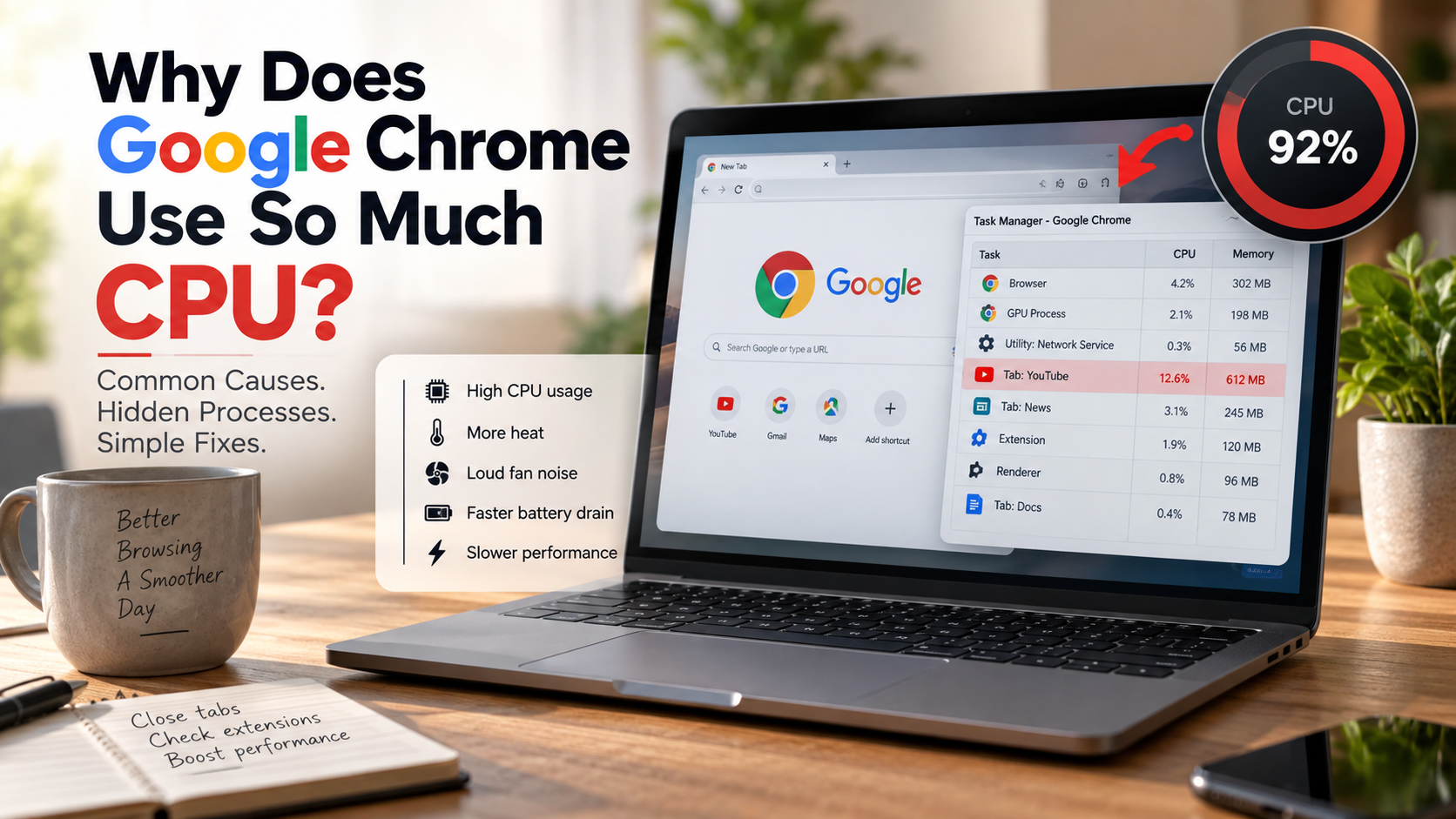
Why Does Google Chrome Use So Much CPU?
Few things disrupt daily work faster than a loud computer fan and a browser that keeps stuttering. Many users find that their browser is responsible for a large share of system resource usage. If you wonder why does Google Chrome use so much CPU, you are not alone.
Modern websites behave more like desktop applications than simple documents. They run JavaScript, video, animations, web apps, and background services that can place significant demands on your processor.
Google Chrome uses a multi-process architecture to improve browser stability, security, and responsiveness. Chromium’s official documentation explains how the browser separates different functions into multiple processes. This design helps isolate problematic web pages and allows Chrome to manage tabs and other browser components independently. However, running multiple processes can also contribute to higher resource usage when many demanding tabs or web applications are active.
High CPU usage can cause several problems, especially on laptops where processor-intensive tasks can affect battery life. If your battery is also draining unusually fast, you may want to investigate why your laptop battery drains so fast:
-
Slower browser performance
-
Loud fan noise
-
Higher system temperatures
-
Faster battery drain
-
Lag while using other applications
Understanding what causes Chrome’s CPU usage makes troubleshooting much easier. The following sections explain common causes and practical ways to reduce Chrome CPU usage without giving up essential browsing features.
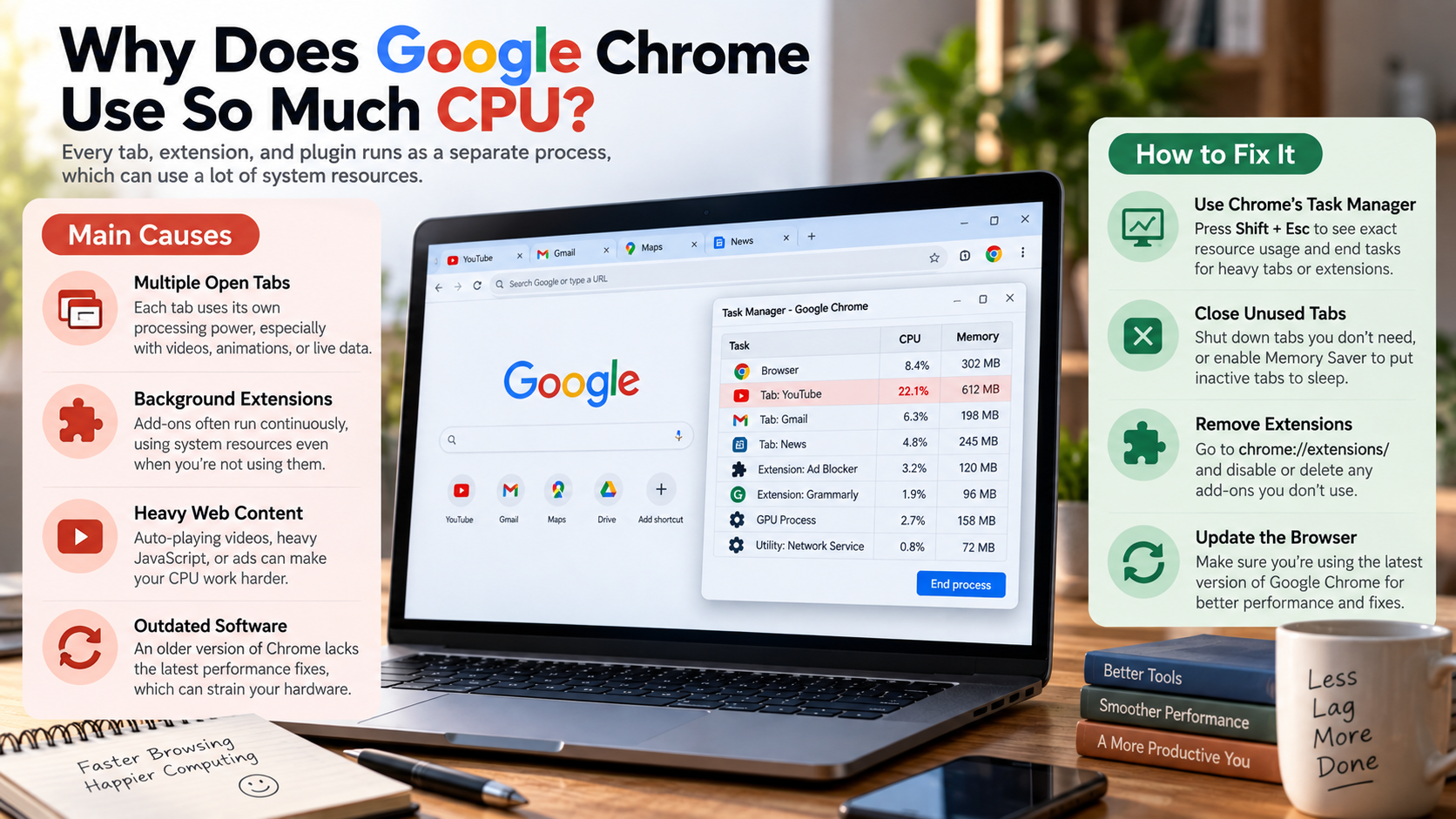

Why Does Google Chrome Use So Much CPU?
If you are wondering why does Google Chrome use so much CPU, several browser activities could be responsible. Google Chrome can use significant CPU resources because modern browsing involves many processes and demanding tasks. Chrome separates important browser functions into multiple processes. This approach helps prevent one failed tab from crashing the entire browser.
However, every active tab can still create additional work for your computer. Websites may run JavaScript, animations, video playback, advertisements, and real-time updates. Some web apps also perform continuous calculations in the background.
Browser extensions can add another source of CPU usage. An extension with inefficient code may repeatedly perform tasks even when you are not actively using it.
Chrome may also use CPU resources for features such as preloading, page rendering, security checks, and background activity. The impact depends on your tabs, extensions, hardware, and browsing habits.
CPU usage becomes more noticeable when several demanding websites run together. Video calls, online editors, streaming services, and complex web applications can quickly increase processor activity. If your CPU remains heavily loaded even during normal tasks, it can also help to understand how to tell if your CPU is bottlenecking.
If Chrome suddenly uses excessive CPU, identifying the specific process is the best place to start.
How Can You Identify Hidden Chrome Processes?
Understanding why does Google Chrome use so much CPU starts with identifying which tab or extension is creating the workload. Background activity can explain high Chrome CPU usage even when you are not actively using a particular tab. In some cases, unusual background activity can also indicate security problems, so it is useful to recognize the signs your computer has malware. Some websites continue running scripts, playing media, syncing data, or handling notifications in the background.
Chrome includes a built-in Task Manager that makes these processes easier to identify. Press Shift + Esc while Chrome is open to launch it. You can then view CPU, memory, network, and other resource usage for individual tabs and extensions.
Look for processes with unusually high CPU percentages. A single website or extension may be responsible for most of the load.
You can use Chrome Task Manager to identify:
-
Resource-heavy tabs
-
Extensions using excessive CPU
-
Background web applications
-
Pages with unusually high memory usage
-
Processes that have stopped responding
After identifying the source, select the process and choose End process. This closes that specific Chrome process without requiring you to restart the entire browser.
If the same process repeatedly causes problems, investigate the related website or extension. Removing the underlying cause is more effective than repeatedly ending the process.
How Do I Stop Chrome From Using So Much CPU?
You can reduce Chrome CPU usage by removing unnecessary workloads and reviewing browser settings. Start by opening chrome://extensions and disabling extensions you rarely use. Remove extensions completely if you no longer need them.
Next, review Chrome’s Performance settings. Memory Saver can deactivate eligible inactive tabs, which reduces the amount of resources those tabs need while they remain available for later use.
You should also check hardware acceleration. Chrome can use your graphics processor for certain rendering tasks when hardware acceleration is enabled. This can reduce CPU work in some situations, although results vary by hardware and graphics drivers.
Other useful steps include:
-
Close tabs you no longer need.
-
Update Chrome to the latest available version.
-
Restart Chrome after unusually long browsing sessions.
-
Check Chrome Task Manager for problem processes.
-
Test whether a specific extension causes the spike.
-
Close unnecessary background applications.
Clearing cached data can help with certain browser problems, but it is not a universal CPU fix. Focus first on identifying the process responsible for the high usage.
Which Chrome Performance Settings Should You Optimize?
Chrome provides several built-in options that can help manage resource consumption. The most useful starting point is the Performance section in Chrome settings.
Memory Saver is designed mainly to reduce memory usage. It deactivates eligible inactive tabs and reloads them when you return. This can indirectly reduce overall system pressure when many tabs are open.
Hardware acceleration is another setting worth checking. When enabled, Chrome can use your GPU for supported graphics and rendering tasks. This may reduce CPU workload during video playback or graphics-heavy browsing. If you want to explore other ways to improve graphics performance, learning how to get more out of your GPU without overclocking can provide useful context. However, an outdated driver or incompatible hardware can sometimes cause problems.
You can test the setting by opening Chrome’s system settings and changing hardware acceleration. Restart Chrome afterward and compare performance.
For better results, combine these settings with sensible tab management. Avoid keeping dozens of demanding web applications open when you do not need them.
Performance optimization works best when you identify the actual source of the problem. Changing every setting at once makes it difficult to determine what helped.
Does Chrome Use More CPU Than Other Browsers?
Chrome can use substantial CPU resources, but there is no universal rule that it always uses more CPU than every competing browser. Resource usage depends heavily on the websites, extensions, settings, operating system, and hardware involved.
Chrome uses a multi-process architecture designed to improve stability, security, and responsiveness. It also performs background tasks that can add to resource usage during certain browsing activities.
Other browsers use different process and resource-management strategies. Mozilla Firefox also uses multiple processes, while Safari is closely optimized for Apple’s platforms. Microsoft Edge uses the Chromium engine and therefore shares many architectural foundations with Chrome.
CPU usage can vary significantly between browsers during the same workload. One browser may perform better on a particular website, while another may handle a different workload more efficiently.
Factors that influence browser CPU usage include:
-
Number of open tabs
-
Website complexity
-
Video and graphics activity
-
Installed extensions
-
Hardware acceleration
-
Background processes
-
Computer hardware
Therefore, comparing browsers based on CPU usage alone can produce misleading results. Testing the same websites under similar conditions provides a more useful comparison.
Why Can Chrome Use 20 GB of Memory?
Chrome can use very large amounts of memory when many tabs, extensions, and demanding web applications are running simultaneously. A figure such as 20 GB of RAM does not automatically mean Chrome has a memory leak.
Modern websites can consume substantial memory. Graphics-heavy applications, online spreadsheets, video services, development tools, and social media feeds may all maintain large amounts of active data. When this heavy workload also produces excess heat, knowing how to cool your laptop without a cooling pad can help you manage higher system temperatures.
Chrome may also keep data in memory to improve responsiveness. This can make the browser appear to consume more RAM when plenty of system memory is available.
However, unusually high memory usage can sometimes indicate a problematic website, extension, or process. Memory leaks are another possible cause. In these cases, memory usage may continue increasing instead of stabilizing.
If Chrome approaches 20 GB of memory usage, check which processes are responsible. Chrome Task Manager can help identify unusually heavy tabs and extensions.
You can then close unnecessary tabs or disable problematic extensions. If memory usage repeatedly grows over time, restart Chrome and test the browser without extensions.
The key distinction is that high memory usage is not always a problem. The impact matters more than the number alone.
How Can You Identify and Reduce Memory Leaks?
A memory leak occurs when software continues holding memory that it no longer needs. In a browser, poorly optimized websites or extensions can sometimes contribute to this behavior.
A common warning sign is memory usage that keeps increasing during normal browsing. The usage may remain high even after you stop interacting with the affected website.
Chrome Task Manager can help you investigate these situations. Watch individual tabs and extensions while browsing normally. If one process continues growing unusually large, close it and observe whether system performance improves.
You can also test Chrome with extensions disabled. If the problem disappears, enable extensions one at a time to identify the source.
Useful troubleshooting steps include:
-
Restart Chrome after prolonged sessions.
-
Update Chrome and your extensions.
-
Disable unnecessary extensions.
-
Close tabs with unusual resource usage.
-
Test problematic websites individually.
-
Monitor memory usage through Chrome Task Manager.
Restarting Chrome clears active browser processes and can temporarily restore normal memory usage. However, repeated growth usually deserves further investigation.
Remember that memory usage and CPU usage are different problems. A tab can consume significant RAM without heavily using the CPU, while another process may cause high CPU usage with moderate memory consumption.