
How to Tell If a USB-C Cable Supports Video
Few tech problems are more frustrating than connecting a modern laptop to a monitor and seeing a blank screen. The reversible USB-C connector makes cables look identical, but their internal capabilities can differ significantly. Learning how to tell if a USB-C cable supports video can save time and prevent you from buying incompatible hardware.
The USB Implementers Forum (USB-IF) defines the USB Type-C specifications, but cable packaging does not always make capabilities easy to understand. Some USB-C cables support only USB 2.0 data and charging, while others support high-speed data, video, and higher power levels.
Video support also depends on the USB-C port on your computer or phone. The cable cannot create video output if the source device does not support it.
So, what should you check before connecting a display? This guide explains USB-C video support, DP Alt Mode, cable markings, 4K requirements, and the type of cable you should choose.

Can USB-C cables carry video?
Yes, USB-C cables can carry video, but not every USB-C cable supports video. Video can travel through USB-C when the source device supports DisplayPort Alternate Mode, USB4 display tunneling, or another compatible display technology. The cable must also provide the required high-speed connections.
DisplayPort Alternate Mode, commonly called DP Alt Mode, allows a USB-C connection to carry DisplayPort signals to a compatible display, dock, or adapter. Some USB-C cables support these high-speed lanes, while basic USB 2.0 cables do not.
The USB-C connector itself does not guarantee video support. A laptop may have a USB-C port that supports charging and data but no display output. For more detail, see whether all USB-C ports support video before choosing a cable. Therefore, you need to check both the device port and cable specifications.
For direct monitor connections, look for explicit support for DisplayPort Alt Mode, USB4, or Thunderbolt. Also check the monitor or adapter requirements before buying.
DisplayPort Alternate Mode Explained
DP Alt Mode allows compatible USB-C ports to carry DisplayPort signals through the connector. It uses high-speed lanes that can otherwise carry USB data. The exact configuration depends on the device, cable, and supported DisplayPort version.
This technology does not mean every USB-C cable automatically carries video. The source device must support DP Alt Mode, and the cable must have suitable high-speed conductors.
For example, a USB-C laptop with DisplayPort output can connect to a DisplayPort monitor using a compatible USB-C cable and adapter. The connection can carry both video and audio.
A charging-focused USB-C cable may still fit perfectly but fail to produce an image. Software updates usually cannot solve this limitation because the required physical connections may not exist.
When checking compatibility, treat USB-C as the connector type, not as a guarantee of video capability. Always verify the supported display standard for the specific device and cable.
How to check if USB-C supports display?
The most reliable way to check USB-C display support is to examine the device specifications, cable specifications, and connector markings. Do not rely on the USB-C shape alone.
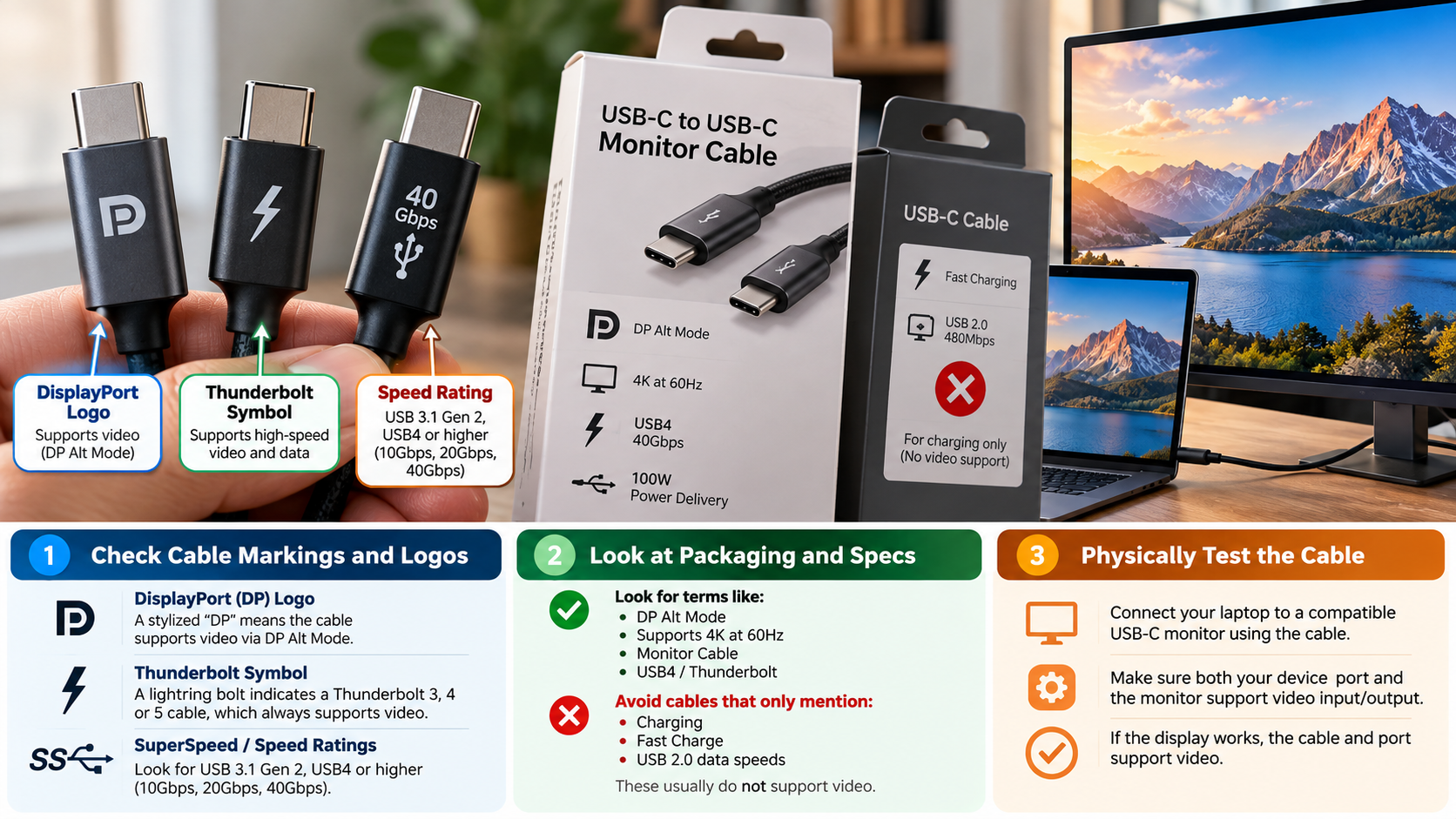
On a laptop, phone, or tablet, look for references to DisplayPort Alt Mode, Thunderbolt, USB4, or video output. Some manufacturers also place a DisplayPort symbol or Thunderbolt lightning icon beside compatible ports. However, symbols vary between manufacturers, so the product manual remains more reliable.
Next, check the cable packaging or manufacturer’s specifications. Look for explicit information about display support, DisplayPort compatibility, USB4, or Thunderbolt. A speed rating such as 20Gbps or 40Gbps describes data capability, but it does not always prove that a particular setup supports video.
You can also test the connection with a compatible monitor. If the display works, the complete setup supports the required video path.
Deciphering Connector Bandwidth Icons
USB-C cable markings can provide useful clues, but they need careful interpretation. A 40Gbps or 20Gbps label usually identifies supported data bandwidth. It does not, by itself, guarantee video output.
Thunderbolt cables commonly use the Thunderbolt lightning symbol. USB4 cables may include USB4 branding or speed information. DisplayPort-compatible products may mention DisplayPort directly on their packaging or specifications.
Do not assume that a basic USB symbol means the cable cannot carry video. USB logos and markings have changed over time, and manufacturers do not always print complete information on the connector. Understanding why USB ports are color-coded can also help you interpret different USB connections more accurately.
The safest approach is to check the manufacturer’s specifications for the exact cable model. Confirm its supported data rate, display standards, and power capabilities.
Also check the source device. A high-speed cable cannot add video output to a USB-C port that supports only charging or USB data.
When markings are unclear, product documentation provides a more dependable answer than visual inspection alone.
Can USB-C transmit 4K video?
Yes, USB-C can transmit 4K video, including 4K at 60Hz and higher refresh rates in suitable configurations. However, the result depends on the source device, display, cable, adapter, and supported DisplayPort or USB4 capabilities.
A 4K display requires considerably more bandwidth than a standard 1080p screen. The exact requirement depends on refresh rate, color format, bit depth, compression, and the display protocol being used.
For example, DisplayPort 1.4 can provide enough bandwidth for many 4K high-refresh configurations. Display Stream Compression (DSC) can also help support higher resolutions and refresh rates within available bandwidth.
A basic USB 2.0 cable cannot provide the high-speed video path required for direct USB-C display output. A suitable USB-C cable with the necessary high-speed conductors is required.
Before buying, check the complete connection. Confirm the laptop’s maximum display output, monitor requirements, cable capabilities, and any adapter or dock specifications. If you plan to use a portable display, also consider the pros and cons of portable USB monitors for laptops. This prevents common problems such as reduced refresh rates, blank screens, or limited resolution.
Refresh Rates and HDR Demands
Higher refresh rates and HDR increase the demands placed on a video connection. A 4K display running at 60Hz requires less bandwidth than the same display running at 120Hz with higher color depth.
The supported DisplayPort version therefore matters. DisplayPort 1.4, for example, provides greater bandwidth than older DisplayPort versions and can work with DSC for demanding display configurations.
HDR can also increase the amount of information transferred because compatible displays may use greater color depth. The actual requirements vary by monitor and configuration.
When choosing a USB-C cable, check the manufacturer’s stated display capabilities rather than relying only on a generic speed number. A cable advertised as 40Gbps may be capable of high-performance display connections, but the complete system still determines the final resolution and refresh rate.
If your monitor flickers, drops frames, or falls back to a lower resolution, check the cable, source port, adapter, and display settings. Replacing the cable may help, but it is not always the root cause.
What USB-C cable do I need for video?
For video, choose a USB-C cable that explicitly supports the display technology required by your setup. Depending on the equipment, this could include DisplayPort Alt Mode, USB4, or Thunderbolt.
Avoid choosing a cable based only on phrases such as “fast charging.” Charging performance does not automatically indicate video support. Likewise, a 40Gbps label describes data capability but should not be treated as a universal guarantee for every display configuration.
For a simple monitor connection, check whether the manufacturer lists DisplayPort support and the required resolution and refresh rate. If your laptop lacks a dedicated HDMI port, USB-C may provide another way to connect an external display. Learn more about why some laptops don’t have HDMI ports when choosing your connection method. For Thunderbolt systems, use a certified Thunderbolt cable that meets the requirements of the computer and display or dock.
Power delivery is another specification to consider if the same connection charges a laptop. A cable may support video while having a different power rating from another cable.
The safest buying approach is to match the cable to the complete setup. Check the laptop port, monitor input, resolution, refresh rate, adapter or dock, and cable specifications before purchasing.
Selecting the Right Video Cable
Start by identifying your display requirements. A basic 1080p monitor has different bandwidth needs from a 4K 120Hz display or a multi-monitor workstation.
For many standard USB-C display setups, a properly specified USB 3.x or USB4 cable can work when the source and display support the required video mode. However, the cable’s stated display capability matters more than the connector shape.
For Thunderbolt systems, use a compatible certified Thunderbolt cable. This can provide high-speed data, display connectivity, and power delivery through one connection when supported by the host and peripherals.
Before buying, check these specifications:
- Display resolution and refresh rate
- DisplayPort or Thunderbolt support
- USB data speed
- Power Delivery rating
- Cable length
- Compatibility with your dock or adapter
Do not automatically buy the most expensive cable. Choose one that meets the requirements of your specific setup. A correctly specified cable is more important than a premium label alone.
Are there two types of USB-C cables?
USB-C cables are not limited to only two technical types. They exist across a wide range of capabilities, including USB 2.0, USB 3.x, USB4, and Thunderbolt-compatible designs. Some support charging and basic data, while others support high-speed data and display connections.
This difference explains why two cables with identical USB-C connectors can behave differently. A cable designed primarily for USB 2.0 data may work perfectly for charging and simple file transfers but lack the high-speed connections needed for video.
Other cables are designed for much higher performance. Depending on their specifications, they can support high-speed USB data, display output, and higher power levels.
The important distinction is therefore not simply charge-only versus video cable. Instead, think of USB-C cables as having different combinations of power, data, and display capabilities.
When learning how to tell if a USB-C cable supports video, focus on the specifications rather than the physical connector. The USB-C shape tells you how the cable connects, not everything it can do.
The Internal Pin Difference
USB-C connectors contain up to 24 contacts, but cable construction and supported functions vary. Not every cable implements every high-speed connection in the same way.
USB 2.0-focused cables use dedicated USB 2.0 data connections and power connections. They may omit the high-speed wiring required for USB 3.x, USB4, or DisplayPort-based video operation.
Higher-performance cables include additional high-speed conductors. These connections allow compatible devices to transfer data at higher speeds and, where supported, carry display signals through technologies such as DisplayPort Alt Mode.
This physical difference is one reason a cheap charging cable may fit a laptop perfectly but fail to connect it to a monitor.
However, the cable is only one part of the system. The source USB-C port must also support video, and the monitor or adapter must accept the corresponding signal. This is especially important when adding USB-C connectivity to a desktop, where the available ports may have different capabilities. Before upgrading, consider whether you should add USB-C ports to your desktop PC.
Therefore, do not judge a cable’s video capability from its connector appearance. Check the manufacturer’s specifications and match them with your device’s supported display standards.
Conclusion
Knowing how to tell if a USB-C cable supports video can save you from blank screens, compatibility problems, and unnecessary purchases. The USB-C connector alone does not guarantee display support. You need to check the cable, source device, monitor, and supported display standard.
Look for specifications such as DisplayPort Alt Mode, USB4, or Thunderbolt. Also check the required resolution, refresh rate, data speed, and power rating. Do not assume that fast charging or a 40Gbps label automatically means video support.
When in doubt, check the manufacturer’s specifications for both the device and cable. Choosing a cable that matches your complete setup is the simplest way to get reliable video output.