
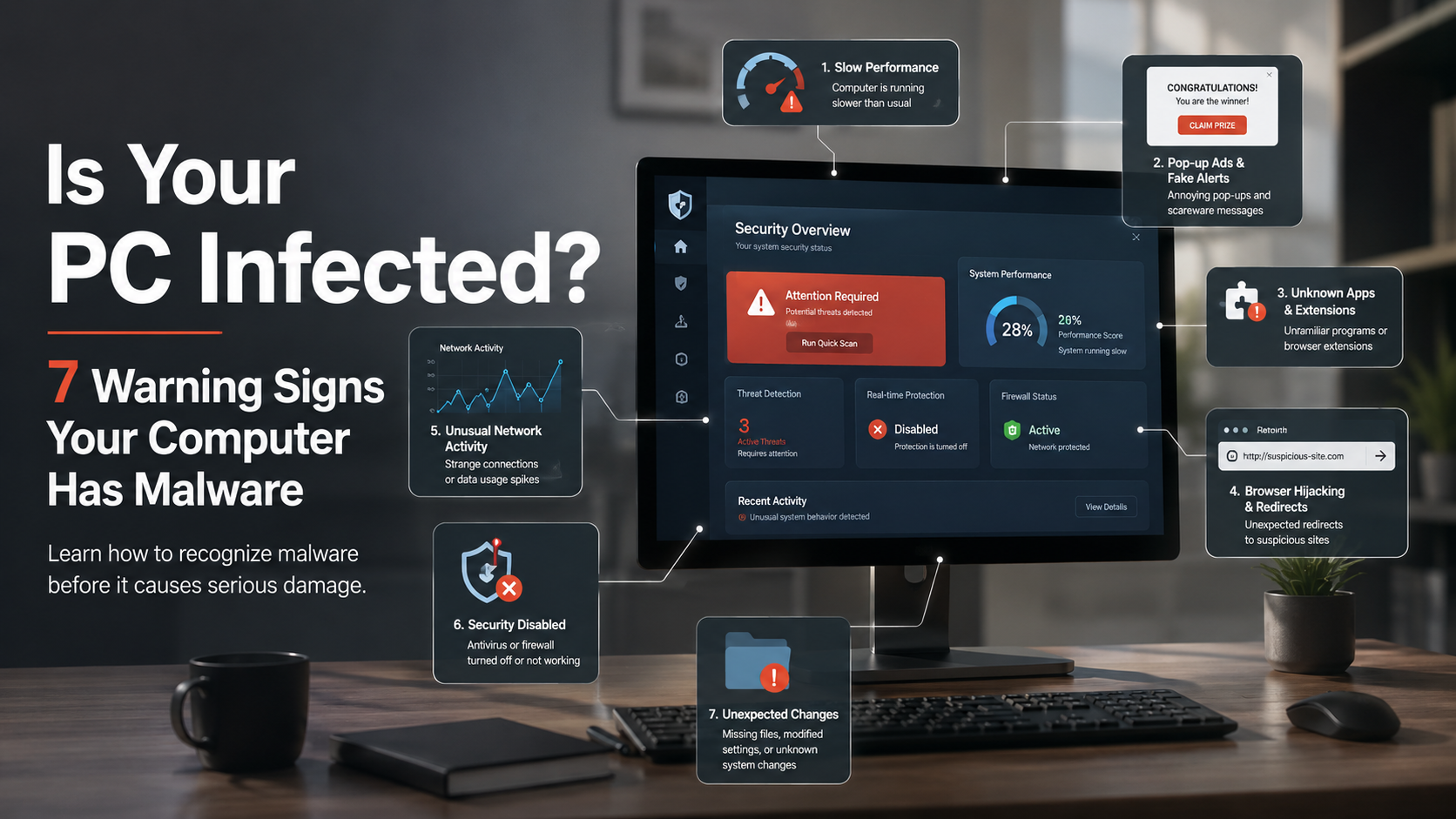
Is Your PC Infected? 7 Warning Signs Your Computer Has Malware
Computers store important personal information, work files, passwords, and financial details. This makes them common targets for cybercriminals. Knowing the signs your computer has malware can help you act quickly and protect your data.
Malicious software often works quietly in the background. However, it usually leaves clues through unusual system behavior. Slow performance, unwanted advertisements, strange applications, and unexpected changes can all indicate a possible infection.
Malware includes viruses, spyware, adware, ransomware, and other harmful programs. Each type behaves differently, but most infections affect your computer’s performance, security, or privacy. Following basic security practices, such as keeping your system updated and using trusted malware protection tools recommended by Microsoft’s malware protection guide, can help reduce the risk of infection.
In this guide, you will learn the 7 most common signs your computer has malware and what these warning signals mean. Recognizing these problems early can help you reduce security risks and keep your system protected.
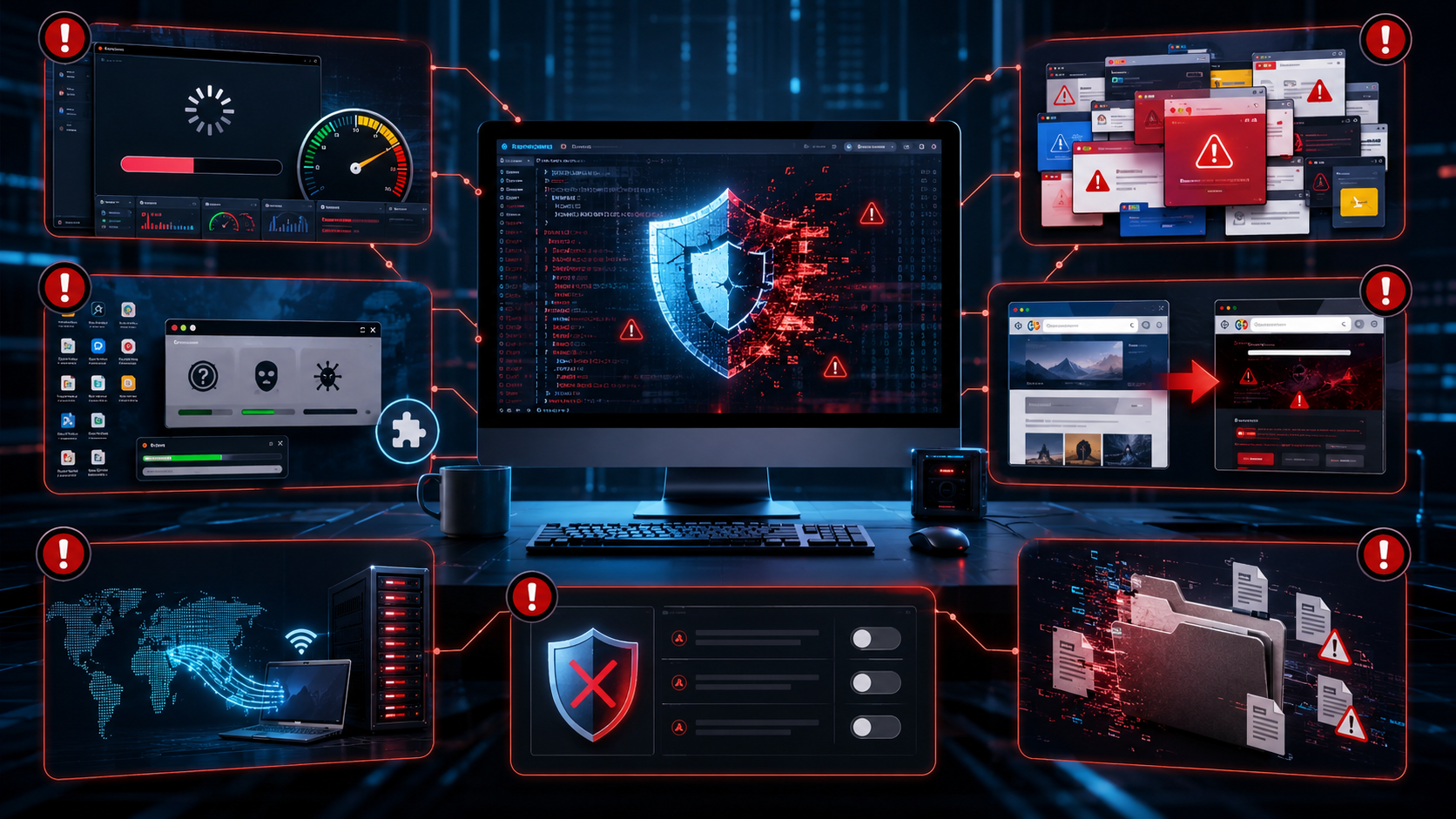

1. Signs Your Computer Has Malware: Sudden Slow Performance
A sudden drop in computer performance is one of the most common signs your computer has malware. If your device becomes slow without any clear reason, malicious software may be using your system resources.
Many malware programs run hidden processes in the background. They may use your CPU, RAM, and storage to perform unauthorized tasks. These activities can make everyday actions feel much slower.
You may notice delays when opening applications, browsing websites, or starting your computer. Programs that normally work smoothly may freeze or take longer to respond.
A slow computer does not always mean malware. It can also happen because of low storage, outdated hardware, or too many programs running. However, sudden performance problems combined with other warning signs should not be ignored.
If your computer becomes unusually slow, check for unfamiliar processes and run a trusted security scan.
2. Malware Warning Signs: Frequent Pop-Up Ads and Fake Alerts
Unexpected pop-up advertisements are another major warning sign of malware. While online ads are common, random pop-ups appearing outside your browser may indicate an adware infection.
Adware displays unwanted advertisements to generate money for attackers. Some malicious pop-ups pretend to be system warnings or antivirus alerts. They may claim your computer has urgent problems and ask you to install unknown software.
Clicking these fake alerts can make the infection worse. They may install additional malware or redirect you to phishing websites designed to steal personal information.
Common signs of adware include:
- Pop-ups appearing when no browser is open
- Fake security warnings
- Frequent advertisements on normal websites
- New browser tabs opening automatically
Avoid clicking suspicious alerts. Instead, close them safely and scan your computer with reliable security software.
3. Signs of Malware Infection: Unknown Programs and Browser Extensions
Finding unfamiliar applications on your computer can be a clear sign of malware. Some malicious programs hide inside free software downloads and install without your full knowledge.
This often happens through bundled software installers. You may download one useful program but accidentally install extra applications, toolbars, or browser extensions.
Check your installed programs regularly. Look for software you do not remember downloading or extensions that appeared without your permission.
Suspicious signs include:
- Unknown applications in your program list
- New browser toolbars
- Extensions you never installed
- Programs launching automatically
Not every unfamiliar program is dangerous. Some may be legitimate system tools. However, unknown software should always be investigated.
Downloading programs only from official sources and carefully reviewing installation options can reduce the risk of unwanted malware.
4. Browser Hijacking: Another Sign Your Computer Has Malware
Unexpected browser redirects are another common sign your computer has malware. This problem often occurs because of browser hijackers that modify your browser settings.
A browser hijacker can change your homepage, default search engine, or new tab settings. It may redirect your searches to unfamiliar websites filled with advertisements or malicious downloads.
You may notice that:
- Search results look different
- Websites open without permission
- Your homepage changes suddenly
- Unknown extensions appear
These redirects are often designed to track your online activity or send you to unsafe websites. Some attackers use fake login pages to steal usernames and passwords.
Removing suspicious extensions, resetting browser settings, and scanning your device can help resolve browser hijacking problems.
5. Malware Symptoms: Unusual Data Usage and Network Activity
A sudden increase in internet usage can indicate that malware is active on your computer. Some malicious programs communicate with remote servers to send stolen information or receive instructions.
For example, spyware may collect browsing history, passwords, or personal files. It can then transfer this information without your knowledge.
You may notice:
- Higher internet usage than normal
- Slower network speeds
- Unknown programs using bandwidth
- Unexpected background activity
Check your computer’s network activity if you notice unusual data consumption. Task Manager on Windows and Activity Monitor on Mac can help identify programs using network resources.
If you suspect malware is sending your data, disconnect your device from the internet temporarily. This can help limit further unauthorized activity while you remove the threat.
6. Security Warning Signs: Antivirus Software Stops Working
Malware often tries to disable security protections so it can continue operating without detection. If your antivirus suddenly turns off or refuses to update, it may be a warning sign of infection.
Some advanced malware changes system settings or blocks security websites. This prevents users from downloading updates or removing the malicious program.
Watch for signs such as:
- Antivirus software closing unexpectedly
- Firewall settings changing automatically
- Security updates failing
- Access to security websites being blocked
A disabled security tool does not always mean malware is present. However, unexpected changes should be investigated quickly.
Restart your computer and check your security settings. If problems continue, use a trusted malware removal tool to scan your system.
7. Signs Your Computer Is Infected: Unexpected File and System Changes
Unexpected changes to your files or system settings can be one of the strongest warning signs of malware. Some malicious programs modify files, change preferences, or interfere with normal computer functions.
You may notice:
- Missing or renamed files
- Changed desktop settings
- New user accounts
- Programs opening or closing by themselves
Ransomware is a serious example of malware that can lock files and demand payment for recovery. Other threats may silently change settings to maintain access to your system.
If you notice unusual changes, avoid ignoring them. Disconnect from the internet if necessary and scan your computer using trusted security software.
Regular backups, software updates, and safe browsing habits can help reduce the damage caused by malware infections.
Frequently Asked Questions About Signs Your Computer Has Malware
Can malware hide on my computer without showing any signs?
Yes, malware can sometimes stay hidden on your computer without showing obvious warning signs. Advanced threats such as spyware, rootkits, and stealth malware are designed to operate quietly in the background. They may collect passwords, track online activity, record keystrokes, or steal personal information without causing noticeable performance problems.
Unlike aggressive malware that creates pop-ups or slows your device, hidden threats focus on avoiding detection. This makes them harder to identify through normal computer use. Regular security checks are important because silent infections can remain active for long periods.
Use updated antivirus software, install system updates, and avoid suspicious downloads to reduce risks. Regular scans can help detect hidden malware before it causes serious damage to your privacy, accounts, or personal data.
Will resetting my computer completely remove malicious software?
A factory reset can remove many types of malware because it deletes files, applications, and system settings from the main storage drive. For common infections, resetting your computer is often an effective way to restore a clean environment.
However, some advanced threats may survive a standard reset. Malware such as bootkits can infect deeper system areas and remain active even after normal files are removed. These infections are less common but can be difficult to eliminate.
For serious infections, a clean operating system installation is usually a safer option. Before resetting or reinstalling your system, back up important personal files carefully. Avoid restoring suspicious files that may contain malware.
After recovery, install security updates, enable protection tools, and follow safe browsing habits to prevent future infections.
Why is my antivirus software suddenly disabled?
If your antivirus software suddenly turns off without your permission, it may be a warning sign of malware activity. Some advanced malware programs attempt to disable security tools so they can continue operating without being detected.
These threats may change system settings, block security updates, or prevent access to antivirus websites. A disabled firewall or antivirus program can leave your computer vulnerable to additional attacks.
First, restart your computer and check your security settings. If the problem continues, perform a malware scan using a trusted security tool. Running a scan in Safe Mode can sometimes help because fewer programs run during startup, making it easier to detect harmful software.
Keep your antivirus software updated and avoid downloading unknown programs. Strong security habits reduce the chance of malware disabling your protection.
How does malware get onto a computer in the first place?
Malware usually enters a computer through unsafe online activities or security weaknesses. One common method is phishing, where attackers send fake emails or messages containing harmful links or attachments. Clicking these links can install malicious software without your knowledge.
Downloading pirated software, using untrusted websites, and installing programs from unknown sources are also common causes of malware infections. Some threats hide inside free applications or bundled software installers.
Outdated operating systems and missing security updates can create vulnerabilities that attackers exploit. To reduce your risk, keep your computer and applications updated regularly.
Always download software from official sources, avoid suspicious links, and be careful with email attachments. Using reliable security software adds another layer of protection against malware threats.
Can a computer virus spread to other devices on my home Wi-Fi?
Yes, certain types of malware can spread to other devices connected to the same home network. These threats are often called worms because they can automatically move from one infected device to another without requiring much user interaction.
A worm may search your network for computers, storage devices, smart TVs, or other connected systems with security weaknesses. If another device has outdated software or weak protection, the malware may infect it as well.
If you suspect a device is infected, disconnect it from your Wi-Fi network immediately. Then scan each connected device using trusted security software. Updating your router firmware, using strong passwords, and installing regular device updates can reduce the chance of network-based malware spreading.
Protecting every connected device helps keep your entire home network safer.
Final Thoughts
Knowing the signs your computer has malware helps you identify threats before they become serious. Slow performance, unwanted pop-ups, unknown programs, browser redirects, unusual network activity, disabled security tools, and unexpected system changes are important warning signals.
If you notice these symptoms, take action quickly. Run a malware scan, remove suspicious applications, update your software, and protect your important accounts with strong passwords.
Good cybersecurity habits can keep your computer safer and reduce the chances of future malware infections. If your system is already showing signs of infection, follow this step-by-step guide on how to remove malware from Windows 11 without losing your data to clean your device safely while protecting your important files.