What Is NVIDIA DLSS? A Complete Guide to Better Gaming Performance
Modern PC games demand significant graphics processing power. Playing at high resolutions while maintaining smooth frame rates can be challenging, even with powerful hardware. This is where NVIDIA DLSS can help.
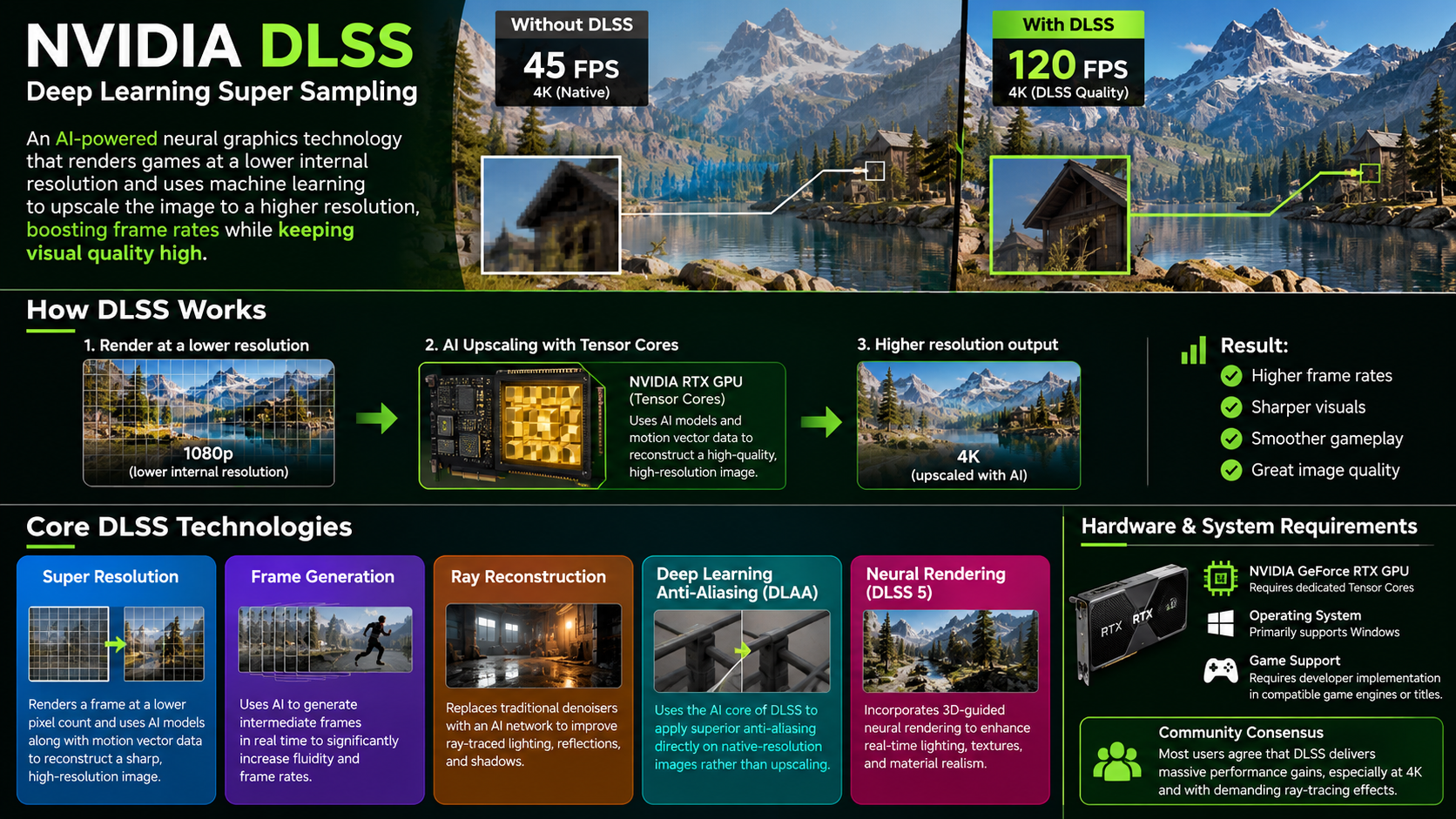
DLSS stands for Deep Learning Super Sampling. It uses artificial intelligence to improve gaming performance and reconstruct images from lower-resolution inputs. On supported RTX graphics cards, dedicated Tensor Cores accelerate the AI calculations required by compatible DLSS features. According to NVIDIA’s official DLSS technology page, these technologies help improve performance while maintaining impressive visual quality.
However, DLSS does more than upscale images. Depending on the game, GPU, and supported features, it can also generate additional frames or improve image reconstruction.
Understanding these capabilities helps you choose the right graphics settings for your system. This guide explains whether DLSS increases FPS, which PCs support it, and how it compares with competing technologies. You’ll also learn when to enable or disable DLSS for the best balance between image quality and gaming performance.
Does DLSS Actually Increase FPS?
Yes, DLSS can significantly increase FPS in graphics-intensive games. Its upscaling feature renders a game at a lower internal resolution before reconstructing the image at a higher output resolution. Because the GPU renders fewer pixels initially, it can often produce frames more quickly. You can explore other ways to improve gaming performance in our guide to getting more out of your GPU without overclocking.
For example, a game running at 1440p may use a lower internal rendering resolution. DLSS then reconstructs the image for your 1440p display. This process can improve performance while preserving much of the original image’s detail.
However, the actual improvement depends on your hardware, game, and selected DLSS mode. Performance gains may be smaller when your CPU limits frame rates instead of your GPU.
DLSS also includes optional features that can improve performance in different ways. Frame Generation creates additional frames, while supported Multi Frame Generation implementations can generate multiple frames between traditionally rendered frames. These features can increase displayed FPS, but they do not make every aspect of gameplay equally responsive.
How Tensor Cores Drive Performance Gains
Tensor Cores are specialized processing units found in NVIDIA RTX graphics cards. They accelerate the AI calculations used by supported DLSS features. To understand the broader technology behind these calculations, explore how machine learning works and how computers use learned patterns to perform complex tasks.
DLSS upscaling reduces the rendering workload by starting with a lower internal resolution. Tensor Cores then help reconstruct a higher-resolution image using information from the game.
This approach can free up graphics processing resources for other tasks. However, Tensor Cores do not eliminate the workload of traditional rendering. The overall performance benefit still depends on the game engine, GPU, and graphics settings.
To measure the difference, compare your average FPS with DLSS disabled and enabled. Keep other graphics settings consistent during testing. You can then determine whether the improvement justifies any changes in image quality.
Can My PC Run DLSS?
Your PC needs a compatible NVIDIA RTX graphics card to use NVIDIA DLSS upscaling. Supported desktop and laptop GPUs include models from the GeForce RTX 20, 30, 40, and 50 series, although individual features vary by generation.
Older GTX graphics cards generally do not support the main RTX-based DLSS features because they lack the required Tensor Core hardware. However, compatibility is not determined by the GPU alone.
You also need a game that supports the particular DLSS feature you want to use. Some games offer Super Resolution, while others support additional options such as Ray Reconstruction or Frame Generation. Newer features may require newer RTX generations.
For the best experience, install current graphics drivers and check the game’s graphics settings. Remember that having an RTX card does not guarantee every DLSS feature will be available.
Verifying Your GPU Compatibility Before Playing
Before changing your graphics settings, identify your GPU model and check the game’s supported features. Follow these steps:
- Open Device Manager: Search for Device Manager in Windows and expand Display adapters.
- Identify your GPU: Check whether your system uses a compatible NVIDIA GeForce RTX graphics card.
- Update your drivers: Use the NVIDIA app or NVIDIA’s official driver download page.
- Check game settings: Open the graphics menu and look for DLSS options.
- Test performance: Compare FPS and image quality with different DLSS modes.
If DLSS does not appear in the settings menu, check whether the game supports it. Your GPU generation, driver version, and game version can all affect availability. If you’re unsure why driver updates matter, read what happens if you don’t update your graphics card drivers.
Is DLSS Only for NVIDIA GPUs?
Yes, NVIDIA DLSS is designed for supported NVIDIA RTX graphics cards. Its core AI features rely on NVIDIA’s RTX hardware and software ecosystem. Therefore, AMD and Intel graphics cards cannot natively run NVIDIA DLSS in the same way as compatible RTX GPUs.
However, NVIDIA is not the only company offering gaming upscaling technology. AMD provides FidelityFX Super Resolution (FSR), while Intel offers Xe Super Sampling (XeSS). These alternatives use different approaches and support varying combinations of graphics hardware.
Their compatibility depends on the specific technology version, game implementation, and GPU. Some versions work across multiple graphics card brands, making them useful for gamers who do not own an NVIDIA RTX card.
The best option depends on your hardware and the features available in each game. Compare image quality and performance rather than assuming one technology always wins.
Understanding Competing Upscaling Technologies
Different upscaling technologies aim to improve performance without requiring the GPU to render every pixel at the final output resolution. However, they differ in reconstruction methods, hardware requirements, and supported features. If you’re considering AMD hardware as an alternative to NVIDIA, our guide explains what AMD GPU names and numbers actually mean.
Here is a quick comparison:
- NVIDIA DLSS: Uses AI-based reconstruction on supported RTX hardware. Certain versions also provide Frame Generation and other advanced features.
- AMD FSR: Offers upscaling technologies designed for broad hardware compatibility, depending on the version.
- Intel XeSS: Uses Intel’s AI-focused hardware path on supported GPUs, with alternative processing paths available for other hardware in applicable versions.
Image quality varies by game and implementation. Test the available options at your preferred resolution to find the best balance between performance and visual clarity.
Is DLSS Better or Worse?
Whether DLSS looks better or worse depends on the game, output resolution, selected mode, and implementation. At higher-quality settings, DLSS can produce sharp images while delivering better performance than native-resolution rendering in demanding games.
Its reconstruction process can also improve anti-aliasing, reducing some forms of jagged edges and visual instability. However, DLSS does not guarantee a better-looking image in every situation.
Lower-resolution rendering can sometimes introduce ghosting, shimmering, or lost fine details. Thin objects, moving foliage, and distant textures may reveal these issues. Frame Generation can also introduce visual artifacts in certain scenes.
Native rendering avoids the specific reconstruction trade-offs associated with upscaling, but it does not automatically produce a cleaner image. Anti-aliasing, game settings, and rendering techniques also affect visual quality.
For many players, DLSS provides a useful compromise. It can deliver smoother performance with relatively small visual differences, especially when using an appropriate quality setting.
Choosing the Right DLSS Quality Preset
The best DLSS preset depends on your performance target and display resolution. Start with Quality mode when image clarity matters most. If you need more FPS, try Balanced or Performance mode. For a more complete gaming setup, learn how to optimize your monitor settings for gaming to get the most from your display.
- Quality: Prioritizes image quality while providing a performance improvement.
- Balanced: Offers a middle ground between visual clarity and FPS.
- Performance: Prioritizes higher frame rates by using a lower internal rendering resolution.
- Ultra Performance: Targets demanding workloads, particularly very high output resolutions, but can produce more noticeable image-quality compromises.
These modes are not equally suitable for every game. For example, Quality mode may be sufficient at 1440p, while Performance mode could help with demanding 4K gameplay.
Compare the results in actual gameplay instead of relying only on benchmark numbers. Pay attention to fine details, motion, and overall smoothness before choosing your preferred setting.
Should I Turn Off DLSS?
You may want to turn off DLSS if your GPU already delivers stable performance at your monitor’s native resolution. For example, if a game consistently meets your desired FPS target without DLSS, enabling upscaling may offer little practical benefit. Other demanding graphics features can also affect performance, so consider when ray tracing can reduce FPS and when to turn it off before adjusting your settings.
Competitive games also require careful testing. Some players prefer native rendering for visual consistency, while others use upscaling to maintain higher frame rates. The right choice depends on your performance target and the game’s implementation.
Consider disabling DLSS if you notice distracting artifacts, ghosting, or unstable fine details. You can also compare native rendering with DLSS Quality mode to see which looks better on your display.
However, do not assume that disabling DLSS will always improve responsiveness. In GPU-limited games, DLSS Super Resolution can sometimes reduce rendering time and improve responsiveness. Frame Generation is different because generated frames do not represent additional traditionally rendered game updates.
For demanding games, test both options before making a final decision.
Evaluating Your Personal Gaming Preferences
Your ideal graphics settings depend on your hardware, monitor, and preferred gaming experience. A player using a 4K display may value DLSS differently from someone playing competitive games at 1080p.
Start by choosing a realistic FPS target. Then compare native rendering with DLSS Quality mode under the same conditions. If you need additional performance, test Balanced or Performance mode.
Pay attention to more than the FPS counter. Check image clarity, frame-time consistency, input responsiveness, and visual artifacts during movement. These factors help determine whether a setting actually improves your experience.
You can also save different settings for different games. A demanding single-player game may benefit from DLSS, while a lightweight competitive title may run well without it.
Ultimately, NVIDIA DLSS is a tool for balancing performance and image quality, not a setting that must always remain enabled. Test its available features and choose the configuration that best suits your system.
Conclusion
NVIDIA DLSS is a powerful technology that helps gamers achieve higher FPS and smoother gameplay without sacrificing too much image quality. By using AI-powered upscaling and features such as Frame Generation, it can improve performance in demanding games on compatible RTX graphics cards. However, the results depend on your GPU, game, and selected settings. For most players, DLSS Quality mode is a good starting point, while Balanced and Performance modes can provide additional FPS when needed. Ultimately, the best approach is to test different settings and choose the balance of visual clarity, responsiveness, and performance that suits your gaming needs.