5 Ways Ray Tracing Can Reduce FPS and When to Turn It Off
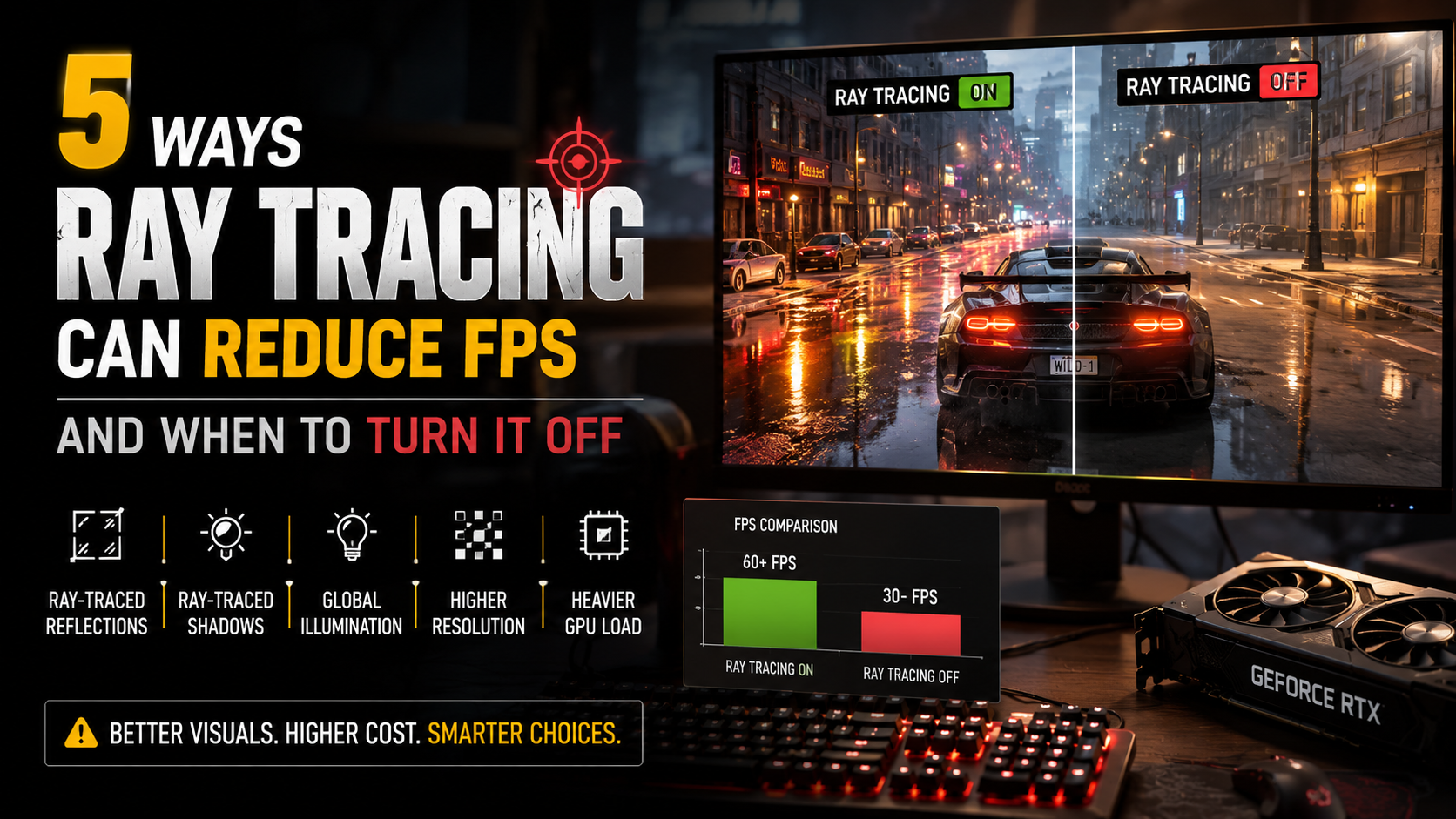
Ray tracing can make games look more realistic by simulating how light behaves in a 3D environment. It can improve reflections, shadows, global illumination, and other lighting effects. However, these visual improvements require additional GPU processing. As a result, ray tracing can reduce FPS compared with traditional rasterized rendering. For a deeper explanation of the technology, see What Is Ray Tracing & What Does It Do? Complete Guide.
The performance impact depends on the game, ray tracing quality, resolution, GPU, and other graphics settings. Some effects are relatively affordable, while full ray-traced lighting can be extremely demanding. The difference can become especially noticeable at higher resolutions. Your choice of graphics hardware also matters, particularly when comparing Integrated and Discrete Graphics: Best for Content Creation?.
When your GPU has more work to complete for each frame, render times increase. Higher render times mean fewer frames can be produced each second. This can also affect frame-time consistency and make gameplay feel less responsive.
According to architectural whitepapers from NVIDIA, processing millions of light rays per frame creates an immense workload for dedicated RT cores and standard shader pipelines alike.
Understanding this performance trade-off helps you choose better graphics settings. This guide explains why ray tracing affects FPS, whether 40 FPS is playable, and when disabling ray tracing makes sense. It also covers frame caps, upscaling, GPU temperatures, and practical ways to balance visual quality with smooth gameplay.
1. Ray-Traced Reflections Increase GPU Workload
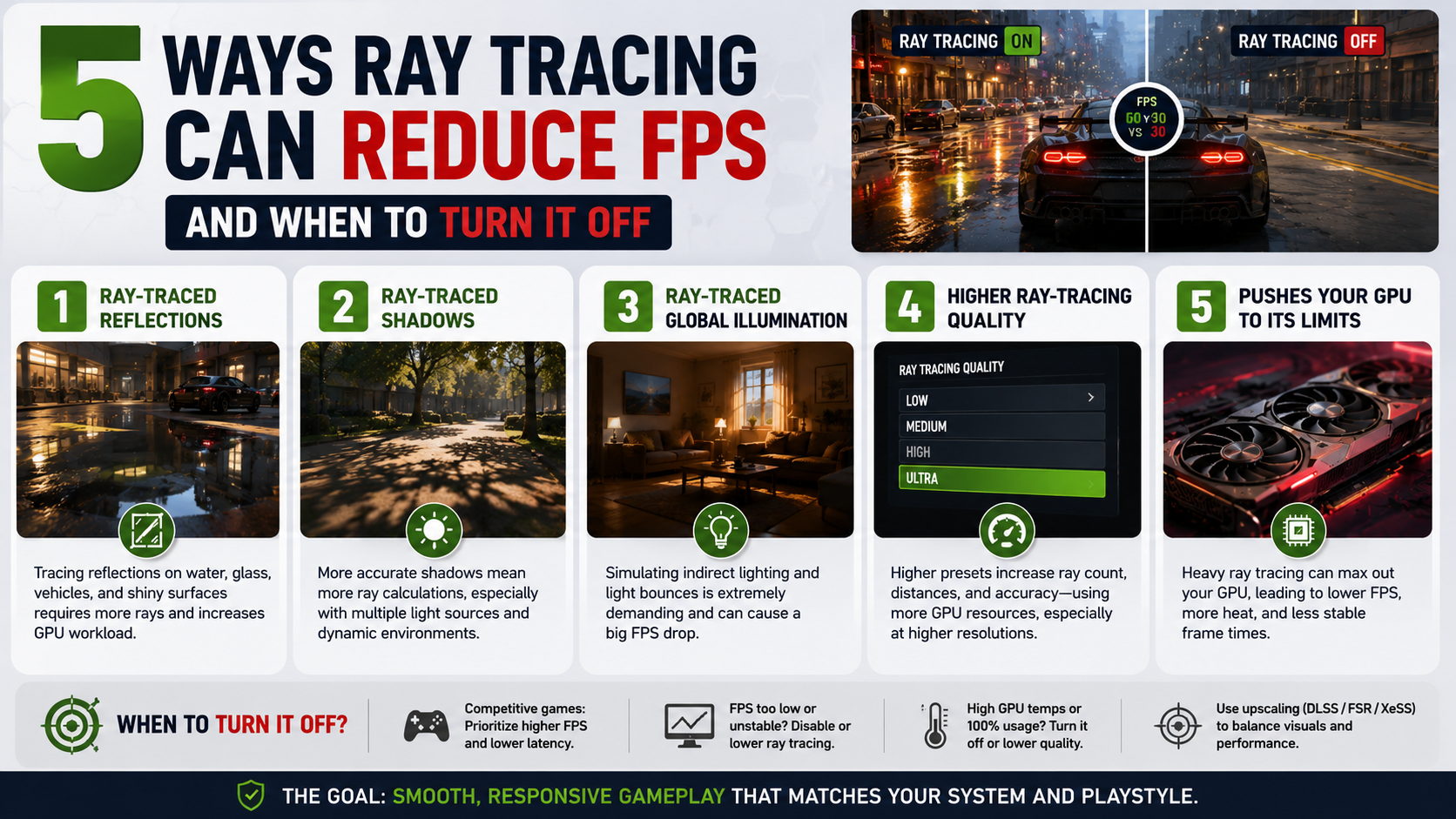
Ray-traced reflections can be one of the most demanding effects in a modern game. Traditional rendering methods often use screen-space reflections, reflection probes, or precomputed data. These techniques provide convincing results without tracing large numbers of light rays.
Ray tracing takes a different approach. The GPU traces rays to determine what objects and surfaces should appear in reflections. This becomes especially demanding when a scene contains water, glass, polished floors, vehicles, or other highly reflective materials.
The workload also increases when developers use higher-quality reflection settings. More rays and greater reflection distances require additional calculations. At higher resolutions, the GPU must also process more pixels that can contain ray-traced information.
If ray-traced reflections cause a noticeable FPS drop, you can lower their quality before disabling ray tracing completely. This can preserve some of the visual improvement while reducing the performance cost.
For competitive games, however, reflections rarely justify sacrificing responsiveness. Turning off ray-traced reflections can be an easy way to recover performance when every frame matters.
2. Ray-Traced Shadows Can Lower Frame Rates
Ray-traced shadows provide more realistic shadow edges and lighting behavior than many traditional shadow techniques. Instead of relying only on conventional shadow maps, the game can trace rays to determine whether light reaches different areas of the scene.
This additional calculation increases GPU workload. The impact becomes more noticeable when several light sources affect the scene simultaneously. Dynamic environments with moving characters, vehicles, foliage, and changing lighting can create even more work.
Shadow quality also affects performance. Higher-quality ray-traced shadows can require more calculations and greater ray-tracing resources. The difference may be small in some games but substantial in demanding scenes.
If your FPS drops after enabling ray-traced shadows, try reducing the quality level first. You may be able to keep the effect enabled without taking the full performance hit.
However, shadows are usually less important than frame-rate stability in competitive games. If you need higher FPS and lower latency, disabling ray-traced shadows can provide a practical performance improvement without affecting core gameplay mechanics.
3. Ray-Traced Global Illumination Is Extremely Demanding
Ray-traced global illumination can create some of the most realistic lighting effects in modern games. It attempts to simulate how light behaves after interacting with surfaces. This can produce more natural indirect lighting, reflections, and changes in brightness.
The problem is that these calculations are expensive. A single light source can interact with multiple objects and surfaces throughout a scene. The GPU must process additional ray-tracing operations while continuing to handle standard rendering tasks.
Large open-world environments can make the workload even heavier. Buildings, vegetation, interiors, reflective materials, and multiple light sources can all contribute to the overall rendering cost.
This is one reason ray-traced global illumination can reduce FPS significantly in demanding games. The effect can also become more expensive at higher resolutions.
If your game offers multiple ray-tracing options, global illumination deserves special attention. Lowering this setting may recover more performance than changing less demanding effects.
For players who prioritize smooth gameplay over lighting accuracy, turning off ray-traced global illumination can be one of the most effective ways to increase FPS.
4. Higher Ray-Tracing Quality Requires More GPU Resources
Ray tracing is not a single performance setting. Many games provide multiple quality levels, such as Low, Medium, High, and Ultra. Higher presets generally increase the complexity or number of ray-traced calculations performed during rendering.
Higher settings can increase ray count, reflection distance, lighting quality, shadow accuracy, or other rendering parameters. Each additional calculation adds work for the GPU.
Resolution also matters. Rendering at 1440p or 4K requires the GPU to process far more pixels than 1080p. Combining high resolution with demanding ray-tracing settings can therefore create a significant performance burden.
This does not mean you must choose between maximum ray tracing and completely disabling it. A medium ray-tracing preset can sometimes provide most of the visual benefit while costing much less performance than an Ultra setting.
If your FPS is too low, reduce ray-tracing quality before changing other settings that have a smaller visual impact. This approach can help maintain image quality while giving your GPU more room to maintain consistent frame rates.
5. Ray Tracing Can Push Your GPU to Its Limits
Ray tracing can increase overall GPU utilization because the graphics card must perform additional rendering work. When the GPU is already close to its performance limit, enabling demanding ray-tracing effects can push frame rates below a comfortable level.
The result depends heavily on your graphics card. Modern GPUs include dedicated hardware for accelerating ray-tracing operations, but this does not make ray tracing free. Other parts of the rendering pipeline still need to process shaders, textures, geometry, memory operations, and lighting data.
You may notice the biggest performance difference in demanding scenes. Large environments, heavy effects, dense geometry, and multiple light sources can increase the workload further.
If your GPU consistently struggles with ray tracing, turning it off can provide a more stable gaming experience. You can also combine lower ray-tracing settings with DLSS, FSR, or XeSS to recover performance.
The goal should not be to maximize every graphics setting. Instead, aim for a stable frame rate that matches your monitor and the type of game you play. For competitive gaming, higher FPS often matters more than advanced lighting effects.
Does turning on ray tracing reduce FPS?
Yes, turning on ray tracing can reduce FPS, sometimes substantially. The exact performance loss depends on the game, GPU, resolution, ray tracing effect, and quality preset. Traditional rasterization uses approximations to determine how objects appear on screen. Ray tracing instead performs additional calculations to simulate how light interacts with objects and surfaces.
Those calculations increase the workload placed on the GPU. Effects such as ray-traced reflections, shadows, ambient lighting, and global illumination can each add rendering overhead. Using several ray-traced effects together can create a much larger performance hit.
The impact also varies between graphics cards. Modern GPUs include dedicated hardware designed to accelerate ray-tracing operations. However, dedicated acceleration does not make ray tracing free. The GPU still has to process the resulting lighting information alongside normal rendering tasks. If you’re comparing different graphics hardware, Which Nvidia GPU Is Equivalent To The PlayStation 5? provides a useful point of reference.
At higher resolutions, the performance cost can become more noticeable. Upscaling technologies such as DLSS, FSR, and XeSS can help recover some lost FPS. Therefore, the best approach is to test ray tracing at your target resolution and adjust individual effects rather than assuming every ray-tracing setting has the same cost.
How do I decrease my FPS?
If your goal is actually to decrease FPS, rather than fix a ray-tracing performance problem, the simplest solution is to use a frame-rate limit. Most modern games include an FPS cap inside their graphics or display settings. You can select a lower target that matches your preferred performance level.
You can also use V-Sync to synchronize frame delivery with your monitor’s refresh rate. However, V-Sync does not simply provide an arbitrary FPS limit. Its behavior depends on the game’s rendering performance and your display’s refresh rate.
GPU driver software can provide additional frame-rate controls. NVIDIA Control Panel and similar graphics utilities can apply limits outside individual games. Tools such as RivaTuner Statistics Server can also provide detailed frame-rate and frame-time controls.
Lowering FPS intentionally can reduce GPU power consumption and heat when maximum performance is unnecessary. It can also make frame delivery more consistent when the GPU is capable of producing significantly more frames than your display requires.
If you actually meant “How do I increase my FPS?”, the better approach is to reduce demanding settings, lower resolution, enable upscaling, or disable ray tracing.
Is 40 FPS bad for gaming?
40 FPS is not automatically bad for gaming. Whether it feels acceptable depends on the game, display, input requirements, and player’s expectations. A stable 40 FPS can work reasonably well in slower single-player games, strategy titles, simulation games, and other experiences where rapid reactions are less important.
The situation changes in competitive games. First-person shooters, racing games, fighting games, and other fast-paced titles generally benefit from higher frame rates. Higher FPS can reduce frame-to-frame latency and make motion appear more responsive. If you’re choosing a system for gaming performance, Gaming Laptop: How to Choose the Best One in 2026 can help you evaluate the hardware that matters.
Frame consistency also matters. A stable 40 FPS experience can feel smoother than one that repeatedly jumps between 30 and 50 FPS. Variable refresh rate technology can further improve the experience by allowing the display to better match the GPU’s frame delivery.
However, 40 FPS should not be treated as a universal target. Some players find it perfectly comfortable, while others notice the reduced responsiveness immediately. Your monitor’s refresh rate and synchronization technology also influence how 40 FPS appears.
If ray tracing pushes a fast-paced game below your preferred frame rate, reducing or disabling ray tracing can be a practical solution. You can also lower individual ray-tracing settings or enable upscaling before disabling the feature completely.
Can I turn off ray tracing?
Yes, you can usually turn off ray tracing through a game’s graphics or video settings. The exact location varies between games. Some titles provide a single ray-tracing switch, while others separate effects such as ray-traced reflections, shadows, ambient occlusion, and global illumination.
Open the game’s graphics settings and look for options containing terms such as Ray Tracing, RT, Ray-Traced Reflections, or Ray-Traced Lighting. Set the relevant option to Off and apply the changes. Some games may require a restart before certain rendering changes take effect.
Disabling ray tracing reduces the additional workload associated with those effects. The game will generally rely more heavily on traditional rasterized techniques and other non-ray-traced methods. This can increase FPS and improve frame-time consistency, particularly on GPUs that struggle with the selected ray-tracing settings.
The improvement will not be identical in every game. If ray tracing was already using a relatively small amount of GPU resources, the FPS gain may be limited.
Before disabling everything, consider reducing individual ray-tracing effects. Lowering reflection quality or global illumination can sometimes preserve much of the visual improvement while reducing the performance cost. You can also explore How To Get More Out Of Your GPU Without Overclocking for other ways to improve graphics performance without overclocking.
Is ray tracing good on or off?
There is no universally correct ray-tracing setting. The better choice depends on your hardware, game, resolution, refresh rate, and priorities. Ray tracing can add more realistic reflections, shadows, and lighting. However, those improvements come with additional GPU workload.
For a slower single-player game, the visual improvement may be worth the performance cost. If your GPU can maintain a comfortable frame rate, keeping ray tracing enabled can improve the overall visual presentation. This is especially relevant in games designed around ray-traced lighting.
Competitive players usually have different priorities. Lower latency, higher FPS, and consistent frame pacing often matter more than realistic reflections or shadows. In these situations, disabling ray tracing can be the more practical choice.
You also do not have to choose between maximum ray tracing and completely disabling it. Many games allow individual effects to be adjusted. You could keep lower-cost ray-traced shadows while disabling expensive reflections, for example.
Upscaling technologies can provide another compromise. DLSS, FSR, and XeSS can render the game internally at a lower resolution and reconstruct the final image. This can recover performance while allowing some demanding effects to remain enabled.
The best setting is therefore the one that delivers acceptable image quality without pushing your FPS below your preferred target.
FREQUENTLY ASKED QUESTIONS
What hardware component handles real-time ray calculations?
Modern GPUs use dedicated hardware to accelerate real-time ray-tracing operations. NVIDIA graphics cards use RT Cores, while AMD GPUs use Ray Accelerators within their compute units. These components accelerate operations such as bounding-box and ray-triangle intersection testing. However, ray tracing still involves other GPU resources, including shaders and memory systems.
Does upscaling technology compensate for the performance loss?
Upscaling can significantly reduce the performance impact of demanding graphics settings, including ray tracing. Technologies such as NVIDIA DLSS, AMD FSR, and Intel XeSS render frames at a lower internal resolution and reconstruct them for the target output. The performance improvement varies by game, resolution, and implementation. Upscaling does not remove the cost of ray tracing, but it can make the overall workload easier for the GPU to handle.
Does enabling real-time reflections increase GPU operating temperatures?
It can. Ray-traced reflections add GPU workload, which may increase power consumption and heat output. The temperature increase depends on the GPU, game, cooling system, frame rate, and other graphics settings. If the GPU already operates near its power or thermal limits, enabling demanding ray-traced effects may cause higher temperatures and fan speeds. Good case airflow and an appropriate fan curve can help maintain stable operating conditions.
Why do ray-traced shadows cause sudden stuttering?
Ray-traced shadows can contribute to stuttering, but VRAM exhaustion is not the only possible cause. Stutters can also result from shader compilation, asset streaming, CPU limitations, background applications, or inconsistent frame times. If VRAM becomes heavily constrained, the GPU may need to manage memory more aggressively, which can worsen performance. Lowering ray-tracing quality, reducing texture settings, or disabling the most demanding effects can help identify the source of the problem.
Conclusion
Ray tracing can make modern games look significantly more realistic, but the additional rendering workload can reduce FPS. The size of the performance penalty depends on the specific game, GPU, resolution, ray-tracing effects, and graphics settings. Some implementations have a modest impact, while demanding ray-traced global illumination or reflections can reduce performance considerably.
You do not need to disable ray tracing automatically. If your GPU maintains a stable frame rate that matches your expectations, the visual improvements may be worth keeping. If performance falls below your preferred target, reduce the most demanding ray-tracing effects first.
Upscaling technologies can provide another way to balance image quality and performance. A suitable frame-rate limit can also improve consistency and reduce unnecessary GPU workload.
For competitive games, prioritizing higher FPS and lower latency often makes more sense. For slower single-player experiences, lower frame rates may be acceptable if they remain stable.
The best configuration comes from testing your own hardware. Compare ray tracing on and off, monitor frame times, and adjust individual settings. Aim for the combination that gives you the visual quality and responsiveness you actually want.