What Happens If You Don’t Update Your Graphics Card Drivers?
Running outdated software may seem harmless when your PC still starts normally. However, old graphics drivers can create compatibility, stability, and performance problems over time. If you refuse to update your graphics card drivers, you may encounter crashes, visual glitches, game launch failures, or security vulnerabilities.
Modern games and creative applications often depend on driver updates. These updates help graphics cards work correctly with newer operating systems, applications, rendering technologies, and game engines. Manufacturers such as NVIDIA, AMD, and Intel regularly release drivers with fixes, optimizations, and security improvements. You can check the latest official drivers through NVIDIA’s driver download page, AMD’s support page, or Intel’s graphics driver resources.
Ignoring these updates can gradually leave your system behind current software requirements. Newer games may stutter, display graphical errors, or fail to launch correctly. Professional applications can also experience rendering problems or unexpected crashes.
This guide explains the main risks of outdated graphics drivers. It also covers FPS improvements, update frequency, GPU lifespan, and signs of possible hardware failure.
What are the risks of don’t updating a graphics driver?
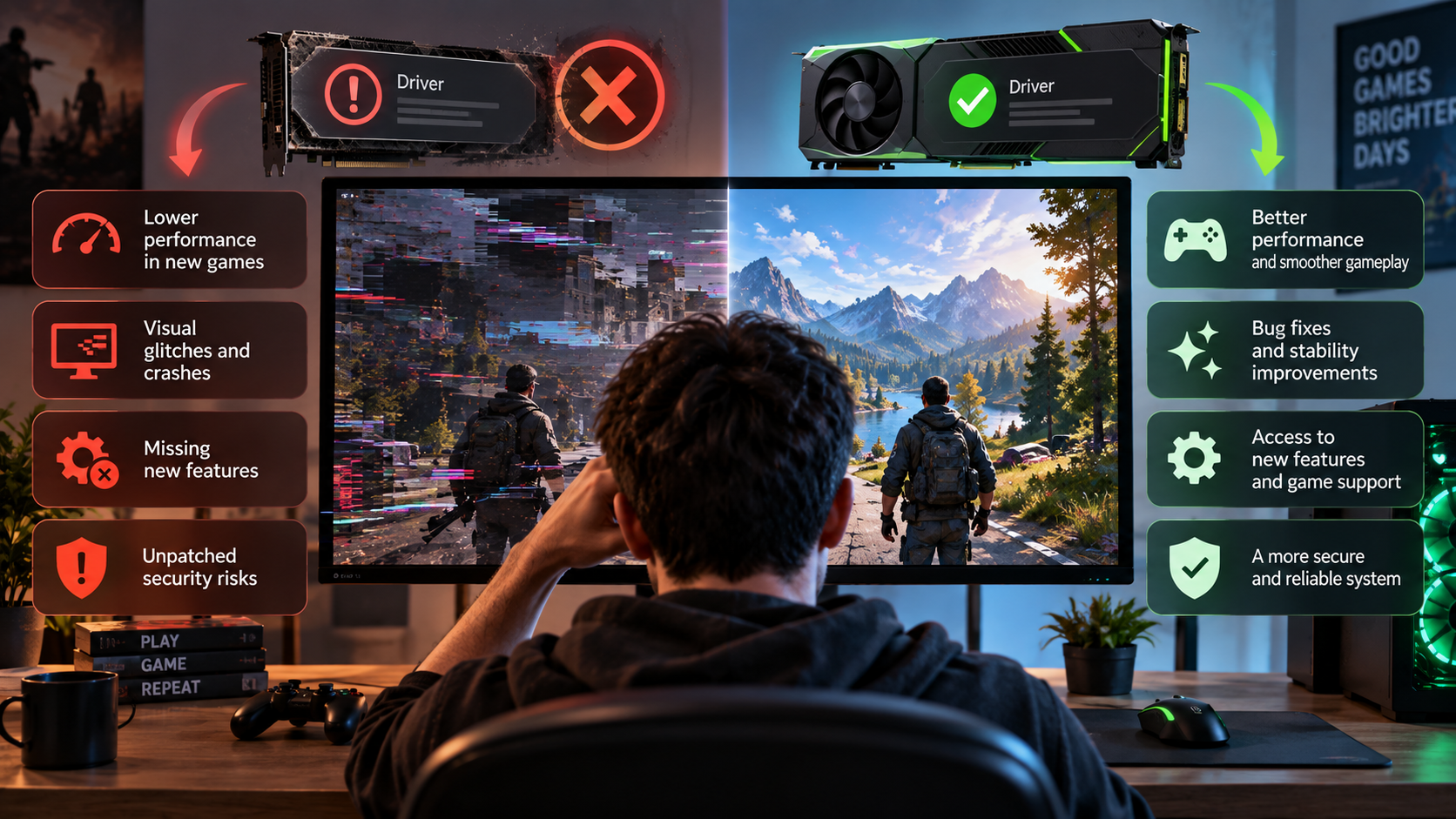
Failing to update your graphics driver can create compatibility problems between your operating system, applications, and GPU. New games often receive driver optimizations around launch. Without those changes, you may experience crashes, graphical glitches, poor frame pacing, or game launch problems. For systems with different GPU configurations, understanding integrated and discrete graphics can also help explain how graphics hardware handles demanding applications.
Driver updates can also address known security vulnerabilities. Some graphics-driver flaws can allow attackers to access protected system resources or cause other security issues. The actual risk depends on the specific driver version and vulnerability involved.
Outdated drivers can also contain unresolved bugs. These bugs may cause application freezes, display-driver crashes, or system instability during demanding workloads. However, old drivers do not automatically mean your GPU is physically overheating or failing.
Key risks include:
-
Game and application compatibility issues
-
Display-driver crashes and system instability
-
Missing performance optimizations
-
Visual glitches and rendering problems
-
Exposure to known security vulnerabilities
Keeping your graphics driver reasonably current reduces these software-related problems.
Security Vulnerabilities and Application Instability
Graphics drivers operate with deep access to system hardware and software. Because of this access, security flaws in a driver can create meaningful risks. Manufacturers sometimes release updates specifically to address documented vulnerabilities in their graphics software.
Outdated drivers can also cause application instability. A game may freeze when loading a new scene, while a video editor may crash during rendering. These problems often appear after operating-system or application updates introduce new compatibility requirements.
Updating your driver can resolve known bugs and improve communication between Windows and your graphics hardware. However, an update is not a guarantee against every crash. Hardware problems, overheating, faulty memory, corrupted applications, and other software conflicts can produce similar symptoms.
For that reason, treat driver updates as one part of regular PC maintenance. If a problem begins immediately after an update, you can also consider returning to a previous stable driver. Always use official manufacturer sources when downloading graphics drivers.
Will updating my GPU increase FPS?
Updating your graphics driver can increase FPS, but the improvement varies significantly by game and hardware. Manufacturers often release optimized drivers for newly launched games. These updates can improve rendering performance, compatibility, and frame pacing. Features such as ray tracing can reduce FPS in some games, so driver updates are only one factor affecting gaming performance.
Performance gains can sometimes be noticeable in newer games. However, there is no reliable percentage that applies to every GPU or game. Some updates may produce a measurable improvement, while others may have little effect on average FPS.
Older games may see minimal gains because their rendering paths are already well optimized. In some cases, a new driver can even introduce a temporary performance regression. This is why major driver releases should be evaluated against your specific games and applications.
Driver updates can also improve minimum frame rates and stutter behavior. A smoother frame-time pattern can make gameplay feel better, even when average FPS changes very little. Your monitor can also affect how these improvements appear, which is why understanding FreeSync and whether to enable it on your monitor can be useful for smoother gameplay.
Before updating, check the driver’s release notes. Look for support for your games, known issues, performance fixes, and compatibility improvements.
Day-One Patches and Game Engine Optimizations
Graphics manufacturers frequently release drivers around major game launches. These releases may include game-specific profiles and rendering optimizations. They are designed to help newer titles work correctly with supported GPUs.
A launch-day driver can address problems that developers and GPU manufacturers identified during testing. It may improve shader handling, rendering compatibility, memory behavior, or frame pacing. The results depend on the game, GPU model, driver version, and system configuration.
That means updating your graphics driver before playing a new title can be worthwhile. It is especially relevant when the game developer recommends a specific driver version.
However, the newest driver is not automatically faster in every situation. Some releases may contain bugs or regressions that affect certain hardware configurations. Checking release notes and early stability reports can help you decide when to install an update.
For competitive gaming, testing a new driver before an important event is also sensible. A stable, well-tested configuration can matter more than a small theoretical performance improvement.
Is it good to always update GPU drivers?
Keeping your GPU driver reasonably current is generally useful, but you do not need to install every release immediately. New drivers can introduce fixes and optimizations, but they can occasionally contain bugs or compatibility problems.
If your computer works reliably and you are not affected by a known issue, waiting briefly before installing a major release can be reasonable. This gives manufacturers time to identify and correct unexpected problems. However, you should still update your graphics card drivers regularly enough to avoid missing important compatibility and performance improvements.
However, some updates deserve faster attention. Security patches should not be ignored when they address vulnerabilities affecting your system. The same applies to updates that fix serious compatibility problems with software you use regularly.
Your update schedule can therefore depend on how you use your PC:
-
Gamers: Check drivers around major game launches.
-
Creative professionals: Prioritize stable drivers tested for your applications.
-
General users: Updating periodically is usually sufficient.
-
Security-conscious users: Install important security fixes promptly.
You should also create a restore point or otherwise keep a recovery option available before major driver changes. That makes troubleshooting easier if a new release causes unexpected problems.
The Value of Stable Studio and Game Ready Drivers
GPU manufacturers may offer different driver branches for different workloads. NVIDIA, for example, provides Game Ready Drivers and Studio Drivers for supported hardware.
Game-focused drivers typically prioritize support for new games and gaming-related optimizations. Studio-oriented drivers emphasize stability and compatibility with supported creative applications.
Your choice should match your primary workload. Someone who mainly plays new games may prioritize gaming-focused releases. A video editor or 3D artist may prefer a driver branch validated for their professional applications.
Neither option guarantees complete stability. Software combinations differ across PCs, and new releases can still contain unexpected issues. Application developers and GPU manufacturers also publish compatibility information that can help with troubleshooting.
If your current driver works well, you do not necessarily need to switch branches without a reason. Instead, check the release notes and your application’s recommended configuration. This approach helps you update your graphics card drivers without making unnecessary changes to a stable system.
What is the lifespan of a GPU?
A graphics card does not have a fixed expiration date. Many GPUs can remain operational for five years, eight years, or longer, depending on build quality, workload, temperatures, maintenance, and usage conditions.
Physical failure is only one reason to replace a GPU. A working graphics card may eventually become unsuitable for newer games or applications because of limited performance, video memory, or support for newer graphics features.
Mechanical components can also wear out. Cooling fans contain moving parts that may become noisy or fail after prolonged use. Thermal interface materials can change over time, although replacement is not automatically required on a fixed schedule.
Good maintenance can help reduce unnecessary thermal stress. Keep dust under control and make sure the case has adequate airflow. Monitor temperatures if you notice unusual fan behavior or performance changes.
Driver updates do not directly extend the physical lifespan of GPU silicon. They can, however, improve software compatibility and efficiency during the card’s usable life.
Thermal Maintenance and Hardware Durability
Heat is an important factor in long-term hardware reliability. Consistently excessive temperatures can increase stress on electronic components and may contribute to premature failure.
Good airflow is therefore an important part of GPU maintenance. Clean dust from filters, fans, and heatsinks when needed. Avoid blocking case vents, and make sure the GPU’s cooling system can operate properly. Choosing the right PC case for air and liquid cooling can also help provide adequate airflow for components that generate significant heat.
You do not need to replace thermal paste on every graphics card every three years. The correct interval depends on the card, its temperatures, usage, and the condition of the existing thermal material. If temperatures remain normal, replacement may not be necessary.
Watch for changes rather than following an arbitrary schedule. Increasing temperatures, unusually loud fans, thermal throttling, or sudden performance drops can indicate a cooling problem.
Remember that driver problems and hardware problems are different. Updating a driver can fix software issues, but it cannot repair damaged memory, failing fans, or physical GPU components.
How do I know if my GPU is dying?
A failing graphics card can produce several warning signs, but none proves hardware failure on its own. Visual artifacts are one important symptom. These can appear as strange shapes, colored blocks, corrupted textures, flashing pixels, or unexpected lines.
Frequent display-driver crashes can have multiple causes. Faulty hardware is one possibility, but corrupted drivers, unstable overclocks, overheating, defective system memory, and software conflicts can produce similar symptoms.
Other warning signs include black screens during demanding workloads, sudden system shutdowns, persistent graphical corruption, or abnormal fan behavior. If these problems appear repeatedly, troubleshooting should begin with temperatures, driver installation, power connections, and system stability.
Blue-screen errors mentioning files such as nvlddmkm.sys or amdkmdag.sys indicate a problem involving the graphics driver stack. They do not automatically prove that the GPU is dying.
Useful troubleshooting steps include:
-
Return GPU settings to their default values.
-
Check GPU temperatures and fan operation.
-
Perform a clean driver installation.
-
Test the GPU with another system when practical.
-
Check power cables and the power supply.
-
Run appropriate hardware diagnostics.
Testing several components helps separate a driver problem from genuine hardware failure.
Identifying Persistent Visual Artifacts and System Freezes
Persistent artifacts deserve attention, especially when they appear across multiple applications. If corruption appears during normal desktop use, gaming, and other graphical workloads, investigate the GPU and its supporting components.
Start by checking whether the problem disappears after a clean driver installation. Also remove any GPU overclock and monitor temperatures during demanding workloads. Unstable memory or inadequate power delivery can create symptoms that resemble GPU failure. If you are trying to improve GPU performance without increasing clock speeds, getting more out of your GPU without overclocking can provide additional options.
If artifacts remain after software and temperature checks, test the graphics card in another compatible system when possible. You can also test a known-good GPU in the original PC. These comparisons can help identify whether the problem follows the card.
Do not assume every graphical glitch means the GPU is failing. A damaged display cable, faulty monitor, unstable RAM, driver conflict, or defective power supply can create similar symptoms.
A consistent pattern across different systems provides stronger evidence of a hardware problem. If the card is still under warranty, document the symptoms before contacting the manufacturer.
Frequently Asked Questions
Can an outdated driver cause my monitor to go black?
Yes, an outdated or incompatible graphics driver can sometimes cause a black screen. Driver problems may appear when changing resolutions, waking the computer from sleep, or installing system updates. If you update your graphics card drivers to the latest compatible version, you may be able to resolve these issues and improve display stability.
Should I remove my old graphics driver before updating?
In most cases, you do not need to uninstall your existing graphics driver before updating. Standard driver installers are designed to update the previous version automatically. However, if you experience repeated crashes, installation errors, or problems after changing graphics hardware, a clean driver installation may help. Specialized tools can be useful for removing persistent driver files before reinstalling the appropriate driver.
Do graphics drivers update automatically through Windows?
Windows can automatically install and update graphics drivers through Windows Update. However, these drivers may not always include the latest game optimizations, features, or vendor-specific controls. If you want access to newer features and performance improvements, check the graphics card manufacturer’s official driver releases or use its driver-management software. You can also learn more about what your GPU can do besides play games, especially if you use your computer for creative or productivity workloads.
Conclusion
Keeping your graphics driver reasonably up to date can help maintain system stability, application compatibility, and gaming performance. You do not necessarily need to install every driver release immediately, but leaving your driver unchanged for years can mean missing important bug fixes, compatibility improvements, and game-specific optimizations.
Graphics-intensive games and productivity applications rely on drivers to communicate efficiently with your GPU. If you decide to update your graphics card drivers, check your current driver version first and review the release notes for the latest compatible version. Driver maintenance is only one part of keeping a graphics card healthy, though. Adequate cooling, regular dust removal, proper airflow, and avoiding excessive temperatures are also important for long-term reliability.
If the latest release addresses a problem you are experiencing or adds useful compatibility or performance improvements, installing it can be worthwhile. Regularly checking whether you should update your graphics card drivers can help you avoid running outdated software for unnecessarily long periods.