
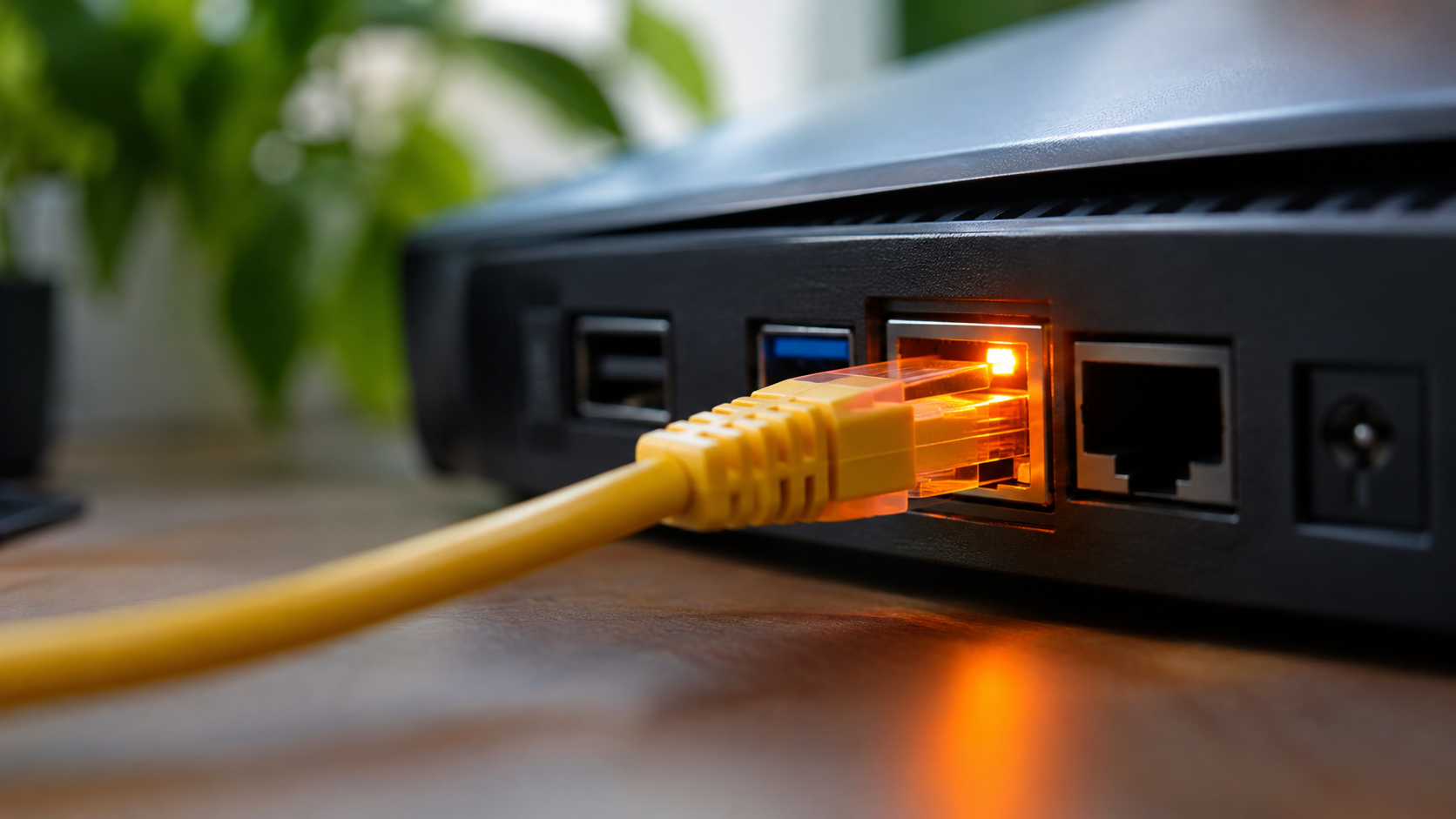
What Does It Mean When Your Ethernet Port Is Blinking Orange?
Glancing behind your computer or router and seeing your Ethernet port blinking orange can quickly cause concern. Many people assume amber or orange lights indicate hardware failure or a broken internet connection. Fortunately, this blinking light often indicates normal network activity rather than a serious problem.
Ethernet ports use LED indicators to communicate connection status, network activity, and sometimes connection speed. However, their exact meanings depend on your router, motherboard, network switch, or network adapter manufacturer. There is no universal color system for every Ethernet device.
Understanding these indicator lights can save you unnecessary troubleshooting. It also helps you identify potential connection problems and speed limitations. Whether you use Ethernet for gaming, streaming, or remote work, knowing what the lights mean is useful.
In this guide, we explain what an orange Ethernet light means, whether blinking is normal, and why LAN ports flash amber. You’ll also learn how to troubleshoot connection problems and whether using Ethernet affects your WiFi performance.
What Does It Mean If Your Ethernet Port Is Blinking Orange?
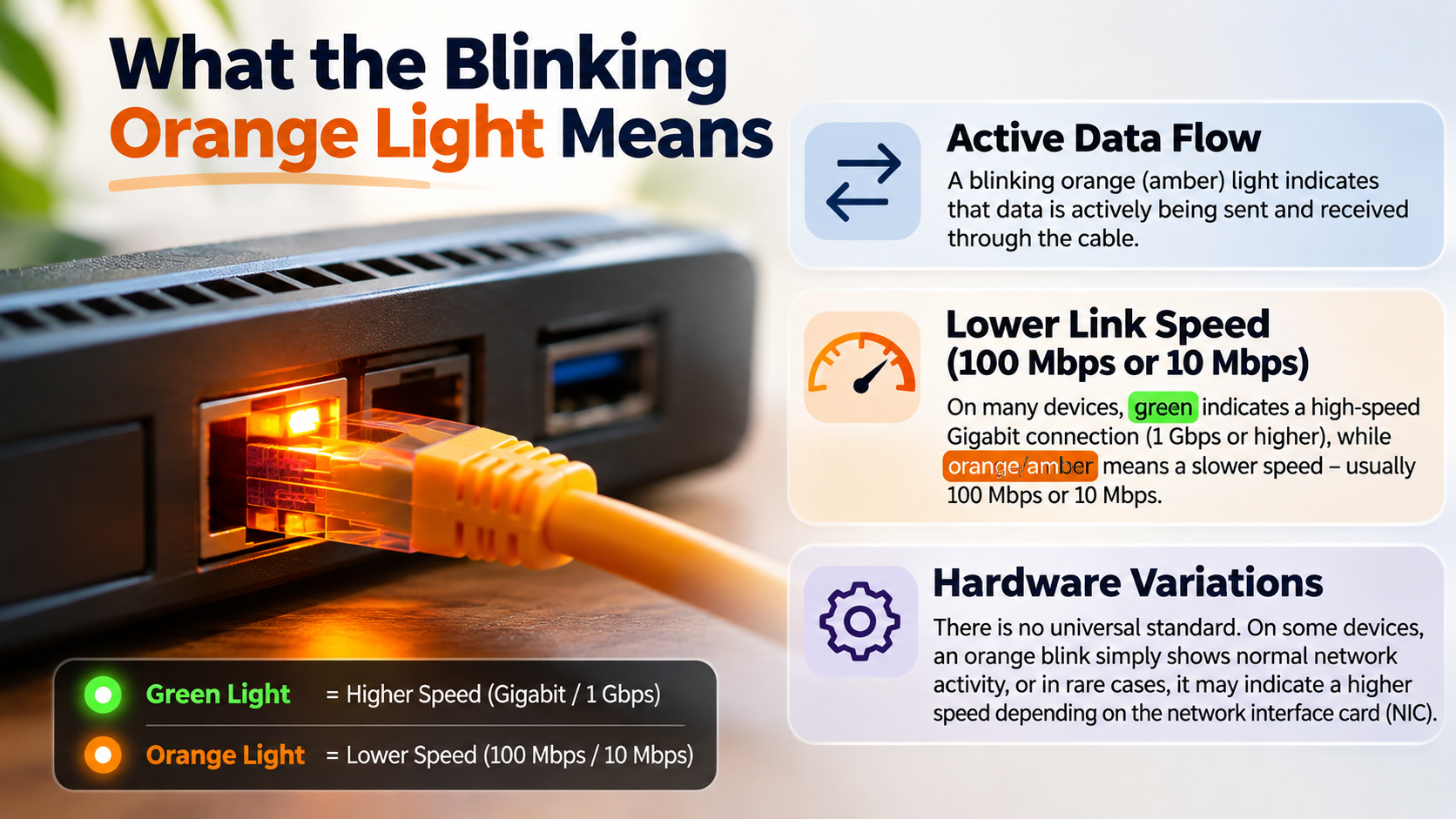
When your Ethernet port is blinking orange, it usually indicates network activity or an established connection. However, the exact meaning depends on your device’s manufacturer and LED configuration. Some Ethernet ports use orange or amber to indicate connection speed. Others use it to show data transmission.
A blinking activity light generally means your computer and router are exchanging information. This happens when you browse websites, download files, stream videos, or synchronize applications.
The connection speed indicator may also use different colors. For example, some devices display green for Gigabit Ethernet and orange for 100 Mbps connections. Other manufacturers use different color combinations.
Therefore, a blinking orange Ethernet light does not automatically indicate a problem. Your connection might be working perfectly.
Checking Your Specific Hardware Manual
Different manufacturers assign different meanings to Ethernet LED colors. Therefore, you should check your device’s documentation before diagnosing a connection problem.
For example, some routers use green to indicate a Gigabit connection. Orange may represent a 100 Mbps connection. Other devices use separate LEDs for connection status and network activity.
Follow these steps to identify your Ethernet indicator lights:
- Identify your router, motherboard, or network adapter model.
- Visit the manufacturer’s official support website.
- Find the user manual or technical documentation.
- Locate the section explaining LAN or Ethernet indicators.
- Compare the documented LED patterns with your device.
Pay attention to whether the light blinks, remains solid, or changes color. These differences can help identify the connection status.
Always follow your device’s documentation rather than assuming every orange Ethernet light has the same meaning.
Is It Normal for Ethernet to Blink Orange?
Yes, an Ethernet port blinking orange can be completely normal. In many devices, blinking indicates that data is moving between connected network devices. Your computer constantly exchanges small amounts of information with your router and other network devices.
For example, opening a website, downloading a file, or receiving an application update can trigger Ethernet activity. Background processes may also generate network traffic when you aren’t actively using your computer.
However, blinking does not always confirm that your internet connection is working properly. It only indicates activity when the manufacturer assigns that meaning to the LED.
You should also distinguish between a blinking light and a solid orange light. Their meanings can differ depending on the hardware.
If your internet works normally, your connection remains stable, and your device performs as expected, there is usually no reason to worry about an orange blinking light.
Solid Orange vs. Blinking Orange
A solid orange Ethernet light and a blinking orange light can indicate different connection conditions. However, their exact meanings depend on your router or network adapter.
In many devices, a solid LED indicates an established physical connection. A blinking LED indicates network activity. Some manufacturers also use orange to identify a particular connection speed.
Here are some common interpretations:
- Blinking orange: May indicate active data transmission.
- Solid orange: May indicate an established connection or a particular link speed.
- No light: May indicate a disconnected cable, inactive port, or disabled network adapter.
- Alternating colors: May indicate different connection speeds or network activity.
These are general interpretations, not universal rules.
If your Ethernet light remains orange and you cannot access the internet, check your cable, router, and network settings. Also, remember that an active Ethernet link does not guarantee internet access. Your router may still have an issue communicating with your internet service provider.
How to Fix an Ethernet Port Orange Light?
An orange Ethernet light does not always require fixing. If your connection works normally, the indicator may simply be showing network activity or connection speed. However, if you notice slower internet speeds, frequent disconnections, or unstable connectivity, troubleshooting can help.
Start by checking your Ethernet cable and both connection points. A loose or damaged cable can prevent your devices from establishing a reliable connection.
Next, verify that your cable and network ports support the speeds you expect. Cat5e and Cat6 cables are commonly used for Gigabit Ethernet connections. If you’re comparing cable options for better network performance, understanding the differences between Cat6 and Cat6a cables can help you choose the right one.
You should also restart your router and computer. This can resolve temporary network communication problems.
If the issue continues, check your network adapter settings and update its drivers. Avoid changing advanced network settings without understanding their purpose.
Adjusting Speed and Duplex Settings
Incorrect Speed and Duplex settings can sometimes cause Ethernet connection problems. These settings control how your network adapter communicates with another connected device.
Windows usually handles this process automatically through Auto Negotiation. This allows your computer and router to select a mutually supported connection speed and duplex mode.
To check these settings:
- Right-click the Windows Start button.
- Open Device Manager.
- Expand Network Adapters.
- Right-click your Ethernet adapter.
- Select Properties.
- Open the Advanced tab.
- Find Speed & Duplex.
In most situations, leave this option set to Auto Negotiation. Forcing 1.0 Gbps Full Duplex can create compatibility problems if the connected device does not support the same configuration.
Only change this setting when troubleshooting a confirmed negotiation issue and following your hardware manufacturer’s recommendations.
Why Is My LAN Port Flashing Orange?
A LAN port flashing orange can indicate active network traffic, a particular connection speed, or another connection status. The exact interpretation depends on your router or network switch.
LAN stands for Local Area Network. It connects devices within your home or office network. Examples include desktop computers, smart TVs, printers, gaming consoles, and network storage devices.
When you connect a device to a LAN port, both devices negotiate a supported connection speed. Depending on the hardware, the router may display different LED colors for 100 Mbps and Gigabit connections. Some modern routers also include 2.5G Ethernet ports, which support higher connection speeds than standard Gigabit ports when compatible devices and cables are used.
If your smart TV supports only 100 Mbps Ethernet, your router may display an orange indicator. The light may also blink when the TV exchanges information with other network devices.
A flashing orange LAN indicator is not necessarily a fault. Check your router’s documentation and test the actual connection speed before assuming something is wrong.
Damaged Cables Cause Speed Downgrades
A damaged Ethernet cable can prevent your devices from establishing their expected connection speed. This sometimes happens when internal copper wires become damaged through repeated bending, pulling, or physical pressure. Even bending an Ethernet cable too sharply can affect its performance and potentially cause connection problems.
Gigabit Ethernet connections generally require all four twisted pairs inside an Ethernet cable. A damaged pair can prevent a Gigabit connection from working correctly.
For comparison:
- 100 Mbps Ethernet: Typically uses two twisted pairs.
- 1 Gbps Ethernet: Uses all four twisted pairs.
- 10 Gbps Ethernet: Requires compatible cabling and network hardware.
A damaged cable may cause your connection to fall back to a lower speed. It can also produce intermittent connectivity or complete connection failures.
Try replacing the existing cable with a properly rated Cat5e or Cat6 cable. You can also test another LAN port on your router.
If the connection speed improves after replacing the cable, the original cable was likely responsible.
Can Ethernet Ruin My WiFi?
No, connecting an Ethernet cable does not damage your WiFi network or automatically make it slower. Ethernet and WiFi use different transmission methods. Ethernet sends information through physical network cables, while WiFi uses wireless radio signals.
Using a wired connection can actually improve your overall home network experience. Devices connected through Ethernet do not need to compete for wireless airtime. However, if you’re concerned about whether using Ethernet slows down WiFi for others, understanding how wired and wireless connections share network resources can help.
For example, connecting your desktop computer, smart TV, or gaming console through Ethernet can reduce wireless network congestion. This leaves more wireless capacity available for smartphones, tablets, and laptops.
However, remember that Ethernet and WiFi may still share your router’s internet connection. If several devices download large files simultaneously, they can compete for available internet bandwidth.
Therefore, Ethernet does not automatically make WiFi faster. Its main advantage is reducing wireless traffic and providing a more stable connection for wired devices.
Avoiding Accidental Network Loops
Although Ethernet does not normally interfere with WiFi, incorrect cable connections can create network problems. One example is an accidental network loop.
A network loop happens when multiple network paths connect the same devices in a way that creates a continuous forwarding cycle. This can cause network traffic to circulate repeatedly.
In some configurations, connecting both ends of an Ethernet cable to LAN ports on the same network switch or router can create a loop. The resulting broadcast storm may affect network performance and interrupt wired or wireless connectivity.
To avoid this problem:
- Connect one end of the Ethernet cable to your router.
- Connect the other end to your computer or another network device.
- Avoid creating unnecessary connections between LAN ports.
- Use properly configured network switches when multiple connections are required.
Modern network equipment may include loop prevention features, but these should not be treated as a guarantee.
If your network suddenly becomes unstable after changing cable connections, disconnect the newly added cable and check whether connectivity returns.
Conclusion
An Ethernet port blinking orange does not necessarily indicate a network problem. In most cases, it represents normal network activity or a specific connection speed, depending on your device.
If your internet connection works properly, there is usually no reason to worry. However, if you experience slow speeds, frequent disconnections, or unstable connectivity, check your Ethernet cable, router settings, and network adapter.
For additional technical guidance, visit Cisco’s guide on troubleshooting Ethernet switch port and interface problems.
Always consult your device manufacturer’s documentation to understand its LED indicators. With a few simple checks, you can identify potential issues and maintain a stable, reliable Ethernet connection.