Why Do Some Laptops Never Charge to 100%?
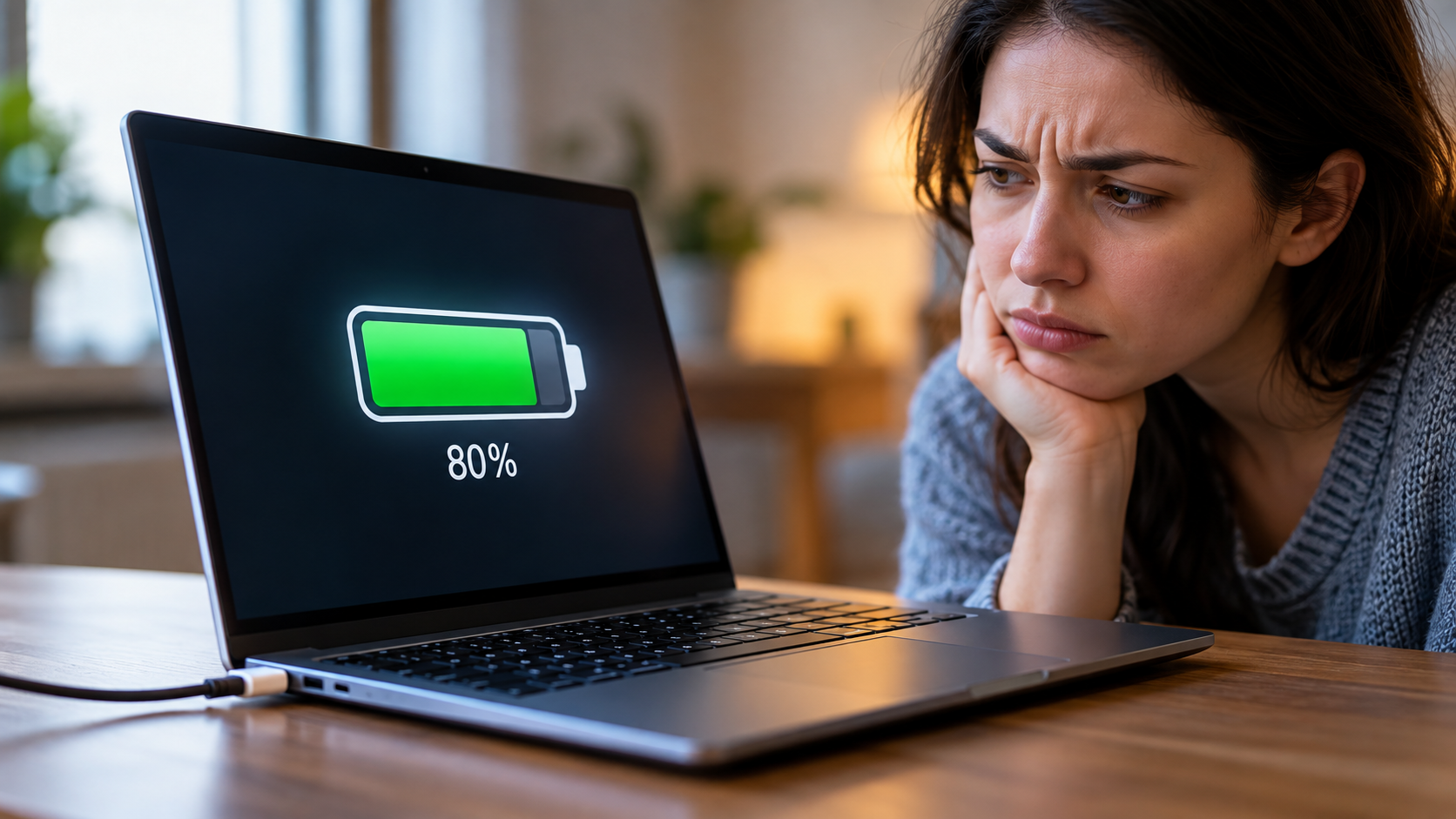
When laptops never charge to 100%, the cause may be a battery protection setting, a charging limit, or a battery health issue. Many users notice their laptop battery stops at 95%, 99%, or even 80%. In most cases, this behavior is intentional rather than a sign of a faulty battery.
Modern laptops include battery management features that help protect lithium-ion cells from premature wear. These features can limit charging when a device remains plugged in for extended periods. However, software problems, inaccurate battery readings, or faulty hardware can also prevent a full charge.
Understanding why laptops never charge fully can help you identify the cause and choose the right solution. This guide explains how to fix charging limits, improve battery health, and extend battery lifespan. It also answers common questions about charging to 100%, battery damage, and laptop runtime.
Why Does My Laptop Never Charge to 100%?
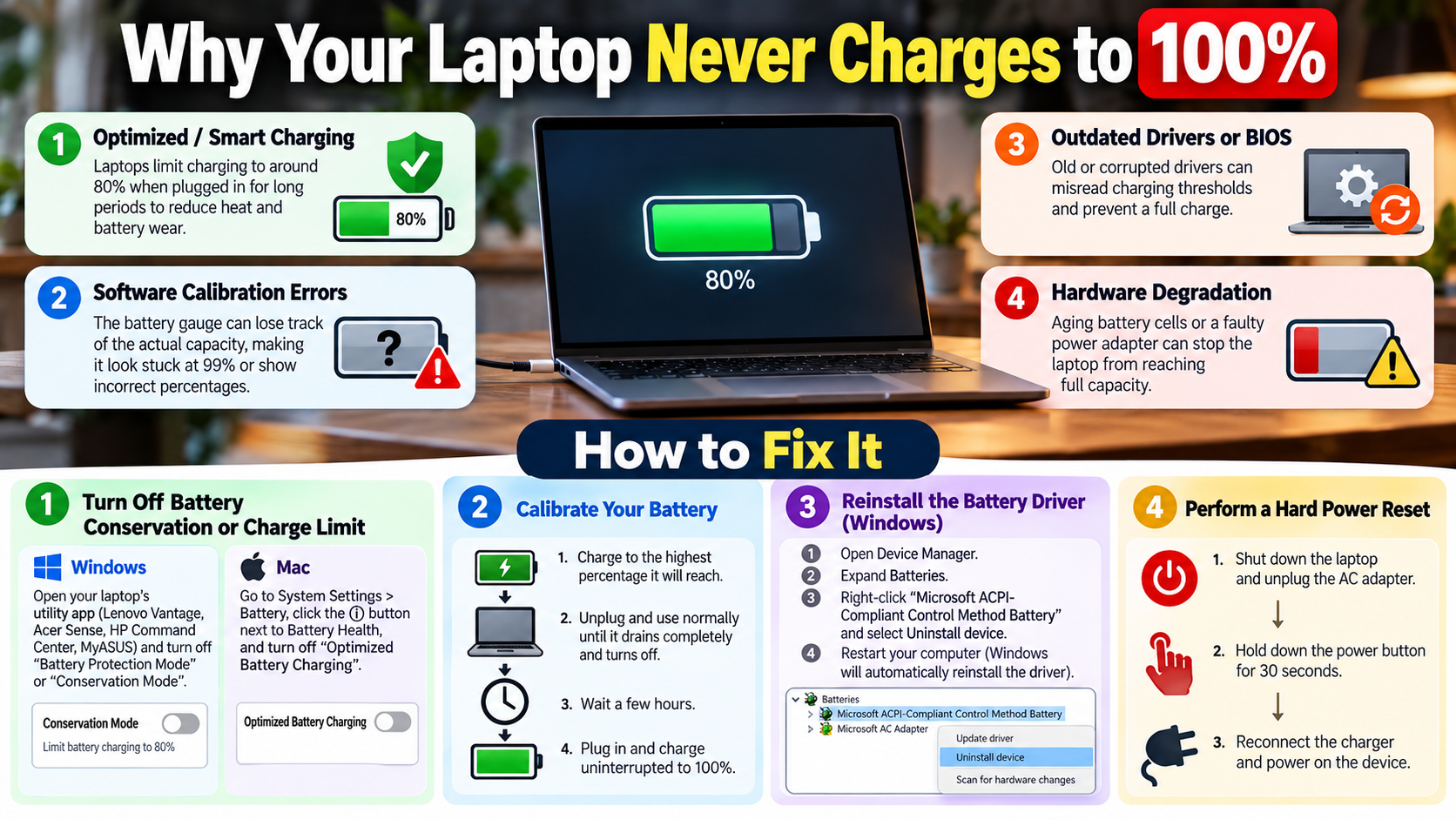
If your laptop battery stops charging before reaching 100%, it does not necessarily mean the battery is faulty. Modern laptops often use smart charging features to protect their internal lithium-ion cells. These features can limit charging to reduce chemical aging, especially when a laptop stays connected to AC power for long periods.
When a battery remains at maximum voltage, it experiences greater chemical stress. Manufacturers such as Dell, Lenovo, and Apple offer battery management features that may limit charging to 60%, 80%, or another configured threshold. The available settings depend on your laptop model. Understanding the 80-20 rule for rechargeable batteries can also help you choose healthier charging habits.
Battery Health Management Software Features
Many laptops include built-in battery protection tools or manufacturer utilities. These tools can adjust charging limits to reduce long-term capacity loss. By keeping the battery below its maximum charge level, they help minimize unnecessary wear.
Common examples include Lenovo Vantage, Dell Power Manager, and battery health features on supported ASUS and Apple devices. Depending on the model, these settings may appear as Conservation Mode, Battery Health Charging, or Optimized Battery Charging.
If your laptop stops at 80%, check whether a charging limit is enabled. If laptops never charge beyond 95% or 99%, temperature management or inaccurate battery readings may also explain the behavior.
Software is not always the cause. Outdated firmware, a faulty charger, or a deteriorating battery can also prevent full charging. If you suspect an adapter problem, learn whether a third-party charger is safe for your laptop before choosing a replacement. Check your manufacturer’s troubleshooting recommendations before replacing hardware.
How Do I Get My Laptop to Charge to 100%?
If your laptop battery will not charge to 100%, start by checking its charging settings. Many laptops have a battery conservation feature that intentionally prevents a full charge. Disabling this limit, when appropriate, can allow the battery to reach its maximum available capacity.
Open your laptop manufacturer’s power management application and look for battery health, charging thresholds, or conservation mode. If a charging limit is active, switch to the standard or full-charge setting when you need additional runtime.
Adjusting Power Management Settings
Follow these steps to troubleshoot a laptop that will not charge fully:
- Check the charging limit: Open your manufacturer’s battery management utility and review its settings.
- Disable conservation mode: Temporarily turn off the charging cap when you need a full charge.
- Check the charger: Use a compatible adapter with sufficient power output. If you use a USB-C charger, understanding whether USB-C cables support video can also help you identify the capabilities of your cable when connecting compatible displays and accessories.
- Restart your laptop: Resolve possible temporary software or battery reporting issues.
- Update system software: Install recommended BIOS, firmware, and operating system updates.
- Check battery health: Run your laptop’s built-in battery diagnostics to identify possible problems.
If laptops never charge fully after these checks, investigate the battery meter and power management system. Follow the manufacturer’s calibration instructions if inaccurate readings are suspected. Avoid repeatedly draining the battery to zero because deep discharges can increase battery wear.
If the problem continues, the battery, charging port, or adapter may need professional inspection. Rule out simpler causes before replacing the battery.
Is It Bad to Charge a Laptop Battery to 100%?
Charging your laptop battery to 100% occasionally is generally fine. Modern lithium-ion batteries and their charging systems are designed to handle full charges when the equipment functions correctly. However, keeping a battery fully charged for extended periods can accelerate capacity loss.
Battery aging depends on several factors, including temperature, charge level, and usage patterns. A battery that remains at maximum voltage while exposed to high temperatures may deteriorate faster. This is why many manufacturers offer charging limits for laptops that spend most of their time connected to power.
Managing High-Voltage Stress
Lithium-ion batteries generally experience less chemical stress at moderate charge levels than at maximum voltage. Keeping your laptop between roughly 20% and 80% can help reduce long-term wear. However, this is a practical guideline, not a strict requirement for every device.
If you mainly use your laptop at a desk, consider enabling its battery conservation feature. This can help preserve battery capacity without requiring constant manual adjustments. Some devices also use bypass charging to manage power delivery while plugged in, so understanding how bypass charging works can help you explore another battery management approach. If you travel frequently, charging to 100% before leaving is a reasonable choice.
To maintain battery health, follow these simple habits:
- Avoid exposing your laptop to excessive heat.
- Use manufacturer-supported charging limits when practical.
- Charge fully when you need additional runtime.
- Avoid leaving the battery at 0% for extended periods.
- Keep your firmware and battery management software updated.
The goal is not to avoid full charging entirely. Instead, balance your daily power needs with habits that reduce unnecessary battery stress.
What Kills a Laptop Battery the Most?
Excessive heat is one of the biggest threats to laptop battery health. High temperatures accelerate the chemical reactions that cause lithium-ion batteries to lose capacity. Over time, repeated exposure can reduce battery life and shorten its useful lifespan.
Heat can build up when you run demanding applications, block ventilation ports, or leave your laptop in a hot environment. Gaming and other intensive workloads can increase internal temperatures, particularly when cooling is inadequate. Regularly removing dust from ventilation openings can help, and learning how to safely clean your electronics with compressed air can help you maintain cleaner vents. Direct sunlight and hot vehicles can also expose batteries to damaging conditions.
The Impact of Thermal Stress
Battery wear also depends on charging habits and discharge depth. Keeping a battery at 100% for extended periods can increase chemical stress, especially at high temperatures. Repeatedly draining it to 0% can also contribute to unnecessary wear.
To protect your laptop battery, focus on temperature control and sensible charging habits. Place your device on a hard, flat surface to maintain proper airflow. Clean its vents when necessary, and avoid covering cooling openings during use. If you regularly use demanding applications while plugged in, learning whether fast charging ruins your phone battery can also provide useful context about how charging speed and heat affect battery longevity across devices.
Other helpful precautions include:
- Use a compatible charger that meets your laptop’s power requirements.
- Avoid leaving your laptop in direct sunlight or a hot car.
- Enable battery conservation settings when the device stays plugged in.
- Reduce demanding background tasks if your laptop becomes unusually hot.
- Avoid leaving a fully discharged battery unused for long periods.
A cooling pad may help some laptops, but good ventilation is the first priority. Watch for warning signs such as sudden shutdowns, unusual overheating, or a swollen battery. If the battery swells, stop using the laptop and arrange professional service.
Is 2 Hours of Battery Life Good for a Laptop?
Two hours of battery life is generally limited for a modern laptop used for everyday tasks. However, whether this runtime is acceptable depends on the device, battery condition, workload, and power settings. High-performance gaming laptops often consume more power than lightweight laptops designed for portability.
An older laptop may provide only two hours of runtime because its battery has lost capacity over time. If your device lasts this long during gaming, video editing, or other demanding tasks, the result may be less concerning. However, two hours during light browsing or document editing could indicate a battery health problem.
Assessing Your Daily Power Needs
Start by checking your laptop’s reported battery health. Many manufacturers provide built-in diagnostics or battery reports that compare remaining capacity with the battery’s original design capacity. A substantial reduction can explain why your laptop runs out of power quickly.
You can also improve runtime by adjusting a few settings:
- Reduce screen brightness to a comfortable level.
- Enable your operating system’s power-saving mode.
- Close unnecessary applications and background processes.
- Disconnect accessories you are not using.
- Keep your operating system and power management drivers updated.
If battery health is poor, replacing the battery may restore much of its original runtime. However, if the battery report looks normal, excessive power consumption or a demanding workload may be responsible.
Ultimately, two hours of battery life may be sufficient for a laptop that stays near a power outlet. For students, travelers, and mobile professionals, longer runtime is usually more practical. If laptops never charge to their expected capacity and also lose power quickly, check the battery health report before deciding whether replacement is necessary.
Conclusion
If your laptop battery never charges to 100%, there is usually a reason behind it. Battery conservation settings, charging limits, temperature management, and battery health issues can all affect charging behavior. In many cases, checking your laptop’s power management settings is enough to identify the cause and restore normal charging when needed.
To keep your battery healthy, avoid excessive heat, use a compatible charger, and enable battery protection features when your laptop stays plugged in for long periods. Charging to 100% occasionally is generally fine, especially when you need extra runtime. For more guidance on extending battery lifespan, explore Battery University’s guide to prolonging lithium-based batteries.
If your laptop still refuses to charge fully after troubleshooting, check its battery health and inspect the charger for possible problems. Addressing the issue early can help extend battery lifespan and prevent unnecessary replacement costs. With the right charging habits and regular maintenance, you can keep your laptop running reliably for longer.