CPU Vs. GPU – Which Should You Upgrade First?
When deciding on a cpu vs gpu upgrade, the first step is finding what limits your PC’s performance. A weak CPU can cause stuttering and low frame rates. An underpowered GPU can struggle with demanding games and high resolutions.
When a PC starts dropping frames in modern games, upgrading can become confusing. The same problem can have different causes. Replacing the wrong component can also waste money without delivering a noticeable improvement.
For modern gaming at 1440p or 4K, a GPU upgrade often provides the biggest improvement. A faster graphics card can increase frame rates and support higher visual settings. However, the GPU is not always the correct upgrade.
A system with hitching, micro-stutters, or poor responsiveness may need a CPU upgrade instead. CPU-heavy workloads can also benefit more from additional processing power.
Understanding the cpu vs gpu difference helps you make a better upgrade decision. Before spending money, monitor your hardware and identify the actual bottleneck.
CPU Vs. GPU: Which Should You Upgrade First?
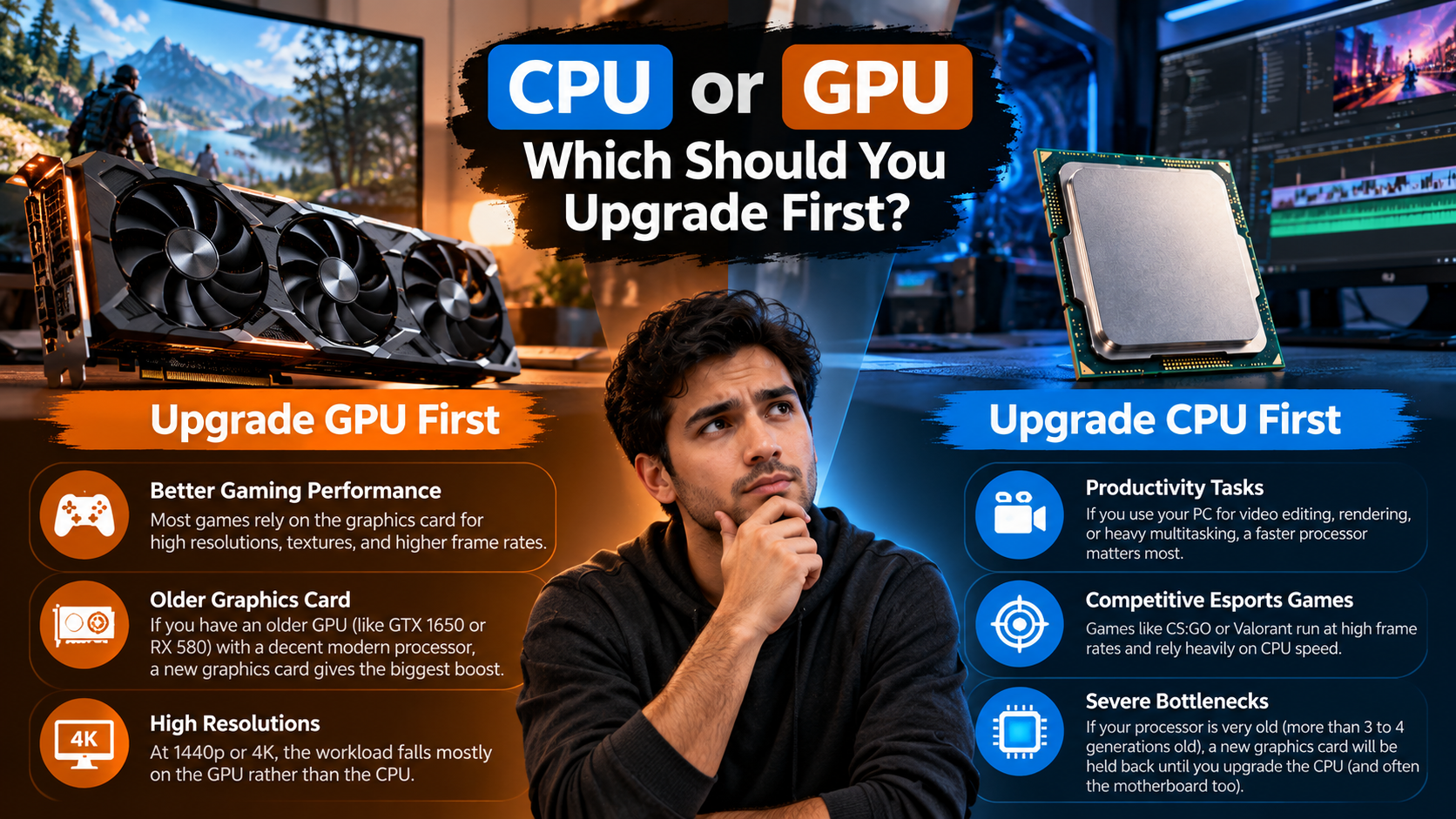
The cpu vs gpu decision depends on how you use your computer. For many gamers, the GPU is the first component worth considering. This is especially true when playing demanding games at 1440p or 4K resolutions.
The GPU handles graphical calculations such as textures, lighting, shading, geometry, and post-processing. A faster graphics card can therefore increase frame rates and improve visual quality when the GPU is limiting performance.
However, a CPU upgrade can be more valuable in certain situations. This happens when the processor cannot prepare frames quickly enough for the graphics card.
Consider upgrading the CPU first when you experience:
- CPU bottlenecks: The processor limits GPU utilization during demanding workloads.
- High-refresh gaming: Competitive games targeting 240Hz or higher can become CPU-limited.
- Simulation workloads: Strategy games and simulations can rely heavily on CPU performance.
- Productivity workloads: Compilation, virtualization, compression, and some audio tasks depend heavily on CPU resources.
The right cpu vs gpu upgrade therefore depends on your workload, performance target, and current hardware.
The Hidden Cost of CPU Upgrades
GPU upgrades are often relatively straightforward. You remove the existing graphics card, install the replacement, connect the required power cables, and update the drivers.
CPU upgrades can be more complicated because the processor depends on the motherboard platform. A newer CPU may require a new motherboard, memory, or cooling solution. If you use liquid cooling, understanding common mistakes can also help protect your upgraded system. See these things to stop doing if you have liquid cooling for practical guidance.
Three compatibility factors deserve attention:
- Socket compatibility: Different CPU generations use different motherboard sockets. Intel has moved between platforms such as LGA1700 and LGA1851. AMD has moved from AM4 to AM5.
- Memory compatibility: Some newer platforms require DDR5 memory instead of DDR4.
- Cooling requirements: Higher-performance CPUs can require stronger air coolers or liquid cooling.
BIOS compatibility can also matter. Some motherboards need a firmware update before supporting a newer processor.
Therefore, compare the complete upgrade cost rather than the CPU price alone. A cheaper processor can become expensive after adding a motherboard, RAM, and cooler.
This is an important part of the cpu vs gpu upgrade decision. A GPU upgrade may require fewer additional components.
CPU Vs. GPU: Should You Update or Upgrade?
In computing, updating and upgrading are different processes. Updating usually involves software or firmware. Upgrading means physically replacing a hardware component.
Before spending money, update your software environment. Driver problems, outdated BIOS versions, corrupted installations, and compatibility issues can cause unexpected performance problems.
A practical troubleshooting sequence is:
                    ┌──────────────────────────────┐
                    │ Performance Issue Identified │
                    └──────────────┬───────────────┘
                                   │
                    ┌──────────────▼───────────────┐
                    │    Update Drivers & BIOS     │
                    └──────────────┬───────────────┘
                                   │
                              Issue resolved?
                              /               \
                           [Yes]              [No]
                             /                   \
            ┌───────────────▼─────────┐   ┌─────▼────────────────────┐
            │ Continue Current Setup  │   │ Diagnose Hardware        │
            │                         │   │ Bottleneck               │
            └─────────────────────────┘   └──────────────────────────┘
This process can prevent unnecessary spending. If software maintenance fixes the problem, a hardware upgrade may not be necessary.
The cpu vs gpu question should come after basic troubleshooting. Otherwise, you may replace hardware to solve a software problem.
When to Update Your GPU (Graphics Drivers)
GPU manufacturers regularly release driver updates. These updates can improve compatibility, fix bugs, address stability problems, and optimize support for newer games and applications. Keeping drivers current also helps avoid problems caused by outdated graphics software. Learn what happens if you don’t update your graphics card drivers before assuming your hardware needs replacement.
Use gaming-focused drivers when gaming is your primary workload. These drivers are designed to support new game releases and address game-specific issues.
Creative professionals may benefit from Studio drivers when application stability is more important than immediate gaming optimizations. Programs such as Adobe Premiere Pro, Blender, and DaVinci Resolve can benefit from properly supported driver versions.
A clean driver installation can also help when normal updates fail to resolve problems. Tools such as Display Driver Uninstaller (DDU) can remove existing display-driver components before reinstalling a driver.
However, do not assume every driver update will increase performance. The primary goal is stable and compatible operation.
Before making a cpu vs gpu upgrade decision, make sure the graphics driver is current and functioning correctly. Otherwise, driver problems may look like hardware limitations.
When to Update Your CPU (BIOS and Chipset)
Modern CPUs generally do not require traditional graphics-style drivers. Their operation depends on motherboard firmware, chipset software, the operating system, and platform configuration.
Chipset drivers help the operating system communicate correctly with the motherboard platform. They can also support platform-specific scheduling, power management, and device functionality.
A BIOS or UEFI update can provide several benefits. Depending on the motherboard, an update may improve processor compatibility, memory stability, microcode behavior, and system reliability.
BIOS updates can also enable support for newer processors on existing motherboards. However, compatibility depends on the exact motherboard and firmware version.
Always check the motherboard manufacturer’s instructions before updating BIOS firmware. An interrupted or incorrect update can create additional problems.
Updating drivers, chipset software, and BIOS firmware should therefore be part of your initial troubleshooting process. If the issue remains, move on to hardware monitoring.
This step helps separate software problems from the actual cpu vs gpu hardware decision.
CPU Vs. GPU: How Do You Find the Bottleneck?
The most reliable way to understand cpu vs gpu performance is to monitor your system during the workload causing problems. Generic online bottleneck calculators can provide rough estimates. However, they cannot accurately represent every game, application, resolution, or background process.
Start by identifying the exact situation where performance drops. This could be a demanding game, rendering project, software build, or virtual machine.
Then monitor CPU usage, GPU utilization, temperatures, clock speeds, VRAM usage, and frame-time behavior. Looking at these measurements together is more useful than checking one percentage.
For example, high GPU utilization during gaming can indicate that the graphics card is working as expected. Low GPU utilization combined with heavily loaded CPU cores may indicate a processor limitation.
Context matters. A component running at 100% is not automatically a problem. It may simply be handling the workload effectively.
The goal of the cpu vs gpu test is to discover which component prevents the system from reaching your desired performance level.
Step 1: Install Hardware Monitoring Software
Start with a reliable monitoring utility. Several tools can provide useful information for a cpu vs gpu comparison.
MSI Afterburner with RivaTuner Statistics Server (RTSS) is useful for gaming. It can display GPU utilization, CPU usage, temperatures, clock speeds, and frame-time information through an in-game overlay.
HWiNFO64 provides detailed hardware telemetry. It can show temperatures, power readings, clock speeds, sensor values, and thermal-throttling indicators.
Windows Task Manager provides a simpler option. Its Performance tab shows CPU, GPU, memory, storage, and network activity.
Use the monitoring tool while reproducing the actual performance problem. Idle measurements do not tell you much about a demanding workload.
For gaming, frame-time data can be especially useful. Average FPS may look acceptable while frequent frame-time spikes create noticeable stuttering.
For productivity workloads, monitor sustained CPU utilization, temperatures, clock speeds, and power behavior. This can reveal thermal or performance limits.
Good monitoring makes the cpu vs gpu decision based on evidence rather than guesswork.
Step 2: Run Your Demanding Workloads
Open the game, rendering project, simulation, or development workload that causes the slowdown. Test the system under the same conditions where the problem normally occurs. If your PC includes different performance profiles, you can also compare how those settings affect demanding workloads. This can help you understand whether performance mode is worth using on your PC.
Avoid judging performance from menus or loading screens. These situations do not represent the workload that matters.
Use these patterns as starting points:
| Metric Pattern | Possible Diagnosis | Recommended Action |
|---|---|---|
| GPU at 97%–100%, CPU usage varies | GPU-bound workload | Consider a GPU upgrade if frame rates are too low |
| GPU below 85%–90%, one or more CPU cores near 100% | Possible CPU limitation | Investigate the CPU and platform |
| Frequent frame-time spikes with acceptable average FPS | Possible CPU, thermal, software, or background-process issue | Check temperatures, background tasks, and frame-time behavior |
| VRAM near capacity with major drops | Possible VRAM limitation | Consider a GPU with more VRAM |
These patterns are useful indicators, not absolute rules. Games and applications distribute workloads differently.
A GPU running at 100% is often normal during a GPU-bound workload. It means the graphics card is being fully utilized.
Likewise, one CPU core reaching high usage can matter even when total CPU usage appears moderate.
Always compare the measurements with the specific problem you are trying to solve. This makes the cpu vs gpu diagnosis much more accurate.
Step 3: Run the Resolution Scaling Test
Resolution scaling can provide a useful gaming diagnostic for a cpu vs gpu upgrade decision. Reduce the game’s resolution from 1440p to 1080p or 720p while keeping other graphics settings as similar as possible.
If frame rates increase substantially after lowering resolution, the GPU is likely carrying a significant part of the performance load. Lower resolutions reduce the number of pixels that the graphics card must render.
If frame rates remain almost unchanged, the CPU or another system limitation may be restricting performance. The processor may already be limiting frame generation before the GPU reaches its full potential.
However, this test is not perfect. Some games behave differently because of engine design, memory limitations, or other bottlenecks.
Use the resolution test alongside CPU and GPU monitoring rather than relying on it alone.
For example, if lowering resolution barely changes FPS while one CPU core remains heavily loaded, the CPU becomes a stronger upgrade candidate. If lowering resolution produces a large FPS increase while GPU utilization remains high, the GPU is more likely to be limiting performance.
The goal is to identify the actual bottleneck instead of assuming that either the CPU or GPU is always responsible.
CPU Vs. GPU: Which Is More Important?
Neither component is universally more important. Their importance depends on the workload, software, resolution, performance target, and system configuration.
The cpu vs gpu comparison becomes easier when you understand what each component does. CPUs and GPUs perform different types of computational work.
       CPU: Sequential Logic             GPU: Massive Parallelism

   ┌──────────────────────────┐       ┌──────────────────────────┐
   │ Powerful processing cores│       │ Many parallel processors │
   │ Low-latency operations   │       │ High aggregate throughput│
   │ Complex instructions     │       │ Parallel calculations    │
   └────────────┬─────────────┘       └────────────┬─────────────┘
                │                                  │
                ▼                                  ▼
      • Operating system tasks           • 3D rendering
      • Game logic and physics           • Ray tracing and shading
      • Code compilation                 • Matrix calculations
      • Compression                      • Video processing
A CPU handles general-purpose computing and coordinates many system operations. A GPU specializes in highly parallel calculations. Beyond gaming, a graphics card can handle many other workloads and applications. Understanding things your GPU can do besides play games can help you decide whether a GPU upgrade fits your needs.
This difference explains why different workloads benefit from different upgrades.
For example, high-refresh gaming may need stronger CPU performance. High-resolution gaming may place greater demands on the GPU.
The correct cpu vs gpu choice therefore depends on what your computer actually does.
The CPU: Low-Latency, Sequential Operations
A modern Central Processing Unit (CPU) contains multiple sophisticated processing cores. CPUs handle general-purpose tasks and are particularly effective when operations require complex decision-making or sequential execution.
The CPU manages operating-system processes, application logic, memory operations, game logic, physics calculations, and many background tasks. It also coordinates communication between different hardware components.
In gaming, the CPU prepares game logic, artificial intelligence, physics calculations, and rendering commands for the GPU. This becomes particularly important when targeting very high frame rates.
CPU performance also matters for software development, virtualization, compression, data processing, and many productivity applications.
Core count is important for heavily multithreaded workloads. However, single-core performance, architecture, cache, memory performance, and software optimization can also affect results.
Therefore, choosing a CPU with more cores does not automatically guarantee better performance.
The workload determines which processor characteristics matter most. This is why the cpu vs gpu decision should always consider the applications you actually use.
The GPU: High-Throughput, Parallel Execution
A Graphics Processing Unit (GPU) contains many processing units designed to perform large numbers of calculations in parallel. This architecture makes GPUs effective for workloads that can be divided into many similar operations.
Modern 3D rendering is a good example. The GPU processes lighting, shading, textures, geometry, depth, and other graphical calculations across large numbers of pixels and objects. Advanced rendering techniques can also change GPU workloads significantly. Ray tracing adds additional lighting and reflection calculations that can affect performance.
GPUs are not limited to gaming. They can accelerate artificial intelligence workloads, machine-learning calculations, 3D rendering, video processing, scientific computing, and other highly parallel tasks.
GPU memory, or VRAM, can also become important. High-resolution textures, ray tracing, large AI models, and complex creative projects can require substantial memory capacity.
A faster GPU does not automatically improve every workload. If the CPU, memory, storage, software, or another component is limiting performance, additional GPU power may remain underused.
That is why workload analysis should come before a cpu vs gpu upgrade.
Workload Importance Breakdown
Different workloads place different demands on the CPU and GPU. Understanding these differences helps determine where an upgrade may improve performance.
- 4K AAA Gaming: The GPU is usually the primary component. High resolutions require substantially more graphical processing. However, CPU-heavy games can still become processor-limited.
- 1080p Esports Gaming: The CPU can become more important when targeting very high frame rates. Competitive settings often reduce GPU demand. Your monitor also needs to support the refresh rate you are targeting, so choosing the right display matters. A guide on how to choose the perfect gaming monitor can help match the display to your hardware.
- Software Development and Virtualization: The CPU is generally important for compilation, virtual machines, and multitasking. Memory capacity and storage performance also matter.
- Machine Learning and Local AI: The GPU can be critical for workloads that support GPU acceleration. VRAM capacity can also determine which models can run locally.
- General Productivity: The CPU, memory, and storage usually matter more than a powerful discrete GPU. Web browsing and office applications rarely require high-end graphics hardware.
These categories are guidelines rather than absolute rules. Individual applications can behave differently.
For example, some creative applications use both components heavily. Your specific workflow should therefore guide the cpu vs gpu upgrade decision.
CPU Vs. GPU: Do I Need Both?
Every computer needs a CPU or another processor capable of executing general system instructions. However, not every computer needs a separate dedicated GPU.
The important distinction is between integrated and discrete graphics.
A desktop or laptop can produce a display using graphics hardware integrated into the processor or platform. Many modern CPUs include an integrated GPU, while some systems use a separate graphics processor. Understanding the differences between integrated and discrete graphics can help you determine whether your system actually needs a dedicated graphics card.
If your processor includes integrated graphics, the computer can handle everyday display tasks without a dedicated graphics card. This is common in office systems, laptops, and entry-level desktops.
A dedicated GPU becomes useful when the workload requires significantly more graphics performance. Modern gaming, professional 3D rendering, demanding video production, CAD, and many AI workloads can benefit from discrete graphics.
Therefore, the cpu vs gpu question is not simply whether you need both components. The better question is whether your workload requires dedicated graphics performance.
Integrated vs. Discrete Graphics
Understanding integrated and discrete graphics can help you decide whether a GPU purchase is necessary.
Integrated graphics are built into a processor or closely integrated into the system platform. They normally use system memory rather than having a large pool of dedicated VRAM.
A discrete GPU is a separate graphics card with its own processor, dedicated VRAM, cooling, and power delivery.
The choice depends on workload requirements. Basic computing does not require the same graphics hardware as modern gaming or professional rendering.
For a cpu vs gpu upgrade, this distinction is important. A computer with capable integrated graphics may not need a dedicated GPU for everyday tasks.
1. Integrated Graphics (iGPU / APU)
Integrated graphics are built into a processor or closely integrated into the system platform. They normally use system memory rather than having a large pool of dedicated VRAM.
How it works: An integrated GPU shares system RAM with the CPU. This reduces the need for a separate graphics card.
Best for: Integrated graphics are suitable for office applications, web browsing, media playback, everyday computing, and lighter creative workloads.
Limitations: Shared memory bandwidth and lower graphics resources can limit performance in demanding games and professional 3D applications.
An integrated GPU can therefore be perfectly adequate for a basic computer. It becomes less suitable as graphics demands increase.
Before making a cpu vs gpu purchase decision, check whether your existing integrated graphics already meet your needs.
2. Discrete Graphics (Dedicated GPU)
A discrete GPU is a separate graphics card installed in the computer. It has its own graphics processor, dedicated VRAM, cooling system, and power delivery.
Dedicated graphics are useful for modern 3D gaming, virtual reality, demanding video production, CAD, professional 3D rendering, and many GPU-accelerated AI workloads.
However, a dedicated GPU also increases system cost, power consumption, and heat output.
Some CPUs, such as Intel processors with an F suffix, do not include integrated graphics. Certain AMD processors also lack integrated graphics. In these systems, a discrete GPU may be required for display output.
Always check the exact processor specifications before assuming integrated graphics are available.
Ultimately, the cpu vs gpu choice should be based on your actual workload. Monitor your system first, identify the bottleneck, and then upgrade the component that addresses that limitation.