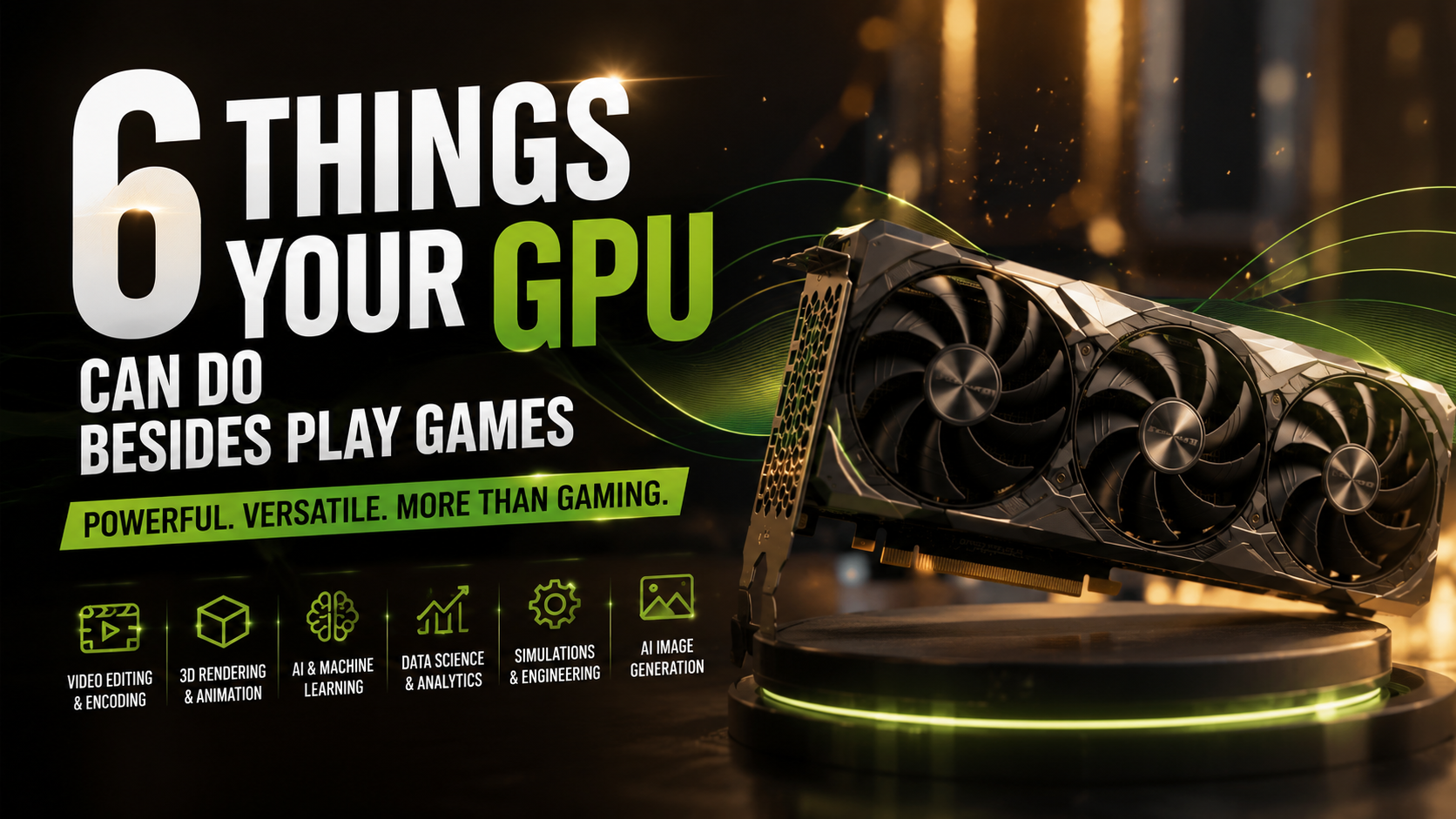
6 Things Your GPU Can Do Besides Play Games
Most PC builders invest hundreds of dollars in a graphics card for gaming performance. However, gaming is only one of the many workloads a modern GPU can handle. Understanding what your GPU can do besides play games can help you get more value from your hardware.
GPUs are designed for parallel processing. They can perform many similar calculations at the same time. This makes them useful for workloads involving images, video, simulations, artificial intelligence, and large datasets.
Whether you use a dedicated graphics card or integrated graphics, your GPU can accelerate several everyday tasks. Content creators, developers, researchers, and digital artists often use graphics hardware for productivity rather than gaming.
This guide explains the most useful non-gaming GPU applications. It also covers GPU utilization, thermal behavior, integrated graphics, and how GTA 5 divides workloads between your CPU and GPU.
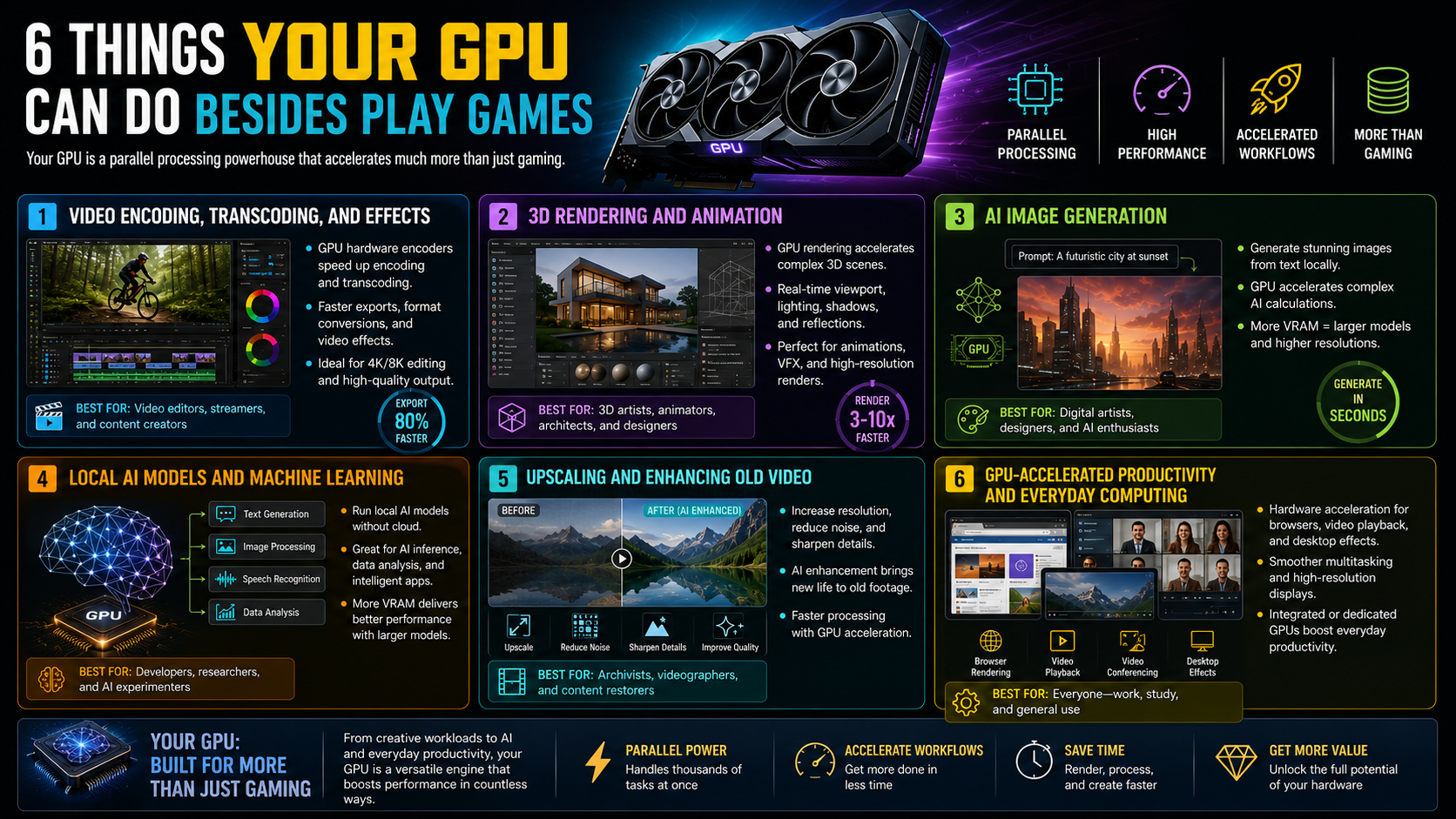
1. Video Encoding, Transcoding, and Effects
One of the most practical answers to what your GPU can do besides play games is video processing. Modern GPUs can accelerate many video tasks beyond simply displaying footage. Supported applications can use dedicated hardware encoders and GPU processing to make encoding and transcoding faster.
This is useful when converting large video files between formats or preparing content for different devices and platforms. GPU acceleration can reduce processing time and leave more CPU resources available for other background tasks.
Video editing software can also use the GPU for effects, color processing, transitions, scaling, and other supported operations. These capabilities show what your GPU can do besides play games when you work with demanding media projects.
For creators working with 4K or higher-resolution footage, getting more out of your GPU without overclocking can make editing and exporting more responsive. However, not every video task becomes faster with a powerful graphics card.
The software must support the GPU’s acceleration features. Dedicated hardware encoders can also differ between GPU generations, so results depend on the specific graphics card, codec, and application.
2. 3D Rendering and Animation
Another important example of what your GPU can do besides play games is 3D rendering and animation. A compatible GPU can accelerate complex scenes for artists, designers, architects, animators, and content creators.
Rendering involves calculating lighting, shadows, textures, reflections, and other visual elements. GPUs are well suited to these workloads because they can perform many calculations in parallel.
A powerful graphics card can reduce rendering times when the selected rendering engine supports GPU acceleration. This becomes particularly useful when producing high-resolution images, animations, visual effects, or complex 3D scenes.
GPU rendering can also improve viewport interaction. Artists can move through detailed environments and preview changes with less waiting. This can make creative workflows more efficient during long production sessions.
However, GPU rendering is not automatically faster for every project. Performance depends on the software, rendering engine, scene complexity, available VRAM, and GPU architecture.
If a project exceeds available graphics memory, performance can drop sharply. Some applications may also need to rely on slower system memory.
Applications such as Blender and other professional 3D tools can use compatible graphics hardware to process complex scenes. Blender GPU Rendering Documentation
3. AI Image Generation
AI image generation is another powerful example of what your GPU can do besides play games. Local image-generation tools use graphics hardware to perform the large number of calculations needed to create images from text prompts or other inputs, much like AI-generated video tools rely on substantial computational resources for processing visual content.
Modern GPUs can be especially useful for AI workloads. Some graphics cards include specialized hardware designed to accelerate machine-learning calculations. More VRAM can also help when running larger models or generating higher-resolution images.
Local AI image generation can provide an alternative to relying entirely on cloud services. Your files and prompts can remain on your computer, depending on the software you use.
Performance varies significantly between graphics cards. VRAM capacity, memory bandwidth, GPU architecture, software support, and model size all affect generation speed.
A high-end GPU is not required for every AI image-generation workflow. Smaller models and optimized applications can run on more modest hardware, although generation may take longer.
This makes AI image generation a useful non-gaming workload for users who want to get more value from their existing graphics hardware.
4. Local AI Models and Machine Learning
Running local AI models and machine-learning workloads is another major answer to the question of what your GPU can do besides play games. Instead of sending every task to a cloud server, compatible software can use your graphics card for local AI inference.
This can include text-generation models, image-processing tools, speech applications, and other machine-learning workloads. GPUs are well suited to these tasks because many AI operations involve large numbers of parallel calculations, whether you use open-source AI models and tools locally or other machine-learning frameworks.
Dedicated AI hardware can provide additional acceleration on supported graphics cards. VRAM is also important because larger models can require substantial memory during operation.
Local AI does not automatically mean faster AI. Performance depends on the model, framework, quantization, GPU architecture, and available memory. Some workloads may still run better through cloud infrastructure.
For users who frequently experiment with AI tools, a capable GPU can turn a normal desktop into a useful local AI workstation.
The biggest limitation is usually memory. If a model cannot fit comfortably into available VRAM, performance may decline. Additional system memory may also be required.
5. Upscaling and Enhancing Old Video
Your GPU can also help with upscaling and enhancing old video, which is another practical example of what your graphics hardware can handle. Supported image-processing and AI enhancement tools can increase resolution, reduce visible noise, sharpen details, and improve older footage.
This is particularly useful for recordings captured at lower resolutions. AI-powered enhancement software can analyze individual frames and estimate additional visual detail.
GPU acceleration helps process these calculations more efficiently. Without hardware acceleration, processing a large collection of video can take considerably longer.
However, upscaling cannot recreate information that was never captured. The final result depends heavily on the original footage and the enhancement algorithm.
Some tools can also introduce artifacts when sharpening or AI reconstruction is pushed too far. Higher resolution therefore does not always mean better visual quality.
A capable GPU makes experimentation easier because you can process footage faster. You can also compare different enhancement settings without waiting as long for every result.
This is especially useful for creators working with archives, old recordings, or lower-quality source material.
6. GPU-Accelerated Productivity and Everyday Computing
The sixth example of what your GPU can do besides play games involves everyday computing and productivity. Modern operating systems and applications can use hardware acceleration for desktop composition, browser rendering, video playback, visual effects, and other supported tasks.
Web browsers can use the GPU for certain graphical operations and video decoding. Video-conferencing applications may also use hardware acceleration for supported video processing and visual effects.
These workloads usually do not require an expensive dedicated graphics card. Integrated and discrete graphics are suited to different workloads, with integrated graphics often being sufficient for browsing, office applications, streaming, and general desktop use.
The benefits become more noticeable when multiple graphical workloads run together. For example, you might use a high-resolution display while running several browser windows, playing video, and using a creative application, making choosing the right gaming monitor an important consideration when getting the most from your GPU.
However, GPU acceleration does not make every productivity application faster. Traditional CPU-based tasks, such as basic text editing and many spreadsheet operations, still depend primarily on processor performance.
The GPU is therefore best viewed as a specialized accelerator, not a replacement for the CPU. Understanding these everyday uses can help you better appreciate the full capabilities of your graphics hardware.
What can I use my GPU for other than gaming?
Modern graphics cards can handle many demanding workloads beyond gaming. Their parallel-processing architecture makes them particularly useful for tasks that can be divided into many smaller calculations. This includes video editing, 3D rendering, artificial intelligence, scientific computing, and visual effects.
Video editing applications can use GPU acceleration for effects, color processing, encoding, and timeline playback. Programs such as Blender can also use supported GPUs to accelerate 3D rendering. AI applications may use specialized GPU hardware for model inference and other machine-learning workloads.
Other uses depend on your software and hardware. Some distributed-computing projects use GPUs for scientific calculations. Cryptocurrency mining can also use graphics processors, although profitability depends heavily on electricity costs and market conditions.
The key benefit is flexibility. Instead of leaving your graphics hardware idle outside gaming sessions, you can use supported applications to accelerate creative and computational tasks.
Is 98% GPU usage bad?
No. 98% GPU usage is not automatically bad. During demanding games, rendering jobs, AI workloads, or other intensive tasks, high utilization is often completely normal. It usually means the application is keeping the graphics processor busy.
However, GPU utilization should not be viewed in isolation. High usage can indicate that the GPU is the performance limit, but it does not prove that your system has no CPU bottleneck. Performance depends on the workload, frame rate target, application settings, and other system components.
Modern graphics cards continuously monitor factors such as temperature, voltage, and power consumption. They also use protective mechanisms when operating conditions become excessive. You should therefore focus on the complete performance picture rather than one utilization percentage.
If a demanding application keeps the GPU near full utilization while temperatures and clock speeds remain normal, there is usually no reason for concern. In fact, high utilization can mean the GPU is being used efficiently.
Is GPU only for gaming?
A GPU is not only for gaming. Graphics processors were designed to accelerate parallel workloads, and modern operating systems use them for many everyday graphical tasks. Web browsers, video players, creative applications, and desktop environments can use hardware acceleration when supported.
For example, a browser may use the GPU to render certain graphical elements and decode supported video formats. Operating systems can also use graphics hardware for desktop composition, animations, and multi-monitor output.
Professional workloads can require much more GPU power. Engineers may use GPUs for simulations, while designers use them for visualization and 3D modeling. Scientific and medical applications can also use GPU acceleration for specialized calculations and image processing.
Still, not every task benefits from a powerful graphics card. Web browsing, writing documents, and basic office work generally do not require a high-end dedicated GPU. The benefit depends on the software and workload.
The important distinction is that gaming is only one application of GPU computing. The same hardware can accelerate many other workloads when compatible software supports it.
Can I play GTA 5 without a GPU?
You can play Grand Theft Auto V without a dedicated GPU if your computer has integrated graphics that meet the game’s requirements. Integrated graphics are built into many modern processors and use system memory rather than having their own dedicated VRAM.
The experience depends heavily on the specific integrated GPU. Older or weaker integrated graphics may struggle, while newer solutions can provide playable performance with reduced settings. You should therefore avoid assuming that every Intel or AMD integrated GPU will deliver the same results.
Lowering the resolution can significantly reduce the graphics workload. Settings such as shadows, reflections, population density, and advanced graphics options can also affect performance.
For weaker systems, 720p and low settings may provide a more practical target than higher resolutions. However, the exact frame rate will depend on your processor, memory configuration, drivers, and game version.
If you want smoother gameplay, dual-channel memory can also help many integrated graphics systems. This is because integrated GPUs share system memory bandwidth with the CPU.
Is GTA 5 CPU or GPU heavy?
GTA 5 can stress both the CPU and GPU, and the limiting component depends on your settings and hardware. At lower resolutions and settings, the CPU can become more important. At higher resolutions and graphical settings, the GPU generally has to process significantly more visual data.
The CPU handles many simulation tasks. These include artificial intelligence, traffic, pedestrians, physics, game logic, and other world calculations. Areas with heavy activity can therefore place greater demands on the processor.
The GPU handles visual workloads such as resolution, textures, lighting, shadows, anti-aliasing, and other rendering effects. Ray tracing is another GPU-intensive graphics technology that can significantly affect rendering performance, while increasing resolution from 1080p to 1440p or 4K can also substantially increase the GPU workload.
This means there is no single answer for every PC. A system with a weak CPU can experience stuttering even with a powerful graphics card. A weaker GPU can become the limitation when graphical settings are increased.
Understanding this balance helps you tune GTA 5 more effectively. Instead of lowering every setting, identify which component is limiting performance first.
Frequently Asked Questions
Does hardware acceleration shorten the lifespan of my graphics card?
Hardware acceleration will not shorten your graphics card’s functional lifespan when temperatures remain within safe operating parameters. Manufacturers engineer silicon chips to handle consistent thermal cycles across several years of daily operation. Maintaining clean cooling fans and replacing dried thermal paste prevents excessive heat buildup, ensuring your card remains fully functional throughout its intended operational lifecycle.
Why does my GPU make a buzzing noise under full load?
A faint buzzing noise during heavy utilization is usually coil whine, an entirely harmless physical phenomenon. When internal electrical components handle heavy currents, tiny inductors vibrate rapidly against electromagnetic fields. Coil whine does not indicate impending hardware failure, though capping maximum frame rates often reduces the noise immediately.
What is the difference between integrated and dedicated graphics?
Integrated graphics reside directly on the processor die and share system RAM for rendering tasks. Dedicated graphics cards feature discrete circuit boards equipped with dedicated cooling, higher power limits, and ultra-fast video memory. Consequently, dedicated cards deliver substantially higher performance for 3D modeling, high-resolution rendering, and intensive compute workloads.
How do I check what is currently using my GPU?
Open Windows Task Manager using the shortcut Ctrl + Shift + Esc and click the Processes tab. Click the GPU column header to sort running software by active hardware utilization. The Performance tab also provides detailed graphs tracking active 3D engines, video decoding chips, and dedicated video memory usage.
Conclusion
Understanding what your GPU can do besides play games can help you get more value from your PC hardware. Modern graphics processors can accelerate many workloads, including video editing, 3D rendering, AI applications, visual effects, and supported computational tasks.
The biggest benefit comes from matching the GPU to software that can actually use it. A powerful graphics card does not automatically speed up every application. Software support, VRAM, memory bandwidth, CPU performance, and thermal behavior all influence real-world results.
GPU utilization also needs context. A reading near 98% is often normal during demanding workloads, provided temperatures and other operating conditions remain appropriate. High utilization alone does not prove that a system is free from CPU limitations.
GTA 5 provides another useful example. Its performance can depend on both the CPU and GPU, with the limiting component changing according to resolution and settings.
Instead of viewing your graphics card as gaming-only hardware, treat it as a specialized parallel-processing device. The right applications can turn unused GPU capacity into faster creative and computational workflows.