What Is FreeSync, And Should You Enable It On Your Monitor?
If you enjoy PC gaming, you have likely heard about technologies that make gameplay look smoother. AMD FreeSync is one of the most popular adaptive synchronization technologies available today. It helps your monitor and graphics card work together more effectively. You can learn more about the technology directly from AMD FreeSync.
Understanding what FreeSync does can improve your gaming experience. It helps reduce distracting issues such as screen tearing and stuttering during gameplay. These problems often appear when your GPU and monitor operate at different refresh rates.
Many gamers also ask whether they should enable FreeSync. Others want to know if it improves FPS or works with NVIDIA graphics cards. There are also common questions about FreeSync versus Vsync and G-Sync.
This guide answers those questions clearly. You will learn how FreeSync works, when to enable it, and how it compares with other display synchronization technologies. You will also learn how to configure it for smoother and more responsive gameplay.
Should I turn FreeSync on on my monitor?
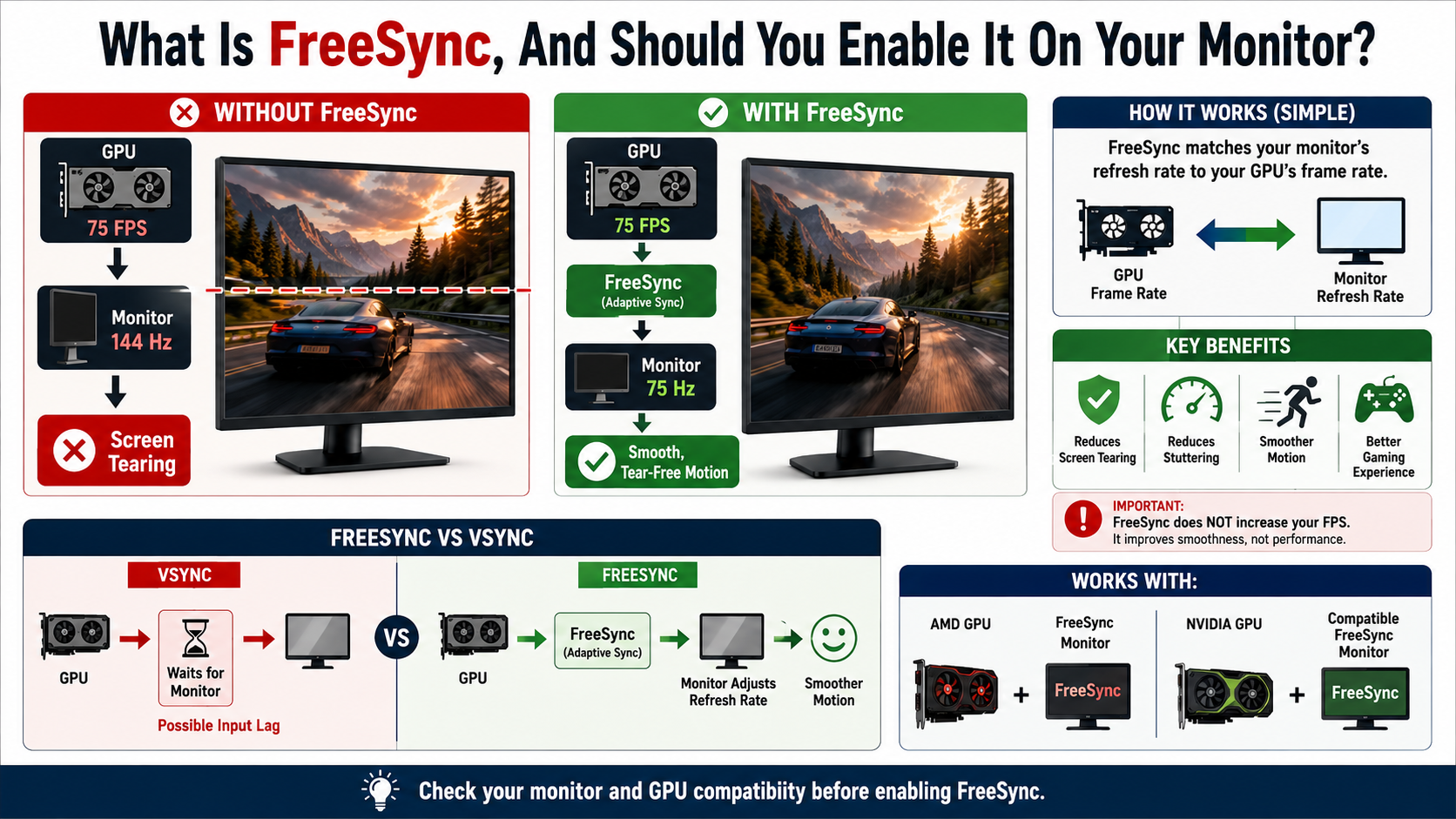
In most gaming situations, turning FreeSync on is a good choice. The technology allows your monitor to adjust its refresh rate according to the frame rate produced by your graphics card. This process helps reduce screen tearing and stuttering during gameplay.
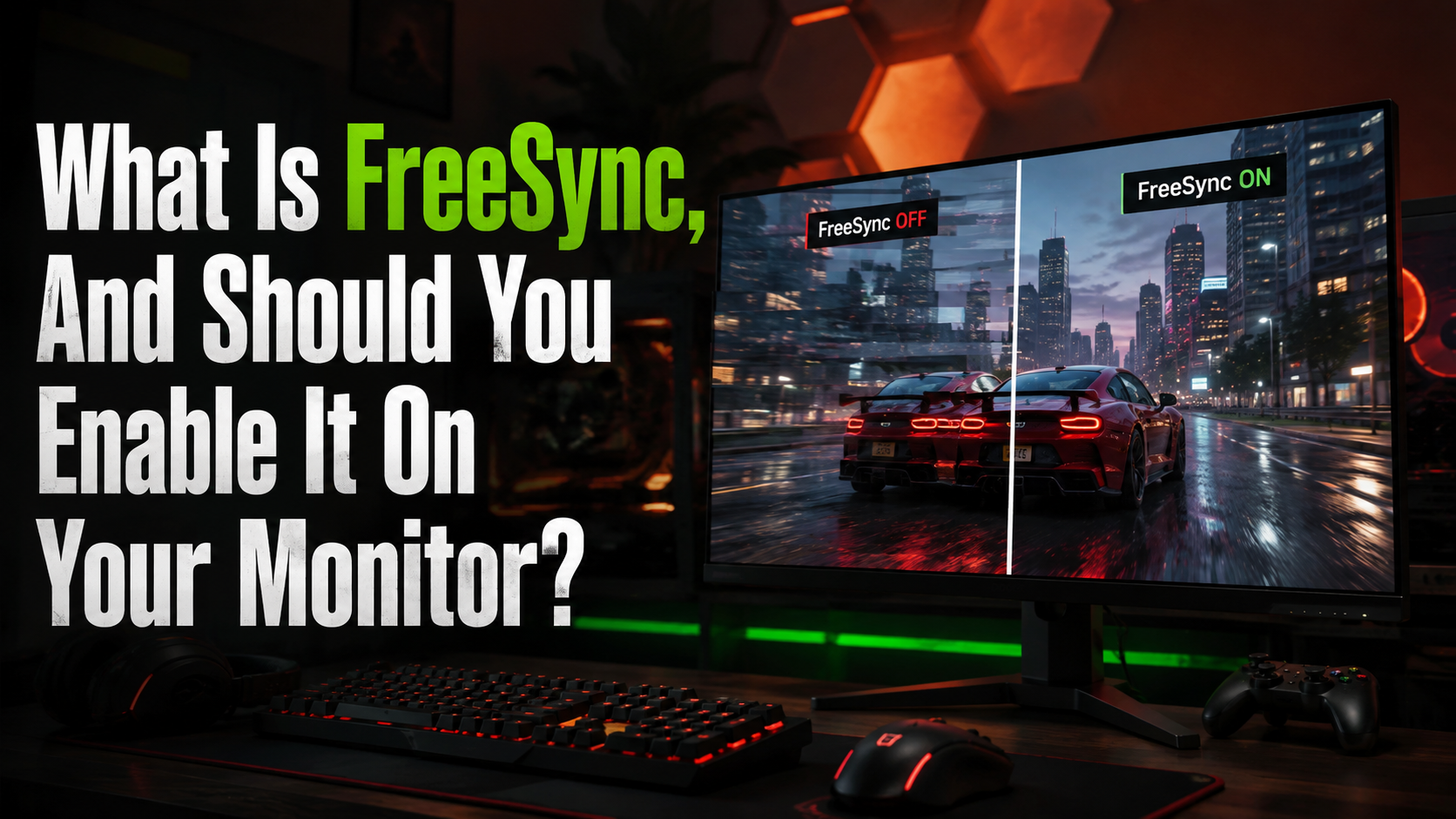
Screen tearing happens when the monitor displays portions of multiple frames at once. It can become especially noticeable during fast camera movements or action scenes. FreeSync helps prevent this by synchronizing the display refresh rate with GPU output.
You usually need to enable FreeSync in your monitor’s on-screen menu first. You may then need to activate adaptive synchronization through your graphics driver software. The exact steps depend on your monitor and GPU.
FreeSync does not make every game automatically faster. However, it can make existing performance look and feel smoother. If your monitor and graphics card support it, enabling FreeSync is generally worthwhile for gaming.
Best Practices For Enabling Adaptive Sync
Getting the best results from FreeSync requires more than simply switching on one setting. Start by confirming that your monitor supports FreeSync or another compatible variable refresh rate technology. Check the manufacturer’s specifications to understand its supported refresh-rate range.
Use a suitable DisplayPort or HDMI connection. Support can vary between monitor models and ports, so check which connection provides adaptive synchronization. A suitable cable can also help prevent connection problems.
Next, install current graphics drivers from AMD or NVIDIA. Driver updates can improve compatibility, stability, and adaptive synchronization performance. If you’re gaming on a laptop, keeping your laptop cool without a cooling pad can also help maintain consistent performance. After updating, select your monitor’s maximum supported refresh rate in your operating system.
You should also check the monitor’s on-screen menu. Make sure FreeSync or adaptive synchronization is enabled there before configuring your graphics software.
For the smoothest experience, keep your game’s frame rate within the monitor’s FreeSync range. Low Framerate Compensation, when supported, can help when FPS falls below that range. Limiting FPS slightly below the maximum refresh rate can also improve consistency on some setups.
Does FreeSync improve FPS?
FreeSync does not directly increase your FPS. Your graphics card, processor, game settings, and resolution determine how many frames your system can render. FreeSync controls how those frames are presented on your display rather than increasing rendering power.
Without adaptive synchronization, a fluctuating frame rate can produce visible tearing or uneven motion. FreeSync allows the monitor to change its refresh rate dynamically. This helps the display stay better aligned with the frames produced by your GPU.
The result can feel smoother, particularly when your frame rate changes frequently. You may also notice more consistent motion during demanding sections of a game. However, FreeSync cannot turn a 50 FPS game into a 100 FPS game.
It is useful to separate frame rate performance from display smoothness. A faster GPU can increase FPS, while FreeSync can improve how those frames appear.
Together, capable hardware and adaptive synchronization can provide a more responsive and visually consistent gaming experience. If you want to improve GPU performance without increasing clock speeds, getting more out of your GPU without overclocking can also help. FreeSync therefore improves perceived smoothness rather than raw rendering performance.
Understanding Hardware Limitations And Performance
Your graphics processing unit (GPU) still determines how quickly your computer can render frames. A powerful GPU can produce higher frame rates, while a weaker GPU may struggle with demanding games. FreeSync does not remove these hardware limitations.
Instead, FreeSync manages the relationship between your rendered frames and your monitor’s refresh rate. This becomes useful when your FPS changes during gameplay. Rather than forcing the display to refresh at one fixed rate, compatible monitors can adjust their refresh timing.
For example, imagine a game running between 70 and 100 FPS. A fixed-refresh monitor may display frames unevenly when the frame rate changes. A FreeSync monitor can adapt within its supported range, making motion appear more consistent.
Your monitor’s specifications also matter. A high-refresh-rate display can provide smoother motion when your hardware can produce enough frames. Features such as Low Framerate Compensation (LFC) can further improve performance at lower frame rates.
For the best results, balance your GPU, monitor refresh rate, resolution, and game settings. If your PC uses liquid cooling, avoiding common mistakes can also help maintain proper liquid cooling performance. FreeSync works best when these components complement each other.
Is FreeSync or vsync better?
For many modern gaming setups, FreeSync is preferable to traditional Vsync. Both technologies aim to reduce screen tearing, but they handle synchronization differently.
Vsync synchronizes the GPU’s frame output with the monitor’s fixed refresh cycle. When the GPU produces frames faster than the display can show them, Vsync can prevent tearing. However, traditional Vsync may introduce additional input latency and can limit frame delivery when performance fluctuates.
FreeSync uses variable refresh rate technology instead. The monitor adjusts its refresh rate to better match the GPU’s frame output. This can reduce tearing while maintaining smoother motion and responsive controls.
That does not mean Vsync is useless. It remains available on many systems and can still prevent tearing on displays without adaptive synchronization. Some gamers also use Vsync together with FreeSync in specific configurations to manage frame rates above the monitor’s refresh limit.
For most compatible gaming monitors, however, FreeSync offers a more flexible synchronization experience. It combines tear reduction with variable refresh rates rather than relying on one fixed refresh cycle.
Why Traditional Vsync Causes Input Lag
Traditional Vsync can increase input latency because the GPU may need to wait for the monitor’s next refresh cycle before presenting a frame. This waiting process can create additional delay between your input and the corresponding image.
The effect is not identical on every system. Input latency depends on factors such as frame rate, refresh rate, game engine behavior, buffering, and graphics settings. Still, Vsync can feel less responsive when performance falls below the display’s refresh rate.
FreeSync approaches the problem differently. Instead of forcing the GPU to wait for a fixed refresh schedule, a compatible monitor can adjust its refresh timing. This helps the display present frames more naturally as they become available.
For competitive games, responsiveness is particularly important. Even small delays can affect how quickly actions appear on screen. Adaptive synchronization can therefore provide a better balance between smooth visuals and responsive controls.
Some users still combine FreeSync with other synchronization settings. The ideal configuration depends on the monitor, GPU, game, and desired frame-rate limit. Testing your setup can help you find the best balance between low latency and tear-free gameplay.
Is FreeSync NVIDIA or AMD?
FreeSync was developed by AMD, but it is not limited to AMD graphics cards anymore. FreeSync is based on adaptive synchronization standards that can work across different hardware ecosystems.
NVIDIA supports compatible adaptive-sync monitors through its G-SYNC Compatible technology. This means some NVIDIA GeForce graphics cards can use adaptive synchronization with FreeSync monitors. Compatibility depends on the specific GPU, monitor, connection, and driver support.
You should check your monitor’s specifications before buying or configuring a setup. Some displays work particularly well with NVIDIA cards, while others may have limited functionality or require additional configuration.
For AMD graphics cards, FreeSync can be enabled through compatible AMD software and supported displays. NVIDIA users can typically enable G-SYNC for supported adaptive-sync monitors through the NVIDIA Control Panel.
This cross-platform compatibility gives gamers more monitor choices. You no longer need an AMD GPU simply because a monitor carries the FreeSync label. However, features and performance can vary between models.
Before purchasing, check the manufacturer’s compatibility information. This helps ensure that your chosen FreeSync monitor supports the refresh range and features you expect.
Using Adaptive Sync With GeForce Graphics Cards
NVIDIA GeForce users can often use FreeSync monitors through NVIDIA’s G-SYNC Compatible support. The exact process can vary depending on the graphics card, driver version, and monitor model.
First, connect the monitor using a supported DisplayPort or HDMI connection. Then open the NVIDIA Control Panel and look for the G-SYNC settings. If your monitor is compatible, you can enable the appropriate variable refresh option.
You should also enable FreeSync or adaptive synchronization through the monitor’s built-in menu. Without that setting enabled, the display may not provide its variable refresh functionality.
After configuration, test a few games to confirm that synchronization works correctly. Look for reduced tearing and smoother motion across your monitor’s supported refresh range. You can also explore useful things your Wi-Fi router can do to improve your overall home gaming setup.
Some displays may not receive official G-SYNC Compatible certification. They can sometimes work with NVIDIA’s adaptive-sync support, but results may vary. Flickering or compatibility issues can occur with certain combinations.
Keeping your graphics drivers updated can improve compatibility. It is also useful to check the monitor manufacturer’s documentation before changing advanced settings. A properly configured setup can provide smooth adaptive synchronization without requiring an AMD graphics card.
Is FreeSync or G-Sync better?
FreeSync and G-SYNC both provide variable refresh rate synchronization, but they developed through different approaches. FreeSync originated as AMD’s adaptive synchronization technology, while NVIDIA’s original G-SYNC system used dedicated hardware modules in compatible monitors.
Historically, G-SYNC monitors offered strict hardware-based control and consistent performance. They were often more expensive than FreeSync displays. FreeSync focused on an open approach, which helped manufacturers offer compatible monitors at a wider range of prices.
The differences have become less significant as monitor technology has evolved. Modern FreeSync monitors can provide high refresh rates, HDR support, and Low Framerate Compensation. NVIDIA also supports many adaptive-sync monitors through its G-SYNC Compatible program.
For most gamers, FreeSync offers excellent value when paired with compatible hardware. G-SYNC can still appeal to users who want specific NVIDIA-certified features or premium display implementations.
The better option depends on your GPU, monitor specifications, refresh rate, and budget. Instead of choosing based only on the brand name, compare the monitor’s actual features and compatibility with your system.
Choosing Between Adaptive Display Technologies
Your choice between FreeSync and G-SYNC often depends on your existing hardware and budget. If you already own an AMD graphics card, a compatible FreeSync monitor can provide a straightforward solution. NVIDIA users can also benefit from many FreeSync displays through G-SYNC Compatible support.
When comparing monitors, look beyond the synchronization label. Check the refresh rate, adaptive-sync range, resolution, HDR support, and LFC availability. These specifications can have a larger impact on your gaming experience than the branding alone.
A certified monitor can also provide greater confidence in compatibility. However, certification does not automatically make one display better for every user. Your graphics card and preferred games remain important factors.
For most people, a well-reviewed adaptive-sync monitor offers an excellent balance of price and performance. Competitive gamers may prioritize high refresh rates and low latency. Players focused on visual quality may prefer higher resolution and stronger HDR performance, especially when comparing OLED and QLED display technologies.
Ultimately, the best display technology is the one that fits your hardware and gaming habits. Compare the specifications carefully before buying. FreeSync remains an attractive choice because it offers smooth variable refresh performance across a broad range of gaming monitors.
FAQ SECTION
Does FreeSync work over HDMI cables?
Yes, FreeSync works over HDMI connections, provided both your graphics card and monitor support adaptive synchronization over HDMI. Many modern displays support this feature through both HDMI and DisplayPort interfaces. Always check your monitor specifications to confirm which ports support variable refresh rates.
Will FreeSync affect my computer’s power consumption?
FreeSync has a negligible impact on overall system power consumption during normal operation. Your graphics card and monitor manage synchronization dynamically without drawing significant extra electricity. You can leave the feature enabled permanently without worrying about rising energy bills.
Can I use FreeSync with a dual-monitor setup?
You can use FreeSync in a dual-monitor setup, but performance depends on your graphics card capabilities. Running intense applications alongside video playback on a secondary screen can occasionally cause minor stuttering. Modern graphics drivers have improved multi-monitor handling significantly to minimize these issues.
Does FreeSync cause screen flickering?
FreeSync can occasionally cause minor screen flickering, particularly when frame rates fluctuate wildly around the lower boundary of the refresh range. This issue is usually resolved by updating your graphics drivers or enabling Low Framerate Compensation. Adjusting your in-game settings to maintain a stable frame rate also helps prevent flickering.
Conclusion
Understanding what FreeSync is can help you make better decisions about your gaming monitor and graphics settings. The technology synchronizes your monitor’s refresh rate with your GPU’s frame output. This helps reduce screen tearing and makes fluctuating frame rates appear smoother.
it does not increase your raw FPS. Your GPU and CPU remain responsible for rendering performance. Instead, it improves how those rendered frames are displayed.
For most compatible gaming setups, enabling it is worthwhile. It can provide smoother motion without the traditional synchronization limitations associated with Vsync. NVIDIA users can also take advantage of many FreeSync displays through G-SYNC Compatible support.
When choosing a monitor, consider more than the FreeSync label. Check the refresh rate, adaptive-sync range, LFC support, HDR capabilities, resolution, and GPU compatibility.
A properly configured display can make games feel smoother and more consistent. If your monitor supports FreeSync, check its settings and graphics driver today. You may be able to improve your gaming experience with only a few simple configuration changes.