THE BIGGEST DRAWBACKS OF SWITCHING TO WINDOWS FROM MAC
Switching to Windows from Mac can feel very different, even when the new PC offers better performance, gaming support, or hardware flexibility. Modern Windows laptops and desktops provide impressive capabilities, but the transition can introduce unexpected friction. Small differences in shortcuts, file sharing, window management, trackpads, system settings, and device integration can affect your daily workflow. Understanding these drawbacks before making the move can help you decide whether Windows fits your needs.
When you leave Apple’s ecosystem, you also leave behind a tightly integrated approach to hardware and software. Windows takes a more modular approach, with different manufacturers offering varied designs, components, and features. That flexibility creates more choice, but it can also create more variation.
That flexibility creates more choice, but it can also create more variation. Trackpads, drivers, sleep behavior, audio systems, and displays can differ between Windows computers.
Before replacing a MacBook or Mac Studio, consider how those differences affect your routine. The biggest drawbacks are usually not obvious specifications. They appear during everyday tasks, device switching, file transfers, window management, and software use.
This guide explains the main friction points to expect when switching to Windows from Mac. It also explains where Windows can make more sense.
Is it worth switching from Mac to Windows?
Switching from Mac to Windows can make sense when your workflow depends on software, gaming, or hardware options that macOS does not support well. It can also make sense if you want a wider range of laptop designs and desktop configurations. For students comparing the two platforms, factors such as software availability, portability, battery life, and price can make the decision more specific. A dedicated comparison of Mac or Windows for students can help clarify those trade-offs.
However, the switch may disappoint users who mainly want cheaper hardware without losing Apple’s software experience. Windows offers excellent devices, but the experience varies more between manufacturers.
When the Switch Makes Sense
Windows can be a practical choice in several situations. PC gaming remains one of its strongest advantages. Windows supports a much larger selection of PC games, graphics hardware, peripherals, and gaming-focused services. Compatibility also tends to be better for games that rely on Windows-specific technologies.
Specialized professional software can also influence the decision. Engineering, architecture, CAD, simulation, and enterprise applications often have stronger Windows support. Some applications may not have native macOS versions or may work differently through virtualization.
Hardware flexibility is another major advantage. Windows desktops can support replaceable graphics cards, additional storage, expansion cards, and different monitor combinations. Many Windows laptops also provide a broader range of ports, screen sizes, and form factors. Port selection can vary considerably between models, especially as manufacturers remove legacy connections from thinner laptops. This is worth considering if you rely on HDMI for external displays, since why some laptops don’t have HDMI ports can affect your choice of device.
When You Will Likely Regret It
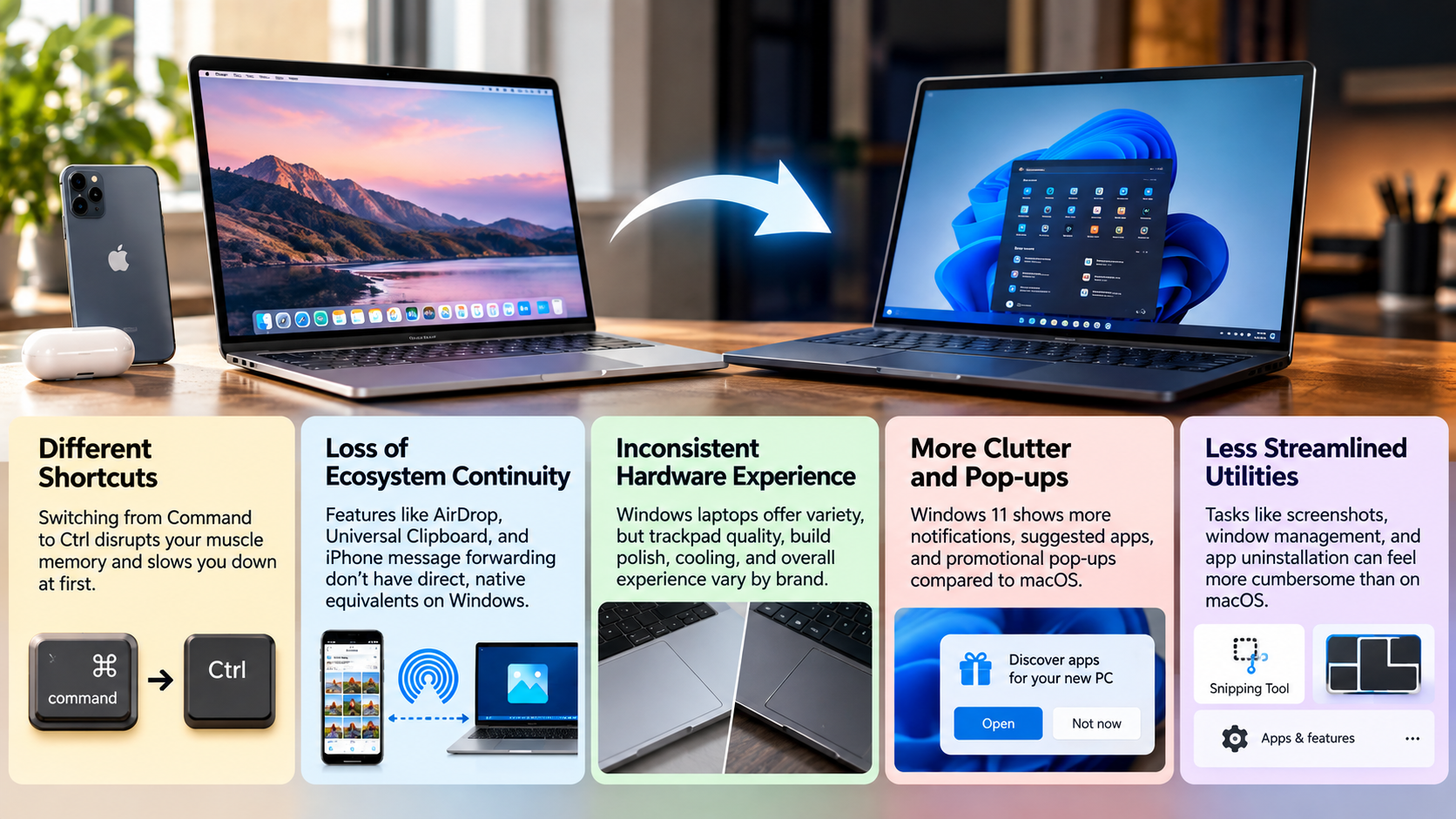
The switch can feel frustrating if your daily routine depends heavily on Apple’s ecosystem. Services such as AirDrop, iCloud Keychain, Universal Clipboard, and device continuity are deeply integrated across Apple products.
Windows can replace many of these functions, but the experience may require additional applications or configuration. That matters if you frequently move files between an iPhone and computer or copy information across devices.
Hardware consistency can also be different. A MacBook gives you a relatively predictable combination of display quality, trackpad behavior, speakers, standby performance, and operating system integration. Windows laptops vary considerably in these areas.
| Consideration | macOS (Apple Silicon) | Windows 11 / ARM and x86 |
|---|---|---|
| Sleep and standby | Generally consistent across Apple hardware | Behavior can vary by device and driver |
| Audio routing | Core Audio provides strong system-level integration | Drivers and vendor software can affect workflows |
| Trackpad precision | Consistently strong on MacBooks | Quality varies by manufacturer |
| App interface | Relatively consistent design language | Mix of modern and legacy interfaces |
| System prompts | Generally limited | Windows may show recommendations or service prompts |
What are the disadvantages of Mac over Windows?
Understanding why people leave macOS helps put the Windows transition into context. Apple hardware has several limitations that can push users toward Windows. The most important ones involve upgradeability, gaming, and hardware flexibility.
These limitations are especially relevant when comparing a Mac with a desktop PC. A Windows desktop can often be upgraded years after purchase. Users can replace individual components instead of replacing the entire computer.
Mac laptops take a different approach. Apple prioritizes compact designs, tightly integrated components, and unified memory. That can deliver strong performance and efficiency, but it reduces user control over internal hardware.
The trade-off is therefore straightforward. macOS offers a controlled and consistent hardware experience, while Windows offers considerably more choice.
Before switching to Windows from Mac, it is useful to understand whether Apple’s limitations actually affect you. If they do not, Windows’ additional flexibility may not justify the learning curve.
1. Prohibitive Upgrade Costs and Zero Modularity
One major limitation of modern Macs is limited internal upgradeability. Apple integrates memory and storage into its hardware designs, particularly across Apple Silicon Mac models. Users therefore need to choose their memory and storage configuration when purchasing the computer.
This can increase the initial purchase price when you need more capacity. After purchase, you generally cannot replace the internal memory or add a larger internal SSD yourself.
Windows offers much more variety. Many desktop PCs allow users to replace RAM, storage, graphics cards, and other components. Some Windows laptops also provide upgradeable memory or storage, although this depends heavily on the manufacturer and model. If your storage needs grow over time, it is worth checking how to add more storage to a laptop before buying a new device.
This difference matters most to users who expect their needs to change. A student may initially need modest storage but require more capacity later. A professional may eventually need additional memory for larger workloads.
With a Windows desktop, upgrading one component can extend the system’s useful life. With a Mac, buyers need to plan their configuration more carefully before purchase.
2. Extremely Limited Native Gaming
Gaming remains one of the clearest reasons users consider switching to Windows from Mac. Apple Silicon Macs deliver excellent efficiency and graphics performance for supported workloads. However, the macOS game library remains smaller than the Windows PC ecosystem.
Many major PC games are designed primarily for Windows. Compatibility can also depend on anti-cheat systems, graphics APIs, launchers, and developer support. Even when a game can technically run through compatibility tools, the experience may not match a native Windows installation.
Windows also provides broader hardware support for dedicated gaming components. Users can choose from a large range of NVIDIA and AMD graphics cards, gaming monitors, controllers, and other peripherals. Keeping those graphics components properly maintained also matters for gaming performance, so understanding what happens if you don’t update your graphics card drivers can help prevent avoidable problems.
Another advantage is upgradeability. A desktop gamer can replace the graphics card or add storage without replacing the entire system.
Mac gaming has improved, but it still does not offer the same combination of game availability, hardware choice, and upgrade flexibility. For serious PC gaming, this remains an important difference.
3. Display Scaling and Window Management Constraints
Display management is another area where the two platforms feel different. macOS generally works best when display resolution and scaling are well matched to Apple’s preferred configurations. Some external displays can produce less satisfying text clarity or interface scaling.
This does not mean every 4K monitor performs poorly with a Mac. The experience depends on display size, pixel density, scaling settings, and viewing distance. However, users who frequently connect several external monitors may notice differences in scaling behavior.
Window management is another consideration. Windows includes built-in Snap layouts that make it easy to arrange applications across a screen. macOS has improved its window management, but many users still prefer third-party utilities for more advanced layouts.
Tools such as Rectangle can provide additional controls without replacing the operating system. Mac users moving to Windows may therefore find some window-management tasks easier immediately.
The trade-off is that Windows provides more built-in flexibility, while macOS emphasizes a simpler and more controlled desktop experience.
Is it difficult to switch from Mac to Windows?
Switching from Mac to Windows is not technically difficult. The bigger challenge is changing habits that have developed through years of macOS use.
Keyboard shortcuts are usually the first source of friction. Mac users rely heavily on the Command key, while Windows uses Control for many common shortcuts. These changes are simple to understand but can take time to become automatic.
The second challenge is ecosystem separation. If you regularly use an iPhone, iPad, or Apple Watch with your Mac, some features will no longer work in the same way.
The third issue is interface consistency. Windows supports applications built with different frameworks and technologies. As a result, some menus and settings can look noticeably different.
| Common Mac Feature | Windows Equivalent | Typical Friction |
|---|---|---|
| Command shortcuts | Control shortcuts | High at first |
| Spotlight | Windows Search / PowerToys Run | Low to moderate |
| AirDrop | Quick Share / LocalSend | Moderate |
| Time Machine | File History / backup software | Moderate |
| Quick Look | Third-party Quick Look tools | Low after setup |
The transition becomes easier once these differences become familiar.
1. Muscle Memory and Shortcut Shifts
Keyboard shortcuts can make switching to Windows from Mac feel harder than expected during the first few weeks. The concepts are similar, but the physical layout and shortcut combinations differ.
Mac users commonly use Command for actions such as copying, pasting, saving, and closing applications. Windows generally uses Control for many of these commands.
Some shortcuts also have different meanings. On macOS, Command-Q quits an application. On Windows, Alt-F4 closes the active window or application. This requires a different hand position and becomes noticeable during repetitive work.
Application switching also behaves differently. Command-Tab focuses on applications, while Alt-Tab primarily switches between open windows. Users who work with many documents may therefore need time to adjust.
The good news is that this friction usually decreases through repetition. You do not need to relearn computing from scratch. You mainly need to rebuild keyboard habits.
Windows also provides tools such as PowerToys that can recreate or improve some familiar workflows. You can also expand your setup with productivity apps for Windows 11 that make common tasks easier. After several weeks of regular use, most common shortcuts become automatic again.
2. Rebuilding the Apple Continuity Ecosystem
The biggest adjustment may come from losing Apple’s Continuity features. These features connect Macs, iPhones, iPads, and Apple Watches with minimal setup.
AirDrop is a common example. Moving large files between an iPhone and Windows PC may require Microsoft’s Quick Share, LocalSend, cloud storage, or another transfer method.
Universal Clipboard can also be missed. Copying text on an iPhone and immediately pasting it on a Mac is extremely convenient. On Windows, achieving a similar workflow may require different apps or cloud-based services.
Apple Watch integration is another difference. A Mac can use Apple Watch-based unlocking in supported situations. Windows instead relies on features such as Windows Hello, including compatible fingerprint readers and infrared cameras.
None of these limitations makes Windows unusable. They simply add extra steps to workflows that previously felt automatic.
This matters most for people who own several Apple devices. If your phone and computer are from different ecosystems, you may need to choose replacement services carefully.
3. Audio, Subsystems, and UI Inconsistency
Windows 11 has a modern Settings application, but some advanced controls still connect to older system interfaces. This can make the operating system feel less consistent than macOS.
Mac users may notice this when managing networking, sound devices, storage, or hardware drivers. Windows has evolved over many years, so modern interfaces coexist with older components.
Audio workflows can also require adjustment. macOS uses Core Audio, which provides system-level audio support across applications and devices. Windows uses a different audio architecture and may depend more heavily on device drivers and professional audio software.
For recording and digital audio workstations, ASIO drivers are common. They can provide low-latency performance for compatible hardware and applications. The exact experience depends on the interface, driver, software, and configuration.
This does not mean Windows has poor audio support. In fact, Windows supports a huge range of professional hardware. The difference is that setup can vary more between manufacturers.
For users who value a consistent system interface, these small differences can become noticeable over time.
Which will be better in 2026, Mac or Windows?
There is no universal winner between Mac and Windows. The more useful comparison is how each platform handles the workloads you actually perform.
Apple continues to emphasize tightly integrated hardware, efficient processors, and close control over the operating system. Windows emphasizes hardware variety, software compatibility, gaming, and device choice.
Windows on ARM has also become more relevant. Modern Snapdragon-based Windows laptops can provide strong battery life and quiet operation. Microsoft has improved compatibility through its Windows on ARM software ecosystem and emulation technology.
Apple Silicon remains highly competitive for efficiency and integrated performance. Apple’s unified memory architecture can also benefit workloads that use large amounts of shared CPU and GPU memory.
AI features are another area of development. Windows Copilot+ PCs provide operating-system-level AI features on compatible hardware. Apple Intelligence takes a more integrated approach across supported Apple devices and applications.
The practical choice therefore depends on your priorities. Consider software compatibility, gaming, battery life, upgradeability, external displays, device integration, and privacy before deciding.
The Rise of Windows on ARM vs. Apple Silicon
Windows on ARM has changed the traditional comparison between Windows laptops and Macs. Earlier ARM-based Windows computers often faced significant application compatibility limitations. Newer systems have reduced some of those problems through better emulation and native application support.
Qualcomm Snapdragon processors have helped Windows laptops compete more directly with Apple Silicon in battery life and quiet operation. However, compatibility still depends on the specific application. Specialized software, older utilities, and certain drivers may behave differently on ARM hardware.
Apple Silicon also has important advantages. Apple’s processors combine CPU, GPU, and memory into a tightly integrated architecture. This can deliver strong performance per watt and efficient operation across supported workloads.
Memory capacity is another consideration. Some high-end Macs can use large amounts of unified memory that is shared between the CPU and GPU. Windows workstations can provide much larger dedicated GPU memory through professional graphics cards, but those systems can be considerably more expensive.
The important point is that neither architecture is ideal for every workload. Application compatibility and workload requirements should guide the decision.
Conclusion
Switching to Windows from Mac is not simply a matter of choosing a different operating system. It means adjusting to a different approach to hardware, software, shortcuts, device integration, and everyday workflows.
Windows offers clear advantages for users who need PC gaming, hardware flexibility, specialized software, upgradeable components, or broader device choices. However, the transition can also mean losing some of the seamless integration Mac users experience across Apple devices. Differences in trackpads, window management, system settings, file sharing, and keyboard shortcuts may also take time to adjust to.
The best choice depends on how you use your computer. Before making the switch, review the applications, accessories, devices, and workflows you rely on most. Check whether each one works natively on Windows or requires an alternative.
Ultimately, the goal should not be to choose the platform with the longest feature list. Choose the one that creates fewer compromises for your everyday work, entertainment, and productivity needs.