How to Add More Storage to a Laptop: Complete Guide
Running out of storage can disrupt everyday laptop use. Low disk space can prevent updates, limit new installations, and make file management harder. Learning how to add more storage to a laptop can extend its useful life without replacing the entire computer.
The best upgrade depends on your laptop’s design. Some models provide an accessible M.2 slot or 2.5-inch drive bay. Others have soldered storage that cannot be replaced easily. In those cases, an external SSD, USB drive, or memory card can provide additional space.
Before buying anything, check your laptop’s exact model and maintenance documentation. You need to confirm the supported storage type, physical size, interface, and maximum capacity. Resources from Crucial’s official storage and memory center can also help identify compatible upgrades.
This guide explains how to expand laptop storage and choose between 256GB, 1TB, and 2TB. It also covers internal SSD upgrades and external storage options.
Is it possible to add more storage to my laptop?
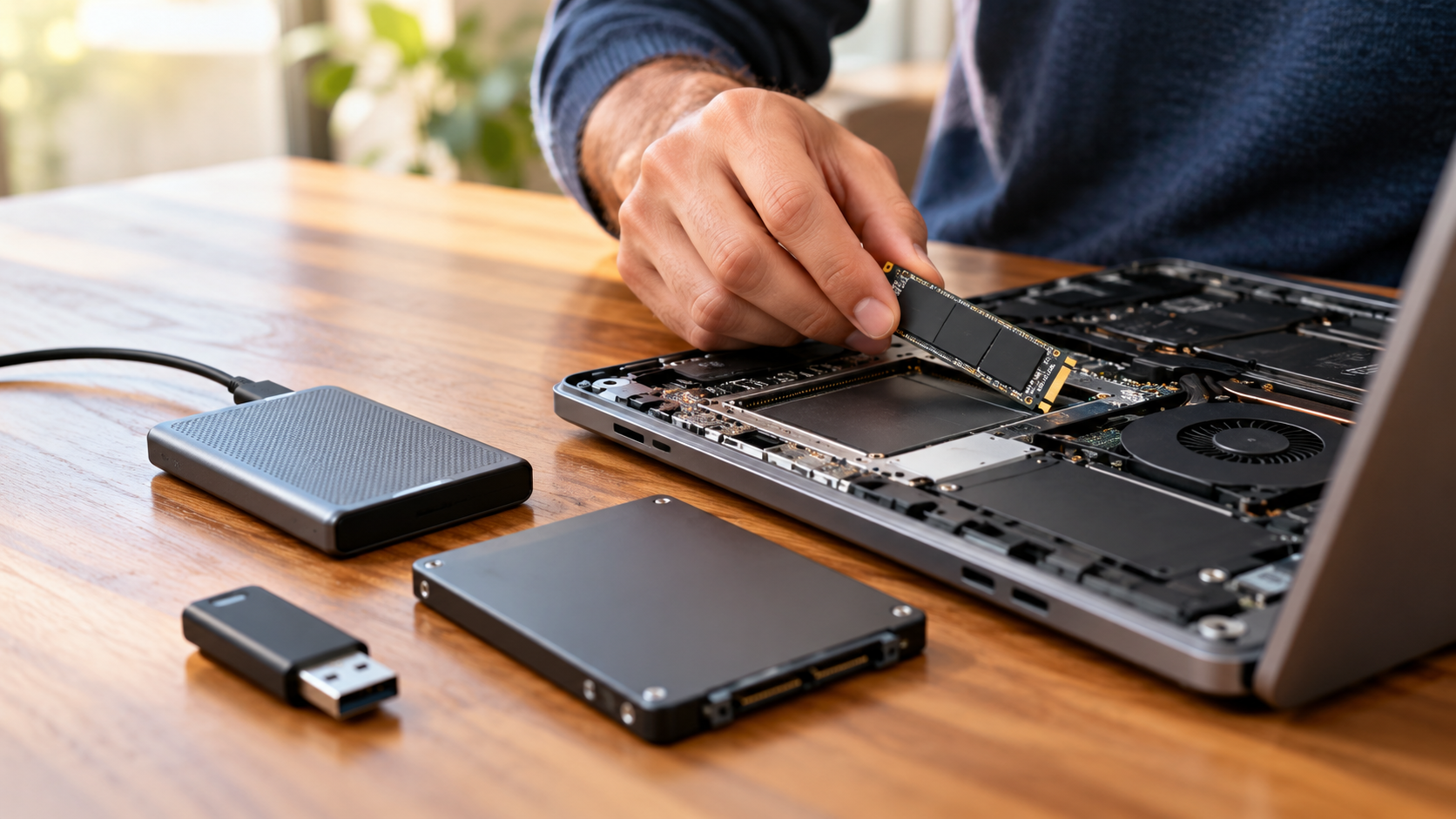
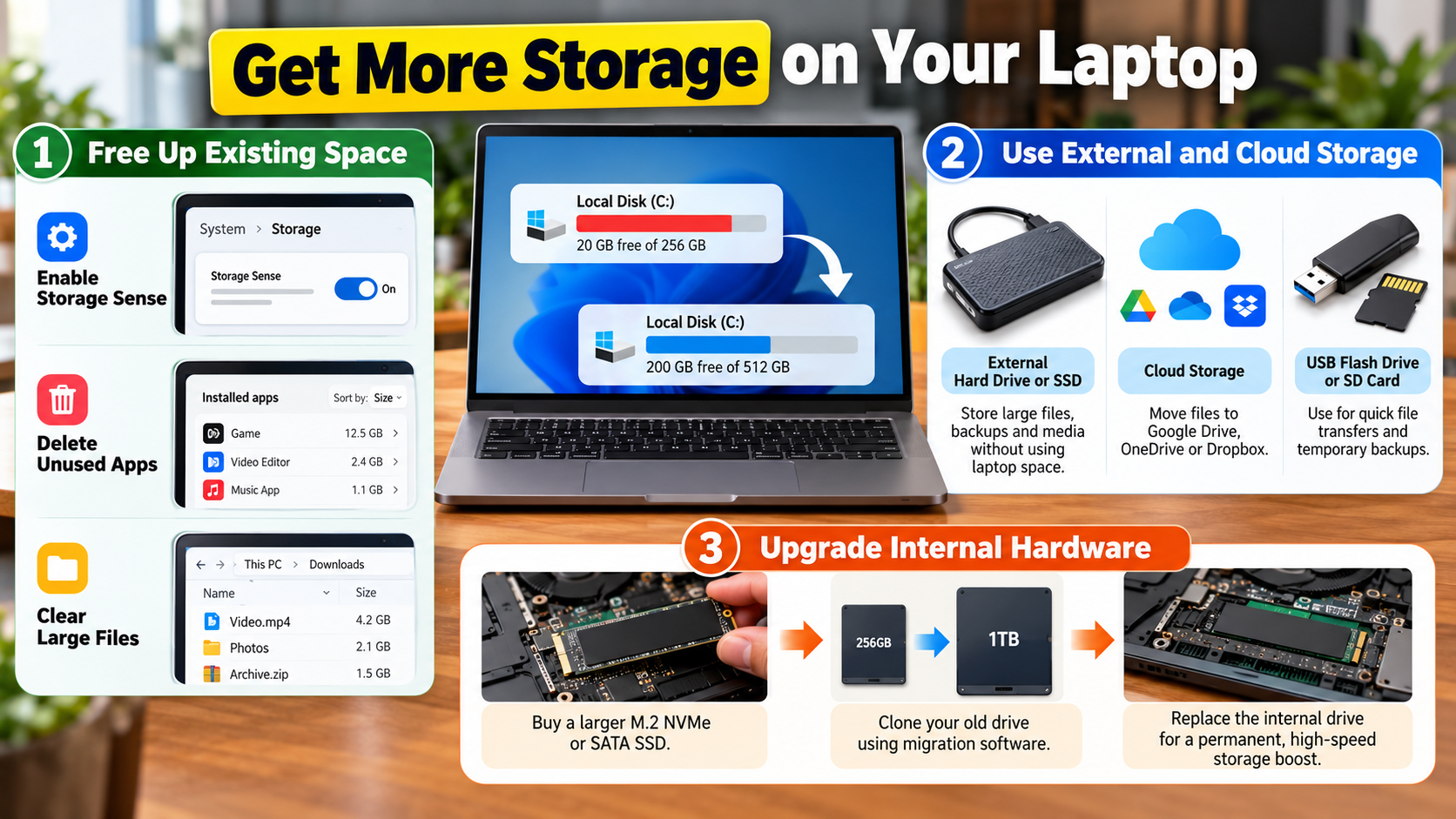
Yes, but the available upgrade method depends on your laptop’s hardware. Many Windows laptops include an M.2 slot for an NVMe SSD. Some older models use a 2.5-inch SATA drive instead. Certain laptops also provide a second storage slot, allowing you to add another drive without removing the existing one.
However, not every laptop supports internal upgrades. Thin laptops and some premium ultrabooks may use soldered storage. In that situation, replacing the internal drive may not be practical. You can still add more storage to a laptop with an external SSD, USB flash drive, or compatible memory card.
Before purchasing an internal drive, check your manufacturer’s specifications. Look for the supported interface, drive dimensions, and installation requirements.
Your main options include:
- Internal NVMe SSD: Fast and suitable for supported laptops.
- 2.5-inch SATA SSD: Useful for compatible older laptops.
- External SSD: Easy to install and move between devices.
- USB flash drive: Convenient for smaller storage needs.
- MicroSD card: Useful when your laptop provides a compatible card slot.
Internal Expansion Slots vs. High-Speed External Drives
Internal and external storage solve the same problem, but they work differently. An internal NVMe SSD connects directly to the laptop’s motherboard. This usually provides lower latency and avoids carrying an additional device. It can also make your setup cleaner because everything remains inside the laptop. Learn more about NVMe SSDs and their benefits before choosing this type of upgrade.
An external SSD offers a different advantage. You can connect it through USB and start using it without opening the laptop. This makes external storage useful when your laptop has soldered storage or when you want to avoid hardware modifications.
Actual external SSD performance depends on both the drive and your laptop’s USB port. A fast SSD connected to a slower port cannot reach its advertised maximum speed.
Consider an internal upgrade when:
- Your laptop supports an additional or replacement SSD.
- You want permanent storage.
- You regularly work with large local files.
- You want to avoid carrying another device.
Choose external storage when:
- Your laptop does not support an internal upgrade.
- You want portability.
- You need temporary or backup storage.
- You want a simpler installation.
Is 1TB overkill for a laptop?
For many users, 1TB is a practical storage capacity rather than excessive space. The right amount depends on what you store locally. Browsing, office work, streaming, and cloud-based documents generally require less storage. Games, videos, photographs, development environments, and creative projects can consume much more.
A 1TB SSD also provides more room for future files. You can keep applications, documents, photos, and other frequently used content on the same drive. This reduces the need to constantly move files to external storage.
However, buying more capacity does not automatically improve laptop performance. A larger SSD can provide more usable space, but speed depends on the drive, interface, controller, and workload.
When deciding whether 1TB suits you, consider:
- Office and browsing: 256GB may be enough.
- General use: 512GB to 1TB provides more flexibility.
- Gaming: 1TB or more can be useful.
- Photo and video work: 1TB or 2TB may be more practical.
- Large local archives: Consider 2TB or external storage.
For many users, 1TB provides a comfortable balance between capacity, cost, and convenience.
Why Drive Headroom Matters for Solid-State Storage
Leaving some free space on an SSD is useful for normal operation. SSDs continuously manage data internally through processes such as garbage collection and wear leveling. Having available space can give the drive more flexibility when moving and organizing data. You can also learn how much free space to leave on an SSD to avoid keeping the drive unnecessarily full.
However, the claim that an SSD becomes significantly slower at exactly 80% capacity is too broad. Performance depends on the SSD model, controller, workload, and how much free space remains. Some drives may experience noticeable slowdowns when nearly full, while others handle high utilization differently.
Keeping reasonable free space is still a sensible habit. It also gives your operating system room for temporary files, updates, applications, and downloads.
You can maintain storage headroom by:
- Removing applications you no longer use.
- Deleting unnecessary temporary files.
- Moving large media libraries to external storage.
- Using cloud storage for files you rarely access.
- Checking storage usage regularly.
A nearly full drive can also make everyday file management frustrating. Maintaining unused capacity helps prevent that situation. Instead of following a strict percentage rule, focus on keeping enough free space for your normal workload.
Is 256 GB a lot of storage on a laptop?
256GB is an entry-level capacity for many modern laptops. It can work well for users who mainly browse the web, use office applications, and store documents in the cloud. However, available space becomes much smaller after installing the operating system, applications, updates, and personal files.
The advertised capacity also does not equal the space you can actually use. The operating system and manufacturer software occupy part of the drive. Temporary files, updates, recovery data, and application caches can consume additional space over time.
A 256GB laptop can become restrictive if you regularly store large files. Games, video projects, photographs, phone backups, and downloaded media can fill the drive quickly. If you are considering an upgrade, understanding whether an expensive SSD is worth buying can help you balance performance, capacity, and cost.
Consider 256GB if you mainly use your laptop for:
- Web browsing and email.
- Online learning.
- Office documents.
- Cloud-based applications.
- Streaming services.
- Small personal files.
Consider a larger SSD if you regularly keep large files locally. A 512GB or 1TB SSD provides considerably more flexibility.
If your current laptop has 256GB, you can still expand it. Check whether the model supports an internal SSD replacement or additional drive. Otherwise, an external SSD can provide a simple storage upgrade.
Managing Local Caches on Entry-Level Laptop Drives
Small laptop drives need more active storage management. Operating systems and applications create temporary files, caches, downloads, and other data during normal use. These files can gradually consume a noticeable amount of available space.
Windows and macOS both provide built-in storage management tools. These tools can help identify large files, unused applications, temporary data, and other storage categories. Reviewing these areas periodically can prevent unexpected storage shortages.
Browser caches are another source of temporary data. Although clearing them can recover some space, constantly deleting caches is not a replacement for having sufficient storage. Caches often return as applications continue operating.
Instead, focus on larger and less useful files first:
- Remove old downloads.
- Uninstall unused applications.
- Delete duplicate files.
- Move large videos and photos elsewhere.
- Empty the recycle bin or trash when appropriate.
- Review large game installations.
Avoid manually deleting unfamiliar system folders. Removing important operating system files can cause errors.
If storage remains consistently low after cleanup, adding more capacity is usually more practical than repeatedly deleting files. A larger SSD or external drive can give you the space needed for normal use without constant maintenance. Cloud storage and external hard drives can also provide additional space without replacing your internal drive.
Can I put a 1TB SSD in my laptop?
You can install a 1TB SSD if your specific laptop supports that drive type and capacity. The key issue is compatibility, not simply whether the operating system can recognize 1TB of storage.
Modern laptops commonly use M.2 SSDs, but the exact specification matters. An M.2 drive can use different interfaces and physical sizes. For example, an M.2 2280 drive measures approximately 22mm wide and 80mm long. Some compact devices use smaller formats, such as 2230.
Older laptops may instead use a 2.5-inch SATA SSD. Some laptops also provide a second M.2 slot, allowing you to keep the original drive. If your laptop uses SATA, understanding whether a SATA SSD is still worth it can help you choose the right upgrade.
Before buying a 1TB SSD, verify:
- Form factor: M.2 or 2.5-inch.
- Interface: NVMe PCIe or SATA.
- Physical size: Such as 2280 or 2230.
- Supported capacity: Check the manufacturer’s documentation.
- Installation requirements: Check whether screws, brackets, or adapters are needed.
If the laptop supports the drive, a 1TB SSD can provide substantial additional space. You may also need to clone the existing drive or reinstall the operating system when replacing your primary storage.
Choosing the Correct Physical Form Factor and Interface
Choosing an SSD based only on its capacity is a common mistake. A 1TB drive may have the wrong interface, connector, or physical dimensions for your laptop. You should also know how to spot fake SSDs before buying an upgrade, especially from unfamiliar sellers.
M.2 describes the physical connector and form factor, not necessarily the storage interface. An M.2 slot may support NVMe PCIe drives, SATA drives, or a specific combination. You should confirm the supported interface before ordering.
Physical dimensions also matter. M.2 2280 drives are common, but compact laptops can use shorter drives. A drive that is electrically compatible may still fail to fit inside the chassis.
The safest approach is to check your laptop manufacturer’s documentation. You can also review the existing drive specification if the laptop is designed for user replacement.
Pay attention to:
- M.2 keying and interface support.
- PCIe generation supported by the laptop.
- SATA compatibility when applicable.
- Drive length and mounting position.
- Available clearance inside the chassis.
A newer PCIe SSD may work in a laptop that supports an earlier PCIe generation, but its performance can be limited by the laptop’s interface.
Do not assume every M.2 slot accepts every M.2 SSD. Confirm compatibility before purchasing.
Is 2TB overkill for a laptop?
A 2TB SSD may be unnecessary for light laptop use, but it can be valuable for people who store large amounts of data locally. Browsing, email, office work, streaming, and cloud documents rarely require that much internal capacity.
The situation changes when your laptop handles large files. Modern games can occupy substantial storage, while video projects and raw photographs can consume hundreds of gigabytes. Software developers may also need space for virtual machines, containers, SDKs, build files, and local development environments.
A 2TB drive can reduce the need to constantly archive or uninstall files. It can also make a laptop more convenient for users who travel and need their files available offline.
Consider 2TB when you regularly work with:
- Large video projects.
- High-resolution photographs.
- Multiple large games.
- Virtual machines and development environments.
- Large local datasets.
- Extensive offline media libraries.
For ordinary productivity, 1TB may provide enough room. For storage-heavy workloads, 2TB can be a practical choice rather than unnecessary capacity.
The best capacity depends on your current usage and expected growth. Buying additional space makes sense when it solves a real storage problem.
When Creative Workflows Justify Premium Drive Capacity
Creative workloads can consume storage much faster than ordinary office tasks. A single video project can contain camera footage, proxy files, project files, previews, exports, and backups. High-resolution photographs and audio sessions can also accumulate quickly.
A 2TB internal SSD can make these workflows easier by keeping frequently used project files immediately available. This is particularly useful when you work away from a desk or frequently move between locations.
However, internal storage should not necessarily be your only storage. Important creative projects should have separate backups. If an internal SSD fails, its larger capacity does not protect your files.
A practical setup can combine internal and external storage:
- Internal SSD: Operating system, applications, and active projects.
- External SSD: Large project archives and working backups.
- Cloud storage: Off-site copies of important files.
- Separate backup drive: Additional protection against hardware failure.
Before buying a 2TB SSD, estimate how much space your projects currently use. Then consider how quickly that amount grows.
If you regularly manage hundreds of gigabytes of creative files, 2TB can reduce storage pressure. If your projects are small, a lower-capacity SSD plus external storage may be more economical.
Conclusion
Learning how to add more storage to a laptop does not always mean replacing the entire computer. The right solution depends on your laptop’s hardware, storage needs, and budget. If your device supports an internal M.2 or SATA SSD, upgrading the drive can provide a permanent increase in capacity. An external SSD is a practical alternative when internal upgrades are unavailable or inconvenient.
For everyday users, 512GB to 1TB can provide a comfortable balance between capacity and cost. A 256GB drive can still work for light tasks, but it requires more careful storage management. Users who work with large games, videos, photographs, or development projects may benefit from 2TB or more.
Before buying an SSD, always check your laptop’s supported interface, form factor, dimensions, and maximum capacity. Choosing a compatible drive ensures that your storage upgrade works properly and gives your laptop more useful life.