Why Some Laptops Don’t Have HDMI Ports
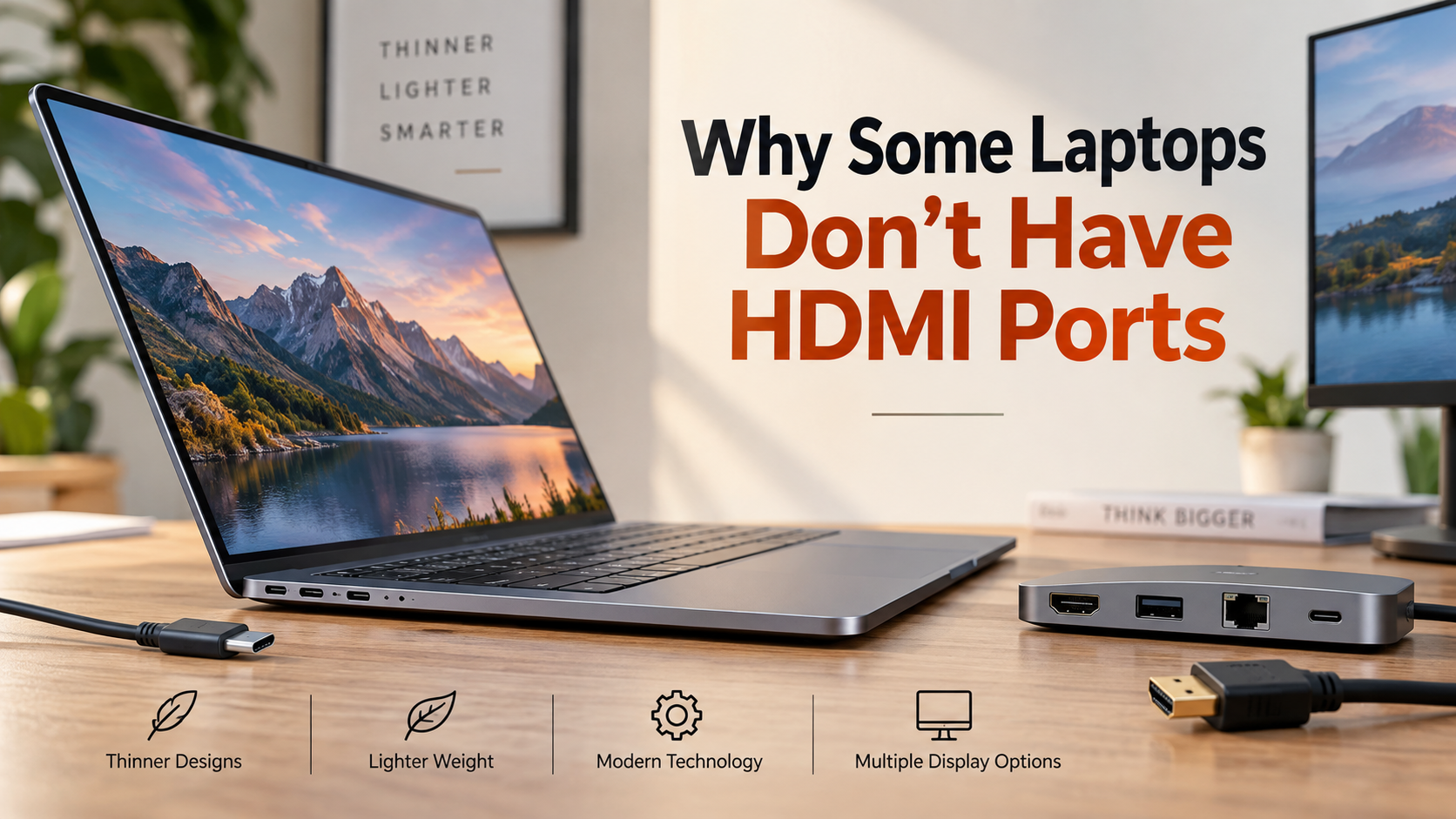
You unpack a sleek new laptop, grab your display cable, and discover that the familiar trapezoid-shaped video jack is missing. Understanding why some laptops don’t have HDMI ports comes down to modern design priorities. Manufacturers increasingly focus on thinner profiles, lower weight, and cleaner chassis designs.
Modern USB-C ports can carry power, data, and video through one compact connection. USB-C systems that support DisplayPort Alt Mode can send video to compatible displays without needing a separate HDMI socket. USB Implementers Forum (USB-IF)
Removing dedicated ports also gives manufacturers more flexibility inside the chassis. The saved space can support other components, although the exact design benefits vary between laptop models.
This change can surprise buyers during presentations or home office setups. However, a missing HDMI port does not mean you cannot connect an external display.
This guide explains why HDMI ports are disappearing, how to connect external screens, which adapters to consider, and what alternatives are available.
Do all laptops have a HDMI port?
No, not every laptop includes a dedicated HDMI port. This is one important reason why some laptops don’t have HDMI ports in newer models. Traditional business laptops and larger gaming computers often still include HDMI. Thin ultraportable laptops are more likely to remove it.
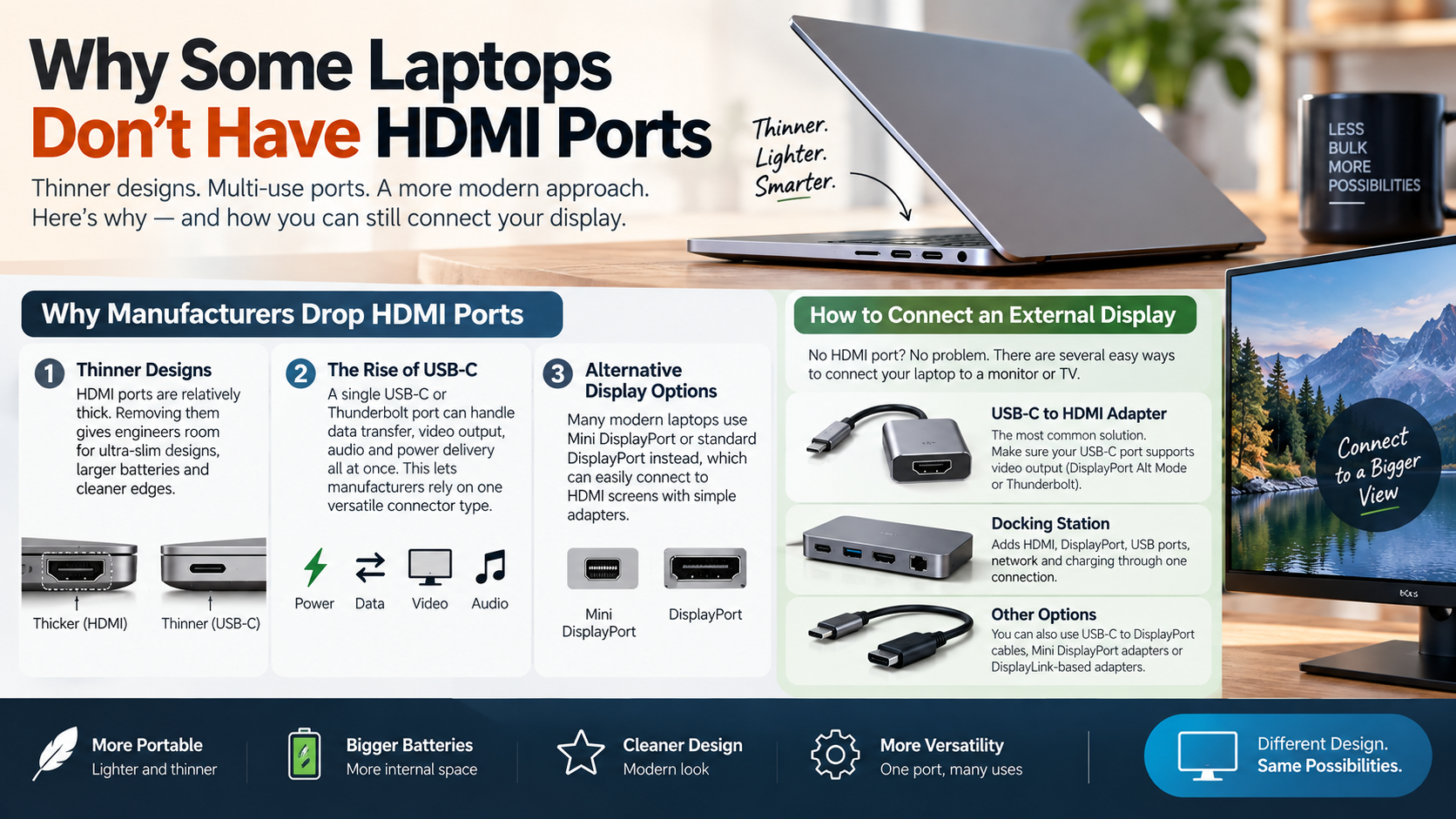
A full-size HDMI connector needs physical space along the laptop’s edge. It also requires space on the internal motherboard. That can conflict with designs focused on reducing thickness.
Instead, manufacturers often use USB-C or Thunderbolt connections. These ports can support charging, data transfer, and video output when the necessary hardware is included.
USB-C is particularly useful because the same connector can support several functions. However, not all USB-C ports support video. You must check the laptop’s specifications before buying an adapter.
Therefore, the absence of HDMI does not necessarily indicate limited connectivity. It often reflects a different approach to external display support.
The Role of Laptop Thickness and Aesthetics
Laptop thickness is a major factor when manufacturers decide which ports to include. HDMI connectors require more physical space than smaller USB-C ports. Removing them can help designers create thinner edges.
Internal space matters too. Every physical connector needs room on the motherboard and around the chassis. Manufacturers may use that space for other components or a different internal arrangement.
This helps explain why some laptops don’t have HDMI ports, especially in ultraportable models. These computers are designed for users who value portability and compact dimensions.
Aesthetic choices can also influence port selection. Fewer large connectors can create cleaner edges and a more consistent chassis design.
However, HDMI has not disappeared from laptops. Larger computers often retain it because their chassis can accommodate the connector more easily.
The choice ultimately depends on the laptop’s target audience. A thin productivity laptop may prioritize USB-C, while a gaming laptop may provide HDMI alongside other ports.
What can I do if my laptop doesn’t have an HDMI port?
If your laptop does not have HDMI, you can usually connect an external display through another compatible port. A portable USB monitor can be another option for expanding your laptop’s screen, especially when portability is important.
However, the USB-C port must support video output. Look for support for DisplayPort Alt Mode or Thunderbolt in your laptop’s specifications.
If supported, a USB-C to HDMI adapter can connect the laptop to an HDMI monitor or television. You can also use a USB-C to HDMI cable when it is compatible with your devices.
A docking station provides another option. It can offer HDMI, DisplayPort, USB ports, Ethernet, and charging through one connection.
Some laptops can also use DisplayLink-based adapters. These devices use USB connections and supporting software to provide additional display outputs.
When considering why some laptops don’t have HDMI ports, remember that HDMI is only one method of sending video. The laptop may still provide capable display connectivity through another port.
Always check supported resolutions and refresh rates before buying an adapter.
Choosing the Right Video Adapter Standard
Choosing an adapter requires more than checking whether it has an HDMI connector. You must also confirm that your laptop supports video output through the source port.
For USB-C connections, check for DisplayPort Alt Mode or Thunderbolt support. A USB-C port designed only for charging and data may not produce a display signal. Understanding USB-C port capabilities can help you choose the right adapter.
You should also check the resolution and refresh rate supported by the adapter. For example, a 4K monitor may require an adapter that supports 4K at 60Hz.
If you plan to use HDR, high refresh rates, or multiple monitors, check those specifications as well.
Cheap adapters can work perfectly for basic office tasks. However, some models have limitations that become noticeable with higher resolutions or refresh rates.
This is especially important for gaming and professional workflows. A suitable adapter should support the display settings you actually plan to use.
Before purchasing, compare the laptop’s output capabilities with the monitor or television’s input requirements. This prevents compatibility problems later.
Can I add a HDMI port to my computer?
You generally cannot add a native HDMI port to a laptop by simply installing a connector. Laptop motherboards use compact, integrated layouts designed around specific hardware configurations.
An HDMI port also requires supporting video circuitry. Adding the physical connector alone would not make the laptop capable of sending an HDMI signal.
This is another important part of understanding why some laptops don’t have HDMI ports. The missing connector is often part of the original motherboard and chassis design.
Unlike desktop computers, laptops normally do not provide accessible expansion slots for adding new video outputs. Their internal components are tightly arranged to save space.
External accessories provide a much safer solution. A USB-C hub or docking station can add HDMI connectivity without modifying the laptop, while also providing additional ports for other peripherals.
Some USB-based DisplayLink devices can also provide additional displays. These rely on separate hardware and software rather than changing the laptop’s motherboard.
For most users, external connectivity is more practical than attempting an internal modification. It is easier to install, portable, and does not require opening the computer.
Why Internal Hardware Modifications Are Impossible
A laptop’s motherboard contains tightly integrated components and limited physical space. An HDMI connector is not simply a socket that can be attached to an empty section of the board.
The motherboard must have the appropriate video circuitry and electrical connections. Without that supporting hardware, adding the connector would not create HDMI output.
This is why attempting to modify the motherboard is rarely practical. Soldering new connections can damage nearby components or permanently affect the computer.
Opening or modifying the laptop can also affect warranty coverage. The exact consequences depend on the manufacturer and warranty terms.
External accessories avoid these problems. A compatible USB-C adapter or docking station can provide HDMI without changing the laptop’s internal hardware.
This approach also makes the setup easier to change. You can remove the adapter when traveling and reconnect it at your desk.
Understanding why some laptops don’t have HDMI ports helps explain why manufacturers expect users to rely on external adapters instead.
For most people, external connectivity is the safer and simpler solution.
How to connect a laptop with no HDMI port to a TV?
You can connect a laptop without HDMI to a television using a compatible adapter or a wireless display technology. A USB-C to HDMI adapter is a common wired solution when the laptop’s USB-C port supports video output. You can also explore useful ways to use your TV’s USB ports with connected devices.
Connect the adapter to the laptop, attach an HDMI cable, and connect the other end to the television. Then select the correct HDMI input on the TV.
Wireless display is another option. Compatible Windows devices can use Miracast, while compatible Apple devices can use AirPlay.
Wireless performance depends on the devices and network connection. It may introduce more delay than a direct wired connection.
For presentations, streaming, and casual screen sharing, wireless connections can be convenient. Gaming and other latency-sensitive activities may benefit from a wired connection.
Knowing why some laptops don’t have HDMI ports also explains why USB-C and wireless technologies have become common alternatives.
Before connecting, check which display technologies your laptop and television support. This helps you choose the simplest connection method.
Optimizing Television Picture and Sound Settings
After connecting the laptop to your television, adjust the display settings for the best experience. You can normally choose between duplicating the laptop screen and extending it.
If the TV cuts off parts of the desktop, check its picture size or aspect-ratio settings. Some televisions apply overscan, which can crop the edges of a computer display.
You should also select an appropriate resolution. The best choice depends on what both the laptop and television support.
Check the refresh rate as well. Using a compatible setting can provide smoother movement and better responsiveness.
Audio may need separate configuration. Open your operating system’s sound settings and select the television or HDMI device as the audio output.
These adjustments can improve everyday use considerably. A correctly configured television can work as a large external screen for presentations, streaming, browsing, and other activities.
The exact settings depend on the laptop and television models. If something looks wrong, check the display manufacturer’s recommended settings.
Understanding why some laptops don’t have HDMI ports makes these alternative connection methods easier to understand.
What can I use if I don’t have an HDMI port?
If you do not have HDMI, several alternatives can provide external display connectivity. The best option depends on the ports available on your laptop and the inputs supported by your display.
USB-C with DisplayPort Alt Mode is one common solution. A compatible USB-C adapter can connect the laptop to an HDMI or DisplayPort monitor.
Some laptops include full-size DisplayPort or Mini DisplayPort. These can send digital video directly to compatible displays.
Thunderbolt provides another option on supported laptops. Depending on the computer and dock, it can support external displays along with other peripherals.
Wireless technologies provide another alternative. Compatible devices can use Miracast, AirPlay, or other supported screen-sharing methods.
These options show why some laptops don’t have HDMI ports without necessarily limiting their display capabilities. Manufacturers can use smaller connectors while still providing external video support.
However, compatibility remains important. Always check the laptop’s specifications before purchasing a cable, adapter, or docking station.
The physical connector alone does not tell you what a port can support.
DisplayPort Versus Conventional Television Connections
DisplayPort and HDMI can both transmit digital video and audio, but they are commonly used in different environments. it is especially common with computer monitors, while HDMI is widespread on televisions and home entertainment devices.
Both standards support high-resolution displays. Their actual capabilities depend on the specific versions supported by the laptop, adapter, cable, and display.
DisplayPort can be useful for computer-focused setups. It supports features such as high refresh rates and, on compatible systems, multiple-display configurations.
HDMI remains convenient because many televisions, monitors, consoles, and other consumer devices include HDMI inputs.
If your laptop provides DisplayPort but your television only has HDMI, an appropriate adapter or cable can bridge the connection.
You should still check supported resolution and refresh rates before purchasing anything.
Understanding why some laptops don’t have HDMI ports does not mean HDMI is no longer useful. It simply means modern laptops can use several different methods to provide external video.
The most important factor is compatibility between the laptop’s output and the display’s input.
Conclusion
Discovering that your notebook lacks a traditional video socket can feel frustrating, but understanding why some laptops don’t have HDMI ports reveals a deliberate industry shift toward lighter, more capable computing hardware. Manufacturers consistently exchange bulky single-purpose ports for streamlined profiles, larger interior batteries, and versatile universal interfaces like USB-C and Thunderbolt.
Fortunately, missing physical display sockets no longer limit your visual productivity or entertainment options. By utilizing affordable USB-C adapters, comprehensive desktop hubs, active DisplayPort cords, or seamless wireless casting tools, you can easily pair any portable computer with external monitors, projectors, and televisions.
Take a moment to inspect the connection logos printed along your notebook edges, select the matching converter accessory that fits your desk setup, and restore seamless multi-screen computing to your daily workflow today.