
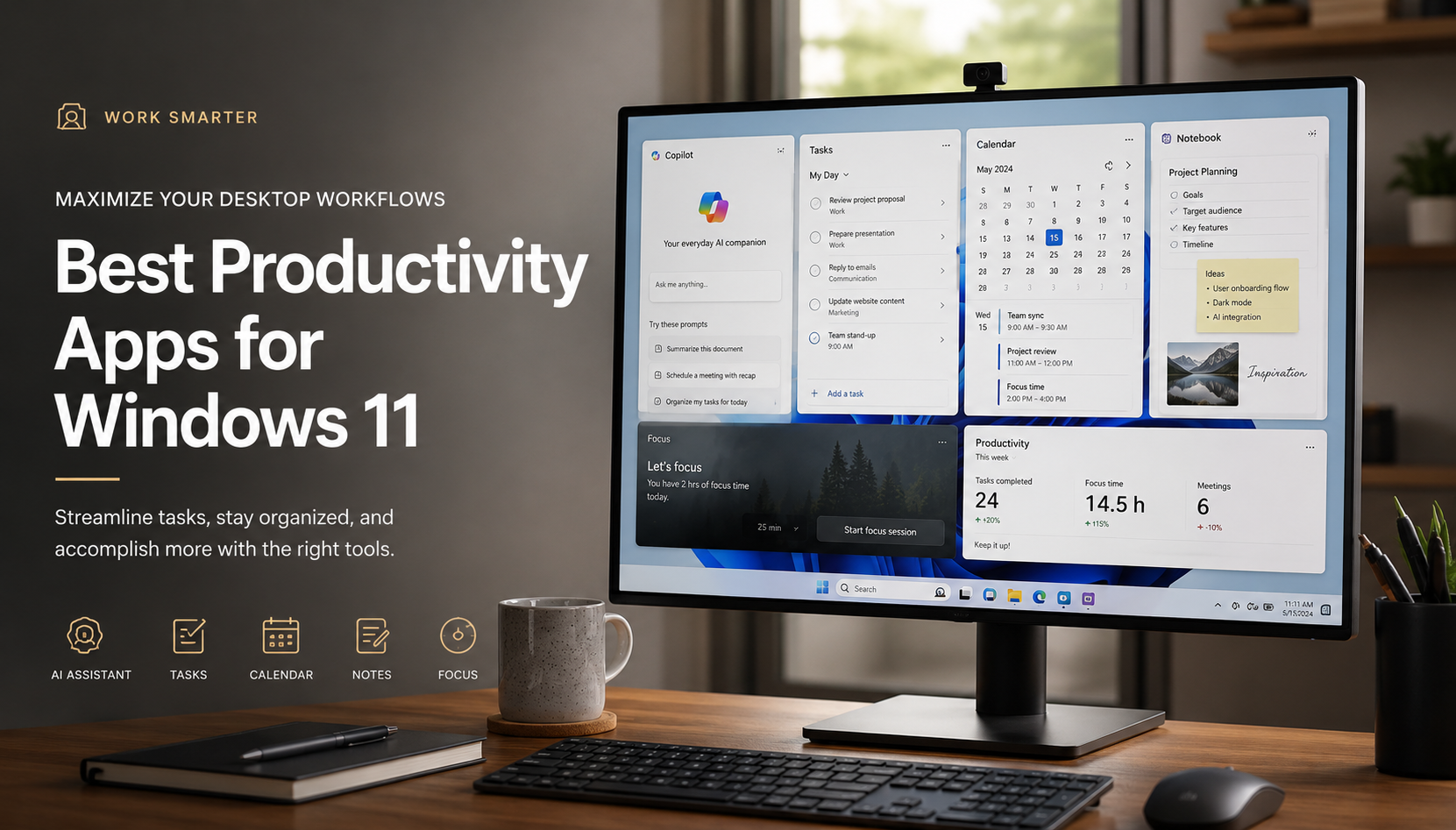
Maximize Your Desktop Workflows: The Best Productivity Apps for Windows 11
The operating system update changed how our desktops look and feel, but aesthetics alone cannot check off your daily to-do list. To transform your PC from a standard workspace into an efficient powerhouse, finding the best productivity apps for Windows 11 is essential. Relying entirely on generic tools or cluttered setups creates unnecessary digital friction, which slows down your progress. By integrating tailored applications directly into your daily routine, you can streamline complicated projects and safeguard your attention span. To set up your computer correctly for these programs, refer to the Microsoft Windows Support Documentation for performance and alignment guidance.
Modern workplaces require professionals to balance multiple projects simultaneously, making organizational software highly valuable. The correct application stack reduces the energy spent jumping between fragmented windows and browser tabs. These selected tools work alongside modern native desktop features like Snap Layouts and virtual desktops to ensure seamless multitasking. Below is an analytical look at the elite applications designed to revolutionize your administrative tasks, note-taking habits, and time management strategies.
Best Productivity Apps for Windows 11:
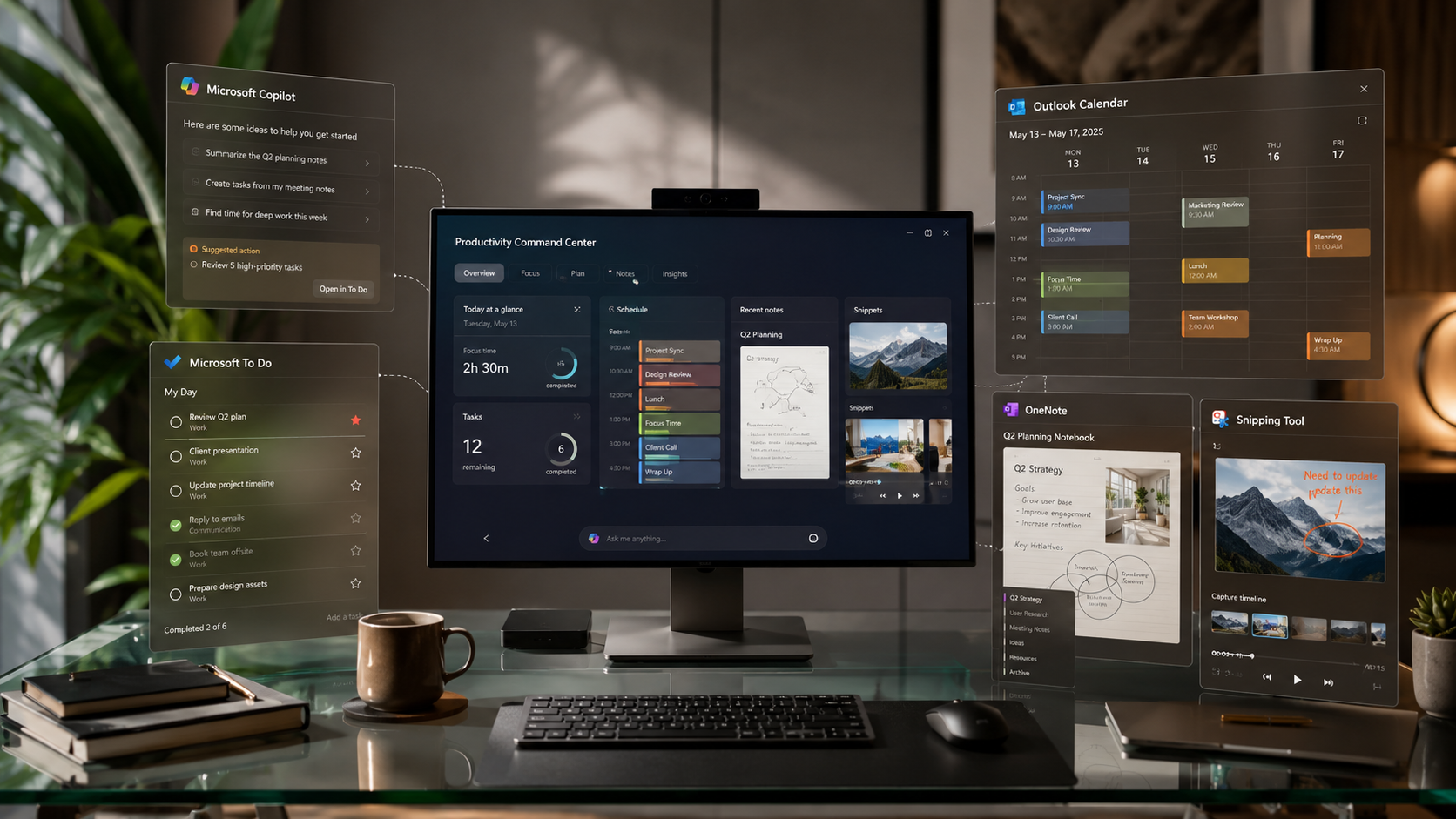
1. Microsoft Copilot: Your Built-In AI Companion
Artificial intelligence is now a key part of modern digital workspaces. Microsoft Copilot works as a smart desktop assistant that helps users complete tasks faster. It allows you to organize information, summarize content, and manage projects without switching between multiple applications. As a result, your workflow becomes smoother and more efficient.
Moreover, Copilot provides quick support when your workload increases. It can analyze information, suggest ideas, and help you make better decisions. Instead of spending extra time searching through files, you can use Copilot to find important details instantly.
Data Summarization:
When your inbox contains lengthy updates, Copilot can identify the most important points. Therefore, you can understand key information without reading every message.
Project Conversion:
If your ideas are spread across different documents, Copilot can bring them together. For example, it can turn simple notes into a clear project checklist with actionable steps.
Interactive Planning:
You can also chat with Copilot to plan events, create schedules, or organize personal tasks. Additionally, it can generate structured plans based on your instructions. This makes daily work easier and helps you stay focused on important goals.
Get started with Microsoft Copilot: Open Microsoft Copilot
2. Microsoft To Do: Simplified Task and List Management
Managing deadlines requires a simple system that keeps your work organized. Microsoft To Do gives you an easy way to handle daily tasks, important projects, and upcoming responsibilities. With this app, you can create lists, set reminders, and track progress without feeling overwhelmed.
Additionally, Microsoft To Do connects smoothly with Outlook and the wider Microsoft 365 ecosystem. This integration helps you keep emails, schedules, and tasks together in one place. As a result, you spend less time searching for information and more time completing your work.
The app lets you create custom lists for different areas of your life. For example, you can create separate lists for office projects, personal goals, or long-term plans. You can also add due dates and set recurring tasks for regular activities.
Overall, Microsoft To Do helps you build a better workflow. It combines simple task management with useful features that support productivity every day.
The Power of My Day: The “My Day” feature supports intentional prioritization by forcing you to select a manageable number of items for immediate action. This boundary prevents the psychological fatigue caused by looking at an endless master list.
Access Microsoft To Do here: Open Microsoft To Do
3. The New Outlook Calendar: Visualizing Your Schedule
Managing multiple schedules becomes easier when you use a clear and organized calendar system. The new Outlook Calendar for Windows helps you manage appointments, meetings, and daily commitments from one place. It allows you to view your schedule quickly and join meetings without unnecessary steps.
Additionally, Outlook Calendar connects different accounts to create a unified workspace. You can manage work and personal events together while keeping your plans organized. As a result, you avoid switching between separate calendar applications throughout the day.
Key Features and Benefits:
Multi-Account Sync:
Outlook Calendar brings Outlook, Google, and other supported accounts into one dashboard. Therefore, you can track all your important events from a single location.
Color-Coded Labels:
The calendar allows you to use different colors for different types of activities. For example, you can separate work meetings, personal plans, and important deadlines easily.
Direct Meeting Actions:
You can join online meetings, contact attendees, or update invitations directly from the calendar. This saves time and keeps your workflow moving.
Furthermore, using time-blocking techniques helps you plan your day better. By reserving specific hours for focused work, you protect your schedule from unexpected interruptions.
Try Outlook Calendar: Open Outlook Web
4. Microsoft OneNote: Your Complete Digital Notebook
Capturing ideas, research, and important information requires a flexible note-taking system. Microsoft OneNote gives you a digital workspace where you can store notes, files, images, and other content. It helps you organize information into notebooks, sections, and pages, making it easier to find what you need later.
Additionally, OneNote supports different ways to capture your thoughts. You can type notes, draw ideas with a stylus, add screenshots, or record audio. This flexibility allows you to choose the method that fits your workflow. As a result, you can collect information faster and keep everything in one place.
OneNote also syncs across desktop and mobile devices. Therefore, you can access your notes whenever you need them. Whether you are working from your office or traveling, your information stays available.
Furthermore, Copilot integration inside OneNote improves productivity even more. It helps you create outlines, organize messy notes, and generate new ideas with simple prompts. For example, you can turn rough thoughts into structured plans within seconds.
Overall, Microsoft OneNote combines organization and creativity. It works well for professionals, students, and anyone who wants a reliable digital notebook.
Start using OneNote: Open Microsoft OneNote
5. Snipping Tool: Accelerating Daily Communication
Clear communication becomes easier when you can share visual information quickly. The built-in Snipping Tool helps you capture screenshots and explain ideas more effectively. It works especially well for software development, technical support, and workplace collaboration.
You can open the Snipping Tool instantly by pressing the Windows logo key + Shift + S shortcut. This allows you to select the exact area you want to capture. As a result, you avoid taking unnecessary screenshots and keep your information focused.
Additionally, the tool includes simple editing features that improve your screenshots. You can highlight important sections, add text, and remove unwanted areas. These options help you guide attention toward the most useful details.
The Snipping Tool also includes a screen recording feature. Therefore, you can create short videos to demonstrate problems or explain processes. For example, a quick video showing a software issue often communicates the solution faster than a long written message.
Overall, the Snipping Tool saves time and improves teamwork. It turns complex explanations into clear visual instructions and helps users communicate more efficiently.
Learn more about Snipping Tool: Use Windows Snipping Tool
Why You Need the Best Productivity Apps for Windows 11
Windows 11 provides a strong foundation for daily tasks, but the default setup may not support every professional workflow. The best productivity apps for Windows 11 help users customize their workspace and improve the way they manage information. These tools make it easier to organize projects, track deadlines, and complete tasks without unnecessary distractions.
Additionally, specialized applications work together with Windows features to create a smoother experience. Features like Snap Layouts, virtual desktops, and cloud syncing help users switch between tasks more efficiently. As a result, you can spend less time managing your computer and more time focusing on important goals.
Furthermore, productivity apps help reduce digital clutter. Instead of keeping files, notes, and schedules in separate places, you can connect everything through a unified system. This approach improves organization and prevents delays during busy workdays.
The right tools also support better performance while working remotely. They help you manage battery usage, simplify workflows, and keep your data accessible across devices. Ultimately, choosing the right productivity apps allows you to save time.
FAQ: Best Productivity Apps for Windows 11
What makes these specific tools the best productivity apps for Windows 11?
These productivity tools stand out because they work smoothly with Windows 11. They connect directly with the operating system and create a more efficient workspace. Instead of using separate applications that do not communicate well, users can manage tasks, notes, and schedules through connected tools.
For example, Microsoft Copilot, OneNote, and Microsoft To Do work together to support daily workflows. This integration helps users move information between apps more easily. As a result, they spend less time organizing files and more time completing important tasks.
Additionally, these tools reduce unnecessary background activity. They use Windows features effectively and help maintain better system performance. The built-in connection also removes the need to manually transfer information between different platforms.
Furthermore, Windows 11 features like Snap Layouts and virtual desktops improve multitasking. Users can arrange applications, compare information, and switch between projects faster. Therefore, these productivity apps create a cleaner and more focused digital workspace.
How does Microsoft Copilot save time during a busy workday?
Microsoft Copilot helps you save time by handling repetitive tasks and organizing information quickly. It can process large amounts of text and find important details within seconds. Instead of spending a long time reading through emails or documents, you can ask Copilot to summarize the main points.
Additionally, Copilot helps you understand complex information faster. For example, it can identify important actions from a long email conversation and create a simple summary. As a result, you can focus on making decisions instead of searching for details.
Copilot also helps you manage unorganized notes. If you have ideas spread across different pages or files, it can organize them into a clear project plan. Therefore, you can turn simple thoughts into useful tasks without extra effort.
Furthermore, Copilot supports daily planning by helping you create outlines, prepare reports, and structure information. This reduces the time you spend on routine work.
Can I manage multiple email and calendar accounts using the built-in Windows tools?
Yes, you can manage multiple email and calendar accounts using the built-in Windows tools. The modern Outlook experience on Windows 11 allows you to connect different accounts in one place. You can add Microsoft accounts, Google accounts, and supported workplace accounts. As a result, you can check emails and schedules without opening several separate applications.
Additionally, Outlook Calendar brings all your appointments together in a single view. This makes it easier to track meetings, deadlines, and personal plans. You can also organize events with different colors. Therefore, you can quickly identify work tasks, personal activities, and important reminders.
The unified interface helps you save time throughout the day. Instead of switching between different apps, you can manage everything from one dashboard. Furthermore, Outlook keeps your information synchronized across devices, so your schedule stays updated wherever you work.
Overall, built-in Windows productivity tools simplify daily planning. They help you stay organized, reduce missed appointments, and create a smoother workflow.
What are the main benefits of using Focus Sessions in the Clock app?
Focus Sessions help you create better work habits by improving concentration and time management. The feature uses a structured approach similar to the Pomodoro technique. It divides your workday into focused periods followed by short breaks. As a result, you can maintain your energy and avoid feeling mentally exhausted.
Additionally, Focus Sessions connects with Microsoft To Do. This integration allows you to select specific tasks and add them to your focus timer. Therefore, you can stay clear about your goals and complete important work without distractions.
The feature also supports a more organized workspace by reducing interruptions. Instead of constantly checking notifications or switching between apps, you can focus on one task at a time. Furthermore, Spotify integration allows you to play background music directly while working.
This keeps your attention on the task instead of sending you to other websites or apps. Overall, Focus Sessions creates a simple but effective system that helps users manage their time, improve productivity, and build consistent daily routines.
Is OneNote suitable for both structured corporate work and creative brainstorming?
Yes, OneNote works well for both professional organization and creative thinking. Its flexible layout allows users to manage information in a way that matches their workflow. The app uses a simple notebook, section, and page structure. Therefore, users can store large amounts of business data without losing track of important details.
Additionally, OneNote gives each page a flexible workspace. You can add text, images, files, sketches, and audio recordings wherever you need them. As a result, the app supports different working styles and makes information easier to organize.
For corporate tasks, users can create meeting notes, project documents, research files, and detailed reports. Meanwhile, creative users can use the open canvas to draw ideas, create mind maps, and explore new concepts.
Furthermore, the digital stylus support makes brainstorming more natural. You can write ideas by hand and convert them into organized notes later.
Conclusion
Building a high-performance desktop setup with the best productivity apps for Windows 11 is the most effective way to optimize your professional schedule. Relying entirely on random browser extensions or fragmented setups limits your potential and increases cognitive fatigue. By utilizing the advanced AI capabilities of Microsoft Copilot, tracking milestones with Microsoft To Do, and using visual tools like the Snipping Tool, you create an environment optimized for deep focus.
True time management is about reducing friction and keeping your mind clear for high-value tasks. Take a few moments today to review your current daily bottlenecks, pick the tools that match your immediate needs, and integrate them into your workflow. You will notice a major improvement in your clarity, execution speed, and daily output almost immediately. For an even smoother Windows experience, you can also explore these tips on how to boost CPU speed on Windows and improve your system performance.