
Worried That Siri AI Knows Too Much About You? 7 Ways to Protect Your Privacy
Siri AI can help you manage everyday tasks, answer questions, and find information across your Apple devices. But its growing ability to understand personal context raises an important question: how much access should an AI assistant have to your information?
Apple provides several controls that let you manage Siri’s behavior, restrict app access, and review how your voice data is handled. You can also choose whether to use newer AI features or stick with a more traditional assistant experience.
Protecting your Siri AI privacy doesn’t necessarily mean giving up voice assistance altogether. It means understanding which features you use and adjusting the settings that matter to you.
Here are seven ways to take greater control of Siri, reduce unnecessary data sharing, and make your iPhone’s privacy settings work better for you.
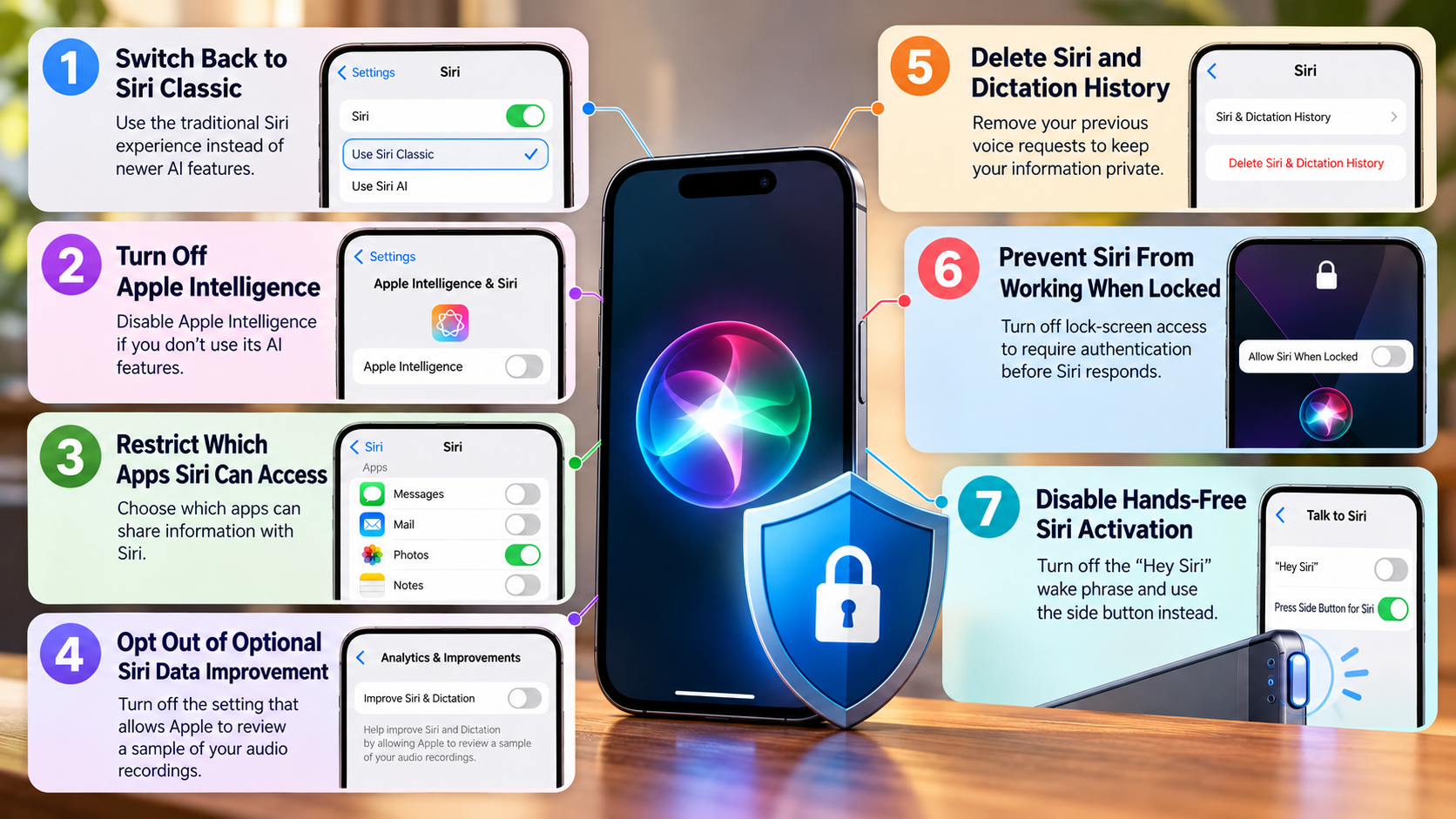
1. Switch Back to Siri Classic
If you prefer a traditional voice assistant over Apple’s newer AI capabilities, switching back to Siri Classic may be an option on supported devices. The older experience provides a way to continue using Siri without enabling the newer Siri AI features.
To make the change, open the Settings app on your iPhone and select Siri. Scroll to the bottom of the screen and tap Turn Off Siri. Confirm your choice when prompted. If Siri AI is enabled and your device supports the older experience, you can then tap Turn On Siri and select Use Siri Classic.
The exact steps depend on your operating-system version and device compatibility. Check Apple’s official Siri setup guide for the instructions available for your software version.
Keep in mind that switching to Siri Classic changes the assistant experience; it does not automatically disable every form of data processing. Review your separate privacy settings if you also want to limit data sharing.
2. Turn Off Apple Intelligence
Apple Intelligence powers several AI features across compatible Apple devices. Depending on your device and software version, these features may include writing assistance, summaries, image tools, and enhanced Siri capabilities.
If you don’t use these tools, disabling Apple Intelligence may help you simplify your experience. Start by opening Settings and looking for Apple Intelligence & Siri. If your device provides an Apple Intelligence switch, turn it off and follow any confirmation prompts.
Disabling Apple Intelligence is different from disabling Siri entirely. Some standard Siri functions may remain available, depending on your device, software version, and region.
Before changing the setting, consider whether you rely on any AI-powered features in other apps. Turning off Apple Intelligence may affect more than voice assistance alone.
It’s also important to understand what this change does not guarantee. Turning off the AI suite isn’t the same as deleting previously stored interaction history or changing every data-retention setting.
For a more complete privacy review, combine this step with the controls for Siri history, app access, and optional data sharing.
3. Restrict Which Apps Siri Can Access
Siri can use information from supported apps to provide suggestions, understand context, and perform certain actions. That integration can be convenient, but you may not want every app contributing information to your assistant experience.
Consider reviewing apps that contain sensitive conversations, financial details, personal documents, or confidential work information. You can then decide which integrations are necessary and which you would rather restrict.
On supported iPhones, open Settings, select Siri or Apple Intelligence & Siri, and look for the app-specific settings. Apple also documents controls under Settings > Siri > Apps > [app name], including Use with Siri Requests and Learn from this App. The precise labels may differ by software version.
Disable the relevant options for apps you don’t want integrated with Siri. Be aware that some suggestions, shortcuts, or personalized features may work differently afterward.
These controls govern Siri’s interaction with supported apps; they do not necessarily stop those apps from collecting information independently.
For additional protection, review each app’s own privacy permissions. Restricting unnecessary integrations can reduce how much information Siri uses to personalize its responses.
4. Opt Out of Optional Siri Data Improvement
Apple offers an optional setting that allows users to help improve Siri, Dictation, and related services. Depending on your choice, Apple may store and review a sample of audio recordings and transcripts to evaluate how well these features work.
If you prefer not to participate, you can review the relevant setting on your device. Open Settings > Privacy & Security > Analytics & Improvements and look for Improve Siri & Dictation or the corresponding current label. Turn it off if you don’t want to contribute through this optional program.
Apple explains that selected interactions may be reviewed to improve recognition accuracy and service performance. Its privacy documentation also describes how request information is handled and retained. See Apple’s official explanation of Siri and Dictation data improvement.
There is an important distinction here: opting out of optional improvement programs doesn’t prevent Siri from processing requests you choose to make. Some requests still require information to deliver a response.
If privacy is your priority, review this setting alongside your app permissions and other Siri controls. These settings address different aspects of how the assistant works with your information.
5. Delete Siri and Dictation History
Your previous voice requests may contain information you no longer want stored for personalization. Reviewing and deleting available history can help you manage those records and keep your device’s visible interaction history under control.
Apple provides a control for deleting stored Siri and Dictation request history on supported software versions. To find it, open Settings > Siri or Apple Intelligence & Siri, then look for Siri & Dictation History. If the option is available, select the control to delete your history and follow the confirmation prompts.
Some versions of Siri AI may also provide a dedicated interface for revisiting conversations. If yours supports individual conversation deletion, use the available controls to remove a specific thread.
Remember that deleting history is not necessarily the same as immediately erasing every related server-side record. Apple’s retention practices depend on the type of information and the applicable service policy.
For more detail, read Apple’s Siri, Dictation & Privacy policy. Avoid sharing passwords, banking credentials, or other highly sensitive information with a voice assistant in the first place.
6. Prevent Siri From Working When Your iPhone Is Locked
Allowing Siri to respond while your iPhone is locked can be convenient when your hands are occupied. However, you may prefer to require authentication before someone can access certain assistant features through your locked device.
To review this setting, open Settings and select Siri or Apple Intelligence & Siri. Find Allow Siri When Locked and turn it off if you want to prevent Siri from responding to requests while the phone is locked.
Apple documents this control in its official guide to changing Siri settings. Depending on your device and software version, the setting may appear under a slightly different menu.
Disabling lock-screen access can reduce the opportunity for someone nearby to use Siri without first unlocking your phone. However, it doesn’t replace a strong passcode or protect information accessible through other lock-screen features.
The trade-off is convenience. You may need to unlock your iPhone before making voice requests, which can be less practical when driving or performing other tasks.
If you rarely use locked-device requests, restricting this feature is a reasonable privacy measure. Keep your passcode enabled and review other lock-screen permissions for additional protection.
7. Disable Hands-Free Siri Activation
Voice activation lets you start Siri by saying its configured wake phrase. Your device must monitor locally for that phrase while the feature is enabled, which some users may prefer to avoid during private conversations.
You can disable hands-free activation and continue using a physical button where supported. Open Settings and select Siri or Apple Intelligence & Siri. Find Talk to Siri, Talk & Type to Siri, or the corresponding voice-activation control. Choose Off to stop Siri from responding to its wake phrase.
If you still want to use the assistant manually, keep Press Side Button for Siri enabled where that option is available. You can then activate Siri when you deliberately choose to do so.
Apple’s Siri activation guide explains the available methods and their compatibility requirements.
Disabling voice activation does not turn off every microphone function on your iPhone. Other apps may still use the microphone when you grant permission and their features are active. You can also check what the green and orange lights on your iPhone mean to better understand when certain device functions are in use.
For the best balance between privacy and convenience, disable hands-free activation if you rarely need it. You can always review your settings and enable it again later if your preferences change.
Is Siri AI Always Listening?
Siri uses voice recognition to identify its activation phrase when you enable hands-free listening. This means your iPhone must monitor audio locally for the configured wake phrase. However, this does not mean Apple continuously records and uploads everything you say.
Apple states that audio processing depends on the request and your device’s capabilities. Some requests are processed entirely on your iPhone, while others require Apple’s servers. Your device’s Siri settings indicate whether spoken requests are processed locally or sent to Apple.
Apple also says it does not retain Siri audio recordings by default. However, transcripts and related request information may be stored. If you opt in to help improve Siri, additional audio and interaction data may be collected and reviewed. These distinctions matter when evaluating Siri AI privacy and deciding which features to enable.
What Happens If You Are Rude to Siri?
Insulting Siri or using profanity does not normally result in account penalties or restricted iPhone functionality. Siri responds according to its software, available language models, and programmed behavior. Depending on the request and software version, it might respond neutrally, offer a brief comment, or fail to understand what you said.
Siri does not have human feelings or personal experiences. Its responses are generated by software rather than emotional reactions. Therefore, speaking rudely to the assistant does not upset it in the human sense.
However, this does not mean every interaction disappears without a data trail. Siri may process spoken requests and retain certain transcripts or related information under Apple’s privacy practices. Your settings and whether you have opted into data collection can affect how interactions are handled. Siri AI privacy concerns depend on the information you share and how the service processes it, not whether your language is polite.
Is Siri the Weakest AI?
Calling Siri the weakest AI is an oversimplification. Different assistants serve different purposes, and their performance depends on the task, software version, device, and available services.
Historically, Siri has faced criticism for limited conversational flexibility, inconsistent contextual understanding, and difficulty handling complex follow-up questions. Some competing AI assistants have offered stronger performance in extended conversations, detailed explanations, and generative writing.
However, Siri remains useful for everyday tasks such as setting alarms, sending messages, controlling compatible smart-home devices, and adjusting supported iPhone settings. Its integration with Apple’s ecosystem can make these actions convenient.
The important distinction is between a voice assistant and a general-purpose AI chatbot. A chatbot may excel at drafting, reasoning, and open-ended discussions, while a voice assistant may prioritize device controls and quick actions. Privacy also varies by feature and implementation. A meaningful comparison should consider capability, reliability, transparency, and data handling rather than assigning one assistant a universal ranking.
What Happens If You Say 14 to Siri?
There is no reliable basis for claiming that saying 14 universally instructs Siri to contact emergency services. Emergency numbers vary by country, and Siri’s behavior depends on the request, region, device, and software configuration.
For example, asking Siri to call a number is different from mentioning that number during an ordinary conversation. A direct voice command may initiate a call if Siri interprets it as a dialing request. Simply speaking a number does not establish that an emergency call will automatically begin.
Some emergency-number shortcuts and calling features vary across jurisdictions. Therefore, you should not assume that the number 14 is a universal emergency trigger or that every iPhone displays the same cancellation countdown.
If you need emergency assistance, use your region’s official emergency number or the emergency-calling feature on your device. Avoid experimenting with emergency commands. Understanding the difference between ordinary speech, a direct calling request, and an emergency feature helps prevent accidental calls and keeps emergency services available for people who need them.
Why Shouldn’t You Say 108 to Siri?
The number 108 is associated with ambulance services in many parts of India. However, simply saying the number aloud does not necessarily place an emergency call through Siri. The result depends on how your request is interpreted and whether you explicitly ask the assistant to call that number.
The practical concern is accidental dialing, not a special Siri feature that automatically activates whenever someone mentions 108. For example, a request to call 108 may initiate a call, while discussing the number may not. Exact behavior can vary by device, software, and context.
India also operates a national emergency response system through 112, which integrates several emergency services. The government advises people to use emergency facilities carefully because they are intended for genuine situations.
Avoid prank calls and experiments involving emergency numbers. They can waste operators’ time and potentially delay assistance for people facing real emergencies. If you need help, use the appropriate official emergency service for your location.
Conclusion
Protecting your Siri AI privacy doesn’t require giving up every useful feature on your iPhone. By reviewing your Apple Intelligence settings, limiting app access, managing Siri history, and controlling voice activation, you can decide how you want to use Apple’s assistant.
The right approach depends on your priorities. If you rarely use AI features, disabling them may be the simplest option. If you still rely on Siri for everyday tasks, adjusting individual privacy settings can offer a better balance between convenience and control.
Remember that no single setting addresses every privacy concern. Turning off Apple Intelligence, deleting conversation history, and opting out of optional data improvement serve different purposes. Review each option carefully and check Apple’s current guidance for your device.
Ultimately, the best way to protect your personal information is to share only what is necessary, keep your iPhone secure, and understand how the features you enable handle your data. A few thoughtful changes can help you use Siri with greater confidence.