Time to Switch to Safari? 9 Hidden Tricks That Make This Browser Worth Trying
For years, Google Chrome has dominated desktop and mobile browsing. However, memory usage, battery consumption, and online tracking concerns have encouraged users to explore alternatives. Deciding whether to switch to Safari means considering performance, privacy, and integration with your Apple devices.
Apple designed Safari to work closely with macOS, iOS, and other Apple services. This integration can make browsing more convenient, especially when you use multiple Apple devices. Safari also includes tracking protections, built-in reading tools, and customization options that many users overlook. Explore these features in Apple’s official Safari overview.
Some users dismiss Safari as a basic browser. However, its minimalist interface hides useful tools for everyday browsing. Features such as Tab Groups, Profiles, and text recognition can simplify your workflow. Safari also supports extensions, although its selection differs from Chrome’s.
Before you switch to Safari, explore what the browser offers beyond its simple interface. These nine tricks cover tab management, distraction-free reading, document conversion, and cross-device browsing. You’ll also learn about privacy protections, security differences, and ways to make Safari feel more like Chrome.
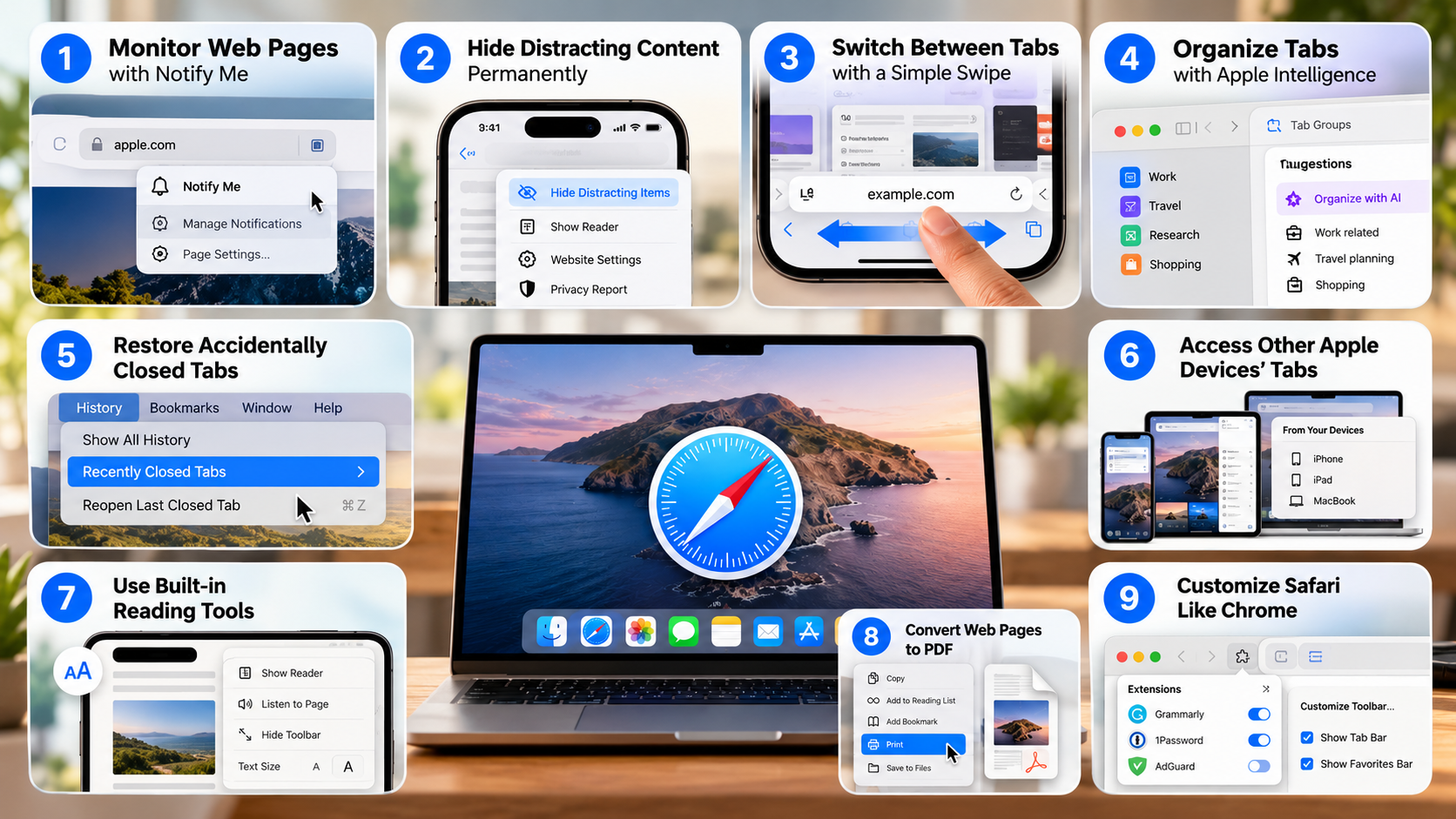
1. Monitor Web Pages with Safari’s Notify Me Feature
Repeatedly refreshing a website to check for updates can waste time. Safari may offer a Notify Me feature on supported versions, allowing you to monitor changes without constantly checking a page. This could be useful when tracking product availability, waiting for new articles, or following website updates.
To try it, open the relevant page on your Mac and check the available options in Safari’s address bar menu. If Notify Me appears, follow the prompts to specify what you want to monitor. Review any scheduling options before enabling notifications.
Feature availability depends on the Safari version and supporting software. Not every Mac necessarily includes this feature, and some websites may not support every monitoring function. Check the relevant documentation before relying on it for important alerts.
If you plan to switch to Safari for productivity, investigate whether this feature is available on your device first. That way, you can distinguish confirmed capabilities from features that require additional software or a newer release.
2. Hide Distracting Content Permanently in Safari
Cookie banners, promotional overlays, and animated elements can make websites frustrating to read. If you’re unsure how to handle these banners, understanding whether to accept or reject cookies from a website can help you make informed privacy decisions. Safari’s Hide Distracting Items feature lets you remove selected visual elements from supported webpages. This can make browsing cleaner without installing an additional content-blocking extension.
On a compatible iPhone, open the webpage and tap the page menu near the address bar. Look for the option to hide distracting items, then select the elements you want to remove. The exact controls may vary with your iOS version.
Safari can remember your selections on supported pages, so hidden elements may remain absent after you reload the page. However, this feature is not a universal advertisement blocker. Websites can change their layouts, and some dynamic elements may reappear.
This trick is particularly useful if you want a cleaner browsing experience without changing your entire browser setup. When you switch to Safari, remember that hiding selected page elements is different from blocking every advertisement or preventing all online tracking.
3. Switch Between Safari Tabs with a Simple Swipe
Switching between open websites does not always require opening Safari’s tab overview. On compatible iPhones, you can swipe horizontally across the address bar to move between open tabs. This gesture is particularly useful when comparing products, researching a topic, or moving between work-related websites.
To try it, open Safari with multiple tabs available. Place your finger on the address bar and swipe left or right to move between tabs. When the gesture is supported, Safari should display another open page.
You can also access the tab overview to see your open pages together. Depending on your Safari version and interface layout, you may be able to swipe upward from the address bar to open this view. If the gesture does not work, use the tab overview button instead.
These shortcuts reduce the effort required to navigate between websites. If you switch to Safari from Chrome, practicing these gestures can help you become comfortable with Safari’s mobile interface.
4. Organize Safari Tabs with Apple Intelligence
Managing dozens of open tabs can make research difficult. Safari supports Tab Groups, which let you organize related websites into separate collections. On supported software versions, Apple Intelligence may also provide features that help organize information or improve browsing workflows.
Before relying on AI-powered tab organization, check which features are available on your device. Apple Intelligence availability depends on compatible hardware, software versions, language settings, and regional availability. Not every Safari installation can automatically group tabs using AI.
You can organize tabs manually by creating a Tab Group for a specific activity. For example, keep travel research in one group and work-related websites in another. This approach reduces clutter and makes it easier to return to related pages.
If an automatic organization option is available on your device, review the suggested groups before moving important tabs. Tab Groups remain useful even without AI-powered assistance. When deciding whether to switch to Safari, consider whether its organization tools fit the way you work.
5. Restore Accidentally Closed Safari Tabs
Closing the wrong tab can interrupt research or make you lose a page you intended to revisit. Fortunately, Safari provides ways to reopen recently closed tabs without searching through your browsing history.
On an iPhone, open Safari’s tab overview and look for recently closed tabs if that option is available in your version. On a Mac, you can often reopen the last closed tab using the Command + Z shortcut or the History menu, depending on the action and current browser state.
Some devices or software versions may also offer an undo prompt after certain actions. However, shaking your phone is not a reliable, universal method for restoring a closed Safari tab. Recovery options depend on your device and software version.
If you frequently close tabs accidentally, check the tab overview before reopening a website from scratch. This simple habit can save time when researching several topics simultaneously. Before you switch to Safari as your primary browser, learn its tab recovery options to avoid losing useful pages.
6. Access Other Apple Devices’ Tabs Through iCloud
Safari can synchronize browsing information across compatible Apple devices using iCloud. When Safari syncing is enabled, you can access tabs that remain open on your other signed-in devices. This is useful when you start reading an article on your Mac and want to continue on your iPhone.
To use this feature, sign in to the same Apple Account on your devices and enable Safari in your iCloud settings. Open Safari on your iPhone and check the Start Page for tabs from your other devices. Their location and appearance may vary by software version.
Depending on the interface and available controls, you may also be able to manage certain tabs from another device. However, synchronization is not necessarily instantaneous, and the feature requires compatible devices and appropriate settings.
Review your iCloud settings if you cannot see tabs from another device. If you switch to Safari across your Apple devices, synchronization can make it easier to continue browsing without manually sharing every link.
7. Separate Work and Personal Browsing with Safari Profiles
Mixing professional and personal browsing can create unnecessary clutter. Safari Profiles help you separate these activities by maintaining distinct browsing environments. You might create one profile for work, another for personal browsing, and a third for research or education.
Each profile can have its own browsing history, cookies, extensions, and Tab Groups. This separation can help you manage different accounts on the same website without repeatedly signing out. For example, you can use one profile for a work email account and another for personal email.
To get started on a compatible Mac, open Safari’s settings and find the Profiles section. Create a profile, give it a descriptive name, and configure its available options. You can then switch profiles when your tasks change.
Profiles are not the same as Private Browsing. They provide ongoing organization rather than temporary privacy. They also do not guarantee complete separation of every browser setting or online identity.
If you switch to Safari for work, Profiles can help keep professional tasks separate from personal browsing. Review their settings before using them for sensitive activities.
8. Convert Webpages into PDFs Directly in Safari
Saving a webpage as a PDF makes it easier to keep articles, instructions, receipts, and reference material for later. Safari includes printing and sharing options that can help you create a document without using a separate online converter.
On an iPhone, open the webpage and tap the Share button. Select Print if the option is available, then inspect the print preview. On supported iOS versions, you can expand the preview to access a PDF view and save or share the resulting document.
Choose the Files app as the destination when you want to keep the document on your device or in a supported cloud location. Menu labels and available actions may vary by iOS version and page type.
Before saving, check that the PDF includes the content you need. Interactive elements, videos, and some website layouts may not transfer correctly. For lengthy articles, review page breaks and text readability.
This method is useful for offline reference, studying, and keeping important instructions. If you switch to Safari, its built-in document options can help you save useful information without relying on third-party conversion websites.
9. Open Articles Automatically in Safari Reader
Webpages often contain advertisements, navigation menus, and other elements that distract from the main article. Safari Reader simplifies supported pages by emphasizing the text and images needed for reading. It can make long articles easier to follow, particularly on a small screen.
To use Reader, open a supported article and look for the page menu or Reader control near the address bar. Select the Reader option when available. On supported versions, you can also configure website-specific settings to use Reader automatically for compatible pages.
Once enabled for a website, Safari may open eligible articles in Reader without requiring you to activate it each time. Availability depends on the website structure and your Safari version. Some pages do not support Reader because their content cannot be extracted reliably.
Reader does not remove every form of advertising from the internet or make websites completely distraction-free. However, it can improve the reading experience when you mainly want the article’s text. When reading online news, it’s also important to evaluate the information you encounter and learn how to spot fake news and misinformation online.
If you switch to Safari for reading news, tutorials, or long-form articles, try Reader on your favorite websites. It can make reading more comfortable and reduce distractions without requiring a separate reading app.
How Private Is Safari Private Browsing?
Safari’s Private Browsing mode helps prevent browsing activity from being saved in your regular browsing history. It also limits certain forms of cross-site tracking. Understanding the difference between first-party and third-party cookies can help you see how websites store information and how advertisers track browsing activity. On supported Apple devices, private tabs can be locked when Safari is not in use, requiring authentication to access them again.
However, Private Browsing does not make you completely anonymous online. Your internet service provider, employer, school network, and visited websites may still be able to observe some activity. Websites can also identify you when you sign in to an account or voluntarily share personal information.
Safari includes Intelligent Tracking Prevention, which limits how websites and advertisers track your activity across different sites. Private Browsing adds further restrictions, including blocking known trackers and removing tracking parameters from URLs in supported circumstances.
These protections are useful, but they have limits. Private Browsing does not guarantee that every tracking technique will be blocked. If you switch to Safari because privacy matters to you, review its privacy settings and understand what each protection can and cannot do.
What Are Some Cool Tricks I Can Use in Safari?
Safari includes several features that make everyday browsing easier. Learning these tools can help you organize tabs, find information faster, and reduce unnecessary distractions. For example, you can pin frequently visited websites, organize research with Tab Groups, and use Live Text to copy text from supported video frames or images.
Here are nine useful Safari features worth exploring:
- Pin tabs: Keep frequently used websites accessible without searching through numerous open tabs.
- Use Tab Groups: Separate work, personal browsing, and research into organized collections.
- Create Profiles: Maintain separate browsing environments with different histories, cookies, and settings.
- Use Live Text: Copy recognizable text from supported images and video frames on compatible devices.
- Listen to web pages: Use available spoken-content features to hear supported articles and other text.
- Review browsing history: Hold the back button to revisit previously viewed pages in your current tab’s history.
- Customize the toolbar: Keep frequently used browser controls within easy reach on your Mac.
- Install extensions: Add supported tools for password management, productivity, and content blocking.
- Create web apps: Add compatible websites to your Mac’s Dock for convenient access in separate windows.
Feature availability varies by device, operating system version, and website. Exploring these tools can help you decide whether to switch to Safari for everyday productivity.
Is Safari Safer Than Chrome?
Neither Safari nor Chrome is universally safer in every situation. Both browsers include security features designed to protect users from malicious websites, phishing attempts, and harmful downloads. If you’re comparing browser security more broadly, our analysis of whether Google Chrome is safer to use than Microsoft Edge offers another useful comparison. Their privacy approaches differ, however, which may influence your choice.
Safari uses Intelligent Tracking Prevention to limit cross-site tracking. Apple also provides Privacy Reports that help users understand which known trackers Safari has blocked. Chrome offers security features such as Google Safe Browsing, which helps identify dangerous websites and downloads. Available protections depend on your settings and browser version.
Safari’s integration with Apple’s operating systems can also simplify security updates. However, its overall protection depends on keeping your device and browser updated. Chrome likewise receives security updates and provides a range of security controls.
Privacy and security are related but distinct. A browser may limit advertising trackers without necessarily providing better protection against every security threat. Your choice should depend on your devices, required extensions, privacy preferences, and browsing habits.
If you switch to Safari, keep your Apple devices updated and review your browser’s security settings. Choose the browser that best supports your requirements rather than assuming one option is safer in every situation.
How to Make Safari More Like Chrome?
If you’re considering switching from Chrome to Safari, you don’t have to abandon every familiar browsing habit. Safari offers settings that let you customize its appearance, search behavior, and toolbar. A few adjustments can make the transition easier, especially if you prefer Google’s search experience and a traditional tab layout.
Start by opening Safari’s settings on your Mac. Under Search, select Google as your search engine if you want to keep using Google’s results. This changes Safari’s default search provider without requiring you to use Chrome.
Next, open the Tabs settings and choose the layout you prefer. Depending on your macOS version, you may be able to select a separate tab bar instead of the compact layout. This can make open tabs easier to distinguish.
You can also install compatible Safari extensions for password management, productivity, and content blocking. Not every Chrome extension has a Safari equivalent, so check availability before switching. Finally, customize the toolbar to keep important controls visible.
If you want to switch to Safari without changing your entire workflow, start with these small adjustments. Test your essential extensions and websites before making Safari your default browser.
Final Verdict: Should You Switch to Safari?
Safari offers useful tab management tools, built-in reading features, cross-device synchronization, and privacy protections. Its integration with Apple’s ecosystem can make everyday browsing more convenient, particularly if you use a Mac, iPhone, and iPad.
However, the best browser depends on your needs. Chrome may remain preferable if you rely on specific extensions, Google services, or workflows that Safari does not support. Safari also has limitations, and its privacy protections do not guarantee complete anonymity.
Before you switch to Safari, try the nine tricks in this guide and test your essential websites. Check extension compatibility, explore the privacy settings, and see whether the interface suits your daily routine.
You do not need to change browsers simply because one is popular or receives positive reviews. Compare the features that matter to you, then choose the browser that offers the right balance of convenience, compatibility, privacy, and performance.