What Do the Green and Orange Lights on iPhone Mean?
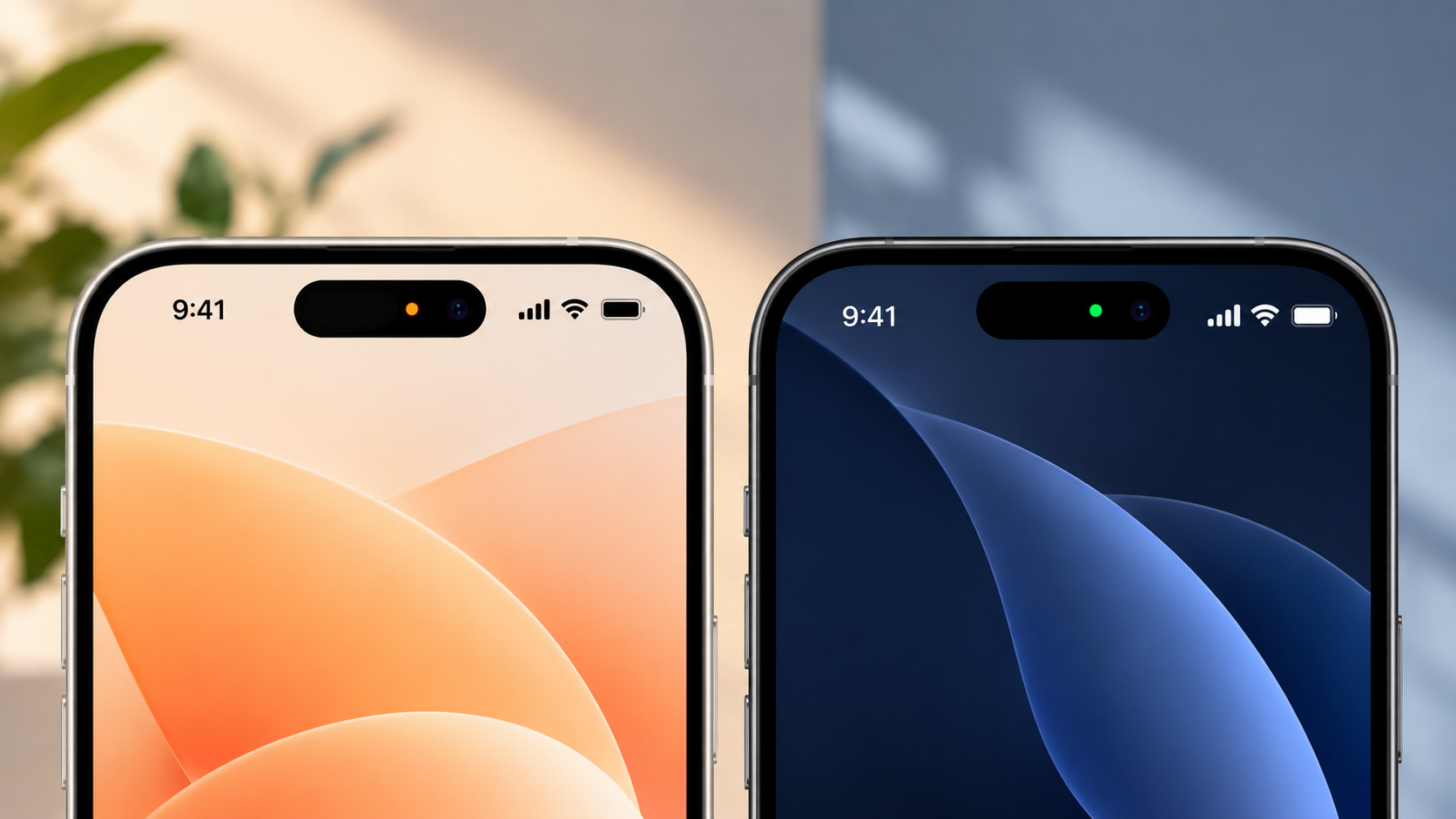
The green and orange lights on iPhone are privacy indicators that tell you when an app is using your camera or microphone. You may notice one of these small lights near the top of your iPhone screen while using certain apps or features.
Apple introduced these indicators with iOS 14 to make sensor access more visible. The orange light indicates microphone use, while the green light indicates camera use or camera and microphone use together, as explained in Apple’s guide to iPhone privacy indicators.
These lights are useful because they give you immediate information about sensitive sensor activity. You do not have to guess whether an app is accessing your microphone or camera.
If a light appears unexpectedly, you can use Control Center and your privacy settings to identify the app involved. Understanding these indicators can help you manage your iPhone privacy and recognize unusual activity.
What Do the Green and Orange Lights on iPhone Mean?
The green and orange lights on iPhone are built-in privacy indicators. They appear near the top of the screen when an app accesses the microphone or camera.
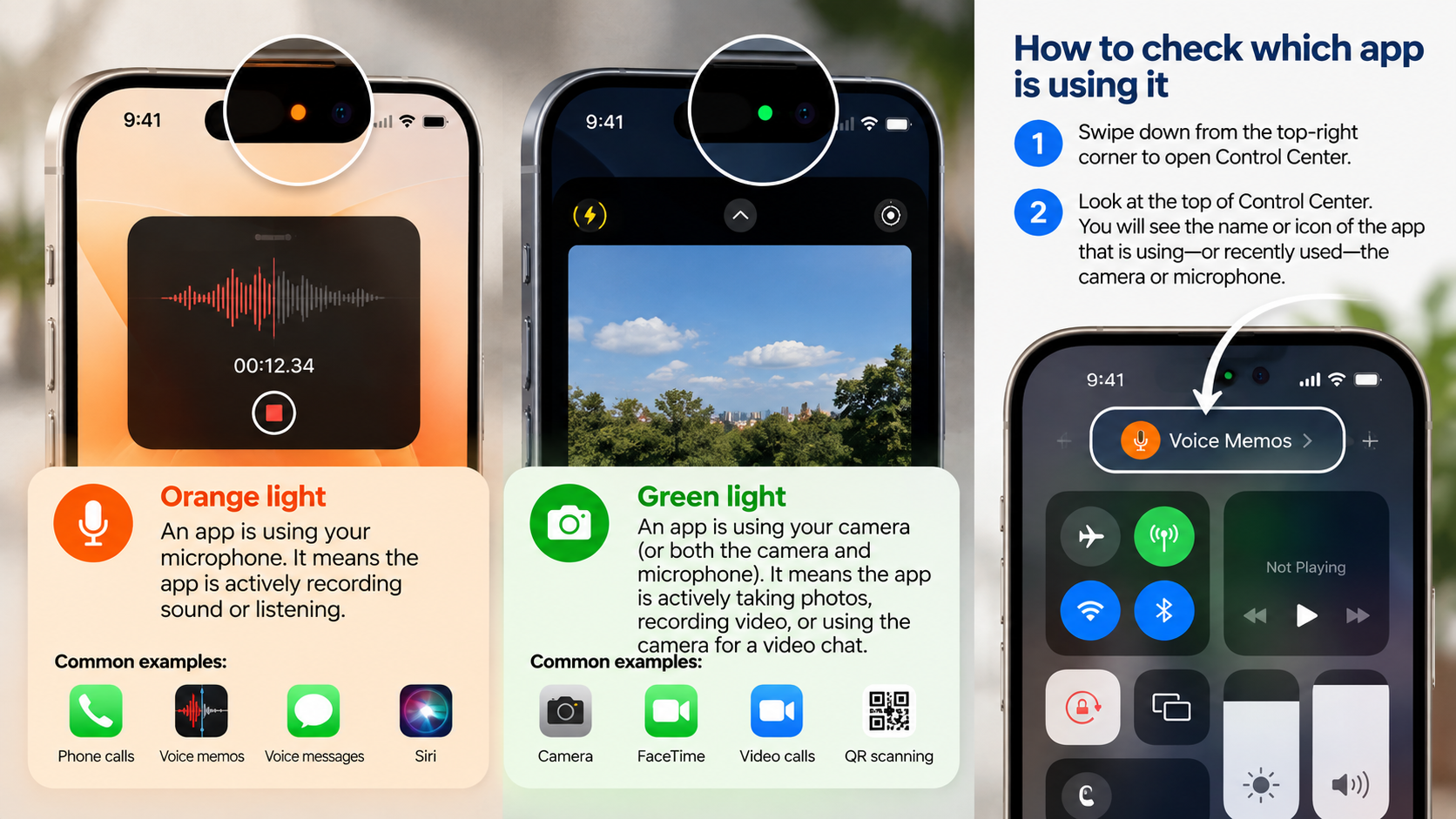
The orange light means that an app is using your microphone. You might see it during a phone call, voice recording, voice message, or Siri interaction.
The green light means that an app is using your camera. It can appear when you use the Camera app, FaceTime, a video meeting, or a camera feature inside another app.
When an app uses both the camera and microphone, iOS displays the green indicator. This makes it easy to recognize that camera access is active.
For accessibility, iPhone also includes Differentiate Without Color. You can find this option under Settings > Accessibility > Display & Text Size. When enabled, the microphone indicator appears as an orange square instead of a circle.
| Indicator | Shape | Sensor Accessed | Common Examples |
|---|---|---|---|
| Orange | Circle or square | Microphone | Calls, Siri, voice memos, voice messages |
| Green | Circle | Camera or camera + microphone | FaceTime, Camera, video calls, QR scanning |
Does the Orange Light on iPhone Mean Someone Is Listening?
No. The orange light does not automatically mean someone is secretly listening to you. It means an app is accessing your microphone.
In most cases, there is a simple explanation. You may have started a phone call, recorded a voice message, used Siri, or opened another feature that needs audio input.
Some apps can also request microphone access for specific functions. Communication apps need it for calls, while other apps may use it for voice commands or recording features.
If the orange light appears when you are not using an obvious audio feature, check Control Center. iOS can provide information about the app that recently accessed your microphone.
Common reasons include:
- You are on a phone or internet call.
- You are recording a voice memo.
- You are sending a voice message.
- Siri or another voice feature is active.
- A communication app is using the microphone.
- An app is performing an audio-related function.
Therefore, an orange indicator alone is not evidence of hacking or spying. If an unfamiliar app repeatedly accesses your microphone, review its permissions and investigate further.
How to Identify the App Using Your Microphone
You can check Control Center when you want to find the app responsible for microphone activity. This is especially useful when the orange indicator appears unexpectedly.
On an iPhone with Face ID, swipe down from the top-right corner. On older models with a Home button, swipe up from the bottom of the screen.
Look near the top of Control Center for privacy information. iOS can show which app is currently using, or recently used, the microphone.
If the listed app is familiar, think about what you were doing immediately beforehand. For example, a messaging app may have accessed the microphone because you recorded a voice message.
If you do not recognize the app, review its permissions. Go to Settings > Privacy & Security > Microphone and examine the apps with microphone access.
You can turn off access for any app that does not need the microphone. Keep in mind that disabling permission may stop certain app features from working.
Does the Green Light on iPhone Mean Someone Is Watching You?
No. The green light does not automatically mean someone is watching you through your iPhone camera. It indicates that an app is currently accessing the camera.
You may see the green indicator when using the Camera app, FaceTime, video conferencing services, or camera features inside social media apps. If you are also comparing iPhone camera capabilities, you can explore this iPhone 18 Pro camera review for a closer look at Apple’s camera hardware and photography features.
Other apps can also require camera access. Banking apps may use the camera for document or check scanning. Payment apps and utilities may use it to scan QR codes.
Apps normally need your permission before accessing the camera. You can later review or revoke that permission through iPhone’s privacy settings.
If the green indicator appears unexpectedly, open Control Center and check the privacy information. This can help identify the app that recently accessed the camera.
Do not immediately assume that an unexpected green light means someone is remotely watching you. Instead, check which app triggered it and review its permissions.
Go to Settings > Privacy & Security > Camera to see which apps have camera access. You can disable access for apps that do not require this permission.
Does the Green Light Mean Someone Is Listening?
The green light can appear when an app uses both your camera and microphone. This commonly happens during video calls, video recordings, and other features that capture video with sound.
For example, a video conferencing app may need the camera to display your image and the microphone to transmit your voice. In this situation, iOS displays the green indicator.
The green indicator takes priority when both sensors are active. Therefore, you may not see a separate orange indicator at the same time.
This does not mean that every green indicator automatically confirms microphone use. The green indicator specifically tells you that the camera is being accessed.
If you want to check the details, open Control Center after noticing the indicator. The information displayed there can help identify the app involved.
You can also review camera and microphone permissions under Settings > Privacy & Security. If an app does not need either permission, you can turn it off.
Understanding this distinction prevents unnecessary concern while still giving you a practical way to investigate unexpected sensor activity.
How Can I Tell If Someone Is Listening to My iPhone?
If you are worried about unexpected microphone activity, iPhone provides several tools to help you investigate. These tools can show which apps have access to your microphone and help you review their activity.
Start with Control Center when you notice the orange indicator. It can provide information about recent microphone access and help identify the app involved.
Next, check your permissions. Open Settings > Privacy & Security > Microphone and review every app listed there.
You can also use App Privacy Report to examine app activity. When enabled, it provides information about access to certain sensors and data.
Do not assume that one unexpected indicator proves that someone is spying on you. Many normal iPhone features and third-party apps can legitimately access the microphone.
Instead, look for a pattern of unexplained activity. Useful things to check include:
- Unexpected microphone or camera access.
- Unfamiliar apps with sensitive permissions.
- Unusual battery consumption.
- Unexpected mobile data usage.
- Unknown configuration profiles.
- Other unexplained changes in device behavior.
These checks can help you determine whether the activity has a normal explanation or deserves further investigation.
1. Check Control Center Sensor Activity
Control Center is one of the quickest ways to investigate the green and orange lights on iPhone. When you notice an indicator, open Control Center and check the privacy information near the top.
The information can identify an app that is currently using, or recently used, the microphone or camera. This is particularly useful when the indicator disappears before you can identify its cause.
For example, you may finish recording a voice message and then notice the orange light disappear. Opening Control Center can help you determine which app recently accessed the microphone.
If the listed app is familiar and matches something you just did, the activity is probably expected.
If you do not recognize the app, investigate further. Go to Settings > Privacy & Security and review its microphone or camera permissions.
Control Center should be your first check because it is quick and does not require additional software.
It can provide useful context before you make assumptions about why an indicator appeared.
2. Audit App Permissions in Privacy & Security
Your iPhone lets you control which apps can access sensitive hardware. Reviewing these permissions is one of the simplest ways to improve your privacy. Keeping your iPhone running smoothly can also make everyday app management easier, so you may want to review these fast fixes for speeding up your iPhone.
Open Settings > Privacy & Security > Microphone. You will see apps that have requested permission to use your microphone.
Review each app and consider whether it genuinely needs microphone access. You can switch off access for apps that do not require it.
Next, return to Privacy & Security and select Camera. Review the apps that have camera permission.
Pay particular attention to apps you rarely use. A game, shopping app, or utility may not need microphone or camera access for its main purpose.
However, an unusual permission does not automatically mean that an app is malicious. Some apps include features that may require access you did not expect.
If you disable a permission, the related feature may stop working. You can always return to the same settings and enable access again.
Regular permission reviews can reduce unnecessary access and give you better control over your iPhone’s sensitive sensors.
3. Review the App Privacy Report
App Privacy Report can help you understand how apps interact with your iPhone. It provides information about certain app activity, including access to sensors such as the microphone and camera.
To find it, open Settings > Privacy & Security > App Privacy Report. If the feature is not active, follow the instructions to turn it on.
Once enough activity has been recorded, review the Data & Sensor Access section. Look for microphone and camera activity that you do not recognize.
The report is useful because it can reveal patterns over time. Instead of investigating only one unexpected indicator, you can review recorded activity from different apps.
For example, you may notice repeated microphone access from an app you rarely use. That information gives you a reason to review the app’s permissions and settings.
However, the report does not automatically prove that an app has misused your information.
Use it together with Control Center and your privacy settings. These tools provide a clearer picture of how apps interact with your iPhone’s sensitive sensors.
4. Watch for Other Unusual Device Activity
An unexpected green or orange indicator does not automatically mean that spyware is installed. If you are concerned about unauthorized activity, look for several unusual signs instead of relying on one symptom.
Unexpected battery drain can sometimes indicate increased background activity. However, poor signal strength, battery age, location services, and demanding apps can also reduce battery life. If your iPhone battery is draining faster than expected, these ways to improve iPhone battery life can help you identify common causes and possible solutions.
You can also check Settings > Cellular for unusual mobile data usage. Unexpected data consumption can have many causes, so check which apps used the most data.
Another area worth reviewing is Settings > General > VPN & Device Management. Look for configuration profiles or management entries that you do not recognize.
Do not remove an unfamiliar profile without understanding its purpose. Some profiles are legitimate and may come from an employer, school, or organization.
The key is to look for a pattern of unexplained behavior. A single indicator usually has a straightforward explanation.
If several unusual signs appear together, review your installed apps, permissions, device-management settings, and account security more carefully.
Conclusion
The green and orange lights on iPhone are designed to give you more visibility into camera and microphone access. The orange indicator means an app is using your microphone, while the green indicator means an app is accessing your camera or both the camera and microphone.
Seeing either light does not automatically mean your iPhone has been hacked or someone is spying on you. In most cases, the indicator appears because you are using a feature that needs camera or microphone access.
If an indicator appears unexpectedly, check Control Center to identify the app. You can also review camera and microphone permissions under Settings > Privacy & Security and use App Privacy Report to investigate app activity.
These simple checks can help you understand what your apps are doing and keep unnecessary sensor access under control. Instead of ignoring the indicators, use them as a practical privacy tool to stay informed about your iPhone.