5 Disadvantages Of Using A Tablet As A Laptop Replacement
Modern tablets offer powerful processors, sharp displays, long battery life, and slim designs. These improvements make many users consider replacing their laptops entirely. However, the disadvantages of using a tablet as a laptop replacement can become clear when your work demands desktop-level flexibility.
Tablets use mobile operating systems that handle memory, background activity, and applications differently from desktop platforms. For example, Apple’s developer documentation on iPadOS multitasking explains how apps can run alongside one another and adapt to different window sizes. These differences can affect file management, multitasking, peripheral support, and professional software compatibility.
Before making a permanent switch, it is important to understand the disadvantages of using a tablet as a laptop replacement. Tablets offer excellent portability, but they can create limitations for demanding work.
This guide examines the key limitations of tablets as laptop replacements. It also explains where tablets excel, who should choose one, and when a traditional laptop remains the better option.
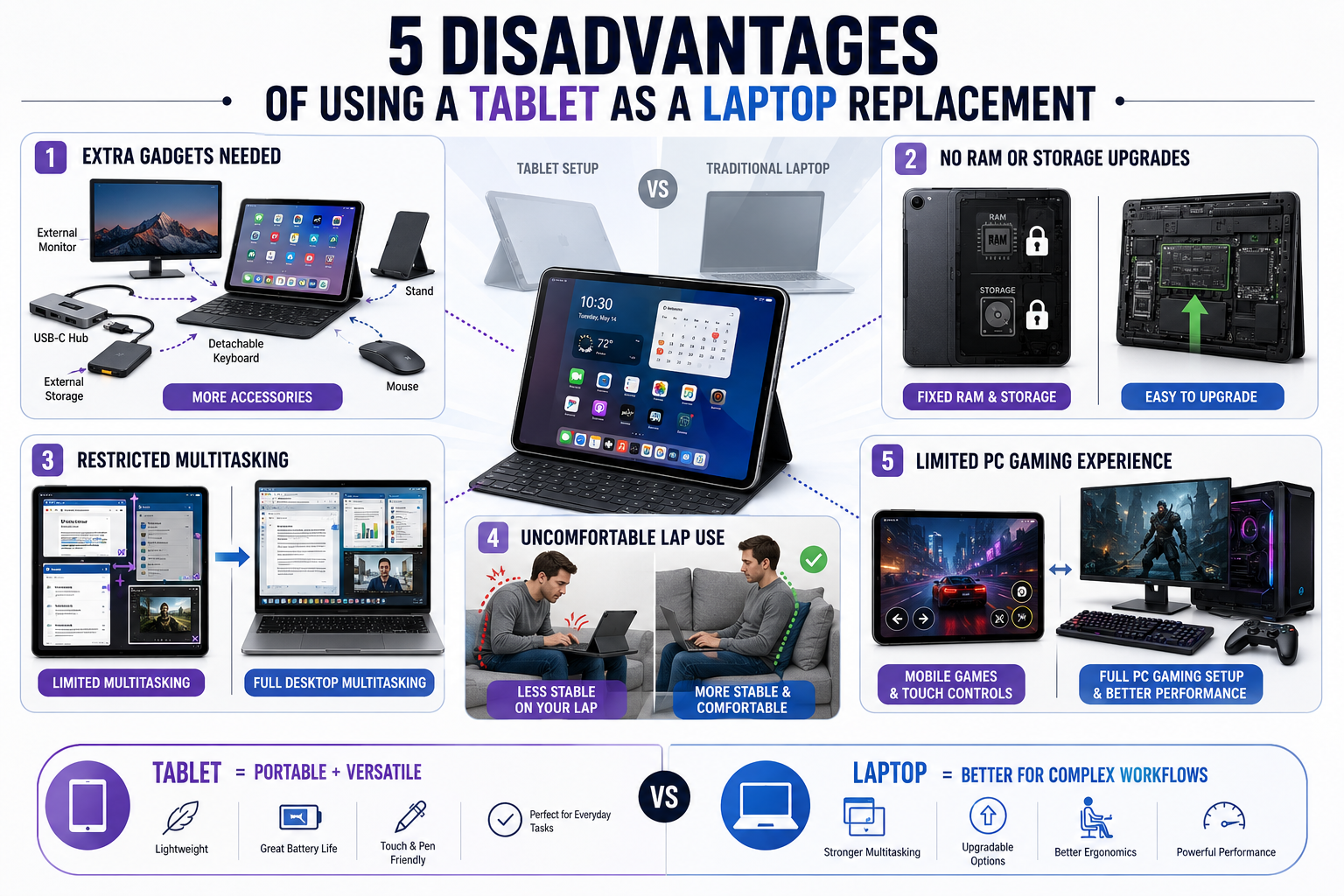
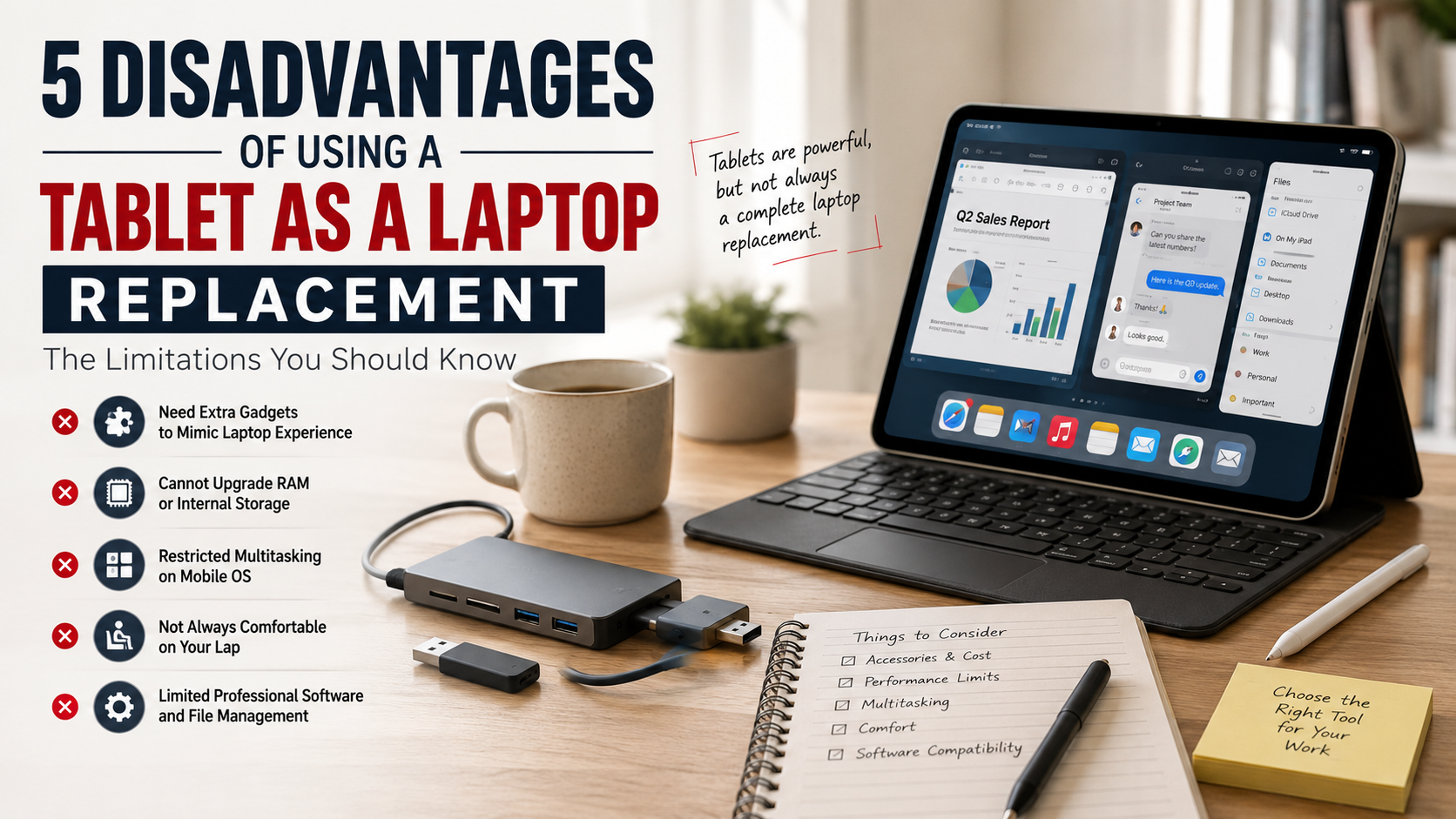
1. You need to use gadgets to mimic a laptop experience
One of the biggest disadvantages of using a tablet as a laptop replacement is the need for extra gadgets. A traditional laptop already includes a keyboard, trackpad, ports, stand, and complete desktop interface. With a tablet, you may need to buy several accessories to create a similar setup.
A detachable keyboard can make typing easier, while a mouse can improve pointer control. You may also need a USB-C hub for connecting external storage, displays, or other wired accessories. If you use an iPad, affordable iPad accessories can help create a more practical laptop-style setup without spending too much.
These accessories can improve productivity, but they add cost, weight, and setup time. Carrying several separate devices also reduces the simplicity of owning a lightweight tablet.
For occasional work, this setup may not be a problem. However, frequent users may eventually wonder why they are recreating a laptop setup around a tablet.
The tablet itself remains portable, but the complete workstation becomes less convenient. This is an important consideration before making a tablet your primary computer.
2. You cannot upgrade RAM or internal storage on a tablet
Another major limitation is the lack of user-upgradable hardware. Most tablets come with a fixed amount of RAM and internal storage. Unlike some desktop computers and laptops, you generally cannot open the device and install more memory later.
This means you need to choose the right configuration when purchasing the tablet. If you select too little storage, you may eventually run out of space for applications, photos, videos, and documents.
Cloud storage and external drives can help manage storage limitations. However, they do not increase the tablet’s built-in capacity. They may also require an internet connection, additional accessories, or separate subscriptions.
RAM presents a similar issue. If your tablet does not have enough memory for your preferred workload, you cannot simply add more. You may need to replace the entire device.
This limitation is less important for casual users. It becomes more significant for professionals who expect their computer to remain useful for several years.
Therefore, consider your future storage and performance needs before choosing a tablet as a laptop replacement. If you are considering an Android model, learning how long Android tablets last can also help you judge their long-term value.
3. Tablet multitasking is restricted by mobile operating systems
Tablet multitasking has improved considerably, but mobile operating systems still impose limitations compared with desktop platforms. Features such as split-screen views, floating windows, and app switching make tablets more capable than before. However, they do not always provide the same flexibility as a laptop.
Desktop operating systems are designed around multiple overlapping windows and continuous background processes. You can typically keep several applications open while moving files and information between them. Tablets may restrict how applications behave in the background to manage battery life and system resources.
This can become frustrating during complex workflows. Switching between several documents, browser tabs, communication apps, and professional tools may require more steps.
Some tablets now support sophisticated window management and external displays, which reduces these limitations. However, not all USB-C ports support video, so check the tablet’s port specifications before choosing an external-display setup.
For basic multitasking, a tablet can be perfectly adequate. If your work involves many applications running simultaneously, a laptop usually provides a more flexible environment.
4. Using a tablet on your lap isn’t always comfortable
A tablet may be lighter than a laptop, but that does not automatically make it comfortable for extended work. Using a tablet on your lap can become awkward, particularly when it is paired with a detachable keyboard.
Traditional laptops have a rigid base that supports the screen and keyboard as one unit. A tablet with a separate keyboard often relies on a kickstand or folding cover. This setup can shift or become unstable when you move.
The viewing angle can also create ergonomic problems. You may need to bend your neck or adjust the tablet repeatedly to find a comfortable position. Long typing sessions can make these issues more noticeable.
Weight distribution is another consideration. A tablet’s screen can make the setup top-heavy, especially when the device is positioned on a soft surface.
Using a tablet at a desk with a proper stand can solve many of these problems. However, it reduces some of the flexibility that makes tablets appealing in the first place.
For frequent typing, a conventional laptop often provides a more stable and comfortable lap-based experience.
5. Tablets games cannot replace a full PC gaming experience
Tablets can run impressive games, but they cannot fully replace a gaming PC for serious players. Modern tablets offer powerful processors and high-quality displays. They can handle many popular mobile games with excellent graphics and smooth performance.
However, PC gaming provides a much broader gaming ecosystem. Computers support a larger library of games, extensive graphics settings, mods, dedicated peripherals, and services that are not always available on mobile platforms.
Input options are another major difference. Touch controls work well for many casual games, but they cannot match the precision of a gaming mouse and keyboard in competitive genres. Controllers improve the experience but still do not reproduce every PC gaming setup.
PCs also provide greater hardware flexibility. Gamers can upgrade components, connect multiple monitors, and use dedicated graphics hardware for demanding titles.
Cloud gaming can expand a tablet’s capabilities, but it depends heavily on a reliable internet connection. It may also introduce latency.
Therefore, tablets are excellent for casual and mobile gaming, but they remain a poor substitute for a full PC gaming setup when gaming is a major priority. If you want to move to a dedicated gaming machine, choosing the best gaming laptop can help you find hardware suited to demanding games.
What are the disadvantages of using a tablet compared to a laptop?
The main disadvantages of using a tablet as a laptop replacement include software limitations, weaker multitasking, fewer ports, and reduced typing comfort. Most tablets use mobile operating systems that restrict certain desktop applications and advanced workflows. If you are still comparing portable computing options, Chromebook vs. laptop is another useful comparison when deciding which device best suits your needs.
File management can also feel less flexible than it does on a traditional computer. Moving files between applications, drives, and folders may require additional steps. Tablets also tend to offer fewer physical ports, which can make connecting several accessories inconvenient.
Typing presents another concern. Detachable keyboards can work well for short documents, but they may feel less stable during long sessions. Lap use can also be uncomfortable because the tablet and keyboard lack a rigid laptop-style base.
For casual computing, these limitations may not matter. For demanding professional work, however, they can significantly affect productivity and workflow efficiency. These factors make the disadvantages of using a tablet as a laptop replacement worth considering before you switch devices.
Limited Desktop Software and Peripheral Ports
Many professional desktop applications offer reduced mobile versions or no dedicated tablet version at all. This difference matters when your work depends on advanced features, plugins, automation tools, or specialized desktop software.
Tablets also provide fewer physical connections than most laptops. Many models rely primarily on USB-C, which can handle charging, displays, storage, and accessories. However, using several devices simultaneously may require a hub or adapter.
For example, connecting an external monitor, wired storage drive, mouse, and other accessories can create a more complicated setup. Carrying several adapters also reduces some of the convenience that makes tablets attractive.
The problem is not simply the number of ports. It is the extra equipment and setup required to reproduce a laptop-style workspace. A tablet can support many peripherals, but the experience may feel less straightforward.
For users who rely heavily on desktop applications and multiple accessories, this is one of the key disadvantages of using a tablet as a laptop replacement. Consider these limitations carefully before making the switch.
Can a tablet really replace a laptop?
A tablet can replace a laptop when your daily workflow focuses on lightweight computing tasks. Email, web browsing, streaming, basic writing, video calls, document review, and digital signatures work well on modern tablets. Their touchscreen interfaces can also make reading and navigation feel more natural.
Tablets become particularly useful for creative tasks involving a stylus. Artists can draw directly on the display, while students can annotate documents and take handwritten notes. These activities can feel more natural than using a traditional laptop.
However, a complete laptop replacement becomes harder when your work requires advanced desktop software. Developers may need local programming environments, while editors may depend on professional applications and extensive file libraries. Business users can also encounter problems with complex spreadsheets, macros, and demanding multitasking.
The right choice depends on your workflow rather than raw processor performance. A powerful tablet can still feel restrictive if its operating system cannot support your essential applications.
For this reason, understanding the disadvantages of using a tablet as a laptop replacement is essential. A tablet may perform everyday tasks well but still fail to support your complete professional workflow.
Defining Your Daily Workflow Boundaries
Your daily workflow should determine whether a tablet can replace your laptop. Start by identifying the applications and tasks you use most frequently. Web-based services and lightweight productivity tools usually work well on tablets.
Next, consider tasks that require desktop-specific features. Local development environments, advanced spreadsheet functions, virtual machines, professional editing tools, and complex file management may require a laptop or desktop operating system.
Creative professionals should also examine their software requirements carefully. Some tablet applications are extremely capable, but their desktop counterparts may still provide broader features and workflow flexibility.
Hardware requirements matter as well. Consider how often you connect external drives, monitors, keyboards, mice, card readers, or other accessories. Frequent peripheral use can make a tablet setup less convenient.
Ultimately, tablet replacement depends on compatibility, not benchmarks alone. A tablet can deliver excellent performance but still fail to replace a laptop if your essential tools require desktop software or extensive multitasking. This is why the disadvantages of using a tablet as a laptop replacement vary between users.
Why use a tablet instead of a laptop?
People choose tablets instead of laptops for several practical reasons. Portability, battery efficiency, touchscreen controls, and stylus support are among the biggest advantages. Tablets are usually thinner and lighter, making them easier to carry throughout the day.
They also work well for activities that do not require a traditional keyboard. Reading, watching videos, browsing websites, reviewing documents, and taking notes can feel more natural on a touchscreen. Many tablets also start quickly and remain convenient for short tasks.
Stylus support is another major benefit. Artists can sketch directly on the screen, while students can annotate textbooks or write handwritten notes. Architects and designers can also use tablets for quick drawings and visual references.
Frequent travelers may appreciate the smaller form factor. A tablet can fit comfortably into compact bags and work as both a productivity device and entertainment screen.
However, these benefits do not remove the disadvantages of using a tablet as a laptop replacement. The tablet is strongest when portability and touch interaction matter more than desktop-level software and connectivity.
Unmatched Stylus Integration and True Portability
Active stylus support gives tablets a distinctive advantage over traditional laptops. Pressure-sensitive pens can provide precise control for drawing, handwriting, annotation, and visual editing. These features are especially useful for artists, designers, students, and professionals who work with visual content.
A tablet also becomes significantly more portable when you remove its keyboard. Without the accessory attached, the device can function as a lightweight handheld screen. This makes reading, watching videos, and reviewing documents more comfortable in many situations.
Portability becomes even more valuable for frequent travelers. A compact tablet can replace several devices for basic entertainment, communication, and document tasks. Its touchscreen also works well when you do not have a desk available.
Still, portability involves trade-offs. A smaller device may offer less workspace, fewer ports, and a less comfortable typing experience. Adding a keyboard, stand, hub, and other accessories can also increase the overall size.
For users who value mobility and stylus interaction, these benefits can outweigh some of the disadvantages of using a tablet as a laptop replacement.
Who is better, a laptop or a tablet?
There is no universal winner between a laptop and a tablet. The better option depends on how you create, manage, and consume digital content. A laptop is generally better for productivity-heavy workflows that require desktop applications, extensive multitasking, physical typing, and flexible file management.
Professionals often benefit from a laptop because it supports multiple applications and external accessories with fewer compromises. Students who write long assignments or use specialized academic software may also prefer a laptop.
A tablet can be the better choice for users who prioritize portability and touch interaction. Digital artists, commuters, travelers, and casual users can benefit from its lightweight design and stylus support.
Neither device category is automatically superior. The right choice depends on your software requirements, work habits, accessory needs, and preferred input method.
Before buying, think beyond specifications. A tablet may offer excellent performance and battery life but still feel limiting for your particular workflow. Likewise, a laptop may provide more capability than a casual user actually needs. Understanding the disadvantages of using a tablet as a laptop replacement can help you make a more informed choice.
Matching Device Strengths to User Needs
Choosing between a laptop and tablet becomes easier when you match the device to your daily activities. A laptop is usually the stronger option when you spend hours typing, manage multiple windows, or work with desktop applications.
It also makes sense when you frequently use external storage, monitors, wired accessories, or specialized business software. The rigid keyboard base provides better stability for long typing sessions.
A tablet is more suitable when your priorities involve reading, sketching, handwritten notes, media consumption, and lightweight travel. Its touchscreen and stylus can make these activities faster and more intuitive.
Consider these practical differences:
- Choose a laptop for heavy typing, advanced software, multitasking, and extensive file management.
- Choose a tablet for portability, drawing, reading, handwriting, and casual computing.
- Choose a 2-in-1 if you need both touchscreen flexibility and a full desktop operating system.
Your core activities should guide the purchase. Matching the device to your actual workflow helps avoid paying for features you rarely use. It also helps you understand the disadvantages of using a tablet as a laptop replacement before committing to one device.
Do tablets have Windows 11?
Yes, some 2-in-1 tablets run Windows 11 natively. Devices in the Microsoft Surface Pro family, for example, combine touchscreen hardware with a full desktop operating system. Depending on the processor architecture, these devices can run traditional Windows applications alongside modern apps.
This makes Windows tablets different from mainstream iPad and Android tablets. Apple iPads use iPadOS, while Android tablets use Android. Neither platform natively runs standard Windows executable files such as .exe applications.
Some users can access Windows software remotely through remote desktop services or cloud-based virtual machines. However, these approaches depend on an internet connection and can introduce additional complexity.
Windows tablets therefore occupy a useful middle ground. They provide touchscreen interaction while retaining access to a broader desktop software ecosystem.
However, Windows is not always as touch-optimized as iPadOS or Android. Finger navigation can sometimes feel less natural, especially in traditional desktop applications.
If desktop software compatibility is essential, a Windows 11 tablet can address one of the biggest disadvantages of using a tablet as a laptop replacement. It provides a way to combine tablet portability with broader desktop software support.
The 2-in-1 Windows Device Advantage
Windows 11 tablets offer an important advantage for users who need full desktop compatibility. They can run many standard business applications, desktop productivity tools, and legacy Windows programs without relying on mobile versions.
They also provide more familiar file management. Users can work with folders, external drives, desktop applications, and other Windows features in a conventional environment.
This makes a Windows 2-in-1 particularly useful for professionals who want touchscreen flexibility without giving up desktop functionality. It can serve as a tablet for casual use and a laptop when paired with a keyboard.
There are still compromises. Windows applications are generally designed around mouse and keyboard input. Touch controls can therefore feel less polished than those on mobile operating systems.
Battery life and software compatibility can also vary by processor architecture. Some ARM-based Windows devices may have application compatibility differences compared with traditional x86 systems.
Even with these limitations, Windows 11 2-in-1 devices provide one of the closest tablet-and-laptop combinations for users who need both portability and desktop software. They can reduce several disadvantages of using a tablet as a laptop replacement without completely eliminating the trade-offs.
Frequently Asked Questions
Do tablets last longer on battery than laptops?
Tablets often deliver better battery efficiency during basic tasks like media playback and reading because mobile operating systems efficiently suspend background processes. However, modern laptops featuring efficient silicon processors achieve comparable all-day endurance while handling significantly heavier workloads and active desktop applications.
Is typing on a tablet keyboard as comfortable as a laptop?
No, typing on tablet keyboard covers is generally less comfortable over long sessions. Most detachable keyboards lack structural rigidity, offer shallower key travel, and provide smaller trackpads. Using them on your lap is often unstable compared to a rigid laptop base.
Can you use a regular mouse with a tablet?
Yes, modern iPadOS and Android tablets support both Bluetooth and wired mice. While pointer support has improved significantly, cursor behavior still mimics touch inputs on many apps rather than providing the pixel-perfect precision found in traditional desktop operating systems.
Are tablets cheaper than equivalent laptops?
Tablets often seem cheaper initially, but total costs rise quickly. Once you purchase official detachable keyboards, active styluses, protective cases, and USB-C adapters to match laptop utility, the total investment frequently equals or exceeds a comparable mid-range laptop.
Conclusion
Choosing the right mobile computer requires more than comparing processor speeds or display quality. The disadvantages of using a tablet as a laptop replacement become most noticeable when your work depends on desktop software, advanced multitasking, extensive file management, or multiple peripherals.
Tablets remain excellent devices for portability, media consumption, digital drawing, handwritten notes, and lightweight productivity. Their touchscreen interfaces and stylus support can also provide experiences that traditional laptops cannot easily match.
However, users with demanding workflows should examine their requirements carefully. Heavy typing, specialized software, complex spreadsheets, programming environments, and professional editing can expose the limitations of mobile operating systems.
A traditional laptop remains the safer productivity choice for many power users. A Windows 11 2-in-1 can provide a useful compromise when you want both desktop software and touchscreen flexibility.
Before replacing your laptop, audit your essential applications, accessories, and daily tasks. Make sure your chosen tablet supports everything you need. The best device is not necessarily the most powerful one. It is the device that lets you complete your everyday work efficiently and comfortably.