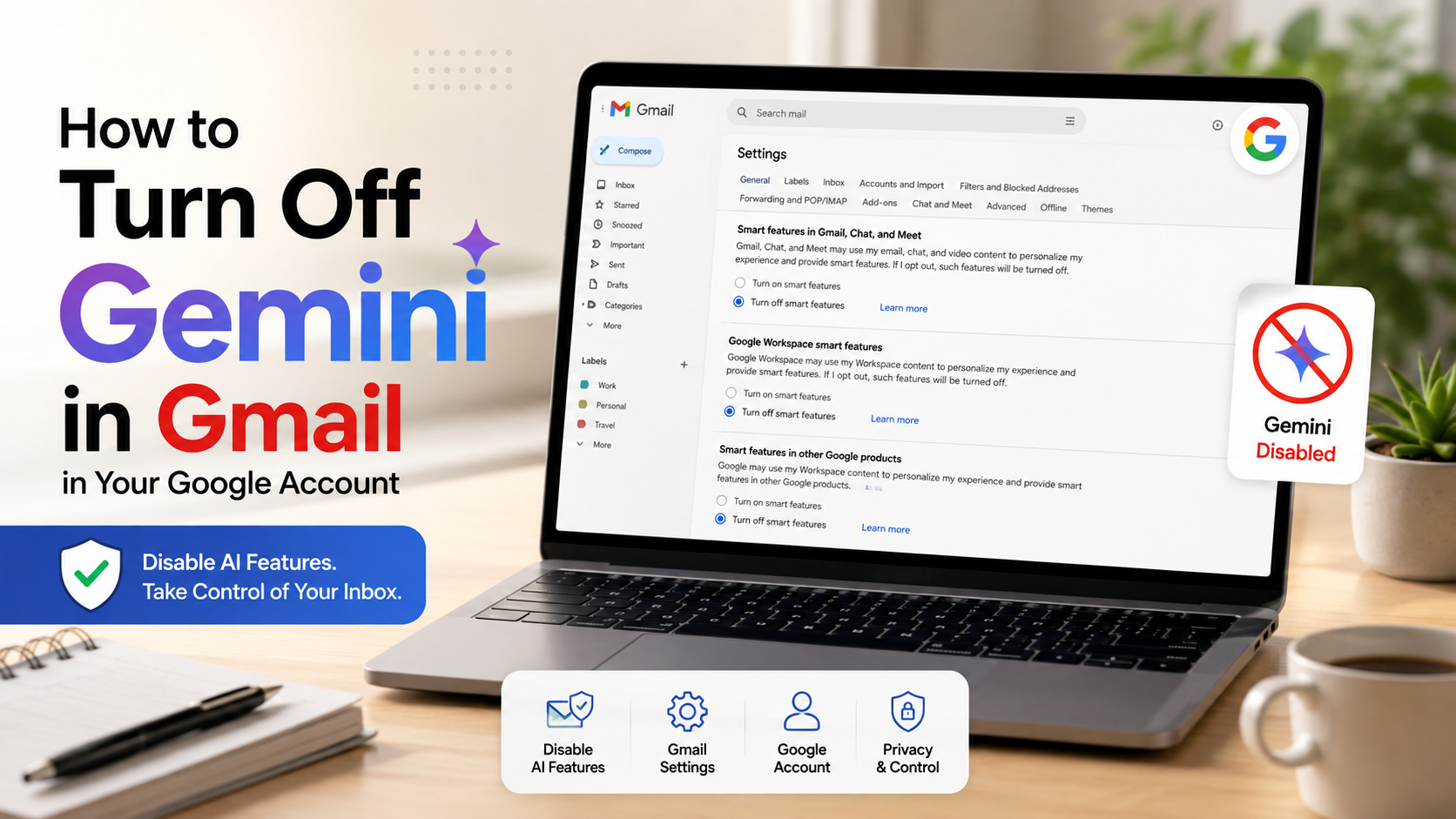
How to Turn Off Gemini in Gmail in Your Google Account
If you recently opened Gmail and noticed AI summaries, writing suggestions, or Gemini features, you may want a cleaner inbox. Many users search for how to turn off Gemini in Gmail because they prefer managing emails without AI assistance.
Google has integrated Gemini and other smart features into Gmail and Google Workspace. These tools can summarize messages, help write emails, and provide useful information. However, you can control several of these features through your Gmail and Google Account settings.
Google provides separate controls for smart features in Gmail, Chat, Meet, Google Workspace, and other Google products. This means you may need to adjust more than one setting, depending on which AI features you want to disable.
Turning off the relevant smart features can remove or restrict many AI-powered experiences. However, it does not uninstall Gemini from your Google Account.
According to Google Workspace Support, user preferences still allow individuals and administrators to adjust specific smart features to retain control over their inbox.
This guide explains how to disable available Gemini-related features. It also covers Gmail settings, mobile controls, account permissions, and administrator restrictions.
Why is Gmail forcing me to use Gemini?
Gmail is not necessarily forcing every user to use Gemini. Google has introduced Gemini and other AI-powered features as part of its broader Workspace experience. Depending on your account, subscription, location, and settings, you may see email summaries, writing assistance, or the Gemini side panel.
Some features depend on Google Workspace smart features being enabled. These settings can control experiences that use information from your Workspace account to provide AI-powered assistance.
Your account type can also affect what you see. Personal accounts and work or school accounts may have different available features. A Workspace administrator can also control access to certain Gemini capabilities for managed accounts.
This is why two Gmail users may see different AI options. One account may have access to Gemini features that another account does not.
If you prefer a traditional Gmail experience, you can disable supported smart features. However, there is no single universal switch that removes every form of AI from every Google service.
You may also see Gemini features because Google has added them directly to Gmail. These features can appear as side panels, writing tools, summaries, or other assistance options.
The best approach is to identify which Gemini feature you want to remove. Then, change the specific setting that controls it.
Understanding Workspace Default Updates
Google regularly updates Gmail and other Workspace products. New features may appear automatically as Google expands its services. This can make your inbox feel different even when you have not manually enabled a new tool.
Google uses several smart-feature controls to manage these experiences. The settings can cover Gmail, Chat, Meet, Google Workspace, and other Google products.
Smart features in Gmail, Chat, and Meet can control features such as Smart Compose, Smart Reply, and certain personalized experiences. Turning off these features can make Gmail feel less automated.
A separate Google Workspace smart features setting can control experiences across Workspace applications. These settings can affect how information from Gmail and other Workspace services is used to provide smart features.
There are also controls for smart features in other Google products. These settings can affect how information from Workspace is used outside core Workspace applications.
Because these controls are separate, disabling one setting may not remove every Gemini feature you see.
If you want to reduce AI features across your account, review each relevant category. This gives you more control over which smart features remain active.
It is also useful to check individual Gmail settings. Some features, such as Smart Compose, have their own controls.
Understanding these settings makes it easier to turn off unwanted AI tools without changing unrelated Gmail features.
How do I block Google Gemini?
You can reduce or disable many Gemini-related Gmail features through Gmail’s smart-feature settings. The exact options can vary depending on your account and the Google services you use.
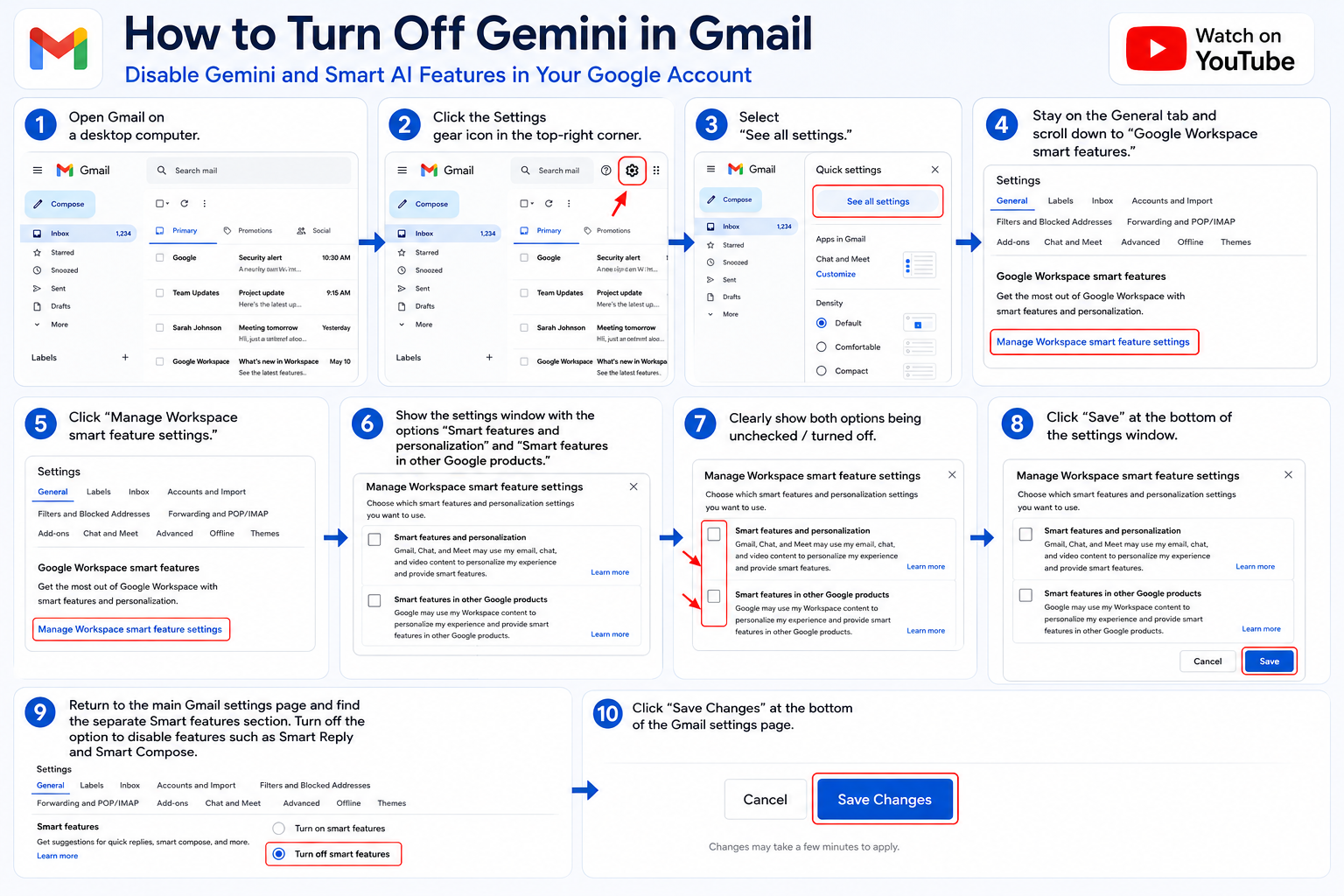
On a computer, follow these steps:
- Open Gmail in your web browser.
- Click the Settings gear icon in the upper-right corner.
- Select See all settings.
- Open the General tab.
- Find the available smart-feature settings.
- Turn off Smart features in Gmail, Chat, and Meet if you want to disable those features.
- Review the Google Workspace smart features option.
- Turn off the relevant Workspace smart features if you want broader restrictions.
- Save your changes if Gmail asks you to do so.
These settings can affect multiple Gmail conveniences. For example, disabling smart features may also turn off Smart Compose, Smart Reply, summaries, or other personalized functions.
If you only want to stop automatic writing suggestions, you may not need to disable every smart feature. Instead, turn off Smart Compose separately.
If Gemini continues to appear after changing these settings, check whether your account has additional Gemini controls. Premium Google plans and managed Workspace accounts may have different options. If you are comparing free and paid AI features, ChatGPT vs Gemini Pricing: Free vs Paid Plans (2026) can help you understand the differences.
Work and school accounts can also be controlled by administrators. If you cannot change a particular setting, your organization’s Google Workspace administrator may have restricted it.
The safest approach is to disable only the features you do not want. This allows you to keep useful Gmail tools while reducing unwanted AI assistance.
Restricting Gemini at the Network Level
Blocking Gemini through your home or business network is different from turning off Gemini in Gmail. A DNS filter or router restriction can prevent access to specific websites, but it does not reliably remove AI features built directly into Gmail.
For example, blocking the standalone Gemini website may prevent someone from visiting that service. However, it does not necessarily disable Gemini-related features inside Gmail or other Google Workspace applications.
If your main goal is to turn off Gemini in Gmail, account-level settings are usually the better option. Gmail’s built-in controls are designed to manage supported smart features connected to your account.
Network restrictions can still be useful in managed environments. Schools, businesses, and other organizations may use web filters to restrict access to certain services. If you frequently use public networks, review these Public Wi-Fi Risks: How to Stay Safe on Open Networks before relying on network access controls.
These restrictions should be configured carefully. Blocking a Google domain may affect other services that use related infrastructure.
For personal accounts, changing Gmail and Google Account settings is generally more practical. You can control supported features without blocking unrelated websites.
It is also important to understand the difference between access and functionality. A network filter controls whether you can reach a website. It does not necessarily control how Gmail’s built-in features work.
If you want to limit AI use across an organization, administrators should review Workspace administration settings. Personal users should focus on their Gmail and Google Account controls.
Using the correct method prevents unnecessary restrictions while still giving you greater control over your Gmail experience.
How do I change Gmail back to normal?
If you want Gmail to feel less automated, start by reviewing its smart-feature settings. Google provides several controls, so you may need to change more than one option.
On a computer, open Gmail and go to Settings > See all settings. Then open the General tab and review the available smart-feature options.
You can disable Smart Compose if you do not want predictive writing suggestions. You can also turn off Smart Reply if you prefer writing your own responses.
If Gemini-related features continue to appear, review the broader Google Workspace smart features setting. This can control certain AI experiences that work across Workspace applications.
You can also review the Chat and Meet settings if those services are adding panels or features you do not use. Turning off these services can make your Gmail interface feel less crowded.
Keep in mind that changing these settings will not necessarily recreate every detail of an older Gmail design. Google can update its interface independently of your personal preferences.
After changing your settings, refresh Gmail and open an email. Then start composing a new message to check which suggestions and AI features remain.
If you still see Gemini, check your account type and subscription. Some features may be controlled separately or managed by your organization.
With the right settings, you can create a cleaner Gmail experience without deleting your account or losing your existing emails.
Resetting Mobile Application Views
You can manage several Gmail smart features through the mobile app. However, some settings are connected to your Google Account and may affect your experience across multiple devices.
On Android, open the Gmail app and tap the menu icon. Select Settings, then choose the Gmail account you want to manage.
Review the available smart-feature settings for that account. Depending on your Gmail version, you may see options related to smart features, personalization, and writing assistance.
If you want to disable Smart Compose, look for the Smart Compose setting and turn it off. This prevents Gmail from providing predictive text suggestions while you write emails.
You can also review other available AI or smart-feature controls. The exact options may differ between Android, iPhone, iPad, and different Gmail versions.
If you have multiple Google Accounts, check each account separately. Changing a setting for one account does not necessarily change the settings for another.
After making your changes, close and reopen Gmail. Then check your inbox and compose a new message.
Remember that some account-level settings can apply across devices. Therefore, you may not be able to disable a feature on your phone while keeping it active on your computer.
If your goal is a consistent experience, adjust the settings for the entire account. If you want device-specific control, use any individual settings that Gmail makes available.
Why can’t I delete Gemini?
You generally cannot uninstall Gemini from Gmail like a traditional desktop application. Gemini is integrated into Google’s online services rather than installed as a separate program on your device.
This means there is no normal uninstall button that removes Gemini from Gmail. Instead, Google provides settings that allow users to control certain smart features and AI experiences.
Turning off the relevant smart-feature settings can prevent supported features from using your information to provide certain personalized experiences. However, this does not remove Google’s underlying AI technology from your account.
The difference is similar to turning off a built-in feature rather than uninstalling the entire service. Gmail continues to operate, but selected AI tools may no longer appear or provide assistance.
Your account type can also affect your options. If you use Gmail through a company, school, or other organization, an administrator may control Gemini access.
In that situation, you may not be able to change certain settings yourself. Your administrator may need to disable Gemini or related Workspace features for the entire organization.
Personal accounts generally provide more direct control over available settings. However, even personal users cannot completely uninstall Google’s underlying AI infrastructure.
If you want to remove Gemini from your Gmail experience, focus on disabling the relevant features. You do not need to delete your Google Account.
This gives you a practical way to reduce AI assistance while keeping Gmail and your existing data intact.
The Shift to Embedded Cloud Tools
Modern cloud services work differently from traditional software installed on a computer. Gmail runs through Google’s online infrastructure, so features such as Gemini are integrated into the service.
Because these tools are cloud-based, you cannot remove them by uninstalling an application from your phone or computer.
Instead, you manage unwanted features through settings, permissions, and account controls. These controls determine which optional features are available to your account.
This distinction is important when looking for ways to remove Gemini. Deleting a browser shortcut or Gmail application does not remove Google’s built-in AI features.
Likewise, blocking the Gemini website does not necessarily disable AI capabilities that are already integrated into Gmail.
The most practical approach is to review Gmail’s smart-feature settings. You can disable features that you do not want while keeping the rest of your Gmail account active.
You should also review individual options such as Smart Compose and Smart Reply. These may have separate controls from broader Workspace features.
If you use a business or school account, your administrator may have additional controls. Some organizations can manage Gemini availability across the entire Workspace environment.
For personal users, account settings provide the easiest way to reduce AI features.
You can think of this process as disabling Gemini features rather than deleting Gemini. Your Gmail account remains intact, while supported AI experiences can be limited or turned off.
This approach avoids unnecessary account changes and lets you continue using Gmail normally.
Can I remove Gemini from my Google account?
You cannot completely remove Google’s Gemini technology from your Google Account. However, you can disable supported Gemini-related experiences and manage the smart-feature settings available to your account.
Start by opening Gmail and going to Settings > See all settings. From there, review the smart-feature controls under the General tab.
Look for options related to Gmail, Chat, and Meet smart features. You can turn these off if you want to reduce features such as Smart Compose, Smart Reply, and other smart experiences.
Next, review the Google Workspace smart features controls. These settings can affect how information from Gmail and other Workspace services is used for supported AI experiences.
You can also check settings for smart features in other Google products. This may help reduce personalization across services outside your main Workspace applications.
You do not normally need to delete your Google Account or change your Google One subscription simply to turn off these features.
Subscription plans can determine which Gemini features are available. However, subscription status and smart-feature preferences are separate issues.
If you use a company or school account, administrator policies may limit your ability to change these settings.
You should also review connected applications and third-party permissions. External tools can sometimes access account information separately from Google’s built-in Gemini features. If you use other AI services, How To Delete Your Personal Data From ChatGPT Securely provides additional guidance on managing personal information.
Although you cannot completely delete Gemini from Google’s infrastructure, you can significantly reduce the AI features available in your Gmail experience.
Managing Third-Party Access Permissions
Google’s built-in Gemini features are not the only AI tools that can interact with Gmail. Browser extensions, connected applications, and third-party services may also access your account if you previously granted permission.
If you use an AI writing assistant or email productivity tool, review its account permissions. Remove access from applications that you no longer use or do not recognize.
This step is separate from turning off Gemini in Gmail. Disabling Google’s built-in smart features will not automatically disable a third-party application that already has permission to access your account.
Before removing an application, check what it does. Some connected services may rely on Gmail access to provide features you still use.
You should also review your browser extensions. Remove extensions that you no longer need, especially those that interact with Gmail pages or email content.
If you installed an AI extension for writing or summarizing emails, disabling Gmail’s own AI features may not affect that extension.
A regular permissions review can help reduce unnecessary access to your account. It can also make it easier to identify services that you have forgotten about. For a broader understanding of how AI systems handle information, see Large Language Models: ChatGPT, GPT, and Top Models.
For better privacy, keep only the applications and extensions you trust. Remove old tools that no longer serve a useful purpose.
Remember that third-party access and Gemini are separate. You may need to manage both if you want a cleaner, less automated Gmail experience.
Taking these steps gives you more control over which services can interact with your email data.
Frequently Asked Questions
Does turning off smart features affect spam protection?
No, disabling smart features does not impact standard spam filtering or account security. Built-in security filters operate independently from predictive text and summary engines. Your account remains protected against phishing attacks, malicious attachments, and unwanted bulk mail even when assistive writing options are completely disabled.
Will disabling Gemini delete my existing emails?
Disabling assistive features will never delete your emails, contacts, or calendar appointments. Turning off these tools only stops background data analysis and removes interface prompts. Your stored messages and inbox organization remain completely intact after updating your preferences.
Can I turn off AI tools on my phone only?
Yes, you can manage settings independently on mobile devices. Open the app settings, choose your email account, and toggle off smart features. This removes automated summaries on your phone while leaving desktop settings unchanged if you prefer different experiences across devices.
Do I have to pay extra to disable Gemini?
No, changing your account settings is completely free. You can adjust your smart features, personalization options, and interface toggles at any time without paying fees. If you subscribed to an advanced plan solely for AI, downgrading will actually lower your monthly bill.
Conclusion
If you prefer a simpler Gmail experience, you can turn off many Gemini-related and smart features through your account settings. You do not need to delete your Google Account or uninstall an application.
Start with Settings > See all settings > General in Gmail. Review the smart-feature controls for Gmail, Chat, and Meet.
If you want broader restrictions, also review the Google Workspace smart-feature settings. These controls can affect AI experiences across Gmail and other Workspace applications.
Remember that disabling smart features can affect more than Gemini. Features such as Smart Compose, Smart Reply, summaries, and other personalized tools may also be affected.
If you only want to remove writing suggestions, check the individual Smart Compose setting instead. This lets you keep other Gmail features that you still find useful.
Mobile settings are also available, but some account-level changes can apply across multiple devices. Your experience may also vary depending on your account type and subscription.
Work and school accounts can have additional administrator restrictions. If you cannot change a particular setting, your organization’s administrator may control it.
You cannot completely remove Google’s underlying Gemini technology from your account. However, you can control many optional AI experiences that appear in Gmail and Workspace.
By reviewing your smart-feature settings and connected applications, you can create a cleaner and less automated inbox. Your essential Gmail functions and existing emails remain intact.
Ultimately, the goal is not to delete Gmail or your Google Account. It is to turn off the Gemini features you do not want and keep control of your Gmail experience.