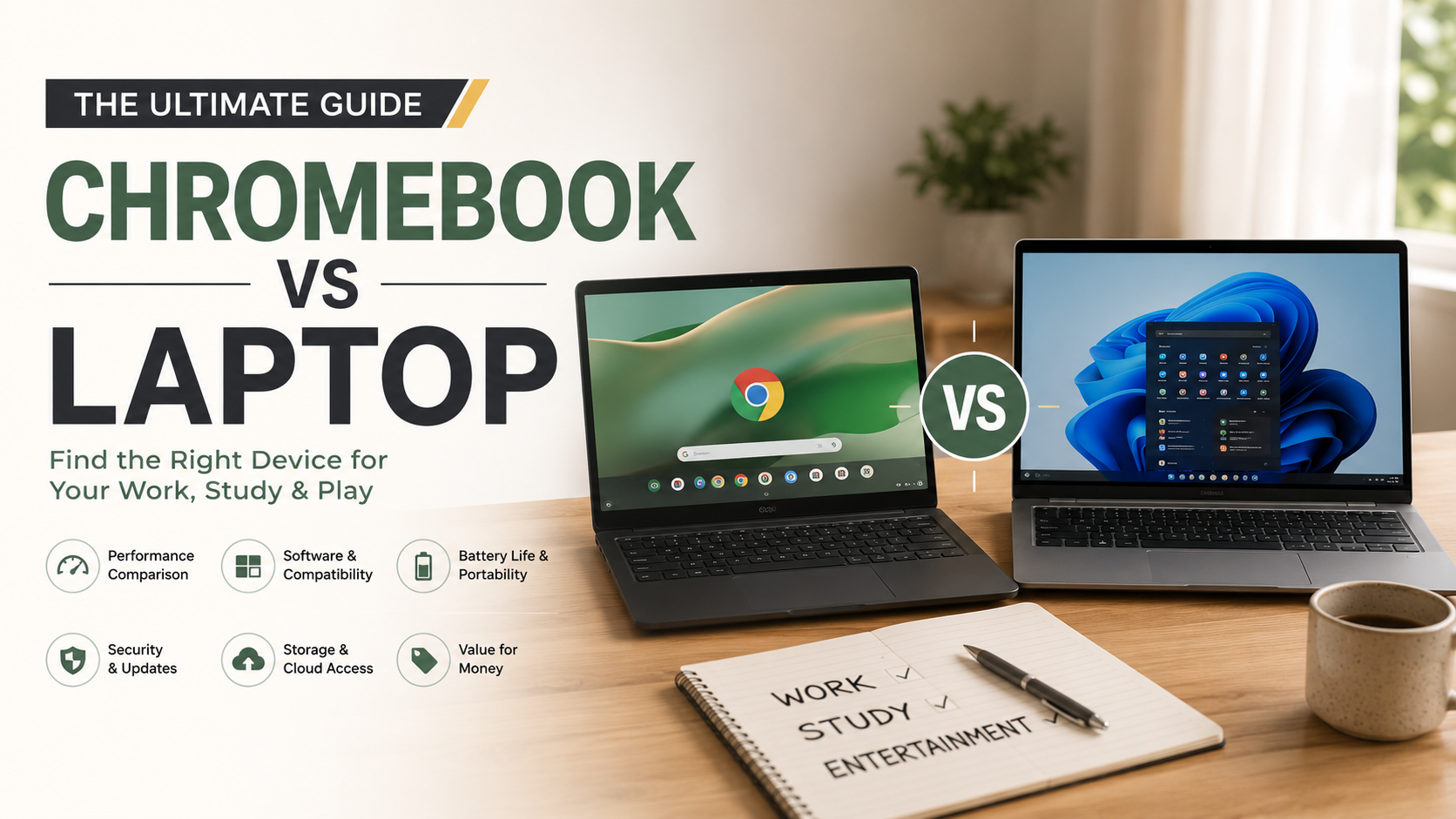
The Ultimate Guide: Chromebook vs Laptop
Choosing between a Chromebook vs laptop can feel confusing. Both devices can handle everyday computing tasks. However, they are designed for different types of users.
Traditional laptops usually run Windows or macOS. They offer broad software compatibility, powerful hardware, and extensive customization. Chromebooks run ChromeOS, which focuses on speed, simplicity, security, and cloud-based workflows.
The right choice depends on how you use your computer. Students may value battery life and portability. Professionals may need desktop applications and stronger hardware. Gamers and creators often need dedicated graphics and more processing power.
According to Google Chrome Help, these devices are engineered to be secure, fast, and easy to use. Understanding these core differences helps buyers navigate choices wisely.
This guide compares Chromebooks and traditional laptops in practical terms. It covers software, performance, storage, gaming, offline use, security, and value. By the end, you should have a clearer idea of which device suits your needs.
Which Is Better: A Laptop or a Chromebook?
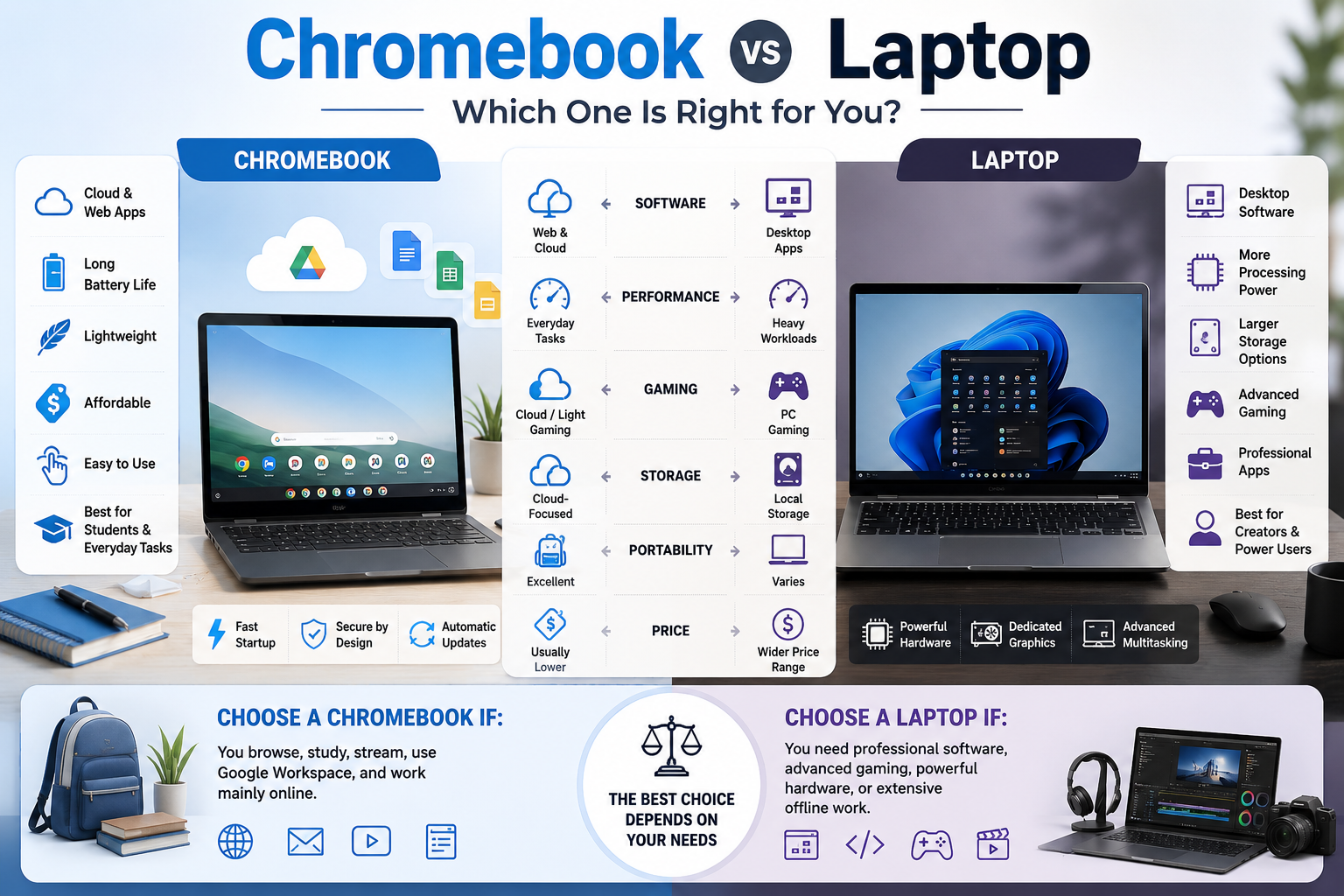
There is no single winner when comparing a Chromebook vs laptop. The better option depends on your software needs, budget, and daily workflow.
A traditional laptop is usually better for demanding tasks. Windows and macOS support a wider range of desktop applications. They also provide greater hardware flexibility for gaming, creative work, programming, and professional software.
A Chromebook is better for simple, web-focused computing. It works especially well for browsing, email, streaming, online classes, and cloud documents. Many models also offer excellent battery life and lightweight designs.
Choose a Chromebook if you mainly need:
- Web browsing and email
- Google Workspace or Microsoft 365 web apps
- Video calls and online learning
- Streaming and casual entertainment
- Affordable, portable computing
Choose a traditional laptop if you need:
- Advanced desktop applications
- High-end gaming
- Professional creative software
- Advanced programming tools
- More local storage and hardware flexibility
The best device is the one that supports your actual workflow without unnecessary limitations. When comparing a Chromebook vs laptop, always start with the tasks you perform most often. Students who are deciding between operating systems may also benefit from comparing Mac or Windows for students.
Why Operating System Choice Matters Most
The operating system is one of the biggest differences between a Chromebook and a laptop. It determines which applications you can install, how files are managed, and how much control you have over the computer.
Most traditional laptops use Windows or macOS. These operating systems support extensive desktop software libraries. They also provide advanced settings, local file management, and broad compatibility with peripherals.
Chromebooks use ChromeOS, Google’s operating system. ChromeOS focuses heavily on browser-based applications and cloud services. Many newer Chromebooks also support Android apps through Google Play. Some compatible models support Linux development environments as well.
ChromeOS can be easier to manage for everyday users. Updates happen automatically, and many security protections operate in the background. However, ChromeOS does not support every Windows or macOS application.
This difference matters before you buy. Check your essential apps first. If your work depends on specific desktop software, a Windows or Mac laptop may be the safer choice.
When researching Chromebook vs laptop options, the operating system should be one of your first considerations. It can determine whether your essential software works properly.
What Are the Disadvantages of Chromebooks?
Chromebooks have several limitations that matter to certain users. Their biggest weakness is usually software compatibility. ChromeOS cannot natively install traditional Windows or macOS desktop applications.
This can affect professionals who rely on specialized software. Full desktop versions of applications such as Adobe Creative Cloud and AutoCAD generally require Windows or macOS. Web versions may exist, but they do not always offer the same features.
Storage can also be limited on budget Chromebooks. Many models rely on cloud storage instead of large internal drives. This works well for online workflows but can become restrictive for large local files.
Other potential limitations include:
- Fewer options for demanding PC games
- Limited compatibility with specialized hardware
- Reduced functionality for some offline workflows
- Less flexibility for advanced system customization
- Modest hardware on many affordable models
Chromebooks are not inherently weak computers. Premium models can offer strong processors, high-quality displays, and plenty of memory. However, buyers should match the Chromebook’s specifications and software support with their intended workload.
Limited Local Processing Power Impact
Many affordable Chromebooks use efficient processors designed for everyday computing. These chips prioritize battery life, low heat, and responsive web performance.
That design works well for browsing, documents, video calls, and streaming. It becomes less suitable for demanding workloads such as 4K video editing, large software builds, or advanced 3D applications. For users focused on graphics-intensive work, understanding integrated and discrete graphics can help when comparing hardware options.
However, it is important not to judge every Chromebook by entry-level models. Some premium Chromebooks use more capable processors and offer substantial memory. Their performance can be excellent for multitasking and demanding browser workloads.
The real limitation is often the combination of hardware and software. Even a powerful Chromebook cannot run every desktop application available for Windows or macOS.
Before buying, check the processor, RAM, storage, and application requirements. For demanding creative or professional work, a traditional laptop usually provides more flexibility.
If your workload mainly involves browser tabs, documents, communication, and cloud services, a Chromebook can provide more than enough performance. You may also get longer battery life and a quieter, lighter device.
Can I Do Everything on a Chromebook That I Can on a Laptop?
No. A Chromebook can handle many everyday tasks, but it cannot replace every traditional laptop.
Chromebooks are excellent for web browsing, email, document editing, video meetings, streaming, and online research. Google Workspace and Microsoft 365 web apps cover many common productivity needs.
The limitations become clearer with specialized workloads. Some professional applications require Windows or macOS. Examples include certain versions of Adobe software, engineering applications, advanced development tools, and specialized business programs.
Gaming also requires careful consideration. Some Chromebooks support Android games, browser games, cloud gaming, or Steam on compatible models. However, they do not provide the same broad PC gaming ecosystem as Windows laptops.
Before choosing a Chromebook, consider your most demanding task. Ask whether it requires a specific desktop application or operating system.
For everyday users, the difference may barely matter. For professionals, creators, developers, and gamers, it can be decisive.
Handling Everyday Office Tasks Efficiently
Chromebooks can handle most standard office work surprisingly well. Browser-based productivity tools provide access to documents, spreadsheets, presentations, email, calendars, and collaboration platforms.
Google Workspace works particularly well with ChromeOS. Microsoft 365 also offers web versions of Word, Excel, PowerPoint, and other services.
Students and office workers can create documents, manage spreadsheets, attend meetings, and collaborate with colleagues. Many tasks can also be completed offline and synchronized later. For students building a reliable study environment around these tasks, a minimalist study desk setup can also improve organization and focus.
However, advanced spreadsheet features or specialized enterprise software may require desktop applications. Always check your organization’s software requirements before switching.
For a cloud-first workplace, a Chromebook can be an efficient and affordable choice. It reduces the need for powerful hardware when most work happens online.
For organizations that depend on Windows-only applications, traditional laptops remain more practical. The key difference is not basic productivity. It is software compatibility and workflow flexibility.
What Cannot Be Done on a Chromebook?
A Chromebook cannot natively run every application designed for Windows or macOS. This is one of the most important differences to understand before buying one.
Traditional desktop programs that require Windows or macOS may not work on ChromeOS. This can include certain professional design, engineering, accounting, development, and media applications.
High-end PC gaming can also be challenging. Chromebooks generally lack the dedicated graphics hardware and Windows compatibility found on gaming laptops. Cloud gaming can provide another option, but it requires a reliable internet connection and supported services. For buyers who need stronger gaming performance, a gaming laptop buying guide can help explain what hardware to look for.
Some specialized hardware can create additional problems. Certain printers, scanners, and professional devices may require drivers or software unavailable on ChromeOS.
There are still ways to work around some limitations. Web apps, Android apps, Linux environments, and remote desktop services can expand what a Chromebook can do.
However, these alternatives do not guarantee full compatibility. If your work depends on one specific desktop application, check ChromeOS support before purchasing.
Overcoming Limitations Through Web Alternatives
Modern web applications have made Chromebooks much more capable than they once were. Many common desktop tasks can now be completed directly in a browser.
Users can edit documents, manage projects, create graphics, communicate with teams, and even perform basic video editing online. Cloud storage also makes files accessible across multiple devices.
Android apps provide another layer of functionality on supported Chromebooks. Some models also support Linux applications, giving developers and technical users additional options.
Remote desktop tools can provide access to software running on another computer. Cloud gaming services can similarly allow users to play supported games without installing them locally.
These solutions can work well, but they have trade-offs. Web apps may lack advanced desktop features. Linux support varies by device and application. Remote access depends on another computer and a reliable network.
Therefore, alternatives should complement your workflow rather than hide compatibility problems. If you need professional desktop software every day, a traditional laptop remains the more dependable choice.
What Are the Disadvantages of Chromebooks?
Chromebooks have several limitations that matter to certain users. Their biggest weakness is usually software compatibility. ChromeOS cannot natively install traditional Windows or macOS desktop applications.
This can affect professionals who rely on specialized software. Full desktop versions of applications such as Adobe Creative Cloud and AutoCAD generally require Windows or macOS. Web versions may exist, but they do not always offer the same features.
Storage can also be limited on budget Chromebooks. Many models rely on cloud storage instead of large internal drives. This works well for online workflows but can become restrictive for large local files. If local storage performance is important, learning about NVMe SSDs and their benefits can help when evaluating traditional laptop options.
Other potential limitations include:
- Fewer options for demanding PC games
- Limited compatibility with specialized hardware
- Reduced functionality for some offline workflows
- Less flexibility for advanced system customization
- Modest hardware on many affordable models
Chromebooks are not inherently weak computers. Premium models can offer strong processors, high-quality displays, and plenty of memory. However, buyers should match the Chromebook’s specifications and software support with their intended workload.
Understanding these limitations is essential when comparing a Chromebook vs laptop for work, study, or entertainment.
Limited Local Processing Power Impact
Many affordable Chromebooks use efficient processors designed for everyday computing. These chips prioritize battery life, low heat, and responsive web performance.
That design works well for browsing, documents, video calls, and streaming. It becomes less suitable for demanding workloads such as 4K video editing, large software builds, or advanced 3D applications.
However, it is important not to judge every Chromebook by entry-level models. Some premium Chromebooks use more capable processors and offer substantial memory. Their performance can be excellent for multitasking and demanding browser workloads.
The real limitation is often the combination of hardware and software. Even a powerful Chromebook cannot run every desktop application available for Windows or macOS.
Before buying, check the processor, RAM, storage, and application requirements. For demanding creative or professional work, a traditional laptop usually provides more flexibility.
If your workload mainly involves browser tabs, documents, communication, and cloud services, a Chromebook can provide more than enough performance. You may also get longer battery life and a quieter, lighter device.
Frequently Asked Questions
Are Chromebooks good for college students?
Chromebooks are fantastic for most college students because they are lightweight, affordable, have incredible battery life, and handle research, note-taking, and writing papers effortlessly. However, students in specific majors like engineering, architecture, or computer science should check software requirements, as they may need a traditional Windows or Mac laptop instead.
Do Chromebooks get viruses?
Chromebooks have built-in security features, including verified boot, data encryption, and automatic updates, making them exceptionally secure against traditional malware and viruses. Every webpage and application runs in a restricted environment called a sandbox, meaning an infected tab cannot affect the rest of the system or your stored files. Users who frequently connect outside the home should also understand public Wi-Fi risks and how to stay safe on open networks.
Can I use Microsoft Office on a Chromebook?
You can easily use Microsoft Office on a Chromebook through the web-based version of Microsoft 365 via any standard browser. While you cannot install the traditional desktop executable (.exe) versions of Office, the web apps provide robust tools for viewing, editing, and sharing Word, Excel, and PowerPoint files smoothly.
Do Chromebooks work without internet access?
Chromebooks can perform various tasks without an internet connection, such as editing Google Docs, watching downloaded media files, and playing select offline games. However, because ChromeOS relies heavily on cloud computing, your overall functionality and access to stored cloud files will be significantly reduced until you reconnect to Wi-Fi.
Conclusion
Choosing between a Chromebook vs laptop comes down to your daily tasks. Neither device is automatically better for everyone.
Chromebooks are strong choices for web browsing, schoolwork, cloud productivity, streaming, and everyday communication. They offer simple software management, fast startup times, and strong battery life. Many models are also affordable and highly portable.
Traditional laptops offer greater flexibility. Windows and macOS support a broader range of desktop applications. They are also better suited to demanding gaming, professional creative work, advanced development, and specialized software.
Before buying, consider your essential applications, storage needs, offline requirements, and expected workload. Check hardware specifications rather than judging a device by its operating system alone.
If most of your work happens online, a Chromebook may provide everything you need. If you require specialized software or maximum flexibility, choose a traditional laptop.
The best computer is the one that fits your workflow, budget, and long-term needs.