How to Customize App Icons on Samsung Galaxy
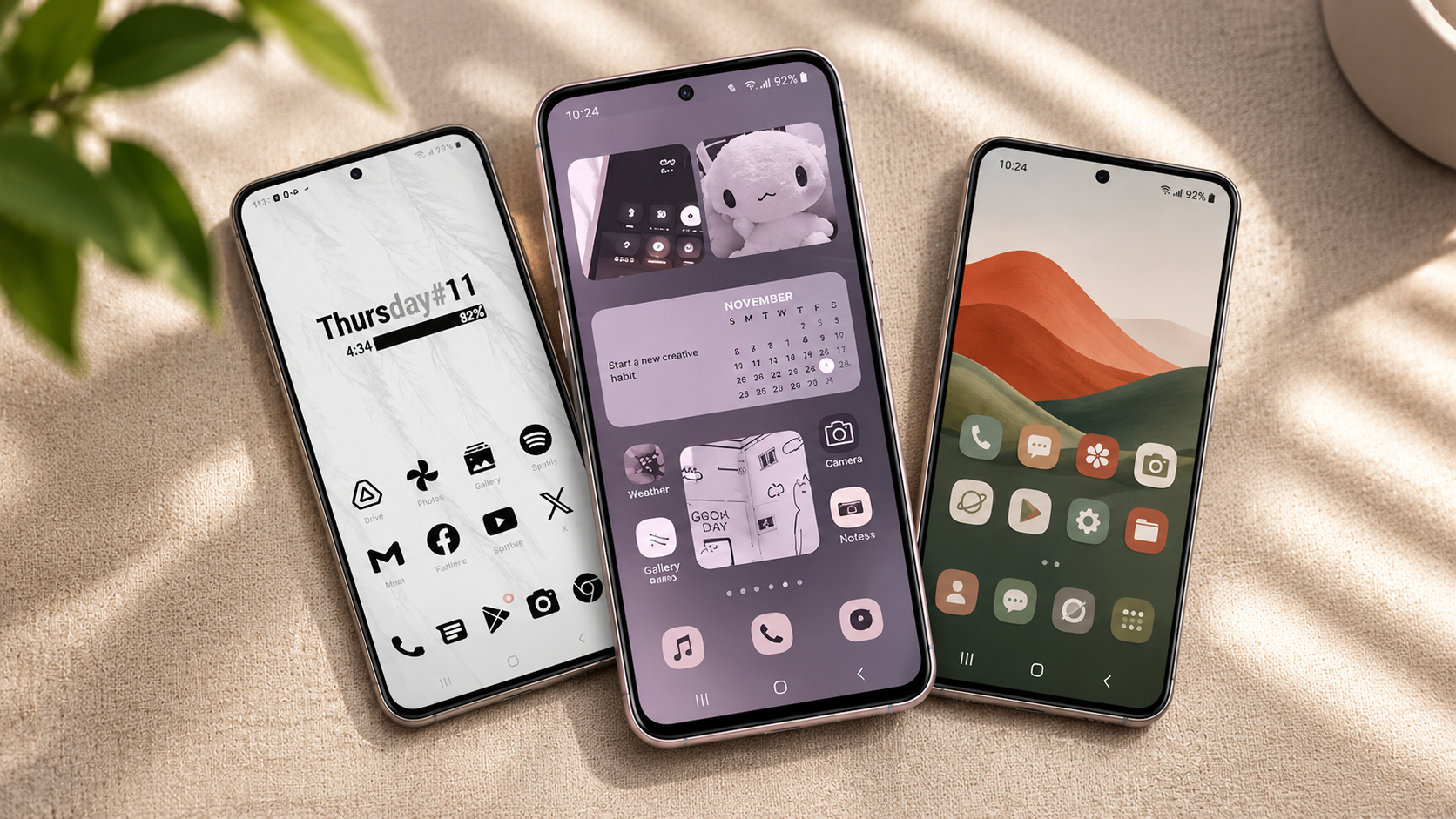
Personalizing your smartphone makes everyday use more enjoyable. If you want to customize app icons on Samsung devices, several built-in tools can help. Samsung Galaxy phones offer plenty of options to change your home screen’s appearance. For example, you can adjust icon colors, apply themes, and create personalized layouts.
Unlike many other smartphone brands, Samsung provides extensive customization options through One UI. As a result, you can change your phone’s appearance without rooting your device. You also don’t need complicated third-party software to make basic changes.
Your home screen is one of the first things you see every day. However, a cluttered or outdated layout can make your phone feel less personal. On the other hand, a well-organized screen makes frequently used apps easier to find.
In this guide, we’ll explore different ways to customize Samsung app icons. Additionally, we’ll explain how to create custom themes, decorate apps, and change icon styles. You’ll also discover which Samsung tools make the process easier.
Can I Customize App Icons on Samsung?
Yes, Samsung Galaxy phones let you customize app icons using built-in settings and additional tools. Fortunately, One UI offers several personalization features for your home screen. You can change icon colors, apply downloaded icon packs, and adjust your overall theme. However, the available options depend on your phone model and One UI version.
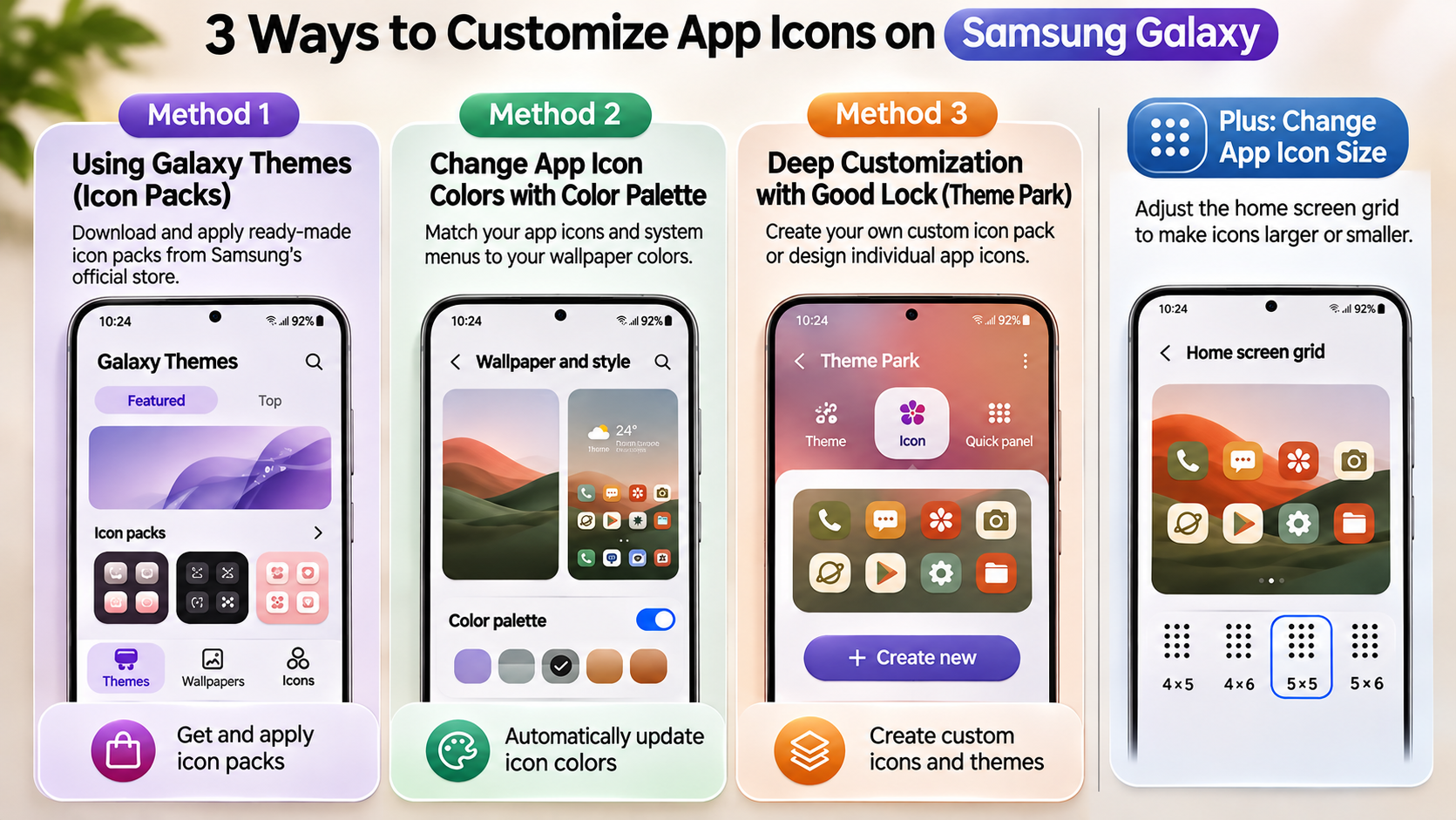
To explore these settings, press and hold an empty area on your home screen. Next, tap Wallpaper and style to access the available customization options. The Color Palette feature can match supported interface elements with your wallpaper. However, its effect on app icons varies between devices and software versions.
For more control, you can explore Samsung’s official customization tools:
- Galaxy Themes: Download themes, wallpapers, and icon packs.
- Good Lock: Access advanced home screen customization tools.
- Theme Park: Create personalized icon designs and themes.
Together, these tools offer several ways to refresh your phone. Best of all, you can make these changes without installing a different launcher.
Using Samsung Good Lock for More Icon Customization
Samsung Good Lock provides additional customization options through downloadable modules. Among these, Theme Park is particularly useful for changing app icons. It lets you create custom themes and modify supported icon appearances. Additionally, you can explore compatible icon packs and personalize individual icons.
To get started, open the Galaxy Store and search for Good Lock. If your device supports it, install the application. Next, find and install the Theme Park module.
Once installed, open Theme Park and select the Icon section. From there, you can create an icon theme and explore its customization options. For example, you can change icon backgrounds, shapes, and supported images.
However, Good Lock availability varies by region and device. Therefore, some Galaxy users might not see every module. To avoid compatibility issues, check the Galaxy Store for the latest available version.
Can I Make My Own Theme on Samsung?
Yes, you can create your own theme on a Samsung Galaxy phone. Samsung provides several tools for building a personalized interface. For instance, you can combine wallpapers, colors, and custom app icons to create a consistent appearance. This approach also gives you more control than downloading a complete theme.
One particularly useful option is Theme Park, available through Good Lock. It lets you create themes using your wallpaper’s colors or your preferred color combinations. Furthermore, you can customize supported app icon designs separately.
To create your theme, follow these steps:
- Open the Good Lock app.
- Find and install the Theme Park module.
- Open Theme Park and select the Theme section.
- Tap Create New to start designing.
- Choose a wallpaper or background image.
- Select your preferred colors and customize the available elements.
- Finally, preview your design and save the theme.
Keep in mind that the available customization options depend on your device and software version.
Exporting and Saving Your Custom Samsung Theme
After designing your theme, save it with a recognizable name. This way, you can easily find your creation later. Theme Park stores your designs in its library, allowing you to revisit and apply them whenever needed. Additionally, you can create separate icon packs for different home screen styles.
For example, you could create a minimalist theme with neutral colors. Alternatively, another theme could feature colorful icons and a matching wallpaper. This flexibility makes it easier to change your phone’s appearance whenever you want.
Before applying a new design, take a moment to preview its appearance. Check whether the icons remain visible against your wallpaper. Also, make sure the text and backgrounds offer enough contrast.
Finally, remember that saving a custom theme does not automatically share it with other users. Theme Park’s available sharing options may vary by version.
Can I Customize My App Icons?
Yes, you can customize individual app icons on Samsung Galaxy phones. However, the method depends on how much control you want. Galaxy Themes offers ready-made icon packs, while Theme Park provides additional design options. Alternatively, you can use third-party shortcut apps to create personalized home screen shortcuts.
For example, you might replace a standard camera icon with a minimalist design. Similarly, you could use matching images for social media apps. As a result, your home screen can have a more consistent appearance.
Here are three common customization methods:
- Galaxy Themes: Apply downloaded icon packs to supported applications.
- Theme Park: Customize icon shapes, colors, and images.
- Shortcut Maker: Create home screen shortcuts using your own pictures.
However, not every method changes the original application icon. Some third-party tools create separate shortcuts instead. Therefore, this distinction can affect notification badges and other launcher features.
Using Custom Pictures as Samsung App Icons
If you want to use personal photos as app icons, Shortcut Maker is one option. With this app, you can create home screen shortcuts using custom images. For example, you can choose pictures from your phone’s gallery and assign them to specific apps.
To create a personalized shortcut, follow these steps:
- Install Shortcut Maker from the Google Play Store.
- Open the application and select Apps.
- Choose the application you want to customize.
- Tap the icon editing option.
- Select an image from your gallery.
- Adjust the image to fit the icon preview.
- Finally, create the shortcut on your home screen.
Once created, your new shortcut should appear alongside your existing applications. You can then move it wherever you want.
However, this method does not replace the original app icon everywhere. Instead, it creates a separate home screen shortcut. Consequently, notification badges and shortcut behavior may also vary. If you prefer a more integrated Samsung customization experience, use Theme Park instead.
How to Decorate Your Apps on Samsung?
Decorating apps on Samsung involves more than changing their basic icon colors. You can combine custom icon designs, wallpapers, widgets, and home screen layouts. These elements help create a consistent appearance across your Galaxy device. Samsung offers several tools for achieving this without installing a completely different launcher.
Start by exploring the Galaxy Themes app. Browse its icon collections for minimalist, colorful, pastel, and decorative designs. You can preview available icon packs before applying them. Some packs are free, while others require payment.
For additional customization, open Good Lock and explore Theme Park. You can experiment with different icon backgrounds, shapes, and images. The Home Up module also provides options for adjusting supported home screen layouts. If you also want to customize how you access your apps, explore how to restore the Apps button on Samsung Galaxy phones.
Try combining these features instead of changing everything at once. A matching wallpaper and a few carefully selected widgets can make your screen look more organized. Keep your icons readable and avoid overly complicated designs.
Pairing Custom Icons with Matching Widgets
Matching widgets with your customized app icons can make your home screen look more polished. Samsung offers built-in widgets for weather, calendars, clocks, and other useful features. You can resize and reposition these widgets to create a layout that suits your needs. For more ideas, explore how to make your Android home screen more useful with better widget placement, app organization, and shortcuts.
Smart Widgets also let you stack compatible widgets in one home screen area. You can switch between them without dedicating separate spaces to every widget. This helps keep your screen organized.
For a balanced design, consider these combinations:
-
Minimalist icons: Pair them with simple clock and calendar widgets.
-
Pastel icons: Use matching soft-colored widget backgrounds.
-
Dark icons: Choose darker wallpapers and widgets with readable text.
-
Colorful icons: Keep the wallpaper relatively simple to avoid visual clutter.
You can also adjust the home screen grid through supported One UI settings. This gives your icons and widgets more breathing room. Choose a layout that balances appearance with everyday usability.
How Do I Change the Icon Style on Samsung?
Changing app icon styles on Samsung is relatively simple. You can use the built-in Color Palette feature or Samsung’s Theme Park module. The first option changes supported icon colors to match your wallpaper. The second offers more control over icon shapes, backgrounds, and images.
For a quick appearance change, start with the Color Palette settings. Follow these steps:
-
Open Settings on your Samsung Galaxy phone.
-
Tap Wallpaper and style.
-
Select Color palette.
-
Turn on the Color palette option.
-
Choose a color combination from the available options.
-
Enable Apply palette to app icons, if available.
-
Tap Apply to save your changes.
Your phone will update supported interface elements using the selected colors. However, not every application supports this feature. Some third-party icons might retain their original appearance.
If you want more detailed customization, use Theme Park instead. It offers additional options for creating a personalized icon theme.
Adjusting Samsung App Icon Shapes and Sizes
You can further customize your app icons using Theme Park. This module provides additional controls for changing icon shapes, backgrounds, and images. Depending on your software version, you may also find options for individual icon customization.
To adjust your icon appearance, follow these steps:
-
Open Good Lock on your Galaxy phone.
-
Select Theme Park from the available modules.
-
Open the Icon section.
-
Tap Create New.
-
Choose your preferred icon customization options.
-
Adjust the available shapes, colors, and backgrounds.
-
Preview your changes and tap Save.
-
Apply your newly created icon theme.
Some versions also support additional icon effects and custom images. The exact options depend on your installed Theme Park version.
Remember that icon customization does not always affect every application. Some apps may retain their original designs. You can check Samsung’s official Galaxy customization guide for additional instructions.
Final Thoughts
Samsung Galaxy phones offer several ways to personalize your home screen. You can download ready-made icon packs, create custom themes, or use your own pictures. Tools like Galaxy Themes and Good Lock make these changes easier.
If you only want to change icon colors, start with Color Palette. For more detailed customization, try Theme Park. If you prefer personal pictures, Shortcut Maker offers another option.
Choose a design that looks good and keeps your frequently used apps easy to find. You don’t need complicated software to give your Samsung Galaxy a fresh appearance.