Should You Add USB-C Ports To Your Desktop PC?
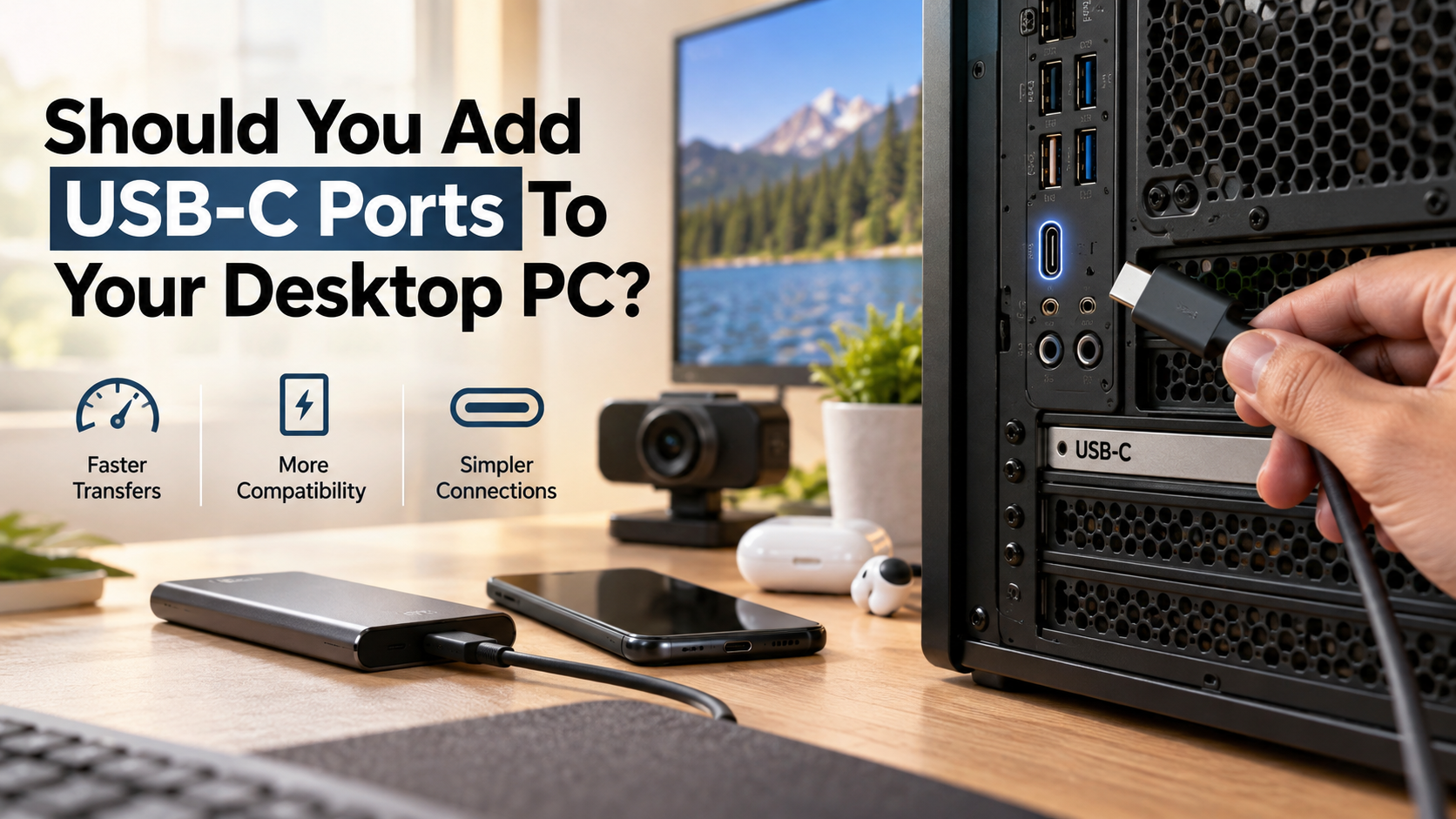
Modern computing continues to evolve, and older peripheral ports are slowly giving way to smaller, more versatile connections. If your computer feels outdated, choosing to add USB-C ports to your desktop PC can be a practical hardware upgrade. The USB Implementers Forum introduced the reversible Type-C physical connector to simplify data, video, and charging through one connection.
Today, external SSDs, smartphones, webcams, and audio interfaces commonly use USB-C. Relying only on older Type-A ports can limit compatibility and increase cable clutter.
Universal Serial Bus technology has grown rapidly since the USB Implementers Forum introduced the reversible Type-C physical specification to streamline data, video, and charging.
Adding USB-C ports can improve everyday convenience. You gain access to newer peripherals, faster data transfers, and more flexible charging options. Reversible cables also make connecting devices easier.
However, opening your desktop case may feel intimidating. Fortunately, the upgrade is usually straightforward with compatible hardware.
This guide explains how to add USB-C ports to your desktop PC. It covers expansion cards, internal headers, DisplayPort compatibility, USB-C adoption, and solutions for older computers. You will also learn what to check before buying upgrade hardware.
Can I add a USB-C port to my desktop?
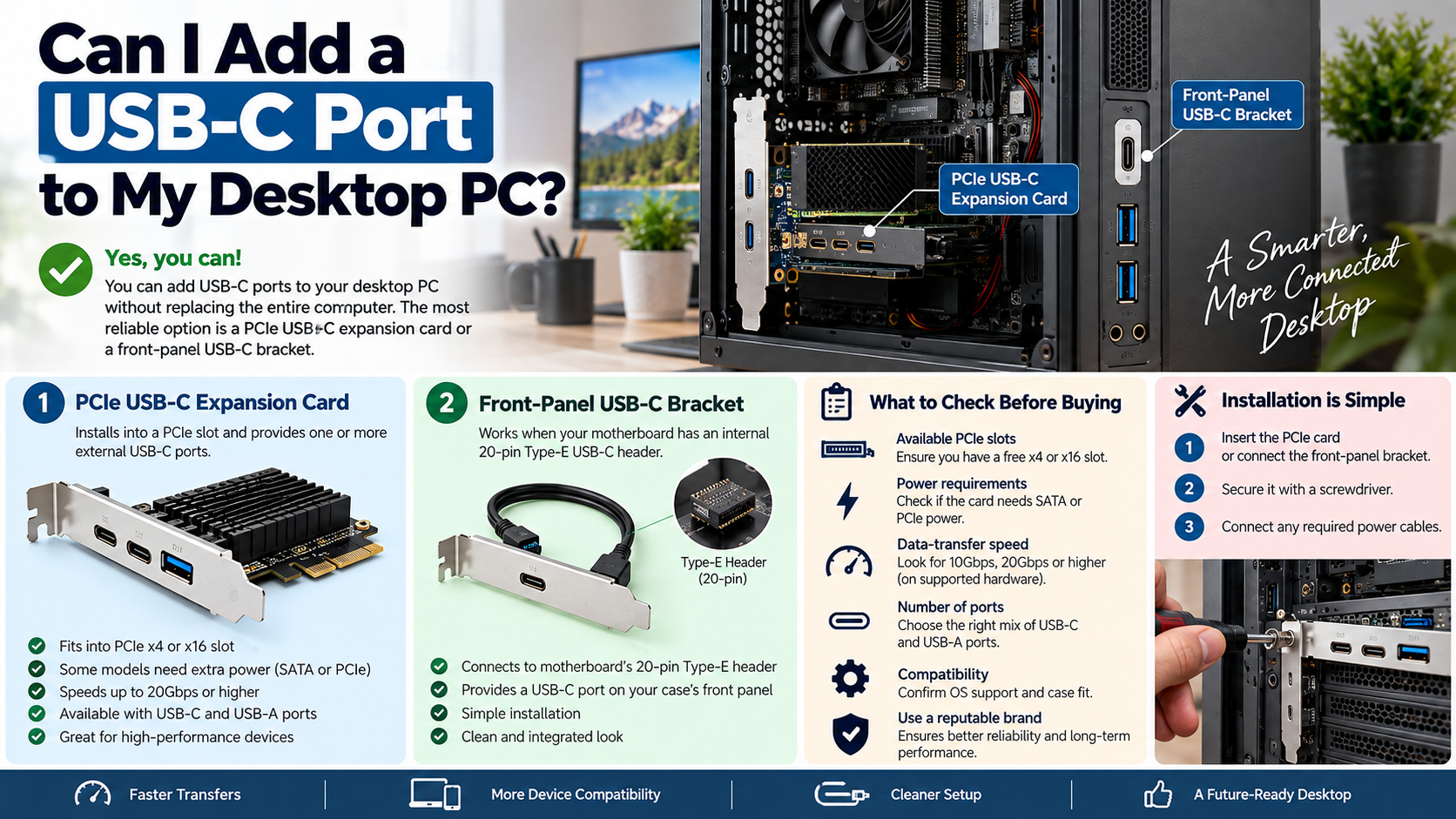
Yes, you can add USB-C ports to your desktop PC without replacing the entire computer. The most reliable option is a PCIe USB-C expansion card. This card installs into an available PCIe slot on your motherboard and provides one or more external USB-C ports. Some models also connect to your power supply for additional power delivery.
Another option is a front-panel USB-C bracket. This works when your motherboard has an available internal 20-pin Type-E USB-C header. The bracket connects the motherboard header to a compatible opening on your PC case.
Before choosing either method, check your motherboard, case, and available PCIe slots. Also confirm the expansion card’s power requirements.
Installation usually requires only a screwdriver and basic hardware knowledge. A PCIe card can provide much better performance than a simple adapter.
If you want to add USB-C ports to your desktop PC, a dedicated expansion card is usually the most flexible choice.
Choosing the Right PCIe Expansion Card
When selecting a PCIe USB-C expansion card, first check the available slots on your motherboard. Many cards use PCIe x4 or x16-sized connectors, although the electrical lane configuration can vary. Make sure the card matches an available slot and fits inside your case.
Power requirements are another important consideration. Some expansion cards draw enough power directly from the PCIe slot. Others use a SATA power connector or auxiliary PCIe power connection for additional power delivery.
Check the card’s advertised data-transfer speed before purchasing. Depending on the controller and USB standard, supported speeds can reach 20Gbps or higher on suitable hardware.
You should also consider the number of ports, operating-system support, and internal header requirements. Some cards include USB-A ports alongside USB-C ports, which can improve flexibility.
For demanding external SSDs and modern peripherals, choose a card with a reputable controller and adequate power support. This approach gives your desktop a reliable long-term connectivity upgrade.
Is USB-C better than DisplayPort?
USB-C and DisplayPort are not direct competitors because they serve different purposes. DisplayPort is primarily designed for transmitting video and remains a strong choice for desktop monitors, especially gaming displays. It can support high resolutions and refresh rates without requiring additional functionality from the physical connector.
USB-C focuses on versatility. When the port and connected devices support DisplayPort Alternate Mode, a USB-C connection can carry DisplayPort video signals. It can also handle USB data and, with suitable hardware, power delivery through the same cable.
This makes USB-C particularly useful for docking stations, portable monitors, and streamlined workstation setups. A single cable can connect compatible displays and peripherals while reducing desk clutter.
For a dedicated gaming monitor, native DisplayPort may still be the simpler choice. For flexible connectivity, USB-C offers more functions through one compact connector.
The best option depends on your hardware and needs. Neither connector is universally better. They simply prioritize different types of connectivity.
Understanding DisplayPort Alternate Mode Benefits
DisplayPort Alternate Mode allows compatible USB-C connections to carry DisplayPort video signals. This feature makes USB-C useful for monitors, docking stations, and modern laptops or desktop systems with suitable hardware. For more details on video support, see whether all USB-C ports support video.
With a compatible setup, one USB-C cable can transmit video while also carrying USB data. Depending on the device, it may support power delivery as well. This reduces the number of cables required for a workstation and creates a cleaner desk.
For example, a compatible monitor can connect to a computer through USB-C and provide additional USB ports for peripherals. This arrangement is especially useful for keyboards, webcams, storage devices, and other accessories.
However, not every USB-C port supports DisplayPort Alternate Mode. The port, computer hardware, cable, and display must all support the required features.
Before purchasing a USB-C expansion card for video use, check whether it supports DisplayPort Alternate Mode or requires a DisplayPort passthrough connection. Data-only USB-C ports cannot automatically provide video output.
Why is everyone switching to USB-C?
USB-C has become increasingly common because it combines several connectivity functions into one compact, reversible connector. Older setups often require separate cables for charging, data transfer, and video. USB-C can potentially handle all three when the connected hardware supports the necessary standards.
The connector also works across a wide range of devices. Modern smartphones, tablets, laptops, storage devices, monitors, and accessories increasingly use USB-C. This broad adoption reduces the number of specialized cables consumers need.
Regulatory changes have also encouraged USB-C adoption. The European Union introduced requirements that push manufacturers toward common charging standards for certain electronic devices. These rules have further increased the connector’s visibility among consumers.
For desktop users, this shift matters because newer peripherals increasingly arrive with USB-C connections. External SSDs, creator equipment, smartphones, and docking accessories may all benefit from native USB-C support.
Adding USB-C to an older desktop helps bridge that compatibility gap. Instead of replacing a working computer, you can upgrade its connectivity and continue using existing hardware.
Reversible Design and High Power Delivery
One of USB-C’s biggest advantages is its reversible connector design. Unlike traditional USB-A connectors, USB-C cables can be inserted in either orientation. This small change makes everyday connections faster and less frustrating.
USB-C also supports USB Power Delivery, or USB PD. The current USB PD specification can support power levels up to 240 watts when compatible devices, cables, and chargers support the required Extended Power Range capabilities. When comparing charging setups, it is also useful to understand whether chargers with multiple ports are slower than normal ones.
That does not mean every USB-C port can provide 240 watts. Actual charging power depends on the computer, port controller, power source, cable, and connected device.
For desktop upgrades, power delivery can be useful for compatible phones, accessories, storage devices, and other peripherals. Expansion cards with dedicated power connections can provide more power than basic motherboard adapters.
The combination of reversible connections, high-speed data, and flexible power delivery makes USB-C attractive for modern computing. However, users should always verify the specifications of individual ports rather than assuming every USB-C connection offers identical capabilities.
Do most desktops have USB-C?
Many newer desktops and motherboards now include at least one USB-C connection, but coverage varies by model and price. Premium gaming PCs and workstations may offer several high-speed ports. Some newer systems also support technologies such as USB4 or Thunderbolt, depending on the motherboard and platform.
Budget desktops and older computers are more likely to rely primarily on USB-A ports. Manufacturers may omit USB-C to reduce costs or because the system targets basic office use.
Front-panel USB-C availability also depends on the computer case and motherboard. A desktop may have a rear USB-C port but lack the internal header required for a front-panel connection.
This means you should not assume that every modern-looking desktop includes the same USB-C features. Check the motherboard specifications and case documentation before buying accessories.
If your computer lacks native USB-C, you do not necessarily need a new PC. A suitable PCIe expansion card can add modern ports and extend the useful life of your existing system.
Motherboard Generation and Case Compatibility Factors
Motherboard and case compatibility are important when adding USB-C to a desktop. Some newer cases include a front-panel USB-C port, but that port requires a compatible internal motherboard header to function.
Many modern motherboards use a 20-pin Type-E internal connector for front-panel USB-C. Older motherboards may lack this header entirely. In that situation, the case’s front USB-C port cannot connect directly without another solution.
Before buying a new case or motherboard, check the specifications for internal USB-C support. Also confirm that the motherboard provides the desired USB standard and transfer speed.
If your motherboard lacks a Type-E header, you can still add USB-C through a PCIe expansion card. Some cards provide external ports, while others include internal connections for compatible case ports.
Older 19-pin USB 3.0 headers can also work with certain internal adapters. However, the connection remains limited by the capabilities of the original USB interface.
Checking these details first prevents compatibility problems and helps you choose the right upgrade path.
What do I do if my PC doesn’t have USB-C?
If your desktop has no USB-C ports, you have several ways to add them. The simplest solution is a USB-A to USB-C adapter. These small adapters can connect USB-C accessories to existing USB-A ports for basic data or charging.
However, an adapter does not upgrade the capabilities of the original port. If your USB-A connection supports only older USB speeds, the connected USB-C device remains limited by that connection.
For a permanent upgrade, a PCIe USB-C expansion card is usually the better option. It provides dedicated USB-C ports and can offer faster transfer speeds when your motherboard and peripherals support them.
You can also use an external USB hub. A powered hub can expand an existing USB-A connection and provide several ports, although the upstream connection still determines overall performance.
Your choice depends on your needs. Adapters are inexpensive and convenient for occasional use. Expansion cards make more sense for frequent use, high-speed storage, and modern peripherals.
Either approach can add USB-C ports to your desktop PC without replacing an otherwise functional computer.
Passive Adapters Versus Active Expansion Cards
Passive adapters and PCIe expansion cards solve different connectivity problems. A basic USB-A to USB-C adapter changes the physical connector but does not create new USB capabilities. Your device remains limited by the speed, power, and features of the original USB-A port.
A PCIe expansion card provides a more complete hardware upgrade. The card includes its own USB controller and connects directly to the motherboard. Some models also connect to the power supply to support higher power requirements.
This makes expansion cards better suited to demanding devices such as external SSDs and other high-speed peripherals. They can support newer USB standards when the card and connected device are compatible.
Passive adapters are still useful for simple accessories. They are inexpensive, easy to install, and require no internal hardware changes.
Choose an adapter when you only need connector compatibility. Choose an expansion card when you want higher performance, additional ports, or improved power delivery.
Understanding this distinction prevents unrealistic expectations from inexpensive adapters.
Frequently Asked Questions
Can I charge my phone quickly using an added desktop port?
Yes, but charging speed depends strictly on your hardware setup. Basic passive adapters only supply standard legacy power levels around 4.5 to 7.5 watts. To unlock modern fast-charging protocols, install a dedicated PCIe expansion card wired directly to your power supply via a SATA or auxiliary PCIe power cable.
Will a basic adapter let me connect a portable monitor?
No, standard rectangular Type-A ports lack the native hardware pathways to carry DisplayPort Alternate Mode video signals. Passive adapters only convert data lines. To run a portable external monitor, you must use a dedicated graphics card video output or specialized PCIe cards supporting internal DisplayPort passthrough.
Does adding an expansion card slow down my graphics card?
Generally, no. Most consumer desktop motherboards route secondary PCIe slots through the motherboard chipset rather than using primary CPU lanes reserved for graphics cards. As long as you install the expansion card into an open secondary slot, your dedicated GPU will maintain its full x16 lane bandwidth and graphical performance.
Can I convert an older internal motherboard header to USB-C?
Yes, you can purchase internal adapter cables that convert older 19-pin USB 3.0 motherboard headers into modern 20-pin Type-E internal connectors. While this enables your front-panel port to function physically, your maximum transmission speeds will stay capped at the older 5Gbps transfer ceiling of your original motherboard.
Conclusion
Adding USB-C to an older desktop can extend the computer’s useful life without requiring a complete system replacement. If your current PC works well but lacks modern connectivity, this upgrade can provide meaningful everyday benefits.
A PCIe USB-C expansion card is generally the most flexible option. It can provide additional ports, faster data transfers, and better support for modern peripherals. A compatible internal Type-E header can also provide a clean front-panel connection.
Simple USB-A to USB-C adapters remain useful when you only need basic connector compatibility. However, they cannot increase the speed or functionality of the original USB-A port.
Before purchasing hardware, check your motherboard’s available PCIe slots, internal headers, and power connections. Also confirm your case’s front-panel requirements and the USB standards supported by your peripherals.
With the right hardware, you can add USB-C ports to your desktop PC and keep using your existing computer with newer storage devices, smartphones, monitors, and accessories. It is a practical upgrade that improves compatibility while reducing unnecessary hardware costs.