Chromebook vs iPad: Which Is Best if You Don’t Want a Windows Laptop?
Tired of traditional operating systems and comparing Chromebook vs iPad options? Moving away from a standard Windows laptop is easier than ever. Both devices can handle everyday tasks without the complexity of a traditional desktop setup.
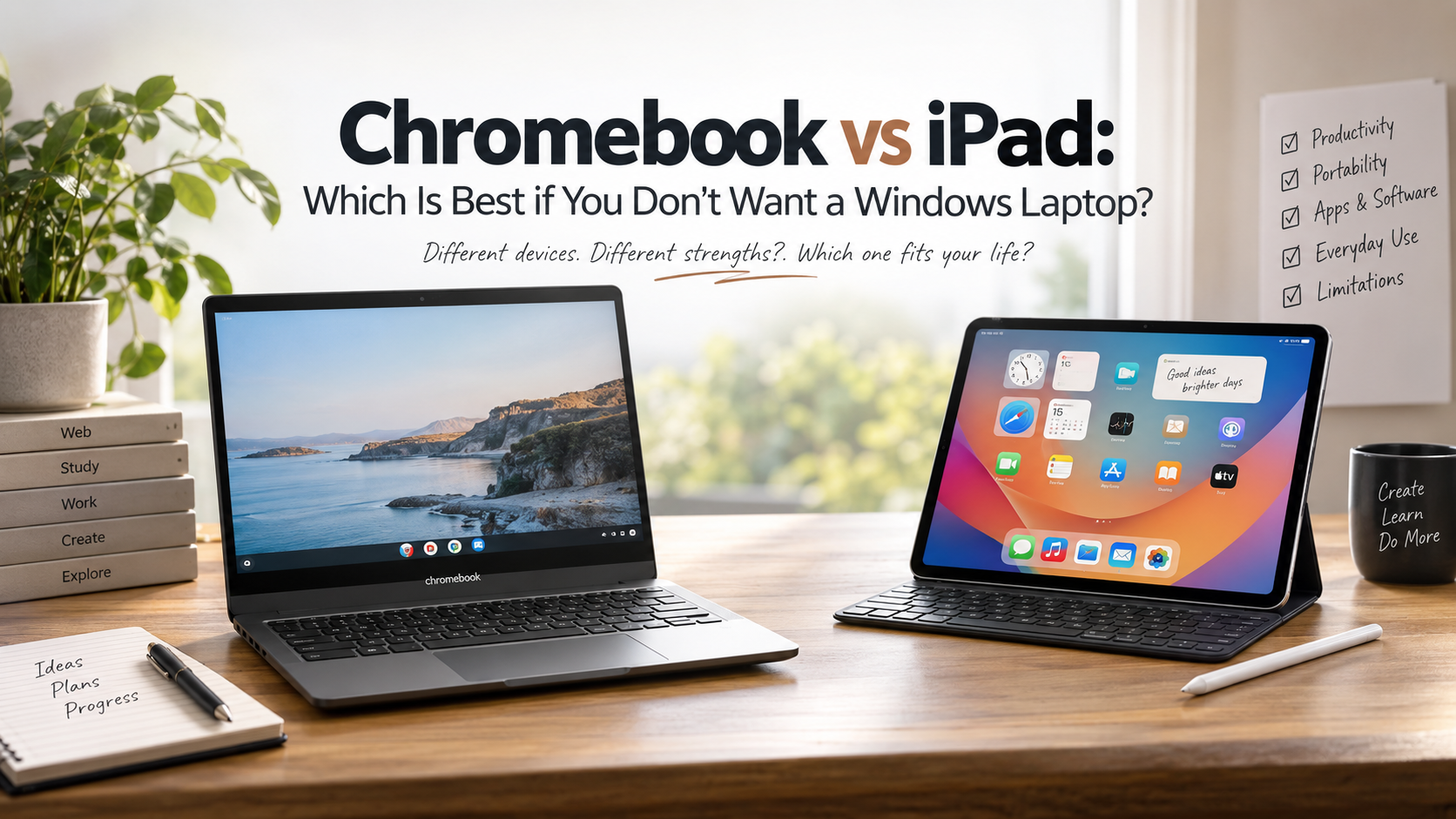
A Chromebook runs ChromeOS and focuses on web-based work. It offers a physical keyboard, desktop-style browser, and familiar multi-window controls. You can learn more about ChromeOS and its built-in features through Google’s official ChromeOS overview. An iPad takes a different approach. It combines a touchscreen interface with powerful mobile apps and optional keyboard support.
Your choice depends on how you work each day. In this Chromebook vs iPad comparison, we look at productivity, portability, software support, and everyday limitations.
Do you write reports, manage spreadsheets, attend online meetings, draw, or watch videos? Each platform handles these tasks differently.
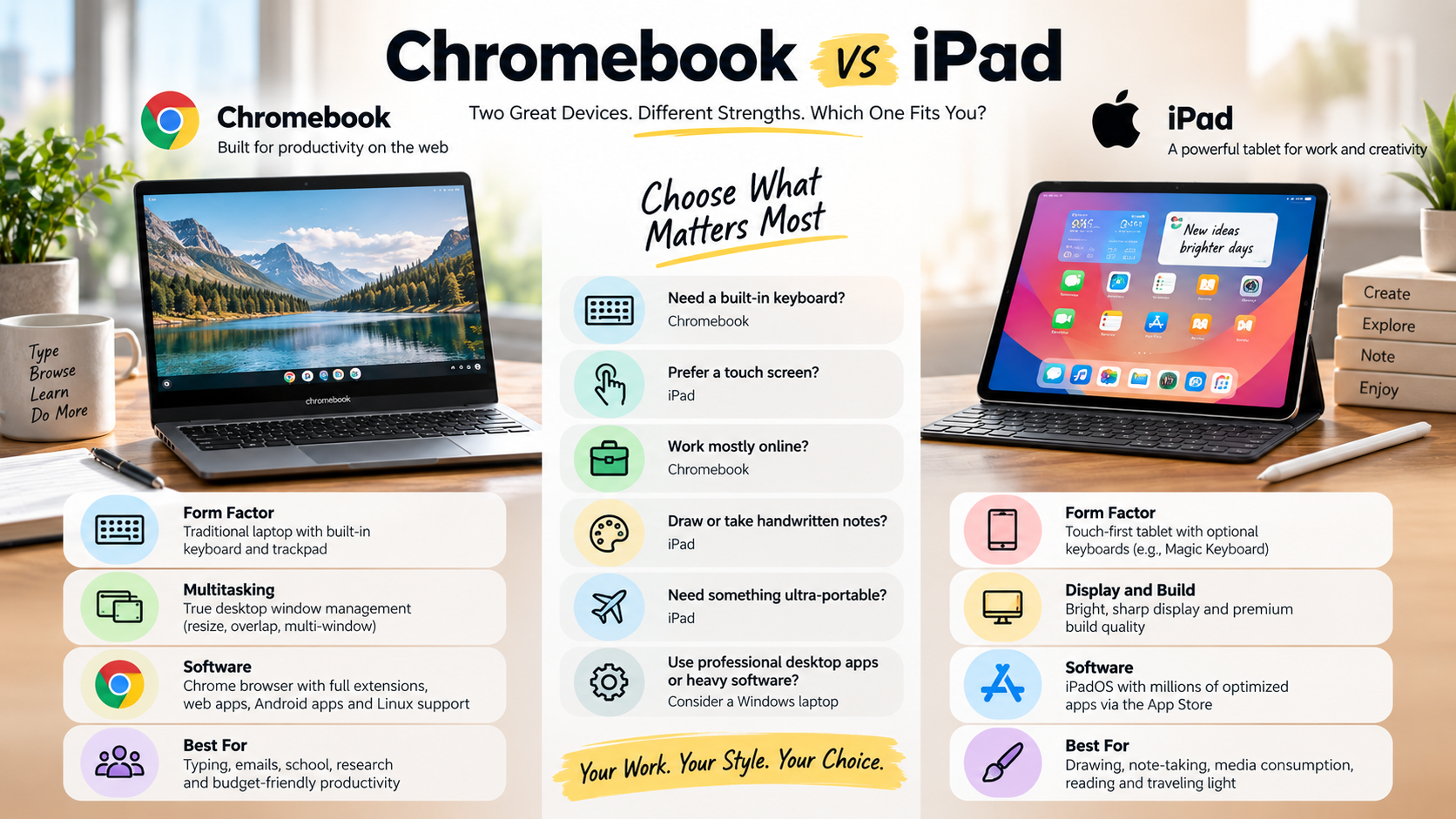
Which is better for me, a Chromebook, a laptop, or an iPad?
Choosing between a Chromebook, laptop, and iPad depends on your daily workload. No single device is ideal for everyone. The software you use matters more than the device’s appearance or specifications.
If you’re considering Chromebook vs iPad, start with your most demanding daily task. A Chromebook works well for web browsing, documents, email, online classes, and administrative work. Its physical keyboard also makes longer typing sessions easier.
A traditional laptop remains important for demanding software. This includes professional desktop applications, advanced development tools, specialist business software, and many PC games.
An iPad suits users who value portability and touch interaction. It works particularly well for note-taking, drawing, media consumption, video calls, and lightweight productivity.
Before buying, consider your most demanding tasks:
- Chromebook: Web-based work, documents, browsing, and education.
- Windows laptop: Desktop software, gaming, development, and intensive workloads.
- iPad: Drawing, note-taking, entertainment, and portable productivity.
Prioritizing Portability Versus Typing Ergonomics
Portability and input methods can strongly affect your daily experience. In the Chromebook vs iPad debate, the better option depends partly on how you interact with your device.
An iPad is compact and easy to carry. You can hold it like a tablet, use touch controls, or pair it with an Apple Pencil for handwriting and drawing.
However, an iPad becomes more expensive when you add accessories. A keyboard and trackpad can improve productivity, but they increase the overall cost.
A Chromebook usually includes its keyboard and trackpad from the start. This makes it convenient for students, writers, and office users who type frequently. Its clamshell design also provides a familiar laptop experience.
Think about how you interact with your device most often:
- Frequent typing: A Chromebook or laptop may feel more natural.
- Handwritten notes: An iPad has a clear advantage.
- Drawing: An iPad with Apple Pencil offers greater flexibility.
- Travel: Both can be portable, depending on the model and accessories.
The right choice depends on whether you prioritize touch interaction or traditional keyboard-based productivity.
Is Chromebook better than a Windows laptop?
A Chromebook can be a better alternative to a Windows laptop for users whose work happens mainly online. For more details about ChromeOS, see this ChromeOS guide covering its features, comparison, and installation. It generally requires less system maintenance than a traditional Windows setup.
If you’re comparing Chromebook vs iPad alongside Windows, ChromeOS offers a more traditional laptop experience than Apple’s tablet. You get a physical keyboard, trackpad, desktop-style browser, and familiar window management.
Chromebooks also work well on modest hardware. For a broader comparison of these devices, see Chromebook vs Laptop: Which Is Better for You?. This allows manufacturers to offer affordable models for browsing, documents, education, and communication.
However, ChromeOS has important limitations. Many professional desktop applications do not have full ChromeOS versions. This includes certain Adobe applications, specialist engineering tools, and some development environments.
Windows remains more flexible for demanding local workloads. It supports a much broader range of desktop applications and hardware accessories.
Therefore, the comparison depends on your software requirements:
- Choose Chromebook: For browser-based work and simple maintenance.
- Choose Windows: For desktop applications and demanding workloads.
- Choose iPad: For touch-focused creativity and portable productivity.
- Check software first: Your essential applications should determine the platform.
A Chromebook is not universally better. It is better suited to specific workflows.
What are the disadvantages of a Chromebook over a laptop?
The biggest Chromebook disadvantage is software compatibility. ChromeOS cannot run every traditional desktop application available on Windows. For a broader look at device limitations, see the benefits and drawbacks of various computers. This can become a major problem if your work depends on specialist software.
This is also an important consideration when comparing Chromebook vs iPad devices. Both platforms have software limitations, but those limitations are different. ChromeOS focuses on web and supported applications, while iPadOS uses applications designed for Apple’s mobile platform.
Some professional creative applications have limited or different versions on ChromeOS. The same issue applies to certain music production tools, engineering programs, development environments, and PC games.
Offline work can also be less convenient for some users. Many ChromeOS workflows are designed around web applications and cloud storage.
Hardware compatibility can create another limitation. Most common peripherals work normally, but specialized equipment may require software or drivers that ChromeOS does not support.
Before buying a Chromebook, check these areas:
- Essential software: Confirm that your applications work on ChromeOS.
- Offline requirements: Check whether you can work without internet access.
- Peripherals: Verify compatibility with printers and specialist hardware.
- Storage: Consider whether cloud storage meets your needs.
For basic productivity, these limitations may never matter. For specialized work, they can become deal-breakers.
Is an iPad a good alternative to a laptop?
An iPad can be an effective laptop alternative for users with lightweight or mobile-focused workflows. However, understanding the disadvantages of using a tablet as a laptop replacement is important before making the switch. Its touchscreen interface makes browsing, note-taking, drawing, and media consumption highly convenient.
In a Chromebook vs iPad comparison, the iPad stands out for touch interaction and creative applications. It also offers powerful processors, strong battery life, and a large selection of apps.
However, an iPad is not simply a smaller laptop. Its operating system follows a different design philosophy. Some desktop workflows require additional steps or alternative applications.
Adding a keyboard can improve productivity significantly. It makes writing emails, documents, and messages easier. However, the additional accessory increases the total purchase cost.
An iPad can work particularly well for:
- Students taking handwritten notes.
- Artists creating digital illustrations.
- Travelers who want a lightweight device.
- Content consumers watching videos and browsing.
- Remote workers using cloud-based applications.
For these users, an iPad can cover many everyday computing needs. People relying on specialized desktop software should check compatibility before replacing their laptop.
Superior Creative Tools and Touchscreen Versatility
The iPad’s biggest advantage is its combination of touch interaction and portable creative tools. Artists can use Apple Pencil-compatible models for drawing, handwriting, and annotation.
This creates a major difference in the Chromebook vs iPad comparison. A Chromebook provides a traditional keyboard and trackpad experience. An iPad gives users direct interaction with the screen.
The tablet format also makes the device flexible. You can use it as a tablet for reading or entertainment, then connect a keyboard for longer writing sessions.
This flexibility is useful for students and creative professionals. Digital textbooks, handwritten notes, and sketches can all fit within one portable device. Students can also explore these best note-taking apps for Android when choosing digital tools.
However, accessories affect the overall experience. A keyboard, stylus, and other peripherals can turn an affordable tablet purchase into a much larger investment.
The iPad is particularly useful for:
- Digital drawing and illustration
- Handwritten notes and annotations
- Photo and video editing
- Reading and media consumption
- Mobile presentations and communication
Its strength comes from combining these capabilities in a compact design. The main question is whether your required software is available on iPadOS.
Can an iPad fully replace a laptop?
An iPad can replace a laptop for some users, but it cannot replace every laptop workflow. This becomes clearer when you compare Chromebook vs iPad devices with traditional computers.
iPadOS supports multitasking, external displays, file management, and professional applications. However, it still operates differently from desktop operating systems such as Windows and macOS.
Complex development workflows can be harder to manage. The same applies to custom scripts, advanced file operations, and applications designed specifically for desktop environments.
Browser compatibility can also vary. Some websites provide different interfaces depending on the device. Certain professional workflows may therefore require workarounds or dedicated applications.
An iPad can replace a laptop effectively when your work centers on supported applications. It becomes less practical when you need unrestricted desktop functionality.
Consider these factors before switching:
- Software: Are all your essential applications available?
- Files: Can you manage your files comfortably?
- Accessories: Will you need a keyboard or external storage?
- Multitasking: Can iPadOS handle your daily workflow?
- External displays: Does your setup meet your productivity needs?
For simple and creative workflows, an iPad may be enough. For complex desktop work, a laptop remains more flexible.
Conclusion
Stepping outside the traditional personal computer ecosystem gives you refreshing, portable options. The debate between a Chromebook vs iPad ultimately comes down to your personal priorities: tactile desktop typing or modular touchscreen creative power.
A Chromebook provides a familiar keyboard-centric experience, full web browsing tabs, and accessible price points. It functions as an uncomplicated, secure workstation for writing, homework, and web tasks. On the other hand, the iPad represents the pinnacle of mobile versatility. It excels at digital sketching, stylus notes, entertainment, and lightweight travel workflows, provided you accept mobile multitasking limits.
Take a close look at your computing habits. If you need a direct, low-cost typing device for browser tasks, buy a Chromebook. If you want a creative, touch-first tablet that doubles as a casual travel computer, invest in an iPad. Assess your primary software requirements today and pick the device that naturally complements your daily routine.