
Turn Your Old SSD Into a Portable Drive: Here Is How
Upgrading your computer’s storage often leaves you with an old SSD that still has plenty of life left. Instead of leaving it unused in a drawer, you can turn your old SSD into a portable drive for backups, gaming, and file transfers.
Repurposing an SSD is a simple, cost-effective way to expand your storage. It also helps reduce electronic waste while giving you a compact external drive for everyday use. Depending on its interface and enclosure, your portable SSD can deliver faster transfer speeds than many traditional USB flash drives.
Before getting started, you need to understand your SSD’s compatibility, expected lifespan, and storage capacity. These factors help you get the most out of your existing hardware.
In this guide, we answer four common questions: How do you convert an internal SSD into an external drive? How long will a 1 TB SSD last? Can you clone a 2 TB HDD to a 1 TB SSD? And can you install two SSDs in one PC?
Let’s explore each topic and learn how to reuse your storage safely and efficiently.

How Can I Convert My SSD to a Portable Hard Drive?
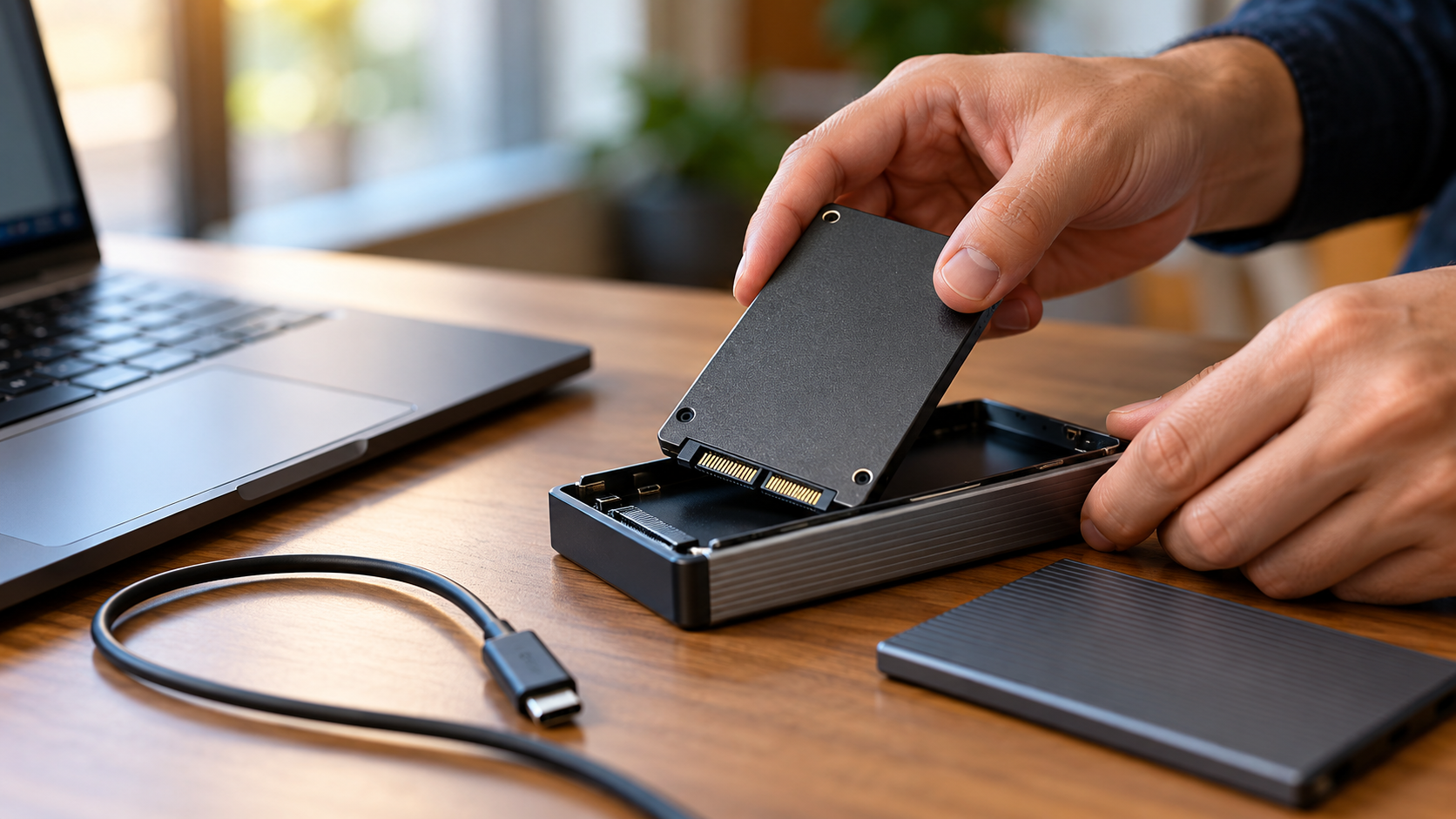
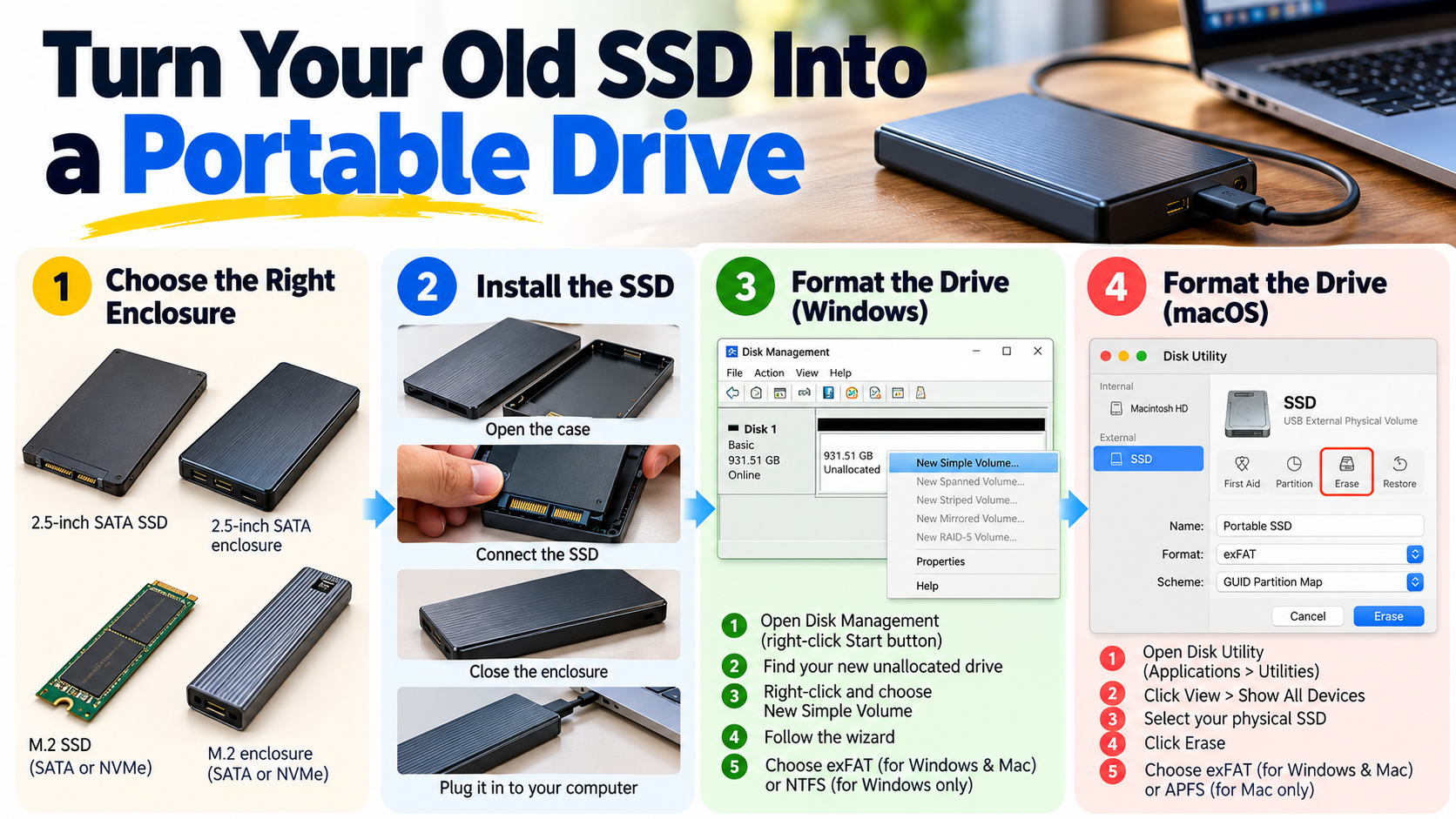
You can convert an internal SSD into a portable external drive with a compatible enclosure and a USB cable. The process is straightforward and requires minimal technical knowledge. First, identify your SSD’s form factor and interface. Common options include 2.5-inch SATA SSDs and M.2 SSDs that use either SATA or NVMe. If you’re comparing the available technologies, understanding the benefits and uses of NVMe SSDs can help you choose the right drive and enclosure for your needs.
Next, purchase an enclosure that supports your specific drive. Open the enclosure, connect the SSD to its internal connector, and secure it according to the manufacturer’s instructions. Close the casing and connect the enclosure to your computer using the supplied USB cable.
Your operating system should detect the drive automatically. If the SSD contains important files, check its contents before making any changes. A new or previously used drive might require initialization or formatting before you can use it.
Important: Formatting erases existing data in many cases. Back up any files you want to keep before proceeding.
Choosing the Right Enclosure
Choosing the correct SSD enclosure helps ensure compatibility, reliable performance, and physical protection. Check your drive’s interface, dimensions, and connector before purchasing an enclosure. If you’re considering a new SATA drive instead, whether a SATA SSD is still worth buying is another factor to consider when comparing performance, compatibility, and cost.
Keep these factors in mind:
- 2.5-inch SATA SSD: Choose a 2.5-inch SATA-to-USB enclosure.
- M.2 SATA SSD: Select an enclosure specifically designed for M.2 SATA drives.
- M.2 NVMe SSD: Use an NVMe-compatible enclosure with the correct M.2 size.
- USB connection: USB-C and high-speed USB interfaces can provide faster transfers when both the enclosure and computer support them.
- Heat management: An enclosure with suitable ventilation or thermal pads can help manage heat during extended transfers.
Remember that M.2 describes a form factor, not a universal interface. An NVMe-only enclosure will not necessarily support an M.2 SATA SSD. Always check the manufacturer’s compatibility information before buying.
How Long Will a 1 TB SSD Last?
A modern 1 TB SSD can last for many years under normal usage. Its lifespan depends on write endurance, workload, operating temperature, and overall drive health. Unlike traditional hard drives, SSDs use flash memory cells with a finite number of write cycles. When comparing storage options, the lifespan of HDDs and SSDs is also worth understanding, particularly if you’re deciding which type of drive to use for long-term storage.
Manufacturers often specify endurance using Terabytes Written (TBW). This rating estimates how much data can be written to the drive during its warranty period under specified conditions. Some 1 TB SSDs have endurance ratings around 600–1,200 TBW, although the actual rating varies significantly by model and technology.
For example, a drive rated for 600 TBW can theoretically accommodate approximately 164 GB of writes daily over ten years. This is an endurance calculation, not a guarantee of failure-free operation for that period.
Most everyday users write much less data than demanding professional workloads. As a result, an SSD may remain useful for years before reaching its rated write limit. However, electronic failures and other faults can occur independently of write endurance.
Understanding Write Endurance Limits
Write endurance provides a useful way to estimate how much data an SSD can handle over its rated service life. However, it does not predict the exact date when a drive will fail. It’s also important to avoid keeping an SSD nearly full, so understanding the minimum free space you should leave on an SSD can help you manage storage more effectively.
To help extend your SSD’s useful life:
- Avoid unnecessary, continuous write-heavy workloads.
- Keep the drive within its recommended operating temperature.
- Monitor drive health using the manufacturer’s software or available SMART information.
- Maintain regular backups of important files.
If you plan to turn your old SSD into a portable drive, check its health before storing valuable data on it. An SSD that has already experienced heavy use may still work well, but its remaining endurance can vary.
Ultimately, capacity needs, interface changes, and performance requirements may make you replace an SSD before its memory cells reach their rated endurance. Always back up important data, regardless of the drive’s reported health.
Can I Clone a 2 TB HDD to a 1 TB SSD?
Yes, you can clone a 2 TB hard disk drive to a 1 TB SSD, provided the data and partitions can fit on the smaller destination drive. The source drive’s total capacity does not have to match the destination’s capacity.
For example, if your 2 TB HDD contains 600 GB of data, cloning may be possible without removing files. However, the partitions must also be resized appropriately, and the cloning software must support the operation.
If the HDD contains more data than the SSD can accommodate, delete unnecessary files or move them to another storage device before cloning. Remember that the usable capacity of a marketed 1 TB SSD is slightly lower than 1 TB when measured by many operating systems.
You should also check whether the cloning software can resize partitions and copy the required boot and recovery partitions. Some system configurations require additional steps to make the cloned SSD bootable.
Before beginning, back up important files and confirm that the destination SSD has enough usable space for all required partitions.
Preparing Data Before Migration
Preparing your HDD before cloning reduces the risk of capacity errors and makes the process easier. Start by checking how much space your files and partitions occupy. Then remove unnecessary data or move large files to a separate drive. If you need more room for your files before migration, how to add more storage to a laptop is a useful next step to explore before deciding which data to move.
Follow these steps before starting:
- Check used storage: Review the occupied space on the 2 TB HDD.
- Remove unnecessary files: Delete temporary files and applications you no longer need.
- Move large files: Transfer videos, photos, and other bulky files to another storage device if necessary.
- Review partitions: Make sure the required partitions can fit on the 1 TB SSD.
- Choose suitable cloning software: Confirm that it supports smaller destination drives and partition resizing.
- Back up important data: Keep a separate copy of essential files before modifying partitions.
After preparing the drive, connect the SSD and run the cloning process according to the software’s instructions. Once cloning finishes, verify the copied files and boot configuration before relying on the new drive.
Is It Okay to Put Two SSDs in a PC?
Yes, installing two SSDs in one desktop PC is safe and common, provided your motherboard and power supply support the configuration. Many modern motherboards include multiple M.2 slots and SATA ports, allowing you to install additional storage without replacing your existing drive.
Using two SSDs can improve storage organization and give you more room for applications, games, videos, and creative projects. For example, you can install your operating system and frequently used applications on one SSD while storing larger files on the second.
However, adding another SSD does not automatically make your computer faster. Performance depends on the drive specifications, interface, workload, and system configuration. The main advantages are increased storage capacity and better file management.
Before installation, check your motherboard manual for available M.2 slots, SATA connections, and any port-sharing limitations. Some motherboards disable certain SATA ports when specific M.2 slots are occupied.
Also, ensure the drive fits your case and that your power supply has the necessary connectors for SATA drives. Most M.2 SSDs receive power directly through the motherboard.
Managing Dual Drive Configurations
A well-organized dual-SSD setup can make everyday computing easier. Assigning different roles to each drive helps you manage storage and avoid filling your primary drive unnecessarily. When planning a storage upgrade, whether buying an expensive SSD is worth it in 2026 is also worth considering, especially if you need to balance capacity, speed, and budget.
Consider this practical arrangement:
- Primary SSD: Install your operating system, essential applications, and frequently used software.
- Secondary SSD: Store games, large projects, media libraries, and other personal files.
- External backup drive: Keep a separate copy of important data to protect against drive failure.
You can also use two SSDs for separate work and personal environments or to organize files by project. However, splitting storage across two drives does not replace a proper backup strategy.
After installation, initialize and format a new SSD if necessary. Choose a suitable file system based on your operating system and intended use. For a drive shared between computers, check compatibility with each device before formatting.
Finally, monitor both drives’ health and maintain enough free space for normal system operations. With the right configuration, two SSDs can provide flexible, reliable storage for gaming, productivity, and everyday computing.
Conclusion
Repurposing an old SSD is an affordable way to expand your storage and reduce electronic waste. With a compatible enclosure, you can turn your old SSD into a portable drive for backups, file transfers, gaming, and everyday use.
A 1 TB SSD can last for many years, depending on its usage, write endurance, and overall health. You can also clone a 2 TB HDD to a 1 TB SSD if the required data and partitions fit within the destination’s usable capacity. Installing two SSDs in one PC is another practical way to increase storage and organize your files.
Before making changes, check drive compatibility, back up important data, and monitor your SSD’s health regularly. For additional guidance on SSD maintenance and storage reliability, visit Kingston Technology’s official website.
By following these steps, you can get more value from your existing hardware while creating a reliable storage setup that meets your needs.