
How To Delete Your Personal Data From ChatGPT
As AI tools become part of everyday life, managing your digital footprint matters more than ever. If you want to delete your personal data from ChatGPT, you have several options.
You can delete individual chats, clear your history, manage saved memories, or permanently delete your account. You can also control whether new conversations help improve OpenAI’s models. These settings give you greater control over your information.
It also helps to understand what deletion actually means. When you delete a chat, ChatGPT removes it from your account immediately. OpenAI then schedules the data for permanent deletion within 30 days, subject to limited exceptions.
This guide explains how to delete your personal data from ChatGPT safely. It covers chat deletion, account closure, data retention, memory, training controls, and data exports. You will also learn which privacy option best matches your needs.
Can I Delete All My Data From ChatGPT?
Yes, you can remove much of the information connected to your ChatGPT account. The right method depends on which data you want to remove.
If you only want to remove one conversation, delete that chat from your history. ChatGPT removes the conversation from your account immediately. OpenAI then schedules it for permanent deletion within 30 days, subject to limited exceptions.
If you want to delete your personal data from ChatGPT completely, you can also delete your account. Open ChatGPT settings and select the account deletion option. You can also submit an account deletion request through the OpenAI Privacy Portal.
Remember to review your saved memories too. Deleting a chat does not automatically delete a memory created from that conversation. Remove related memories separately if you want to clean up personal information completely.
You can also request removal of personal information that appears in ChatGPT responses. This option can help when ChatGPT displays personal information about you, especially when considering the AI chatbot security risks of sharing sensitive information.
Navigating Privacy Settings for Full Control
ChatGPT’s Data Controls give you several ways to manage your information. On the web, open your profile menu and select Settings. Then choose Data Controls to review your available privacy options and understand AI terms every beginner should know.
You can turn off Improve the model for everyone if you do not want new conversations used to improve ChatGPT. Your regular conversations can still remain in your history after you change this setting.
You can also export your information before you delete anything. Open the data export option in your settings and request a copy of your account data. This can help you keep important conversations before permanent deletion.
For stronger privacy, review Personalization and your saved memories. ChatGPT stores memories separately from your conversation history. You can manage or delete those memories through the available memory controls.
These settings serve different purposes:
- Delete chats to remove specific conversations.
- Delete memories to remove saved personal information.
- Turn off model improvement to control future training use.
- Delete your account to begin permanent account data deletion.
- Export your data before removing information you may need later.
Does ChatGPT Keep Your Data After Deleting?
Yes, ChatGPT follows a deletion process after you remove a conversation. When you delete a chat, OpenAI removes it from your account immediately. OpenAI then schedules the chat for permanent deletion within 30 days, subject to limited exceptions.
Some information may remain longer when legal or security requirements apply. OpenAI may also have already de-identified and disassociated certain information from your account.
Therefore, deleting a conversation does not mean every technical copy disappears at the exact same moment. Your account loses access first, followed by the permanent deletion process, which is easier to understand when you know how large language models work.
Your privacy settings also affect future conversations. Turning off model improvement prevents new conversations from being used to improve ChatGPT. However, regular chats can still remain in your history.
Temporary Chat offers another privacy-focused option. Temporary Chats do not appear in your history or create memories. OpenAI also does not use them to train its models. The system deletes Temporary Chats after 30 days.
If you want to delete your personal data from ChatGPT, review all relevant settings instead of relying on chat deletion alone. Check your conversations, memories, training preferences, and connected services.
Understanding Backup Retention Windows and Purging
Deleting a conversation removes it from your visible ChatGPT history right away. However, OpenAI follows a separate process for permanent deletion from its systems.
OpenAI states that deleted chats enter a deletion process that generally takes up to 30 days. This applies to chats and accounts that users delete, although limited exceptions can apply.
The 30-day period does not mean that every deleted conversation simply sits in a backup. OpenAI may retain certain information longer when security or legal obligations require it. Some information may also have already become de-identified and disconnected from your account.
For users, the practical difference remains important. Once you delete a chat, you cannot recover it through ChatGPT. The conversation also no longer remains available in your account history.
If you want to delete your personal data from ChatGPT, consider taking a broader approach. Review saved memories and training preferences as well. Check connected services and any information you shared through them.
Before deleting important information, consider exporting your data. An export gives you a personal copy of information that you may want to keep.
How Do I Permanently Delete My ChatGPT Account and Data?
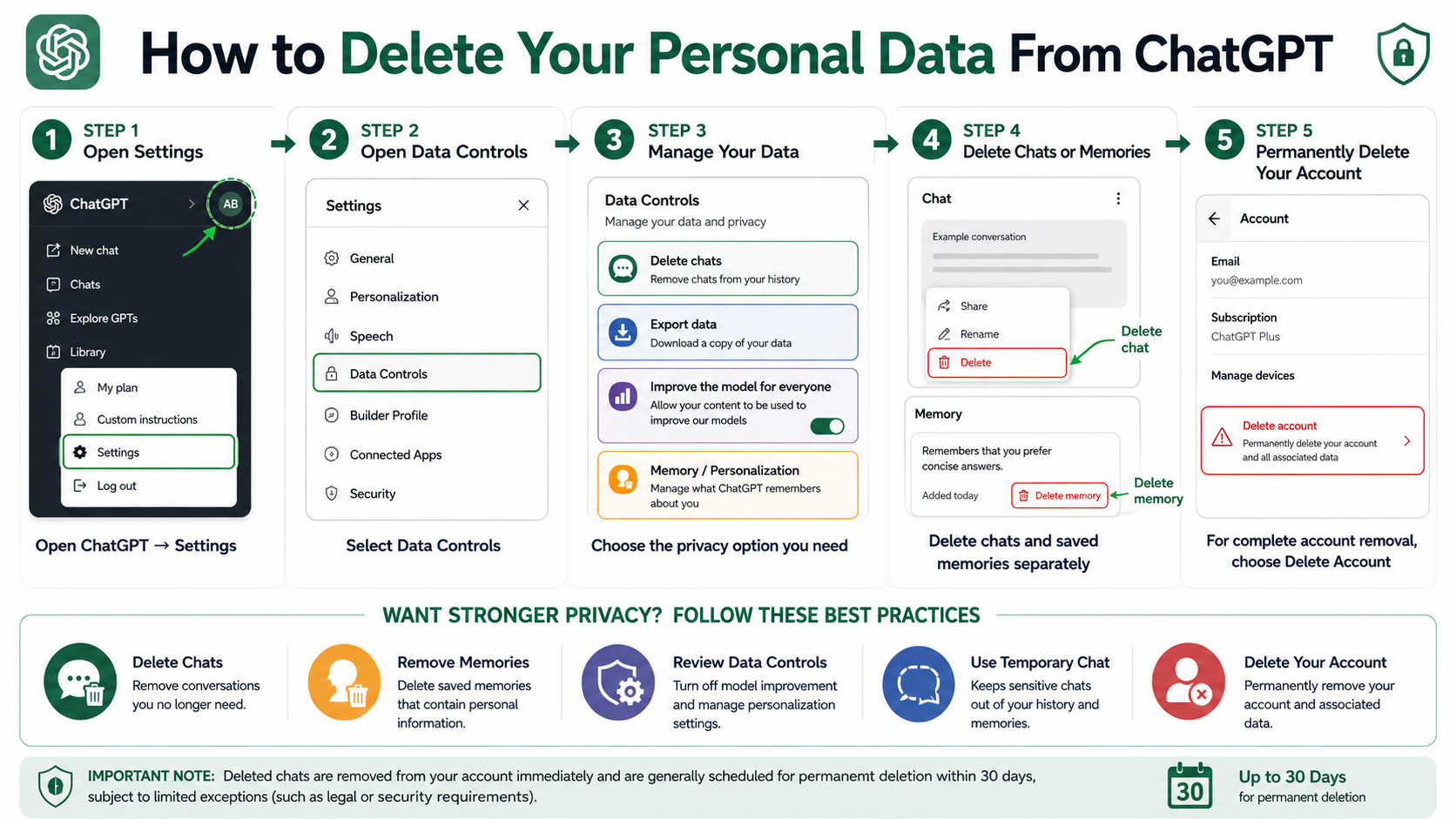
If you want to delete your personal data from ChatGPT completely, deleting your account provides the broadest option. Account deletion permanently closes the account and cannot be reversed.
On the web, sign in to ChatGPT and open your profile menu. Select Settings, then open Account. Look for the Delete account option and follow the confirmation steps shown on screen.
You can also use the OpenAI Privacy Portal to request account deletion. The portal may ask you to verify information connected to your account before processing the request.
Account deletion also removes your access to your ChatGPT account. OpenAI says it deletes account data within 30 days, except where limited information requires longer retention for legal or security reasons.
Before you delete the account, export anything you want to keep. Check important conversations, files, and other account information first.
Also review subscriptions separately. If you purchased a ChatGPT subscription through an app store, deleting your account may not automatically cancel that mobile subscription, so it can help to understand ChatGPT vs Gemini pricing and paid plans before making changes to your AI subscriptions.
Once you confirm account deletion, you cannot restore the account. Make sure you have selected the correct account before completing the process.
Verifying Account Termination Through Email Confirmation
Account deletion includes verification steps that help prevent accidental or unauthorized requests. The exact process can vary depending on how you submit your deletion request.
When you use the Privacy Portal, OpenAI may ask you to verify an email address or phone number connected to your account. If you cannot access the required verification method, you may need to contact OpenAI Support for further assistance.
If you delete your account directly through ChatGPT, follow the confirmation instructions that appear in your account settings. The current process can require you to confirm your account email and enter DELETE before continuing.
An email confirmation link does not apply to every deletion method. The exact steps can differ between the web, mobile apps, and Privacy Portal.
After you confirm the request, account deletion becomes permanent. You cannot reactivate the deleted account or recover its conversations.
For extra security, check your account details before confirming the request. Make sure you have exported any information you want to keep.
If your goal is to delete your personal data from ChatGPT, account deletion offers the broadest removal option. However, you should still understand OpenAI’s stated retention exceptions.
Does ChatGPT Actually Delete Chats?
Yes. ChatGPT treats a deleted conversation differently from an archived conversation. Deleting a chat removes it from your account immediately, while archiving keeps the conversation stored.
OpenAI then schedules deleted chats for permanent deletion within 30 days, subject to limited legal and security exceptions. You cannot recover a conversation after you delete it.
If you only want to hide a conversation from your main sidebar, choose Archive instead. Archived chats remain in your account and do not receive the same treatment as deleted chats.
Memory also requires separate attention. ChatGPT can store certain information as saved memories. Deleting the original conversation does not automatically remove a related saved memory, an important consideration when learning what generative AI is and how it works.
If you want to delete your personal data from ChatGPT, review both your chat history and Memory settings. This approach helps prevent personal details from remaining in saved memories after you remove a conversation.
For sensitive information, check your privacy settings before starting future conversations. You can also use Temporary Chat when you want stronger privacy controls.
The Immediate Impact of Removing Single Chat Threads
Deleting an individual conversation removes it from your visible ChatGPT history immediately. This gives you a simple way to remove prompts, answers, files, or personal details from your account.
Do not confuse deletion with archiving. An archived conversation remains stored in your account. Delete a chat when you want to remove it rather than simply organize it.
You should also check Memory after deleting sensitive conversations. ChatGPT stores saved memories separately from your chat history. Removing the original conversation does not necessarily remove information that ChatGPT already saved as a memory.
For a more complete cleanup, follow these steps:
- Delete the relevant conversation.
- Review related saved memories.
- Delete memories that contain the same personal information.
- Check your model-improvement setting.
- Review connected apps or services.
- Use Temporary Chat for future sensitive conversations.
These steps give you greater control over your ChatGPT data. They also help you avoid assuming that deleting one conversation removes every related piece of information.
If you regularly share sensitive information, review these settings periodically. A quick privacy check can help keep unnecessary personal data out of your account.
Do ChatGPT Chats Last Forever?
No. ChatGPT does not require you to keep conversations forever. Regular chats remain in your account until you delete them.
When you delete a chat, ChatGPT removes it from your account immediately. OpenAI then schedules it for permanent deletion within 30 days, subject to limited exceptions.
You can also use Temporary Chat when you do not want a conversation to appear in your normal history. Temporary Chats do not create memories or train OpenAI’s models. OpenAI says the system deletes them after 30 days.
Turning off model improvement works differently. That setting prevents new conversations from helping improve ChatGPT, but regular chats can still appear in your history.
Choose your privacy settings based on your goal:
- Delete chats when you want to remove existing conversations.
- Delete memories when ChatGPT has saved personal details.
- Use Temporary Chat for conversations you do not want in normal history.
- Turn off model improvement when you do not want new conversations used to improve models.
- Delete your account when you want to close your ChatGPT account completely.
If you want to delete your personal data from ChatGPT, these options let you choose the level of privacy that fits your situation.
Managing Default Retention Settings for Maximum Privacy
You can strengthen your privacy by reviewing ChatGPT’s settings before sharing sensitive information. Start with Data Controls and check the Improve the model for everyone option.
Turning this setting off prevents new conversations from being used to improve ChatGPT. However, regular conversations can still remain in your chat history.
For conversations that should not appear in normal history, use Temporary Chat when available. Temporary Chats do not appear in history or create memories. OpenAI also does not use them to train its models.
Next, review Personalization and your saved memories. Turning Memory off does not automatically erase information that ChatGPT has already saved. Delete existing memories separately when necessary.
A practical privacy routine includes:
- Review Data Controls regularly.
- Delete chats containing sensitive information.
- Remove related saved memories.
- Use Temporary Chat for sensitive conversations.
- Check connected apps and services.
- Export your data before closing your account.
These habits make it easier to manage your digital footprint. They also reduce the chance of leaving personal information in places you did not intend.
If you want to delete your personal data from ChatGPT, combine these controls instead of depending on one setting. Each option handles a different part of your account data.
Frequently Asked Questions About Deleting ChatGPT Data
Can I export my data before deleting my ChatGPT account?
Yes, you can easily export your data before closing your account. Navigate to your settings, select the data controls menu, and choose the export option. The system will compile your chat history into a downloadable file and send a secure link directly to your registered email address within a short time.
Does turning off chat history stop OpenAI from using my data?
Disabling your chat history prevents your new conversations from appearing on your sidebar and stops them from being used to train future AI models. However, OpenAI still retains new conversations for up to thirty days in a temporary file to monitor for abuse before permanently deleting them from those logs.
Can I delete my data if I log in using Google or Apple?
Yes, you can delete your data regardless of whether you registered with an email password or used a third-party login like Google or Apple. The data deletion and account closure steps inside the settings menu remain identical for all authentication methods. Just ensure you log into the correct account.
Will deleting a chat remove it from OpenAI training models?
If you delete a chat after it was already processed for model training, the specific text is decoupled from your identity. While removing chats stops future training usage, previously integrated anonymized patterns cannot always be surgically extracted from complex machine learning weights, which is why turning off training early is recommended.
Conclusion
Knowing how to delete your personal data from ChatGPT gives you greater control over your digital privacy. The best approach depends on what you want to remove.
Delete individual chats when you want specific conversations removed. Review saved memories separately because deleting a chat does not automatically erase related memories. Use Temporary Chat when you want conversations excluded from normal history and model training.
If you want to leave ChatGPT completely, permanently delete your account through Settings or the Privacy Portal. OpenAI says account deletion is irreversible and data is deleted within 30 days, subject to limited legal and security exceptions.
You can also export your data before deletion. This is useful if you want to keep important conversations or account information.
Finally, remember that personal-data removal can mean something different. If ChatGPT generates responses containing personal information about you, OpenAI provides a separate Privacy Portal request for that situation.
Reviewing these controls regularly can help you maintain a smaller, more intentional digital footprint.