
Mouse vs. Touchpad: Should You Choose a Trackpad or a Mouse?
Choosing between a trackpad or a mouse can affect your everyday computer experience. Whether you write code, edit photos, or browse the web, your input device influences comfort, precision, and productivity.
Many users wonder whether switching devices can improve their workflow or reduce wrist strain. The answer depends on your tasks, workspace, and personal preferences. Neither device is automatically better for everyone.
For Mac users, Apple’s trackpads offer smooth gestures and close integration with macOS. Traditional mice provide physical buttons, familiar hand positioning, and precise cursor control for many tasks. Both options have advantages and limitations worth considering.
This guide compares trackpads and mice across usability, ergonomics, and everyday performance. You’ll learn why Mac trackpads stand out, where touchpads fall short, and how mouse pads affect performance. We’ll also examine which device may suit your hands and working habits best.
By understanding these differences, you can choose an input device that supports your needs without sacrificing comfort or control.
Which Is Better for My Mac, a Trackpad or a Mouse?
Choosing between a trackpad and a mouse for your Mac depends on how you use your computer. Apple’s Magic Trackpad works particularly well for users who prefer gestures, smooth navigation, and minimal desk clutter. If you’re considering Apple’s ecosystem more broadly, explore the reasons for Ditching Windows for Mac and how macOS may suit your workflow. The Magic Trackpad also supports familiar interactions, including pinch-to-zoom and swiping between desktops.
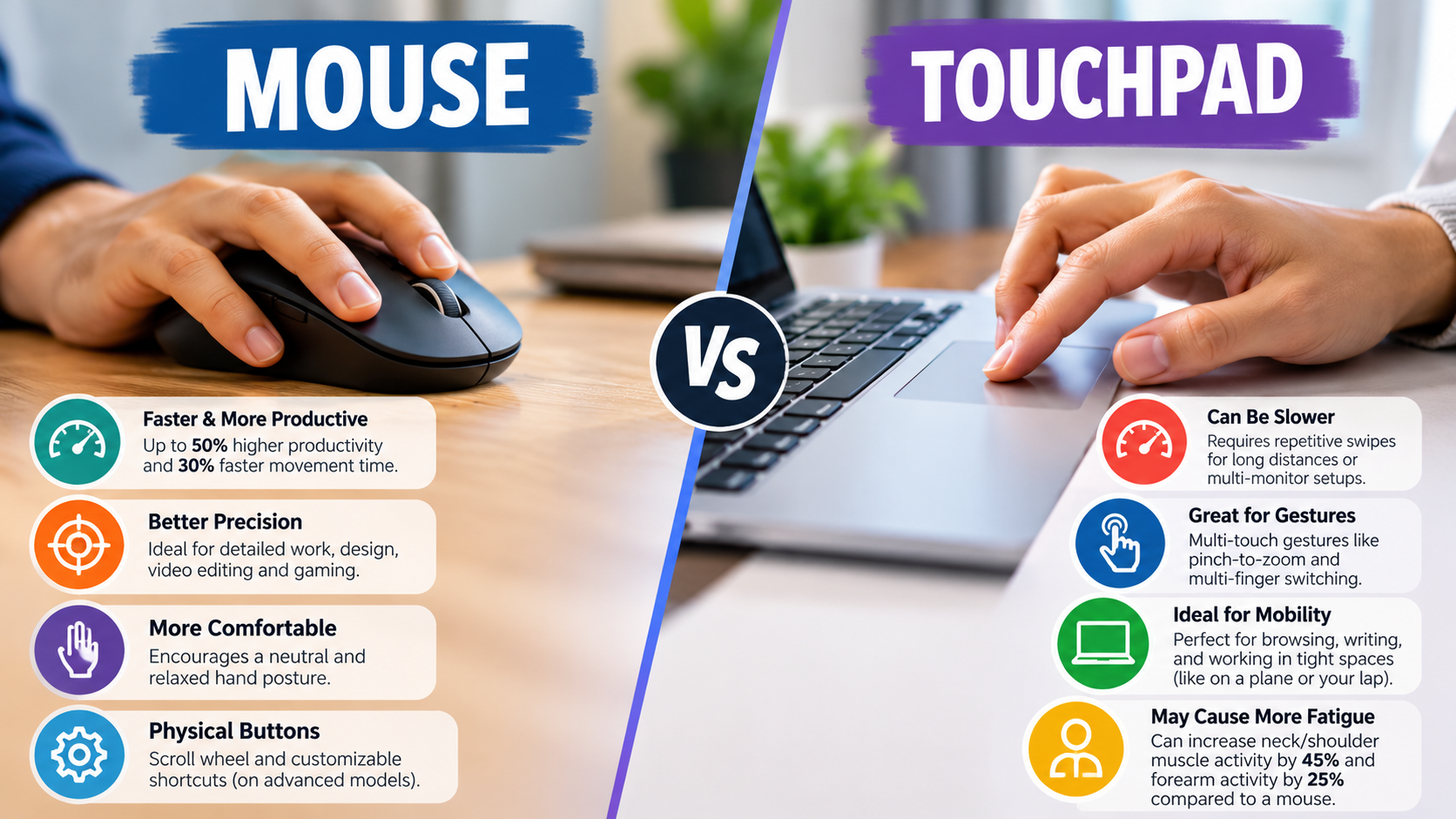
A traditional mouse may suit you better if your work involves detailed selections, graphic design, spreadsheets, or gaming. Its physical shape provides a familiar grip, while dedicated buttons can make repetitive actions easier. Some models also include programmable buttons and adjustable sensitivity.
Consider these differences when deciding which device suits your Mac:
- Trackpad: Best for gestures, navigation, and compact workspaces.
- Mouse: Best for controlled cursor movements, physical buttons, and many precision tasks.
- Both devices: Useful if your workflow combines everyday navigation with detailed editing.
Your choice also depends on comfort. A trackpad may feel natural for short sessions but tiring during extended use. A well-sized mouse can improve comfort, although poor positioning can still cause strain.
For many Mac users, combining both devices offers flexibility without forcing a single solution.

How macOS Gestures Change the Experience
macOS integrates multi-touch gestures into everyday navigation. These gestures let you perform common actions without repeatedly clicking menus or searching for on-screen controls. For users who multitask frequently, this can make navigation feel more fluid.
Depending on your Mac model and settings, supported gestures can help you:
- Swipe between full-screen apps and desktops.
- Pinch to zoom in or out.
- Open Mission Control to view your open windows.
- Scroll through documents and webpages with two fingers.
- Switch between supported views using configured gestures.
The main advantage is convenience. You can perform several navigation actions with simple finger movements, often without moving your hand far from the trackpad.
However, gestures are not always faster than mouse shortcuts. Some users prefer physical buttons or find gestures difficult to remember. Others may experience finger fatigue after repeated movements.
You can adjust supported gestures in macOS settings to match your preferences. If you rely heavily on multitasking, a trackpad may improve your daily workflow. If your work demands precise selections, a mouse may remain the better primary device.
Why Are Mac Trackpads So Much Better?
Apple trackpads are known for their smooth surfaces, responsive controls, and close integration with macOS. However, their performance comes from several design choices rather than one feature alone.
Many modern Mac trackpads use Force Touch technology, which detects pressure and provides haptic feedback. Instead of relying on a conventional mechanical click across the entire surface, compatible models simulate the sensation of clicking through precise vibrations.
This design creates a consistent clicking experience across different areas of the trackpad. It also supports additional interactions, such as Force Click, where available.
The glass surface allows fingers to glide smoothly, while macOS interprets gestures through integrated software controls. Together, these features create a cohesive experience for navigation and everyday computing.
There are still limitations. Trackpad performance depends on the device, software settings, and individual preferences. Some users prefer the tactile feedback and physical grip of a mouse.
Apple’s trackpads stand out because their hardware and software work together. That integration can make navigation feel natural, especially for people who use macOS gestures regularly.
The Magic of Taptic Engines
Apple’s Taptic Engine produces precise vibrations that simulate the sensation of a physical click. On compatible Mac trackpads, this feedback makes the surface feel as though it moves slightly when pressed.
The mechanism differs from a conventional mechanical button. Instead of depending on a physical switch moving downward, the trackpad uses sensors and haptic feedback to create the clicking sensation.
This approach offers several practical benefits:
- Consistent feedback: Clicking feels similar across different areas of the supported trackpad surface.
- Flexible interactions: Compatible models support pressure-sensitive features, including Force Click.
- Reduced mechanical movement: The simulated click does not require the same moving parts as a traditional mechanical click mechanism.
- Integrated controls: macOS combines haptic feedback with supported gestures and software features.
However, haptic feedback is not the same as a physical click. Some users prefer the sensation of an actual button, while others enjoy the trackpad’s uniform response.
The Taptic Engine contributes to Apple’s distinctive trackpad experience, but it does not automatically make the device more comfortable or accurate for every task. Your working habits and preferences still matter.
What Are the Disadvantages of Using a Touchpad?
Touchpads offer convenience and save desk space, but they have limitations. Their flat surfaces may require repeated finger movements, especially during long working sessions. Some users find these movements uncomfortable when performing repetitive actions throughout the day.
Precision can also be challenging. Selecting small objects, adjusting detailed design elements, or dragging items along narrow paths may feel easier with a mouse. If you’re choosing a mouse for these tasks, comparing an optical or laser mouse can help you understand which tracking technology better suits your needs. A physical mouse also provides a more familiar grip for users who prefer controlling movement with their entire hand.
Other drawbacks depend on the device and setup. Accidental touches can interrupt typing, although palm rejection helps reduce this problem. Limited space can also make long cursor movements less convenient.
Common touchpad disadvantages include:
- Finger fatigue: Repeated tapping, swiping, and dragging can become tiring.
- Precision limitations: Fine cursor adjustments may require more effort.
- Accidental input: Unintended contact can disrupt navigation.
- Learning curve: Multi-touch gestures may take time to master.
- Limited physical feedback: A flat surface may not suit users who prefer dedicated buttons.
These disadvantages do not affect everyone equally. Adjusting sensitivity, using keyboard shortcuts, and taking regular breaks can make touchpad use more comfortable.
Ergonomic Strain and Fatigue
Extended touchpad use can cause discomfort when it involves repetitive movements or awkward wrist positioning. Your fingers may perform frequent swipes and taps while your hand remains in a relatively fixed position.
A touchpad’s flat design does not automatically make it harmful. However, repeatedly reaching toward a laptop’s built-in trackpad may encourage uncomfortable shoulder or wrist positions, particularly when your workspace is poorly arranged.
To reduce unnecessary strain, consider these adjustments:
- Keep your wrist relaxed rather than sharply bent.
- Position your laptop or external trackpad at a comfortable height.
- Avoid excessive pressure when tapping or clicking.
- Alternate between keyboard shortcuts and pointing-device controls.
- Take short breaks during extended computer sessions.
A mouse can help change your movement patterns, but it can also cause discomfort if it is too large, too small, or positioned too far away.
Persistent pain, numbness, or tingling should not be ignored. These symptoms can have several causes, so seek medical advice if they continue or worsen.
The goal is not to eliminate one device entirely. It is to maintain comfortable positioning, vary repetitive movements, and choose equipment that suits your body.
Is a Mouse Pad or Mouse Better?
A mouse pad and a mouse serve different purposes, so they are not direct alternatives. A mouse controls the cursor, while a mouse pad provides a dedicated surface for movement and tracking.
Modern optical mice work on many desk surfaces, so a mouse pad is not always necessary. However, some surfaces can interfere with tracking. Reflective, transparent, glossy, or uneven materials may cause problems for certain sensors.
A suitable mouse pad can provide more consistent tracking and a predictable level of friction. It can also protect your desk and make cursor movements feel more controlled. The difference depends on your mouse sensor, surface material, and personal preferences.
Consider these factors when choosing your setup:
- Mouse: Choose one that fits your hand and supports your daily tasks.
- Mouse pad: Select a surface compatible with your mouse sensor.
- Desk space: Ensure you have enough room for comfortable movement.
- Surface texture: Consider whether you prefer controlled movement or lower friction.
For everyday office work, a standard cloth pad is often sufficient. Gamers and designers may prefer specific surfaces for different levels of speed and control.
Ultimately, the mouse and its surface work together. A mouse pad can improve the experience, but it is not essential for every user or every desk.
Choosing the Right Surface Material
Mouse pad materials affect friction, tracking consistency, and the feel of cursor movements. The best option depends on your mouse sensor, preferred control, and daily activities. Understanding why optical computer mice use red lights can also help you learn more about how optical tracking technology works and why sensor performance varies across surfaces.
Cloth mouse pads are popular for office work because they provide a comfortable, moderately textured surface. Depending on their construction, they can offer controlled movement and a softer feel beneath your hand.
Hard plastic pads generally allow lower-friction movement. They may suit users who prefer quick cursor movements, although the exact experience depends on the surface finish and mouse sensor.
Metal mouse pads offer a firm surface and can be durable, but they may feel colder or less forgiving than cloth. Compatibility and surface texture also influence tracking performance.
When selecting a mouse pad, consider the following:
- Speed: Smoother surfaces can reduce resistance.
- Control: More textured surfaces may provide additional friction.
- Comfort: Soft materials can feel more comfortable during extended use.
- Maintenance: Some materials are easier to clean than others.
- Size: A larger pad allows broader mouse movements without frequent repositioning.
You do not need an expensive gaming pad for ordinary computer tasks. Start with a reliable surface that works with your mouse and fits your desk.
What Is Healthier, a Mouse or a Touchpad?
Choosing between a trackpad or a mouse for better health depends on device design, posture, movement patterns, and how long you use it. Neither option is universally healthier, as both can cause discomfort when used incorrectly.
A conventional mouse lets you move your hand across a surface while gripping a shaped device. A touchpad requires repeated finger movements over a relatively small area. Each option places different demands on your hands and wrists.
An ergonomic mouse, including a well-fitted vertical model, may help some users maintain a more comfortable forearm position. However, vertical mice are not automatically better for everyone. Their benefits depend on fit, technique, and individual comfort.
Touchpads can also work comfortably when positioned properly. Built-in laptop trackpads may encourage reaching if your laptop is placed too far away or too low. An external trackpad gives you more flexibility when arranging your workspace.
To support long-term comfort:
- Keep your wrists in a relaxed, neutral position.
- Place your pointing device close to your keyboard.
- Avoid gripping your mouse too tightly.
- Adjust your chair, desk, and screen height.
- Change activities and take regular breaks.
The most suitable device is the one that lets you work accurately without persistent discomfort. If a device repeatedly causes pain, reconsider its fit and positioning rather than assuming you simply need to adapt.
Ergonomic Best Practices for Setup
Good ergonomics involves more than choosing the right pointing device. Your desk arrangement, posture, and working habits all influence comfort during extended computer use.
Start by placing your mouse or external trackpad close to your keyboard. This reduces the need to reach sideways and helps keep your shoulders relaxed. Your keyboard’s angle can also affect your wrist position, so consider whether your physical keyboard should be flat or tilted when arranging your workstation. Keep your forearms supported comfortably, with your elbows near your sides.
Your wrists should remain relatively straight while you type, click, or swipe. Avoid resting them against hard desk edges or bending them sharply for long periods.
Use these practical adjustments to improve your setup:
- Position your device: Keep it within easy reach of your keyboard.
- Adjust your posture: Relax your shoulders and avoid leaning forward.
- Choose the right size: Select a mouse that fits your hand comfortably.
- Reduce repetition: Use keyboard shortcuts where practical.
- Take regular breaks: Brief pauses help interrupt prolonged repetitive activity.
- Respond to discomfort: Change your setup if you notice recurring pain or fatigue.
You can also experiment with a trackpad and mouse on different days to see which feels more comfortable. Pay attention to wrist position, finger fatigue, and how easily you complete common tasks.
There is no single setup that works for everyone. A comfortable workstation combines suitable equipment, sensible positioning, and regular movement.
Conclusion: Trackpad or a Mouse — Which Should You Choose?
Your workspace also plays an important role in choosing the right device. Consider your desk space, hand position, and the type of tasks you perform most often. Adjusting your setup and taking regular breaks can help reduce discomfort during long computer sessions. For more advice, consult the OSHA computer workstation ergonomics guide.
If you spend most of your time browsing the web, switching between applications, or using macOS gestures, a trackpad may be all you need. However, if your work involves coding, graphic design, spreadsheets, or detailed editing, a mouse may provide more comfortable and precise control. Try both options before making your final decision, especially if you use your computer for several hours daily.
Remember that you do not have to choose just one device. Using a trackpad for navigation and a mouse for precision tasks can give you greater flexibility. Pay attention to how your hands feel throughout the day and adjust your setup when necessary. Ultimately, the right choice is the one that balances comfort, accuracy, and productivity with your everyday needs.