
Optical or Laser: Which Mouse Technology Is Right for You?
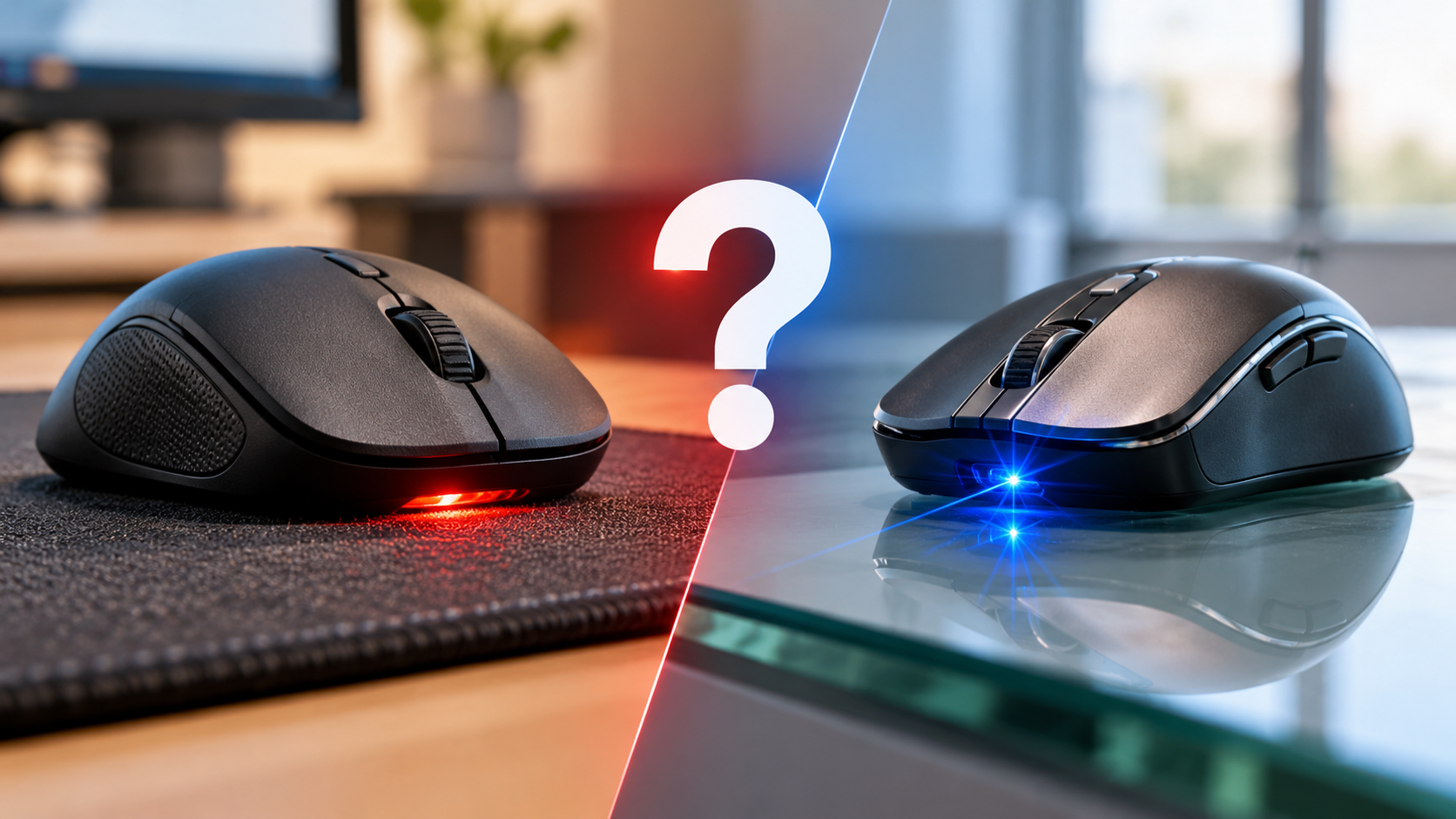
Choosing between an optical or laser mouse can affect your everyday computing experience. The right sensor influences cursor accuracy, tracking consistency, and comfort during work or gaming. Whether you browse the web, edit graphics, or compete in esports, your mouse should match your needs.
Modern optical and laser mice use different illumination technologies to detect movement. However, the best option depends on the sensor design, surface, and intended use. An optical mouse often delivers consistent tracking on a suitable mousepad. A laser mouse can work on a wider range of surfaces, including some glass surfaces.
Before choosing a mouse, consider how you use your computer and where you work. This guide explains the differences between optical and laser mice, their advantages and disadvantages, and how to identify your current mouse’s sensor type. You will also learn which technology suits gaming, office work, and everyday tasks.

Is Optical or Laser Better for a Mouse?
For most users, an optical mouse is the better choice because it offers consistent tracking on common mousepad surfaces. Many modern optical sensors provide the precision needed for everyday computing, graphic design, and competitive gaming. However, sensor quality matters more than the technology label alone.
Laser mice can track on a wider variety of surfaces, including some glossy materials. Their higher sensitivity can also suit particular setups. However, certain laser sensors may capture tiny surface irregularities, causing unwanted cursor movement. This behavior depends on the sensor and its implementation.
Consider these factors when choosing between optical and laser mice:
- Gaming: Optical mice often provide predictable tracking on suitable mousepads.
- Office work: Either type can work well for browsing, spreadsheets, and general productivity.
- Glass desks: Some laser mice can track on compatible glass surfaces, while traditional optical models usually struggle.
- Precision: Sensor quality, tracking consistency, and settings matter more than maximum DPI alone.
For most users, an optical mouse is the better choice because it offers consistent tracking on common mousepad surfaces. Many modern optical sensors provide the precision needed for everyday computing, graphic design, and competitive gaming. If you’re also improving your workspace for everyday productivity, explore this guide to Home Office Setup. However, sensor quality matters more than the technology label alone.
Understanding Surface Tracking Dynamics
The surface beneath your mouse affects how accurately its sensor detects movement. Optical sensors use LED or similar non-laser illumination to capture surface details. They generally perform well on opaque mousepads and textured desk mats.
Laser sensors use laser illumination to detect surface features. Depending on their design, they can track on materials that challenge conventional optical mice. However, not every laser mouse works on glass, mirrors, or highly reflective surfaces.
Choose your mouse according to your actual working environment. A cloth mousepad provides a consistent tracking surface for most optical and laser models. If you frequently work on glass desks, check the manufacturer’s supported surfaces before buying.
A compatible surface can improve tracking consistency and reduce unexpected cursor movement. It can also make your mouse easier to control during precise tasks. Ultimately, the sensor and surface should work together to deliver reliable performance.
Which Type of Mouse Is Better?
The best mouse type depends on your activities, preferred sensitivity, and working environment. Optical mice are popular among gamers, designers, and office users because many models deliver consistent tracking on standard mousepads. They are also available in a wide range of prices, shapes, and performance levels. If gaming is your priority, explore this guide to gaming equipment to learn about other peripherals that can improve your setup.
Laser mice offer another option for users who need greater surface compatibility. Some models track effectively on polished desks and other surfaces where traditional optical sensors may struggle. However, performance varies between individual products, so a laser sensor does not guarantee better tracking.
Before making your decision, consider these factors:
- Competitive gaming: Look for consistent tracking, low latency, and a sensor with minimal unwanted acceleration.
- Graphic design: Choose a mouse that supports controlled, predictable cursor movement.
- Office productivity: Prioritize comfort, button layout, connectivity, and battery life alongside sensor performance.
- Mobile work: Consider a laser mouse if you frequently use different desk surfaces, but verify compatibility first.
For most users, a quality optical mouse offers an effective balance of performance, reliability, and value.
Evaluating Your Personal Computing Habits
Your daily routine can help determine which mouse technology suits you best. Start by identifying the tasks you perform most often. Then consider your desk surface, preferred sensitivity, and the level of precision you need. If you regularly work away from the office, explore these productivity gadgets for remote work to help build a more practical setup.
Gamers should prioritize reliable sensor tracking rather than choosing a mouse based on its maximum DPI rating. A high DPI setting does not automatically improve accuracy. Consistent movement and comfortable control are usually more useful.
Graphic designers and other creative professionals should look for smooth tracking and a comfortable shape. Office workers may benefit more from ergonomic support, programmable buttons, and wireless connectivity than from a particular sensor type.
If you travel frequently, surface compatibility may also influence your decision. A laser mouse can be useful when you cannot carry a mousepad, provided it supports the surfaces you encounter.
Testing a mouse on your usual desk is one of the best ways to evaluate its performance. Your comfort and control should guide the final choice.
What Are the Disadvantages of Using an Optical Mouse?
Optical mice have several limitations, although their practical impact depends on the model and surface. The main drawback is that some optical sensors struggle with transparent, glossy, or highly reflective materials. A traditional optical mouse may fail to track reliably on clear glass without a suitable mousepad.
Another limitation is surface compatibility. If your desk has an unsuitable finish, you may need a desk mat or mousepad for consistent movement. This adds a small expense and can be inconvenient when working away from your usual setup.
Older or entry-level optical mice may also have lower sensitivity or less advanced tracking capabilities than some premium models. However, this is not a universal limitation of optical technology. Modern optical gaming mice can offer excellent performance and high DPI settings.
Common disadvantages include:
- Surface restrictions: Some materials prevent reliable tracking.
- Mousepad dependence: Certain models work best on a suitable mat.
- Model differences: Budget sensors may offer less consistent tracking than premium alternatives.
Despite these limitations, a quality optical mouse remains a reliable choice for most everyday users.
Overcoming Surface Limitations With Mousepads
A suitable mousepad can resolve many tracking problems associated with optical mice. Cloth mousepads are widely used because they provide a consistent surface for detecting movement. They are also available in different sizes, thicknesses, and textures.
When choosing a mousepad, consider your preferred mouse sensitivity and available desk space. A larger pad gives you more room for broad movements, which can be particularly useful for gaming. A smaller pad may be sufficient for office work and general browsing.
If your mouse skips, stutters, or stops tracking, check the surface before replacing the device. Dust, fingerprints, and uneven textures can interfere with sensor performance. Cleaning the sensor area and testing another surface may help identify the problem.
A mousepad is not always necessary, but it can improve consistency on unsuitable desks. For most optical mice, a clean, opaque surface is a simple way to achieve more reliable tracking.
What Is the Difference Between Optical and Laser Mice?
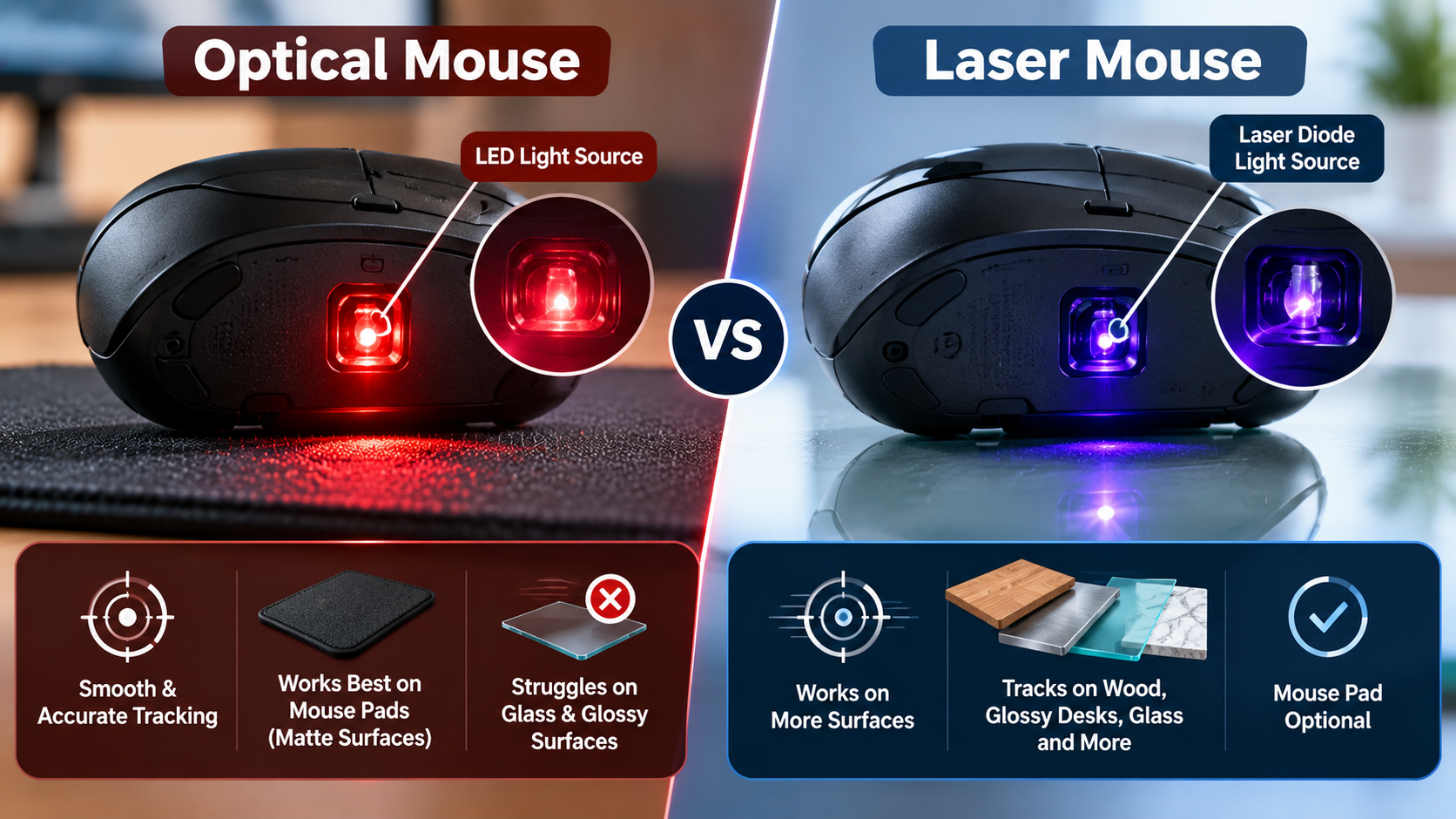
The main difference between optical and laser mice is the illumination technology used to detect surface movement. Optical mice typically use an LED or another non-laser light source. Laser mice use a laser diode, often operating in the infrared range. Both types capture surface information and translate changes into cursor movement.
Their illumination methods affect how each sensor detects surface details. Optical sensors generally perform consistently on suitable, textured mousepads. Laser sensors can detect finer surface features and may work on a broader range of materials.
However, greater sensitivity does not automatically mean better performance. Depending on the design, a laser sensor may respond to tiny surface irregularities that cause unwanted cursor movement. Modern sensor designs have reduced many historical differences between the two technologies.
| Feature | Optical Mouse | Laser Mouse |
|---|---|---|
| Light source | Typically an LED | Laser diode |
| Common surfaces | Opaque mousepads and desk mats | A wider range of compatible surfaces |
| Glass tracking | Usually limited | Possible with supported surfaces and models |
| Tracking consistency | Often predictable on suitable mousepads | Depends on the sensor and surface |
| Gaming suitability | Excellent with a quality sensor | Can also be excellent with a quality sensor |
Choose based on real-world tracking performance rather than the sensor label alone.
Examining Illumination Technologies and Performance
Optical and laser sensors use light to detect changes in the surface beneath a mouse. A sensor captures successive images and processes those changes to estimate movement. The mouse then translates that information into cursor motion on your screen.
An optical sensor typically illuminates the surface with an LED. Its performance depends on the surface texture, image processing, and sensor design. A laser sensor uses a focused laser beam to detect surface details, which can improve compatibility with certain materials.
Neither technology guarantees superior accuracy in every situation. Factors such as sensor quality, DPI settings, polling rate, and firmware can influence performance. A well-designed optical sensor may outperform a poorly designed laser sensor.
When comparing mice, check independent reviews and real-world tracking tests. Pay particular attention to unwanted acceleration, jitter, and lift-off behavior if you play competitive games.
Understanding these differences helps you select a mouse that fits your work or gaming setup. The best option is the one that delivers reliable tracking on your preferred surface.
How Do I Know If My Mouse Is Optical or Laser?
Identifying whether your mouse uses optical or laser technology can be difficult from appearance alone. Start by turning the mouse over and checking the sensor area. Some optical mice show a visible red glow, while others use infrared illumination that is invisible to the human eye. For a closer explanation of this feature, read why optical computer mice use red lights.
A visible red light does not always provide definitive proof of the sensor type. Likewise, a mouse that appears dark underneath is not necessarily a laser model. Sensor illumination and housing designs vary between manufacturers.
For a more reliable identification, follow these steps:
- Find the model number: Check the label on the underside of the mouse.
- Visit the manufacturer’s website: Search for the exact model and its technical specifications.
- Read the product manual: Look for references to optical tracking, laser tracking, or the specific sensor model.
- Check the original packaging: The sensor technology may appear in the product specifications.
If the information is unclear, contact the manufacturer or consult a trustworthy technical review. Avoid relying on appearance alone, especially when the sensor uses invisible infrared light.
Inspecting the Sensor and Manufacturer Specifications
The underside of your mouse can offer useful clues, but it cannot always confirm the sensor type. Some optical mice emit visible red light, while others use invisible illumination. Laser mice may also have sensor openings that appear dark to the naked eye.
For a dependable answer, identify the exact model number. Manufacturers often list the sensor technology, tracking capabilities, and supported surfaces on their official product pages. The user manual may provide additional technical details.
You can also search for independent reviews that examine the mouse’s sensor. These reviews may explain its tracking behavior, sensitivity range, and suitability for gaming or productivity.
If you are choosing a replacement mouse, do not assume that laser technology is automatically more advanced. Compare the actual sensor performance, ergonomics, connectivity, and price. A well-designed optical mouse may be the better option for your needs.
Ultimately, the most useful specification is how reliably the mouse tracks on your usual surface. Choose the device that provides comfortable, predictable control for your everyday tasks.
Conclusion: Optical or Laser Mouse — Which Should You Choose?
Choosing between an optical or laser mouse depends on your needs, budget, and working environment. For most users, an optical mouse offers reliable tracking for everyday computing, office work, and gaming. A laser mouse may be more suitable if you frequently work on different surfaces, including certain glass desks.
However, sensor quality matters more than the technology label alone. Consider tracking accuracy, comfort, DPI settings, and surface compatibility before making your decision. For additional guidance, read Logitech’s gaming mouse guide, which explains sensor types, DPI, and other important features.
Ultimately, choose a mouse that delivers comfortable, consistent, and predictable cursor movement. The best option is the one that fits your setup and makes your everyday tasks easier.