
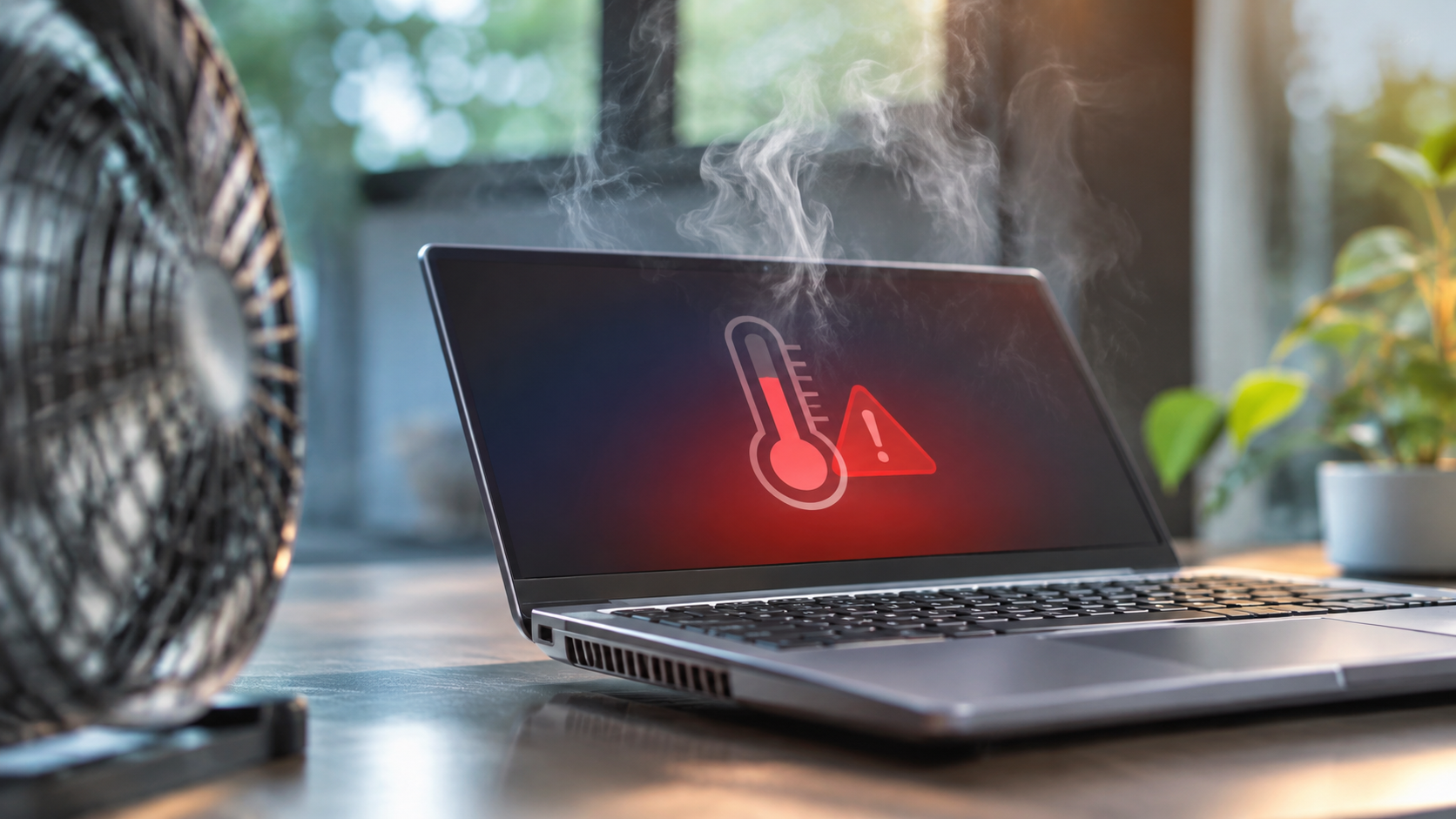
5 Ways to Keep Your Laptop Cool on a Budget
Hearing your laptop fans spin like a miniature jet engine can be concerning. Overheating can reduce performance, cause unexpected shutdowns, and affect hardware longevity. Learning how to keep your laptop cool on a budget helps protect your device without expensive cooling equipment.
Modern laptops pack powerful processors into increasingly slim designs. However, their compact construction leaves limited space for airflow. When heat builds up, processors may activate thermal throttling to protect themselves. This reduces processing speed until temperatures return to safer levels.
Fortunately, managing laptop temperatures does not require expensive accessories. Simple adjustments, regular cleaning, and better ventilation can make a noticeable difference.
In this guide, we answer common questions about laptop overheating. You’ll discover five affordable cooling methods, whether 90°C is too hot, how air conditioning helps, and how to cool down an overheating laptop quickly.
1. Elevate the Back with DIY Hacks (Free)
Improving airflow underneath your laptop is one of the easiest ways to reduce overheating. Most laptops have intake vents on their bottom panels. These vents allow internal fans to pull cooler air into the cooling system. However, placing your device directly on a flat surface can restrict airflow, depending on its design.
You don’t need an expensive laptop stand to solve this problem. A few household items can provide enough clearance for better ventilation.
Try these simple solutions:
- Use household items: Place two bottle caps or a small book underneath the rear edge of your laptop. Make sure the device remains stable.
- Improve bottom airflow: Slightly elevating the back creates additional space around the intake vents. This can help internal fans circulate air more effectively.
- Avoid soft surfaces: Never use your laptop on beds, sofas, or thick carpets. These surfaces can block ventilation openings and trap heat.
Always choose a hard, flat surface whenever possible. Even small changes in laptop positioning can improve airflow during everyday tasks.
2. Close Background Apps and Lower Load (Free)
Running several demanding applications simultaneously increases processor activity. Your laptop generates more heat when its CPU and GPU handle intensive workloads. Closing unnecessary applications can reduce this workload and help maintain comfortable operating temperatures. Managing background applications and screen brightness can also help address why your laptop battery drains so fast.
You don’t need additional software to manage background processes. Your operating system already includes useful tools for monitoring resource consumption.
Here are three practical adjustments:
- Check Task Manager or Activity Monitor: Press Ctrl + Shift + Esc on Windows to open Task Manager. On macOS, use Activity Monitor to identify applications consuming excessive CPU resources. Close unnecessary programs when appropriate.
- Adjust your power plan: Switch from High Performance to Balanced or Power Saver mode. These settings can reduce unnecessary processor activity during everyday tasks.
- Turn down screen brightness: Lowering display brightness can reduce power consumption, particularly on laptops with brighter displays.
You should also limit unnecessary browser tabs and background downloads. Avoid disabling essential system processes or security applications.
Reducing unnecessary workloads helps your cooling system work more efficiently. It can also improve battery life during regular use.
3. Clean Out Dust Vents (Free or Under 100 INR)
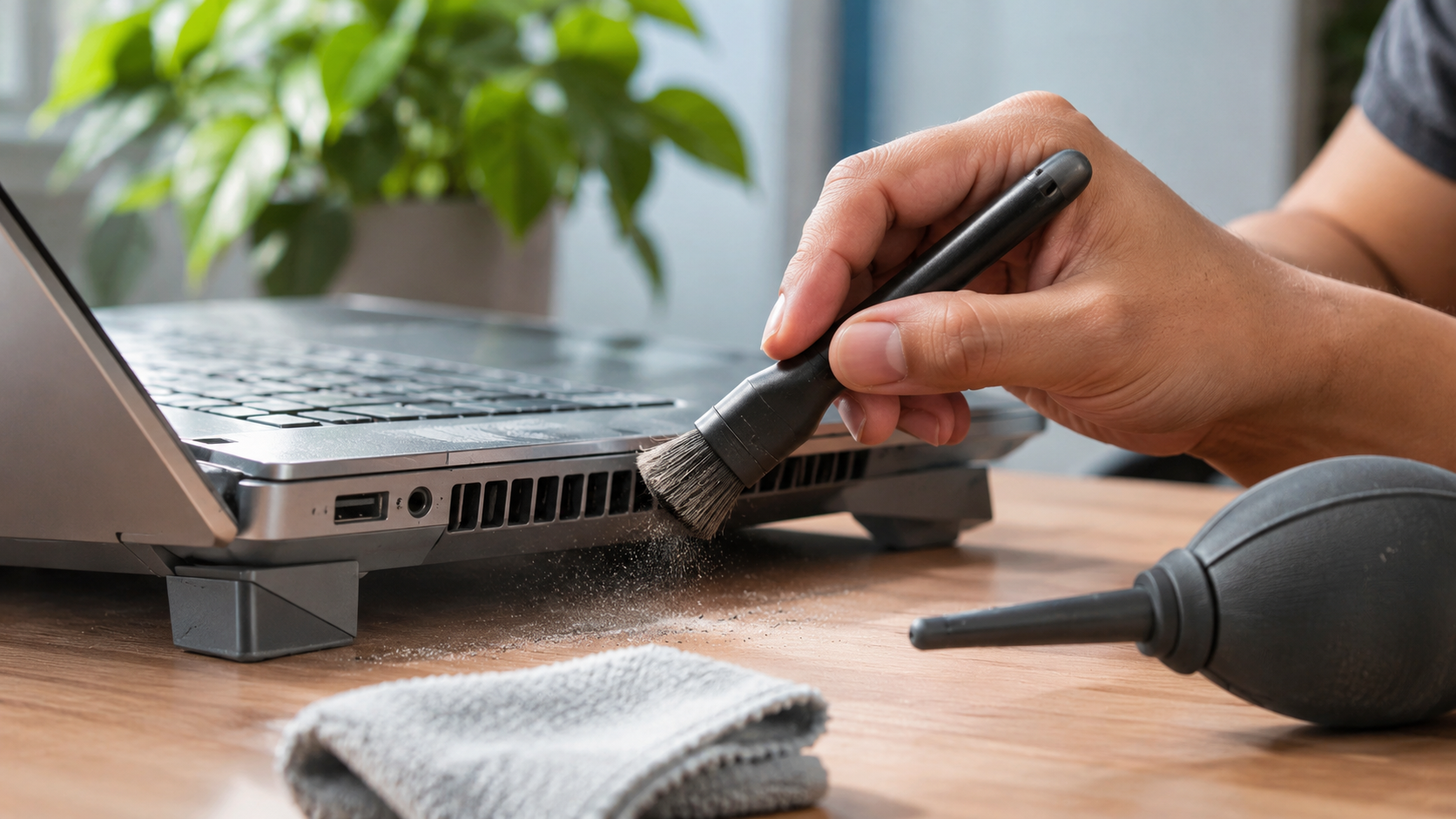

Dust accumulation is a common reason behind laptop overheating. Over time, dust collects around ventilation openings, cooling fans, and heatsink fins. This buildup restricts airflow and reduces the cooling system’s ability to remove heat.
Regular cleaning helps maintain proper ventilation without requiring expensive maintenance services. However, you should clean your laptop carefully to avoid damaging delicate internal components.
Follow these basic cleaning tips:
- Remove external dust: Turn off your laptop and disconnect its charger. Use a soft, dry brush to remove dust around accessible ventilation openings.
- Use compressed air carefully: Short bursts of compressed air can help remove loose dust. Follow the manufacturer’s instructions and avoid forcing debris deeper inside the device.
- Keep airflow paths clear: Check the rear and side exhaust vents regularly. Avoid placing papers, cables, or other objects near these openings.
For deeper internal cleaning, consider professional servicing if you aren’t comfortable opening your laptop. Some manufacturers also recommend specific cleaning procedures.
Cleaning your laptop periodically can improve ventilation and reduce unnecessary fan activity. It is especially useful for devices used in dusty environments.
4. Invest in an Inexpensive Cooling Pad (Under 600 INR)
If your laptop frequently becomes hot during gaming, video editing, or other demanding activities, consider purchasing a cooling pad. These accessories provide additional airflow through USB-powered fans.
A cooling pad is not essential for every laptop. However, it can help improve ventilation, especially when your device has bottom-mounted intake vents. If you prefer not to purchase an additional accessory, explore these practical ways to cool your laptop without a cooling pad.
You can explore several affordable options before purchasing one:
- Budget cooling pads: Basic USB-powered cooling pads offer additional airflow without requiring a separate power adapter.
- Affordable options: Look for entry-level models from brands such as Technotech and Lapcare. Compare current prices, fan quality, and customer reviews before purchasing.
- Adjustable designs: Some cooling pads include adjustable height settings. These can improve typing comfort while creating additional space underneath your laptop.
Before buying, check the dimensions and ventilation layout of your device. A cooling pad with poorly positioned fans might provide limited benefits.
Also, remember that external cooling cannot fix blocked internal heatsinks or faulty cooling fans. Consider a cooling pad an additional cooling solution rather than a replacement for regular maintenance.
5. Optimize Your Immediate Environment (Free)
Your surroundings play an important role in laptop temperature management. Laptop cooling systems transfer internal heat into the surrounding air. When the room becomes excessively hot, removing that heat becomes more difficult.
Working in a cooler, well-ventilated environment can improve cooling efficiency. This is particularly important during hot summer afternoons.
You can make several simple adjustments without spending money:
- Work in a cooler room: Avoid direct sunlight and poorly ventilated spaces. Choose a shaded location with sufficient air circulation.
- Use a small desk fan: Position a desk fan near your laptop to improve surrounding airflow. Keep the laptop’s intake and exhaust vents unobstructed.
- Maintain proper ventilation: Avoid placing your laptop inside enclosed spaces, drawers, or tightly packed shelves. These locations can trap warm air.
- Avoid excessive heat exposure: Keep your laptop away from heaters, cooking appliances, and other heat sources.
If you have air conditioning, working in an air-conditioned room can also help. Lower ambient temperatures allow your cooling system to release heat more effectively.
These environmental adjustments are simple, inexpensive, and useful for everyday laptop maintenance.
What Can I Do to Keep My Laptop Cool?
You can keep your laptop cool by improving ventilation, reducing unnecessary workloads, and maintaining a clean cooling system. Most overheating problems become easier to manage when you address these basic factors.
Start by placing your laptop on a hard, flat surface. Avoid beds, sofas, and carpets because they can block ventilation openings. If your device has bottom-mounted intake vents, slightly elevate its rear edge using a stable stand or household items.
Next, check which applications consume the most system resources. Close unnecessary programs and switch to Balanced or Power Saver mode when performing routine tasks.
Regular cleaning is equally important. Dust around fans and heatsinks can restrict airflow and reduce cooling efficiency. Use suitable cleaning equipment or seek professional servicing when necessary.
You can also consider these additional precautions:
- Keep your laptop away from direct sunlight.
- Avoid blocking side and rear exhaust vents.
- Reduce unnecessary gaming and background workloads.
- Use a cooling pad when additional airflow is helpful.
- Install manufacturer-recommended software and firmware updates.
These habits help maintain stable performance and reduce unnecessary heat buildup during everyday computing.
Is 90°C Hot for Laptops?
Yes, 90°C is a high operating temperature for a laptop, but it does not automatically indicate hardware damage. Modern processors can operate at relatively high temperatures, particularly during gaming, rendering, and other demanding workloads.
The exact temperature limit depends on your processor model and manufacturer specifications. Some processors have maximum operating temperatures close to 100°C. Others have different limits. Therefore, you should check your device’s official specifications rather than assuming every laptop has the same temperature threshold.
Brief temperature spikes during intensive tasks are not necessarily dangerous. However, consistently operating near the processor’s thermal limit deserves attention.
Watch for these common overheating symptoms:
- Thermal throttling: Your processor reduces its speed to control temperatures.
- Excessive fan noise: Cooling fans run continuously at higher speeds.
- Performance drops: Games and demanding applications become slower.
- Unexpected shutdowns: The laptop may shut down to protect its internal components.
If your laptop regularly reaches 90°C during light activities, investigate the cooling system. Check ventilation, background processes, dust accumulation, and fan performance. Persistent overheating may require professional servicing, especially when accompanied by other warning signs for your laptop.
Does AC Help Cool a Laptop?
Yes, air conditioning can help reduce laptop temperatures by lowering the surrounding room temperature. Your laptop’s cooling system relies on moving air to carry heat away from internal components.
When the room becomes cooler, the air entering your laptop is also cooler. This improves the temperature difference between the internal heatsink and surrounding air. As a result, the cooling system can transfer heat more effectively.
For example, using a laptop in a room maintained at 21°C can provide better cooling conditions than working in a room at 35°C. However, actual temperature differences depend on your laptop’s workload and cooling design.
An air-conditioned environment offers several potential benefits:
- Better heat dissipation: Cooler intake air helps the cooling system remove internal heat.
- Reduced fan activity: Fans may not need to operate at maximum speeds under the same workload.
- More stable performance: Lower temperatures can help reduce thermal throttling.
- Improved working comfort: A cooler environment makes extended computer sessions more comfortable.
However, air conditioning cannot fix blocked vents, damaged fans, or dried-out thermal paste. Keep your laptop clean and properly ventilated regardless of room temperature.
How Can I Quickly Cool Down My Laptop?
If your laptop suddenly becomes extremely hot, reduce its workload immediately. Continuing to run demanding applications can increase internal temperatures and trigger performance problems.
Start by saving your work and closing unnecessary programs. Stop demanding activities such as gaming, video rendering, and large file processing. These tasks can place additional pressure on your processor and graphics hardware.
Follow these steps to help cool your laptop:
- Close demanding applications: Exit games, editing software, and unnecessary browser tabs. This reduces processor and graphics workloads.
- Disconnect unnecessary peripherals: Remove external devices that you aren’t using. If your laptop is charging and does not need to remain connected, disconnect the charger.
- Improve ventilation: Place your laptop on a hard, flat surface. Slightly elevate its rear edge if the intake vents are underneath.
- Move to a cooler location: Keep the device away from direct sunlight and other heat sources. Use a desk fan or air conditioning if available.
- Reduce screen brightness: Lowering brightness can reduce power consumption and help manage overall heat generation.
- Shut down if necessary: If the laptop remains excessively hot, shut it down and allow it to cool naturally before using it again.
Never place your laptop inside a refrigerator or freezer. Sudden temperature changes and condensation can damage electronic components.
If overheating continues after these steps, arrange a professional inspection. A faulty fan, blocked heatsink, or other internal issue may require repair.
Conclusion
Keeping your laptop cool doesn’t have to involve expensive accessories or complicated maintenance. Simple habits like improving airflow, cleaning dust from vents, closing unnecessary applications, and maintaining a cooler workspace can make a noticeable difference. A budget cooling pad can also provide additional support when needed.
Remember, occasional temperature increases during demanding tasks are normal. However, consistently high temperatures should never be ignored. Monitor your laptop’s performance, maintain proper ventilation, and address cooling issues early. For additional troubleshooting advice, check Dell’s official guide on how to prevent laptop overheating.
With a few simple and affordable adjustments, you can reduce overheating, maintain smooth performance, and extend your laptop’s lifespan without spending a fortune.