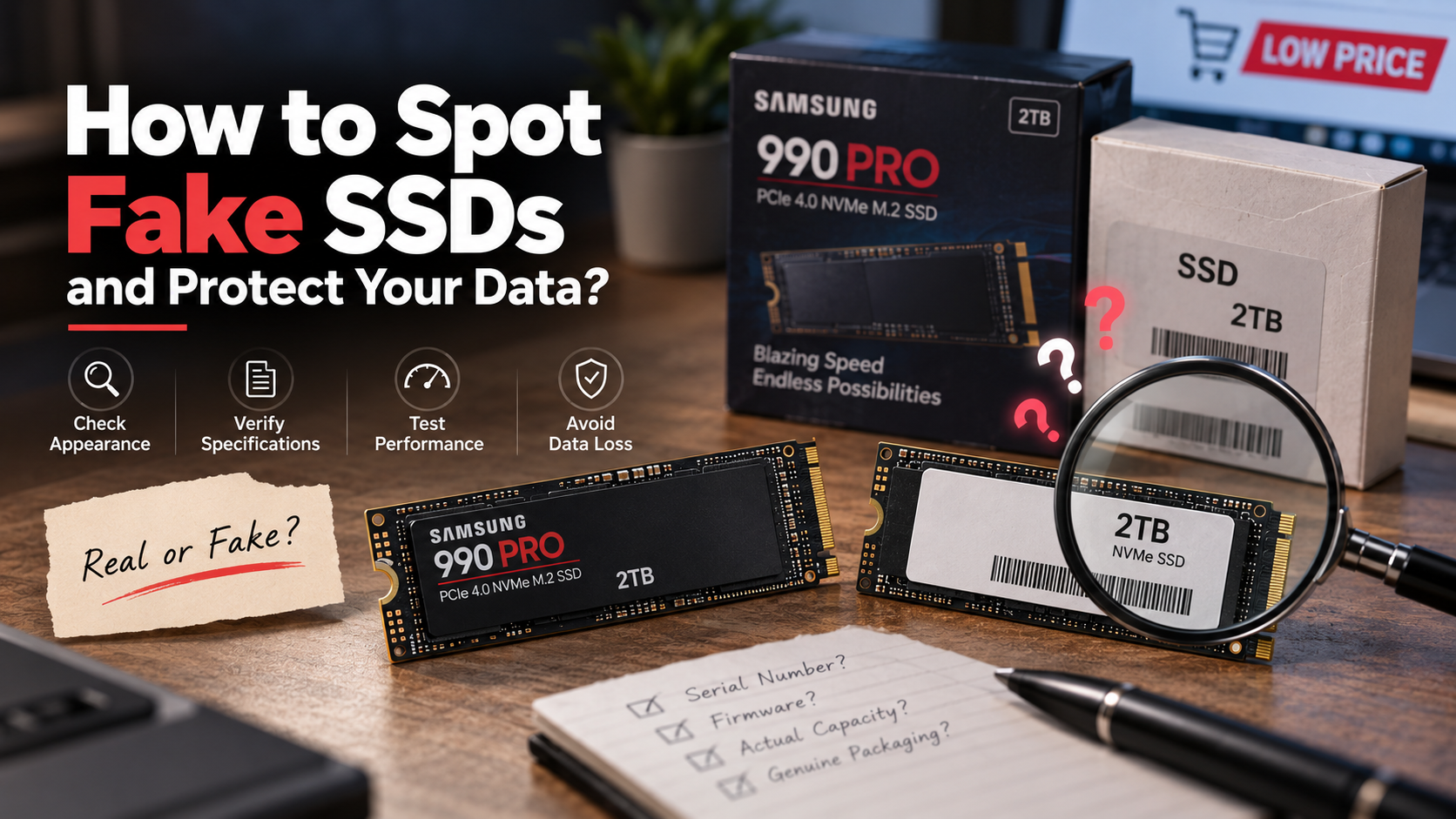
How to Spot Fake SSDs and Protect Your Data
Buying computer storage once seemed simple. Today, counterfeit SSDs can look almost identical to genuine products. Knowing how to spot fake SSDs is essential because fraudulent drives can put your files, system stability, and money at risk. Some counterfeit drives use modified firmware to report capacities such as 2TB or 4TB, despite containing much less physical flash storage.
The danger appears when you store data beyond the drive’s actual capacity. The controller may continue reporting successful writes while old data gets overwritten or corrupted. You may not notice the problem until you try to open those files later.
The Federal Trade Commission constantly warns shoppers about counterfeit electronics, noting that fake tech can fail without warning. Once you fill these rogue drives past their true, minuscule limit, they silently overwrite older data and corrupt everything you save.
This guide explains how to tell if an SSD is real, how to verify its hardware, and how to check its serial number. It also covers Samsung-specific checks, including how to verify a Samsung SSD with Samsung Magician. If you want to know how to spot fake SSDs before using one, these checks provide a practical starting point.
How can I tell if an SSD is real?
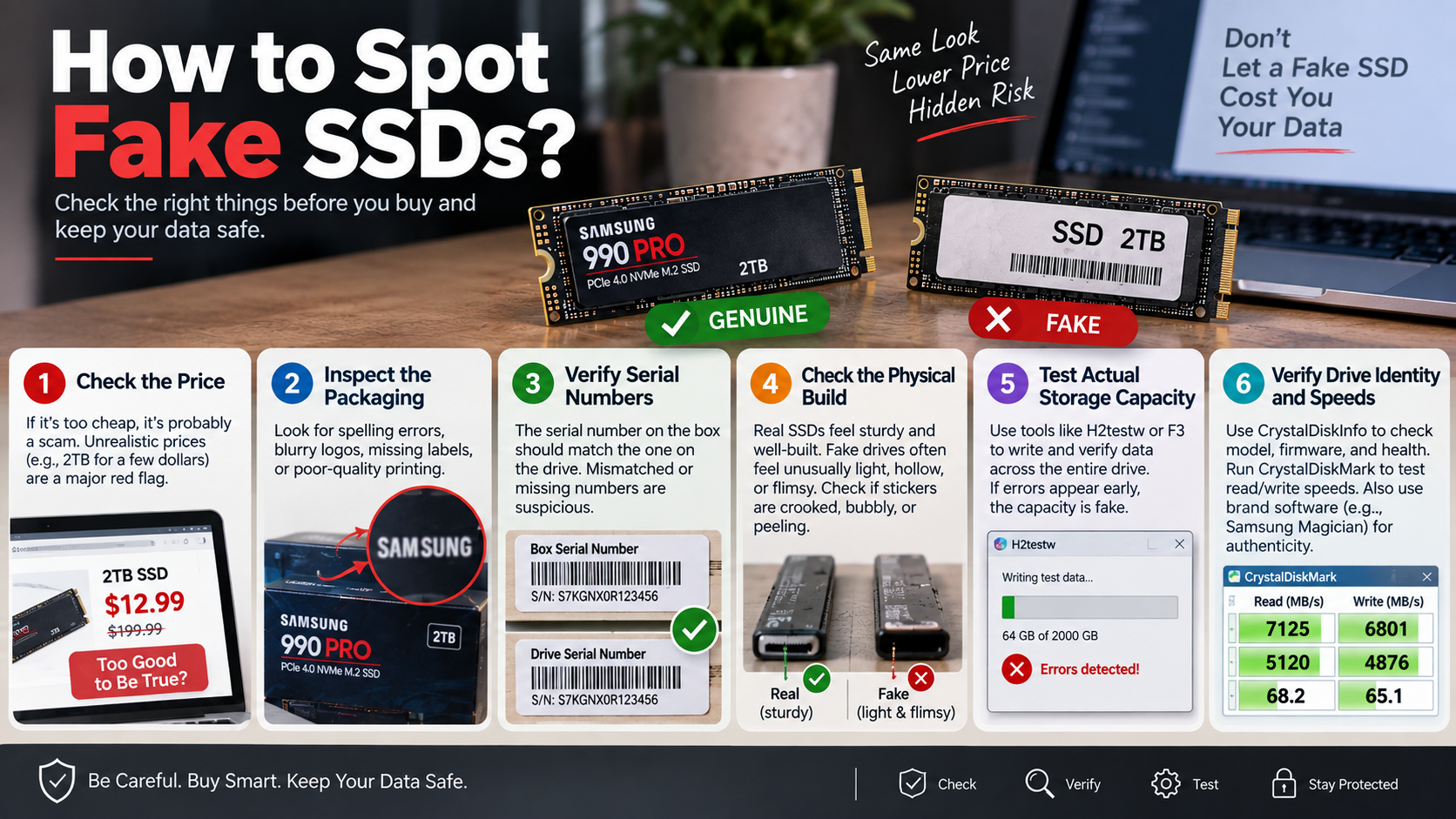
You can tell if an SSD is real by comparing its physical appearance, reported specifications, and actual performance. Start by inspecting the packaging. Look for blurry graphics, spelling mistakes, inconsistent fonts, missing labels, or poor-quality printing. Genuine products usually have precise packaging and clearly identified model information.
Next, connect the SSD and confirm its model, capacity, interface, and firmware details. Compare those details with the manufacturer’s official specifications. A mismatch is a strong warning sign.
Performance testing can provide another useful clue. For example, a drive advertised as a high-speed NVMe SSD should not consistently perform like an older SATA or USB 2.0 device. Learn more about NVMe SSDs: Benefits, Speed, Uses, and Buying Guide before comparing expected performance. However, benchmark results can vary because of the computer, interface, thermal conditions, and test software.
For stronger verification, test the drive’s actual storage capacity. This is especially important when a suspicious SSD reports an unusually large capacity for an unusually low price. Learning how to spot fake SSDs starts with checking whether the drive performs and identifies itself as expected.
Testing Actual Storage Capacity
Testing the SSD’s actual capacity is one of the most useful ways to detect counterfeit storage. A fake drive may report 2TB or 4TB to the operating system while containing far less physical flash memory. The controller then presents the false capacity to Windows or another operating system.
Use a trusted capacity-testing utility, such as H2testw, to write test data across the available storage. The software checks whether the data can be written and read back correctly. If errors appear after a specific point, the drive may have less usable capacity than advertised.
Capacity testing can take considerable time on large drives. It is best performed before storing important files. Do not rely only on the capacity displayed in File Explorer or Disk Utility.
A suspicious result does not always prove counterfeiting. Faulty hardware, connection problems, or unsupported configurations can also cause errors. Repeat the test with a reliable connection when possible.
For important purchases, combine capacity testing with serial-number verification, hardware identification, and manufacturer software. Using several checks provides much stronger evidence than relying on one test alone. These steps are especially useful when learning how to spot fake SSDs before trusting a new drive.
How to verify a SSD?
You can verify an SSD by checking its model information, health data, firmware, and manufacturer support. Start with a reputable drive-information utility such as CrystalDiskInfo. It can display information such as the reported model, firmware, interface, temperature, and S.M.A.R.T. status.
Compare the detected model and specifications with the manufacturer’s official product page. Look for inconsistencies in the capacity, interface, firmware, or advertised performance. A drive claiming to be a premium NVMe model should also identify itself consistently across different diagnostic tools. For more context on premium storage, read Is There Any Point In Buying An Expensive SSD In 2026?
Manufacturer software provides another valuable check. Some brands offer dedicated utilities that recognize supported drives and provide firmware, health, or performance information. Samsung, for example, uses Samsung Magician for supported Samsung storage products.
However, software recognition alone should not be your only test. Counterfeit drives can sometimes imitate model information. Combine software checks with physical inspection and a full capacity test before trusting the drive with important data.
If you are researching how to spot fake SSDs, remember that no single software check provides complete protection. A combination of identification, capacity, performance, and manufacturer verification is more reliable.
Checking Controller and NAND Hardware
Checking the controller and NAND hardware can reveal inconsistencies that software may miss. Start by researching the exact SSD model and its known internal components. Reputable hardware reviews and teardown reports can help you identify the controller and NAND configuration normally used by that model.
Do not assume that every production revision uses identical components. Manufacturers can change components without changing the retail name. Instead, compare your drive with information specific to its model number, capacity, and revision.
Advanced users may inspect the circuit board directly. This can reveal an unexpected controller, unusual NAND packages, missing components, or poor-quality construction. However, opening an SSD can damage it and may affect its warranty. It should not be the first verification method.
Some counterfeit drives use generic controllers while claiming to be premium branded products. Others may use flash memory with specifications that do not match the advertised model.
For most buyers, manufacturer software, serial verification, capacity testing, and performance checks are safer and easier. Physical inspection should be an additional step when a drive remains suspicious after those tests. This layered approach is one of the most effective ways to understand how to spot fake SSDs.
How to check SSD serial no?
To check an SSD serial number, compare the number printed on the drive with the number reported by your computer. The exact steps depend on your operating system and hardware configuration.
In Windows, PowerShell can display physical-disk information. You can also view drive details through BIOS or UEFI on systems that expose storage information there. Third-party utilities may show the serial number as well.
The important point is consistency. The physical label, operating system, diagnostic software, and manufacturer records should identify the same product. A mismatch deserves further investigation.
Be careful when interpreting missing or unusual serial information. Some enclosures, adapters, RAID controllers, and USB bridges may report different identifiers. A missing serial number does not automatically prove that an SSD is counterfeit.
When learning how to spot fake SSDs, serial verification is useful because counterfeiters may copy legitimate model numbers. A matching serial number still should not replace a full capacity and hardware check.
Querying the Manufacturer Database
After recording the serial number, use the manufacturer’s official support or warranty system when available. Enter the serial number exactly as printed on the drive or packaging. Check whether the manufacturer recognizes the model and provides appropriate warranty information.
For Samsung SSDs, Samsung Magician can be used to check authenticity. When a supported genuine product passes the check, Magician displays a “Genuine” label beside the serial number in the drive details.
A manufacturer portal rejecting a serial number is a serious warning sign. However, it can also result from regional warranty systems, registration issues, or incorrect data entry. Contact the manufacturer if the result is unclear.
Never rely on a seller’s screenshot as proof of authenticity. Verify the serial number yourself using the manufacturer’s official tools. If the physical label, software information, and manufacturer records disagree, avoid using the SSD for important data and request a return or refund.
Serial verification is a key part of how to spot fake SSDs, but it works best when combined with capacity testing and physical inspection.
How can I tell if my Samsung SSD is genuine?
The simplest way to verify a supported Samsung SSD is through Samsung Magician. Samsung Magician includes an SSD authenticity feature. It can also provide drive health, S.M.A.R.T. information, performance benchmarks, and firmware management.
Download Magician from Samsung’s official website rather than from an unknown third-party source. Connect the SSD directly when possible, then open the drive details section. A genuine supported SSD can display a “Genuine” label next to its serial number.
Make sure your specific model is supported. Magician supports various internal and portable Samsung storage products, including models such as the 980 PRO and 990 PRO.
An unsupported drive should not automatically be called counterfeit. Compatibility can depend on the product, connection method, and software version. Available Magician features can also vary by connected SSD.
Use Magician alongside serial-number checks, capacity testing, and physical inspection for stronger verification. These steps can help anyone learning how to spot fake SSDs avoid relying on appearance alone.
Evaluating Benchmark Performance Profiles
Performance testing can help identify an SSD that does not match its advertised specifications. Start by checking the manufacturer’s published sequential read and write speeds. Then run a benchmark using a reputable testing application under suitable conditions.
For example, a high-end NVMe SSD should deliver performance appropriate for its interface and model. Actual results can vary based on the computer, PCIe generation, thermals, workload, and configuration.
Therefore, one low benchmark result does not automatically prove that an SSD is fake. A PCIe 4.0 drive installed in a slower slot may perform below its advertised maximum. If you are considering SATA storage instead, Is a SATA SSD Still Worth It? Performance & Buying Guide explains its expected performance and use cases.
Look for persistent and substantial discrepancies instead. A supposed high-end NVMe SSD that consistently performs far below its expected interface capabilities deserves additional investigation.
Samsung Magician also includes a Performance Benchmark feature for supported drives.
Use benchmark results as supporting evidence rather than final proof. Authenticity checks, capacity testing, and manufacturer verification provide stronger confirmation. Together, these checks make it easier to determine how to spot fake SSDs with greater confidence.
How to spot a fake Samsung SSD?
You can spot a potentially fake Samsung SSD by examining its packaging, label, model information, and software identification. Counterfeiters often copy popular products because recognizable models are easier to sell. Samsung models such as the 970 EVO Plus, 980 PRO, and 990 PRO are therefore worth checking carefully.
Inspect the printed label for blurry text, uneven alignment, unusual fonts, incorrect model numbers, or poor-quality graphics. Compare the exact model number with Samsung’s official product information. Small visual differences can be useful clues, but they should not be treated as definitive proof.
Also examine the circuit board if you are experienced with SSD hardware. Compare its layout and components with reliable teardown information for the same model and revision. Avoid opening the drive if you may need to return it.
Most importantly, use Samsung Magician’s authenticity check. Samsung provides this feature to verify supported Samsung SSD products.
Do not rely on color, label design, or a single visual feature alone. Genuine products can vary by production revision and region. Combining physical checks with Samsung’s software verification and capacity testing gives you a much more reliable answer when deciding how to spot fake SSDs.
Observing Thermal Behavior Under Load
Temperature can provide useful supporting information, but it should not be used as a standalone authenticity test. Genuine SSDs can become warm during sustained transfers, especially high-performance NVMe models. Their temperatures also depend on the heatsink, airflow, workload, motherboard, and ambient conditions.
High-performance SSDs can include thermal control features that help manage operating temperatures during demanding workloads. These features may reduce performance temporarily when the drive becomes too hot.
You can monitor temperature with Samsung Magician or another reputable hardware-monitoring utility. Watch how the temperature changes during sustained reads and writes rather than focusing on one number.
A suspicious temperature reading can indicate a sensor or reporting problem. However, it does not prove that an SSD is counterfeit. Some drives may report limited temperature information through certain adapters or enclosures.
Likewise, a drive that runs unusually cool is not automatically fake. Performance, cooling, workload, and power settings all affect temperature.
Treat thermal behavior as one part of a broader verification process. Capacity testing, authenticity checks, serial verification, and hardware identification provide stronger evidence when deciding whether an SSD is genuine.
Frequently Asked Questions
What happens to files saved on a fake SSD?
A counterfeit SSD may report more storage than its physical flash memory actually provides. When you save data beyond the genuine capacity, the controller may overwrite earlier data or return misleading write results. The operating system can still show the files as successfully saved.
This makes counterfeit storage particularly dangerous. You may not discover the problem until you open the files later. Photos, documents, videos, backups, or system files can become corrupted or unreadable.
The exact failure behavior depends on the counterfeit controller and flash configuration. Some drives may fail quickly, while others may appear normal until they approach their actual capacity.
If you suspect a fake SSD, stop using it for important data immediately. Do not treat the reported capacity as trustworthy. Test the drive using a suitable capacity-testing utility and verify the hardware through the manufacturer’s tools.
If the drive contains valuable files already, avoid repeated writes. Create a recovery plan before attempting repairs or further testing. For critical information, professional data-recovery assistance may be safer than experimenting with the questionable drive.
Can running a format fix a counterfeit SSD?
No. Formatting a counterfeit SSD cannot increase its physical flash capacity or replace unreliable hardware. Tools such as Disk Management and diskpart change the drive’s logical structure. They do not add missing memory cells or repair fraudulent firmware.
You may be able to create a smaller partition that stays within the drive’s genuine capacity. However, this does not necessarily make the hardware trustworthy. The controller, NAND flash, firmware, and overall construction may still be defective or counterfeit.
A format can sometimes resolve ordinary file-system problems. It should therefore not be confused with an authenticity or hardware-capacity test.
If a capacity test shows that an SSD cannot reliably store its advertised amount, do not use it as primary storage. Save your important files somewhere trustworthy and request a refund or replacement.
When purchasing a replacement, verify the new drive before transferring valuable data. Check the serial number, manufacturer software, actual capacity, and performance. If you are also upgrading your operating system, see How to Safely Upgrade to Windows 11 Without Losing Data before transferring your files. These steps can prevent the same problem from happening again.
Why do fake SSDs show the advertised capacity in Windows?
Fake SSDs can show their advertised capacity because the operating system generally relies on information reported by the storage controller. Counterfeiters can modify firmware so the controller presents a much larger capacity than the physical flash memory actually contains.
Windows then uses that reported information when displaying the drive in File Explorer and storage-management tools. The operating system does not physically count every available memory cell before accepting the controller’s capacity claim.
This is why the capacity shown in Windows is not proof that an SSD is genuine. A drive can appear to contain 2TB or 4TB while having far less usable flash storage.
The problem often becomes visible during a full write-and-read capacity test. Once testing reaches the drive’s real storage limit, errors or corrupted data may appear.
For that reason, test suspicious drives before using them for backups or important files. If you are comparing local storage with online alternatives, Cloud Storage vs External Hard Drives (2026 Guide) can help you evaluate other storage options. Combine a capacity test with manufacturer authentication, serial-number verification, and hardware checks. This layered approach is much more reliable than trusting the storage figure shown by the operating system alone.
Will buying from marketplace sellers increase my risk?
Buying an SSD from a third-party marketplace can increase your exposure to counterfeit or misrepresented hardware. This does not mean every marketplace seller is unreliable. Many legitimate retailers and authorized sellers operate through large marketplaces.
The risk becomes higher when the listing has an unusually low price, vague product information, poor seller history, or inconsistent model details. Be particularly cautious when a premium SSD is offered far below its normal market price.
Before buying, check whether the seller is authorized by the manufacturer. Review the exact model number and compare it with the manufacturer’s official product page. Avoid listings that use stock images while providing few details about the actual product.
After delivery, inspect the packaging before installing the drive. Record the serial number and verify it with the manufacturer where possible. Then test the drive’s reported model, performance, and actual capacity. If you are upgrading a desktop as part of the purchase, Building a Computer with beginner-Friendly Guide can also help with planning compatible storage hardware.
Keep the original packaging and purchase documentation until verification is complete. If the drive fails authenticity or capacity checks, stop using it and use the marketplace’s return process promptly.
Conclusion
Knowing how to spot fake SSDs can protect both your data and your money. Counterfeit drives can imitate genuine products through convincing packaging, labels, and manipulated firmware. Physical inspection alone is therefore not enough.
Start with the basics. Check the model number, serial number, packaging, and advertised specifications. Then use reliable diagnostic software to examine the drive’s reported hardware information.
For supported Samsung products, Samsung Magician provides an official authenticity check. Genuine drives can display a “Genuine” label beside the serial number in Magician’s drive details.
You should also perform an actual capacity test before trusting a suspicious drive with important files. Benchmark performance can provide additional evidence, especially when the results differ substantially from the manufacturer’s specifications.
Finally, consider where you bought the SSD. An unusually cheap deal deserves extra scrutiny. Whenever possible, buy from authorized sellers or established retailers with clear return policies.
Never trust reported capacity alone. Verify the hardware before storing valuable data, and return any drive that cannot be reliably authenticated. Knowing how to spot fake SSDs before use can prevent expensive data loss and unnecessary hardware problems.