5 Things to Consider When Buying a New Computer
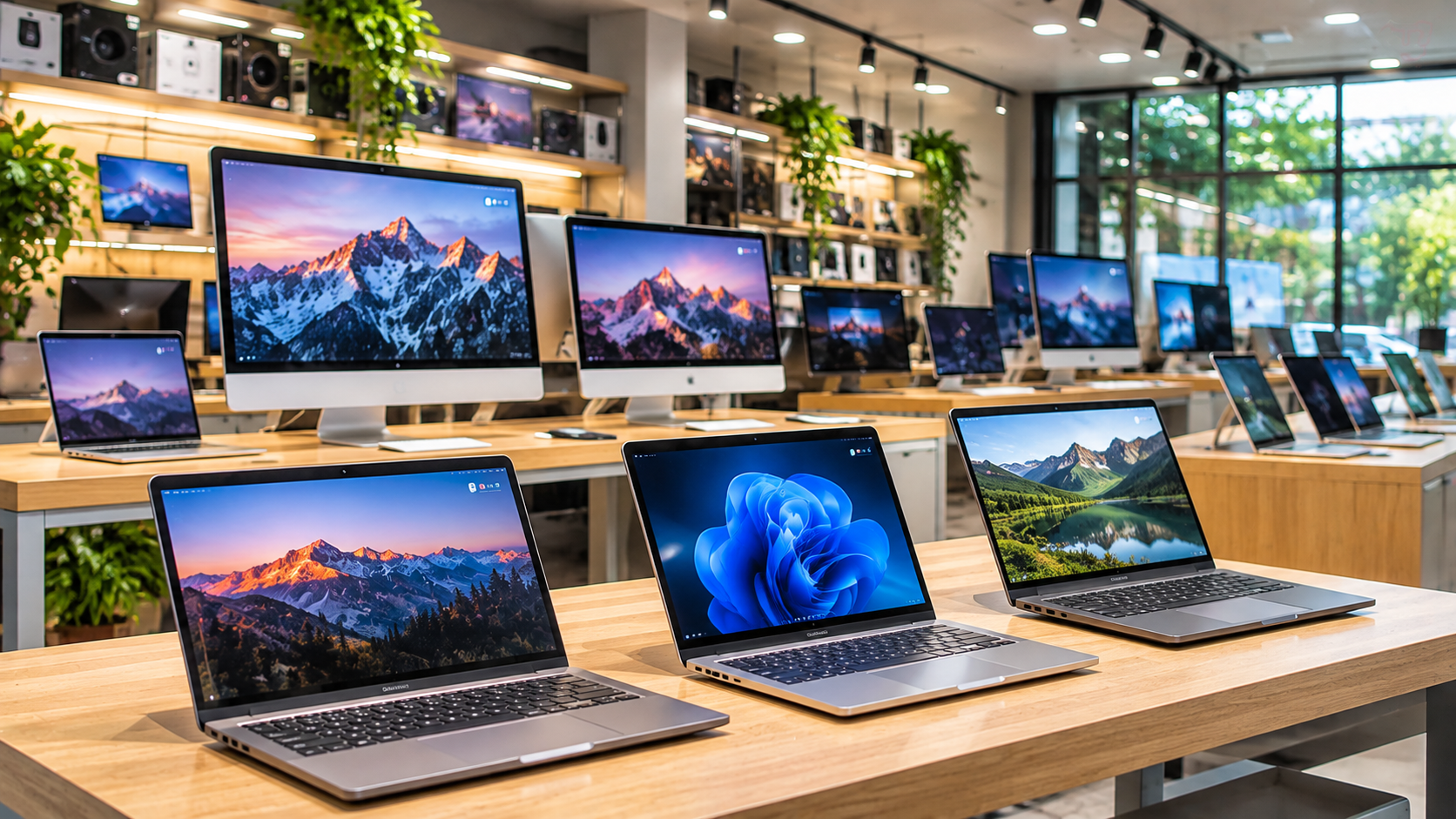
Shopping for modern technology can feel overwhelming. There are countless models, technical specifications, and features to compare. Whether you work from home, edit videos, or browse the internet, buying a new computer requires careful planning.
Choosing the wrong machine can lead to slow performance, unnecessary expenses, and early replacements. Modern computers also differ in energy efficiency, upgrade options, and long-term value. According to ENERGY STAR, computer efficiency is another factor worth considering before purchasing.
Understanding the essential hardware helps you avoid paying for features you rarely use. Instead of focusing only on attractive designs or expensive specifications, consider your actual requirements.
In this guide, we explain five important things to consider when buying a new computer. We also answer common questions about computer specifications, choosing between HP and Dell, and finding the right machine for your needs.
1. Intended Use and Performance Requirements
The first step when buying a new computer is understanding how you plan to use it. Different activities require different levels of processing power. A computer designed for basic office work may struggle with demanding creative applications.
Start by identifying your everyday tasks. Consider whether you mainly browse websites, attend online meetings, prepare documents, play games, or edit videos. Your workload will determine the hardware specifications you actually need.
Computers generally fall into three performance categories:
- Entry-level computers: Suitable for browsing, email, online classes, document editing, and everyday office tasks.
- Mid-range computers: Better for multitasking, programming, moderate gaming, and running multiple applications.
- High-performance computers: Designed for professional video editing, 3D rendering, advanced gaming, and demanding software.
Avoid purchasing an expensive computer simply because it offers impressive specifications. Instead, choose a performance level that matches your daily workload. This approach helps you balance performance, reliability, and affordability.
2. Choose the Right Form Factor: Laptop or Desktop
Another important consideration is choosing between a laptop and a desktop computer. Both options offer different advantages depending on your workspace, lifestyle, and performance requirements.
Laptops are ideal for students, professionals, and people who frequently travel. They combine a display, keyboard, battery, and computer hardware into one portable device. However, many modern laptops offer limited upgrade options. Repairs and battery replacements can also become expensive.
Desktop computers are better suited to permanent workspaces. They generally provide better cooling, easier maintenance, and more upgrade flexibility. You can often replace individual components, including RAM, storage drives, and graphics cards. If you prefer a custom setup, compare the costs and benefits of building your own PC before purchasing a prebuilt desktop.
All-in-one computers offer another option. They combine the computer hardware and display into a single unit, reducing desk clutter. However, their upgrade options may be limited.
Consider these factors before choosing:
- Portability: Choose a laptop if you frequently work in different locations.
- Performance: Consider a desktop for demanding workloads and better cooling.
- Upgradability: Check whether the device supports future hardware upgrades.
- Workspace: Consider available desk space and external accessories.
Your ideal computer should fit your working environment and long-term requirements.
3. Check the Core Hardware: CPU, RAM, and Storage
The processor, memory, and storage drive directly affect your computer’s performance. Understanding these components helps you compare different models without getting confused by technical specifications.
Processor (CPU): The CPU handles instructions and calculations. Intel Core and AMD Ryzen processors are common choices. Core i5 and Ryzen 5 models can handle many everyday tasks, while higher-performance processors suit demanding workloads. However, compare the processor generation and exact model rather than relying only on its name.
Memory (RAM): RAM allows your computer to handle multiple applications simultaneously. While 8GB can support basic tasks, 16GB is a better starting point for modern multitasking. Professionals working with demanding applications may benefit from 32GB or more.
Storage: Choose a Solid State Drive (SSD) for faster startup times and application loading. Traditional Hard Disk Drives (HDDs) are generally slower but can offer more storage capacity at a lower cost. Before purchasing, understand the common SSD myths that can lead to confusion when comparing storage options.
Consider these storage options:
- 256GB SSD: Suitable for basic users with limited storage needs.
- 512GB SSD: A practical choice for everyday users and professionals.
- 1TB SSD or higher: Better for large files, games, videos, and creative projects.
For most buyers, an SSD and sufficient RAM provide a noticeable improvement in everyday performance.
4. Understand Graphics Requirements: Integrated vs. Dedicated GPU
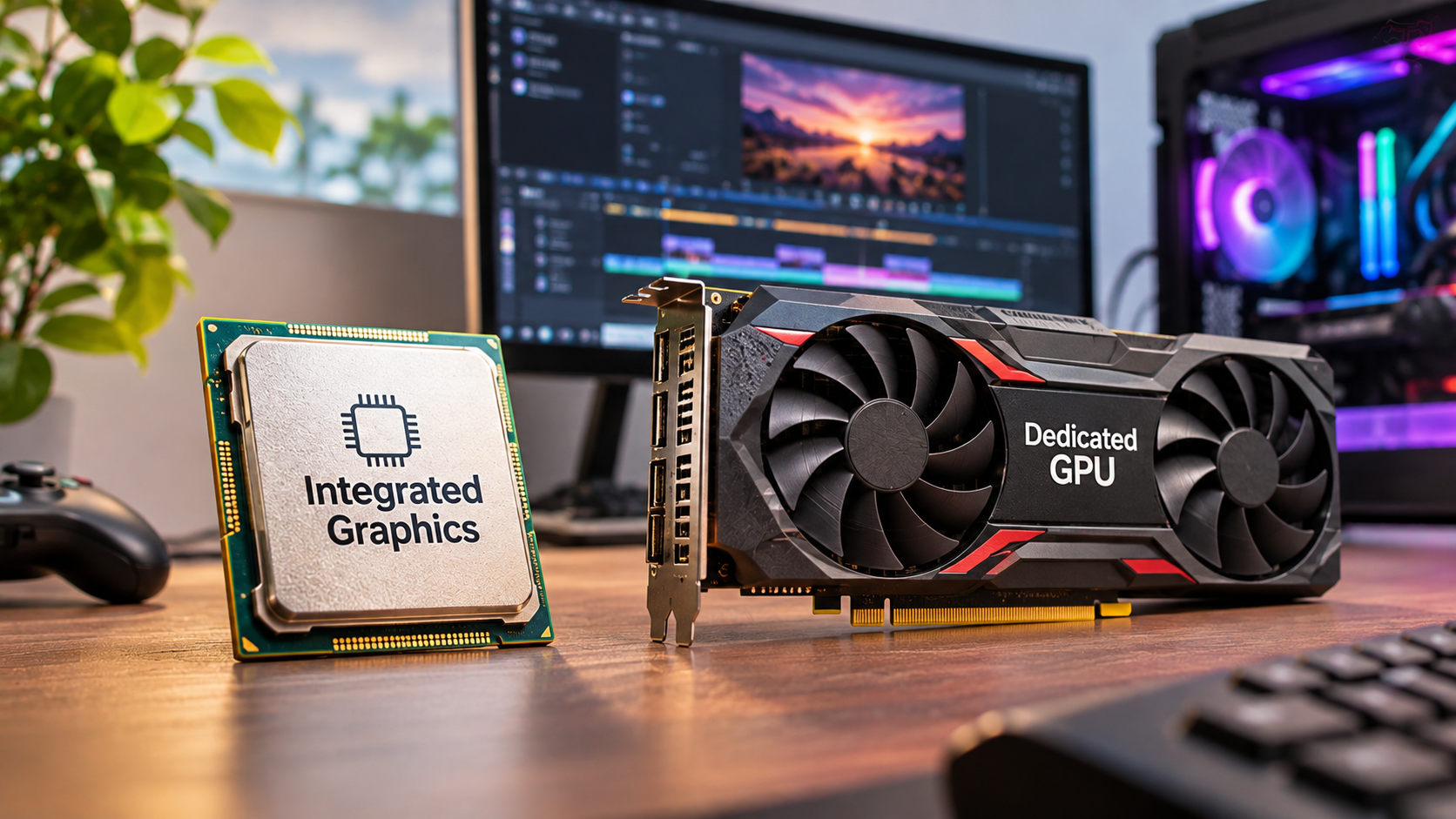
Graphics performance is another factor to consider when purchasing a computer. The Graphics Processing Unit (GPU) handles visual processing, including images, videos, animations, and games.
Most computers include integrated graphics built into the processor. These graphics solutions share system memory and are suitable for everyday activities. You can comfortably browse websites, watch videos, prepare presentations, and perform routine office work.
However, demanding applications require more graphics processing power. A dedicated GPU has its own memory and processing resources. It can significantly improve performance in supported games and creative applications.
Consider a dedicated graphics card if you regularly:
- Play modern PC games with demanding graphics.
- Edit high-resolution videos.
- Work with 3D modelling and rendering software.
- Use professional design applications with GPU acceleration.
NVIDIA GeForce and AMD Radeon are popular dedicated graphics options. However, not every user needs a powerful graphics card.
Before purchasing, check the software requirements of your preferred applications. Also consider GPU memory, power consumption, and cooling. Understanding CPU vs. GPU differences can also help you decide which component deserves more attention for your workload. Choosing suitable graphics hardware prevents unnecessary spending while ensuring smooth performance.
5. Consider the Operating System and Future-Proofing
The operating system determines how you interact with your computer and which applications you can run. Choosing the right platform can improve productivity and simplify your daily workflow.
The three common operating system options include:
- Windows 11: Offers broad software compatibility and supports a wide range of computers. It is suitable for students, professionals, gamers, and businesses.
- macOS: Available on Apple computers and provides close integration with other Apple devices. It is popular among many creative professionals.
- ChromeOS: Designed primarily for web-based activities, cloud applications, and everyday productivity. Chromebooks are often suitable for students and basic users.
You should also consider how long your computer will remain useful. Check whether its RAM and storage can be upgraded later. Some modern laptops have soldered memory, which prevents future RAM upgrades.
Before purchasing, examine the manufacturer’s warranty, repair options, and expected software support. Also include accessories such as monitors, keyboards, mice, and docking stations in your budget.
A computer that meets your current needs and offers reasonable upgrade options can provide better long-term value.
What Are 5 Important Things to Consider When Buying a Computer?
The five most important things to consider when buying a computer are intended use, processor performance, RAM, storage, and budget. These factors determine how well your computer handles everyday activities and demanding applications.
Start by identifying your primary workload. A student preparing assignments needs different specifications than a professional editing videos or playing modern games.
Next, compare the processor and memory. An Intel Core i5 or AMD Ryzen 5 processor can handle many everyday workloads, depending on its generation and model. For most modern users, 16GB of RAM offers a comfortable multitasking experience.
Storage also matters. An SSD provides faster startup times and application loading than a traditional HDD. Choose at least 256GB, although 512GB offers more flexibility.
Finally, establish a realistic budget before comparing brands. Remember to include accessories, software, warranty coverage, and possible upgrade costs. Evaluating these five factors helps you find a computer that meets your needs without unnecessary spending.
What Is the First Thing I Should Do When Buying a New PC?
The first thing you should do when buying a new PC is define your primary requirements and establish a realistic budget. Avoid comparing brands or technical specifications before understanding what you actually need.
Start by listing the activities you perform regularly. These might include browsing, programming, online meetings, gaming, graphic design, or video editing. Each activity requires different hardware capabilities.
For example, a college student preparing assignments may need a basic laptop with sufficient RAM and SSD storage. A software developer may require more memory and processing power to run development environments smoothly.
Once you understand your workload, determine the maximum amount you can comfortably spend. This prevents unnecessary upgrades and expensive purchases.
Before visiting a store or browsing online, prepare a shortlist based on:
- Your primary tasks and software requirements.
- Minimum processor and RAM specifications.
- Required storage capacity.
- Laptop or desktop preference.
- Maximum purchasing budget.
This simple preparation makes comparing computers easier and reduces the risk of purchasing an unsuitable model.
Is HP or Dell Better for Desktop Computers?
Neither HP nor Dell is universally better for desktop computers. Both manufacturers offer different models for home users, professionals, businesses, and demanding workloads. The right choice depends on the specific configuration, pricing, warranty, and support available.
Dell offers desktop ranges such as OptiPlex and XPS. OptiPlex systems are commonly designed for business environments, while XPS models target users seeking premium features and performance. Dell also offers workstation systems for demanding professional applications.
HP offers desktop ranges such as Pavilion, Envy, and business-focused ProDesk systems. These products cover everyday computing, home entertainment, and professional office requirements.
Compare the following factors before choosing:
- Performance: Check the processor, RAM, storage, and graphics specifications.
- Build quality: Examine the chassis, cooling system, and internal components.
- Upgrade options: Check whether RAM, storage, and graphics components can be replaced.
- Warranty: Compare coverage, repair services, and customer support.
- Pricing: Evaluate the specifications offered at the same price.
Rather than choosing a brand based on reputation alone, compare individual models. The better desktop is the one that offers suitable performance, reliability, and support within your budget.
What Are Important Considerations When Purchasing a New Computer?
Beyond processing power and memory, several practical details can affect your overall computing experience. These include portability, battery life, connectivity, display quality, and available accessories.
If you are purchasing a laptop, examine its battery capacity and real-world battery performance. Manufacturer estimates may differ from actual usage. Consider a model that can comfortably support your daily working hours.
Connectivity is equally important. Check the available ports before purchasing. These may include USB-A, USB-C, HDMI, Ethernet, and an audio jack. If you are considering a desktop, understand whether adding USB-C ports to your desktop PC is possible and useful. Having suitable connections helps you avoid purchasing additional adapters.
Your display also deserves attention. A Full HD (1920 × 1080) screen is a practical starting point for most everyday users. An IPS panel can provide better viewing angles than many basic display technologies.
Other important considerations include:
- Keyboard and touchpad: Check comfort if you type frequently.
- Webcam and microphone: Important for online meetings and remote work.
- Wireless connectivity: Check Wi-Fi and Bluetooth support.
- Battery life: Particularly important for students and travelling professionals.
- Weight: Consider portability if you carry your laptop regularly.
These practical features can make a significant difference in everyday usability.
What Should You Consider When Buying a Computer?
When buying a computer, consider durability, warranty coverage, cooling performance, display quality, and long-term maintenance. These factors can affect how reliably your machine performs over several years.
A powerful processor alone does not guarantee good performance. Poor cooling can cause overheating and thermal throttling, reducing processing speed during demanding tasks. For desktop buyers, choosing an appropriate case also matters. Explore PC cases designed for air and liquid cooling to understand how different cooling configurations support airflow and temperature management.
Display quality is another important consideration, particularly if you spend several hours working on your computer. Look at resolution, brightness, viewing angles, and colour accuracy. These specifications matter even more for photography, video editing, and graphic design.
Warranty coverage can also protect you against unexpected repair expenses. Before purchasing, understand what the manufacturer’s warranty includes and whether additional coverage is available.
Use this final checklist:
- Check the manufacturer’s warranty and return policy.
- Examine the computer’s build quality and cooling system.
- Review display resolution, brightness, and panel quality.
- Confirm that replacement parts and repair services are available.
- Check software compatibility and operating system support.
- Compare the total ownership cost, not just the purchase price.
A carefully selected computer should provide reliable performance, comfortable usability, and reasonable long-term value.
Conclusion
Buying a new computer is an important investment, so choosing the right one requires careful consideration. Start by identifying your needs, setting a realistic budget, and comparing essential specifications such as the processor, RAM, storage, and graphics. Also consider the operating system, upgrade options, warranty, and long-term reliability before making your decision.
Remember, the most expensive computer isn’t always the best choice. Focus on finding a machine that delivers the right balance of performance, features, and value for your money. By keeping these five essential factors in mind, you can make a confident decision and choose a computer that meets your needs today and in the years ahead.