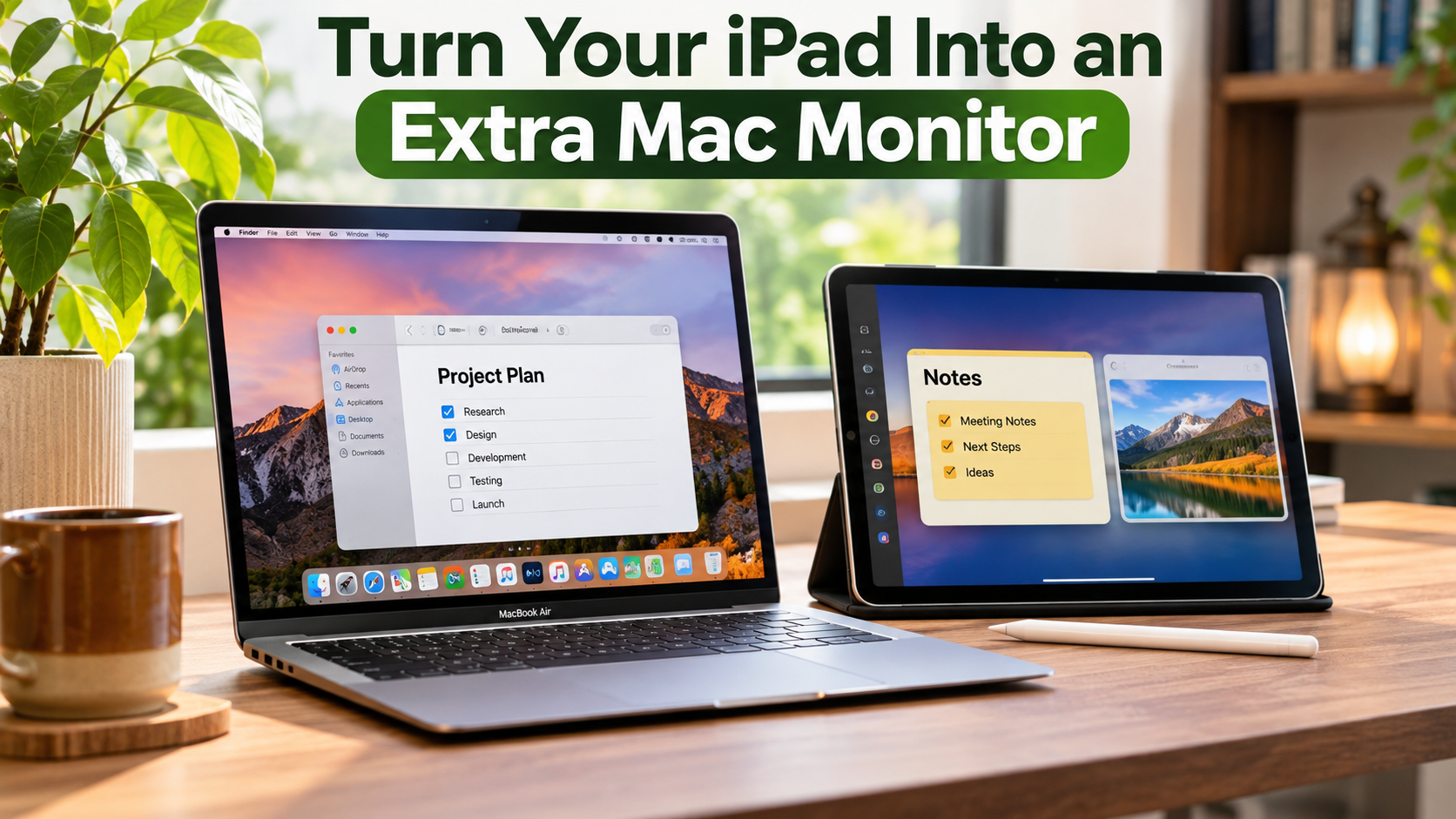
How You Can Turn Your iPad Into an Extra Mac Monitor
Working on a single laptop screen can limit your daily productivity. Fortunately, you can turn your iPad into an extra monitor and expand your workspace. Apple’s built-in Sidecar feature lets your tablet work as a secondary Mac display without additional hardware. Before investing in a new tablet, you can also explore the best iPad accessories available at lower prices than Apple’s official options.
Many remote workers and creative professionals need dual-screen setups while travelling. However, carrying a portable monitor adds weight to your backpack. If you already own an iPad, you have a convenient alternative. Using your existing Apple devices also saves money and reduces desk clutter.
You might wonder how this connection works in practice. This guide answers common questions about using an iPad as a second screen. First, we explain device compatibility and connection requirements. Next, we walk you through the setup process. We also discuss connecting two iPads and accessing macOS remotely. By the end, you will understand how to build a portable dual-screen workspace.
Can I Make My iPad a Second Monitor for Mac?
Yes, you can make your iPad a second monitor for your Mac. Apple provides a built-in feature called Sidecar for this purpose. It allows you to extend or mirror your Mac desktop onto your iPad. You can therefore use different applications across both screens. For example, keep your browser open on your Mac while viewing notes on your iPad.
Sidecar works wirelessly or through a compatible USB cable. You do not need to purchase a separate display or install additional software. Both devices must meet Apple’s compatibility requirements. They must also use the same Apple Account with two-factor authentication enabled.
This feature is particularly useful for remote workers, students, and designers. You can also use an Apple Pencil for supported drawing and editing tasks. However, not every older Mac or iPad supports Sidecar. Check your device models before attempting the connection.
Checking Device Compatibility Requirements
Before setting up Sidecar, check whether your Mac and iPad support the feature. Apple introduced Sidecar with macOS Catalina and iPadOS 13. However, compatible operating systems alone do not guarantee support. Your device models must also meet Apple’s hardware requirements. If you are planning to upgrade your tablet, compare the differences between the standard iPad and iPad mini before choosing a model.
Compatible Mac models include:
- MacBook Air introduced in 2018 or later.
- MacBook Pro and other Mac models introduced in 2016 or later.
- iMac Retina 5K (27-inch, Late 2015).
Compatible iPad models include:
- All iPad Pro models.
- iPad (6th generation or later).
- iPad Air (3rd generation or later).
- iPad mini (5th generation or later).
You also need the same Apple Account and two-factor authentication on both devices. For wireless connections, enable Bluetooth, Wi-Fi, and Handoff. Keep both devices within 10 metres (30 feet). For USB connections, your iPad must trust your Mac.
Check Apple’s official Sidecar compatibility guide before connecting older devices.
How Do You Turn Your iPad Into an Extra Monitor?
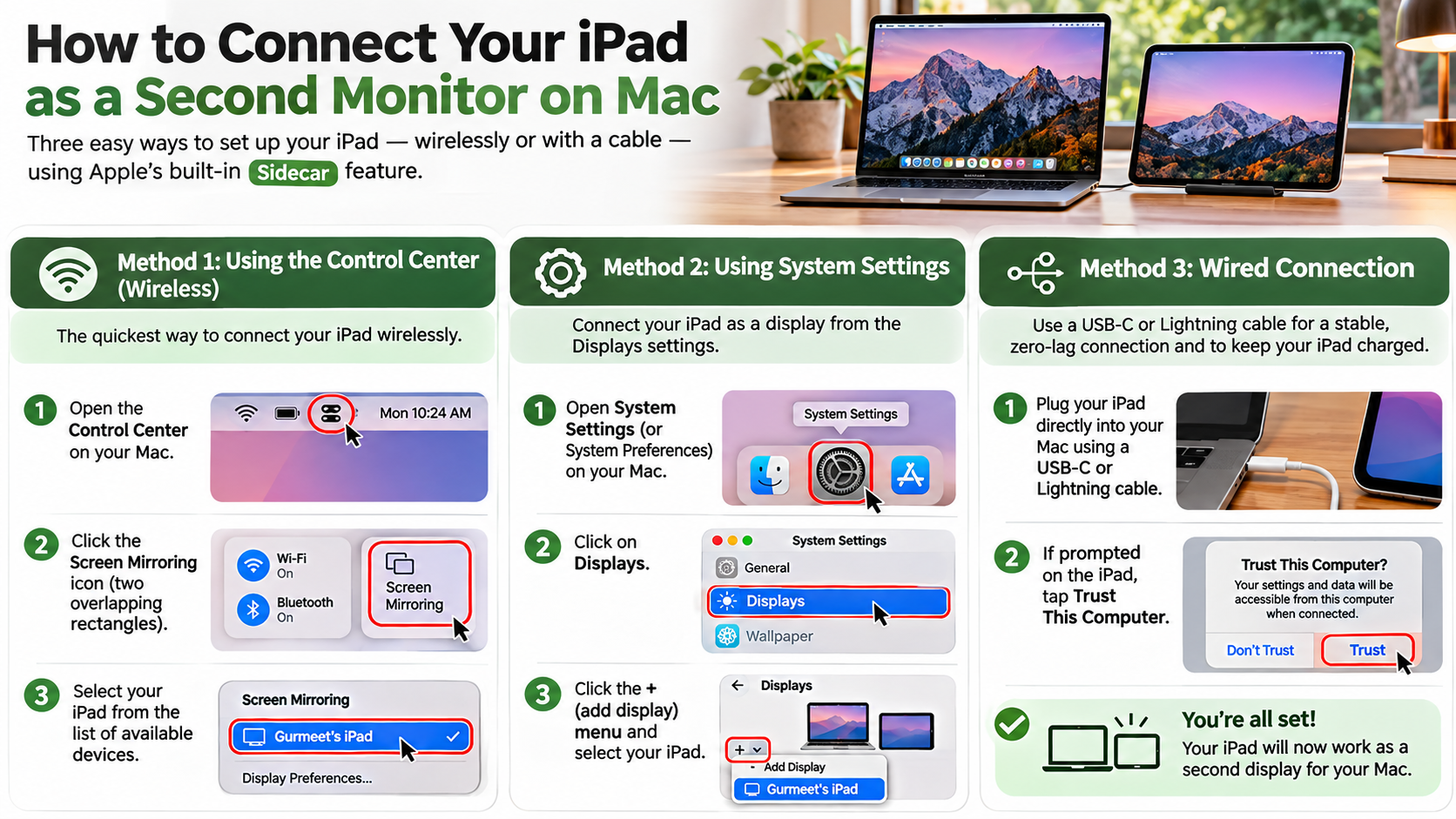
You can turn your iPad into an extra monitor using your Mac’s display settings. Apple’s Sidecar feature makes the process straightforward. First, place your Mac and iPad near each other. Ensure both devices meet the compatibility requirements and use the same Apple Account.
On your Mac, open the Apple menu and select System Settings. Next, click Displays in the sidebar. Select Add Display and choose your iPad from the available devices. Your Mac should establish the connection automatically.
You can also connect through Control Center. Click the Control Center icon in your Mac’s menu bar. Select Screen Mirroring and choose your iPad. Once connected, select the extended display option if you want additional workspace. You can then move application windows between both screens.
Choosing Between Wired and Wireless Connections
Sidecar supports both wireless and wired connections. Your choice depends on your workspace and battery requirements. A wireless connection provides flexibility because you do not need to manage additional cables. It works within approximately 10 metres when both devices meet Apple’s connection requirements.
However, wireless interference can sometimes affect connection stability. This may happen in environments with crowded Wi-Fi networks or Bluetooth devices. A wired connection can provide a more consistent experience in these situations.
You can connect your iPad directly to your Mac using a compatible USB cable. Your iPad must trust the connected Mac before Sidecar starts. A wired connection also helps keep your iPad charged during extended work sessions. Before connecting, check whether your Mac supports MagSafe charging or relies on USB-C charging if you also need to manage its power requirements.
Consider these differences before choosing:
- Wireless: Better portability and fewer cables.
- Wired: Helps maintain battery power and avoids some wireless interference.
- Performance: Both options support Sidecar’s extended display functionality.
Choose the connection that best suits your working environment.
Can I Use My iPad as a Second Monitor for Another iPad?
No, Apple does not natively support using one iPad as an extended external monitor for another iPad. Its Sidecar technology connects an iPad to a compatible Mac. It does not provide a native iPad-to-iPad extended desktop connection.
Connecting two iPads using a USB-C cable will not automatically turn either device into an external display. Both tablets continue running their own iPadOS environments. You cannot drag application windows between them as you would with a Mac and iPad.
Some third-party applications offer screen sharing or remote viewing. However, these solutions do not necessarily provide the same functionality as Sidecar. Screen mirroring also differs from extending a desktop. If you need a genuine secondary display, connecting your iPad to a compatible Mac remains Apple’s supported option.
Best Workarounds for Multi-iPad Workflows
Although you cannot directly extend one iPad’s display onto another, you have several alternatives. The best option depends on whether you need additional screen space or simply want to share content. If you regularly switch between digital and traditional note-taking, understanding the differences between digital and handwritten notes can also help you choose a productive workflow.
If you own a Mac alongside multiple iPads, consider Apple’s Universal Control feature. It allows you to control supported Apple devices using one keyboard and mouse. You can move your cursor between devices and drag files between supported screens. However, Universal Control does not turn an iPad into an external Mac display.
You can also explore third-party screen-sharing applications. These tools may help you display presentations, documents, or other content. Their capabilities depend on the application and its compatibility.
For better multitasking, consider these options:
- Use Split View or Stage Manager on supported iPads.
- Use Universal Control with a compatible Mac.
- Try screen-sharing applications for viewing content.
- Connect an iPad to a Mac using Sidecar for an extended desktop.
Can I Run macOS on My iPad?
No, you cannot officially install or run the full macOS operating system directly on an iPad. Even though modern iPad Pro and iPad Air models use Apple’s M-series processors, they run iPadOS. Apple designs this operating system specifically for its tablet hardware and touch-based interface.
The hardware similarities do not make iPadOS and macOS interchangeable. They have different system environments, software support, and user interfaces. Therefore, owning an iPad with an M-series chip does not give you access to the full macOS desktop. If you are comparing Apple’s desktop computers, explore why the Mac mini costs less than a MacBook and how their hardware differs.
Sidecar does not install macOS on your tablet either. Instead, it streams your Mac’s desktop to your iPad. Your Mac continues running applications and processing tasks. The iPad simply acts as an additional display.
If you need desktop applications, you can explore remote desktop solutions. These applications let you access a Mac remotely without installing macOS on your iPad.
Accessing Mac Apps Remotely on iPad
If you want to use Mac applications without sitting beside your computer, remote desktop software offers another solution. These applications let you access and control a Mac through your iPad. They stream the computer’s interface over an internet or local network connection.
Several applications provide remote access functionality. Popular options include Jump Desktop, Screens, and Chrome Remote Desktop. However, their features, setup requirements, and compatibility differ. Check their current support information before choosing an application.
Remote desktop access is useful when travelling or working away from home. You can open files, operate supported applications, and manage tasks remotely. However, your Mac generally needs to remain powered on and accessible. A stable internet connection also helps improve performance.
Remember that remote desktop software does not turn your iPad into a native macOS device. Your Mac still performs the computing tasks. Your iPad simply provides remote access to its desktop environment.
Conclusion
Turning your iPad into an extra Mac monitor is an effective way to expand your workspace. Apple’s Sidecar feature makes this possible without purchasing a separate portable display. You can connect wirelessly or through a USB cable, depending on your needs.
Before getting started, check your device compatibility and connection requirements. If you need to access Mac applications remotely, consider a remote desktop application. With the right setup, your existing Apple devices can make everyday multitasking more convenient.