How to Improve iPhone Battery Life: The Ultimate Guide
Few things are more frustrating than watching your iPhone battery drop from 100% to 10% before the day is over. If you are searching for how to improve iPhone battery life, you are not alone. Millions of iPhone users experience battery drain caused by daily usage habits, background activity, screen settings, and charging routines.
Modern iPhones are designed to handle powerful tasks like gaming, video streaming, photography, and multitasking. However, these advanced features can consume a lot of energy if they are not managed properly. According to Apple, lithium-ion batteries naturally age over time, which gradually reduces their maximum capacity. You can learn more about Apple’s official recommendations for battery care and maintaining performance through Apple Batteries – Maximising Performance.
This complete guide explains the best ways to optimize your iPhone settings, reduce unnecessary power consumption, and maintain better battery health. From managing apps and display settings to improving charging habits, these practical tips will help your iPhone last longer throughout the day.
1. Optimize Your iOS Settings for Maximum Efficiency
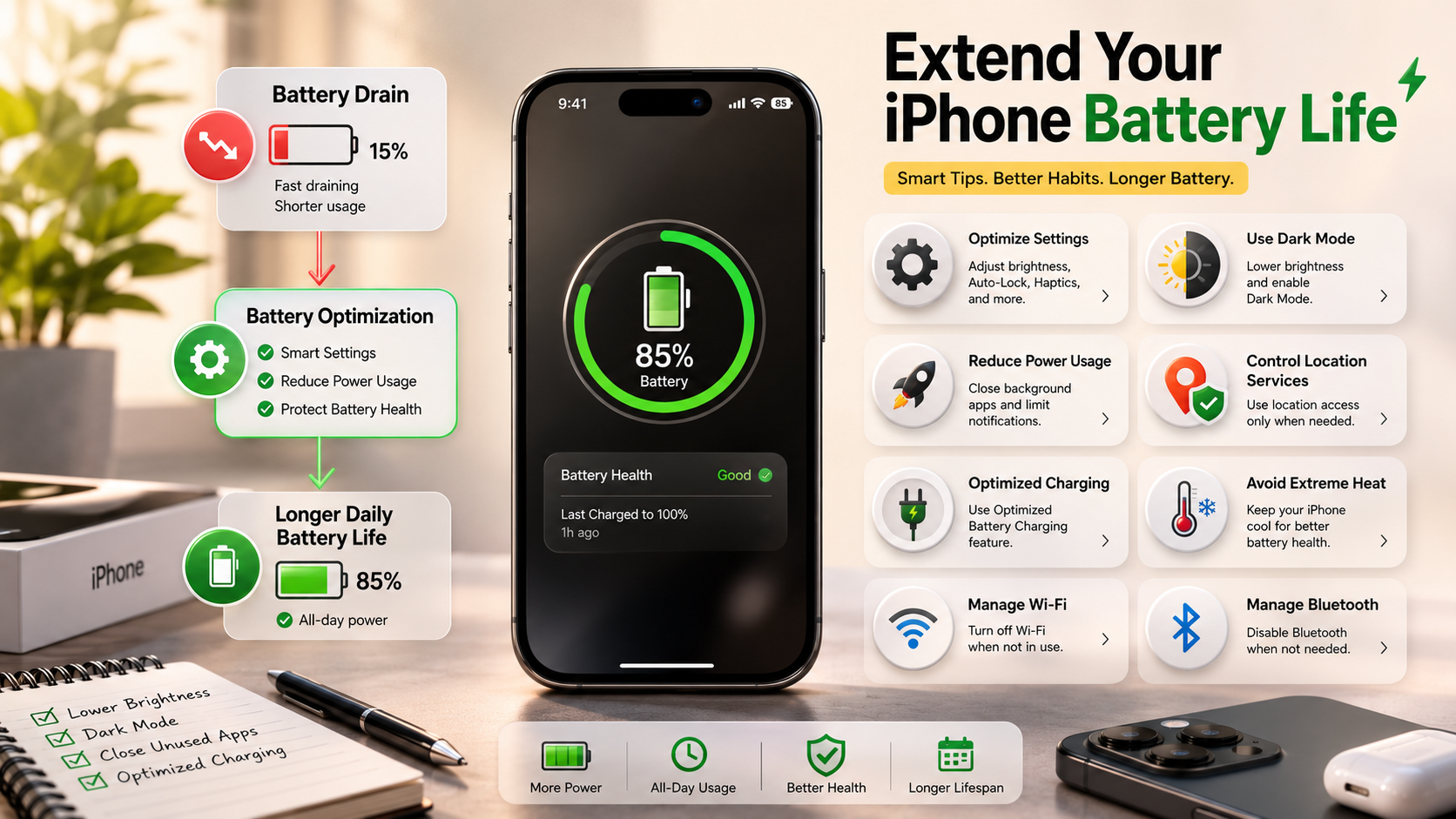
The fastest way to improve your iPhone battery performance is by reviewing your iOS settings. Many features continue working in the background even when you are not actively using your device. These hidden activities may include app updates, location tracking, notifications, and automatic syncing.
By controlling these settings, you can reduce unnecessary battery usage without affecting your normal phone experience. Small changes can create a noticeable difference in your daily screen time.
How Background App Refresh Affects iPhone Battery Life
Background App Refresh allows apps to download new information even when they are closed. While this feature helps apps stay updated, it can consume processing power and battery.
To change this setting:
- Open Settings.
- Tap General.
- Select Background App Refresh.
- Choose Off or allow it only for important apps.
You do not need every application refreshing in the background. Social media, shopping, and entertainment apps often use extra power because they constantly search for new content.
Limiting background activity is one of the easiest steps when learning how to improve iPhone battery life.
Improve iPhone Battery Performance by Managing Location Services
Many apps request access to your location, but not every app needs constant GPS tracking. Location services use energy because your iPhone communicates with GPS satellites, Wi-Fi networks, and mobile towers.
To manage location settings:
- Go to Settings > Privacy & Security > Location Services.
- Review app permissions.
- Change unnecessary “Always” access to While Using the App.
This prevents apps from tracking your location when they are not needed and helps save battery power.
2. How to Improve iPhone Battery Life with Display and Screen Settings
Your iPhone display is one of the biggest battery consumers. Bright screens, animations, and long screen-on time can quickly reduce battery percentage.
Optimizing display settings is an important part of improving battery performance.
Turn On Dark Mode
Dark Mode changes the appearance of your iPhone interface and reduces power consumption on OLED displays. OLED screens can turn off individual pixels when displaying black colors, which may save energy.
To enable Dark Mode:
- Open Settings.
- Tap Display & Brightness.
- Select Dark.
Using Dark Mode, especially at night, can reduce eye strain and may help your battery last longer.
Improve iPhone Battery Usage with Auto-Brightness
Keeping your screen brightness at maximum levels forces your phone to use more energy. Auto-Brightness automatically adjusts the display based on surrounding light conditions.
To enable it:
- Go to Settings.
- Open Accessibility.
- Tap Display & Text Size.
- Turn on Auto-Brightness.
This allows your iPhone to maintain a comfortable brightness level while avoiding unnecessary battery drain.
3. Master Healthy Charging Habits
Charging habits play a major role in your iPhone battery lifespan. Lithium-ion batteries perform best when they are protected from extreme charging patterns and temperatures.
Many users believe that charging overnight always damages the battery, but modern iPhones include smart charging features designed to reduce stress.
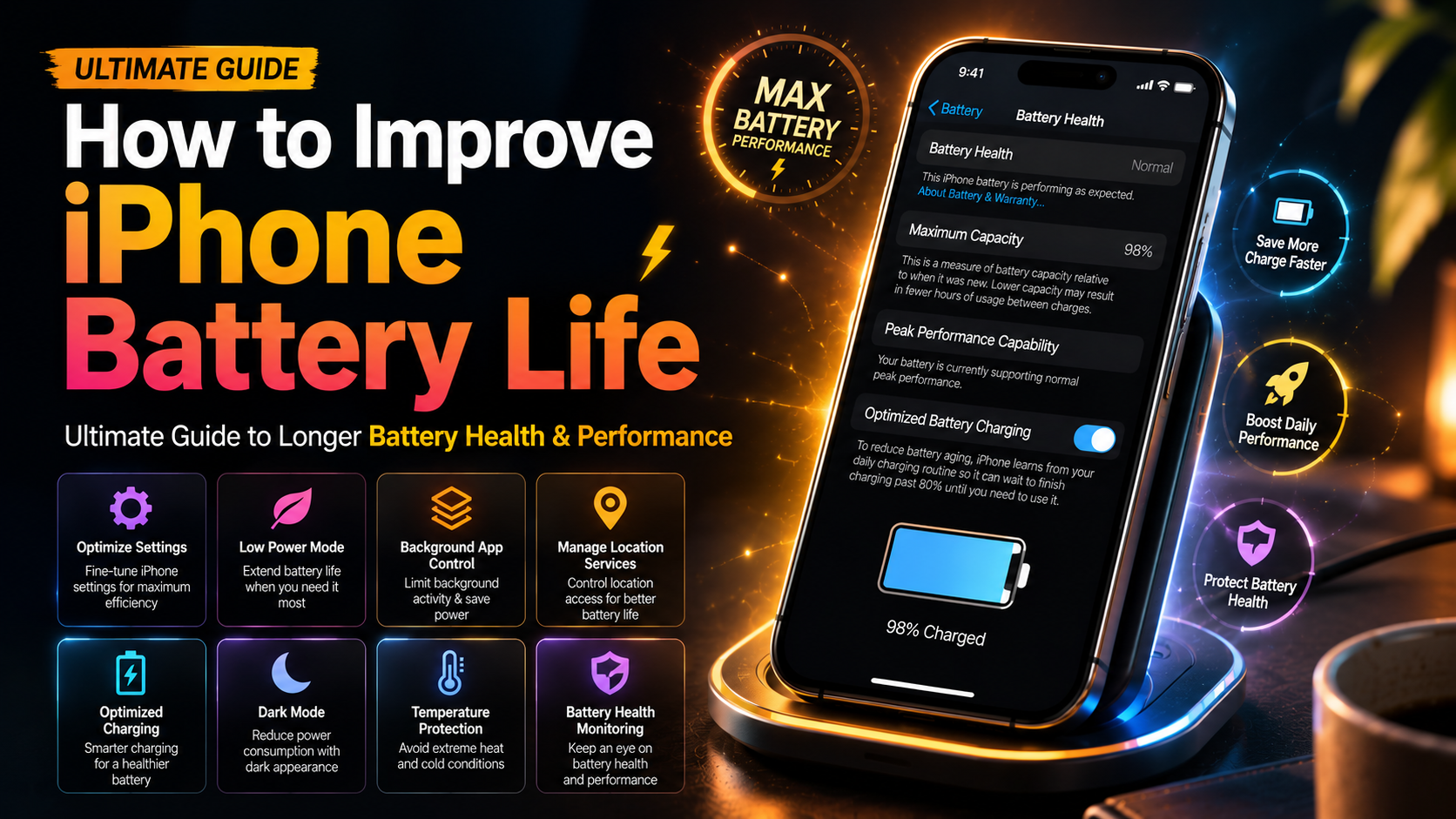
Optimized Battery Charging for Longer iPhone Battery Life
Optimized Battery Charging learns your charging routine and delays charging beyond 80% until you need the phone.
To activate it:
- Open Settings.
- Tap Battery.
- Select Battery Health & Charging.
- Enable Optimized Battery Charging.
This feature helps reduce the time your iPhone stays fully charged, which can slow battery aging.
Protect iPhone Battery Health by Avoiding Extreme Temperatures
Heat is one of the biggest enemies of battery health. High temperatures can permanently affect battery capacity.
Avoid:
- Charging in direct sunlight.
- Leaving your phone inside a hot car.
- Using heavy apps while charging in hot conditions.
Always charge your iPhone on a cool surface with proper airflow.
4. Use Low Power Mode to Extend Battery Life
Low Power Mode is one of the most effective tools for saving energy quickly. It reduces background processes and temporarily limits certain features to increase battery duration.
When enabled, Low Power Mode can:
- Reduce background app activity.
- Pause automatic downloads.
- Lower visual effects.
- Limit some syncing processes.
To turn it on:
- Open Settings > Battery.
- Enable Low Power Mode.
You can also add it to Control Center for faster access.
Many people only use Low Power Mode when their battery is almost empty, but using it during travel, long workdays, or busy schedules can help your battery last significantly longer.
5. Reduce Unnecessary Notifications
Every notification can wake your screen, activate your processor, and use energy. If you receive many alerts every day, your iPhone may lose battery faster than expected.
To manage notifications:
- Open Settings.
- Tap Notifications.
- Choose apps you do not need alerts from.
- Disable unnecessary notifications.
Apps like games, shopping platforms, and social networks often send frequent alerts that provide little value.
Reducing notifications helps your iPhone stay inactive longer, lowering power consumption.
6. Keep Your iPhone Software Updated for Better Battery Efficiency
Keeping your iPhone software updated can improve battery efficiency. Apple regularly releases updates that fix bugs, improve performance, and optimize energy usage.
Outdated apps may use more battery because they are not optimized for newer iOS versions.
To update iOS:
- Open Settings.
- Select General.
- Tap Software Update.
For apps:
- Open the App Store.
- Enable automatic app updates.
Regular updates keep your device running efficiently and prevent unnecessary battery drain caused by software problems.
7. How to Improve iPhone Battery Life by Managing Wireless Connections
Wireless connections constantly communicate with networks and devices. When they are searching for signals, they consume additional power.
Follow these tips:
- Use Wi-Fi whenever available.
- Turn off Bluetooth when not needed.
- Disable personal hotspot after use.
- Use Airplane Mode in areas with no signal.
A weak cellular signal can drain your battery because your iPhone increases power to maintain a connection.
Managing wireless settings is another effective method for how to improve iPhone battery life.
8. How to Improve iPhone Battery Life by Removing Battery-Draining Apps
Some apps consume large amounts of power because they run background processes, use location tracking, or constantly sync data.
To check battery usage:
- Go to Settings.
- Tap Battery.
- Review app activity.
If an app uses excessive battery:
- Update it.
- Limit permissions.
- Remove it if unnecessary.
Deleting unused apps also frees storage space and allows your iPhone to operate more smoothly.
9. How to Improve iPhone Battery Health and Check Battery Condition
Every iPhone battery loses capacity over time. This is a normal process because lithium-ion batteries chemically age.
You can check your battery condition:
Settings > Battery > Battery Health & Charging
Look for:
- Maximum Capacity.
- Peak Performance Capability.
- Charging optimization settings.
Signs of an aging battery include:
- Faster battery drain.
- Unexpected shutdowns.
- Reduced performance.
If your battery health becomes poor, replacing the battery can restore your iPhone’s ability to hold a charge.
FAQ Section
What is the 80 20 rule for iPhone battery?
The 80/20 rule for iPhone battery is a popular charging habit that focuses on keeping your battery level between 20% and 80% whenever possible. This approach is recommended because lithium-ion batteries experience more stress when they remain at extremely low or extremely high charge levels. Therefore, avoiding frequent drops to 0% and limiting long periods at 100% can help maintain better battery health over time.
In simple terms, try to charge your iPhone when it reaches around 20% and unplug it near 80% instead of always charging it completely. As a result, the battery goes through less chemical strain, which may slow down natural aging. However, this does not mean you should never charge your phone to 100%. Occasionally reaching a full charge is completely fine, especially when you need extra power.
Additionally, features like Optimized Battery Charging can help manage charging automatically. Overall, following the 80/20 habit, along with avoiding heat and using proper charging practices, can help your iPhone battery stay healthier for a longer time.
Why is my iPhone draining its battery so fast?
If your iPhone battery is draining quickly, the problem is usually caused by several small factors working together. Background app activity, high screen brightness, location tracking, and poor network connections can all increase power consumption. For example, social media apps, streaming services, and navigation apps often continue running tasks in the background, which makes your iPhone use more energy even when you are not actively using it.
Additionally, a bright display is one of the biggest battery consumers. Therefore, lowering brightness and enabling Auto-Brightness can immediately reduce unnecessary battery usage. Another common reason is weak cellular signal. When your iPhone struggles to connect to a network, it increases power output to maintain the connection, which can drain the battery faster.
Moreover, outdated apps or iOS versions may contain bugs that affect battery performance. To identify the cause, go to Settings > Battery and review which apps are using the most power. By updating software, limiting unnecessary background activity, reducing location access, and managing screen settings, you can significantly improve battery life and prevent unexpected battery drain.
How do I keep my battery 100% healthy?
Keeping your iPhone battery at 100% health forever is not possible because lithium-ion batteries naturally lose capacity as they age. However, you can slow down battery degradation and maintain excellent battery health for a much longer time by following smart charging and usage habits.
First, avoid extreme heat, because high temperatures are one of the biggest causes of battery aging. For example, leaving your iPhone in a hot car, charging it under direct sunlight, or using it heavily while it is overheating can reduce battery performance over time. Therefore, always charge your device in a cool and well-ventilated area.
Additionally, use Apple-certified chargers and reliable charging accessories to provide safe and stable power. Turn on Optimized Battery Charging by going to Settings > Battery > Battery Health & Charging. This feature reduces the amount of time your iPhone stays fully charged, which helps protect the battery.
Moreover, avoid regularly draining your phone completely to 0%. Instead, try charging it before the battery becomes extremely low. Finally, reduce heavy activities such as high-performance gaming or long video recording sessions while charging, because extra heat can accelerate battery wear
Is it bad to charge my iPhone overnight?
Charging your iPhone overnight is generally safe with modern devices because iPhones are designed with intelligent battery management systems. Unlike older phones that could experience overcharging problems, newer iPhones automatically control the charging process to protect the battery. Once the battery reaches 100%, the device reduces or stops charging and manages power efficiently to prevent unnecessary stress.
However, keeping your iPhone plugged in for long periods can still contribute to battery aging over time, especially if the device becomes warm. Therefore, enabling Optimized Battery Charging is a smart choice. This feature learns your charging routine and delays charging beyond 80% until you usually need your phone, reducing the amount of time it stays at full capacity.
Additionally, avoid charging your iPhone in places where heat can build up. For example, placing it under a pillow, blanket, or thick material can trap heat and increase internal temperatures. As a result, the battery may experience faster chemical aging.
For better battery health, charge your iPhone overnight on a hard, cool surface with proper airflow. Overall, overnight charging is not harmful when done correctly and with the right settings enabled.
Is 70% iPhone battery health good?
A 70% iPhone battery health level is considered low and usually means the battery has experienced significant aging. The Battery Health percentage shows how much charge your battery can hold compared to when it was new. Therefore, a battery with 70% maximum capacity can only store about 70% of the power it originally could, which leads to noticeably shorter usage time.
Generally, when an iPhone battery drops below 80% maximum capacity, it is considered significantly degraded. At 70%, you may experience faster battery drain, more frequent charging, and reduced performance during daily activities. For example, tasks like gaming, video streaming, camera use, and navigation may consume power much faster than before.
Additionally, an older battery may struggle to provide enough power during demanding situations. As a result, your iPhone may slow down performance temporarily or experience unexpected shutdowns to protect the device.
To check your battery condition, go to Settings > Battery > Battery Health & Charging and review the Maximum Capacity section. If your battery health is around 70%, replacing the battery with a reliable service provider can restore better performance and improve daily battery life. A new battery can make your iPhone feel faster, more reliable, and capable of lasting longer between charges.
Conclusion
Learning how to improve iPhone battery life does not require technical expertise or tedious compromises. By making small, intentional adjustments to your daily settings and charging routines, you gain better control over your device’s performance and battery longevity. Simple steps like disabling unnecessary background data, managing location tracking, reducing screen brightness, and staying within the ideal 20% to 80% charging range can deliver noticeable benefits over time.
Furthermore, protecting your iPhone from extreme heat, keeping iOS updated, and using built-in battery optimization features can help maintain healthier battery performance. These small habits work together to reduce unnecessary power consumption and extend the overall lifespan of your device.
For even better iPhone performance, you can also explore additional optimization tips and learn how to speed up your iPhone in 2026. By combining battery-saving techniques with general performance improvements, you can keep your iPhone running smoothly, efficiently, and reliably for years.