Turn On Personal Results on Your Google Home: Complete Setup Guide
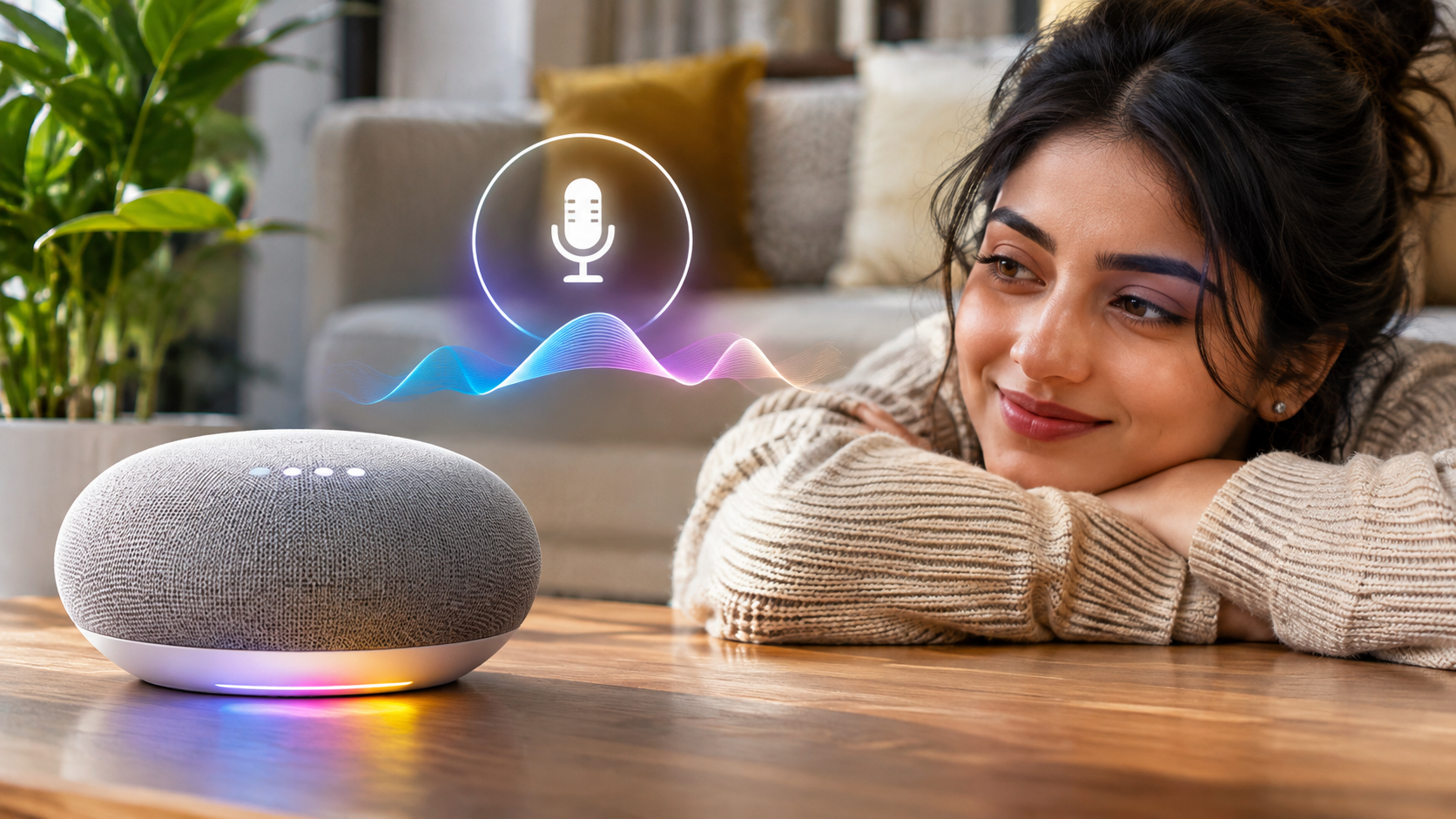
Smart speakers make everyday tasks easier, but personalization makes them more useful. When you turn on personal results on your Google Home, your speaker can access supported information linked to your Google Account. This includes Google Calendar events, Gmail information, Google Photos, and personal music recommendations.
Without this setting, Google Assistant may not provide certain account-specific information. Enabling personal results allows compatible speakers and displays to deliver a more personalized experience.
Privacy is also important when multiple people share the same smart speaker. Google provides settings such as Voice Match to recognize individual voices. However, personal results can also be enabled without Voice Match. In that situation, other people may access information available through the shared device.
This guide explains how to enable personal results, configure Voice Match, troubleshoot missing information, and understand related Google Assistant settings. You will also learn what to check when personal results do not work as expected.
How do I enable personal results in Google Home?
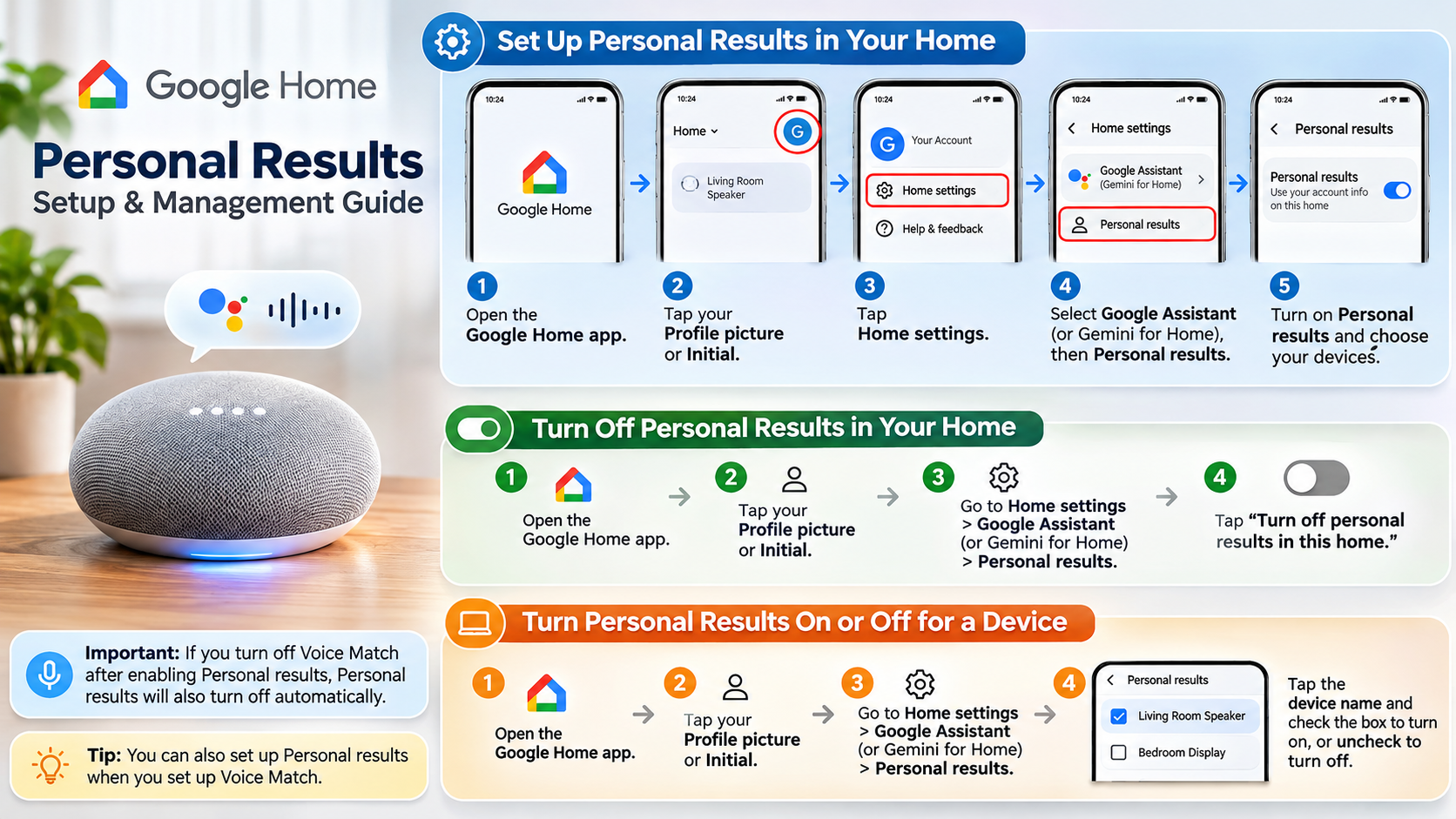
You can enable personal results through the Google Home app. The setting applies to your home and can be adjusted for individual compatible devices. Follow these steps to access the correct menu:
- Open the Google Home app on your smartphone.
- Tap your profile picture or account initials in the upper-right corner.
- Select Home settings.
- Find and open Google Assistant or Gemini for Home voice assistant, depending on your interface.
- Select Personal results.
- Enable personal results for your home.
- Select individual speakers or displays where you want this feature enabled.
Once activated, compatible devices can provide supported information from your Google Account. Available features may vary by country, language, device, and account configuration. You can also explore other useful capabilities in our guide to the best features of Google Home.
You can also disable personal results for individual speakers. This is useful when a device is placed in a shared room or public area.
Fine-Tuning Multi-User Voice Match Verification
Voice Match helps Google Assistant recognize different household members. It allows the assistant to provide personal results to recognized voices instead of treating everyone as the same user.
To configure Voice Match, follow these steps:
- Open the Google Home app.
- Tap Settings at the bottom.
- Select Google Assistant and then Voice Match.
- Choose your home or compatible device.
- Enable Voice Match and follow the voice-training instructions.
Google supports Voice Match for multiple household members. Each person can configure their own voice profile using their Google Account.
Remember that Voice Match and personal results are separate settings. You can enable personal results without Voice Match, but this reduces privacy on shared devices. For better protection, enable both features wherever supported.
Why is Google not showing me results?
Google Assistant may not display personal information when account permissions, device settings, or Voice Match configurations are incorrect. Start by checking whether personal results are enabled for your entire home. Then confirm that the specific speaker or display also has permission.
Your Google Account must also be correctly linked to the device. If you use multiple accounts, make sure you selected the account containing your calendar and other personal information.
Other possible causes include:
- Voice Match problems: Assistant may not recognize your voice correctly.
- Internet connectivity: Your speaker needs a working internet connection.
- Microphone settings: A muted microphone can prevent voice commands from working.
- Device configuration: Personal results might be disabled for an individual speaker.
- Feature availability: Some personal results depend on your language, country, and device.
Check these settings before resetting your speaker. Most configuration problems can be resolved without removing your device from Google Home.
Checking Device Sync and Account Credentials
Account synchronization problems can prevent Google Assistant from retrieving personal information. Start by checking the Google Account connected to your Google Home device. Confirm that it matches the account containing your calendar, Gmail, and other information.
Next, check your device’s internet connection. Google recommends ensuring that your speaker and mobile device use the same Wi-Fi network when troubleshooting connection problems.
You should also try these steps:
- Restart your Google Home speaker or display.
- Close and reopen the Google Home app.
- Check for available app updates.
- Review your personal results and Voice Match permissions.
- Confirm that your device appears under the correct Google Home household.
If the problem continues, review your Google Account permissions and supported feature availability. Avoid unlinking or factory-resetting your speaker immediately. These actions can remove existing device configurations and create additional setup work.
How to allow personal results in Android Auto?
Android Auto provides hands-free access to supported phone features while driving. However, its settings are different from the personal results controls available in Google Home. There is no universal Android Auto switch that enables every Google Home personal result.
To access supported personal information, first make sure your smartphone uses the correct Google Account. Also, configure Google Assistant or Gemini settings on your phone, depending on your available services.
For messages and notifications, review your Android Auto notification permissions. You can also check whether notification access is enabled for your connected vehicle.
Keep these points in mind:
- Connect your smartphone to Android Auto using a compatible cable or wireless connection.
- Allow the notification permissions required by Android Auto.
- Check your phone’s assistant and voice settings.
- Review lock-screen notification preferences.
- Test voice commands before starting your journey.
Available features depend on your phone, vehicle, software version, and region. Do not assume that enabling personal results on Google Home automatically enables every feature in Android Auto.
Managing Hands-Free Communication While Driving
Android Auto supports hands-free communication through compatible messaging and voice features. However, you should configure notification access carefully before using these features.
Start by checking your Android Auto settings on your smartphone. Review options for message notifications, notification previews, and incoming communication alerts. If you use Google Messages, you can also review these Google Messages settings you might want to disable to manage notifications and protect your privacy. The exact menu names may differ between Android versions and manufacturers.
For safer communication, consider these precautions:
- Use voice commands instead of typing while driving.
- Avoid reading lengthy messages while the vehicle is moving.
- Disable message previews if passengers can see sensitive information.
- Keep your smartphone software and Android Auto updated.
- Check notification permissions before connecting your phone.
These settings help balance convenience and privacy. Remember that Android Auto permissions and Google Home personal results operate separately. Changing one does not necessarily change the other.
How do I turn on Google Personal Assistant?
Google Assistant must be available and enabled before you can use its supported voice features. On compatible Android devices, you can manage its activation and voice recognition through Google Home or Assistant settings.
To enable voice activation, follow these general steps:
- Open the Google Home app on your Android device.
- Tap Settings.
- Select Google Assistant and then Voice Match.
- Enable Hey Google if the option is available.
- Follow the instructions to train your voice.
- Test the activation command after completing setup.
The available menu options depend on your device and software version. Some newer devices may offer Gemini instead of Google Assistant.
If you use an iPhone, check Google’s currently supported assistant and Gemini apps in the App Store. Do not assume that Android voice activation settings also apply to iOS.
Once configured, you can use supported voice commands to access information and control compatible smart devices.
Calibrating Your Default Device Assistant Preferences
After enabling voice activation, review your smartphone’s default assistant preferences. These settings determine which assistant responds to supported voice commands or device shortcuts.
On Android, open your phone’s settings and look for the Default digital assistant app option. The location varies by manufacturer and Android version. Select the assistant you want to use if multiple compatible options are available. If you are comparing voice assistants before making your choice, explore Google Gemini vs Alexa Plus to understand how their features differ.
You should also review the following settings:
- Microphone permissions: Allow the selected assistant to access your microphone.
- Voice Match: Train the assistant to recognize your voice where supported.
- Lock-screen access: Review whether voice assistance works when your phone is locked.
- Language preferences: Select a supported language for voice recognition.
These adjustments help improve voice access and reduce configuration problems. However, default assistant settings do not automatically enable personal results on Google Home. You must configure those permissions separately through the Google Home app.
Why can’t I turn on my Google Assistant?
Google Assistant may not activate because of outdated software, disabled permissions, account restrictions, or unsupported device settings. Before changing advanced configurations, check whether Google Assistant is available on your device.
If you use a managed school or workplace Google Account, your administrator may restrict certain voice features. Google specifically identifies some Google Workspace for Education restrictions affecting Hey Google activation.
Start troubleshooting with these checks:
- Update the Google Home and Google apps.
- Confirm that Google Assistant is enabled.
- Check microphone permissions.
- Review your Voice Match configuration.
- Confirm that your Google Account is supported.
- Restart your smartphone and connected smart speaker.
If the Hey Google option is missing, check whether your device supports that feature. Some settings may also differ depending on your country and selected language.
Avoid assuming that clearing the application cache will resolve every activation problem. First identify whether the issue involves account restrictions, permissions, or device compatibility.
Resolving Regional Language Configuration Mismatches
Language settings can affect Google Assistant voice recognition. Some languages and regional variations may not be supported across every device or feature. This can prevent certain voice commands from working as expected.
Start by checking the language configured for Google Assistant. Make sure it matches a language supported by your device. You should also review your smartphone’s system language and available voice recognition options.
If voice recognition continues to fail, try these troubleshooting steps:
- Open your Google Assistant or Google Home settings.
- Find the language preferences.
- Select a supported language.
- Check whether Voice Match is enabled.
- Retrain your voice model if necessary.
- Test the Hey Google command again.
Google provides different language support depending on the device and feature. Therefore, selecting English does not guarantee that every Assistant feature will become available.
If the problem continues, check Google’s official support documentation for device-specific compatibility and troubleshooting instructions.
Conclusion
Turning on personal results on your Google Home makes everyday interactions more convenient and personalized. It allows Google Assistant to access supported information, including calendar events, reminders, and other account-linked details. By enabling personal results and configuring Voice Match, you can make your smart speaker more useful while improving privacy across shared household devices.
If personal results are not working, check your Google Account, device permissions, internet connection, and Voice Match settings. Also, remember that Android Auto and Google Home have separate configuration options.
For detailed setup instructions and additional privacy controls, visit Google’s official guide: Allow personal results on your speakers and displays.
Ultimately, the right Google Home settings help you enjoy a more personalized, convenient, and secure smart home experience.