How to Speed Up Your iPhone and Make It Feel Faster Again
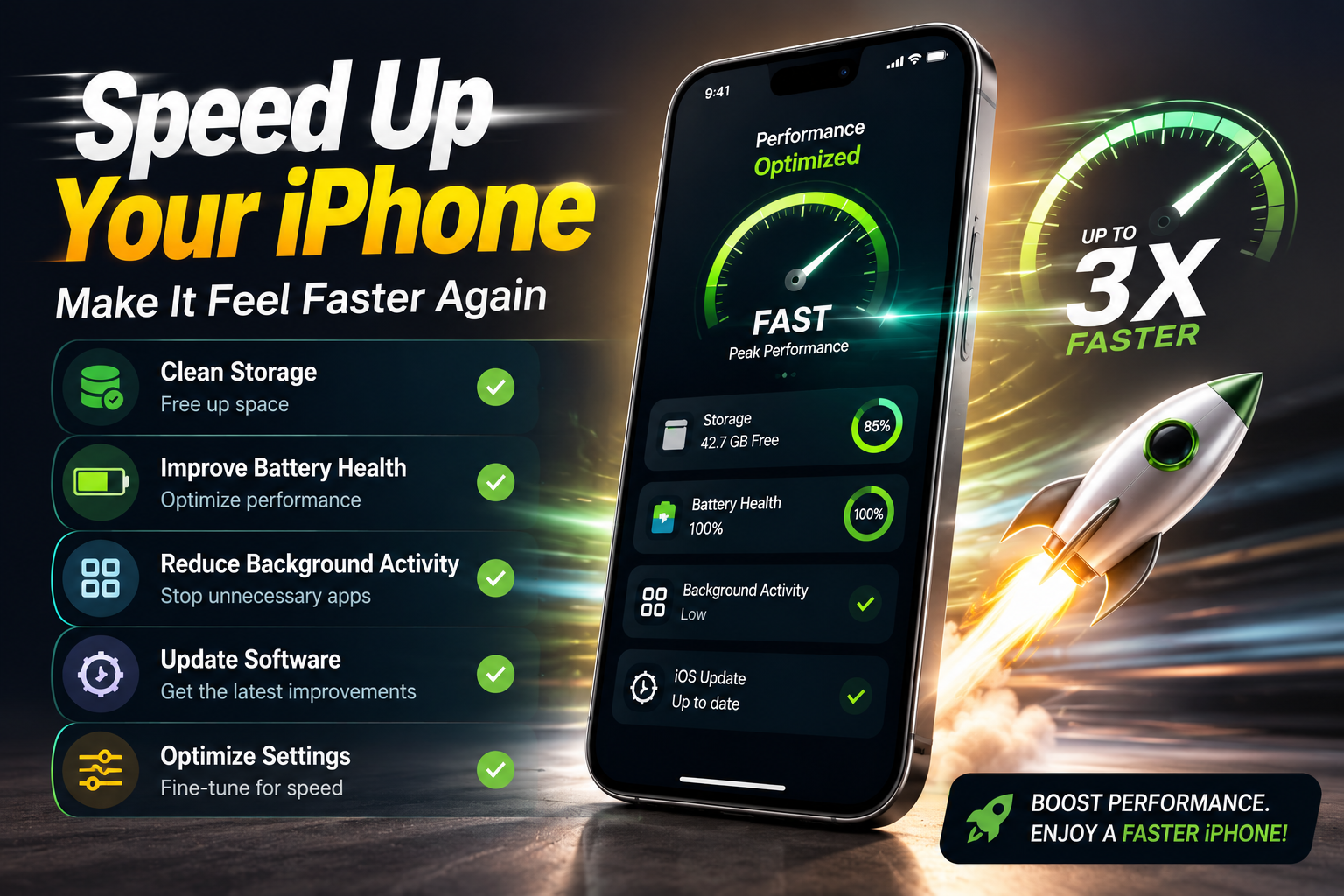
If you want to speed up your iPhone and restore its smooth performance, you do not always need to buy a new device. Over time, iPhones can become slower because of limited storage, too many background processes, outdated software, battery aging, and heavy apps. Learning how to properly manage your settings and resources can help your iPhone feel faster and more responsive again. If your device is already experiencing performance issues, you can also check Apple’s guide on what to do if your iPhone or iPad is running slow for additional troubleshooting steps.
Modern iOS versions include powerful features, advanced security tools, and smarter background functions. While these improvements make the experience better, older devices may need regular maintenance to keep up. By following a few simple steps, you can speed up your iPhone, reduce lag, and improve everyday performance without expensive upgrades.
The good news is that a few simple adjustments can often restore a smoother, faster experience. From cleaning storage and managing apps to improving battery performance, these steps can help your iPhone feel responsive again.
How to Speed Up Your iPhone: Why Your Device Feels Slow
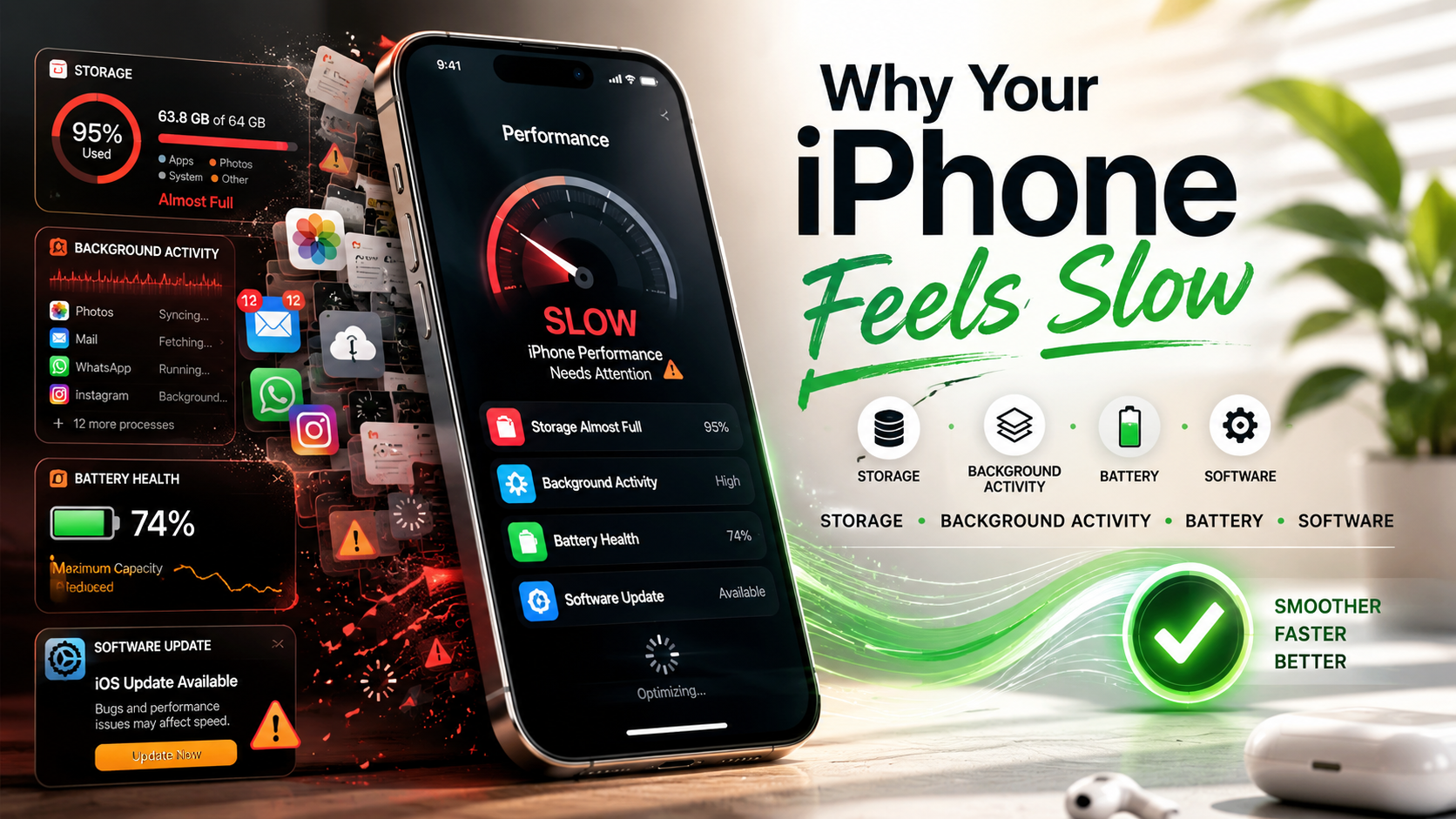
Before you try to speed up your iPhone, it is important to understand why the slowdown happens. Most performance problems are caused by storage issues, background activity, battery health, or software-related problems.
A slow iPhone is usually affected by one or more of these factors:
Low Storage Space
Your iPhone needs free space for temporary files, app data, updates, and system operations. When storage gets almost full, iOS has less room to manage these tasks efficiently.
This can lead to:
- Apps opening slowly
- Keyboard delays
- Stuttering animations
- Longer loading times
Keeping some free storage available helps iOS work more smoothly.
Too Many Background Processes
Some apps continue performing tasks even when you are not actively using them. They may refresh content, check your location, download updates, or sync data.
A few background processes are useful, but too many can consume battery and processing power.
Battery Aging
An older battery may not deliver power as efficiently as it once did. iOS can adjust performance in certain situations to prevent unexpected shutdowns, which may make your phone feel slower.
Software Problems
Temporary bugs, memory issues, or outdated software can also affect performance. Sometimes a simple restart or update can fix problems that seem much bigger.
1. Restart Your iPhone to Quickly Speed Up Your iPhone Performance
One of the simplest ways to speed up your iPhone is restarting it regularly. A restart clears temporary files, refreshes system memory, and closes processes that may have become stuck.
A restart clears temporary system issues, refreshes memory, and stops processes that may have become stuck. If your iPhone suddenly feels unusual, apps are freezing, or the keyboard is lagging, restarting should be your first step.
To restart a modern iPhone:
- Press and hold the Side button and either Volume button.
- Wait until the power menu appears.
- Slide the Power Off option.
- Wait about 30 seconds.
- Hold the Side button again until the Apple logo appears.
If your iPhone is frozen and does not respond, try a force restart:
- Quickly press and release Volume Up.
- Quickly press and release Volume Down.
- Hold the Side button until the Apple logo appears.
A restart does not erase your data or change settings, but it can solve many random slowdowns.
2. Stop Closing Every App Manually
Many people believe that constantly removing apps from the App Switcher makes an iPhone faster. In reality, iOS already manages apps intelligently.
When you leave an app, the system usually pauses it and prevents it from consuming unnecessary resources. Closing it completely means the phone has to reload everything from the beginning the next time you open it.
This can actually make app launching slower and may use more battery.
A better approach:
- Leave apps alone when they are working correctly.
- Only force-close apps that are frozen, crashing, or behaving incorrectly.
Let iOS handle memory management instead of manually fighting the system.
3. Free Storage Space to Speed Up Your iPhone
Storage management is one of the most effective ways to speed up your iPhone. When your device is almost full, iOS has less room to handle temporary files, updates, and background tasks.
When your device is packed with photos, videos, downloads, messages, and unused apps, the system has less room for temporary operations.
To check storage:
- Open Settings.
- Tap General.
- Select iPhone Storage.
You will see a breakdown of what is using space.
Remove:
- Large videos you no longer need
- Old screenshots
- Huge message attachments
- Unused apps
- Duplicate files
You can also use Offload Unused Apps. This removes the app itself but keeps your documents and data, allowing you to reinstall it later without losing information.
Try keeping around 10–15% of your storage free for the best results.
4. Clear Safari Data and Browser Clutter
Your browser collects temporary files, cookies, and website data over time.
A large cache can sometimes make browsing feel slower.
To clear Safari data:
- Open Settings.
- Scroll to Safari.
- Choose Clear History and Website Data.
This can improve Safari responsiveness, especially if pages are loading slowly or the browser feels heavy.
5. Update iOS to Help Speed Up Your iPhone
Keeping your software updated is another important step to speed up your iPhone. Apple regularly releases updates that improve stability, fix bugs, and optimize performance.
Apple frequently releases updates that include:
- Bug fixes
- Security improvements
- Memory optimizations
- Performance improvements
If your iPhone is slowing down because of a software problem, updating may solve it.
Check for updates:
- Open Settings.
- Tap General.
- Select Software Update.
- Install the latest available update.
You can enable automatic updates, but manually checking is useful when your phone is already having problems.
6. Manage Background Activity to Speed Up Your iPhone
Background App Refresh allows apps to update content when you are not actively using them.
It can be useful for apps like:
- Messaging
- Weather
But dozens of apps running background tasks can create unnecessary workload.
To manage it:
- Go to Settings.
- Open General.
- Tap Background App Refresh.
You can:
- Turn it off completely
- Disable it only for unnecessary apps
This can help speed up your iPhone by reducing the amount of work your device performs when you are not actively using it.
7. Limit Location Services
Some apps constantly request your location even when you are not using them.
GPS activity can increase battery drain and create extra background workload.
To adjust location access:
- Open Settings.
- Go to Privacy & Security.
- Tap Location Services.
Review apps individually and choose:
- Never
- Ask Next Time
- While Using the App
Only allow constant location access when it is actually needed.
8. Check Battery Health to Improve iPhone Speed
Battery condition can directly affect performance.
To check:
- Open Settings.
- Tap Battery.
- Select Battery Health & Charging.
Pay attention to maximum capacity and performance messages.
A heavily degraded battery may cause slower performance because iOS tries to protect the device from unexpected shutdowns.
Replacing an old battery can sometimes make an older iPhone feel significantly better.
9. Use Low Power Mode to Make Your iPhone Run Smoother
Low Power Mode is mainly designed to save battery, but it can also reduce unnecessary background activity.
It limits things like:
- Background syncing
- Some visual effects
- Certain automatic tasks
To enable it:
- Open Settings.
- Tap Battery.
- Turn on Low Power Mode.
It is especially helpful when:
- Your battery is almost empty
- The phone is getting warm
- You need longer usage time
10. Reduce Animations to Speed Up Your iPhone Experience
iOS animations look smooth, but older devices may feel faster with fewer effects.
To reduce motion:
- Open Settings.
- Go to Accessibility.
- Tap Motion.
- Enable Reduce Motion.
You can also reduce transparency:
- Go to Accessibility.
- Open Display & Text Size.
- Turn on Reduce Transparency.
This reduces some visual effects and may make navigation feel quicker.
11. Reset Your iPhone as a Last Resort
If your iPhone remains slow after trying everything, a clean reset may help.
Over years of use, devices collect:
- Old settings
- Broken configurations
- Unused files
- App leftovers
Before resetting:
- Back up your iPhone.
- Perform a factory reset.
- Set it up again.
A fresh installation can remove long-term software problems.
12. Keep Your iPhone Cool for Better Performance
Temperature also affects speed.
When an iPhone becomes too hot, the system may reduce performance to protect the hardware.
Avoid:
- Using heavy apps while charging
- Leaving your phone in direct sunlight
- Using thick cases during intense tasks
Keeping the device at a normal temperature helps maintain consistent performance.
Frequently Asked Questions About Speeding Up Your iPhone
How can I make my iPhone faster in 2026?
Making an iPhone faster in 2026 does not always require purchasing a newer model. In many cases, performance issues come from storage pressure, background activity, outdated software, or battery wear. The first thing to do is check your available storage and remove unnecessary files such as old videos, large message attachments, unused apps, and duplicate photos. Keeping some free space allows iOS to manage temporary files and system operations more efficiently.
A simple restart can also solve many small performance problems by clearing temporary glitches and refreshing system processes. Managing Background App Refresh is another useful step because too many apps constantly updating in the background can slow things down and drain battery.
You should also install the latest iOS updates because Apple regularly releases improvements that fix bugs and improve system stability. Reducing animations through Accessibility settings, limiting unnecessary location tracking, and checking battery health can make an older iPhone feel smoother.
If your iPhone still feels slow after these steps, a backup and clean reset may help remove years of accumulated settings and software issues.
Which iPhone models are best for long-term use?
The best iPhone for long-term use is usually a newer model with a powerful processor, enough memory, and strong battery efficiency. Recent iPhone generations are designed to handle future iOS updates better because they have faster chips and improved hardware capabilities.
When choosing an iPhone for several years of use, it is important to consider more than just the camera or design. Processor performance, RAM, battery capacity, and expected software support all affect how well the device will age. Newer Pro models often provide extra performance headroom, making them better suited for demanding tasks such as gaming, video editing, photography, and advanced AI-based features.
However, a standard model from a newer generation can also be a great choice because Apple’s processors are generally powerful and efficient. A well-maintained iPhone with good battery health can remain useful for many years.
For someone planning to keep their phone for five or more years, choosing a recent model is usually the safest option because it will receive software updates longer and handle newer apps more comfortably.
Can an iPhone last 10 years?
An iPhone can physically last 10 years if it is maintained properly, but long-term usability depends on several factors. The hardware itself can remain functional for a decade, especially if the phone is protected from drops, water damage, overheating, and extreme conditions.
One of the biggest challenges with an older iPhone is battery aging. After years of charging cycles, the battery naturally loses capacity, which means shorter battery life and possible performance limitations. Replacing the battery can significantly extend the useful life of an older device.
Software support is another important factor. As iOS continues to evolve, older models may eventually stop receiving major updates. Even if the phone still works, missing security updates and app compatibility can become problems over time.
A ten-year-old iPhone can still handle basic tasks like calling, messaging, browsing, and simple apps. However, it may struggle with newer features, advanced applications, and modern performance expectations.
With proper care, regular updates, and occasional repairs, many iPhones can remain reliable far beyond their original lifespan.
Does deleting apps make an iPhone faster?
Deleting unused apps can improve iPhone performance, but it depends on the situation. Removing apps that you never use helps by freeing storage space, reducing clutter, and giving iOS more room to manage system processes. This is especially helpful when your device is almost full.
However, deleting every app from the App Switcher or constantly closing apps is not the same thing. iOS is designed to manage memory automatically, and frequently force-closing apps can sometimes make things slower because the phone has to reload those apps completely when you open them again.
The best approach is to remove apps you no longer need, offload large apps you rarely use, and review which apps consume the most storage. Some apps also run background tasks, send notifications, or use location services, so removing unnecessary ones can reduce extra activity.
If your iPhone is slow, focus on overall storage management, battery health, software updates, and background settings instead of only deleting apps. These changes usually have a bigger impact on speed and responsiveness.
If you also want to improve your computer’s performance and make your PC run faster, check out our guide on how to increase CPU speed and boost PC performance for more optimization tips.
Final Thoughts
A slow iPhone does not always mean it is time for an upgrade. Small maintenance habits can keep your device running smoothly for much longer.
Keep storage under control, avoid unnecessary background activity, update regularly, protect battery health, and restart your phone occasionally.
With the right settings and a little care, your iPhone can continue delivering a fast and reliable experience for years.