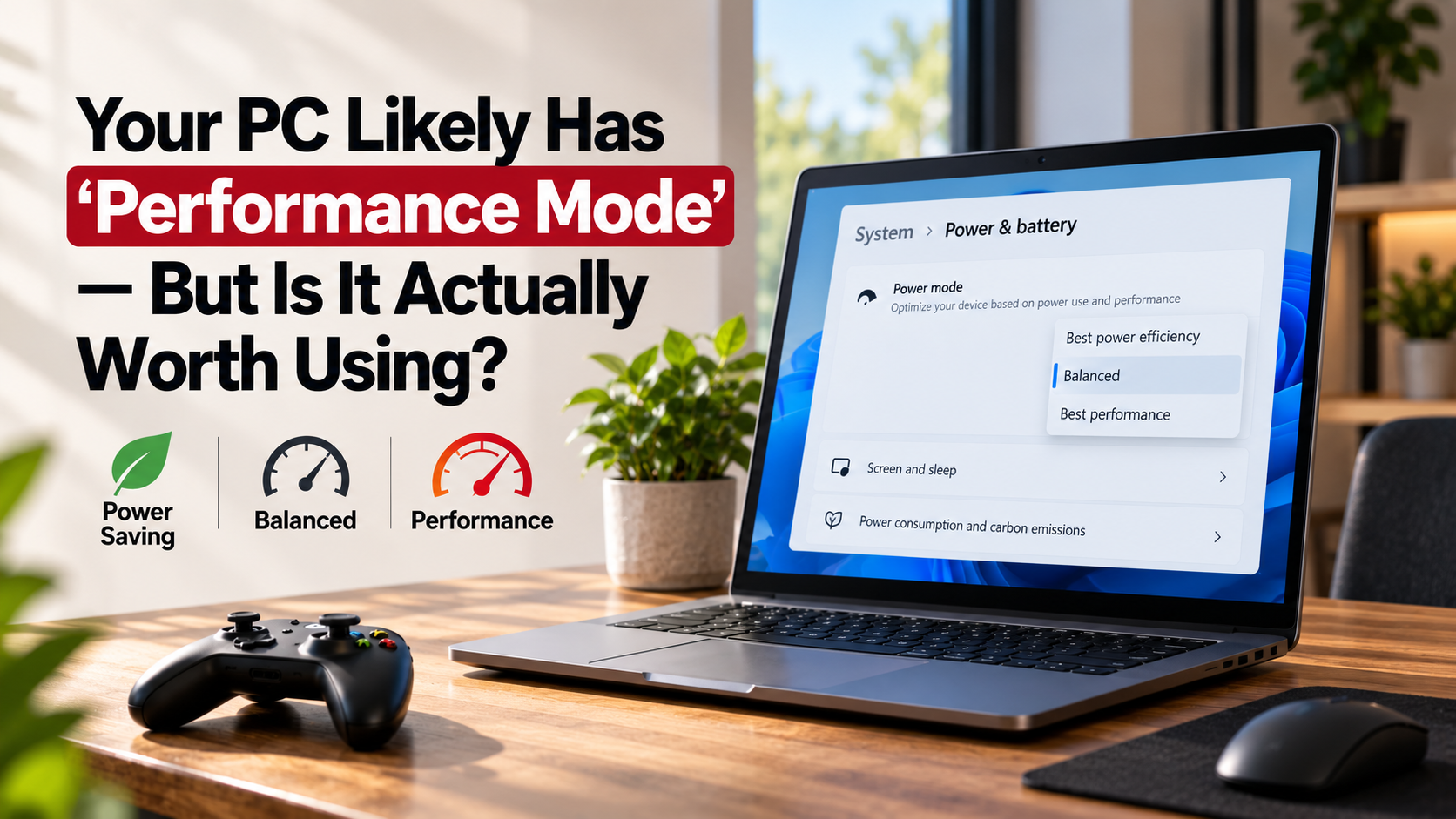
Your PC Likely Has ‘Performance Mode’ – But Is It Actually Worth Using?
Most modern computers offer built-in power settings that prioritize performance over energy efficiency. You can adjust these settings through Windows power and sleep options using Microsoft Support. However, enabling performance mode does not turn an average PC into a high-end workstation.
Operating systems normally balance performance, power consumption, heat, and battery life. Performance-focused settings can reduce some power-saving behavior and allow hardware to respond more aggressively during demanding workloads. The actual benefit depends heavily on your processor, cooling system, graphics hardware, and workload.
Before changing your power plan, consider what you actually do on your computer. Gaming, video editing, 3D rendering, and large development projects can benefit more than basic browsing. This guide explains when performance mode is useful, whether 32GB RAM is excessive, and how well seven-year-old computers can still handle modern tasks.
Is performance mode worth using?
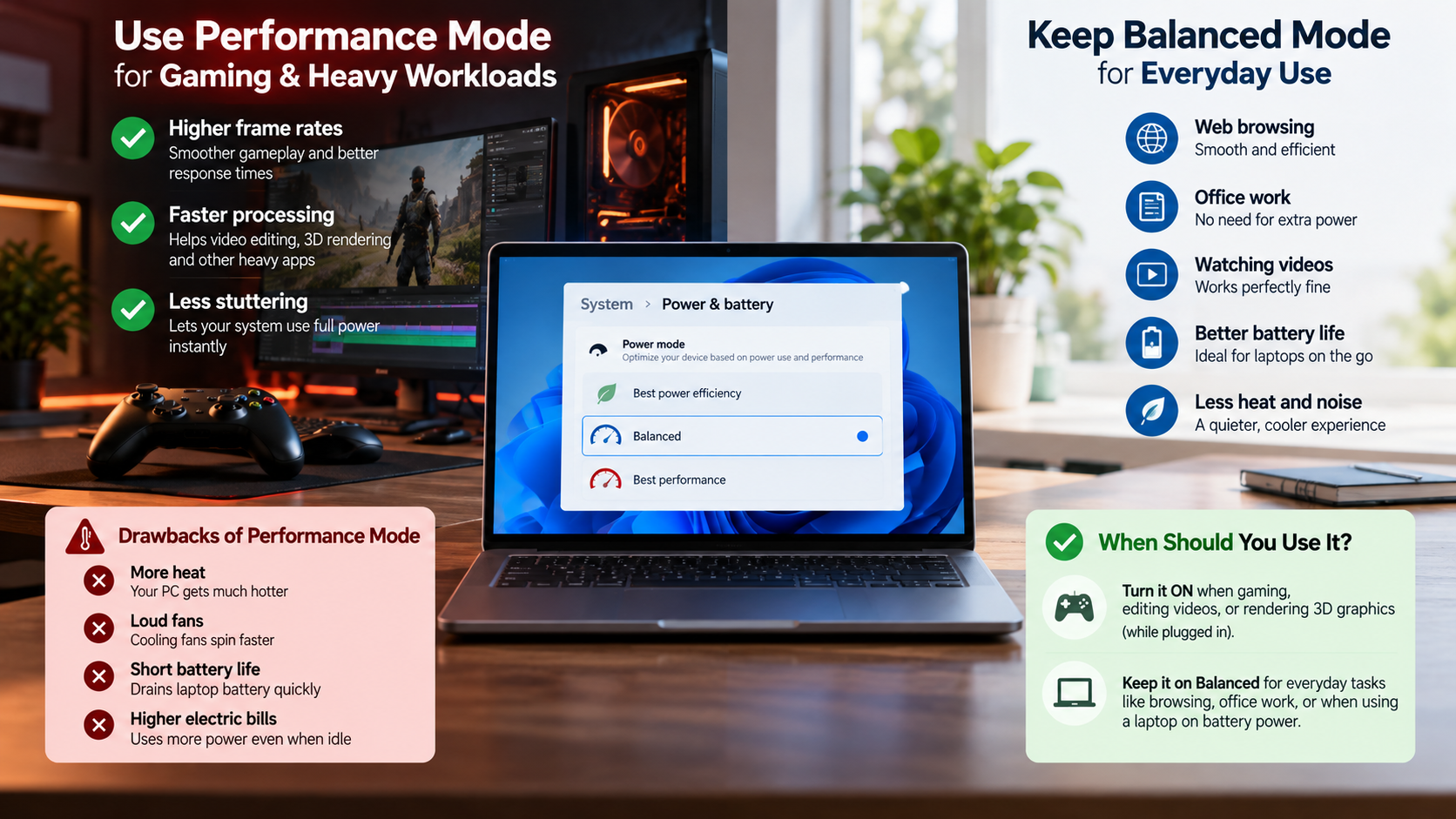
Performance mode is useful when your computer regularly handles demanding workloads that benefit from consistent responsiveness. Depending on the system, this setting can reduce aggressive power-saving behavior and allow the processor to maintain higher performance states for longer periods. This can help during gaming, video editing, rendering, compiling, and other CPU-intensive workloads.
The difference is usually much smaller during ordinary tasks. Browsing websites, writing documents, watching videos, and checking email rarely require sustained maximum performance. In these situations, performance mode may increase power consumption and fan activity without producing an obvious speed improvement.
Laptops require extra consideration because performance-focused settings can reduce battery life. If your laptop already loses power quickly, understanding the causes of laptop battery drain can help you decide whether a performance-focused setting is worthwhile. They may also increase operating temperatures when the system is unplugged or working under heavy loads.
For most people, the practical approach is simple:
- Use performance mode for demanding workloads.
- Use Balanced for everyday computing.
- Switch settings based on your current workload when necessary.
Real-World FPS and Latency Differences
Performance profiles do not automatically produce large increases in gaming frame rates. Your GPU, CPU, game settings, resolution, and thermal limits usually have a much greater effect on average FPS. Your graphics card also handles far more than gaming, including tasks such as video processing, rendering, and certain creative workloads. Learning about what your GPU can do besides play games can help put its broader capabilities into perspective. If your graphics card is already operating at its normal performance level, changing the Windows power plan may produce only a small difference.
The more noticeable benefit can appear in frame-time consistency and responsiveness. A performance-focused profile may reduce some power-state transitions and help the CPU respond more consistently during demanding moments. This can matter in competitive games where small latency changes are noticeable.
However, results vary significantly between systems. Modern processors already adjust their clock speeds dynamically. Some desktops and laptops therefore show little measurable improvement after changing the power plan.
If gaming performance is your priority, check actual benchmark results rather than assuming the setting works. Monitor average FPS, 1% low FPS, frame times, temperatures, and power consumption before and after making the change.
Is 32GB RAM overkill for Windows 11?
For many Windows 11 users, 32GB RAM is not overkill, but it is not necessary either. The right amount depends on your applications and multitasking habits. People who use many browser tabs, virtual machines, creative software, development tools, or demanding games can benefit from the additional memory capacity.
For basic tasks, 16GB remains sufficient for many users. Web browsing, office applications, video streaming, and everyday communication generally do not require 32GB. Moving to 32GB becomes more useful when several memory-heavy applications run simultaneously.
Additional RAM also gives Windows more room to keep active applications and cached data in memory. This can reduce the need to move data between RAM and slower storage when memory pressure becomes high.
Consider 32GB if you regularly:
- Run multiple demanding applications together.
- Edit high-resolution photos or videos.
- Use virtual machines or development environments.
- Play demanding games while running other applications.
- Want additional memory headroom for future software.
Future-Proofing for Modern Computing Demands
Software requirements generally increase over time, although the pace varies between applications. Additional RAM can therefore provide useful headroom as browsers, creative applications, games, and development tools become more demanding.
A 32GB system gives you more flexibility when running several applications simultaneously. For example, you could keep a browser, code editor, database tools, communication software, and virtual machine open without approaching the limits of a 16GB configuration as quickly. When deciding whether an older PC can handle these demands, it is also useful to understand how to safely upgrade to Windows 11 without losing data.
However, buying more RAM does not automatically make a computer faster. If your workload rarely uses more than 16GB, additional memory may provide little noticeable improvement. Other components can become the actual bottleneck.
Before upgrading, check memory usage in Task Manager while performing your normal workload. Consistently high memory usage is stronger evidence for an upgrade than simply wanting more capacity.
For users building a new PC, 32GB can also provide a comfortable margin for multitasking. For existing systems, upgrading makes more sense when current workloads regularly approach available memory.
Is a 7 year old computer still good?
A seven-year-old computer can still handle many everyday tasks, especially when it has an SSD and sufficient RAM. Office applications, web browsing, streaming, email, and basic cloud services can remain perfectly usable on older hardware.
Replacing a mechanical hard drive with an SSD can make an older computer feel significantly more responsive. Boot times, application launches, and general file access can improve substantially compared with an aging HDD.
The limitations become clearer with demanding workloads. Modern games, advanced video editing, 3D rendering, and newer software can place heavy demands on older processors and graphics hardware. Older systems may also lack support for newer hardware-based security requirements.
Before replacing a seven-year-old PC, consider what you actually need it to do. If it handles your daily tasks reliably, an upgrade may not be necessary.
An older computer can remain useful when:
- It has adequate RAM.
- Storage has been upgraded to an SSD.
- The operating system remains supported.
- Your applications still meet the hardware requirements.
- Performance remains acceptable for your workload.
Overcoming Modern Operating System Limitations
Age-related software compatibility can become a bigger problem than raw performance. Some older processors and motherboards lack the hardware features required for officially supported versions of newer operating systems. Windows 11, for example, has specific hardware and security requirements that can exclude some older PCs.
TPM 2.0, supported processors, Secure Boot, and firmware configuration can all affect compatibility. A computer that performs well may therefore still face an operating system upgrade limitation.
Instead of replacing an otherwise functional computer immediately, check whether the manufacturer provides compatible firmware updates or supported upgrade paths. You should also verify the official requirements for the operating system you plan to install.
Lightweight Linux distributions can be another option for older hardware when appropriate. They can provide a modern environment for browsing, documents, media, and administrative tasks. However, software compatibility and hardware support should be checked first.
Avoid treating unsupported operating system installations as automatically safe. Security updates, driver support, and application compatibility should remain important considerations when extending an older PC’s lifespan.
Should you set your PC to high performance mode?
You should use High Performance mode when your workload genuinely benefits from sustained responsiveness. This can include CPU-heavy compilation, rendering, certain workstation applications, and workloads where frequent power-state changes affect performance consistency.
However, High Performance mode is not a universal speed boost. Modern processors dynamically manage their frequency and power according to workload, temperature, and hardware limits. Changing the power plan cannot overcome an underpowered CPU, weak GPU, insufficient RAM, or thermal throttling.
On everyday laptops, keeping the system in High Performance mode can also increase power consumption, fan noise, and heat. The additional performance may be difficult to notice during basic browsing or office work.
A practical approach is to use different settings for different situations. Keep Balanced mode for normal work and switch to a performance-focused plan when running demanding applications.
Also remember that the exact behavior varies by Windows version and manufacturer. Some laptops use custom power-management software instead of relying entirely on standard Windows power plans.
Managing System Temperatures and Fan Noise
Performance-focused settings can increase power consumption during sustained workloads. More electrical power eventually becomes more heat, which means the cooling system may need to work harder. This can result in faster fan speeds and greater operating noise. If your PC also takes longer to start or shut down, understanding Fast Startup on your PC can help you distinguish power-management behavior from startup-related settings.
Heat management depends on more than the Windows power plan. CPU and GPU workload, ambient temperature, cooling design, dust buildup, thermal paste, and fan condition can all influence temperatures.
For desktops, adequate case airflow helps move warm air away from the processor and graphics card. Laptops have less cooling capacity, so performance settings can have a more noticeable effect on temperatures and battery life.
If your PC becomes unusually hot, changing the power plan should not be the only solution. Check temperatures under load and inspect the cooling system for dust or restricted airflow.
Balanced settings are often sufficient for everyday computing because modern processors already adjust performance dynamically. Use maximum-performance settings when the workload justifies them rather than leaving them enabled without a specific reason.
Frequently Asked Questions
Does performance mode damage your PC over time?
Performance mode does not normally damage a modern computer by itself. Processors and other components include thermal and power protections designed to prevent operation outside safe limits. However, a performance-focused power plan can increase power consumption and heat under certain workloads.
Higher temperatures sustained over long periods can contribute to faster component aging. This does not mean that enabling performance mode will suddenly shorten your computer’s lifespan. The actual effect depends on the hardware, cooling system, workload, and operating environment.
Laptop users should pay particular attention to battery temperature and battery health. Heat is an important factor in battery aging, especially when the system is frequently operating under heavy loads.
Good maintenance can reduce unnecessary thermal stress:
- Keep cooling vents clear.
- Clean accumulated dust from fans and heatsinks.
- Avoid blocking laptop ventilation.
- Monitor CPU and GPU temperatures during heavy workloads.
- Use Balanced mode when maximum performance is unnecessary.
The key issue is sustained heat, not the name of the power plan itself. Modern hardware is designed to manage normal performance workloads safely.
Why does my PC feel hot when performance mode is active?
Your PC may feel hotter because performance-focused settings can reduce some power-saving behavior. Instead of allowing the processor to spend as much time in lower-power states, the system may maintain higher performance states more readily during activity.
Higher electrical power consumption produces additional heat. The cooling system then has to remove that heat from the processor and other components. As a result, fans may run faster, and the laptop chassis or desktop exhaust may feel warmer. If your PC also behaves differently when entering or leaving low-power states, comparing Sleep Mode vs Shutdown can help explain those differences.
The effect is more noticeable during demanding tasks such as gaming, rendering, video editing, or software compilation. On a desktop with strong cooling, the temperature increase may be relatively modest. On a thin laptop, the difference can be more obvious because the cooling system has less thermal capacity.
Performance mode is therefore not necessarily causing a problem. A warmer system can be expected when it is using more power.
Still, unusually high temperatures should not be ignored. Check your CPU and GPU temperatures, clean blocked vents, and investigate cooling problems if temperatures remain excessive.
Can performance mode increase download and internet speeds?
Performance mode does not increase the maximum bandwidth provided by your internet connection. Your download speed is primarily determined by your internet plan, network conditions, router, Wi-Fi connection, server capacity, and other factors.
Changing the Windows power plan therefore will not turn a 100 Mbps connection into a 500 Mbps connection. Network hardware and the quality of your connection remain the primary factors.
However, CPU performance can affect certain tasks that happen after or during a download. For example, software may need to decompress files, verify packages, encrypt data, or write large amounts of information to storage. A faster-performing system can sometimes complete these processing tasks sooner.
That does not mean the internet connection itself became faster. It simply means the computer may process downloaded data more efficiently.
If downloads are slow, investigate the network before changing the power plan. Test your connection speed, check Wi-Fi signal quality, restart network equipment when appropriate, and compare results across different servers or devices.
Is the Ultimate Performance mode safe for everyday desktop use?
The Ultimate Performance power plan is generally safe to use on compatible desktop hardware. However, safe does not mean useful for every workload. The plan is designed to reduce certain power-saving behaviors and prioritize sustained performance.
For demanding workloads, these settings can be useful when consistent responsiveness matters. Examples include workstation applications, rendering, some development workloads, and other sustained computational tasks.
For basic browsing, document editing, email, and media playback, the additional power consumption usually provides little practical benefit. Modern processors already manage their performance states dynamically, so an aggressive power plan is not required for normal responsiveness.
Desktop cooling also matters. A system with adequate airflow can handle higher sustained power more comfortably than a poorly ventilated machine. Performance settings should therefore be considered alongside your hardware’s thermal design.
If your computer is mainly used for everyday tasks, Balanced mode is generally sufficient. If you regularly perform demanding workloads, compare actual performance, temperatures, fan noise, and power consumption before deciding whether Ultimate Performance provides a measurable advantage.
Conclusion
Built-in Windows power configurations can be useful when matched to the right workload. Performance mode may help maintain more consistent responsiveness during demanding tasks, but it does not automatically deliver a major speed increase.
For gaming, rendering, software compilation, and other intensive workloads, a performance-focused profile can be worth testing. For browsing, office work, and media consumption, Balanced mode is often sufficient while using less power and producing less heat.
Memory capacity also matters. 32GB RAM provides useful headroom for demanding multitasking, creative applications, development environments, and some modern games. However, 16GB remains adequate for many everyday users.
A seven-year-old computer can also remain useful when its hardware meets your needs. An SSD, sufficient memory, supported software, and reasonable thermal performance can extend its practical lifespan.
Ultimately, power settings should complement your hardware rather than substitute for necessary upgrades. Monitor actual performance and temperatures, identify the real bottleneck, and choose the setting that fits your workload.